Tag: xiaomi

  • April brings critical system app updates for HyperOS 2.2

    April brings critical system app updates for HyperOS 2.2

    For optimal performance and user experience, it is imperative to keep your Xiaomi smartphone updated, especially with the new HyperOS ecosystem. Five essential system apps will receive significant updates in April 2025 that enhance their usability, security, and appearance. All Xiaomi phones will offer a better, more potent experience thanks to these updates, which are made to work perfectly with HyperOS 2.1.

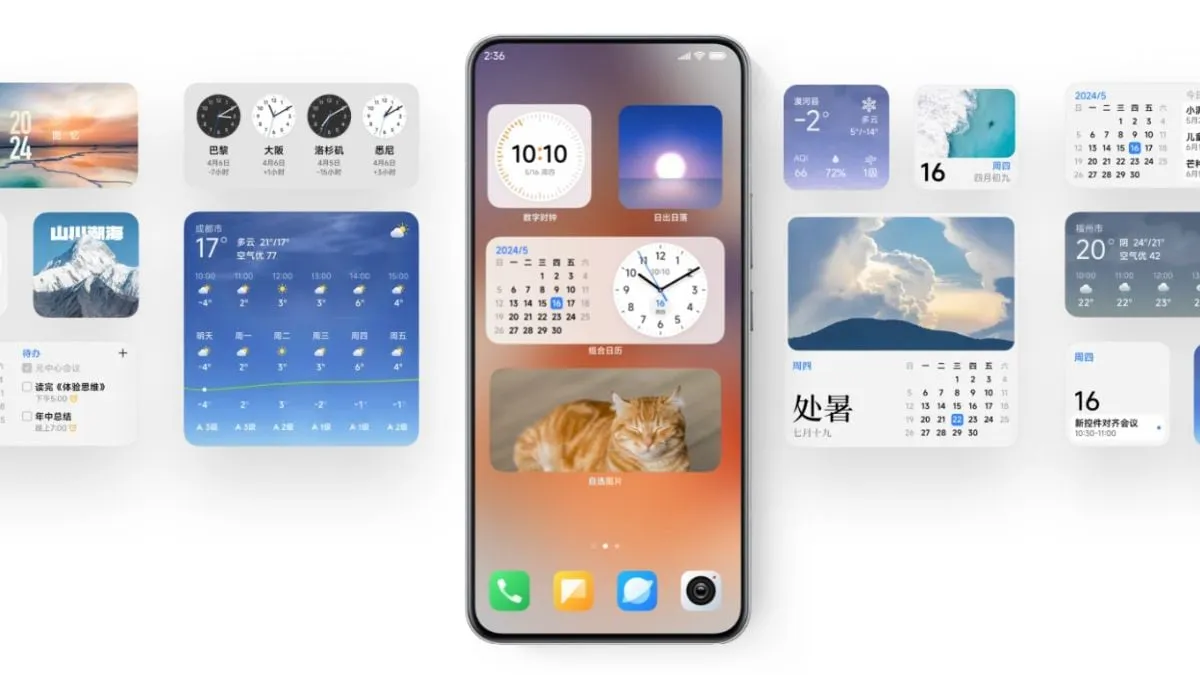
    HyperOS Launcher

    Updated on HyperOS Launcher was overhauled in full with many enhancements:

    • Improved Animations: Better folder animations bring a more refined, pleasing aesthetic experience
    • Enhanced Readability: Large fonts on the top drawer bar improve readability
    • MIUIX V3 UI Library: Implements modern design language for a fresher appearance with more uniform features
    • Adjustable Layout Options:
      • 4×6 layout with search box 4×7 layout without search box
      • 5×8 layout with search box
      • 5×9 layout without search
    • Revamped Menus: Enhanced desktop grid layout, gesture, app vault, and folder edit interfaces
    • 2K Screen Optimization: Popup UI now scaled correctly for high-resolution screens
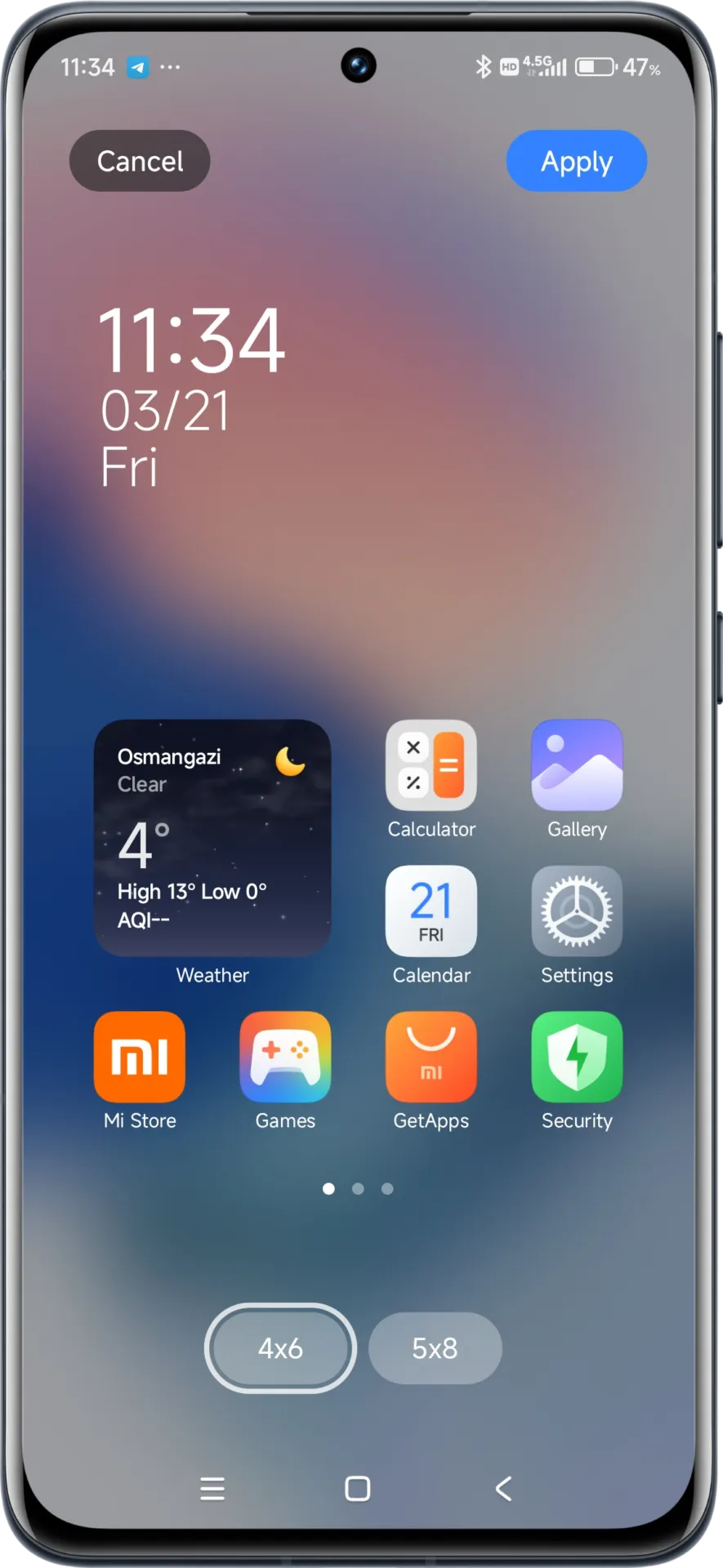
    hyperos launcher

    The update to the launcher is centered on aesthetics and functionality, resulting in an improved user experience that still offers high performance.

    HyperOS Themes

    The updated HyperOS Themes has a better, more streamlined user interface. The update makes device customisation more comprehensive and accessible, allowing users to alter their gadgets to better reflect their own unique style.

    With improved previewing and classifying capabilities, the simplified interface makes it possible to find and use new themes more quickly and easily.

    HyperOS Security

    The HyperOS Security updated for brings essential enhancements to gaming performance and device protection:

    • Turbocharged Game Performance: All-out performance enhancements with advanced optimization capabilities
    • Security Improvements: Several behind-the-scenes updates improve system and data security
    • Performance Optimizations: Enhanced resource allocation to ensure seamless performance even on high-intensity tasks
    • Privacy Controls: Broader choice for controlling app permissions and data access
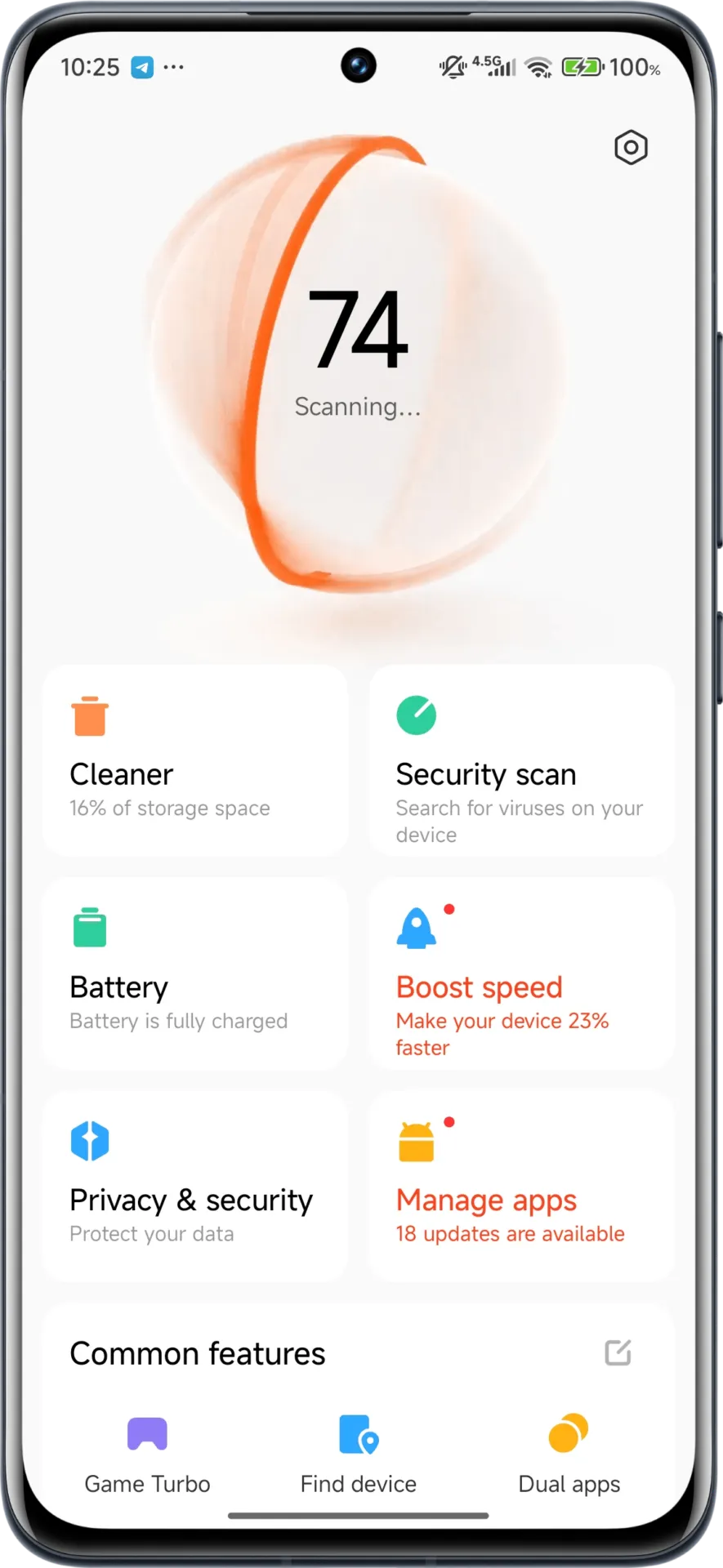
    hyperos security app

    These security enhancements play a crucial role in shielding personal data while providing stable system performance.

    HyperOS Wallpaper

    Updated on April. This new version emphasizes fixing bugs and performance enhancements. This update also solves problems that were causing lock screen and home screen wallpapers to:

    • Improved fluidity in switching wallpapers Improved stability throughout system transitions
    • Enhanced resource management for reduced battery usage
    • Improved integration with dynamic wallpaper features
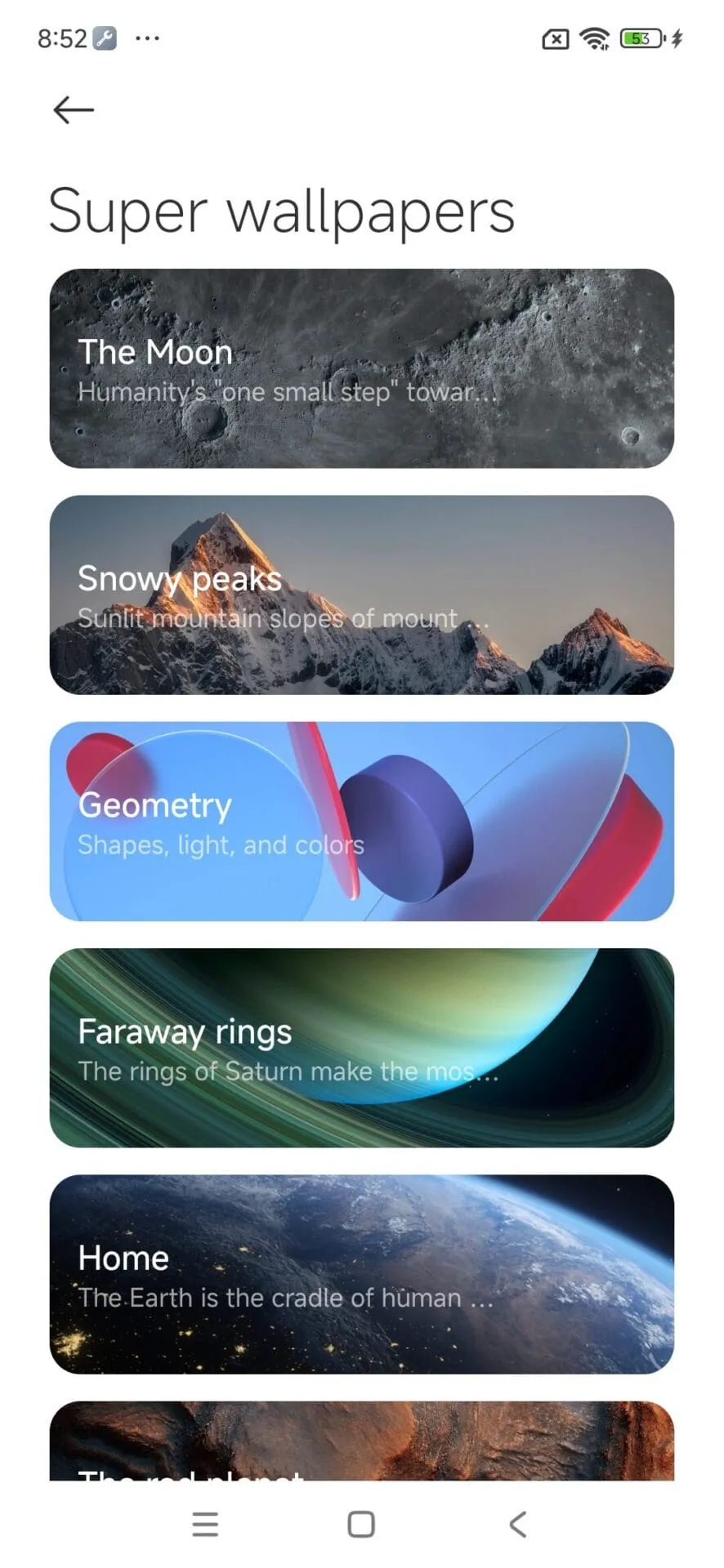
    hyperos wallpaper app

    Though mostly an update for maintenance, these changes considerably improve overall Wallpaper experience.

    How to update HyperOS system apps

    For an optimized upgrading process, Xiaomi users have an available HyperOS Downloader app:

    1. Download and install MemeOS Enhancer or directly from HyperOSUpdates.com
    2. Utilize the MemeOS Enhancer function for all installed HyperOS apps
    3. Get early updates before most other users
    4. Find more tools such as GCam integration
    5. Enable secret system features that cannot be accessed via default settings
    6. Updating these five core system apps is the basis for keeping your Xiaomi device in top condition with access to new features plus security upgrades.
    7. Get the latest updates today to unlock HyperOS 2.1’s full capabilities.
  • Google’s new tool will solve battery issues on Xiaomi devices

    Google’s new tool will solve battery issues on Xiaomi devices

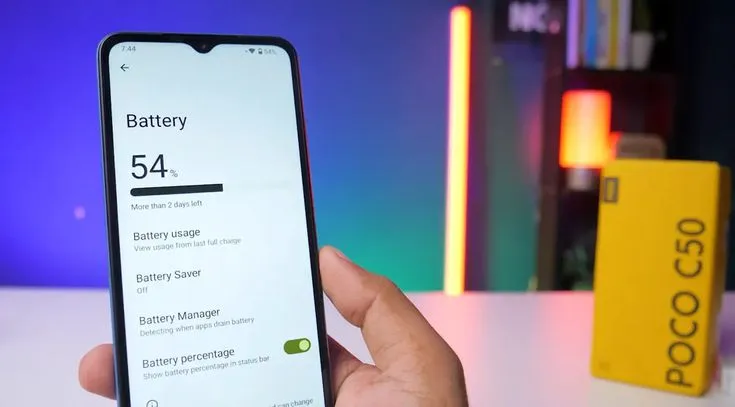
    Google announced an amazing beta feature that addresses one of Android’s most long-standing issues: battery drain. The innovation is significant for Xiaomi consumers who prioritize battery performance in their daily smartphone usage. The functionality works by tracking “excessive wake locks” in Android’s Vitals panel, assisting developers in identifying and correcting programs that secretly waste battery power in the background.

    For those who do not aware, “wake locks” are system-level capabilities that allow applications to keep your phone awake when in background operations. Although valid in some applications, such as music or navigation, overuse can severely deplete your Xiaomi device’s battery without providing any value in terms of how you view your experience.

    hyperos battery drain fix

    How Does Google’s New Tool Work?

    This approach is specifically designed for applications with active foreground processes that are running in the background. If such programs maintain a “wake lock” for more than three hours in a single 24-hour cycle, regulators consider them harmful. This accurate identification enables developers to address battery usage issues before they reach a large number of consumers.

    This methodology provides app developers with more realistic views of how their applications function in real-world circumstances rather than laboratory-like test scenarios.

    Partnership with Key Manufacturers

    Google is not operating alone in this initiative. The internet behemoth is working with key smartphone manufacturers like Samsung to define “good” performance in a more consistent manner across the Android platform.

    This collaboration aims to help developers create more optimized applications that run as easily as possible across a wide range of phone models from all brands, from Xiaomi’s large array of cheap options in Redmi to premium flagships in Mi.

    Android Future Plan for Optimisation

    This battery monitoring tool is just the beginning of Google’s multi-year strategy to provide developers with deeper insights into real-world app performance. Looking ahead, Google plans to:

    • Roll out more metrics for performance optimization
    • Develop and launch new battery life measurement tools.
    • Potentially release an updated Play Store to promote highly optimized apps

    For Xiaomi users who consider battery life to be an important feature, these innovations hold out hope for an era when third-party applications are more efficient to use under HyperOS and other Android-based platforms.

    What It Means for Xiaomi Users

    Xiaomi has continually focused energy optimization in its devices, including larger batteries and advanced power management in HyperOS. Google’s new developer tools support these efforts by addressing the software side of the problem, potentially improving Xiaomi phones’ outstanding battery life.

    The “excessive wake lock” monitoring tool is currently in the testing phase, with Google actively seeking developer feedback to improve its capabilities before a wider release.

  • The easiest ways to take a screenshot on any Android device (no 3rd app required)

    The easiest ways to take a screenshot on any Android device (no 3rd app required)

    Screenshots are quite useful. Most Android users save receipts, share humorous memes, and capture bugs to report on a daily basis. However, not all Android phones employ the same approach for taking screenshots.

    In this guide, you will learn how to take a screenshot on any Android device, including Samsung, Google Pixel, Xiaomi, OnePlus, and others. We will also show you how to take screenshots without using physical buttons, which are sometimes damaged or inconvenient.

    ✅ Common Methods to Take a Screenshot on Android

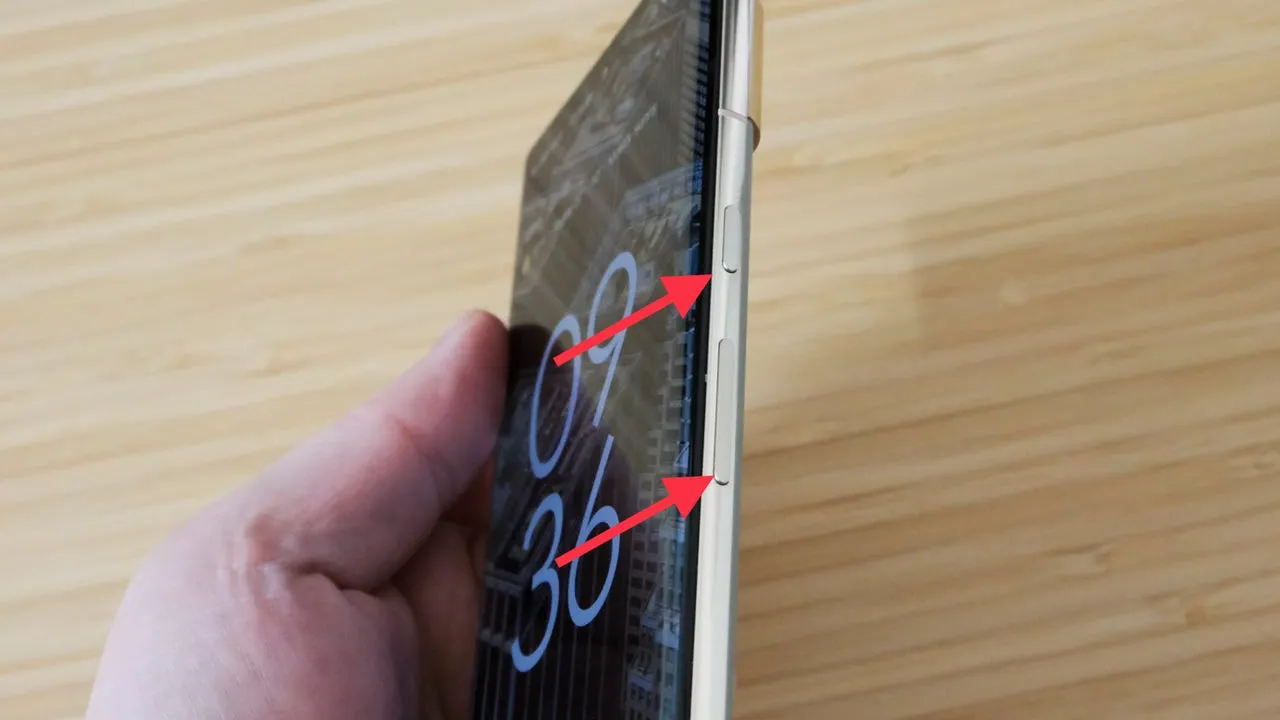
    📱 1. The Universal Button Combo: Power + Volume Down

    This method works on 99% of Android devices:

    • Press and hold the Power button and Volume Down at the same time
    • Hold for about 1 second until the screen flashes or you hear a shutter sound
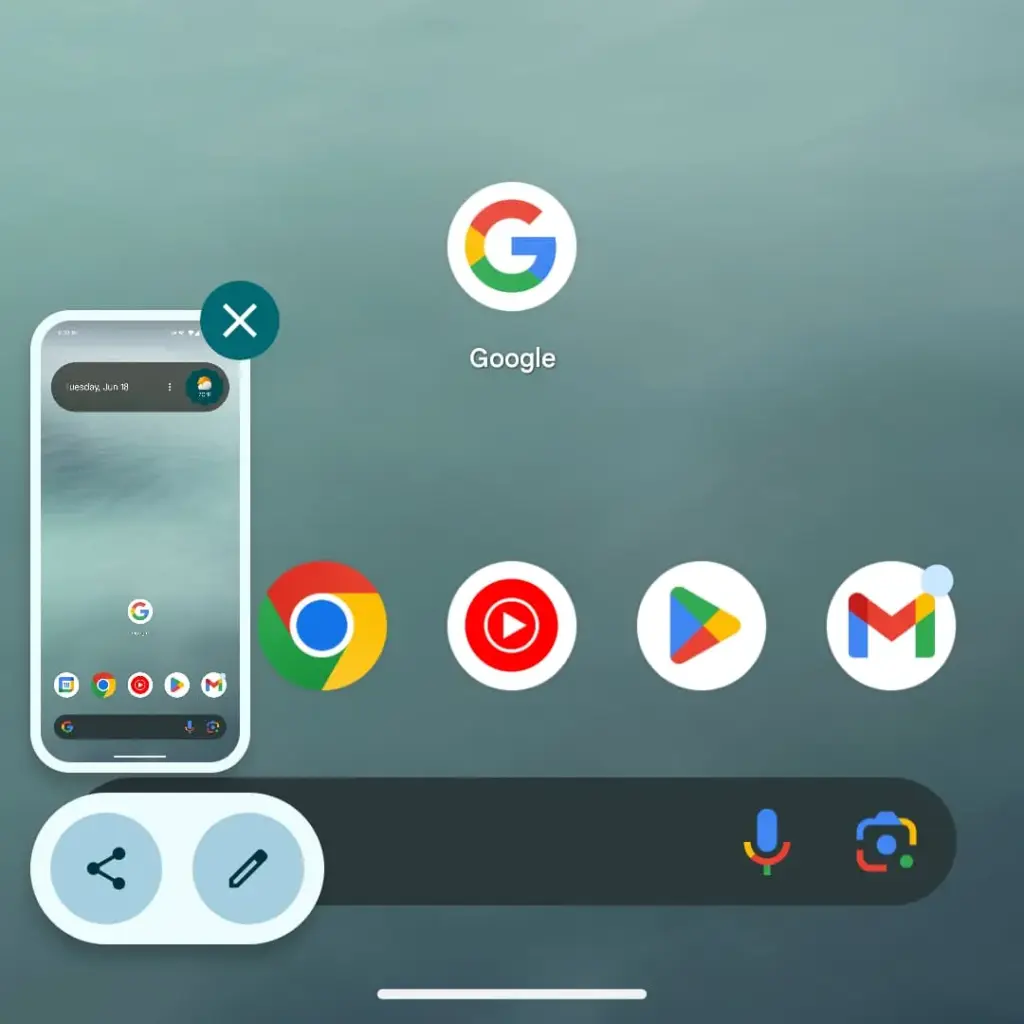
    • A preview of the screenshot will appear with options to Edit, Share, or Delete

    📝 Works on: Samsung, Pixel, OnePlus, Xiaomi, Motorola, Realme, and most others.

    📸 Recommended image here: A screenshot showing fingers pressing Power + Volume Down on a phone.

    📲 Brand-Specific Methods (With Enhancements)

    📱 Samsung Galaxy Devices

    Samsung offers multiple screenshot options beyond the button combo:

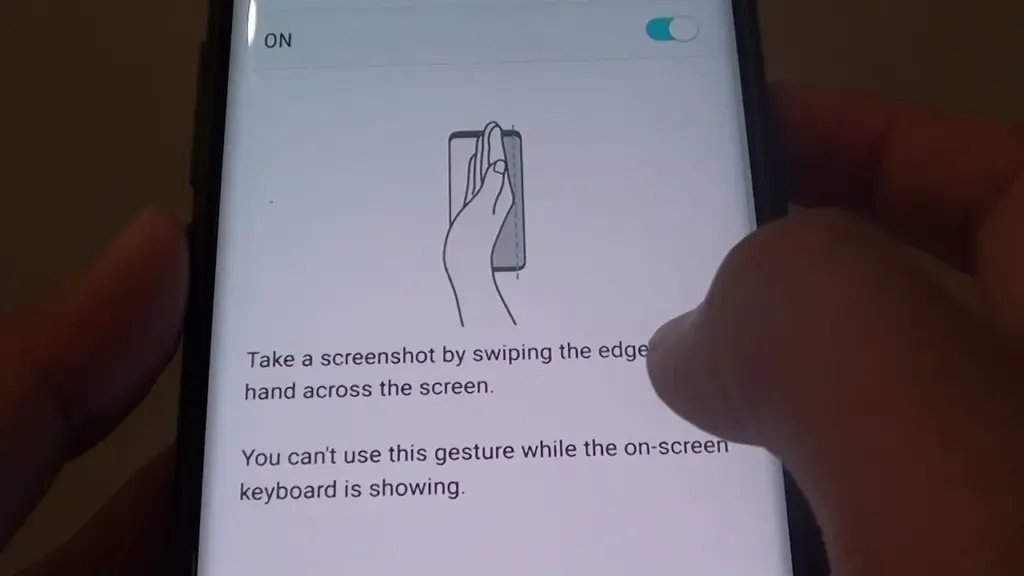
    ✋ Palm Swipe Gesture

    • Go to Settings > Advanced Features > Motions and Gestures
    • Toggle on Palm swipe to capture
    • Swipe your palm horizontally across the screen (left to right or vice versa)
    maxresdefault

    ✨ Smart Capture (Scroll Capture)

    • After taking a screenshot, tap the scroll icon in the preview to capture an entire page (e.g., a long webpage)

    🧠 Tip: Scroll Capture is perfect for saving full chats, articles, or receipts.

    📷 Google Pixel Devices

    Google Pixel sticks to simplicity:

    • Power + Volume Down is the main method
    • On Android 13+, when you open the Recent Apps view, there’s a Screenshot button under each app window

    🔒 Screenshots are disabled for secure apps like banking apps or Netflix (for DRM protection)

    android screenshot options

    ⚙️ Xiaomi, Redmi, and POCO (MIUI)

    Xiaomi devices give you gesture and quick-access methods:

    • Power + Volume Down (standard)
    • Swipe three fingers downward on the screen for a quick snap
    • Use the Quick Ball feature:
      • Enable via Settings > Additional Settings > Quick Ball
      • Tap it, and choose Screenshot from the floating menu

    🔴 OnePlus (OxygenOS)

    • Power + Volume Down
    • Three-finger swipe down also works (enable in Settings > Buttons & Gestures)
    • Long screenshot (scrolling) is available on preview pop-up

    🧑‍💻 How to Take a Screenshot Without Buttons

    If your power or volume buttons are broken, don’t worry—you can still capture the screen using these workarounds:

    🧠 1. Use Google Assistant or Voice Command

    Just say:

    “Hey Google, take a screenshot.”

    The Assistant will snap the screen and save it to your gallery.

    🔒 Note: Google Assistant cannot take screenshots in some secure apps or during voice calls.

    🧮 2. Enable On-Screen Screenshot Shortcut

    Some phones let you add a screenshot shortcut to the navigation bar or status shade:

    • Samsung: Add “Screenshot” to the Edge Panel or Quick Settings
    • Xiaomi: Enable Quick Ball or Button Shortcuts
    • OnePlus: Add Screenshot to the Navigation gestures

    ♿ 3. Use Accessibility Menu (for all Android phones)

    If you’re on Android 9 or later:

    1. Go to Settings > Accessibility > Accessibility Menu
    2. Enable it
    3. You’ll see a little person icon at the bottom right
    4. Tap it > Tap Screenshot

    This is a great method for users with limited mobility or hardware button issues.

    💡 4. Use Third-Party Apps (Optional)

    If built-in methods don’t work for you, apps like:

    • Screenshot Easy
    • Screen Master
    • Assistive Touch for Android

    …can provide floating buttons, auto scroll, and editing tools. But these aren’t always needed if your Android version is recent.

    🖼️ Where Are Screenshots Saved?

    Where Are Screenshots Saved?

    After taking a screenshot, your phone automatically saves it in a specific folder based on the manufacturer, Android version, and any file management settings.

    Here’s how to find them on most Android phones.

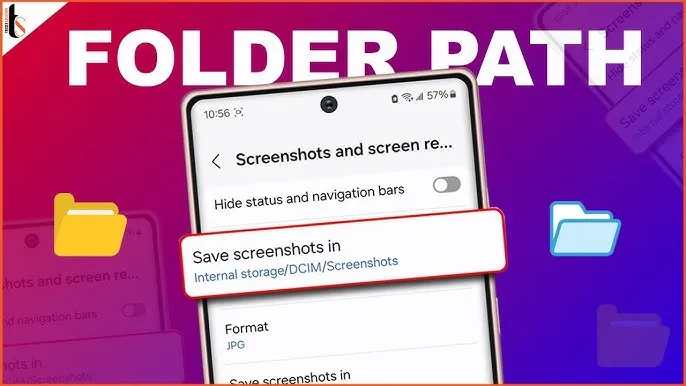
    DCIM > Screenshots
    This is the most common location for screenshots. “DCIM” stands for Digital Camera Images, and it’s where the system stores photos taken with your camera and screenshots.

    Pictures > Screenshots
    On some devices or third-party camera apps, screenshots go here instead of DCIM. This is especially true for older Android versions or modified versions like MIUI (Xiaomi) or ColorOS (OPPO/Realme).

    🧭 To manually browse:

    Navigate to DCIM > Screenshots or Pictures > Screenshots

    Open your File Manager or My Files app

    Tap Internal Storage

    You can also find them in the Google Photos app under the “Screenshots” section.


    ✂️ How to Edit or Share a Screenshot Instantly

    After taking a screenshot:

    • Tap the preview popup before it disappears
    • You can:
      • Crop or annotate the image
      • Share via WhatsApp, Gmail, social media
      • Delete if it was a mistake

    Some phones even allow adding text, shapes, or blur effects directly in the screenshot editor.

    🧼 Screenshot Tips & Tricks

    ✔️ Tip 1: Use Scroll Capture for Long Pages

    Don’t take 5 screenshots for a single chat—use the scrolling option instead.

    ✔️ Tip 2: Organize Your Screenshots

    Create folders like Receipts, Meme folder, Work notes in your file manager.

    ✔️ Tip 3: Don’t Rely on Screenshots for Sensitive Info

    Avoid screenshotting 2FA codes, passwords, or anything too personal. Use a secure note app instead.

    🔚 Wrapping Up

    Taking a screenshot on Android is easier than ever, with different options based on your phone and preferences. Whether you like buttons, gestures, or voice commands, Android has a technique for you.

    Now that you know how to screenshot on any Android phone, try each approach and discover which one works best for you. Also, remember to wipe up old screenshots every now and then – those memes add up quickly!

  • Easily install Android 16 Beta on Xiaomi devices

    Easily install Android 16 Beta on Xiaomi devices

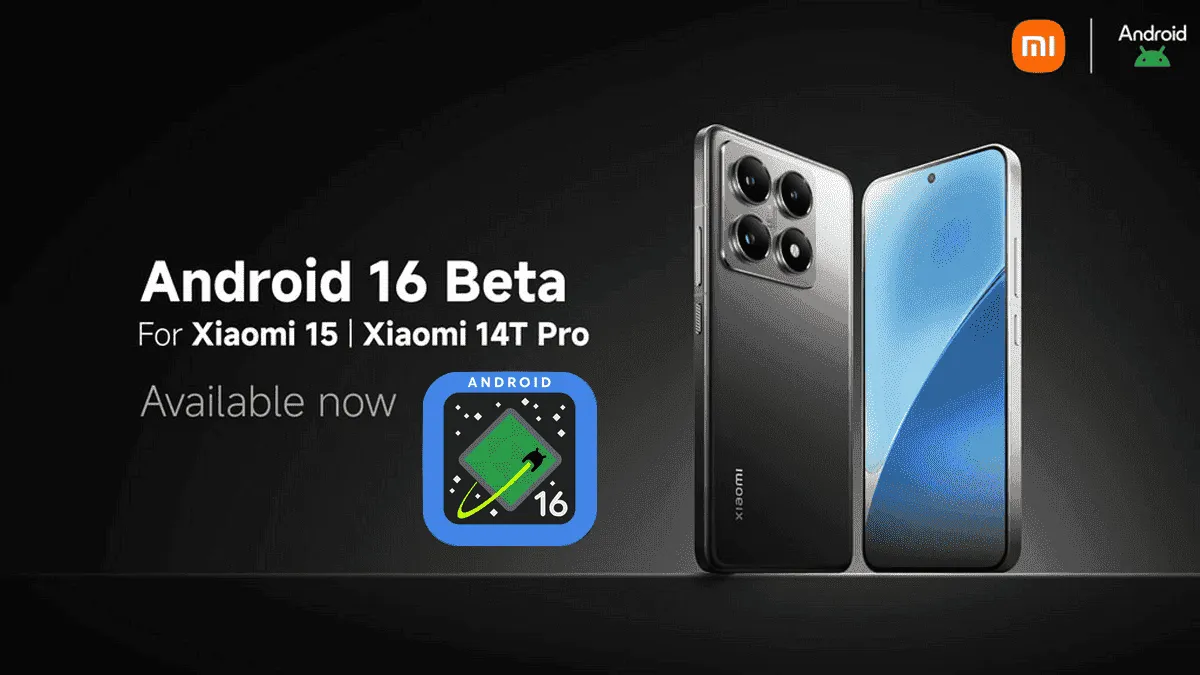
    After being first released in China, the exciting HyperOS 2 for some Xiaomi devices running Android 16 Beta 2 is now available globally. The most recent features and improvements are now available to consumers worldwide on the Xiaomi 15 and Xiaomi 14T Pro, which is the international version of China’s Redmi K70 Ultra.

    If you are eager to obtain Google’s most recent operating system and cannot wait for the final release, which is scheduled for June 2025, this comprehensive installation guide will walk you through the process.

    Supported Devices and Build Numbers

    Check your device compatibility before proceeding with the installation and record the correct build number:

    Method 1: Local Update

    This method is based on your device having at least the following software version:

    1. Check that your Xiaomi 15 is running OS2.0.109.0
    2. Make sure your Xiaomi 14T Pro is running on OS2.0.103.0
    3. Key steps to take Back up your data as you are about to erase the contents of your phone
    • Download the suitable Android 16 Beta build for your device
    • Copy the ROM package into your phone storage
    • Settings → About phone → Tap on “OS version” 10 times in order to enter developer mode
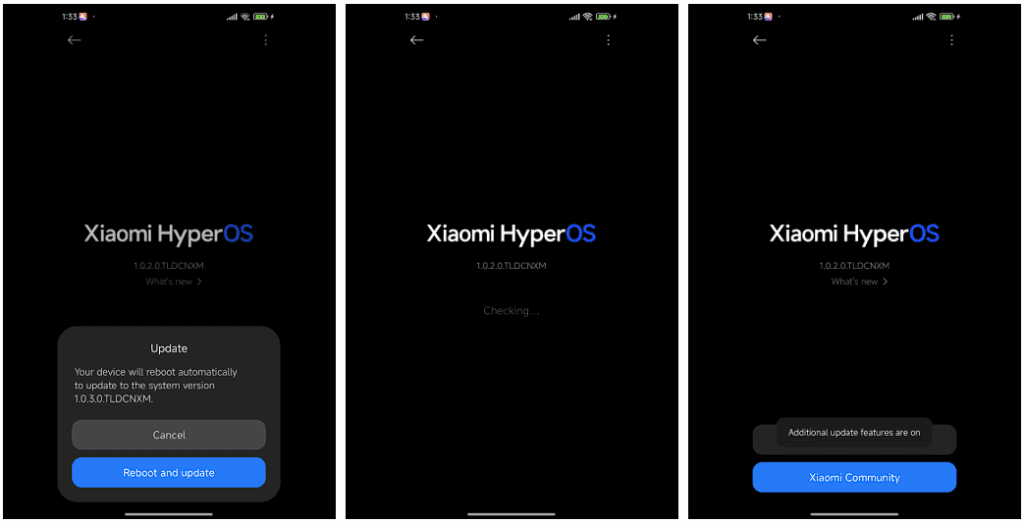
    • Go back to Settings → About phone → Tap on the system icon → Tap on the three-dots icon → Tap on “Choose update package”
    • Select the ROM package in order to initiate the upgrade
    android16 beta 4 on xiaomi devices
    HyperOS Manual Update 4

    Method 2: Fastboot Update

    For experts who are familiar with bootloader unlocks:

    1. Seek out and obtain bootloader unlock approval
    2. Back up your data
    3. Download the Android 16 beta build for your device
      1. Xiaomi 15
      2. Xiaomi 14T Pro
    4. Follow the tutorial for Fastboot Update

    Fastboot Recovery Option

    To restore using Fastboot mode:

    1. Turn off your device
    2. Press Volume-down + Power buttons simultaneously for 4-5 seconds
    3. Restore factory settings as indicated on-screen
    4. Keep in mind that beta software can have bugs as well as performance issues.
  • Xiaomi announced the Android 16 Beta launch – which devices will get it?

    Xiaomi announced the Android 16 Beta launch – which devices will get it?

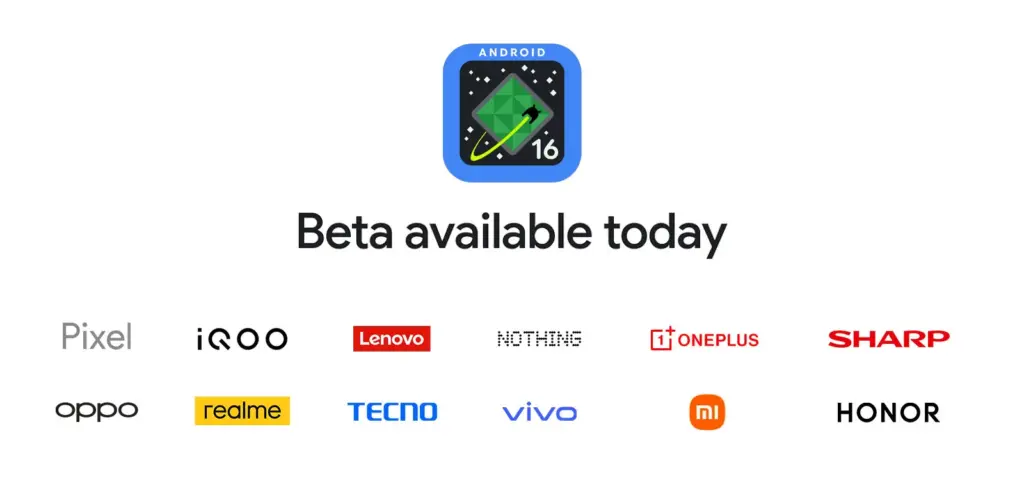
    For developers and Android enthusiasts alike, Google’s release of Android 16 Beta 4 marks a significant milestone as it is the first release candidate build prior to a consumer launch. Along with Honor, iQOO, Lenovo, OnePlus, OPPO, Realme, and Vivo, Xiaomi is among the fortunate ones to have access to the current beta, which is currently available on a variety of devices from various partner vendors, including phones, tablets, and foldable phones.

    It is interesting to note that on April 8, around ten days earlier, Xiaomi had released the same to its flagship Xiaomi 15 and 14T Pro phones. This shows how committed the firm is to providing early adoption of the newest Android innovations.

    Significant changes in Android 16 Beta 4

    Numerous bug fixes and performance enhancements that address issues found by both developers and users are included in the pre-release beta. In order to provide a seamless experience when Android 16 is formally released, Google has been working to increase stability.

    Key fixes in this release are:

    • Resolved the map disappearance bug in the Pixel’s Weather app Resolved problems of haptic performance and late feedback
    • Resolved excessive power consumption that impacted some devices Resolves system restart problems during call answering
    • Fixed display magnification stability issues
    • Corrected screen saver activation problems Fixed phone restart issues that occur while using the ranging API
    • Several system stability and performance enhancements, such as launcher crashes fixes
    Android 16 Beta launch

    Xiaomi amoung the first

    Xiaomi’s dedication to provide users with cutting-edge software experiences is demonstrated by its early release of Android 16 Beta 4. Xiaomi has taken the lead among Android innovators by releasing the beta for the Xiaomi 15 and 14T ten days before the official Google release.

    Early adoption by Xiaomi users offers them the following benefits:

    • Early availability of Android 16 enhancements and features
    • Additional time for users to give feedback and log issues
    • Chance to try the most stable pre-release version of Android 16

    The release is the final scheduled update before the Android 16 Beta program’s public launch, which is currently in its final stages.

  • HyperOS 2.2 Beta changelog released by Xiaomi

    HyperOS 2.2 Beta changelog released by Xiaomi

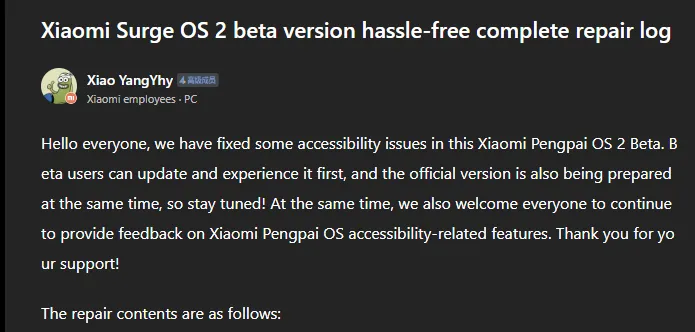
    Xiaomi has taken a huge step in making its devices more inclusive by releasing a comprehensive accessibility repair log for HyperOS 2.2 Beta. Xiaomi employee @小杨Yhy shared a complete update in the Xiaomi Community, addressing accessibility concerns across the system, including basic controls, SMS functioning, and TalkBack improvements. This massive accessibility upgrade underscores Xiaomi’s dedication to create a more inclusive user experience, ensuring that their devices are usable by people with a variety of disabilities.

    HyperOS 2.2 Beta change log

    Common control enhancements in HyperOS

    The accessibility update addresses a number of typical control issues that previously limited users with impairments. These improvements significantly improve the system’s overall user experience.

    Key enhancements to standard controls are:

    • Corrected password control choices in the input fields
    • Resolved index bar operation and selection issues
    • Corrected focus problems with bubbles showing up when entering pages
    • Corrected switch control focus redundancy
    • Corrected wrong reading of switches as checkboxes
    • Included proper labeling to jump buttons in lists
    • Fixed reading problems with search and input boxes
    • Fixed focus and labeling problems with back buttons
    • Enhanced notifications of selection status
    • Provided proper labels to progress bar buttons

    These fundamental upgrades will make the process more natural for users who rely on accessibility capabilities, particularly those who use screen readers or voice commands.

    Communication and messaging enhancements

    All users must be able to communicate, and the latest update significantly improves the SMS and phone accessibility capabilities. These changes make messaging and phoning more accessible to handicapped people.

    Notable SMS and phone accessibility fixes include:

    • Correct labeling of satellite map SMS broadcasts
    • Addressed incorrect messaging in SMS multi-select action
    • Fixed the checkbox selection issue in message feedback.
    • Removed unnecessary blank focus fields in message details
    • Resolved incoming call number labeling issues
    • Fixed the dial pad focus and selection problems.

    The new update also resolves several contact-related accessibility challenges to allow users greater control over their contact list and dialing irrespective of disability.

    Control Center and System Settings Accessibility

    System settings and the Control Center both benefit from extensive accessibility enhancements, making the management of the device more accessible to everyone.

    Key improvements are:

    • Resolved focus penetration problems in the Control Center
    • Fixed switch status reporting issues
    • Included proper labeling throughout the Control Center
    • Fixed-coordinate position reporting during icon ordering adjustment
    • Enhanced focus of notification center and labeling
    • Fixed switch reading problems in settings
    • Added proper control type announcements

    These enhancements guarantee that the users with disabilities can efficiently navigate and control their device settings without the presence of accessibility barriers.

    Specific accessibility features for apps

    The update also introduces several accessibility improvements to some of the Xiaomi apps, such as the CalculatorCalendarWeatherNotesRecorderFile Manager, Xiaomi Video, and Browser. These improvements work to achieve consistent accessibility within the entire Xiaomi ecosystem. TalkBack users stand to benefit most from the fixed volume adjustment problem and touch failure issues that previously hindered screen reader performance.

  • HyperOS 2.2 just got some exciting new features

    HyperOS 2.2 just got some exciting new features

    With a remarkable array of new features in HyperOS 2.2, Xiaomi is once again redefining smartphone innovation. These recent advancements further cement Xiaomi’s position as a mobile technology behemoth by spanning the domains of photography, artificial intelligence, and automotive connection. Explore the exciting new features that will completely transform your Xiaomi experience.

    Photo and video editing capabilities

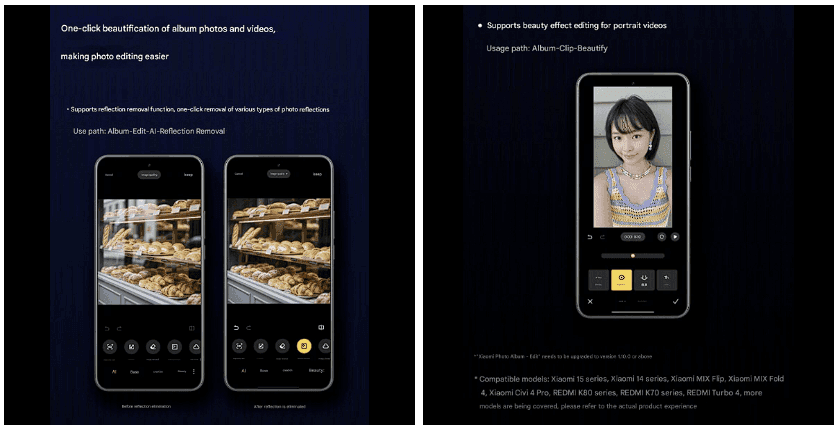
    With HyperOS 2.2, you may alter your visual memories in a whole new way. The new anti-glare feature, which can instantly remove reflections from your photos, is its main attraction. Getting those pictures in the window or in difficult lighting situations is now easier than ever thanks to this technology, which adjusts to various kinds of reflections.

    The update offers video enthusiasts beauty editing features specifically designed for altering portrait videos. With this tool, you can retouch your video recordings to the same level of personalization that was previously only possible with images. The Album app offers immediate access to these editing features through the Album-Clip-Beauty path for films and the Edit-AI-Anti-glare path for images.

    xiaomi hyperos photo and video editing

    These advanced editing capabilities will come to high-end Xiaomi models, including the Xiaomi 15 series, Xiaomi 14 series, Xiaomi MIX Flip, Xiaomi MIX Fold 4, Xiaomi Civi 4 Pro, REDMI K80 series, REDMI K70 series, and REDMI Turbo 4.

    AI-Powered schedule management

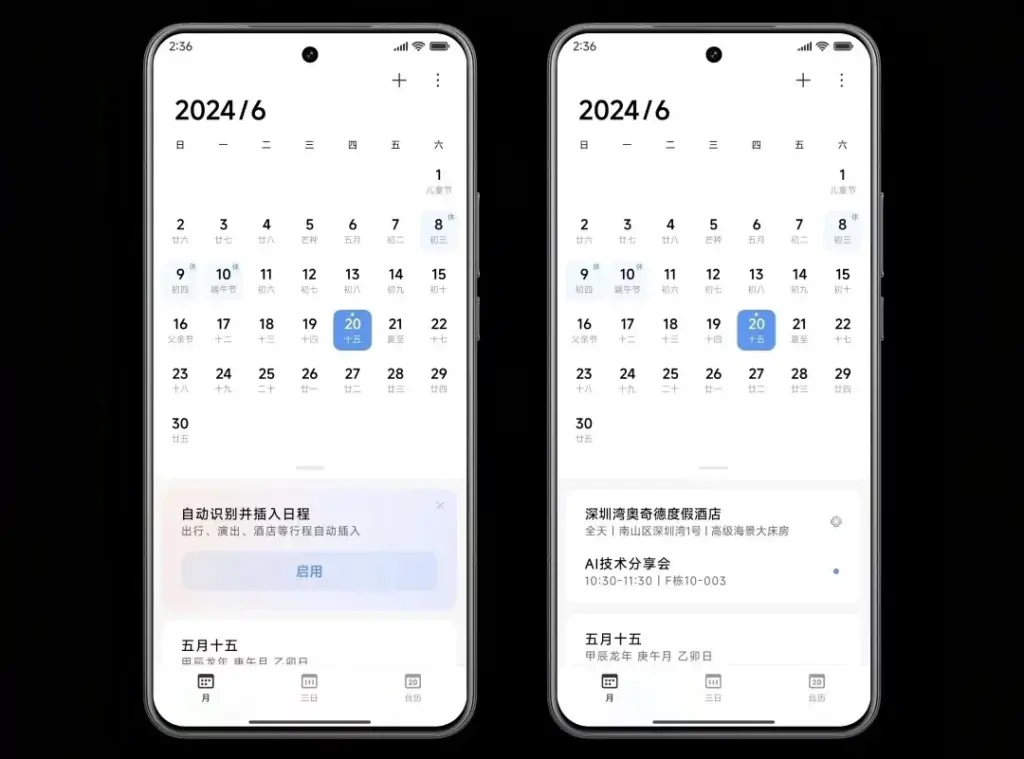
    The AI scheduling clever extraction tool is one of HyperOS 2.2’s most useful enhancements. Instead of requiring you to manually enter scheduling information, this function will identify and display it in your text messages.

    The system accommodates a variety of schedule types, including:

    • Train reservations
    • Flight information
    • Hotel booking
    • Restaurant reservations
    • Performance tickets
    • Movie tickets

    To turn on this handy functionality, simply go to Calendar-Settings and turn on “AI Schedule Extraction.” Be aware that the feature is only supported on Xiaomi HyperAI-enabled models.

    AI-Powered schedule management

    Enhanced CarWith functionality

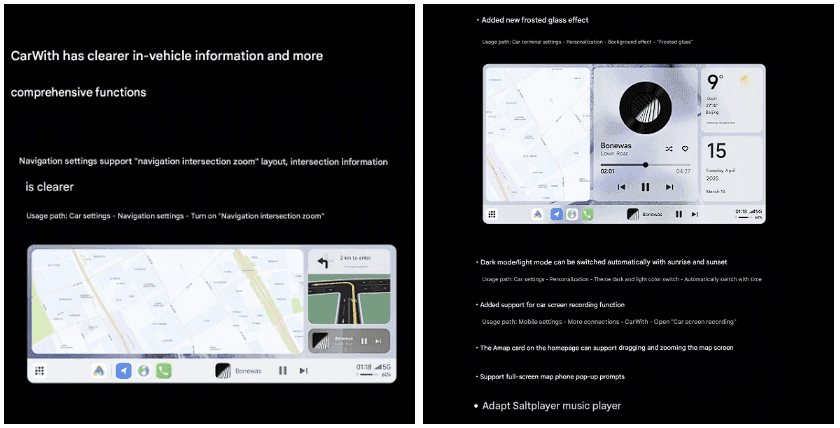
    HyperOS 2.2 significantly improves CarWith, transforming Xiaomi users’ in-car experiences. A new “Navigation intersection zoom” style improves navigation by making information at road intersections easier to read and making it simpler to understand turns and exits up ahead.

    A new frosted glass design further improves the visual experience, giving the car terminal a high-end aspect and feel. The dark mode/light mode can also switch automatically with dawn and sunset for added convenience, reducing eye strain both throughout the day and at night.

    Additional improvements to car connectivity are:

    • Car screen recording capability
    • Map dragging and zooming on the homepage card of Amap
    • Full screen map phone notifications Compatibility with the music player Saltplayer
    xiaomi CarWith

    System-Wide optimizations

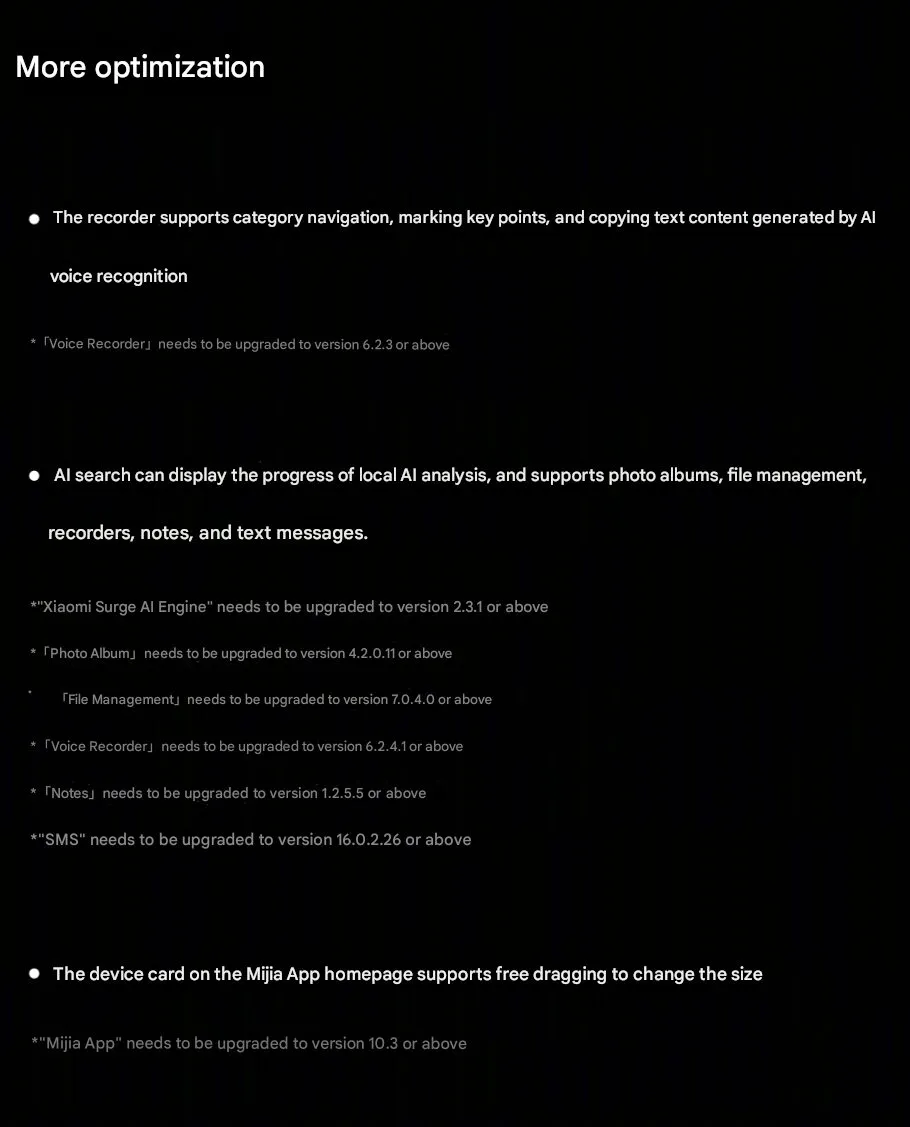
    Beyond these major improvements, HyperOS 2.2 includes several quality-of-life enhancements throughout the system:

    • Recorder app includes support for category browsing, highlighting of key points, and copying of text created by AI voice recognition
    • AI search shows activity of local AI processing and provides support to photo albums, file management, recorders, notes, and texts
    • Mijia App homepage device cards are now free to drag and resize
    Hyperos 2.2 System-Wide optimizations

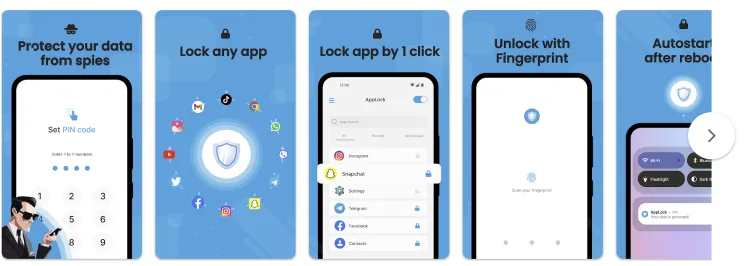
  • How to lock apps on Android without third-party apps

    How to lock apps on Android without third-party apps

    Want to lock apps without downloading extra software? Learn how to use built-in tools on Samsung, Xiaomi, OnePlus, and other Android phones to secure your apps with passwords or biometrics – no third-party apps required.

    Why Lock Apps on Android?

    Your smartphone contains plenty of personal information, including images, bank accounts, social network profiles, and private messages. Locking specific apps provides an additional layer of security, particularly when sharing your device or preventing unintentional snooping.

    Most people jump straight to third-party app lockers. But these:

    • May ask for invasive permissions
    • Show ads or collect data
    • Drain battery and storage

    That’s why using built-in features is often the smarter, safer move.

    lock apps on Android devices

    Samsung Devices (One UI) – Use Secure Folder

    Samsung includes a powerful privacy tool called Secure Folder, protected by Samsung Knox.

    How to use:

    1. Open Settings
    2. Tap Biometrics and security
    3. Select Secure Folder and sign in with your Samsung account
    4. Set up a lock type (PIN, password, fingerprint, etc.)
    5. Add apps or files to your Secure Folder

    Bonus Tip: You can also hide the Secure Folder icon from the app drawer to keep it totally invisible.

    Xiaomi / Redmi / POCO Devices (MIUI) – Use App Lock

    MIUI has a built-in App Lock feature that is super easy to set up.

    Steps:

    1. Open Settings
    2. Go to Apps > App Lock
    3. Set a privacy password (or use your existing phone lock)
    4. Choose which apps to lock
    5. Optionally enable fingerprint unlock for convenience

    This works for apps like WhatsApp, Facebook, Instagram, Gmail, and more.

    OnePlus Devices (OxygenOS) – Use App Locker

    OnePlus provides App Locker, a native feature that locks your apps and hides their notifications.

    How to enable:

    1. Open Settings
    2. Scroll to Utilities > App Locker
    3. Tap Add Apps and select the apps you want to lock
    4. Enable Fingerprint Unlock for fast access
    5. Toggle Hide Notification Content to prevent preview leaks

    App Locker can even keep apps locked in the background, offering persistent protection.

    Realme / Oppo Devices (ColorOS) – Use App Lock

    These brands offer similar features under the Privacy menu.

    Steps:

    1. Go to Settings > Privacy > App Lock
    2. Set a privacy password (separate from your phone unlock)
    3. Select apps you want to lock
    4. Enable Face or Fingerprint Unlock

    You’ll be asked for verification each time the app is opened.

    Huawei / Honor Devices (EMUI) – Use App Lock

    Huawei’s App Lock is baked into the EMUI interface.

    To set it up:

    1. Open Settings
    2. Tap Security & Privacy > App Lock
    3. Set a password
    4. Select apps to protect

    This feature integrates well with fingerprint unlock, so you won’t have to type the password every time.

    Your phone does not have App Lock?

    If your phone’s Android version or manufacturer doesn’t include app locking, here are a few alternatives:

    • Screen Pinning: Locks your phone to one app.
      • Settings > Security > Screen Pinning
      • Useful for letting kids watch YouTube without leaving the app
    • Multiple Users / Guest Mode:
      • Settings > System > Multiple Users
      • Create a guest profile for others using your phone
    • Trusted Third-Party Apps (as a last resort):

    If you go this route, always read reviews and limit permissions.

    Pro Tips to Enhance App Security

    • ✅ Enable biometric unlock for locked apps
    • ✅ Hide notification previews (especially for messaging and banking apps)
    • ✅ Use Strong screen locks (PIN, pattern, or fingerprint)
    • ✅ Keep your phone’s software updated for security patches
    • ✅ Be cautious about sharing your device or leaving it unlocked

    Locking apps without third-party apps is easier, more effective, and safer than you might expect. Whether you utilize Samsung’s Secure Folder, Xiaomi’s App Lock, or OnePlus’ App Locker, you can protect your important data with a few touches.

    So, before you download another app, check your phone’s settings as you may already have all you need to keep your digital life private and secure.

  • The Qualcomm Snapdragon 8s Gen 4 with Kryo CPU and Adreno 825 GPU was announced.

    The Qualcomm Snapdragon 8s Gen 4 with Kryo CPU and Adreno 825 GPU was announced.

    Qualcomm recently unveiled the Snapdragon 8s Gen 4, their newest high-end smartphone chipset. Internally referred to as the SM8735, it is built on TSMC’s N4P 4nm production node and uses the older Kryo CPU rather than the Oryon core that is present in the top Snapdragon 8 Elite chip.

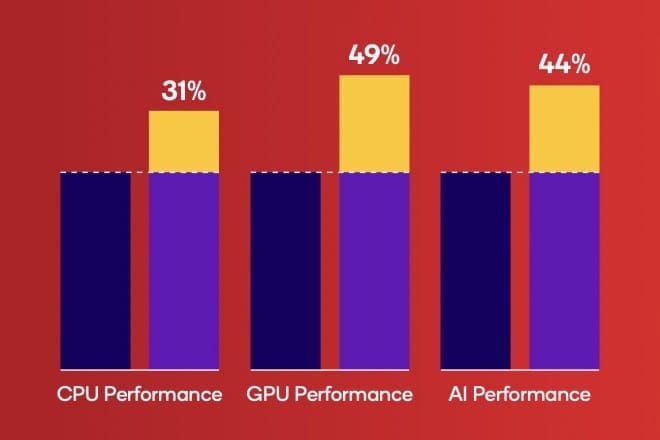
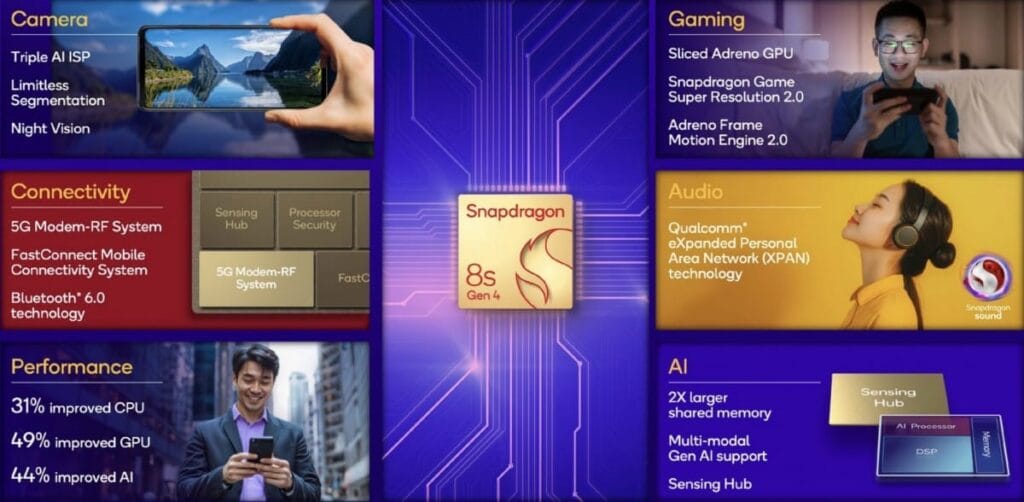
    Three Cortex-A720 cores at 3.0GHz, two at 2.8GHz, two at 2.0GHz, and one Cortex-X4 prime core clocked at up to 3.2GHz make up the CPU layer. Qualcomm claims that the new chip uses 39% less power and is 31% faster than the Snapdragon 8s Gen 3 from the previous year.

    Additionally, the chip has a new Adreno 825 GPU, which Qualcomm claims will increase graphics by 49% over the Snapdragon 8s Gen 3. Additionally, Snapdragon Elite Gaming capabilities including Snapdragon Game Super Resolution 2.0 and Adreno Image Motion Engine 2.0 are included, along with support for on-device ray tracing.

    On-device AI operations are performed 44% better with the upgraded Qualcomm Hexagon NPU. Additionally, Qualcomm included an 18-bit triple image signal processor (ISP) that can record HDR video at 4K60 frames per second and accommodate up to 320MP camera sensors.

    8s Gen 4 performance

    The integrated Snapdragon X75 5G modem in the new chip can download files at up to 4.2Gbps, however it only supports sub-6GHz spectrum rather than the speedier mmWave frequency ranges. Additionally, the chip has Bluetooth 6.0 and Wi-Fi 7.

    LPDDR5X RAM, USB 3.1 Gen 2 connection, and UFS 4.0 storage are all supported by the 8s Gen 4. Additionally, it has Qualcomm’s Extended Personal Area Network (XPAN) connectivity, which is currently available on certain new wireless earbuds like the Xiaomi Buds 5 Pro and uses Wi-Fi to send music.

    Later this month, the iQOO Z10 Turbo is anticipated to be the first gadget to use the Snapdragon 8s Gen 4, with other Xiaomi, Oppo, Meizu, and other products to follow shortly.

    snapdragon 8s Gen 4 features

    Main Snapdragon 8s Gen 4 Features

    • Our Qualcomm® AI Engine includes:
      • Qualcomm® Hexagon™ NPU
        • 2x larger shared memory for improved memory bandwidth
      • Qualcomm® Sensing Hub
      • Support for INT4 and INT8 precisions 
    • Snapdragon Elite Gaming™ Features
      • Real-time Hardware Accelerated Ray Tracing with Global Illumination for improved lighting, shadows, and reflections
      • Qualcomm Adaptive Performance Engine provides ultra-fast and super-smooth performance while providing longer gameplay sessions
      • Snapdragon Game Super Resolution 2.0 intelligently upscales low-res game scenes in up to 4K
    • Our Qualcomm Spectra™ AI ISP features:
      • Real-time Semantic Segmentation for photo/video with up to 250 layers
      • Real-time skin and sky tone correction intelligently captures natural color tones even in challenging environments
      • Night Vision 2.0 captures detailed videos in low light at 4K30 FPS
      • An always-sensing camera enables features like hand gestures, face unlock, and QR code scanning
    • Featuring our integrated AI-accelerated Snapdragon® 5G Modem-RF System
    • Qualcomm® FastConnect™ Mobile Connectivity System offers leading Wi-Fi 7 with speeds up to 5.8 Gbps and Bluetooth® 6.0 technology 
    • Supports Snapdragon Sound™ Technology Suite
      • Qualcomm® Expanded Personal Area Network Technology (XPAN) keeps earbuds and headphones connected via Wi-Fi for untethered, whole-building audio coverage
    • Snapdragon Seamless experience connects all your compatible devices so you can switch between them intuitively and quickly
  • Xiaomi Android 16 tracker: is your device eligible for update?

    Xiaomi Android 16 tracker: is your device eligible for update?

    Google’s recent announcement to release two Android SDK updates every year has raised many concerns among technology enthusiasts. As a result, Android 16 could be released before June 2025, far ahead of schedule. While the events of Android 15 updates continue across all devices, Xioami is preparing to take the next significant step by integrating Android 16 capabilities into their next HyperOS.

    The following is a comprehensive list of Xiaomi, Redmi, and POCO devices that may receive an update to Android 16-based HyperOS, which is simply categorized for review.

    Xiaomi Android 16 tracker

    Current Android 16 Internal Tested Devices

    Android 16 is currently being tested on HyperOS 2. It is not known when the internal test versions will be released.

    • Xiaomi 15
    • Xiaomi 15 Pro
    • REDMI K70 Ultra
    • Xiaomi Pad 7 Pro

    Xiaomi Flagship Devices

    Currently, high-end models with great performance and features are taking center stage in Xiaomi’s update plans:

    • Xiaomi 13 Lite/Xiaomi Civi 2 (ziyi)
    • Xiaomi 13 Pro (nuwa)
    • Xiaomi 13 (fuxi)
    • Xiaomi 13 Ultra (ishtar)
    • Xiaomi 14 (houji)
    • Xiaomi 14 Pro (shennong)
    • Xiaomi 14 Ultra (aurora)
    • Xiaomi 13T Pro (corot)
    • Xiaomi 13T (aristotle)
    • Xiaomi Pad 6 Pro (liuqin)
    • Xiaomi Civi 3 (yuechu)
    • Xiaomi Pad 6 Max 14 (yudi)
    • Xiaomi Mix Fold 3 (babylon)
    • Xiaomi MIX FLIP (ruyi)
    • Xiaomi MIX FOLD 4 (goku)
    • Xiaomi 14 CIVI/Xiaomi Civi 4 Pro (chenfeng)
    • Xiaomi Pad 6S Pro 12.4 (sheng)
    • Xiaomi 14T (degas)
    • Xiaomi 14T Pro (rothko)
    • Xiaomi 15 Ultra  (xuanyuan)
    • Xiaomi 15 (dada)
    • Xiaomi 15 Pro (haotian)

    Redmi Devices

    Known for good-level performance at competitive prices

    • Redmi K80 (zorn)
    • Redmi K80 Pro (miro)
    • Redmi A4 5G (warm)
    • Redmi Turbo 4 (rodin)
    • Redmi K60 Pro (socrates)
    • Redmi K60 (mondrian)
    • Redmi Note 13 Pro (garnet)
    • Redmi Note 13 Pro+ (zircon)
    • Redmi K70 Pro (manet)
    • Redmi K70E (duchamp)
    • Redmi K70 (vermeer)
    • Redmi 13R/Redmi 13C 5G (air)
    • Redmi K60 Ultra (corot)
    • Redmi Note 13 Pro 4G (emerald)
    • Redmi Turbo 3 (peridot)
    • Redmi 13 5G/Redmi Note 13R (breeze)
    • Redmi 13 (moon)
    • Redmi Pad Pro 5G (ruan)
    • Redmi Pad Pro (dizi)
    • Redmi 14R 5G (flame)
    • Redmi 14C/Redmi A3 Pro (lake)
    • Redmi Pad SE 4G (spark)
    • Redmi Pad SE 8.7 Wi-Fi (flare)
    • Redmi K70 Ultra (rothko)
    • Redmi Note 14 (beryl)
    • Redmi Note 14 Pro (malachite)
    • Redmi Note 14 Pro+ (amethyst)
    • Redmi Note 14 Pro 4G (tanzanite)
    • Redmi 14C/Redmi A3 Pro (lake)

    POCO Devices

    • POCO F7 (zorn)
    • POCO F7 Ultra (miro)
    • POCO X7 Pro (rodin)
    • POCO X7 (malachite)
    • POCO C75 5G (warm)
    • POCO F5 Pro (mondrian)
    • POCO X6 5G (garnet)
    • POCO X6 Pro (duchamp)
    • POCO F6 Pro (vermeer)
    • POCO M6 Pro 4G (emerald)
    • POCO F6 (peridot)
    • POCO M6 Plus 5G (breeze)
    • POCO M6 (moon)
    • POCO Pad (dizi)
    • POCO C75 (lake)

    What we will get along with Android 16?

    With Android 16 integrated into HyperOS, users can expect:

    • Enhanced multitasking by improving window management and application performance. Advanced AI features like improved accessibility, translation, and on-device processing.
    • Polished UI/UX with smoother animations and further personalization.
    • Better privacy and security settings to complement those updates made by Google.

    Xiaomi continues to innovate, ensuring that its devices remain competitive and feature-rich through frequent Android updates. With the release of Android 16 before mid-2024, the aforementioned Xiaomi, Redmi, and POCO devices will gain access to the latest Android SDK. More information will be released once Xiaomi begins handing out the HyperOS updates to these devices.