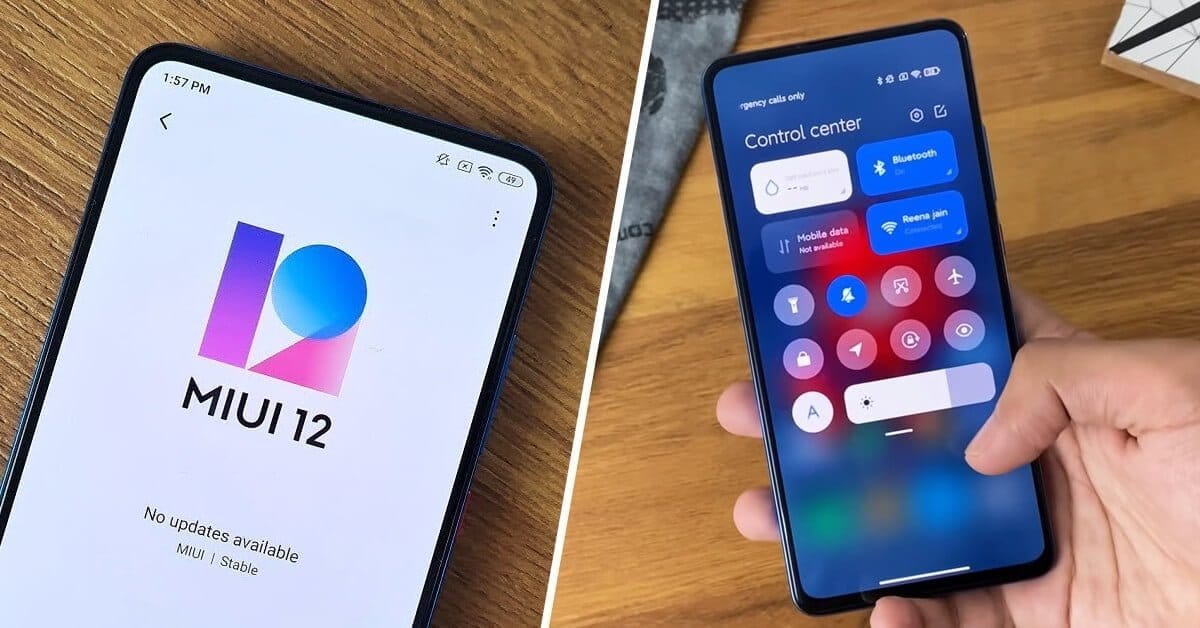
Back in April, Xiaomi released their new system program, MIUI 12. That’s set to bring users a ton of neat features like enhanced privacy controls, navigation gesture support, and a more modern UI overhaul. Now it looks as if the company might also have some new camera capabilities, in the form of an astrophotography mode.
The feature will allow users to take pictures of objects that are normally difficult to capture with a smartphone camera, such as moonlit night skies and breathtaking star trails. It sounds like Google’s long-exposure mode with the Pixel 4, along with the need for a tripod to produce the best performance.
This new mode has already been spotted in the MIUI 12 beta build for the Poco F2 Pro, as Telegram user @hardziol shared screenshots with XDA showing off the interface.
With the introduction of Pixel 3 in 2018 , Google introduced Night Sight into the market. OnePlus soon after introduced a Nightscape app, and in 2019, Samsung followed suit with its own photography capabilities for the Night Mode. These days, smartphone manufacturers are becoming extremely competitive when it comes to photography, but hardware can only go that far; as companies like Google and Apple have shown, computational photography is where the real magic happens. Time will say if the efforts of Xiaomi would prove as successful as they were.
Many are asking about to update/upgrade to MIUI 12 ROM from MIUI 11 or want to downgrade ROM from MIUI 12 to MIUI 11, but will have issue with unlocking the bootloader.
After you unlock the device, it will become less secure. Your personal data might be leaked or lost. So we do not advise and encourage you to Unlock your device. So please proceed at your own risk, and you are held responsible for your own device.
Go to Setting > About Phone > All Specs and tap on MIUI Version 7 times
Enable Enable USB Debugging and Enable OEM Unlocking. Go to Setting > Additional Setting > Developer Options > Enable USB Debugging and Enable OEM Unlocking.
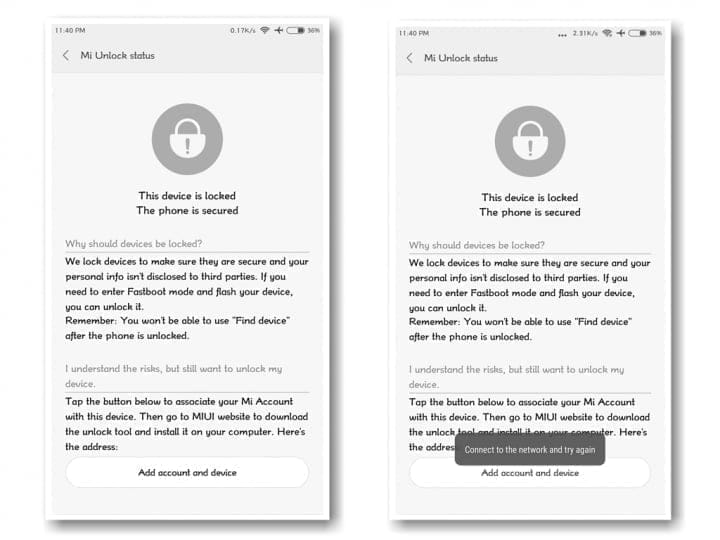
Now from Developer Option add your account to “Mi Unlock status”. Disable Wi-Fi connection and bind your account.
After, reboot your device into fastboot , for this just restart your device and keep push volume down ( – ) button. Then connect the device to the Windows PC/laptop via a micro USB cable.
Launch Mi Unlock Tool via run as administrator.
Follow the steps from the app and unlock your bootloader.
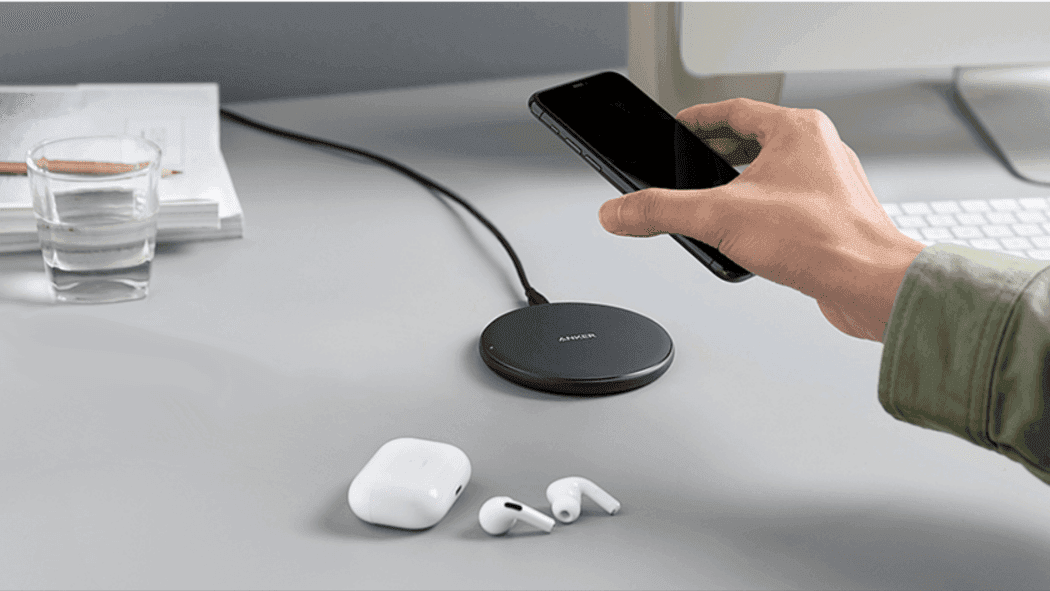
Xiaomi Vice President Chang Cheng announced on Weibo this afternoon that Xiaomi Wireless Charging’s charging rate has improved in recent years from 10W-30W mode. The company is however currently developing a new wireless charging that breaks its current 30W power. The company has a new 40W wireless fast charging system, according to Xiaomi VP, Chang Cheng. The Xiaomi 40W wireless charging capability is fairly impressive.
The new Xiaomi smartphone uses a wireless 30W charging system. Now, the company is doing more to make future flagships more appealing. Wireless charging is clearly going to be a big growth field this year. The aim of Xiaomi is to achieve charging speeds which some OEMs are struggling to achieve with wired charging.
Xiaomi’s latest flagships, Xiaomi Mi 10 and Xiaomi Mi 10 Pro but uses fast wireless charging solutions. The Xiaomi Mi 10 comes with a 4780 mAh custom strip fast charge battery, which supports 30W wired fast flash charging + 30W wireless fast flash charging + 10W wireless reverse charging. On the other hand, the Xiaomi Mi 10 Pro uses a 4500 mAh strip battery. However, it comes with a faster 50W fast flash charging technology. This charging solution achieves a full charge in just 45 minutes. In addition, it uses Xiaomi’s latest 30W wireless charging solution which is quite fast.
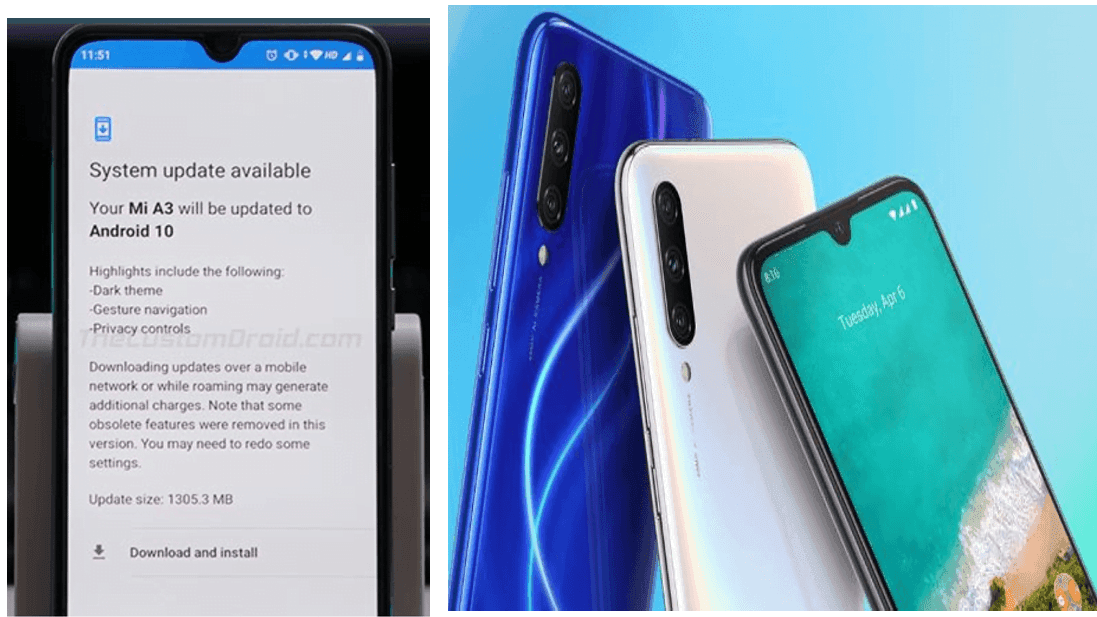
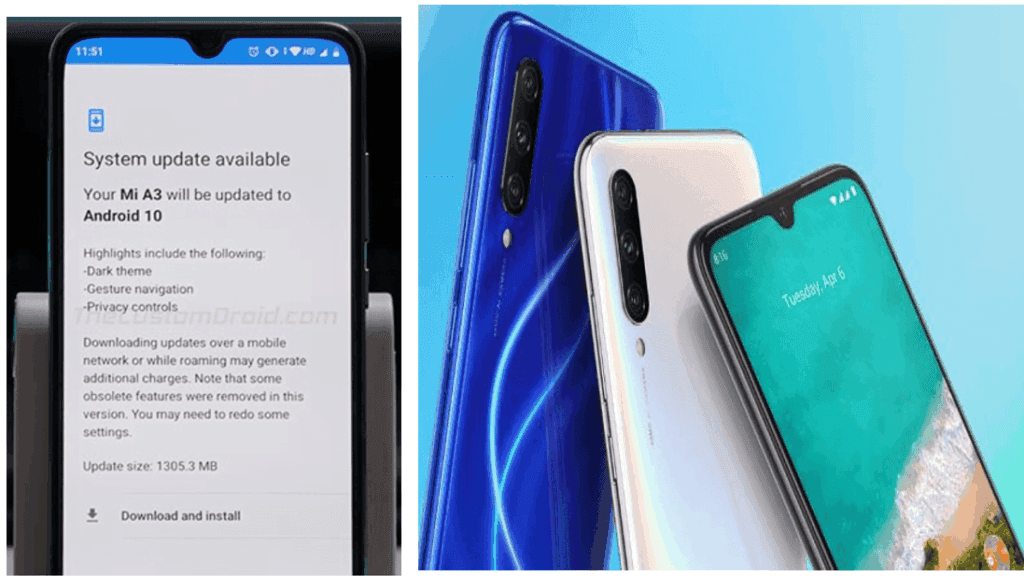
After rolling out last month’s Android 10 update for the Mi A2 smartphone, Xiaomi today started rolling out the update for its latest Mi A3 smartphone after a slight delay, even though last month it released Android 10-based Kernel Sources for that app. Last year in August the smartphone debuted running Android 9.0 (Pie).
Android 10 provides users with a number of additional privacy and security features, including Dark Theme, Smart Reaction, Focus mode, dedicated’ Privacy’ portion, and much more. After the update, you need to select “Show fingerprint icon when the screen if off” option in the fingerprint settings so that the fingerprint icon appears in the lockscreen when you raise the device or tap the screen. Xiaomi claims this raises power consumption though.
MI User Interface, abbreviated MIUI is an Android-based operating system for smartphones and tablet computers developed by Chinese electronics manufacturer Xiaomi. It is powered by the Android Operating System. MIUI includes various features such as theme support.
Xiaomi’s budget devices are good at taking over the smartphone world.
The company, dominating on the Indian and Chinese markets, manages to deliver low priced smartphones coupled with some high end device specs.
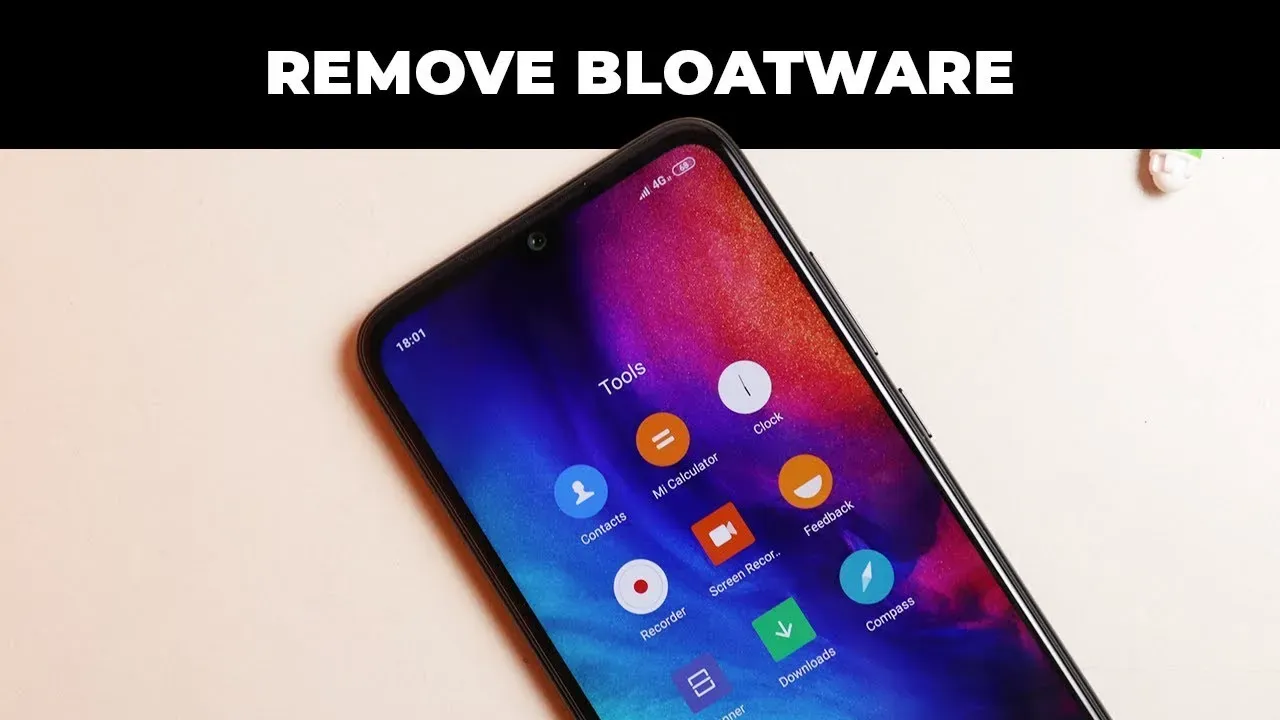
Bloatware on Xiaomi Devices?
The word Bloatware is used for smartphone apps which the vendor locks. Some known vendors include Samsung, Xiaomi, HTC and so on. Developers are using this irksome tactic of locking apps on the phone to make the device’s user interface exclusive.
Uninstall/Disable MIUI Apps in Xiaomi/Redmi Devices Without Rooting
1. MIUI Hidden Settings
The MIUI app Hidden Settings make it easy for developers to perform previously complex tasks in just a few taps. You can, for example, view the Notification log, which has been difficult to get into before.
With the help of MIUI hidden features, you can get rid of some (not all) pre-installed app(You can also uninstall the Google apps).
You need to enable USB debugging by going to Settings > About Phone > Tap 7-10 times on MIUI Version. A popout will appear telling you that you have activated Developer Settings.
Then go to Additional Settings and pap on Developer Options, scroll down and activate USB debugging and press OK.
On your PC go to ADB installation folder and type cmd in the adress bar. A command prompt windows will appear.
Now once you have device connected via USB, run adb devices command in terminal to see if your device is connected via ADB.
Now copy and run the commands from below list for the app which you want to remove.
The command is adb shell pm uninstall -k --user 0 package.name
adb shell pm uninstall -k --user 0 com.google.android.apps.docs # Google Drive
adb shell pm uninstall -k --user 0 com.google.android.apps.maps # Google Maps
adb shell pm uninstall -k --user 0 com.google.android.apps.photos # Google Photos
adb shell pm uninstall -k --user 0 com.google.android.apps.tachyon # Google Duo
adb shell pm uninstall -k --user 0 com.google.android.googlequicksearchbox # Google App
adb shell pm uninstall -k --user 0 com.google.android.music # Google Music
adb shell pm uninstall -k --user 0 com.google.android.videos # Play Movies
adb shell pm uninstall -k --user 0 com.android.browser # Mi Browser
adb shell pm uninstall -k --user 0 com.miui.bugreport # Mi Feedback
adb shell pm uninstall -k --user 0 com.miui.compass # Mi Compass
adb shell pm uninstall -k --user 0 com.miui.notes # Mi Notes
adb shell pm uninstall -k --user 0 com.miui.screenrecorder # Mi Screen Recorder
adb shell pm uninstall -k --user 0 com.miui.videoplayer # Mi Video
adb shell pm uninstall -k --user 0 com.miui.player # Mi Music
adb shell pm uninstall -k --user 0 com.xiaomi.midrop # Mi Drop
adb shell pm uninstall -k --user 0 com.xiaomi.mipicks # Mi Apps
adb shell pm uninstall -k --user 0 com.xiaomi.scanner # Mi Scanner
So if you mess something up, do factory reset to get out of trouble.
Your warranty will be void.
Droid Tools is not responsible for bricked devices, dead SD cards etc...
Evolution X is a Custom ROM to bring a true Pixel feel to Android Devices at first glance, with many additional options at your disposal. Evolution X aim to provide frequent builds with monthly security patches from the latest AOSP sources.
1. Reboot to Recovery 2. Download the proper flashable ZIP for your device 3. Wipe Data/Cache/System when coming from non-AOSP ROMs 4 Flash MIUI 11 vendor/firmware for your device variant 5. Flash the ROM 6. Reboot to System 7. Reboot to Recovery 8. Flash Magisk (Optional) 9. Reboot to System and #KeepEvolving
Update / Dirty Flash
1. Reboot to Recovery 2. Download the proper ZIP for your device 3. Flash the ROM 4. Reboot to System and #KeepEvolving