In its most recent bug report, Xiaomi describes how nine major vulnerabilities affecting flagship and mid-range smartphones have been fixed. This continuous openness strengthens trust in Xiaomi’s technical procedures and quality control by highlighting the company’s dedication to software stability and proactive customer assistance.
Addressing Critical Device Stability
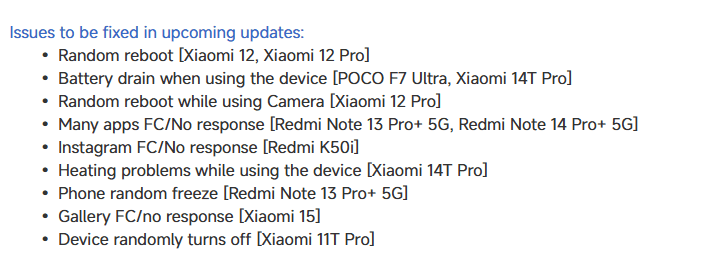
Engineering teams are prioritizing random device reboots, especially on the Xiaomi 12 and 12 Pro. In order to guarantee a flawless shooting experience, the Xiaomi 12 Pro’s camera application crashes are also being actively reviewed.
Battery and performance
Additionally, they are releasing updates to address battery depletion that affects users of the 14T Pro and POCO F7 Ultra. Additionally, enhancements to thermal management and power efficiency measures are being implemented to solve the 14T Pro’s overheating problems.
Multiple application-specific problems are in the process of being resolved:
These updates cover the whole ecosystem, guaranteeing consistent software optimization for premium and low-cost models alike. The company’s strategy ensures that users in every sector get the same level of assistance and attention.
Stay connected with the latest from Droid Tools—follow us on X @droid_tools, like our page on Facebook, check out our updates on Instagram, and follow us on Google News for real-time news, device tips, and mobile tech insights.
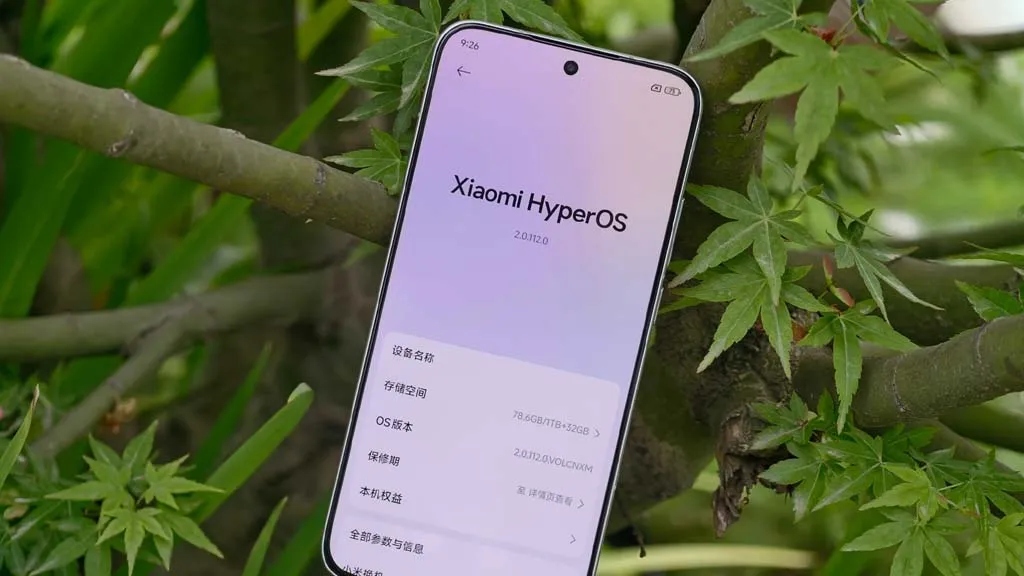
Xiaomi has started the release of the HyperOS 2.2 stable upgrade for its second batch of devices sooner than originally planned. Some devices have already received the update, rather than the previously announced June 20th start date. Camera 6.0 improvements, improved system animations, sophisticated lock screen customization choices, and system-level efficiency optimizations that take user feedback and changing usage patterns into account are all included in this update. The update strengthens the brand’s user experience across product lines and marks a significant leap in Xiaomi’s software architecture.
Devices that already received HyperOS 2.2
The following devices have successfully received the HyperOS 2.2 stable update:
REDMI Turbo 4 Pro
REDMI Turbo 4
REDMI Note 14 5G
REDMI Note 14 Pro 5G
REDMI Note 14 Pro+ 5G
These models now operate with the full HyperOS 2.2 feature set, including all integrated improvements and interface updates.
In the upcoming weeks, the update is planned for further high-end models:
Flagship Smartphones:
Xiaomi 13 Ultra
Xiaomi 13 Pro
Xiaomi 13
Xiaomi MIX FOLD 3
Xiaomi CIVI 4 Pro
Tablet Devices:
Xiaomi Pad 6 Max 14
Xiaomi Pad 6 Pro
Performance Series:
REDMI K60 Ultra
REDMI K60 Pro
REDMI K60
REDMI Turbo 3
Key features we found in HyperOS 2.2
Camera 6.0, which offers better computational photography and increased image capabilities, is introduced in HyperOS 2.2. Updated lock screen customization options offer a more adaptable user interface, and system animations have been further improved for greater fluidity. Additional system-wide improvements help to boost battery efficiency and overall performance.
Stay connected with the latest from Droid Tools—follow us on X @droid_tools, like our page on Facebook, check out our updates on Instagram, and follow us on Google News for real-time news, device tips, and mobile tech insights.
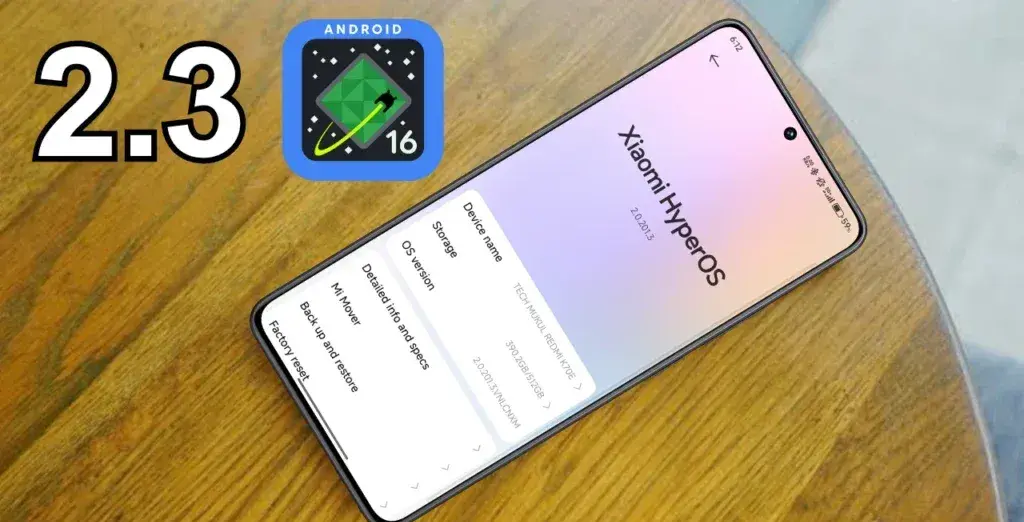
With the current rapid pace of HyperOS 2.3 development, Xiaomi has taken a major step forward in the development of its software ecosystem. The company’s strategic commitment to integrating its next-generation operating system with the upcoming release of Android 16 was demonstrated on May 27th when internal testing got underway. With Android 16 as its fundamental core, HyperOS 2.3 is positioned as a significant update that improves user experience and performance.
HyperOS 2.3 is coming fast
Development teams have initiated a comprehensive internal testing phase, deploying multiple build variants tailored for different regional markets. This strategy ensures broad compatibility across Xiaomi’s international user base.
The initial test builds include:
OS2.0.300.1.WOCCNXM (China variant)
OS2.0.300.1.WOCMIXM (Global variant)
OS2.0.300.1.WOCEUXM (EEA Global variant)
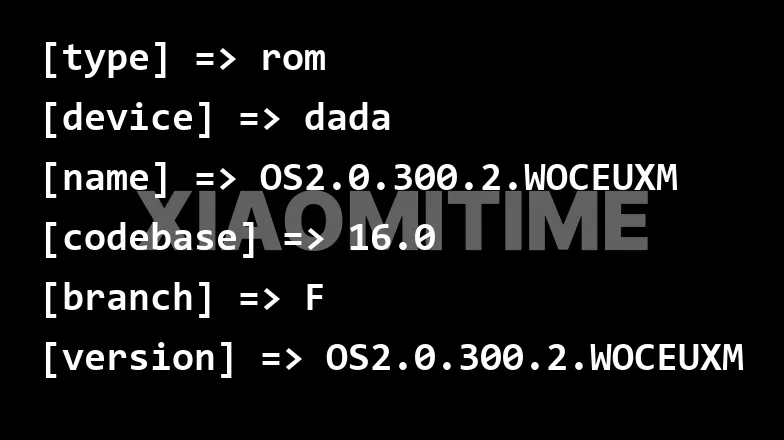
Updated builds have been produced in recent development cycles; the most recent version for the EEA Global market is OS2.0.300.2.WOCEUXM. These small changes are the result of ongoing optimization and improvement initiatives inside Xiaomi’s development process.
Currently, the Xiaomi 15 flagship device—internally dubbed “dada”—is given priority in testing methods. The goal of this focused strategy is to guarantee the best possible compatibility between the new hardware and HyperOS 2.3’s sophisticated capabilities.
HyperOS 2.3 release
Xiaomi has a shorter development timetable for HyperOS 2.3 because Android 16 is expected to launch in June. Although attaining the late-June objective is still uncertain, the enhanced pace indicates a strong organizational commitment to providing a stable release.
Stay connected with the latest from Droid Tools—follow us on X @droid_tools, like our page on Facebook, check out our updates on Instagram, and follow us on Google News for real-time news, device tips, and mobile tech insights.
Following last week’s successful launch in China, Xiaomi is continuing its aggressive worldwide rollout strategy for HyperOS 2.2, with four major products now ready for immediate release. The server-side preparations indicate an immediate deployment timeframe for the planned updates, which include builds for the Xiaomi 14T, Xiaomi 14 CIVI, Xiaomi 13T, and Redmi Note 14S.
Xiaomi’s dedication to providing cutting-edge software experiences in multiple international regions at the same time is demonstrated by their well-coordinated worldwide expansion. An important turning point in Xiaomi’s software development has been reached with the HyperOS 2.2 update, which brings cutting-edge features and improved performance improvements that were previously only available in China. Users across the world can anticipate that these updates will start to trickle out a few days after server verification is finished, in keeping with the custom of China-first releases.
Prepared Device Updates
In order to guarantee thorough worldwide coverage for the HyperOS 2.2 experience, Xiaomi has finished developing four essential device variations for several regional markets. The ready-made builds show how Xiaomi deploys software globally in a logical manner.
Updates that are ready for:
Xiaomi 14T: OS2.0.201.0.VNEEUXM (EEA region)
Xiaomi 14 CIVI: OS2.0.201.0.VNJINXM (India)
Xiaomi 13T: OS2.0.201.0.VMFMIXM (Global)
Redmi Note 14S: OS2.0.202.0.VFOMIXM (Global)
Better camera functionalities
Building on versions 2.0 and 2.1, HyperOS 2.2 offers enhanced camera functionality, AI, and system performance. One of the most notable features is the Xiaomi Camera 6.0, which revolutionizes photography with its entirely new interface and smooth animations.
The Camera 6.0 upgrade improves workflows for both novice and professional photographers by introducing contemporary user interface features with simple controls and seamless switching between shooting modes.
HyperOS 2.2 will deliver more performance
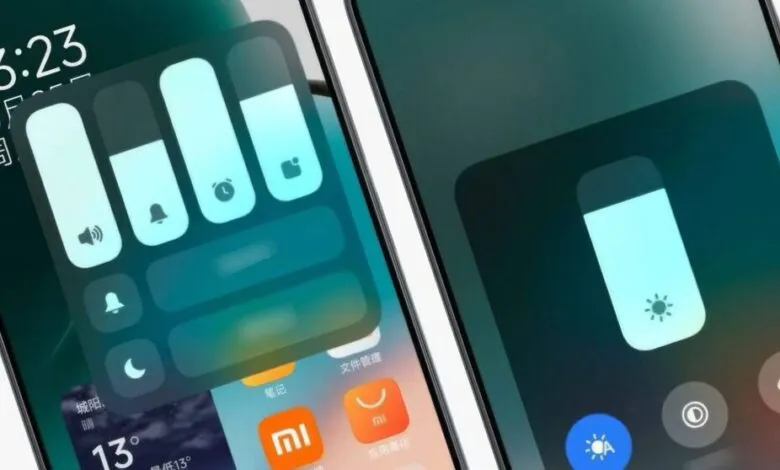
Better navigation, enhanced customisation, and smoother animations are all features of the upgrade. A more responsive user interface that feels elegant and high-end throughout all device interactions is produced by these improvements.
In order to ensure optimal performance across various hardware configurations, system-level optimizations concentrate on lowering resource usage while preserving advanced functionality.
The MemeOS Enhancer software, which offers screen-based update management, system app updates, and access to secret Xiaomi features, may be downloaded from the Play Store to improve users’ HyperOS 2.2 experience.
Stay connected with the latest from Droid Tools—follow us on X @droid_tools, like our page on Facebook, check out our updates on Instagram, and follow us on Google News for real-time news, device tips, and mobile tech insights.
With Android 16 serving as its foundation, Xiaomi’s next HyperOS 2.3 update is expected to bring about the biggest leap in the company’s own Android experience. This significant system update introduces improved security measures and improved user experience components while expanding on the foundation of the current HyperOS 2.2 framework.
Although the major emphasis is still on security improvements rather than ground-breaking new features, the update demonstrates Xiaomi’s dedication to offering state-of-the-art software experiences that capitalize on Google’s most recent Android advances. Through official channels and specialized monitoring tools, users can monitor their device compatibility and eligibility for updates.
New features in HyperOS 2.3
The Android 16 foundation, which offers better system stability, more performance optimization, and—above all—advanced security features that safeguard user data and privacy, is the main improvement in HyperOS 2.3.
Enhanced Security Framework
HyperOS 2.3’s security improvements include:
Advanced encryption protocols for sensitive data protection
Improved app permission management system
Enhanced biometric authentication security
Strengthened system-level protection against malicious applications
Device compatibility and release
Only those devices that qualify for the Android 16 upgrade will be able to get the HyperOS 2.3 update. While preserving system stability, this phased deployment guarantees the best possible performance and compatibility throughout Xiaomi’s device ecosystem.
Eligible Device Categories
Flagship smartphones from recent generations
Select mid-range devices with adequate hardware specifications
Compatible tablets and other smart devices in Xiaomi’s ecosystem
All of Google’s normal services and security upgrades are available on the Android 16 base, even though Google hasn’t added any new Android features specifically for Xiaomi’s HyperOS version. Preserving system security and guaranteeing compatibility with Google’s ecosystem services are the major goals of the integration.
Update eligibility
With the MemeOS Enhancer app on the Play Store, users may find out if their device is compatible with Android 16 and eligible for HyperOS 2.3. In addition to system app updates, access to secret Xiaomi features, and direct update access from the device screen, the app offers instant visibility into update status upon activation.
Stay connected with the latest from Droid Tools—follow us on X @droid_tools, like our page on Facebook, check out our updates on Instagram, and follow us on Google News for real-time news, device tips, and mobile tech insights.
Enabling Developer Options and USB debugging is crucial if you want to test apps, get more control over your Android device, or connect your phone to a computer for development. This built-in Android function provides you with the ability to delve deeper, regardless of whether you’re a power user or simply attempting to troubleshoot a persistent issue.
Without requiring root access, we’ll show you exactly how to activate USB debugging and Developer Options on any Android device in this tutorial. We’ll also go over the functions of each feature and when you might require them.
What are Developer Options on Android?
Android’s Developer Options is a secret menu with advanced settings designed mainly for developers. But regular users might also benefit from many of these choices. For instance, you can:
Speed up animations to make the phone feel faster
View CPU usage on screen
Simulate different display sizes
Force apps into split screen
Enable USB debugging for data transfers or app testing
By default, Developer Options are hidden, but you can enable them with just a few taps.
What is USB debugging and why use it?
USB debugging allows your Android device to communicate with a computer using Android Debug Bridge (ADB). This is critical for:
Transferring files and installing apps manually
Using development tools like Android Studio
Running shell commands via ADB
Taking full device backups
Recovering devices stuck in boot loops or soft bricks
Unless you’re developing apps or using advanced tools, USB debugging isn’t needed all the time. But turning it on gives you more flexibility when needed.
How to enable Developer Options
The Developer Options menu can be accessed by following these steps:
Open the Settings app on your Android phone.
Scroll down and tap “About phone.”
Find the “Build number” entry (you may need to tap “Software information” first on some devices).
Tap the Build number 7 times. You’ll be asked to confirm your device lock (PIN, pattern, or fingerprint).
You’ll see a message saying “You are now a developer!”
Once this is done, Developer Options will be available in your Settings.
Location of Developer Options by brand:
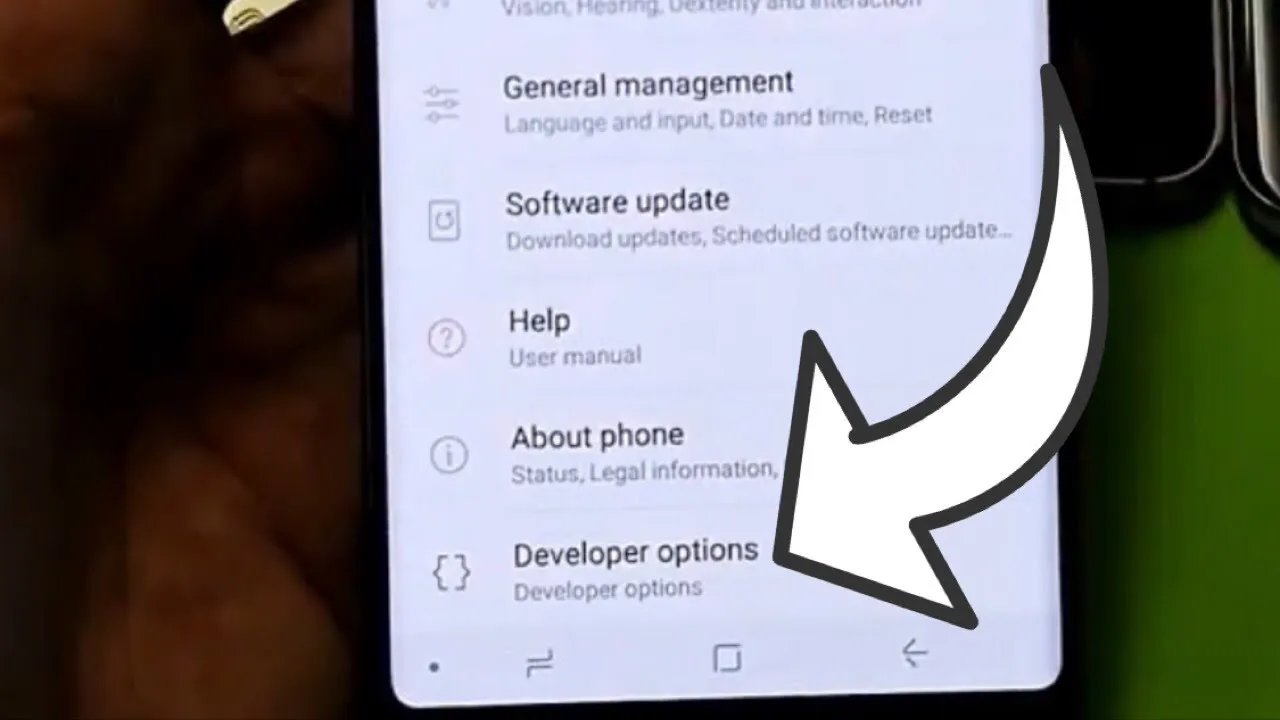
Samsung: Settings → Developer options (at the bottom of the main settings menu)
Google Pixel: Settings → System → Developer options
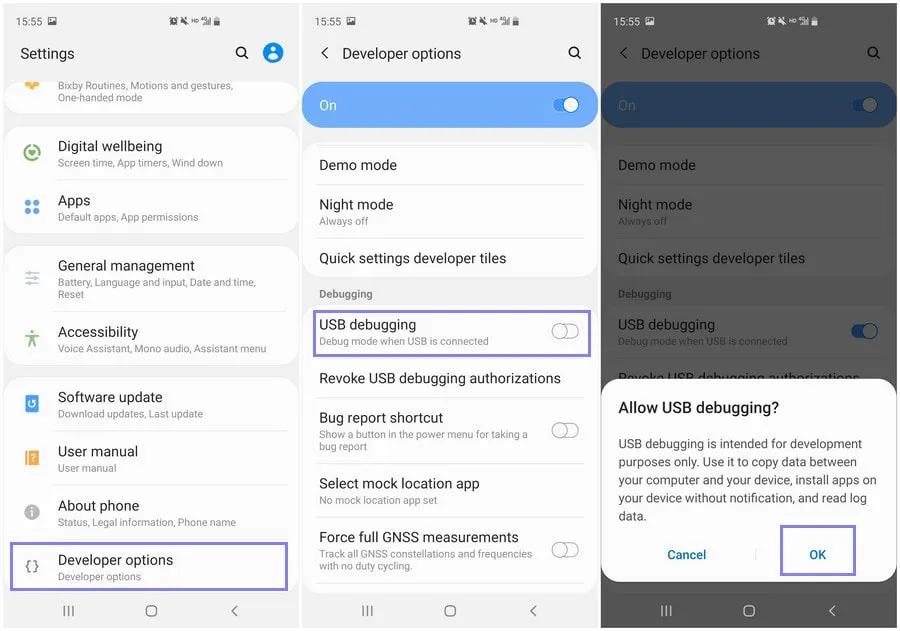
Now that Developer Options are turned on, you can enable USB debugging:
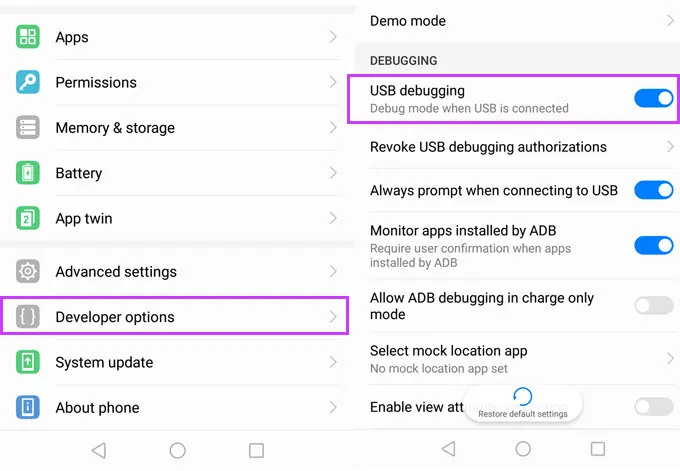
Go to Settings → Developer Options
Scroll down to the “Debugging” section
Toggle on “USB debugging”
Confirm the prompt asking if you’re sure
That’s it! You can now use your phone with development tools or perform more advanced actions from your PC.
When should you turn off USB debugging?
If you’re not actively using USB debugging, it’s best to leave it off. Here’s why:
USB debugging can be a security risk if your device falls into the wrong hands while unlocked.
Some apps or company policies block access if USB debugging is enabled.
To disable it, just return to Developer Options and toggle it off.
Other useful Developer Options settings
Besides USB debugging, some other features you may want to explore include:
Window animation scale / Transition animation scale: Set to 0.5x for faster UI response
Force activities to be resizable: Useful for multitasking and split screen
Stay awake while charging: Keeps the screen on during testing
Limit background processes: Improve performance by reducing multitasking
Show taps / Pointer location: Great for app demos or screen recording
Be cautious while experimenting—many of these options affect system behavior.
Troubleshooting Developer Options or USB debugging
Developer Options not appearing?
Double-check that you tapped “Build number” exactly 7 times
Some devices require a reboot afterward
USB debugging not working?
Try a different USB cable or port
Make sure “File Transfer” mode is selected via USB preferences
Check that your computer has proper ADB drivers installed
You may access a robust collection of tools on your Android phone by turning on USB debugging and Developer Options. Although developers are their main target audience, tech-savvy consumers who desire greater control over their gadget might also benefit from them.
These options can improve your Android experience, whether you’re using ADB to transfer files, debug apps, or simply wish to adjust animation speeds. Just use caution when navigating the options, since some settings may have unexpected consequences.
Stay connected with the latest from Droid Tools—follow us on X @droid_tools, like our page on Facebook, check out our updates on Instagram, and follow us on Google News for real-time news, device tips, and mobile tech insights.
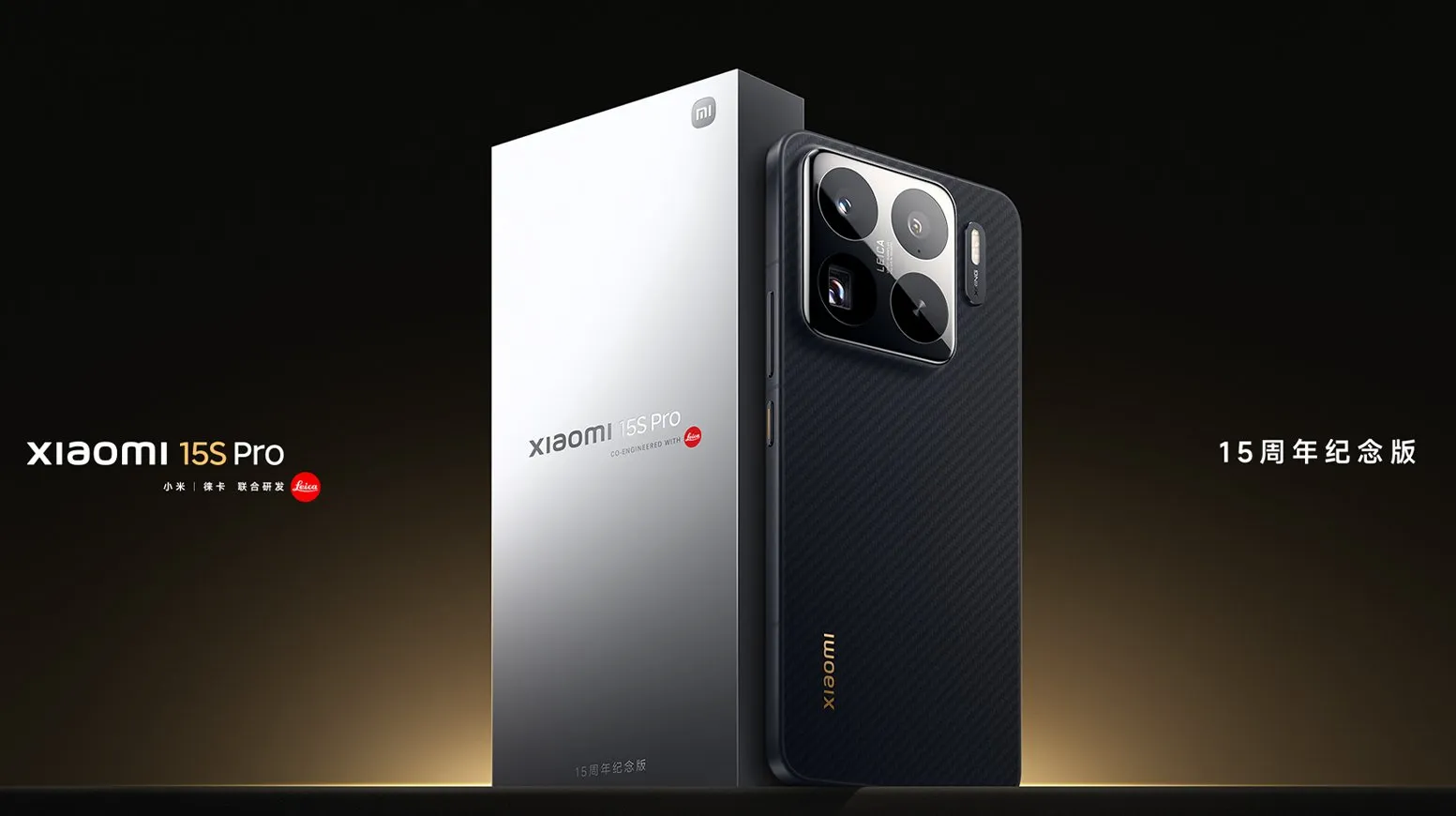
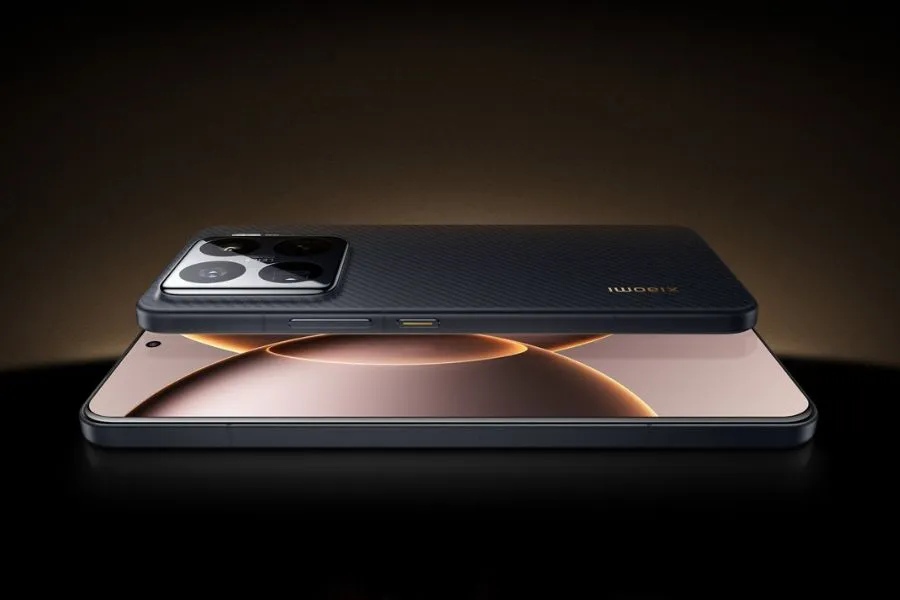
This week, the Xiaomi 15S Pro was launched in China. The Chinese OEM’s first phone to employ its proprietary 3nm 10-core XRING 01 chipset is this one. The phone comes with HyperOS 2.0, which is based on Android 15, and supports 16GB of LPDDR5X RAM in addition to up to 1TB of UFS 4.0 built-in storage. A 50-megapixel triple rear camera set with a 50-megapixel periscope telephoto shooter is included with the Xiaomi 15s Pro. With compatibility for both wired and wireless fast charging, it has a 6,100mAh battery.
The 16GB + 512GB RAM and storage version of the Xiaomi 15S Pro costs CNY 5,499 (about Rs. 65,500) in China, while the 16GB + 1TB model costs CNY 5,999 (approximately Rs. 71,500). The phone is available in Far Sky Blue and Dragon Scale Fibre Version finishes. The official e-store is now the place to buy the phone in the nation.
Xiaomi 15S Pro specs
The Xiaomi 15S Pro has a 6.73-inch 2K (3,100 x 1,440 pixel) OLED LTPO screen with a refresh rate of up to 120 Hz, a maximum brightness level of 3,200 nits, a PWM dimming rate of 1,920 Hz, and protection from Xiaomi’s Ceramic Glass 2.0. Dolby Vision and HDR10+ are also supported by the screen. The company’s latest 3nm 10-core XRING 01 chipset, which has an Immortalis-G925 GPU, 16GB of LPDDR5X RAM, and up to 1TB of UFS 4.0 onboard storage, powers the phone. Xiaomi’s HyperOS 2.0, which is based on Android 15, comes pre-installed.
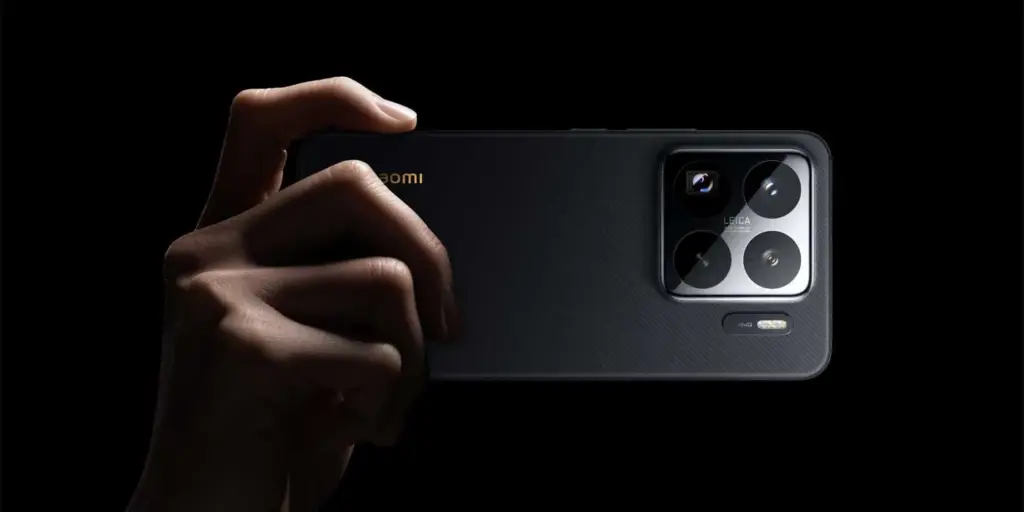
The Xiaomi 15S Pro boasts a triple rear camera set with Leica backing, which includes a 50-megapixel, 1.31-inch Light Fusion 900 primary sensor with an f/1.44 aperture and support for optical image stabilization (OIS). A 50-megapixel Sony IMX858 periscope telephoto shooter with 5x optical zoom, 10x in-sensor lossless zoom, f/2.5 aperture, and OIS support is also included in the camera setup, along with a 50-megapixel Samsung S5KJN1 sensor and a 115-degree ultra-wide angle lens with an f/2.2 aperture and macro capabilities. Additionally, the smartphone has a 32-megapixel OV32B40 front camera with an f/2.0 aperture for video calls and selfies.
The 6,100mAh battery of the Xiaomi 15S Pro supports both 90W wired and 50W wireless fast charging. The phone incorporates an in-display fingerprint sensor for security. 5G, dual 4G VoLTE, Wi-Fi 7, Bluetooth 5.4, Beidou, Galileo, GLONASS, GPS, NavIC, NFC, and a USB Type-C 3.2 Gen 1 connector are among the connectivity possibilities. The phone’s construction is water and dust resistant, with an IP68 rating. Additionally, it features dual speakers that enable Dolby Atmos. The smartphone weighs 216g and has dimensions of 161.3×75.3×8.33mm.
If you want the latest Droid Tools news, follow us on X @droid_tools and like our page on Facebook to stay updated.
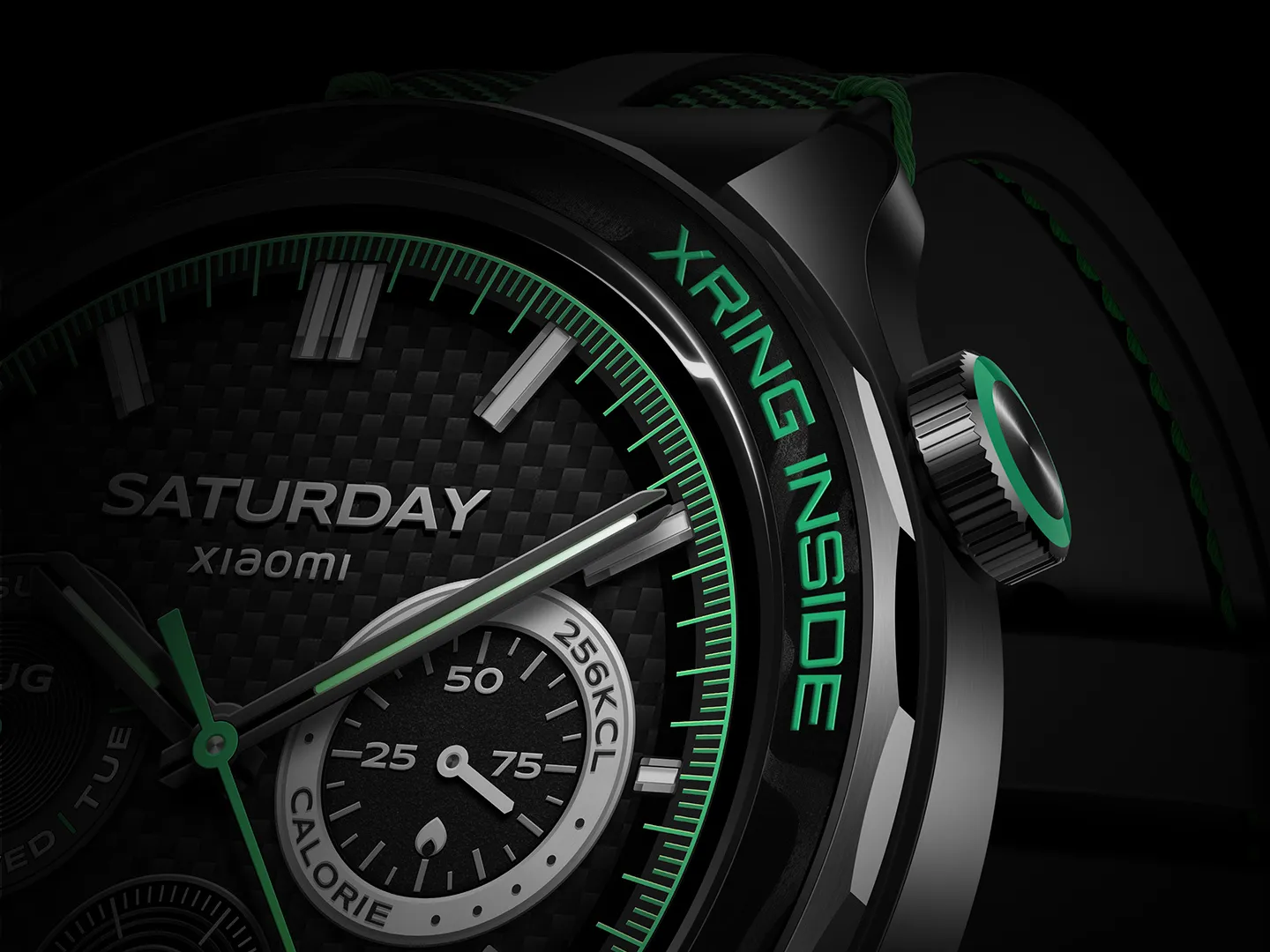
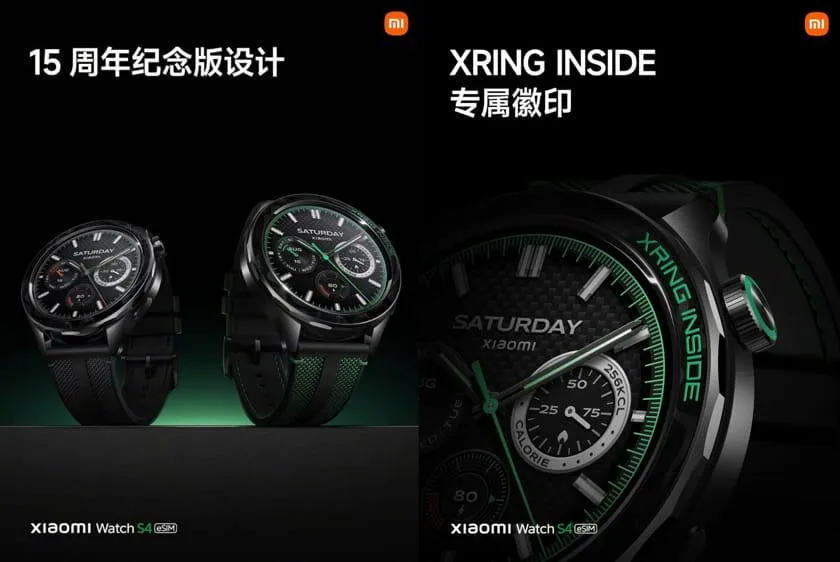
During the company’s anniversary launch event on Thursday, Xiaomi unveiled the Watch S4 15th Anniversary Edition in China. Alongside the Xiaomi 15s Pro and Xiaomi Pad 7 Ultra, the new wearable was launched, sporting Xiaomi’s own XRING T1 processor. The normal Watch S4 was released by Xiaomi some months prior to the arrival of the S4 15th Anniversary Edition. It differs from the standard Watch S4 with its updated design and color selection. The watch’s circular AMOLED screen measures 1.43 inches.
The Xiaomi Watch S4 15th Anniversary Edition costs CNY 1,299, which is around Rs. 15,000 in value. Shades of green and black are available. In contrast, the regular Xiaomi Watch S4 costs CNY 999, or around Rs. 11,800.
Xiaomi Watch S4 15th Anniversary Edition specs
In comparison to the regular model, the Xiaomi Watch S4 15th Anniversary Edition has a new chip, certain design changes, and an extended battery life. It is compatible with smartphones running iOS 12.0 and Android 8.0 and is powered by Xiaomi HyperOS 2. It features a 1.43-inch AMOLED screen with a resolution of 466 × 466 pixels. The display is claimed to have a maximum brightness of 1,500 nits and a refresh rate of 60 Hz.
Xiaomi’s in-house-developed XRING T1 chipset powers the wearable. The maximum CPU frequency that the new chipset is supposed to deliver is 500MHz.
The Watch S4 15th Anniversary Edition allows users to operate their Xiaomi vehicles without a smartphone. The watch face offers a real-time glimpse of the attached smartphone’s camera in addition to supporting three-second video clip.
When eSIM functionality is activated, the Xiaomi S4 15th Anniversary Edition is said to last nine days between charges. For comparison, the regular model has a seven-day battery life in eSIM mode. The wearable’s battery is 486mAh.
SpO2 (blood oxygen) and a heart rate monitoring sensor are included with the S4 15th Anniversary Edition. Its water resistance rating is 5 ATM. 4G, Wi-Fi, Bluetooth 5.3, NFC, GPS, Galileo, Glonass, Beidou, and QZSS are among the connectivity choices. It weighs 44.5g and has dimensions of 47.3 x 47.3 x 12.0mm.
Backing up your Android phone ensures that your data is safe in case of loss, damage, or switching to a new Android device. Thankfully, Android has a number of built-in security features that secure your contacts, media, apps, and settings without the need for third-party programs.
Establishing a suitable backup plan is crucial, regardless of whether you’re upgrading your device or getting ready for a factory reset.
Why it’s important to back up your Android phone
It’s not just techies who should back up. You run the danger of losing private images, critical messages, app data, and even saved Wi-Fi passwords if your phone is misplaced or broken. Regular backup creation allows you to:
Google offers a dependable, integrated backup system that connects to your Google account and stores your important data in the cloud. For the majority of Android users, it is the most practical approach.
Ensure Backup by Google One or Back up to Google Drive is turned on
You’ll see a summary of what’s being backed up. Tap Back up now to trigger an immediate backup
Once enabled, your phone will automatically back up daily when connected to Wi-Fi and charging.
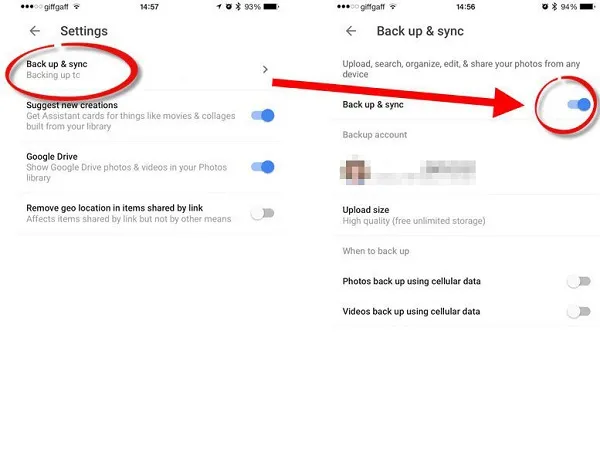
Back up photos and videos using Google Photos
Your videos and pictures frequently include priceless memories. To make sure your media files are securely backed up and available on multiple devices, Google Photos offers a quick and safe solution. It’s among the most dependable ways to preserve your graphic information without requiring complicated instruments or extra hardware.
Google Photos is a robust cloud-based platform that automatically stores and arranges your images and videos, making it more than simply a gallery app. Once activated, it will sync your media to your Google Account continually, so your memories will be preserved even if your device is lost or damaged.
Steps to back up media:
Open the Google Photos app
Tap your profile icon in the top right
Choose Photos settings > Backup
Toggle Backup to on
Choose your preferred upload size (Storage saver or Original quality)
All your photos and videos will sync to the cloud, and you can access them on any device logged into your Google account.
Back up files manually to a PC
Although cloud storage services like Google Drive and Google Photos are convenient, backing up your Android files to a PC by hand offers you more control, privacy, and independence from internet connectivity. It’s a simple process that guarantees you have a hard copy of all of your vital information, including documents, films, images, and more, safely saved on your computer.
Here’s how:
Connect your Android phone to your PC using a USB cable
On your phone, choose File Transfer / MTP mode when prompted
Open File Explorer on your computer
Locate your device, open it, and navigate to folders like DCIM, Downloads, Pictures, or Documents
Copy and paste the desired files to a safe folder on your PC
This method is ideal for archiving large files or performing a one-time back up your Android without an internet connection.
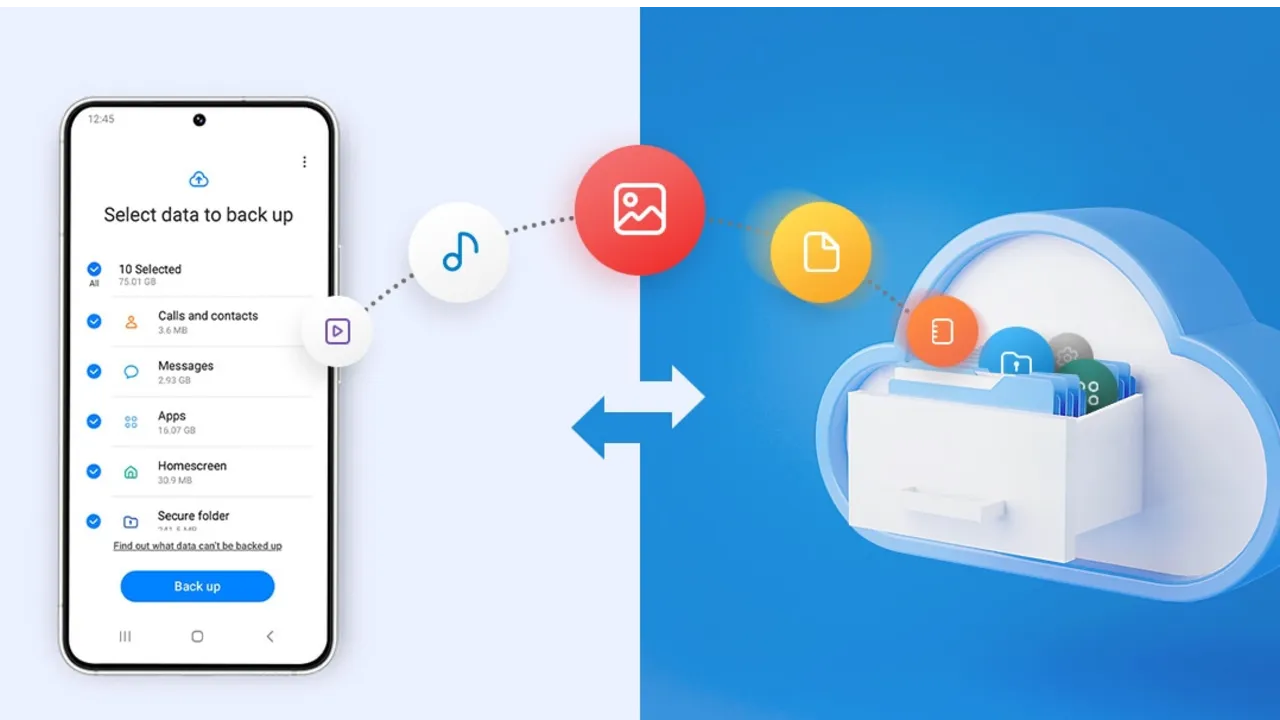
Use Samsung Cloud or manufacturer tools (for Samsung, Xiaomi, etc.)
Some manufacturers offer their own back up your Android device solutions in addition to Google’s.
For Samsung users:
Go to Settings > Accounts and backup
Tap Samsung Cloud
Choose what to back up (contacts, calendar, settings, etc.)
Tap Back up now
You can restore this data to any Samsung device later using the same Samsung account.
Xiaomi users:
Use Mi Cloud by going to Settings > Mi Account > Mi Cloud and enabling the backup options available for your account.
Always ensure you’re connected to Wi-Fi and have enough cloud storage before initiating the process.
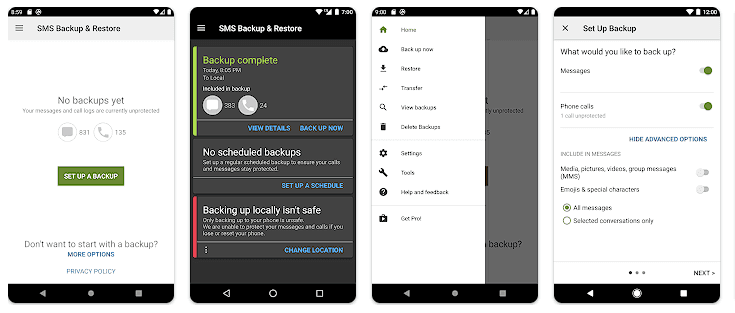
Backup apps like SMS and call logs (optional)
Most devices now have SMS and call history included in Google’s backup system, but if you have an older phone or want more redundancy, apps like SMS Backup & Restore can give you more flexibility.
How to restore your data
When setting up a new Android phone:
Log in with the same Google account used for backup
During the setup process, Android will detect the backup
Choose what you want to restore—apps, settings, contacts, etc.
Wait for the process to complete; some data may take time to sync
For manufacturer backups, you’ll need to use the brand-specific restore method (Samsung Cloud, Mi Cloud, etc.).
Tips for reliable Android backups
Always use a stable Wi-Fi connection before backing up
Keep automatic backups turned on for peace of mind
Occasionally perform a manual backup if you’re making major changes
Regularly check if Google Photos is syncing properly
For local backups, organize files by folders and label your backups by date
Back up your Android device is easy and doesn’t require technical expertise. The majority of your crucial data is handled by Google’s reliable, automated solution, but you also have more flexibility with local and manufacturer-specific solutions. Having a backup guarantees that your data is never completely lost, whether you’re changing phones or simply staying secure.
Here are seven devices that might miss out on this opportunity and get their final upgrade next month while Xiaomi is busy testing the new HyperOS 2.2 version for the flagship models. Examine the list and determine whether your phone is included in this group.
Upgrades to HyperOS include a number of sophisticated, AI-powered capabilities that aren’t compatible with all models. In order to concentrate on the most efficient smartphones, Xiaomi used to remove some devices and mark them as EOL (End Of Life).
The company has officially revealed the EOL devices for June 2025 and identified seven Xiaomi models that will receive their final HyperOS upgrade, according to XiaomiTime.
The majority of the phones on the list are Redmi and POCO models that might soon stop supporting security rollouts, feature patches, and new HyperOS updates.
According to inputs, the POCO C40’s final HyperOS update is scheduled for June 17. In February 2024, it received the most recent significant update, MIUI 13, which was based on Android 11.
It should be noted that these models will not receive any system optimizations, new features, or security fixes that address problems or issues that currently exist.
Therefore, we advise switching to a new device as soon as possible to take advantage of the most recent camera improvements, AI capabilities, and HyperOS 2.2 features.