Is the battery on your smartphone giving you trouble? Is your phone running out of battery or is it no longer charging? You should check your smartphone’s battery immediately, regardless of whether it is a Xiaomi, Samsung, or another brand.
“Why has my smartphone suddenly stopped charging?”
If, like most users, you have an Android smartphone with a non-removable lithium battery, it is hard to answer this question. The repairable Fairphone 5 and older cellphones are among the few that have a detachable battery.
Thankfully, there is a method for assessing the state of the battery in your smartphone so that you can evaluate whether or not to replace it. Discover which of the several options—some of which are also provided directly by the manufacturer – is best for you here.
How to check the battery status on Samsung
Since Samsung’s Galaxy smartphones are the most popular, let us start with them. There are now two ways to check the battery level of your Samsung phone: using the diagnostic feature using the secret code *#0228#. The latter is accessible through the Samsung Members app as well as the settings.
But it appears that the USSD code is no longer functional. We have spoken with Samsung and will keep you informed of developments. Therefore, until further notice, we have deleted the portion about the Samsung code from a previous version of the text.
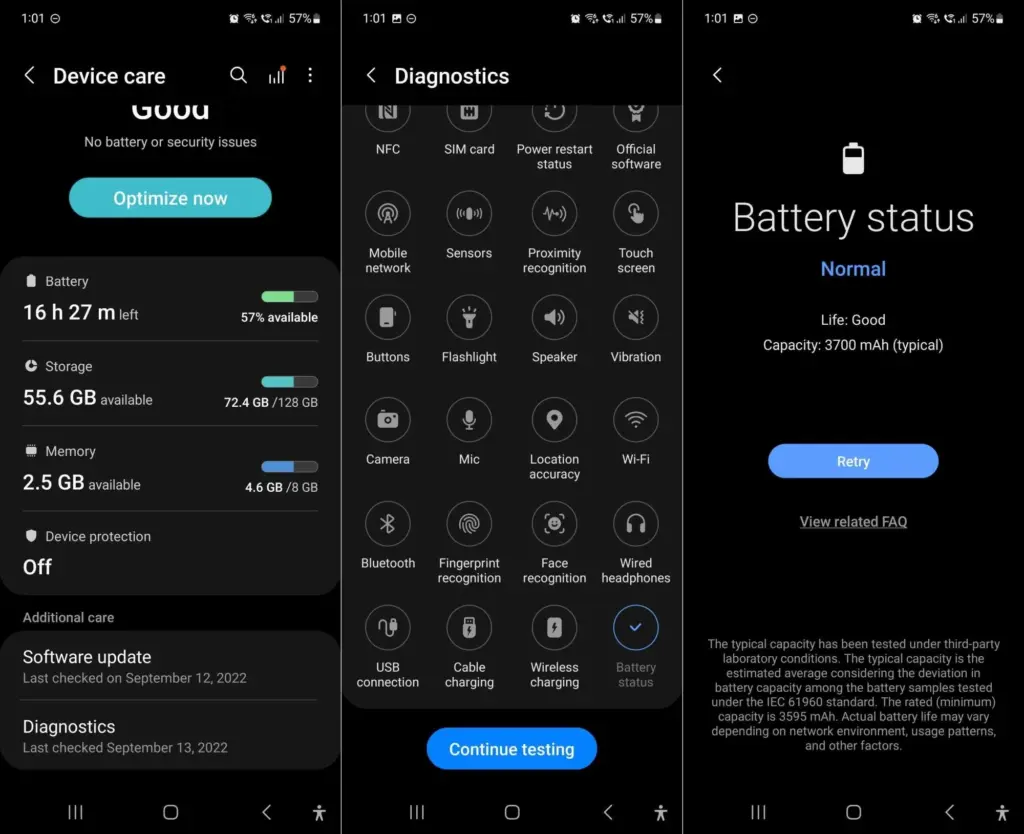
You can start a variety of diagnostic features with Samsung to see if your smartphone is operating correctly at the hardware level. Twenty-five functions and components are available for testing. from network connectivity and sensors to the battery. There are two ways to use this diagnostic feature, depending on whether One UI 6 or a later version is installed.
Open the Samsung Members app (or install it).
Tap Help in the bottom navigation bar.
Tap on Show tests in the Diagnostics section.
Select Battery status and start the test.
Now you can see your battery’s state, which should be “Good” in the best scenario. Additionally shown is the charging capacity, which should match the details on the data sheet for your smartphone.
Please be aware that the most recent in-house user interface, One UI 6, which is based on Android 14, is now installed on your Samsung Galaxy smartphone. Without utilizing Samsung Members, you can utilize the battery settings to manually invoke this diagnostic feature.
Go to the Settings.
Tap on Device maintenance.
Scroll down to Diagnostics and follow steps 3 and 4 mentioned above.
How to check the battery status on Xiaomi
Sadly, there are not many ways to find out how well your Xiaomi smartphone is doing. Compared to Samsung, these are less diversified. Entering the secret code is your only choice.
Enter the code *#*#6485#*#* on the keyboard of your phone app (native).
Check that MB_06“Good” is displayed.
MB_06 refers to your battery’s current state of health. However, this specific menu contains additional information that might be useful. Since the official sources are once more somewhat dubious, I have compiled a list for you using the information I have discovered in the several Xiaomi forums:
The “MB_” codes:
MB_00 Percent of battery remaining
MB_01 Battery status: charged/discharged
MB_02 Charging protocol (fast, etc.)
MB_03 Voltage of the charging process
MB_04 Voltage used (volts), e.g. 117000 corresponds to 1.17 volts.
MB_05 Temperature of the battery, here 260 corresponds to 26 °C.
MB_06 Health of the battery
MB_07 Temperature of the charger/adapter.
MB_08 Temperature monitoring status
MB_09 Maximum voltage of the battery at full charge.
The “MU_” codes:
MU_00 Type of charger
MU_01 Charging mode
MU_02 Direction of charging: (0: no charging / 2: charging / 3: reverse charging)
MU_03 Maximum input voltage via USB
MU_04 Current input voltage via USB.
The “MF_” codes:
MF_01: Current state of charge. If this value differs from the value under MB_00, this is an indication of a battery problem.
MF_02: Number of charging cycles (charging from 0 to 100 % since first use).
MF_05: Actual capacity of the battery
MF_06: The charging capacity specified by the manufacturer.
The “MM_” codes:
MM_00: AICL result (adaptive input current limitation)
MM_01: USB input current
MM_02: Maximum charging voltage of the charger
MM_03: Current maximum charging capacity. If it differs from the values specified in MF_06 or MF_05 (or in the data sheet), your battery is damaged.
Apps to check the health of your battery
Thus far, we have examined methods that are highly manufacturer-specific and, similar to secret codes, may not be the most obvious. Installing an Android app that lets you monitor the battery level of your phone is the simplest method.
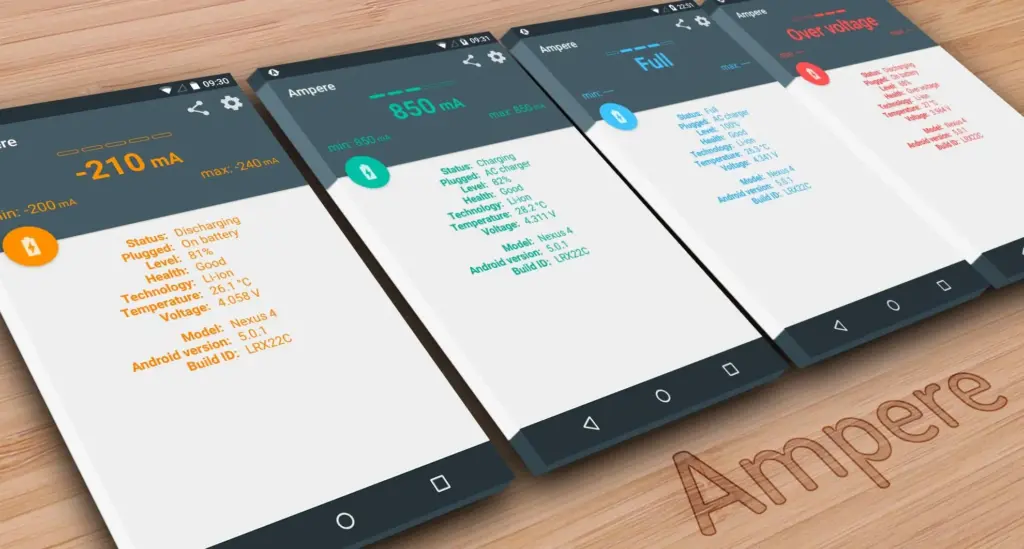
Ampere
When charging your smartphone, Ampere shows the electrical current. This enables you to evaluate various chargers and select the most suitable one for your smartphone. The app also allows you to monitor the rate at which your battery is depleting.
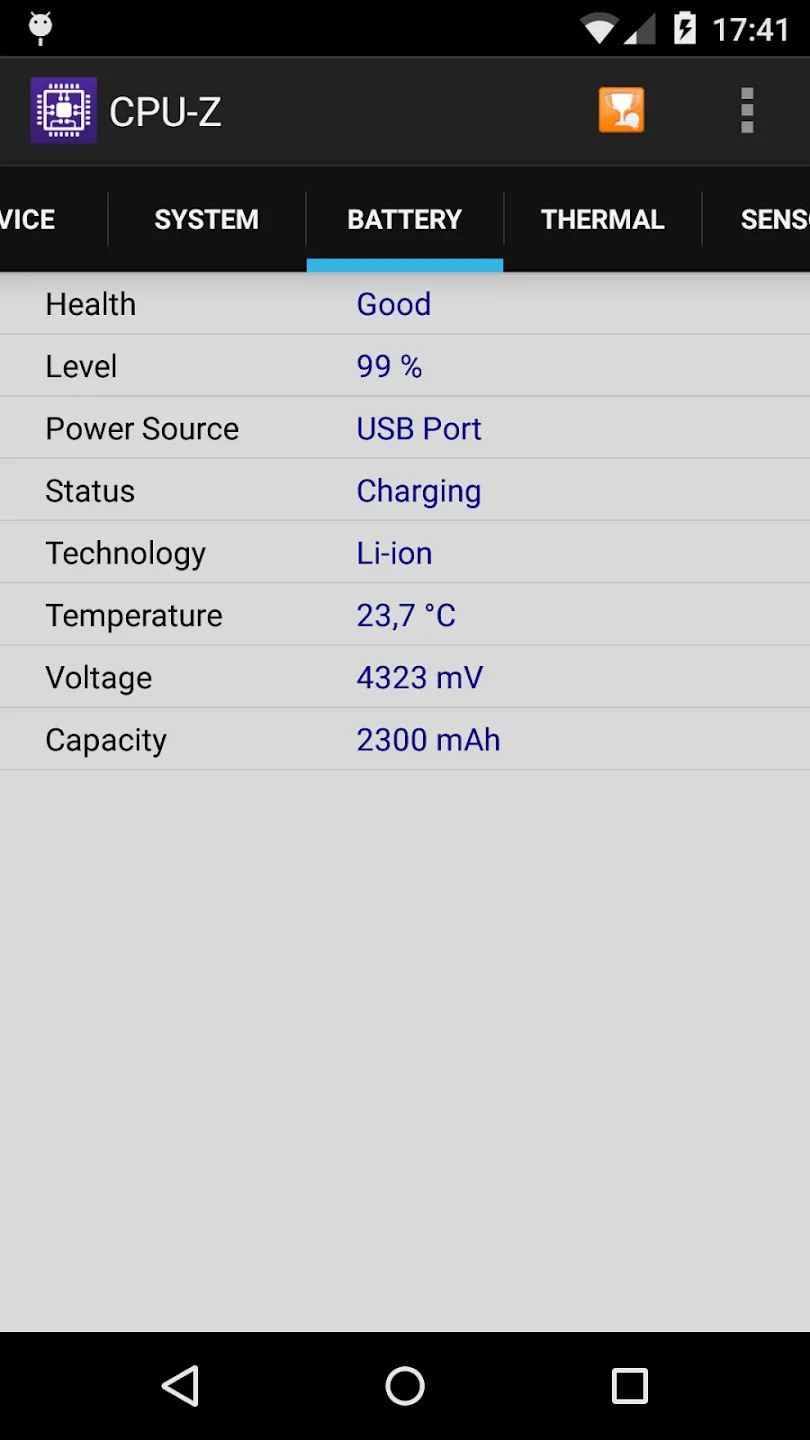
Another option is to look at CPU-Z, which provides details about your smartphone’s battery as well as numerous other components. The build number, processor core speed, temperature, and sensor information are all shown.
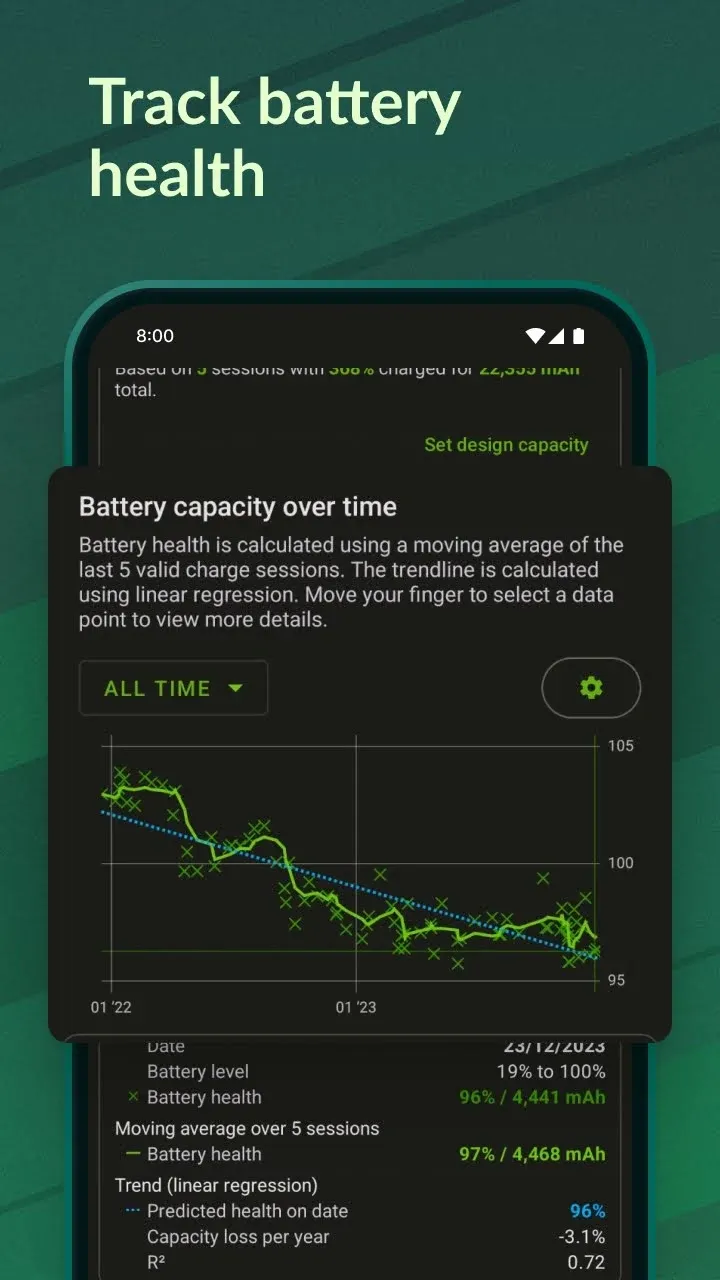
I would only suggest the AccuBattery app to those of you who are truly interested in knowing the precise condition of your battery. AccuBattery is not for you if you are only curious because it requires time for the program to measure usage and generate estimations.
AccuBattery’s analysis of your battery performance gets more precise the more you use it. The four tabs of AccuBattery are History, Health, Charging, and Discharging. AccuBattery calculates the charge capacity when you charge your phone. AccuBattery can assess your battery’s state by comparing it to the “official” charge capacity, which you must manually enter.
Like USSD codes, Android secret codes frequently begin with an asterisk. The secret codes can be activated without a network, which is how USSD codes differ from one another. Depending on the version that is loaded on the smartphone, they are kept in system files.
When moving to Android 4.3 Jelly Bean and then Lollipop, many codes become obsolete. Actually, codes are added and removed with every new edition. Not to mention the particular codes for some Android overlays, like MIUI or One UI, which were discussed before in this post.
Please take note that the code ##4636##, which displays an information menu that includes, among other things, your battery status, is compatible with practically all Android devices in addition to the Samsung and Xiaomi codes. However, we tested it on an Asus with Zen UI 9, a Xiaomi with MIUI 13, a OnePlus with OxygenOS 13, and a Samsung with OneUI 6.
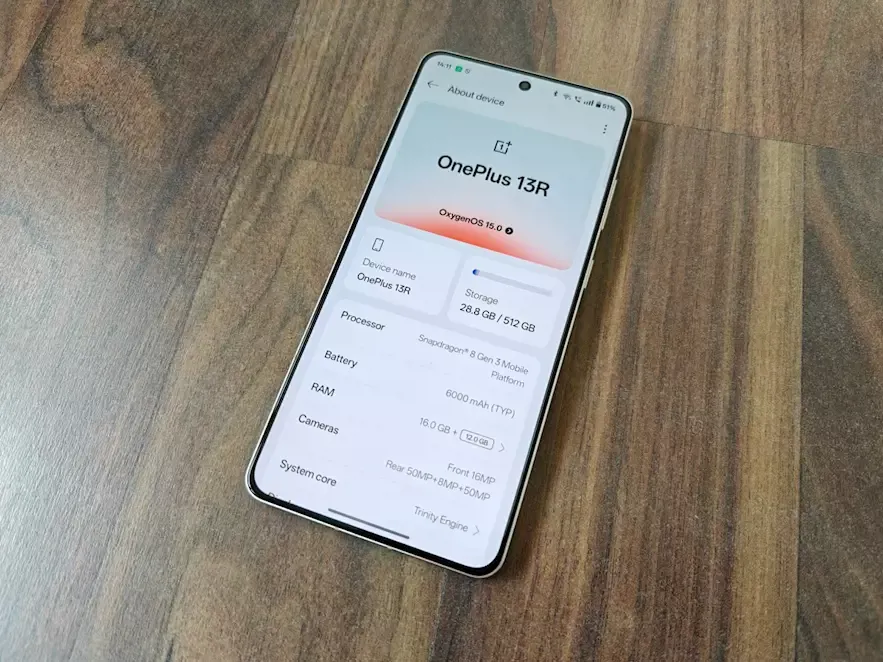
Building on the successful formula of its predecessor, the OnePlus 12R, the OnePlus 13R offers a long battery life, a stunning display, and a lot of power in a stylish, high-end package. The OnePlus 13R offers a lot of features at a price that is not as competitive as the brand’s original “flagship killers,” but if you are looking for a flagship phone without the incredibly high price tags that accompany them, this phone is a great choice.
The first “R” branded phones (of series 9, 10, and 11) did not make it to the coasts of Europe or North America, making this the second time an R-Series cellphone has been released abroad.
The OnePlus 13R is a less advanced, and therefore more cost-effective, variant of the flagship OnePlus 13, which was released concurrently. Consider this phone to be similar to Google’s “A” range of Pixel phones and Samsung’s “FE” versions of its high-end S series.
Even in direct sunshine, the 6.78-inch display is easy to use due to its color and brightness. The phone’s flat screen makes for a pleasant viewing experience because it is flush with the aluminum chassis.
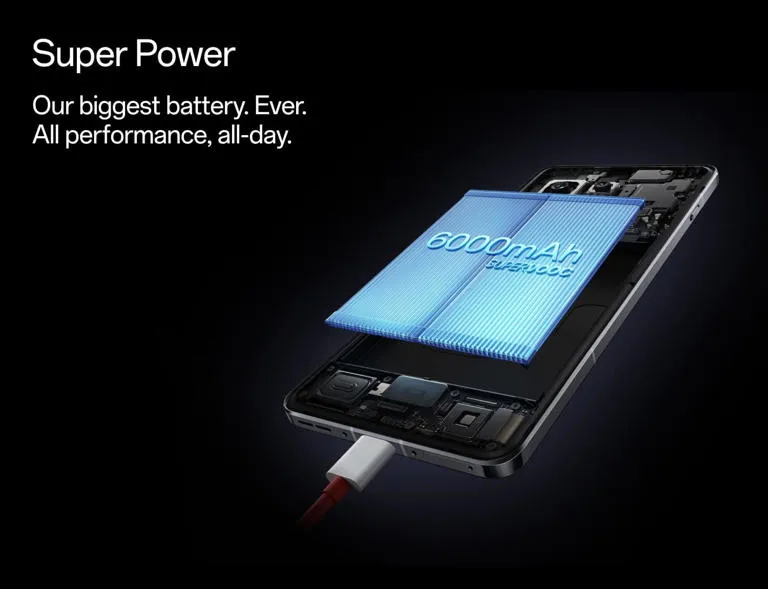
Even heavy users will get more than a day’s use out of the OnePlus 13R before reaching for the charging wire, thanks to its large 6,000mAh battery, which lasted me two days on a single charge. However, as there is not wireless charging, grab the cable.
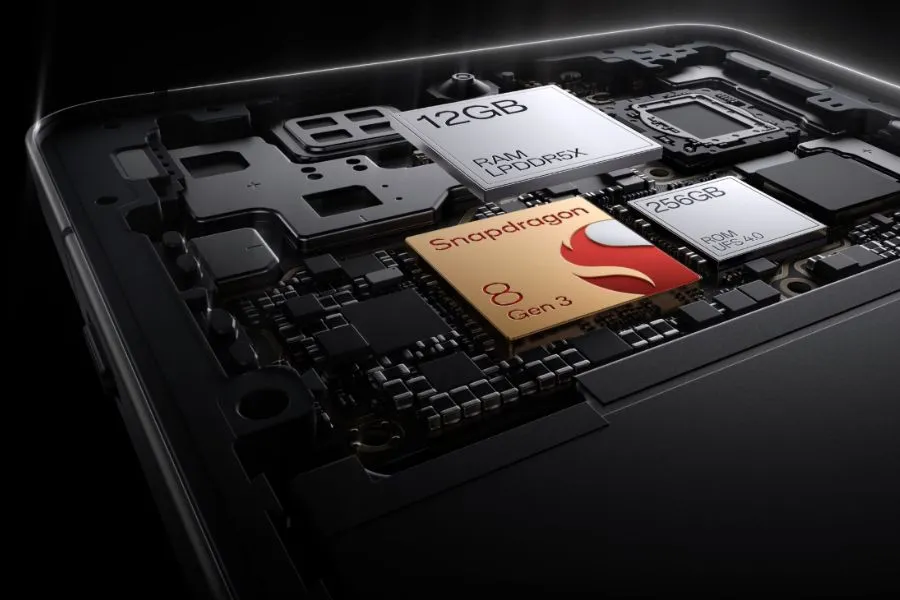
With 12GB of RAM skillfully supporting the previous flagship generation Snapdragon CPU at its heart, there is a ton of power beneath the hood. It implies that the 13R is capable of handling almost everything.
The three cameras on the back may not have the newest capabilities seen in flagships of the current generation, but they are still excellent point-and-shoot cameras that perform well in the majority of situations.
However, because the 13R is a large phone, it might be a little difficult for people with little hands to hold. Furthermore, as this phone is not waterproof, you should exercise caution when near water. It will be fine in the rain because it is only splash-proof.
While it retains many of the features of the brand’s previous flagship phone, the OnePlus 13R is a capable smartphone that is just out of reach of some of the newest technology that has been saved for its non-R, numbered twin.
Pricing & Availability
With only one storage option—256GB ROM + 12GB RAM—available in North America and Europe, the OnePlus 13R is a straightforward purchase. A more robust 512GB + 16GB extra combination is available for those living in India, which would make some Western markets jealous of Asia.
The pricing of the OnePlus 13R is $599/£679, which is the same as the OnePlus 12R’s debut price in the US but £30 higher in the UK.
The 13R is positioned well in the market, delivering a large screen, a large battery, and plenty of performance at a price point that undercuts Apple, and it was launched in the US at the same price as the 256GB OnePlus 12R from the previous year.
Although the £30 price rise is a little annoying for UK customers, OnePlus has made improvements to the 13R, which still provides a good all-around experience. The OnePlus 13R is priced at the upper end of the “affordable flagship” market, and unlike the OnePlus 12R, it only comes with 256GB of ROM and 12GB of RAM in the US. This time, there is not a less expensive model with 8GB or 128GB of RAM and storage.
This means that it costs more than Google’s own version of a cheap flagship, the smaller, more portable Pixel 8a, but it is around the same as the AI-enabled Samsung Galaxy S24 FE and the alternative Nothing Phone (2), albeit the latter is already a year and a half old. The OnePlus 13R’s exceptional battery life is one of its main selling points, but if you value battery life above all else in a large-screen phone, you might want to check out the Honor Magic 7 Lite. Although it is not accessible in North America and has a larger battery (6,600mAh), it is significantly less expensive.
Storage / RAM
US Price
UK Price
India price
256GB / 12GB
$599
£679
Rs TBC
512GB / 16GB
N/A
N/A
Rs TBC
OnePlus 13R specs
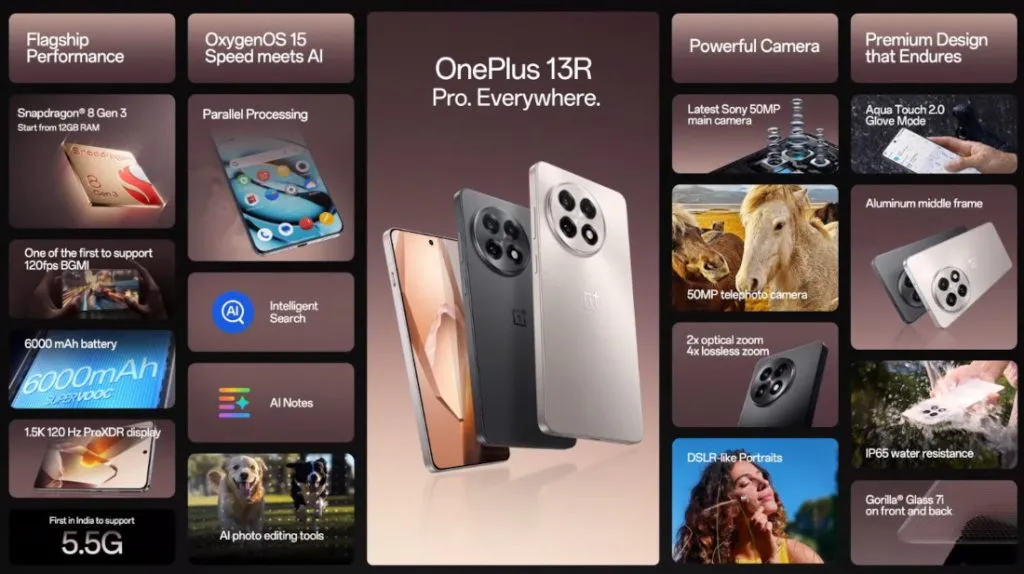
Three key specifications are included with the OnePlus 13R. It has a large, bright, and striking 6.78-inch screen with a maximum brightness of 4,500 nits, a massive 6,000mAh battery that lasts for two days, and smooth performance because it uses the same Snapdragon 8 Gen 3 CPU as the OnePlus 12, the brand’s flagship from the previous generation.
All but the most frequent power users will be satisfied with the 256GB of storage, three cameras around the back, and quick 80W wired charging.
Dimensions:
161.72 x 75.77 x 8.02mm
Weight:
206g
Display:
6.78-inch, 19.8:9 ProXDR Display with LTPO 4.1, Support 100% Display P3, 10-bit Color Depth
Resolution:
1264 x 2780, 450 ppi
Peak brightness:
4,500 nits
Chipset:
Snapdragon 8 Gen 3
RAM:
12GB LPDDR5X
Storage:
256GB
OS:
Android 15 w/ OxygenOS 15
Main camera:
50MP Sony LYT-700, 1/1.56”, f/1.8, 84-degree field of view, OIS, EIS
Telephoto camera:
50MP S5KJN5 with 2X optical zoom, 1/275”, f/2.0, EIS
Ultra-wide camera:
8MP, 1/4″, f/2,2, 112-degree field of view, EIS
Selfie Camera:
16MP, 1/3.09”, f/2.4, 82-degree field of view, EIS
Battery:
6,000mAh
Charging:
80W wired
Colors:
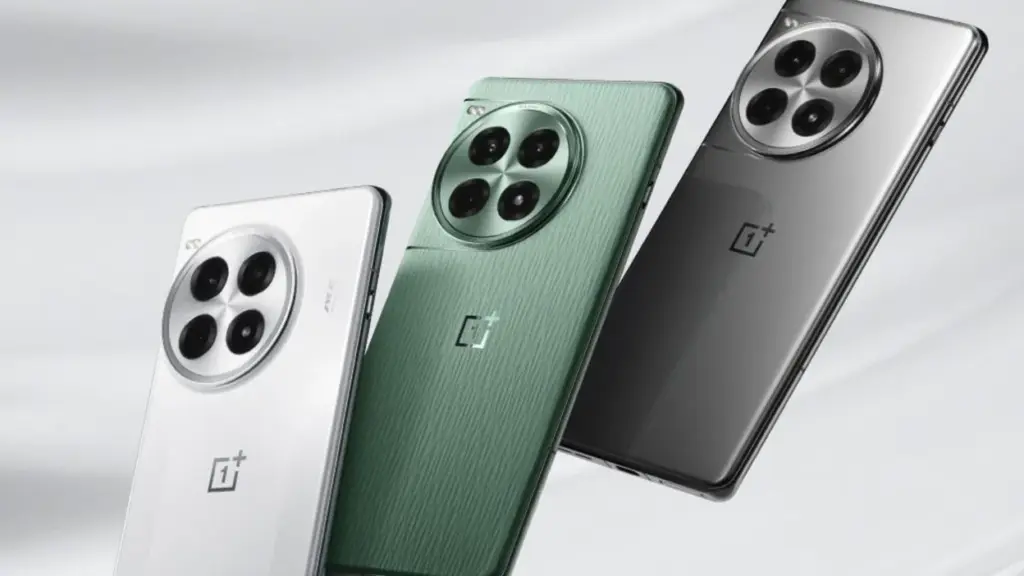
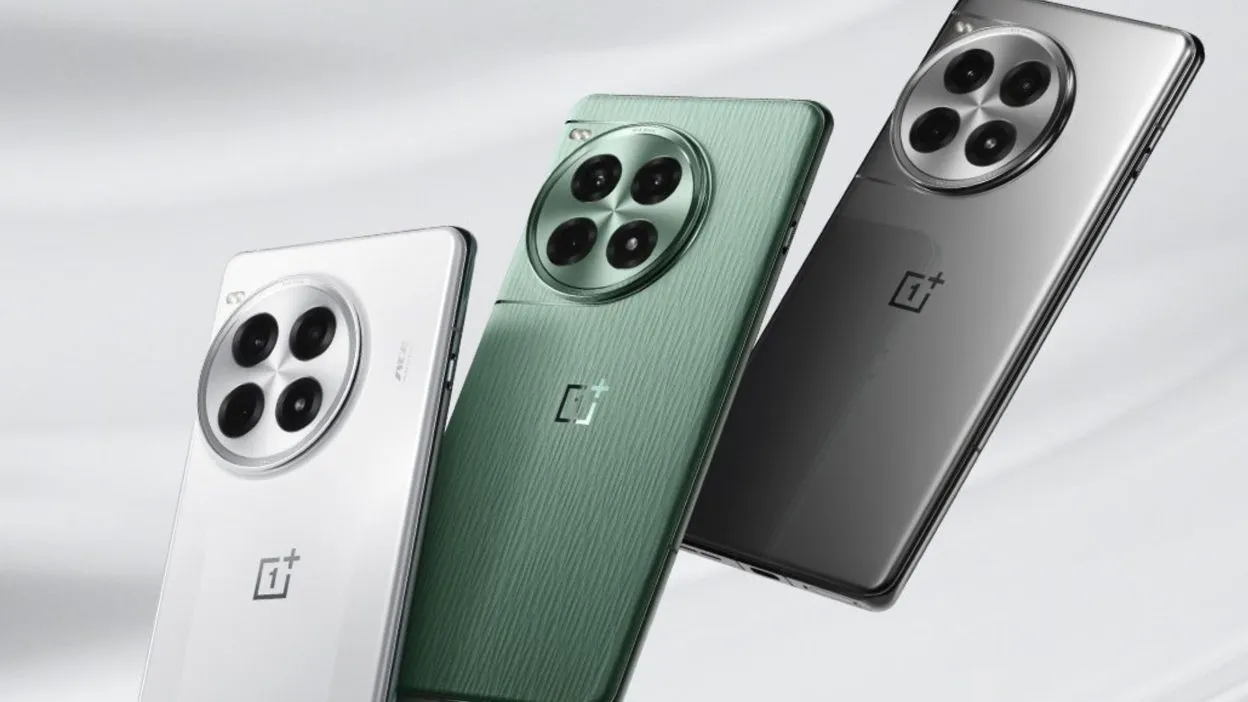
Astral Trail, Nebular Noir
OnePlus 13R
The OnePlus 13R builds on the winning formula of its predecessor, the OnePlus 12R, by delivering prolonged battery life, a dazzling display, and plenty of power in a slick, premium package.
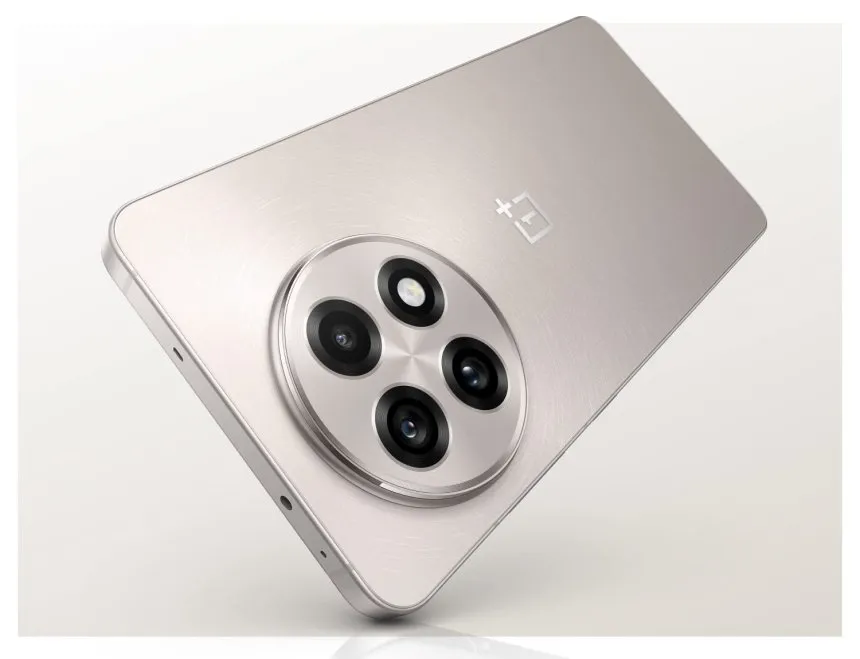
With a sleek aluminum frame encircling the phone and glass on either side, the OnePlus 13R is a stylish piece of hardware. Because both companies are owned by the same business, the flat sides are reminiscent of both the Oppo Find X8 range and Apple’s iPhone 15 Pro and 16 Pro series. The latter shares several design characteristics with the OnePlus 13 series.
Gorilla Glass 7i, the first OnePlus phone to use this new glass type, is used to cover the phone’s screen and back to complete the luxury package. According to manufacturer Corning, the glass is “particularly created to answer the demand for increased drop protection and scratch resistance.” This implies that the 13R should be resilient to the occasional drop and knock, but I did not actually test this out when I was reviewing the phone.
The OnePlus 13R has a high-end appearance and feel, is well-built, and performs better than its pricing suggests, even though its design is not totally original. I would have preferred the power and volume buttons on the right of the 13R to be positioned lower down, but those with smaller hands will find the gadget too large, especially for one-handed operation.
My thumb was strained by the volume rocker in particular, which made it difficult to turn up the volume without making awkward hand shuffles. The buttons would naturally fall beneath the thumb if OnePlus positioned these a few millimeters lower, making manipulation simpler.
The OnePlus 13R has OnePlus’ now-iconic alert slider, which makes it simple to choose between silent, vibration, and ring modes. However, it has the same placement problem as the volume and power buttons; it is positioned a bit too high up on the left side of the phone for my taste.
The speaker and SIM tray, which can hold two cards, are on either side of the USB-C connector, which is located in the middle of the phone’s bottom edge. Only the massive round camera housing on the back breaks the sleek, minimalistic finish of my Nebular Noir-colored smartphone.
The IP65 water resistant rating of the phone is one unsatisfactory feature. Although an IP68 rating (water resistance for submersion) is not unusual in this price range, it is an upgrade over the IP64 rating of its predecessor and offers protection against water jets.
Display
The good news is that the display on this phone, which OnePlus makes a huge deal out of, lives up to the hype. It is large, vivid, and multicolored. It is a massive device at 6.78 inches, slightly larger than the Samsung Galaxy S24 FE (6.7 inches) and much larger than the Pixel 8a’s 6.1-inch screen. It is also about the same size as the Honor Magic 7 Lite, another big-battery contender.
The resolution of 1264 x 2780 (1.5K), which provides a pixel density of 450 ppi, is standard. While OnePlus claims that the 13R can reach a maximum brightness of 4,500 nits, you will not be able to view that level of brightness in practical applications.
The OnePlus 13R’s screen did a great job in bright light during my time with it, both indoors and out. You can be sure you will be able to see what is on screen in direct sunlight if you are lucky enough to be in an area with lots of sunshine.
It is not surprising that interactions do take a bit more force than when not wearing gloves. Glove mode does not support gameplay, according to OnePlus, so if you want to play PlayerUnknown’s Battlegrounds (PUBG) while on vacation in Lapland, Finland, you might want to wait until you are indoors and gloveless before launching yourself into combat. But it is simple to open and close apps, navigate the interface, skim through social media, and tap out messages.
Software
The software you see on the screen of the OnePlus 13R is powered by the most recent version of Google’s mobile operating system, which is Android 15. It is not entirely Android because OnePlus has layered its OxygenOS 15.0 interface over top, giving the phone a familiar appearance and feel for those who have used the company’s earlier models.
This offers the stock Android platform—found on Pixel phones—a slightly distinct appearance and feel. Other apps were pre-installed on my OnePlus 13R in addition to the standard system apps.
According to OnePlus, OxygenOS 15 has been made 40% smaller overall, providing more capacity for apps, games, pictures, movies, and other media by using less of the 256GB of internal storage.
With OnePlus promising to provide the smartphone with six years of security upgrades and four years of software updates, the OnePlus 13R is also future-proof. Although this product is decent, it is not the best in its field.
While Google and Samsung provide seven years of software and security updates on their most recent devices, Apple has long provided five years. And a 2025 smartphone would not be complete without mentioning artificial intelligence. You may use the AI Editor option, which has four tools, in the Photos app (the OnePlus version, not Google’s Photos app). See the camera section for more details.
The OnePlus 13R also has Google’s Gemini AI assistant pre-installed, which allows you to use tools like Magic Compose (which helps you write text messages) and Circle to Search.
Camera
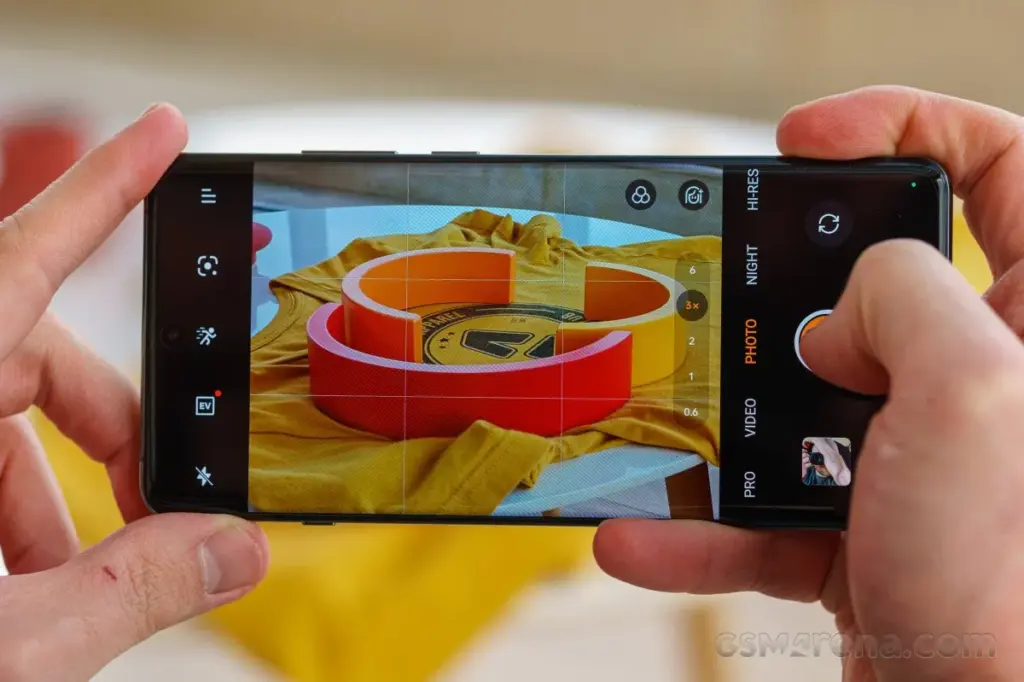
The large, circular camera housing of the OnePlus 13R houses three cameras, the most prominent of which are a 50MP Sony LYT-700 primary sensor and a 50MP telephoto sensor that supports 2x zoom. An 8MP ultra-wide sensor with a 112-degree field of view completes the sensor array. An LED flash is also included to assist light up dim areas.
There is a 16MP selfie camera on the front, however it lacks a wide-angle lens to accommodate more faces. You will have to accept that some people might not be included in the picture or put your cheeks together.
With easy access buttons for Google Lens, exposure, retouch (beautification mode), and filters, the OnePlus 13R camera software launches quickly and is jam-packed with features that will have you Instagram-ready in no time.
In addition to offering more precise options for ISO, shutter speed, exposure, focus, and white balance, the “Pro” mode allows users to shoot in RAW instead of JPG for more editing flexibility in applications like Photoshop.
In summary, the OnePlus 13R camera app offers a wide range of customization choices. However, for those who prefer not to tinker with settings, the good news is that it shoots fantastic pictures in the default configuration.
The 13R is a pretty good smartphone camera under most circumstances. Given that it is a tier below the genuine premium flagship offers, it is not on par with the greatest camera phones available, but that is to be anticipated.
Performance
The Snapdragon 8 Gen 3 processor is the same flagship chipset used in the OnePlus 12, but it is not Qualcomm’s most recent top-tier Snapdragon 8 Elite offering. What this means is the 13R still packs a punch, backed up by a capable 12GB of RAM.
Social media scrolling is quick and fluid because to the performance and the 120Hz screens, and the interface works well. Although apps load swiftly, the OnePlus 13R does not feel as snappy as the real flagships on the market when it comes to more demanding games.
That is not really a problem, and I was more than satisfied with the performance I was getting for the price of this phone, whether I was using it for social media browsing, video streaming, email checking, work (including writing some of this review), or taking a well-earned break to play games.
Genshin Impact ran smoothly on the OnePlus 13R at 60 frames per second and at its maximum graphics setting of 30 frames per second.
Compared to flagship phones, load screens were a bit slower to complete, but this did not interfere with gameplay. The phone did warm up, but it never got to a point where it was unpleasant.
Moreover, it works well; we had no read errors when using the phone, and it was very responsive. Enabling face unlock is an additional option. Even from unusual angles, like surreptitiously glancing at your phone from behind a desk, the OnePlus 13R can quickly recognize your face and unlock it in the sunshine.
Battery
One of the greatest selling points for the OnePlus 13R is its massive 6,000mAh battery, offering the handset with excellent longevity and giving you the piece of mind of true all-day battery life without the need to even contemplate reaching for a charger.
We discovered that on days when we reduced our gaming and video watching, we could simply unplug at 7am and then plug in at 11pm with 50% of the power remaining. On days when we used the device heavily, we would still be going to bed at the end of the day with at least 20% of the battery remained.
To extend the lifespan of the massive power pack within, the company lowered the SUPERVOOC charging speed from 100W on the OnePlus 12R to 80W on the new OnePlus 13R.
The OnePlus 13R can go from 1% to 100% in as little as 52 minutes with the correct fast-charging plug converter (in the UK, you only receive a USB-C cable in the box), and the 80W charging still provides a respectable amount of power in a short period of time.
The OnePlus 13R charged from 15% to 31% after 15 minutes using a quick 60W charging block, and the battery returned to 48% after 30 minutes, a 33 percentage point increase in 30 minutes. Fair top-up times, particularly if you have to quickly add charge before leaving the house.
The OnePlus 13R’s lack of wireless charging is the only drawback to its battery life. You will want a wire to recharge the 13R because this feature is exclusive to its more expensive sister, the OnePlus 13.
OnePlus 13R
The OnePlus 13R builds on the winning formula of its predecessor, the OnePlus 12R, by delivering prolonged battery life, a dazzling display, and plenty of power in a slick, premium package.
One of the most important factors for many smartphone users is battery performance, and several recent HyperOS updates have been reported to cause significant battery drain for some Xiaomi handsets. Fortunately, that has been resolved.
During regular use, users saw a rapid loss of the battery. This problem was particularly noticeable in:
POCO M6 with OS2.0.2.0.VNTMIXM
Redmi 13 with OS2.0.2.0.VNTMIXM
Xiaomi swiftly fixed the problem in OS2.0.3.0.VNTMIXM, the next release. This shows the brand’s responsiveness and their high regard for customer pleasure.
Go to Settings → About Phone → System Updates to confirm that the most recent version is installed on your smartphone. Avoid using excessively power-hungry apps until all adjustments have been made. Xiaomi has once again demonstrated through the speedy fix that it values customer feedback and responds quickly to problems.
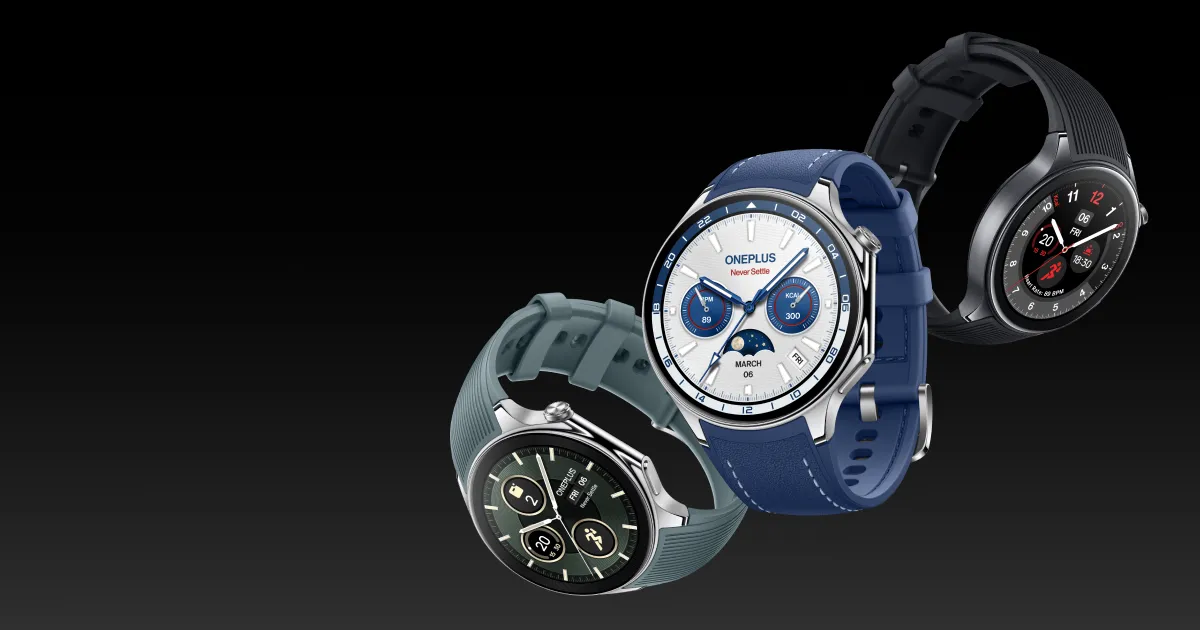
The OnePlus Watch 2 is now available on Amazon for $250, which is $50 less than its usual price. Because of this, it is among the greatest and easiest smartwatches we have tried.
In 2021, OnePlus released the OnePlus Watch, and I ordered it right away because the hardware looked amazing and it cost $159. I sent the item back after a few weeks because it did not provide anything useful.
Since many smartwatches operate lean and mean, the Real-Time Operating System (RTOS) used by the original OnePlus Watch was ideal. With a dual-engine design, the OnePlus Watch 2 this year goes one step further by providing both Wear OS 4 and RTOS on a single watch. The gadget has a longer battery life than any other Google Wear OS or Apple Watch thanks to its innovative design, making it the most effective Wear OS watch on the market right now.
OnePlus Watch 2
32GB, 100-Hour Battery, Health & Fitness Tracking, Sapphire Crystal Design, Dual-Engine, Wear OS by Google
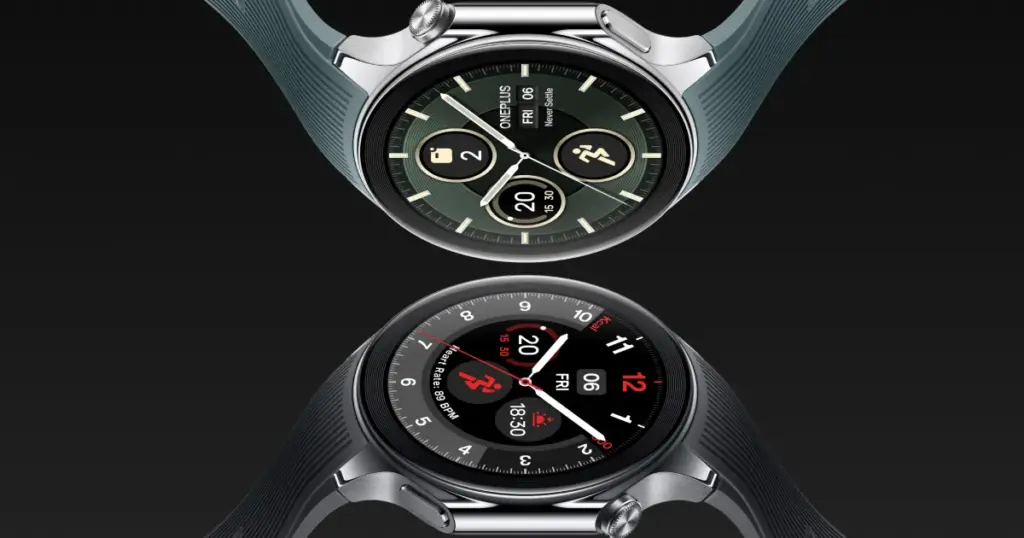
OnePlus has produced one of the most stylish smartwatches on the market right now, in addition to a strong operating system strategy. The watch features a 2.5D smooth sapphire crystal face, a sturdy silicone band, and a stainless steel watch case. With an oval button on the bottom and a round button on top, the buttons on the right are elegantly integrated into the bezel.
With its IP68 rating and 5 ATM water resistance, the OnePlus Watch 2 is safe to wear when swimming and engaging in other outdoor activities. Furthermore, the device surpasses even the Apple Watch Ultra 2 and Galaxy Watch 5 Pro because it was constructed to meet MIL-STD-810H specifications.
According to OnePlus, the watch may last up to 12 days in power-saver mode, 100 hours in Smart Mode, and 48 hours when used extensively. Its battery is 500 mAh. I was able to charge the watch every three to four days and wear it around the clock during my two weeks of testing. I used the gadget for active heart-rate monitoring while indoor rowing, GPS tracking while running and walking, and more.
The always-on display mode will use up the battery more quickly. However, when I first tested it, I left the always-on display off because I discovered that the lift-to-wake feature worked great.
The OnePlus Watch 2 boasts a great battery life, but it also supports 7.5W VOOC fast charging, which allows you to charge it to 100% in just one hour and wear it for a day much faster. Fast charging, CPU efficiency, and a long battery life are the ideal combinations for a smartwatch.
Both L5 and L1 satellite positions are available, and Beidou, GPS, Galileo, GLONASS, and QZSS GNSS are supported. The tracking of the watch was nearly identical to that of my specialized GPS sports watches. Additionally, Wear OS support allows you to utilize your favorite watch apps instead of OHealth. The watch’s heart-rate tracking was precise as well.
The OnePlus watch does not function with an Apple iPhone, and you must have the OHealth software installed on your Android phone. The OHealth app is used to control the watch apps and settings, as well as the health and wellness functions, thus the Wear OS app is not used.
OnePlus Watch 2
32GB, 100-Hour Battery, Health & Fitness Tracking, Sapphire Crystal Design, Dual-Engine, Wear OS by Google
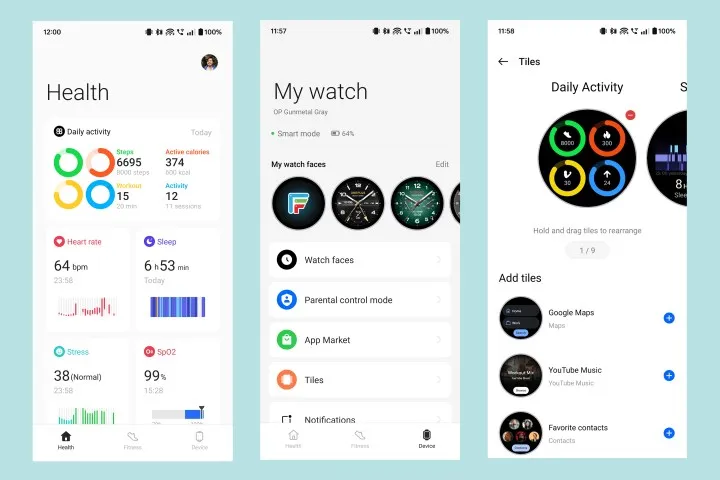
I find the OHealth app to have a more user-friendly UI than the Fitbit and Google applications that come with Pixel Watches. OnePlus has stated publicly that it has intentions to offer syncing to other services, like Strava, in the future, but for now, the data gathered by the OnePlus Watch 2 is still in OHealth.
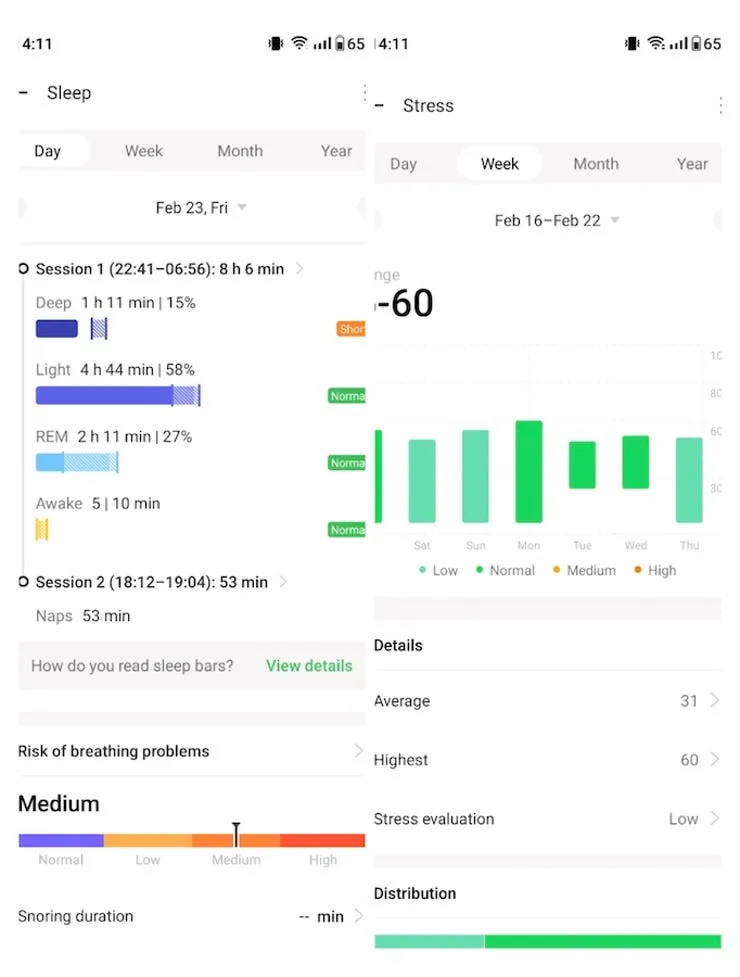
You can measure your heart rate, blood oxygen, stress, sleep, workouts, and more with the OHealth app and OnePlus Watch 2. The Wear OS tiles that show up when you swipe left and right on the watch face may also be managed through the OHealth app. I found the OHealth app to be more user-friendly than the Wear OS app on a Pixel phone, and it has a lot of settings.
Check out the many workout and health options, such as heart-rate alerts, breathing tests while you sleep, auto-workout detection, and even the ability to customize the screens for your preferred routines.
There is potential for development even if the OnePlus Watch 2 is a far better watch than the original model. The watch lacks cellular connectivity, has a single 47mm diameter and weighs 80 grams, is not the best for people with smaller wrists, does not support fall detection, can not control a OnePlus phone camera from the watch (though this will be fixed in a future update), does not have any features for tracking women’s health, can not record ECG readings, and does not have a skin-temperature sensor.
But I really enjoyed wearing this classy watch and used the face swipe to access my favorite tiles. I can not use the Google Pixel Watch since it is very small and has a limited battery life. Better solutions at affordable prices are possible, as demonstrated by the OnePlus Watch 2.
OnePlus Watch 2
32GB, 100-Hour Battery, Health & Fitness Tracking, Sapphire Crystal Design, Dual-Engine, Wear OS by Google
Now more than ever, we depend on digital devices like smartphones and computers for work and entertainment.
Users want a smooth experience. However, there are times when our devices show signs of poor performance and other issues.
Let’s take a look at some of the most common problems and methods to minimize or eliminate these issues.
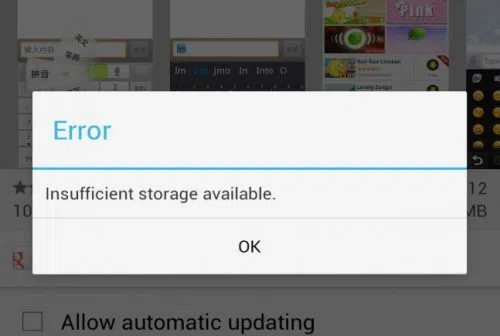
1. Insufficient Storage
You work with a finite amount of storage. Some devices boast of having terabytes of available space, so running out of available disk space is often not a problem.
On the other hand, some devices come with much less than that. It is crucial to keep an eye on what you download and store on the device. Get in the habit of deleting files you no longer need.
Remember that you do not need to store everything on the device. Cloud storage and external storage accessories (hard drives and USB flash sticks) offer a solid alternative.
2. Overheating
Overheating is one of those problems that you want to avoid as much as possible. The process works as an anxiety builder, making you aware that something is wrong. Ideally, your device should be lukewarm at most.
Having said that, it is not how digital devices work, particularly when you initiate resource-heavy processes, such as video games.
Certain devices have more flexibility to adjust temperatures. For instance, the MacBook kernel_task high CPUis one such indicator, and it’s a built-in feature.
Generally, overheating can be reduced by limiting background processes. Check background applications and close them. Moreover, if you have some time, clean the dust and other particles that are inside the device (provided you know what you are doing).
3. Sluggish Performance
A sluggish performance can be the result of different factors building up over time. More often than not, users don’t pay attention to basic maintenance routines, leaving their smartphones or computers to their own devices.
Doing so is bound to backfire. As a rule of thumb, there should be a maintenance routine that users follow, regardless of how big or small it is.
The goal is to ensure optimal device performance and increase its lifespan. At times, you may need to reinstall an operating system, ensure that the latest OS version is installed, and upgrade hardware when/if possible.
4. Malware
Cybersecurity threats are running rampant online, attacking unsuspecting users. It is no longer enough to have reliable antivirus software, though it remains a cornerstone of a good anti-malware strategy.
More and more people are looking to rely on virtual private networks to encrypt their surfing data and block devices from hackers. A VPN is helpful, particularly when you have to connect to public Wi-Fi, which is notorious for missing the necessary security protocols.
The awareness via various campaigns comes in handy, too. Organizations are trying their best to educate people about the dangers of the internet. It goes beyond protecting your devices. Personal and sensitive information is another thing malicious cybercriminals are after.
5. Poor Connectivity
As much as we rely on our devices, the same can be said for the internet. Having a poor connection is enough to ruin somebody’s day.
Naturally, some locations have a better internet connection. Certain ISPs are notorious for providing lackluster experience.
Still, one should not underestimate the impact on the user itself. You may have an outdated router or a third-party device jamming the signal. Not to mention that sometimes restarting the device or reconnecting to the network is enough to solve the problem.
6. Lackluster Battery Life
If you are on a desktop computer, battery lifespan problems are not something to worry about. Alternatively, smartphone and laptop users have to keep a close eye on the battery bar.
The likelihood of running out of battery life is not zero. The bar might go down without you realizing it. And if there are no means to quickly recharge the device, you will be in trouble.
Make sure to close background apps and other battery hogs. If the battery becomes outdated and struggles to recharge or maintain a decent battery life, you might have no other option but to get a replacement.
In contrast to other smartphone brands, Xiaomi is also well-known for its selection of power banks. The company offers a large number of models, particularly in China, where it is the home market.
The company recently unveiled a new power bank that has a slim form factor, prioritizes design over functionality, and is reasonably priced, just like any other Xiaomi product.
The new power bank from Xiaomi is so light and thin that it can not fully charge most phones.
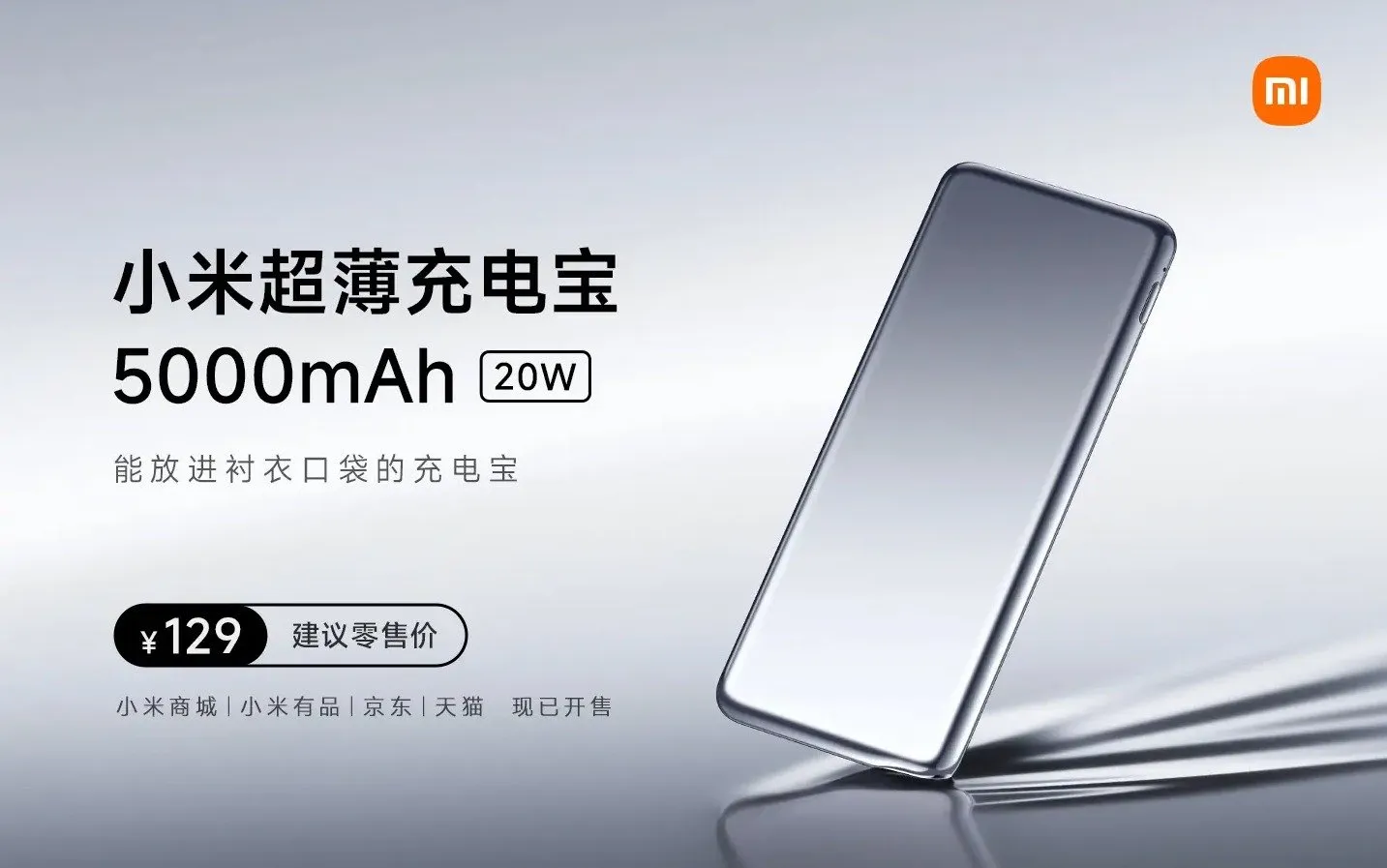
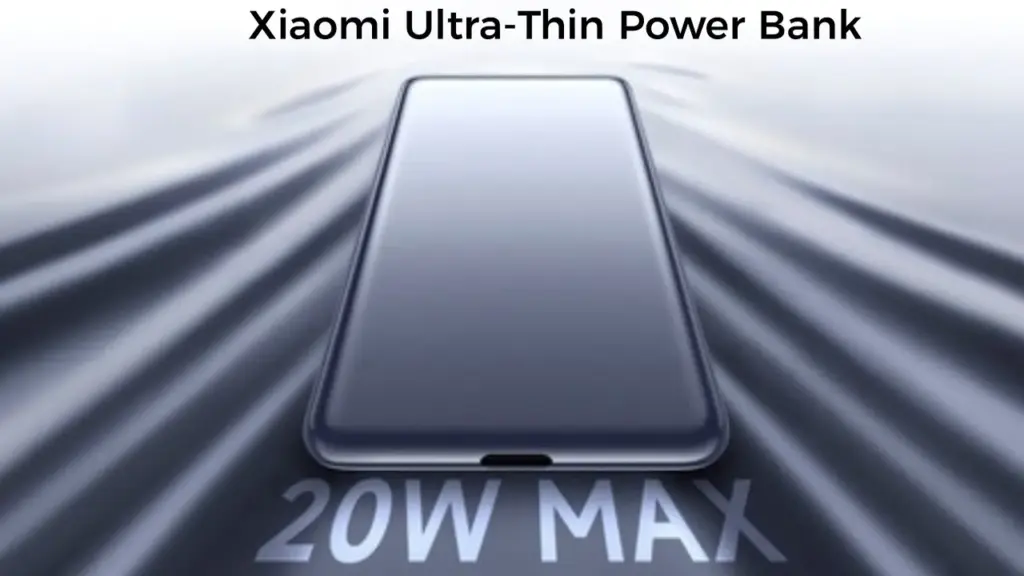
The latest battery pack from the company is called the Xiaomi Ultra-Thin Power Bank 5,000mAh. It costs ¥129 (~$20) and is available for purchase.
Measuring just 10mm and weighing only 93g, it is thin enough to fit in shirt pockets like a credit card. Its body is coated with a material called NCVM (Non-Conductive Vacuum Metallization), which makes it appear and even shine like metal. As the name implies, the accessory has a battery capacity of 5,000mAh, meaning it cannot fully charge most modern smartphones.
A USB Type-C to Type-C cable is included with the power bank, which has a single USB Type-C port and can support up to 20W of output and 18W of input.
In addition, the accessory comes with nine layers of protection: temperature, reset, input overvoltage, input overcurrent, output overcurrent, output overvoltage, battery overcharge and overdischarge, and overcurrent short circuit.
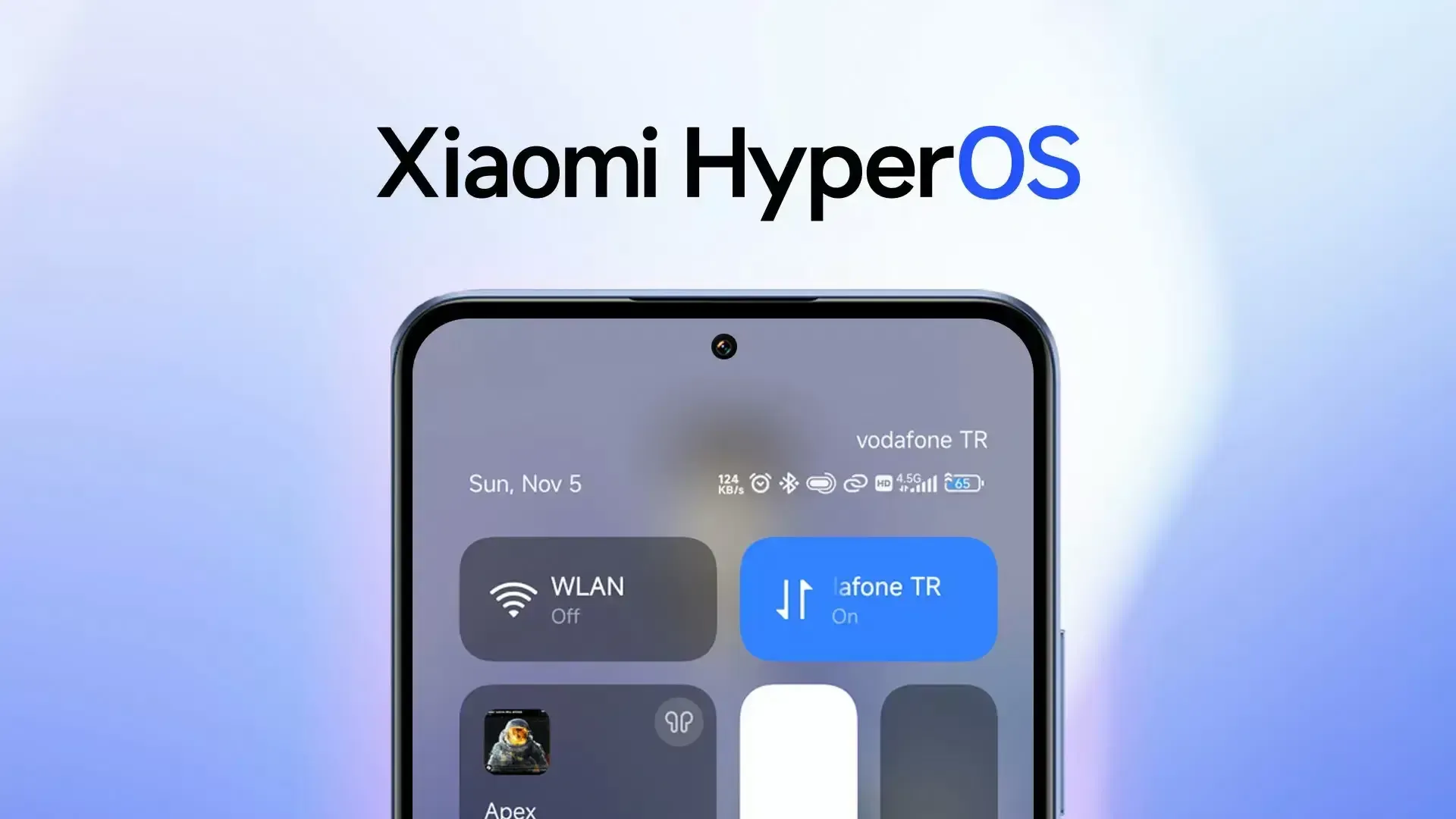
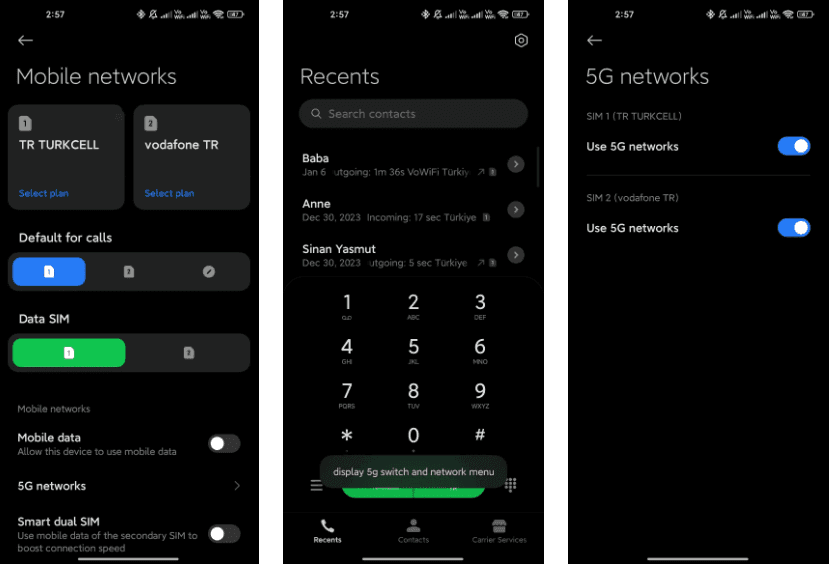
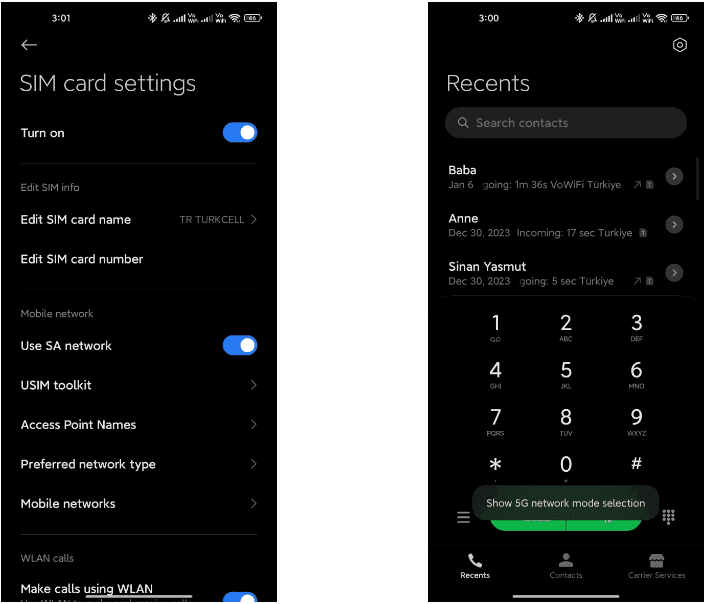
For users of Xiaomi smartphones running the Xiaomi HyperOS operating system, there are hidden codes that can unlock additional features and settings, providing a deeper level of customization and control. In this article, we’ll explore some of these secret codes and the functionalities they offer to enhance your Xiaomi HyperOS experience.
*#06# – IMEI
Need to check your device’s International Mobile Equipment Identity (IMEI) number? Dial *#06# to quickly access this information.
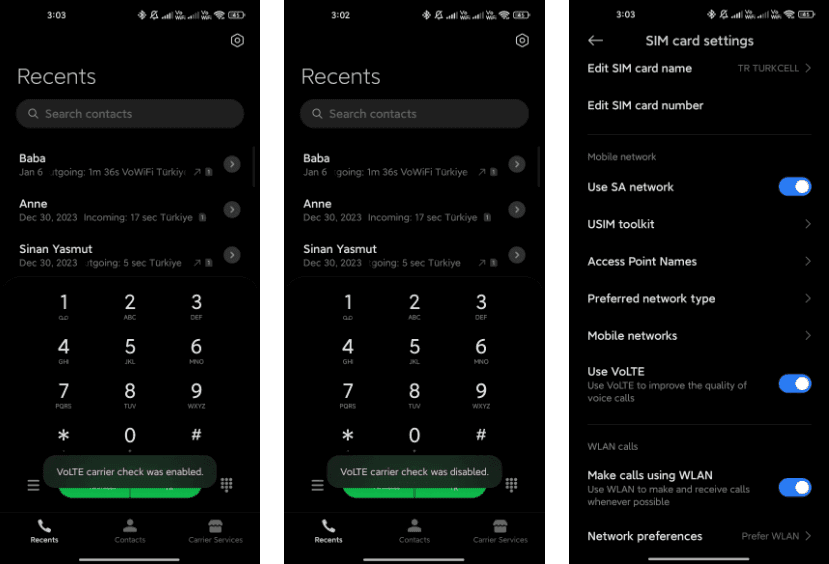
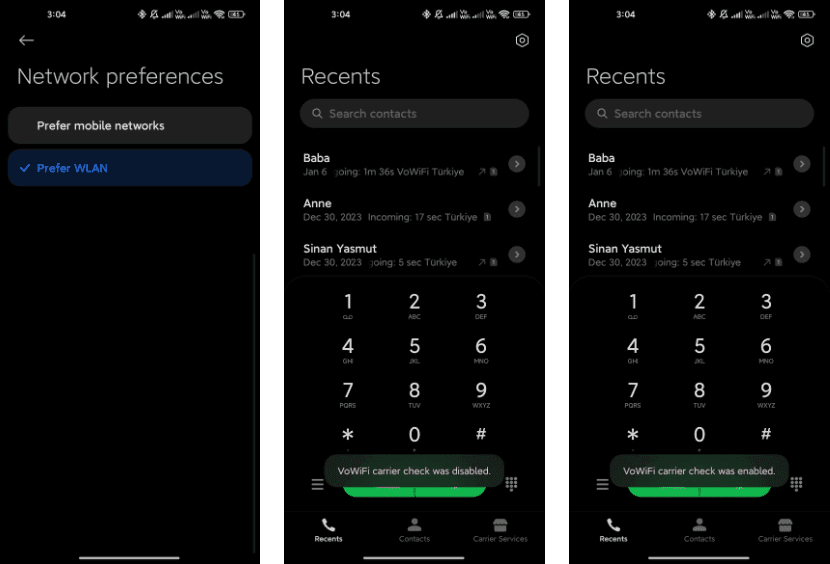
*#*#*54638#*#* – Enable/Disable 5G Carrier Check
Toggle the 5G carrier check with this code, giving you control over your network settings and the ability to enable or disable 5G functionality.
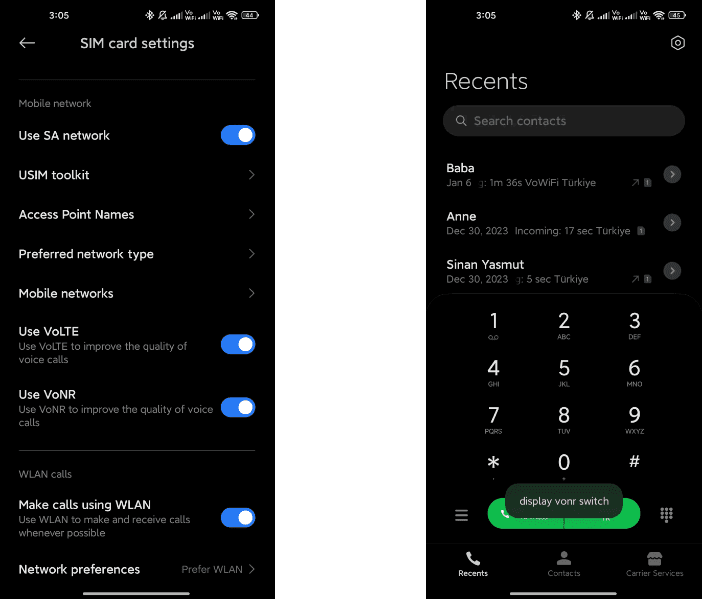
*#*#726633#*#* – Enable/Disable 5G SA Option on HyperOS
Take control of your Voice over Wi-Fi (VoWi-Fi) settings by using this code to enable or disable the carrier check.
*#*#8667#*#* – Enable/Disable VoNR
Manage Voice over New Radio (VoNR) settings with this code, providing more options for your device’s voice capabilities.
*#*#4636#*#* – Network Information
Access detailed network information to check your device’s status and connection details.
*#*#6485#*#* – Battery Information
Get insights into your device’s battery, including cycle information, actual and original capacity, charging status, temperature, health status, and charging protocol type.
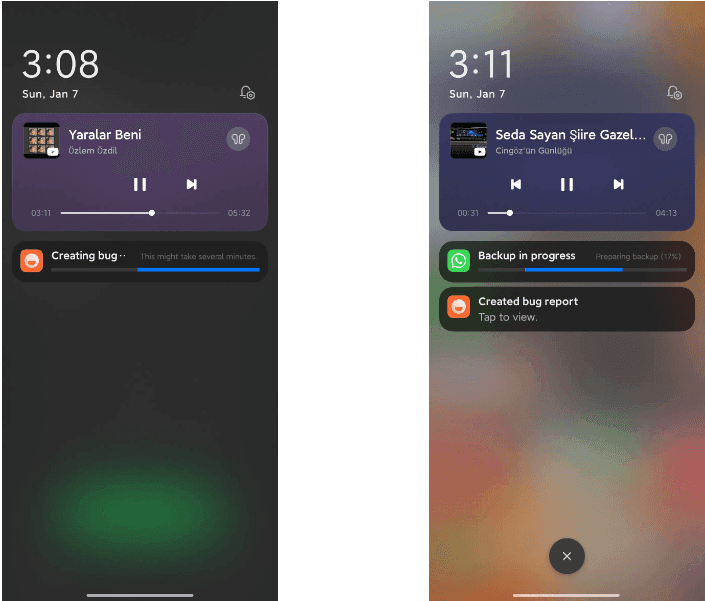
*#*#284#*#* – Capture System Log
Generate a BUG report to capture system logs, providing valuable information for debugging purposes. The report is saved in the MIUI\debug-log\ folder.
*#*#76937#*#* – Disable Thermal Check
Turn off thermal checking with this code, potentially preventing your device from throttling performance due to high temperatures.
*#*#3223#*#* – Turn on DC DIMMING Option
Activate the DC DIMMING option using this code, allowing you to adjust the display settings for a more comfortable viewing experience.
Unlock the full potential of your Xiaomi device with these secret codes, and improve your Xiaomi HyperOS experience. These hidden codes offer Xiaomi HyperOS users a range of functionalities, from network customization to battery insights and advanced testing options. Users should exercise caution and be mindful of potential impacts on device settings while exploring these codes.
Many of us have experienced the frustration of forgetting to charge our phone overnight or discovering that our headphones are dead when we need them. As you can see, the number of devices we need to charge daily is increasing. It is an extra worry with our busy lives filled with work, school, and hanging out with friends. Smartphone, laptop, headphone, smartwatch, tablet, and much more.
The issue still exists despite developments like fast charging technologies and the European Union’s unified charging port. Fortunately, the answer originates in China, the center of technology, where a new battery startup claims to be able to produce electricity for 50 years without the need for maintenance or charging.
The battery from Betavolt changes charging forever
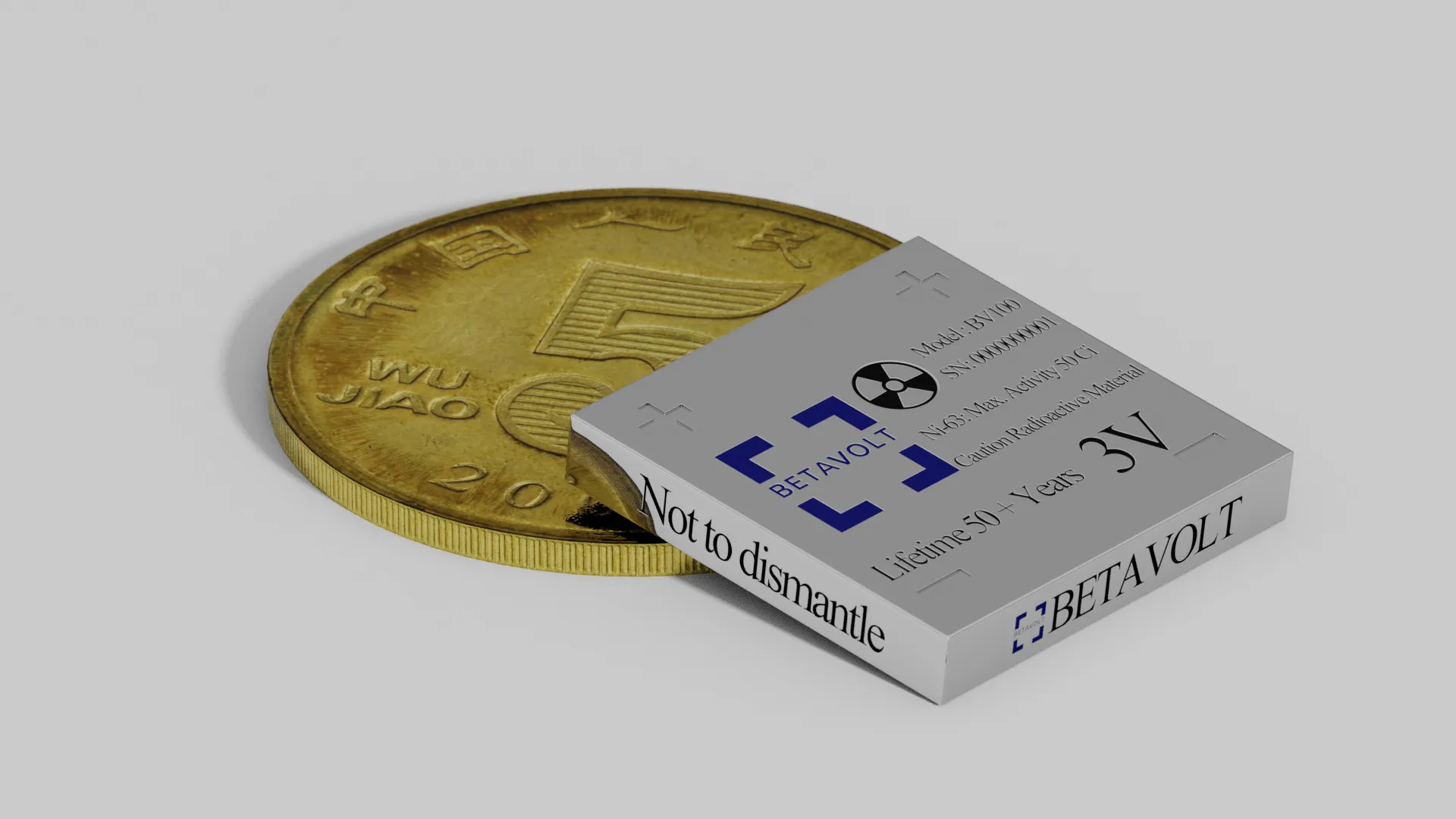
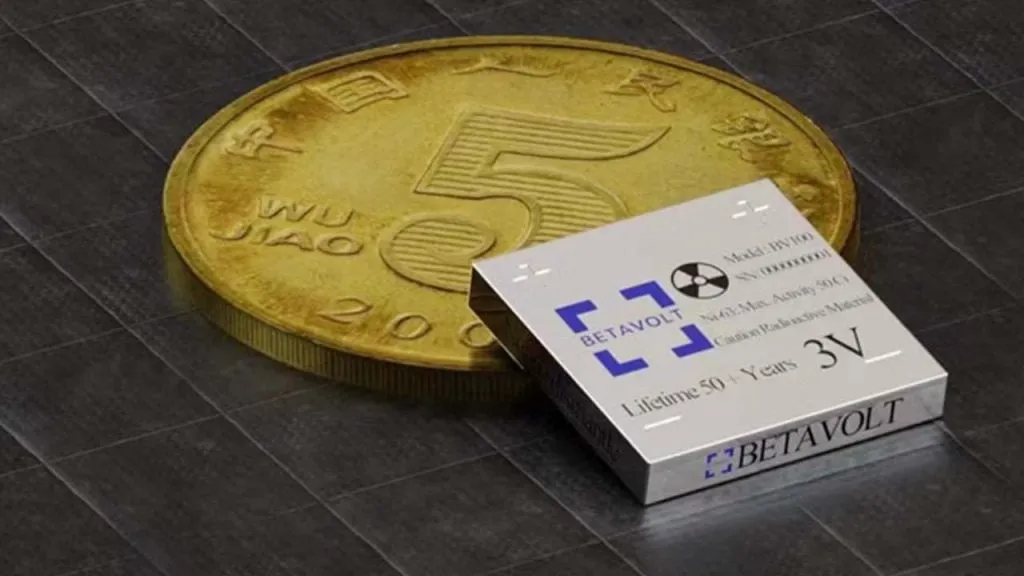
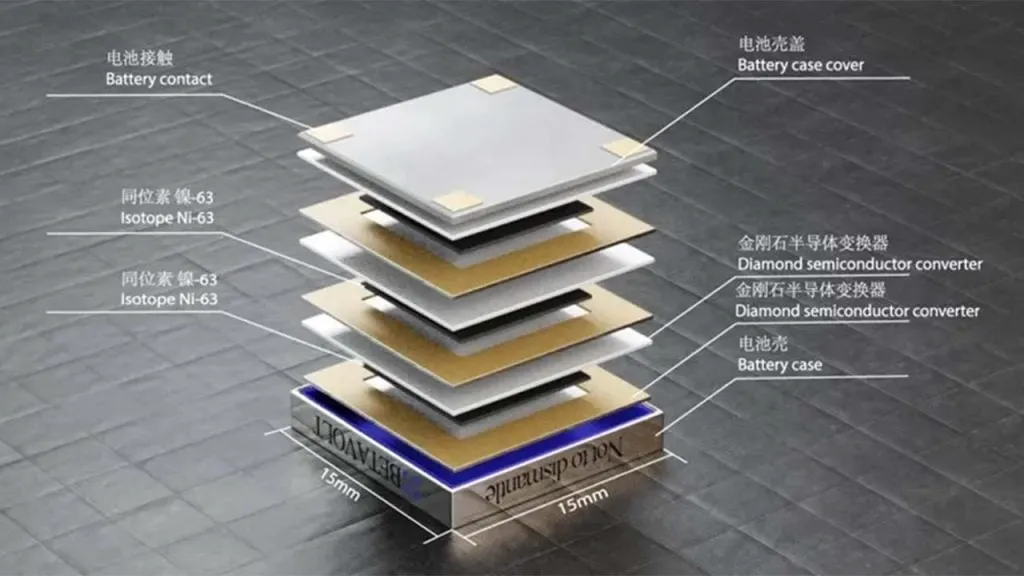
With everything from cars to airplanes starting to rely on electricity in today’s tech-driven world, research on battery technologies has surged. But aside from the speed at which they can be charged, there has not been a consumer-facing result—at least not yet. Beijing-based startup Betavolt has introduced a new battery that promises to produce electricity for 50 years without requiring maintenance or charging—and do not think of nuclear energy as a massive battery—Batalvolt manages to pack 63 nuclear isotopes into a battery the size of a coin.
Utilizing the energy from decaying isotopes, a concept developed in the 20th century, Betavolt’s nuclear battery currently produces 100 microwatts at 3 volts, all packed into a small 15x15x5 cubic millimeters. However, the goal is to reach a 1-watt power output by 2025. Earlier thermonuclear batteries faced challenges related to cost and size.
Although it sounds amazing to have an iPhone that never runs out of charge, it is wise to approach this ground-breaking invention cautiously for now, considering the potential risks of carrying a nuclear battery in your pocket. As a result, mass production might still be a distant dream for the time being. The company states that the nuclear battery is currently in the testing phase, with Betavolt planning to initiate mass production soon.
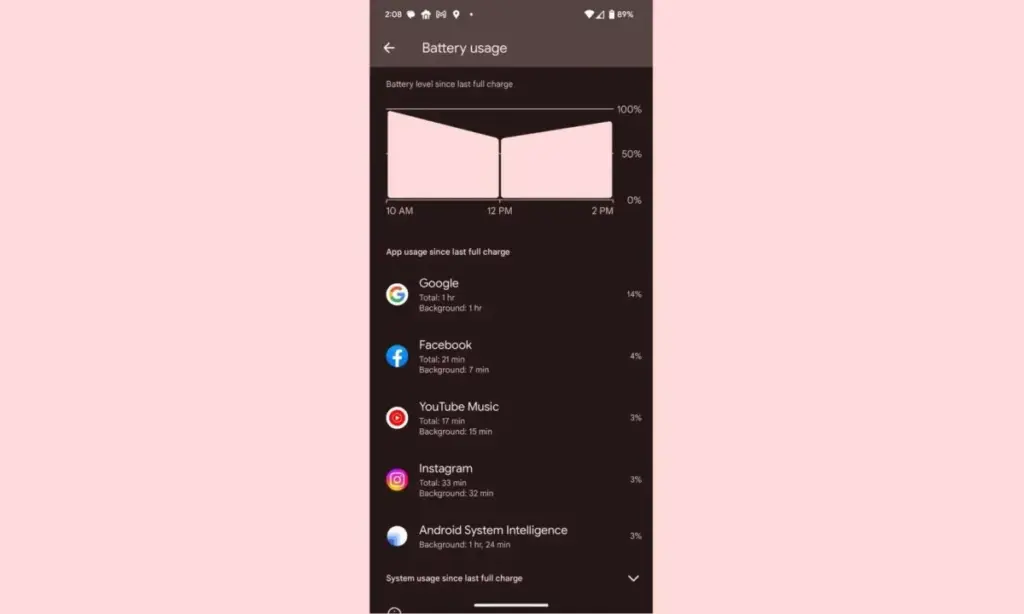
Despite not being the best Android smartphones available, Pixel devices are nonetheless good. Most of the time, hardware limitations of Pixels are overcome by their superior software, which Google delivers together with cutting-edge features that are exclusive to its products. While feature drops and upgrades are regular and often bring exciting improvements, they can occasionally also lead to unanticipated issues. This appears to be the case with the June update, as several customers report that their Pixel devices are depleting their batteries faster than usual.
Many users have commented on Reddit about the June update’s poor battery life, which was picked up by the staff at 9to5Google. Some users report noticing only a slight change, while others report that they now need to charge their cellphones at least twice daily. Others have reported connectivity problems, including short-lived batteries and erratic mobile data signals.
It appears that a variety of Pixel devices are included in the list of affected ones, however upon fast reading through the thread, it is clear that many Pixel 7 and Pixel 6 series smartphones are affected. Even while there are reports of the phones heating up much more than before, which is rather frightening, increasing battery consumption is still a major problem.
While those who are impacted by this are in a lot of suffering, there are some remedies. Some people claim that the issue is resolved by deleting the most recent update for Android System Intelligence in the Reddit thread. Some assert that restarting the device also resolves the problem. Even if some of these fixes might be effective, Google will probably need to release an update. We’ve been in touch with Google in an effort to clarify these matters. We anticipate that the business is aware of the issue and will include a fix in the upcoming version.
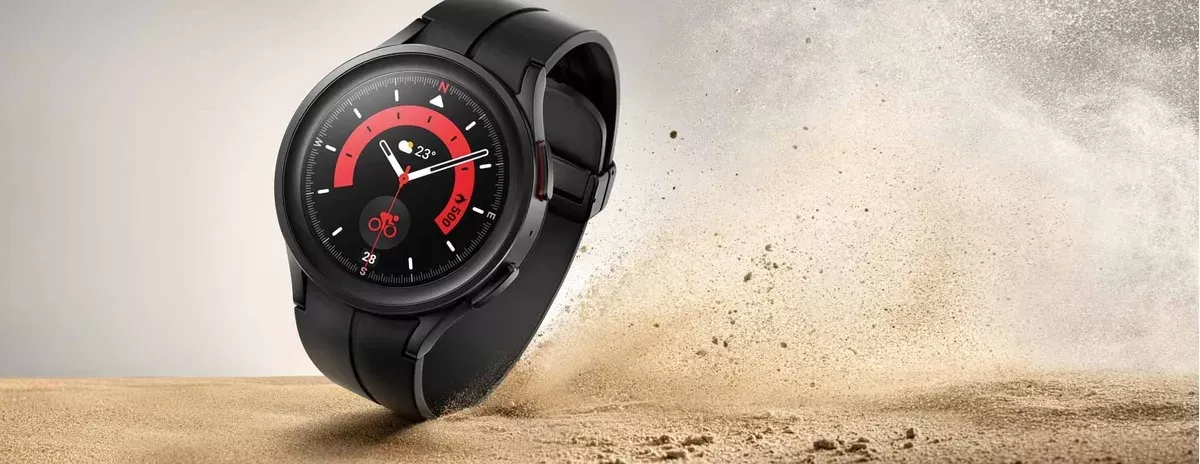
Larger batteries are included in the Samsung Galaxy Watch 5 Pro for extended battery life, however incorrect settings can result in problems including quicker battery loss. We’ll give you some cutting-edge advice today to help you fix these issues and increase the battery life of your watch.
Ah, the good old battery life of a smartwatch. You’re left with a pointless wrist adornment if it expires too quickly. Oh, sweetheart, if it goes on for too long! The options are limitless! You won’t need to charge it as frequently, which means you’ll spend less time shackled to a wall socket like a sap. Don’t forget the comfort it will bring you to know that your watch won’t stop working mid-run or mid-call with the boss.
You’ll also have more time to explore all the cool functions your watch has to offer, like monitoring your steps, checking the weather, and even ordering pizza, thanks to an increased battery life (yes, some smartwatches can do that). Don’t choose for a disposable smartwatch, then. Increase that battery life to open up a host of additional wrist-related opportunities!
In our evaluation of the Galaxy Watch 5 Pro, we highlight some of the lineup’s practical features, such as 24/7 health tracking and interchangeable watch faces. Notably, the Pro edition has improved battery life over the standard version. Nevertheless, because they weren’t designed for continuous usage, several default settings could damage the battery. Use our handy instructions to change or disable these options to extend the battery life of your watch.
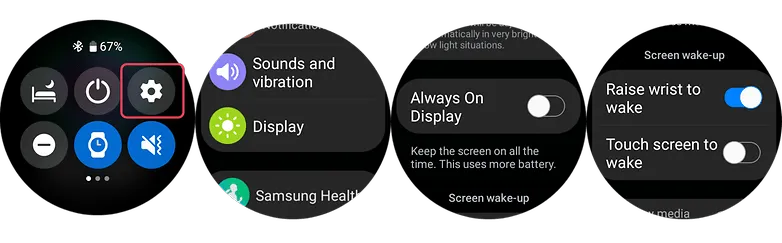
1. Turn off the always-on display and opt for raise to wake
OLED screens on the Samsung Galaxy Watch 5 series allow for AOD (Always-On Display) feature. However, by enabling this all the time can greatly hurt your battery run time. And since you will always not be looking at your screen, it’s best practice to disable this and instead opt for the raise-to-wake gesture.
To check if the always-on display is enabled or disabled, you can use your watch’s settings or alternatively use the Galaxy Watch mobile app on your Android or Samsung phone.
Swipe down from your watch’s screen and open the Settings.
Scroll down to find the Display and then tap on Always-On.
Turn off the AOD.
Look for Raise to Wake below the Always-On toggle.
Enable Raise-to-Wake.
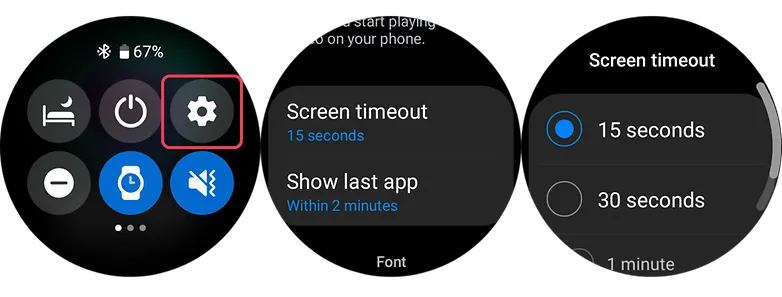
2. Shorter screen timeout
Screen timeout is yet another display-related suggestion. Reducing the amount of time your screen is on can increase the watch’s battery life. By setting the screen timeout to the shortest duration possible, which is 15 seconds, you can extend the life of your battery. This may be located immediately below the raise-to-wake toggle in the same settings as display.
3. Choose darker watch faces
Using watch faces that are black or dark is more in keeping with customisation. The watches come with OLED panels, which means that when projected into the display, black pixels don’t need light, unlike other colors that do.
Choose watch faces with darker layouts to extend the battery life of your device. But, you should stay away from colorful designs, especially those that take up the majority of the screen.
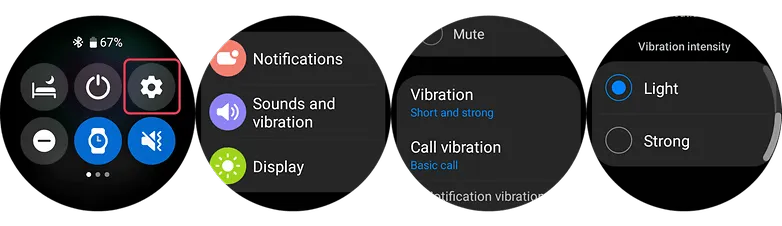
4. Set vibration level to low
Your watch vibrates in addition to sounding an alert whenever it receives one. It is advised that you set the vibration on the lower side because the vibration motor inside the watch normally consumes a significant amount of battery power. This is how to modify the Galaxy Watch 5’s vibration intensity using the toggle that can be found in the main settings.
Go to the Watch’s Settings and look for Sound & Vibration.
Select Vibration.
Choose Short in vibration duration option.
Choose Light vibration intensity.
5. Turn off NFC
Turning off NFC on your Galaxy Watch 5 or Watch 5 Pro could extend the life of your wearable’s battery if you don’t use it for payments or if you primarily use your phone for that purpose. Simply go to your watch’s main settings, select connections, and turn off NFC there to access NFC options.
Swipe down to access the Watch’s Settings.
Select Connections.
Choose NFC option.
Turn it off.
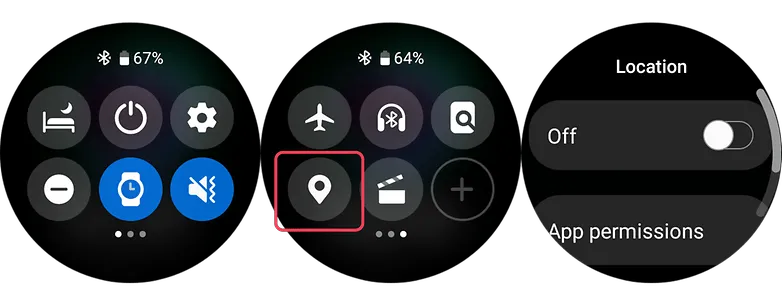
6. Turn off location
Turning off the location tracker on the Galaxy Watch 5 Pro can help to save battery because the location tracker constantly uses the watch’s GPS sensor to track your location, which can consume a lot of battery power. By turning off this feature, you prevent the watch from using its GPS sensor unnecessarily and therefore extend its battery life.
Swipe down to access the Watch’s Quick Settings.
Browse the quick setting until you find the Location icon.
Turn it off.
7. Close background and recent apps
Like in smartphones, your watch uses memory and processor resources as well. While Wear OS 3 has evolved to become an efficient and fast operating system, running numerous apps in the background can still affect the day-to-day battery life of your watch. There will be two options to do this on your Galaxy Watch 5.
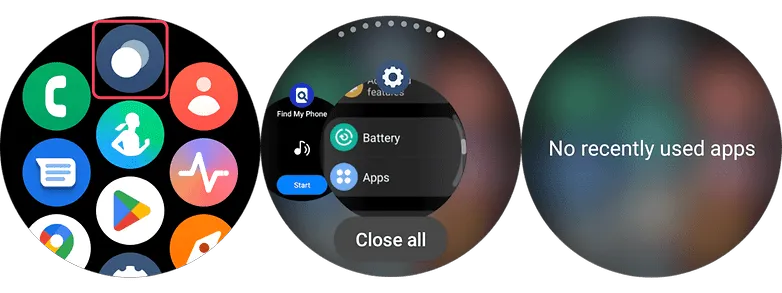
Clearing background apps via on-screen gesture
Swipe from the bottom to the top to open the App menu of your Watch.
Select the Overlapping circles icon at the top center to open recent apps.
Select the option Close All.
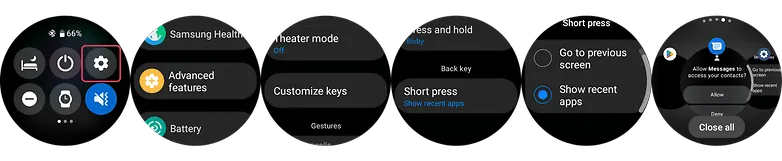
Using the physical key of your smartwatch to close all apps
Go to your Watch’s settings and scroll down until you see Advanced features.
Select this and choose Customize keys.
At the bottom, set short press to Show recent apps.
Press this back key every time you open recent apps.
Tap Close All button to close all apps at once.
8. Filter notification settings (on the phone app)
You’ll be able to get more screen time by limiting the apps that can send notifications to your watch. Just allow alerts that are essential as you will still be checking your mobile device frequently. On your Galaxy or Android phone, use the Galaxy Watch app to change this.
Go to your Watch’s Dashboard on your Galaxy phone.
Choose Watch Settings.
Tap notifications and select App notifications.
Filter which apps are essential and are allowed on watch.
9. Charging and battery tips that may fix your Galaxy Watch 5’s battery problems
Using safe and conventional watch care techniques may help to resolve some battery difficulties in addition to adjusting the settings to prolong battery life. Of course, if any issues continue, it is still advised to get your Galaxy Watch 5 examined by a certified Samsung repair facility. Nonetheless, the fundamental steps are listed below.
Avoid charging your Galaxy Watch 5 too much.
Overcharging your Samsung Watch 5 or Watch 5 Pro could reduce its battery life, just like it can with other electronic gadgets. This will result in the watch’s battery life being reduced. It is advised to charge the battery frequently between 80 and 90% rather than 100% all the time.
Clean the charging contacts on your charger or Galaxy Watch
You can make sure that you’re charging the device effectively by keeping the charging contacts clean on the watch and the charger. Debris and dirt can be prevented from being lodged in the contacts by giving them a brief wipe with a clean cloth.
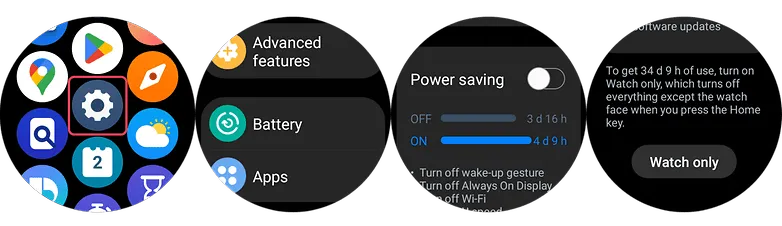
#10. Golden tip: Get extra days of battery with Power saving and Watch-only modes
Using the Power Saving or Watch-only Mode can extend your usage by days or even weeks if your battery is already running low. The connectivity, notifications, processor for battery saving mode, and other functionality other than the time for the Watch-only mode will all be restricted by these on your Galaxy Watch 5 (Pro). With the watch functionality, this last feature can provide you with up to 30 days.
Swipe up on your Watch to open the App Menu.
Go to the Settings and scroll down and tap Battery.
Toggle on Power saving or Watch-only mode.
Please be advised that to turn off the Watch only mode, you can either press and hold the Home key or charge your watch.