Tag: battery

  • Android 14 preview to test drive the new features on Pixels

    Android 14 preview to test drive the new features on Pixels

    Google made the Android 14 Developer Preview (DP) available for testing on devices from the Pixel 7, Pixel 6, and Pixel 5 series, even the rudimentary Pixel 4a. A new DP edition is expected to be published in March, followed by a few beta releases until the summer, when more stable and feature-rich versions will be issued, and finally the final Android 14 release in the fall.
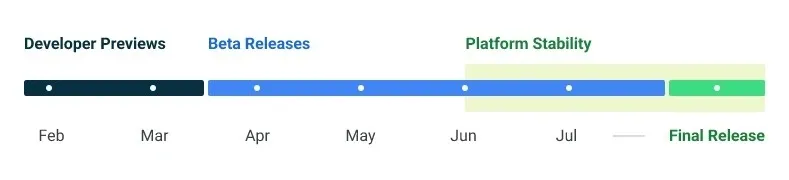
    android 14 release calendar

    New Android 14 features

    Speaking of new Android 14 features, as usual in the Developer Preview stage, there aren’t many user-facing ones, but rather deep under-the-hood changes that bring interface speed and power-draw optimizations, as well as security and privacy upgrades. Still, there is one biggie one it comes to new Android 14 feature that you will immediately notice.

    System fonts

    Bigger fonts with non-linear scaling is exactly what Google refers it as this new Android 14 option as. Instead of the current 130% threshold, Android phone owners will be able to increase the size of the system fonts by two times.

    It makes sense considering that screens are growing bigger and bigger—we now have foldables with screens north of 7 inches diagonal and difficult-to-read small print. Without a doubt, Google uses “non-linear” scaling to raise text in fonts that are already sufficiently large compared to the smaller text that receives a size increase, rather than simply increasing the font size of Android 14 in a way that is deserving of the list of the best phones for seniors.
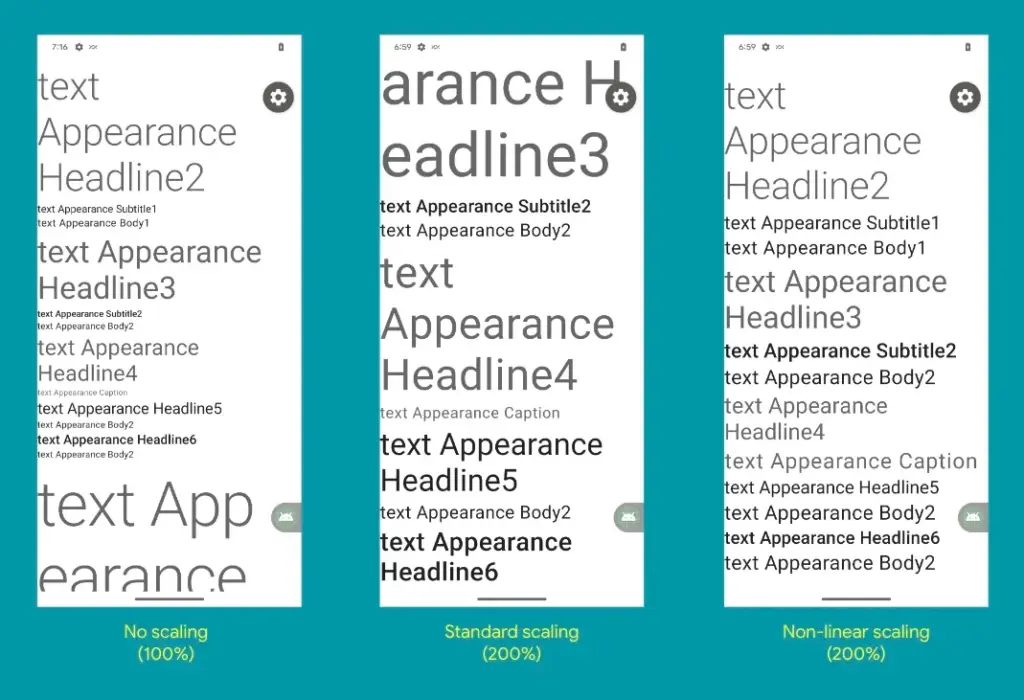
    android 14 new features font

    Performance and battery life

    Android 14 will optimize the speed of the mobile OS system overall and offer less of a power pull from unnecessary activities thanks to a clever combination of background process optimization and presenting actionable requests to apps only when they are out of a cached state.

    Additionally, without the user’s express consent, apps that don’t need a strict timing schedule, such clocks or calendars, won’t be able to continuously probe for resources by setting precise alarms.

    Adapting to foreign language 

    With Android 14, a number of foreign language optimizations address the accessibility issues of the device by modifying the text to reflect the peculiarities of non-English speakers, such as tailored translations that take into account the different grammatical genders used in various languages.

    The ability to dynamically update the list of foreign languages in an app’s settings to reflect the location and even alter the keyboard based on the interface language that the app is displaying in is another fantastic locale adaption improvement in Android 14.

    Security and privacy

    Down on the system level, Android 14 will include several new malware-fighting features that plug known exploits by blocking app installations or only allow them if they meet certain criteria. 

    Dynamically loaded applications that can be changed by injecting code in the process will be marked to be read-only in Android 14 in order to close another door for the installation of malware and various exploits.

    Android 14 release date

    • Android 14 Beta: April 2023
    • Final Android 14 release build: October-November 2023

    How to install Android 14 Developer Preview on Pixel phones

  • Messenger is wasting your phone’s battery running background tests – I knew it!

    Messenger is wasting your phone’s battery running background tests – I knew it!

    One of the most widely used messaging services is Facebook Messenger, but its parent company, Meta, has a spotty history of protecting users’ interests. The social media behemoth has recently been the target of multiple security breaches and is infamously linked to the Cambridge Analytica affair. The fact that a former data scientist for the firm believes Messenger can intentionally drain your smartphone’s battery in the sake of feature testing, potentially placing you in danger, is concerning because it shows that user interests continue to be Meta’s secondary concern.

    Data scientist George Hayward, 33, filed a lawsuit against his former employer in Manhattan Federal Court after being fired in November, terminating his three-year employment with Meta (via Android Authority). According to Hayward’s lawsuit, the business let him go because he refused to participate in negative testing, which is the technique of deliberately supplying false data to an app to ensure that it will work when users use it inappropriately.

    Messenger

    Hayward disagreed with negative testing, but not because of the method Meta used to conduct it. The battery life of a Messenger user’s phone would suffer when the business remotely initiated negative testing on that user’s device. The majority of people keep a close eye on their phone’s battery level throughout the day, but in the event of an extreme depletion, they can find themselves in a situation where they are unable to contact family or emergency services.

    According to Hayward, who spoke with the New York Post, the true risk comes from users not being aware of Meta’s negative testing procedures. But that’s not all; according to reports, Meta also gives staff members manuals on how to conduct considerate negative tests that use examples from actual research. This appears to suggest that Meta runs these tests frequently and would perhaps assign larger teams to the job. Sadly, Hayward continues, discussing the appropriateness of the procedures with superiors didn’t go over well; he hinted that refusing to submit to the tests would result in his termination.

    Hayward made certain claims, but Meta hasn’t responded to them. The lawsuit has subsequently been dropped. If the required arbitration attempts between the two parties are failed, it may go on.

    If you’re worried about Messenger’s negative testing in the interim, you can go to its Program Info page on your Android phone, pick “Battery,” and then select “Restricted,” to stop the app from operating in the background. However, be aware that this could cause delayed message alerts. Reviewing the privacy settings on your phone and looking for more battery-saving techniques may be a preferable course of action.

  • Cool down and improve battery life on your Pixel 6

    Cool down and improve battery life on your Pixel 6

    Owners of the Google Pixel 6 and Pixel 6 Pro recently had a problem with their handsets burning so hot and the batteries draining so quickly that some ran out of power by midday. Google’s September update was supposed to fix the issue, however Verizon customers who received the update late last week did not. These files, in the author’s personal experience, have not yet been received.

    Here’s a quick fix for your Pixel 6 series phone that will extend battery life and reduce heat.

    If you haven’t yet received the September update for your Pixel 6 or Pixel 6 Pro, or if the update hasn’t stopped your battery from draining, a Reddit user going by the handle Human Individual 815 made a suggestion that was initially so mocked by other owners of the Pixel 6 series that he had to remove it. But after hearing from others that this short fix was lengthening battery life while also cooling down the phones, he decided to repost the article. Judging by the feedback, it appears that the article will remain up.

    improve battery life

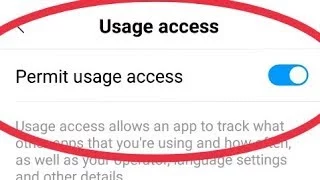
    Toggle off Usage access to Digital Wellbeing and Device Health Services to attempt and extend the battery life and lower the temperature of your Pixel 6 series phone. To do this, open Settings and type “Usage access” into the search box at the top of the screen. You may access a list of apps by tapping on Usage access. Click Device Health Services, then turn “Permit usage access” off. Apply the same strategy to the listing for digital wellbeing. Restart and reboot.

    Some functionalities will be removed if you do this. The Redditor who came up with this strategy claimed that by closing the two aforementioned apps, his battery life doubled. He added as well that “It will have an impact on charging and adaptive batteries. The adaptive connection will be impacted. Any of your bedtime mode items will be affected. Fitbits, fitness watches, and other devices of that nature, as well as probably many others, will be impacted. That we must disable these functionalities in order to use our phone is truly terrible.”

    Impressive outcomes have been obtained. Using the username cloudacoustic93, a Reddit user comments, “Wow, this really worked. It’s only been a few hours, yet already there is a difference.” Rk3h, a different participant, claimed that after restarting and charging, the Accubattery app’s battery life immediately increased. Others were experiencing success. One Pixel 6 series user stated, “Tried and it is working for me, battery last more.” Another person responded, “Perfect, thank you.

    Disable features you don’t use.

    We can keep providing you with more feedback from others who have tried this. One of the best replies came from a member by the name of novelomaly, who said, “Thanks a lot! This worked for me, and now I can use my phone normally without worrying that it may die if I forget to charge it at night.”

    Another post includes some information that we can consider: “Update: In 5h 23m SOT, we are at 40%! This seems to have worked out perfectly! By now, it should be at 10%. Most significantly, my phone hasn’t heated up at all, so that’s a great advantage. Regards for the advice! I hope things continue how they are until Google fixes the issue.”

    What about yourself, then? Well, I consider myself to be a heavy user, so the battery life may have improved. My Pixel 6 Pro is not as hot as it was before I turned off usage access to Digital Wellbeing and Device Health Services, that much is for sure. Since my phone hasn’t yet received the September update, I’m waiting to see if it really makes a difference.

    Why not give this a try if you have the Pixel 6 or Pixel 6 Pro, can fry an egg on it, and the battery isn’t lasting you until lunch? You can easily reverse it, and you might not care at all about the aspects that are affected. By leaving a comment in the box below, let us know whether you detect a change in the battery life of your Pixel 6 series phone.

  • Nothing OS 1.1.3 update brings camera improvements

    Nothing OS 1.1.3 update brings camera improvements

    Nothing released Nothing OS 1.1.2 for the Nothing Phone (1) at the beginning of this month, and today, roughly two weeks later, we receive yet another upgrade.

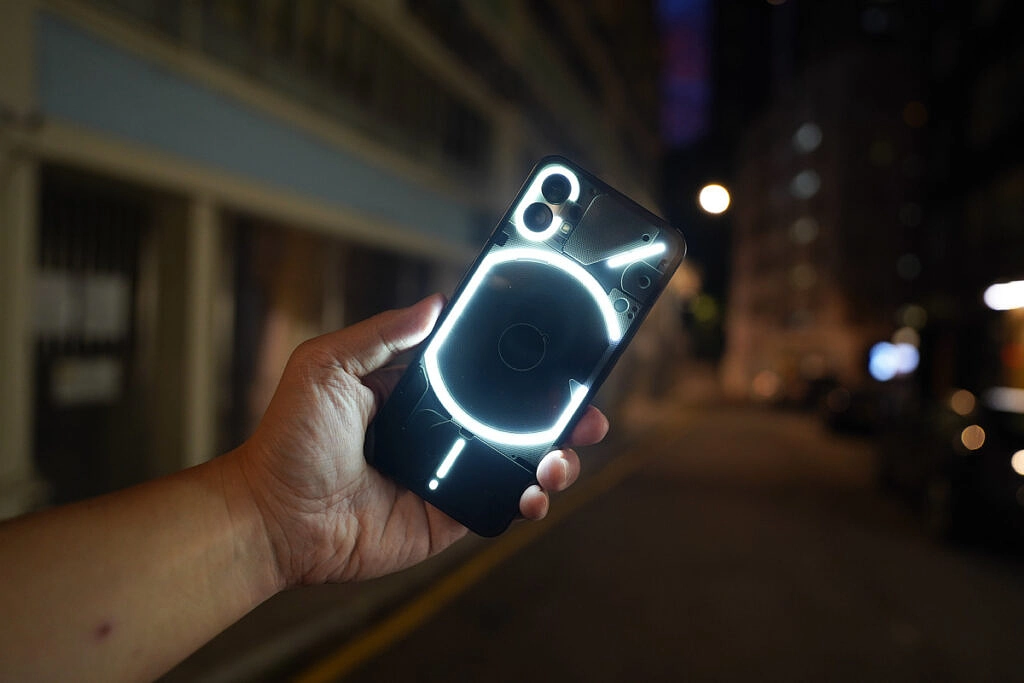
    Nothing OS 1.1.3 is already being sent to Nothing Phone (1) devices all around the world, and it includes numerous bug fixes and camera enhancements.

    nothing os update

    When using the front camera, you can anticipate improved photo clarity, quicker Night Mode and HDR photo processing times, richer color saturation when using the ultrawide, less noise and more sharpness when zooming, and images will automatically be adjusted to “optimal color and brightness” when using Glyph lighting. A further reminder to clean the camera lenses is included.

    The Google Adaptive Battery may now be enabled to “intelligently optimize battery life,” and the fingerprint verification UI for third-party apps has been updated.

    Finally, a number of problems were resolved, including those that resulted in stuttering in apps like Twitter, Play Store, and others, ineffective mobile hotspot functionality, and lock screen crashes after pressing on a notification and attempting to unlock with a fingerprint. Minor UI aspects have also been improved.

    The rollout might be staged, as it usually is with such things, and it might take a few days to reach every Nothing Phone (1) out there. There will be a 64MB download when it does come. Our thorough, in-depth review of the Nothing Phone (1) is available for reading if you’re curious to learn more.

  • Realme Narzo 30A: A buyers guide in 2021

    Realme Narzo 30A: A buyers guide in 2021

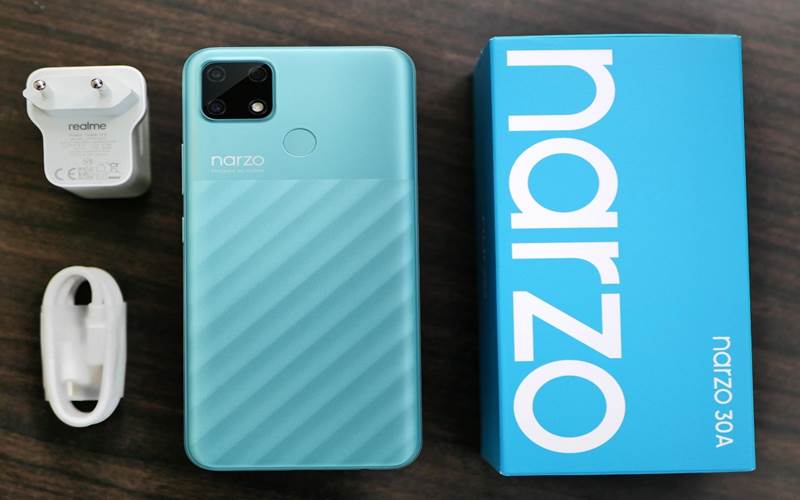
    realme narzo

    Realme launched the latest addition to its series of flagship phones on February 24. The Realme Narzo 30A is a mid-range device for those consumers that want a premium flagship device on a tight budget. This device joins the plethora of mid-range devices under $137.74. 

    Consumers will find smartphones with robust batteries, above-average cameras, and even some devices that run on Android in this price range. A device that has all of these features is quite hard to come by however some smartphones come close. The Realme Narzo 30A is one of those devices; it offers a perfect equilibrium of features and performance under a reasonable price.

    Design

    narzo

    Realme Narzo 30A does not have a hefty price tag hence the design is not something out o this world but t is impressive. It has a vibrant look and looks quite different than its predecessors. The back of the device has some sort of pattern with the bottom two-thirds having diagonal lines, while the upper section is plain. The pattern aids in gripping the phone easily.

    This time around Realme has opted for a square-shaped camera module which is similar to Realme Narzo 20. The device even has a rear-mounted fingerprint scanner that is easy to access. The side-mounted power and volume buttons are conveniently placed as well. Whereas, the Realme Narzo 30A has a large 6.5-inch display with a 20.9 aspect ratio. The large display does make single-hand usage difficult. The SIM tray is on the left side of the frame and has two Nano-SIM slots and a devoted slot for storage expansion.

    It is worth noting that this device is no lightweight, it weighs around 207g but Realme has rounded the sides to hide the thickness of the device and help in holding the phone. One pro of such a robust device is that it packs a 6,000mAh battery which provides amazing battery life. Additionally, the Realme Narzo 30A has a USB Type-C port, a 3.5mm headphone jack, and a loudspeaker at the bottom. It also comes with a bundled 18W charger in the box. This particular device is available in two color options: Lazer Black and Lazer Blue.

    Software and Specifications

    The smartphone company has leveled up with this device. The Realme Narzo 30A gets major upgrades as compared to the Realme Narzo 20A. It has a more potent MediaTek Helio G85 SoC that’s paired with either 3GB or 4GB of LPDDR4X RAM, this depends on which variant you opt for.  The variants support 32GB and 64GB of storage respectively. The storage can be furthered expanded to 256GB by a microSD card.

    If we look at the price tags, Realme has priced the normal variant quite harshly while the higher variant still has a reasonable price. The device supports dual-band Wi-Fi ac, Bluetooth 5, and three satellite navigation systems. Moreover, the phone is shipped with UI v1.0, based on Android 10.  The company assures its, users, that the UI v2.0 update is coming soon. The interface is quite easy to use since the Realme Narzo30A runs on the older Android skin. There are a few preinstalled applications on the device but they can be easily uninstalled or disabled.

    Performance

    The Realme Narzo 30A‘s performance was quite impressive during our testing. It is an excellent device for daily usage such as getting rid of duplicate photos. It is capable of handling occasional gaming as well. The rear-mounted fingerprint scanner was quick at authentication, and face recognition too did not need more than a single attempt to unlock the smartphone. It even has an HD+ resolution display.

    The display looks almost flawless indoors but once exposed under direct light it becomes extremely average. While the battery life is quite impressive, the phone lasted two days before needing charging. This is the ideal phone if you binge-watch videos on your device. The 18W charger in the box can charge the Narzo 30A to 15 percent in half an hour, and up to 33 percent in an hour. However, even with the fast charging, the device takes two and a half hours to fully charge the battery.

    Cameras

    The device sports a 13-megapixel primary camera and a monochrome portrait camera with an undetermined resolution. Whereas, there is an 8-megapixel camera at the front for selfies. The camera app was not that difficult to navigate through since it was more or less the same. There are multiple shooting modes available, along with a camera AI that can automatically tune the color settings based on the scene or object you’re pointing at.

    During our testing we discovered, the photos taken in daylight looked good on the phone’s display but they are not that impressive upon closer investigation. Text in the photos from a long distance was visible bur the picture overall lost its sharpness. There is a ‘Chroma Boost’ toggle that increases the contrast slightly and improves details in the shadows. The close-ups were good as well but the camera struggled to focus on smaller objects.

    Additionally, Portrait shots turned out quite well with good edge detection. Whereas the low-light camera performance is a bit underwhelming, there are delays between the shot and the result is quite blurry. There is even a Night Mode but it is not one of the standout features of the device but it does get the job done.

    Video recording tops out at 1080p for the primary camera and lacks stabilization, resulting in unsteady footage. Overall, a major letdown in some aspects.

    Verdict

    The Realme Narzo 30A is an impressive mid-range device. The overall performance is good even with the occasional bit of gaming. The battery is a major selling point, however, the camera is a letdown. It is one of the better devices in this price range and is ideal for those who have a tight budget and have moderate usage.

  • Top 5 battery saver apps for Android

    Top 5 battery saver apps for Android

    In this tech-savvy era, we depend heavily on our phones even for the most mundane tasks. Our biggest challenge is making sure the battery lasts almost an entire day, however, it is immensely difficult to find an application that saves you battery since most battery saver measures are manual.

    The best way to conserve battery is to first understand what is causing the battery drainage and then take the appropriate measures such as decreasing the brightness on your screen, reducing the frequency that apps sync data, use dark mode, and more. In case you are looking for apps to fix your battery issue then keep reading! We have picked the most effective and reliable battery saver apps for Android.

    1.      Battery Guru

    battery saver battery guru

    Battery Guru is one of the most premium battery saver applications. It aids in battery conservation but not in the way you would think. It does not work like booster apps or service terminators. The app provides you with helpful information such as battery temperature limits and charging limits so you don’t wear out your battery sooner.

    Moreover, there are a few battery-saving modes that can help reduce battery drain so you won’t have to charge often. There is even a Doze Mode customization tool that makes the app more aggressive. The app has a free and paid version for $19.99.

    2.      Greenify

    greenify

    Greenify is one of the known battery saver applications. It identifies apps that wake up your phone more frequently and gives you the tools to prevent apps from doing this often. The app has some intuitive and interesting features including Android Nougat and beyond with Aggressive Doze and Doze modes.

    This particular application has two versions, the free version which has almost all the premium features, and a paid version for $2.99 for support development.

    3.      GSam Battery Monitor

    gsam battery mnonitor

    GSam Battery Monitor is another popular choice for battery saving. The app itself does not do much on its own to conserve battery but instead provides you with information about the apps draining your battery. Consequently, that information can be utilized to improve your own battery life. Its features providing information regarding wakelocks, wake time, and even CPU and sensor data.

    It is worth mentioning that the latest version caused minor issues. However, it still gets the job done. This application has a free version and a paid version for $2.49.

    4.      Servicely

    servicely battery saver

    Servicely is one of the top battery saver applications. It works by stopping services that run in the background. It helps prevent odd apps from going insane and keeps them from syncing all the time. This is ideal if you do not want your applications to sync all the time. There might be a delay in certain notifications from apps that have been prevented from syncing hence use it with caution.

    Additionally, this app works well with wakelock detectors as a potent one-two punch. It’s highly configurable with enough options to make it work how you want. You can opt for the free version of the paid one for $13.99.

    5.      Wakelock Detector

    Wakelock Detector is another top-notch battery saver app. The main function of this application is to aid in the detection of wakelocks. It can detect both partial and full wakelocks. You can also get a list of all the apps that are causing it. From there, you can take steps to uninstall the apps or find replacements.

    There is a free version available and a paid version for $1.99.

    Alternative methods to conserve battery:

    There are a lot of native features on Android that aid in battery conservation. By enabling Doze Mode your entire device goes into hibernation. Apps can only sync occasionally and in batches as dictated by the OS. Thus, it loads battery life. Whereas, App Standby restricts data usage by apps you don’t use very often for additional savings.

    These features are enabled by Android automatically hence there is almost no room for customization. Further methods include;

    •  Uninstall apps you don’t use
    • Lower your screen brightness
    •  Use black mode, wallpapers, etc on OLED screens
    • Avoid playing games
    • Avoid using Cellular Data
    • Get rid of duplicate photos/videos
    • Turn off connections you’re not using such as Bluetooth
    •  Use battery saving modes on your phone
    •  Don’t use vibration or haptic feedback
    • Don’t use booster apps
    • Turn off 5G if you can

    Summing Up

    All of the above-mentioned applications are ideal for battery conservation. The most preferable manner to save battery to uninstall unnecessary apps and get rid of duplicate functionality applications. Instead of downloading apps to conserve battery, try using Android’s native features such as limiting screen brightness, avoid using cellular data, use battery-saving mode as often as possible, and much more.

  • How to save battery life on Android Smartphones in 2020

    How to save battery life on Android Smartphones in 2020

    save battery life

    Are you struggling to save battery life on Android devices?

    Both of us hate being fined regularly. When we intend to purchase our latest smartphone, battery backup still matters now.

    There are plenty of Android smartphones on the market with decent battery backup, but they don’t have an unlimited battery life, unfortunately. So here are some easy hacks on your Android devices to save battery life.

    Over the past few years, a variety of factors have conspired to decrease gadget stamina. Thinner designs have less battery space, larger and brighter displays, faster quad-core processors, more background applications, and all share responsibility for power-hungry GPS radios. The move from 3G to 4G networks a few years ago—particularly of the LTE variety—has also taken its toll.

    Save battery life on Android devices :

    Black wallpaper save battery Life

    Yes, its strange but true, black wallpaper can save battery life of your Android smartphone.

    Why black wallpaper? — Because most smartphones in the market AMOLED screen which only illuminate the colored pixels. And black pixels are unlit, so the more black pixels you have, or the darker pixels, the less power is needed to light them up.

    black amoled wallpaper

    Who drains your battery

    It is necessary to find this strategy, just find the culprit who is responsible for draining your battery.

    You can do it by going to “Settings > Battery“.

    This choice breaks down what your phone’s battery absorbs. Applications and features will be seen in a chart of battery hogs below. You’ll want to uninstall the software or turn off the feature if you find an application that you rarely use or a feature you never use.

    Widgets and live wallpaper

    It is necessary to find this strategy, just find the culprit who is responsible for draining your battery.

    This choice breaks down what your phone’s battery absorbs. Applications and features will be seen in a chart of battery hogs below. You’ll want to uninstall the software or turn off the feature if you find an application that you rarely use or a feature you never use.

    Turn off automatic brightness

    automatic brigtness

    Automatic Brightness — sounds useful feature, but don’t go for it.

    Automatic brightness is actually typically much brighter than you really need. It’s easier to set the brightness to a low yet comfortable level manually, and bump it up when appropriate. This is one of the easiest ways to conserve battery life, since one of the main battery suckers is the screens.

    Apps refresh frequency

    The next method is controlling refresh frequency of some apps. Apps checking for new emails and other data in the background updates frequently to fetch new information. This frequent background fetching of data will drain your battery fast.

    So to disable this just go to “Settings > Accounts” and uncheck Auto-sync data to prevent your Android device from automatically syncing with your Google accounts (and other accounts) in the background. Uncheck Auto-sync data to prevent your Android device from automatically syncing with your Google accounts (and other accounts) in the background. And also force off apps that work on background.

    Shorter sacreen timeout setting saves battery life

    Set the screen timeout of your monitor to as short a time as is feasible for you.

    Just imagine, if your screen timeout is set to a minute, four times more power will be used than if your screen timeout was set to 15 seconds. The average smartphone user turns their smartphone on 150 times a day, studies say, so the difference between a long screen timeout and a brief one easily adds up. This reduction would help keep the battery going for longer.

    Switch Off Vibrate

    turn off vibrate

    Turn Vibrate off. Switch off vibration warnings for incoming calls unless you really need the added sensitivity. To vibrate your phone, it actually takes more power than it does to ring it.

    Use lock screen notifications or widgets

    Battery life can also be protected by locking screen alerts or locking screen widgets. This is because without having to turn the entire computer on, you can display the updates at a glance. This is particularly useful if you get loads of updates that are not immediately worth following up on.

    Stay offline

    You don’t have to be wired 24/7 to the internet, which enhances the use of data and drains the battery as well. So use the internet when you need to, including shutting it off during your hours of sleep and office hours.

    Original batteries

    Use only original batteries directly from the manufacturer. This one is significant. It is indeed a poor option to save a few bucks on a battery that could harm your beloved smartphone, which may also offer sub-standard battery efficiency.

    Apps lite version

     facebook lite

    Opting lite versions of Android apps over the main edition there would certainly help you reduce the battery usage. Since lightweight Android apps are slipped versions of the main app, but to save your Android device battery life, you can have to sacrifice certain features for the greater good.

    Turn off animations

    Another ideal way to maximize battery usage on Android devices is to adjust animation settings. But you have to access “Developer Choices” to change the animation settings, a choice that is concealed within your Android settings.

    To enter into Developer mode, go to “Settings>>About phone” and tap on “Build number” a few times and then go back to the main settings page to find the activated “Developer Options”. Now go to enabled Developer Options, and scroll down to find three options namely “Window animation scale“, “Transition animation scale” and “Animator duration scale” and turn them off.

    animation

    Turn off unwanted services

    After their use, we often forget to disable such services such as WiFi, GPS, NFC, Bluetooth without understanding their negative effect on the battery life of your Android device. Most of these services are constantly surveying routers for your knowledge, to find nearby Bluetooth devices or WiFi connections or GPS satellites, even if they are not accessible at that time.

    So swipe down your notification bar and disable all these services after their use to save your device battery life.

    Greenify

    greenify

    Unlike any other third-party apps which claim to save battery life on Android — Greenify is the trusted one. Greenify saves your battery life by pushing apps into a kinda hibernation mode and stop them from running background until you reopen them again. Since some of the advanced features of Greenify work only on the rooted device — though still works well on non-rooted devices too.