The rush to find the right presents may become a true race against time when the holiday season enters full swing. Thankfully, Google has offered a simple solution along with some fantastic Christmas promotional deals. Here are the interesting offers that are available over the Christmas season, ranging from savings on Google’s premium smartphone, the Pixel 7, to Google limited series.
Pixel 7 Pro Holiday Sale
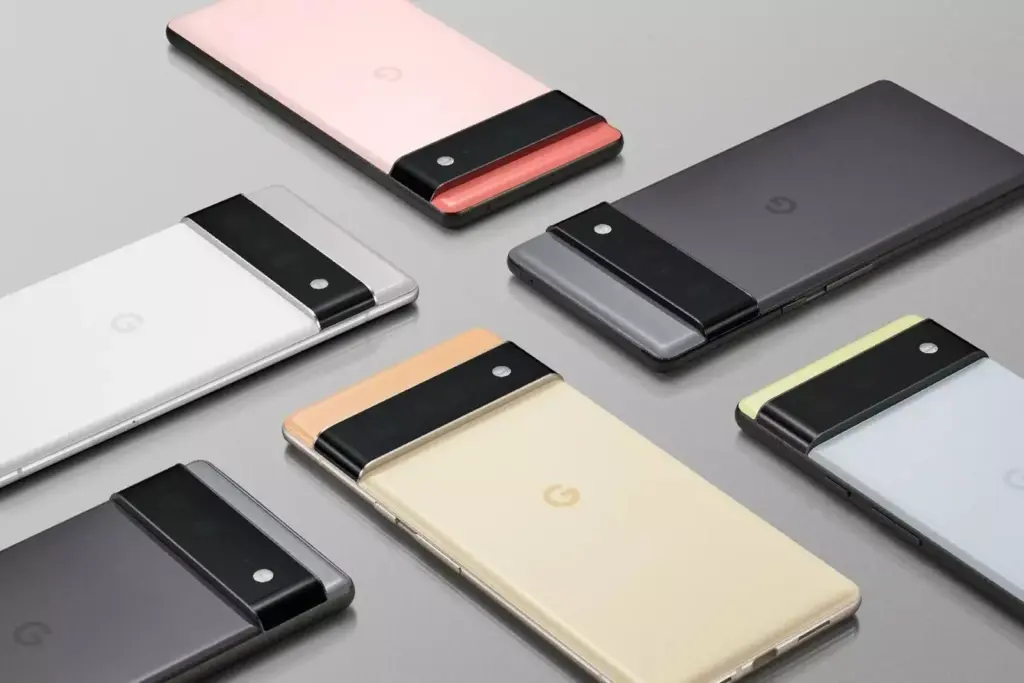
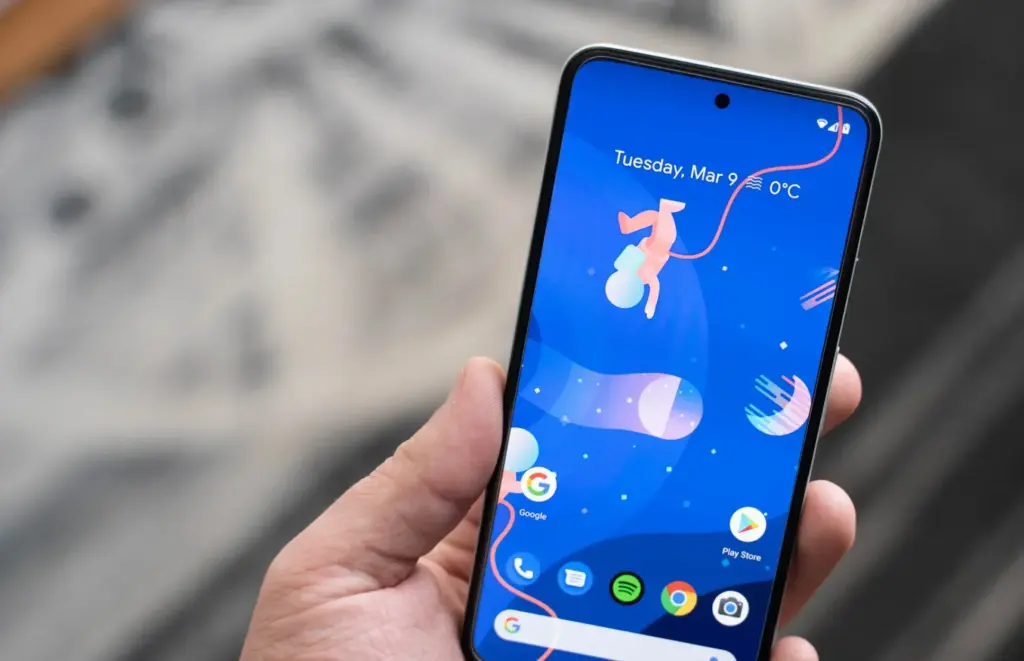
The most recent Google smartphone release is the Pixel 7 Pro. The incredible deal to get a Pixel 7 Pro for $120 cheaper than the retail cost begins on December 25 and runs until January 10 of 2023. Utilize the opportunity to purchase a reasonable present for your relatives or friends. When you purchase this smartphone, make sure to download any send anywhere file transfer app to shift all of your favorite photos and clips to enjoy the highest quality experience. The Pixel 7 offers all the features you could want in a smartphone and more, along with outstanding technology. All of the benefits of the OLED screen are there in the sleek form, which also conceals some excellent technology.
Pixel 6a Discount Package
The Pixel 6a is evidence that you don’t need to spend a lot of money to have a good phone. At a fraction of the cost of comparable smartphones, the gadget has a powerful Tensor engine and unique Google software. It does, however, get better. Get a $120 discount on the Pixel 6a from December 25 until January 5. The Google Pixel 6 is the enhanced version of the Google Pixel 6a, and its greater price is justified by the phone’s bigger 6.4-inch OLED screen and the faster refresh rate. If you can afford it, the increased price tag is well worth it for the Google Pixel 6.
Choose the Best Affordable Deal
Google’s holiday sales will make the greatest products from the digital giant more affordable than ever, whether you want to upgrade your gadgets or are seeking the perfect present for a loved one. Don’t think twice about taking advantage of the chance, and make sure you don’t miss the window of opportunity to start the new year with the finest Google has to offer.
Every profession or pastime creates its own own particular jargon for explaining complex concepts in an understandable manner, and the Android world is no exception.
This article is for you if you’ve googled a problem with your Android smartphone or tablet and came across terms like “rooting,” “flashing a custom ROM,” “unlocking the SIM,” or anything similar that you didn’t understand.
This article is a reference for the novice who wants to learn about all the terminology behind our Android nerdiness because Android experts presumably already know what these phrases represent.
What Is Rooting?
Getting access to the system files on your Android device is what it means to root your phone. No Android device comes pre-rooted by default. Therefore, it is probably not rooted if you recently purchased an Android device and did nothing to it.
Manufacturers take this action because allowing everyone root access would cause several issues. You can access files on your device that, if deleted or altered improperly, could damage it if you have root access.
But many people still decide to root their devices because it enables them to make a lot of pretty fascinating adjustments if they know what they’re doing. It should be noted that rooting an Android device would void the warranty.
How you root your device is different for every single model. For some devices, this can prove to be a difficult process involving circumventing the manufacturer’s safety precautions. For others, it can be as simple as plugging your phone into your computer and pressing a button. You can always check out the XDA forums for instructions for your specific device.
You won’t instantly notice any significant changes after your device has been rooted. The excitement is in what you can do with a rooted device. Then, you may utilize root-required apps, flash custom ROMs, modify specific features of your phone, and more—which we’ll go over in more detail later.
For instance, when unrooted, you can remove some bloatware, but rooting your device and using Titanium Backup or a root uninstaller are required to completely remove it.
What Is Unlocking?
Unlocking is a confusing term because there are different things you could unlock.
Unlocking the Network/SIM
A device that has been network/SIM locked was typically purchased through a carrier or for a certain carrier at a discounted price. That phone is then locked by the carrier so that you can only use it with them.
However, if you pay off the phone and decide to switch carriers, the carrier is obligated by law to provide you with the unlock code (at least in the US and the EU). To obtain the code, simply get in touch with your current carrier.
Sometimes, unlocking your device gets more complicated than that, so we have a guide to SIM unlocking. Other times, you buy your phone unsubsidized and unlocked, meaning you can already use it with any carrier.
Unlocking the Bootloader
The bootloader is a piece of software that runs every time you switch on your Android phone, and it is usually locked by the manufacturers. With a locked bootloader, you can’t root your device. Instructions for unlocking your bootloader are found within the instructions for rooting your device.
What Are Custom ROMs?
Read-Only Memory is referred to as ROM, however the term is somewhat misleading today because it has nothing to do with it. A ROM is essentially the software that runs on your device, at least in the Android universe.
Therefore, a Xiaomi smartphone looks and operates differently than a Samsung smartphone when you pick it up. This is so that Xiaomi and Samsung could each create their own ROMs by altering the original Android code. Even though they both run Android, Xiaomi’s ROM and Samsung’s ROM are distinct from one another.
A custom ROM, then, is a ROM that was built not by the manufacturer but by someone else. Sometimes it’s just a lone programmer with some time on their hands and a passion for making ROMs—other times, it’s a bigger group like LineageOS that has a team and intentionally makes a certain type of ROM.
Once you’re rooted, you can flash a custom ROM. Flash, in this case, basically means to load or install. Flashing a custom ROM means you are installing a new ROM on your device and completely wiping the old ROM.
When looking for custom ROMs for your device, there are some names you’re likely to run into:
Pixel Experience: As the name suggests, features a ROM similar to that of Google’s Pixel phones. This ROM is currently one of the most commonly used custom ROMs out there, and for good reasons.
LineageOS: LineageOS, formerly known as CyanogenMod, is one of the most popular custom ROMs you’ll come across. It offers a great feature set and has even featured as the stock ROM for some manufacturers in the past.
AOSP: Android Open Source Project is the version of Android that Google gives to the world, often called stock or stock Android. You might see people say that their ROMs are “AOSP-based” or “based on stock Android,” which just means they took the AOSP code and altered it to their liking.
AOSIP: Android Open Source Illusion Project integrates features from various popular custom ROMs into AOSP ROMs.
However, don’t be hesitant to try ROMs with different names from less well-known people. There are other reliable ones besides these. They’re simply the most well-known in general.
Other Android Terms
Custom recovery
If you enjoy playing around with your Android device, the recovery process could take a while. It’s where you can perform the necessary heavy lifting, create backups, and flash ROMs.
You need a custom recovery because the stock recovery on your device is unable to perform any of those tasks. For installing custom ROMs, TWRP is the preferred custom recovery. Team Win Recovery Project is referred to as TWRP.
Nandroid backup
There are, of course, ways to backup your Android device without rooting it, but a Nandroid backup is a complete backup. It essentially makes a full copy of everything on your device and saves it. That way, if you screw up anything (since you have root access and that is possible), you can always just flash your Nandroid backup and return to where you were.
The name is just NAND (a type of flash memory) and Android mashed together.
Kernel
The kernel is like the engine of your operating system—you don’t really see it, but it’s in the background doing all the hard work.
If you want, you can flash a custom kernel. Sometimes these kernels are optimized for performance or battery life—sometimes, they’re just necessary to get some feature to work right. Either way, you can be okay just sticking with your stock kernel unless you really want to change it.
Brick
Bricking your phone is essentially breaking it. If your phone isn’t working anymore, you’ve bricked it. This is generally not a phrase you’re going to be happy to run into.
A soft brick usually means it’s fixable. Maybe you’re stuck in a bootloop (your phone just continually reboots), or you boot it up, but it only displays half the screen properly. That’s generally something you can get out of quite easily.
A hard brick is when the device is toast. You messed with something at a system level that can’t be fixed, and your device is out of commission. Sorry. This is a rare thing to happen, but it can happen—and you’ll see warnings everywhere that no one but yourself is responsible for your device being bricked.
At Android Police, we generally like apps, but we actually prefer the ones that are straightforward, attractive, and cost nothing. Consider the newest software from designer Rushikesh Kamewar, Dynamic Wallpaper.
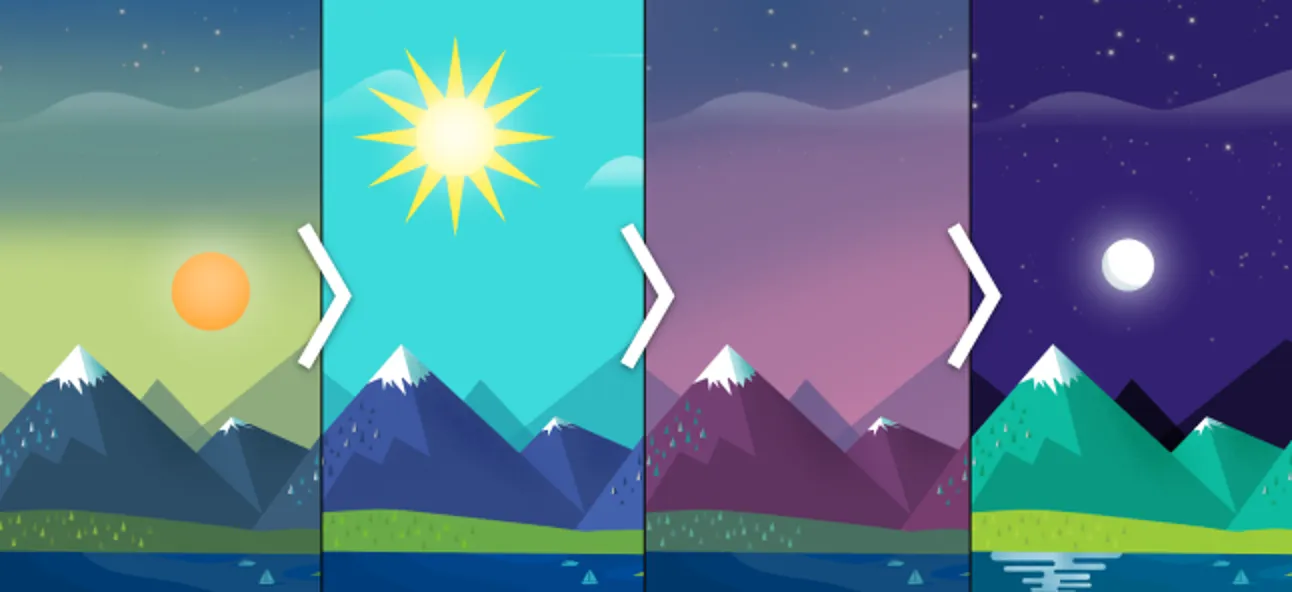
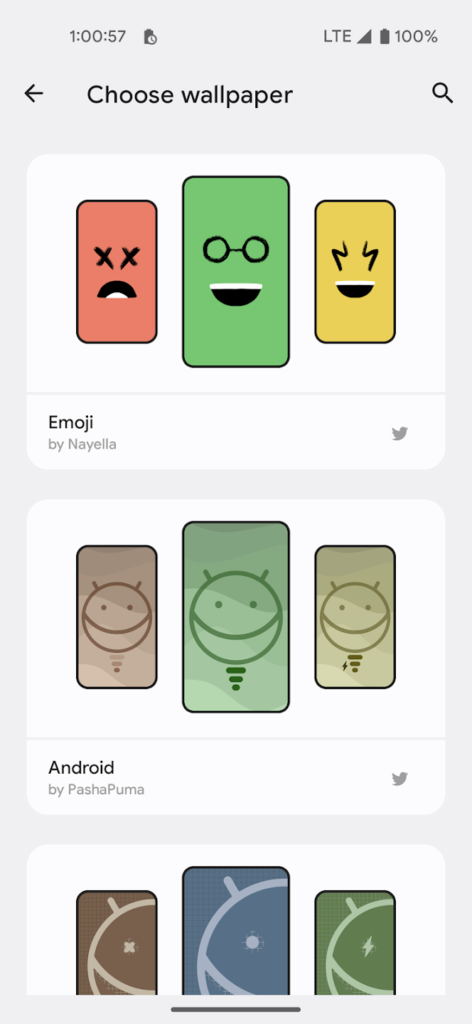
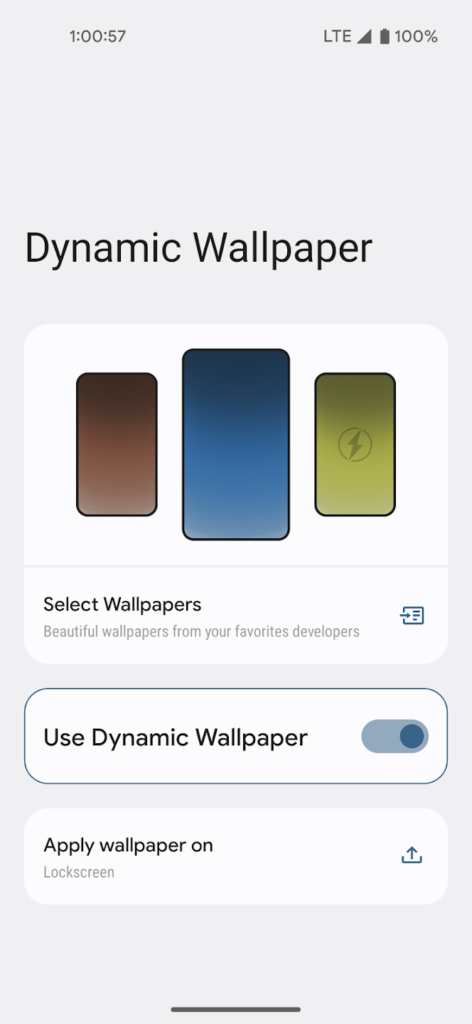
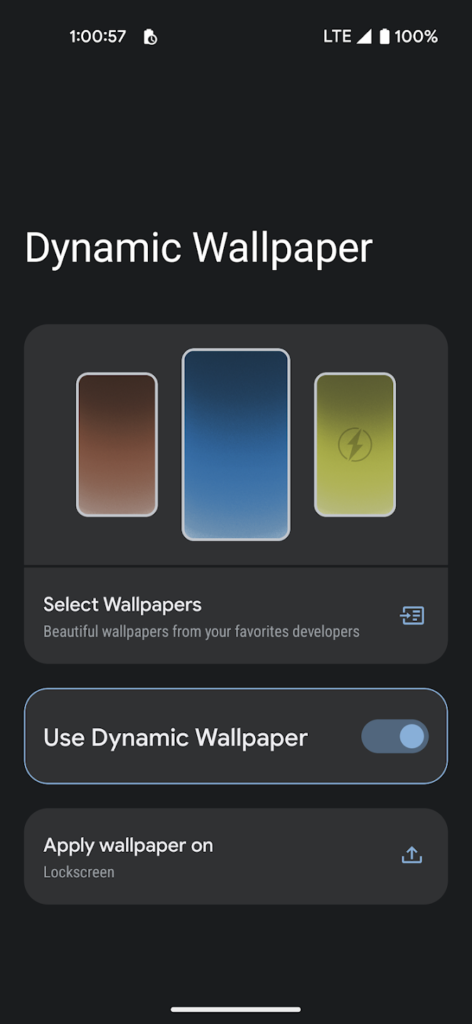
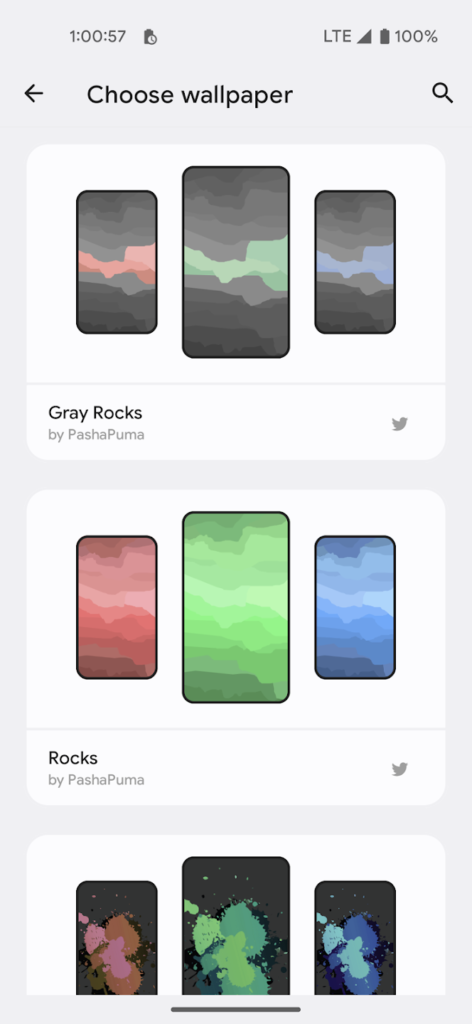
Users of this free, ad-free software can choose among 17 endearing trios of wallpapers made by designers Pashapuma Design, Nayella, and Sai Naveen. When the battery is charged or when it is getting low, the wallpapers alternate between each other. Make sure you take that into account because the main page of the program features a menu item that will take you directly to your system power settings. The first condition is typically related to when your device enters battery saver mode.
The program doesn’t consume a lot of power because it only initiates a brief background operation when the power requirements are met. The transition between wallpapers isn’t elegant; it’s a rapid cut to black and then to the next wallpaper.
Although it’s very early, Kamewar says he plans to give users the option to select three of their own wallpapers in a future release. There will undoubtedly be more wallpapers from various designers in those upgrades. The creator is aware that include all the wallpapers in the app will make it larger. Its 38MB size is a bit excessive for such a basic program.
The program doesn’t consume a lot of power because it only initiates a brief background operation when the power requirements are met. The transition between wallpapers isn’t elegant; it’s a rapid cut to black and then to the next wallpaper.
Although it’s very early, Kamewar says he plans to give users the option to select three of their own wallpapers in a future release. There will undoubtedly be more wallpapers from various designers in those upgrades. The creator is aware that include all the wallpapers in the app will make it larger. Its 38MB size is a bit excessive for such a basic program.
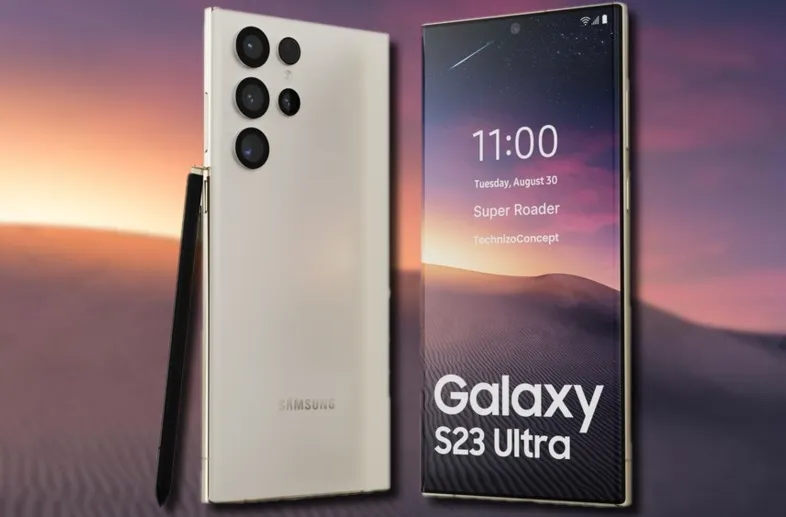
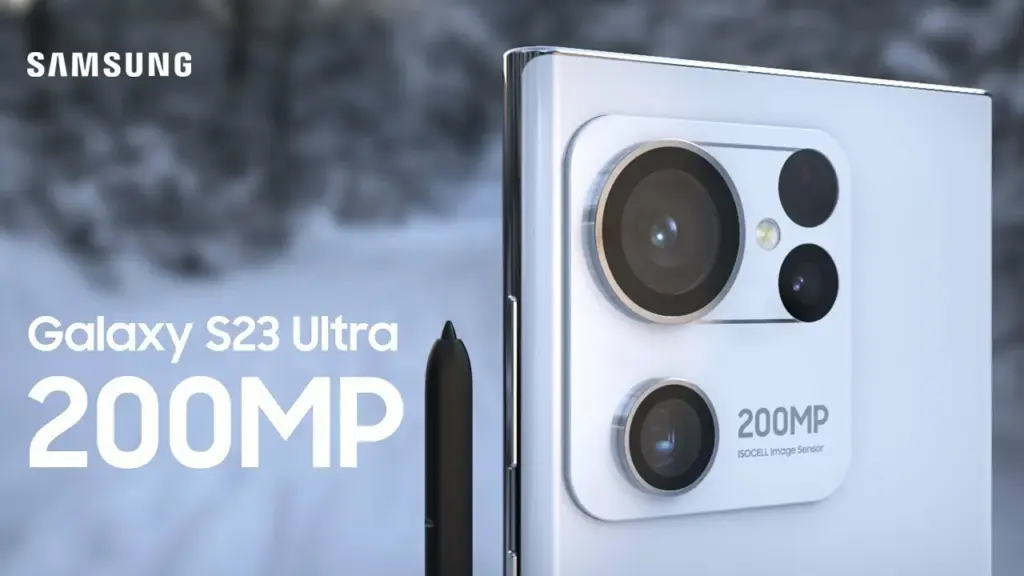
Aside from its opulent folding phones, Samsung produces some of the greatest Android phones money can now buy, and its Galaxy S22 models from this year are possibly the most attractive of them all. The Galaxy S23 series, which includes the S23 Ultra, S23 Plus, and regular S23 models, is now something we’re anticipating. The most recent hardware rumor is currently aiming to raise our expectations for the 200MP primary camera on the flagship Galaxy S23 Ultra.
The Galaxy S23 Ultra’s behemoth of a sensor, according to leaker Ice universe on Twitter, will not only be absurdly high-res but will also have better performance in some key areas, bringing about the “biggest improvement” in Samsung flagships in years. We have already heard a lot about the likelihood that a 200MP sensor will serve as the primary lens on the device. In particular, the advancements might lead to greater low-light photography and videography outcomes.
The latest Expert RAW update improved the astrophotography capabilities of the current-generation Galaxy S22 series, and this rumor says that the 200MP low-light photos of the Galaxy S23 Ultra should be something to look forward to. It is unclear, though, if the sensor’s advancements would take the shape of bigger individual pixels or some other type of hardware improvement.
However, we are yet unsure of how well this will actually function and whether we can expect a smartphone’s camera to produce 200MP full-resolution photographs that are acceptable in low light. The tiny individual pixels in high-resolution smartphone sensors would struggle to collect enough information to recreate colors naturally, therefore pixel binning is likely here to stay for low-light performance.
Besides the 200MP primary, we can expect the Galaxy S23 Ultra to have a 12MP ultrawide and dual 10MP telephoto cameras. Under the hood, Samsung is likely to toss in the Qualcomm Snapdragon 8 Gen 2 SoC along with up to 12GB of RAM and 1TB of onboard storage.
Right now, it’s difficult to talk about Pixels without the topic eventually turning to the brand-new Pixel 7 and Pixel 7 Pro. And it’s understandable why: both inside and out, Google’s most recent Pixel smartphones are just incredible. They have a ton of power and exciting new tricks that just ooze out of them.
But what’s this? To reward yourself to new and exciting phone features, you don’t need to be the owner of a Pixel 7. Because your device’s software is always being updated, there are tons of valuable jewels hiding beneath the surface, which is the beauty of the Pixel world. The majority of Pixel owners simply don’t notice them, or perhaps they do but quickly forget afterward.
In order to give several noteworthy Pixel features the attention they merit, today we’re going to take a step back. They should function for you regardless of whether you’re holding a Pixel 7 or an older model—even, in most circumstances, if your Pixel is too old to have received the most recent Android 13 update.
Discover some extraordinary Pixel gems by reading on, then continue the celebration by enrolling in my Pixel Academy e-course. For my favorite Android Police friends, it’s a seven-day email trip that teaches you a ton of time-saving Pixel information and is totally free.
Smarter storage
The following is a further automation-focused intellect built into your Pixel and ready to be cuddled: The technology automatically deletes duplicates of the photos and movies you’ve already backed up to Google Photos when your phone’s local storage starts to run out of room.
Of course, you can always do it on your own, but doing so requires (a) actually remembering to do it frequently and (b) spending the time to complete the process’s several manual phases. And while I don’t know about you, my brain is now made up of about 97% oatmeal, so everything I can automate to reduce the load on myself is a win in my book.
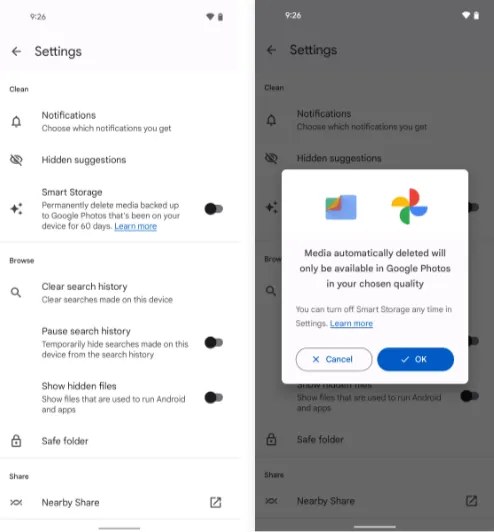
If you’ve got a current Pixel with the snazzy new Android 12 software on it, open up the Files by Google app (or go download it, if it isn’t already on your phone).
Then:
Tap the three-line menu icon in the app’s upper-left corner.
Select “Settings” in the menu that comes up.
Flip the switch next to “Smart Storage” into the on position and confirm that you want to activate the feature.
With Android 11 or earlier
If your Pixel is on an older version of Android (howdy, Pixel 2 partners!), you’ll find the same option within your phone’s system settings:
Open up your settings and tap “Storage.”
Look for the line labeled “Smart Storage.” Tap it — tap it with gusto, damn it!
Choose whether you want your already-backed-up items to be deleted when they’re 30, 60, or 90 days old.
Activate the toggle at the top of the screen.
Either way, you’ll just need to make sure you’re set to sync your photos and videos to Google Photos — by tapping your profile picture in the Google Photos app and then looking for the “Backup” line in the menu that comes up — and you’ll never have to think about your storage running low again.
Image extracting
Save yourself some time and let your Pixel make it simple the next time you need to grab a picture from someplace, whether it’s a website, a text message, a forum for earwig aficionados, or whatever the situation may be.
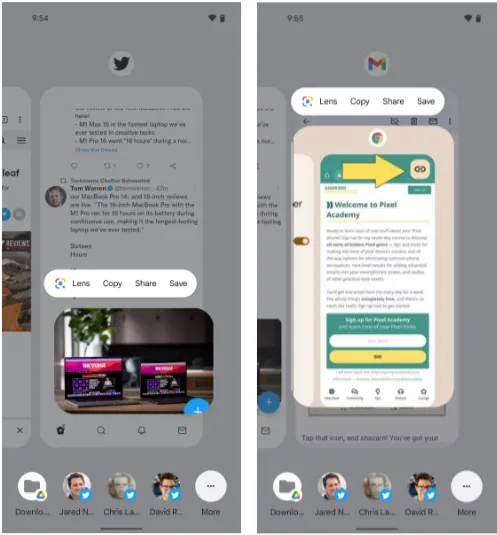
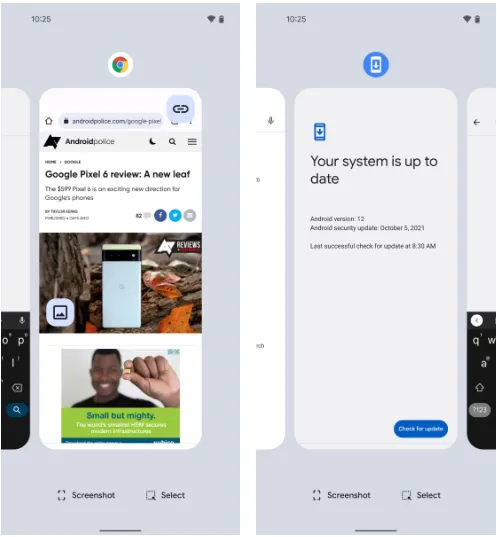
The Overview screen on your Pixel phone includes a secret feature that lets you take pictures almost anywhere. And all it takes to access its magic is a simple swipe and a few fast taps:\
While you’re viewing any app with a visible image, open up the Overview interface — by swiping up about an inch from the bottom of your screen and then stopping, if you’re using the current Android gestures system, or by tapping the square-shaped icon along your screen’s lower edge, if you’re still using the old legacy button-nav setup.
Touch and hold your finger onto the image within the app’s preview.
Select the option to copy, share, or save the image — or use Google Lens to analyze it, if you really want to get wild.
This will work in most any app where an image is present — even if it’s an app where you couldn’t typically save an image in any easy way (Gmail, Twitter, Earwiggalicious, etc).
Let’s all say it together now: Pixel features can be incredibly beneficial once you remind yourself of their possibilities and then learn to properly take advantage of them! (Okay, so that rallying cry might need a little work.)
Text extraction
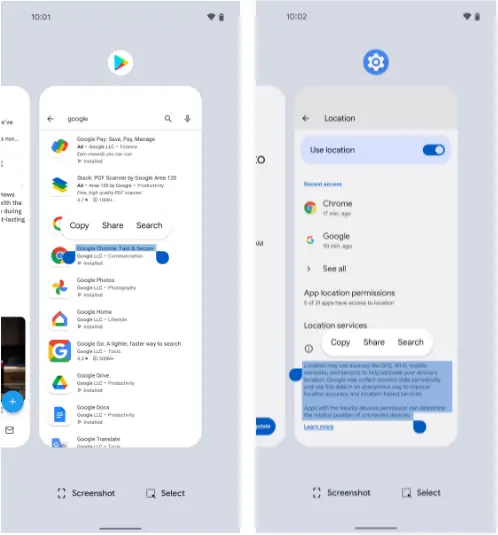
Following up on our previous Pixel feature, your fancy Google phone can help you pull text out of practically anywhere imaginable and then copy it, share it, and search for it to your heart’s content.
What’s especially useful here is that just like with the last item, this feature works even in places where you couldn’t typically copy text — your feed in social media apps, parts of the Play Store, or even sections of your system settings.
And it’s right in the same place as the image extractor we just finished exploring:
Head back into your Pixel’s Overview area.
Touch and hold your finger onto any text in the current app’s preview — or, if you’d rather (and if your Pixel is recent enough to be running Android 10 or higher), tap the “Select” text at the bottom of the screen and then highlight the specific text you want from there.
Choose “Copy,” “Share,” or “Search” from the menu that comes up.
Smirk knowingly at any iPhone users in the vicinity.
Simple screenshots
One of the most frequent complaints I get from my fellow Android-loving primates is how difficult it may be to take a screenshot on a Pixel. ‘ See, back then, the system power-button menu on Pixels included a straightforward option to take a screenshot of the screen. But after that, Google, well, Googled. It changed that menu, and then, um, it changed it again a year later, and the choice vanished.
Hold the phone, though: If you aren’t a fan of the old-fashioned physical button mechanism for capturing a screenshot, there is still another way.
It’s right there in plain sight on that same Overview screen we were just gawking at, in fact, and yet hardly anyone seems to notice it.
Yes, that’s it; it’s down there on the screen. As long as you have Android 11 or higher, your Pixel will always offer up a “Screenshot” option directly inside its Overview interface, regardless of the program or area of Android you’re looking at. And selecting that will record whatever is visible on the screen of the active process.
The system status bar, the bottom-of-screen navigation area, and any other extraneous items won’t appear in screenshots you take in this fashion as a bonus; this is a notable and occasionally useful departure from Android’s customary physical-button screenshot-capturing method.
Tap to wake
Pixels have plenty of options for easy screen activation. Maybe you like using the always-on time and info system, for instance. Or maybe you’re more of a lift-to-check kind of Pixel owner.
Whether you’re using any of those features or not, though, your Googley phone has another useful system for waking up its display in a jiff. It harkens back to an earlier Android era, and it’s one of the Pixel’s most overlooked possibilities.
Ready? Simply press the display twice to turn on the screen of your Pixel whenever you want. Just two quick taps are all it takes to wake up your phone. The unknown!
The “Tap to check phone” option should be present on your lock screen by default, but if it isn’t, check your system settings, go to “Display,” then “Lock screen,” and see whether the option is present. If it is, you can verify that it is on and enabled. (On Pixels running previous versions of Android, you’ll need to touch “Advanced” before you can access that option, which is labeled “Double-tap to check phone.”)
Automation
Although there are many chances for advanced automation on Android, your Pixel comes with its own native rules system that can significantly increase the intelligence of your phone with hardly any work.
It’s called, rather fittingly, Rules — and with about 30 seconds of setup, it can allow your phone to change its ringing and notification behavior based on where you are or what Wi-Fi network you’re connected to at any given moment.
Here’s how to get it up and running:
Head into your Pixel’s system settings (by swiping down twice from the top of the screen and then tapping the gear-shaped icon in the lower-right corner of the panel that pops up).
Tap “System” followed by “Rules.”
Make sure the toggle at the top of the screen that says “Always allow location for Rules” is in the on position.
Look for a line that prompts you to allow the feature to run in the background. If you see that, tap it and then tap “Allow” on the confirmation that appears.
Pause to take a sip of the nearest fizzy beverage.
Tap “Add rule” and then consider your options.
Then what? That’s really up to you. For a few ideas, you could instruct your Pixel to vibrate for incoming alerts when you’re at work, make it to go into Do Not Disturb mode whenever you’re at the movies, or configure it to ring whenever you’re connected to your home network.
Smart screens
The last item in our list of overlooked Pixel characteristics is a two-parter that your eyes will like.
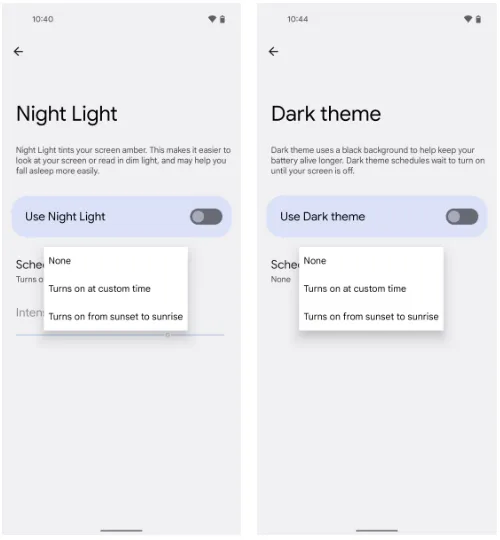
The screen-tinting Night Light option can be automatically activated on your Pixel based on the sunrise and sunset times in your current location or a schedule you create. In this manner, your phone’s screen will adopt a softer, less harsh type of coloring that will be easier on your eyes when night falls and the lights get faint. And as soon as morning comes around, it will switch back to the regular daytime mode.
Return to your Pixel’s system settings, select “Display,” then press “Night Light,” then “Schedule,” to configure your automated Night Light activation routine. The options to select the sunset-to-sunrise setup or to enter your own unique hours for dim-environment optimization are displayed there.
While we’re on the subject of screen intelligence, think about if your phone’s theme changing from a lighter theme during the day to a darker one at night might be a good addition to your new Night Light intelligence. For me, the two patterns—standard screen colors and a light theme during the day and Night Light and Android’s dark mode during the night—are a lovely and extremely natural pairing.
If you want to give that double-display whammy a whirl, back out to the main “Display” menu and look for the “Dark theme” line. Tap it, then tap “Schedule,” and you’ll see a selection that’s identical to the one you just configured for the Night Light.
Although it’s not everyone’s cup of tea, this strategy has been employed by Google for a while and makes a lot of sense.
This is due to the phased rollout strategy giving Google more time to monitor the rollout and identify any potential difficulties in advance, effectively lowering the possibility that new app versions may seriously affect the devices on which they are installed.
The most recent version of the app, Android Auto 8.2, is currently available to users. Fortunately, there is a quick method to download the program without having to wait for it to appear on the Google Play Store.
You should be aware that this alternate option essentially involves manually downloading Android Auto 8.2 onto your smartphone. To accomplish this, you must download the standalone APK installer and then run it on your device.
The Android Auto 8.2 APK installer should first be downloaded from this page. Once the download has finished, navigate to the file’s destination and tap it.
You should be prepared to move on at this point if your Android device is set up to permit the installation of apps from sources other than the Google Play Store. If not, the operating system should automatically prevent the installation and ask you to approve its completion.
When the installation is complete, which shouldn’t take more than a few seconds, Android Auto should function normally. When manually installing the most recent update, you do not need to remove the version that is already installed on your device.
What’s new in Android Auto 8.2
There isn’t much information available on this front because Google hasn’t published a thorough changelog. However, based on the most current user comments on social media, it appears like Android Auto 8.2 doesn’t bring about any noteworthy changes other from a bug that most users would find annoying.
The weather and temperature icons in the status bar appear to be gone in Android Auto 8.2, although as was previously said, this is probably simply a quirk since hardly everyone notices it.
Since no workaround has been found, it appears to be a server-side bug that Google should be able to resolve without releasing another update.
What’s not included in Android Auto 8.2
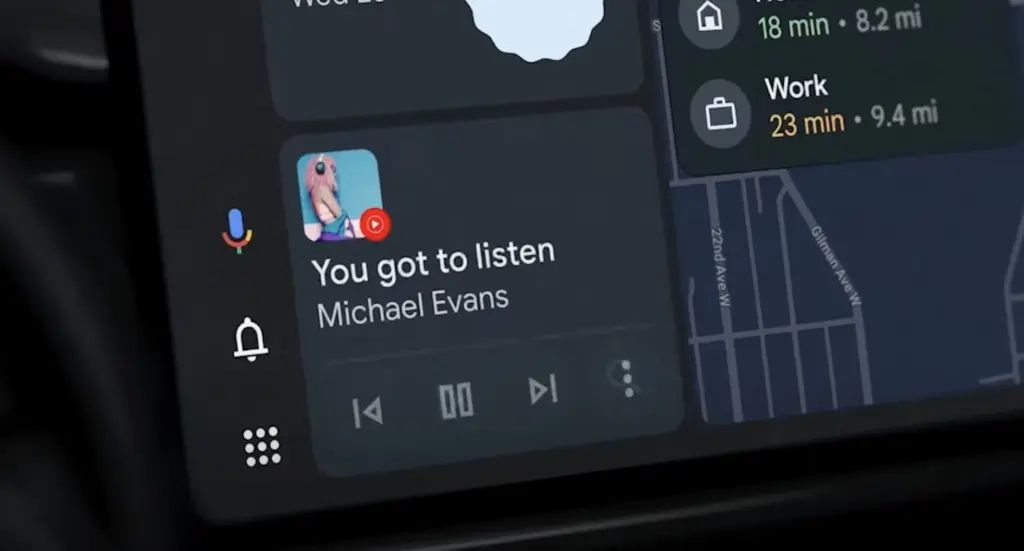
Since everyone seems to be anticipating the revamp of Coolwalk in Android Auto, you’ll likely be disappointed to learn that version 8.2 doesn’t bring any changes in this area.
In other words, if you hurriedly downloaded and installed Android Auto 8.2 in the hopes of obtaining Coolwalk, this UI change isn’t yet accessible. You should also be aware that Google will enable the new function with a server-side switch, so the distribution of Coolwalk isn’t dependent on a specific Android Auto update.
The majority of the code for Coolwalk is already present, therefore Google is currently only focusing on final polishing. This indicates that the release of Coolwalk shouldn’t be too far away, even though there is currently no other information on the ETA.
If you don’t want to manually install version 8.2 on your smartphone, the wait shouldn’t be too long as the automated deployment of Android Auto upgrades normally ends after a few weeks. In other words, as part of the gradual deployment described above, this most recent version of the app should be made available to all Android smartphones running Android Auto by the end of the month.
The greatest Android game and software bargains for Monday afternoon are now available below the fold. Along with the software discounts, there are also price reductions for the OnePlus 10 Pro 5G, Samsung’s most recent Galaxy Z Fold 4 foldable, and the Chromecast with Google TV 4K. However, the focus of today’s bargains is on apps, with titles like Pavilion: Touch Edition, ProCam X, Evoland 2, YoWindow Weather, Hack, Slash, Loot, Crystalline, and others among the highlights. For a detailed look at today’s top Android app bargains, courtesy of Google Play, continue reading below.
On October 6, Google will hold its upcoming hardware launch event, during which the Pixel 7 series and a number of other new items will be made public. The Pixel 7 series duo was originally shown off by Google at its 2022 I/O event, but additional crucial information has been kept under wraps.
The pair has been the subject of numerous rumors, and Google has been gradually disclosing features from the Pixel 7 series. We’ll outline how to watch the Pixel 7 series event live as well as what to look forward to.
When will Google launch the Pixel?
On October 6, 2022, Google’s Pixel 7 series will debut. At a live event in Brooklyn, New York, beginning at 10 AM ET, Google will reveal the Pixel 7. (3:00 PM London time, 9:30 PM Indian time).
How to watch Google’s launch event
Although Google’s hardware event will take place in person, you can watch it live online from the comfort of your home. The Made by Google YouTube channel will broadcast the event live.
What to expect at Google’s event
What hardware is hence most likely to be presented at the event? While rumors and leaks have disclosed some of the other details, Google has already confirmed a large portion of it.
1. Google Pixel 7 Series
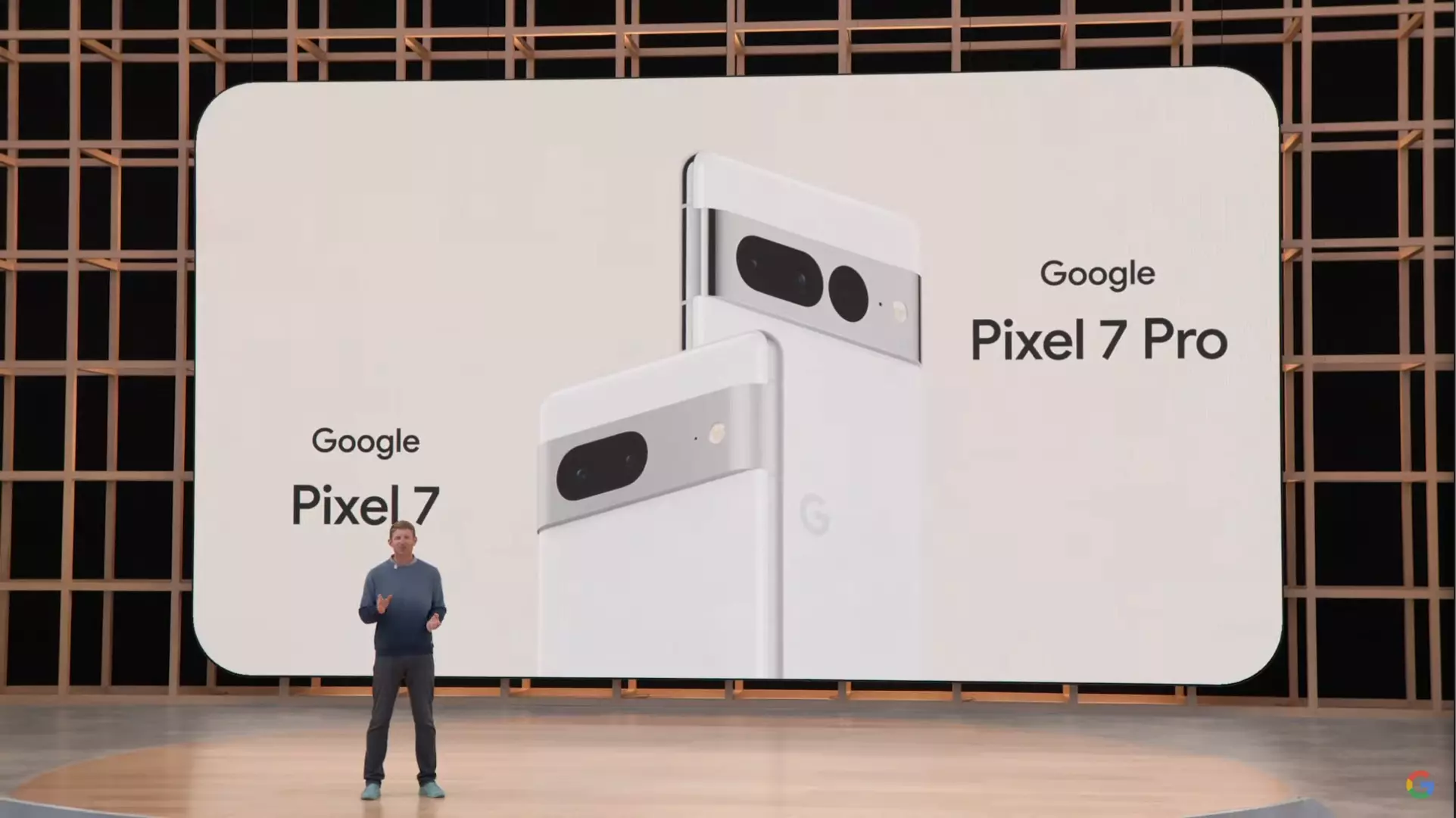
Google will unveil two models, the standard Pixel 7 and the Pixel 7 Pro. The duo maintains Google’s modern design introduced with the Pixel 6 series in 2021.
The edge-to-edge rear camera bar is still there on both phones, but Google is prepared to differentiate between the two by adding a third camera to the Pro model, making a total of three. The third rear camera on the Pixel 7 Pro is also located in a distinct dot cutout. Both variants’ back camera bars are made of metal instead of the glass found on the Pixel 6.
Google recently posted a photo showing the Pixel 7 Pro’s display, which is somewhat curved. Google continues to employ a rounded notch, which is said to include an 11MP Samsung 3J1 front camera.
According to 9To5Google, rumors indicate that Google will keep using the primary 50MP Samsung GN1 sensor and Sony’s IMX381 for ultrawide pictures. The usage of Google’s second-generation Tensor G2 processor, which is expected to employ a 4nm chip with Samsung’s upcoming Exynos 5300 modem, is one of the greatest upgrades.
The Tensor G2 is supposedly combined with 12GB of memory and 128GB of storage on the Pixel 7 Pro, according to a report from Android Authority. According to rumors, the stock Pixel 7 will have Bluetooth Low Energy-enabled dual speakers, 8GB of RAM, 128/256GB of storage, a 4700mAh battery, 30W charging capability, and a 6.3-inch display.
Both versions will be available in the colors Obsidian and Snow out of the box, but there is also a third special choice for each model: Hazel for the Pro and Lemongrass for the Pixel 7.
Early price rumors have suggested the Pixel 7 series starts at $599 for the standard model and $899 for the Pro model, identical to the Pixel 6 and Pixel 6 Pro launch prices, respectively.
While there’s still uncertainty on other important features of the Pixel 7 series like battery, fast charging speeds, camera, price, and more, it looks like you shouldn’t expect a massive update from the Pixel 6 series.
2. Pixel Watch
Google is almost ready to introduce its first wristwatch. In leaked images, the Pixel Watch has a svelte circular shape and muted hues similar to the Pixel 7 series. It has a pill-shaped button on the right and a silver crown on the left.
According to an early hands-on in the wild that was posted on Reddit in April 2022, the Pixel Watch is expected to be 40mm in diameter, 14mm thick, and 30mm in diameter (without the bezels).
https://youtube.com/watch?v=_p7v1PTABSU
It has been suggested that the Pixel Watch would include fitness and health tracking capabilities for heart rate, blood oxygen, skin temperature, and other parameters. Most significantly, the Fitbit Charge 5 has been compared to the Pixel Watch’s rear sensors, which debuted in 2021.
The Fitbit’s Charge 5 has several tracking features, including an ECG and EDA sensor. Besides, Google notes in a teaser that Fitbit powers the smartwatch’s health and fitness features, and, as a result, you may need a Fitbit account as well as the app to enjoy some functionalities.
Reports suggest Google could use the Exynos 9110 chip, an old chip first seen in Samsung’s 2018 Galaxy Watch, according to a 9To5Google report. On the bright side, Google will reportedly include over 1.5GB of memory to compensate for that.
Under the hood, the Pixel Watch will run Wear OS 3, the latest version of Google’s smartwatch operating system.
3. Google Nest Wi-Fi Pro and Nest Doorbell (Wired)
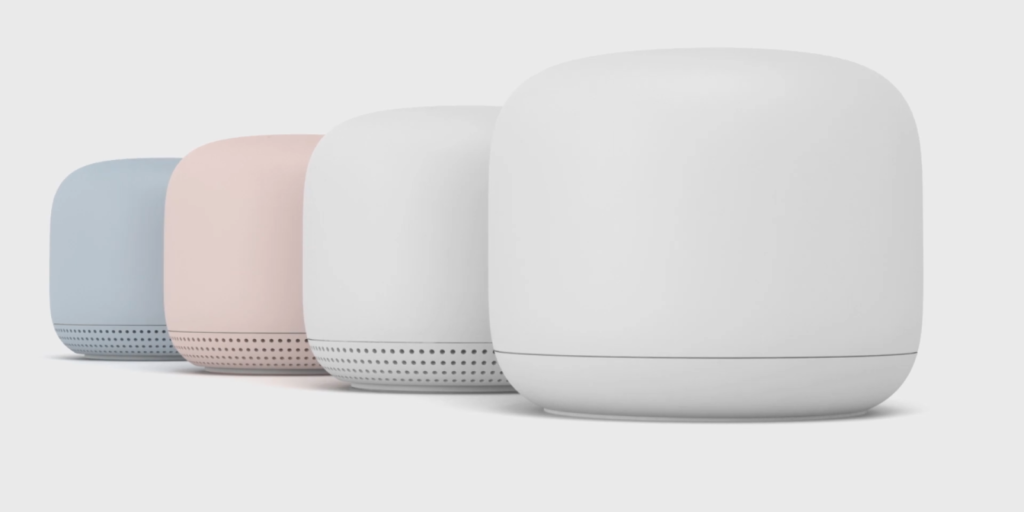
The newest Nest Wi-Fi mesh network is anticipated to be unveiled by Google’s Nest division. The Nest Wi-Fi Pro will be the name of the next-generation Wi-Fi mesh network, according to a B&H retail page leak. According to reports, it will start at $199 for a single router and enable Wi-Fi 6E.
The Nest Doorbell (wired), a variation of the current Nest Doorbell, could also be announced (battery). Despite the fact that no significant modifications have been noticed in terms of design, leaks indicate it may be shorter but thicker than the Nest Doorbell (battery).
Get Ready for Google’s Hardware Event
The Pixel 7 and Pixel Watch are expected to be unveiled in person at Google’s fall hardware event. The Nest Wi-Fi Pro and Nest Doorbell could also be made public by the business (wired). Prepare for the event because Google may have further surprises in addition to these.
Since Apple’s official unveiling of the iPhone 14 range has not yet settled, several of the announcements caught us off guard. Although I’ll reserve my opinions on the Apple Watch Ultra for another time, I do have some thoughts on it. Instead, I’m going to discuss a few features that the iPhone 14, namely the Pro and Pro Max, “stole” from earlier Android devices.
Dynamic Island from LG V10
The debut of the Dynamic Island along with the iPhone 14 Pro and Pro Max was perhaps the announcement made during Apple’s “Far Out” event that sparked the most heated debate. Since the release of the iPhone X, everyone has been requesting that Apple remove the notch, and they have finally done so. Although it’s still present on the iPhone 14 and iPhone 14 Plus, it makes sense from the standpoint of Apple wanting to provide a feature that sets its non-Pro and Pro models apart.
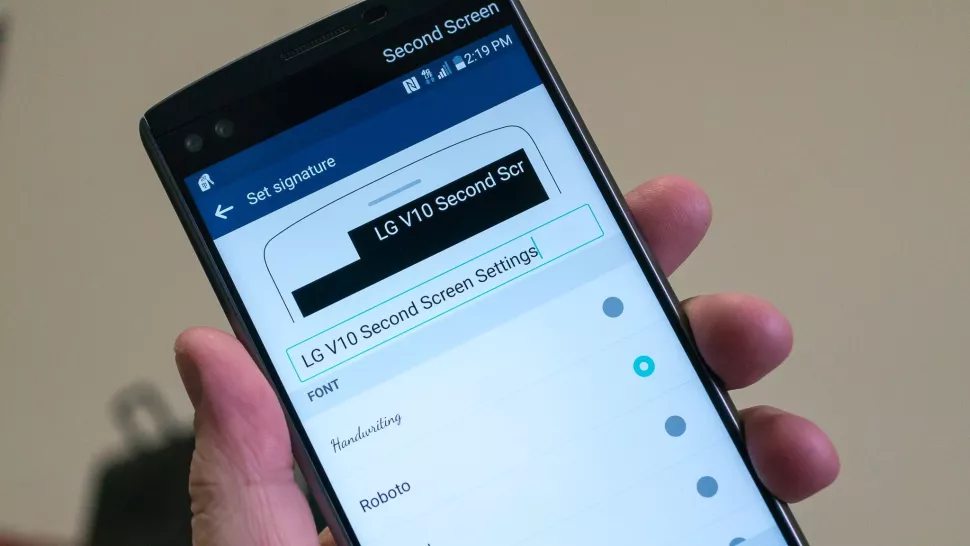
While the Dynamic Island may appear to be a ground-breaking new feature, LG actually arrived first with the LG V10, despite the fact that this is accurate to some extent. LG introduced the “Second Screen,” which allowed users to read incoming notifications, make shortcuts for contacts, and control any music that was playing without using the primary display, in an effort to provide users a another method to interact with their alerts.
It was one of those instances where LG tried to do something different, but the overall implementation and lack of support doomed the Second Screen from the start. The LG V20 kept the Second Screen around, providing essentially the same implementation, but it was still met with mixed results. Some V20 owners found this to be extremely convenient, while others found that “it doesn’t really add much to the experience.”
Apple’s implementation of Dynamic Island merely operates in a completely different manner as opposed to introducing a new screen. The “Island” will display “Dynamic” information, such as the song’s album art, when you start playing music and quit the app. Additionally, instead of taking up your full screen for simple notifications like when FaceID is required, it turns them into a drop-down image tied to the Island.
Although Dynamic Island isn’t an identical copy of LG’s Second Screen, it’s very obvious that there is some inspiration.
Hole-punch selfie camera
Speaking of the notch, we were aware that Apple wouldn’t use it indefinitely. It was only a matter of time before the company made the “revolutionary” decision to use a hole-punched selfie camera cutout. Apple had to alter the modules it uses because of the different sensors that are integrated into the notch, and there are actually two cuts. The selfie camera is in one, while the proximity sensor and other Face ID-related components are housed in the other.
With the Huawei Nova 4, the first business to completely do away with the notch, Huawei introduced the hole-punch selfie camera. However, it has been more difficult to find a smartphone that doesn’t include one since then. Many of the top Android smartphones are included in this, including the Galaxy S22 series, Pixel 6, ASUS ZenFone 9, and others.
Apple is obviously falling behind the curve here, as a few phone manufacturers are starting to adopt an under-display selfie camera. Notably, the Galaxy Z Fold 4 and ZTE Axon 40 Ultra are two of the most recent models with a UDC; nevertheless, it wouldn’t be surprising to see further phones produced in the near future with such a change.
Always-On Display
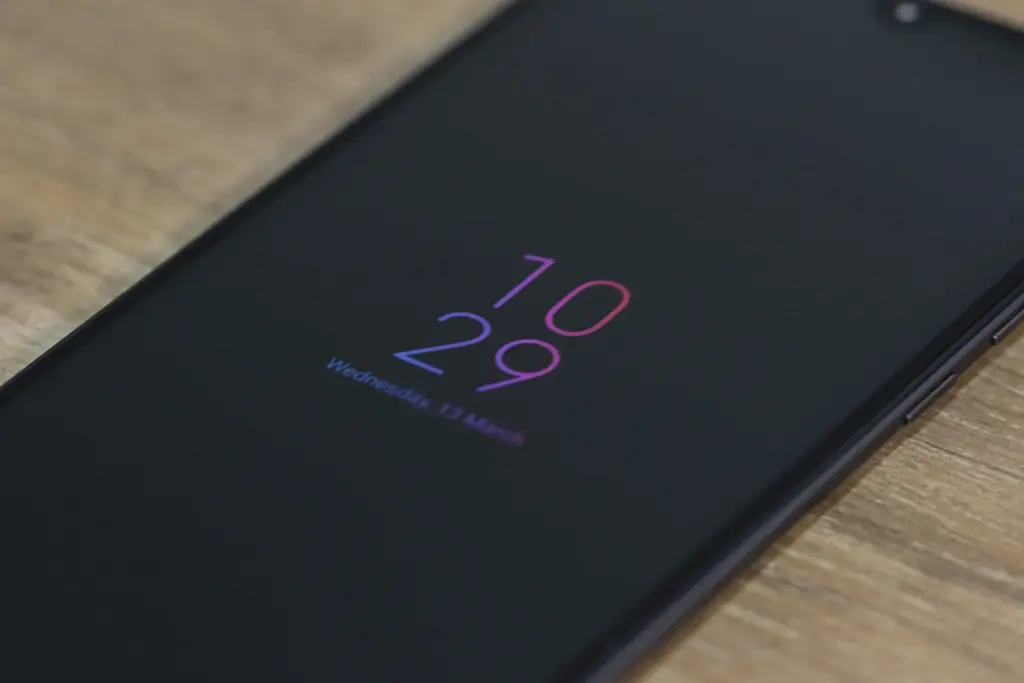
Consider how long Apple has taken to provide a feature that it ought to have done years ago. Android phones have long had the Always-On Display (AOD), which allows users to quickly and easily see the time and any unread alerts. Following the announcement of iOS 16 and the addition of lock screen widgets, the writing was already on the wall.
Then, one of the iOS 16 Developer Beta builds kind of let the cat out of the bag when several users discovered that the UI on their iPhone lock screens was unfamiliar. In actuality, Apple was simply putting the software in place to support the Always-On Display.
In true Apple fashion, this isn’t available on all four iPhone 14 models, as the AOD is reserved solely for the iPhone 14 Pro and Pro Max.
Dynamic Refresh Rate
It’s still remarkable that Apple waited so long to implement quicker refresh rates and dynamic refresh rates considering how long Android users have enjoyed this privilege. ProMotion was created because we anticipated Apple would substitute “dynamic refresh rates” with some fancy marketing word. The iPhone 13 Pro and Pro Max from last year were the first devices to feature this, but they could only refresh the screen between 24Hz and 120Hz.
Apple decided it was high time to slow things down even further with the release of the iPhone 14 Pro and Pro Max with the Always-On Display. With its ProMotion display, the iPhone 14 Pro range can now dynamically refresh the screen all the way down to 1Hz instead of bottoming out at 24Hz. Since stale content doesn’t need to be refreshed as frequently, the obvious benefit is to prevent battery drain anytime the AOD is shown on the iPhone.
Due to the LTPO display, the OnePlus 9 Pro and Oppo Find X3 Pro were two of the first smartphones to provide dynamic refresh rates between 1Hz and 120Hz. And as you might anticipate, this has appeared on additional gadgets, like the Galaxy S22 Ultra and the current generation of iPhone 14 Pro models.
Car Crash Detection
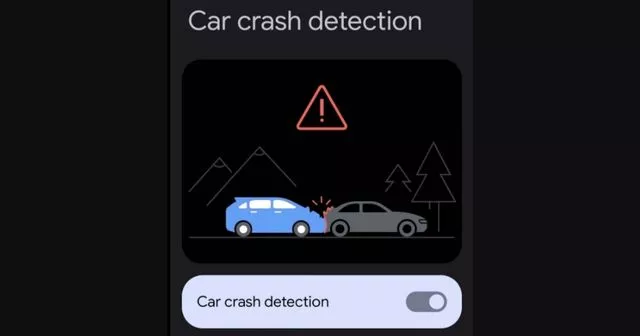
If you were able to endure the full “Far Out” event, you might have become weary of the numerous commercials showcasing the positive effects the Apple Watch and iPhone have had on people’ lives. One new feature, though, is something that everyone should be grateful to Google for introducing with the Pixel back in 2020. As part of the March 2020 Feature Drop for owners of the Pixel 2, 3, and 4, Car Crash Detection was initially integrated to Android.
The many motion sensors and ambient sounds on your Pixel phone were used to make this feasible. Your phone can sound an alarm in the event of a car mishap, prompting you to decide whether you require additional assistance. If no response is given, emergency services will be contacted and their location will be given by your Pixel.
Apple is adding this to all of its iPhone 14 models, but the Apple Watch Series 8 is also the first wearable to do so. Apple has updated its three-axis gyroscope and combined it with a “high g-force accelerometer” that can measure up to 256 gs of force to enable this. Once an algorithm has determined whether an accident has happened, the iPhone and/or Apple Watch will inform emergency contacts and services if no answer is received within 10 seconds.
In June 2022, it was discovered that the Car Crash Detection feature might not be exclusive to Pixel phones for much longer. Hidden code within Google’s Personal Safety app suggests that this functionality could make its way to other Android phones in a future update. But at the time of this writing, it looks like Google and Apple will be the only phone makers with this available.
Apple excels at retaining consumers inside of its ecosystem. Once you experience the iPhone world and fall in love with its distinct features or apps, switching to Android is challenging. iMessage is one of the key iOS apps we wish existed on Android and Windows. Although there isn’t an official way to use iMessage on Android, Beeper’s unified chat software makes it possible.
What is Beeper?
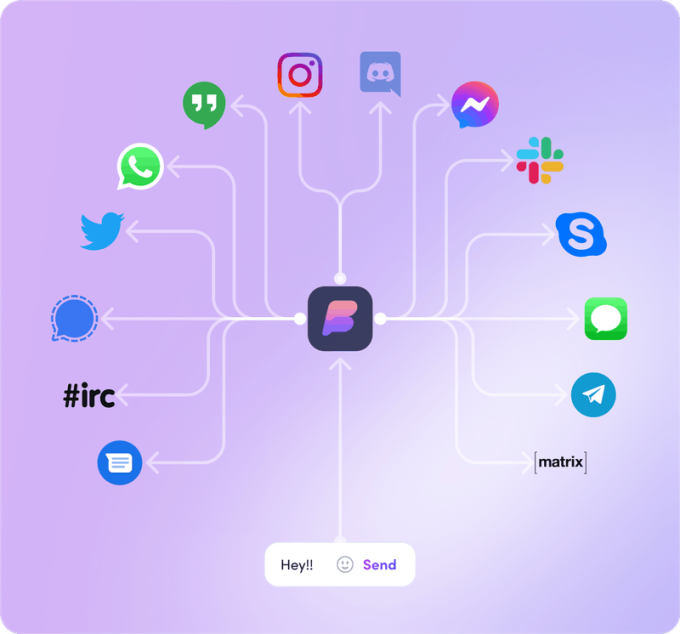
An integrated chat and inbox app is called Beeper. Former Pebble CEO and Founder Eric Migicovsky is one of the project’s key figures. It is renowned for smoothly integrating all of your communications and social networks. Additionally, you can set notes, search all services, and make voice and video conversations.
Google Chat, Instagram, Messenger, Signal, WhatsApp, Twitter, Discord, Slack, and more services are also supported.
We’ll talk more about this later. The app is presently in beta, and the only way to access it is with an invite.
How does it work?
If iMessage isn’t available outside of Apple devices, how does it manage this?
It functions as an intermediary between your iMessage content and your other devices. It redirects conversations through its messaging software and links your Apple ID account to its own servers. In essence, you send a message to their servers, which then forward it to iMessage so that the receiver may get it. The opposite also holds true.
The waitlist
As previously mentioned, the app is still in a closed beta stage. This means you’ll need an invite in order to get access to the app. Click on the button below to get on the waitlist, and hopefully you can get in soon.
The app seems really awesome, no? It completes a task for which we have been waiting years, even in beta. The unified chat service is functional, attractively designed, and compatible with all significant platforms. You are correct to believe that such kindness cannot be offered for free. It charges $10 per month, even though it’s still in beta. For a service that isn’t even ready for prime time yet, it’s a little on the costly side, but some of you might find it worthwhile.
The bad
Beeper has to go through some hurdles in order to use iMessage on Android or Windows because there isn’t an official way to do so. They’ll need access to your Apple ID account, and that’s the trick here. Even though it claims it will only utilize this information to obtain your messages through iMessage, some security-conscious people may have some worries about this. These accounts are kept by Beeper on a Mac Mini server. To make chat easier, they will also access your contacts. If you do this, you must have faith in it. You must also have faith in their ability to avoid hacking.
One more significant drawback is that it doesn’t support RCS (Rich Communications Services). The SMS and MMS replacement, which can use data for messages, video, and other communication tools, is a crucial feature for Android users and is essentially an iMessage rival. The Google Messages app contains it. If you continue to use Google Messages as your main messaging app, RCS will continue to work. Then, you can use Beeper’s iMessage feature as a backup service. RCS support will be lost if Beeper becomes the standard messaging program.
Finally, a PC must be used to set up Beeper. It cannot just be installed and run using the Android app. More specifically, the Android app does not allow you to add services to your account. The purpose of the app is to sync with your account, which is managed by the PC program. That essentially eliminates this for anyone without access to a computer.
How to set up iMessage on Beeper
Are you ready to move forward? If you got your invite, it’s time to set up iMessage on Beeper. You’ll get notified when it’s your turn. In which case you have to follow instructions to set up Beeper.
Follow the instructions to install the Beeper app on your Windows PC, and create your account.