Evidently, satellite communication is all the rage. While Android 13 is still gradually rolling out to devices other than those in the Pixel line, it appears that Google is already teasing features for Android 14.
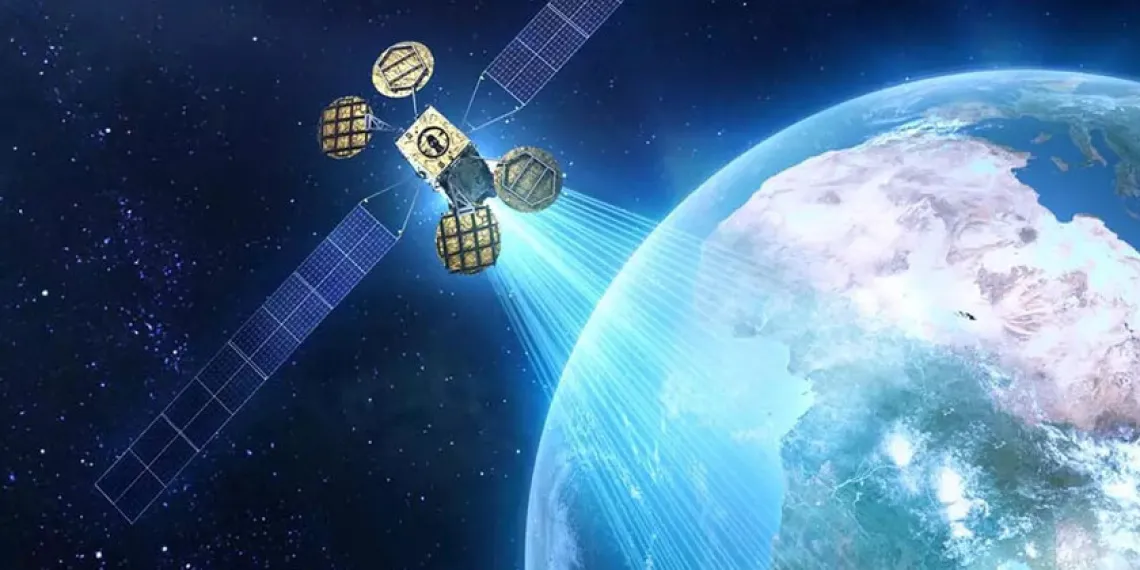
Google’s senior vice president of platforms and ecosystems, Hiroshi Lockheimer, stated in a tweet on Thursday that the company aims to offer satellite connectivity “in the next version of Android” and that he is enthusiastic about the possibilities this opens up.
What you need to know – Android 14
A Google executive has confirmed that the next version of Android will support direct satellite connectivity.
T-Mobile and SpaceX recently announced a new partnership that aims to bring satellite connectivity to smartphones.
Apple has been rumored to have this in the works for its upcoming iPhone 14 and Apple Watch 8.
It isn’t much of a stretch to figure out what “the next version of Android” might mean, but Google confirmed to 9to5Google that this is, in fact, Android 14.
The cooperation between T-Mobile and SpaceX, which will use the latter’s Starlink satellites to provide basic connectivity to smartphones, was just revealed. Lockheimer’s tweet is probably in response to that announcement. The goal is to eradicate so-called dead zones, where even the top U.S. carriers struggle to deliver the most basic services. This would at first encompass messaging services like SMS and MMS as well as specific chat apps and possibly even video.
After SpaceX launches its next-generation satellites, the beta testing for this is not anticipated to begin until late in 2023. The service is anticipated to be free for members of T-“most Mobile’s popular plans,” but the businesses intend to expand it to support calls and data as well.
Along with this collaboration, it has been long-rumored that Apple’s forthcoming iPhone 14 and Apple Watch 8 products will feature satellite connectivity. We’ll have to wait and watch what Apple says on September 7 since the company is anticipated to reveal its new smartphones.
The September 2022 Google System updates have started to reach Android devices. These updates differ from OTA (over the air) updates that you get for your phone. Instead, these are updates to various underpinning technologies, such as Google Play Services and the Play Store, which serve as the foundation for the Android OS. For a more dependable and secure user experience, the organization releases updates and adjustments to these systems on a regular basis. Each month, it describes their developments. A few major modifications, including some for Kids Space, are brought about by the most recent round of Google System updates.
This month’s Google System updates bring notable changes to Kids Space
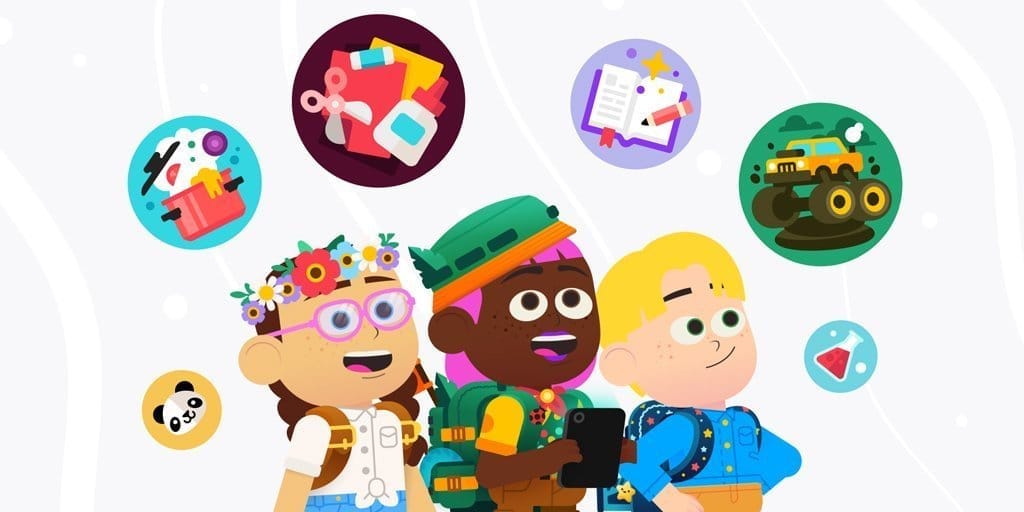
First off, you can now set up Android tablets to install Google Kids Space on a different account. You can now use your tablet to share with your little siblings or children. To prevent your children from downloading or using undesirable apps, you can also hide suggested apps while configuring Kids Space. On Android smartphones, TVs, tablets, Android Auto, and Wear OS devices, the most recent updates significantly improve Google account syncing and recovery.
Additionally, the Google Play Store is improving. Play-as-you-download, Google Play billing, Play Protect, Play Pass, and Play Points programs are just a few of the features that are getting some optimization. However, if you looked at the organization’s official update tracker for these monthly releases, you would see the identical entries in the changelog for almost every release.
Improvements are also being made in the Google Play Store. Some enhancements are being made to features including Play-as-you-download, Google Play billing, Play Protect, Play Pass, and Play Points programs. However, if you looked at the changelog for these monthly releases on the company’s official update tracker, you would see the identical entries almost every month. That’s because Google makes these ongoing adjustments for better user experience in the background.
As part of these monthly Google System updates, Google frequently pushes new updates to Android OS systems throughout the month. So, in the upcoming weeks, it’s possible that the corporation will add new items to the changelog for the most recent edition. We will undoubtedly let you know about anything significant or significant if it happens.
The aforementioned improvements are now being released alongside Google Play Store version 31.1 and Google Play services version 35.22. It may take a few days for everyone to notice the improvements brought about by this month’s Google System upgrades because the company just issued the most recent version. Although the updates ought to be installed without your intervention, you can always look for them yourself. To check if you have a Google Play services update available, click this page. The About section of Settings, accessed from your avatar in the top right corner of the Play Store home page, allows you to check for updates for the Play Store.
Only a few days have passed since we gave you an update on the conversion of Google Duo into Google Meet, and we already have another. Google informs us today that the Google Duo symbol and name change, which transforms it into Google Meet, is beginning today.
We recently informed you that Google would rename Duo to Meet by the end of the year after integrating all of Google Meet’s capabilities into Google Duo. Google claims that the change will begin to take effect immediately and that it may take several weeks to fully implement. The full deployment should take place by September, at which point all users should notice a change in icon and name.
If it hasn’t already, the old Google Meet app you presently have on your phone will also be renamed to “Meet (original)” in addition to the move from Duo to Meet. I’ve already changed, as you can see in the example above.
Google is also replacing the branding on duo.google.com with Google Meet as of today. That will redirect to meet.google.com/calling in the “coming few months.”
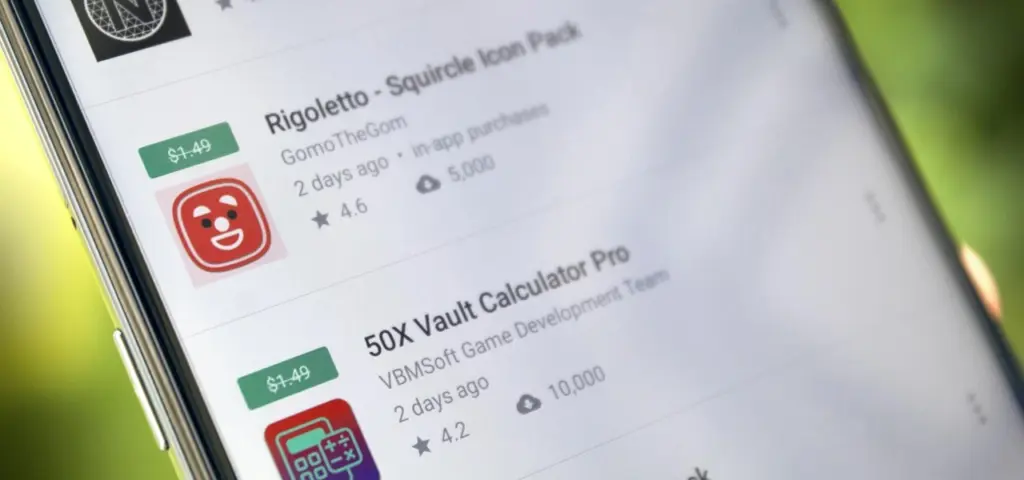
If you’ve been following Droid Tools for a long, you’ll be familiar with the following information: Both the Google Play Store and the Apple AppStore frequently host sales events where you may receive paid content for nothing for a brief period of time. Unlike our list of the five greatest applications of the week, we don’t explicitly try out the content when we compile these downloads and offer them for you. Therefore, use caution to avoid getting caught in a cost trap since some apps may still offer in-app purchases.
Tip: Do you want to secure a free app for the future? Then download it once and delete it again if necessary. This way it will be added to your list of purchased apps and you can download it again in the future once you need it.
Free apps for your Android phone
These apps are free in the Google Play Store
Home Workout Pro ($1.49): Funny, I installed this app when it was free last time—and I’m still not more muscular. I’ll be sure to start this app sometime!
Video Gallery – HD Video Live Wallpapers($0.99): For the most part, I don’t need live wallpapers on my smartphone. If you’re different and need some new fodder for your homescreen, this might be your app.
These games are free in the Google Play Store
Peppa Pig Sports Day ($2.99): Peppa Pig games are always fun, aren’t they? Well, not for us adults, but kids celebrate Peppa frenetically, of course. As always, this is a collection of various mini-games.
Rogue Hearts ($0.99): Nice dungeon crawler that likes to force you into in-app purchases, though. You can also pick up weapons, treasures, etc. in the game.
Klocki ($1.99) No time limits, no ads, but chilled out music. That’s the way to enjoy a puzzle game, isn’t it?
Mr Racer($4.99): Challenge your friends or the AI in fast races. Goes straight ahead, but it’s still fun.
Neo Monsters ($0.99): Catch and train monsters and have them compete in battles – sounds like that one game, what was it called again?
Cartoon Craft ($1.99): Real-time strategy game in which you logically have to decimate your enemies’ troops.
Cyber Fighters: Offline Game ($1.09): Action RPG where you are immersed in a world right after the end of World War III – in the year 2077! Can be played offline, as the title suggests.
Superhero War Premium ($0.99):Action RPG, where you fight your way through many levels to collect gold and diamonds.
Google hasn’t been the greatest when it comes to making its Pixel phones widely available around the globe. In India, for example, the country hasn’t seen a Pixel phone launch since 2020 with the Google Pixel 4a.
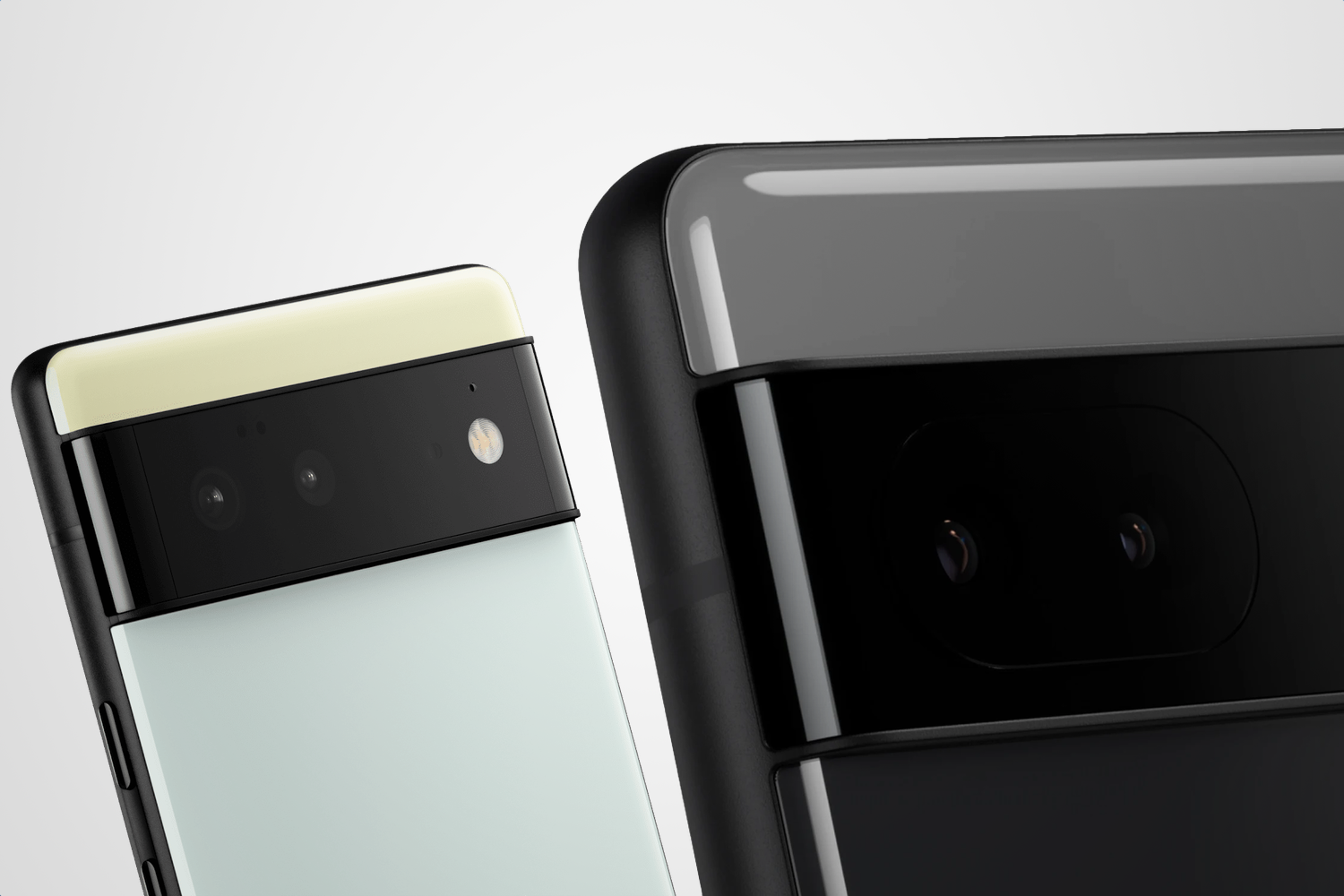
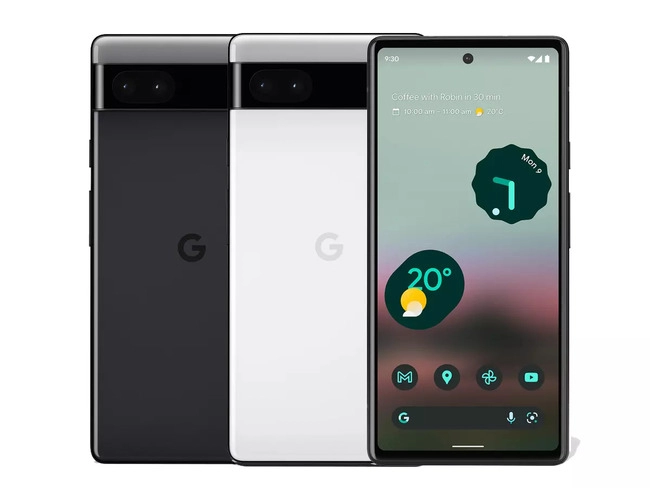
Today, though, that has changed! Pre-orders for the Google Pixel 6a in India are now open. Additionally, the business is running a number of deals to help you save money and receive more Google goods.
The price of the Pixel 6a is Rs. 43,999 (about $550). That refers to the sole variant with 6GB of RAM, 128GB of internal storage, and the Google Tensor chip that is currently on the market. There are two color options available: Chalk and Charcoal.
Use Axis Bank Cards with EMI for your purchase if you wish to save some cash. This reduces the cost by Rs. 4,000, or about $500, to Rs. 39,999.
If you want to save even more, you can exchange a phone during your purchase. Google will offer Rs. 6,000 (~$75) for any Pixel device and some select smartphone models. If you don’t have one of those, you can cut Rs. 2,000 (~$25) off with any other smartphone.
If you stack the trade-in with the Axis/EMI discount, you could get a Google Pixel 6a India pre-order for just Rs. 33,999 (~$425).
Finally, Google would love for you to buy some other Google products along with your pre-order. If you toss in a Nest Hub (2nd Gen), Pixel Buds a-series, or Fitbit Inspire 2, you’ll get that secondary item for just Rs. 4,999 (~$62.51).
Don’t want to pre-order or don’t want to buy from Google? The Pixel 6a will be available from Flipkart starting July 28.
With a Qualcomm Snapdragon 870 SoC and a 6.67-inch full-HD+ AMOLED screen with a 120Hz refresh rate, the Poco F4 5G was introduced in India. The gadget is powered by MIUI 13 on top of Android 12. Triple rear cameras on the Poco F4 include a 64 MP primary sensor, an 8 MP ultra-wide camera, and a 2 MP macro camera.
We will share the most recent Google Camera for the Poco F4 with you in this article. The Google Pixel’s default camera app is called Google Camera. The camera uses the most recent HDR+ technology, which enhances image quality, particularly on low- and mid-end smartphones. The app also offers slow motion, lens blur, 60 frames per second video, portrait mode, motion photographs, and Night Sight.
This tutorial is for you if you want to install the Google Camera on your Poco F4. Thank you to a few talented and dedicated developers, namely Arnova8G2, BSG, and Urnyx05, who are working hard to port GCam APK files to the majority of devices out there. The Poco F4 devices now support the Google Camera port.
Xiaomi Poco F4 Device Overview
The 6.67-inch AMOLED display on the Xiaomi Poco F4 has a refresh rate of 120 Hz. It has a 20:9 aspect ratio and an FHD+ display with a resolution of 1080 x 2400 pixels. Peak brightness for the screen is 1300 nits. The Qualcomm Snapdragon 870 processor is housed inside and was created using a 7nm manufacturing technique. One Kryo 585 core runs at 3.2 GHz, three Kryo 585 cores run at 2.42 GHz, and four Kryo 585 cores run at 1.8 GHz, making it an octa-core CPU. We have the Adreno 650 to handle activities that require a lot of graphics. The smartphone comes pre-installed with the MIUI 13 skin over Android 12.
In terms of optics, we have a single selfie camera up front and a triple camera arrangement at the back. The 64 MP primary sensor and f/1.8 lens on the triple rear camera system are joined by an 8 MP ultrawide sensor and f/2.2 lens, and a 2 MP macro sensor and f/2.4 lens. The front-facing selfie camera has a 20 MP main sensor and an f/2.5 lens. The front camera can only record videos in 1080p while the rear camera arrangement can shoot 4K videos at 60 frames per second.
The smartphone comes in four storage options: 128GB internal storage + 6GB RAM, 128GB internal storage + 8GB RAM, 256GB internal storage + 8GB RAM, and 256GB internal storage + 12GB RAM. We do not get a MicroSD slot for storage expansion. In terms of communications, we get Wi-Fi 802.11 a/b/g/n/ac/6, Bluetooth 5.2, GPS, NFC, Infrared port, and USB Type-C 2.0. And for sensors, we get a side-mounted fingerprint sensor, accelerometer, gyro, proximity, and compass.
Powering it all is a 4500 mAh battery that can be topped up quickly using a 67W power adapter. The company claims that the phone can go from 0% to 100% in just 38 mins. The smartphone is available in three color options: Moonlight Silver, Night Black, and Nebula Green.
The Google Camera APK file installation process is as simple as installing any other third-party APK file. You don’t have to root your device for this.
Download the GCam APK file from the download link above and tap on it.
Make sure that the Unknown Sources option is enabled on your device. To do this, go to the device Settings menu > Security/Privacy > enable it. [If already enabled, skip to the installation]
It will launch the package installer and tap on the Install button.
Once the installation is done, open and use it.
Enjoy!
Still, if the camera app doesn’t work, enable the Camera2api by using build.prop (Not for every device)
Persist.vender.camera.HAL3.enable=1
I hope this guide will help you a lot, and you have now successfully installed the Google Camera ported app on your Poco F4 handset. If you’re facing any trouble, feel free to write it down in the comments below.
Devices from the Google Pixel 6 series are featured in the news for their performance and design as well as for their problems and flaws. Google’s Pixel device segment doesn’t seem to be evolving all that much even after years on the market. A large number of Google Pixel 6/6 Pro users have recently reported that, in addition to other defects or issues, they commonly experience the Network Standby Battery Draining Issue. It now accumulates problems.
For a quicker switch between connections, the Mobile Network Standby (MTS) feature keeps the device’s data connection active in the background even when utilizing Wi-Fi. In essence, it enables users to seamlessly use their mobile data and Wi-Fi connections to access the internet while one of the networks is down. Through the Settings menu’s Developer Options, it is simple to disable. Now, if you’re having the same problem, you may fix it by using this approach.
Google Pixel 6/6 Pro Network Standby Battery Draining Issue
Multiple Google Pixel 6 and Pixel 6 Pro users are reporting on Reddit that their devices are experiencing excessive battery drain even in the standby mode which is unexpected. Whereas the ‘mobile network’ option in the battery details settings is nearly consuming 30%-40% of juice every day. Some affected users are also facing the Google Pixel 6 series sudden losing all network coverage for a couple of seconds automatically and then regaining it soon.
This particular issue is happening to a lot of users randomly every 2-3 minutes which becomes frustrating. As the losing and regaining of the network signal put additional pressure on the Pixel 6/6 Pro device modem consistently, it leads to an excessive battery drain unexpectedly. Luckily, there are a couple of possible workarounds mentioned below that should gonna help a lot. So, without wasting any more time, let’s jump into it.
Some reports are claiming that turning off the ‘Adaptive Connectivity’ option on your Google Pixel 6/6 Pro device can easily fix the network standby battery draining issue in most scenarios. The Adaptive Connectivity feature automatically switches between Wi-Fi and mobile data networks whenever any of the networks don’t have internet access. You can also try turning off the adaptive connectivity option on your handset. To do so:
Open your phone’s Settings app.
Tap on Network & internet > Select Adaptive connectivity.
Turn OFF the toggle to disable Adaptive connectivity.
2. Turn On Adaptive Battery
You should also turn on the adaptive battery feature on your Pixel 6/6 Pro device to maintain the battery level by eliminating unnecessary background running tasks and connectivity options like GPS, Bluetooth, etc. You’ll be able to reduce battery draining with the help of system optimization. To do that:
Open your phone’s Settings app.
Tap on Battery > Tap on Adaptive Battery.
Make sure to Turn ON the Adaptive Battery toggle to enable it.
3. Change Screen Display Settings
It’s highly recommended to change the screen display brightness settings on the device by following the steps below. A couple of unnecessary options may consume a lot of battery juice in a full day no matter whether you’re using them or not.
Make sure to reduce the screen brightness to an optimal level as per your requirement.
You can also turn on Dark Mode on the device to reduce battery strain.
If in case, you’re using any live wallpapers on the lock screen or home screen, make sure to turn it off, and use a static wallpaper.
Turn off the screen when you’re not using it by simply short pressing the power button to lock the screen.
Adjust the screen timeout option from the Settings > Display > Screen Timeout > Set it to 15/30 seconds which is more than enough. However, if you want the screen to have a higher timeout ratio then you can set it to higher.
Make sure to turn off screen attention mode too. Head over to the Settings app > Tap on Display and then Advanced > Screen attention > Turn ON the Screen attention feature.
You should also turn off the smooth display option. Open your phone’s Settings app > Tap on Display > Tap on Smooth Display > Turn OFF the Smooth Display feature.
4. Restric Battery Hungry Apps
Try restricting the battery-consuming apps on the device which may run always in the background and drain a lot of battery juice. To do so:
Open your phone’s Settings app > Tap on Battery.
Tap on Battery usage > You can see a list of apps with the percentage of your battery used for the past 24 hours. Or you can also see system usage by tapping System usage for the past 24 hr.
To see or change how a listed app uses the battery, tap on it.
For some apps, you can turn on Background Restriction.
For all apps, we recommend keeping Battery optimization on.
5. Delete Unused Apps and Games
Whatever apps or games you’ve already installed or come preinstalled on the device and you’re not using them regularly, make sure to delete those unused apps & games.
Just head over to the installed app or game > Tap and hold on the specific app/game icon.
Select Uninstall and confirm the task to delete it.
Do the same steps for each unnecessary or unused program.
6. Use the Stock Charger
Ensure to use the stock charger or adapter that comes with your phone. Don’t use any local non-branded charging cables and adapters to charge your expensive Pixel 6 series as they’re not certified to work properly. You can easily avoid battery chemical damage or overheating.
7. Keep Ambient Temperature Cool
You should avoid such situations where your Pixel 4 XL smartphone can overheat. Your device battery will drain much faster when the temperature is hot enough. Even using the device extensively while charging can also cause overheating issues and it’ll eventually lead to battery draining. Try not using the device or not plugging in the device for longer while charging it.
8. Stop Charging Overnight
Advertisement
Either you should use adaptive charging on the device or try charging the device before you go to sleep or even just after waking up from sleep in the morning to avoid overcharging. Most users prefer overnight charging which may lead to battery health issues or overheating issues over a period of time.
9. Use Battery Saver
Try using the battery saver option on the handset to precisely using the battery juice whatever and whenever required. To do so:
Go to the device Settings app.
Tap on Battery > Go to Battery Saver > Set a schedule.
Pick a setting when Battery Saver should turn on. Select according to your preference.
No schedule: Only when you turn on Battery Saver manually.
Based on your routine: If your battery is likely to run out before your next typical charge.
Based on percentage: When your battery reaches a certain percentage charge.
10. Update Device Software
Make sure to check for software updates on your device and install the latest version (if available) to reduce multiple bugs or issues.
Open the device Settings menu.
Head over to the bottom of the page and tap on System.
Go to System update > Your update status will appear whether there is a new version available or not.
Just follow the on-screen steps to update it > Once done, you’ll need to reboot the device to apply changes.
11. Install Pending App Updates
The chances are high that some of the installed apps or games are basically conflicting with the current software version on your device. It’s always a better idea to update apps and games on the device. To do that:
Open the Google Play Store app.
At the top right side, tap on the profile icon.
Now, tap on Manage apps & devices.
Here you can see the ‘Updates available’ option > Choose to ‘Update all apps’. [You can just select a specific app update to install]
Once done, close the Play Store, and reboot the device to apply changes.
12. Perform a Factory Reset
Sometimes performing a factory reset on the device can fix plenty of issues related to software, crashes, app issues, battery issues, networking issues, etc. You should also try resetting the device to the factory default.
Open the device Settings app.
Select Google > Tap on Backup.
If you’re one of the Google One users then you can turn on Backup by Google One and follow the on-screen instructions. [Optional]
Tap on Back up now.
Note: Your Google One backup can take up to 24 hours. When your data is saved, “On” will be below the data types you selected. Also, keep in mind that you’ll require a Google account credential to sign back into the service after reset.
Head over to the Settings app.
Tap on System > Tap on Reset options.
Select Erase all data (factory reset).
To erase all data from your phone’s internal storage, tap on Erase all data.
If required, your phone asks for your PIN. Enter your PIN > Select Erase all data.
It may take a couple of minutes depending on the device storage and performance. So, have some patience until the process completes.
When your phone finishes the factory reset, select the restart option.
Now, you can easily set up your phone and restore your backed-up data.
13. Replace the Battery
If none of the methods worked for you then it’s better to ask for a battery replacement by visiting the nearest Google Pixel authorized service center (if the warranty is still there). Otherwise, simply visit the nearest local mobile repairing shop and ask for a battery replacement. You should also ask the repair guy to cross-check the internal board whether it has any issues or not.
Every week, Droid Tools provides you with a selection of excellent deals for Android games and applications that are often purchased but are currently on sale for free on Google Play Store.
This list of free apps is updated weekly with at least two weekly editions, on Tuesday and Saturday. Between the publication and the moment you consult this article, it is possible that some applications have become paid again. Google Play Store promos on apps are fairly easy to predict, but it’s more complicated with App Store promos since Apple doesn’t specify how long the discount is valid.
Quick tip: When you find an interesting app, but you can’t really use it yet, install the app anyway, then delete it from your device. This way, the app will become part of your app library and you can install it again for free when you need it. It’s a good way not to miss a short-lived promotion.
Temporarily free Android apps on the Google Play Store
Android productivity/lifestyle apps temporarily free on the Google Play Store
Task Destroyer($1.99): Create tasks by entering the title (or image), health, color-coding, size and type of task. You can then place them anywhere in the space to better organize your to-do list.
Los tiempos verbales en inglés($1.19): A useful tool when learning Spanish or English, using this application you will be able to learn all the active and passive tenses of English with useful tables in English, translations in Russian and Spanish and with zero advertising.
Ringtone Scheduler($.69): Ringtone scheduler allows you to change your ringtone automatically depending on the time and your mood. It also has a nice explorer that helps you quickly create lists of ringtones.
Quick Volume Control($.79 ): A simple tool that allows you to control volume via the notification bar.
Memorize: Learn TOEFL Vocabulary($4.99): Same as the previous one, this application allows you to learn and memorize TOEFL vocabulary.
Number to word converter offline($.69): Have you ever needed to convert numbers into English words, i.e. “929” into “nine hundred and twenty-nine”? This application was designed for that.
Android mobile games temporarily free on the Google Play Store
Dead Bunker 2 HD($.59): A 3D shooting game in which you have to fight zombies.
The software power in image and video processing is one of Google and its products’ most intriguing potentials. The ports of the Google Camera are therefore much sought after by other Android smartphone manufacturers. In actuality, a lot of customers like installing and utilizing the Google Camera ports over the Stock Camera applications developed by other manufacturers.
Google Camera (Gcam), often known as Pixel Camera, is an Android camera phone application. It is evident that GCAM creates images that are more faithful to the source and have a wider dynamic range than the typical camera. It is renowned primarily for its incredible features that enable users to generate “Photo Spheres,” 360-degree panorama photos, etc.
How to download GCam 8.5.3 on your device
The latest version of the GCam, 8.5.300, is available thanks to the developer BSG one of the most active since the beginning in the attempts to make the software available for non-Pixel devices; given that you meet the aforementioned requirements. In reality, for the attempted series it does not harm, the application could be functional even with devices equipped with previous Android versions.
You only need two requirements: run Android 10 or higher and have the Camera2 API. The main requirement for using the mod is that the device supports the Camera2 API. You can check this using a special application.
Disclaimer: This application provided by BSG. If the application is not installed on your mobile or there is any problem with your mobile being installed then we will not be responsible for it. [Install own your risk]
Changelog:
First release 8.5.300
General settings are added: “Interface”, “Hardware Level”, “Activate HDRNET”, google AWB and DEV settings.
Added settings divided into modules: “model”, “preview format”.
If you meet both requirements, you have almost everything done. Installing the GCam 8.5.3 is something extremely easy that you can do in a few steps:
Once the APK has been downloaded, you can install it.
Open the GCam app installed on your smartphone and you’re done
The process is as simple as downloading the APK and installing it. You shouldn’t do anything else. Of course, depending on the device you have, you will be able to access some functions or others of the GCam. Not all sections are compatible with all smartphones.
So far, Google has launched two developer previews and eight betas for Android 13, with the eighth beta landing on July 13. These were early versions of the operating system. However, the latest beta is a release candidate, which means it is very nearly complete.
Given how far along the program has progressed, you could feel eager for the remainder of the Android 13 timetable and the release date of the stable version.
We’ve put all the information we currently know about Android 13’s release timetable below.
The approximate Android 13 schedule you see above was provided to us by Google. Overall, it’s a far quicker schedule than what we observed for Android 12 the previous year. Google has so far adhered closely to the plan, accomplishing each milestone. Therefore, unless there are any small point enhancements that might be released, this month’s beta should be the final.
If there are no significant setbacks, Android 13’s stable release should occur around August 2022.
The stable release of Android 12 took place on October 19, 2021, for comparison’s sake. But there was a big change from Android 11 to Android 12. Given that the transition from Android 12 to Android 13 doesn’t seem to be as severe, it’s extremely likely that Google will move.
In the meantime, here are the significant Android 13 schedule milestones we’ve seen so far: