Tag: apps

  • How to uninstall system apps on Android (without root)

    How to uninstall system apps on Android (without root)

    Unnecessary system apps and bloatware can be annoying. They drain your battery, take up important storage, operate in the background, and are frequently impossible to remove with standard methods. Although rooting your Android device gives you complete control over system programs, most users are not advised to do so because it violates your warranty and jeopardizes security.

    Thankfully, there are secure and efficient methods for disabling or removing system programs without rooting, particularly when using ADB (Android Debug Bridge). We will go over every technique in this article, from basic settings adjustments to more sophisticated (yet secure) desktop tools.

    android system apps unistall with adb

    What are system apps and why can’t you delete them easily

    Applications that are pre-installed by the manufacturer or carrier of the device are known as system apps. These consist include third-party programs like Facebook or Netflix that OEMs package, stock utilities, or branded services.

    They cannot be removed using the standard app menu since they are installed in the system partition. ADB commands, however, can be used to disable or even uninstall many.

    Common examples of pre-installed system apps include:

    • Duplicate media players or browsers
    • OEM app stores
    • Partner bloatware like Amazon Shopping, LinkedIn, or TikTok
    • Preloaded games or theme services

    Disable system apps from settings

    This is the simplest method and doesn’t require a PC.

    Steps:

    1. Open Settings > Apps.
    2. Tap See all apps to view the complete list.
    3. Select the system app you want to disable.
    4. Tap Disable. You may be asked to confirm your choice.

    What happens when you disable an app:

    • It is removed from the app drawer.
    • It can no longer run in the background.
    • It won’t receive updates or use system resources.
    • The app is still stored on your device but rendered inactive.

    Limitations:

    • Not all system apps can be disabled (depends on OEM).
    • Disabled apps can be re-enabled manually.

    This is the safest approach for beginners.

    Uninstall system apps using ADB (no root)

    You can use ADB to perform advanced commands on your Android device by connecting it to a computer. This technique allows you to remove system programs for the current user without requiring root access.

    Step 1: Set up ADB on your computer

    1. Download the Android SDK Platform Tools for Windows, macOS, or Linux from Google’s official site.
    2. Extract the contents to a folder (e.g., C:\adb).

    Step 2: Enable developer options and USB debugging

    1. Go to Settings > About phone.
    2. Tap Build number 7 times until you see a message saying “You are now a developer.”
    3. Go back to Settings > System > Developer options.
    4. Enable USB debugging.

    Step 3: Connect your phone to your PC

    • Use a USB cable to connect your device.
    • When prompted on your phone, allow USB debugging.

    Step 4: Open ADB and check the connection

    1. Open a terminal or command prompt in the ADB folder.
    2. Type: adb devices – you should see your device listed.

    Step 5: Find the package name of the app

    To uninstall an app, you need its package name. You can find this using:

    adb shell pm list packages | grep [app name]

    For example, to find Facebook‘s package name:

    adb shell pm list packages | grep facebook

    Step 6: Uninstall the app

    Use the following command:

    adb shell pm uninstall --user 0 com.facebook.katana

    That command will remove Facebook from your user profile, freeing up memory and removing it from the interface.

    Note: The app is only removed for the current user, not deleted from the system partition.

    Method 3: Use a no-root app debloater tool (GUI)

    If you’re not comfortable with the command line, you can use a graphical tool like:

    • Universal Android Debloater (UAD)
    • ADB AppControl
    • Android Debloater by XDA Developers

    These tools allow you to:

    • Browse installed system apps
    • Uninstall or disable them safely
    • See app names with friendly UI
    • Restore apps if needed

    Most tools require:

    • ADB installed on your system
    • USB debugging enabled
    • Windows PC (some versions work with Linux/macOS)

    They’re beginner-friendly and support a wide range of devices.

    Should you uninstall or disable every system app?

    No. Some system apps are critical to core Android functions. Removing them may cause:

    • Boot loops
    • Broken system features (e.g., notifications, calls, camera)
    • Incompatibility with future updates

    Always check what a system app does before removing it. You can research package names or use a debloater tool with built-in safety warnings.

    Safe-to-remove examples:

    • Social media bloatware
    • OEM-specific cloud services you don’t use
    • Built-in browser (if you use Chrome)
    • AR apps, Game Launcher, or duplicate music players

    Unsafe-to-remove examples:

    • com.android.systemui
    • com.google.android.gms
    • com.android.providers.*

    How to restore system apps uninstalled via ADB

    If you want to bring back an app removed via ADB:

    adb shell cmd package install-existing [package name]

    For example:

    adb shell cmd package install-existing com.facebook.katana

    This will restore the app for the current user, assuming it wasn’t fully deleted from the system partition.

    Uninstalling system apps without root gives you more control over your Android phone without compromising safety. ADB is a powerful tool that helps remove bloatware, reclaim storage, and speed up your device. If you’re cautious and avoid critical system packages, you can safely declutter your phone and enjoy a cleaner experience.

    Whether you’re using the built-in disable function or running ADB commands, you don’t need root access to take control of your device anymore.

  • Temporarily free Android and iOS apps and games

    Temporarily free Android and iOS apps and games

    Do you want to get free, high-quality apps and games? You are lucky! Every week, developers offer time-limited, totally free promotions on some of their top-paid apps on the Google Play Store and Apple App Store. We have selected the most recent selection of temporarily free downloads for iOS and Android, regardless of your preference for action-packed games, creative tools, or productivity tools. These deals could end at any moment, so take advantage of them while they are still available!

    apps and games

    Android apps and games

    Apps

    • IPTV Smart Player Pro: You can currently save almost ten euros by installing this app. With this player you can bring your TV content from your cell phone to your TV.
    • Reminder Pro – Reminder: With this app, you can always keep an eye on your reminders. You can create new reminders in seconds and decide when you want to be reminded.
    • Equalizer & Bass Booster Pro: Do you want to tweak your music on your cell phone? Then try this app to get the most out of the sound and bass.
    • Countdown Widgets: Whether it’s a vacation, Christmas or the next party night – with this app you can always keep an eye on the next event as a countdown widget on your cell phone. After all, anticipation is the greatest joy.
    • Color wheel: Top tool for anyone who works with colors – regardless of whether you are a painter, graphic designer or just need to determine the colors of a photo from time to time.

    Games

    • Cytus 2: Rayark International Limited is known for offering exciting games with a focus on music. Cytus 2 is one of them and is currently free.
    • Cartoon Craft: Fancy a real-time strategy game with a cute cartoon look? Then install this little game here.
    • Water Color Sort – Premium: This game principle, in which you decant colors into different bottles, is terribly relaxing. It’s like the lava lamp of mobile games.
    • Mini Crossword: This game is for crossword fans who want to pass the time on their cell phone with this classic word puzzle game.
    • Crafterok – Lords of Survival: You want to fight for survival on a desert island, but you also want it to look colorful and cuddly? Here you go!

    iOS apps and games

    Apps

    • Scrollit 2X – Visual messenger: If you’re looking for a tool that lets you scroll text across the iPhone display in a nice big way, you’ll find it here.
    • Infinity List: There are many list apps. But if it is rated with 4.6 stars, it must be really good. So make sure you put this download on your to-do list!
    • Timer for Rehearsal: You’re giving your speech and want to keep an eye on the remaining time? No problem with this versatile timer.
    • iKnow Dogs 2 Pro: With this app you have virtually infinite dog knowledge on your iPhone. Handy if you’re looking for a four-legged addition to the family.
    • Inkwork: With this app, you can turn your photos into ink-look paintings and choose from over 90 styles.

    Games

    • Tiny Orchestra: This game is a fun way to teach your little ones about music. Put together your own little iPhone orchestra.
    • Block Dash Watch: In this game you have to avoid any collisions. The highlight: You can play the game on both the iPhone and the Apple Watch.
    • Aw Craps! This is a game where you can pass the time with classic casino games.
    • Bully – Anniversary Edition: With this game from the GTA makers at Rockstar Games, you can prove who’s top dog in the schoolyard.
    • Minesweeper: I can recommend this classic game to anyone who wants to play this game in the simplest possible guise.

    That concludes our compilation of the games and apps that are now free. Some specials only last a few hours, so make sure to download your favorites before they go away! To receive weekly updates on the newest freebies, bookmark this page or sign up for our email. Did you find anything amazing we missed? We will incorporate it into the upcoming version if you let us know in the comments.

  • How to increase RAM using virtual memory (Android 13+)

    How to increase RAM using virtual memory (Android 13+)

    Modern Android phones have powerful hardware, but even with high-end components, your handset may slow down while multitasking or gaming. To help with this, Android 13 added virtual RAM, sometimes known as “RAM Plus.” This function enables your device to use a portion of its internal storage as additional RAM, which improves performance in memory-intensive operations.

    This guide explains what virtual memory is, how it works on Android 13+, and how to enable or adjust it.

    virtual ram android

    What is virtual RAM and how does it work

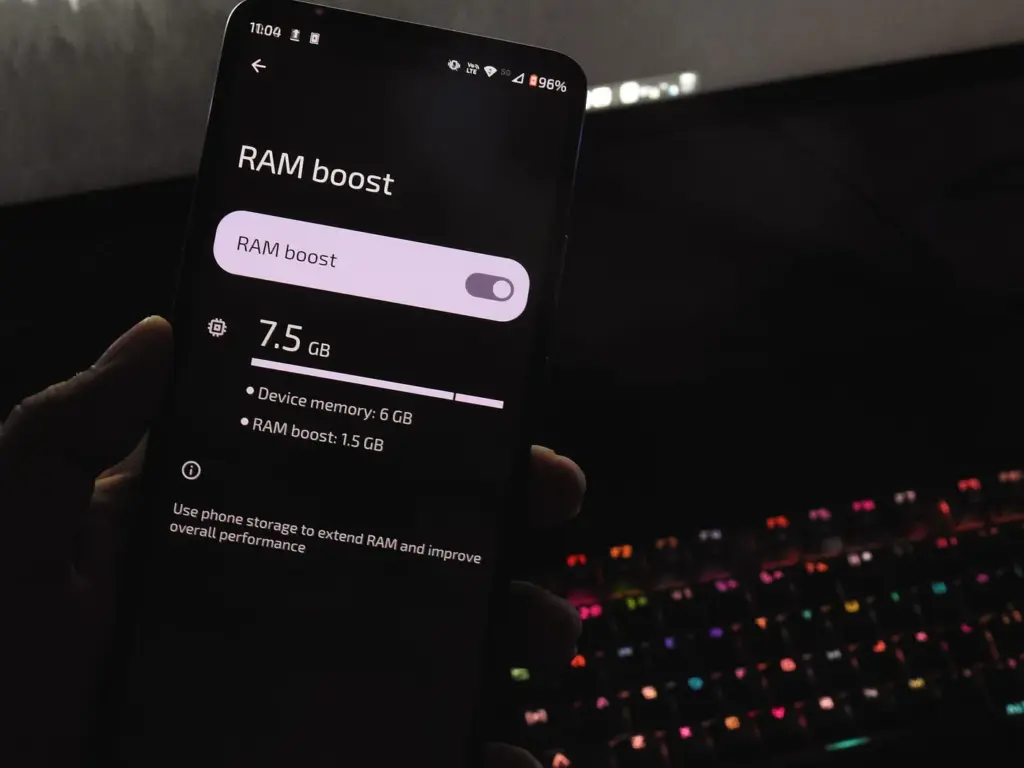
    Virtual RAM, also known as virtual memory or swap space, is a technology that allows some of your phone’s internal storage to be used as RAM. While this memory is slower than physical RAM, it allows the system to manage more background processes, keep apps open for longer periods of time, and minimize app reloads.

    In Android 13, many manufacturers added a user-accessible option known as “RAM Plus” or “Memory Expansion.” This feature is particularly handy on phones with 4GB to 6GB of RAM, as multitasking frequently exceeds physical RAM limits.

    How to check if your device supports RAM Plus

    Not every Android smartphone supports RAM increase. It is up to the manufacturer to incorporate the capability in their version of Android 13 or later. Here is how to check:

    1. Go to Settings.
    2. Scroll down and tap Battery & device care or About phone (varies by brand).
    3. Look for an option called RAM Plus, Memory Expansion, or similar.
    4. If it’s available, you’ll be able to view and configure it from here.

    Samsung, Xiaomi, Oppo, Realme, and Vivo are among the brands that offer this feature.

    Android ram boost

    Enable RAM Plus on Samsung devices

    Samsung phones running One UI 4.1 or later (based on Android 13) come with RAM Plus built-in. Here’s how to enable or adjust it:

    1. Open the Settings app.
    2. Scroll to Battery and device care.
    3. Tap Memory.
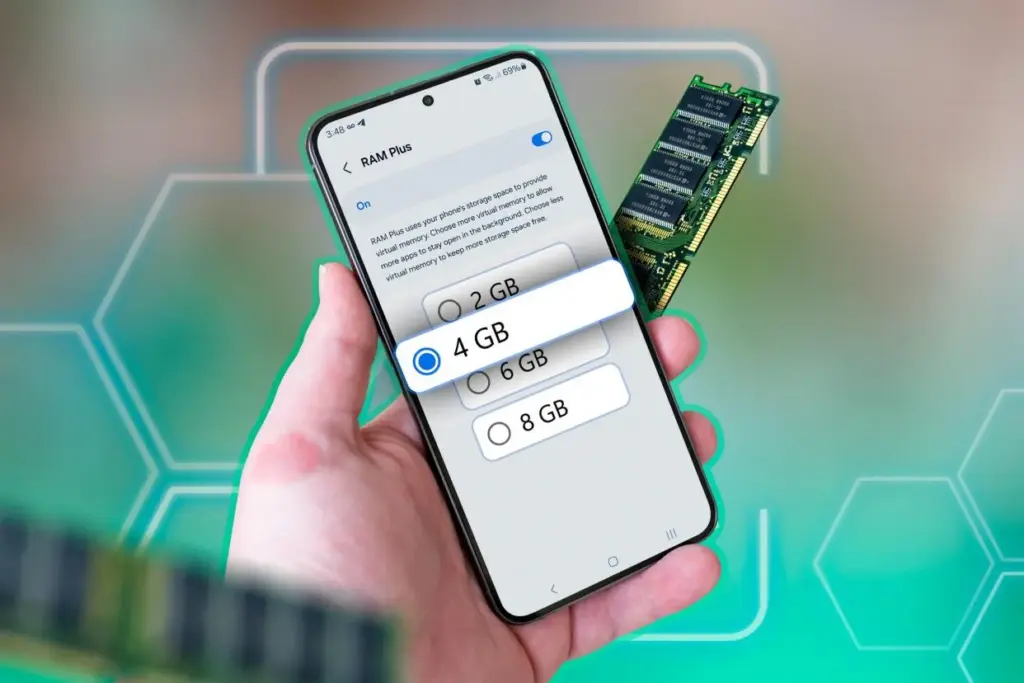
    4. Select RAM Plus.
    5. Choose the amount of virtual RAM to allocate (2GB, 4GB, 6GB, or 8GB).
    6. Restart your phone if prompted.

    Samsung doesn’t let you disable RAM Plus entirely but allows you to choose the allocation size.

    Enable virtual RAM on Xiaomi/Redmi/POCO phones

    Devices with MIUI 13+ (Android 13-based) often support memory extension:

    1. Open Settings.
    2. Tap Additional settings.
    3. Look for Memory Extension.
    4. Toggle it on and allocate additional storage as virtual RAM.
    5. Restart your phone for changes to take effect.

    The memory extension size is usually fixed depending on the device—commonly 2GB or 3GB.

    Enable virtual RAM on Realme, Oppo, and Vivo devices

    These brands typically offer memory expansion as well:

    • Realme UI/ColorOS:
      1. Open Settings.
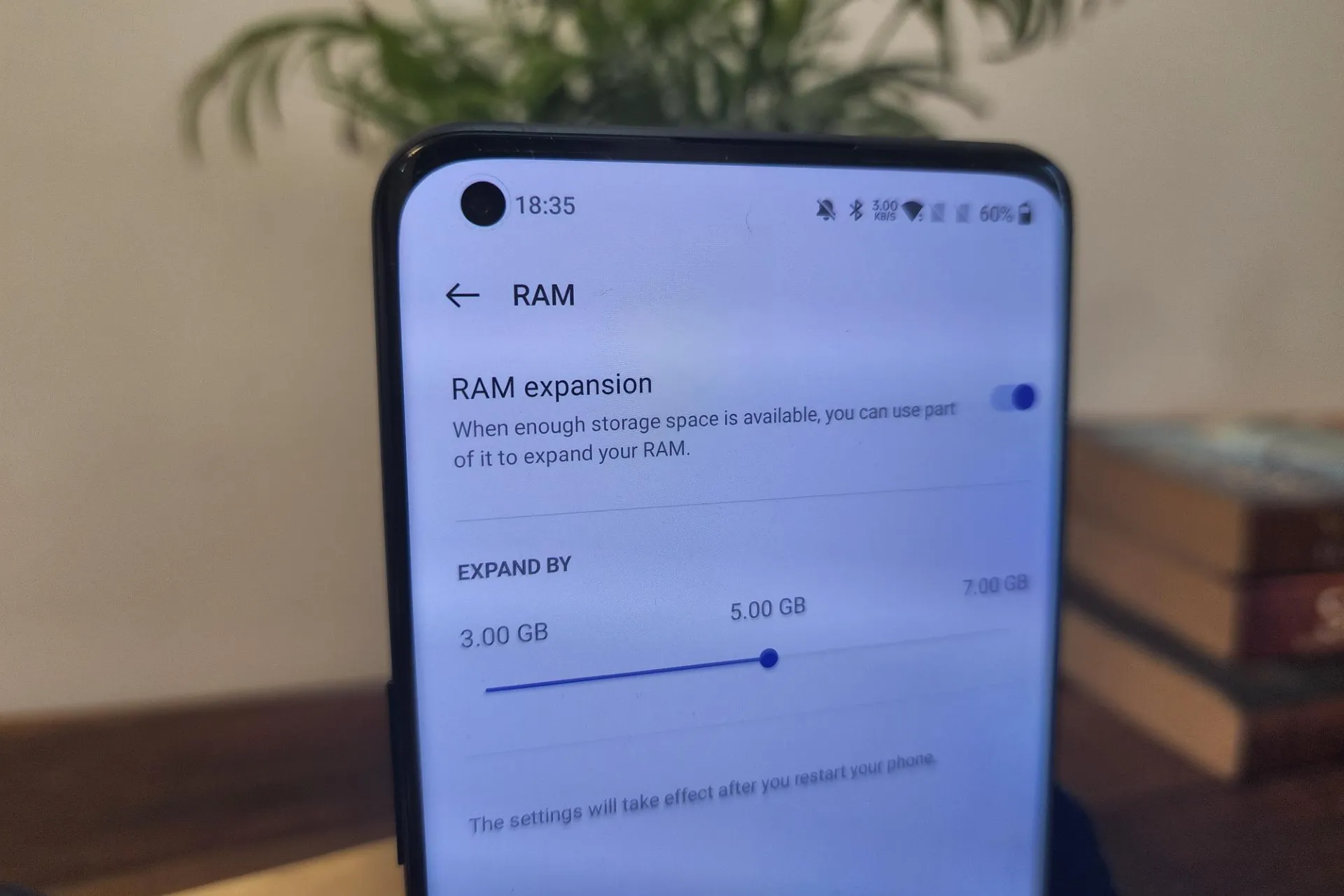
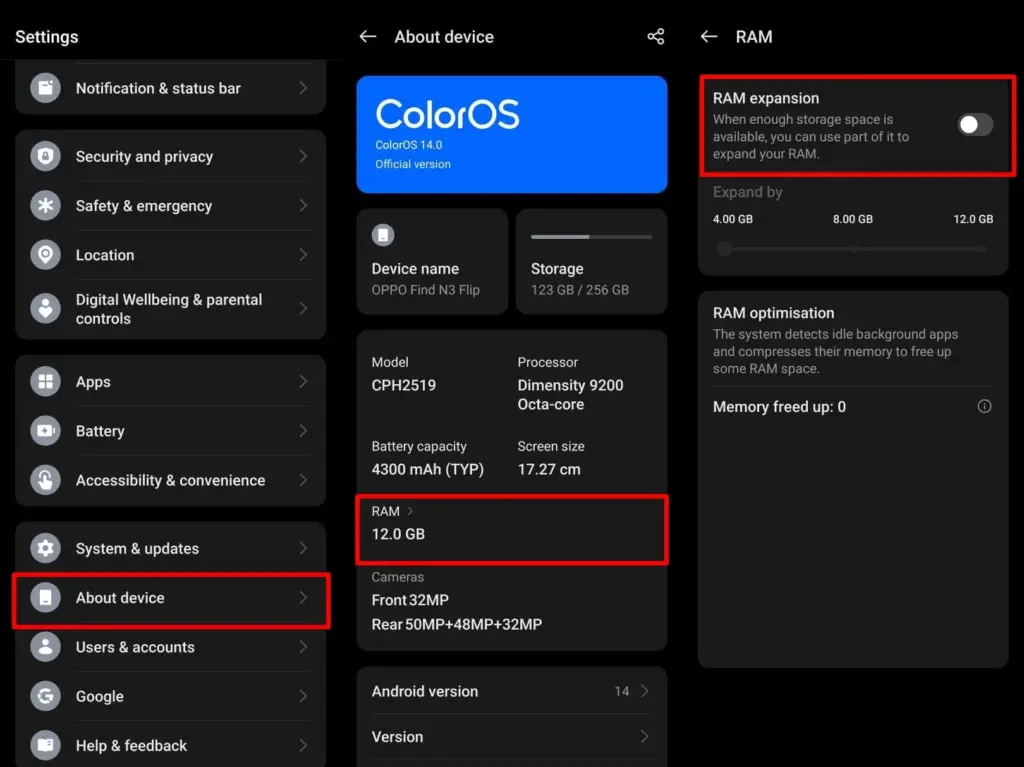
      2. Tap About Phone > RAM.
      3. Enable RAM Expansion and select a size.
      4. Restart when prompted.
    • Vivo Funtouch OS:
      1. Open Settings.
      2. Tap RAM and storage space.
      3. Tap RAM Expansion.
      4. Turn on and choose the RAM boost size.

    If you can’t find this feature, ensure your phone is running the latest version of Android 13 or consult the manufacturer’s support site.

    color os extend virtual memory

    Does virtual RAM actually improve performance

    Virtual RAM helps in specific scenarios, especially on phones with less physical RAM (4GB or 6GB). Benefits include:

    • Reduced app reloads
    • Smoother multitasking
    • Better background app retention
    • Less lag during memory-heavy tasks

    However, it will not transform an affordable phone into a premium gadget. Because internal storage is slower than actual RAM, the benefit is minimal yet visible during heavy multitasking.

    How much virtual RAM should you use

    The best setting depends on your device’s internal storage space and usage pattern:

    • If your phone has at least 128GB of storage and you multitask often, you can allocate 4GB–6GB.
    • If your storage is nearly full, avoid setting high values to prevent system lag.
    • On 64GB devices, 2GB–3GB is usually safe.

    You can experiment to determine what works best, but keep some open storage space to avoid overall slowdowns.

    Virtual RAM is an excellent technique to increase your phone’s memory capacity without updating the hardware. While it is not a miracle cure, allowing RAM expansion can boost your Android device’s performance and multitasking abilities. If your phone supports it, give it a shot—just do not use up all of your storage space.

  • How to change the default apps on new Android devices

    How to change the default apps on new Android devices

    You have complete control over the default apps you use on Android for email, calls, texts, browsing, and more. Android lets you select your favorite apps as defaults, whether it be Chrome or Firefox, Gmail or Outlook, or any other third-party software that is compatible, in contrast to other mobile operating systems that force you to use a limited number of apps.

    We will show you how to change the default Android apps in this tutorial. We will go over how it functions on both stock Android and well-known manufacturer skins, such as Xiaomi’s MIUI and Samsung’s One UI, as well as what to do in situations when Android lacks a default app option.

    Why change your default apps?

    Changing your default apps can increase productivity and improve your experience. For instance, you may wish to use:

    • A privacy-focused browser like DuckDuckGo instead of Chrome
    • A lightweight email app instead of the default one
    • A better gallery app with cloud backup support
    • A different SMS app with customization features

    Once set, Android uses your selected app automatically — no need to choose each time.

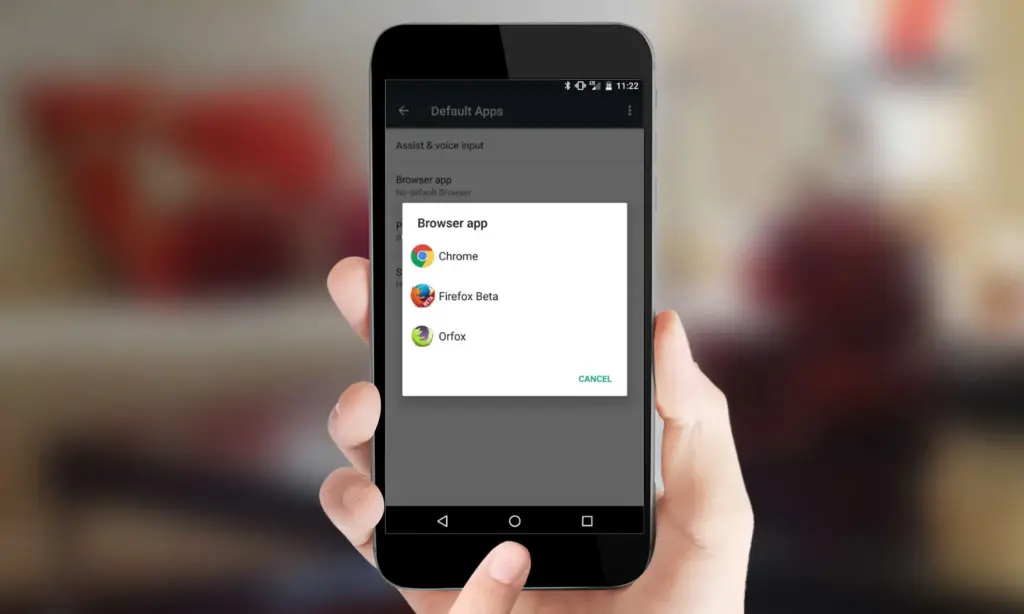
    change default apps in Android

    What types of default apps can be changed?

    Android supports default app selection for a variety of functions, including:

    • Browser (e.g., Chrome, Firefox, Brave)
    • Phone (dialer apps)
    • Messaging/SMS (e.g., Google Messages, Textra)
    • Email (e.g., Gmail, Outlook, K-9 Mail)
    • Home screen launcher
    • Digital assistant
    • Camera
    • Gallery/photos
    • Music player
    • Navigation apps (Maps, Waze, etc.)
    • Links handling (web, YouTube, etc.)

    Some apps will request to be the default when first installed or opened but you can always change this manually.

    How to change default apps on stock Android

    Here’s how to manage your default apps on phones running near-stock Android (such as Pixel, Motorola, or Nokia devices):

    1. Open the Settings app.
    2. Tap on Apps.
    3. Choose Default apps.
    4. You’ll see a list of categories: browser app, phone app, SMS app, assistant app, home app, etc.
    5. Tap any category to see installed apps compatible with that function.
    6. Choose your preferred app from the list.

    Android will immediately make the chosen app the activity’s default. If you change the browser’s default, for instance, any link you click will open in the selected browser.

    How to change default apps on Samsung (One UI)

    Samsung devices with One UI take a somewhat different path:

    1. Go to Settings.
    2. Tap on Apps.
    3. Tap the three dots in the top-right corner and select Default apps.
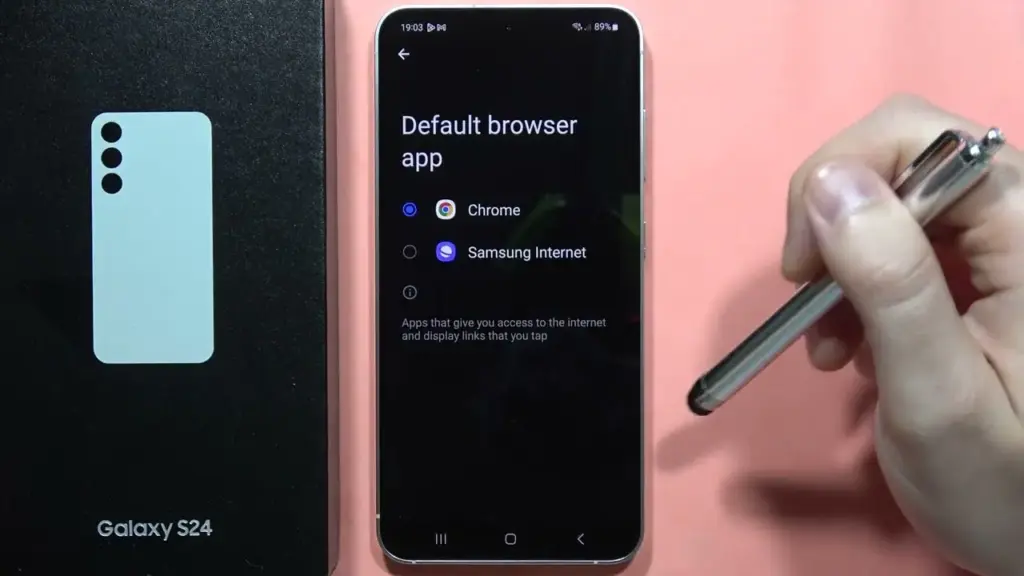
    4. You’ll see the same categories as stock Android: browser, calling, messaging, and more.
    5. Tap the category you want to change.
    6. Select your new default app.
    change default broser on OneUI Samsung

    Samsung devices also let you reset all default apps at once via Settings > Apps > Three dots > Reset app preferences.

    How to change default apps on Xiaomi (MIUI)

    MIUI includes a “Manage apps” section to control default apps:

    1. Open the Settings app.
    2. Go to Apps > Manage apps.
    3. Tap the three dots in the top-right and select Default apps.
    4. Choose a category like browser, dialer, messaging, or gallery.
    5. Select your desired app.

    MIUI might ask you to select a new default app after installation or when you attempt to open related content.

    How to handle app-specific defaults (like file types or links)

    Some apps don’t appear in the general default app settings but can still be set as defaults when opening certain file types or links.

    To manage these:

    1. Go to Settings > Apps.
    2. Tap See all apps and choose the app you want to configure.
    3. Tap Open by default.
    4. Enable Open supported links or clear defaults by tapping Clear defaults.

    This is useful if you want all YouTube links to open in the app rather than in a browser, or if you have accidentally enabled an app to always open PDFs or photos.

    How to reset default apps

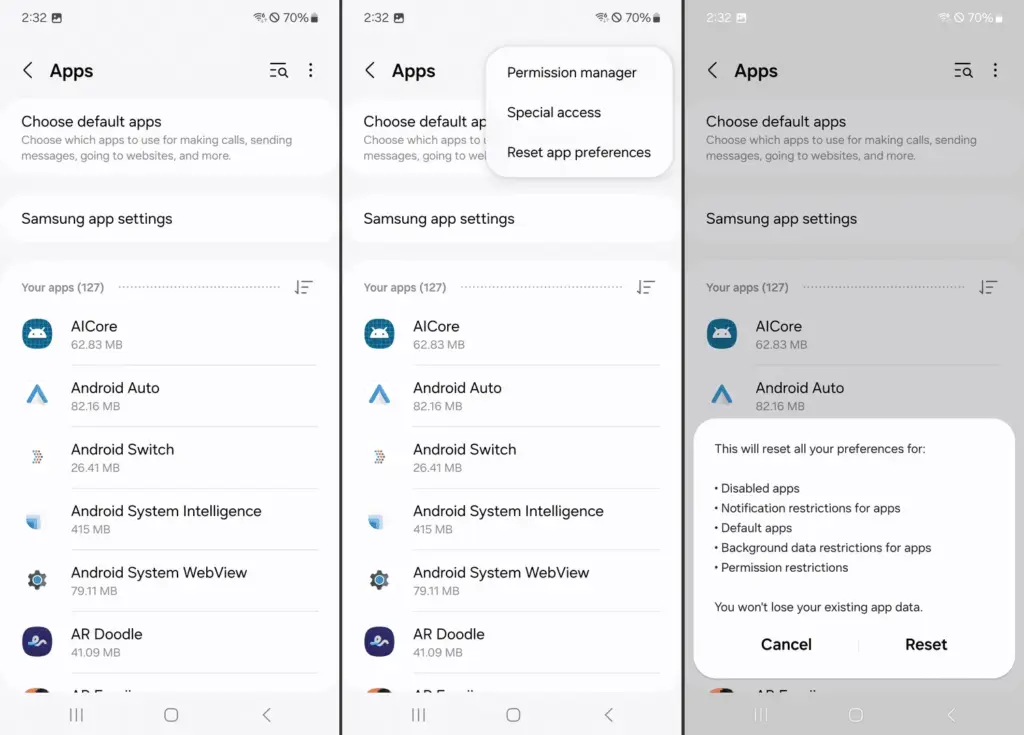
    reset default apps on Android

    If you’ve set the wrong default app or want to start over:

    1. Open Settings > Apps.
    2. Tap the three dots (or menu icon).
    3. Select Reset app preferences.
    4. Confirm to reset all app defaults.

    This won’t delete any data but will clear app defaults, disabled apps, and permission restrictions.

    Alternatively, to reset just one app:

    • Go to Settings > Apps > [App Name] > Open by default
    • Tap Clear defaults

    This lets you reassign that app’s function later.

    Choosing the best default apps

    Here are some recommended apps to consider setting as default:

    • Browser: Firefox Focus (privacy), Brave (ad blocking), Chrome (sync)
    • Email: Gmail (Google integration), Outlook (work email), BlueMail (multi-account)
    • Messaging: Signal (privacy), Google Messages (RCS), Textra (customizable)
    • Gallery: Simple Gallery, Google Photos, Aves
    • Music: YouTube Music, VLC, Poweramp
    • Navigation: Google Maps, Waze, HERE WeGo

    Make sure the app supports being set as a default. Some lightweight or older apps may not offer this functionality.

    What if Android won’t let you change a default?

    Some Android versions or manufacturers may restrict default app changes for certain functions — especially camera or dialer apps. In those cases:

    • Make sure the new app is fully updated and has the necessary permissions.
    • Check for manufacturer limitations in forums.
    • Use Activity Launcher or ADB commands (for advanced users) to override.
    • Root access may be required for some deep changes — though this is not recommended for most users.

    Changing the default apps on Android provides you control over your digital experience. Whether you want a speedier browser, a cleaner messaging app, or a more powerful camera, Android allows you to select what works best for you.

    By looking into your device’s default app settings, you may optimize your workflows and eliminate annoyances such as accessing links in the wrong app or using services you dislike. With a few touches, Android becomes your own—not what the manufacturer or carrier wants you to use.

  • 7 temporarly free apps for Android and iOS

    7 temporarly free apps for Android and iOS

    Right now, bargain seekers are receiving value for their money. Right now, you can get seven paid apps for free, including one that helps you remember everything you need to do.

    There are countless apps available in the Play Store and the App Store, the two app stores owned by Apple and Google. While some of these apps are free, some cost money. However, many users are unaware that many paid apps can also be temporarily made free as part of a special deal. We have compiled a list of some of the most intriguing free apps accessible right now.

    apps

    Free Pro apps (Android)

    • Reminder Pro – Reminder ($3.69) – With this app, you always have an overview of all your reminders. New reminders can be created in seconds, and you can also be reminded at a specific time.
    • Bubble Shooter Pop Puzzle Game ($4.89) – There’s also something for everyone who occasionally wants to play on their smartphone this week. This newly released bubble shooter regularly costs almost 5 euros and is completely free to start with.
    • Multiscreen Calculator Pro ($9.99) – The look of this calculator is debatable, but the tool offers a decisive advantage: “multiscreens”. If you want to start a new calculation without deleting the results of the old calculation, simply swipe to the left on the screen. A new window will then open. Users can open as many new windows as they want.

    Free premium apps (iOS)

    • Vythm JR – Music Visualization ($49.99) – With the app Vythm, you can visualize your music with a matching video. Countless effects such as Equalizer, Mandala, Shapes, Fluids, Psychedelic, Dreaming, and more are available. To get the app permanently free, you have to start it once after downloading and activate the “Pro version + lifetime updates” once.
    • Eat Me First ($2.99) – With this app, you can always keep an eye on the contents of your fridge. The app shows you the expiration dates for all your food and thus helps to reduce food waste.
    • Sky Master – pixel shooter ($0.99) – If you’re nostalgic, you’ll enjoy this game, at least for a short while. It’s not particularly good, but the pixel look gives the game an irresistible charm for older gamers.
    • Queen Rules ($2.99) – This puzzle game is the ideal way to pass the time. The aim is to position your soldiers in such a way that they are able to defeat the evil witch’s soldiers. There are also interesting level designs and clay figures

    The majority of free apps either provide in-app purchases or have advertisements. But some apps that cost money also accomplish this. These factors should be taken into consideration, particularly if the game is meant for young players.

    Many apps gather user information and frequently sell it. As a result, only allow the rights that the program actually requires if you want to be secure. For instance, a flashlight should not be interested in your location information, and an alarm clock should not require access to your contacts or cameras.

    If you’re inspired by the quality of these apps and are thinking about creating your own, now might be the perfect time to explore professional development options. Whether you’re targeting Android, iOS, or both, investing in a reliable iOS mobile application development service can turn your app idea into a polished product that stands out in the App Store. Stay tuned for more updates on free apps, industry trends, and mobile development tips.

  • Limited-time free apps and games for Android and iOS

    Limited-time free apps and games for Android and iOS

    Users can try out premium experiences without spending a dollar thanks to the weekly rotating selection of paid applications and games that are made available for free for a brief period of time on app stores like Google Play and Apple’s App Store. These short-term offers can help you save a lot of money on a variety of digital tools and games, from puzzle games and immersive role-playing games to productivity tools and creative utilities. These free app deals are worth looking into whether you want to increase your productivity, take up new hobbies, or just have some good fun.

    free apps for ios and android

    But while the thrill of snagging a paid app for free is undeniable, it’s important to approach these deals with a bit of caution. Free or paid apps often request access to various parts of your device, from your contacts and photos to your location and microphone. Understanding what you’re granting and why is key to enjoying these offers safely.

    Android games and applications that are free for a limited period of time

    Free Android Apps

    • NT Calculator ($2.49): Here’s an app that allows you to perform all the calculations you ever wanted. 
    • Voice Calculator Pro ($9.99): Need a calculator that speaks the calculations? This might be the one for you.
    • One Swipe Notes ($0.99): A note-taking app that provides easy accessibility with a swipe.
    • Contact Widgets Speed Dial ($0.99): Is speed dialing back in fashion? Perhaps, with apps like these.
    • Bookmark Manager ($0.99): Manage all your bookmarks from this single app

    Free Android Games

    • Chicken Tournament ($1.49): A third-person shooter where you are a chicken, and out for blood!
    • Poosh XL ($1.99): An interesting game that requires some idea of physics and angles to progress.
    • Spelling Master Pro ($1.99): If your kid is going to remain glued to a smartphone all day long, why not make sure (s)he learns something?
    • Dungeon Corp ($0.99): An idle RPG that sees you, a corporate drone, take on monsters from another dimension.
    • Empire Warriors: Tower Defense ($0.99): A tower defense game set in a medieval setting with cute graphics and endless waves of enemies.

    iOS games and applications that are free for a limited period of time.

    Top Free iOS Apps for Productivity and Lifestyle

    • Weather+ ($0.99): Is it going to rain? Will it be sunny? Why leave things to chance when you have an app that provides you with weather updates?
    • Light Meter ($3.99): Don’t leave things to chance when it comes to taking photos by making sure the lighting is ideal for your composition.
    • mySymptoms Food Diary ($7.99): If you want to keep track of your food intake and possible allergens, having a food diary would help.
    • Resume Designer 3 ($3.99): Here’s an app for you to cobble a resume quickly while you are on the move.
    • The Wonder Weeks ($5.99): Just had a newborn? Keep track of all that happens, from the first steps to the first words with this app!

    Free Games for the iPhone and iPad

    • Pirate Drops 2 ($4.99): A match-3 game that requires fast thinking, with graphics that change with the tides to match the mood.
    • Catenaccio Football Manager ($2.99): A football managing game where you get to determine how your team performs against others through tactics and psychology.
    • My City: Doctor Hospital ($3.99): Maybe your little one might have interest in being a doctor, what about it?
    • Neo Monsters ($0.99): A game where you go around catching monsters, training them, and sending them out to fight.
    • Cuppy Ball ($0.99): Do you have what it takes to get the ball into the cup?

    Examine the permissions requested before downloading any new apps or games, especially those that are temporarily free. An app’s basic operation does not require all permissions, and giving it too much access could compromise your privacy.

    To limit what information each app can access, use the privacy settings on your device. You should also frequently verify which apps have access to sensitive data, such as your location, camera, or microphone. Remember, a great deal is only worthwhile if it doesn’t compromise your personal data. Stay vigilant, enjoy your new apps, and make privacy a priority every time you download.

  • #freebies time – temporarily free apps and games for Android and iOS

    #freebies time – temporarily free apps and games for Android and iOS

    Everyone enjoys a good bargain, particularly when it allows them to get high-quality Android games and apps without having to pay a thing. The Google Play Store occasionally offers highly regarded apps for free for a brief period of time, whether your goal is to increase productivity, try out new tools, or simply pass the time with an entertaining game.

    We have hand-picked the newest Android games and applications that are now available for free download in this roundup. But move quickly! These deals only last for a brief period of time, after which they are no longer available. Let us get started and discover what treasures are available this week!

    hyper os update system apps

    Android Apps and Games Available for Free–Limited Time Offer

    Free Android Apps

    Free Android Games

    • Orbit XL ($0.99): Try to remain in orbit without getting sucked into a void!
    • Empire Defender ($0.99): This is a tower defense game that will certainly keep you on your toes all the time.
    • Stickman Master Premium ($1.99): A side-scrolling action adventure game that sees you wade your way through waves of enemies.
    • WindWings ($0.49): A frantic shoot ’em up that requires fast reflexes and keen hand-eye coordination to survive.
    • Defense Zone 2 HD ($2.99): A tower defense game set in a futuristic setting with endless waves of enemies.

    iOS Apps and Games Available for Free–Limited Time Offer

    Free iOS Apps

    • Navigate to Photo ($0.99): This is an interesting app, letting you navigate to the place depicted in a photo using its location data.
    • English Alphabet: Letter ABC ($2.99): Want to learn English from scratch? Why not begin with the alphabet?
    • Roast Beef ($0.99): Music production will never be the same again with this special app for the musically inclined.
    • Barcode + QR Code Reader ($0.99): If you want another third-party app to scan QR codes, then this might be just the thing for you.

    Free Games for the iPhone and iPad

    • Bloom Sort ($14.99): A relaxing sorting merge puzzle game that won’t leave you tearing your hair out in frustration.
    • Thrones War ($0.99): A mini ancient strategy game that requires you to put on your thinking cap to obtain victory.
    • Bigfoot Quest ($2.99): A puzzle adventure game that is sure to keep your children engaged as they attempt to solve puzzles.
    • Puncha Not See ($0.99): Contrary to popular belief, you will be able to punch your way through different situations in life.

    A Quick Heads-Up Before You Download

    While these apps and games are temporarily free, it’s always smart to read the fine print. Some may include in-app purchases or ads that can affect your experience, especially in free versions. Others might only offer basic features for free while encouraging you to upgrade later. Be sure to check reviews and permissions before installing, and keep an eye on the original price — some “discounted” apps are free more often than not.

    Still, this is a great chance to explore new tools, games, and utilities without breaking the bank. Grab what interests you before the deals expire, and make the most of your Android experience!

  • April brings critical system app updates for HyperOS 2.2

    April brings critical system app updates for HyperOS 2.2

    For optimal performance and user experience, it is imperative to keep your Xiaomi smartphone updated, especially with the new HyperOS ecosystem. Five essential system apps will receive significant updates in April 2025 that enhance their usability, security, and appearance. All Xiaomi phones will offer a better, more potent experience thanks to these updates, which are made to work perfectly with HyperOS 2.1.

    HyperOS Launcher

    Updated on HyperOS Launcher was overhauled in full with many enhancements:

    • Improved Animations: Better folder animations bring a more refined, pleasing aesthetic experience
    • Enhanced Readability: Large fonts on the top drawer bar improve readability
    • MIUIX V3 UI Library: Implements modern design language for a fresher appearance with more uniform features
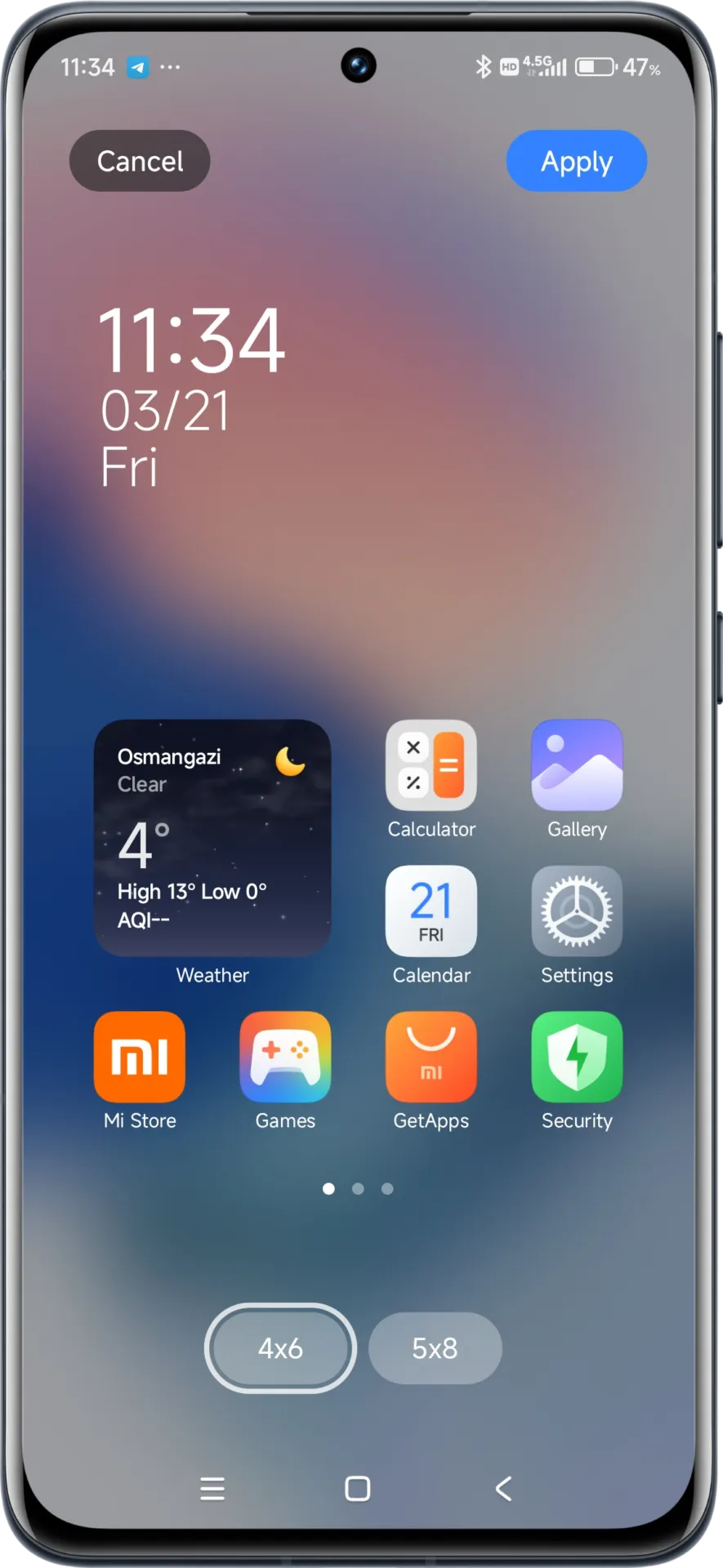
    • Adjustable Layout Options:
      • 4×6 layout with search box 4×7 layout without search box
      • 5×8 layout with search box
      • 5×9 layout without search
    • Revamped Menus: Enhanced desktop grid layout, gesture, app vault, and folder edit interfaces
    • 2K Screen Optimization: Popup UI now scaled correctly for high-resolution screens
    hyperos launcher

    The update to the launcher is centered on aesthetics and functionality, resulting in an improved user experience that still offers high performance.

    HyperOS Themes

    The updated HyperOS Themes has a better, more streamlined user interface. The update makes device customisation more comprehensive and accessible, allowing users to alter their gadgets to better reflect their own unique style.

    With improved previewing and classifying capabilities, the simplified interface makes it possible to find and use new themes more quickly and easily.

    HyperOS Security

    The HyperOS Security updated for brings essential enhancements to gaming performance and device protection:

    • Turbocharged Game Performance: All-out performance enhancements with advanced optimization capabilities
    • Security Improvements: Several behind-the-scenes updates improve system and data security
    • Performance Optimizations: Enhanced resource allocation to ensure seamless performance even on high-intensity tasks
    • Privacy Controls: Broader choice for controlling app permissions and data access
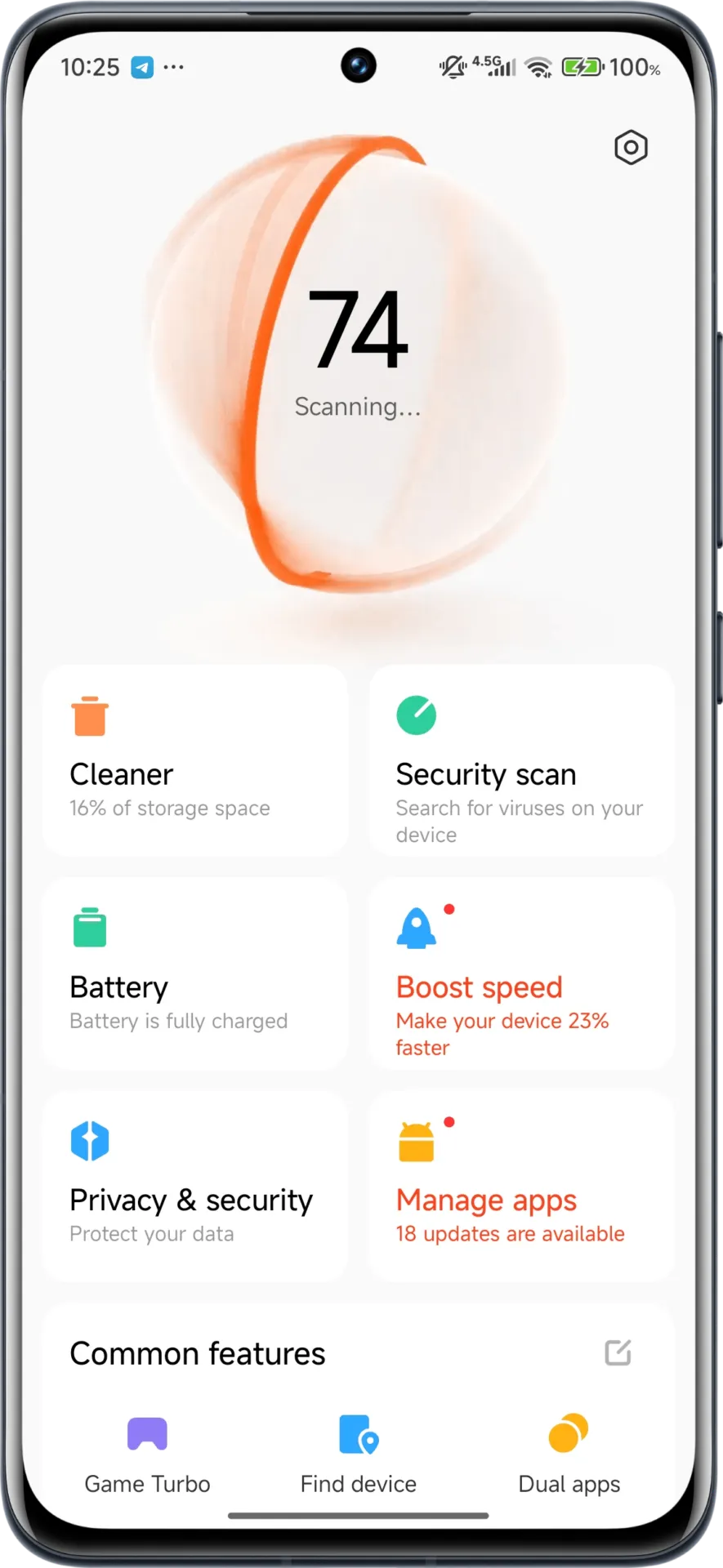
    hyperos security app

    These security enhancements play a crucial role in shielding personal data while providing stable system performance.

    HyperOS Wallpaper

    Updated on April. This new version emphasizes fixing bugs and performance enhancements. This update also solves problems that were causing lock screen and home screen wallpapers to:

    • Improved fluidity in switching wallpapers Improved stability throughout system transitions
    • Enhanced resource management for reduced battery usage
    • Improved integration with dynamic wallpaper features
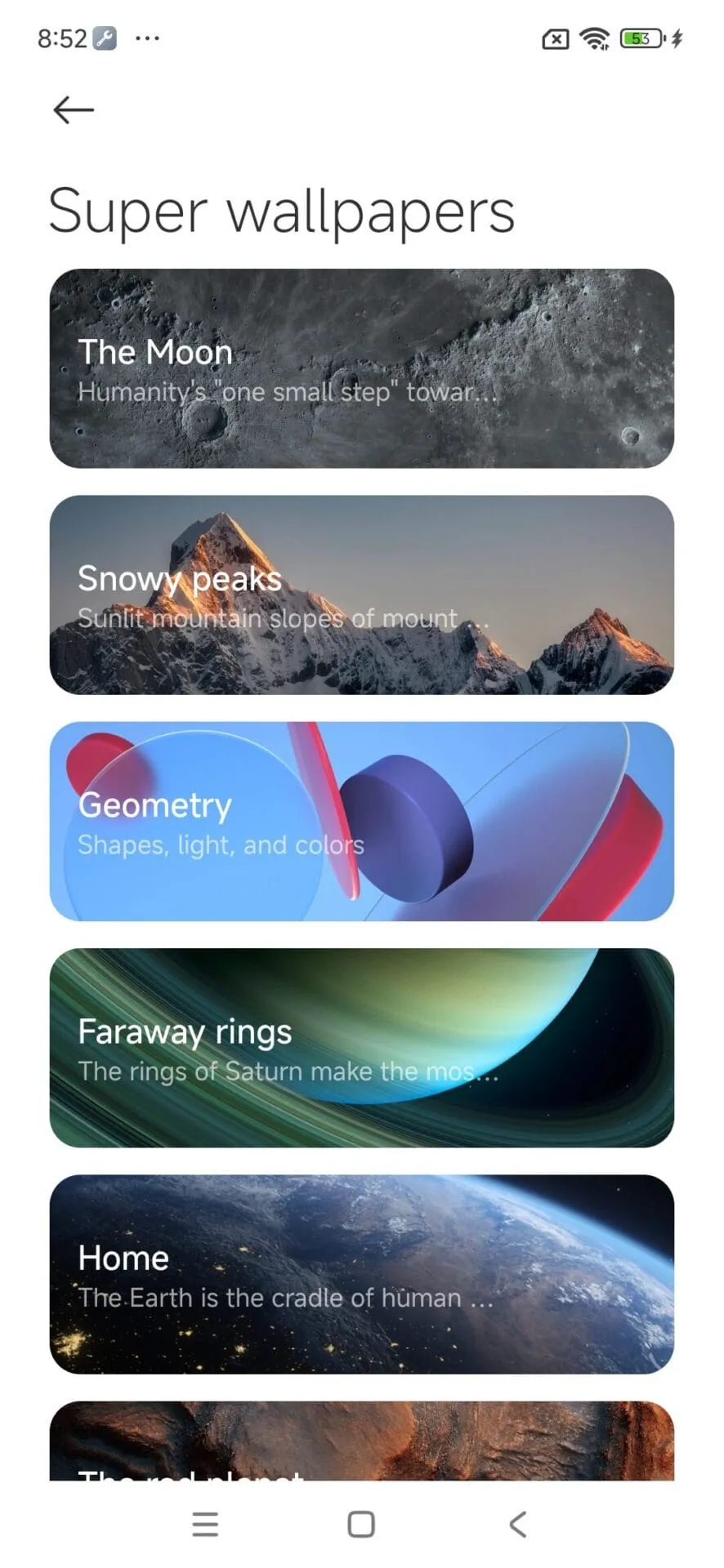
    hyperos wallpaper app

    Though mostly an update for maintenance, these changes considerably improve overall Wallpaper experience.

    How to update HyperOS system apps

    For an optimized upgrading process, Xiaomi users have an available HyperOS Downloader app:

    1. Download and install MemeOS Enhancer or directly from HyperOSUpdates.com
    2. Utilize the MemeOS Enhancer function for all installed HyperOS apps
    3. Get early updates before most other users
    4. Find more tools such as GCam integration
    5. Enable secret system features that cannot be accessed via default settings
    6. Updating these five core system apps is the basis for keeping your Xiaomi device in top condition with access to new features plus security upgrades.
    7. Get the latest updates today to unlock HyperOS 2.1’s full capabilities.
  • HyperOS 2.2 Beta changelog released by Xiaomi

    HyperOS 2.2 Beta changelog released by Xiaomi

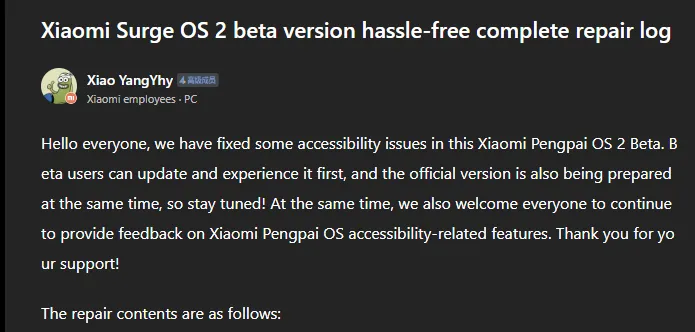
    Xiaomi has taken a huge step in making its devices more inclusive by releasing a comprehensive accessibility repair log for HyperOS 2.2 Beta. Xiaomi employee @小杨Yhy shared a complete update in the Xiaomi Community, addressing accessibility concerns across the system, including basic controls, SMS functioning, and TalkBack improvements. This massive accessibility upgrade underscores Xiaomi’s dedication to create a more inclusive user experience, ensuring that their devices are usable by people with a variety of disabilities.

    HyperOS 2.2 Beta change log

    Common control enhancements in HyperOS

    The accessibility update addresses a number of typical control issues that previously limited users with impairments. These improvements significantly improve the system’s overall user experience.

    Key enhancements to standard controls are:

    • Corrected password control choices in the input fields
    • Resolved index bar operation and selection issues
    • Corrected focus problems with bubbles showing up when entering pages
    • Corrected switch control focus redundancy
    • Corrected wrong reading of switches as checkboxes
    • Included proper labeling to jump buttons in lists
    • Fixed reading problems with search and input boxes
    • Fixed focus and labeling problems with back buttons
    • Enhanced notifications of selection status
    • Provided proper labels to progress bar buttons

    These fundamental upgrades will make the process more natural for users who rely on accessibility capabilities, particularly those who use screen readers or voice commands.

    Communication and messaging enhancements

    All users must be able to communicate, and the latest update significantly improves the SMS and phone accessibility capabilities. These changes make messaging and phoning more accessible to handicapped people.

    Notable SMS and phone accessibility fixes include:

    • Correct labeling of satellite map SMS broadcasts
    • Addressed incorrect messaging in SMS multi-select action
    • Fixed the checkbox selection issue in message feedback.
    • Removed unnecessary blank focus fields in message details
    • Resolved incoming call number labeling issues
    • Fixed the dial pad focus and selection problems.

    The new update also resolves several contact-related accessibility challenges to allow users greater control over their contact list and dialing irrespective of disability.

    Control Center and System Settings Accessibility

    System settings and the Control Center both benefit from extensive accessibility enhancements, making the management of the device more accessible to everyone.

    Key improvements are:

    • Resolved focus penetration problems in the Control Center
    • Fixed switch status reporting issues
    • Included proper labeling throughout the Control Center
    • Fixed-coordinate position reporting during icon ordering adjustment
    • Enhanced focus of notification center and labeling
    • Fixed switch reading problems in settings
    • Added proper control type announcements

    These enhancements guarantee that the users with disabilities can efficiently navigate and control their device settings without the presence of accessibility barriers.

    Specific accessibility features for apps

    The update also introduces several accessibility improvements to some of the Xiaomi apps, such as the CalculatorCalendarWeatherNotesRecorderFile Manager, Xiaomi Video, and Browser. These improvements work to achieve consistent accessibility within the entire Xiaomi ecosystem. TalkBack users stand to benefit most from the fixed volume adjustment problem and touch failure issues that previously hindered screen reader performance.

  • How to lock apps on Android without third-party apps

    How to lock apps on Android without third-party apps

    Want to lock apps without downloading extra software? Learn how to use built-in tools on Samsung, Xiaomi, OnePlus, and other Android phones to secure your apps with passwords or biometrics – no third-party apps required.

    Why Lock Apps on Android?

    Your smartphone contains plenty of personal information, including images, bank accounts, social network profiles, and private messages. Locking specific apps provides an additional layer of security, particularly when sharing your device or preventing unintentional snooping.

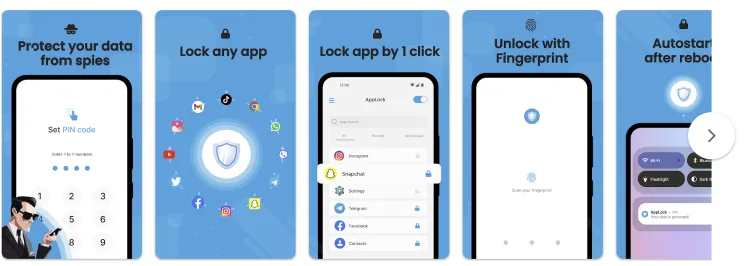
    Most people jump straight to third-party app lockers. But these:

    • May ask for invasive permissions
    • Show ads or collect data
    • Drain battery and storage

    That’s why using built-in features is often the smarter, safer move.

    lock apps on Android devices

    Samsung Devices (One UI) – Use Secure Folder

    Samsung includes a powerful privacy tool called Secure Folder, protected by Samsung Knox.

    How to use:

    1. Open Settings
    2. Tap Biometrics and security
    3. Select Secure Folder and sign in with your Samsung account
    4. Set up a lock type (PIN, password, fingerprint, etc.)
    5. Add apps or files to your Secure Folder

    Bonus Tip: You can also hide the Secure Folder icon from the app drawer to keep it totally invisible.

    Xiaomi / Redmi / POCO Devices (MIUI) – Use App Lock

    MIUI has a built-in App Lock feature that is super easy to set up.

    Steps:

    1. Open Settings
    2. Go to Apps > App Lock
    3. Set a privacy password (or use your existing phone lock)
    4. Choose which apps to lock
    5. Optionally enable fingerprint unlock for convenience

    This works for apps like WhatsApp, Facebook, Instagram, Gmail, and more.

    OnePlus Devices (OxygenOS) – Use App Locker

    OnePlus provides App Locker, a native feature that locks your apps and hides their notifications.

    How to enable:

    1. Open Settings
    2. Scroll to Utilities > App Locker
    3. Tap Add Apps and select the apps you want to lock
    4. Enable Fingerprint Unlock for fast access
    5. Toggle Hide Notification Content to prevent preview leaks

    App Locker can even keep apps locked in the background, offering persistent protection.

    Realme / Oppo Devices (ColorOS) – Use App Lock

    These brands offer similar features under the Privacy menu.

    Steps:

    1. Go to Settings > Privacy > App Lock
    2. Set a privacy password (separate from your phone unlock)
    3. Select apps you want to lock
    4. Enable Face or Fingerprint Unlock

    You’ll be asked for verification each time the app is opened.

    Huawei / Honor Devices (EMUI) – Use App Lock

    Huawei’s App Lock is baked into the EMUI interface.

    To set it up:

    1. Open Settings
    2. Tap Security & Privacy > App Lock
    3. Set a password
    4. Select apps to protect

    This feature integrates well with fingerprint unlock, so you won’t have to type the password every time.

    Your phone does not have App Lock?

    If your phone’s Android version or manufacturer doesn’t include app locking, here are a few alternatives:

    • Screen Pinning: Locks your phone to one app.
      • Settings > Security > Screen Pinning
      • Useful for letting kids watch YouTube without leaving the app
    • Multiple Users / Guest Mode:
      • Settings > System > Multiple Users
      • Create a guest profile for others using your phone
    • Trusted Third-Party Apps (as a last resort):

    If you go this route, always read reviews and limit permissions.

    Pro Tips to Enhance App Security

    • ✅ Enable biometric unlock for locked apps
    • ✅ Hide notification previews (especially for messaging and banking apps)
    • ✅ Use Strong screen locks (PIN, pattern, or fingerprint)
    • ✅ Keep your phone’s software updated for security patches
    • ✅ Be cautious about sharing your device or leaving it unlocked

    Locking apps without third-party apps is easier, more effective, and safer than you might expect. Whether you utilize Samsung’s Secure Folder, Xiaomi’s App Lock, or OnePlus’ App Locker, you can protect your important data with a few touches.

    So, before you download another app, check your phone’s settings as you may already have all you need to keep your digital life private and secure.