Google is significantly raising the security bar for Android devices in 2026 with Android 17. The update delivers a broad sweep of security and privacy improvements targeting some of the most common threats users face today — financial fraud, physical device theft, and invasive app tracking.
Android 17 tackles phone scams at the call level
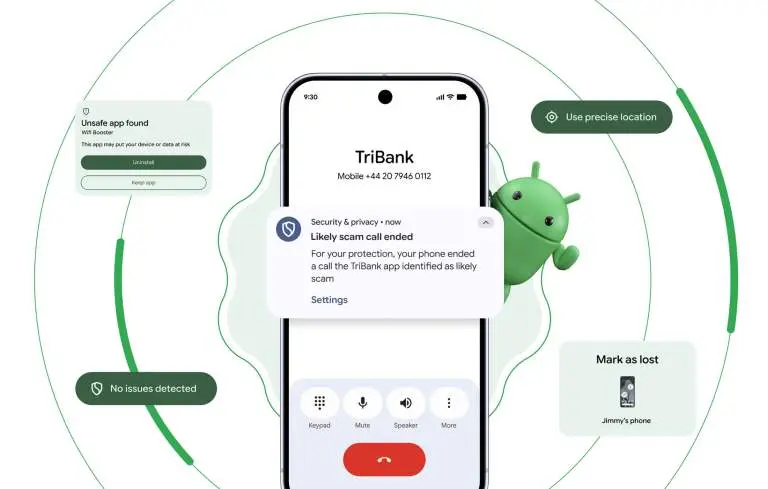
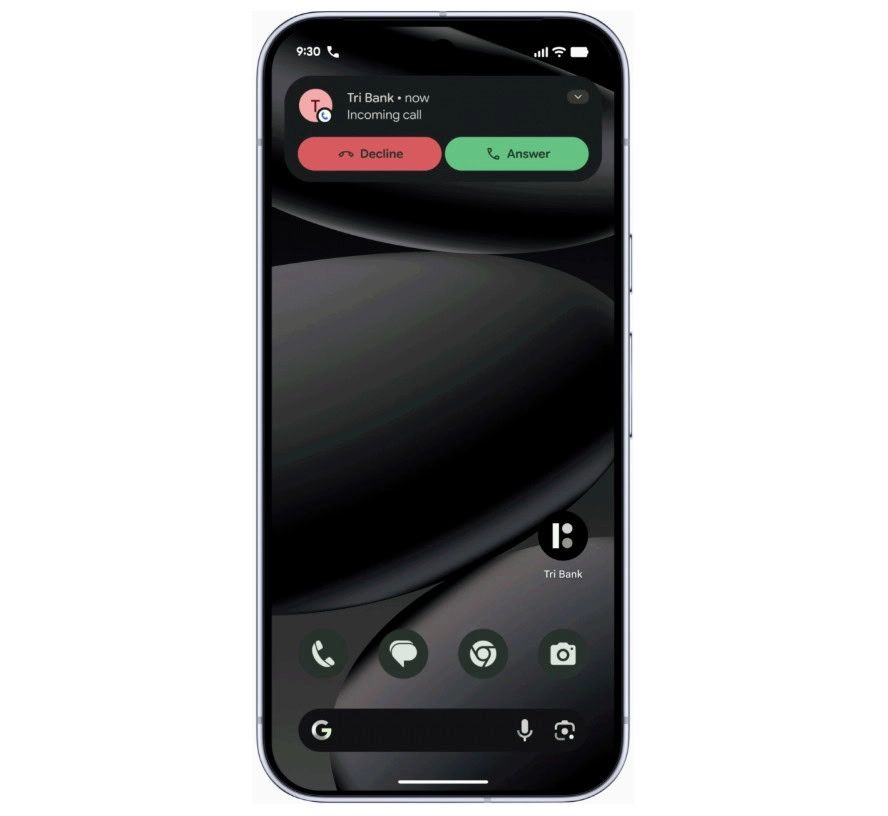
One of the most persistent and costly attack vectors involves caller ID spoofing, where criminals disguise their number to impersonate a legitimate bank. This tactic contributes to nearly $950 million in losses globally every year. Google’s response is verified financial calls.
On devices running Android 11 or higher, the system will work silently in the background alongside banking apps like Revolut and Nubank. When an incoming call arrives, Android checks with the bank to confirm whether the call is genuine. If it isn’t, the call is terminated automatically — before the user even has a chance to answer. The scam is blocked at the source rather than after the damage is done.
Android 17 AI-powered app behavior monitoring
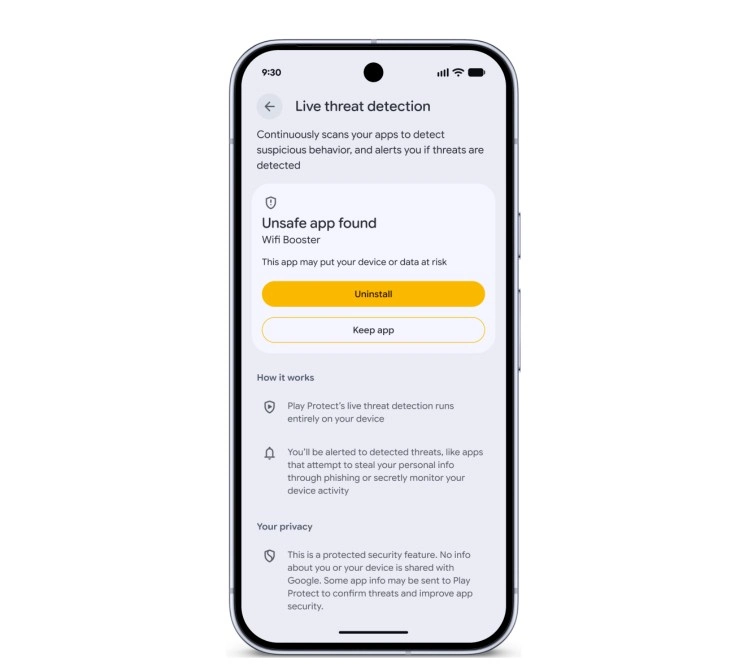
Android 17 also makes the platform significantly better at identifying malicious apps after they’ve been installed. The updated Live Threat Detection uses on-device AI to continuously monitor how apps behave in practice. If an app begins forwarding SMS messages, attempts to conceal its icon, or tries to launch silently from the background, the system flags the suspicious behavior and alerts the user.
Chrome on Android gets a new layer of protection as well. At the moment an APK file is downloaded, Chrome will evaluate it against known malware signatures and issue a warning before the file even reaches local storage.
Stolen phones become far less useful to thieves
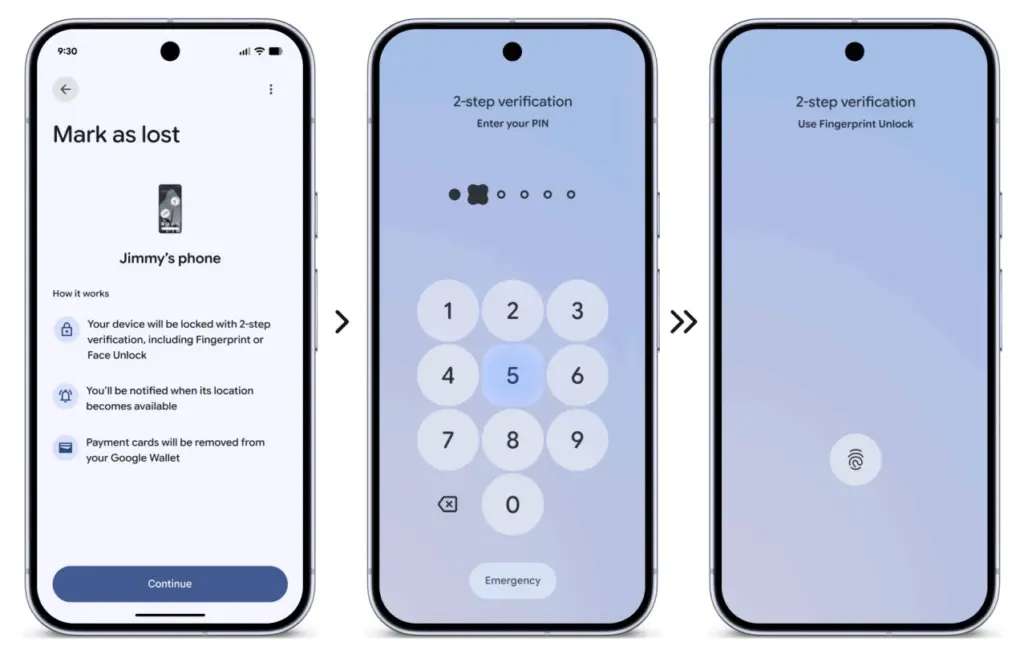
Physical theft isn’t just about losing hardware — the data inside is often worth far more. Android 17 introduces a biometric lock for the “Mark as Lost” feature, meaning a thief who has obtained a user’s passcode still can’t disable tracking or regain access without a fingerprint or face scan.
Google is also expanding its default-on theft protection features globally. New and upgraded devices will automatically enable Remote Lock and Theft Detection Lock, which use onboard sensors to detect when a phone has been grabbed and instantly lock the screen in response.
More granular control over what apps can access
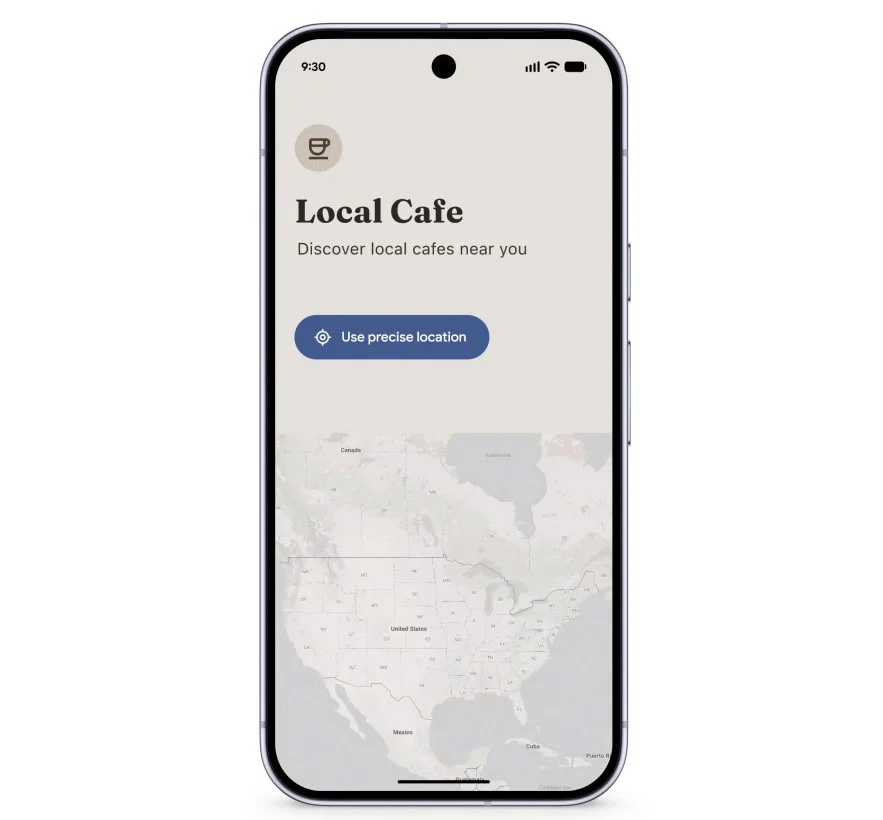
Privacy permissions are getting more precise with Android 17’s new one-time location sharing. Rather than granting a café app permanent GPS access, users can share their precise location only for the current moment while the app is open — and nothing beyond that.
A similar approach is coming to contacts. A new contact picker lets users share only the specific contacts an app needs, rather than handing over full access to the entire address book. Apps get only what’s necessary, nothing more.
Verifying the integrity of Android itself
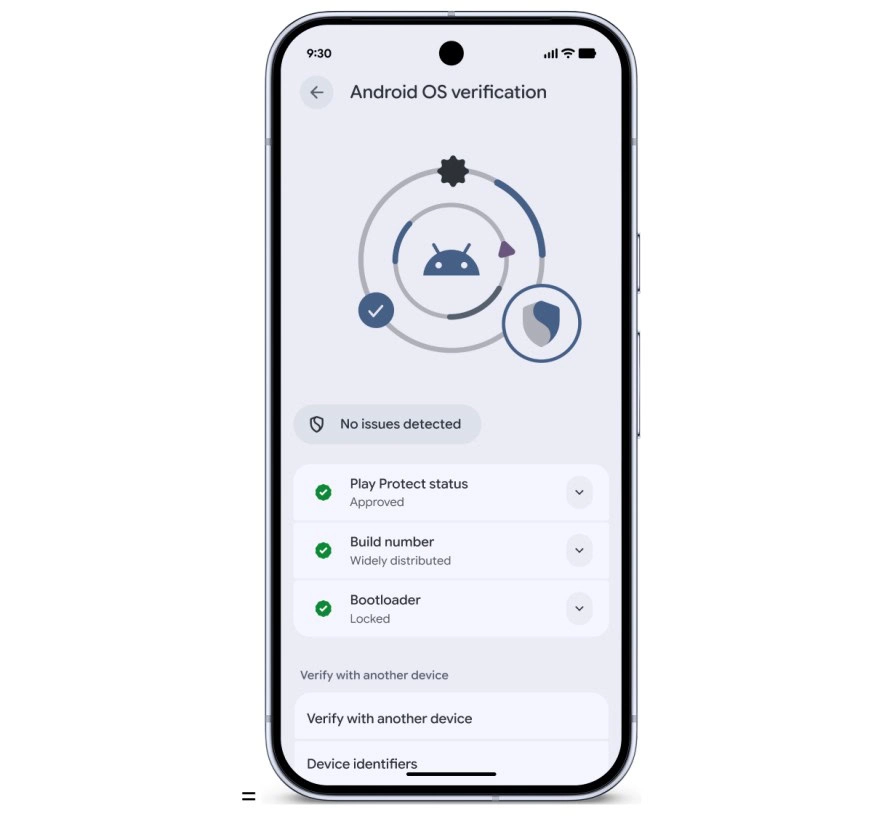
Security also extends to the operating system at its core. Google has observed a rise in unofficial, modified Android builds designed to mimic legitimate software while secretly compromising user data. Android 17 addresses this with Android OS verification, launching initially on Pixel devices.
The feature allows users to confirm that their phone is running an official, widely distributed build of Android. A public, cryptographically verifiable “Source of Truth” ledger provides proof that both the apps and the OS itself are authentic production versions — making it effectively impossible for a fake Android build to hide its intent behind a familiar-looking interface.
Protecting against future threats
Looking further ahead, Android 17 includes protections designed for threats that don’t yet exist at scale. OTPs (one-time passwords) will be hidden from malicious apps, closing off another common attack vector. Google also introduced Post-Quantum Cryptography in March, laying the groundwork for encryption that can withstand the computational power of future quantum systems — a forward-looking measure that reflects how seriously Google is treating long-term platform security.
There comes a point where upgrading your smartphone every year or two just does not make much sense anymore. My Google Pixel 9 Pro from 2024 is still performing well, and unless the next upgrade brings something meaningful, I do not see myself moving to the Pixel 11 Pro either.
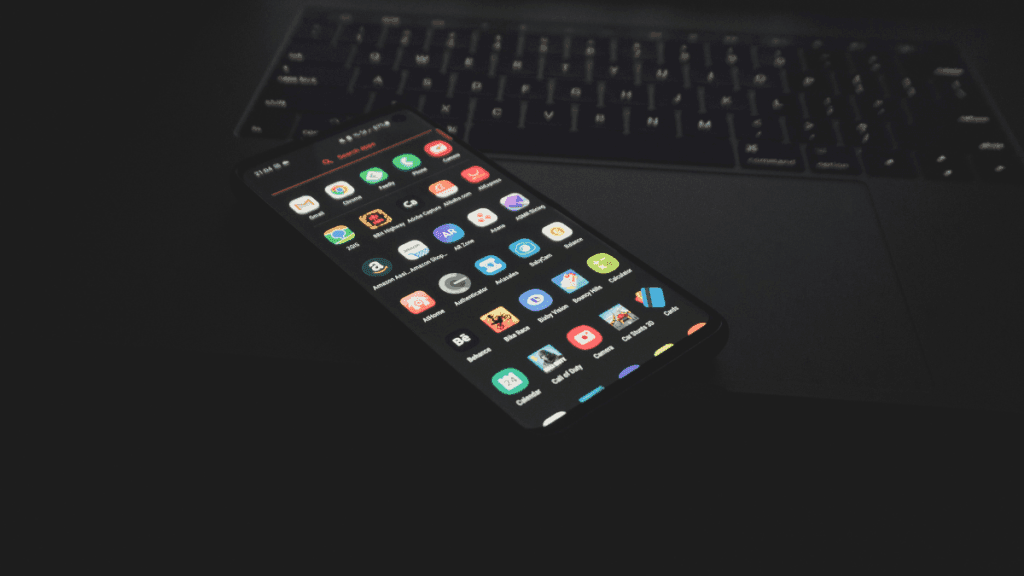
The trade-off for keeping a phone longer is that it slowly starts to feel cluttered. You install the apps you need over time, and unlike the old days of swapping to a fresh device, everything accumulates. At this point, I have well over 100 apps on my phone.
The issue is that many of these apps keep running in the background, using RAM and other system resources even when they are not open. That can make your phone feel slower, less responsive, or just not as smooth as before.
Android includes a hidden setting that lets you see exactly how much memory each app is using. It makes it much easier to figure out which apps are worth keeping and which ones are just sitting there eating resources and slowing down your phone.
You need Developer Options first
Before you can check this, you need to enable Developer Options on your device, which is probably why you have never run into this setting before.
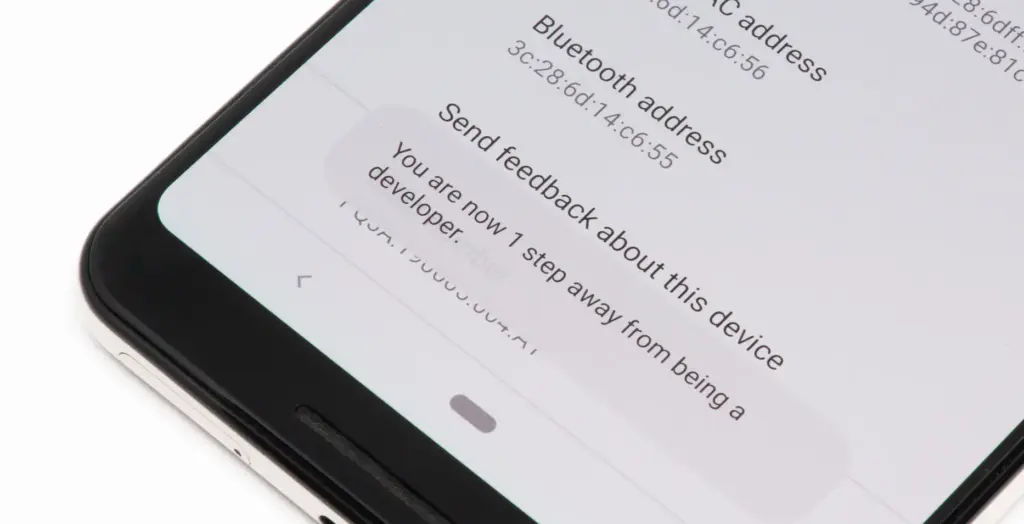
To turn it on, open the Settings app on your phone, then go to the About Phone section. From there, tap the Build number seven times. After a few taps, you should see a message saying, “Developer options have been enabled.”
Once that is done, go back to System settings and open Developer Options. Near the top, you will find a Memory section. On some devices, especially Google Pixel phones, memory usage profiling may not be enabled by default, so you may need to switch it on and restart your device before you can use it.
What the numbers mean
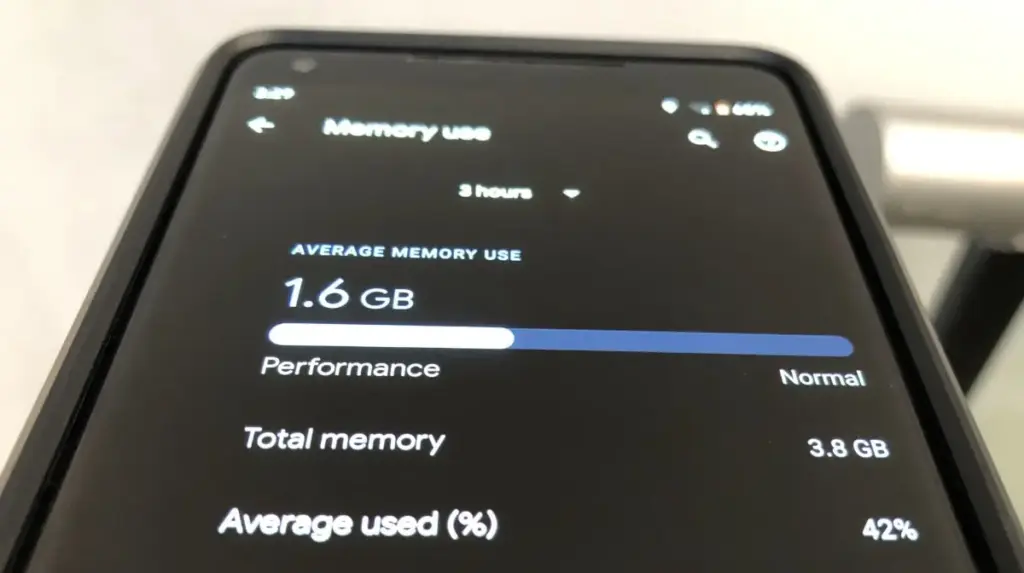
Inside the Memory section, you will see how much RAM your phone has, how much is being used on average, and a general overview of overall performance.
If you want to see which apps are using memory, tap the Memory used by apps option. This section lists apps based on how much RAM they have used over the past three hours by default.
At the top, there is a drop-down menu that lets you change the time frame to three hours, six hours, 12 hours, or one day. In practice, 12 hours or one day gives a much better picture of which apps consistently use the most memory throughout the day.
In most cases, Android OS will appear at the top, and that is completely normal. The system itself runs several background processes, and all of that gets grouped under Android OS.
What matters more is spotting third-party apps that are using more RAM than expected. You can tap any app to see details such as its average and peak memory usage.
For example, I do not currently have a Pixel Watch paired with my Pixel 9 Pro, but the Pixel Watch app and Fitbit app together were using around 250MB of RAM in the background. That is a lot for something I am not even using.
If you notice similar apps on your phone, you can open their info page and use the three-dot menu to force stop them if needed.
RAM use is not always bad
That said, RAM being used is not automatically a problem.
Android is designed to use available RAM to keep apps ready in the background, so it does not always mean your phone is wasting resources. The real goal is to identify what is actually unnecessary.
If you find an app that you do not really use but it is still taking up a lot of memory, you can stop it from this menu. Even better, uninstalling it completely is usually the smarter choice.
Force stopping only works temporarily, since the app will start using memory again the next time you open it. If you no longer use the app at all, removing it entirely ensures it will not keep using RAM in the future.
Recent apps are not enough
If you think the apps in your Recents menu are the only ones using your phone’s resources, closing them will not solve everything.
Those are just the apps that are currently active, but many Android apps continue running background processes that you do not see in Recents or on the screen.
That is exactly why this feature shows average memory usage over the past few hours, giving you a much clearer view of what is really using RAM behind the scenes.
Overall, this tool should help you spot the apps that are using more memory than they actually need. It gives you a clearer sense of what is running in the background and what is worth keeping installed.
If your phone feels slower or the battery is draining faster than usual, there are also other steps you can take to optimize your Android phone and help it last longer.
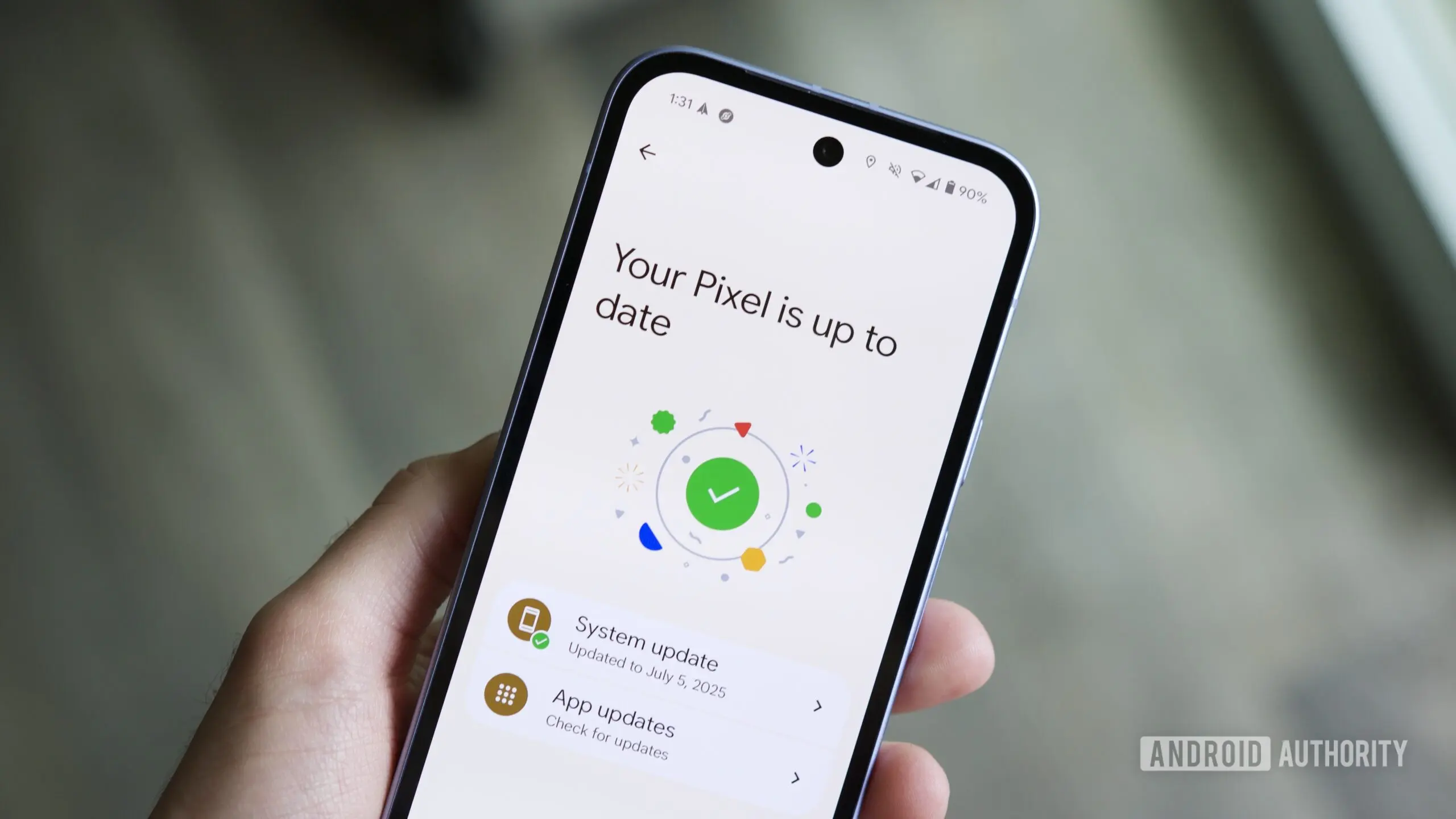
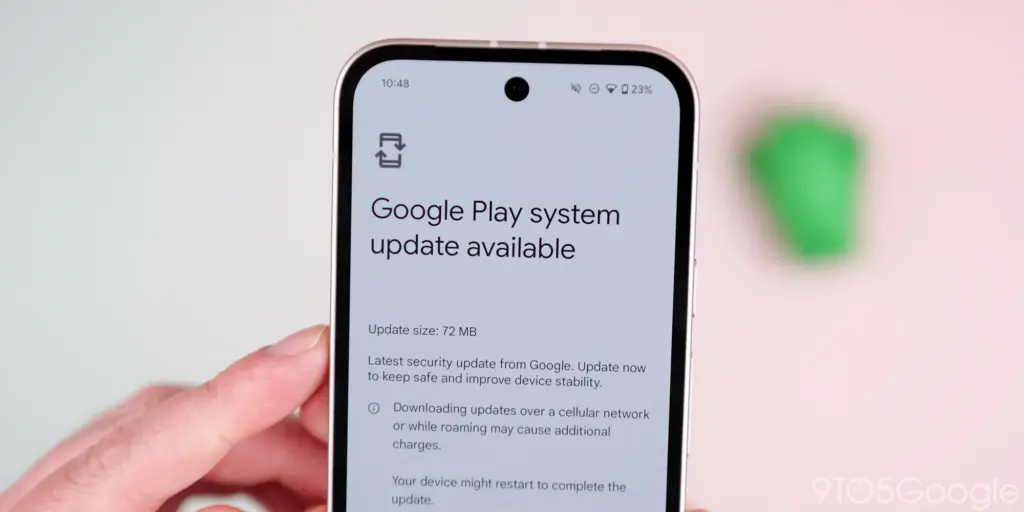
The Play services, Play Store, and Play system update for Android phones and tablets, Wear OS, Google/Android TV, Auto, and PC are the main topics covered in the monthly “Google System Release Notes.” While certain features are intended for developers, others are applicable to end users.
The “Google System” is made up of the following third-party apps:
To update, launch the Settings app, press your name at the top of the “Google services” page, then select All services > Privacy & security > System services.
A feature is not necessarily publicly accessible just because it appears in the changelog. The full launch of some capabilities takes months.
Google Play services v26.15 (2026-04-20)
Device Connectivity
[Auto, Phone, Wear] Bug fixes for Device Connections and System Management & Diagnostics related services.
Location & Context
[Phone] Bug fixes for Location Services related services.
Wallet
[Phone] With this update, a message at the bottom of the screen tells the user how to add a card to Wallet.
[Phone] With this update, you’ll get a new entry point for MyCommute.
Android System Intelligence B.24 (2026-04-16)
[Phone] Maintenance changes.
Google Play services v26.14 (2026-04-13)
Account Management
[Phone] With this update, you’ll get a faster way to set up your device when you transfer accounts and settings from an existing device.
System Management
[Auto, PC, Phone, TV, Wear] You can now find open source licenses for Android Pulse in GMS Core.
Wallet
[Phone] You can now control how private passes in Wallet work with other Google services like Autofill through new per-pass privacy settings.
[Phone] You can now use a redesigned Wallet interface for quick access, search, and discovery.
Google Play Store v51.0 (2026-04-13)
[Phone] You can now provide feedback on AI-generated summaries of user reviews.
[Phone] You can now create a Gamer Profile directly from You tab.
[Phone] You can now play some games on the You tab with no install required.
Google Play services v26.13 (2026-04-06)
Account Management
[Auto] When a user signs in to their Google account on Android Automotive devices via QR code, the sign-in confirmation displays the requesting device’s name.
Device Connectivity
[Phone] New developer features for Google and third party app developers to support Device Connectivity related processes in their apps.
Location & Context
[Phone] With this update, Location Sharing APIs are refined and new location requests are introduced.
[Phone] With this update, On-Device Location History Store Visits processes more frequently.
System Management
[Auto, PC, Phone, TV, Wear] Updates to system management services that improve Security and Stability.
Wallet
[Phone] Bug fixes for Wallet related services.
Google Play Store v50.9 (2026-04-06)
[Phone] This update adds download numbers to some app and game ads to help you make informed choices.
[Phone] You can now join and compete in Play Games Leagues directly from the You tab.
Samsung has posted an official “End of Service” notice on its website confirming that its native Messages app will go dark sometime in July. The exact shutdown date hasn’t been pinned down yet — Samsung says it will be announced inside the app itself when the time comes. But the message is clear: the company wants its remaining Samsung Messages users to migrate to Google Messages, and it’s not leaving much room for hesitation.
For longtime Samsung users, this might sting a little. Samsung Messages has been around for years, and for many Galaxy owners it’s just… the app they’ve always used. Familiar, reliable, good enough. But good enough doesn’t keep an app alive forever.
This has been coming for a while
To be fair, Samsung has been telegraphing this move for some time. The company quietly stopped pre-loading Samsung Messages on new devices a couple of years ago, starting with the Galaxy Z Fold 6 and Flip 6, and then continuing with the S25 series — all of which shipped with Google Messages installed as the default instead. Samsung Messages remained available on the Galaxy Store for anyone who wanted it, but its days as a first-class citizen were already numbered. This official end-of-service announcement is less of a surprise and more of a formality.
What you’re actually getting with Google Messages
Here’s the thing — the switch isn’t a downgrade. For US users especially, Google Messages brings a meaningfully better messaging experience in several ways.
The biggest upgrade is full RCS support. If you’re not familiar, RCS is essentially what SMS should have been all along — it supports higher-quality photo and video sharing, real-time typing indicators, read receipts, and proper group chats. Crucially, it works across platforms, so the experience doesn’t fall apart when you’re texting someone on an iPhone.
Beyond that, Google Messages has Gemini built in, giving you access to AI tools directly inside your conversations — including the ability to remix and enhance photos before you send them. It’s a genuinely useful addition, not just a checkbox feature.
And if you’re someone who bounces between devices throughout the day, Google Messages handles that well too. Your conversations stay in sync across your phone, tablet, and Galaxy Watch without any manual fiddling.
You will lose a few of Samsung’s customization touches — some color themes, layout tweaks, that sort of thing. But for the vast majority of users, what Google Messages offers in return is a fair trade.
Samsung Messages is technically still available on the Galaxy Store for now, so nobody is forcing your hand this second. But the clock is ticking, and switching on your own terms — before the deadline — beats scrambling when the app suddenly stops working. Get Google Messages set up now, import your contacts, and give yourself a few weeks to settle in. By the time July arrives, you won’t even notice the difference.
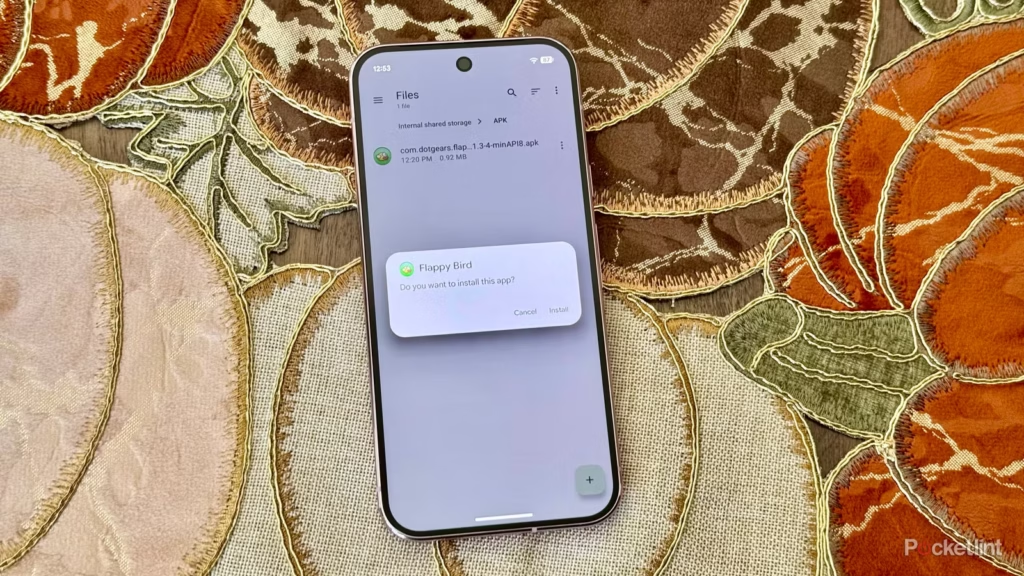
Since its launch, sideloading has been a crucial component of Android, giving it a great deal of flexibility as well as a feeling of freedom and openness. The community (quite understandably) panicked when Google announced it would make significant changes to sideloading. However, since Google has now demonstrated how its new sideloading flow on Android will operate, I’m not only relieved that sideloading won’t completely disappear, but also that Google’s compromise is as close to ideal as I believe we can get.
Some have called “Android Developer Verification” the demise of Android’s open nature. The change, which would require developers to register with Google in order to permit their apps to be installed on Android devices, was introduced by Google last year as a restriction on app installation, including sideloading. At first, Google described this as verifying the “who” of an app, similar to an airport ID check.
Combating scams, such as “convincing” bogus apps, and reducing malware and other harmful attacks—particularly those caused by sideloading from sources outside the Google Play Store—were always the main priorities here. Over the years, Google has been more aggressively combating Android frauds, with some degree of success. One way it has done this is by preventing sideloaded apps that are used in scams.
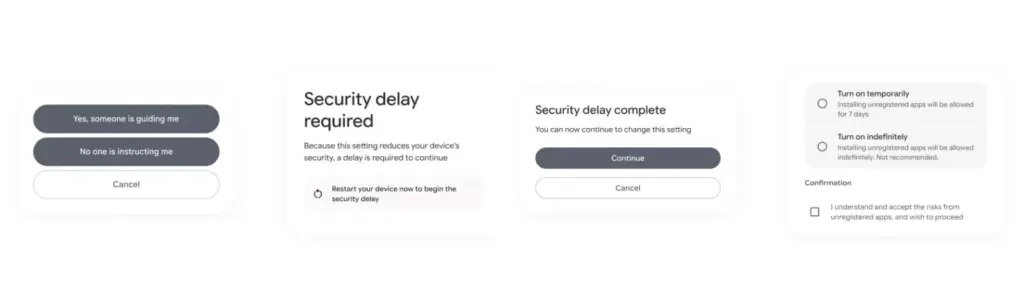
Google officially unveiled the new “advanced flow” this week, which enables users (and developers) to sideload apps that aren’t created by registered developers.After asking the user to certify that “no one is directing me,” the four-step procedure begins a 24-hour delay. In order to initiate the timer, the user must restart their device. After admitting the risks once more, they can resume the sideloading procedure 24 hours later; if they choose to leave it on “indefinitely,” the delay just occurs once. In actuality, this is really a one-time obstacle. Developer options must be enabled, but you can later disable them, which is the largest “headache.”
Google has stated time and time again that a “crackdown” on sideloading is not about taking away freedom or functionality, but rather about protecting users and, most importantly, stopping scams that are common on Android in particular areas. Google doesn’t prevent developers or even consumers from accomplishing what they truly want to do by restricting sideloading as planned, but it puts a huge barrier in the way of con artists.
Scammers frequently use timed pressure and a sense of urgency. A waiting period of twenty-four hours with a few additional warnings? That is a difficult barrier against those kinds of frauds. For people who are being duped by more prevalent scams, it’s also a major inconvenience. For instance, a few weeks ago, after purchasing a low-cost fitness tracker, a family member called me to inquire as to why their homescreen had changed. It turns out that the product needed them to sideload an unidentified software in place of their launcher. I guided them through the uninstall process, but a 24-hour wait and all these extra warning screens? The installation would never have taken place.
It’s a careful method of striking a balance between functionality and user protection. Because developers and enthusiasts who need or want to sideload an app immediately may still utilize the standard ADB tools, whereas the “ordinary Joe” must wait for that 24-hour period to end. Those who truly can’t wait the 24-hour period (which, once again, only needs to be once) still have options, although that is a headache for “regular” users and even more so for fraudsters.
Not to mention that you won’t often have to deal with this anyhow. After developers apply for Google’s developer verification program, sideloading is no longer a problem and there are no waiting times or other “in the way.”
How do you feel about Google’s modifications to Android sideloading? There are undoubtedly still many people who disagree with this, but as previously stated, I don’t think there is a better solution.
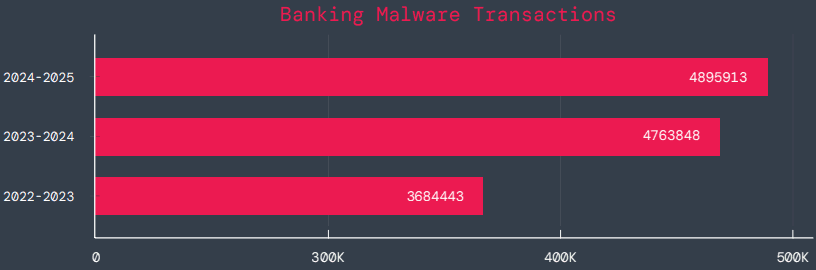
According to a survey by cloud security firm Zscaler, hundreds of malicious Android apps on Google Play were downloaded over 40 million times between June 2024 and May 2025.
The company saw a 67% year-over-year increase in malware that targeted mobile devices during that time, with banking trojans and spyware being the most common threats.
According to telemetry data, threat actors are leveraging phishing, smishing, SIM-swapping, and payment frauds to take advantage of mobile payments instead of traditional card fraud.
The shift to social engineering assaults can be explained by the widespread use of mobile payments and enhanced security standards like chip-and-PIN technology.
According to Zscaler, “to carry out these assaults, fraudsters use phishing trojans and malicious programs designed to steal financial information and login passwords.”
Zscaler estimates that it has found 239 harmful apps in the official Android store, with a total of 42 million downloads, compared to 200 malware apps on Google Play last year.
The emergence of adware as the most significant threat in the Android ecosystem, which now accounts for over 69% of all detections—nearly twice as many as the previous year—is another noteworthy trend observed at that time.
After leading with 38% the previous year, the Joker info-stealer is currently in second position with 23%.
The SpyNote, SpyLoan, and BadBazaar families—which are used for identity theft, extortion, and surveillance—were the primary drivers of the notable 220% year-over-year (YoY) increase in spyware.
Geographically speaking, 55% of all attacks were directed towards the United States, Canada, and India. Attacks against Israel and Italy also showed substantial increases, ranging from 800% to 4000% YoY, according to Zscaler.
Malicious Android apps and malware
In its annual study, Zscaler identifies three malware families that significantly affected Android users. The first is Anatsa, a banking trojan that occasionally enters Google Play through productivity and utility apps and receives hundreds of thousands of downloads each time.
Since its discovery in 2020, anatsa has undergone continuous evolution. The most recent version is capable of stealing data from bitcoin sites, more than 831 financial institutions, and new areas like South Korea and Germany.
The second is Android Void (Vo1d), a backdoor malware that targets Android TV boxes and has infected at least 1.6 million devices with out-of-date Android Open Source Project (AOSP) versions, mostly in Brazil and India.
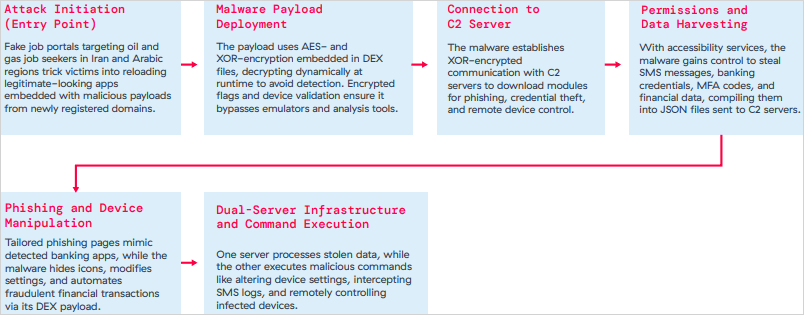
The third is Xnotice, a brand-new Android remote access trojan (RAT) that specifically targets job seekers in the oil and gas sector in Iran and Arabic-speaking areas.
Xnotice propagates via applications that are disseminated through phony employment websites and pose as tools for registering for exams or applying for jobs.
Through overlays, multi-factor authentication (MFA) codes, SMS messages, and screenshots, the spyware targets banking credentials.
Users are encouraged to install security updates, only trust reliable publishers, reject or restrict accessibility permissions, refrain from downloading unnecessary apps, and routinely run Play Protect scans in order to protect themselves from Android malware threats, including those from Google Play.
Routers continued to be the most targeted IoT equipment this year, according to Zscaler’s study. Hackers added routers to botnets or used them as proxies to spread malware by taking advantage of command injection flaws.
The majority of IoT attacks took place in the United States, with rising hotbeds in Hong Kong, Germany, India, and China following, suggesting that attackers are targeting devices throughout a larger geographic area.
The cybersecurity company advises businesses to harden IoT and cellular gateways by keeping an eye out for anomalies and implementing firmware-level protections, as well as to deploy zero-trust solutions for key networks.
Strict application control guidelines, security against phishing attacks, and monitoring SIM-level communications for anomalies should all be part of mobile endpoint protections.
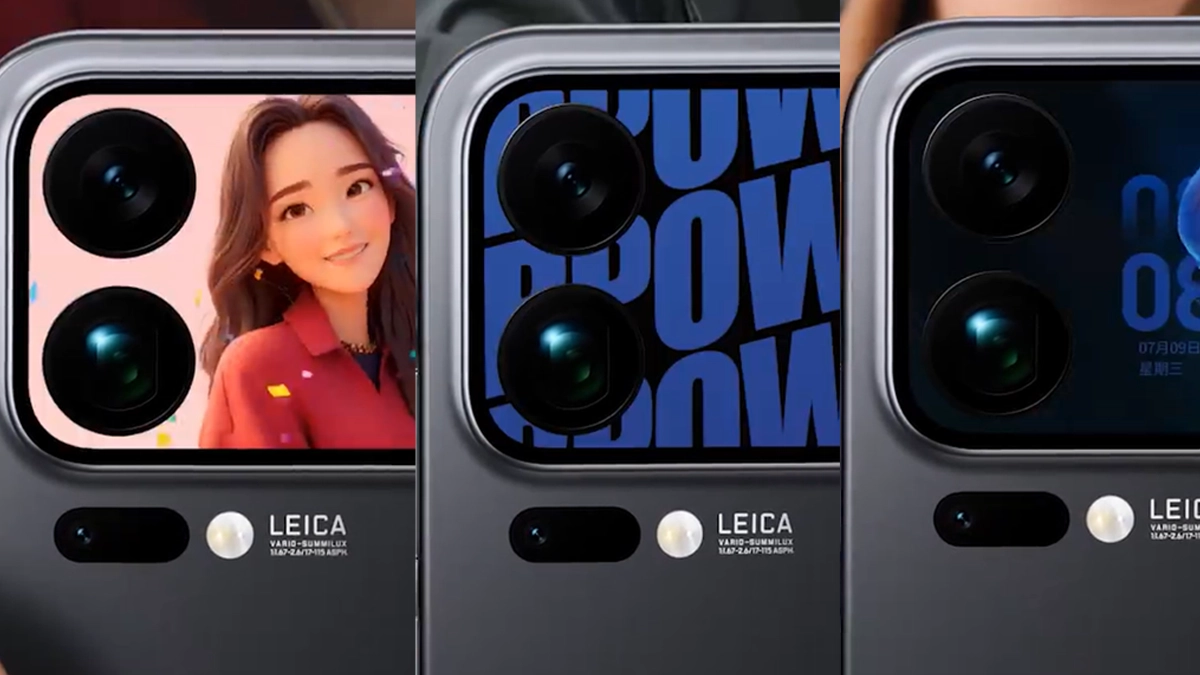
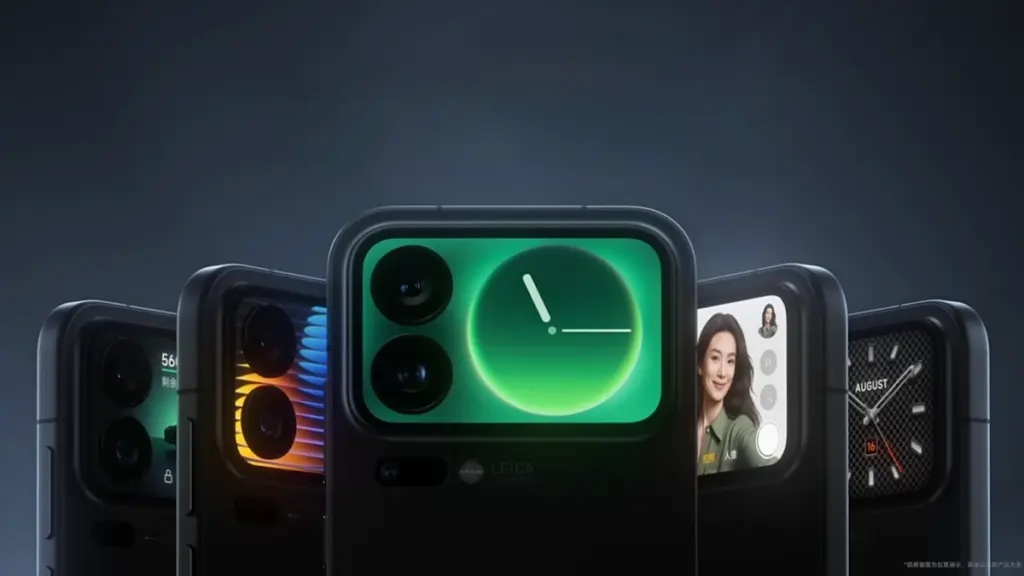
For the Xiaomi 17 Pro series, Xiaomi has released a new software update that enhances the secondary display with a number of interactive features. The launch includes dynamic avatars, real-time translation, five live wallpapers, and two portable games, according to the company’s HyperOS Weibo post.
Animated profile photographs can now be set on the back screen, and by mid-November, new bright-style themes will be available. Users can converse in Chinese on the main display and see translated text on the back panel thanks to a conversation translation feature.
Xiaomi 17 PRO get new visuals and games
Along with two games, Plants vs. Zombies and Snowman Sokoban, the update also includes five live wallpapers with themes related to technology, nature, and pets. You can manually update the Entertainment Box from the app store to access these. With new features scheduled every month, Xiaomi previously stated that the rear display will continue to be a major design priority for its upcoming smartphones. TCL Huaxing panels, measuring 6.3 and 6.9 inches, respectively, with a maximum brightness of 3500 nits and Xiaomi Dragon Crystal Glass protection, are used in both the 17 Pro and 17 Pro Max.
The Xiaomi 17 Pro’s innovative rear screen has practical applications in addition to aesthetics. When the phone is inactive or on a desk, it makes the user’s daily phone time more lively and vibrant. The company wants to transform the back screen from a mirror or clock into a tool for work and enjoyment. Cute loops, small critters, and light art forms can now be set as live images by users. More improvements will be made next mo
The new games aid in evaluating the rear panel’s touch and speed. Every one of them utilizes the entire small display and operates smoothly. According to Xiaomi, the objective is to provide customers who want light entertainment in their free time with a “soft joy.” To give it a more authentic sense, the company is also incorporating little sound effects. The fix is currently being released in stages, and more devices will receive this update in the days to come. To locate the update, users can look at the HyperOS setup’s update tab. According to Xiaomi, the update will be available on all devices by the middle of November.
After setting up a new Samsung Galaxy, you should think about the apps you use and don’t use.
There are many unnecessary preinstalled apps on your phone that don’t always enhance the user experience. Therefore, it is safe to remove any bloatware and superfluous apps.
These apps clog your home screen, suck up storage space, and slow down your phone.
All of Samsung’s devices, from the most recent high-end Galaxy phones to the most affordable variants, come with these apps.
When setting your Samsung Galaxy device, stay away from adding bloatware.
You are prompted to install extra apps when you set up a new Samsung device.
Take your time and uncheck the apps you don’t need because it automatically chooses the ones on that list. This is a simple method of avoiding additional bloatware.
If not, you’ll have to take them out by hand when you decide they’re useless.
Which apps on your Samsung Galaxy phone are safe to remove or deactivate?
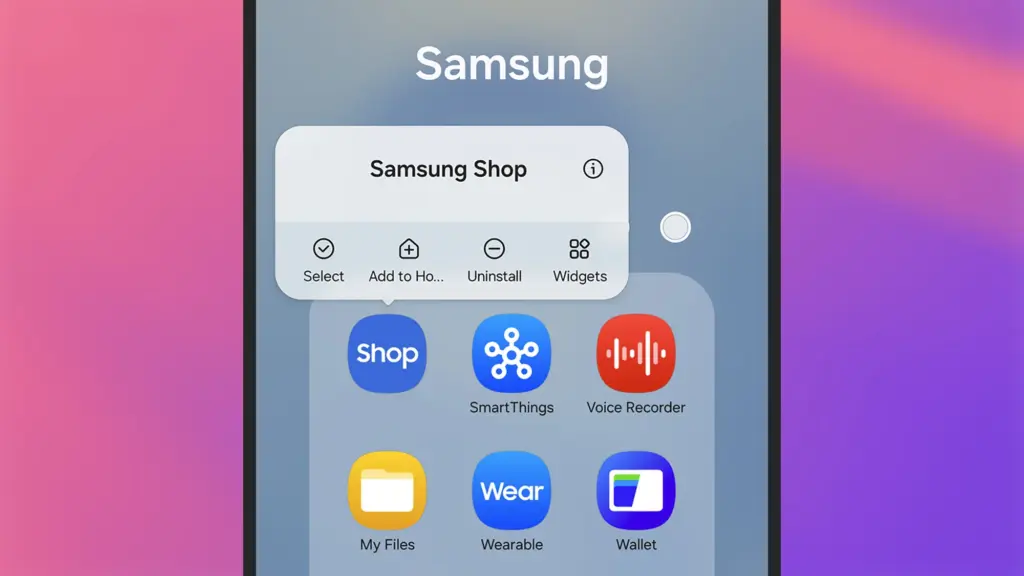
On a Samsung phone, deleting and uninstalling apps is simple. The Settings menu allows you to remove or deactivate the majority of apps; for others, you can use ADB commands.
Many preloaded system-related apps can be securely removed, although we don’t advise the typical user to do so.
Although these apps don’t take up much space, you may need to factory reset your phone in order to restore it if you remove the incorrect one.
Additionally, you are unable to remove or disable apps that are essential to the phone’s operation. Put them in a different folder if you want them hidden.
The popular apps that you can remove or disable from your Samsung Galaxy phone are listed below. You might see different apps than those on this list depending on your area or carrier.
Many of them are Samsung’s substitutes for Google apps like Drive or Chrome. Since they don’t interfere with how your device functions, you can safely uninstall them—especially if you like Google’s app suite.
These are some great alternatives that you can download from the Play Store if you don’t want to utilize Google or Samsung apps.
Get the best possible performance out of your new Samsung Galaxy mobile.
One of the first things you should do when configuring your Samsung Galaxy phone is to remove any unneeded software. Performance can be enhanced, particularly on low-cost Samsung phones.
Additionally, removing bloatware frees up space on your Samsung phone. Installing Good Lock modules will help you take advantage of this.
I have six computers of different sizes and specs, but lately I’ve noticed that I use my Chromebook more frequently. It has one amazing feature that I can’t live without, despite its obviously poor performance and small 11-inch footprint: full-fledged Android app support. I’m not just saying this because I write for Android Authority; having access to smartphone apps that don’t have a true PC equivalent is revolutionary.
Unfortunately, earlier this year Microsoft ended the Windows Subsystem for Android (WSA) experiment, which enabled the use of Android apps on Windows 11. Additionally, Phone Link is still in use, although it just lets you mirror the screen of your smartphone. Furthermore, the Pixel and the great majority of other devices still do not have screen sharing enabled by Microsoft. Therefore, I have to decide between using an emulator or a Chrome OS device if I want the finest Android experience on my PC.
The sole issue? At best, Android emulators on PC provide a mediocre experience. Performance is lost due to emulation costs, and even the best Android emulators, such as BlueStacks, have crowded interfaces and advertisements designed for particular applications, like gaming. On Chrome OS, however, the experience is far more seamless: you may open individual Android apps, and they coexist peacefully with native apps.
Waydroid
Waydroid brings all the apps you love, right to your desktop, working side by side your Linux applications.
Is it possible to accomplish this Android-PC harmony without installing Chrome OS and forfeiting the ability to use a conventional desktop environment? Yes, but the only catch is that Linux is needed. Nevertheless, I believe it’s totally worth it, and Microsoft’s growing hostility against Windows privacy is just one more reason to think about switching.
Why running Android apps on PC matters more than ever
I enjoy having access to Android’s extensive app store on my PC for a number of reasons, including my investing portfolio tracker and other smart home apps. I frequently think that Android services are simply superior to their web or PC versions. For instance, WhatsApp for PC keeps me from scaling the window to my preferred size. In particular, it feels like a needless waste of screen space because it won’t shrink any smaller than a quarter of my screen.
Apps for smartphones, on the other hand, are made to fit on almost any screen size. Therefore, the window size should be much more adjustable if you can figure out how to run them on a computer. Additionally, you may already understand the appeal if you have ever tried multitasking on a computer with a single display.
Try using a web browser to launch Google Maps and minimizing the window size (see below). As soon as you click on a business, the sidebar will occupy all of the available space, leaving you with nothing except the search box. Without ignoring this sidebar, you are unable to move about the map.
You can see how much smaller the windows for the Android versions of WhatsApp and Google Maps can get on the right. This discrepancy is not the fault of Meta or any other developer; desktop applications are made to work on reasonable screen sizes, and my smaller windows don’t precisely meet that requirement.
Nevertheless, the difference is clearly noticeable on a 24-inch screen, such as the monitor on my gaming PC. I’ve considered purchasing a second monitor, but my desk isn’t large enough to fit one. I must therefore use every available inch of screen real estate for the time being. Aside from density considerations, I occasionally like mobile apps because of their simple user interfaces. For instance, AI mobile apps respond far more quickly than the web version, which is useful when I only need a brief response to a small query.
Because of my propensity for multitasking, I usually find myself using two chat apps (WhatsApp and Telegram) in addition to a full-featured web browser and possibly one other program, such as Maps or a social media app like X/Twitter. Normally, switching between the different full-screen windows would require a lot of Alt+Tab. However, with top-notch Android app support, I can use many windows simultaneously.
Android apps on PC without emulation
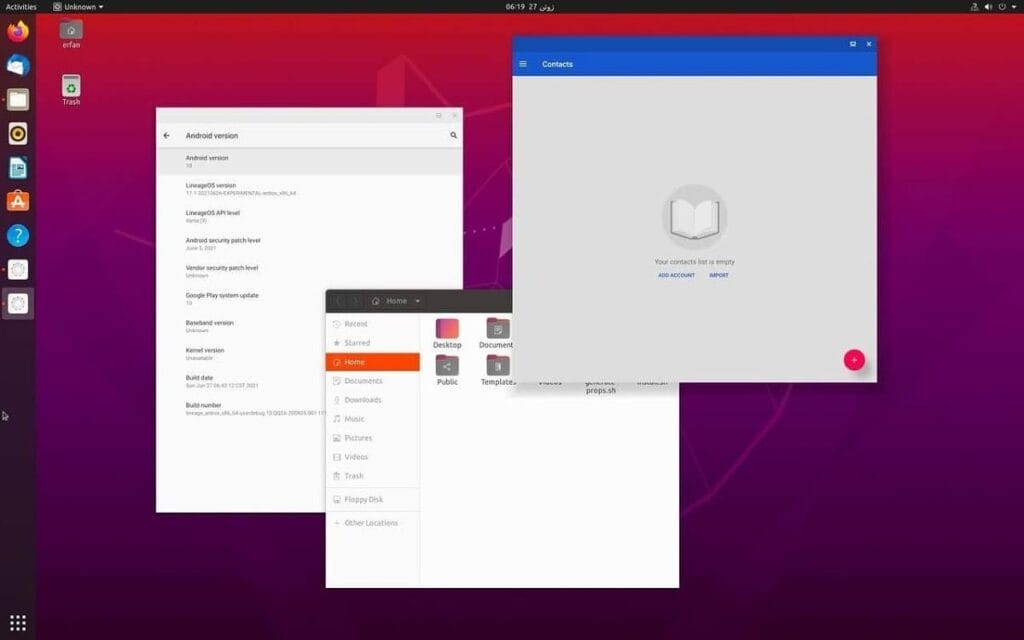
I came found Waydroid, an open source project that lets you run Android apps on a PC. Waydroid doesn’t simulate a whole Android device in a virtual machine, in contrast to Android emulators like BlueStacks or Genymotion, which you may already be familiar with. Rather, it shares the host OS’s kernel and makes use of Linux namespaces. In summary, it runs an entire Android system directly on Linux using a container-based methodology. This results in near-native performance with no overhead or performance penalty associated with virtualization.
Admittedly, installing Waydroid is more complicated than just downloading the installer for an emulator and repeatedly selecting Next, as is the case with Windows. However, it merely required entering two simple commands into the terminal, and Waydroid is available in the app stores of many distributions. It wasn’t a problem for me because I already use Linux on a daily basis, but I would advise you to give the operating system a try if you haven’t used it recently. Stable versions, such as Ubuntu, are largely similar to Windows and require no tweaking.
Returning to the topic of Waydroid, there are two builds available: one with Google apps (GApps) and one without. I chose the former, which included a minimum build of Android 13 based on LineageOS along with the Play Store and Google Play Services framework.
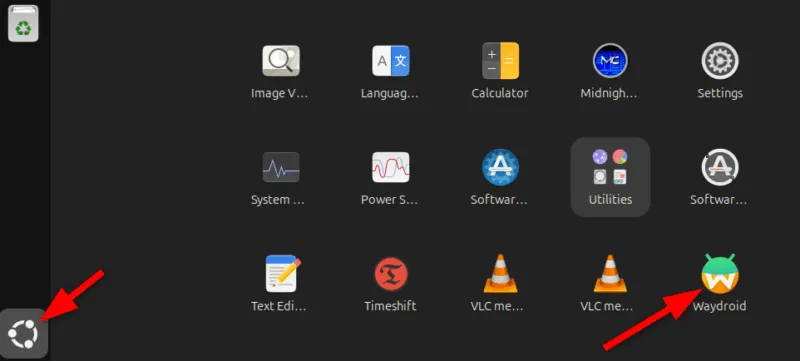
After installation, Waydroid displays installed Android apps in the application menu of your computer, complete with taskbar entries and unique icons, just like native programs. Additionally, you may enable multi-window mode, which lets each program open in a separate window, by changing one setting.
Is using Waydroid pleasant?
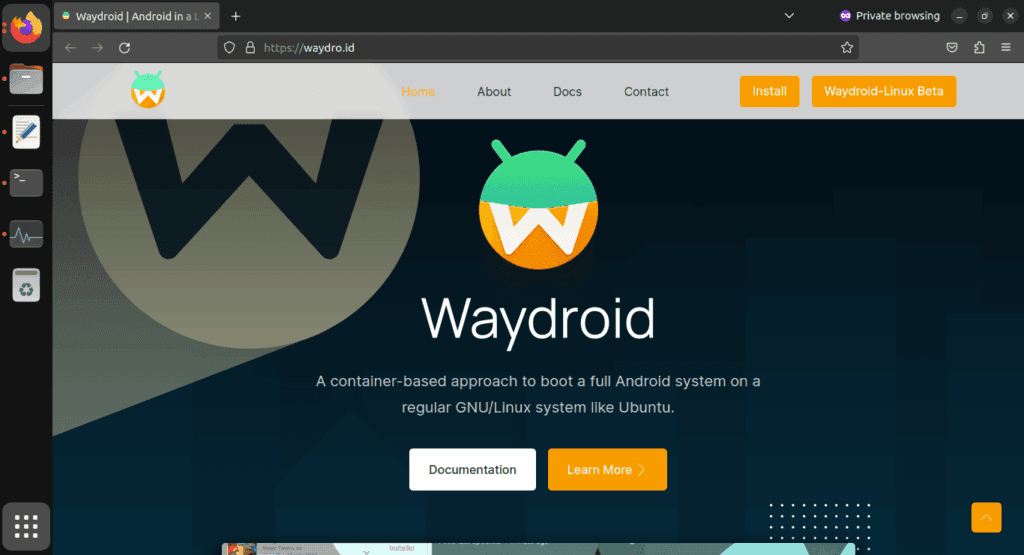
Waydroid
Waydroid brings all the apps you love, right to your desktop, working side by side your Linux applications.
Despite being an open-source, community-built program, Waydroid feels quite well-designed. With the exception of a few configurable configuration changes (such as turning off the on-screen keyboard), the main experience is identical to that of an Android tablet. I can use my monitor without even using my keyboard and mouse because it allows touch input.
I was pleasantly happy to discover that practically every software I wanted to run on Waydroid worked without any issues, despite my initial concerns about compatibility. You must first take a moment to register your Waydroid installation with Google Play Protect, but I could download everything from the Play Store. Of course, you may also utilize other app stores like F-Droid or sideload apps. Compared to Windows Subsystem for Android, which was formally restricted to the Amazon App Store, this is already a significant improvement.
We tested all of my favorite apps, including Telegram, YouTube, and Google Maps, and they all functioned perfectly without a single frame loss. Even my Chromebook, which runs Android apps less effectively, stands in sharp contrast to this. You see, with the release of Chrome OS 109 in 2023, Google shifted to a virtualization-based strategy for running Android. Since then, a lot of Chromebooks with lower specs have had trouble running Android apps.
The term “way” alludes to Waydroid, a crucial part of the graphics infrastructure of contemporary Linux that enables even hardware acceleration and fluid input. Even though I have AMD hardware, as the project suggests, I tested a few simple games and they ran perfectly. Allowing Waydroid to utilize your PC’s built-in graphics or switching to software rendering are two workarounds for NVIDIA’s lack of official support.
That’s not to imply that Waydroid doesn’t have drawbacks. You’ll soon discover that you can’t view incoming notifications when you run programs in multi-window mode. Apps lack the ability to send notifications outside of the container they reside in, in contrast to Chrome OS. If you install the appropriate desktop application and use a forwarding app, such as KDE Connect, you can easily get around this.
Additionally, Waydroid shields a large portion of your device’s hardware from Android apps. For example, the camera input is broken, which is really important if you care about video calls. Similarly, apps are inherently unable to directly access Bluetooth or GPS. However, this only truly matters in ancillary use scenarios, such as when attempting to configure a smart home device straight from Waydroid.
Overall, Waydroid fills the void better than anything else available at the moment, although it doesn’t completely replace my Pixel or even my detachable Chromebook. I can highly recommend Waydroid if you’re among the numerous folks who either use an emulator or wish that Windows Subsystem for Android would come back.
Waydroid
Waydroid brings all the apps you love, right to your desktop, working side by side your Linux applications.
Free apps are a welcome anomaly in a world when nothing really comes free! Today, we’re exploring a carefully chosen collection of free apps for iOS and Android smartphones that come in a range of categories, such as games and other practical utilities. Remember that these offers are temporary, and their availability may change at any time, so make sure to take advantage of the chance while it lasts.
From free to paid options, the Google Play Store and Apple’s App Store each provide an amazing assortment of apps that appeal to a wide range of interests. It may come as a nice surprise to many customers to learn that some premium apps periodically go free during exclusive sales. Some of the most interesting apps available for free right now have been hand-picked by us.
Android apps
Burning Sky VIP($2.49) – An entertaining 90’s arcade-style shooter that offers cool, fast-paced graphics that do not let up on the action. This retro vertically scrolling shooter game delivers loads of adrenaline in a modern dogfight style, where you and your reflexes go up against insane bosses as they rain bullet hell on you.
My Medicine Pro – Health Log($1.99) – Do you find it difficult to keep track of all your medication details? I would like this app to help simplify my life as I grow older. It is an all-in-one solution to manage my health and wellness needs. This app was designed to ensure nobody ever misses a dose, an appointment, or an important health update again.
Empire Warrior: Tower Defense($0.99) – Rather than just having a bunch of towers shooting enemies down from afar, in the hope that they do not breach your defenses, you also now have the help of heroes who are mobile. Control these heroes to turn the tide of the seemingly overwhelming battle.
iOS apps
Pentris($1.99) – OK, so this is basically the same game premise as Tetris, albeit in a different name. You line up blocks of various sizes into rows to ‘delete’ them, and the game is over when the screen is filled to the top with rows as you fail to clear your lines.
Palette Hunt($0.59) – Do you have an eye for design? If so, discover the fun of creating perfect color palettes with Palette Hunt. I am sure designers, artists, or anyone who loves colors will find exploring shades to be an inspiring experience, as this app lets you transform existing photos into ready-to-use color palettes.
Eat the Rainbow Food Journal($2.99) – They say the best diet is one whose food is filled with many colors. Well, I am quite sure nutritionists and dietitians do not mean having nothing but Fruit Loops for all your meals. Rather, eat a variety of foods with different colors, and this journal helps you keep track of that.
At the time this post was published, all of the apps we are showcasing here were free to download. Regretfully, developers frequently fail to indicate the duration of these offers. Don’t hesitate to download an app if you enjoy it.
However, you should always check the app page in the store before downloading a free program. Because there are occasionally unnoticed obstacles that you should be mindful of.
The majority of free apps either offer in-app purchases or have advertisements. But some apps that cost money also accomplish this. It is crucial to give these factors the consideration they require, particularly if the game is meant for young players.
Many apps gather user information and frequently sell it to outside parties. Therefore, make sure you only give the program the rights it truly requires if you want to be safe. For instance, a flashlight shouldn’t be interested in your location information, and an alarm clock doesn’t require access to your contacts or cameras.