Tag: android

  • Temporarly free apps for Android and iOS

    Temporarly free apps for Android and iOS

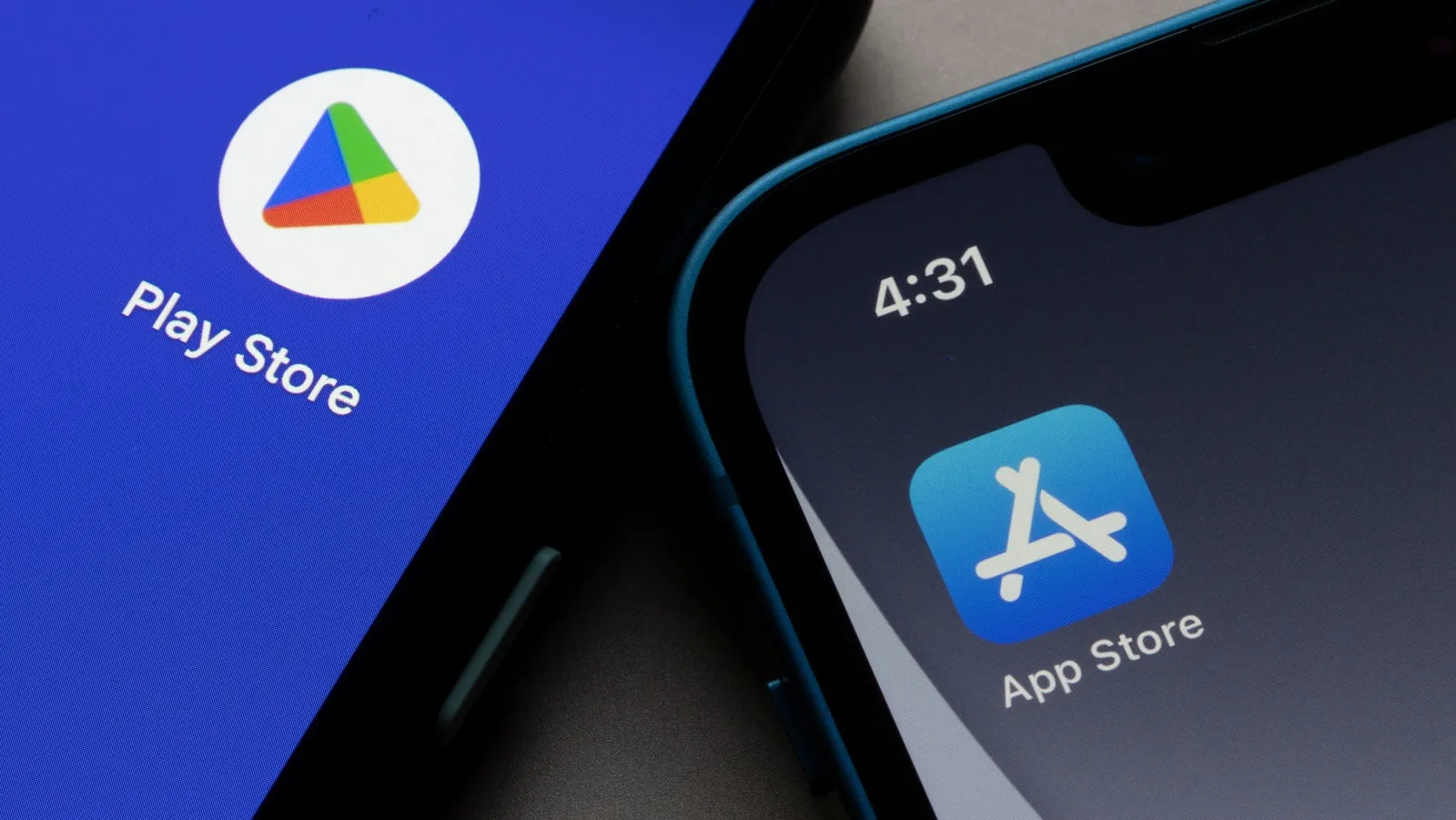
    There are countless apps available in the Play Store and the App Store, the two app stores owned by Apple and Google. While some of these apps are free, some need a fee. However, many users are unaware that many paid apps can also be temporarily made free as part of a special deal. We have compiled a list of some of the most intriguing free apps accessible right now.
    free android and IOS apps

    Free apps for Android

    • Resume Builder – CV Maker ($5.99) – In this day and age, without a convincing CV, you’re often at a disadvantage. So it’s all the better that you can create a suitable design yourself in a short space of time. With the help of this app and a pinch of creativity, it’s easy to create a professional and appealing CV that leaves an impression.
    • Passport Photo: ID Photo Print ($5.99) – This app makes it easy to take high-quality passport photos from the comfort of your own home, without having to go to a photographer. In Germany, however, self-taken passport photos have only been accepted to a limited extent since May.
    • Stitch Photos: Long Screenshot ($3.49) – Anyone who has ever tried to take a screenshot of an entire website or chat history knows the problem: unwanted elements such as advertisements, menus, or the scrollbar are often included. This app provides a remedy by allowing you to effortlessly remove superfluous elements.
    • Business Card Maker: Logo Card ($5.99) – Whether used professionally or simply for pleasure, business cards are inexpensive to buy. The real challenge often lies in the design, especially for people without graphic talent. But this problem is a thing of the past with this app.

    Free premium apps for iOS

    • Minesweeper Classic ($4.99) – If you’re nostalgic and used to using a Windows PC, you’ll love this game. The game principle is clearly based on the well-known Windows classic: the aim is to correctly mark minefields and uncover all safe fields, just like in the old days. It’s just a shame that the app relies on in-app purchases.
    • Ninja Boy Adventures – Bomberman edition ($1.99) – This game is very similar to the arcade classic Bomberman, with a decisive twist: instead of a bomber, you take on the role of a ninja. The levels are also a little more cleverly designed. However, the gameplay is still entertaining.
    • Queen Rules ($2.99) – This puzzle game is the ideal way to pass the time. The aim is to position your soldiers so that they can defeat the evil witch’s soldiers. There are also interesting level designs and clay figures.
    • Dog Guide 2 PRO ($1.99) – Anyone who wants to find the ideal dog or expand their knowledge of these faithful four-legged friends should take a look at this app. It offers a large number of free pictures, clearly presented information, and a practical filter function – all in one application.

    At the time this post was published, all of the apps we are showcasing here were free to download. Regretfully, developers frequently fail to indicate the duration of these offers. Therefore, you should download an app as soon as possible if you enjoy it.

    However, you should always check the app page in the store before downloading a free program. Because there are occasionally unnoticed obstacles that you should be mindful of.

    Many apps gather user information and frequently sell it. Make sure you only give the program the rights it actually needs if you want to be safe. For instance, a flashlight shouldn’t be interested in your location information, and an alarm clock doesn’t require access to your contacts or cameras.
  • How to back up your Android phone

    How to back up your Android phone

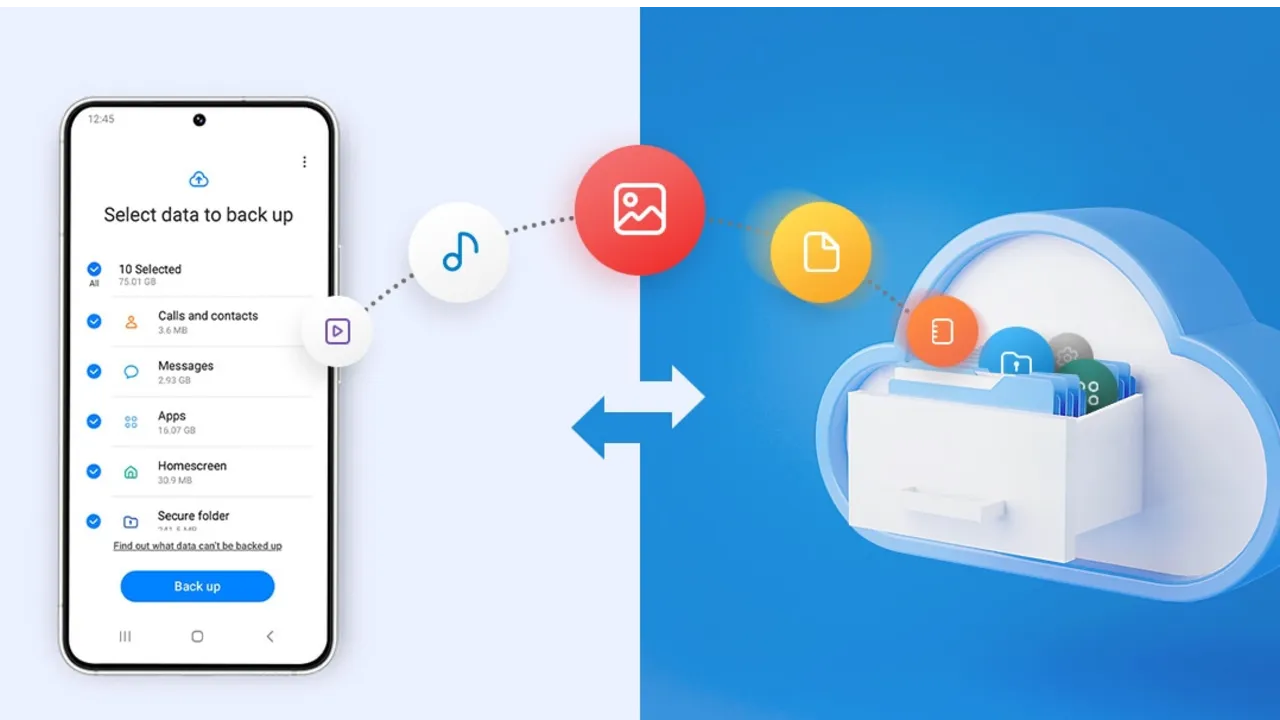
    Backing up your Android phone ensures that your data is safe in case of loss, damage, or switching to a new Android device. Thankfully, Android has a number of built-in security features that secure your contacts, media, apps, and settings without the need for third-party programs.

    Establishing a suitable backup plan is crucial, regardless of whether you’re upgrading your device or getting ready for a factory reset.

    Why it’s important to back up your Android phone

    It’s not just techies who should back up. You run the danger of losing private images, critical messages, app data, and even saved Wi-Fi passwords if your phone is misplaced or broken. Regular backup creation allows you to:

    Use Google backup (cloud-based method)

    google backup data

    Google offers a dependable, integrated backup system that connects to your Google account and stores your important data in the cloud. For the majority of Android users, it is the most practical approach.

    What Google backup saves:

    • App data and preferences
    • Call history
    • Contacts
    • SMS text messages
    • Device settings (Wi-Fi, wallpapers, display preferences)
    • Photos and videos (via Google Photos if enabled)

    How to enable Google backup:

    1. Open Settings on your Android device
    2. Scroll down and tap Google
    3. Tap Backup
    4. Ensure Backup by Google One or Back up to Google Drive is turned on
    5. You’ll see a summary of what’s being backed up. Tap Back up now to trigger an immediate backup

    Once enabled, your phone will automatically back up daily when connected to Wi-Fi and charging.

    Back up photos and videos using Google Photos

    Your videos and pictures frequently include priceless memories. To make sure your media files are securely backed up and available on multiple devices, Google Photos offers a quick and safe solution. It’s among the most dependable ways to preserve your graphic information without requiring complicated instruments or extra hardware.

    Google Photos is a robust cloud-based platform that automatically stores and arranges your images and videos, making it more than simply a gallery app. Once activated, it will sync your media to your Google Account continually, so your memories will be preserved even if your device is lost or damaged.

    Steps to back up media:

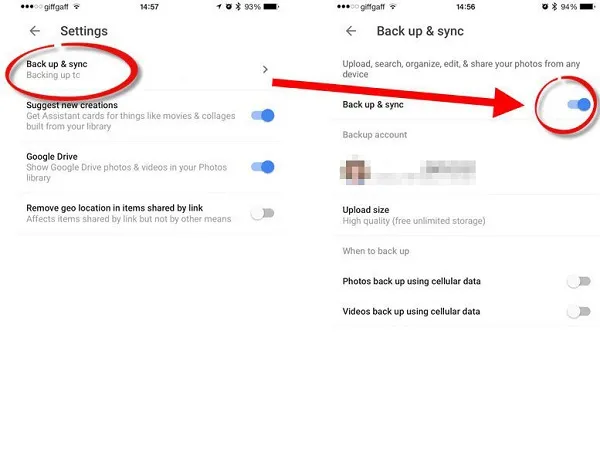
    1. Open the Google Photos app
    2. Tap your profile icon in the top right
    3. Choose Photos settings > Backup
    4. Toggle Backup to on
    5. Choose your preferred upload size (Storage saver or Original quality)
    google photos enable back upyour Android devices photos and videos

    All your photos and videos will sync to the cloud, and you can access them on any device logged into your Google account.

    Back up files manually to a PC

    Although cloud storage services like Google Drive and Google Photos are convenient, backing up your Android files to a PC by hand offers you more control, privacy, and independence from internet connectivity. It’s a simple process that guarantees you have a hard copy of all of your vital information, including documents, films, images, and more, safely saved on your computer.

    Here’s how:

    1. Connect your Android phone to your PC using a USB cable
    2. On your phone, choose File Transfer / MTP mode when prompted
    3. Open File Explorer on your computer
    4. Locate your device, open it, and navigate to folders like DCIM, Downloads, Pictures, or Documents
    5. Copy and paste the desired files to a safe folder on your PC

    This method is ideal for archiving large files or performing a one-time back up your Android without an internet connection.

    Use Samsung Cloud or manufacturer tools (for Samsung, Xiaomi, etc.)

    Some manufacturers offer their own back up your Android device solutions in addition to Google’s.

    For Samsung users:

    1. Go to Settings > Accounts and backup
    2. Tap Samsung Cloud
    3. Choose what to back up (contacts, calendar, settings, etc.)
    4. Tap Back up now

    You can restore this data to any Samsung device later using the same Samsung account.

    Xiaomi users:

    Use Mi Cloud by going to Settings > Mi Account > Mi Cloud and enabling the backup options available for your account.

    Always ensure you’re connected to Wi-Fi and have enough cloud storage before initiating the process.

    Backup apps like SMS and call logs (optional)

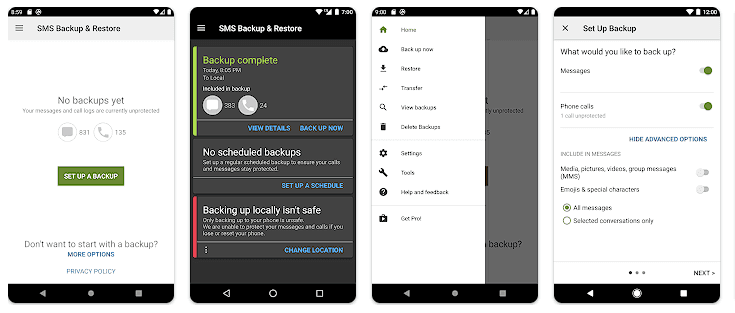
    Most devices now have SMS and call history included in Google’s backup system, but if you have an older phone or want more redundancy, apps like SMS Backup & Restore can give you more flexibility.

    back up your Android

    How to restore your data

    When setting up a new Android phone:

    1. Log in with the same Google account used for backup
    2. During the setup process, Android will detect the backup
    3. Choose what you want to restore—apps, settings, contacts, etc.
    4. Wait for the process to complete; some data may take time to sync

    For manufacturer backups, you’ll need to use the brand-specific restore method (Samsung Cloud, Mi Cloud, etc.).

    Tips for reliable Android backups

    • Always use a stable Wi-Fi connection before backing up
    • Keep automatic backups turned on for peace of mind
    • Occasionally perform a manual backup if you’re making major changes
    • Regularly check if Google Photos is syncing properly
    • For local backups, organize files by folders and label your backups by date

    Back up your Android device is easy and doesn’t require technical expertise. The majority of your crucial data is handled by Google’s reliable, automated solution, but you also have more flexibility with local and manufacturer-specific solutions. Having a backup guarantees that your data is never completely lost, whether you’re changing phones or simply staying secure.

  • MiTag Duo – works with Android and iOS

    MiTag Duo – works with Android and iOS

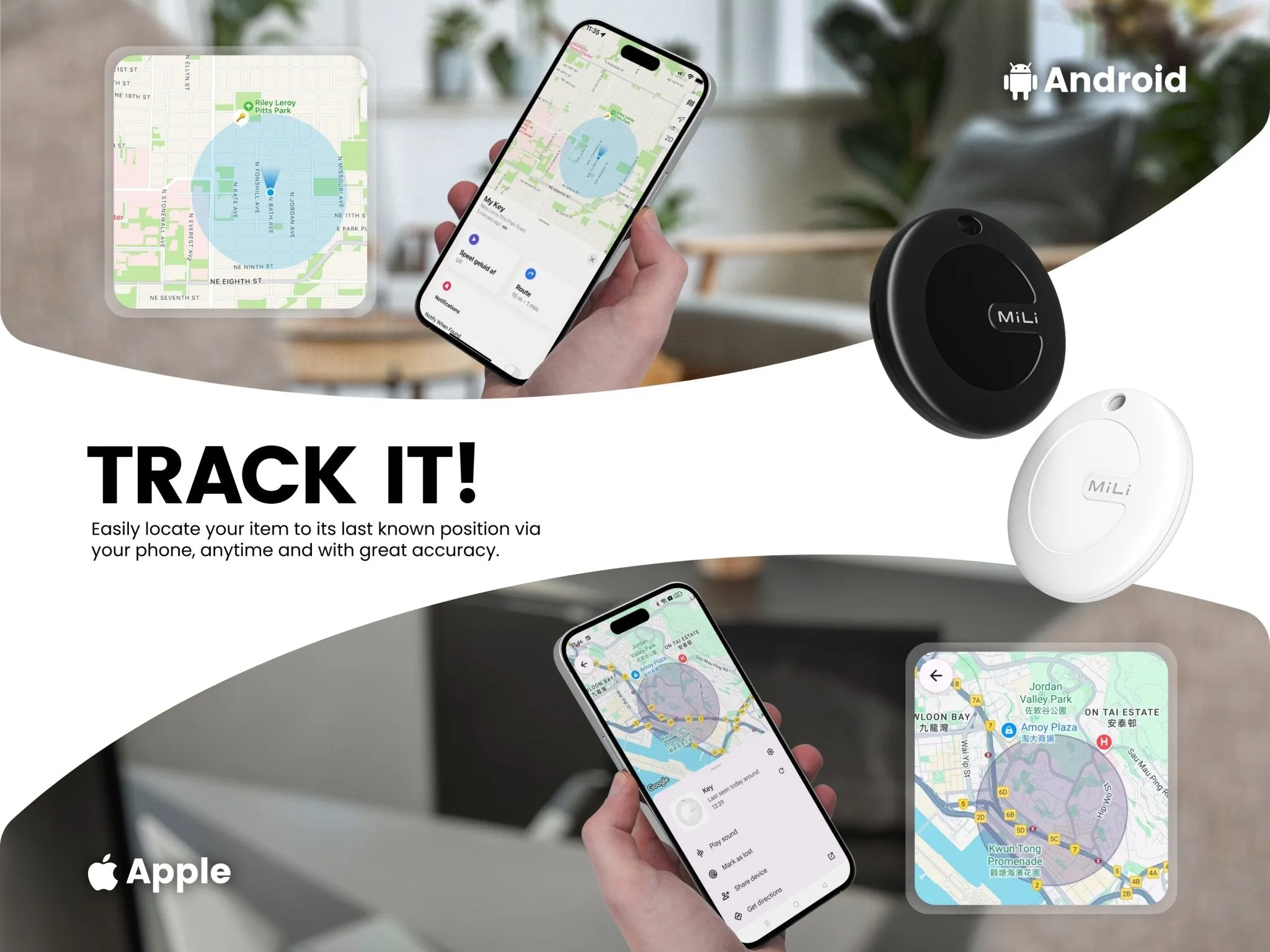
    Like the Chipolo Pop and Pebblebee’s universal trackers, MiLi’s MiTag Duo is a Bluetooth tracker that works with both Apple Find My and Google Find My devices. The new Bluetooth tracker is currently on sale and far less expensive than its competitors.

    The Chipolo Pop was released last month as a Bluetooth tracker that connects to Google’s Find My Device and Apple’s Find My networks. A comparable Bluetooth tracker that was compatible with both networks was announced by another company about a month before Chipolo’s. The device is known as the MiTag Duo, but sadly, the announcement was not widely publicized.

    mitag duo item finder ios or and

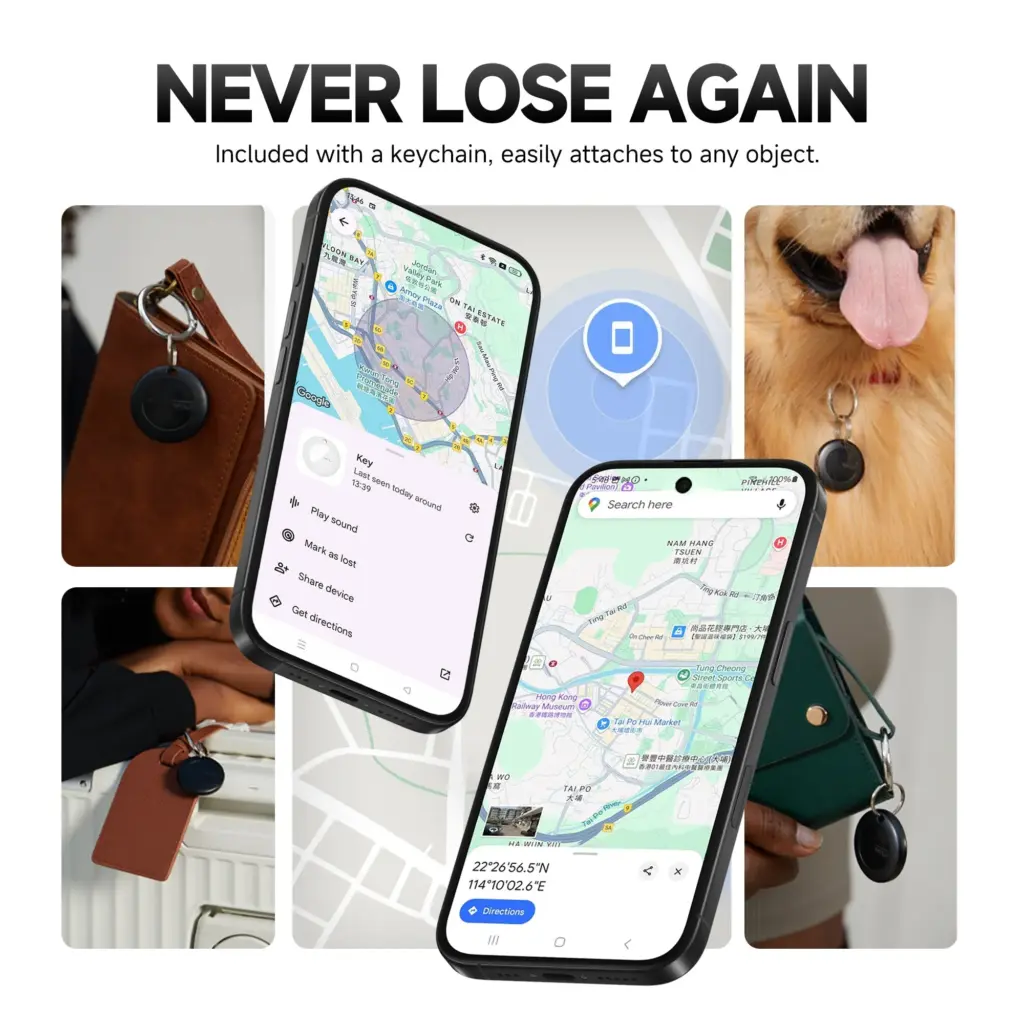
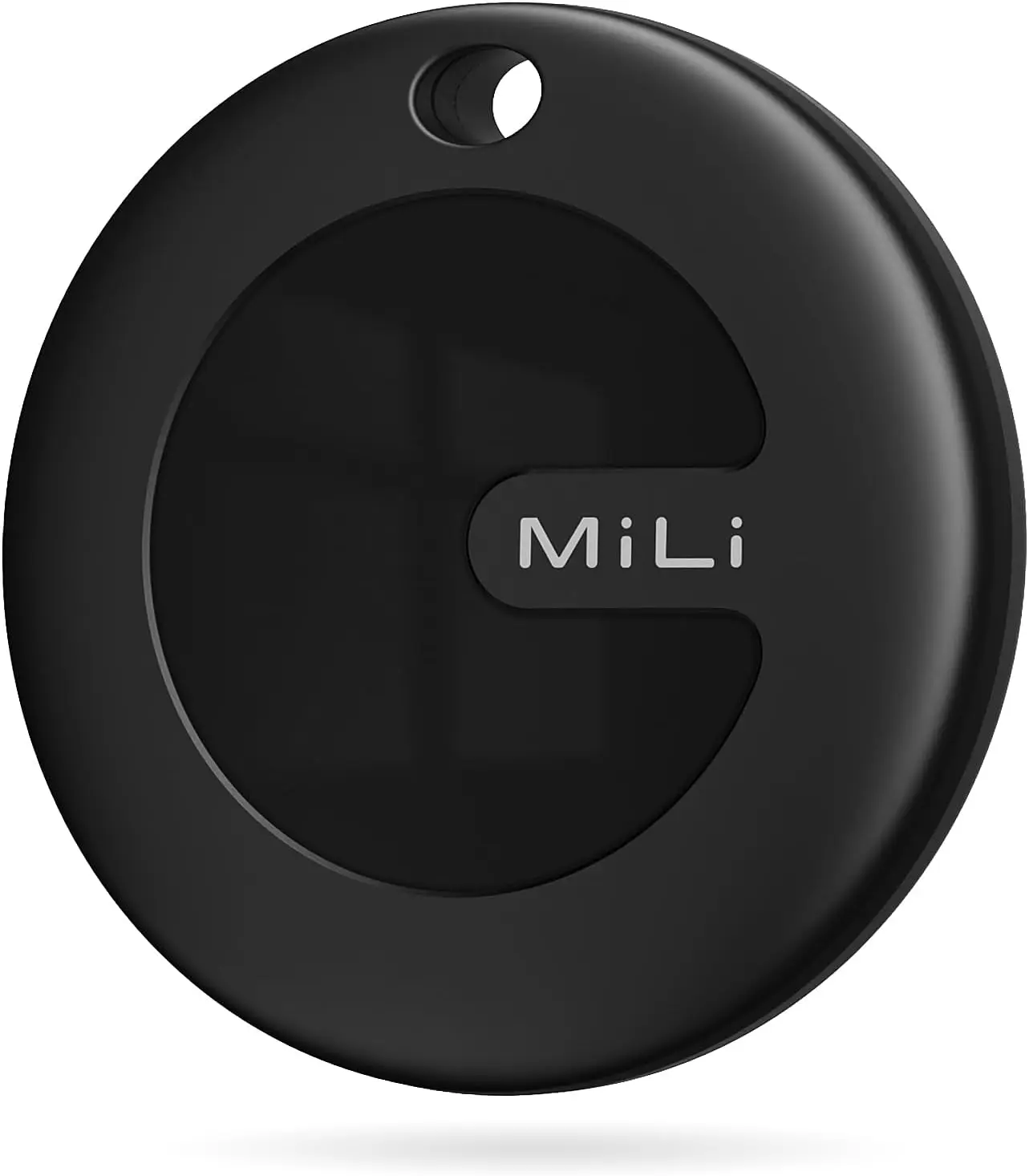
    The MiTag Duo, which is made by MiLi, is circular like the MiTag Go (which is now available on Amazon for $13.99) and only works with Google Find My. The tracker is easy to attach to possessions because it features a key ring hole and comes in black and white color variants. It can operate in temperatures ranging from -20°C to 60°C and has an IP67 dust and water resistance rating.

    mitag mili

    MiLi MiTag Bluetooth Tracker for Android and iOS

    The Android version MiTag is a Google Certified location tracker that works with “Find My” app on Android phones (Android 9 or higher, NOT for iOS devices). Attach this android tracker to the items you usually misplace and let it help you find your keys, bag, suitcase, toy, etc.

    $14.99$13.99Amazon

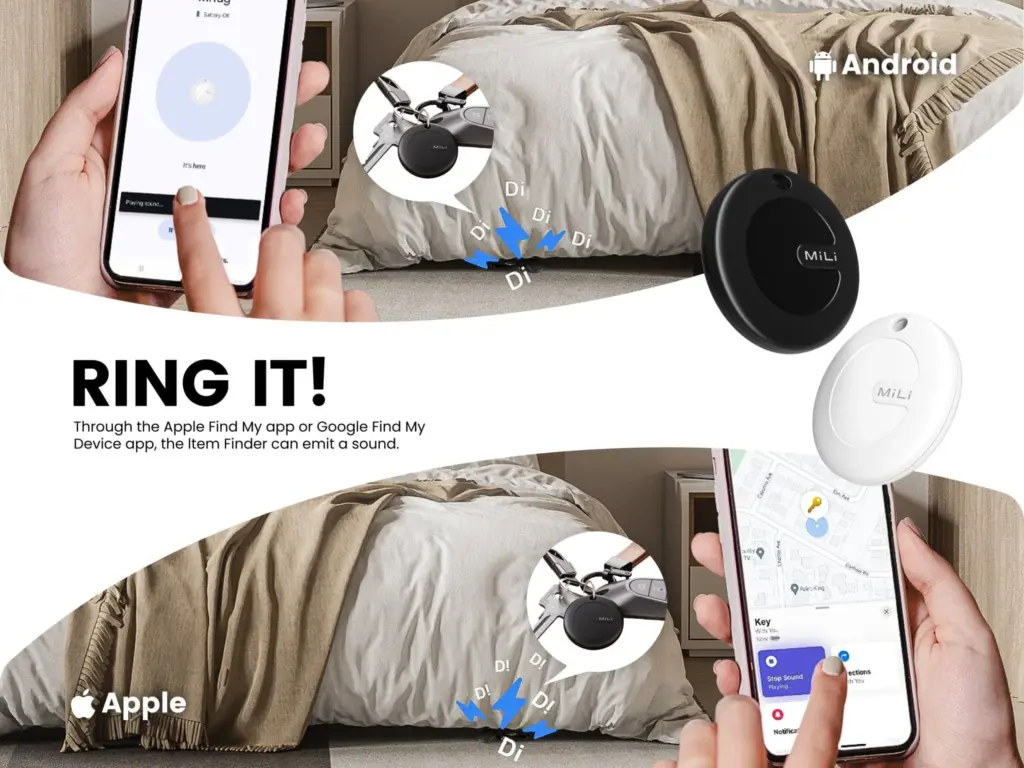
    Both Google and Apple have granted the tracker legal licenses, and it works flawlessly with Android and iPhone cellphones. It also supports sharing with other users and doesn’t require a partner app. You can track your possessions in real time with the MiTag Duo. When you ring it, you can hear it because it includes an integrated speaker. The CR2032 battery that powers the tracker should last for up to eight months before needing to be changed.

    mitag duo item finder ios or and 1

    The MiTag Duo is still available for pre-order even though it was only introduced in March, and shipping is set to start on May 19. The tracker has a price tag of $19.99 from MiLi, however the company’s web store claims that this is a discounted price because the original price was $39.29.

    61dFYi5qVL. AC SL1500

    MiLi MiTag bundle

    Within Bluetooth range (150 m/500ft), you can check the current location and easily find your item by activating sound via Google Find My app or voice commands. The tracking tag will ring loud enough to help you locate it.

    $52.99$47.99Amazon

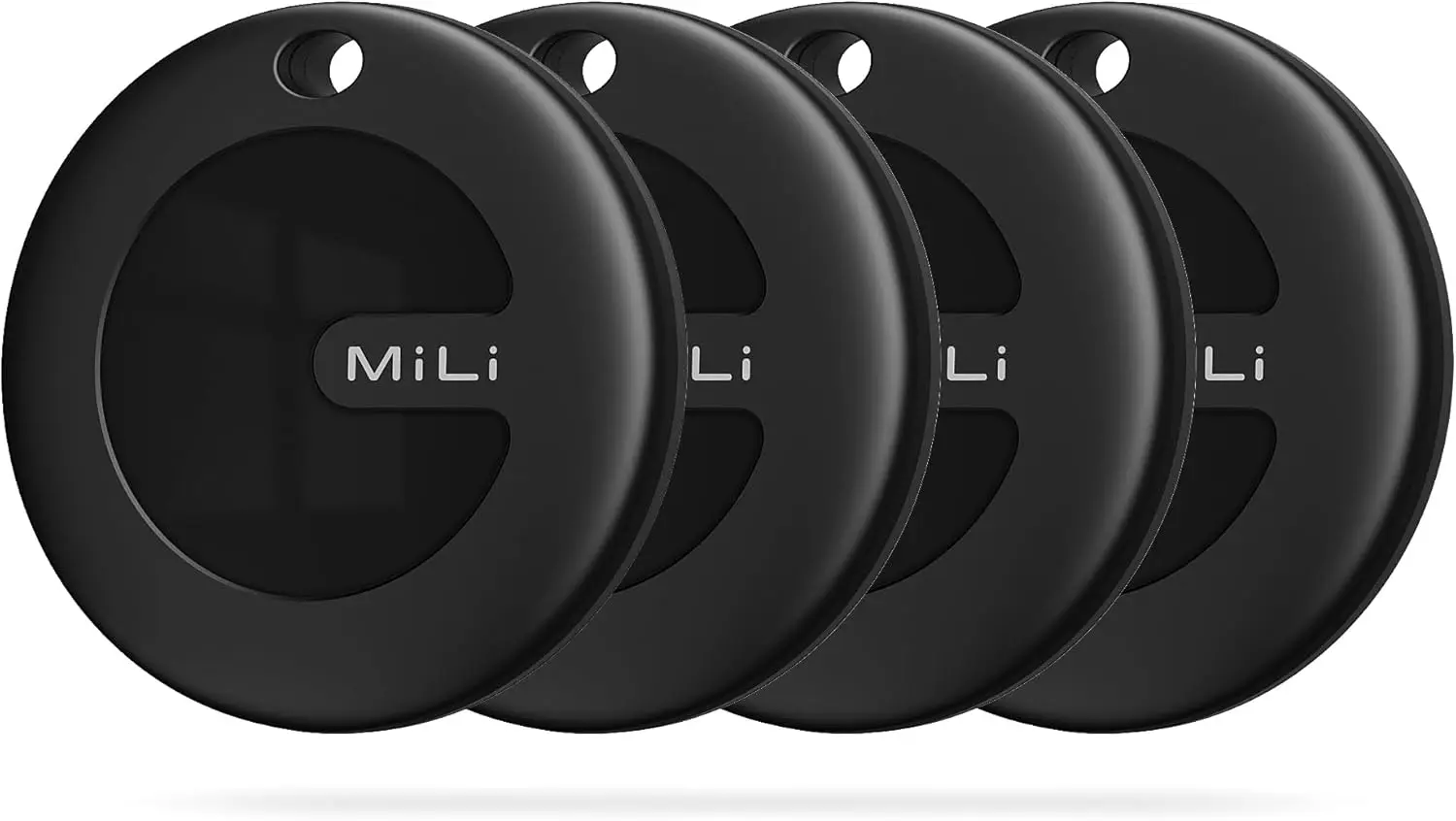
    Additionally, you can save additional money by buying in bulk. For example, a pack of two pieces costs $35.99 instead of $78.58, a pack of four units costs $47.99 instead of $157.16, and a box of eight costs $127.94 instead of $314.32. When compared to the Chipolo Pop, which costs $29 per unit, $89 for a pack of four trackers, and $121 for a box of six, the MiTag Duo is now less expensive.

  • One UI 8 #rumor – here’s when we may expect the next One UI upgrade

    One UI 8 #rumor – here’s when we may expect the next One UI upgrade

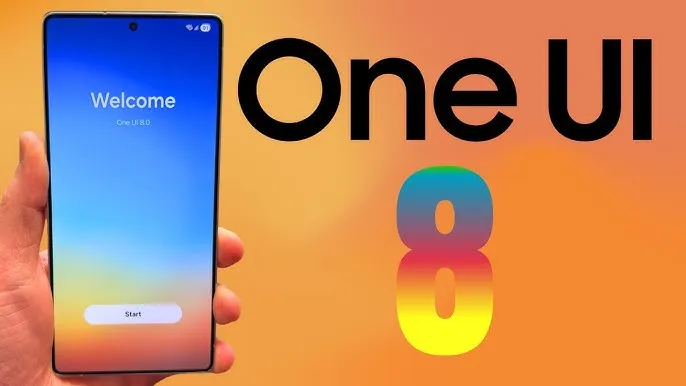
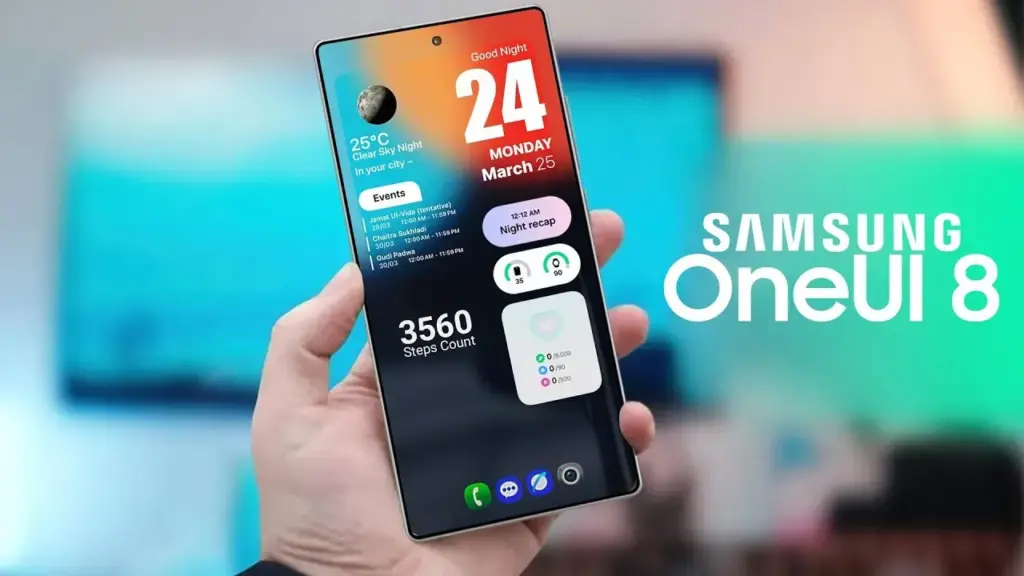
    Samsung’s One UI is a significant element of what distinguishes Galaxy phones and tablets. With One UI 7 finally available to consumers on April 7, 2025, attention has shifted to the next chapter: One UI 8. This future software upgrade, which is likely to be based on Android 16, should add some intriguing new features to Samsung devices.

    There is speculation that it will be released sooner than usual, altering Samsung’s standard software update release schedule. In this post, we’ll go over the release date, the beta testing program, which devices will receive One UI 8 based on Samsung’s update policy, and what this may mean for Galaxy customers.

    One UI 8 release

    Historically, Samsung’s big One UI releases have coincided with the annual Android upgrade cycle, arriving in the fourth quarter, around October or November, following Google’s stable Android release. For example, One UI 6 debuted on October 30, 2023, whereas One UI 7, which was severely delayed, launched on April 7, 2025. However, reports in the IT world claim that One UI 8 may break this pattern.

    One UI 8, which is based on Android 16, will be released in the summer of 2025. This update, confirmed by Google, represents a considerable increase in Samsung’s update cycle, with the goal of closely aligning with Google’s roadmap.

    One UI 8 beta program

    One UI 8 beta program

    Samsung’s One UI beta programs allowed fans to try out new features early on, and One UI 8 should continue to do so. Considering how things generally proceed and the predicted July 2025 release, the One UI 8 beta should begin in late May or early June 2025.

    The beta normally begins with Samsung’s top phones, such as the Galaxy S series, and then progresses to foldables and lower-cost devices. One UI 7 testing began on December 5, 2024, with the Galaxy S24, and was expanded to include the S23, Z Fold 6, Z Flip 6, and others by March 2025.

    If Samsung follows this step-by-step plan, the One UI 8 beta would most likely debut with the Galaxy S25, followed by foldables such as the Z Fold6 and Z Flip6. You’ll most likely join up through the Samsung Members app in countries such as the United States, United Kingdom, India, Germany, and South Korea, allowing users to test out new features before they become official.

    One UI 8 eligible devices

    While Samsung has not officially confirmed the One UI 8 device list, we can use its official software update policy to determine which devices are assured to receive the upgrade. Samsung now provides up to seven years of OS upgrades for select flagship handsets (beginning with the Galaxy S24 series), four years for others, and five years of security updates for numerous models. According to this policy and the confirmed One UI 7 rollout, the following devices are sure to be qualified for One UI 8:

    1. Galaxy S Series:
      • Galaxy S25 Edge, S25, S25+, S25 Ultra, Galaxy S24, S24+, S24 Ultra, S24 FE, Galaxy S23, S23+, S23 Ultra, S23 FE, Galaxy S22, S22+, S22 Ultra.
    2. Galaxy Z Series:
      • Galaxy Z Fold7, Z Flip7 (expected to launch with One UI 8), Galaxy Z Fold6, Z Flip6, Galaxy Z Fold5, Z Flip5, Galaxy Z Fold4, Z Flip4.
    3. Galaxy Tab Series:
      • Galaxy Tab S10+, Tab S10 Ultra, Galaxy Tab S9, S9+, S9 Ultra.
    One UI 8 update android 16

    Mid-range devices, such as the Galaxy A55 and A35, may also qualify for the four-year program. Older smartphones, like as the Galaxy S21 series, may miss out since their four-year support period may expire before One UI 8 is released.

    The Summer 2025 debut of One UI 8 suggests a significant change for Samsung, potentially providing a substantial update much sooner than fans think. If this happens on time, Galaxy owners may receive Android 16 features with the next round of foldable phones, demonstrating how Samsung can change things up and keep improving.

    While we wait for Samsung to make an official announcement, the prospect of a quicker One UI 8 release thrills Galaxy fans—could this be Samsung’s biggest software step yet?

  • Xiaomi and BBK to develop an Android and iOS alternative

    Xiaomi and BBK to develop an Android and iOS alternative

    The president is back in the White House after limiting Huawei’s access to American-made technology. This is most likely the reason why other top Chinese businesses have chosen to work together on a new operating system. I believe this is a positive step, even though it might only be a preventative measure and it might be some time before the efforts pay off.

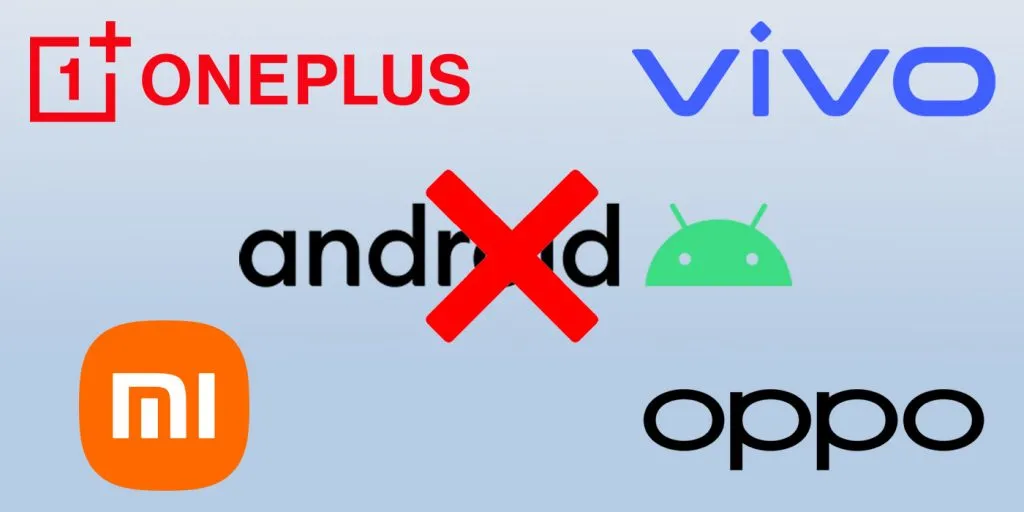
    Huawei is prepared to abandon Android entirely, six years after the US government first imposed limitations on the Chinese corporation. Huawei will now help OnePlus, Vivo, OPPO, and Xiaomi develop an Android substitute that doesn’t use Google. The market for smartphones needs this shock.

    huawei harmony os android alternative

    Smartphones aren’t as thrilling anymore. Each firm used to have a distinct advantage, but these days they all make phones with essentially the same design.

    Operating systems for smartphones have been copying one another for so long that they hardly distinguish one another. Apple’s iOS imitated Android features last year, and Samsung debuted a new One UI 7 version this year that draws inspiration from iOS.

    That isn’t always a terrible thing. For example, I’m happy to see Android get its own version of Dynamic Island as I use both iOS and Android phones.

    Additionally, I miss the days when smartphone makers were free to try new things and different devices didn’t all have the same user experience.

    Microsoft makes sporadic attempts to add some spice, but it never succeeds. Although Google’s Fuchsia OS offered some promise, it appears that smart gadgets would never be able to use this operating system.

    Xiaomi and OnePlus’s rumored operating system may make smartphones exciting again.

    Being self-sufficient is always beneficial.

    Every business is on its own as nationalism grows. Chinese businesses must become more independent than ever before because of the ongoing hostility between the US and China. Chinese businesses need to prepare their operating system in case they run afoul of the US government as a precaution.

    This has nothing to do with supporting a certain nation or business. Every business, including Samsung, should create its own operating system, in my opinion.

    As of right now, though, Android is the only option available to businesses looking to sell phones.

    When it comes to purchasing a smartphone, the options are already limited. The majority of consumers will no longer want to purchase phones from Xiaomi and BBK-owned OnePlus, Vivo, and OPPO if they are unable to access Android.

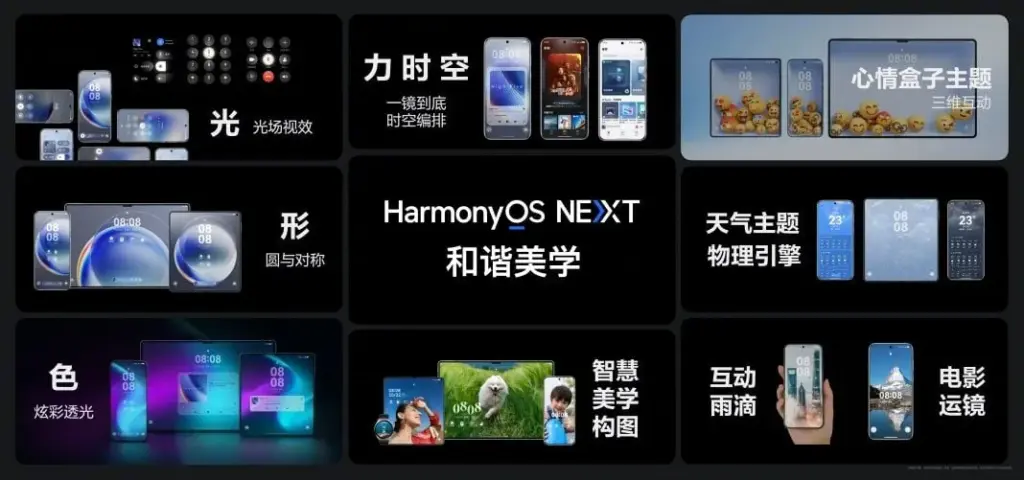
    This has already happened with Huawei. However, Huawei has made a resurgence in China as its HarmonyOS matures. The wise course of action is to begin developing a new operating system if Chinese Android manufacturers don’t want to be taken by surprise.

    No more Samsung and Apple monopoly

    Apple and Samsung stand to gain the most from any possible rift between the US government and Chinese smartphone manufacturers. Google stands to benefit greatly as well because, although producing some of the greatest phones available today, its market share is quite small.

    Xiaomi reportedly began developing an in-house microprocessor after learning about potential sanctions. Therefore, even if there hasn’t been any sign that the US wishes to restrict its access to Android, it is still possible.

    In the worst case scenario, Apple and Samsung will see exponential growth, potentially leading to a duopolistic market. For this reason, we are in greater need than ever of a third mobile ecosystem.

    This will not be a simple undertaking. For example, even after years of development and investment, Huawei’s operating system is still not a full substitute for iOS and Android. There are still not many well-known apps in the company’s app store.

    Xiaomi and BBK-owned companies risk alienating customers in international markets if they cease selling Android-powered phones. A redesigned Android skin with cutting-edge functionality and distinctive aesthetic improvements would be a smart place to start.

  • How to enable Auracast in Android 16 – audio sharing feature

    How to enable Auracast in Android 16 – audio sharing feature

    While there won’t be any significant UI changes in the impending Android 16 update for Pixel devices, it will finally provide a long-awaited feature: support for Auracast. Devices can initiate or listen to adjacent audio streams thanks to the Bluetooth LE Audio standard’s Auracast functionality, which is the marketing name for broadcast audio. Despite Google’s announcement that the latest Pixel smartphones will support Auracast in Android 16, if you install the beta, the capability is not yet available. Here’s how to turn on Auracast on an Android 16 beta-powered Pixel device.

    To put things in perspective, Google said in March that owners of Pixel 9 devices could receive Auracast broadcasts straight to their hearing aids. The Pixel 9 must be running the Android 16 beta and have LE Audio-compatible headphones in order to use this feature. Google emphasized the accessibility advantages of Auracast, although the capability works with any audio device that can receive LE Audio broadcasts, not only hearing aids.

    Auracast isn’t actually enabled in the current Android 16 Beta 4 version, even though Google previously stated that it will work on Pixel 9 devices running the Android 16 beta. The “Audio Sharing” page was missing from Settings after I factory reset my own Pixel 9 and updated it to this beta. I know how to make this settings page available, but I’m not sure why it’s hidden by default.

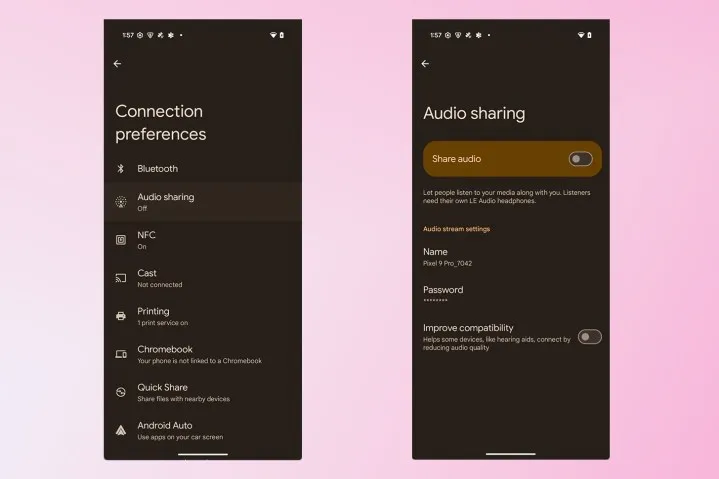
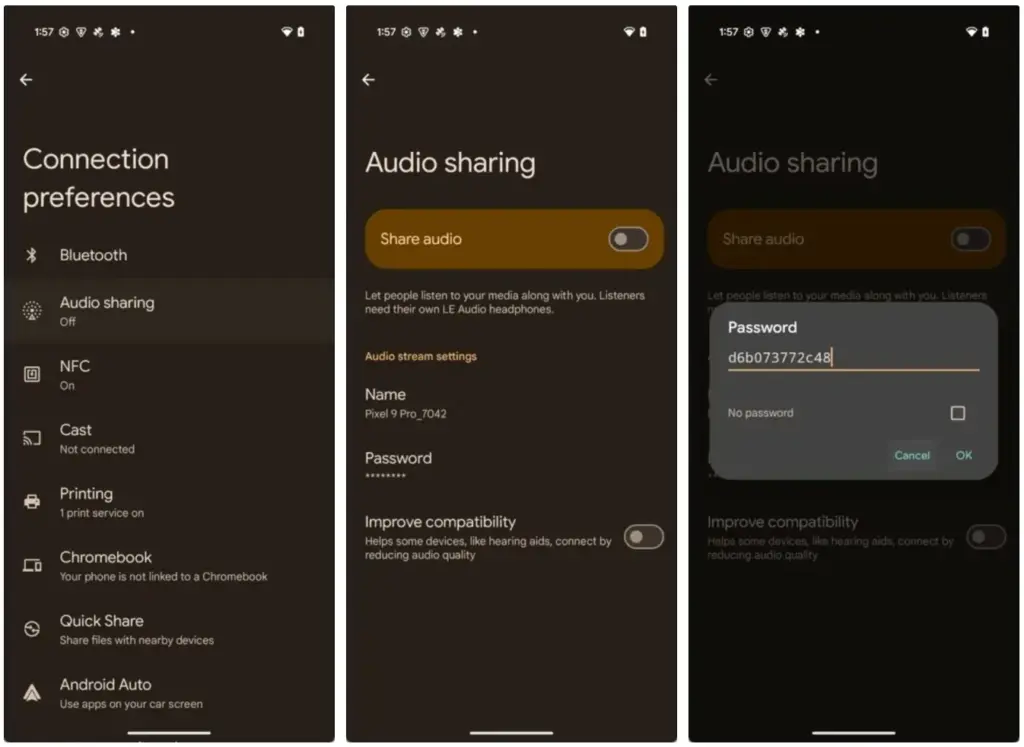
    To activate Audio Sharing on your Pixel device, you need to first enable Developer Options. Then, navigate to Settings > System > Developer options and scroll down until you find “Enable Bluetooth LE Audio Broadcast UI preview.” Toggle this setting on, and then reboot your phone. Once your phone boots back up, go to Settings > Connected devices > Connection preferences, where you’ll find the “Audio sharing” page.

    By connecting a headset that supports Auracast and turning on the “share audio” feature from this page or the Bluetooth panel, you can now begin an audio broadcast. You can set a password for your broadcast to keep undesirable listeners from joining. Tap the “find an audio stream” option to look for streams in your area if you would prefer to listen in on a broadcast.

    Auracast audio sharing

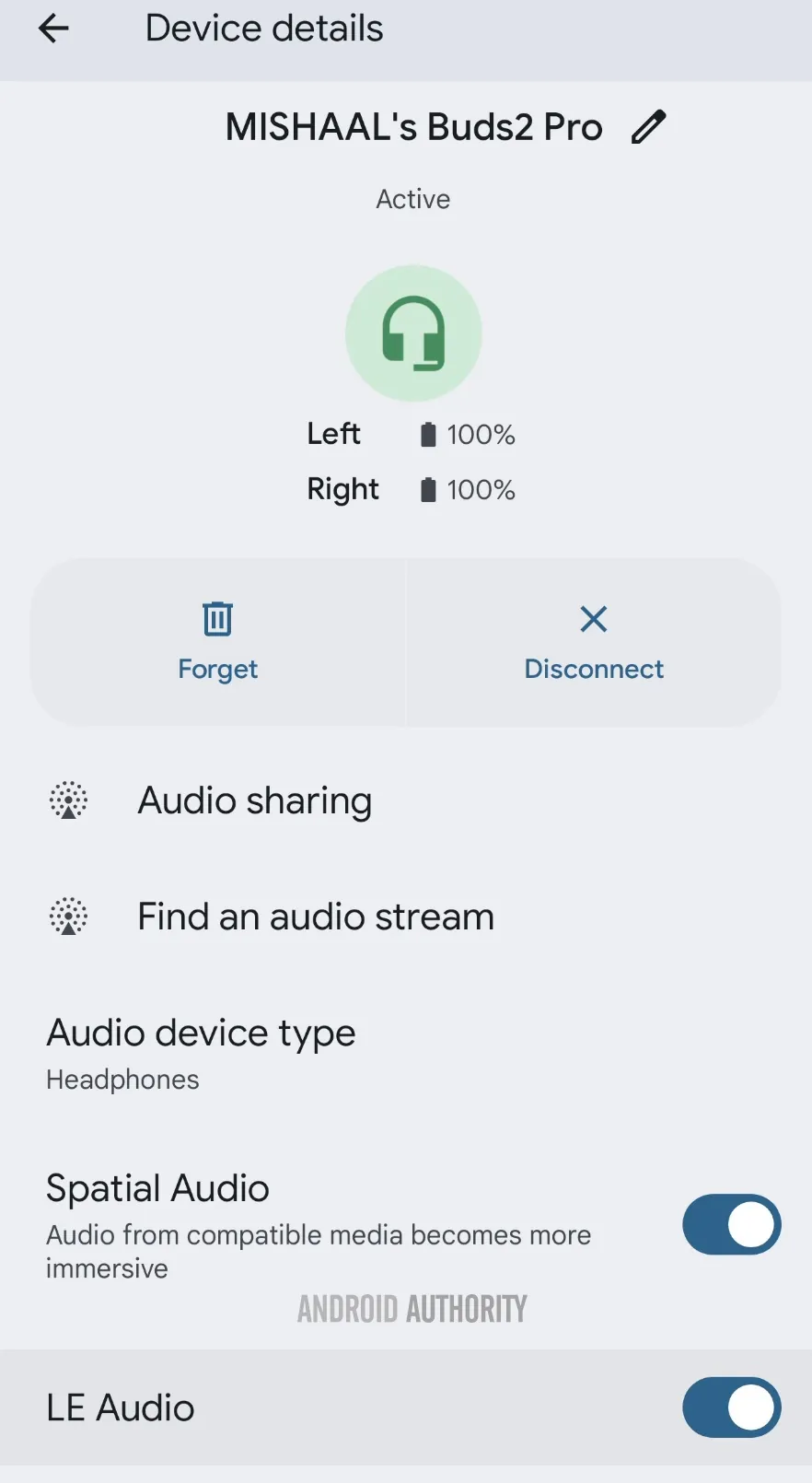
    Make sure Bluetooth LE Audio is turned on for that particular device if Android still prevents you from starting or listening to adjacent broadcasts even when you have an Auracast-capable audio device connected. You may need to manually activate LE Audio via the Bluetooth device details page for a lot of audio items. As an alternative, you can compel Android to automatically enable Bluetooth LE Audio for any compatible audio device by turning on the “bypass Bluetooth LE Audio Allowlist” toggle in Developer Options.

    Bluetooth device details page for LE Audio capable earbuds.jpg

    Finally, your Pixel device does not support Auracast if you do not see the “Enable Bluetooth LE Audio Broadcast UI preview” toggle in Developer Options. At the moment, the Pixel 8, Pixel 8 Pro, Pixel 9, Pixel 9 Pro, Pixel 9 Pro XL, and Pixel 9 Pro Fold are compatible with Auracast.

    This toggle won’t show up for devices like the Pixel 7 series, Pixel Tablet, Pixel Fold, Pixel 8a, and Pixel 9a, even though they theoretically support Bluetooth LE Audio. However, they don’t support Auracast. Since the Pixel 6 series does not support LE Audio, it does not meet the requirements to use Auracast and will not display the toggle.

    Remarkably, the most recent stable version of Android 15 for Pixel smartphones with Auracast support does have the “Enable Bluetooth LE Audio Broadcast UI preview” button. Accordingly, installing the Android 16 beta is not strictly required in order to utilize the Audio Sharing feature. You might anticipate that Audio Sharing would be enabled by default in the Android 16 beta, given Google’s announcement, but it might not be the case with the next stable release of Android 16. Google is anticipated to release the stable Android 16 version next month, so we’ll have to wait and see.

  • 6 useful connectivity features you should know

    6 useful connectivity features you should know

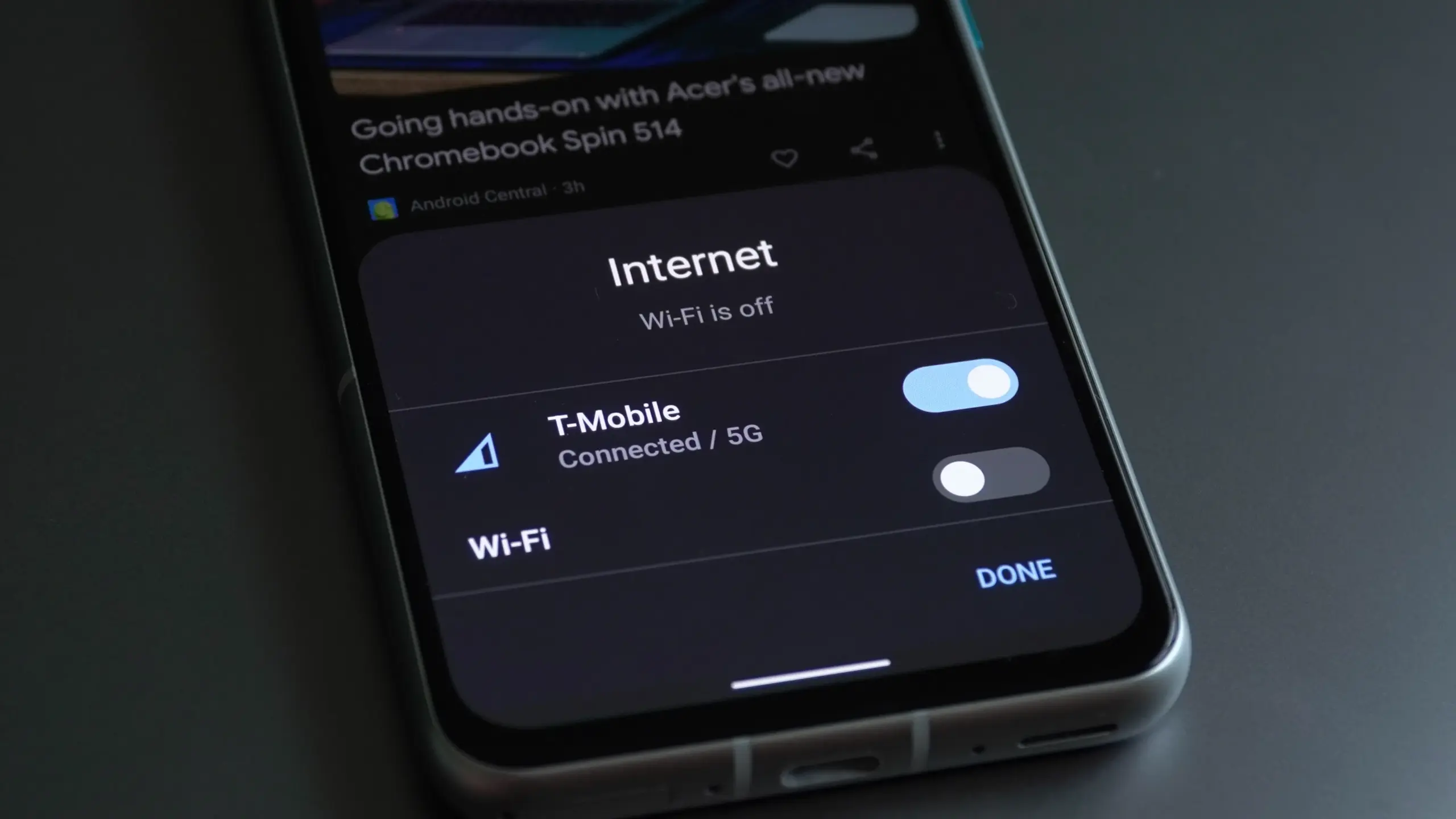
    Connectivity features enable communication between networks and devices. Numerous tools are available on Android, with Bluetooth, Wi-Fi, Near-Field Communication, and mobile hotspot being among the most widely used. There are very few users that do not utilize any of them in a given day.

    You might be using a wireless connection to watch videos or pair your wireless headphones with your phone. You may be surprised to learn that there are more features available to improve your experience. Let’s examine your device’s settings in more detail and get you using them immediately.

    Use QR code to share your internet connection

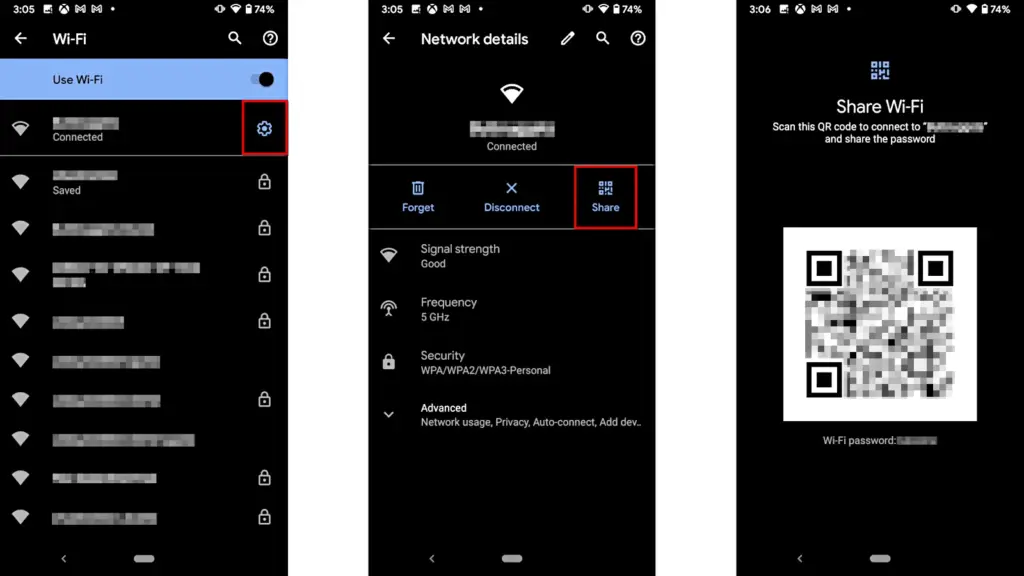
    It’s uncomfortable to pause what you’re doing, type or speak out your Wi-Fi or mobile hotspot password, and ensure sure no one else can see or hear it. Use a QR code if you want to share it more quickly. Here’s how:

    For wi-fi network

    • Go to Settings > Wi-Fi.
    • While your device is connected to a network, tap the information icon beside the network.
    • Tap Share. You may need to enter your security method to continue.
    • You should see a QR code. It’s a square filled with a black and white pattern.
    • From the device you’re sharing to, access the QR code tile from Quick Settings.
    • Scan the QR code to get access immediately.
    android share network password

    Mobile hotspot password

    1. Open Settings.
    2. Go to Network & internet or Connection & sharing.
    3. Tap Hotspot & tethering or Personal hotspot.
    4. Tap the toggle button to enable hotspot.
    5. Tap the tiny QR code icon beside the hotspot name. You should see the enlarged version after entering your security unlock method.
    6. On the other devicce, access the QR code tile from Quick Settings and scan it to gain access.

    Share files to iPhone wirelessly

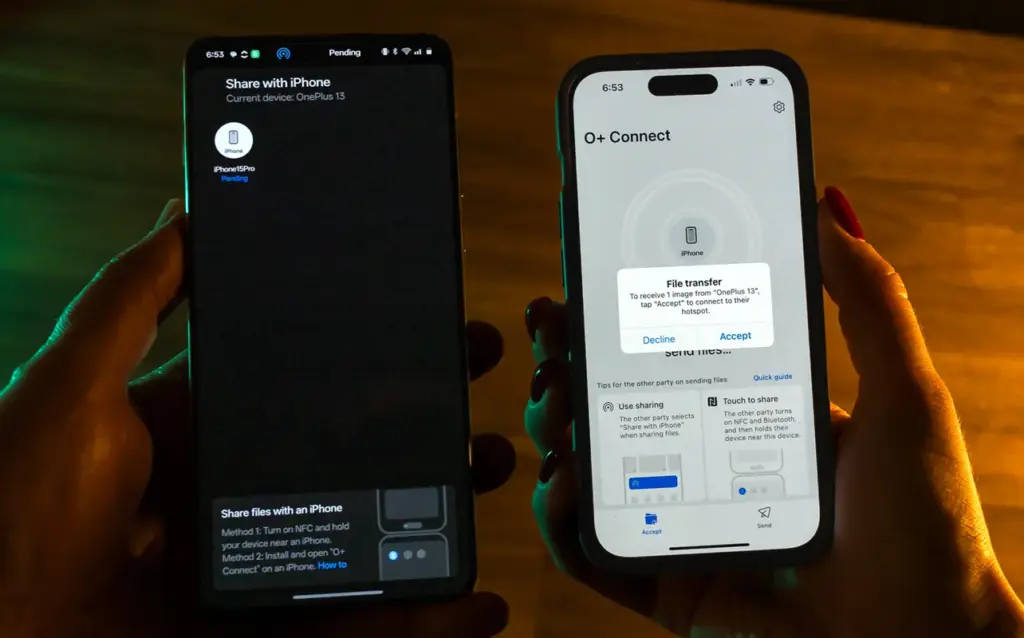
    It can be frustrating and difficult to move files and data between the iOS and Android environments. Due to Apple’s closed-off ecosystem design, cross-platform compatibility necessitates a significant amount of manual labor. Although it is incompatible with iPhones, Quick Share for Android is an alternative to Apple’s AirDrop. But on Android 15, OnePlus’ new Share with iPhone feature unites the worlds of Oppo, Realme, and OnePlus devices. Since the receiving device needs to download the O+ software in order to connect, the solution isn’t entirely native. Nevertheless, it’s quick and not too difficult. To utilize it, follow these steps:

    1. Open Settings.
    2. Go to Connection & sharing.
    3. Select Share with iPhone. Then tap the toggle button to turn on the feature.
    4. On the iPhone, install the O+ Connect app from the Apple App Store. Then open it and turn on Bluetooth.
    5. Select the files you want to send from either phone.
    6. You should see the detected devices while preparing to send them. Tap your preferred device.
    7. Accept the transfer request on the receiving device. The files should arrive in seconds, depending on the size.
    OnePlus 13 share with iPhone

    Use Wi-FI calling and texting

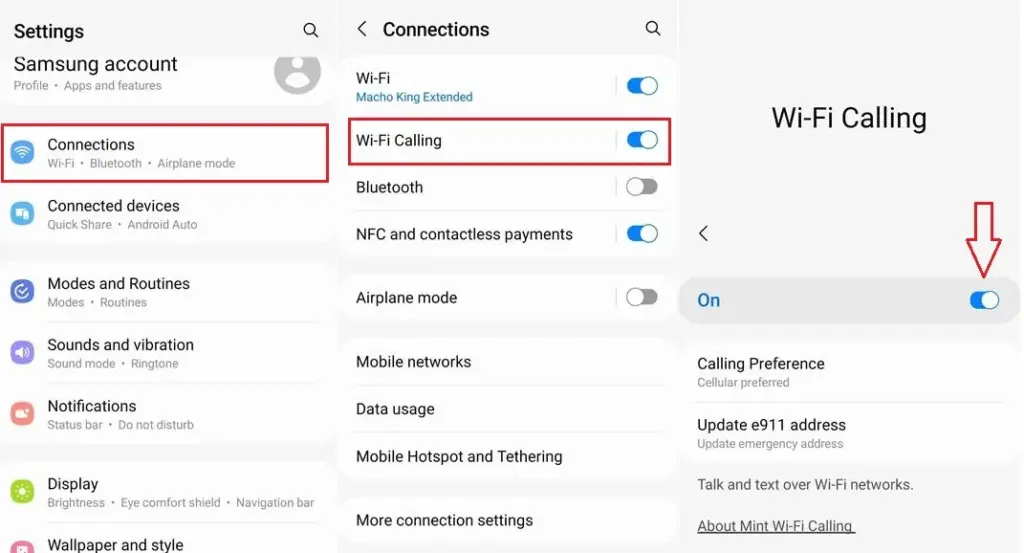
    Signals from routine phone calls and texts travel through cell towers before they are received by the recipient. Connecting with individuals will be difficult if you’re in a rural location far from a cell tower or in a building with high walls. Use Wi-Fi calling instead for better outcomes. Your phone uses Wi-Fi to send a message or make a call over the internet, avoiding the cell tower, as long as you have access to a Wi-Fi network. To utilize it, follow these steps:

    1. Ensure that Wi-Fi is turned on and you’re connected to a network.
    2. Open the Google Phone app.
    3. Tap the three-dot icon in the upper-right corner. Then select Settings.
    4. Tap Calls.
    5. Select Wi-Fi calling.
    6. Turn on the toggle button beside Use Wi-Fi calling.
    enable android wifi calling og

    Use your phone as a PC webcam

    The size of the camera sensor and lens is constrained by the tiny area in the top bezel of a laptop. PC cameras are typically blurry and uninteresting for proper video calls because of this. Thankfully, your phone has more space for wider apertures and larger sensors, which provide sharper images. With Android 14, you can now take advantage of that feature and use your smartphone as a camera. It was enhanced with Android 15’s high-quality mode. To enhance your virtual meetings using the functionality, take the following actions:

    1. Connect your PC and phone with a USB cable. You should see a notification on your phone recognizing the connection.
    2. Tap the notification and choose to use USB for Webcam.
    3. Tap the HQ button in the upper-right corner of the call screen to use High Quality mode.

    Activate Bluetooth automatically every day

    iOS has had automatic Bluetooth activation for many years. It is only temporarily disabled when you disable it from the Control Center. Unless you disable the option from the settings menu, it reactivates. Keep it on if you’re constantly connecting to Bluetooth speakers, earphones, or even your automobile, even though most people find it annoying. The automation setting was first available on Pixel phones running Android 15, and it might eventually be available on other devices. Here’s how to make it active:

    1. Open the Settings app.
    2. Go to Connected devices Connection preferences.
    3. Tap Bluetooth.
    4. Turn on the toggle button beside Bluetooth, then the button beside Automatically turn on tomorrow.

    After you deactivate Bluetooth, it can now turn on by itself the next day. It probably tries to avoid interfering with your short-term preferences and believes you need it during your regular activity hours. As long as you aren’t actively using the linked device, it will drain the battery a little but not significantly. When no music is playing on the speaker or earphones you’re wearing, the connection remains in a low-power mode.

    Android’s best-kept secrets

    Every phone brand on Android has special features that are just waiting to be found, making it a labyrinth of capabilities. What you see on a Samsung may not be the same on a OnePlus or Pixel, and it’s precisely this diversity that adds excitement to the ecosystem. Digging behind those layers will reveal more hidden gems in productivity, privacy, accessibility, and multitasking.

  • Android 16 brings long waited great features

    Android 16 brings long waited great features

    There are some new features to look forward to with each Android update. Some updates include more new features than others, of course, because not all upgrades are made equal. There are a lot of exciting (rumored) features in Android 16 that are making me eager for its impending release.

    Note that I used the word “rumored.” This is because, with each release, there are online speculations about what people “think” will be included in Google’s newest and greatest upgrade. You never know what will make the final cut, so you should be skeptical of this list.

    However, I tested the Android 16 beta and searched the internet for all the best features that might be released this summer with Android 16 (using reputable websites like Android Authority, Android Police, Engadget, Android Developers, Business Today, Android Headlines, GSMArena, Android Update Tracker, and numerous forums), and here they are.

    Desktop Windowing

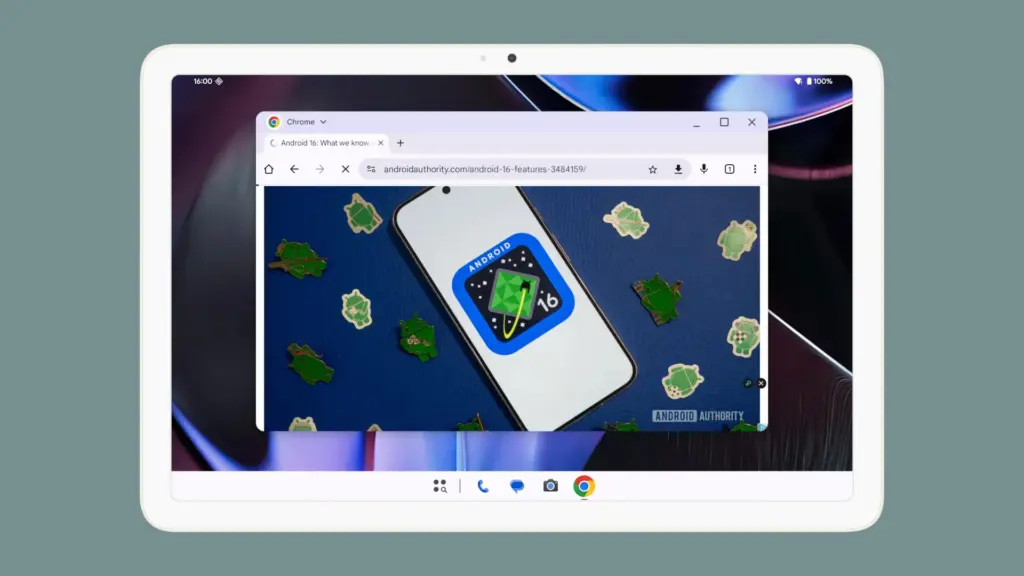
    When I see it, I’ll trust the rumors about this feature. The Samsung DeX, which enables users to connect an Android phone to an external display (through USB-C) and utilize a desktop-like interface that includes a top status bar, bottom taskbar, resizable, movable, snappable app windows, drag-and-drop support between apps, minimized windows, and physical keyboard and mouse support, will be mirrored by Desktop Windowing, which will bring desktop mode to Android phones.

    Desktop Windowing android 16 update

    App drawer blur

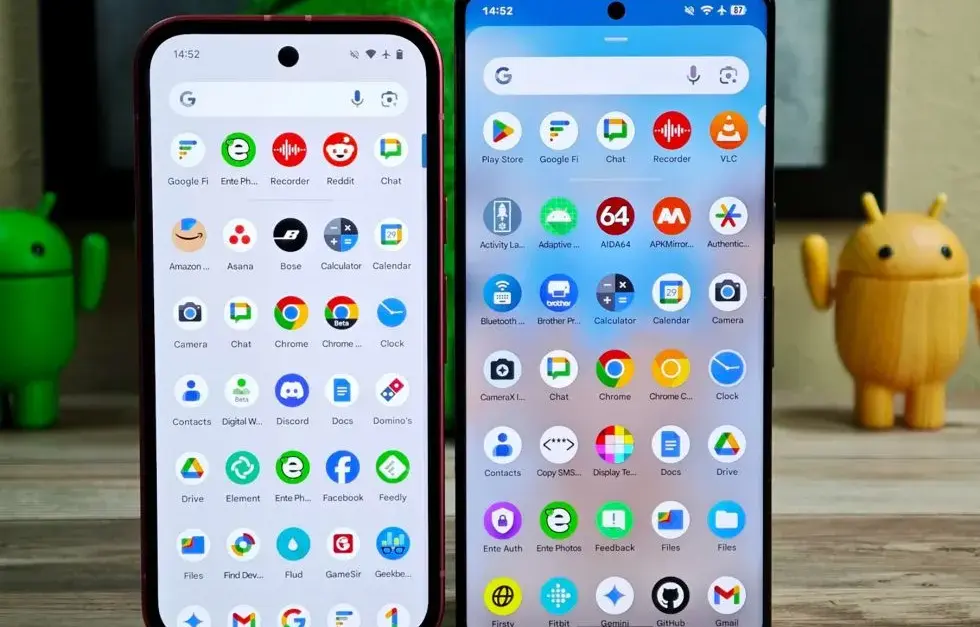
    Neither your phone’s performance nor your efficiency with it will improve as a result of this. But I’ve always found the Android app drawer to be rather dull. When you pull it down, the background is either black or white. While some home-screen launchers do let you change the appearance of the app drawer, the default home-screen launcher does not offer this feature. According to rumors, Android 16 will alter everything and give the app drawer a lovely backdrop blur.

    android 16 app drawer blur

    Although I acknowledge that not everyone believes that aesthetics are as significant as other factors, including performance and dependability, the iPhone’s UI aesthetics are one of the main factors contributing to its popularity. The Android user interface will be on a level playing field with iOS if Google implements a great app drawer blur.

    Live updates

    According to rumors, Android 16 will also provide a new class of real-time notifications that are intended to tell you of ongoing operations like food delivery, ridesharing updates, and navigation. These real-time updates will show up as dynamic “chips” in the status bar that show current data, like ridesharing arrival times or delivery ETAs.

    To keep you updated, a comprehensive notification pop-up displays beneath the status bar when you tap one of the live-update chips. Live updates are displayed above all other alerts (apart from the media player) under the Notification Shade.

    Auracast Broadcast audio support

    The inclusion of Auracast broadcast audio would be fantastic, so hopefully this rumor is accurate. Auracast broadcast audio is a Bluetooth LE Audio feature that enables devices such as earphones and hearing aids to receive direct audio broadcasts from TVs, public spaces, or announcement systems, in case you were unaware.

    screenshot 2024 11 20 at 6 37 57

    Anyone who uses LE Audio earbuds or hearing aids frequently finds oneself in awkward situations, such busy or noisy places where announcements are essential (like train stations, airports, or concerts). By pairing your earphones or hearing aids with Auracast Broadcast support, you can tune into the broadcast and hear everything much more clearly.

    Hybrid Auto Exposure in the camera

    If you love taking pictures, you’ll love this function. You’ll have more control over the camera’s exposure settings with the hybrid auto-exposure. You will have the option to manually change the ISO or exposure time (shutter speed) or rely on the auto-exposure algorithm, rather than relying solely on full manual or auto exposure.

    You will still have the simplicity and dependability of auto-exposure for everything else, but you will be able to adjust ISO to cut down on noise or select a precise shutter speed to get truly creative with your photos. Additionally, the Android 16 Camera app has enhanced support for high-quality image formats including HEIC and Ultra HDR, as well as accurate color-temperature and tint adjustments.

    APV Codec support

    Additionally, there are reports that Android 16 will support the APV codec. A professional-grade video format (created by Samsung) is included with the new native support for the Advanced Professional Video (APV) codec, enabling high-quality video recording, editing, and post-production.

    Frame tiling (to provide immersive content and parallel encoding/decoding for efficient processing), intra-frame-only coding (for simpler editing workflows and lower processing demands), high bit-rate support (2K, 4K, and 8K resolutions), and lossless video quality (nearly raw footage) are some of APV’s cool features.

    APV Codec support android 16 update

    Once more, Google has been promising this feature for a very long time, so I will believe it when I see it. If they were to ever implement this functionality, Android would become one of the most flexible operating systems available, which would be really awesome.

    Keep in mind that these are simply rumors, but I do think that most of the features mentioned above will be included in the final version of Android 16, which is also expected to be released in June 2025.

  • The new design for Android was just leaked by Google.

    The new design for Android was just leaked by Google.

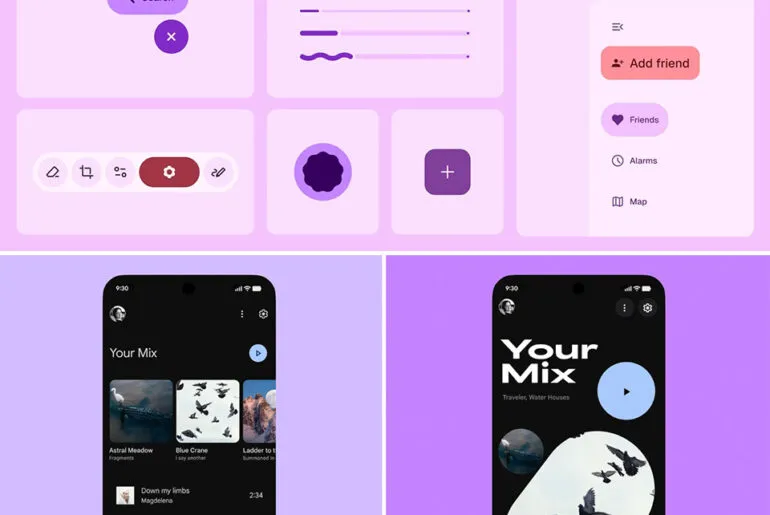
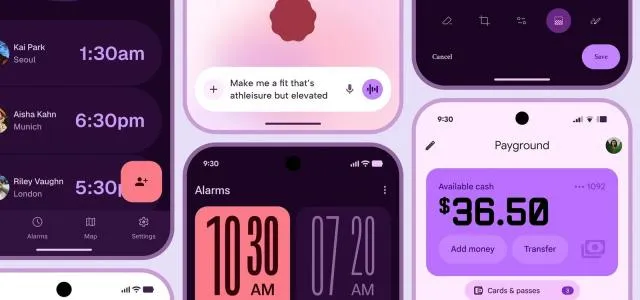
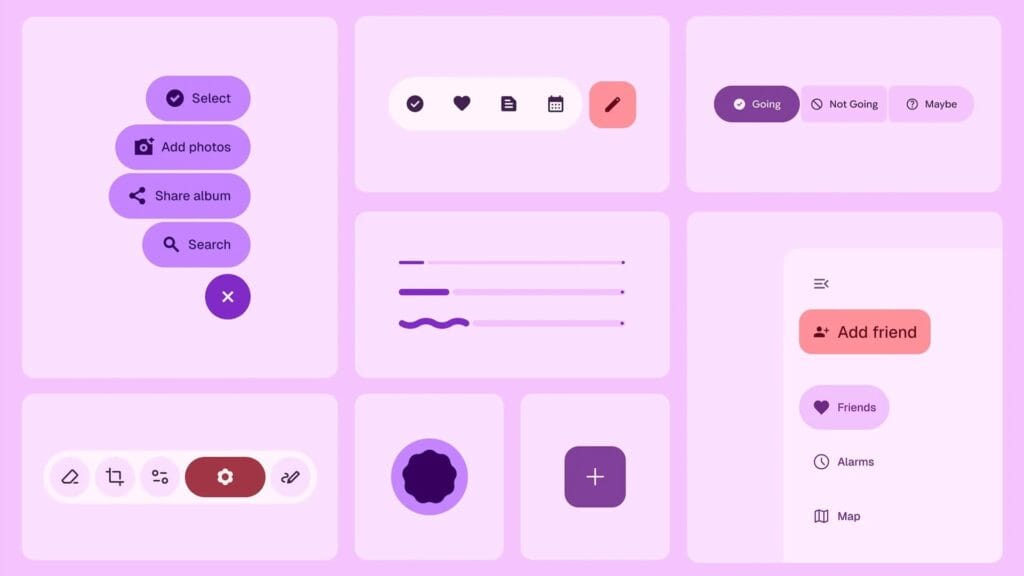
    Google recently unintentionally unveiled Material 3 Expressive, their upcoming major Android overhaul. The business calls the upgrade the “most researched” one to yet, aiming to make its UI more aesthetically pleasing and user-friendly, in a since-deleted blog post that 9to5Google saw.

    An archival copy of the removed webpage is available on the Wayback Machine and 9to5.Some of the photographs that Google did not save have been made public.

    6819c5d601787

    Google claims to have created Material 3 Expressive following 46 design and research iterations with more than 18,000 participants, as detailed in the post.The design makes a product “more useable” by utilizing color, shape, size, and motion. Later this month, it will also have a separate session at Google I/O.

    Google’s research included examining how participants responded to various looks, where they concentrated their attention within a design, and how quickly they grasped an interface. For example, “which progress indicator made the waiting time feel faster” and “how big a button may be for good gains in tap time without overwhelming other objects” were examined by the company as separate components.

    Material 3 Expressive 1

    When compared to the previous Material 3 design, Google claims that its Material 3 Expressive design made it up to four times faster for users to locate important items inside the interface. Material 3 Expressive “seems to level the playing field for users of all ages,” according to the report, since the design made it easier for individuals over 45 to recognize interface elements just as quickly as younger users.

    Reports over the last few days indicate that Google intends to implement improvements to Android’s user interface, such as updated fast settings menu, a new clock font, and revised status bar icons (such the battery icon). Changes to the Google Clock app have also been revealed by other leaks.

  • Temporarily free Android and iOS apps and games

    Temporarily free Android and iOS apps and games

    Do you want to get free, high-quality apps and games? You are lucky! Every week, developers offer time-limited, totally free promotions on some of their top-paid apps on the Google Play Store and Apple App Store. We have selected the most recent selection of temporarily free downloads for iOS and Android, regardless of your preference for action-packed games, creative tools, or productivity tools. These deals could end at any moment, so take advantage of them while they are still available!

    apps and games

    Android apps and games

    Apps

    • IPTV Smart Player Pro: You can currently save almost ten euros by installing this app. With this player you can bring your TV content from your cell phone to your TV.
    • Reminder Pro – Reminder: With this app, you can always keep an eye on your reminders. You can create new reminders in seconds and decide when you want to be reminded.
    • Equalizer & Bass Booster Pro: Do you want to tweak your music on your cell phone? Then try this app to get the most out of the sound and bass.
    • Countdown Widgets: Whether it’s a vacation, Christmas or the next party night – with this app you can always keep an eye on the next event as a countdown widget on your cell phone. After all, anticipation is the greatest joy.
    • Color wheel: Top tool for anyone who works with colors – regardless of whether you are a painter, graphic designer or just need to determine the colors of a photo from time to time.

    Games

    • Cytus 2: Rayark International Limited is known for offering exciting games with a focus on music. Cytus 2 is one of them and is currently free.
    • Cartoon Craft: Fancy a real-time strategy game with a cute cartoon look? Then install this little game here.
    • Water Color Sort – Premium: This game principle, in which you decant colors into different bottles, is terribly relaxing. It’s like the lava lamp of mobile games.
    • Mini Crossword: This game is for crossword fans who want to pass the time on their cell phone with this classic word puzzle game.
    • Crafterok – Lords of Survival: You want to fight for survival on a desert island, but you also want it to look colorful and cuddly? Here you go!

    iOS apps and games

    Apps

    • Scrollit 2X – Visual messenger: If you’re looking for a tool that lets you scroll text across the iPhone display in a nice big way, you’ll find it here.
    • Infinity List: There are many list apps. But if it is rated with 4.6 stars, it must be really good. So make sure you put this download on your to-do list!
    • Timer for Rehearsal: You’re giving your speech and want to keep an eye on the remaining time? No problem with this versatile timer.
    • iKnow Dogs 2 Pro: With this app you have virtually infinite dog knowledge on your iPhone. Handy if you’re looking for a four-legged addition to the family.
    • Inkwork: With this app, you can turn your photos into ink-look paintings and choose from over 90 styles.

    Games

    • Tiny Orchestra: This game is a fun way to teach your little ones about music. Put together your own little iPhone orchestra.
    • Block Dash Watch: In this game you have to avoid any collisions. The highlight: You can play the game on both the iPhone and the Apple Watch.
    • Aw Craps! This is a game where you can pass the time with classic casino games.
    • Bully – Anniversary Edition: With this game from the GTA makers at Rockstar Games, you can prove who’s top dog in the schoolyard.
    • Minesweeper: I can recommend this classic game to anyone who wants to play this game in the simplest possible guise.

    That concludes our compilation of the games and apps that are now free. Some specials only last a few hours, so make sure to download your favorites before they go away! To receive weekly updates on the newest freebies, bookmark this page or sign up for our email. Did you find anything amazing we missed? We will incorporate it into the upcoming version if you let us know in the comments.