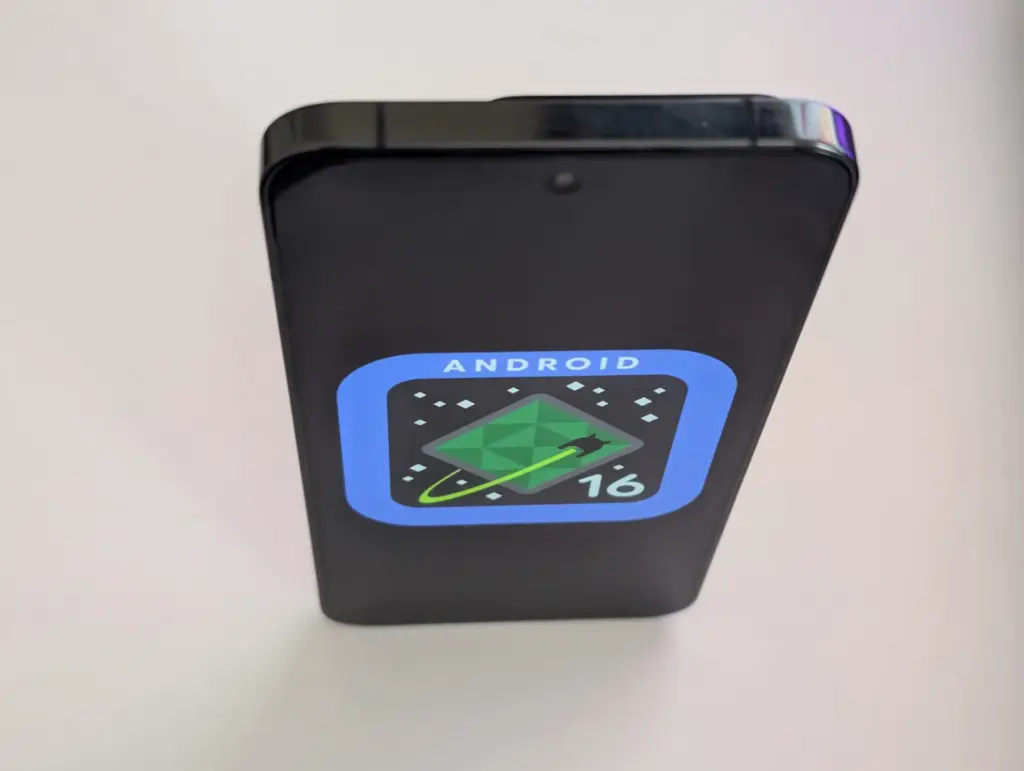
Xiaomi is still updating a variety of devices with the HyperOS 2.1 upgrade, which is based on Android 15. However, all eyes are now on HyperOS 3, which is based on Android 16, the upcoming major release. This one will come with enormous improvements in terms of performance, features, and design.
Xiaomi to roll out HyperOS 3 update based on Android 16
A recent article from XiaomiTime states that the release of HyperOS 3 is anticipated to be in July 2025. Although Xiaomi has not yet released an official announcement regarding the complete list of devices, the report offers us a good idea of which models should be updated. Xiaomi, Redmi, and POCO devices will be included in the upgrade, demonstrating the company’s dedication to providing long-term software support.
What to Expect in HyperOS 3
Improved multitasking, improved battery life optimization, more intelligent AI-based capabilities, and a redesigned user interface are just a few of the many new features that HyperOS 3 is said to offer. It is anticipated that a primary focus will be on improving device integration and performance, particularly with regard to tablets and foldables.
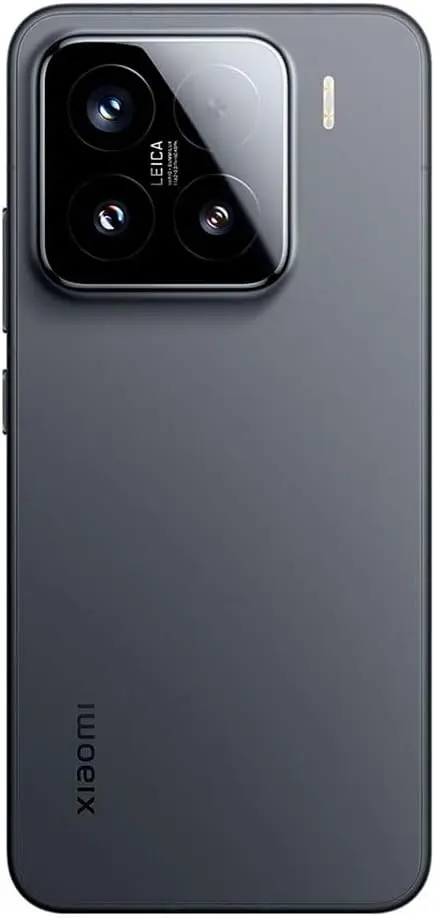
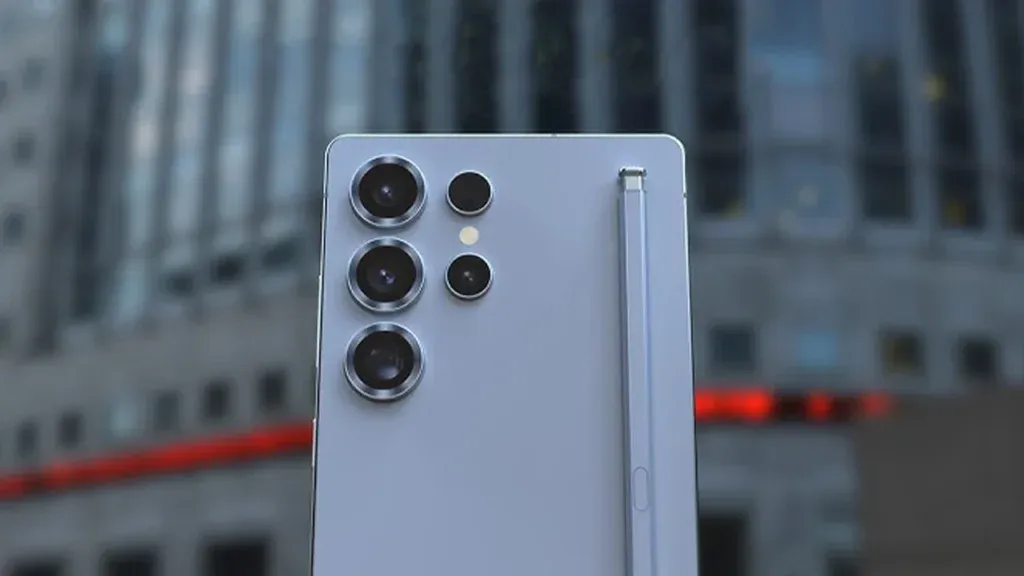
Xiaomi 15 5G
Snapdragon 8 Elite Mobile Platform3nm manufacturing processCPU2 x Prime Core, up to 4.32GHz6 x Performance Core, up to 3.53GHzGPUAdreno GPUAIQualcomm AI engine.
Leica Summilux optical lensLEICA VARIO-SUMMILUX 1:1.62-2.2/14-60 ASPHLeica main camera50MPLight Fusion 900 image sensor2.4μm 4-in-1 Super Pixelf/1.62OIS23mm equivalent focal lengthLeica 60mm floating telephoto50MPf/2.0OIS60mm equivalent focal lengthLeica ultra-wide camera50MPf/2.214mm equivalent focal length115°. 32MP FRONT CAMERA
Redmi Note 12, 13, and 14 series (4G, Turbo, and Pro models)
Redmi 12, 13, and 14 series (C and A models)
Redmi K50, K60, K70, and K80 series
Redmi Pad SE, Pad SE 8.7, Pad Pro, and Pad Pro 5G
POCO Devices:
POCO F5, F5 Pro, F6, F6 Pro, F7, F7 Pro, and F7 Ultra
POCO X6 5G, X6 Pro 5G, X7, X7 Pro, and X7 Pro Iron Man Edition special edition
POCO M6 (4G, 5G, and Pro versions), M7, and M7 Pro 5G
POCO C65, C75, and C75 5G
With a wider rollout, Xiaomi will gradually introduce the most recent Android experience across a diverse range of devices. It is likely that HyperOS 3 will improve on everything you do on a flagship, mid-range, or low-cost phone. Xiaomi is going to make the announcement, so keep a look out!
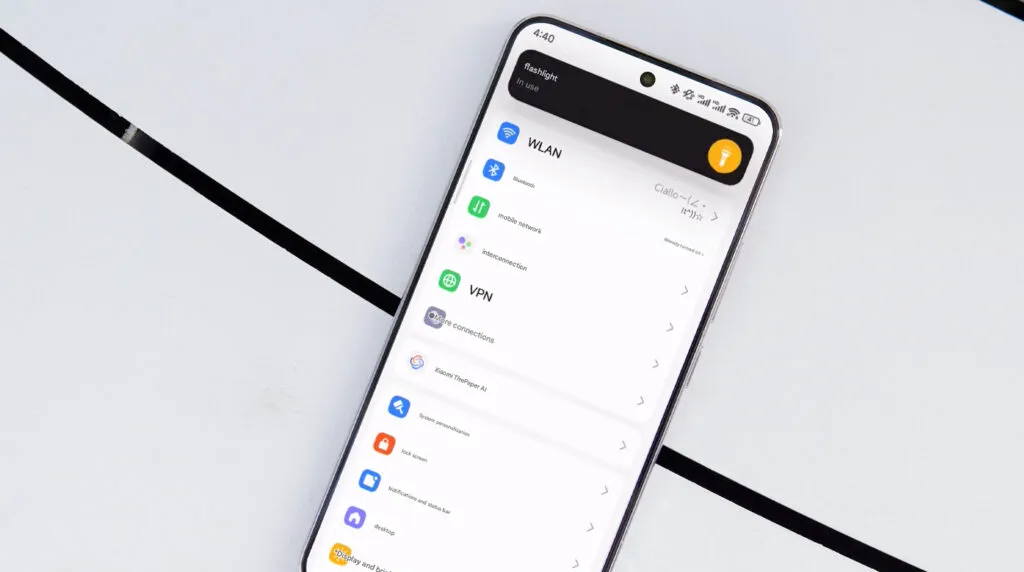
In October 2023, Xiaomi unveiled their new Android-based operating system, or Android skin as some of you could refer to it. It was the successor of MIUI and is called HyperOS. Sincerely, HyperOS ended up looking a lot like MIUI, and although it did provide some nice modifications, it also brought about some unfavorable ones. HyperOS is undoubtedly a highly powerful piece of software, but there is still a lot of space for improvement. Although Xiaomi’s HyperOS has a lot of promise, a few things must alter if it is to advance.
So far, I have been running HyperOS on several Xiaomi and Redmi devices. I have discovered a number of things that I would alter during my time with it. To be clear, you might not have an issue with some or all of these things. Nevertheless, I think HyperOS has a lot of promise and can reach that point with just a few smart actions from Xiaomi. Keep in mind that, as is typical with these kinds of pieces or editorials, personal opinion does come through. Views vary. So, let us examine HyperOS’ shortcomings, shall we? I will not do it in any specific order.
Home screen customization
There is a lot of flexibility available with HyperOS. Still, there is potential for improvement. I made the decision to pay close attention to the home screen. Why? Xiaomi can improve this in a number of ways that will help consumers. First and foremost, using icon packs from the Google Play Store would be great. Setting up icon packs is practically impossible since we are unable to use third-party launchers. Xiaomi has no reason not to implement this change in their stock launchers, as many other Android OEMs do.
Plus, it would be fantastic to give customers additional grid size options. There are very few options available presently. However, there is a problem with nearly all other Android OEMs. The home screen’s app dock row comes next. It would be great if we could eliminate it completely and have a single, consistent canvas on the home screen because some users choose not to use it at all.
Unblock third-party launchers
One of my main complaints with HyperOS is this. The only significant Android skin that totally prevents third-party launchers from working is this one. Although it is likely that you will have problems with gesture navigation, other OEMs let you set them. Actually, Google is to blame for this, as it restricts access to certain APIs for third-party developers. It has been a persistent problem. To change that, they even petitioned Google.
However, for some reason, Xiaomi chose to restrict third-party launchers entirely. Actually, it was not the case with MIUI in the past. In actuality, third-party launchers performed best on Xiaomi smartphones in terms of animations and other features. It was a significant shift when Xiaomi blocked them. Since many fans use Xiaomi phones, it should be possible to enable third-party launchers and let them function properly.
Toggles
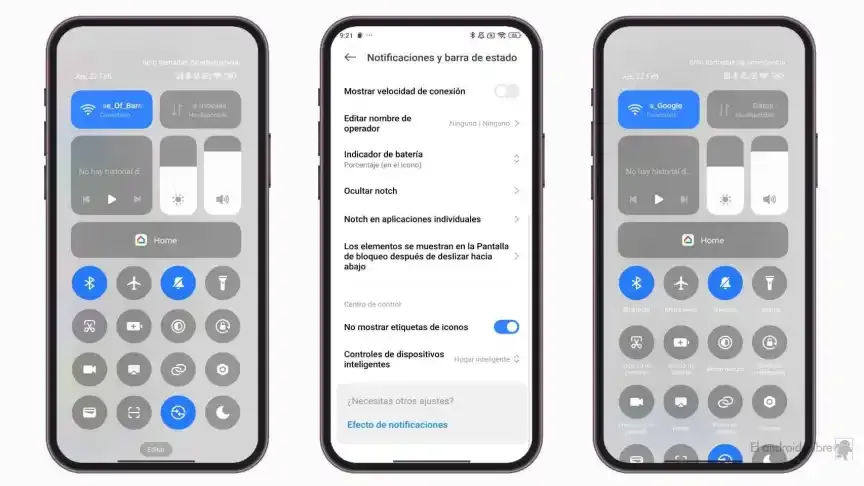
The Quick Toggles screen might be enhanced by Xiaomi as well. Although it makes us think of iOS, it is not an issue in this case. This Android skin lacks a dedicated Settings toggle, in contrast to the majority of others. Although there is a toggle, it is a component of every other toggle. Although you can move it around and position it wherever you choose, it is not independent and lacks sufficient intuitiveness. It would be convenient if it were distinct because many users are accustomed to opening Settings from there.
In addition, there are just two sizable toggles there, and regrettably, you are unable to alter that. The WiFi and mobile data toggles are the only sizable toggles you receive. For example, the Bluetooth toggle and the screen rotation toggle cannot be made huge. If Xiaomi made this possible and let users fully design the Quick Toggles interface, it would be great.
Push notifications
Unbelievably, HyperOS still has problems with push notifications. At least the way it is configured right out of the box. I have been experiencing problems with the majority of apps. By default, apps are set to “Battery Saver,” which is the suggested setting. You will not have these problems, though, if you unblock them from their limitations in the settings (each program independently). It will be possible for notifications to reach their destination on schedule.
The problem is that ordinary consumers will not be aware of that. They will not consider changing that function by going into the settings. Of course, that is problematic. Many of them will find it annoying because they will not be receiving notifications right away. As a result, they become irritated with the business—in this example, Xiaomi—and develop a bad opinion of their goods. To be honest, Xiaomi should make changing this a high priority. Push alerts need to function normally right out of the box.
The 10-second countdown
Another noticeable issue when it comes to HyperOS has to do with the timeout Xiaomi is placing on its consumers. Essentially, a warning pop-up will appear each time you attempt to modify a more complex setting, such as an accessibility setting. That is typical, is not it? Yes, it is; all OEMs carry it out. The 10-second countdown, however, is unusual. You cannot approve or reject anything on Xiaomi until ten seconds have elapsed. This is most likely in place to allow you sufficient time to read the warning.
You truly do not need to read it again after you have seen it for the first time. That countdown is incredibly annoying since you know exactly what you want to do. It makes sense if Xiaomi only did it once after you had configured your device. However, in HyperOS, you receive it each time a more complex configuration is altered.
Notifications
I wanted to draw attention to a few more notifications-related problems besides push notifications. For other people, lock screen notifications are an additional problem. They work similarly to what you get on iOS the way they are currently configured. It goes without saying that many individuals will find that offensive. What is wrong? You will notice your new notifications when you get to the lock screen. However, they will not be there the next time you get to the lock screen, even if you do not read or open them and then lock the device.
Yes, they will still remain in the notification shade, however this is a problem if you use your lock screen a lot. That is not what the great majority of other Android OEMs do. Similar to the notification shade, notifications will remain on your lock screen unless you choose to dismiss or open them. This distinction between the lock screen and notification shade is completely superfluous, and I sincerely hope Xiaomi will eliminate it soon.
Status bar icons
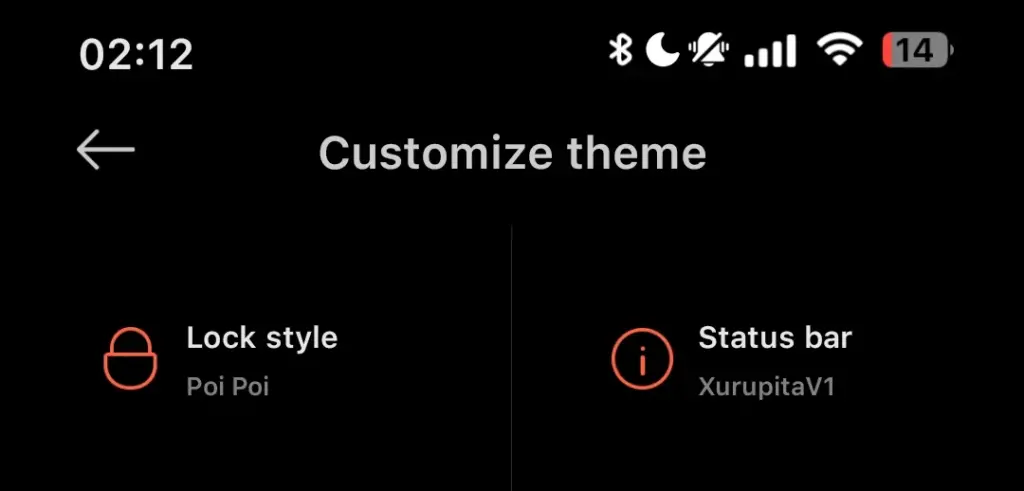
Xiaomi can also make the HyperOS status bar better. When it comes to it, there are a number of various irritations. Notification icons are the subject of the first one. Xiaomi restricts you to a single app notification icon in the upper-left area by default. However, you have the option to enable up to three app notification icons to show. Only the three most recent alerts from various applications will show up if you have more than three.
Almost all other Android OEMs permit as many app notification icons as they can fit on the screen. It does not restrict you in that manner, which is the proper approach. The fact that Xiaomi only allows one icon by default and that you are unable to enable more than three icons is not the only issue. Simply put, HyperOS introduced a totally needless modification that was not a problem on MIUI.
Additionally, if HyperOS allowed users to remove some of the status bar icons, that would be great. For instance, it is superfluous that the Bluetooth indicator is always up there. Many individuals always have Bluetooth turned on for their headphones, smart watches, or other accessories. That icon does not really need to be up there all the time if it is always on. If we could take it off and forget about it, that would be great.
Screenshots are quite useful. Most Android users save receipts, share humorous memes, and capture bugs to report on a daily basis. However, not all Android phones employ the same approach for taking screenshots.
In this guide, you will learn how to take a screenshot on any Android device, including Samsung, Google Pixel, Xiaomi, OnePlus, and others. We will also show you how to take screenshots without using physical buttons, which are sometimes damaged or inconvenient.
✅ Common Methods to Take a Screenshot on Android
📱 1. The Universal Button Combo: Power + Volume Down
This method works on 99% of Android devices:
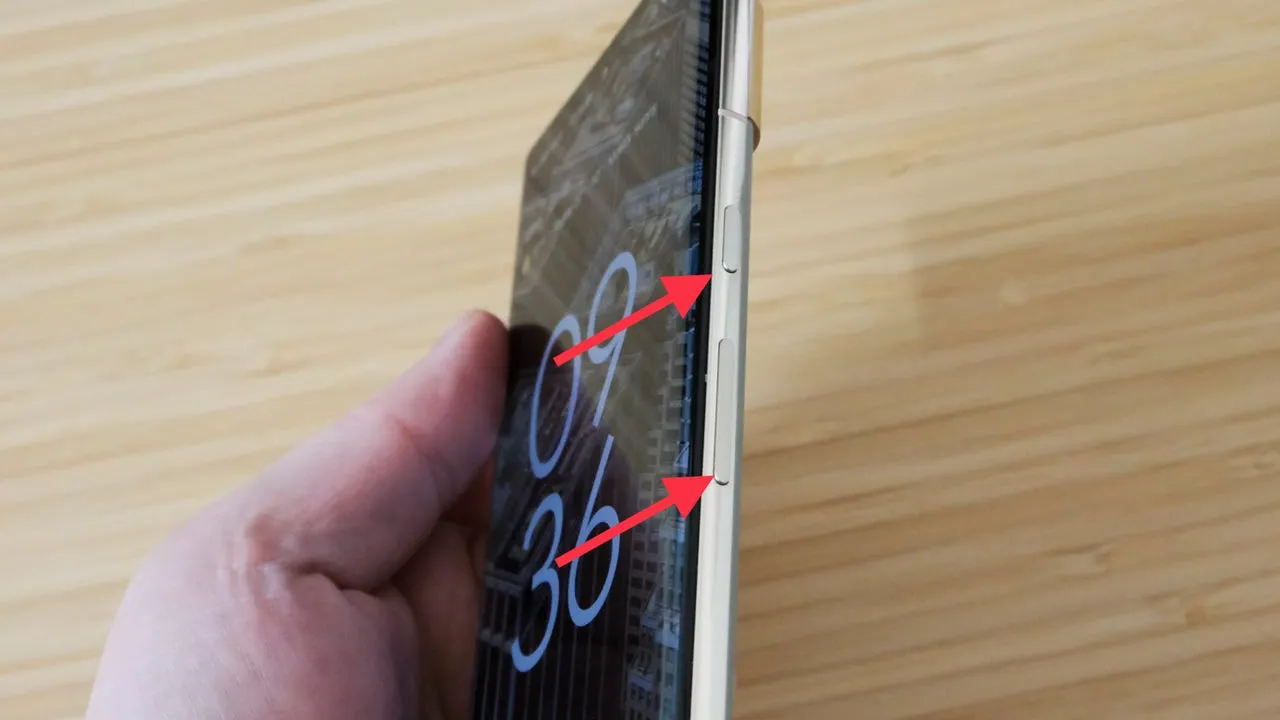
Press and hold the Power button and Volume Down at the same time
Hold for about 1 second until the screen flashes or you hear a shutter sound
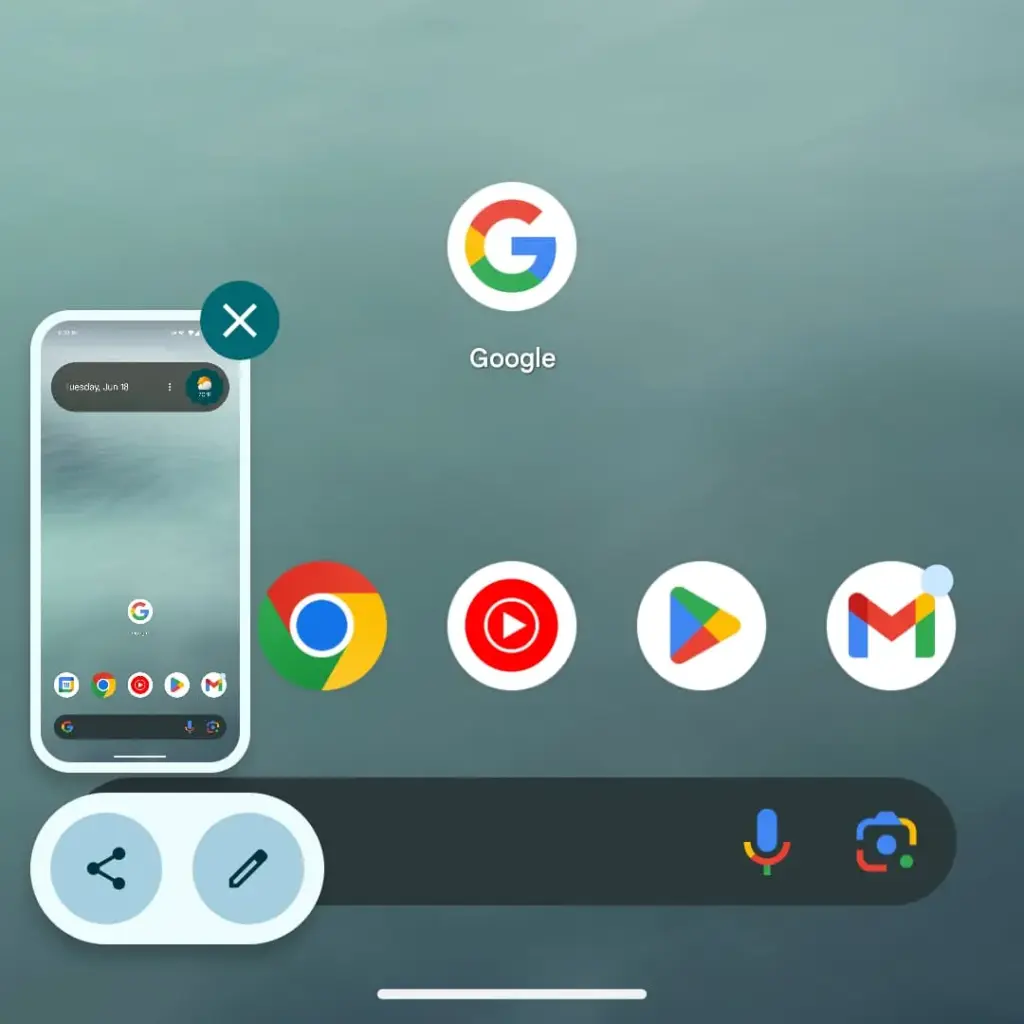
A preview of the screenshot will appear with options to Edit, Share, or Delete
📝 Works on: Samsung, Pixel, OnePlus, Xiaomi, Motorola, Realme, and most others.
📸 Recommended image here: A screenshot showing fingers pressing Power + Volume Down on a phone.
📲 Brand-Specific Methods (With Enhancements)
📱 Samsung Galaxy Devices
Samsung offers multiple screenshot options beyond the button combo:
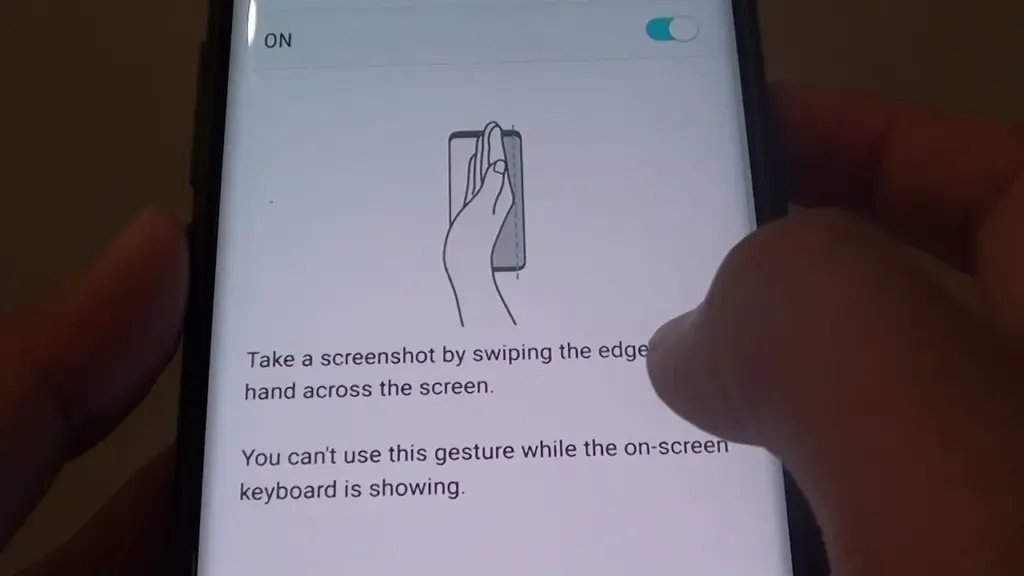
✋ Palm Swipe Gesture
Go to Settings > Advanced Features > Motions and Gestures
Toggle on Palm swipe to capture
Swipe your palm horizontally across the screen (left to right or vice versa)
✨ Smart Capture (Scroll Capture)
After taking a screenshot, tap the scroll icon in the preview to capture an entire page (e.g., a long webpage)
🧠 Tip: Scroll Capture is perfect for saving full chats, articles, or receipts.
📷 Google Pixel Devices
Google Pixel sticks to simplicity:
Power + Volume Down is the main method
On Android 13+, when you open the Recent Apps view, there’s a Screenshot button under each app window
🔒 Screenshots are disabled for secure apps like banking apps or Netflix (for DRM protection)
⚙️ Xiaomi, Redmi, and POCO (MIUI)
Xiaomi devices give you gesture and quick-access methods:
Power + Volume Down (standard)
Swipe three fingers downward on the screen for a quick snap
Use the Quick Ball feature:
Enable via Settings > Additional Settings > Quick Ball
Tap it, and choose Screenshot from the floating menu
🔴 OnePlus (OxygenOS)
Power + Volume Down
Three-finger swipe down also works (enable in Settings > Buttons & Gestures)
Long screenshot (scrolling) is available on preview pop-up
🧑💻 How to Take a Screenshot Without Buttons
If your power or volume buttons are broken, don’t worry—you can still capture the screen using these workarounds:
🧠 1. Use Google Assistant or Voice Command
Just say:
“Hey Google, take a screenshot.”
The Assistant will snap the screen and save it to your gallery.
🔒 Note: Google Assistant cannot take screenshots in some secure apps or during voice calls.
🧮 2. Enable On-Screen Screenshot Shortcut
Some phones let you add a screenshot shortcut to the navigation bar or status shade:
Samsung: Add “Screenshot” to the Edge Panel or Quick Settings
Xiaomi: Enable Quick Ball or Button Shortcuts
OnePlus: Add Screenshot to the Navigation gestures
♿ 3. Use Accessibility Menu (for all Android phones)
If you’re on Android 9 or later:
Go to Settings > Accessibility > Accessibility Menu
Enable it
You’ll see a little person icon at the bottom right
Tap it > Tap Screenshot
This is a great method for users with limited mobility or hardware button issues.
💡 4. Use Third-Party Apps (Optional)
If built-in methods don’t work for you, apps like:
Screenshot Easy
Screen Master
Assistive Touch for Android
…can provide floating buttons, auto scroll, and editing tools. But these aren’t always needed if your Android version is recent.
🖼️ Where Are Screenshots Saved?
After taking a screenshot, your phone automatically saves it in a specific folder based on the manufacturer, Android version, and any file management settings.
Here’s how to find them on most Android phones.
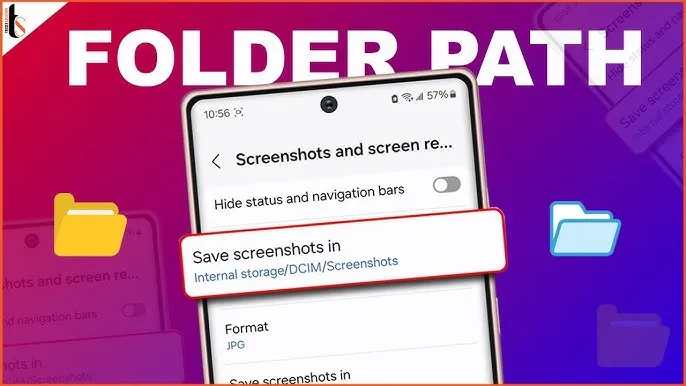
DCIM > Screenshots This is the most common location for screenshots. “DCIM” stands for Digital Camera Images, and it’s where the system stores photos taken with your camera and screenshots.
Pictures > Screenshots On some devices or third-party camera apps, screenshots go here instead of DCIM. This is especially true for older Android versions or modified versions like MIUI (Xiaomi) or ColorOS (OPPO/Realme).
🧭 To manually browse:
Navigate to DCIM > Screenshots or Pictures > Screenshots
Open your File Manager or My Files app
Tap Internal Storage
You can also find them in the Google Photos app under the “Screenshots” section.
✂️ How to Edit or Share a Screenshot Instantly
After taking a screenshot:
Tap the preview popup before it disappears
You can:
Crop or annotate the image
Share via WhatsApp, Gmail, social media
Delete if it was a mistake
Some phones even allow adding text, shapes, or blur effects directly in the screenshot editor.
🧼 Screenshot Tips & Tricks
✔️ Tip 1: Use Scroll Capture for Long Pages
Don’t take 5 screenshots for a single chat—use the scrolling option instead.
✔️ Tip 2: Organize Your Screenshots
Create folders like Receipts, Meme folder, Work notes in your file manager.
✔️ Tip 3: Don’t Rely on Screenshots for Sensitive Info
Avoid screenshotting 2FA codes, passwords, or anything too personal. Use a secure note app instead.
🔚 Wrapping Up
Taking a screenshot on Android is easier than ever, with different options based on your phone and preferences. Whether you like buttons, gestures, or voice commands, Android has a technique for you.
Now that you know how to screenshot on any Android phone, try each approach and discover which one works best for you. Also, remember to wipe up old screenshots every now and then – those memes add up quickly!
You are not dreaming if your Android phone used to be blazing fast but suddenly feels slow. Android devices naturally slow down over time for a number of reasons, the majority of which are entirely resolvable without the need for third-party apps or technical know-how.
Why Android is getting slower?
📦 1. App Cache Buildup
An application, such as Instagram, YouTube, or your web browser, saves small amounts of temporary data (called cache) each time you use it so that it loads more quickly the following time. Although useful when used sparingly, this cache accumulates over time, depleting storage and occasionally making the program (or even your phone) slow.
Example: Chrome can build up hundreds of MBs in cache after a few weeks of browsing. Clearing it can noticeably improve speed.
⚙️ 2. Background Processes Piling Up
Applications do not simply launch when you use them. Multiple apps keep running in the background, syncing data, giving notifications, and even tracking position. This depletes the battery and RAM (your phone’s memory), which can affect speed.
Tip: Social media and messaging apps are the biggest offenders. If you’ve got 10+ apps running in the background, expect a performance dip.
📲 3. Unused or Pre-installed Apps
Bloatware is the term for the numerous apps that are pre-installed on your phone and frequently continue to run in the background even if you have never used them. You end up with a cluttered, overloaded system when you include the apps you downloaded, used once, and then forgot about.
You don’t have to delete everything, but disabling or uninstalling apps you don’t use makes a big difference.
🔁 4. Software Updates and Feature Overload
Software updates can be bulky, yet they are necessary for security and new functionality. Updates for apps and newer Android versions are gradually tailored for more modern hardware. This implies that all of the new features and animations may be too much for your outdated device to handle.
Ever noticed how a major Android update seems to slow your phone a bit? That’s usually why.
🗄️ 5. Low Internal Storage
For Android to function properly, it requires a buffer of free space. Your phone may begin to crawl if it is overloaded with pictures, movies, downloads, and residual program data for background processing.
Rule of thumb: Keep at least 4 GB free at all times. If you’re below that, expect slowdowns.
✅ The Good News?
You don’t need root access, expensive cleaner apps, or a trip to the repair shop. Most speed issues can be solved in just a few minutes using built-in settings.
📍 In the next section, we’ll walk through the exact steps you can take right now to get your Android device running like new again.
✅ 1. Restart Your Phone
Why it matters: Restarting your phone clears temporary files, ends frozen background processes, and resets system performance. It’s like giving your phone a fresh breath of air.
What to do:
Hold the Power button until the menu appears
Select Restart (or Power Off, then turn it back on)
📌 Do this at least once a week — it can fix lag, crashes, and battery issues instantly.
🧹 2. Clear App Cache (Not Data!)
Apps store cache to improve loading times, but too much of it can cause lag, glitches, or even crashes.
Here’s how to clear cache:
Go to Settings > Apps
Tap on an app like Chrome, TikTok, or Instagram
Tap Storage & Cache
Tap Clear Cache
⚠️ Important: Don’t tap Clear Storage/Data unless you want to log out or reset the app.
🧠 Pro Tip: Clear cache for your most-used apps once every 2–3 weeks.
📦 3. Uninstall or Disable Unused Apps
Apps you never use can:
Take up precious storage
Run silently in the background
Slow down boot times
To remove them:
Long-press the app icon > tap Uninstall
OR go to Settings > Apps > [App Name] > Uninstall
If an app can’t be uninstalled:
Tap Disable — it won’t run or consume resources anymore.
🔇 Example: Carrier apps, pre-installed games, or assistant tools you never asked for.
🛠️ 4. Reduce Animations (Developer Options)
Android’s transitions and animations may look sleek — but they can delay actions on older or budget phones.
Here’s how to disable or reduce animations:
Go to Settings > About Phone
Tap Build Number 7 times to unlock Developer Options
Go back to Settings > System > Developer Options
Scroll down to:
Window Animation Scale
Transition Animation Scale
Animator Duration Scale
Change all three to 0.5x or Animation Off
📈 Expect a noticeable speed boost — especially on devices with less RAM.
🗃️ 5. Free Up Storage Space
Storage nearing full = a major performance killer. Your phone needs free space to install updates, load files, and run background tasks.
Quick ways to free up space:
Open Files by Google > Clean to remove junk, large files, and duplicates
Go to Gallery > Albums > Downloads and delete old files
Offload videos/photos to Google Photos or an SD card
💾 Aim to keep 15–20% of your total storage free (e.g. at least 4–6 GB on a 32 GB phone).
🔋 6. Disable Background Sync & Battery Hogs
Many apps sync data constantly — even when you’re not using them.
To limit background activity:
Go to Settings > Battery > App usage
Tap on heavy apps (Facebook, Gmail, etc.)
Restrict background use or set to “Battery Optimized”
For syncing:
Go to Settings > Accounts > Auto-sync Data
Turn it off for accounts you rarely use
💡 This saves RAM and battery life — a win-win.
🔄 7. Update Android & Your Apps
Updates contain bug fixes and performance improvements. If you’re behind, you could be missing important optimizations.
Update system:
Settings > System > System Update > Check for updates
Update apps:
Open Google Play Store
Tap your profile icon > Manage apps & device
Tap Update All
🔄 Do this monthly, especially if you notice app crashes or slowness.
🧩 8. Use Lite Versions of Apps
Heavy apps = more RAM, more battery, more lag.
Try these alternatives:
Facebook Lite instead of Facebook (saves over 500 MB!)
Messenger Lite instead of Messenger
YouTube Go (lighter on data and resources)
Twitter Web via browser instead of the app
You’ll free up space and speed up daily use.
🖼️ 9. Use Static Wallpapers
Live wallpapers constantly run behind the scenes, draining battery and processing power.
Change it:
Long press on the home screen > Wallpaper & Style
Choose a static image from your gallery or system wallpapers
🌓 Tip: Dark wallpapers also save battery on AMOLED/OLED screens.
🧠 10. Try a Lightweight Launcher
Your phone’s default launcher (like Samsung’s One UI or Xiaomi’s MIUI) can be bloated and animation-heavy.
Better options:
Nova Launcher (fast, customizable)
Niagara Launcher (minimalist & smooth)
Smart Launcher 6 (lightweight & sleek)
Switching to one of these can reduce memory use and simplify your experience.
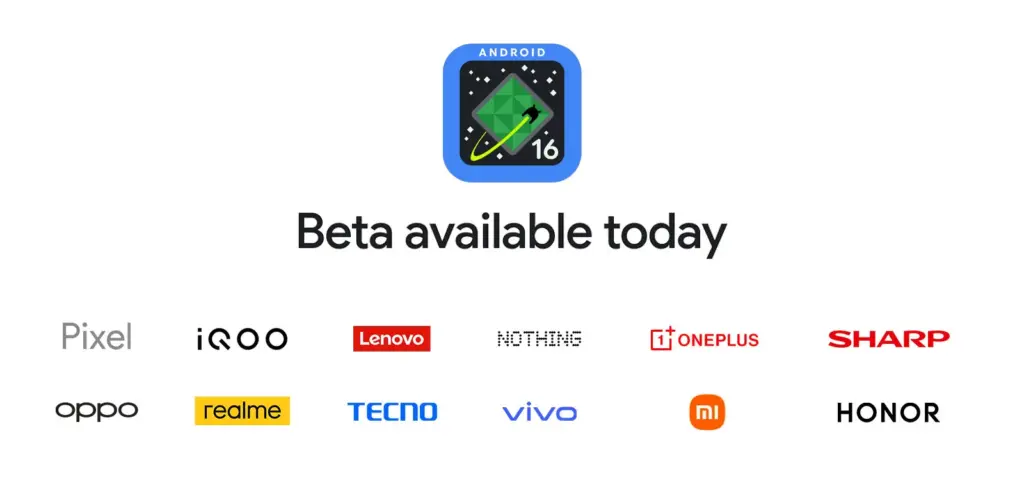
For developers and Android enthusiasts alike, Google’s release of Android 16 Beta 4 marks a significant milestone as it is the first release candidate build prior to a consumer launch. Along with Honor, iQOO, Lenovo, OnePlus, OPPO, Realme, and Vivo, Xiaomi is among the fortunate ones to have access to the current beta, which is currently available on a variety of devices from various partner vendors, including phones, tablets, and foldable phones.
It is interesting to note that on April 8, around ten days earlier, Xiaomi had released the same to its flagship Xiaomi 15 and 14T Pro phones. This shows how committed the firm is to providing early adoption of the newest Android innovations.
Significant changes in Android 16 Beta 4
Numerous bug fixes and performance enhancements that address issues found by both developers and users are included in the pre-release beta. In order to provide a seamless experience when Android 16 is formally released, Google has been working to increase stability.
Key fixes in this release are:
Resolved the map disappearance bug in the Pixel’s Weather app Resolved problems of haptic performance and late feedback
Resolved excessive power consumption that impacted some devices Resolves system restart problems during call answering
Fixed display magnification stability issues
Corrected screen saver activation problems Fixed phone restart issues that occur while using the ranging API
Several system stability and performance enhancements, such as launcher crashes fixes
Xiaomi amoung the first
Xiaomi’s dedication to provide users with cutting-edge software experiences is demonstrated by its early release of Android 16 Beta 4. Xiaomi has taken the lead among Android innovators by releasing the beta for the Xiaomi 15 and 14T ten days before the official Google release.
Early adoption by Xiaomi users offers them the following benefits:
Early availability of Android 16 enhancements and features
Additional time for users to give feedback and log issues
Chance to try the most stable pre-release version of Android 16
The release is the final scheduled update before the Android 16 Beta program’s public launch, which is currently in its final stages.
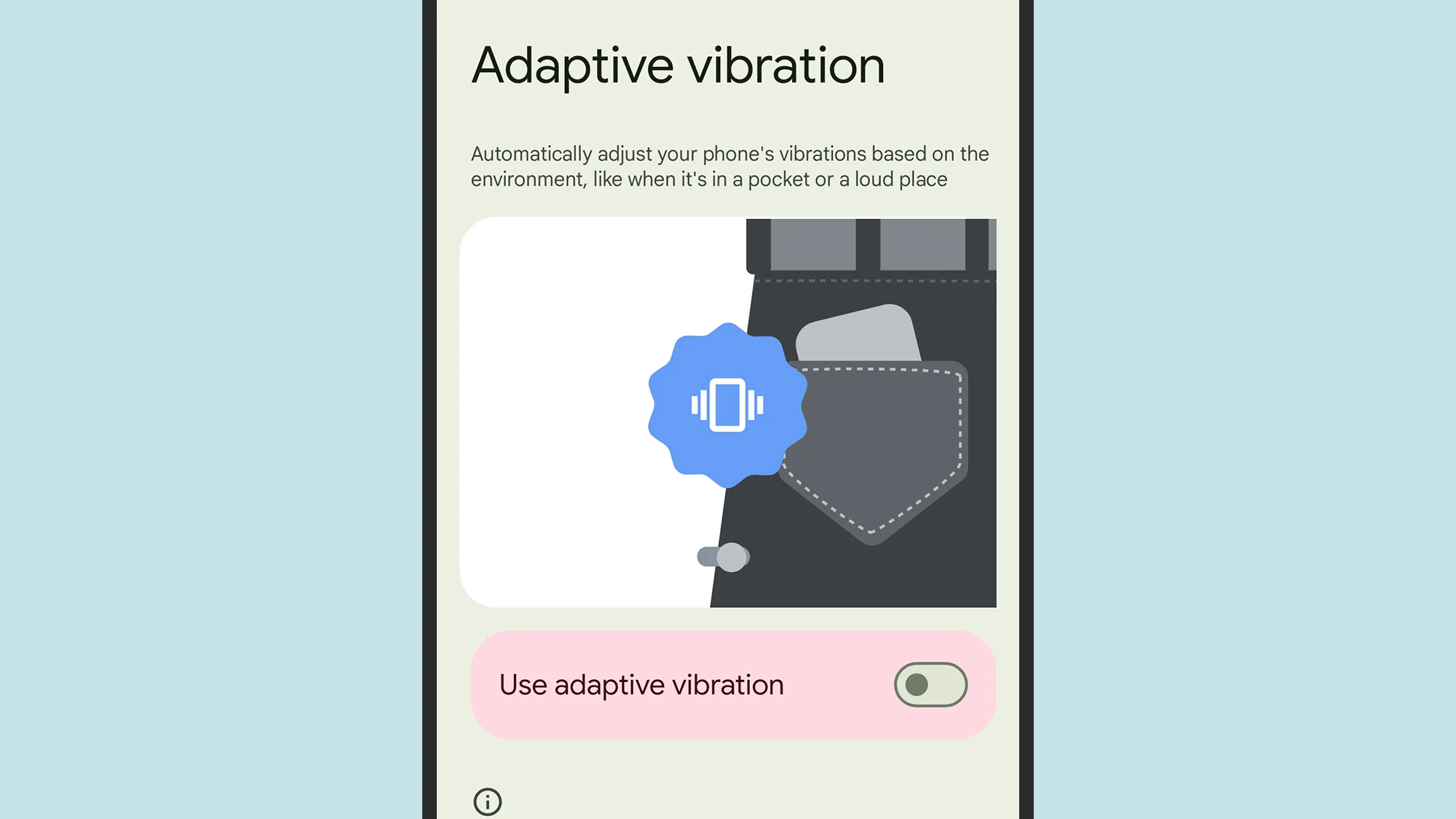
When your phone is vibrating, do you miss any calls or messages? It is easy, and you are not alone. Google has an answer. The most recent Android 15 version for Google Pixel smartphones has an Adaptive Vibration feature to help you avoid missing notifications. This function determines the degree of movement, location, and environment the device is in using the microphones and sensors on your phone. It modifies the vibration motor’s strength based on the contextual information.
You will notice when your phone buzzes thanks to Adaptive Vibration, even whether it is in your backpack, pocket, or lying away from you on your bed. It prevents loud vibrations when the gadget is put on a hard surface, such as a table. Adaptive Vibration takes only a few seconds to set up.
How to turn on Adaptive Vibration
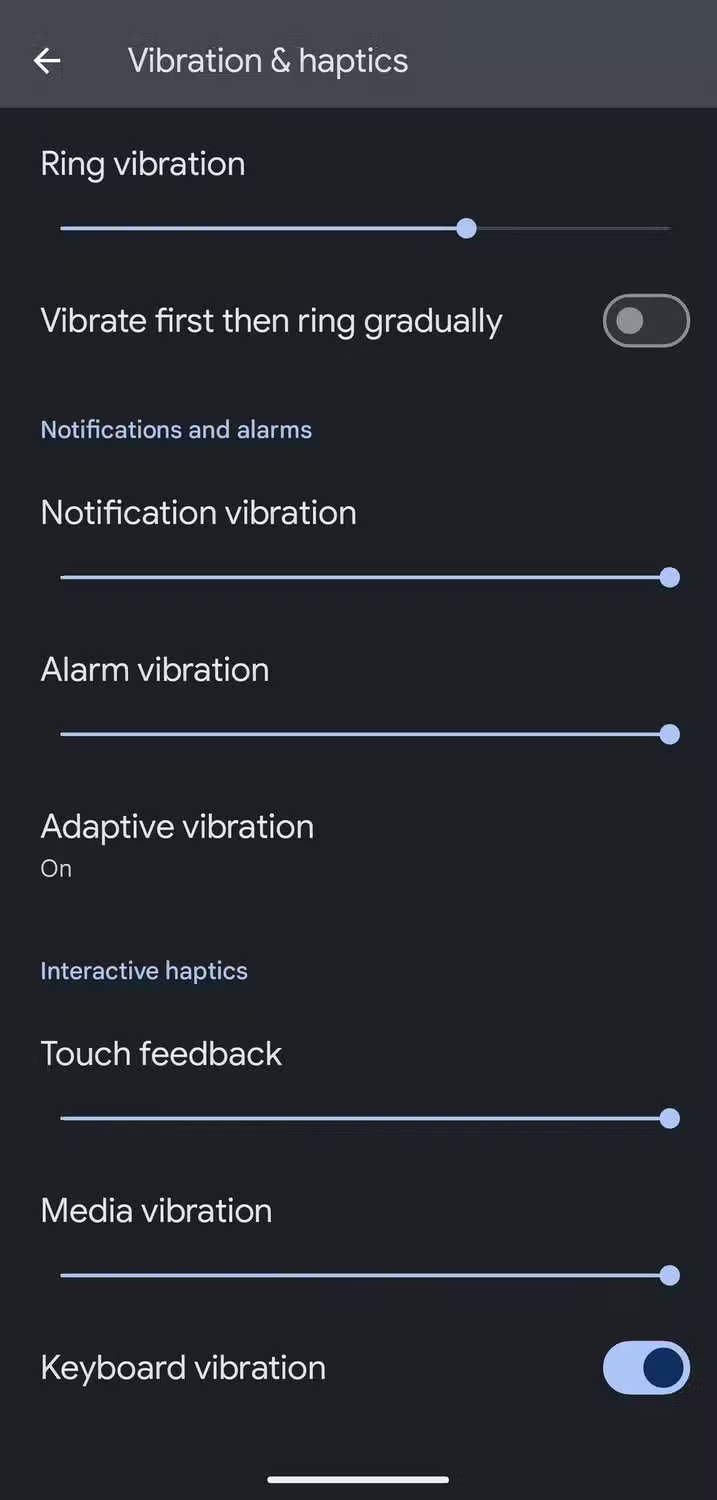
To enable Android 15’s Adaptive Vibration function, launch the Pixel Settings app, navigate to the Sound & Vibration section, scroll down, and select Vibration & Haptics. Then select Adaptive Vibration and tap the toggle to enable it.
When turned on, it begins operating on incoming notifications like as calls and messages. The haptics of the keyboard are unaffected. Adaptive Vibration is useful in a variety of contexts, particularly in noisy surroundings where incoming notifications are difficult to detect. It also works the opposite way around, dampening the vibration in quiet environments where it could cause a stir, such as when resting the handset on a table in a library or at a movie theater.
The feature is accessible on Google Pixel 7 phones and higher. You will need Android 15. If you have a compatible smartphone but can not discover the function, make sure it is up to date by accessing the device Settings, navigating to the System section, hitting Software Updates, and ensuring you are running Android 15.
Other vibration features do Google Pixel phones
Adaptive Vibration is the most recent vibration feature, however it is not the only one worth knowing about. For example, you can select several vibrating ringtones. Open the device’s Settings app, navigate to the Sound & Vibration section, and select an audible ringtone from the Phone Ringtone menu. When you flip between them, the vibration pattern adjusts to match the sound.
The Vibration & Haptics option allows you to customize the strength of the vibration for each sort of alert, such as calls, notifications, and alarms. For phone calls, you can begin with a vibration before gradually turning on the out loud ring. On the same page, you may change the amount of haptic feedback you get when you touch the screen or keyboard, as well as when media plays.
Another interesting way Pixel phones employ vibration is in the Weather app. If it is raining, the vibration motor simulates the sense of raindrops on the phone when you start the app, accompanied with an animation of rain falling. It is not the most useful feature, but it is a pleasant addition.
So far, this month has been somewhat turbulent for the tech sector. In addition to a standard 10% tariff on all nations, US President Donald Trump placed sweeping tariffs on the majority of significant production hubs. Samsung may have to drastically increase the cost of its Galaxy phones and other items in the US as a result of this.
With his announcement of tariff exclusions for important consumer electronics products including laptops, smartphones, memory products, and more, the president seems to have changed his mind before the weekend.
For the moment, Samsung is not compelled to increase pricing.
Samsung phones are manufactured in Vietnam and shipped to the US. Samsung would have to pay a 46% surcharge over the import value when it brought such phones into the US because the nation was slammed with a 46% tax.
Samsung’s alternative was to ship phones to the US via its manufacturing plants in India. Despite being high, India’s 26% tariff rate was still much lower than Vietnam’s. In any case, Samsung would have to lower its profit margins or increase consumer prices.
In talks with the administration, a number of significant tech companies have pointed out that if the tariff structure remained the same, consumer electronics prices would increase to unaffordable levels.
Given that the US is its largest market and that 90% of all iPhones are made in China, which has the highest tariff rate at 145%, Apple was most likely the driving force behind this. According to some estimations, this might have caused the iPhone 16 Pro Max’s price to go from $1,199 to $2,937.
As long as the government does not alter the tariff system again, Samsung and other companies can continue operating as usual because smartphones, computers, memory chips, and other storage products are now exempt from the 10% global baseline tariff.
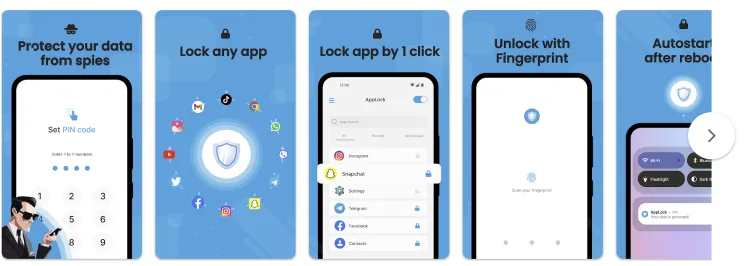
Want to lock apps without downloading extra software? Learn how to use built-in tools on Samsung, Xiaomi, OnePlus, and other Android phones to secure your apps with passwords or biometrics – no third-party apps required.
Why Lock Apps on Android?
Your smartphone contains plenty of personal information, including images, bank accounts, social network profiles, and private messages. Locking specific apps provides an additional layer of security, particularly when sharing your device or preventing unintentional snooping.
Most people jump straight to third-party app lockers. But these:
May ask for invasive permissions
Show ads or collect data
Drain battery and storage
That’s why using built-in features is often the smarter, safer move.
Samsung Devices (One UI) – Use Secure Folder
Samsung includes a powerful privacy tool called Secure Folder, protected by Samsung Knox.
How to use:
Open Settings
Tap Biometrics and security
Select Secure Folder and sign in with your Samsung account
Set up a lock type (PIN, password, fingerprint, etc.)
Add apps or files to your Secure Folder
Bonus Tip: You can also hide the Secure Folder icon from the app drawer to keep it totally invisible.
Xiaomi / Redmi / POCO Devices (MIUI) – Use App Lock
MIUI has a built-in App Lock feature that is super easy to set up.
Steps:
Open Settings
Go to Apps > App Lock
Set a privacy password (or use your existing phone lock)
Choose which apps to lock
Optionally enable fingerprint unlock for convenience
This works for apps like WhatsApp, Facebook, Instagram, Gmail, and more.
OnePlus Devices (OxygenOS) – Use App Locker
OnePlus provides App Locker, a native feature that locks your apps and hides their notifications.
How to enable:
Open Settings
Scroll to Utilities > App Locker
Tap Add Apps and select the apps you want to lock
Enable Fingerprint Unlock for fast access
Toggle Hide Notification Content to prevent preview leaks
App Locker can even keep apps locked in the background, offering persistent protection.
Realme / Oppo Devices (ColorOS) – Use App Lock
These brands offer similar features under the Privacy menu.
Steps:
Go to Settings > Privacy > App Lock
Set a privacy password (separate from your phone unlock)
Select apps you want to lock
Enable Face or Fingerprint Unlock
You’ll be asked for verification each time the app is opened.
Huawei / Honor Devices (EMUI) – Use App Lock
Huawei’s App Lock is baked into the EMUI interface.
To set it up:
Open Settings
Tap Security & Privacy > App Lock
Set a password
Select apps to protect
This feature integrates well with fingerprint unlock, so you won’t have to type the password every time.
Your phone does not have App Lock?
If your phone’s Android version or manufacturer doesn’t include app locking, here are a few alternatives:
Screen Pinning: Locks your phone to one app.
Settings > Security > Screen Pinning
Useful for letting kids watch YouTube without leaving the app
Multiple Users / Guest Mode:
Settings > System > Multiple Users
Create a guest profile for others using your phone
✅ Be cautious about sharing your device or leaving it unlocked
Locking apps without third-party apps is easier, more effective, and safer than you might expect. Whether you utilize Samsung’s Secure Folder, Xiaomi’s App Lock, or OnePlus’ App Locker, you can protect your important data with a few touches.
So, before you download another app, check your phone’s settings as you may already have all you need to keep your digital life private and secure.
Please note that we have not done our customary in-depth assessments of every app this time around as you get ready to explore our fantastic selections.
Just a quick reminder that although some applications are free to download, they can have optional in-app purchases or ads. Have fun with what you find!
Even if you do not immediately require an app, download it if you find one that interests you. If you do this, it will be marked as “purchased,” thus even if you take it off your smartphone shortly after, it will be in your app library forever.
Android Apps and Games Available for Free–Limited Time Offer
Top Free Android Apps for Productivity and Lifestyle
Volume Scheduler ($0.99): Want to silent your phone at different times? Why not let this app get the job done for you?
Bright LED Flashlight Pro ($2.99): Not happy with your default flashlight app? This should help you get sorted out.
Shuriken Jump ($0.99): See how far you can travel with your shuriken!
iOS Apps and Games Available for Free–Limited Time Offer
Top Free iOS Apps for Productivity and Lifestyle
Step Out! Smart Alarm Clock ($1.99): Can’t find enough motivation to get out of bed even when the alarm rings? This app will irritate you enough to wake up.
Mavis Camera ($5.99): A camera app that offers more flexibility when it comes to shooting photos and recording videos.
Attendance ($9.99): Are you a stickler for attendance for all your classes? This app is perfect for you then.
Eyka ($0.99): A relaxing puzzle game that requires you to harmonize all colors.
Egyptian Senet ($2.99): See how life in the Egyptian afterlife will be in this game!
As of the date of publication, the deals were active. Please share any expired deals you come across in the comments section below. We advise you to review the app’s details in the Play Store or App Store before downloading any of the aforementioned apps. This is crucial as some of these free apps can have unique features or drawbacks of their own.
The home screen of your smartphone serves as the entryway to your digital life, and you may personalize it to improve its usability, functionality, and aesthetic appeal. This article explains how to customize your home screen for a genuinely one-of-a-kind experience, from altering the background to adding widgets and arranging apps.
Change wallpaper
The aesthetic tone of your smartphone is established by your wallpaper. Changing your wallpaper is easy, regardless of your preference for abstract art, beautiful landscapes, or intimate portraits.
On Android:
Long-press an empty space on the home screen.
Select Wallpaper or Wallpaper & style from the pop-up menu.
Choose a pre-installed wallpaper or select an image from your gallery.
Decide whether to apply it to the Home screen, Lock screen, or both
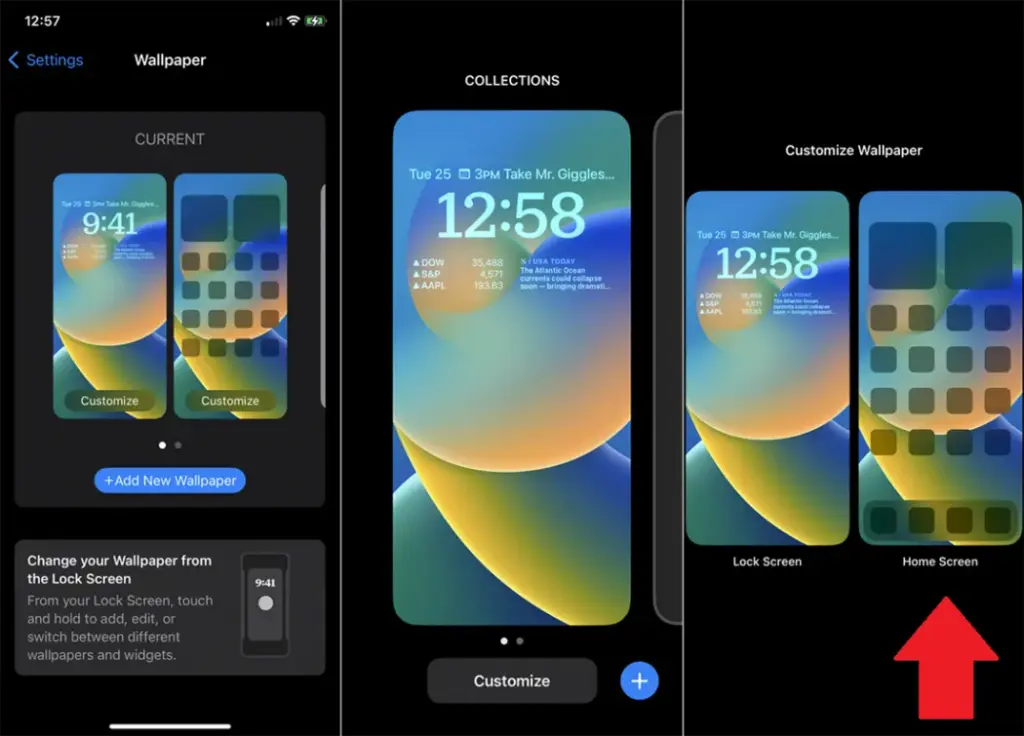
On iOS:
Open Settings > Wallpaper > Choose a New Wallpaper.
Select an image from Apple’s preloaded options or your photo library.
Adjust and tap Set to apply it to the Home screen, Lock screen, or both9
Add widgets for quick access
Without opening apps, widgets offer functionality and information at a glance.
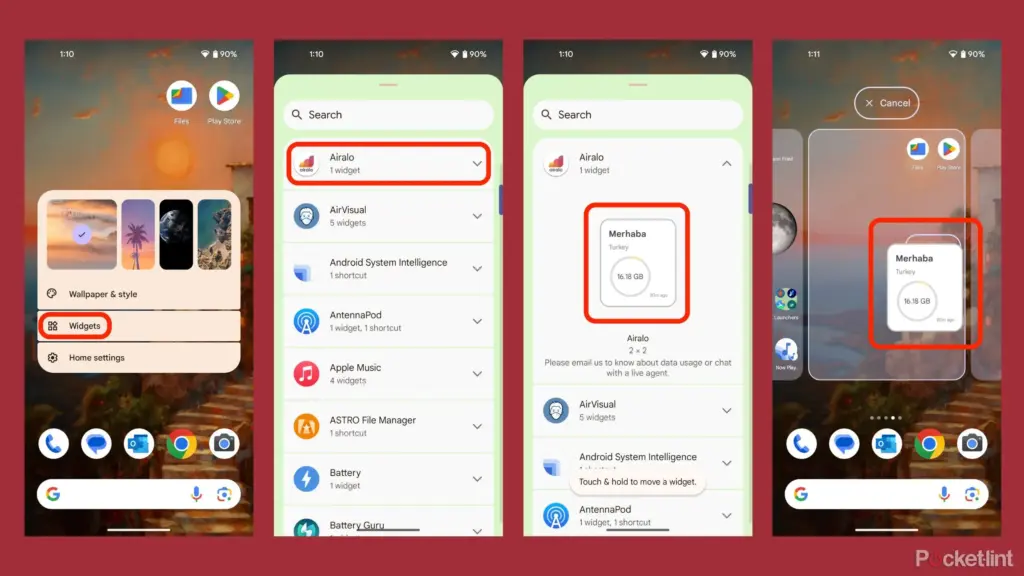
On Android:
Long-press an empty area on the home screen and tap Widgets.
Browse through available widgets (e.g., clock, weather, calendar).
Select a widget and drag it to your desired location on the screen.
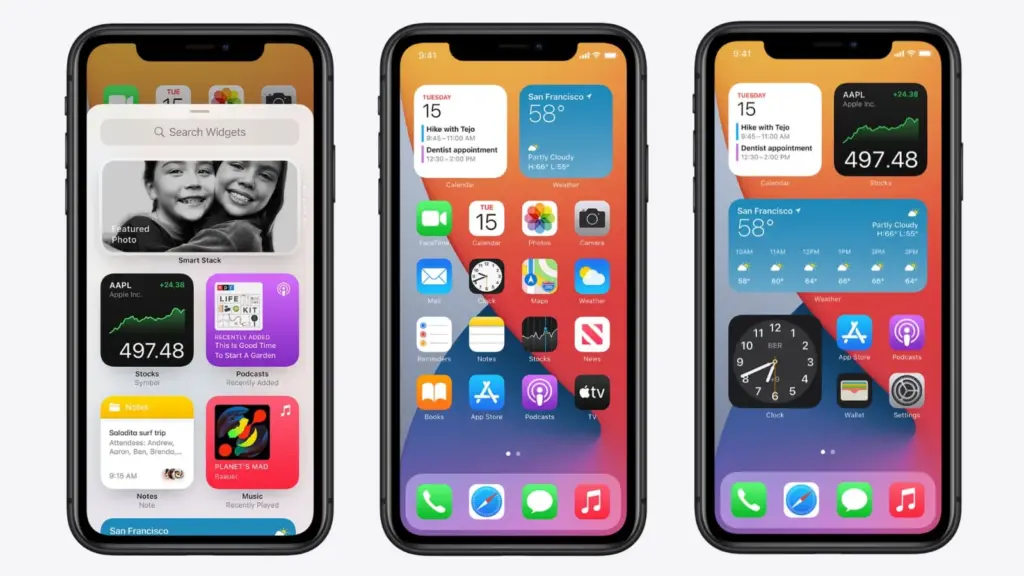
On iOS:
Touch and hold the Home Screen background until apps jiggle.
Tap the “+” icon in the upper-left corner.
Choose a widget from the list and select its size (small, medium, large).
Tap Add Widget, then drag it into place
Organize apps
A clutter-free home screen improves usability and makes navigation faster.
Create Folders:
Drag one app icon onto another to create a folder.
Add more apps by dragging them into the folder.
Rename folders by tapping on them and selecting the name field.
Arrange Apps:
Move frequently used apps to the first page of your home screen for quick access.
Drag icons to different pages or positions by holding and moving them.
Advanced Organization Tips:
Use themed rows (e.g., “Work,” “Social,” “Entertainment”).
Sort apps by frequency of use or color coding for visual appeal.
Use customization apps
Download specialized home screen customization programs like WidgetClub or Nova Launcher for more sophisticated customization choices including unique icons, fonts, and themes.
Benefits:
Access all-in-one themes that include wallpapers, widgets, and icons.
Customize grid layouts for app placement flexibility