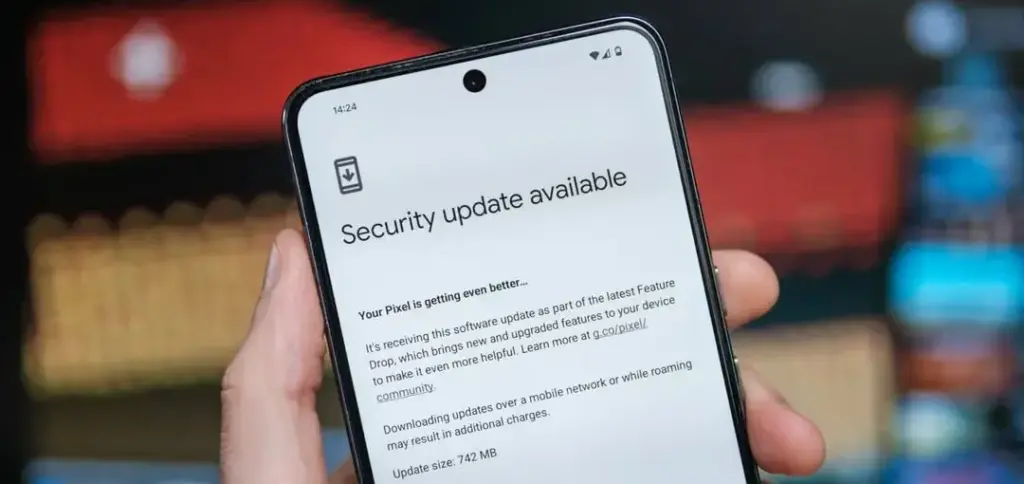
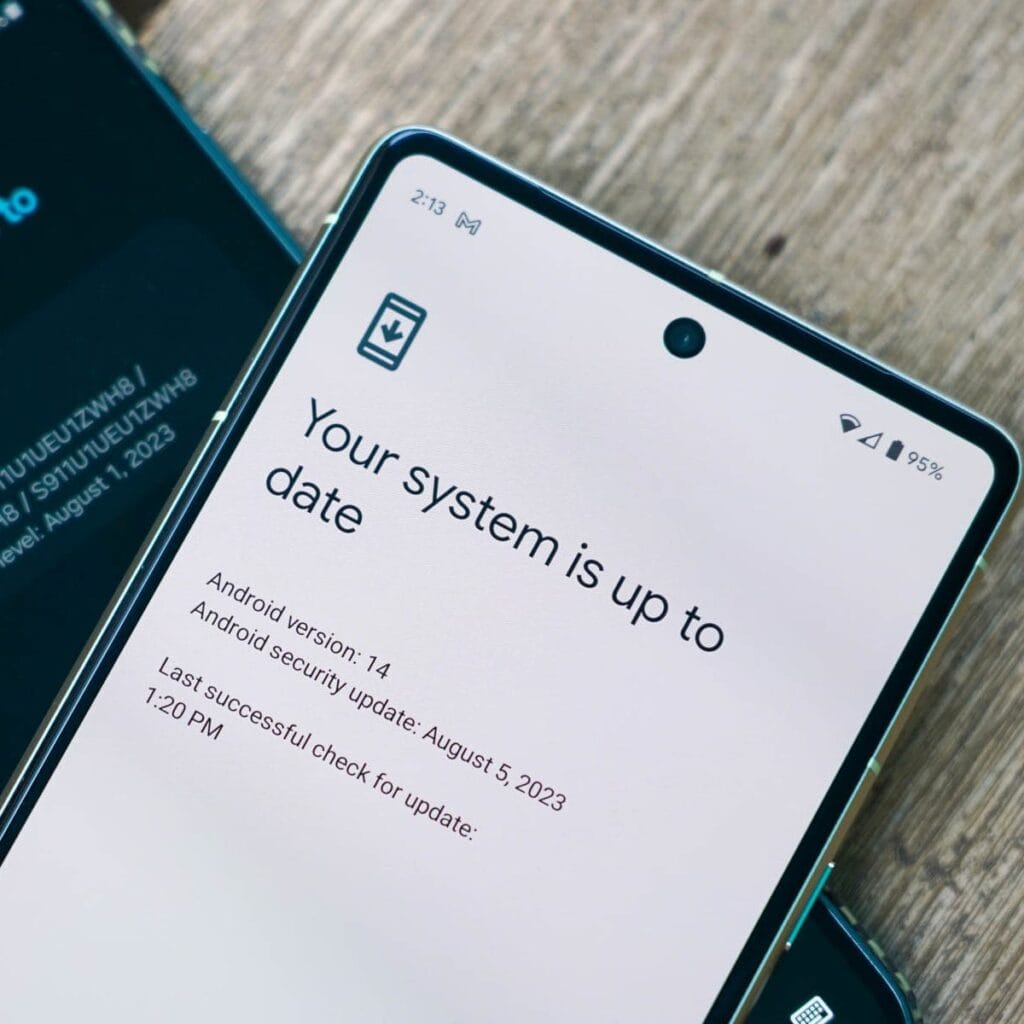
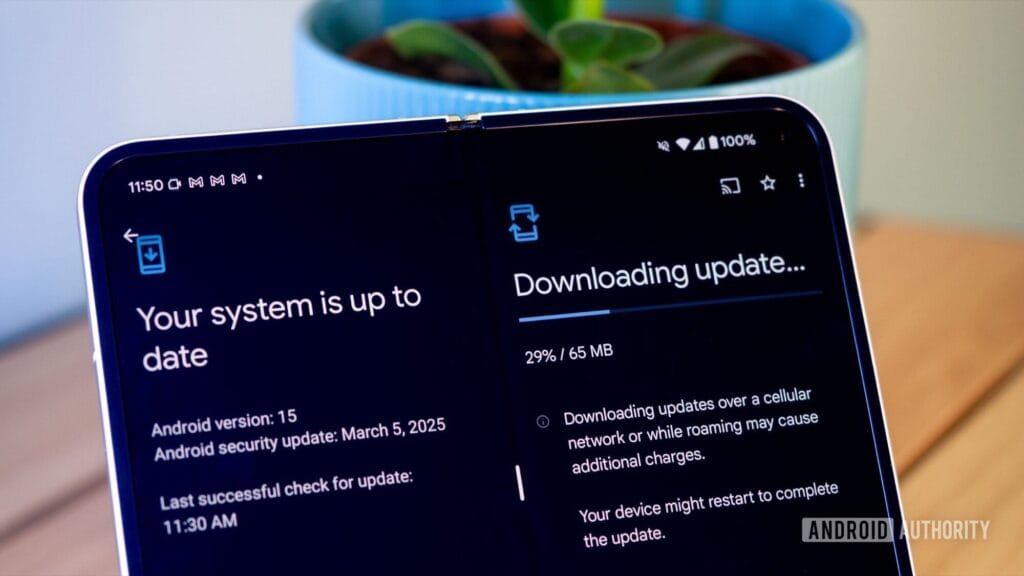
Given that Google is probably going to release stable Android 16 at Google I/O in a few weeks, I had a sneaking suspicion that we would not see the customary May Android 15 security update for Pixel devices. That aspect of me was incorrect because Google released the May 2025 Pixel update today.
The list of devices receiving the May Pixel update includes the Pixel 6 and 6 Pro, Pixel 6a, Pixel 7 and 7 Pro, Pixel 7a, Pixel 8 and 8 Pro, Pixel 8a, Pixel Fold, and Pixel Tablet, as well as the Pixel 9, Pixel 9 Pro, Pixel 9 Pro XL, and Pixel 9 Pro Fold. The Pixel 9a is seeing a fresh update as well.
According to Google, the May update will start to roll out today and should continue to do so in stages throughout the course of the following week. Your carrier – whether it is Verizon, AT&T, T-Mobile, or prepaid like Google Fi – often determines the date.
Below is the list of the May Android update builds for your particular Pixel smartphone, broken down by worldwide, country, and carrier.
Global
Pixel 6: BP1A.250505.005
Pixel 6 Pro: BP1A.250505.005
Pixel 6a: BP1A.250505.005
Pixel 7: BP1A.250505.005.B1
Pixel 7 Pro: BP1A.250505.005.B1
Pixel 7a: BP1A.250505.005.B1
Pixel Tablet: BP1A.250505.005
Pixel Fold: BP1A.250505.005.B1
Pixel 8: BP1A.250505.005.B1
Pixel 8 Pro: BP1A.250505.005.B1
Pixel 8a: BP1A.250505.005.B1
Pixel 9: BP1A.250505.005
Pixel 9 Pro: BP1A.250505.005
Pixel 9 Pro XL: BP1A.250505.005
Pixel 9 Pro Fold: BP1A.250505.005
Pixel 9a: BD4A.250505.003
Taiwan+EMEA
Pixel 9: BP1A.250505.005.A1
Pixel 9 Pro: BP1A.250505.005.A1
Pixel 9 Pro XL: BP1A.250505.005.A1
Pixel 9 Pro Fold: BP1A.250505.005.A1
Verizon
Pixel 9: BP1A.250505.005.D1
Pixel 9 Pro: BP1A.250505.005.D1
Pixel 9 Pro XL: BP1A.250505.005.D1
Pixel 9 Pro Fold: BP1A.250505.005.D1
Deutsche Telekom
Pixel 9: BP1A.250505.005.C1
Pixel 9 Pro: BP1A.250505.005.C1
Pixel 9 Pro XL: BP1A.250505.005.C1
Pixel 9 Pro Fold: BP1A.250505.005.C1
2025 May Pixel Update Bug Fixes
Regarding bug patches, Google has made three significant adjustments that affect all Pixel devices that are still supported. Google is fixing issues with quick settings, Bluetooth, and audio.
Audio
Fix for degraded microphone recording quality in certain apps
Bluetooth
Fix for Bluetooth pairing issues with certain smartwatches under certain conditions
Framework
Fix for secondary language displayed in quick settings under certain conditions
Again, Google (and its carrier partners like Verizon, T-Mobile, and AT&T) will begin pushing these updates over-the-air shortly (Settings>System>System update), but if you don’t want to wait for Google and prefer to update manually, you will soon find each factory image or OTA file at the links below.
Your phone allows you to answer calls, make and receive texts, and give commands to a voice-activated assistant. But sometimes it is more convenient to perform those things on your wrist, which is where a smartwatch comes in.
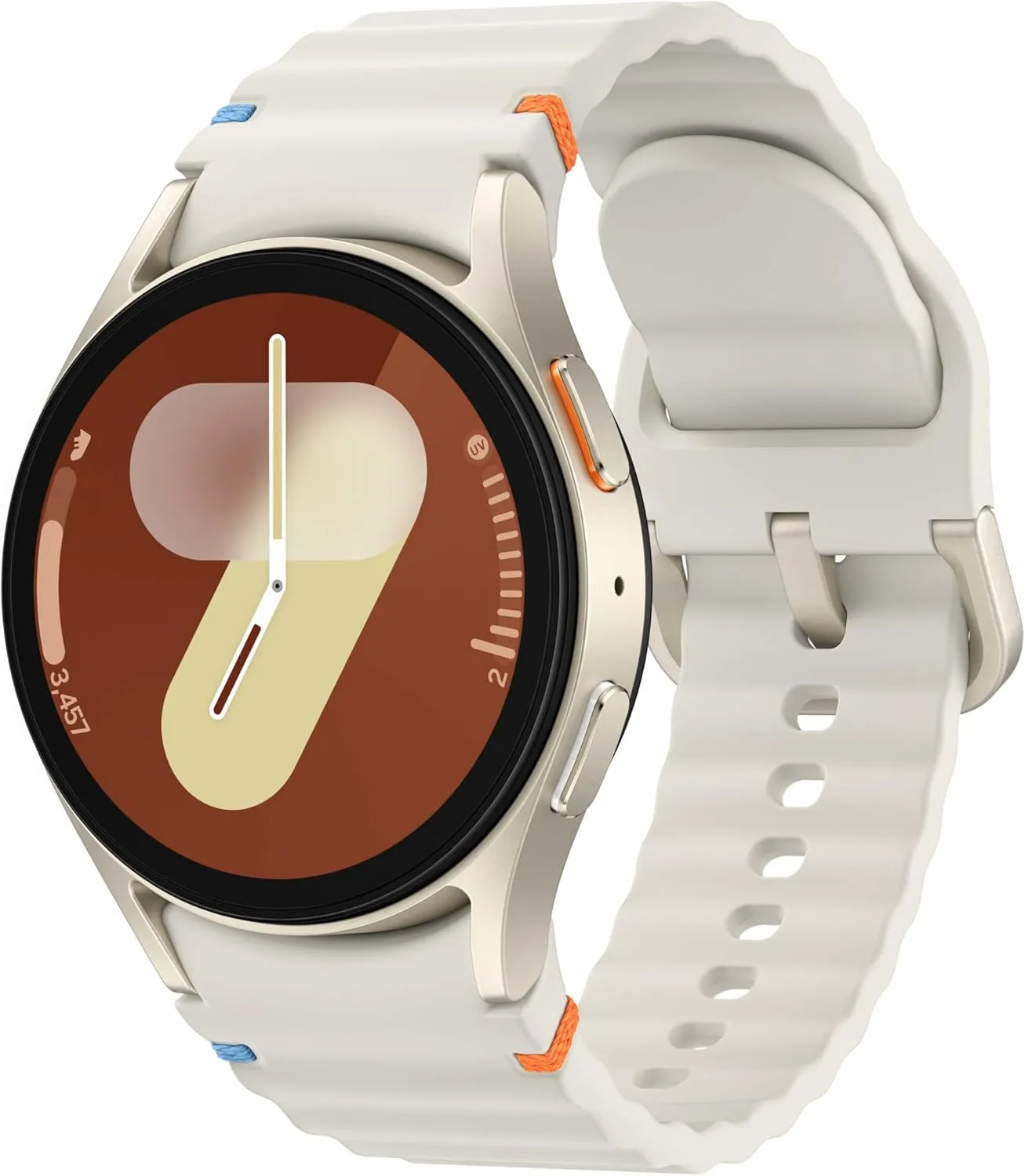
The Apple Watch is the gold standard for smartwatches, but it is only compatible with Apple iPhones. If you own an Android phone, you have a lot more smartwatch alternatives, but there is also a lot more opportunity for misunderstanding. Most of the watches we have seen are too slow, cumbersome, or lacking in functionality to be worthwhile purchases. After testing hundreds of smartwatches for Android phones, including the most recent versions, we determined that the Samsung Galaxy Watch7 is the best option for the majority of Android phone users.
Looking for a great way to bring out your personal best every day? Challenge yourself to excel on your next run or bike ride using tracking with Galaxy AI that lets you compare your current performance to your last one
The Samsung Galaxy Watch7‘s robust shell comes in two sizes and is one of the most comfortable watches we have tested. The Watch7 runs the most recent Wear OS software and includes additional health and fitness capabilities such as sleep apnea detection, metabolic health monitoring, and an AI-based Energy Score that combines workout and sleep information. You can also use your fingers to engage with some watch features without touching the screen. Unfortunately, like its predecessor, the battery only lasts one day and requires hours to fully recharge.
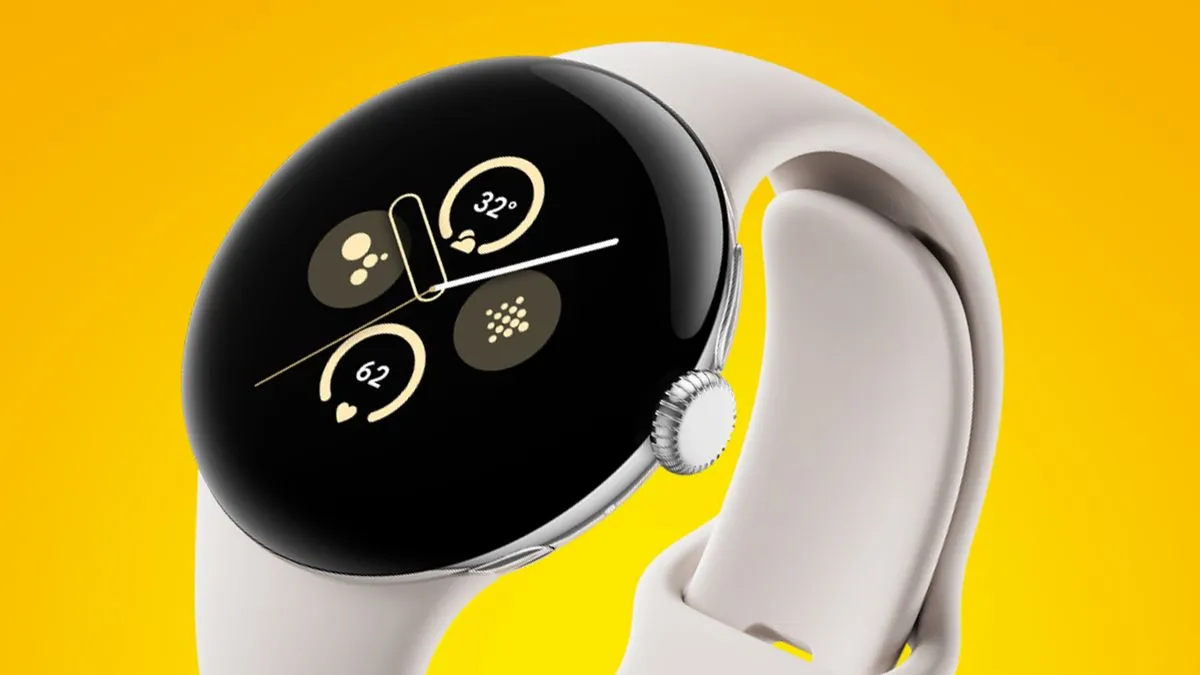
The Google Pixel Watch 3 is designed for performance, with advanced fitness from Fitbit; the 45mm screen is twice as bright and 40% larger than before, making it easier to see your stats and info
The Google Pixel Watch 3 looks similar to the original Pixel Watch, but with slimmer bezels. The 41 mm and 44 mm variants have equal features, but the 44 mm watch has a longer-lasting battery. The Pixel Watch 3 has a new OLED display that can reach up to 2,000 nits of peak brightness. It also runs the most recent version of Google’s Wear OS 5, which includes additional health-related functions and improved connection with Google’s ecosystem. It retains the previous version’s unique band connector, which is only compatible with the bands provided by Google.
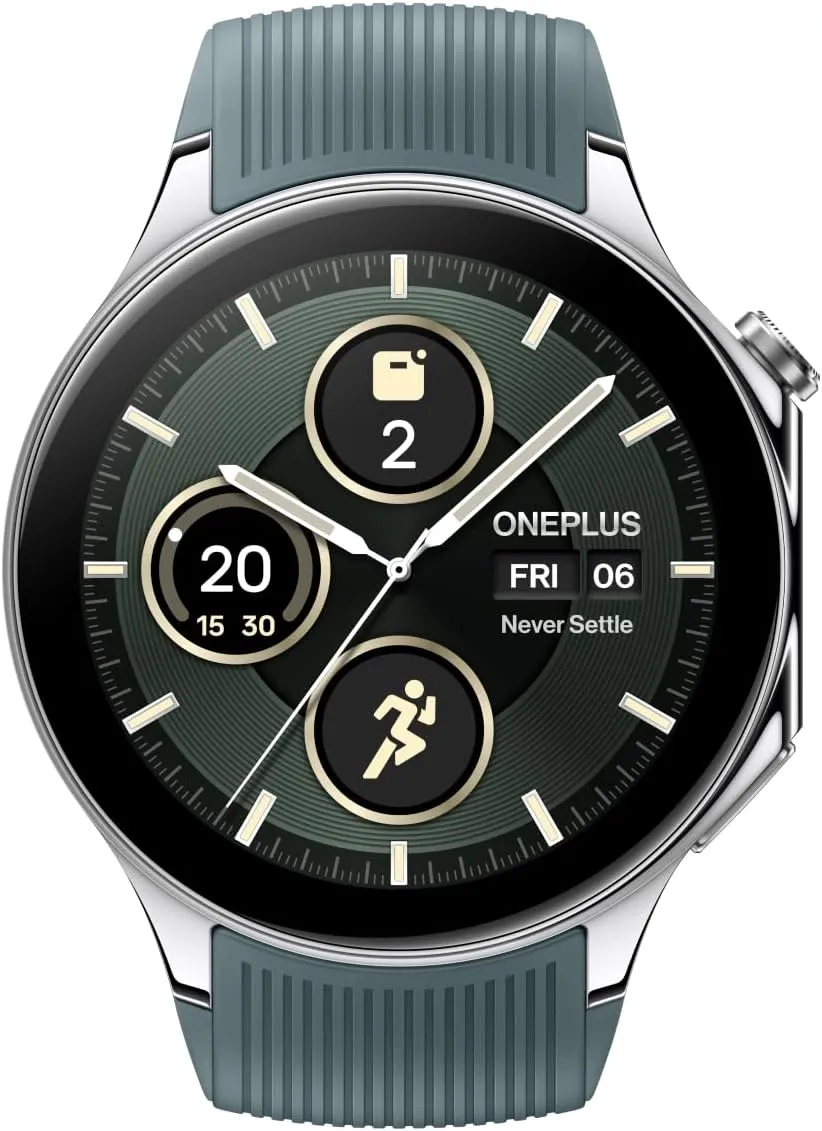
The OnePlus Watch 2 fuses a stainless-steel chassis with a robust 2.5D sapphire crystal face, delivering a sophisticated design that withstands daily wear and tear with a 5ATM and IP68 rating, and military-grade standard for durability.
The OnePlus Watch 2R may last many days on a single charge while also providing important health tracking—all at an inexpensive price. Its 46 mm shell houses a big 1.43-inch OLED display with a maximum brightness of 1,000 nits, and it runs a hybrid system made up of two chips and two software setups, including Google’s Wear OS 4 and Google Assistant.
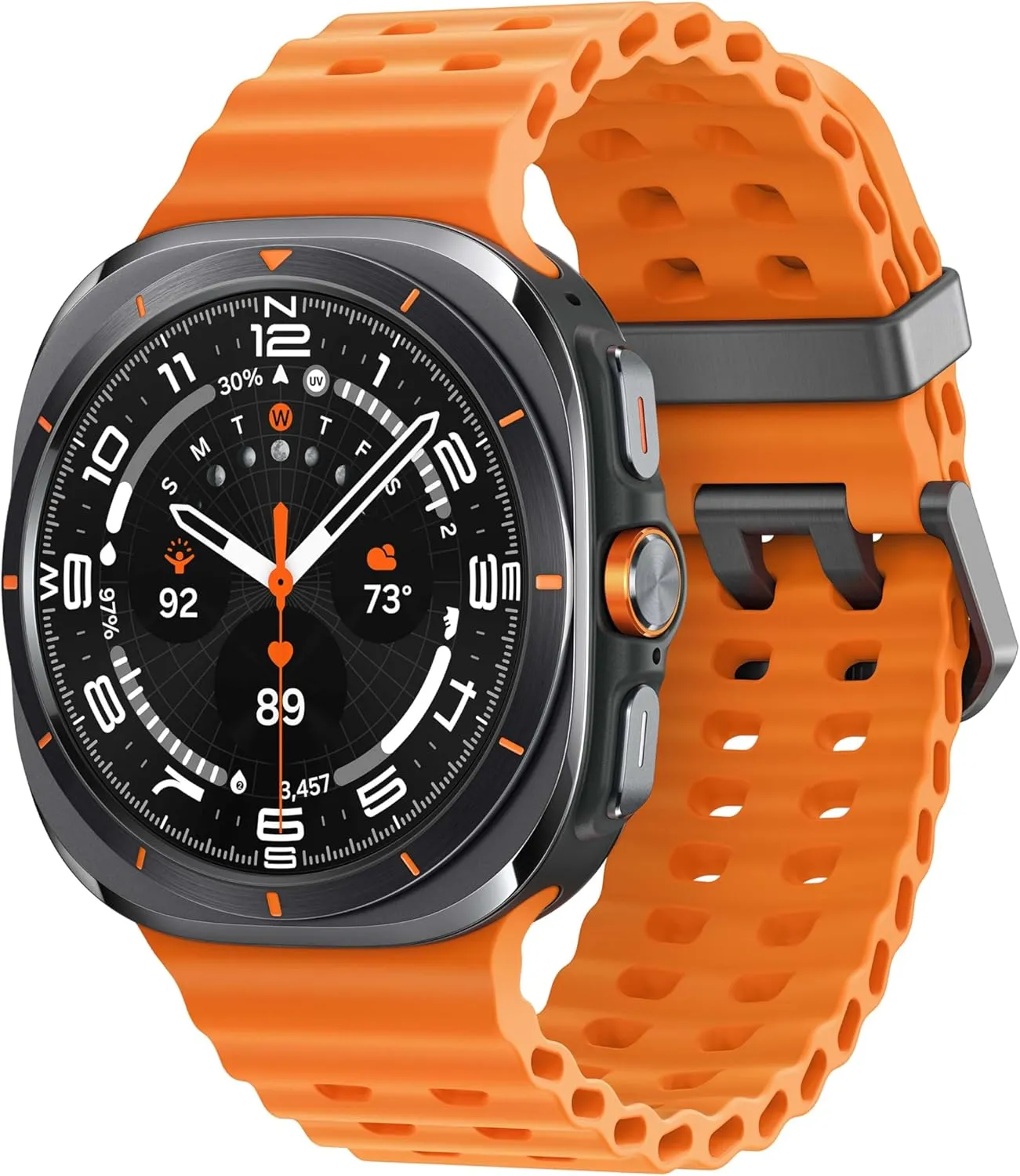
The Watch Ultra sports a huge 47 mm titanium body with a display that can reach up to 3,000 nits of peak brightness, making it easier to see your screen even in the darkest of nights and brightest of days.
The Samsung Galaxy Watch Ultra incorporates a few extra capabilities than the Watch7 into a larger, more robust smartwatch. It offers fitness monitoring for triathletes, bikers, swimmers, and strong endurance users, with twice the battery life of the Watch 7. Many people are put off by its large size, heavy weight, and high price, but the features and battery life may be worth the premium.
You have complete control over the default apps you use on Android for email, calls, texts, browsing, and more. Android lets you select your favorite apps as defaults, whether it be Chrome or Firefox, Gmail or Outlook, or any other third-party software that is compatible, in contrast to other mobile operating systems that force you to use a limited number of apps.
Once set, Android uses your selected app automatically — no need to choose each time.
What types of default apps can be changed?
Android supports default app selection for a variety of functions, including:
Browser (e.g., Chrome, Firefox, Brave)
Phone (dialer apps)
Messaging/SMS (e.g., Google Messages, Textra)
Email (e.g., Gmail, Outlook, K-9 Mail)
Home screen launcher
Digital assistant
Camera
Gallery/photos
Music player
Navigation apps (Maps, Waze, etc.)
Links handling (web, YouTube, etc.)
Some apps will request to be the default when first installed or opened but you can always change this manually.
How to change default apps on stock Android
Here’s how to manage your default apps on phones running near-stock Android (such as Pixel, Motorola, or Nokia devices):
Open the Settings app.
Tap on Apps.
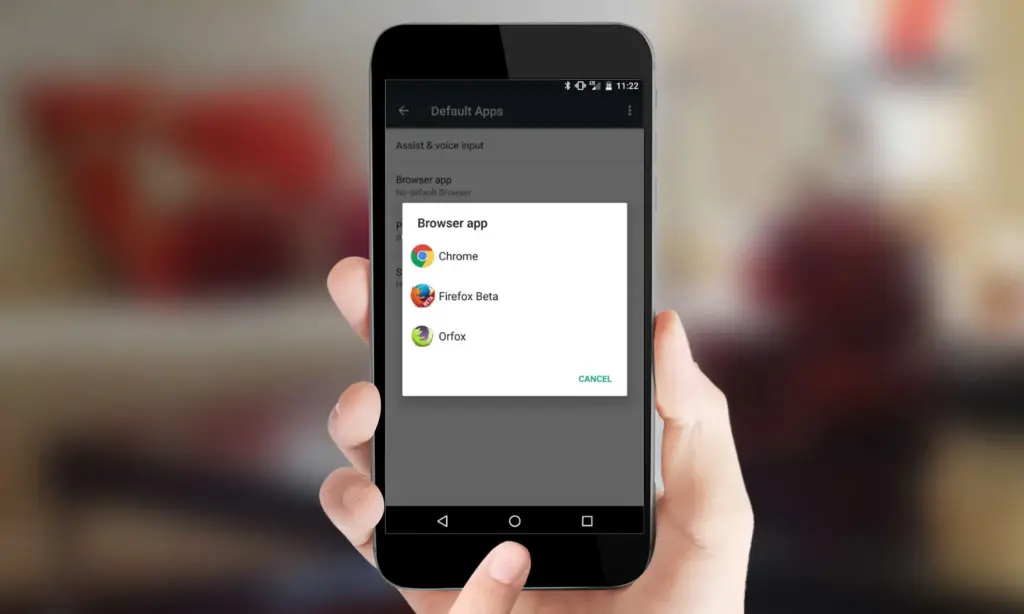
Choose Default apps.
You’ll see a list of categories: browser app, phone app, SMS app, assistant app, home app, etc.
Tap any category to see installed apps compatible with that function.
Choose your preferred app from the list.
Android will immediately make the chosen app the activity’s default. If you change the browser’s default, for instance, any link you click will open in the selected browser.
How to change default apps on Samsung (One UI)
Samsung devices with One UI take a somewhat different path:
Go to Settings.
Tap on Apps.
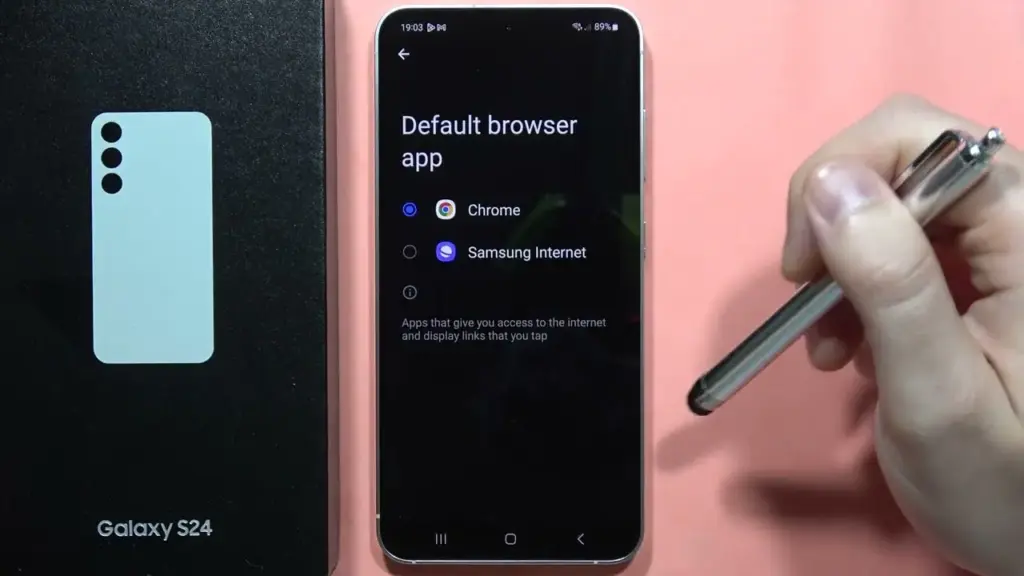
Tap the three dots in the top-right corner and select Default apps.
You’ll see the same categories as stock Android: browser, calling, messaging, and more.
Tap the category you want to change.
Select your new default app.
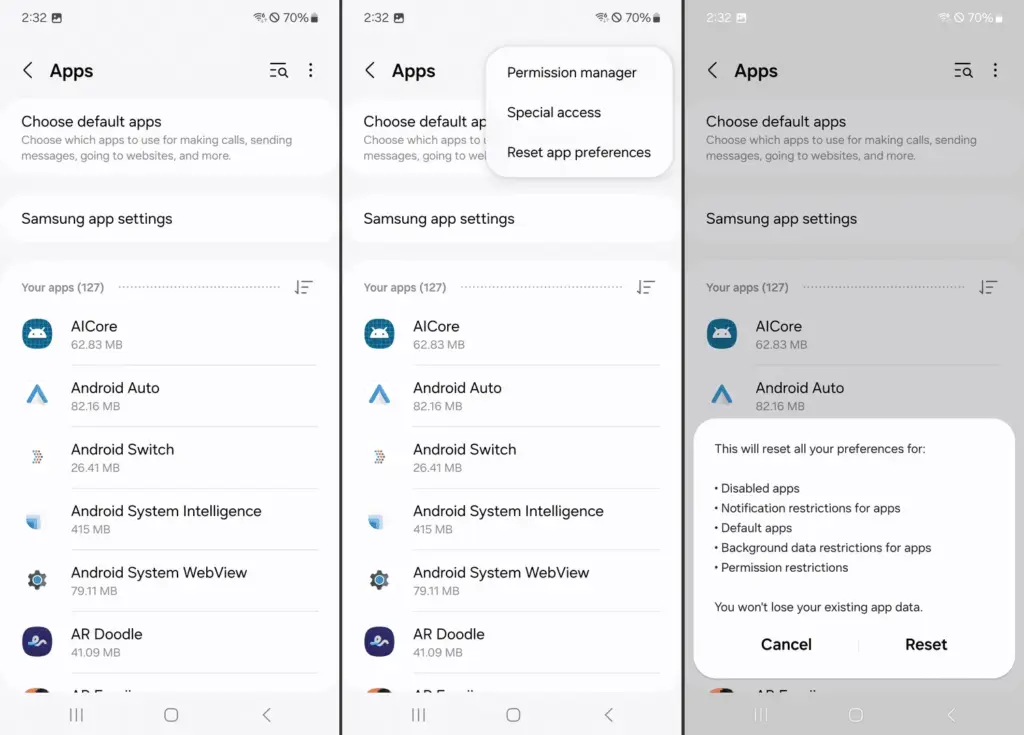
Samsung devices also let you reset all default apps at once via Settings > Apps > Three dots > Reset app preferences.
How to change default apps on Xiaomi (MIUI)
MIUI includes a “Manage apps” section to control default apps:
Open the Settings app.
Go to Apps > Manage apps.
Tap the three dots in the top-right and select Default apps.
Choose a category like browser, dialer, messaging, or gallery.
Select your desired app.
MIUI might ask you to select a new default app after installation or when you attempt to open related content.
How to handle app-specific defaults (like file types or links)
Some apps don’t appear in the general default app settings but can still be set as defaults when opening certain file types or links.
To manage these:
Go to Settings > Apps.
Tap See all apps and choose the app you want to configure.
Tap Open by default.
Enable Open supported links or clear defaults by tapping Clear defaults.
This is useful if you want all YouTube links to open in the app rather than in a browser, or if you have accidentally enabled an app to always open PDFs or photos.
How to reset default apps
If you’ve set the wrong default app or want to start over:
Open Settings > Apps.
Tap the three dots (or menu icon).
Select Reset app preferences.
Confirm to reset all app defaults.
This won’t delete any data but will clear app defaults, disabled apps, and permission restrictions.
Alternatively, to reset just one app:
Go to Settings > Apps > [App Name] > Open by default
Tap Clear defaults
This lets you reassign that app’s function later.
Choosing the best default apps
Here are some recommended apps to consider setting as default:
Browser: Firefox Focus (privacy), Brave (ad blocking), Chrome (sync)
Email: Gmail (Google integration), Outlook (work email), BlueMail (multi-account)
Messaging: Signal (privacy), Google Messages (RCS), Textra (customizable)
Gallery: Simple Gallery, Google Photos, Aves
Music: YouTube Music, VLC, Poweramp
Navigation: Google Maps, Waze, HERE WeGo
Make sure the app supports being set as a default. Some lightweight or older apps may not offer this functionality.
What if Android won’t let you change a default?
Some Android versions or manufacturers may restrict default app changes for certain functions — especially camera or dialer apps. In those cases:
Make sure the new app is fully updated and has the necessary permissions.
Check for manufacturer limitations in forums.
Use Activity Launcher or ADB commands (for advanced users) to override.
Root access may be required for some deep changes — though this is not recommended for most users.
Changing the default apps on Android provides you control over your digital experience. Whether you want a speedier browser, a cleaner messaging app, or a more powerful camera, Android allows you to select what works best for you.
By looking into your device’s default app settings, you may optimize your workflows and eliminate annoyances such as accessing links in the wrong app or using services you dislike. With a few touches, Android becomes your own—not what the manufacturer or carrier wants you to use.
With just a few button presses, you can quickly take a screemshot of your Android device screen.
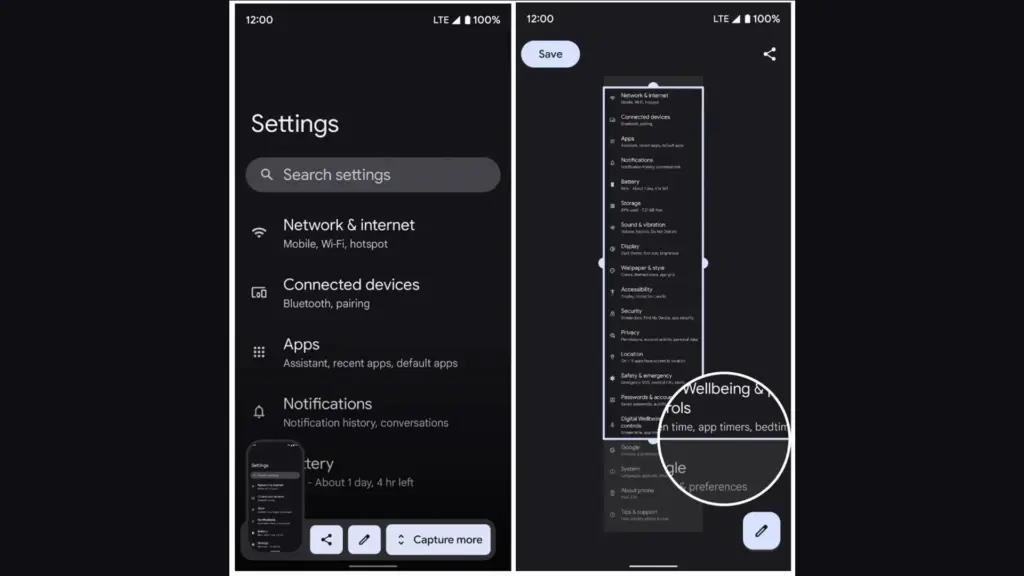
What occurs, though, if the material you are attempting to store is too large for a single screen? It could be an app settings page, a lengthy web page, or a conversation thread. Scrolling screenshots can help with that.
This tutorial describes how to take scrolling screenshots on Android without the use of third-party apps, how to handle the situation where the choice is not available, and how it functions on various devices.
What is a scrolling screenshot?
You can record vertically scrollable content in a single lengthy image by taking a scrolling screenshot, sometimes referred to as an extended screenshot. Your phone does it automatically, saving you the trouble of painstakingly piecing together many screenshots and providing you with a clear, comprehensive representation of the full page or discussion.
Although some manufacturers had already included this capability through custom Android skins prior to the official distribution, Android 12 marked the wide availability of this feature. After taking a standard screenshot, you can continue taking screenshots as you scroll by selecting the scrolling screenshot option.
Why scrolling screenshots are useful
When you need to record a lot of information without dividing it into many photos, scrolling screenshots come in handy. Typical use scenarios include the following:
Capturing an entire article from a website for offline reading
Saving long chats or SMS conversations
Recording step-by-step settings in apps or system menus
Documenting online orders, receipts, or bank statements
Archiving long social media posts or comments
Instead of managing and sending five or six individual screenshots, you get a single, clean image that’s easier to share, store, or annotate.
How to take a scrolling screenshot on stock Android
Take a screenshot using Power + Volume Down or the three-finger swipe.
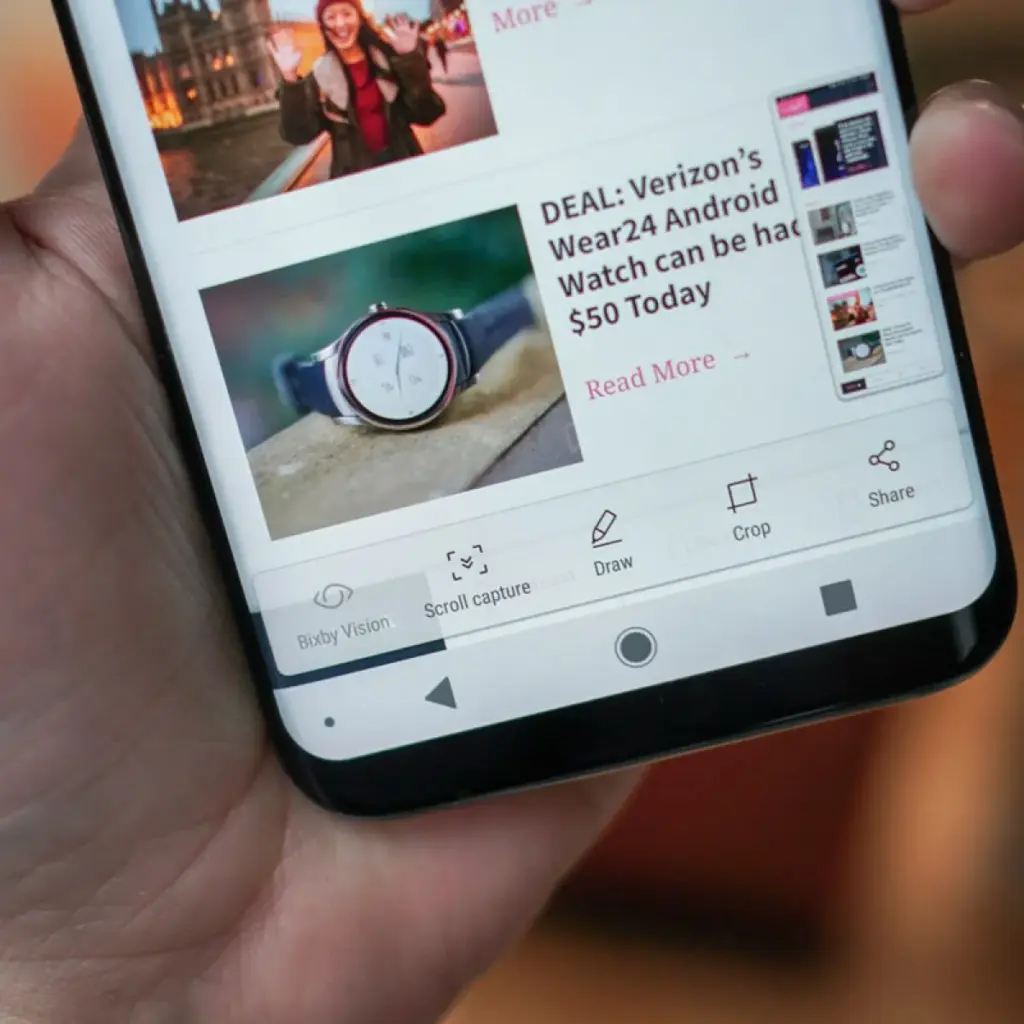
A preview appears with a button called Expanded screenshot or Scroll.
Tap the button, and the phone will begin scrolling down and capturing content.
You can tap to stop the scroll when you’ve captured everything you need.
The final result is a seamless long image.
OnePlus makes the process easy and generally reliable in apps like Chrome, WhatsApp, and system menus.
What to do if scrolling screenshot is not working
If you don’t see the scrolling option after taking a screenshot, here are a few reasons and possible solutions:
1. Your Android version is outdated
With Android 12, scrolling screenshot functionality was formally introduced. The native option might not be available if you are using Android 11 or earlier and the manufacturer of your phone has not included the functionality in its unique user interface.
Solution: Check for software updates under Settings > System > System update and update to the latest available Android version.
2. The app you’re using doesn’t support it
Certain applications may completely disable screen capture capabilities, particularly those with security limitations (such as banking or media streaming apps). In other situations, the scrolling capture feature will not be activated for static content that does not scroll vertically, such as games or films.
Solution: Try taking the screenshot in another app to confirm the feature works elsewhere.
3. The screenshot method didn’t trigger the right menu
If you take screenshots using Google Assistant or a third-party button remapper, the scroll option may not appear.
Solution: Stick with the hardware button method or built-in gesture support for consistent results.
4. Your device brand disables it
Rarely, the feature might be removed from select low-cost or carrier-locked devices. Check your device’s manual or a help website relevant to your brand if your Android version allows it but you are unable to see the choice.
Solution: As a last resort, third-party apps like LongShot or Stitch & Share can be used, though they won’t integrate as seamlessly.
Where scrolling screenshots are saved
Your scrolling screenshots are typically saved in the same folder as regular screenshots. The default locations include:
Internal Storage > DCIM > Screenshots
Internal Storage > Pictures > Screenshots
You can also find them in gallery apps like Google Photos under the “Screenshots” album. The long image format will usually be saved as a standard PNG or JPEG file, depending on your phone.
Scrolling screenshots make it significantly easier to capture and share large amounts of vertical content in one image. Whether you’re preserving a full article, archiving a conversation, or saving a list of settings for future reference, this feature streamlines the process and saves time.
Most modern Android phones with Android 12 or later support scrolling screenshots natively, with even better integration in custom skins from brands like Samsung, Xiaomi, and OnePlus. If the feature isn’t available on your phone, checking for updates or exploring brand-specific gestures may help you unlock it.
Scrolling screenshots are one of those tiny but useful features that you will find yourself utilizing regularly once you get used to it, particularly if you share content or document information from your phone on a regular basis.
Right now, bargain seekers are receiving value for their money. Right now, you can get seven paid apps for free, including one that helps you remember everything you need to do.
There are countless apps available in the Play Store and the App Store, the two app stores owned by Apple and Google. While some of these apps are free, some cost money. However, many users are unaware that many paid apps can also be temporarily made free as part of a special deal. We have compiled a list of some of the most intriguing free apps accessible right now.
Free Pro apps (Android)
Reminder Pro – Reminder($3.69) – With this app, you always have an overview of all your reminders. New reminders can be created in seconds, and you can also be reminded at a specific time.
Bubble Shooter Pop Puzzle Game($4.89) – There’s also something for everyone who occasionally wants to play on their smartphone this week. This newly released bubble shooter regularly costs almost 5 euros and is completely free to start with.
Multiscreen Calculator Pro($9.99) – The look of this calculator is debatable, but the tool offers a decisive advantage: “multiscreens”. If you want to start a new calculation without deleting the results of the old calculation, simply swipe to the left on the screen. A new window will then open. Users can open as many new windows as they want.
Free premium apps (iOS)
Vythm JR – Music Visualization($49.99) – With the app Vythm, you can visualize your music with a matching video. Countless effects such as Equalizer, Mandala, Shapes, Fluids, Psychedelic, Dreaming, and more are available. To get the app permanently free, you have to start it once after downloading and activate the “Pro version + lifetime updates” once.
Eat Me First($2.99) – With this app, you can always keep an eye on the contents of your fridge. The app shows you the expiration dates for all your food and thus helps to reduce food waste.
Sky Master – pixel shooter($0.99) – If you’re nostalgic, you’ll enjoy this game, at least for a short while. It’s not particularly good, but the pixel look gives the game an irresistible charm for older gamers.
Queen Rules($2.99) – This puzzle game is the ideal way to pass the time. The aim is to position your soldiers in such a way that they are able to defeat the evil witch’s soldiers. There are also interesting level designs and clay figures
The majority of free apps either provide in-app purchases or have advertisements. But some apps that cost money also accomplish this. These factors should be taken into consideration, particularly if the game is meant for young players.
Many apps gather user information and frequently sell it. As a result, only allow the rights that the program actually requires if you want to be secure. For instance, a flashlight should not be interested in your location information, and an alarm clock should not require access to your contacts or cameras.
If you’re inspired by the quality of these apps and are thinking about creating your own, now might be the perfect time to explore professional development options. Whether you’re targeting Android, iOS, or both, investing in a reliable iOS mobile application development service can turn your app idea into a polished product that stands out in the App Store. Stay tuned for more updates on free apps, industry trends, and mobile development tips.
The days of rooting your device or looking for third-party apps to record your screen on Android devices are long gone. The majority of modern smartphones with Android 11 and later have an integrated screen recorder.
Convenience, more privacy, and enhanced performance are provided by this native feature. Whether you are recording a livestream, creating a tutorial, or recording a game session, this guide will show you how to make the most of Android’s built-in screen recorder.
Why screen recording matters
For many Android users, the ability to record screen has become indispensable. Content producers frequently have to capture mobile gaming, app evaluations, and walkthroughs. Professionals might have to show colleagues how to use bugs or make quick educational videos. When recording video chats, social media stories, or instructions for assisting friends in troubleshooting a phone problem, this tool might be useful even for novice users.
Users had to rely on apps from the Play Store prior to Android having this feature built in; many of these apps had restricted functionality, data tracking, advertisements, or required a subscription. Native tools now provide a smoother, safer, and ad-free experience.
Check if your device supports native screen recording
Android 11 and later versions support the built-in screen recording feature. Open the Settings app, navigate to “About phone,” and locate the Android version section to verify your Android version. You can move forward if your device is running version 11 or later.
It is also important to note that almost every major brand has this capability in their operating systems, including Google, Samsung, OnePlus, Xiaomi, Realme, and Motorola. However, each manufacturer may have somewhat different interfaces and extra options.
How to start screen recording on Android
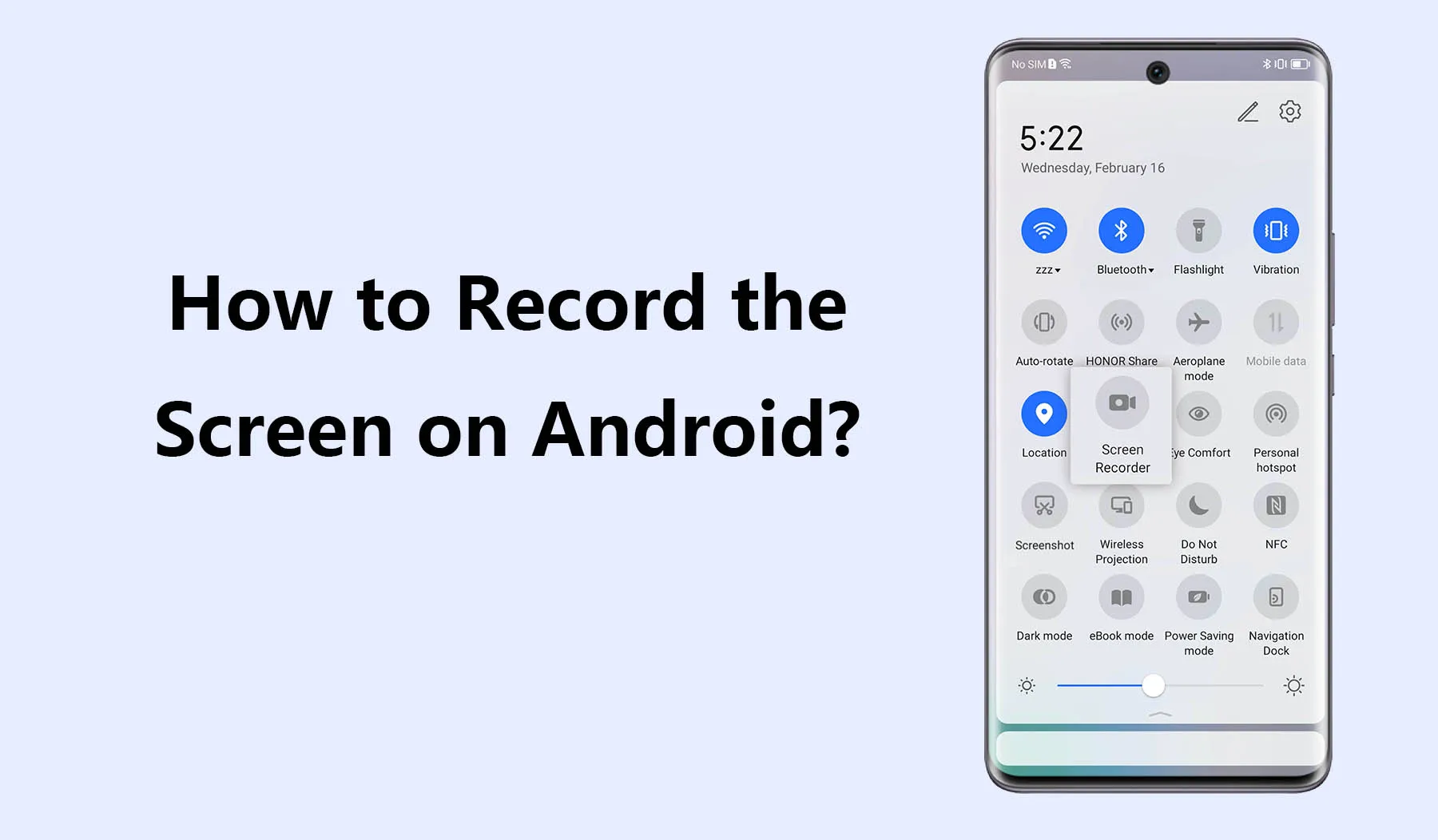
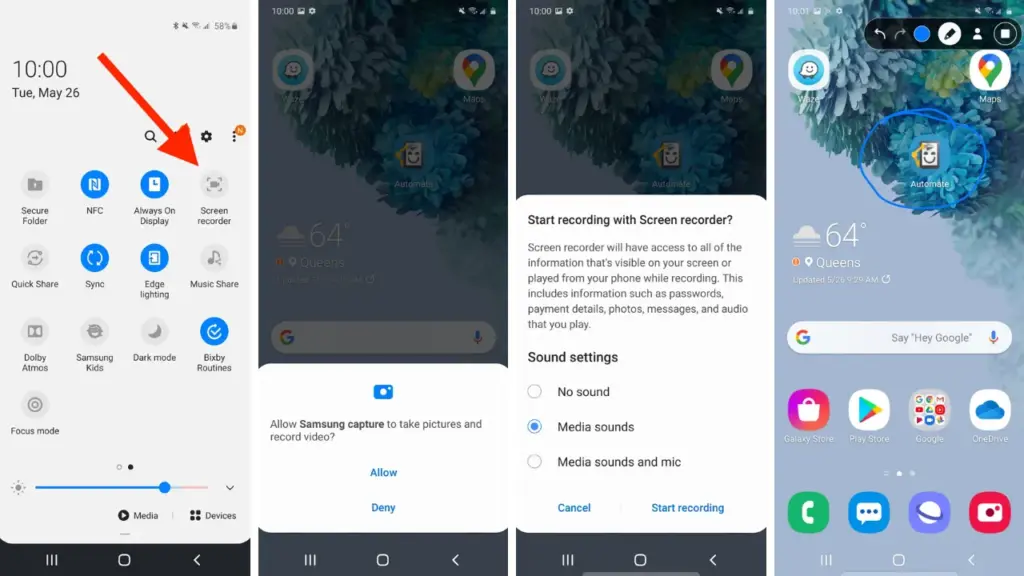
Swipe down from the top of your screen to see the Quick Settings panel, then activate the screen recorder. To fully enlarge the panel, swipe down once more. Next, search for a tile that says “Screen record” or “Screen recorder” If it does not appear right away, you can add the screen recording option and reorder your Quick Settings tiles by tapping the pencil or “Edit” symbol.
When you tap the tile, a dialog will pop up offering a few choices before recording begins. You can choose whether to:
Record audio from the microphone, internal device audio, or both
Show visual touches on the screen during the recording
Depending on your recording requirements, these choices can be helpful. For example, you could want to use the microphone when narrating a tutorial. Internal sound may be better suitable if you are recording gaming or app audio. Once your choices have been set, press “Start” and watch for the three-second countdown. After that, your recording will start.
A tiny toolbar or red symbol will show that the screen is being recorded during the recording. Pull down the notification shade and press the stop button when you are done. Your device’s storage will automatically store your video.
How screen recording differs by device brand
Each Android manufacturer may offer a slightly different version of the screen recorder:
Samsung (One UI): One of the most feature-rich native recorders is offered by Samsung. You can record your face with the front camera, record internal audio, and choose from a variety of video quality options. During the recording, you can even draw on the screen, which is a terrific way to graphically explain topics.
Google Pixel: Pixel phones running Android 11+ have a clean, minimal screen recorder built into Quick Settings. It’s simple to use but doesn’t offer the same advanced features as Samsung’s version.
Xiaomi and Redmi (MIUI): These devices often include a standalone “Screen Recorder” app, which can be found in the Tools folder. It allows you to configure video resolution, frame rate, sound source, and orientation. Recordings are saved in an organized, dedicated folder.
OnePlus (OxygenOS): Native screen recording is available from OnePlus as early as Android 10. It has settings to set bit rates and frame rates, record system sounds, and display touches. The user interface is clear and simple to use.
Realme and Oppo: These brands also offer native recording tools similar to Xiaomi, with a balance of customizability and ease of use.
These slight differences can impact your experience, so it’s useful to explore your device’s specific implementation for the best results.
Where screen recordings are saved
Once you finish recording, the saved video can typically be found in your phone’s internal storage under:
Internal Storage > Movies > Screen recordings
Internal Storage > DCIM > Screen recordings
Also, screen recordings are typically shown in a distinct folder or album called “Screen recordings” in your normal gallery software (like Google Photos or Samsung Gallery). Use a file manager tool and search for recently edited MP4 files if you are having problems finding your file.
This consistent file structure helps you quickly retrieve, share, or edit your recordings.
Tips for better screen recording results
Here are some suggestions to improve the quality and usability of your recordings:
Use Do Not Disturb mode: This prevents interruptions from calls, texts, or notifications while recording.
Close unnecessary apps: Reducing background processes ensures smoother performance and fewer lags during recording.
Enable touch indicators: If you’re creating tutorials, visual touches help viewers understand where you’re interacting on the screen.
Choose appropriate resolution and frame rate: Higher settings give better quality but consume more storage space. For gameplay, use 1080p at 60fps if available.
Record with adequate lighting and contrast: If you’re recording apps or system settings, avoid dark themes that make the video harder to see.
Limitations and common issues
While native screen recorders are generally reliable, there are a few caveats:
DRM-protected content: Apps like Netflix or some banking services block screen recording to protect sensitive or copyrighted material. In such cases, you’ll see a black screen or an error message.
Lack of internal audio on some devices: Not all Android phones allow internal audio recording due to manufacturer restrictions or legal considerations. Some devices default to microphone-only input.
Storage limitations: Long screen recordings take up a lot of space. Ensure you have enough free storage to avoid failed recordings or low-quality output.
In rare cases, the screen recorder might not appear in the Quick Settings panel. This can usually be fixed by updating your software or resetting the tile arrangement in settings.
The screen recording feature built into Android is a game-changer for productivity, communication, and content creation. Whether you’re capturing a quick how-to for a family member, recording an epic moment in a mobile game, or documenting a tech issue for support, the ability to do it all without third-party apps makes the process simple and secure.
As long as your device runs Android 11 or higher, you already have this powerful tool at your fingertips. With a few simple settings and some creative uses, you’ll be able to record anything on your screen with clarity and ease – no installations required.
Android’s split-screen mode is a potent productivity tool that lets you utilize two apps at once, whether you are browsing the web while taking notes or watching YouTube while responding to emails. The finest aspect? Root access and third-party apps are not required. The majority of Android devices running Android 7.0 (Nougat) or later come pre-installed with this feature.
We will go over how to use split screen on well-known Android devices including Samsung, Google Pixel, Xiaomi, OnePlus, and more in this post. We will also go over restrictions, troubleshooting techniques, and ideas to help you multitask seamlessly.
What Is Split Screen Mode?
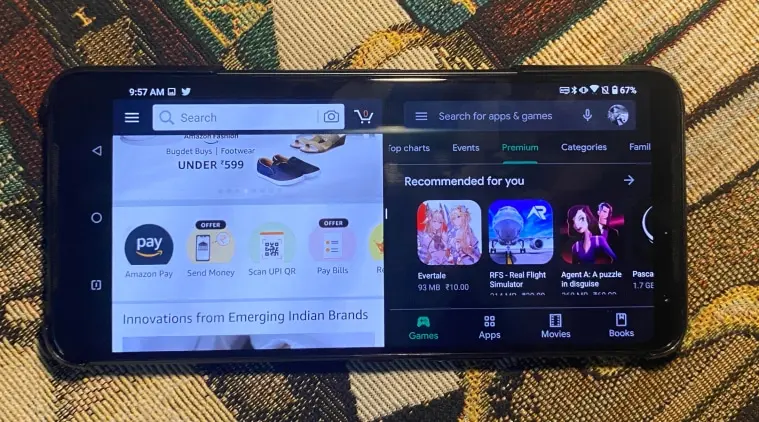
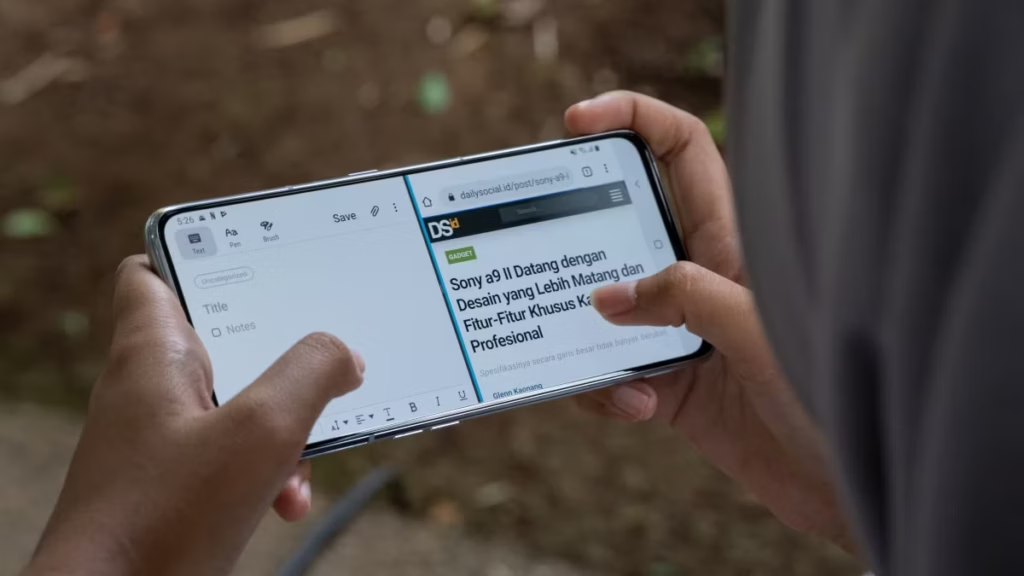
Two apps can be opened and used side by side in split screen mode (or top and bottom in portrait orientation). You may use two apps simultaneously, using up half of the screen. You can scroll, type, watch, or even copy and paste text between them.
When you can use use split screen?
Split screen is a truly strong feature that may completely change the way you use your Android device; it is not simply a gimmick. Here are some typical and astute methods to fully benefit from it:
Multitasking with messaging and media
Do you want to view a YouTube video while responding to messages on Telegram or WhatsApp? You can do both without missing a beat thanks to split screen. It is ideal for catching up on material and remaining sociable at the same time because you can keep viewing your video and participating in your conversations.
Working while referencing other apps
Do you need to draft an email while reviewing data from a notes app or spreadsheet? For productivity tasks like replying to work emails, producing content, or organizing chores while consulting other resources, split screens are perfect. It keeps you productive and engaged without requiring you to switch between programs.
Comparing products and prices
You can explore Amazon using one app and check pricing on eBay or another store using another. You may save time and money by using split screen to evaluate features, costs, and offers in real time.
Reading and translating content
You can use a translation app (like Google Translate) in conjunction with a browser or reading app if you are learning a new language or reading articles written in a foreign language. Instantaneous phrase translation without app switching enhances convenience and comprehension.
Planning trips or events
Put your calendar or itinerary app on one half of your screen and Google Maps on the other. Travelers who need to check locations while managing their schedules, booking confirmations, and to-do lists will find it ideal.
Organizing your day
Having a time-blocking calendar open in one app and your to-do list open in another is a way to employ split screens for personal efficiency. Planning your day, setting priorities, and scheduling tasks are all made much easier with this arrangement.
Following tutorials while performing tasks
When learning anything new, such as how to set up a feature, edit a photo, or follow tech instructions, you can try the steps in one app while a YouTube or browser instructional is open on the other. It is very helpful for experiential learning.
How to use split screen on different devices
The exact method can vary slightly depending on your device’s manufacturer and software version. Here’s how to activate it on most devices:
You can combine split screen with floating apps for 3-window multitasking.
For example, split screen for YouTube + Chrome, while Messenger floats in a bubble.
Productivity Tips
Use clipboard managers to quickly paste between apps.
Pin your favorite apps in the Recents menu for quicker access.
On Samsung, save split-screen pairs to the Edge Panel.
Combine with voice-to-text for ultra-productive workflows.
Despite being one of Android’s most potent features, split screen is one of its most underutilized. It can significantly enhance your experience without requiring additional setup, whether your goal is to multitask more effectively or do more tasks.
You can turn your phone into a little workstation with a few touches.
Gone are the days when a USB cable was the only way to move files between your Android phone and computer. Whether you’re transferring photos, documents, or videos, there are now several wireless methods that make the process faster and more convenient — no cables, no drivers, and no hassle.
In this article, you’ll discover how to transfer files from Android to your PC wirelessly utilizing free built-in utilities and reliable third-party apps. All ways are easy, secure, and don’t need rooting your smartphone.
Why Go Wireless?
Here’s why transferring files without a cable is the smarter choice:
No need to carry cables or adapters
Works on all modern Windows, macOS, and Linux PCs
Faster for frequent transfers
No risk of physical damage to USB ports
1. Use Google Drive (Cloud Sync)
If you have a Google account, you already have access to Google Drive — one of the easiest ways to transfer files wirelessly.
Files are stored in the cloud, so they’re safe even if your phone is lost
Works across devices and operating systems
Cons:
Requires an internet connection
File size limits apply (15GB free storage per Google account)
2. Send via Nearby Share (Best for Windows)
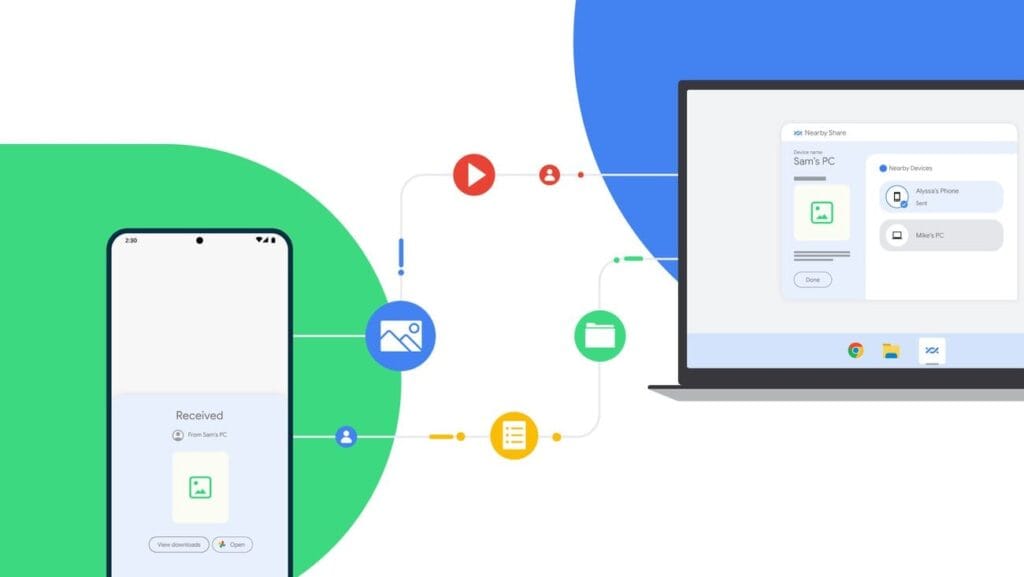
Currently fully supported on Windows 10/11, Nearby Share is Google’s AirDrop-style solution for sharing files instantly between Android and Windows devices.
Set It Up:
On your Android, go to Settings > Google > Devices & sharing > Nearby Share and turn it on.
On your PC, install the official Nearby Share for Windows app from Google’s website.
Connect both devices to the same Wi-Fi network and ensure Bluetooth is on.
Send Files:
Select a file on your Android device.
Tap the Share icon and choose Nearby Share.
Your PC should appear in the list — tap it to send the file.
Accept the transfer on your computer.
Pros:
Fast and secure
Works offline (local Wi-Fi or Bluetooth)
No cloud storage needed
Cons:
Not available on older PCs or operating systems
Some routers may block discovery if firewall settings are strict
Method 3: Transfer with File Sharing Apps (like Send Anywhere)
Direct wireless transfers between your computer and phone are possible through Wi-Fi thanks to apps like Xender, Feem, and Send Anywhere.
Using Send Anywhere:
Install Send Anywhere on your Android from the Play Store.
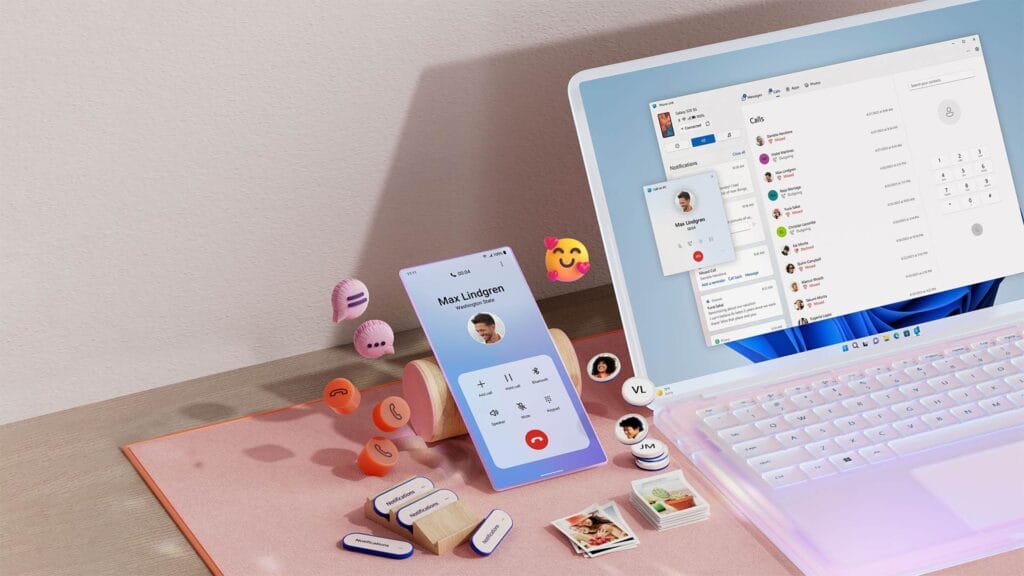
On your PC, open the Phone Link app (pre-installed on Windows 10/11).
Follow on-screen instructions to link the two devices.
Features:
Access photos, messages, notifications, and files
Drag-and-drop files directly between phone and PC
Pros:
Seamless experience for Samsung and Surface users
Files transfer instantly without cables
Cons:
Requires Microsoft account
Full feature set limited to specific models (Samsung, Honor)
Bonus: Email, Telegram, or WhatsApp (for Small Files)
For documents or images under 100MB, you can simply email them to yourself or use Telegram’s Saved Messages to transfer between devices.
Email: Attach files and send them to your own address.
Telegram: Send the file to yourself from your Android and download it on your PC.
WhatsApp Web: Share with a trusted contact and download via WhatsApp Web on PC.
What’s the Best Option?
Method
Speed
Internet Required
Setup Complexity
Best For
Google Drive
Medium
✅ Yes
Low
Backups & multi-device use
Nearby Share
High
❌ No
Medium
Windows 10/11 users
Send Anywhere
High
✅/❌ Optional
Medium
Fast wireless transfers
FTP via File Manager
Very High
❌ No
High
Tech-savvy users
Microsoft Phone Link
High
✅ Yes
Medium
Windows users w/ Samsung
You no longer require a USB cable to transfer data between your Android phone and computer. Whether you want to backup your gallery, transfer work documents, or send huge films, wireless solutions make the process simple and effective.
Nearby Share and Google Drive are the most user-friendly solutions. If you desire speed and complete control, FTP or Send Anywhere would suffice, as they do not require cloud storage.
Experiment with the way that best suits your workflow; once you go wireless, you will not want to plug in again.
Software updates are vital for keeping your Android smartphone secure, efficient, and compatible with the most recent apps. However, many users disable auto-updates, either to save data or to avoid unpleasant modifications. What is the good news? You can still manually check for and apply updates, rather than waiting for a system prompt.
In this extensive article, we will teach you how to manually check for Android system updates across many brands and what to do if no update appears – even if you assume one is available.
Why Android updates matter
There are several good reasons to check for Android updates manually:
1. Get Critical Security Patches Faster
Waiting for the automatic update prompt could expose your phone to known exploits. Manually checking allows you to keep ahead of security issues by ensuring that your device always has the most recent patch.
2. Access New Features Early
Android upgrades frequently include new interface modifications, battery optimizations, and system features. Manual updates allow you to try the latest enhancements as soon as they are published.
3. Fix Device Glitches or Bugs
Some updates contain stability fixes for specific devices. If your phone has been behaving up, a system update may fix crashes, poor performance, or connectivity issues.
4. Ensure App Compatibility
Many apps now require the latest Android versions to function properly. Without regular upgrades, your favorite apps may cease to function or lose essential features.
Check for updates via settings (standard Android)
This is the most common way to check for updates on Android, regardless of the manufacturer.
Steps:
Open your device’s Settings.
Scroll down and tap on System.
Tap Software Update or System Update (name may vary).
Tap Check for updates.
If an update is available, follow the on-screen instructions to download and install.
What if it says “Your system is up to date”?
That alerting does not always indicate that there is no update; it could simply have not yet reached your region or device build. In that situation, consider the advanced methods listed below.
How to check updates on specific Android oems
Because manufacturers customize Android OS, the update settings may be in slightly different locations.
Samsung Devices
Go to Settings > Software update > Download and install
Samsung pushes monthly security patches and One UI feature updates through this panel.
Google Pixel
Go to Settings > System > System update
Pixel devices receive updates directly from Google — typically first among all brands.
Xiaomi, Redmi, POCO (MIUI)
Go to Settings > About Phone > MIUI Version
Tap on Check for updates.
For advanced control, use the Updater app found in system apps.
OnePlus (OxygenOS)
Go to Settings > About phone > OxygenOS version
Tap Check for updates
Alternatively, download the OnePlus Updater APK for sideloading updates.
Oppo / Realme (ColorOS & Realme UI)
Go to Settings > Software update
Tap on Check for updates
Oppo also has an “Early Access” program for beta releases.
Motorola
Go to Settings > System > Advanced > System Updates
Tap Check for updates
Use Google Play system updates (separate from OS)
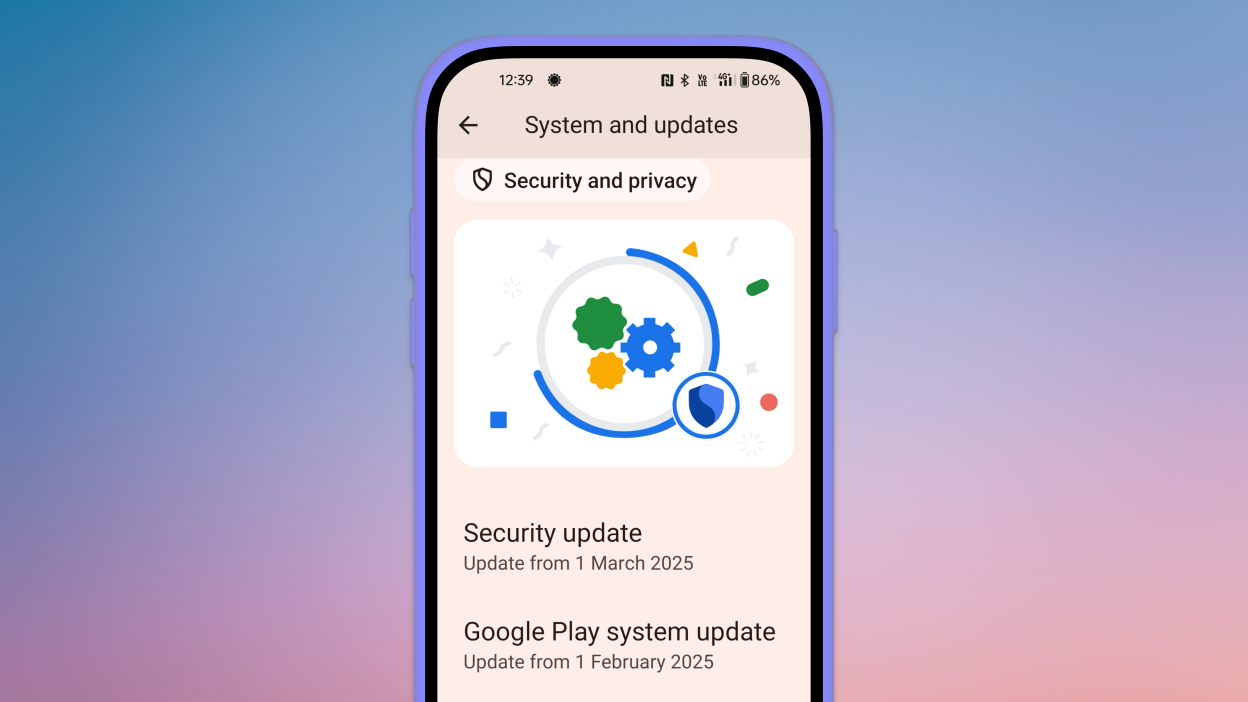
Since Android 10, Google has separated certain security and performance updates from full OS upgrades. These are delivered via Google Play system updates.
How to check:
Go to Settings > Security > Google Play system update
Tap Check for update
These are smaller updates that often improve background processes like biometric security, encryption modules, or system services.
Force update with OTA Zip files (advanced users)
If your manufacturer has released an official firmware update but it hasn’t reached your phone yet, you can manually install it using an OTA (Over-The-Air) zip file.
Steps (for advanced users):
Visit your manufacturer’s official website or trusted forums like XDA.
Download the correct OTA update file for your model and region.
Place the file in the root directory of your internal storage.
Boot into Recovery Mode (usually via holding Power + Volume Up).
Choose Apply update from SD card or Install update.zip.
⚠️ Caution: Flashing the wrong file or interrupting the process can brick your device. Always back up your data.
What to Do If No Update Appears?
If you’ve tried everything and your device still says it’s up to date, here are possible reasons:
Carrier Delay: Devices tied to mobile carriers often receive updates later than unlocked models.
Staged Rollouts: Updates are released in waves. Your device may be queued for later.
Region Restriction: Updates may reach some countries first. A VPN won’t help because updates are tied to device build numbers, not IP addresses.
Outdated Device: If your device is more than 2–3 years old, it may have reached its end of life for updates.
Pro Tips to Get Updates Faster
Enroll in beta programs if your phone supports them (Pixel, Samsung One UI Beta, etc.)
Use the manufacturer’s official updater app (like the Xiaomi Updater).
Keep at least 3–5 GB of free storage so updates can install smoothly.
Fully charge your battery before downloading any major update.
Final Thoughts
Checking for Android updates manually is a good practice, especially if you value efficiency, security, or new features. While auto-updates may manage this silently in the background, taking control ensures that you are always using the most recent and safest version of Android.
Whether you are using a Samsung, Pixel, Xiaomi, or Motorola, the steps are usually only a few taps away. Stay up to date and secure.
Users can try out premium experiences without spending a dollar thanks to the weekly rotating selection of paid applications and games that are made available for free for a brief period of time on app stores like Google Play and Apple’s App Store. These short-term offers can help you save a lot of money on a variety of digital tools and games, from puzzle games and immersive role-playing games to productivity tools and creative utilities. These free app deals are worth looking into whether you want to increase your productivity, take up new hobbies, or just have some good fun.
But while the thrill of snagging a paid app for free is undeniable, it’s important to approach these deals with a bit of caution. Free or paid apps often request access to various parts of your device, from your contacts and photos to your location and microphone. Understanding what you’re granting and why is key to enjoying these offers safely.
Android games and applications that are free for a limited period of time
Free Android Apps
NT Calculator ($2.49): Here’s an app that allows you to perform all the calculations you ever wanted.
Voice Calculator Pro ($9.99): Need a calculator that speaks the calculations? This might be the one for you.
One Swipe Notes ($0.99): A note-taking app that provides easy accessibility with a swipe.
Bookmark Manager ($0.99): Manage all your bookmarks from this single app
Free Android Games
Chicken Tournament ($1.49): A third-person shooter where you are a chicken, and out for blood!
Poosh XL ($1.99): An interesting game that requires some idea of physics and angles to progress.
Spelling Master Pro ($1.99): If your kid is going to remain glued to a smartphone all day long, why not make sure (s)he learns something?
Dungeon Corp ($0.99): An idle RPG that sees you, a corporate drone, take on monsters from another dimension.
Empire Warriors: Tower Defense ($0.99): A tower defense game set in a medieval setting with cute graphics and endless waves of enemies.
iOS games and applications that are free for a limited period of time.
Top Free iOS Apps for Productivity and Lifestyle
Weather+ ($0.99): Is it going to rain? Will it be sunny? Why leave things to chance when you have an app that provides you with weather updates?
Light Meter ($3.99): Don’t leave things to chance when it comes to taking photos by making sure the lighting is ideal for your composition.
mySymptoms Food Diary ($7.99): If you want to keep track of your food intake and possible allergens, having a food diary would help.
Resume Designer 3 ($3.99): Here’s an app for you to cobble a resume quickly while you are on the move.
The Wonder Weeks ($5.99): Just had a newborn? Keep track of all that happens, from the first steps to the first words with this app!
Free Games for the iPhone and iPad
Pirate Drops 2 ($4.99): A match-3 game that requires fast thinking, with graphics that change with the tides to match the mood.
Catenaccio Football Manager ($2.99): A football managing game where you get to determine how your team performs against others through tactics and psychology.
My City: Doctor Hospital ($3.99): Maybe your little one might have interest in being a doctor, what about it?
Neo Monsters ($0.99): A game where you go around catching monsters, training them, and sending them out to fight.
Cuppy Ball ($0.99): Do you have what it takes to get the ball into the cup?
Examine the permissions requested before downloading any new apps or games, especially those that are temporarily free. An app’s basic operation does not require all permissions, and giving it too much access could compromise your privacy.
To limit what information each app can access, use the privacy settings on your device. You should also frequently verify which apps have access to sensitive data, such as your location, camera, or microphone. Remember, a great deal is only worthwhile if it doesn’t compromise your personal data. Stay vigilant, enjoy your new apps, and make privacy a priority every time you download.