Tag: android

  • Temporarly free premium apps and games for both Android and iOS

    Temporarly free premium apps and games for both Android and iOS

    Here, things operate differently because we carefully choose the programs. We chose these programs because they are temporarily free, rather than because we checked and tested everything. Regretfully, neither the Google Play Store nor the Apple App Store provide us with a summary of how long the deals are valid. It’s worthwhile to give them a try right away, but read the warnings about in-app purchases, advertising, and other subscription pitfalls.

    Even if you don’t require an app right away, install it if it piques your curiosity. It will be added to your app library and marked as “bought” as a result. When you need it, you can easily reinstall the app for free after removing it straight from your phone.

    Android apps and games

    Android apps for productivity and lifestyle

    • PhotoApp: AI Photo Editor, Art: One of the many photo apps that let you modify your pictures. For example, you can integrate your face into other photos.
    • Simple App Locker: Do you want to protect certain apps or games from being accessed by others? Then this app offers you the option of securing desired applications with a PIN code or fingerprint.
    • Touch Lock: This app does exactly what the name promises – you can temporarily deactivate the touchscreen. This can be useful if, for example, you are listening to music or watching videos and don’t want to tap the screen accidentally.
    • PowerAudio: Do you want to give an appealing-looking music player with a good rating (4.4 stars) another chance? Then please – go for it!
    • Smart Navigation Bar – navbar: This alternative navigation bar is rated rather average with 3.4 stars, but hey, this way you can at least give the bar a new look on a trial basis and for free.

    Android games

    • Defense Zone 3 Ultra HD: I’ve often recommended this game to tower defense fans. And I’m always happy to do so when it’s free again. Really great graphics and tough at times!
    • Cooking Quest: Do you have what it takes to make people happy with your street food cart? Then prove it in this game!
    • Sudoku Master Premium: I don’t have to explain Sudoku to anyone here, do I? In any case, this is a very nice implementation for puzzle fans.
    • Crossword Quest Premium: Fancy putting your gray matter to the test again? Then here’s something else for crossword puzzle fans.
    • WindWings: Fancy another spin-off of the Atari classic Galaxian? This one makes a really good impression and has a great rating. Have fun shooting!

    iOS apps and games

    Free iOS apps for productivity and lifestyle

    • Water Drinking Reminder: To be honest, this app, which reminds me to drink regularly, would be too expensive for six euros. But “for free,” you can get it without hesitation.
    • Scrap Paper: A very highly rated and intuitive note-taking app that wants to capture your ideas and thoughts without taking you out of your workflow.
    • Atten: Screen Time App Blocker: Do you often lose concentration and look at your phone more often than you should? Then this app will help you reduce your screen time.
    • abCursive: Do you still know how to write by hand? It’s almost a bit ironic that a cell phone app, of all things, wants to teach you how to write beautiful handwriting, isn’t it?
    • Pocketbooth Photo Booth: A photo tool that is modeled on the good old photo booth. I can imagine it being great fun for in-between times. And you?

    Free iPhone games

    • Solitaire: The game, the design, and even the title of the game are sensationally simple. Anyone who enjoys playing solitaire will find a simple and ad-free version here, completely without frills.
    • Blindfold Chess: An exciting idea for a chess game – you have to play virtually blind. In this way, you learn to visualize the board in your brain and thus develop a different understanding and therefore a different skill for playing chess.
    • Rotaeno: For this music game, you need a sense of rhythm and a solid basic trust in your iPhone’s gyroscope. You have to hit notes by rotating your cell phone accordingly.
    • Spider Solitaire: If you like playing solitaire, you’ll find a simple and ad-free version here, without any frills. Oops, I’ve just written that sentence before. So be it – you can tell us which of the two versions you like better.
    • Ninja Boy Adventures – Bomberman edition: Do you still remember the classic Bomberman game? Fans of Bomberman games will quickly feel at home here.

    I hope you’ve all found something appropriate. That’s all I have for today. If not, Saturday will be the next day to take advantage of app deals.
  • How antivirus software secures your Android data from theft and loss 

    How antivirus software secures your Android data from theft and loss 

    Android devices are extremely popular, mainly due to their open-source model, wide range of device options, and affordability, which makes them appealing to a broad demographic and accessible to people from diverse incomes.  

    However, due to its popularity, it makes Android devices an easy target for attacks, resulting in multiple risks associated with storing sensitive data on mobile devices.  

    This is why it is important to secure Android devices and data against theft and loss, especially in the current digital landscape.  

    Threats that Android users face 

    If you haven’t installed a suitable antivirus for Android, you are opening yourself to multiple cybersecurity threats to your private data, which can result in the theft and loss of confidential information that can lead to financial losses. 

    Malware Threats 

    These include viruses, spyware, ransomware, and trojans, among other malware. They are harmful for a number of reasons, which sometimes overlap with each other. 

    • They are sometimes disguised as legitimate apps.
    • Monitor activity and collect data to send to attackers
    • They can steal sensitive information like banking credentials 
    • They can intercept communications to access confidential information 
    • It locks or encrypts files to demand a ransom in order to restore access. 

    Phishing attacks

    • These attackers can create apps that mimic legitimate ones or fake overlay screens to trick users into entering their credentials.
    • They can disguise themselves as popular services which are distributed through unofficial app stores, bypassing Google Play’s protections 
    • They can send deceptive messages that come from seemingly trusted sources to click on malicious links or input sensitive information. 
    • Some phishing apps can read information from the Android notification bar and access information like one-time passcodes, which can help bypass multifactor authentication.  

    Biggest data concerns for Android users 

    • Widespread privacy concerns: Android users actively seek ways to configure privacy settings on their devices. This is due to the majority of privacy-related concerns reflecting anxiety on how personal data is handled by the OS and popular apps.  
    • Excessive Data Collection and Sharing: Android devices often collect and share large amounts of user data with third parties, sometimes they don’t offer users a way to opt out. Google tracks Android phones using cookies, identifiers, and other data stores, often without user awareness. 
    • Security Vulnerabilities and Exploits: Android’s open nature and fragmented update system expose users to high-severity vulnerabilities. This includes zero-day exploits that lead to privilege escalation and remote code execution. 
    • Malicious Apps and Sideloading Risks: Android users are at risk of malicious apps, especially those installed outside of the official Google Play Store, which can bypass Google’s security checks. These apps can introduce malware, spyware, and stalkerware that compromise device security and user privacy.  
    • Insecure App Permissions and Poor Passcode Hygiene: Many users grant excessive permissions to apps, which increases the risk of data misuse or leakage. Weak or reused passwords and simple device passcodes make it easier for attackers to gain unauthorised access. 
    • Biometric and financial data exposure: Vulnerabilities in Android can put biometric data, like fingerprints, and financial information, like credit card details, leaving many devices exposed to known vulnerabilities for extended periods.  

    Built-in Android security features 

    Android devices come with their own set of security features that attempt to protect data stored on them.  

    • Google Play Protect: The official store for downloading apps, scans apps and actively monitors for malware and prompts users to uninstall apps that may be harmful. It also blocks apps from untrusted sources.  
    • Safe browsing and permission management: Alerts users when they attempt to visit dangerous sites, suspicious links, or files that may be harmful.  
    • Encryption and authentication: The devices come with encryption by default, which ensures all data is stored securely, and only someone with the PIN, password, or authentication can access the data and protect it if the device is lost or stolen. 
    • Find My Device: For locating or erasing data on lost devices. It prevents unauthorised access to personal data. 

    Why Additional Measures are Needed 

    There are several gaps in Android’s native security, such as delayed security updates from manufacturers and the risks of sideloading apps and using public Wi-Fi. This is why additional protection, such as antivirus software, is needed.  

    Scenarios where antivirus is especially important 

    • Handling sensitive data such as banking, work files, and personal information. 
    • Frequent connection to unsecured networks. 
    • Downloading apps from third-party sources. 

    How anti-virus software protects your data

    • Real-time malware protection and detection, and removal of these threats. 
    • This software blocks ransomware before device lockout occurs. 
    • It scans for phishing URLs and fraudulent websites before users access them. 
    • Conducts privacy audits to monitor app permissions and data access. 
    • Monitors for identity theft protection and aids with secure online payments. 
    • Some software has VPN and secure browsing features. 
    • Has in place a remote device location, lock, or wipe in case of loss or theft.

    What to be wary of

    • With Antivirus Software: Some apps contain vulnerabilities, like exposing the address book or allowing attackers to disable the antivirus software itself. Some also track user data and end up creating new risks instead of eliminating them. 
    • Google Play Protect: These and other official store apps are not always foolproof;  malicious apps are able to slip through the vetting process, and antivirus software that scans before and after installation can add a layer of defence. 
    • Making the Choice: When choosing the right software for you, you want a comprehensive malware detection, real-time protection and updates, privacy controls, app permission management, and additional tools like VPN, anti-theft, backup, and Data Loss Prevention (DLP). 

    DLP and Advanced Security Features of Antivirus Software 

    • It encrypts data in transit and at rest. 
    • Separates personal and corporate data for business users. 
    • Centralised password and access management. 
    • Remote wipe and selective data erasure for lost or stolen devices. 
    • App and domain whitelisting to restrict access. 

    Practices for Maximising Android Security

    • Keep operating system and apps updated: Install the latest Android OS and app updates to patch vulnerabilities and protect against new threats. 
    • Regular review app permissions: Check which permissions each app has and revoke those that are unnecessary. Only grant essential permissions for app functionality.  
    • Avoid downloading from untrusted sources: Download apps from the Google Play Store or reputable sources. Avoid third-party app stores, which are more likely to host malicious apps.  
    • Use strong passwords and enable biometric authentication: Use a strong PIN pattern for the lock screen, and use fingerprint or face access for added security. 
    • Enable remote tracking: Enables wiping features if devices are lost or stolen to protect confidential information. 

    Conclusion

    Installing antivirus software on Android devices helps protect the device’s data from being compromised and open to cyber threats. To make the most of your protection attempts, make use of built-in features in conjunction with a reputable antivirus solution for comprehensive protection.

  • How to scan documents using your Android phone

    How to scan documents using your Android phone

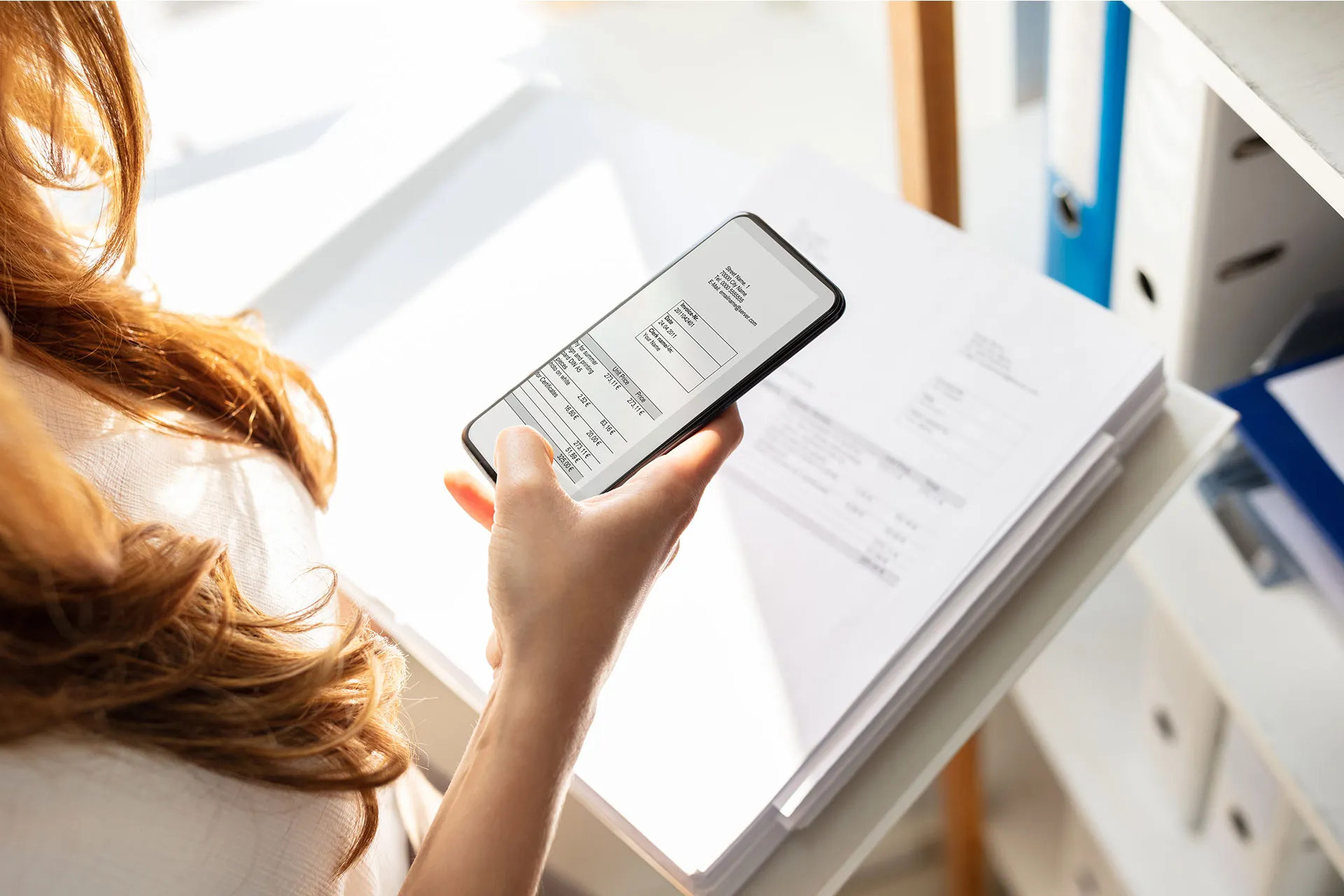
    A large flatbed scanner is no longer necessary for document scanning. You already have everything you need in your pocket if you own an Android phone. Android makes it simple to scan and digitize your papers with just your camera, whether they are signed contracts, handwritten notes, or invoices.

    We’ll walk you through the best ways to scan documents on Android with Google Drive, Google Photos, and other apps in this post. All you need is a decent camera and a few taps; no further gear is required.

    Why scan documents with your phone?

    There are many reasons to scan documents using your Android device:

    • You don’t have access to a physical scanner.
    • You want to save time by instantly digitizing documents.
    • You need to share signed papers, IDs, or receipts on the go.
    • You want to organize your paper clutter and go paperless.

    Thanks to apps like Google Drive and Microsoft Lens, the scanning process is fast, accurate, and easy to use.

    Scan documents using Google Drive

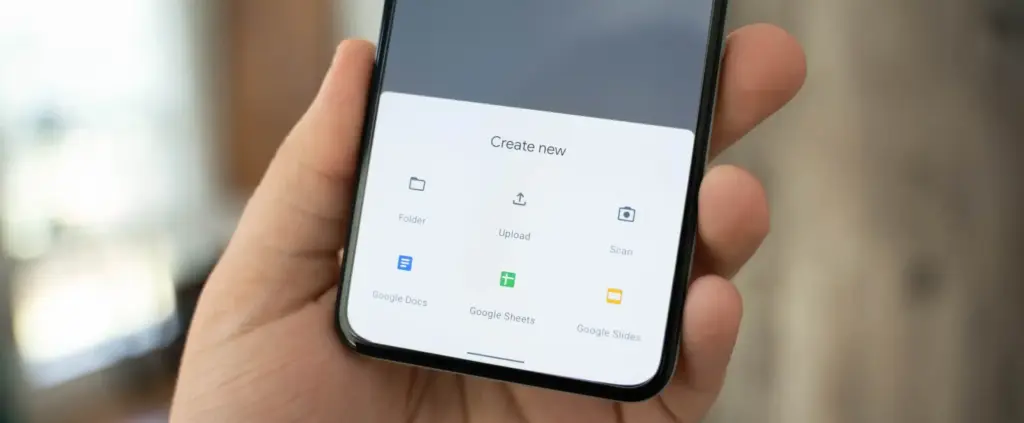
    scan documents with google drive

    Google Drive comes pre-installed on most Android phones and includes a powerful built-in document scanner.

    Step-by-step instructions:

    1. Open the Google Drive app
      Launch Google Drive from your app drawer.
    2. Tap the “+” (plus) button
      It’s located at the bottom-right corner of the screen.
    3. Select “Scan”
      This opens your camera with a scanning interface.
    4. Take a photo of the document
      Frame the document clearly in good lighting. Tap the shutter button.
    5. Adjust the crop area
      You can move the corners to fit the document if the scan is uneven.
    6. Tap “Done” or scan more pages
      You can continue adding pages or finish the scan.
    7. Save the file
      Choose a name and folder to save the scan as a PDF in your Drive account.

    Pros:

    • No need to install anything
    • Saves directly to cloud
    • Easy to share scanned files

    Cons:

    • Limited editing tools
    • Requires Google account

    Scan documents using Google Photos (via Lens)

    Google Photos includes Google Lens, which can recognize text and scan documents quickly.

    How to do it:

    1. Open the Google Photos app
      Find the photo of your document or take a new one.
    2. Tap the “Lens” icon
      It’s at the bottom of the screen and activates text recognition.
    3. Select the document area
      Google Lens will highlight the text areas.
    4. Choose “Copy text” or “Search” or “Save as PDF”
      You can extract text or save it, depending on your needs.

    This method works best for typed text and single pages rather than full multi-page scans.

    Scan documents using Microsoft Lens

    scan documents

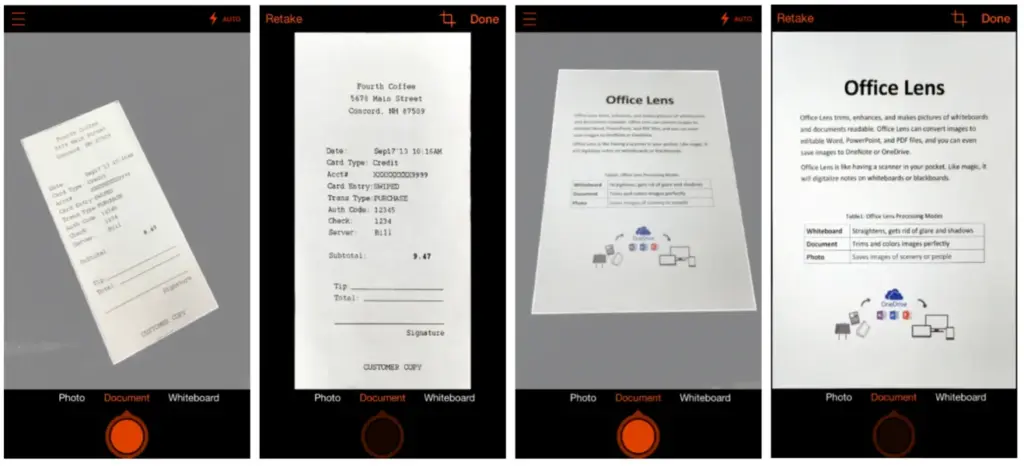
    Microsoft Lens is a dedicated scanning app with powerful enhancement tools.

    Steps:

    1. Install Microsoft Lens from the Play Store
    2. Open the app and choose “Document” mode
    3. Capture your document
      It automatically detects edges and adjusts perspective.
    4. Edit the scan
      You can crop, rotate, or enhance the scan quality.
    5. Save or share the file
      Export to PDF, Word, OneNote, or save to your gallery.

    This app is ideal for professional-quality scans and editing.

    Tips for best scanning results

    • Use natural lighting to avoid glare or shadows.
    • Place the document on a flat, contrasting background.
    • Keep the phone steady while capturing the image.
    • Make sure the document fills the frame but doesn’t crop edges.
    • Clean your camera lens for sharper results.

    Organizing your scanned documents

    After scanning, keep your files organized by:

    • Creating folders in Google Drive (e.g., Receipts, IDs, Legal Docs)
    • Using consistent file naming (e.g., “Invoice_June_2025.pdf”)
    • Backing up to cloud storage or an external drive

    Security and privacy concerns

    If you’re scanning sensitive documents (like IDs, contracts, or financial info):

    • Use apps that encrypt your files
    • Avoid scanning on public Wi-Fi
    • Use a secure cloud service (Google Drive, OneDrive, etc.)
    • Consider locking folders or using file protection apps

    Scanning is excellent for common documents, but dedicated hardware scanners may still provide superior results for specific applications, such as high-resolution archiving, submitting legal papers, or intricate artwork. However, your Android phone is more than capable of meeting 95% of your daily demands.

    You can increase your freedom and convenience by learning how to scan documents with your Android phone. Whether you use a third-party tool, Google Drive, or Photos, digitizing documents and maintaining organization is simple. It only takes a few taps and eliminates the need for large scanners or additional procedures.

    Stay connected with the latest from Droid Tools—follow us on X @droid_tools, like our page on Facebook, check out our updates on Instagram, and follow us on Google News for real-time news, device tips, and mobile tech insights.

  • Wear OS 6 will allow AOD controls

    Wear OS 6 will allow AOD controls

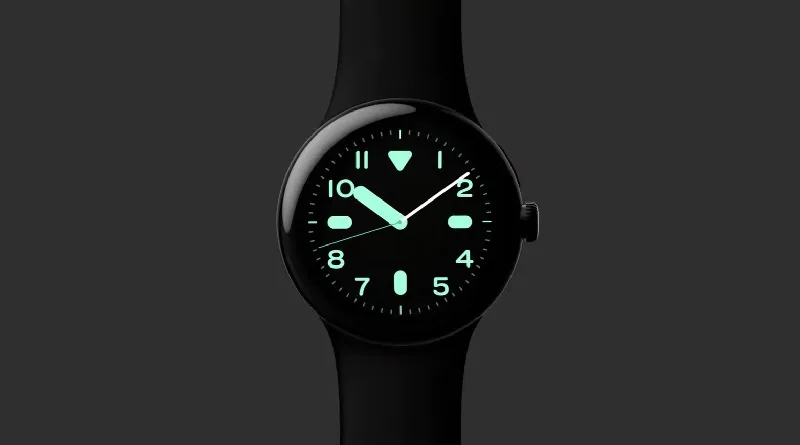
    Due to limits in its actual “always-on” functioning, the always-on display (AOD) mode on Android smartwatches hasn’t always been the smoothest feature. This seems to be fixed in Wear OS 6, which would allow for more usage even when the watch’s display is off.

    Wear OS’s always-on display mode hasn’t changed much. At the moment, the majority of apps only show the clock; only Spotify and Maps completely adjust to the mode. This is a major reduction in productivity, particularly when you want to control or modify something on your watch without waking the screen completely.

    wearOS 6 always on display controls

    Control more from directly from AOD in Wear OS 6

    In Wear OS 5.1, Google is already developing a feature dubbed “Force Global AOD” that, as the name implies, attempts to compel active app displays to switch to an always-on display state. Although it is presently undergoing developer testing, the firm has started to share updates regarding the feature, so we can now anticipate its arrival with Wear OS 6.

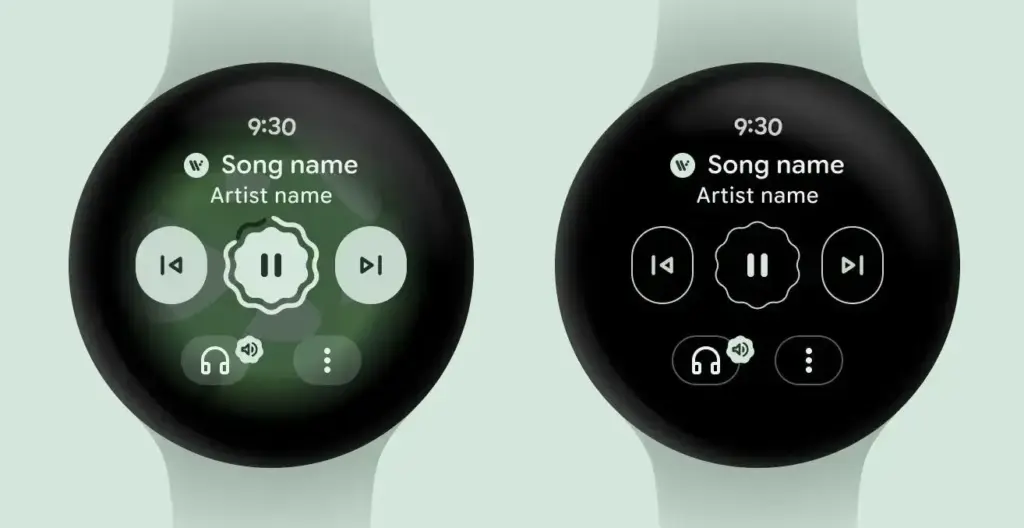
    Google claims to be offering a complete solution with seamless cross-device integration of this capability as part of Wear OS 6. Google gave an example of the existing music control interface, which will change to a black-and-white user interface in AOD mode when utilizing the Material 3 Expressive design. Importantly, the rich and whimsical shapes of many elements, including text and navigational buttons, will be preserved in this AOD version.

    How this will seem in other apps that eventually make use of Google’s Material 3 Expressive’s “glanceable UI” is yet unknown. For apps that don’t support always-on display natively, there might be a default screen.

    Google Pixel Watches and Samsung Galaxy Watches stand to gain the most from this improved always-on display, which will significantly improve Wear OS user experience. With this enhancement, Wear OS smartwatches may even surpass Apple’s watchOS, which does not yet have a real always-on display mode.

    Later this year, Wear OS 6 is anticipated to be made available to compatible Android smartwatches. Improved battery life and performance are two of the improvements in the upcoming main Android wristwatch OS, in addition to the actual AOD. In keeping with Google’s long-term strategy, Gemini will also become more deeply integrated into the system.

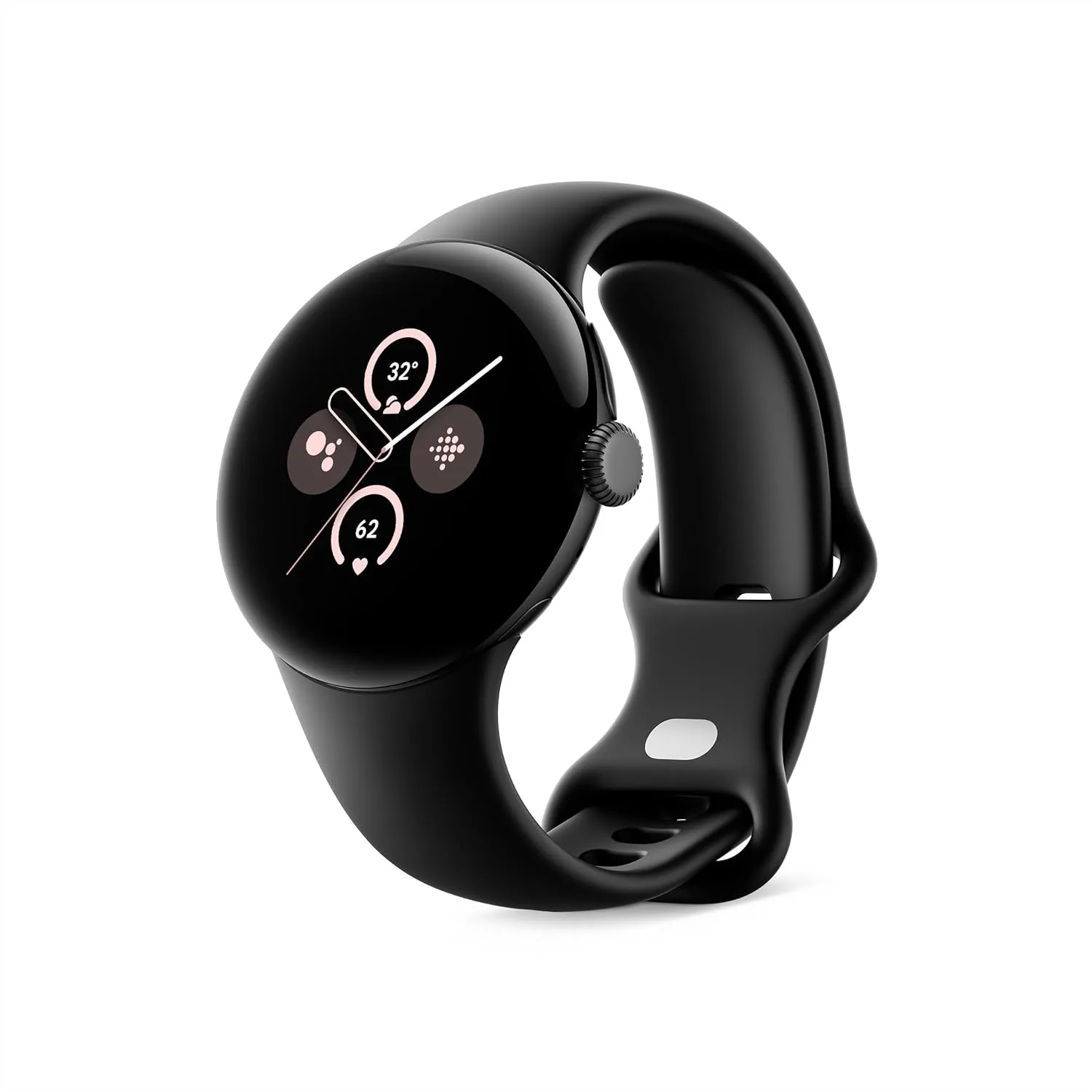
    Pixel Watch 3 1

    Google Pixel Watch 3

    The Google Pixel Watch 3 is designed for performance, with advanced fitness from Fitbit[1,2]; the 41mm screen is twice as bright and 10% larger than before, making it easier to see your stats and info

    $349.99$299.99Amazon

    Stay connected with the latest from Droid Tools—follow us on X @droid_tools, like our page on Facebook, check out our updates on Instagram, and follow us on Google News for real-time news, device tips, and mobile tech insights.

  • How the EU is transforming the mobile industry for the benefit of consumers

    How the EU is transforming the mobile industry for the benefit of consumers

    The European Union has instructed smartphone makers to alter their product lines in a number of ways over the past few years in order to better serve customers. Making USB-C the industry standard connector for a variety of consumer goods, such as laptops, tablets, phones, and cameras, is part of this. It even compelled Apple to allow sideloading of programs and third-party App Stores. Later this month, the EU will implement a new guideline under the Energy Labelling and Ecodesign Regulation that will increase the lifespan of smartphones and tablets as a whole.

    The following design specifications (provided by the European Commission) must be met by smartphones and tablets marketed in the EU as of June 20, 2025:

    • Resistance to accidental drops or scratches and protection from dust and water
    • Sufficiently durable batteries which can withstand at least 800 charge and discharge cycles while retaining at least 80% of their initial capacity
    • Rules on disassembly and repair, including obligations for producers to make critical spare parts available within 5-10 working days, and for 7 years after the end of sales of the product model on the EU market
    • Availability of operating system upgrades for longer periods (at least 5 years from the date of the end of placement on the market of the last unit of a product model)
    • Non-discriminatory access for professional repairers to any software or firmware needed for the replacement

    These days, practically every mid-range and high-end phone has an IP rating, making it simple for them to comply with the EU’s new design guidelines. For a maximum of seven years following the discontinuation of a device’s sale, the European Union will now mandate that companies supply essential spare parts within ten working days. This modification should greatly increase a phone or tablet’s lifespan and facilitate user repairs.

    Additionally, according to Heise Online, the Ecodesign Regulation mandates that software updates be provided for a minimum of five years following the product’s last day of retail sale. For their flagship phones, Google and Samsung offer seven years of OS updates; however, their chronology starts on the day of the device’s debut.

    These businesses might have to either stop selling older flagship models after two years or provide substantially more software support under the new EU regulations. Since Xiaomi and Honor presently only provide upgrades for a maximum of five years after the device’s launch date, the new guideline will have a big influence on both brands.

    Existing smartphones and tablets will not be affected by these changes; they will only be applicable to new models that go on sale on or after June 20, 2025.

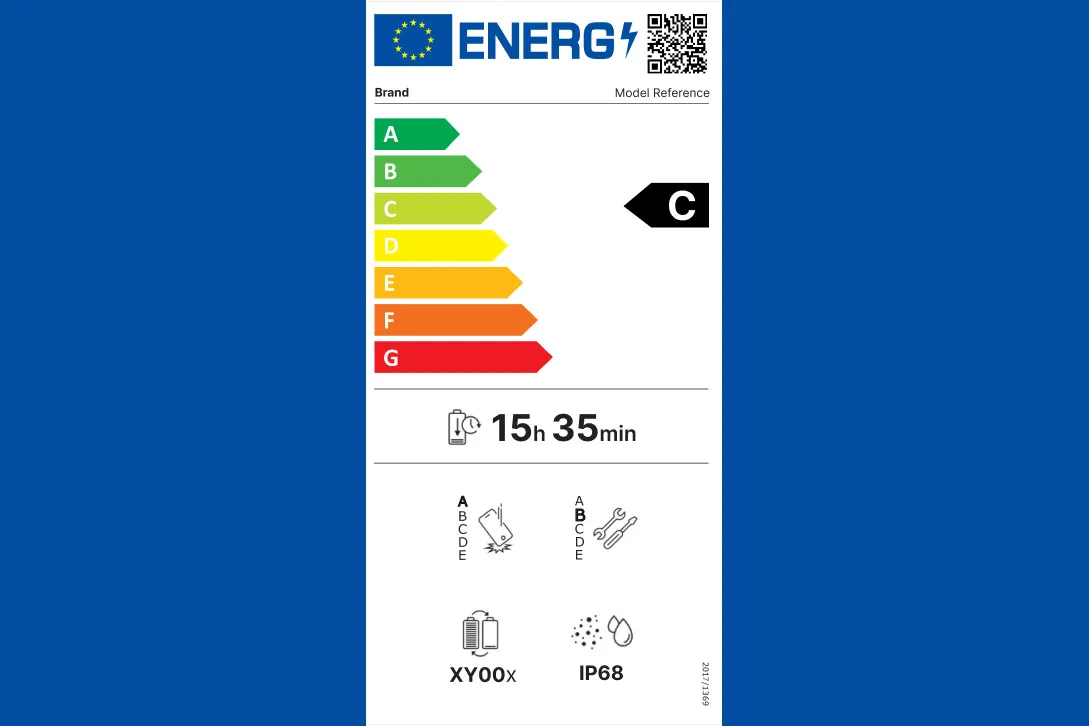
    In the EU, smartphones and tablets will have an energy label.

    eu energy label

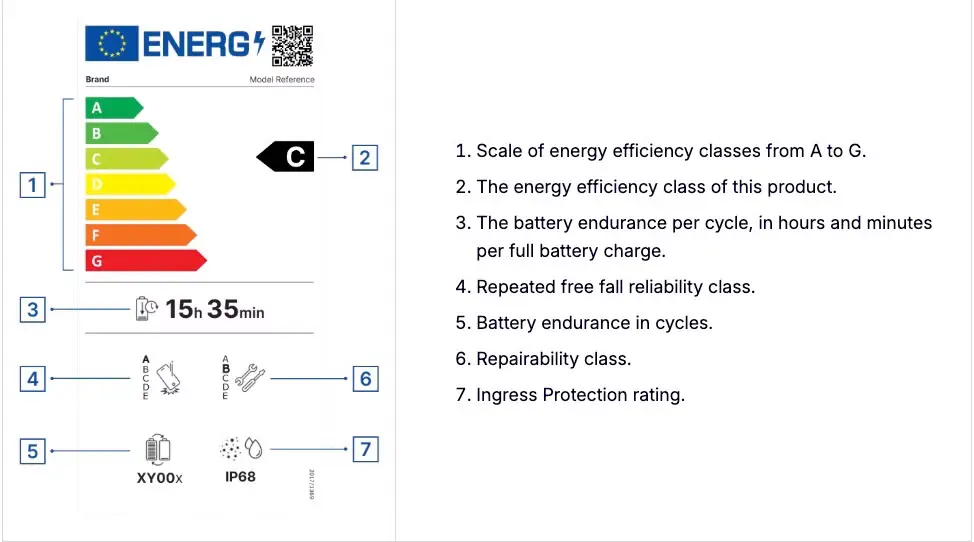
    The EU’s Energy Labelling regulations also take effect on June 20 of this month. It requires manufacturers to include an energy label on their tablets and smartphones that includes information about repairability, battery longevity, dust and water ingress protection, and energy efficiency.

    A scale from A to G will be used to rate energy efficiency, with A representing the highest efficiency and G representing the lowest. Similarly, battery endurance in hours and minutes per full battery charge cycle must be stated by manufacturers.

    According to the European Union, by 2030, phones and tablets that comply with its new energy requirements will contribute to an annual savings of around 14 terawatt-hours.

    Stay connected with the latest from Droid Tools—follow us on X @droid_tools, like our page on Facebook, check out our updates on Instagram, and follow us on Google News for real-time news, device tips, and mobile tech insights.

  • How to connect Android to a TV (screen mirroring and casting)

    How to connect Android to a TV (screen mirroring and casting)

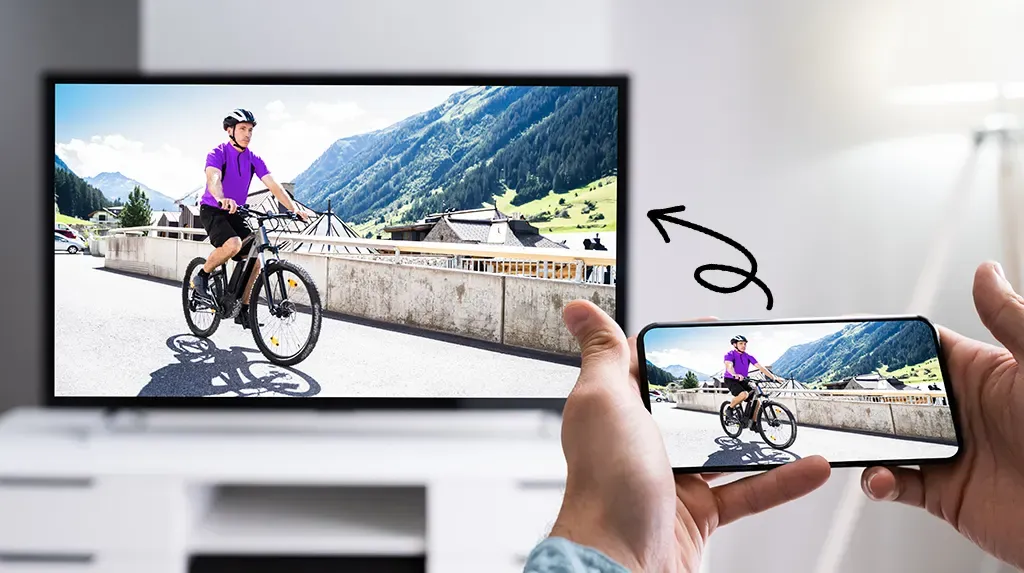
    One of the greatest ways to take advantage of your Android phone’s full potential is to view your favorite movies, pictures, or simply browsing apps on a larger screen.

    Fortunately, it’s now simpler than ever to connect your Android to a TV, whether you want to mirror your phone’s screen, stream YouTube, or display vacation images. Using built-in features like screen mirroring, Chromecast, and HDMI adapters, we’ll go over several methods in this article for connecting your Android phone to a TV—both wirelessly and with cords. Third-party apps are not necessary.

    Check your TV compatibility

    Before you start, it’s important to know what kind of TV you’re working with. Most modern TVs support one or more of the following:

    • Smart TV with built-in casting (e.g., Android TV, Samsung Smart TV, LG WebOS)
    • TV with Chromecast built-in
    • TV with HDMI port and no smart features

    Also, for wireless option, your Android phone and smart TV should be on the same Wi-Fi network and running Android 5.0 or later.

    Use native casting with Chromecast or smart TVs

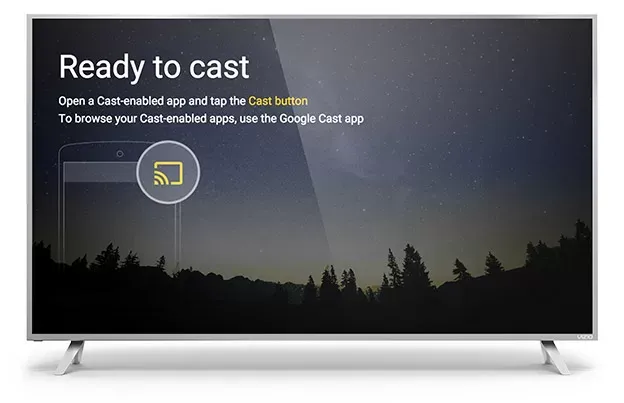
    Most Android phones come with built-in support for casting via the Google Cast protocol. Here’s how to use it:

    TV cu Chromecast preinstalat

    Steps:

    1. Connect your Android and smart TV to the same Wi-Fi network.
    2. Swipe down from the top of your Android screen to open Quick Settings.
    3. Tap Cast or Screen Cast.
    4. Your phone will search for compatible devices. Select your TV or Chromecast from the list.
    5. Your screen will be mirrored onto the TV. You can now open apps, play videos, or browse the web.

    Best for: Watching YouTube, streaming apps like Netflix, showing off photos.

    Note:

    YouTube is one of the apps that has its own cast icon. You can select your TV without full screen mirroring by tapping the cast symbol in the upper-right corner.

    Use Samsung’s Smart View or SmartThings

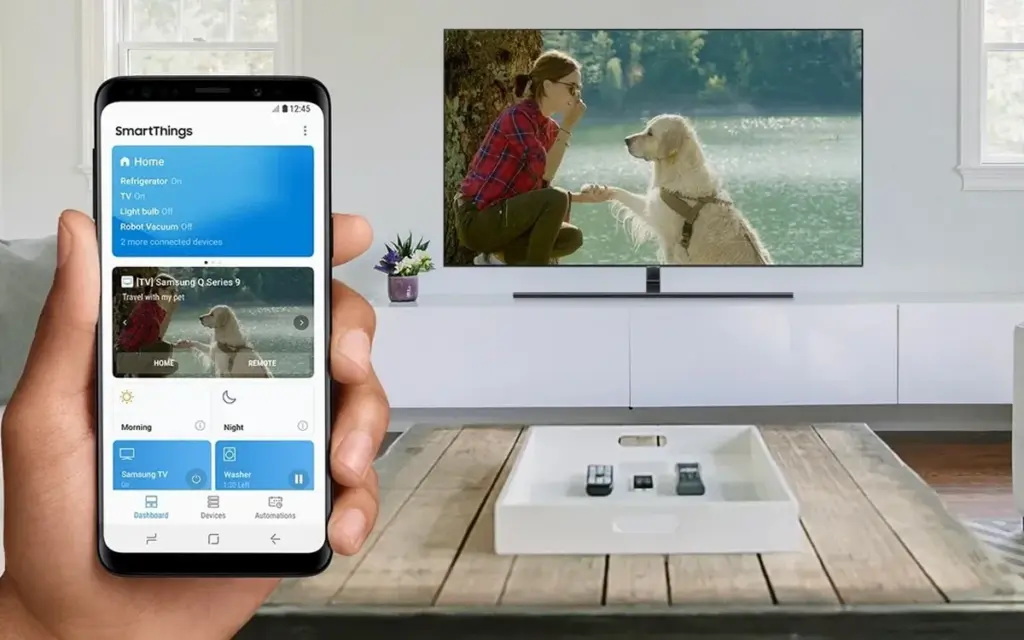
    Wireless casting is made easy using the Smart View or SmartThings app if you own a Samsung Galaxy phone and a Samsung Smart TV.

    smartthingstv

    Steps:

    1. Open Settings > Connections > Smart View on your Samsung device.
    2. Select your compatible Samsung TV.
    3. Tap Start now to begin mirroring.

    As an alternative, you may connect to manage your TV, cast media, or mirror the screen using the SmartThings app, which comes pre-installed on newer models.

    Best for: Samsung users who want the most integrated experience.

    Miracast (for supported devices)

    Miracast, a wireless display protocol that reflects your screen, is supported by a large number of non-Google Android devices (such as LG, Huawei, and older phones).

    Steps:

    1. On your TV, enable Miracast or Screen Mirroring mode.
    2. On your phone, go to Settings > Connected Devices > Cast.
    3. Choose your Miracast-enabled TV or dongle from the list.

    Your phone may not display the choice at all if it lacks native Miracast functionality. If so, try some of the other techniques in this tutorial.

    Best for: Older smart TVs without Chromecast but with Miracast support.

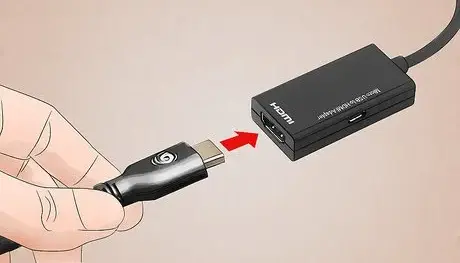
    HDMI cable with a USB-C to HDMI adapter

    cast to TV screen mirroring with cable

    If your TV isn’t Wi-Fi enabled or you prefer a connected connection, a USB-C to HDMI converter provides a convenient plug-and-play option.

    Steps:

    1. Get a USB-C to HDMI adapter (make sure it supports video output).
    2. Plug the USB-C end into your Android phone.
    3. Plug an HDMI cable into the adapter and then into the TV.
    4. Switch your TV to the correct HDMI input.

    The screen of your phone should show on the TV after it has been connected. In the display settings of certain phones, screen mirroring must be enabled.

    Best for: TVs without smart features or Wi-Fi access.

    Troubleshooting

    • Make sure both devices are on the same Wi-Fi network.
    • Restart your phone and TV if the device doesn’t show up.
    • For wired connections, ensure the adapter supports video output (some cheap models only support charging).
    • For best performance, avoid mirroring heavy 3D games—use casting for videos and apps instead.

    A whole new realm of efficiency and fun is made possible by connecting your Android phone to a TV. The technique is easy and doesn’t require any specialized software or gear, whether you’re playing mobile games, presenting slides at work, or binge-watching on a larger screen. Your phone is ready to go large wherever you are if it has native support for Chromecast, Miracast, or a simple HDMI adaptor.

    Stay connected with the latest from Droid Tools—follow us on X @droid_tools, like our page on Facebook, check out our updates on Instagram, and follow us on Google News for real-time news, device tips, and mobile tech insights.

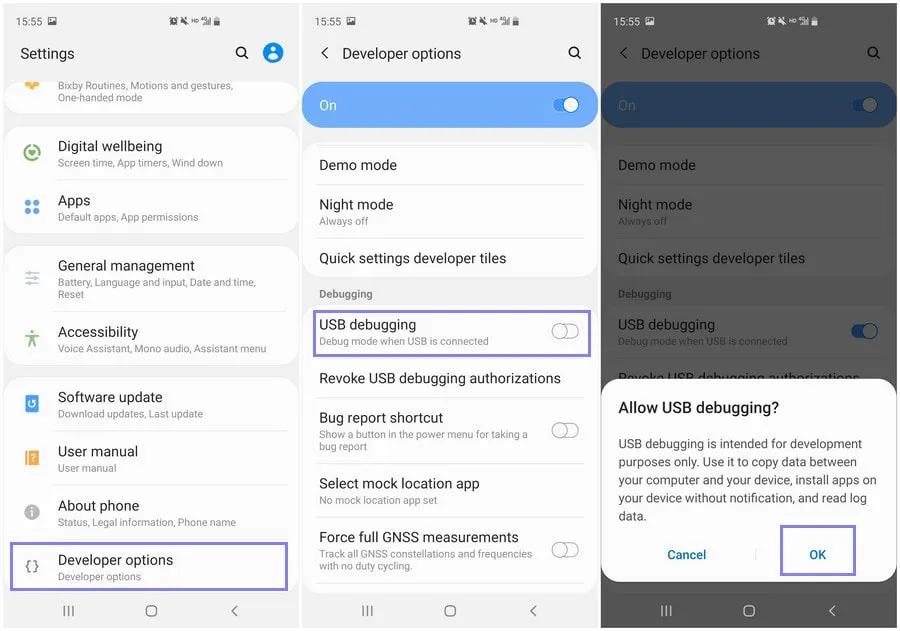
  • How to enable developer options and USB debugging

    How to enable developer options and USB debugging

    Enabling Developer Options and USB debugging is crucial if you want to test apps, get more control over your Android device, or connect your phone to a computer for development. This built-in Android function provides you with the ability to delve deeper, regardless of whether you’re a power user or simply attempting to troubleshoot a persistent issue.

    Without requiring root access, we’ll show you exactly how to activate USB debugging and Developer Options on any Android device in this tutorial. We’ll also go over the functions of each feature and when you might require them.

    What are Developer Options on Android?

    Android’s Developer Options is a secret menu with advanced settings designed mainly for developers. But regular users might also benefit from many of these choices. For instance, you can:

    • Speed up animations to make the phone feel faster
    • View CPU usage on screen
    • Simulate different display sizes
    • Force apps into split screen
    • Enable USB debugging for data transfers or app testing

    By default, Developer Options are hidden, but you can enable them with just a few taps.

    What is USB debugging and why use it?

    USB debugging allows your Android device to communicate with a computer using Android Debug Bridge (ADB). This is critical for:

    • Transferring files and installing apps manually
    • Using development tools like Android Studio
    • Running shell commands via ADB
    • Taking full device backups
    • Recovering devices stuck in boot loops or soft bricks

    Unless you’re developing apps or using advanced tools, USB debugging isn’t needed all the time. But turning it on gives you more flexibility when needed.

    How to enable Developer Options

    The Developer Options menu can be accessed by following these steps:

    1. Open the Settings app on your Android phone.
    2. Scroll down and tap “About phone.”
    3. Find the “Build number” entry (you may need to tap “Software information” first on some devices).
    4. Tap the Build number 7 times. You’ll be asked to confirm your device lock (PIN, pattern, or fingerprint).
    5. You’ll see a message saying “You are now a developer!”

    Once this is done, Developer Options will be available in your Settings.

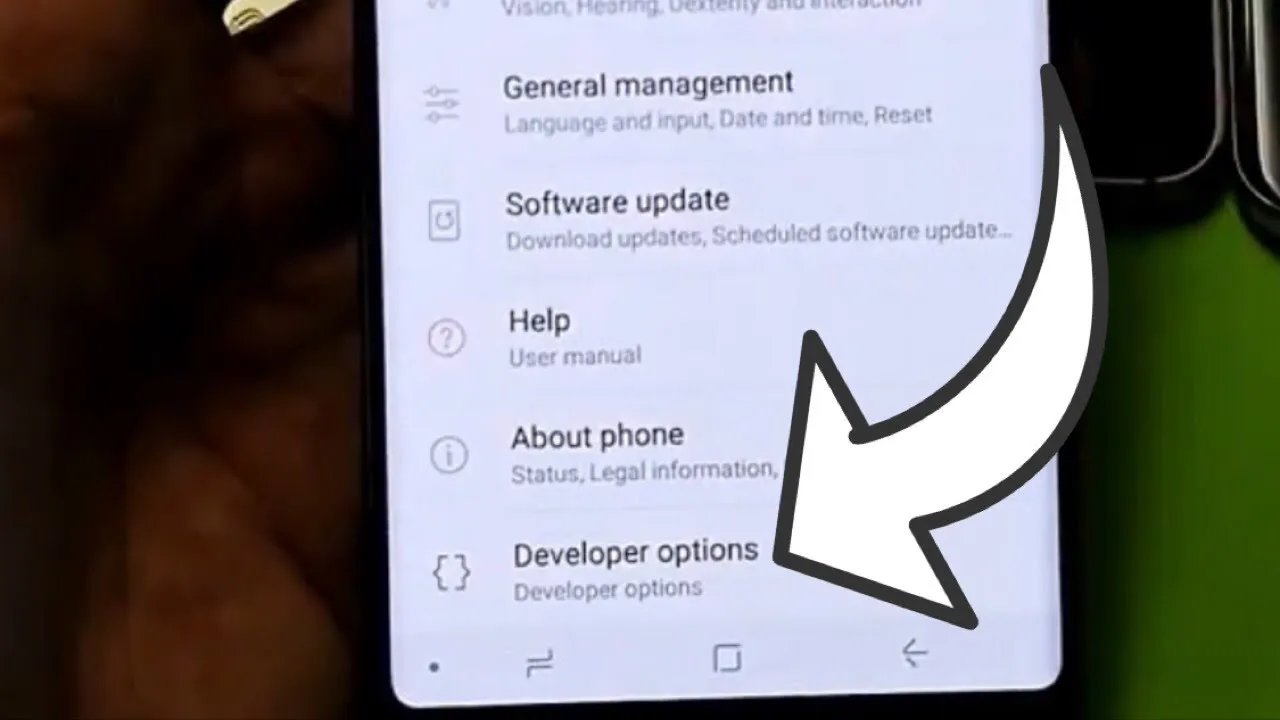
    developer option on Android Galaxy devices

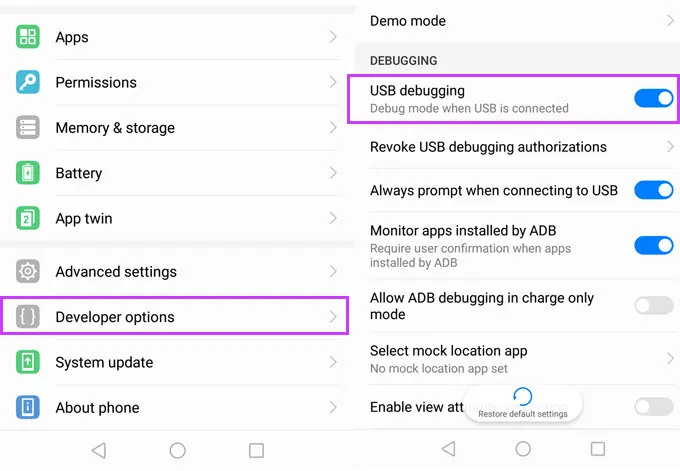
    Location of Developer Options by brand:

    • Samsung: Settings → Developer options (at the bottom of the main settings menu)
    • Google Pixel: Settings → System → Developer options
    • Xiaomi: Settings → Additional settings → Developer options
    • OnePlus: Settings → System → Developer options
    • Motorola: Settings → System → Developer options
    enable developer options

    How to enable USB debugging

    Now that Developer Options are turned on, you can enable USB debugging:

    1. Go to Settings → Developer Options
    2. Scroll down to the “Debugging” section
    3. Toggle on “USB debugging”
    4. Confirm the prompt asking if you’re sure

    That’s it! You can now use your phone with development tools or perform more advanced actions from your PC.

    When should you turn off USB debugging?

    If you’re not actively using USB debugging, it’s best to leave it off. Here’s why:

    • USB debugging can be a security risk if your device falls into the wrong hands while unlocked.
    • Some apps or company policies block access if USB debugging is enabled.

    To disable it, just return to Developer Options and toggle it off.

    Other useful Developer Options settings

    Besides USB debugging, some other features you may want to explore include:

    • Window animation scale / Transition animation scale: Set to 0.5x for faster UI response
    • Force activities to be resizable: Useful for multitasking and split screen
    • Stay awake while charging: Keeps the screen on during testing
    • Limit background processes: Improve performance by reducing multitasking
    • Show taps / Pointer location: Great for app demos or screen recording

    Be cautious while experimenting—many of these options affect system behavior.

    Troubleshooting Developer Options or USB debugging

    Developer Options not appearing?

    • Double-check that you tapped “Build number” exactly 7 times
    • Some devices require a reboot afterward

    USB debugging not working?

    • Try a different USB cable or port
    • Make sure “File Transfer” mode is selected via USB preferences
    • Check that your computer has proper ADB drivers installed

    You may access a robust collection of tools on your Android phone by turning on USB debugging and Developer Options. Although developers are their main target audience, tech-savvy consumers who desire greater control over their gadget might also benefit from them.

    These options can improve your Android experience, whether you’re using ADB to transfer files, debug apps, or simply wish to adjust animation speeds. Just use caution when navigating the options, since some settings may have unexpected consequences.

    Stay connected with the latest from Droid Tools—follow us on X @droid_tools, like our page on Facebook, check out our updates on Instagram, and follow us on Google News for real-time news, device tips, and mobile tech insights.

  • New Android 16 features that everybody is waiting for

    New Android 16 features that everybody is waiting for

    Android 16 offers a lot of innovations that I’m eager to test out on my Android phone, including Material 3 Expressive, a redesigned Quick Settings menu, and Live Updates. It seems like one of the biggest Android updates in a long time.

    There weren’t many obvious adjustments that would have excited me. Prior to Google revealing new features at The Android Show: I/O Edition on May 13, Android 16 was looking like a really dull update.

    New Quick Settings panel

    With each significant Android update, Google alters the Quick Settings panel almost like a ritual. That tendency will continue with Android 16, and I’m looking forward to the modifications Google has planned. Resizable toggles are being added. Additionally, one-click Bluetooth and Wi-Fi toggles are returning.

    Android 16 material expressive 2 shade blur anim

    The tiles have a new appearance and take considerably less room than they did previously, which is another obvious alteration. Extending the Quick Settings panel will provide a depth effect by blurring the background, similar to what is seen on some Chinese Android skins.

     The next flagshipfrom Oppo to have the fastest charging ever on a phone

    Google appears to have drawn inspiration from the updated Control Center for Android 16 Quick Settings panel in iOS 18. It seems to be a significant improvement in usability.

    The June release of Android 16 will not have the updated Quick Settings panel. It will come later in the year instead.

    Material 3 Expressive

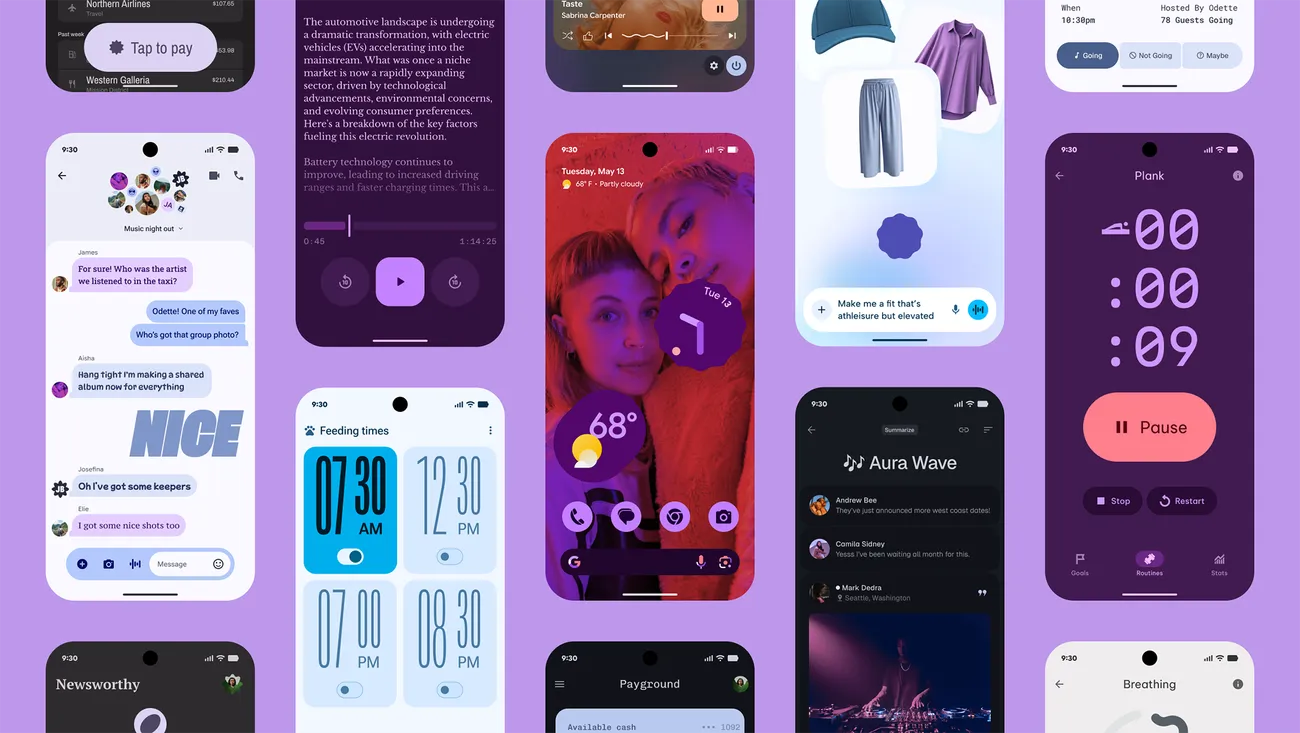
    Google’s latest phone and tablet design language, Material 3 Expressive, makes its debut with Android 16. It is also among the OS’s most significant user-facing modifications. It doesn’t significantly alter the appearance. Rather, it expands upon Material Design 3 by including bolder fonts, larger buttons, slick and lively animations, and more.

    The timing of Material 3 Expressive is perfect. The current look felt outdated because Google introduced Material look 3 with Android 13 four years ago. Additionally, it maintains familiarity while bringing about the appropriate enhancements. Rather than droning on about Material 3 Expressive, I’ll let this Google GIF speak by itself:

    Android 16 material 3 expressive animations2 gif anim

    This polish is present throughout Android 16, particularly when switching the system volume or closing apps from the recent apps menu. It also features smooth animations and haptic feedback. Android 16 will upgrade the dynamic color themes in addition to Material 3 Expressive, allowing apps to use additional colors from your wallpaper.

    One of the main Android 16 improvements that I am most looking forward to is Material 3 Expressive, which looks good based on what Google has demonstrated. The one sour note? When Android 16 is first made available to the public in June, Material 3 Expressive will not be included. It will come later in the year instead.

    Live Updates

    Apps for food delivery have permeated our daily lives. Uber, Grubhub, and other food delivery apps provide real-time, urgent notifications, unlike other apps. The same is true of sports apps. Instead of launching the app, you would prefer to get real-time information in the notification shade on your phone.

    Even while Android’s notification panel is more capable than iOS’s, it has trouble efficiently delivering real-time updates. With Live Activities, Apple nailed this, making it simple to monitor real-time food delivery status and sports scores.

    Android 16 material expressive 3 live updates anim

    Google’s Android 16 will have a feature called Live Updates, which is modeled after iOS. It will show the status of your meal delivery in real time on the notification shade or the lock screen of your phone. When you use Always-On Display, the status is displayed. Additionally, Google’s approach enhances the Live Update notification with helpful Call, Message, and Tip buttons.

    It’s time-consuming and annoying because I have to open the meal delivery app all the time to see how it’s doing. A feature akin to the iPhone’s Live Activities was added to the skins of Android manufacturers such as OnePlus and Oppo, although the execution is unreliable and glitchy. Google should address these problems with an official solution.

    Ultra HDR support for HEIC images

    I use my phone to shoot a lot of photos. I have my phone’s camera app set to save JPEGs in the space-efficient HEIC format because they take up a lot of storage. The catch is that images saved in the HEIC format are not compatible with Ultra HDR on Android. I therefore use JPEG for my photos, which uses up all of my 2TB of Google One storage.

    This will be altered with Android 16’s addition of Ultra HDR capability for HEIC photos. Additionally, Google is developing UltraHDR support for AVIF files, which should be available soon.

    With Android 14, Google debuted Ultra HDR. It enables images to have improved color and a wider dynamic range. These enhancements are provided without any compatibility problems. On devices with SDR screens, Ultra HDR JPEG images immediately revert to the SDR gain map. Google mandated Ultra HDR support for phones with performance class 15 starting with Android 15.

    Let’s hope Google upgrades the Pixel Camera app to enable saving shots in HEIC by default rather than JPEG, because Android 16 now supports Ultra HDR for HEIC files.

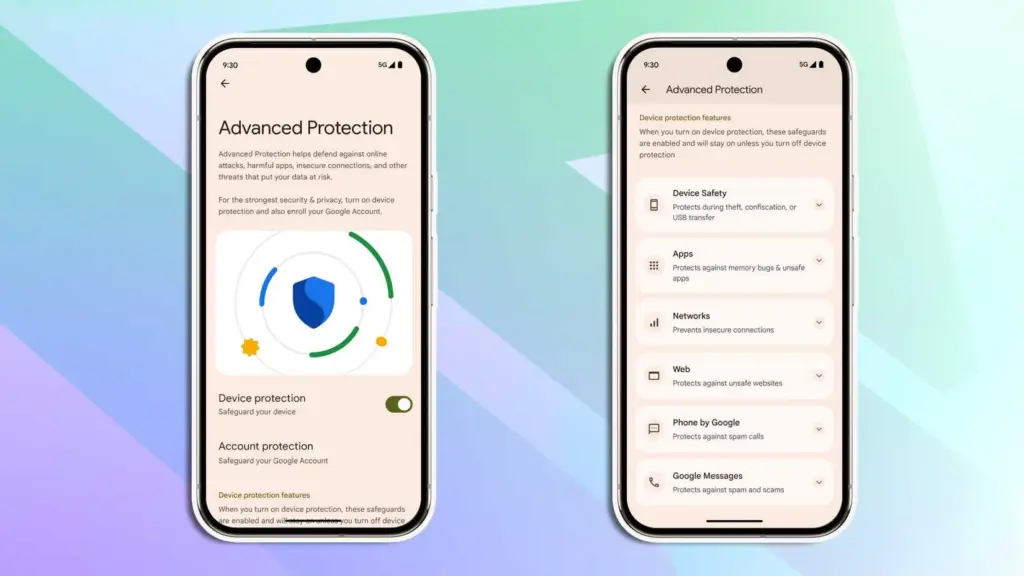
    Advanced Protection mode

    Google has strengthened Android’s security over the past few years by adding a number of features. However, there is still opportunity for improvement. In addition, I believe that Android’s security features fall short of those of the iPhone.

    Google is making a significant effort to address issue with Android 16. Major security-related settings will be consolidated under a new Advanced Protection mode. To activate offline device locating or Theft Detection, you won’t need to go far into your phone’s settings menu.

    Android 16 advanced protection

    With a single Advanced Protection toggle, you can enable all available security measures in Android across several categories. The list is as follows:

    • Intrusion Logging
    • Theft Detection Lock
    • Offline Device Lock
    • Inactivity Reboot
    • USB Protection
    • Google Play Protect
    • Unknown App Protection
    • Memory Tagging Extension
    • Android Safe Browsing
    • Chrome Safe Browsing
    • Javascript Protection
    • Unsafe Link Protection
    • Spam and Scam Protection (Google Messages)
    • Spam and Scam Protection (Phone by Google)
    • Called ID & Spam
    • Automatic Call Screening
    • 2G Network Protection
    • Disable Auto-Reconnect to Insecure Networks

    Numerous security mechanisms are dispersed across the operating system. For instance, the Google Play Protection option is located under Security & Privacy, whereas the Caller ID & Spam protection settings are located in the Phone app settings.

    With Android 16, a new security feature called Intrusion Logging generates and preserves a device activity record for study after a compromise. It is safe but easily accessible because it is kept in the cloud and is end-to-end encrypted.

    Another new security feature in Android 16 is Inactivity Reboot, which will restart your phone automatically after 72 hours of inactivity and lock-up. This will guarantee that no user data may be viewed until the device is opened by entering the password or PIN.

    I won’t gain much from Android 16’s Advanced Protection Mode. I only activate these functions when I’m on the road. Nevertheless, it’s a useful innovation that will make Android more secure.


    Despite being a feature-rich version, Android 16 will not ship with all the new goodies in June and still lacks several long-awaited additions. Rather, Google will make more significant improvements later in the year, most likely in conjunction with a quarterly platform release and the Pixel 10 family. Additionally, some improvements may not be available for non-Pixel phones because the manufacturer may choose not to incorporate them into their skin.If you want the latest Droid Tools news, follow us on X @droid_tools and like our page on Facebook to stay updated.

  • Google Pixel 10 Pro was spotted on commercial set

    Google Pixel 10 Pro was spotted on commercial set

    It’s not usually a high-level leak or a retailer’s mistake of publishing information too soon that causes the world’s largest firms to struggle to keep their new devices under wraps. Occasionally, this occurs because the corporation producing the product begins filming advertisements months before the product is scheduled to be released, and a passerby witnesses the commercial shoot in progress and, fortunately, has a decent enough camera with them to record the entire event.

    Pixel 10 Pro

    It is typically not a high-level leak or a retailer’s error of releasing information too soon that makes it difficult for the biggest companies in the world to conceal their new technologies. Sometimes this happens when the company that makes the goods starts making commercials months before the product is supposed to be introduced, and a bystander happens to be watching the commercial shoot and, thankfully, has a good enough camera with them to capture the entire thing.

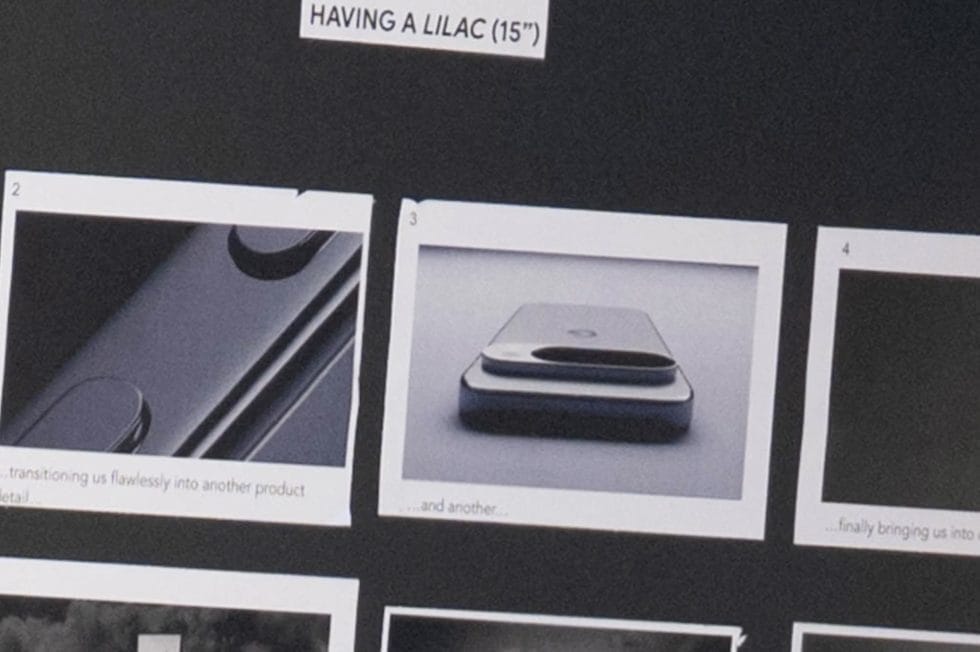
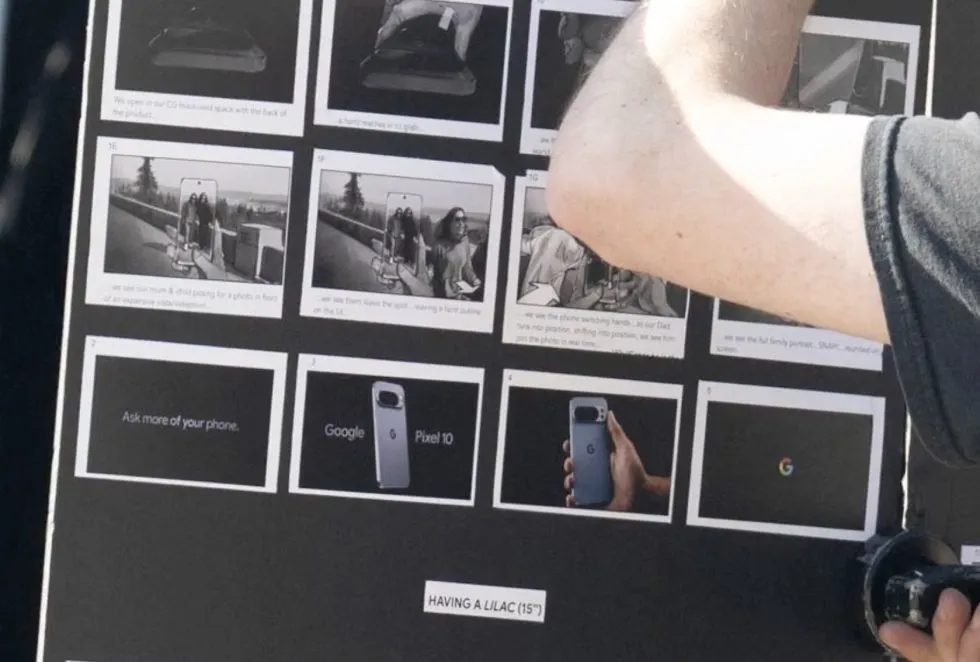
    A humorous little video slideshow featuring narration of the user’s experience filming Google’s Pixel 10 Pro was posted on Twitter by @MarksGonePublic. According to their photos, Google was filming an ad featuring the Pixel 10 titled “Ask more of your phone.” Indeed, the phone is referred to as the “Pixel 10” in the storyboard, but it is actually a Pixel 10 Pro with an additional camera and temperature sensor.

    Pixel 10 Pro commercial set

    I’m not sure what else can be learned from this video because the Pixel 10 series is anticipated to resemble the Pixel 9 series in every way except for the inclusion of Google’s Tensor G5, which should be their best chip ever as it replaces Samsung Exynos as the base. This ad only indicates that a Pixel 10 is on the horizon and will appear remarkably similar; it doesn’t necessarily disclose any new specifications, features, or costs.

    And here’s the real smartphone in a person’s hand during the photo session, which once more displays a Pixel 10 Pro that appears to be a Pixel 9 Pro. And it’s okay! We adore the Pixel 9 series’ look.

    image 4
    Pixel 9 pro

    Google Pixel 9 Pro

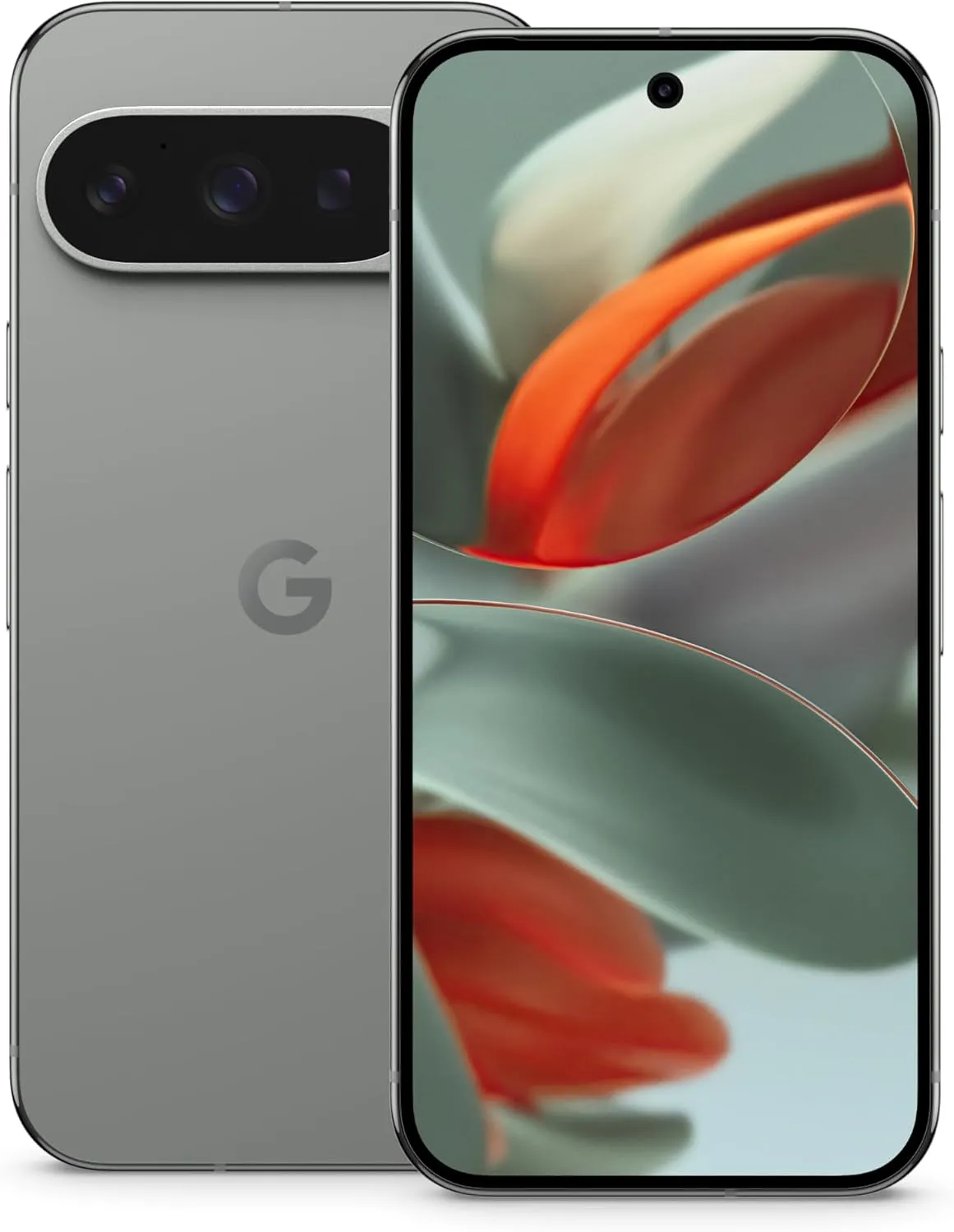
    Pixel 9 Pro with Gemini is the most powerful Pixel yet, and now comes in two sizes; it has a pro-level camera and it’s engineered by Google, so it gets the best of Google AI first

    $999.00$799.00Amazon
  • Big UI change in Android 16 Beta QPR

    Big UI change in Android 16 Beta QPR

    With Gemini mostly overshadowing the two-day developer conference, Google I/O 2025 is now gone. On the other hand, the release of Android 16 QPR1 Beta, which incorporates the previously introduced Material 3 Expressive design language, is a more noteworthy advancement for certain aficionados. What’s new in this version and how to access the beta are explained here.

    After the stable Android 16 Beta program, the first Quarterly Platform Release is the Android 16 QPR1. Despite being more stable than previous betas, it is still intended for developers and testers because of flaws and other problems. Similarly, this release represents a sneak peek at the upcoming Pixel Feature Drop, which is anticipated to happen next month.

    Google’s new design language, Material 3 Expressive design, or M3E, which incorporates bolder and more playful elements, is now available in the Android 16 QPR1 Beta. Wear OS 6 for wearables will also use the M3 Expressive design.

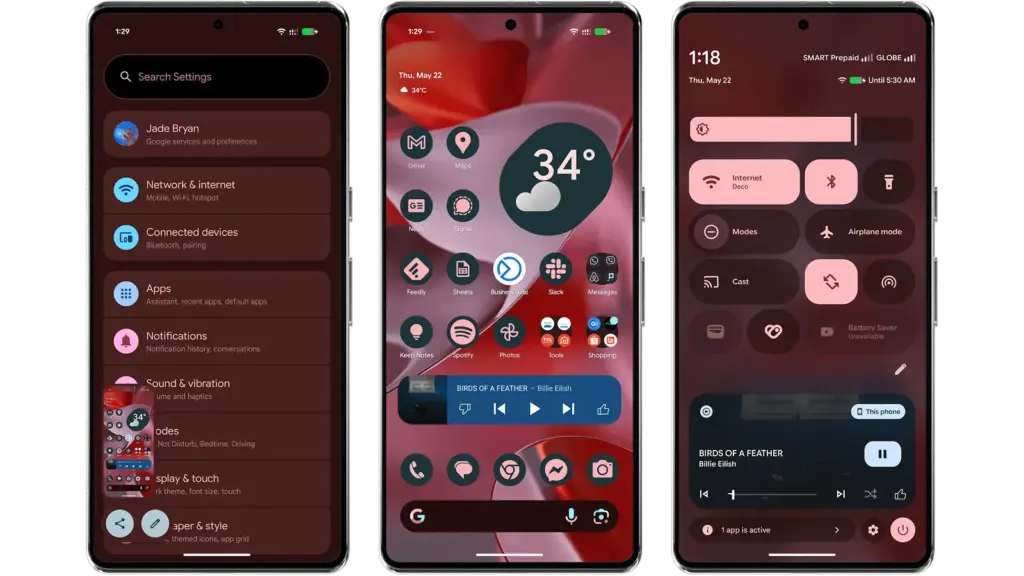
    To experience M3 Expressive, I set up the Android 16 QPR1 Beta on my Pixel 9 Pro XL (review). The wallpaper and quick settings are two examples of UI elements and sections where the modifications are instantly apparent. Additionally, some features, including personalized icons on the Pixel Launcher, are not yet enabled.

    Android 16 QPR1 Beta with Materi

    Material 3 Expressive design landed in Android 16 QPR

    A notable modification to the home screen is the addition of a complete row of additional space for widgets and apps. This is because the “At a Glance” widget, which was formerly located at the top of the home screen, has decreased.

    The battery, cellular, and Wi-Fi system icons have also been added to the status bar. In the meantime, each component of the system settings has more themed glyph icons.

    The most significant changes are in the fast settings panel, which now uses shortcuts and widgets in a more vibrant and effervescent manner, along with new animations that Google calls “springy.” Additionally, there are additional customization options for scaling and positioning toggles and icons, which enables users to employ 1×1 icons to fit more elements.

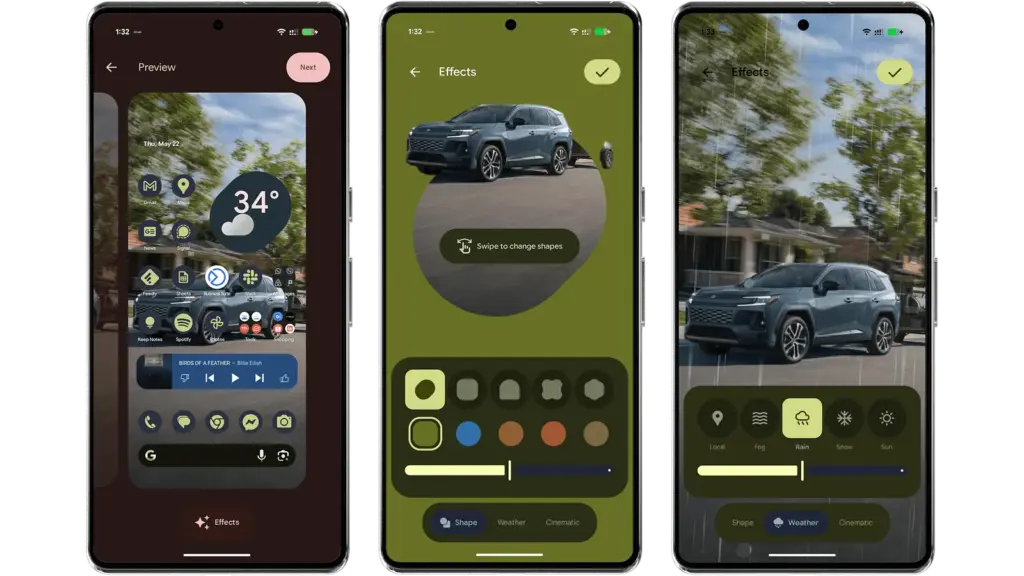
    Android 16 provides additional settings and effects for custom images, which will appeal to those who like personalizing their home screen and lock screen. AI-powered weather effects and the ability to overlay colors with shapes are now available. A cinematic effect is an additional choice, but my device was still unable to use it after trying.

    android 16 qpr changes

    More apps will come with Material 3 Expressive

    It is anticipated that Google would add more M3 Expressive elements to its services and applications, such as Google Photos and Keep.

    Manufacturers of skinned Android versions, like Samsung’s One UI, are now primarily responsible for implementing the Material 3 Expressive design. Many of these changes and new features should be maintained for those that provide stock and near-stock Android experiences.

    All of these updates, along with perhaps other improvements and optimizations not included in the first Android 16 QPR version, will be included in the June Pixel Feature Drop if you’re patient enough.

    The Android 16 QPR1 Beta update is available via the beta program for Pixel 6 all the way to Pixel 9 series.

    • Pixel 6, Pixel 6 Pro, and Pixel 6a
    • Pixel 7, Pixel 7 Pro, and Pixel 7a
    • Pixel 8, Pixel 8 Pro, and Pixel 8a
    • Pixel 9, Pixel 9 Pro, Pixel 9 Pro XL, Pixel 9 Pro Fold, and Pixel 9a
    • Pixel Fold
    • Pixel Tablet