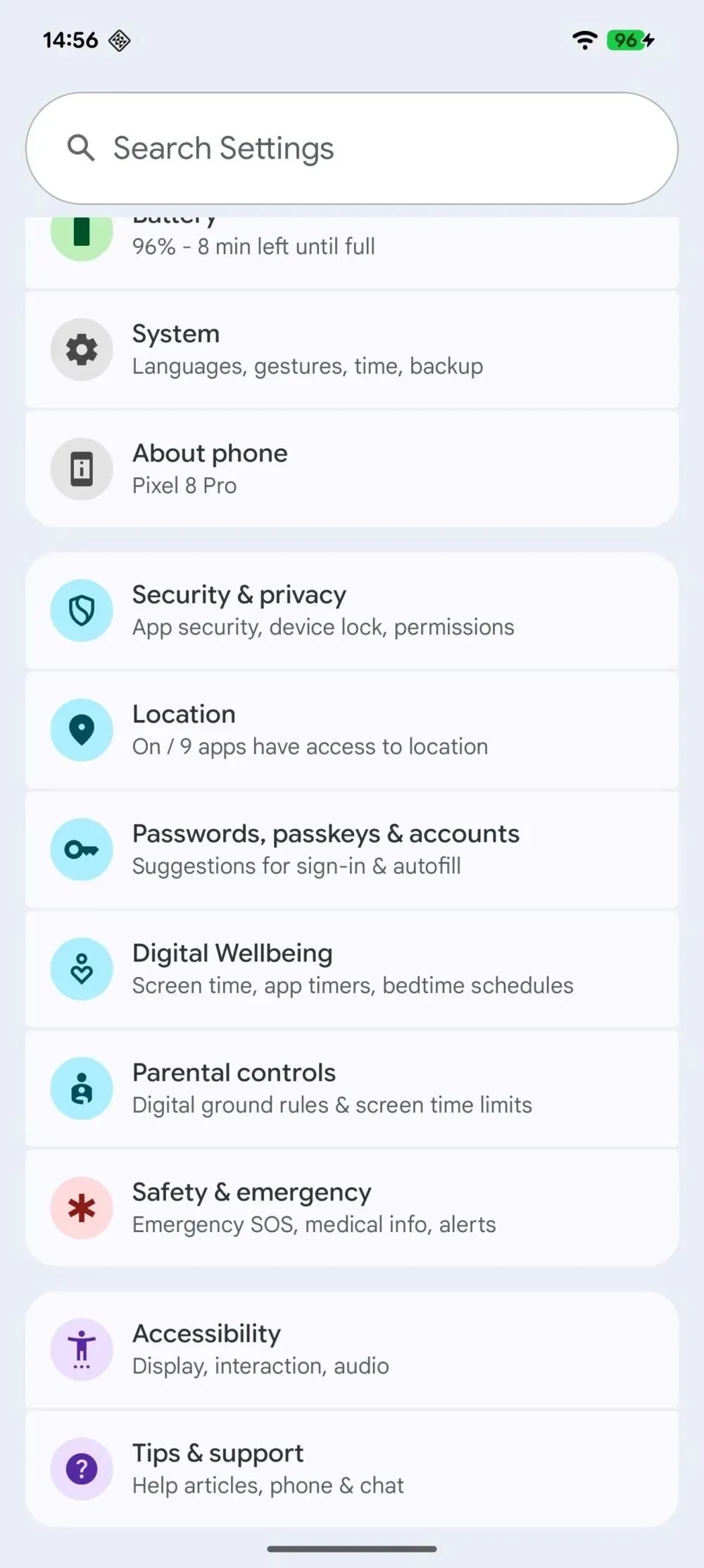
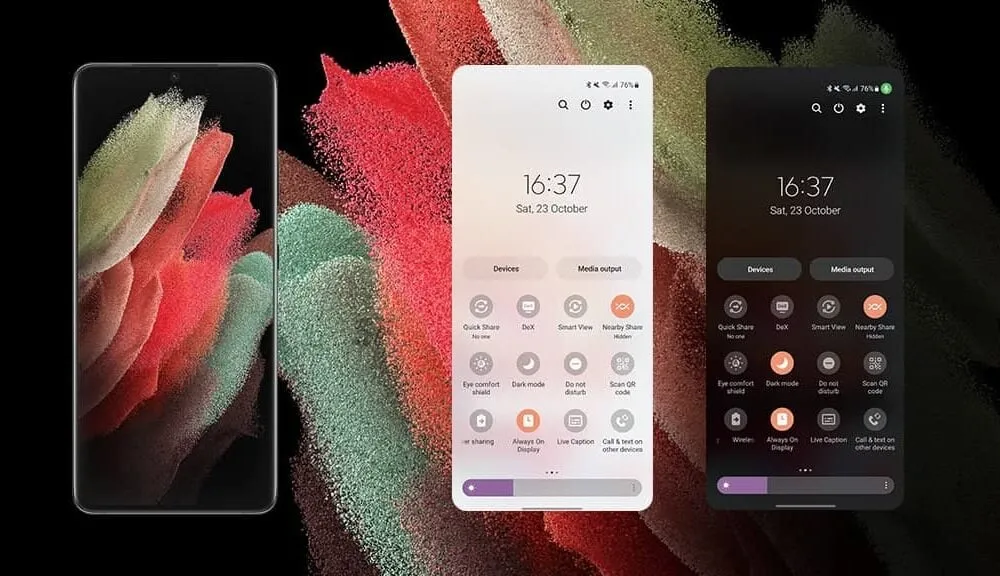
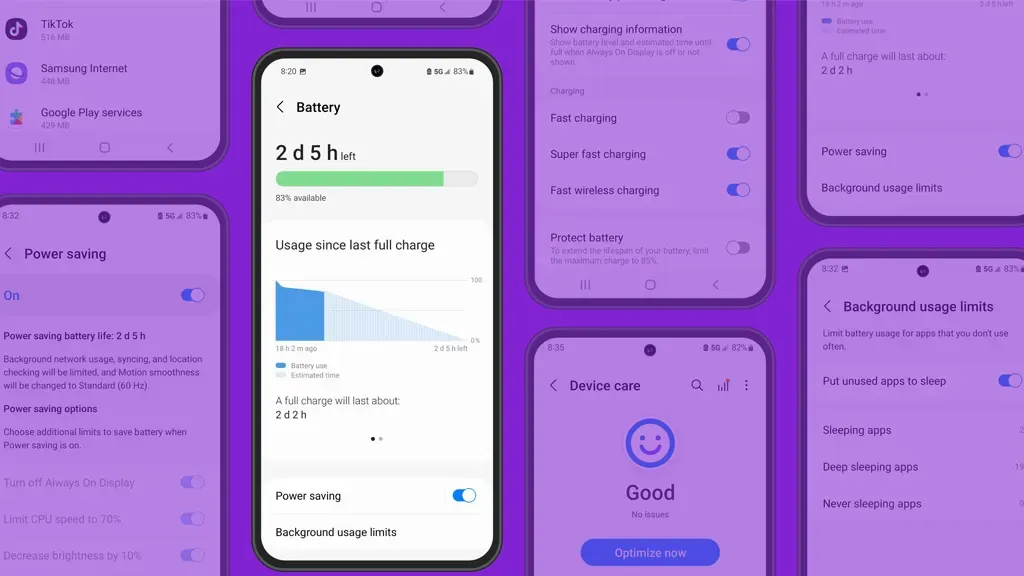
Setting such much-needed digital limits is now easier than ever thanks to Android’s initiative to give parents more control over their children’s digital lives. The beta versions of Android 16 have been revealing some intriguing new features that point to a significant drive for improved child protection. In the Android Canary build, Google appears to have begun testing a new parental limit feature, which represents a more significant change in the way Android phone supervision functions.
The Android Canary release channel, which is effectively Google’s sandbox for testing out experimental features, contains a new “Parental controls” setting that Android Authority has noticed. Parents will no longer need to search through Digital Wellbeing to establish some limits because the option is located directly within the main settings menu. Although it isn’t working right now, its positioning indicates that Google intends to prioritize parental settings over treating them as an afterthought.
At the present, tapping the choice has no effect. Nevertheless, it appears that Google is coordinating these changes with more extensive enhancements anticipated in Android 16. For example, the Settings app’s “Supervision” feature, which might allow parents to ban specific online content, was hinted to in Android 16 Beta 4. But now, instead of having a jumble of menus, the focus is on integrating all of that.
In addition to being easier to use, Android 16 is also making it easier to weed out the less wholesome parts of the internet. To prevent explicit content from slipping through, new content blocking capabilities are on the horizon.
Simply enable device supervision and set up a PIN for the account you’re monitoring to activate these site filters. Next, you can filter out explicit photos, text, and links from Google Search and ban dubious websites in Chrome. These capabilities are intended to conceal the majority of problematic web content, making the Android experience considerably safer for younger users—though no filter is infallible.
There are already a number of interesting and helpful apps available for free. However, as the offer is only valid for a short period of time, you need act quickly if you don’t want to spend any money on them.
There are countless apps available in both Google’s and Apple’s app stores, the Play Store and the App Store. While some of these apps are free, some need a fee. However, many users are unaware that many paid apps can also be temporarily made free as part of a special deal. We have compiled a list of some of the most intriguing free apps accessible right now.
Free Pro apps (Android)
Unit converter ($0.79) – With the right app at the right time, the smartphone can bring a lot of added value. Especially when it comes to units and their conversion, there is hardly a better tool than this one. Whether temperature, length, volume, energy, fuel or density – all of these can be converted effortlessly
Fake call screen – Prank call ($0,69) – Have you ever found yourself in an awkward conversation with no hope of escape? With this app, you can take your fate into your own hands and create a distraction with a fake call. Unfortunately, the application no longer works fully on newer Android versions
Color wheel ($2.09) – A very special app that is very popular with its target group. It allows you to precisely determine any color using a color wheel, color palettes, and the smartphone camera, and make fine adjustments at the same time.
Scan Text From Image English ($0,89) – With this app, you can automatically extract any English text from images. Numbers and units are also reliably recognized. The minimalist and user-friendly design of the application is particularly practical
Free premium apps (iOS)
Space Clutter ($0.99) – This game is a minimalist arcade game from 2012 that takes place in outer space. It is now also available for iOS. Anyone who develops nostalgic feelings when they hear the word “arcade” should definitely give this retro-inspired game a chance
Music Quiz: Know Your Library? ($0.99) – This game is a quiz based on your own music library. Anyone who thinks they know their favorite songs inside out can put their knowledge to the test here. The graphic design of the game adapts to the song currently playing
Blindfold Chess ($7.99) – This chess app takes an unusual approach, as the actual game almost takes a back seat here. Instead, the focus is on training for blindfold chess – in other words, playing chess without eye contact with the board. Anyone who learns this skill is guaranteed to be greeted with amazement at their next match
Dog Guide 2 PRO ($1.99) – If you want to find the ideal dog or expand your knowledge of these faithful four-legged friends, you should take a look at this app. It offers a large number of free pictures, clearly presented information, and a practical filter function – all in one application.
At the time this post was published, all of the apps we are showcasing here were free to download. Regretfully, developers frequently fail to indicate the duration of these offers. Don’t hesitate to download an app if you enjoy it.
However, you should always check the app page in the store before downloading a free program. Because there are occasionally unnoticed obstacles that you should be mindful of.
Apps permissions
Many apps gather user information and frequently sell it. Make sure you only give the program the rights it actually needs if you want to be safe. For instance, a flashlight shouldn’t be interested in your location information, and an alarm clock doesn’t require access to your contacts or cameras.
Android smartphones nowadays are available in a wide variety of sizes, styles, and form factors. There is a large market with many possibilities for foldable phones in addition to the traditional slab flagship smartphones and all-around mid-range smartphones.
However, battery life has always been a problem for all Android users, regardless of the device they use. The majority of Android users are concerned about how long their phone will last between charges. Many people adopt practices based more on misconceptions than facts in an effort to maintain battery health.
Although many old pieces of advise still exist, Android phones have become much more intelligent. Here are some typical fallacies about charging that people still hold onto, along with the actual facts.
Only the original charger for your phone brand should be used.
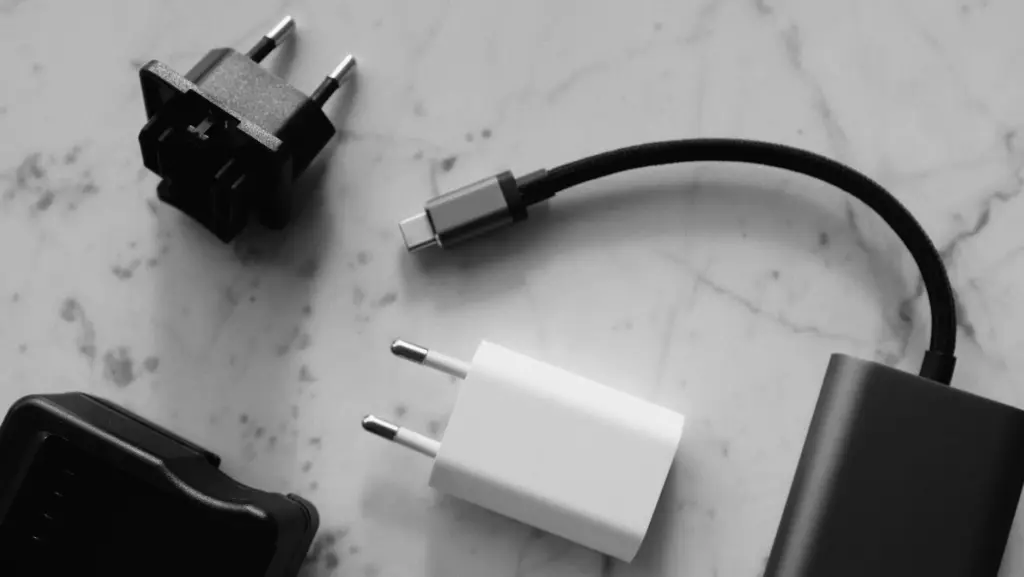
The majority of smartphone manufacturers have followed Apple’s example and ceased included a charger in the box since the release of the iPhone 12 in 2020. Additionally, they frequently encourage you to purchase their official charger, which is typically more expensive than alternatives found on Amazon or Best Buy. However, that isn’t the complete story.
For a quick and safe charge, you don’t have to use the same brand of charger. In addition to meeting all safety and charging requirements, certified third-party chargers from companies like Anker, Belkin, Spigen, and UGreen are less expensive than those offered by phone OEMs.
Additionally, the majority of these brands’ chargers support the majority of fast charging protocols, including USB-PD, PPS, and Quick Charge. It’s likely that a decent third-party charger will function perfectly unless your handset uses extremely specialized proprietary charging technology, like as Xiaomi’s HyperCharge or OnePlus’ SuperVOOC.
Wireless charging is incredibly effective and safe.
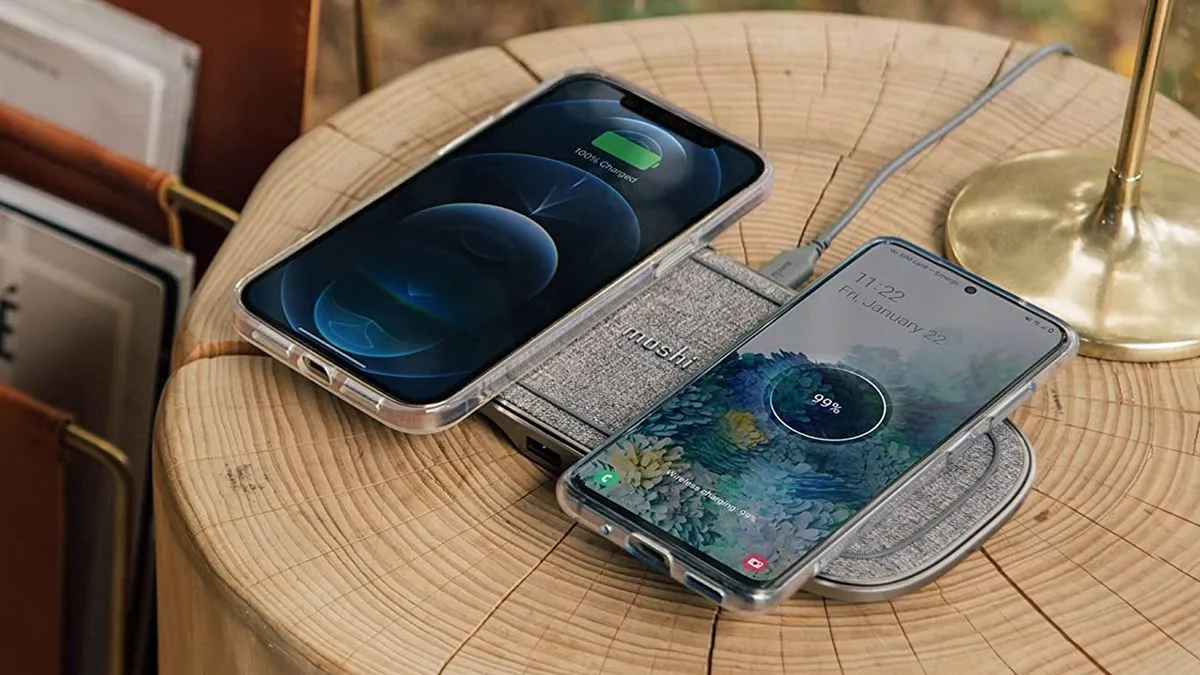
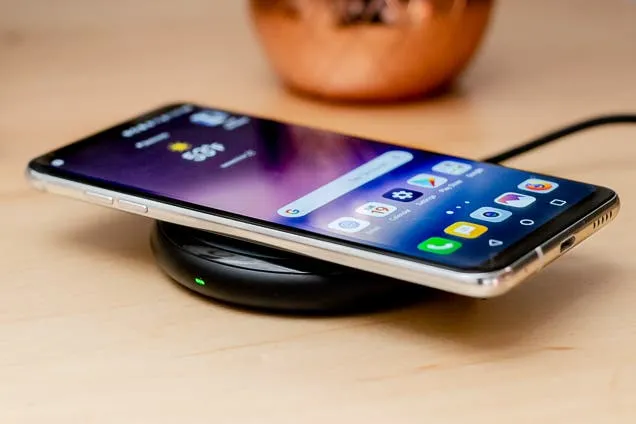
Wireless charging is now supported by the majority of Android flagship handsets, and although it’s a handy feature, it’s not necessarily the best option for battery health. Compared to wired charging, wireless charging produces more heat. Your battery may lose some of its original charge over time due to the accelerated degradation caused by excessive heat.
Therefore, try to avoid using wireless charging on a regular basis. Although it’s acceptable on occasion, if you would rather use a Qi-certified charger on a regular basis, take into account wireless chargers with integrated fans or temperature control, as these features aid in lowering heat production. Despite this, cable charging is still one of the greatest choices (and it’s typically faster, too).
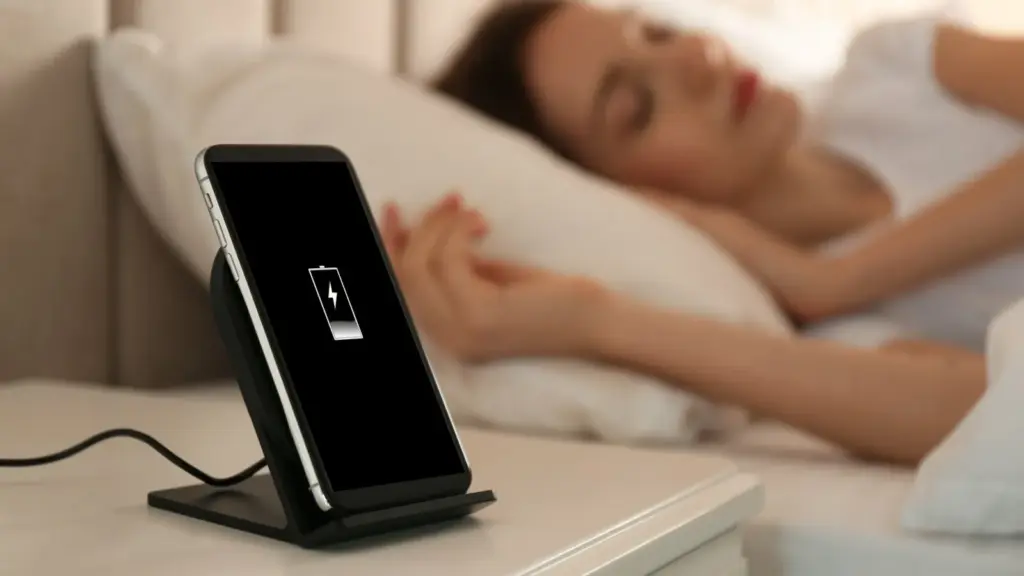
Your phone’s battery will die if you leave it plugged in all night.
The idea that leaving cellphones plugged in overnight will “overcharge” the battery, damage it, and accelerate its depletion is one of the most widespread misconceptions regarding charging. However, that is untrue. These days, Android devices are intelligent enough to charge overnight without causing battery damage.
Nowadays, the majority of phones have intelligent battery optimizations that learn your usage and cut off charging when the battery reaches 80%. These optimizations are frequently AI-enabled. To reduce battery stress, the last 20% is charged right before you usually disconnect your phone.
However, charging to 100% on a regular basis is also not recommended. When left fully charged for extended periods of time, lithium-ion batteries—found in phones like the Google Pixel 9 Pro and Samsung Galaxy S25 Ultra—degrade more quickly. Setting a charge restriction, such as stopping at 80%, is a better long-term habit if your phone allows it.
It’s not good to charge your phone several times a day.
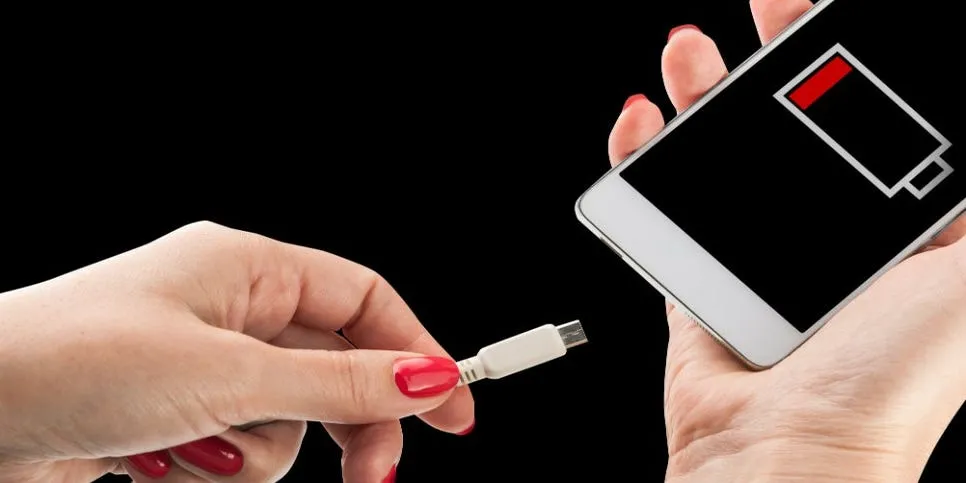
Another widespread misconception is that you should only charge your phone when battery reaches 0% and that charging it more than once a day is detrimental. However, that is untrue. Frequently charging lithium-ion batteries is not a problem for them. Actually, tapping 0% repeatedly may cause more damage than good to these cells.
For the optimum battery health, you should try to keep your phone within the 20% to 80% range, as this is where lithium-ion batteries are meant to operate. Charging your phone in short bursts throughout the day is less stressful on the battery than completely draining it to nothing.
Every phone is compatible with every fast charger.
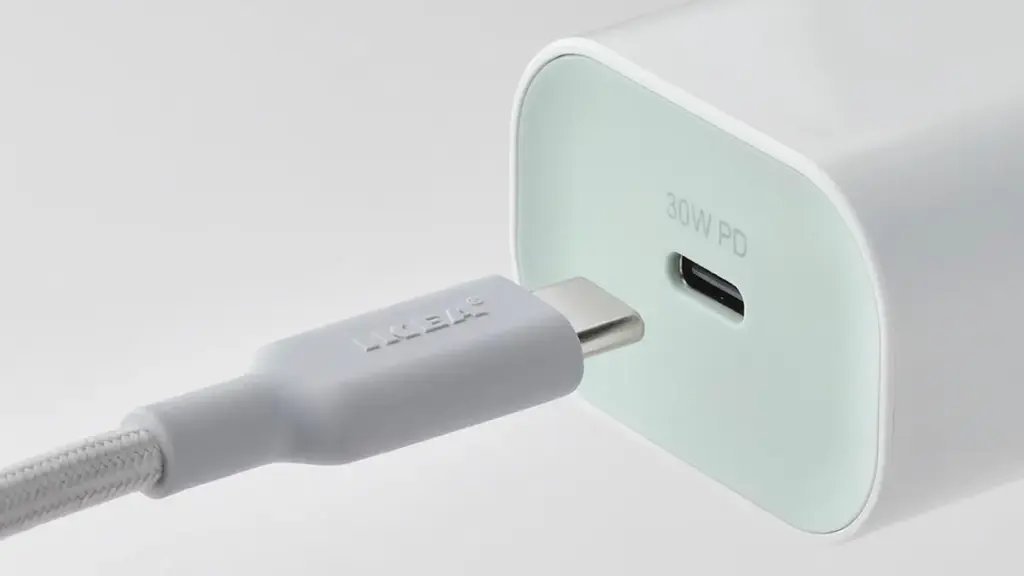
Fast charging is supported by almost all Android devices nowadays, although it is unrealistic to expect all fast chargers to function in the same manner. The charger you’re using might not function as intended because the majority of Android OEMs utilize different fast charging protocols. There are numerous rapid charging protocols, such as USB-PD, PPS, and OnePlus’s proprietary SuperVOOC.
An incompatible fast charger won’t harm your phone’s port, but it probably won’t provide rapid charging. Using the correct charger will charge your phone as intended. You won’t receive the speed you’re hoping for if you don’t check your phone’s supported charging protocol before purchasing a new charger.
Did you knew all these?
Overall, we still hold onto several widespread myths about charging gadgets, many of which date back to the 2000s. However, cellphones have advanced significantly over time, and thanks to a number of clever features, they can now control charging more effectively.
Beyond being aware of these facts, you can really extend the battery life of your phone by incorporating a few simple tips into your daily routine.
Stay connected with the latest from Droid Tools—follow us on X @droid_tools, like our page on Facebook, check out our updates on Instagram, and follow us on Google News for real-time news, device tips, and mobile tech insights.
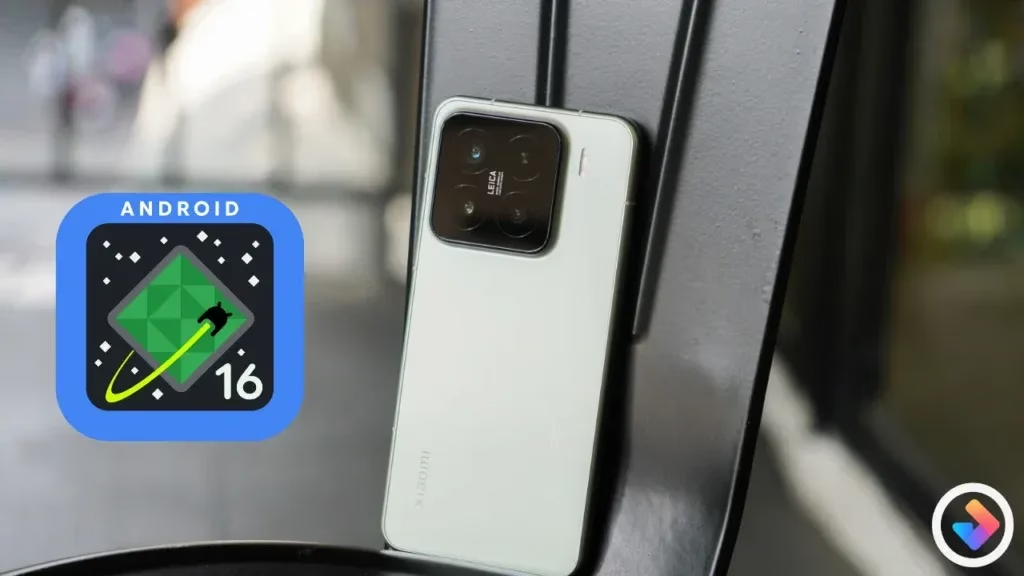
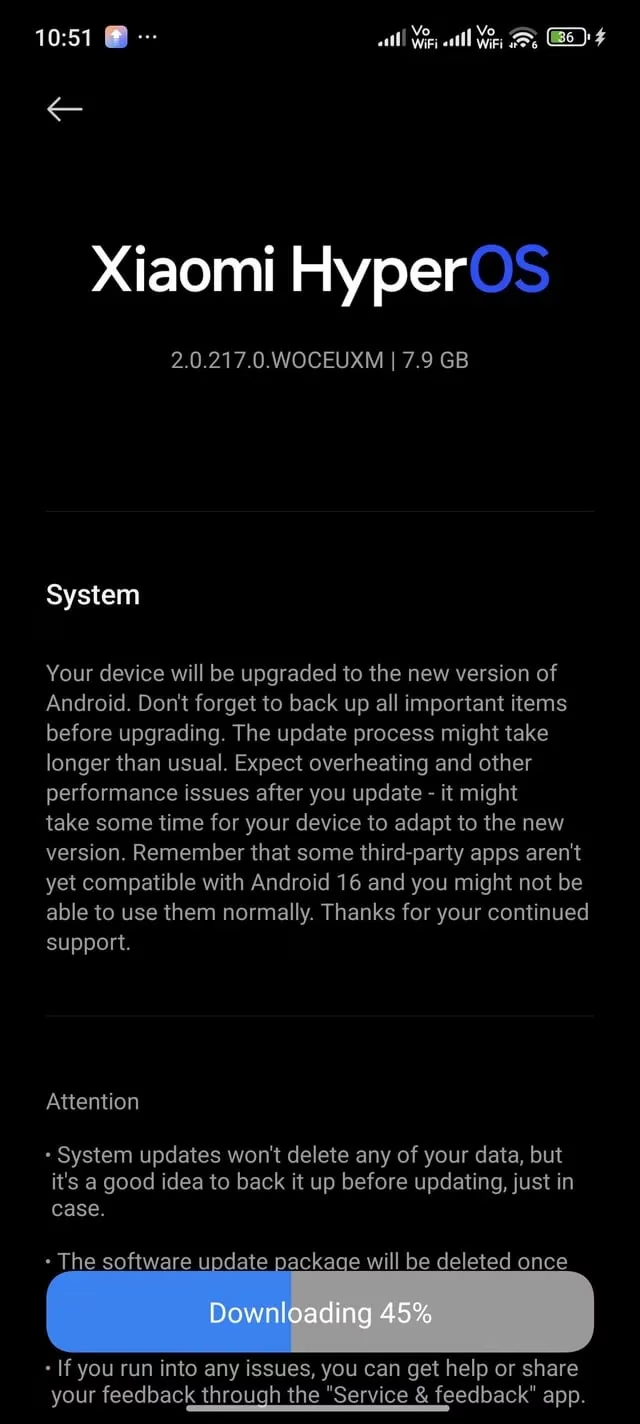
A pilot version of the Android 16 update is currently available to Xiaomi 15 owners. The Xiaomi 15’s Android 16 upgrade still uses HyperOS 2.0 as its foundation. For a limited number of users, the pilot release functions similarly to the final beta build. The Android 16 pilot update has apparently been made available to Xiaomi 15 customers in the US and other countries.
Google formally unveiled Android 16 last month, and as of right now, only Pixel smartphones can run its stable build. Whether the Xiaomi 15 will be the first non-Pixel handset to receive stable Android 16 or if customers will have to wait a little while longer would be interesting to observe. As an alternative, Samsung might lead since the stable Android 16 build is anticipated for the Galaxy S25 later this month.
Xiaomi 15 to be the first who receive HyperOS 2.3 with Android 16
The build number for the Xiaomi 15’s Android 16 upgrade is 2.0.217.0.WOCMIXM. The 7.8GB size of the upgrade was anticipated given its importance. So, if you have the update, be sure to download it over WiFi.
We do not currently have access to the changelog or information regarding the features of the Android 16 pilot release. Android 16 may bring some minor modifications, but HyperOS 3’s release is probably when the main features will be available.
This is a pilot release that is being made available to beta users, as was previously stated. The same version will be made available to users in batches if the build appears to be flawless for the general audience. The stable Android 16 upgrade might not be available to everyone for a few weeks.
Once stable Android 16 is out, you can check Settings for the update if you have a Xiaomi 15. Before installing the update, take cautious to backup any important data.
Stay connected with the latest from Droid Tools—follow us on X @droid_tools, like our page on Facebook, check out our updates on Instagram, and follow us on Google News for real-time news, device tips, and mobile tech insights.
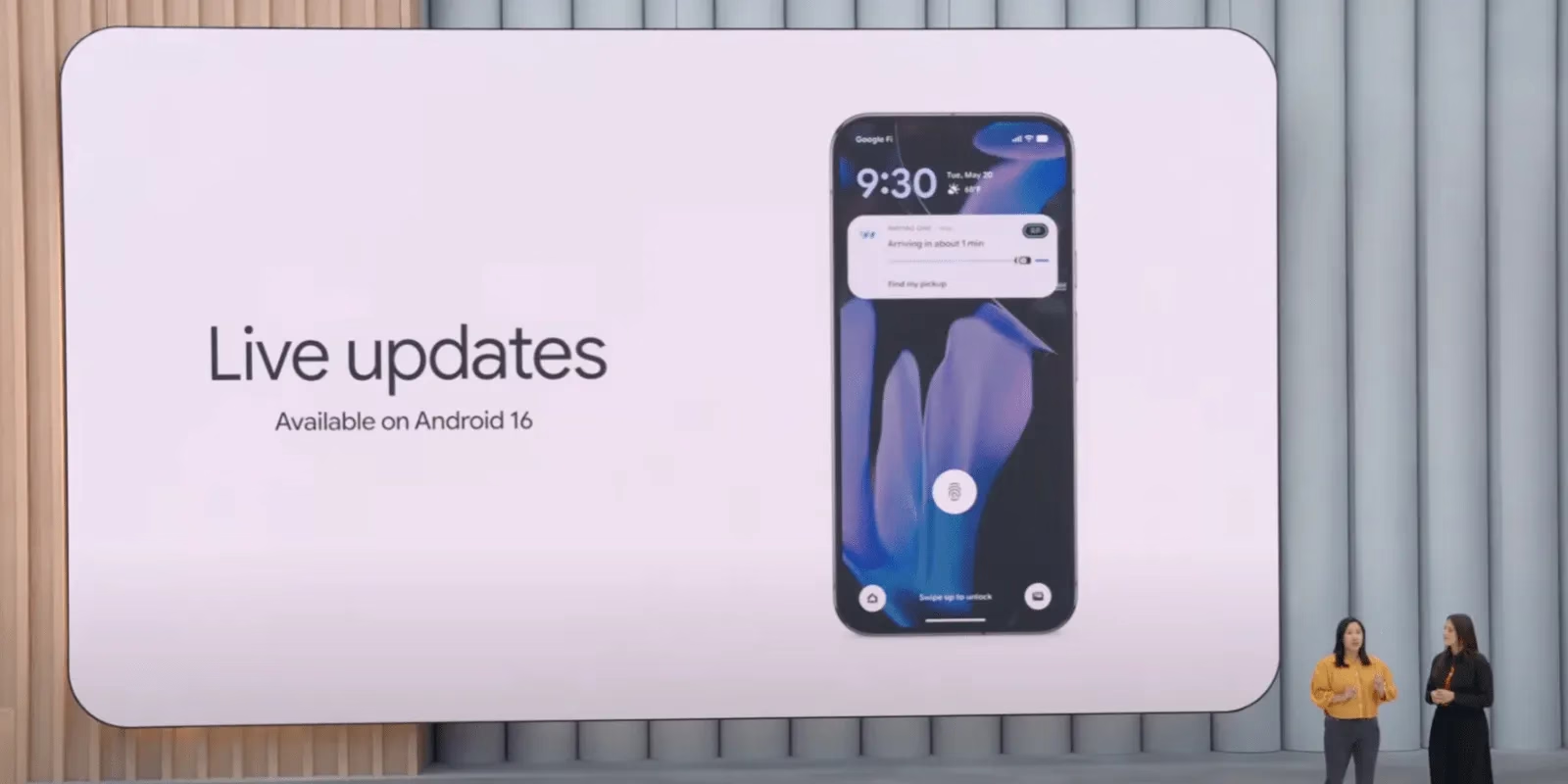
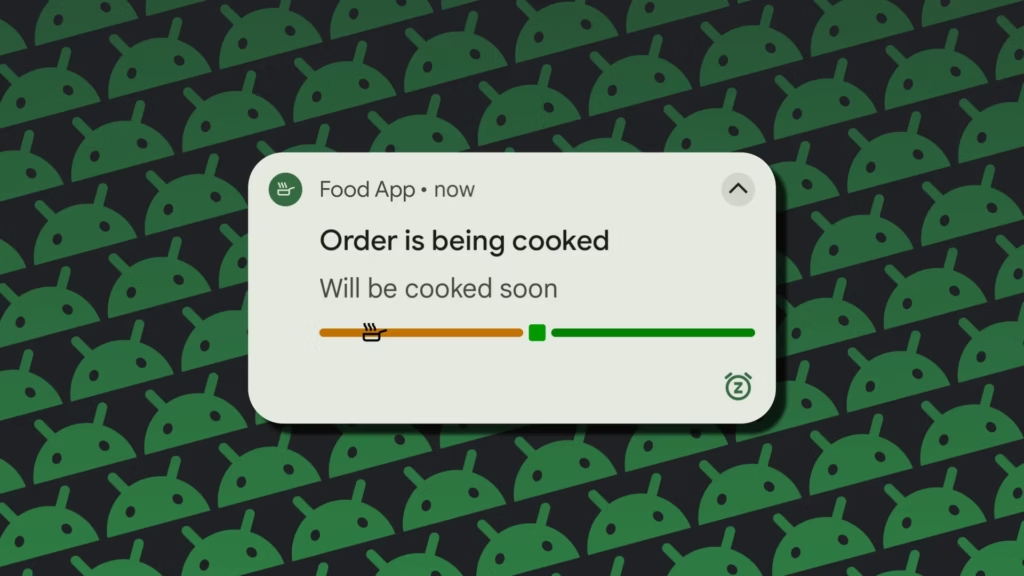
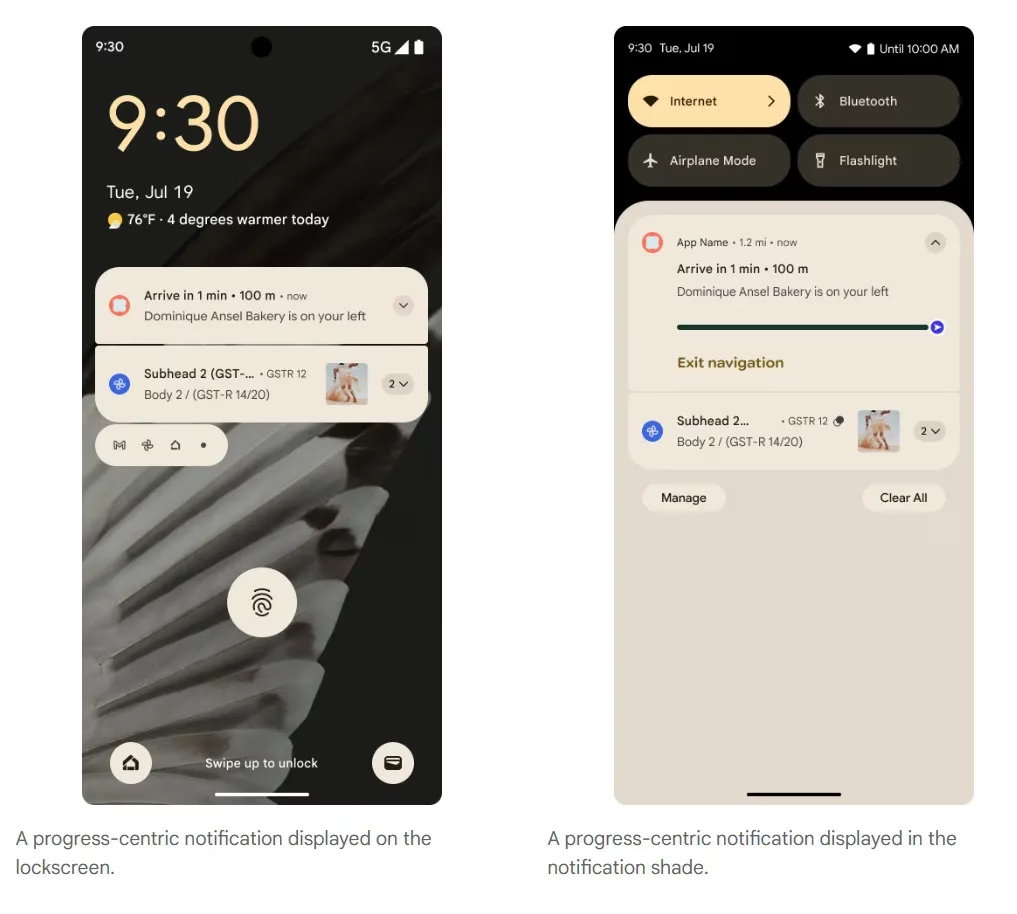
Last month, Google unveiled the first stable version of Android 16, which included a number of new features. One of these is Live Updates, which shows real-time activity notifications on the lock screen of an Android phone. More details concerning this feature have now been released by the tech giant. In Android 16, live updates can be added to apps that provide services like food delivery, ride sharing, and phone calls, but not for marketing or promotions.
Live Updates in Android 16
Live Updates is modeled after the iPhone’s Live Activities feature. It gives notifications for an activity that has a clear start and end time and is currently underway. Google clarified on its developer page that the feature’s primary goal is to provide time-sensitive notifications rather than historical events.
Active navigation, continuous phone calls, tracking food deliveries, and tracking ride-sharing via their corresponding Android apps are a few of its use cases. These alerts, which provide information like tracking or ETA (estimated time of arrival), will appear on the lock screen of the Android handset.
According to the tech giant, it does away with the necessity of unlocking the phone in order to check the status. For instance, Google Maps will display directions in the home screen’s status chip when navigation is active, while Live Update on the lock screen will provide the trip’s current status and additional directions.
However, developers need to make sure that Live Updates only show actions that the user has deliberately triggered and should only show up if the activity requires the user’s attention for the duration of the update.
The company also described the Live Updates feature’s improper usage cases. Ads, promotions, chat messages, future calendar events, and alerts are all incompatible with it. Developers can leverage other OS components, like conventional notifications, for these. If they want to give users faster access to their app’s features, they can use the Quick Settings tile and app widgets.
However, there are several exceptions. Live updates may be triggered if a user signs up for an activity that has a time limit or buys concert or airplane tickets in advance, but only when the scheduled event is about to happen.
Stay connected with the latest from Droid Tools—follow us on X @droid_tools, like our page on Facebook, check out our updates on Instagram, and follow us on Google News for real-time news, device tips, and mobile tech insights.
Text communications between iOS and Android users has historically proven more often than not problematic. However, new modifications are facilitating communication between the two platforms. After years of Google trying to convince Apple to adopt the new communications standard, RCS, the company is finally doing so.
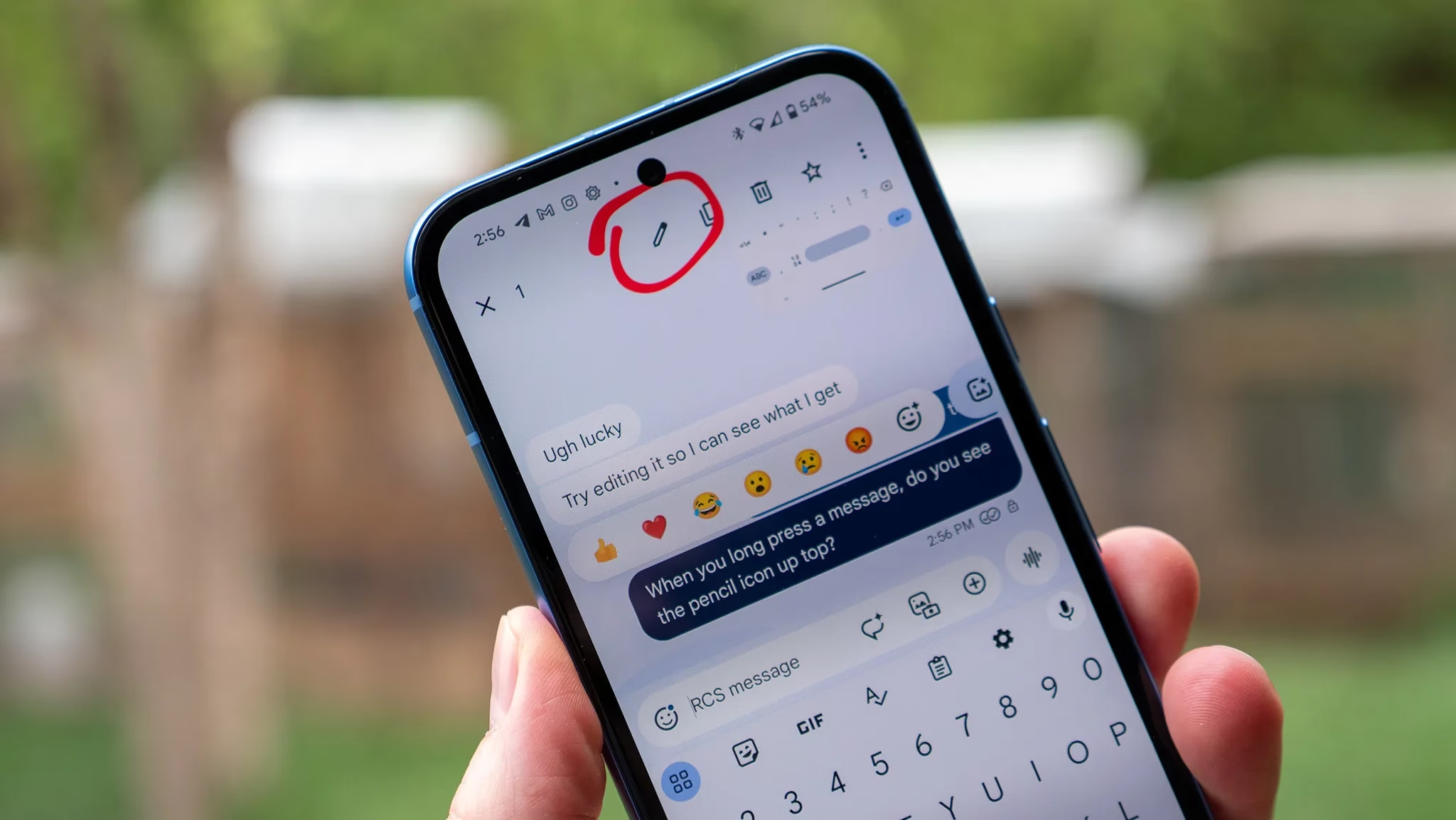
Users on both systems can share high-quality media, be “seen” when messages are read, and detect typing activity thanks to RCS. However, up until now, there hasn’t been a way to alter messages sent from an Android device to an iPhone. According to Android Authority, some Android users are now starting to notice it.
Apple recently added RCS support
For over a year, editing messages has been possible for Android-to-Android chats using RCS and iPhone-to-iPhone chats using iMessage. Because message editing was not included in the official RCS standard, Universal Profile 2.4, this feature was not available between iOS and Android. The standard was embraced by Apple, but this resulted in cross-platform conversations lacking the edit option.
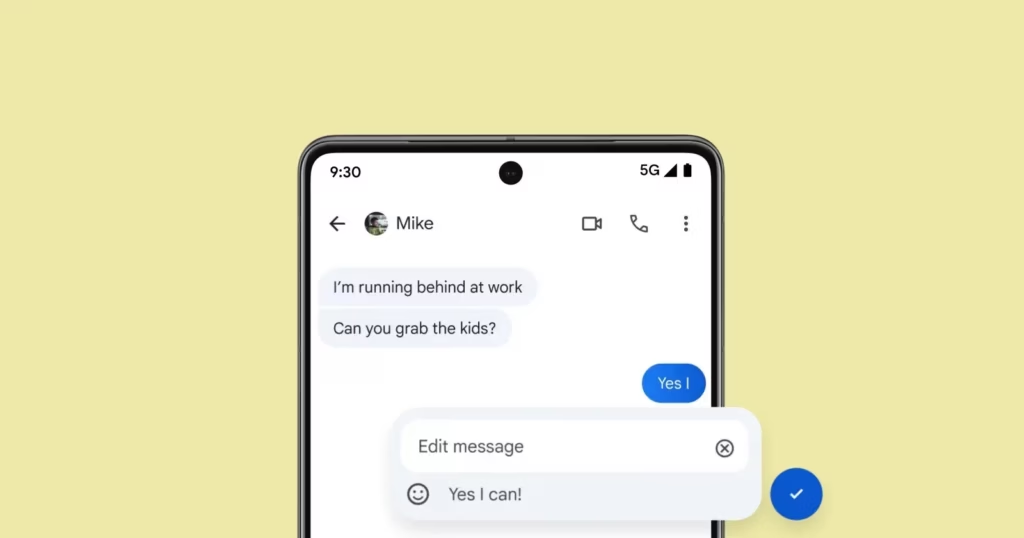
The GSM Association published Universal Profile 3.0 earlier this year, which includes end-to-end encryption and message editing. As a result, if the iPhones are running iOS 18.5 or later, including the iOS 26 beta, some Android users can now edit messages sent to iPhone users.
It operates by requiring modifications to be performed within a 15-minute interval. Since Apple’s Messages app does not yet fully support this feature, the updated message appears on iPhones as a new message with an asterisk.
Stay connected with the latest from Droid Tools—follow us on X @droid_tools, like our page on Facebook, check out our updates on Instagram, and follow us on Google News for real-time news, device tips, and mobile tech insights.
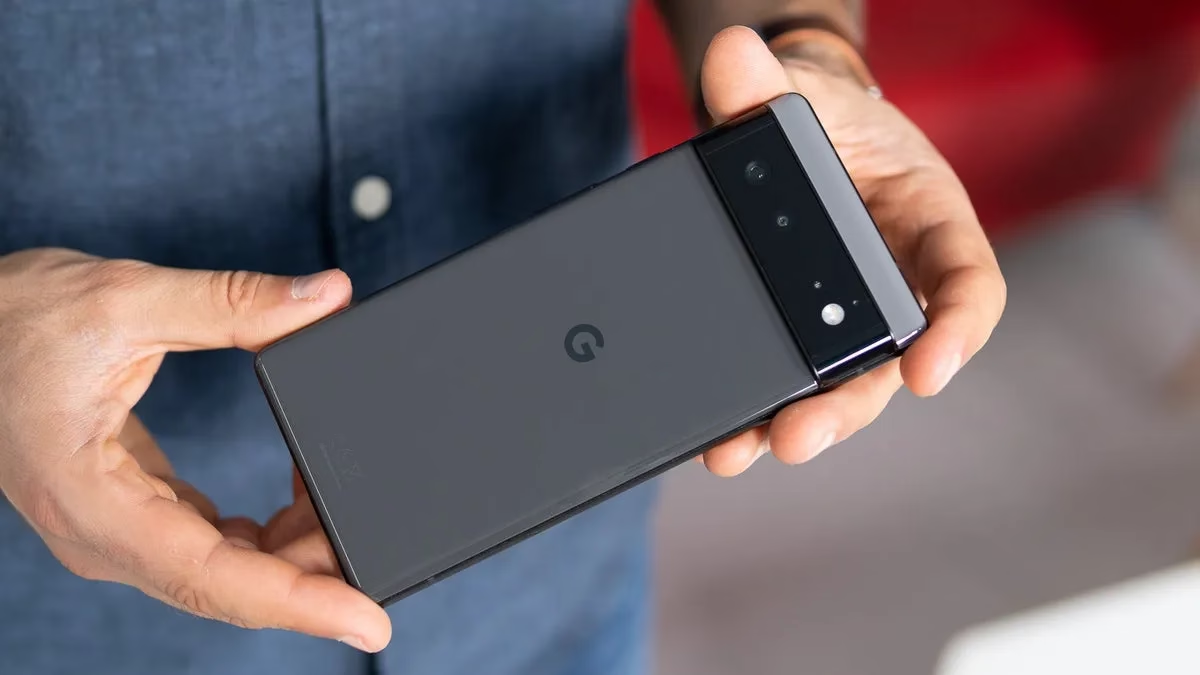
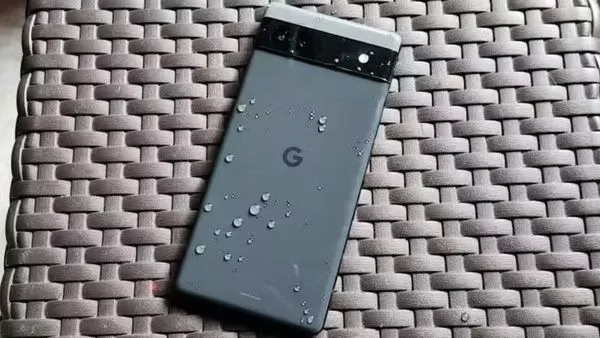
With Google’s surprise and abrupt hike in trade-in prices, now is an excellent time to exchange your damaged Pixel 6a for $524. You won’t find a better deal elsewhere.
The Pixel 6a’s battery will be throttled by a necessary update that Google is releasing on July 8th, for those who are unaware. This is a reaction to earlier this year’s allegations of phones overheating. The Pixel 4a experienced a similar issue, and the upgrade eventually reduced the phone’s battery life to a few hours.
According to Google, the Pixel 6a’s battery capacity will be lowered after 400 charge cycles or if the device is found to be impacted by the issue. Depending on where you live, the search company will replace your battery for free. But, utilizing the greatest trade-in offer I’ve seen this year is a better choice.
Google U.K. introduced a new campaign last week that increases trade-in pricing, meaning that phones that are effectively dead will get a sizable payoff. The regular Pixel 9 costs up to £675 ($920.50), the Pixel 9 Pro and XL versions cost £820 ($1118.24), and the Pixel 9 Pro Fold costs £1,045 ($1425.07). In addition to its standard trade-in assessments, Google claims that this adds a bonus of between £200 ($272.58) and £400 ($545.16).
Google will give you more money for your old phone
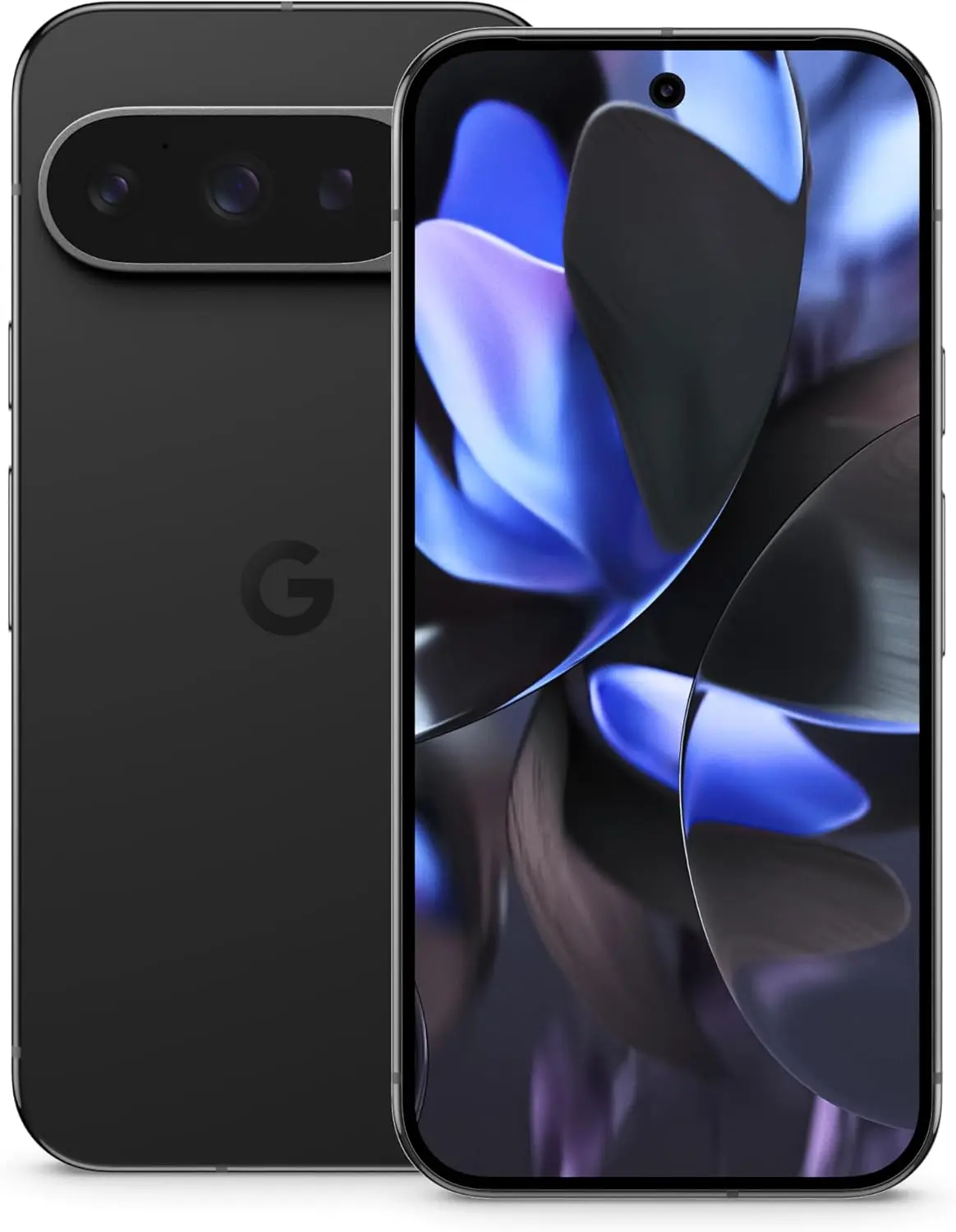
Google Pixel 9 Pro
Pixel 9 Pro with Gemini is the most powerful Pixel yet, and now comes in two sizes; it has a pro-level camera and it’s engineered by Google, so it gets the best of Google AI first
The company will pay £384 ($523.78) for your Pixel 6a. You won’t get anything like that for a Pixel 6a unless you con someone on eBay by sending them a broken Pixel 6a instead of an iPhone 14 (don’t do that). This is a good offer that I haven’t seen from Google or any other manufacturer before, if you’re not put off by their battery-related antics.
Google Pixel 7 Pro – £454 ($618.75)
Google Pixel 6 Pro – £415 ($565.60)
Google Pixel 5 – £377 ($513.81)
Apple iPhone 14 Pro Max – £657 ($895.42)
Apple iPhone 11 Pro Max – £447 ($609.21)
Samsung Galaxy S23 Ultra – £517 ($704.62)
Samsung Galaxy S10 Plus – £373 ($508.36)
Google releases the battery restricting update on July 8th, which also happens to be the day the offer finishes. But don’t worry, there will be more in the future given the scope and regularity of Google, Samsung, and Amazon’s promotional offers.
Xiaomi has further cemented its status as a leader in software innovation by formally releasing its HyperOS 2 developer preview, which is based on Android 16 Beta 2. Xiaomi is among the first manufacturers to use Google’s most recent operating system, and the beta program started in April 2025. Xiaomi is at the forefront of Android development thanks to this 2000-person limited beta program, which gives developers and tech enthusiasts early access to new HyperOS 2 features and Android 16 advancements.
Xiaomi 15 to be the first
The first build of the HyperOS 2 (version 2.0.230.6), which is based on Android 16, was sent to the Xiaomi 15, the flagship device leading this update. While providing updated system apps and performance enhancements, this version concentrates on building a solid Android 16 foundation. More releases are presently undergoing testing, demonstrating Xiaomi’s continued dedication to improving its user interface and software platform.
REDMI K70 Ultra to follow
Following the Xiaomi 15, the REDMI K70 Ultra is next in line for the Android 16-based HyperOS 2 update. This move demonstrates Xiaomi’s strategic approach to expanding the latest Android experience across multiple product segments, not just its flagship lineup.
Next in line for the Android 16-based HyperOS 2 update after the Xiaomi 15 is the REDMI K70 Ultra. This action reflects Xiaomi’s calculated strategy to bring the newest Android experience to more product categories than simply its flagship line.
Key Features and Improvements
Highlights of the HyperOS 2 Android 16 beta include:
Upgraded system applications with enhanced performance
The latest Android 16 security patches
Improved HyperConnect integration for seamless device interaction
Expanded developer tools and debugging functionality
Added a shortcut to invoke the custom accessibility function by swiping up with two fingers
Optimized some scene animation strategies to improve system fluenc
Both the final Android 16 release and the stable HyperOS 2 update are expected to be available by June 2025, underlining Xiaomi’s dedication to rapid adoption of the latest Android advancements.
HyperOSUpdates.com provides developers and early adopters with the most recent HyperOS updates and information. Furthermore, the MemeOS Enhancer software, which can be found on the Play Store, has sophisticated features like the ability to upgrade system apps, access secret Xiaomi features, and facilitate update management straight from the device.
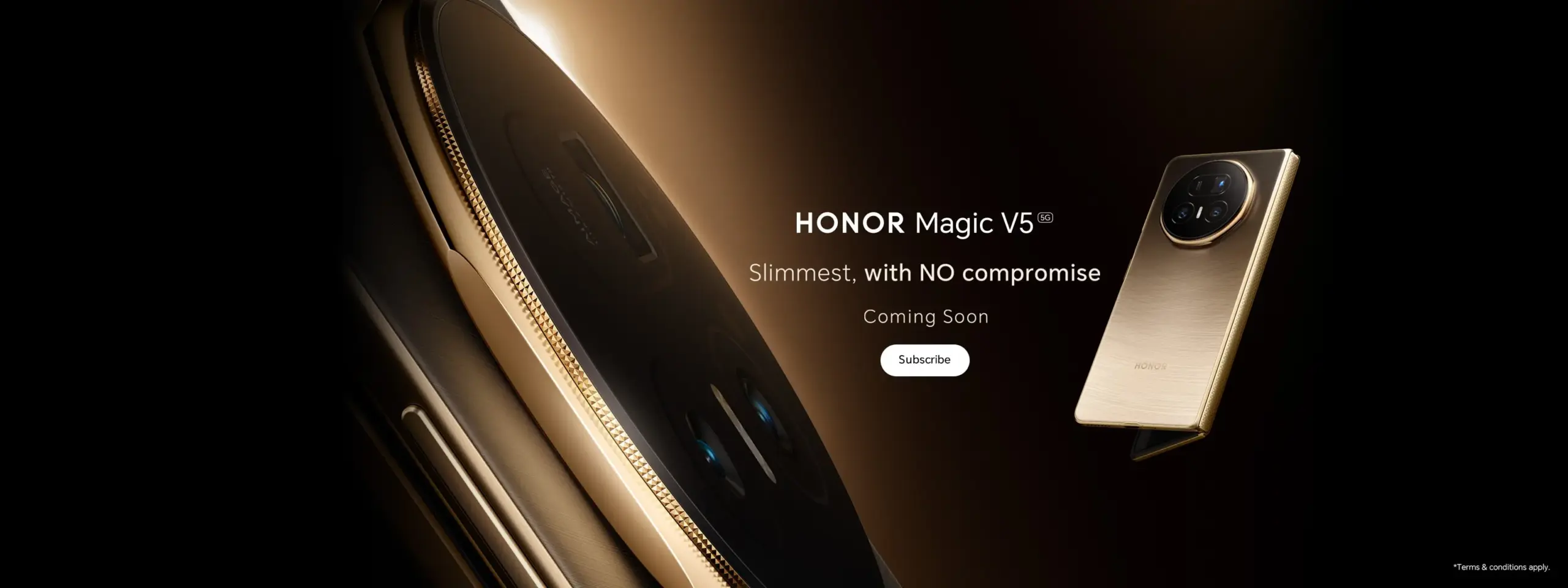
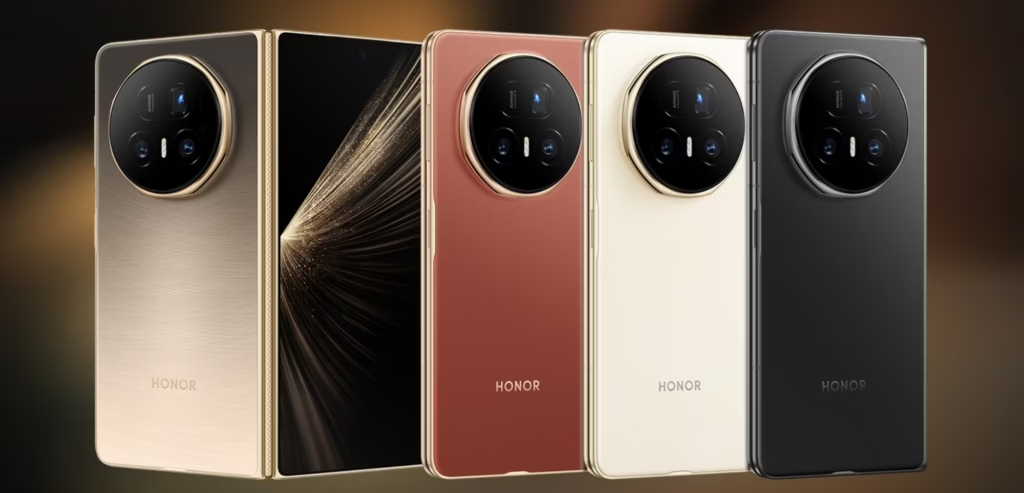
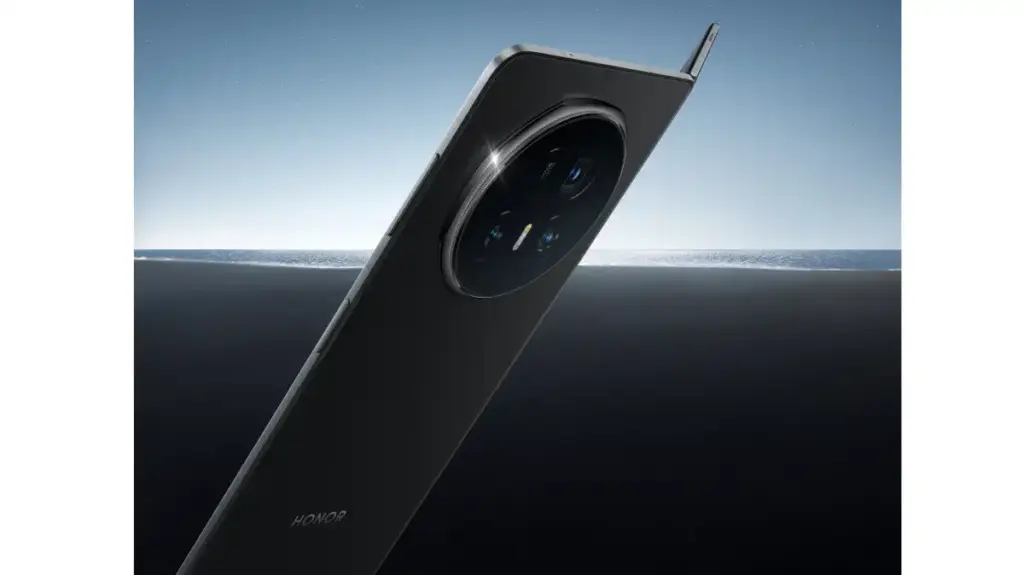
Honor has now officially unveiled the Honor Magic V5, a foldable phone that, at least on paper, makes headlines as the thinnest of its kind. When the increased camera hump and material variations among its color options are taken into account, the company’s claim that it is the thinnest foldable in the world is a touch stretching the truth.
Honor Magic V5 specs:
When folded, the Honor Magic V5 measures 8.8mm (as opposed to 8.9 on the Oppo Find N5), giving it a 0.1mm edge over its competitor. However, due to its unique fiber finish, the white version alone meets this criterion. Measuring roughly 9mm, the other color is made of substitute materials like vegan leather. Still elegant, but by no means a record-breaking all-rounder.
In terms of features, the Magic V5 is excellent. This boasts a huge 5,820mAh battery, up to 16GB of RAM, and the Qualcomm Snapdragon 8 Elite CPU. Both displays have IP58 and IP59 resistance and are 120Hz LTPO OLED screens. It is a good all-around package because it also supports wireless charging.
Camera
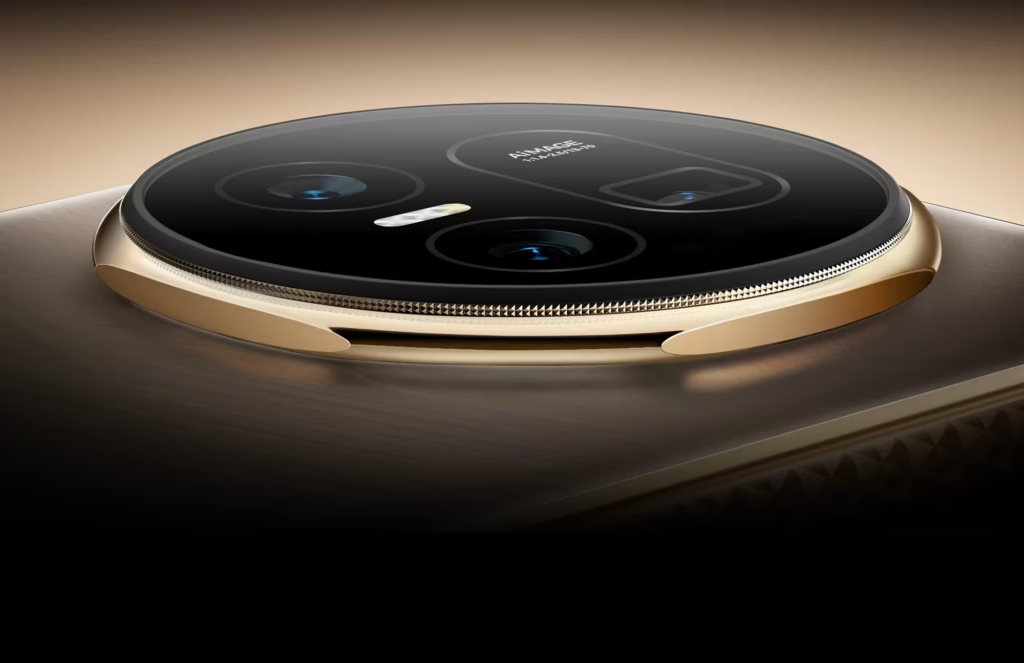
But thickness is more than just a numerical value. Despite having a thin overall design, the V5 feels chunkier due to the back camera module protruding significantly more than the Oppo one. Honor responds to it with a well-designed camera that has higher megapixels and a slower shutter speed, which is a compromise that many consumers will find acceptable.
With an opening thickness of only 4.1 mm, the Magic V5 narrowly outperforms its rival’s 4.2 mm frame. The Huawei trifold Mate XT, on the other hand, continues to hold the record for the thinnest open design, measuring only 3.6mm, but it does so by giving up the USB-C connection in one of the hinge locations.
Even though Magic V5 may be nearing the end of its design possibilities, it shows that Honor is still pushing the envelope, although slightly.
Stay connected with the latest from Droid Tools—follow us on X @droid_tools, like our page on Facebook, check out our updates on Instagram, and follow us on Google News for real-time news, device tips, and mobile tech insights.
Because of their feature-rich and responsive software, Samsung’s Galaxy smartphones are among the best Android phones on the market right now. However, the majority of Samsung phones, particularly premium models like the Galaxy S25 Ultra, Galaxy Z Fold 6, and Z Flip 6, include extravagant features that you might not utilize on a regular basis.
There are ways to maximize what you have without degrading the user experience if your new Galaxy phone isn’t able to survive a full day between charges.
Here are seven strategies to extend your Galaxy phone’s battery life. Don’t worry, I won’t be Captain Obvious and suggest that you use your phone at a lower refresh rate or lower the screen resolution. The suggestions on this list ought to enhance your quality of life while optimizing the functionality of your phone.
Adaptive Brightness
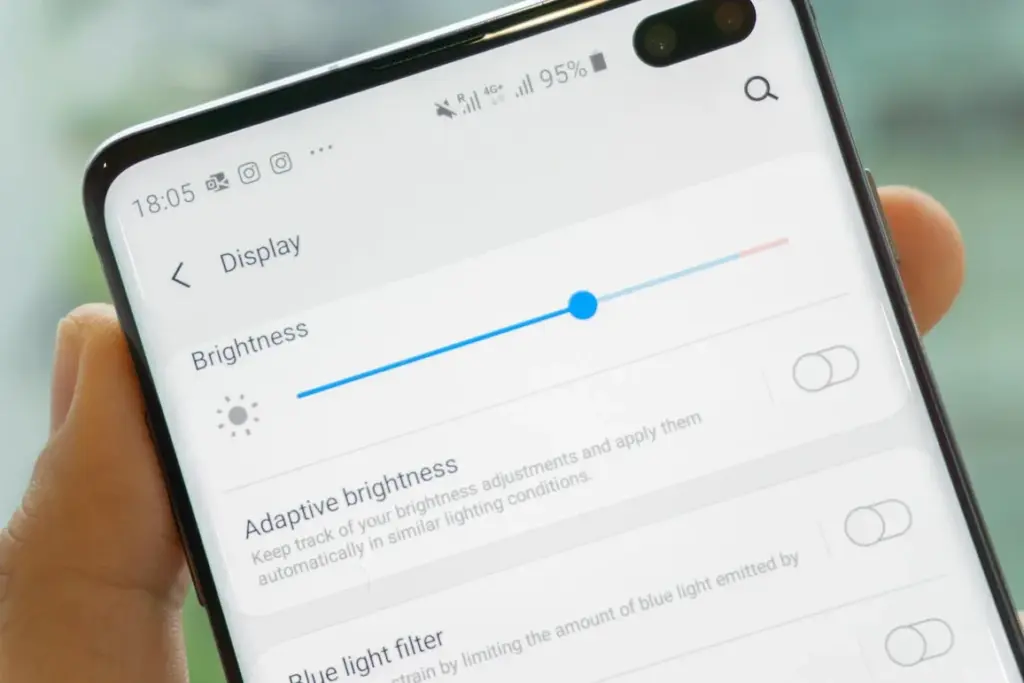
Although this setting should ideally be turned on by default, some individuals disable it because it’s not always reliable. Nonetheless, the quality of Samsung’s ambient light sensor has increased over time. Your Galaxy phone is capable of accurately detecting ambient illumination and adjusting the screen brightness on its own. By doing this, you can make sure your display is more effective and not overly bright.
Toggle Adaptive Brightness on by going to Settings > Display. Although it should function in most settings, you can use the Quick Settings panel to slide down to change the brightness if necessary.
Scheduel Always-On Display
I adore my Galaxy S25 Ultra’s Always-On Display (AOD). For efficiency, its LTPO display lowers to 1Hz, which is useful for functions like AOD. Using AOD may not be as effective if your Galaxy phone is midrange and has a minimum refresh rate of 60 Hz. You can use it wisely, though, by planning AOD for when it’s required.
For example, I’ve set it for 10 a.m. to 6 p.m. so I don’t miss any crucial messages and can quickly get the information I need.
How to: Select Settings > AOD and Lock Screen > Select Always On Display > As scheduled under When to show. Additionally, disable the Show lock screen wallpaper in the AOD options while you’re at it.
Enable Performance profile
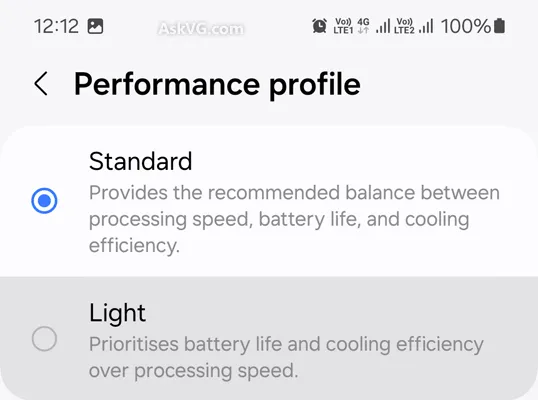
Samsung lets you select a performance profile according on how you use it. The Light Performance profile is a better option than the Standard if you don’t play games and use your phone mostly for everyday activities like surfing and making calls. It will put cooling and battery life ahead of processing performance.
Open the Settings app and go to Device care > Performance profile and select Light. This is ideal for average phone users.
Use Dark Mode
AMOLED screens, which can control individual pixels, are seen on the majority of Samsung phones. Therefore, the area of the screen that must remain black won’t activate those pixels when you choose a dark theme or dark wallpaper. As a result, your screen uses less power and your battery lasts a little longer.
How to do it: Go to Settings > Display. Two cards for Light and Dark will be dealt to you. Press the Dark option. Changing the system wallpaper and sticking with the light theme is an alternative, but it won’t have the same impact on energy life as switching to dark mode.
Use offline content when you can
It’s a good idea to download such stuff offline if you listen to the same podcasts and playlists or travel the same path every day. Google Maps and the majority of streaming apps use a lot of battery power over 5G and LTE. It may also cause your phone to feel warm to the touch when you’re outside. With a little advance forethought, you can handle this: Before you leave the house, use Wi-Fi to download your favorite music or maps.
How to: Go to the streaming apps you want to download content from and follow the in-app steps. For instance, YouTube has a download button on videos, and Spotify lets you download complete playlists.
Force stop or uninstall power-draining apps
Numerous programs, including Facebook, Microsoft 365, OneDrive, and numerous Samsung and Google apps, are pre-installed on Samsung phones. To stop them from running in the background, find the ones you don’t need and either remove them or force-disable them.
For instance, not everyone requires OneDrive or the Samsung Smart TV app. I remove those two apps along with others like Facebook, Outlook, Microsoft 365, Tutor, and more when I set up a new Galaxy phone.
To unistall an app tap and hold the app you want to uninstall. A pop-up menu will appear. Tap Uninstall. As a result, none of these non-required apps will use your battery.
Check what apps are power-draining
Depending on your location, 5G connectivity, and background usage, some apps need more power. To assist you reduce unnecessary battery usage, Samsung allows you to recognize certain power-hungry programs.
How to: Go to Settings > Battery and device care > Battery > Background usage limitations on your Galaxy smartphone to find apps that use a lot of power. Then, choose the apps you wish to disable.
What to do when you are low on battery?
The top functions of your Galaxy phone will not be compromised by the seven settings mentioned above. But if your phone’s battery is low while you’re out, you should:
Turn on Power Saving
Toggle off data roaming
Turn off location services
Switch off AOD altogether
When your phone’s battery is less than 20% and you’re still a few hours away from a charger, I advise activating these options. The Samsung settings listed above will also help you get the most out of your Galaxy phone’s battery.
Stay connected with the latest from Droid Tools—follow us on X @droid_tools, like our page on Facebook, check out our updates on Instagram, and follow us on Google News for real-time news, device tips, and mobile tech insights.