Category: News

Up‑to‑date Android news, smartphone launches, software updates and industry trends, written in a clean, editorial style for informed readers.

  • Chrome’s cookie encryption has been broken by the new Glove infostealer malware.

    Chrome’s cookie encryption has been broken by the new Glove infostealer malware.

    The new Glove Stealer malware can collect browser cookies by getting past Google Chrome’s Application-Bound (App-Bound) encryption. This information-stealing virus is “very simple and contains limited obfuscation or protective features,” suggesting that it is most likely still in its early stages of development, according to Gen Digital security researchers who first discovered it when looking into a recent phishing attempt.

    During their attacks, the threat actors used social engineering tactics similar to those used in the ClickFix infection chain, where potential victims get tricked into installing malware using fake error windows displayed within HTML files attached to the phishing emails.
    Glove Stealer

    Cookies from Firefox and Chromium-based browsers (such as Chrome, Edge, Brave, Yandex, and Opera) can be extracted and exfiltrated by the Glove Stealer.NET virus.

    Additionally, it can collect password information from Bitwarden, LastPass, and KeePass, cryptocurrency wallets from browser extensions, 2FA session tokens from Google, Microsoft, Aegis, and LastPass authenticator apps, and emails from mail programs like Thunderbird.

    “Other than stealing private data from browsers, it also tries to exfiltrate sensitive information from a list of 280 browser extensions and more than 80 locally installed applications,” said malware researcher Jan Rubín.

    “These extensions and applications typically involve cryptocurrency wallets, 2FA authenticators, password managers, email clients and others.”

    Glove Stealer bypasses Google’s App-Bound encryption cookie-theft safeguards, which were implemented by Chrome 127 in July, in order to steal credentials from Chromium web browsers. It accomplishes this by employing a supporting module that decrypts and recovers App-Bound encrypted keys using Chrome’s own COM-based IElevator Windows service (running with SYSTEM rights), as outlined by security researcher Alexander Hagenah last month.

    To install this module in the Program Files directory of Google Chrome and utilize it to recover encrypted keys, the virus must first obtain local administrator capabilities on the infected PCs.

    However, despite its attractive appearance, Glove Stealer is still in its early stages of development since, as researcher g0njxa told BleepingComputer in October, it is a simple technique that most other information thieves have already accomplished to collect cookies from all Google Chrome versions.

    Russian Panda, a malware analyst, previously told BleepingComputer that Hagenah’s technique resembles early workarounds used by other viruses following Google’s introduction of Chrome App-Bound encryption.

    When Google told BleepingComputer last month that “this code [xaitax’s] requires admin credentials, which shows that we have successfully upped the degree of access required to properly pull off this type of assault,” Unfortunately, the number of active information-stealing malware campaigns has not decreased significantly despite the requirement for administrator access to circumvent App-Bound encryption.

    Attacks have only increased since July when Google first implemented App-Bound encryption, targeting potential victims via vulnerable driverszero-day vulnerabilitiesmalvertising, spearphishingStackOverflow answers, and fake fixes to GitHub issues.
  • Xiaomi HyperOS 2 is silently being pushed to random users.

    Xiaomi HyperOS 2 is silently being pushed to random users.

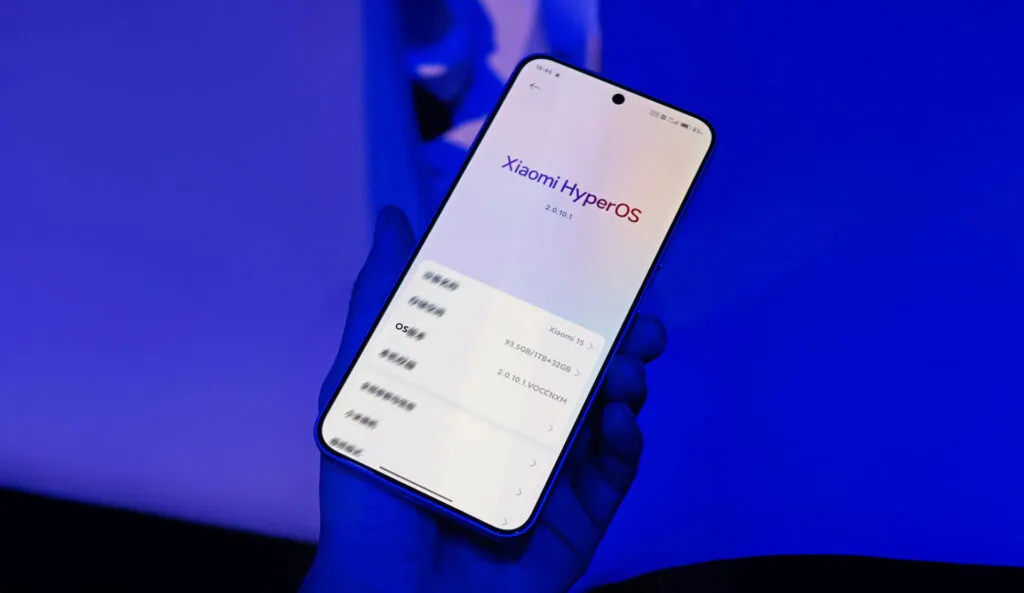
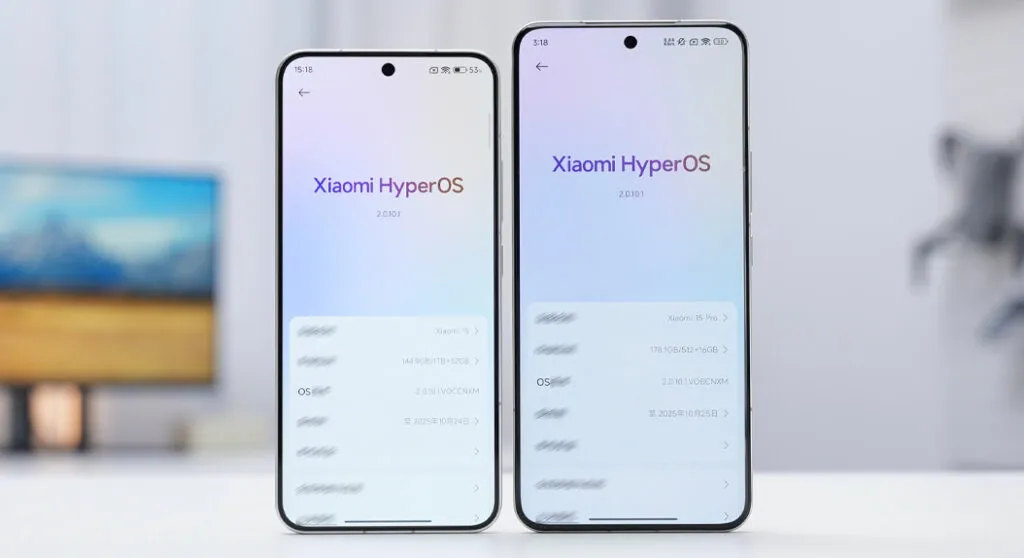
    Without making any prior announcements, Xiaomi has quietly started to roll out HyperOS 2. With a number of new features and optimizations, the update will significantly improve the user experience.

    Details about the update

    The first to be released was OS2.0.3.0.VNBCNXM, which was made only for Xiaomi 14 Pro customers in China. This upgrade, which is very unexpected from Xiaomi, is an effort to stay up with user experience enhancements and increase relevance in the cutthroat smartphone industry.

    HyperOS2 1024x593 1

    Features and Improvements

    Numerous new features and enhancements brought about by HyperOS 2 are intended to boost device performance and usability. While comprehensive details regarding all of the new features are still to come, the following can be anticipated:

    • High Performance: Optimizations that ensure smoothness in the operational feel of application and services. – Enhanced User Interface: An enhanced interface with the potential of further improving navigation and overall user interaction.
    • Advanced AI Features: Much-improved AI for quality photos and smart suggestions based on user habits.

    Users opinions

    Early user feedback is positive, despite the fact that the HyperOS 2 update has started to roll out without any fanfare. The Xiaomi 14 Pro’s overall performance demonstrates how remarkable HyperOS 2 may have been in its early days, and users report that the gadget now responds faster. The HyperOS 2 stealth release demonstrated Xiaomi’s approach to software with strategic quality enhancements that the user may immediately benefit from.

    hyperos 2 rollout

    The Xiaomi community anxiously awaits the enhancements HyperOS 2 will bring to their smartphone experience, as more devices are anticipated to receive updates in the upcoming weeks. As always, current users are urged to update their devices in order to take advantage of the newest features and improvements.

  • Free apps for iPhone and Android this weekend

    Free apps for iPhone and Android this weekend

    Once again, the weekend has arrived, which means it is that time of the week when we bring back a selection of premium apps that are only accessible for iOS and Android for a short period of time.See the top app sales in the Apple App Store and Google Play Store by reading on.

    Download and install any apps you find that you would want to have but do not require right now. It would be seen as “purchased,” and even if you immediately remove it from your smartphone, it will always remain in your app library.

    Android apps and games that are free for a limited time

    Android apps for productivity and lifestyle

    • Open Tracks ($3.49): A sports tracking app that keeps track of all your physical activities so you can work towards having a lovely record.
    • Image to PDF ($2.99): Just as the name implies, transform images into PDF format for easy printing across platforms.
    • Passport Photo ($4.99): Use this app to compose and print the perfect passport photo before you head off to your next holiday destination.
    • Matrix Determinant ($0.99): If you love math, surely you would have had experience with the dreaded matrix. Use this app to make your problem-solving adventures easier.

    Free Android games

    • Traffic Jam Cars Parking ($4.99): Can you make sure traffic becomes smooth again by solving numerous puzzles here?
    • Defense Legend 5 Pro: Epic TD ($1.99): A tower defense game that takes on a modern outlook with mechs and other futuristic machines dominating the battlefield.
    • Cooking Kawaii ($0.99): Cook up a storm in this game to keep your customers happy so that they return, which in turn gives you more profit to grow your business.
    • Theme Park Simulator ($0.99): Curious to know how a theme park works and operates? Find out in this game and see just how good your management skills are.
    • Word Tower Premium Puzzle ($2.99): How powerful is your vocabulary? Find out in this game that does not feature any annoying ads, allowing you to play offline, too.

    iOS apps that are free for a short time

    iOS apps for productivity and lifestyle

    • Brushstroke ($7.99): Transform your photos into nice-looking paintings with this app. 
    • Interval Timer for Tasks ($6.99): Remain more focused on your work by working on one task at a time without getting sidetracked or distracted.
    • Tiny Planner ($19.99): Need to get your life back on track without being pulled in all directions? This planner gets the job done.
    • The Wonder Weeks ($5.99): It is a miracle to follow your baby’s growth from birth until the present day. Never miss a moment by jotting it down here!

    Free games for the iPhone and iPad

    • Kingdom Rush: Tower Defense HD ($5.99): The enemy is storming the gates, and you and your ragtag team of defenders have to strategize to hold them off.
    • Macrocosm ($3.99): Talk about humble beginnings. This game sees the journey of a single atom to that on a galactic scale. How will you chart its growth?
    • Catenaccio Football Manager ($2.99): Think you have what it takes to be the perfect football manager? Try this game on for size! 
    • My City: Star Horse Stable ($3.99): Fancy owning your own horse? Why not give this game a try and see how well you can care for one?
    • Dirt Trackin’ 2 ($3.99): Indulge in some rally goodness with all the thrills and spills, minus the real-world damage to your ride!

    As of the date of publication, the deals were active. Please share any expired deals you come across in the comments section below.

    We advise you to review the app’s details in the Play Store or App Store before downloading any of the aforementioned apps. This is crucial since some of these free apps can have unique features or drawbacks of their own.

    In the constantly changing world of mobile applications, there are a few dishonest ones that use clever strategies to make money off of collecting and sharing your personal data. But do not worry, tech-savvy readers—we have some priceless tips to assist you strengthen the protection of your priceless data. We strongly advise you to be cautious while giving installed programs permissions.

    Why, after all, would a simple alarm clock require access to your contacts or camera? Furthermore, why would a flashlight app need to know your precise location? You may successfully protect your personal information from prying eyes by choosing which permissions to provide with caution.

    With the knowledge that your data is safe and secure, you may explore the wide selection of free apps that are available for download on your iOS or Android device.

  • These are all of the Android phones that currently support Gemini Nano.

    These are all of the Android phones that currently support Gemini Nano.

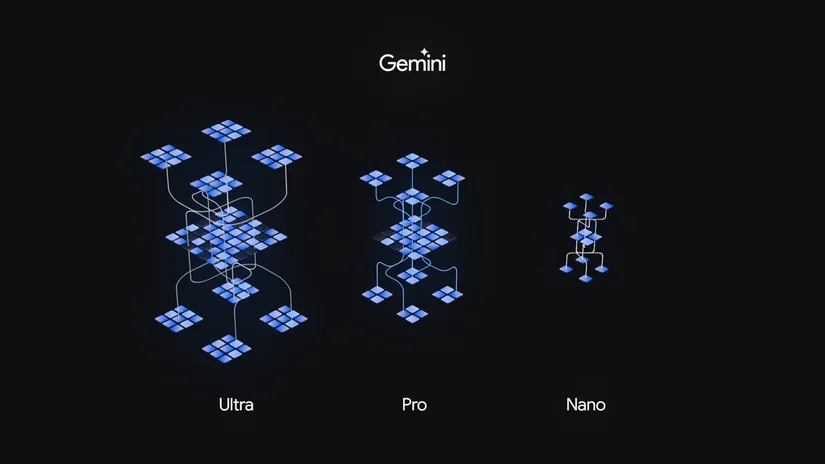
    With training data at their disposal, IT companies including as Google, Anthropic, OpenAI, and Meta are racing to develop the best large language model (LLM) in order to produce valuable services that attract investors, businesses, and consumers. Some businesses offer smaller versions of their LLMs that can run locally on mobile devices, as the most capable of these LLMs require processing power that simply is not accessible on the little smartphones we carry in our pockets.

    Currently accessible on a few Android phones, Gemini Nano is the mobile optimized version of Google’s LLM. Google only offered Gemini Nano on the Pixel 8 Pro smartphone when it first launched it in December. After a month, it was made available for Samsung’s Galaxy S24 series, bringing an end to Pixel’s brief exclusivity for the AI model.

    gemini nano

    Google began to push out the Gemini Nano variant to a few more Pixel and Samsung devices in 2024. However, Google ultimately introduced the AI model on a smartphone made by Xiaomi, a different manufacturer, last week.

    However, it appears that the Xiaomi 14T was only the beginning, as Google has let loose and begun to add support for Gemini Nano to a wide range of new smartphones. This covers both phones from established Nano backers like Samsung and phones from recent Nano entrants like Motorola and Realme.

    What phones support Gemini Nano?

    Devices that support Gemini Nano

    • Google Pixel 8
    • Google Pixel 8 Pro
    • Google Pixel 8a
    • Motorola Edge 50 Ultra
    • Motorola Razr 50 Ultra
    • Samsung Galaxy S24
    • Samsung Galaxy S24+
    • Samsung Galaxy S24 Ultra
    • Samsung Galaxy S24 FE
    • Samsung Galaxy Z Flip 6
    • Samsung Galaxy Z Fold 6
    • Realme GT 6
    • Xiaomi 14T
    • Xiaomi 14T Pro
    • Xiaomi MIX Flip

    Devices that support the latest Gemini Nano with multimodality

    • Google Pixel 9
    • Google Pixel 9 Pro
    • Google Pixel 9 Pro XL
    • Google Pixel 9 Pro Fold

    What differentiates the most recent Gemini Nano versions from one another?

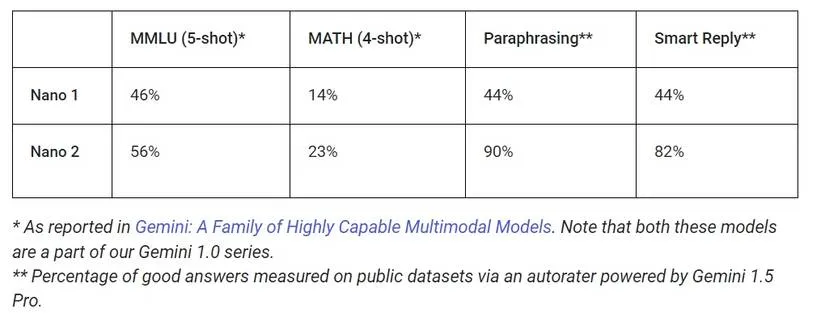
    While Gemini Nano and its multimodal variant are both members of the Gemini 1.0 family of LLMs, the multimodal version supports input formats other than text, such as image, speech, and audio. Google claims that the updated version of Nano performs far better in real-world applications and academic benchmarks, and it is roughly twice as big as the previous version.

    gemini nano 1 vs gemini nano 2

    Gemini Nano’s latest version with multimodality is currently only available on the Google Pixel 9 series, with no word on when or if it’ll come to other devices.

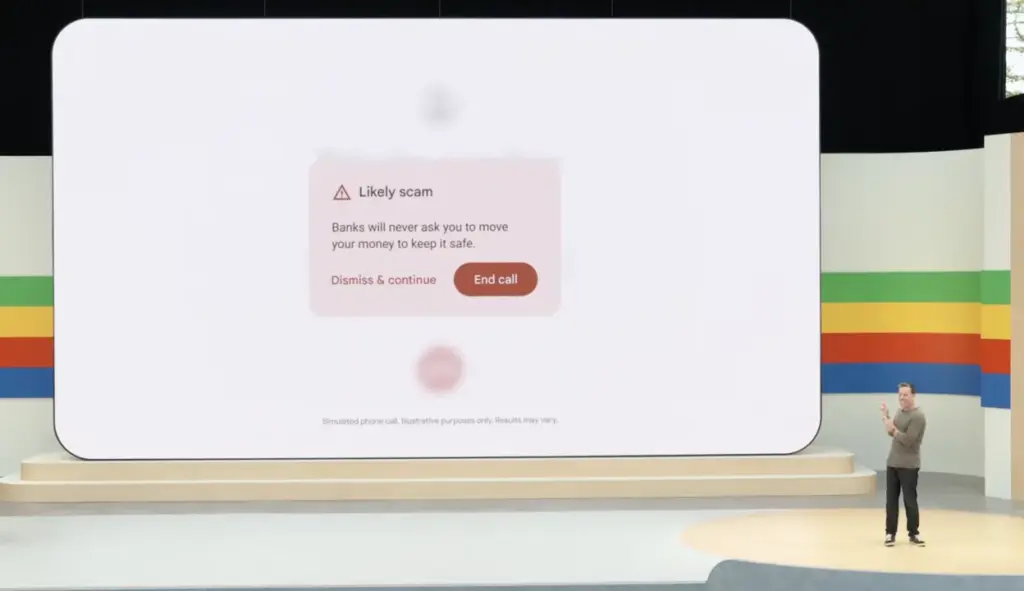
    gemini nano can detect scam call

    Which AI functionalities does Gemini Nano support?

    The AI functions in the Pixel Screenshots, Talkback, Pixel Recorder, Phone by Google, and Pixel Weather applications are powered by the new Gemini Nano, which has multimodality on the Google Pixel 9 series. Pixel Screenshots analyzes your screenshots locally using multifunctional Gemini Nano. TalkBack makes use of it to produce visual descriptions. It is used by Pixel Recorder to condense transcripts of audio recordings. It is used by Google Phone to transcribe phone conversations. Finally, it is used by Pixel Weather to produce a weather summary for the day.

    Because of its smaller size and support for text-only input, the previous Gemini Nano on the Google Pixel 8 series has a few extra limitations. In approved messaging apps, it aids in the Gboard app’s generation of intelligent responses. (Smart answers in Gboard are powered by Gemini on the Google Pixel 9, and there are no discernible differences.) It also facilitates the generation of transcript summaries for the Pixel Recorder app, however it is limited to 15 minutes of audio recording.

    Currently, the older Gemini Nano model powers only one AI feature on non-Pixel devices, which is Magic Compose in Google Messages. This function suggests possible responses for you to send to a contact based on the context of the last 20 messages in a discussion. Your texts never leave your device because this is all done on-device.

    Hopefully, this will not remain the case for long, even if Magic Compose is presently the only Gemini Nano-powered function that is compatible with all devices that utilize the AI model. Indeed, Google has now made the AI Edge SDK, which enables apps to leverage Gemini Nano, available for experimental use.

    However, as this experimental access is merely “for development purposes,” third-party app developers are unable to utilize Gemini Nano for AI capabilities at this time. Furthermore, most devices are not included in this project because developers can only use the newer Gemini Nano with multimodality for text-to-text prompting through this experimental access.

    In any case, it is evident that Google is committed to making Gemini Nano available on more Android smartphones. Currently, Gemini Nano is supported by 15 Android phones, and the latest Gemini Nano with multimodality is supported by an additional 4. Hopefully, as Google rolls out the AI model to more phones, developers will be more inclined to create innovative and engaging applications that leverage it.

  • HyperOS 2.0 Update: will you device get it?

    HyperOS 2.0 Update: will you device get it?

    The much awaited HyperOS 2.0 update from Xiaomi is soon to be available on a wide range of its devices, bringing with it a ton of new features, optimizations, and enhancements. It will probably be available on the majority of Xiaomi flagships, mid-range smartphones, tablets, and other devices sold under the Redmi and POCO subbrands.

    What is new with HyperOS 2.0?

    Prior to diving into the devices that will be receiving the update, let us examine the features that HyperOS 2.0 is expected to offer. Actually, this update will bring with it a number of intriguing features:

    • AI-Powered Features: More AI features in HyperOS 2.0 integration will take the user experience to the next level. From smart suggestions to more developed AI-assisted modes in the camera, AI integration has been improved across boards in Xiaomi devices.
    • New Animations: The interface will be much smoother, featuring faster animations, to give users a feel closer to polished and premium.
    • iOS-Style Recent Apps: Xiaomi wants to introduce a new layout for recent apps, much like the minimalistic and organized structure seen in iOS. This will hopefully make multitasking easier in Xiaomi devices.
    • LROFS File System: One of the biggest under-the-hood upgrades will be the introduction of the LROFS file system that promises to bring swiftness and efficiency in the way files are managed, thus making devices even quicker.
    • Performance Enhancements: In the case of addition of LROFS file system, among other optimisations, HyperOS 2.0 is most likely to render devices snappier, with quick app loading and efficient power management.

    The official launch of HyperOS 2.0 is scheduled for October of this year, with a likely launch for a number of models shortly after.

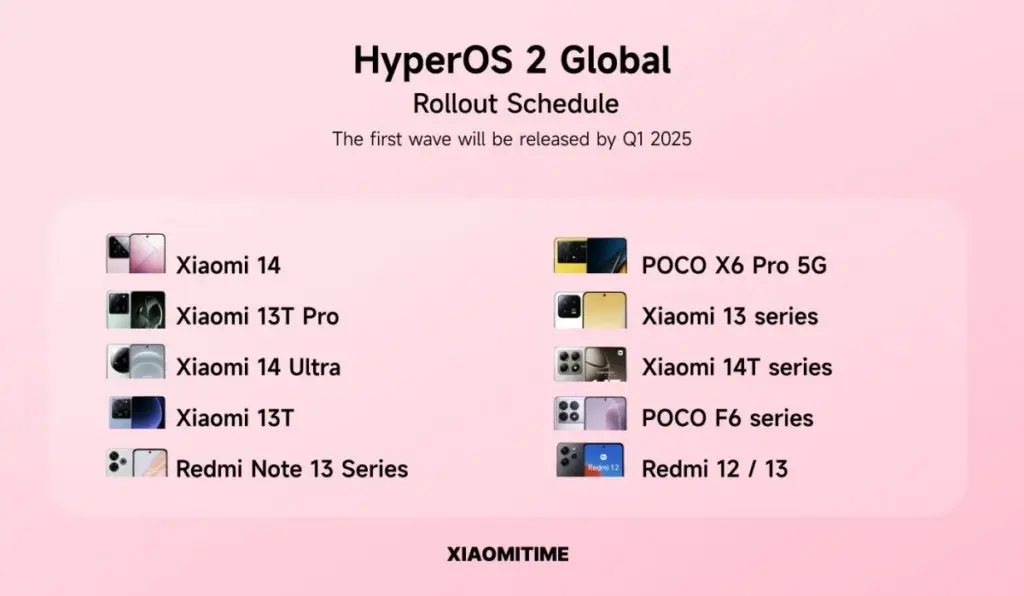
    Devices that will get HyperOS 2.0:

    The list of devices that are most likely to get the HyperOS 2.0 update is provided below; it is based on Xiaomi’s past update trends as well as the significance of these models in their portfolio.

    hyperos 2.0

    Xiaomi Series

    1. Xiaomi Mi 11 (venus)
    2. Xiaomi Mi 11 Pro/Ultra (star)
    3. Xiaomi 11T Pro (vili)
    4. Xiaomi 11T (agate)
    5. Xiaomi Mi 11 Lite 5G NE (lisa)
    6. Xiaomi 12 Series: Xiaomi 12 Pro, Xiaomi 12, Xiaomi 12S, Xiaomi 12S Ultra, Xiaomi 12S Pro
    7. Xiaomi 13 Series — Xiaomi 13, Xiaomi 13 Pro, Xiaomi 13 Ultra
    8. Xiaomi 14 Series – Xiaomi 14, Xiaomi 14 Pro, Xiaomi 14 Ultra, Xiaomi 14T, Xiaomi 14T Pro
    9. Xiaomi 12T Series: Xiaomi 12T Pro, Xiaomi 12T
    10. Xiaomi MIX Fold Series – Xiaomi MIX Fold 2, Xiaomi MIX Fold 3
    11. Series Xiaomi Pad: Xiaomi Pad 6, Pad 6 Pro, Pad 6 Max 14, Pad 5 Pro 12.4

    Redmi Series

    1. Redmi K50 Series – Redmi K50, K50 Pro, K50 Ultra, K50 Gaming
    2. Redmi Note 12 Series: Redmi Note 12 Pro, Note 12 Pro+, Note 12 Explorer, and others
    3. Redmi K60 Series : Redmi K60, K60 Pro, K60 Ultra, K60E
    4. Redmi Note 13 Series – Redmi Note 13 Pro, Note 13 Pro+, Note 13 5G
    5. Redmi 12 Series – Redmi 12, Redmi 12C, Redmi 12 5G
    6. Redmi 13 series
    7. Redmi 14 series

    POCO Series

    1. POCO F Series: POCO F4 GT, POCO F5, and POCO F6 Pro
    2. POCO X Series: POCO X5 Pro 5G, POCO X6 5G, POCO X6 Neo
    3. POCO M Series: POCO M6 Pro, POCO M6 Plus 5G, POCO M7 series

    It is reported that the HyperOS 2.0 upgrade would be released for more than 60 Xiaomi, Redmi, and POCO devices. Given the size and diversity of Xiaomi’s user base, millions of people will update as a result, making this likely to be one of the largest OS rollouts in Xiaomi history.

    Expected Benefits for All User Groups

    • Flagship Device Owners-Negotiate premium gadgets, for instance, Xiaomi 13 Ultra or Xiaomi MIX Fold 3, with leading performance optimizations, faster processing, along with smoother UI.
    • Midrange Device Users: Users of popular mid-range models, like the Redmi K60 Pro or POCO F5, will find performance boosts and better multitasking features almost giving their devices a new feel.
    • Tablet Users: One UI 5.1 will further enhance the productivity functionality of tablet users with new multitasking layouts and split-screen functionality, among certain performance enhancements specific to the tablets like the Xiaomi Pad 6 Max 14.

    In the end, Xiaomi is about to release HyperOS 2.0, a significant software update that will provide strong AI, optimal system performance, and the greatest possible user experiences for all of its many products. Customers who own these gadgets—from flagship phones to low-cost models—will undoubtedly take Xiaomi, Redmi, and POCO’s changes into consideration. Whether you choose to wait for a new model like the Xiaomi 14 Ultra or are a frequent user of the Xiaomi Mi 11, HyperOS 2.0 claims to make your device smarter, faster, and more efficient. Await its official debut in October, and be prepared to be astounded by the far more sophisticated software that Xiaomi’s innovation will deliver!

  • RCS is now officially compatible with iPhones

    RCS is now officially compatible with iPhones

    Although we have known it was coming for almost a year, today is the day we have been waiting for: RCS compatibility is giving the texting experience between the stock messaging apps on Android and iPhone a significant boost. Rich conversations have long been supported by Android texting apps such as Google Messages, Samsung Messages, and many carrier apps, but iPhones may now use the protocol designed to replace SMS and MMS since Apple officially released iOS 18.

    With the formal release of iOS 18 to the public channel, iPhone users worldwide will begin to receive an upgrade starting today. After installing the updated firmware, users will be able to receive RCS messages sent to their phone number via iMessage’s parent app, Apple Messages.

    The official Android account on Twitter/X highlighted some of the features you may now take use of in a series of tweets to commemorate the milestone. Among the advantages you will probably notice are the ability to send high-quality images and videos, respond to messages with emoticons, and add and remove members in group chats at will.

    “Apple is starting to #GetTheMessage and upgrade to RCS,” the Android account jokes, making fun of the green bubble issue and Google’s push to force Apple to adopt RCS.

    Green bubbles are becoming more similar to blue bubbles.

    Through the iOS 18 beta program, we had the opportunity to test the new RCS capabilities. Although there were still some bugs at the time, the standard features of an instant messaging client, such as read receipts, message replies, and higher file sizes, were all present. On iPhones, however, messages from Android devices continue to appear as green bubbles; only discussions between iMessage and iMessage are blue.

    ios rcs support
    71jbE08QOLL. AC SL1500

    SAMSUNG Galaxy S24+ Plus – DEAL

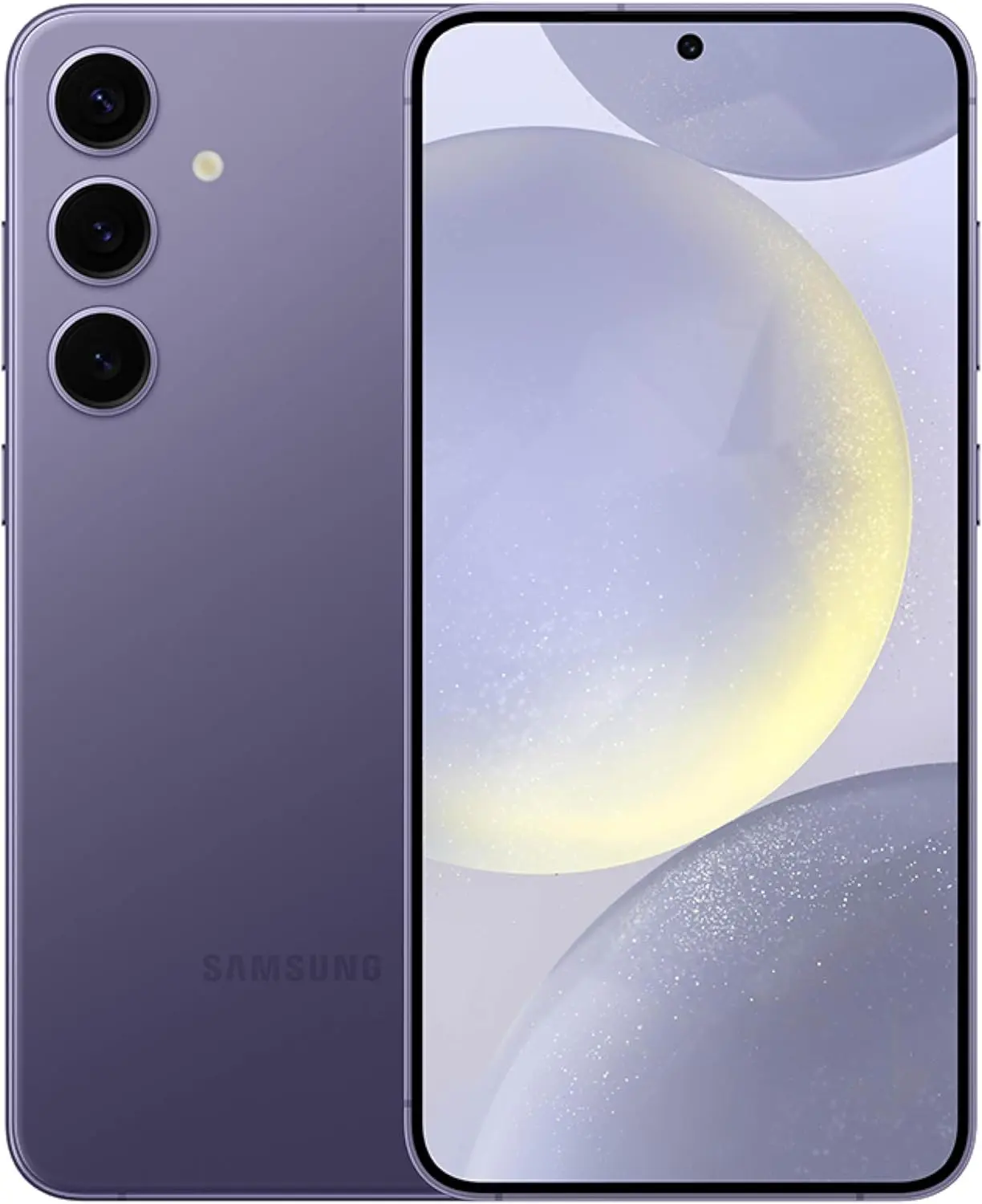
    SAMSUNG Galaxy S24+ Plus Cell Phone, 256GB AI Smartphone, Unlocked Android, 50MP Camera, Fastest Processor, Long Battery Life, US Version 2024 Cobalt Violet

    $798See It

    RCS messaging between Android and iPhone enable in-transit encryption to assist prevent message interception, as Apple states in its documentation for the capability, but end-to-end encryption is not yet available for these messages.

    It is confusing to note that Android-to-Android RCS chats do support E2EE because Google’s Jibe backend is used by both Samsung and Google’s Messages apps, which layered Signal’s encryption protocol over the RCS Universal Profile foundation. However, Apple’s RCS implementation only makes use of the Universal Profile standard’s functionalities. Although its incorporation into the Universal Profile is not assured, Google Messages was recently seen adding support for MLS, a new industry standard, to help with this.

    Carrier assistance is an additional challenge to consider. A Google Fi representative clarified in a statement to 9to5Google that the iPhone manufacturer has not yet turned on its Google Fi MVNO and that “only Apple has the power to activate RCS compatibility for iPhone consumers” with certain mobile service providers. Nevertheless, iPhone RCS is currently available on all of the main US carriers, including AT&T, T-Mobile, and Verizon. We have also observed the service activating on Canadian carriers.

    To start chatting over RCS with friends on iOS, you can set Google Messages as your default texting app, then make sure the other person has RCS enabled on their iPhone under Settings → Apps → Messages → RCS Messaging.

    unnamed

    Google Messages

    Safety starts with understanding how developers collect and share your data. Data privacy and security practices may vary based on your use, region, and age. The developer provided this information and may update it over time.

  • YouTube will end Premium subscriptions obtained through false locations.

    YouTube will end Premium subscriptions obtained through false locations.

    Your membership may be terminated if you purchased a Premium in a nation where it was less expensive via a virtual private network (VPN). As previously reported by Android Police, a number of users of this method have reported experiencing automatic cancellation of their subscriptions over the past few days.

    Using a VPN to shift your location to a nation where Premium subscription is available for less money is the workaround. For instance, ad-free access to videos, YouTube Music, and offline downloads is available for $13.99 a month in the US with Premium, but it only costs $1.05 per month (869 ARS) in Argentina. However, it appears that YouTube is now taking harsh measures against users who do not genuinely reside in these nations.

    A representative of the company, Paul Pennington, told The Verge that the firm had “tools in place” to track down its customers’ locations. According to Pennington, “We are requesting members to adjust their billing information to their current country of residence in instances where the signup country does not match where the user is viewing YouTube.” However, he does not mention if YouTube has begun to automatically terminate subscriptions using the fictitious locations.

    youtube premium

    It is not surprising to see YouTube pursuing less expensive memberships, considering the platform has already begun to tighten down on ad blockers.

  • Mastering DNS for Blocking Pesky Ads

    Mastering DNS for Blocking Pesky Ads

    The internet is now a vital component of our daily routine. But pesky ads could make browsing irritating. These ads vary from pop-ups to autoplay videos, interfering with our web use and posing hazards including malware and phishing. The good news is that there’s a fix: ad blocking using DNS.

    Understanding DNS

    • What is DNS?
      • DNS, or Domain Name System, serves like an online phone book. It changes domain names into IP addresses, so instead of dealing with complicated numbers, you can use easy-to-remember names.
    • How DNS Works in Simple Terms
      • When you enter a web address into your browser, your device sends a request to a DNS server. The server then finds the matching IP address. Once it has the IP address, it connects your device to the server for that webpage and allows it to load.
    • DNS Role in Website Access
      • If DNS did not exist, using the internet would be as tough as wandering around a foreign country without any guides. Simply put, DNS guarantees smooth communication between gadgets and web servers, and forms a vital part of the internet infrastructure.

    Problems Caused by Ads 

    • Kinds of Annoying Ads
      • Ads can disrupt our browsing in many forms, such as popups, banners, and autoplay videos, making concentration on content challenging.
    • Negative Impacts of Annoying Ads on User Experience
      • In addition to being disruptive, annoying ads might slow down the web page loading speed, use excessive data, and divert your attention from what you really want to watch.
    • Potential Dangers of Clicking on Certain Ads
      • When you click on ads, you might unintentionally download malware or become a victim of phishing scams. These potential dangers highlight why it’s crucial to minimize ad encounters.

    How DNS Can Block Ads

    • What is DNS-based Ad Blocking?
      • DNS-based ad blocking means using DNS servers that filter out ad domains. This stops ads from being loaded on website pages.
    • How It Is Different From Regular Ad Blockers
      • Regular ad blocker software or extensions work in your browser, but DNS-based blocking works at the network level. This makes it applicable across all gadgets connected to that network.
    • Perks of Using DNS for Ads Blocking
      • DNS-based ad blocking comes with various pros, like fast browsing speeds, device performance improvement, and thorough blocking of ads on all devices, such as smartphones and IoTs.

    Setting Up DNS-Based Ad Blocking

    • Choosing a DNS-Based Ad Blocking Service or Software
      • Choosing a DNS-based ad blocking service or software can be a game-changer for your browsing experience. By configuring your devices to use ad blocking DNS, you can enjoy a cleaner and more secure online environment.
    • A Detailed Guide to Adjusting DNS Settings
      • The way you adjust DNS settings might vary according to your device and its OS. Generally, it involves going into your network settings, adding in the DNS server addresses given by your ad blocking service, and saving the changes made.
    • Troubleshooting Regular Problems While Setting Up
      • When facing setup issues like connection issues or DNS error messages, check the problem solving guides given by your ad blocking service or ask for help in online forums and communities.

    Boost Privacy with a VPN

    If you want additional privacy and security while surfing the web, consider a VPN (Virtual Private Network) like Windscribe VPN. VPN services encrypt your internet connection and cover your IP address, which stops outsiders from tracing your online activities. Using a DNS-based ad blocker improves your browsing, but pairing it with a VPN gives you more thorough protection from online risks and privacy breaches.

    Alternatives and Considerations

    • Different Ways to Block Ads
      • In addition to DNS-based ad blocking, there are alternative methods such as browser extensions and host file modifications. Explore these options to find the best solution for your needs.
    • Possible Downsides of DNS-Based Ad Blocking
      • DNS-based ad blocking has many advantages, but there may be some negatives, such as unintentionally blocking acceptable content or causing privacy worries. Keep these factors in mind when setting up ad blocking systems.
    • Tips for Improving Ad Blocking
      • To better ad blocking without risking performance or safety, keep your adblocking software updated, mark trusted sites as safe, and think about supporting content creators in other ways like subscriptions or donations.

    To sum up, DNS-based ad blocking is a potent tool to block irritating advertisements and improve internet surfing functions. With the knowledge of DNS operations and the application of ad blockade, you can again gain power over your web experience for a neater, safer digital space.

    Experience the benefits of DNS-based ad blocking firsthand and notice the improvement in your browsing habits.

  • Best Cloning Software for SSD | Stepwise Guide

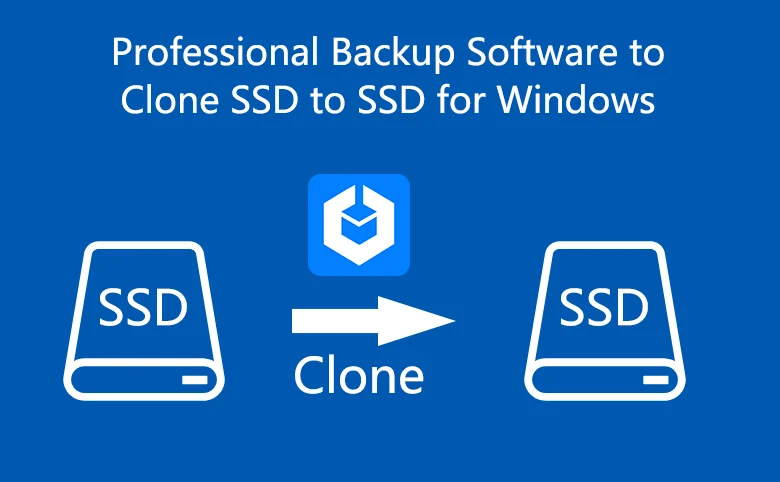
    Best Cloning Software for SSD | Stepwise Guide

    Introduction

    Copying an SSD (solid-state drive) has become pretty common among folks who want to move all their data, operating system, and preferences to a new drive quickly. This post dives into why people clone SSDs and offers one best disk clone software for Windows users.

    Why Clone an SSD?

    Cloning an SSD brings several benefits compared to manual data transfer or OS reinstallation. It’s a time and effort saver, copying all data and settings from the source SSD to the target one. Whether you’re upgrading, replacing a faulty drive, or seeking more storage space, cloning streamlines the process while safeguarding data integrity. Specifically:

    • Efficiently manage your original hard drive.
    • Create a backup of important files.
    • Helpful for booting your computer in case of accidents or from a secondary hard drive.
    • Upgrade to a new SSD for improved performance or increased storage capacity.

    What’s the best SSD cloning software?

    Since there’s no built-in cloning software offered by Windows, you need to select a well-functioning cloning tool. AOMEI Backupper, a software designed for Windows systems backup and clone, support OS like Windows 11/10/8.1/8/7/Vista/XP, stands out as a top choice for SSD cloning software.  Some great features are presented as below:

    • Disk Clone: Easily clone entire hard drives, including all volumes. Whether you’re migrating from an HDD to a smaller SSD or upgrading to a larger SSD, this feature has you covered.
    • Partition Clone: Copy selected partitions, such as NTFS drives, with ease.
    • Intelligent Clone: By default, it only copies used sectors, making it efficient for cloning larger drives to smaller ones.
    • SSD Alignment: Improves performance and extends the lifespan of your destination SSD.
    • VSS Technology: Runs the cloning process in the background, allowing you to continue using your computer without interruption.
    • Sector by Sector Clone: This function enables you to clone all sectors, whether used or not, making an exact copy of the source disk. You can activate this feature if you need an identical replica of the source disk.
    • Compatibility: AOMEI Backupper Standard works seamlessly with all Crucial SSD models, such as Crucial MX100, Crucial MX200, Crucial MX500, Crucial BX500, M500 Series, and also supports other popular brands like WD SSD, Samsung SSD, and SanDisk SSD.

    Apart from extraordinary cloning functions, this pretty tool offers full backup and recovery solutions, and enables users share data with its wonderful syncing options.

    Stepwise guide on cloning SSD to another drive

    Now I will show you how to create a step-by-step guide on cloning SSD to another drive like HDD or another SSD. Before you start, please make some preparations:

    • Ensure your old SSD and new drive are properly connected to your computer. If you have only one drive bay, use a USB-to-SATA adapter.
    • Make sure there’s enough space in the destination disk to store the data or the cloning process will fail.
    • Remember that the target disk will be overwritten during cloning, so back up any important files if needed.
    • Download and install the free SSD migration software.

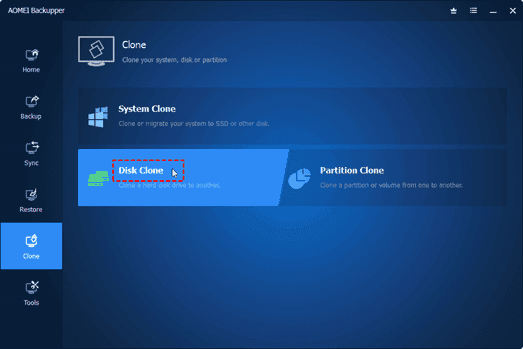
    Step 1. Now launch AOMEI Backupper on your computer. Click on the Clone button and select Disk Clone in the next window.

    Picture1

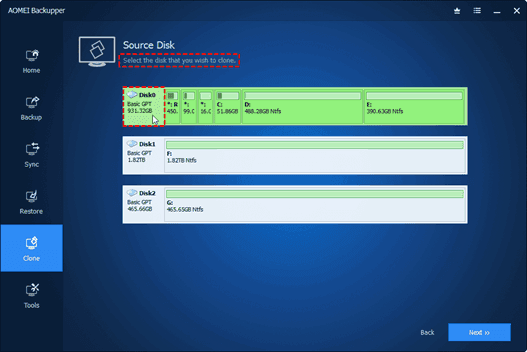
    Step 2. Choose the original SSD  as the source disk and then select the new drive as the destination disk.

    Picture2 1

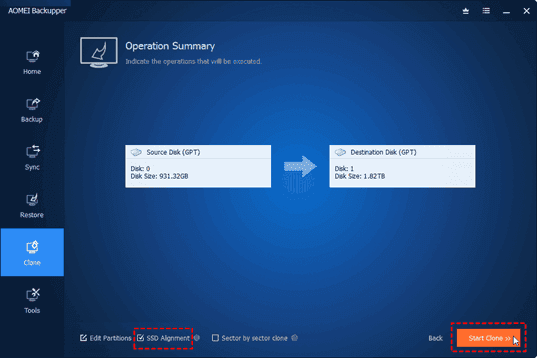
    Step 3. Optimize the performance of the destination SSD by checking the SSD Alignment option if needed.

    Picture3 1

    Step 4. Click on Start Clone to initiate the SSD  cloning process.

    Step 5. When the cloning process ended, click on the Finish icon to end the whole cloning process.

    Note: If you want to clone every sector, including unused sectors, tick the Sector By Sector Clone option. Additionally, if you’re upgrading to a larger SSD, you can use the Edit Partitions option to avoid unallocated space after cloning.

    Conclusion

    In conclusion, cloning an SSD provides a convenient way to transfer data, operating systems, and settings to a new drive, saving time and effort compared to manual reinstallation. Before starting the cloning process, ensure both the source and target SSDs are connected, verify sufficient disk space, and choose reliable cloning software.

    Among the available options, AOMEI Backupper stands out as the best cloning software due to its user-friendly interface, advanced cloning options, data integrity and security measures, and additional backup features.Now you can try this sofwtare yourself!

  • Full Introduction: Best Online Computer Backup Service

    Full Introduction: Best Online Computer Backup Service

    Are you interested in protecting your computer data by creating an online computer backup? Opting for an online backup solution ensures that your backed-up data is securely stored in the provider’s data center, offering protection against local accidents and disasters. Additionally, once you’ve made online backup for your computer data, you’ll have the freedom to access, download, and modify your data from any device.

    What Makes Online Computer Backup the Preferred Choice?

    Many users, like yourself, are increasingly opting for PC online backup. Let’s delve into the advantages of this backup solution:

    • Local data loss prevention: Local accidents such as system crashes, virus attacks, natural disasters, and equipment failures can result in data loss. However, creating an online computer backup ensures the safety of your data on the cloud.
    • Cost-effectiveness: Unlike traditional backup methods, online computer backup services often offer free cloud storage. If you require additional backup space, you can easily upgrade your cloud storage service according to your needs.
    • Enhanced data accessibility: Rather than carrying around a physical storage device, an online computer backup allows you to access your computer data from any device with a stable internet connection.
    • Simple data recovery: Online computer backup services maintain multiple versions of your backed-up data, enabling you to restore it to any previous version effortlessly.
    • Streamlined backup tasks: Online computer backup typically offers advanced features and settings to simplify and optimize your backup process.

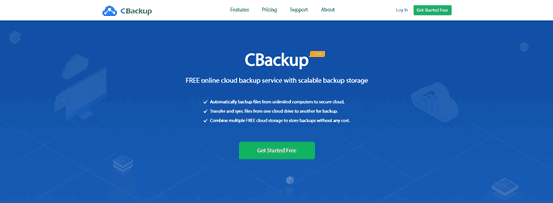
    Discover the Best Online Computer Backup Service: CBackup

    Are you faced with the dilemma of selecting a reliable online computer backup service for your computer data? With numerous options available in the market, comparing different aspects can be time-consuming. Do not worry, as we introduce you to the ultimate online backup service: CBackup.

    CBackup is from a professional company specializing in global data security for many years. CBackup employs OAuth to effectively protect your account and login information. Furthermore, the utilization of 256-bit AES Encryption guarantees the safety of your important computer data during upload and transfer tasks.

    Regardless of the operating system you use, you can access CBackup from its official web page. If you’re using a Windows operating system like Windows 11, 10, 8.1, 8, 7, or XP, you can download and install the CBackup desktop client directly on your computer, facilitating the creation of an online computer backup.

    With CBackup, you can create backup tasks for your entire computer, or select certain files and folders from computer to back up.

    Picture2

    CBackup offers a wide array of free backup and sync features. Here’s a brief overview of some of them that can help safeguard your computer data:

    • Backup PC to public cloud: The backup feature lies at the core of CBackup. You can easily back up your computer data to many common cloud drives such as Google Drive, OneDrive, and Dropbox.
    • Backup PC to CBackup Cloud: In addition to public cloud drives, CBackup also provides the option to use CBackup Cloud. Upon signing up for a new account, you receive 10GB of free cloud storage in CBackup Cloud.
    • Combine cloud storage: A standout feature of CBackup, it allows you to merge multiple cloud drive accounts into a single combined cloud, granting you unlimited cloud backup space. You can select accounts from the same platform or different cloud drives.
    • Sync PC to public cloud: CBackup enables you to sync your PC data with public cloud drives, offering this feature for free.
    • Cloud to cloud backup or sync: Aside from transferring data from local storage to the cloud, CBackup facilitates seamless data transfer between different cloud drive accounts using the cloud to cloud backup or cloud to cloud transfer feature.

    Step-by-Step Tutorial: Creating an Online Computer Backup

    If you’re eager to utilize the CBackup desktop application for creating an online computer backup, refer to the simple tutorial provided below:

    Start by downloading and installing the CBackup desktop app from the official website. Sign up for a new account and open the CBackup desktop application to log in.

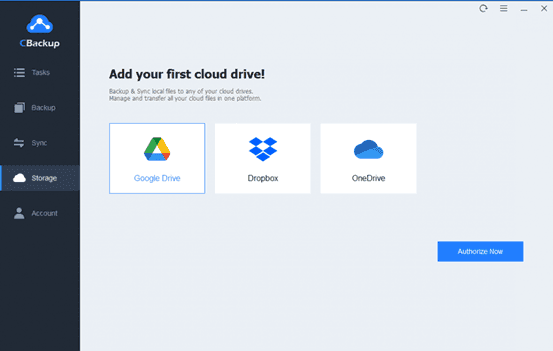
    1. On the left-hand side, click on the Storage tab, choose a public cloud, and click “Authorize Now” to add it.

    Picture3

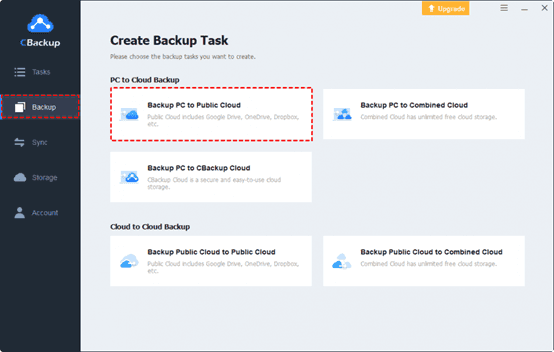
    2. Press Backup and select “Backup PC to Public Cloud” in turn.

    Picture4

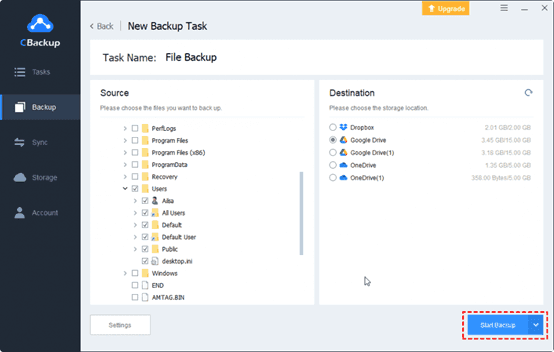
    3. Choose any data from your computer or the entire computer as the backup source. Then, select the cloud drive account you have added to CBackup as the backup destination.

    Finally, click the “Start Backup” button to swiftly back up your PC data to the online cloud.

    Picture5

    In Conclusion

    That concludes our discussion on the best backup software for computers, along with a step-by-step guideline. With CBackup, you can explore a range of additional free features to enhance the convenience of your online computer backup.