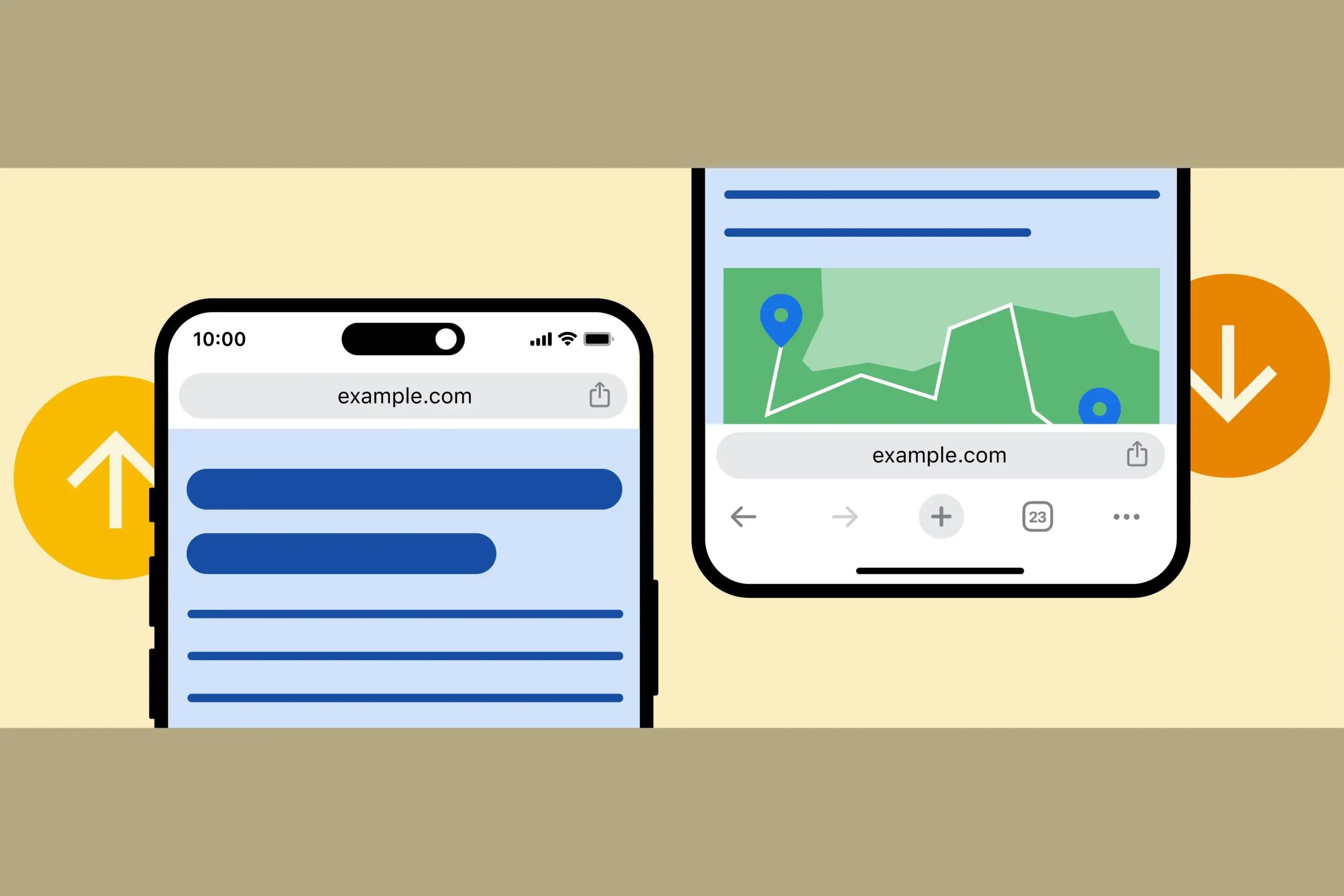
One feature that users of iOS have enjoyed for a while—a moveable address bar—has been absent from an Android user’s customized Chrome experience. With Google’s statement that you would be able to move the Chrome address bar from top to bottom and back up again, that will alter as of right now.
Android’s Chrome address bar can be moved to the bottom. This may seem like a dumb little feature, but I can’t wait for it to arrive on my device. It can be challenging to reach the top of our phones without a second hand or having to do a risky shimmy because they are huge. An address bar at the bottom is always accessible.
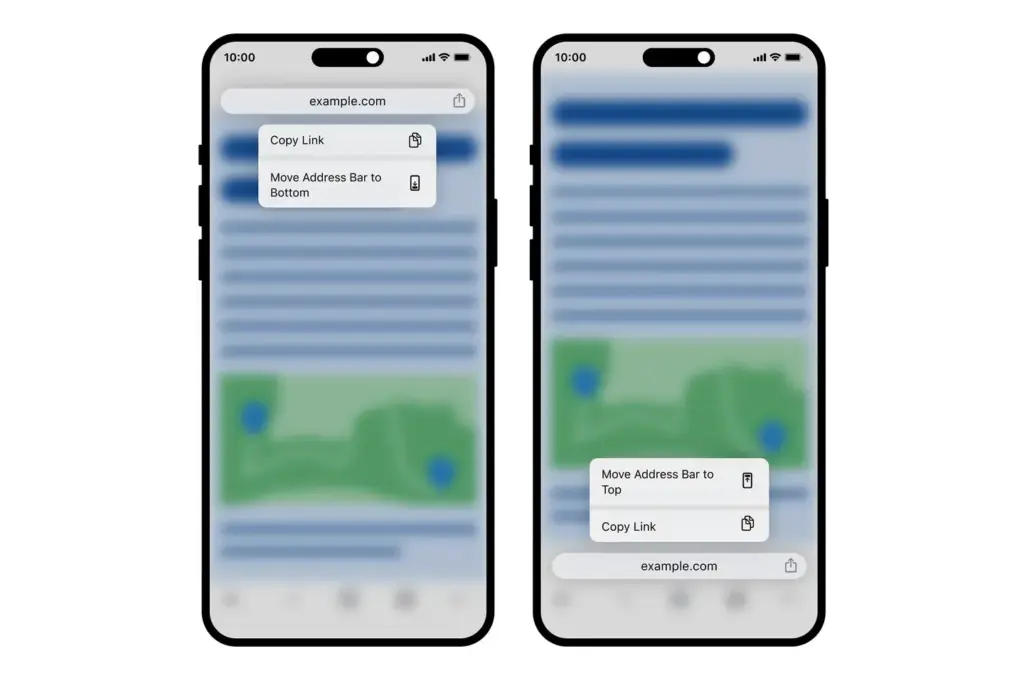
Google is allowing you to manually relocate the Chrome address bar by long-pressing on it (such as the actual URL space) and then selecting “relocate address bar to bottom” for those who enjoy the concept (which you can see above). You can see how it appears on iOS below.
According to Google, the update may take “weeks” to reach everyone, but it will “begin to emerge” on devices as early as today.
Stay connected with the latest from Droid Tools—follow us on X @droid_tools, like our page on Facebook, check out our updates on Instagram, and follow us on Google News for real-time news, device tips, and mobile tech insights.
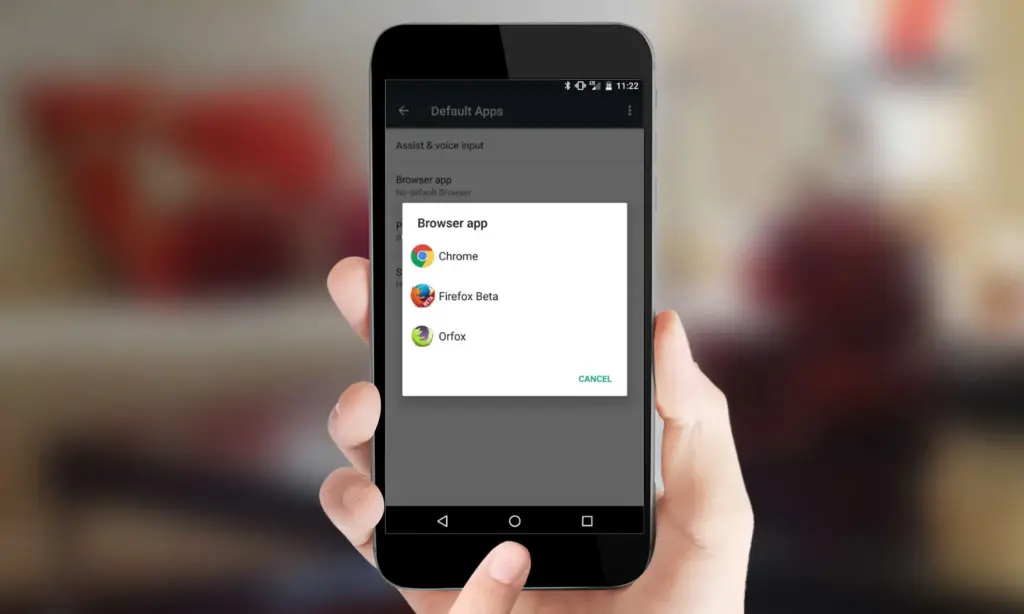
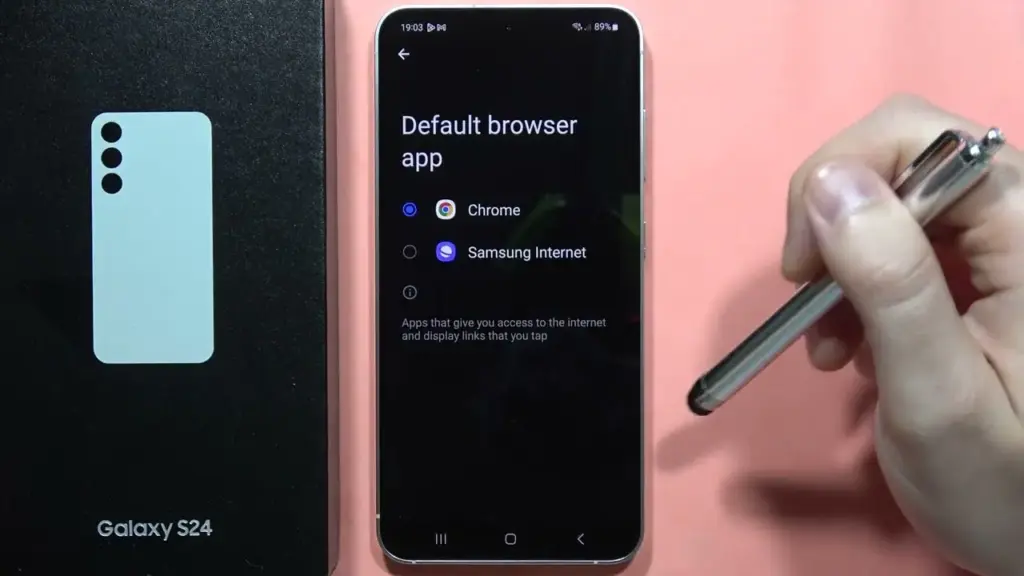
You have complete control over the default apps you use on Android for email, calls, texts, browsing, and more. Android lets you select your favorite apps as defaults, whether it be Chrome or Firefox, Gmail or Outlook, or any other third-party software that is compatible, in contrast to other mobile operating systems that force you to use a limited number of apps.
Once set, Android uses your selected app automatically — no need to choose each time.
What types of default apps can be changed?
Android supports default app selection for a variety of functions, including:
Browser (e.g., Chrome, Firefox, Brave)
Phone (dialer apps)
Messaging/SMS (e.g., Google Messages, Textra)
Email (e.g., Gmail, Outlook, K-9 Mail)
Home screen launcher
Digital assistant
Camera
Gallery/photos
Music player
Navigation apps (Maps, Waze, etc.)
Links handling (web, YouTube, etc.)
Some apps will request to be the default when first installed or opened but you can always change this manually.
How to change default apps on stock Android
Here’s how to manage your default apps on phones running near-stock Android (such as Pixel, Motorola, or Nokia devices):
Open the Settings app.
Tap on Apps.
Choose Default apps.
You’ll see a list of categories: browser app, phone app, SMS app, assistant app, home app, etc.
Tap any category to see installed apps compatible with that function.
Choose your preferred app from the list.
Android will immediately make the chosen app the activity’s default. If you change the browser’s default, for instance, any link you click will open in the selected browser.
How to change default apps on Samsung (One UI)
Samsung devices with One UI take a somewhat different path:
Go to Settings.
Tap on Apps.
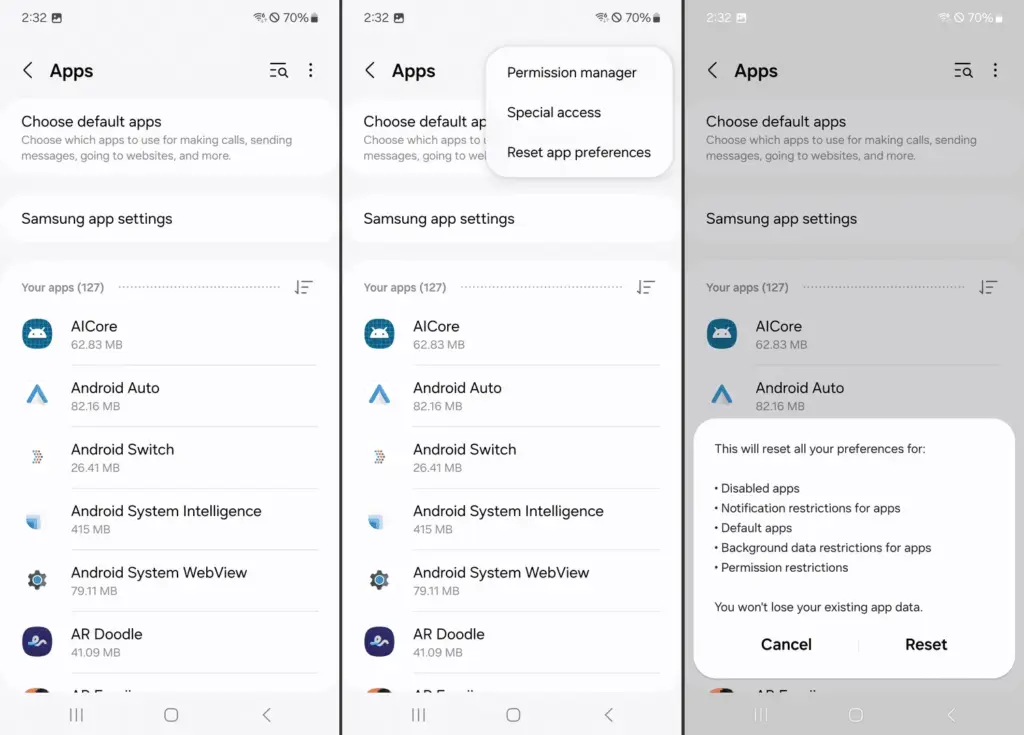
Tap the three dots in the top-right corner and select Default apps.
You’ll see the same categories as stock Android: browser, calling, messaging, and more.
Tap the category you want to change.
Select your new default app.
Samsung devices also let you reset all default apps at once via Settings > Apps > Three dots > Reset app preferences.
How to change default apps on Xiaomi (MIUI)
MIUI includes a “Manage apps” section to control default apps:
Open the Settings app.
Go to Apps > Manage apps.
Tap the three dots in the top-right and select Default apps.
Choose a category like browser, dialer, messaging, or gallery.
Select your desired app.
MIUI might ask you to select a new default app after installation or when you attempt to open related content.
How to handle app-specific defaults (like file types or links)
Some apps don’t appear in the general default app settings but can still be set as defaults when opening certain file types or links.
To manage these:
Go to Settings > Apps.
Tap See all apps and choose the app you want to configure.
Tap Open by default.
Enable Open supported links or clear defaults by tapping Clear defaults.
This is useful if you want all YouTube links to open in the app rather than in a browser, or if you have accidentally enabled an app to always open PDFs or photos.
How to reset default apps
If you’ve set the wrong default app or want to start over:
Open Settings > Apps.
Tap the three dots (or menu icon).
Select Reset app preferences.
Confirm to reset all app defaults.
This won’t delete any data but will clear app defaults, disabled apps, and permission restrictions.
Alternatively, to reset just one app:
Go to Settings > Apps > [App Name] > Open by default
Tap Clear defaults
This lets you reassign that app’s function later.
Choosing the best default apps
Here are some recommended apps to consider setting as default:
Browser: Firefox Focus (privacy), Brave (ad blocking), Chrome (sync)
Email: Gmail (Google integration), Outlook (work email), BlueMail (multi-account)
Messaging: Signal (privacy), Google Messages (RCS), Textra (customizable)
Gallery: Simple Gallery, Google Photos, Aves
Music: YouTube Music, VLC, Poweramp
Navigation: Google Maps, Waze, HERE WeGo
Make sure the app supports being set as a default. Some lightweight or older apps may not offer this functionality.
What if Android won’t let you change a default?
Some Android versions or manufacturers may restrict default app changes for certain functions — especially camera or dialer apps. In those cases:
Make sure the new app is fully updated and has the necessary permissions.
Check for manufacturer limitations in forums.
Use Activity Launcher or ADB commands (for advanced users) to override.
Root access may be required for some deep changes — though this is not recommended for most users.
Changing the default apps on Android provides you control over your digital experience. Whether you want a speedier browser, a cleaner messaging app, or a more powerful camera, Android allows you to select what works best for you.
By looking into your device’s default app settings, you may optimize your workflows and eliminate annoyances such as accessing links in the wrong app or using services you dislike. With a few touches, Android becomes your own—not what the manufacturer or carrier wants you to use.
The new Glove Stealer malware can collect browser cookies by getting past Google Chrome’s Application-Bound (App-Bound) encryption. This information-stealing virus is “very simple and contains limited obfuscation or protective features,” suggesting that it is most likely still in its early stages of development, according to Gen Digital security researchers who first discovered it when looking into a recent phishing attempt.
During their attacks, the threat actors used social engineering tactics similar to those used in the ClickFix infection chain, where potential victims get tricked into installing malware using fake error windows displayed within HTML files attached to the phishing emails.
Cookies from Firefox and Chromium-based browsers (such as Chrome, Edge, Brave, Yandex, and Opera) can be extracted and exfiltrated by the Glove Stealer.NET virus.
Additionally, it can collect password information from Bitwarden, LastPass, and KeePass, cryptocurrency wallets from browser extensions, 2FA session tokens from Google, Microsoft, Aegis, and LastPass authenticator apps, and emails from mail programs like Thunderbird.
“Other than stealing private data from browsers, it also tries to exfiltrate sensitive information from a list of 280 browser extensions and more than 80 locally installed applications,” said malware researcher Jan Rubín.
“These extensions and applications typically involve cryptocurrency wallets, 2FA authenticators, password managers, email clients and others.”
Glove Stealer bypasses Google’s App-Bound encryption cookie-theft safeguards, which were implemented by Chrome 127 in July, in order to steal credentials from Chromium web browsers. It accomplishes this by employing a supporting module that decrypts and recovers App-Bound encrypted keys using Chrome’s own COM-based IElevator Windows service (running with SYSTEM rights), as outlined by security researcher Alexander Hagenah last month.
To install this module in the Program Files directory of Google Chrome and utilize it to recover encrypted keys, the virus must first obtain local administrator capabilities on the infected PCs.
However, despite its attractive appearance, Glove Stealer is still in its early stages of development since, as researcher g0njxa told BleepingComputer in October, it is a simple technique that most other information thieves have already accomplished to collect cookies from all Google Chrome versions.
Russian Panda, a malware analyst, previously told BleepingComputer that Hagenah’s technique resembles early workarounds used by other viruses following Google’s introduction of Chrome App-Bound encryption.
When Google told BleepingComputer last month that “this code [xaitax’s] requires admin credentials, which shows that we have successfully upped the degree of access required to properly pull off this type of assault,” Unfortunately, the number of active information-stealing malware campaigns has not decreased significantly despite the requirement for administrator access to circumvent App-Bound encryption.
Regularly clearing the cache and cookies in your web browser will help you get rid of unnecessary garbage files.
Much of the information that your Android phone’s web browser gathers from the websites you visit is unnecessary for it to be on your phone.
The information kept in your cookies and cache, regardless of whether you are using Samsung Internet, Mozilla Firefox, or Google Chrome, may come in handy occasionally. It is what keeps you signed into your accounts and enables you to swiftly access websites that you visit often. That is great, but your browser’s cookies and cache include a lot of unnecessary data that may even pose a privacy concern.
The reasons behind periodicaly clearing your cache and cookies
A large portion of the content that accumulates in your cookies and cache is just useless garbage. A portion of it might have come from single-visited websites. Some appear to be actively monitoring your browser history in order to provide you with adverts that are relevant to what you purchase or watch online. For example, after looking at a few stores, I keep getting advertising for buying glasses online, or I get ads from Amazon that just so happen to reflect what was last in my shopping basket.
It is a good idea to periodically clean your cache because of this. It enables you to delete data from your phone that you no longer require, particularly if one of the cookies on your phone has an unknown data tracker. You will have to log back into some of your favorite websites after clearing your cache, but it is a tiny annoyance to ensure that your phone is not accumulating unnecessary data.
The steps differ slightly depending on the type of phone and web browser app you’re using. Below, we’ll go over how to clear this data for Google’s Chrome browser (often the default for many Android phones, like the Google Pixel line), Samsung’s internet browser (often the default on the Galaxy phone series) and Mozilla’s Firefox browser.
Google Chrome
In the Google Chrome app for Android, you can clear your cache and cookies by first clicking the More button (shown by a column of three dots) in the top right corner of the browser, then selecting History, and then selecting Clear browsing data. Alternatively, you may access this by selecting Privacy and Security from the Chrome Settings menu, followed by Clear browsing data.
Additionally, Chrome has Basic and Advanced settings for deleting cookies, site data, cached files and pictures, and browsing history. You can choose to erase all of your information or just a portion of it, ranging from the recent 24 hours to the previous four weeks, using the Time range drop-down menu. You can also delete Saved passwords, Autofill form data, and Site settings by tapping Advanced.
Once you have decided what to remove, hit the blue “Clear data” button. If Chrome considers any websites to be “essential” to you, you may receive an additional prompt, and you will be able to accept before clearing. In the event that you do not receive the prompt, Chrome will clear as soon as you tell it to.
Samsung Internet
You can delete the cache and cookie data from your Samsung Internet browser in two distinct methods. You have two options for clearing: using the Settings app on your phone, or directly from within the browser.
To clear while in the Samsung Internet browser app, first tap the Options button in the bottom right corner represented by three horizontal lines, then Settings; scroll down to and tap Personal Data, then tap Delete browsing data to get a menu of options to delete. You can clear your Browsing history, Cookies and site data, Cached images and files, Passwords and Autofill forms in any combination. After tapping Delete data, you’ll then receive a prompt asking for you to confirm your choices before deleting.
You can customize what you want to erase the most by going through the browser app itself. Nevertheless, you may launch the Settings app, touch on Apps, scroll down to Samsung Internet, and then tap Storage if you want to access comparable choices from your phone’s settings menu.
There are distinct options to clear data and clear cache at the bottom of Storage. Choosing Clear data triggers a warning that all of the application’s data, including files, settings, accounts, and databases, will be permanently erased. Tapping Clear cache will instantly remove the cache. This “going nuclear” method should erase all leftover data, even though it does not mention cookies, allowing you to restart the Samsung Internet browser as if it were a fresh install.
Mozilla Firefox
You may empty the cache from within the Mozilla Firefox Android app, just like you can with Google Chrome. Once more represented by three vertically aligned dots, the More button is located to the right of the address bar. Tap it to access this function. Next, select Settings and proceed to the Delete browsing data section.
Of the three browsers we’re discussing here, Firefox gives you the most options under the Delete browsing data menu, allowing you to also delete any existing Open tabs, your Browsing historyand site data, Site permissions and even your Downloads folder alongside Cookies and Cached images and files.
You can be more precise about the kind of data you want to erase, even though you are unable to select a time frame like you can with Chrome.
Additionally, Firefox offers a second option for users who want not to store their browser history once they close the program. There is a Delete browsing data on stop option in Settings that tells Firefox to remove any combination of these same settings each time the program is closed. This is a helpful function if you want to maintain your browser clean and, for example, not unintentionally give your browsing history to someone who could have stolen or otherwise obtained access to your phone.
Chromebooks haven’t had any cross-device synergy with Android devices for nearly a decade. With its Better Together features, Google attempted to bridge the gap between its devices, but it felt like an afterthought when compared to Apple’s Mac-to-iPhone connection. That all changed with the introduction of Phone Hub in Chrome OS 89, and with OS 91, Google finally made it possible to exchange family memories, documents, and files between Chromebooks and Android devices with Nearby Share. Here’s how to utilize it to transfer data between your Google devices without a hitch.
The Setup
First impressions are key, and Google continues to amaze with its onboarding process. The setup UI for Nearby Share makes it easy to get started by providing a fun experience. Open the settings on your Chrome OS device to get started with Nearby Share. Nearby Share can be found on the first page, under Connected devices. Select Set up from the drop-down menu.
Nearby Share is no exception to Google’s love of integrating its simple UI everywhere. The onboarding UI functions as a compass to guide you through the process of installing Nearby Share on your Chromebook. It’s quite easy to use, and the Google-style illustrations keep you entertained while you’re setting it up.
You can modify your privacy so that all or some of your contacts can view your Chrome OS device after you’ve given it a name. If you choose “hidden,” your gadget will remain hidden until you enable it from the shelf. When the setup is finished, you’ll be taken to Nearby Share’s settings to review. Before you transmit data, make sure both of your devices are nearby and have Bluetooth and location turned on.
Transfer files to Chromebook
It can be difficult to send files to your Chromebook. Nearby Share streamlines the process and reduces the amount of time spent attempting to share a file. We’ll use Google Photos to share an image using my Chromebook in this tutorial.
To send a photo, tap on the share button at the bottom left of your phone’s screen, and select Nearby Share in the share sheet. Your phone should recognize your Chromebook — tapping “Accept” will begin transferring the photo. You can also share an assortment of documents and files with your Chromebook, too.
Transfer files to your smartphone
You can transfer a document or a photo from your Chromebook to your phone if you want to take it with you. Sharing files from your Chromebook to your Android smartphone is a breeze. In the Chrome OS file manager, right-click any file and choose “Share” from the menu. Select your phone from the list by clicking Nearby Share.
It may take a few tries for it to detect your device; launching Nearby Share from Android’s quick settings can help.
When the transfer is complete, your file should appear in your phone’s download directory.
Nearby Share can also be used to transfer files from one Chrome OS device to another. You can access Nearby Share by right-clicking a file in the Chrome OS files app and selecting “share.” After the receiving party accepts the file from the system tray, the file transfer will begin. My gadgets required a few tries to connect, but once they did, the data transferred quickly. Nearby Share will be available to PWAs that implement the Web Share API, such as PhotoStack.
Because of the scheduling problems resulting from the engineering team working from home, Chrome V82 was completely skipped but releases are starting to return to normal. Chrome 83 entered beta last month, and has now graduated from stable channel with a number of tow improvements.
Cookie blocking in Incognito Mode
One of the new changes relating to privacy that Google announced a few days ago was a new feature for Incognito Mode. When you open a new Incognito tab a setting to block third-party cookies appears at the bottom. In default it is switched on.
This specific feature is part of a server-side rollout, so if you’re already on Chrome 83 and you don’t have it, paste chrome://flags/#improved-cookie-controls into your address bar and click ‘Enabled’ on the highlighted dropdown menu.
Improved form controls
Microsoft has already merged a few improvements back to mainline Chrome from its Chromium-based Edge browser, and Chrome 83 includes a further change: updated form controls. Don’t just get all excited at once!
Design-wise, Chrome’s form controls (buttons, text fields, etc.) are everywhere. Some of them came from Safari / WebKit, some of them had gradients, some didn’t have gradients, etc. Microsoft and Google have collaborated to standardize the presence of form elements across all operating systems and the result is Chrome 83 shipping.
Besides the appearance, some form elements have also been reworked for better usability on touch screens. For example, the time picker now has large dropdown menus for selecting the hour and minute, instead of relying solely on keyboard input.
However, it doesn’t appear that the updated controls have made their way to Chrome for Android. While the Android browser already has better controls in some areas (e.g. the time picker opens the same time picker you get in the Clock app), the general design improvements would be nice to see on mobile.
More features
The Security settings page has been redesigned, but only on desktop platforms.
Extension buttons in the toolbar are now located in the new extensions drop-down menu. If you don’t see this change, enable the flag chrome://flags/#extensions-toolbar-menu.