Blog

  • How to enable Auracast in Android 16 – audio sharing feature

    How to enable Auracast in Android 16 – audio sharing feature

    While there won’t be any significant UI changes in the impending Android 16 update for Pixel devices, it will finally provide a long-awaited feature: support for Auracast. Devices can initiate or listen to adjacent audio streams thanks to the Bluetooth LE Audio standard’s Auracast functionality, which is the marketing name for broadcast audio. Despite Google’s announcement that the latest Pixel smartphones will support Auracast in Android 16, if you install the beta, the capability is not yet available. Here’s how to turn on Auracast on an Android 16 beta-powered Pixel device.

    To put things in perspective, Google said in March that owners of Pixel 9 devices could receive Auracast broadcasts straight to their hearing aids. The Pixel 9 must be running the Android 16 beta and have LE Audio-compatible headphones in order to use this feature. Google emphasized the accessibility advantages of Auracast, although the capability works with any audio device that can receive LE Audio broadcasts, not only hearing aids.

    Auracast isn’t actually enabled in the current Android 16 Beta 4 version, even though Google previously stated that it will work on Pixel 9 devices running the Android 16 beta. The “Audio Sharing” page was missing from Settings after I factory reset my own Pixel 9 and updated it to this beta. I know how to make this settings page available, but I’m not sure why it’s hidden by default.

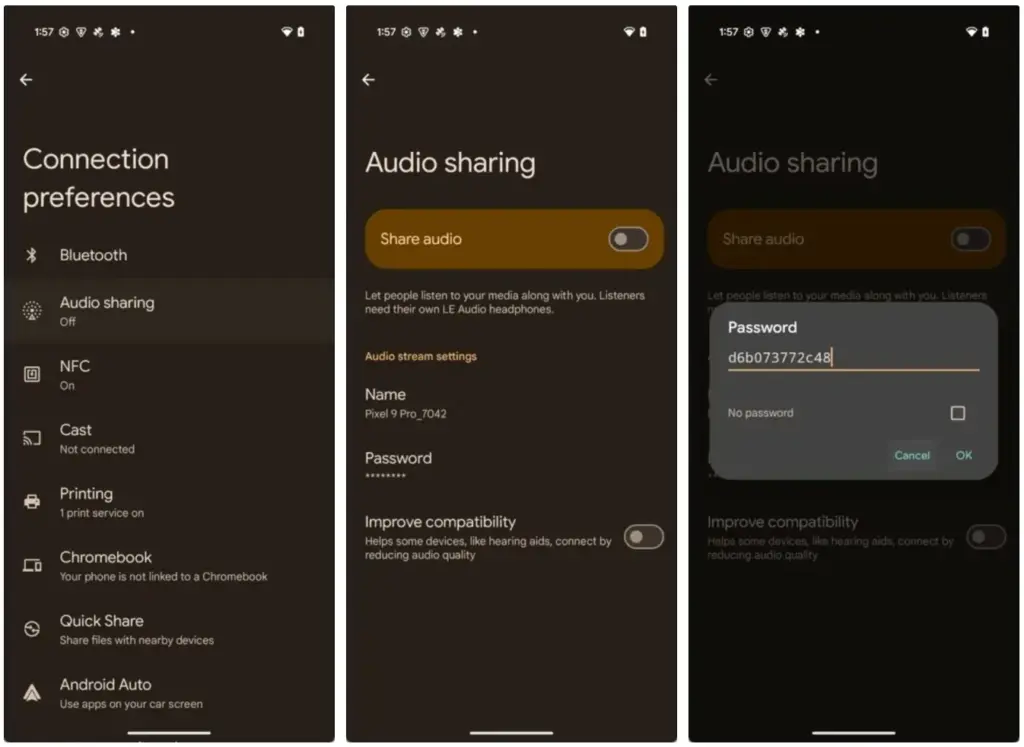
    To activate Audio Sharing on your Pixel device, you need to first enable Developer Options. Then, navigate to Settings > System > Developer options and scroll down until you find “Enable Bluetooth LE Audio Broadcast UI preview.” Toggle this setting on, and then reboot your phone. Once your phone boots back up, go to Settings > Connected devices > Connection preferences, where you’ll find the “Audio sharing” page.

    By connecting a headset that supports Auracast and turning on the “share audio” feature from this page or the Bluetooth panel, you can now begin an audio broadcast. You can set a password for your broadcast to keep undesirable listeners from joining. Tap the “find an audio stream” option to look for streams in your area if you would prefer to listen in on a broadcast.
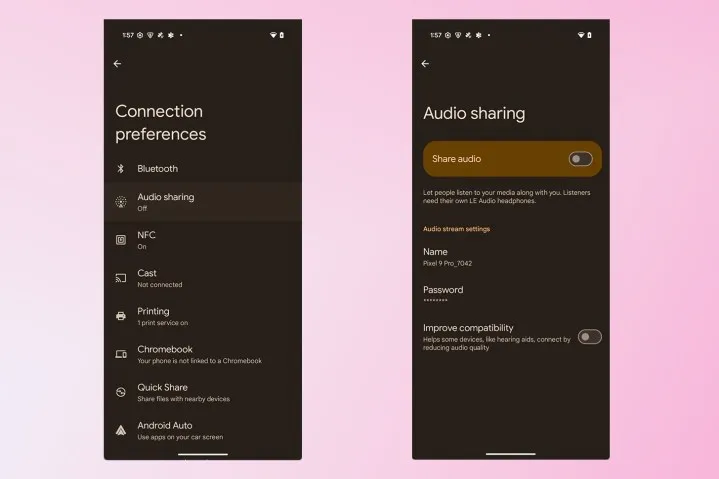
    Auracast audio sharing

    Make sure Bluetooth LE Audio is turned on for that particular device if Android still prevents you from starting or listening to adjacent broadcasts even when you have an Auracast-capable audio device connected. You may need to manually activate LE Audio via the Bluetooth device details page for a lot of audio items. As an alternative, you can compel Android to automatically enable Bluetooth LE Audio for any compatible audio device by turning on the “bypass Bluetooth LE Audio Allowlist” toggle in Developer Options.
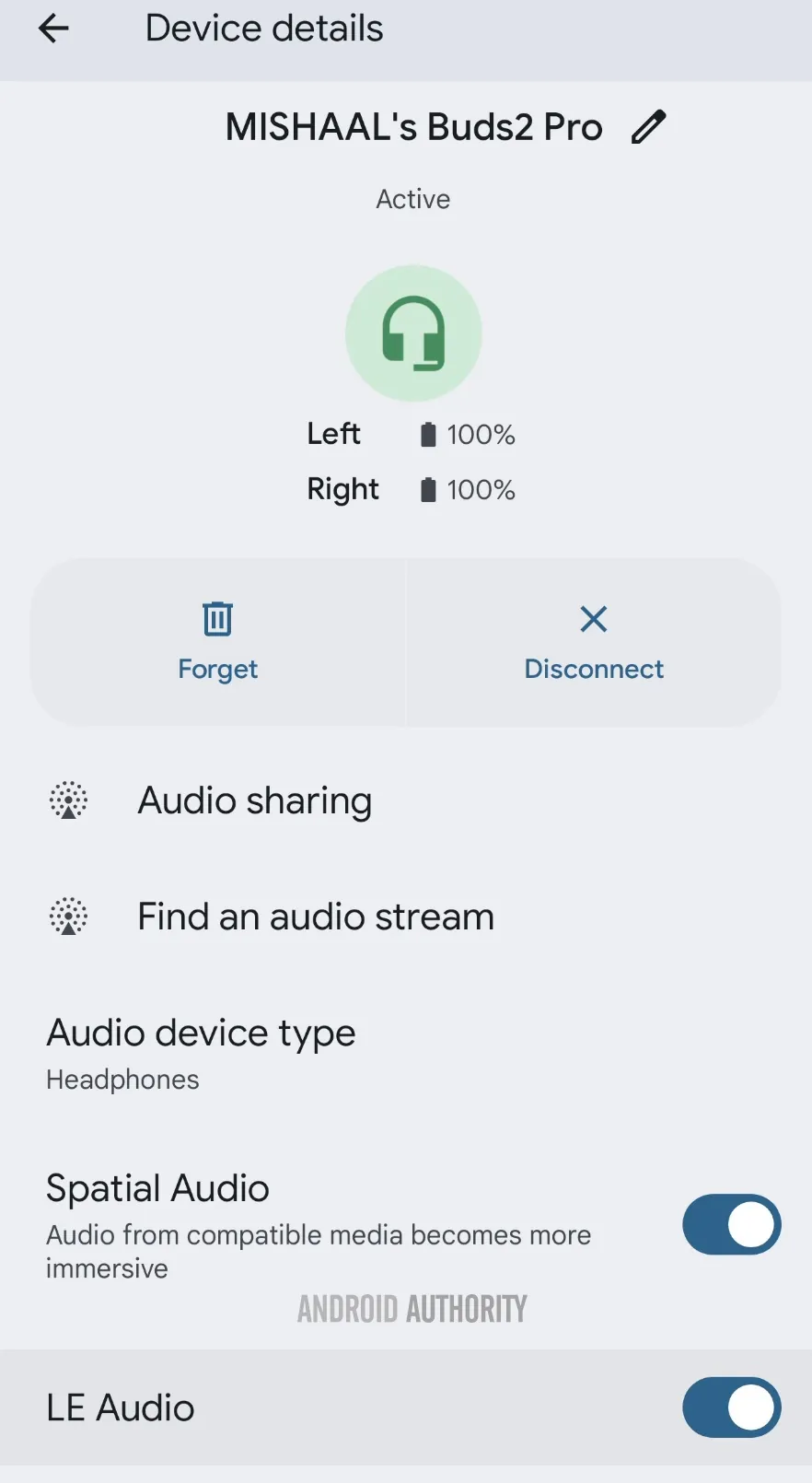
    Bluetooth device details page for LE Audio capable earbuds.jpg

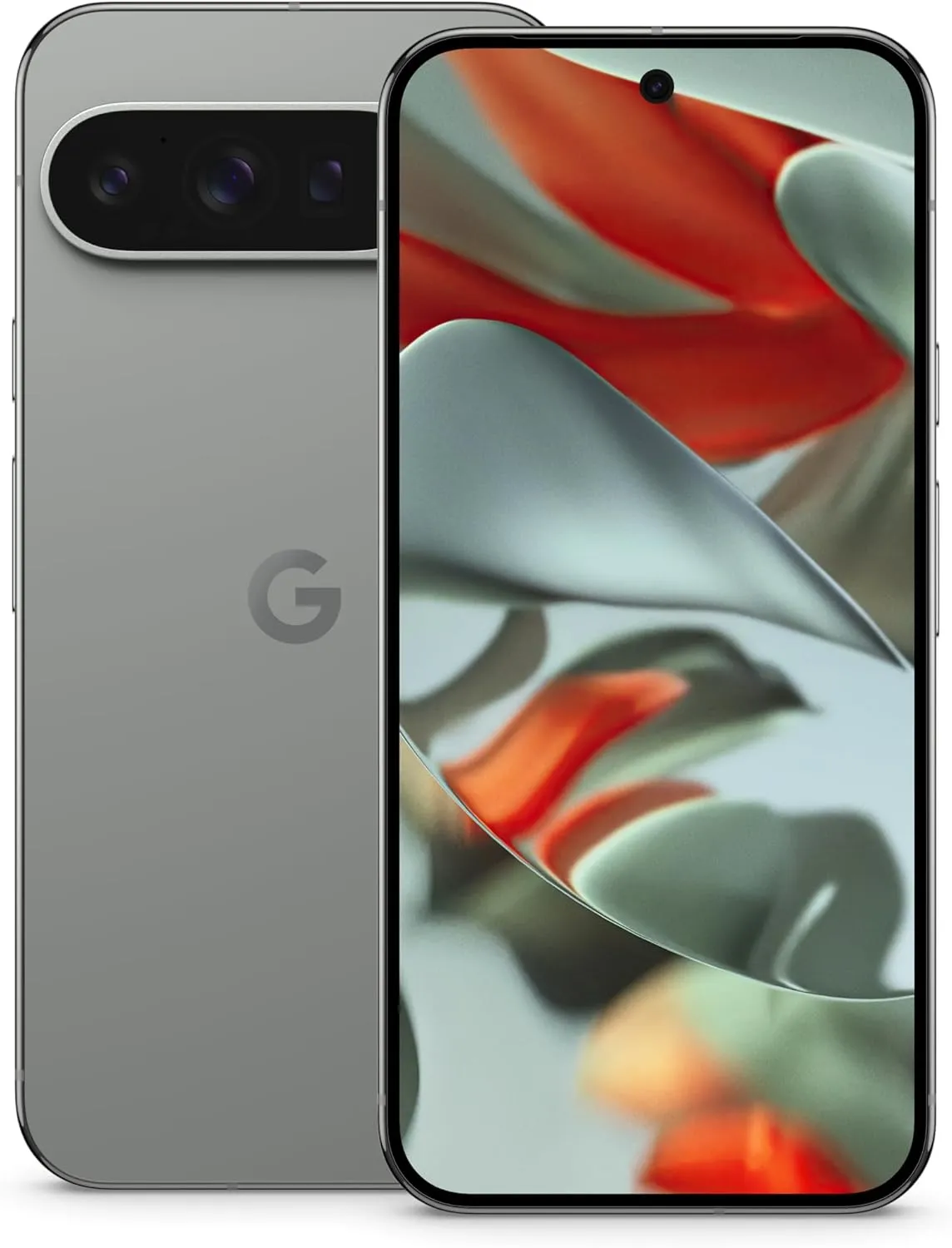
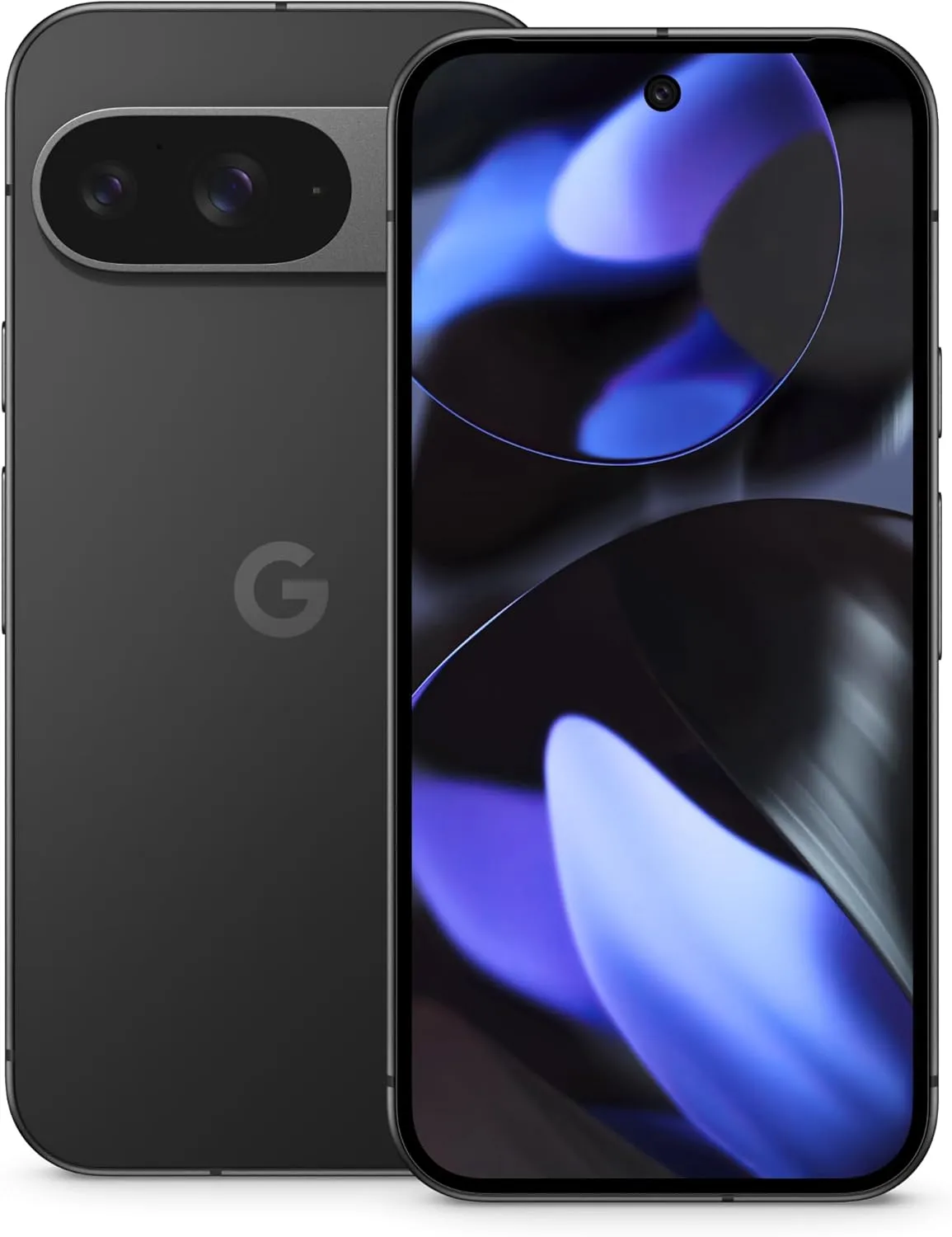
    Finally, your Pixel device does not support Auracast if you do not see the “Enable Bluetooth LE Audio Broadcast UI preview” toggle in Developer Options. At the moment, the Pixel 8, Pixel 8 Pro, Pixel 9, Pixel 9 Pro, Pixel 9 Pro XL, and Pixel 9 Pro Fold are compatible with Auracast.

    This toggle won’t show up for devices like the Pixel 7 series, Pixel Tablet, Pixel Fold, Pixel 8a, and Pixel 9a, even though they theoretically support Bluetooth LE Audio. However, they don’t support Auracast. Since the Pixel 6 series does not support LE Audio, it does not meet the requirements to use Auracast and will not display the toggle.

    Remarkably, the most recent stable version of Android 15 for Pixel smartphones with Auracast support does have the “Enable Bluetooth LE Audio Broadcast UI preview” button. Accordingly, installing the Android 16 beta is not strictly required in order to utilize the Audio Sharing feature. You might anticipate that Audio Sharing would be enabled by default in the Android 16 beta, given Google’s announcement, but it might not be the case with the next stable release of Android 16. Google is anticipated to release the stable Android 16 version next month, so we’ll have to wait and see.
  • 6 useful connectivity features you should know

    6 useful connectivity features you should know

    Connectivity features enable communication between networks and devices. Numerous tools are available on Android, with Bluetooth, Wi-Fi, Near-Field Communication, and mobile hotspot being among the most widely used. There are very few users that do not utilize any of them in a given day.

    You might be using a wireless connection to watch videos or pair your wireless headphones with your phone. You may be surprised to learn that there are more features available to improve your experience. Let’s examine your device’s settings in more detail and get you using them immediately.

    Use QR code to share your internet connection

    It’s uncomfortable to pause what you’re doing, type or speak out your Wi-Fi or mobile hotspot password, and ensure sure no one else can see or hear it. Use a QR code if you want to share it more quickly. Here’s how:

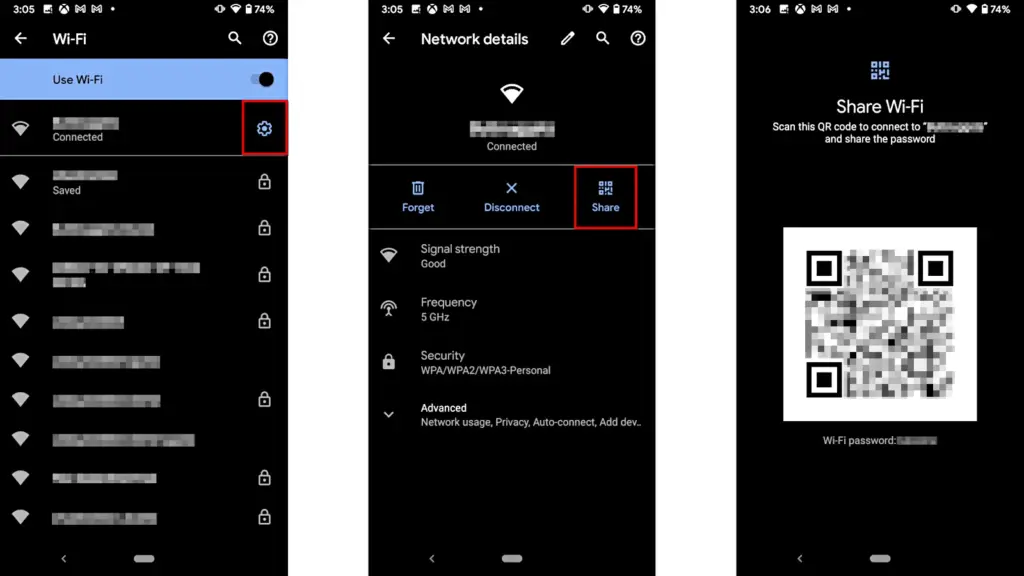
    For wi-fi network

    • Go to Settings > Wi-Fi.
    • While your device is connected to a network, tap the information icon beside the network.
    • Tap Share. You may need to enter your security method to continue.
    • You should see a QR code. It’s a square filled with a black and white pattern.
    • From the device you’re sharing to, access the QR code tile from Quick Settings.
    • Scan the QR code to get access immediately.
    android share network password

    Mobile hotspot password

    1. Open Settings.
    2. Go to Network & internet or Connection & sharing.
    3. Tap Hotspot & tethering or Personal hotspot.
    4. Tap the toggle button to enable hotspot.
    5. Tap the tiny QR code icon beside the hotspot name. You should see the enlarged version after entering your security unlock method.
    6. On the other devicce, access the QR code tile from Quick Settings and scan it to gain access.

    Share files to iPhone wirelessly

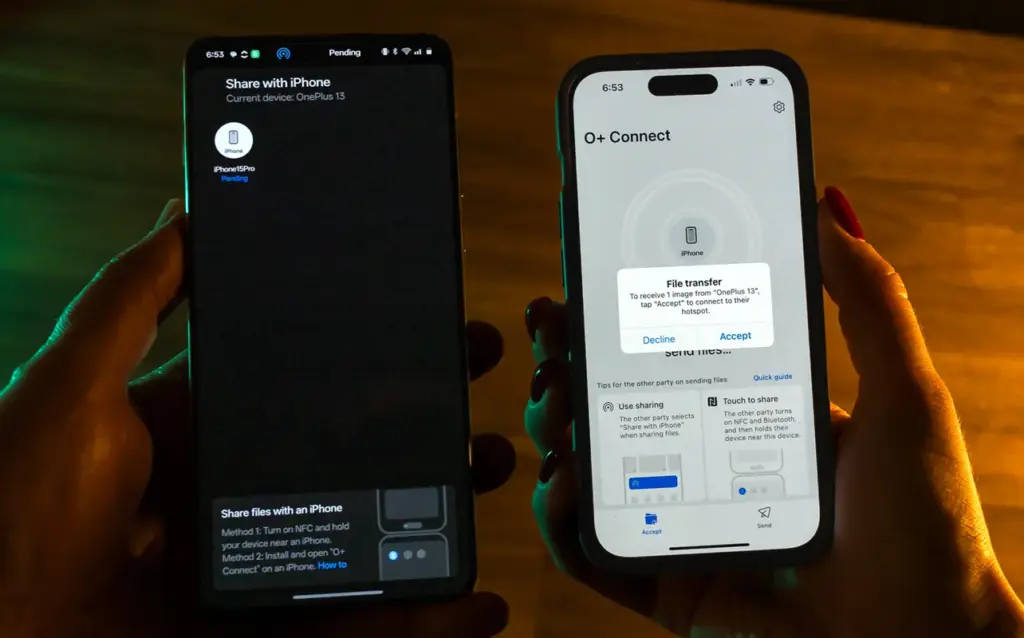
    It can be frustrating and difficult to move files and data between the iOS and Android environments. Due to Apple’s closed-off ecosystem design, cross-platform compatibility necessitates a significant amount of manual labor. Although it is incompatible with iPhones, Quick Share for Android is an alternative to Apple’s AirDrop. But on Android 15, OnePlus’ new Share with iPhone feature unites the worlds of Oppo, Realme, and OnePlus devices. Since the receiving device needs to download the O+ software in order to connect, the solution isn’t entirely native. Nevertheless, it’s quick and not too difficult. To utilize it, follow these steps:

    1. Open Settings.
    2. Go to Connection & sharing.
    3. Select Share with iPhone. Then tap the toggle button to turn on the feature.
    4. On the iPhone, install the O+ Connect app from the Apple App Store. Then open it and turn on Bluetooth.
    5. Select the files you want to send from either phone.
    6. You should see the detected devices while preparing to send them. Tap your preferred device.
    7. Accept the transfer request on the receiving device. The files should arrive in seconds, depending on the size.
    OnePlus 13 share with iPhone

    Use Wi-FI calling and texting

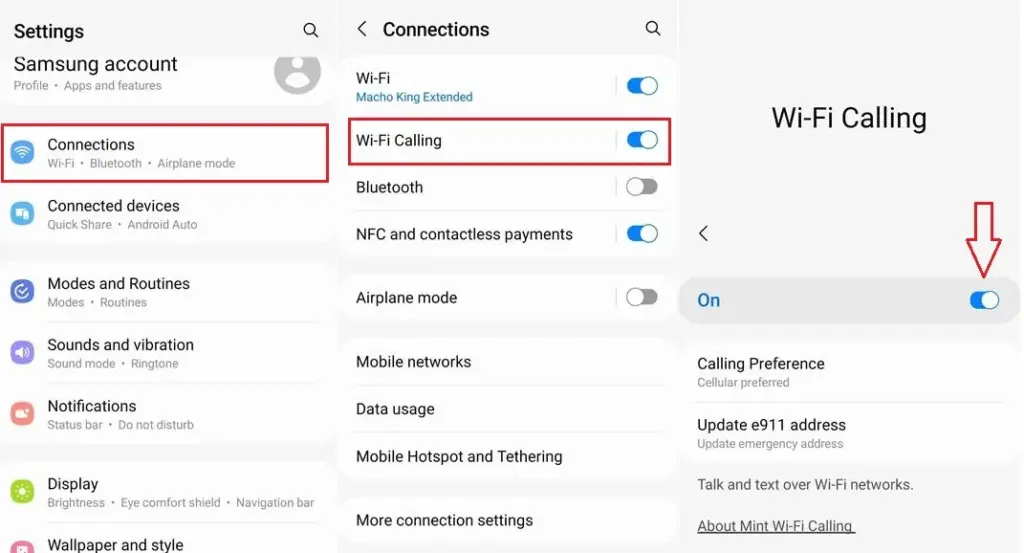
    Signals from routine phone calls and texts travel through cell towers before they are received by the recipient. Connecting with individuals will be difficult if you’re in a rural location far from a cell tower or in a building with high walls. Use Wi-Fi calling instead for better outcomes. Your phone uses Wi-Fi to send a message or make a call over the internet, avoiding the cell tower, as long as you have access to a Wi-Fi network. To utilize it, follow these steps:

    1. Ensure that Wi-Fi is turned on and you’re connected to a network.
    2. Open the Google Phone app.
    3. Tap the three-dot icon in the upper-right corner. Then select Settings.
    4. Tap Calls.
    5. Select Wi-Fi calling.
    6. Turn on the toggle button beside Use Wi-Fi calling.
    enable android wifi calling og

    Use your phone as a PC webcam

    The size of the camera sensor and lens is constrained by the tiny area in the top bezel of a laptop. PC cameras are typically blurry and uninteresting for proper video calls because of this. Thankfully, your phone has more space for wider apertures and larger sensors, which provide sharper images. With Android 14, you can now take advantage of that feature and use your smartphone as a camera. It was enhanced with Android 15’s high-quality mode. To enhance your virtual meetings using the functionality, take the following actions:

    1. Connect your PC and phone with a USB cable. You should see a notification on your phone recognizing the connection.
    2. Tap the notification and choose to use USB for Webcam.
    3. Tap the HQ button in the upper-right corner of the call screen to use High Quality mode.

    Activate Bluetooth automatically every day

    iOS has had automatic Bluetooth activation for many years. It is only temporarily disabled when you disable it from the Control Center. Unless you disable the option from the settings menu, it reactivates. Keep it on if you’re constantly connecting to Bluetooth speakers, earphones, or even your automobile, even though most people find it annoying. The automation setting was first available on Pixel phones running Android 15, and it might eventually be available on other devices. Here’s how to make it active:

    1. Open the Settings app.
    2. Go to Connected devices Connection preferences.
    3. Tap Bluetooth.
    4. Turn on the toggle button beside Bluetooth, then the button beside Automatically turn on tomorrow.

    After you deactivate Bluetooth, it can now turn on by itself the next day. It probably tries to avoid interfering with your short-term preferences and believes you need it during your regular activity hours. As long as you aren’t actively using the linked device, it will drain the battery a little but not significantly. When no music is playing on the speaker or earphones you’re wearing, the connection remains in a low-power mode.

    Android’s best-kept secrets

    Every phone brand on Android has special features that are just waiting to be found, making it a labyrinth of capabilities. What you see on a Samsung may not be the same on a OnePlus or Pixel, and it’s precisely this diversity that adds excitement to the ecosystem. Digging behind those layers will reveal more hidden gems in productivity, privacy, accessibility, and multitasking.

  • MediaTek launched Helio G200 – budget gaming SOC

    MediaTek launched Helio G200 – budget gaming SOC

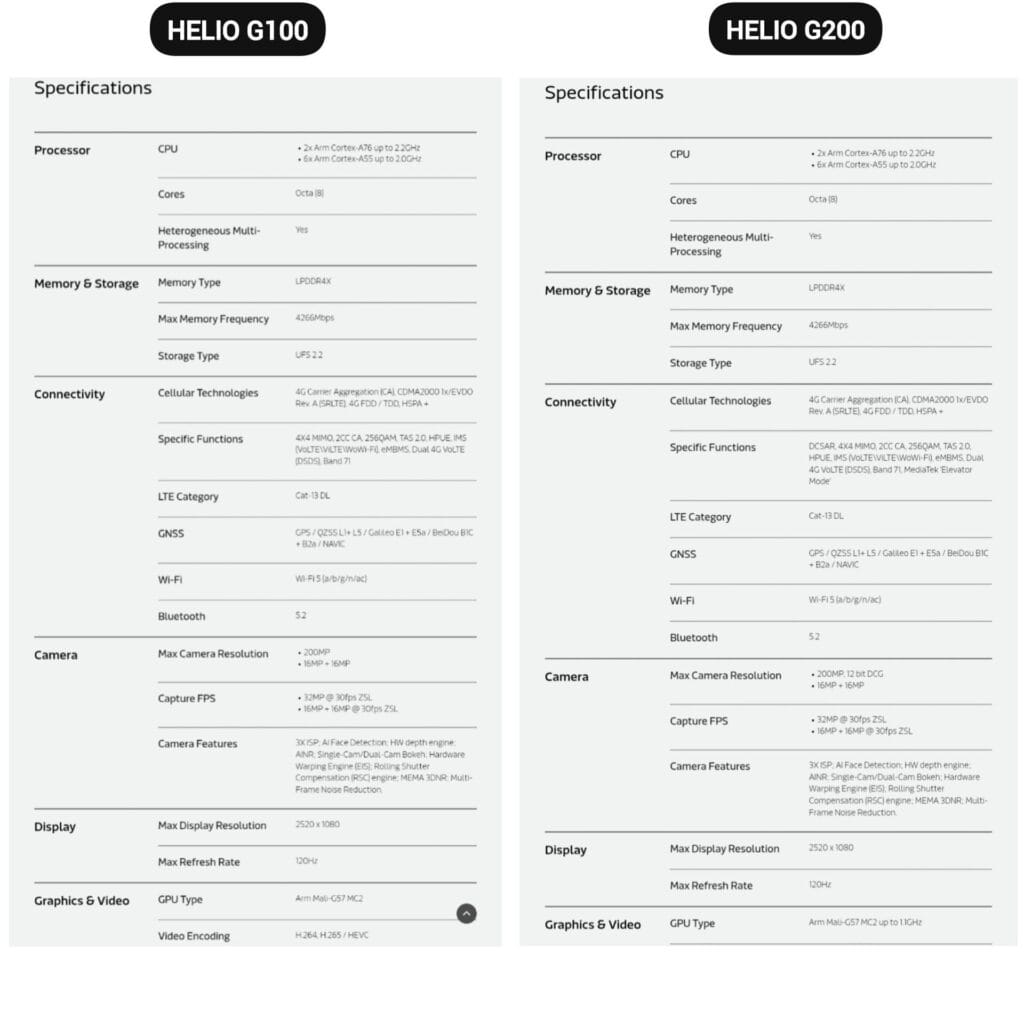
    The Helio G200, MediaTek’s newest chipset, was formally announced. It significantly improves the low-cost phone lineup, which is dominated by Xiaomi phones. Utilizing the advancements of its predecessor, the Helio G100, which powered the well-liked Redmi Note 14 Pro 4G, this new chip delivers significant improvements to networking and camera management.

    The G200 is a component of MediaTek’s continuous effort to offer premium features at reasonable costs, which is exactly in line with Xiaomi’s own strategy in the smartphone market.

    Better Performance

    The MediaTek Helio G200 features the same core architecture as the previous one but with several significant upgrades:

    • Octa-core CPU setup (6x Arm Cortex-A55 at 2.0GHz + 2x Arm Cortex-A76 at 2.2GHz)
    • Mali-G57 MC2 GPU now at 1.1GHz for enhanced gaming performance
    • Support for LPDDR4X memory with speeds of up to 4266Mbps
    • Compatibility with UFS 2.2 storage for quick data access

    MediaTek’s HyperEngine technology, which adjusts the network connections, display settings, and touch input while gaming, further strengthens the processor’s gaming capabilities.

    mediatek helio g200

    Improved camera capabilities

    One of the greatest advancements in the G200 is in its imaging abilities:

    • Support for camera sensors with as much as 200MP with 12-bit DCG
    • Triple ISP architecture for quicker image processing
    • Advanced AI noise reduction technology
    • Hardware-accelerated depth engine for enhanced portrait shots
    • Both single and dual camera bokeh effects are supported

    Because of these enhancements, the G200 is a desirable option for smartphone manufacturers looking to offer exceptional photography capabilities in mid-range devices.

    Features

    The Helio G200 features several new connectivity features not available in the G100:

    • Optimized signal reception through DCSAR technology
    • MEDIATEK introduces new “Elevator Mode” for preserving connectivity in difficult situations
    mediatek g100 vs g200

    We should expect Xiaomi’s upcoming mid-range smartphones to employ this new G200 chip, as the Redmi Note 14 Pro 4G uses the Helio G100. Better gaming performance, better photography, and more reliable connectivity would all be supported by the updated specifications without significantly increasing the devices‘ price.

  • Android 16 brings long waited great features

    Android 16 brings long waited great features

    There are some new features to look forward to with each Android update. Some updates include more new features than others, of course, because not all upgrades are made equal. There are a lot of exciting (rumored) features in Android 16 that are making me eager for its impending release.

    Note that I used the word “rumored.” This is because, with each release, there are online speculations about what people “think” will be included in Google’s newest and greatest upgrade. You never know what will make the final cut, so you should be skeptical of this list.

    However, I tested the Android 16 beta and searched the internet for all the best features that might be released this summer with Android 16 (using reputable websites like Android Authority, Android Police, Engadget, Android Developers, Business Today, Android Headlines, GSMArena, Android Update Tracker, and numerous forums), and here they are.

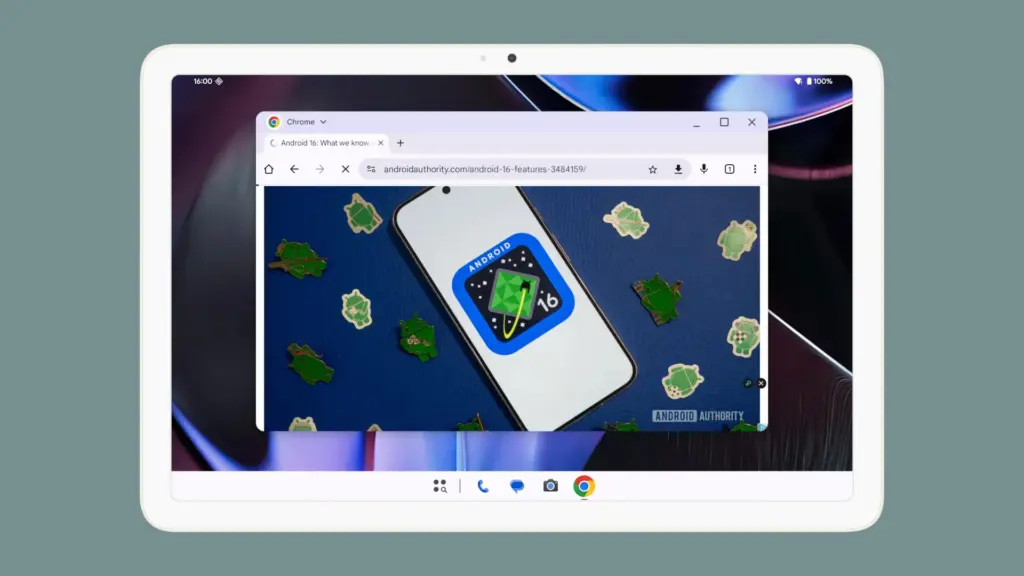
    Desktop Windowing

    When I see it, I’ll trust the rumors about this feature. The Samsung DeX, which enables users to connect an Android phone to an external display (through USB-C) and utilize a desktop-like interface that includes a top status bar, bottom taskbar, resizable, movable, snappable app windows, drag-and-drop support between apps, minimized windows, and physical keyboard and mouse support, will be mirrored by Desktop Windowing, which will bring desktop mode to Android phones.

    Desktop Windowing android 16 update

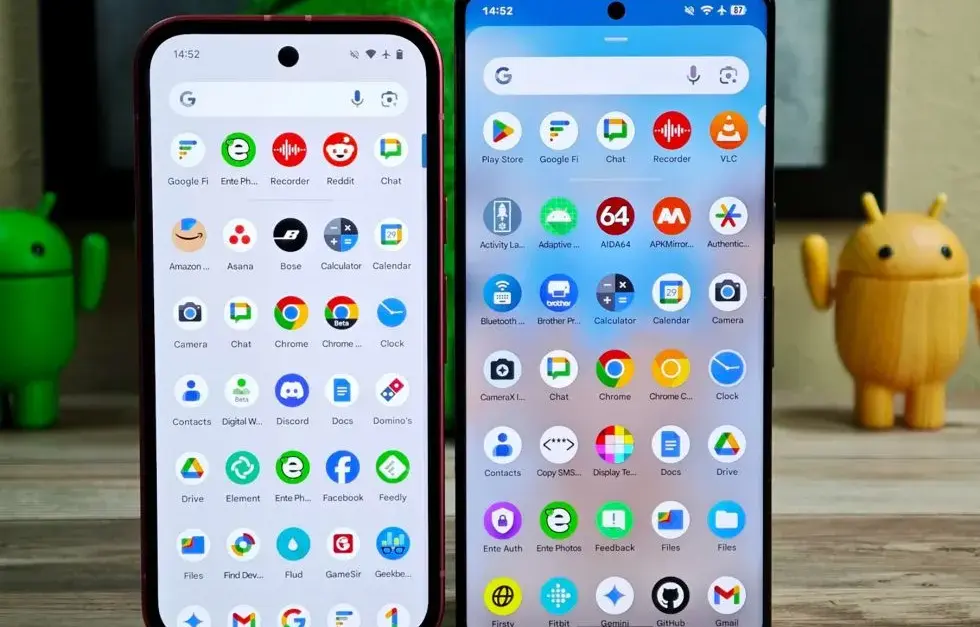
    App drawer blur

    Neither your phone’s performance nor your efficiency with it will improve as a result of this. But I’ve always found the Android app drawer to be rather dull. When you pull it down, the background is either black or white. While some home-screen launchers do let you change the appearance of the app drawer, the default home-screen launcher does not offer this feature. According to rumors, Android 16 will alter everything and give the app drawer a lovely backdrop blur.

    android 16 app drawer blur

    Although I acknowledge that not everyone believes that aesthetics are as significant as other factors, including performance and dependability, the iPhone’s UI aesthetics are one of the main factors contributing to its popularity. The Android user interface will be on a level playing field with iOS if Google implements a great app drawer blur.

    Live updates

    According to rumors, Android 16 will also provide a new class of real-time notifications that are intended to tell you of ongoing operations like food delivery, ridesharing updates, and navigation. These real-time updates will show up as dynamic “chips” in the status bar that show current data, like ridesharing arrival times or delivery ETAs.

    To keep you updated, a comprehensive notification pop-up displays beneath the status bar when you tap one of the live-update chips. Live updates are displayed above all other alerts (apart from the media player) under the Notification Shade.

    Auracast Broadcast audio support

    The inclusion of Auracast broadcast audio would be fantastic, so hopefully this rumor is accurate. Auracast broadcast audio is a Bluetooth LE Audio feature that enables devices such as earphones and hearing aids to receive direct audio broadcasts from TVs, public spaces, or announcement systems, in case you were unaware.

    screenshot 2024 11 20 at 6 37 57

    Anyone who uses LE Audio earbuds or hearing aids frequently finds oneself in awkward situations, such busy or noisy places where announcements are essential (like train stations, airports, or concerts). By pairing your earphones or hearing aids with Auracast Broadcast support, you can tune into the broadcast and hear everything much more clearly.

    Hybrid Auto Exposure in the camera

    If you love taking pictures, you’ll love this function. You’ll have more control over the camera’s exposure settings with the hybrid auto-exposure. You will have the option to manually change the ISO or exposure time (shutter speed) or rely on the auto-exposure algorithm, rather than relying solely on full manual or auto exposure.

    You will still have the simplicity and dependability of auto-exposure for everything else, but you will be able to adjust ISO to cut down on noise or select a precise shutter speed to get truly creative with your photos. Additionally, the Android 16 Camera app has enhanced support for high-quality image formats including HEIC and Ultra HDR, as well as accurate color-temperature and tint adjustments.

    APV Codec support

    Additionally, there are reports that Android 16 will support the APV codec. A professional-grade video format (created by Samsung) is included with the new native support for the Advanced Professional Video (APV) codec, enabling high-quality video recording, editing, and post-production.

    Frame tiling (to provide immersive content and parallel encoding/decoding for efficient processing), intra-frame-only coding (for simpler editing workflows and lower processing demands), high bit-rate support (2K, 4K, and 8K resolutions), and lossless video quality (nearly raw footage) are some of APV’s cool features.

    APV Codec support android 16 update

    Once more, Google has been promising this feature for a very long time, so I will believe it when I see it. If they were to ever implement this functionality, Android would become one of the most flexible operating systems available, which would be really awesome.

    Keep in mind that these are simply rumors, but I do think that most of the features mentioned above will be included in the final version of Android 16, which is also expected to be released in June 2025.

  • HyperOS 2.2 getting closer every day – non-flagship release date

    HyperOS 2.2 getting closer every day – non-flagship release date

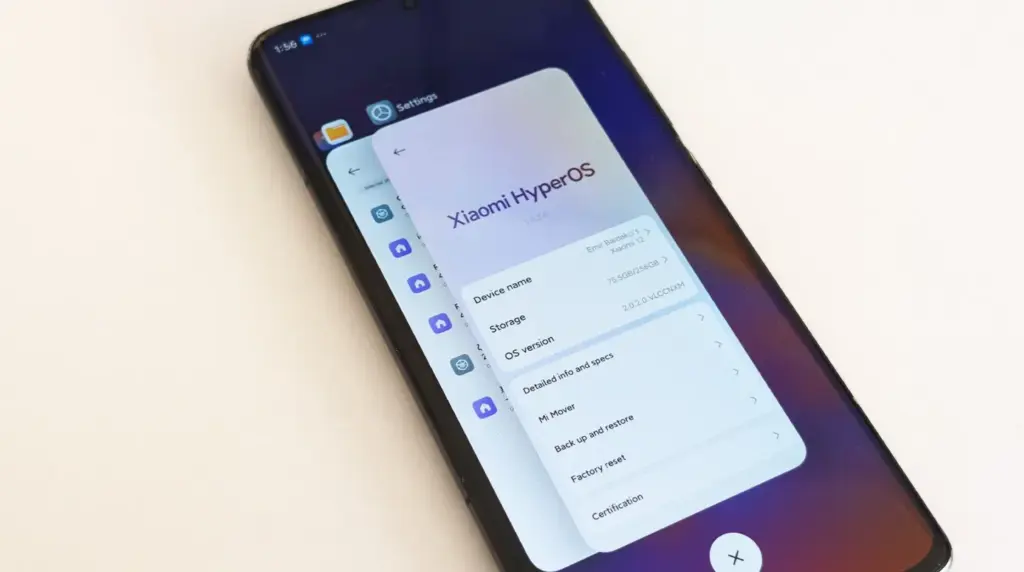
    Since official release dates for a number of flagship models have been revealed, brand fans who have been eagerly awaiting the debut of HyperOS 2.2 can now relax. This significant upgrade adds new AI functions, interface adjustments, and other performance enhancements to Xiaomi’s premium lineup. The information was taken directly from the Xiaomi community forums, where an odd story about how community input influenced the rollout was told. This is one of the most well-planned rollouts the company has ever witnessed, with multiple device series distributing the update around one another.

    hyperos 2.2 update

    Schedule updated

    The timelines for HyperOS 2.2 have been confirmed for three significant device families:

    • REDMI K80 Series: May 12th, Monday
    • REDMI K70 Series: May 13th, Tuesday
    • Xiaomi 13 Series: Thursday, May 15th

    According to DaWangLe, a reliable source from the Xiaomi community, the first goal was to highlight the K80 and K70 series. However, the company changed its approach and eventually released upgrades for all three device lines consecutively as a result of enthusiastic voting and feedback from Xiaomi 13 consumers.

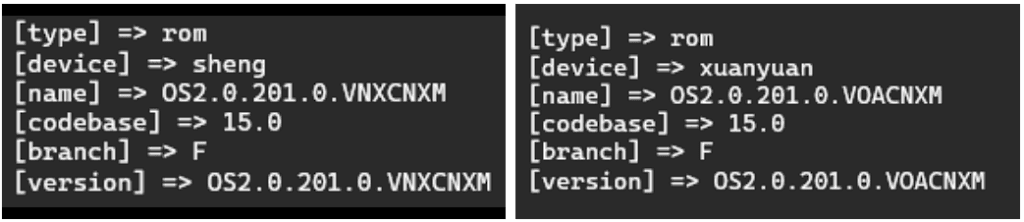
    These first 200 beta versions have undergone an exceptionally rigorous testing procedure that has required additional time and resources. In order to synchronize with internal testing and have the updates ready for public release, the Xiaomi team reportedly worked through the weekend.

    Beta recruitment

    For customers willing to use the new update, the process will function as:

    • REDMI K80/Pro users can begin applying for beta recruitment from next Monday
    • Upon approval, the selected individuals will get the update immediately Redmi K70/Pro consumers will have direct availability from Tuesday
    • The owners of the Xiaomi 13 series will get their update this Thursday

    It’s worth noting that these update dates are applicable only to devices in China. Schedules for international rollouts have not yet been released but are usually several weeks behind the China release.

    Update available for more devices

    Besides the principal release timeline, two additional flagship devices already have update bundles in place:

    hyperos 2.2 update for devices

    These models are slated to become part of the update lineup soon, although there are no confirmed release dates.

  • Google Messages receives the “Delete for everyone” feature

    Google Messages receives the “Delete for everyone” feature

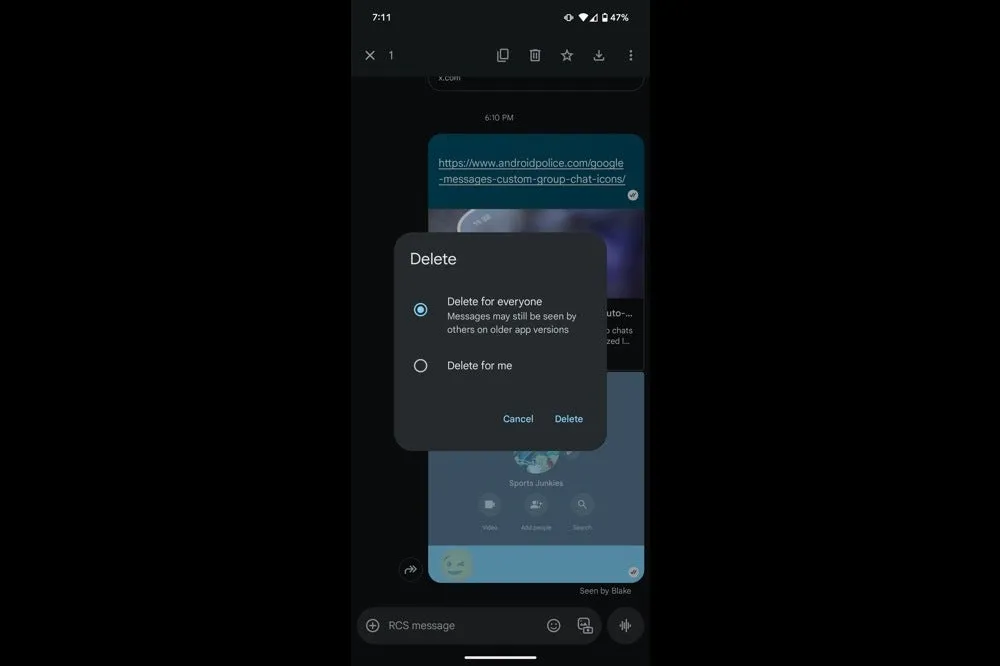
    In order to provide Android users a 15-minute opportunity to remove an RCS text that shouldn’t have ever left the phone in the first place, Google Messages is now testing a “Delete for everyone” option. The most recent beta version has led to early complaints that when you long press on a message, two options would appear: “Delete for everyone” and “Delete for me.” When the first option is selected, the chat replaces the text with a tiny label that reads “Message removed,” which is visible to all participants.

    The feature is currently limited to chats in large groups. While the option remained hidden in smaller groups and one-on-one talks, one tester was successful in a thread with twelve participants. Even though it’s in beta, it’s good to see this feature finally being released after it was first discovered in March.

    It should be mentioned that the recall is dependent on RCS Universal Profile 2.7, therefore all conversation participants must have the most recent version of Google Messages installed, else the delete request would silently fail. Furthermore, it appears that Google is already turning off its servers for a small group of beta users to ensure the system is stable before expanding.

    Google Messages logo

    Google Messages

    Safety starts with understanding how developers collect and share your data. Data privacy and security practices may vary based on your use, region, and age. The developer provided this information and may update it over time.

    It is not surprising that the rollout was so limited. This safety net has been provided by rival apps for years, and each one has its own boundaries. For a generous two days, WhatsApp allows you to retrieve a message. You have fifteen minutes to modify and two minutes to undo in iMessage. Telegram takes one step further by enabling users to delete texts whenever they want without leaving any evidence behind. Google’s 15-minute limit is tiny when compared to that lineup, but it still fills the largest hole in its flagship chat service.

    Google Messages delete

    Given that Apple intends to switch to the same RCS profile that supports these additional functions later this year, the timing is crucial. Google has also been working hard to improve Messages’ quality of life features, such as AI reply suggestions, reaction effects, and a long-overdue edit button that took four months to move from beta to stable last year. By the end of 2025, delete for everyone could reach the majority of phones if the firm keeps up its current pace.

    When you consider the time that comes with Apple’s release, I think this is a significant move. Android owners will have the same peace of mind that WhatsApp and iPhone users currently have while keeping their chats organized if Google expands support prior to the stable release.

  • 10 settings you need to change to improve your Pixel experience

    10 settings you need to change to improve your Pixel experience

    While Pixel phones offer many beneficial features by default, altering these specific settings can drastically affect The Google Pixel 9a could be the best-value phone of 2025, especially now that it has flagship-level AI capabilities, a dazzling 120Hz display, and a large battery at a more inexpensive price. However, like with every Pixel phone, the most useful functions are frequently disabled by default.

    These suggestions are for a Pixel 9a running Android 15. The specific menu locations may differ slightly depending on the Pixel model and Android version you’re using, but the settings are broadly available throughout recent Pixel generations.Enhance your user experience.

    Use smooth display

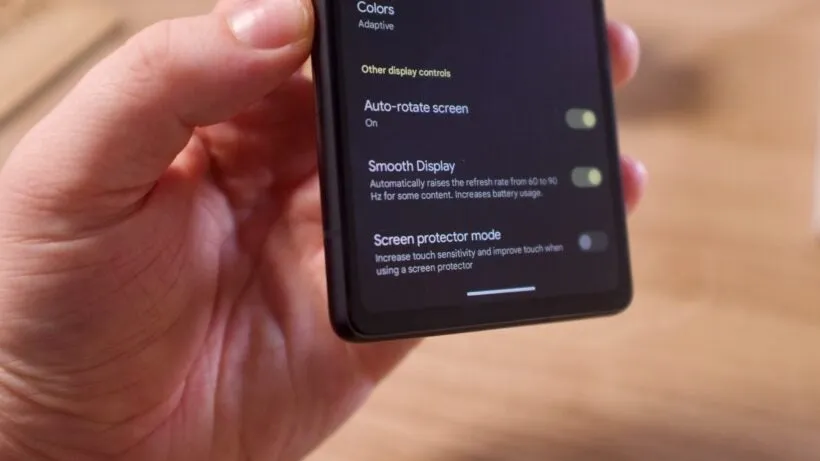
    Pixels continue to ship with a dazzling Actua 120Hz OLED panel, which is set to a more cautious 60Hz by default. It’s fine for battery conservation, but if you prefer buttery-smooth scrolling and animations that showcase the screen’s full capability, enable Smooth Display.

    pixel smooth display

    Go to Settings > Display > Smooth Display and turn it on. You’ll notice an immediate improvement in responsiveness when scrolling through social networks or navigating the UI.

    Use “At a Glance”

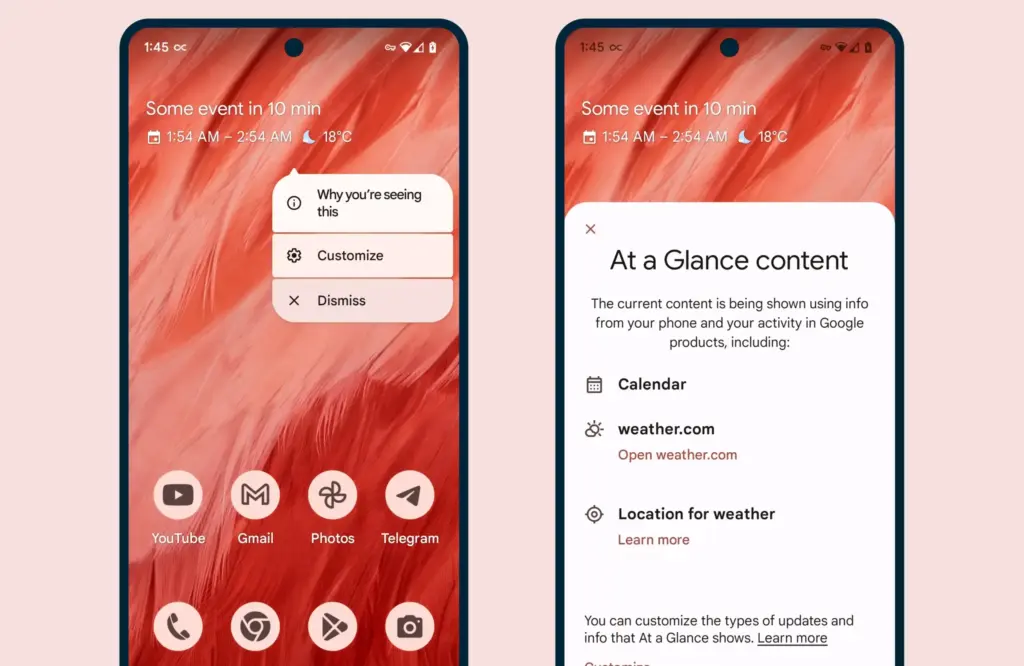
    When you enable the Pixel’s smart widgets, the lock screen may transform into a small command center. At a Glance displays travel information, weather alerts, calendar events, and more.

    at a glance

    All of this happens via the Pixel Launcher. Tap and hold any available space on the home screen, then pick Home settings, followed by the At a Glance settings button. There, you may control what kind of information display and what data sources it uses (with your permission, of course).

    As an added bonus, the At a Glance widget on your home screen will display this information, increasing your chances of receiving notifications and updates.

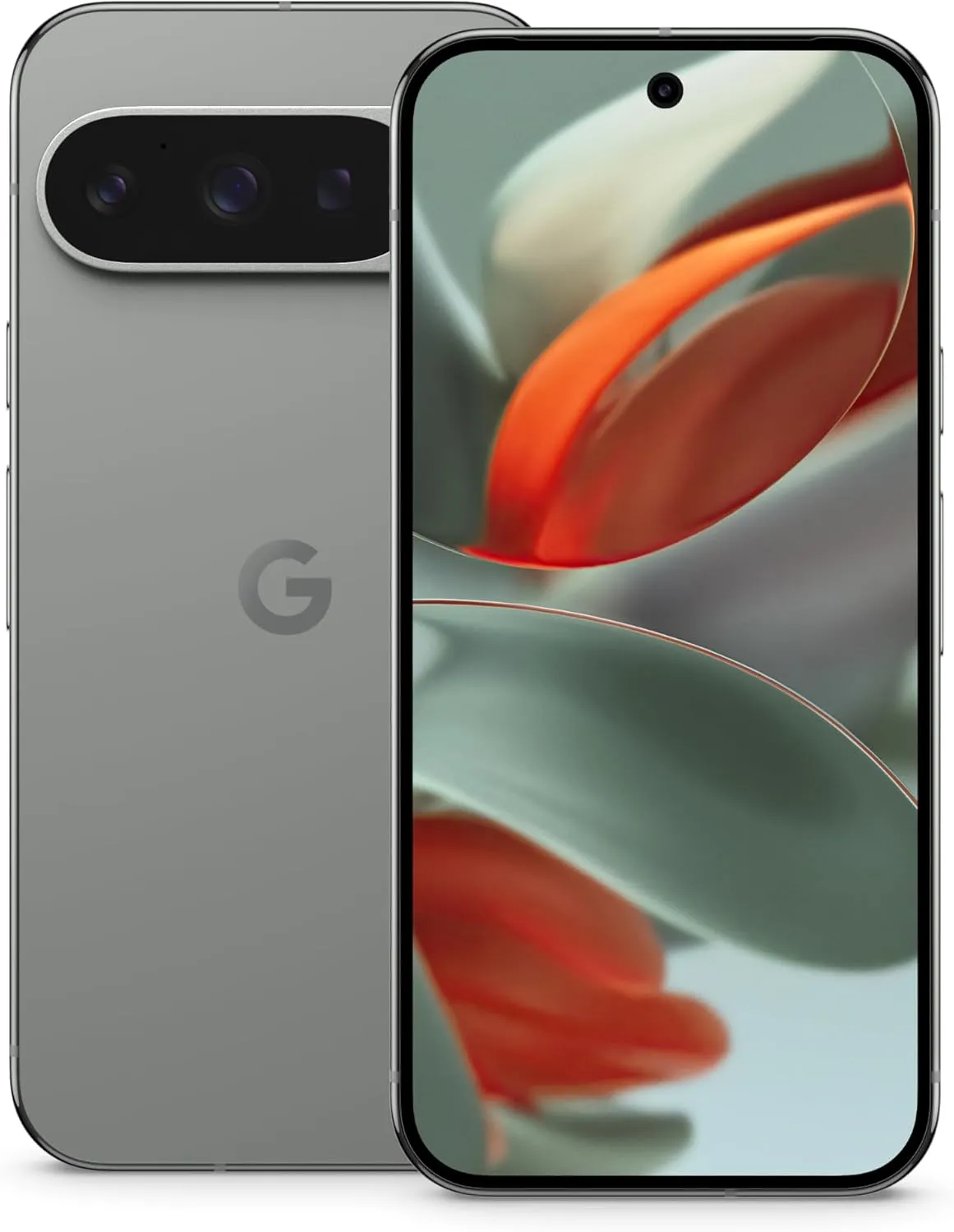
    Pixel 9 pro

    Google Pixel 9 Pro

    Pixel 9 Pro with Gemini is the most powerful Pixel yet, and now comes in two sizes; it has a pro-level camera and it’s engineered by Google, so it gets the best of Google AI first

    $999$799Amazon

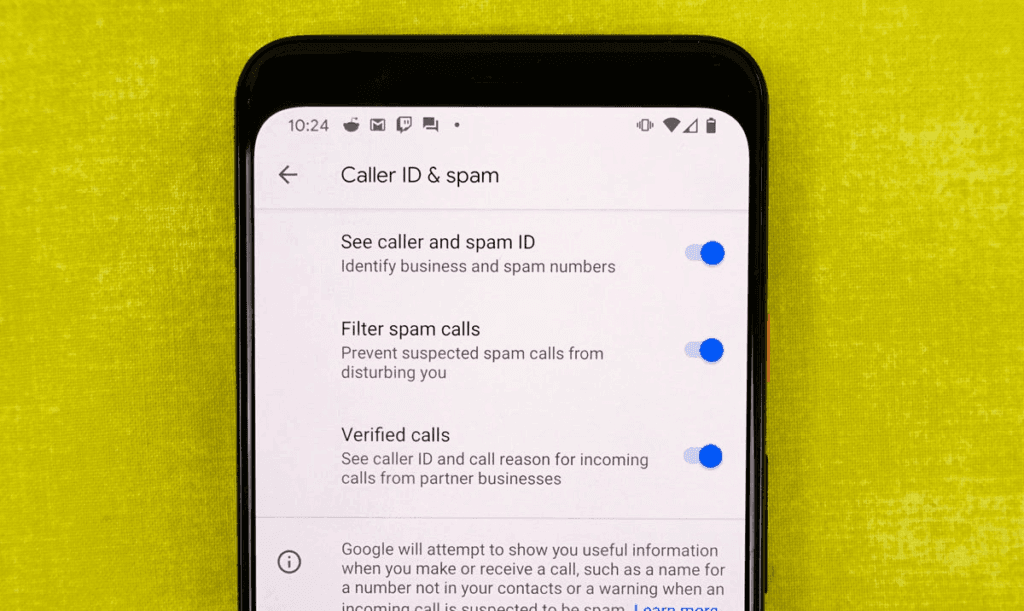
    Use caller ID and spam ID to save your time

    Pixel phones actively filter out spam and unrecognized numbers. Google’s Caller ID and Spam feature detects robocalls and other unwanted calls before you answer.

    caller ID and spam ID

    Open the Phone app and navigate to Settings > Caller ID and Spam. Enable See caller and spam ID, and incoming calls will have a vivid red alert that cannot be ignored. If your Pixel has the option to filter spam calls, I recommend turning it on, as this prevents those calls from ringing your phone and instead sends them directly to voicemail.

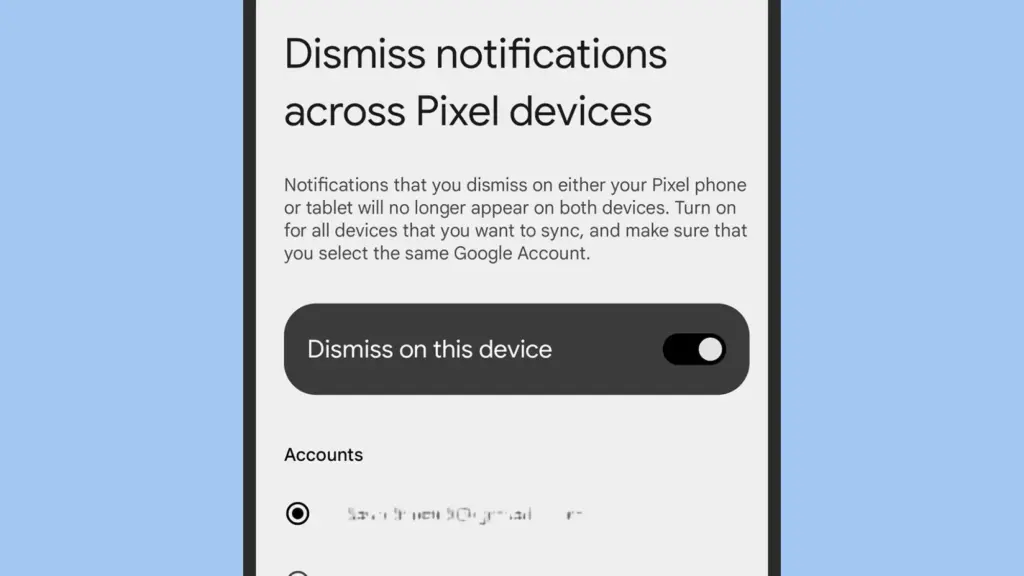
    Dismiss notifications across Pixel devices

    This one is for the Pixel fanatics out there. If you have multiple Pixel devices signed in with the same Google account, you can sync notification dismissals between them.

    Dismiss notifications across Pixel devices

    Go to Settings > Notifications > Dismiss notifications from all Pixel devices. Toggle Dismiss on this device, grant notification access, and select the apps you wish to sync. Repeat the process on all of your Pixel devices to ensure that you never see the same notice twice.

    Enable app suggestions on the home screen

    The Pixel Launcher may provide app suggestions based on personal information such as location, time of day, and usage habits.

    android app suggestion

    Tap and hold an available space on the home screen to access Home Settings > Suggestions. Enable Suggestions on Home Screen, then remove at least one static symbol from the bottom row of your Home Screen. That location will turn yellow and begin to change dynamically based on usage trends. You may even do this on the entire row if you like.

    Increase battery life using Adaptive Battery and Extreme Saver.

    Pixels already have a long battery life, but Google’s battery-saving features extend it much further. Adaptive Battery learns which apps you use the most and reduces power to the others. Extreme Battery Saver turns down non-essential apps to save power for days.

    Enable both under Settings > Battery > Battery Saver > Adaptive Battery and Battery Saver > Extreme Battery Saver. You can also set schedules so that they activate automatically when needed.

    Use Pixel Quick Tap feature

    The Pixel’s Quick Tap function allows you to double-tap anywhere on the phone’s back to perform customized actions, but it is not activated by default. You can configure it to start the camera, take a screenshot, pause music, or open your preferred app.

    Go to Settings > System > Gestures > Quick Tap, then enable it and select your chosen shortcut. Mine is set to toggle the flashlight, which is quite useful.

    Enhance Now Playing on your lockscreen

    Now Playing is a great tool that automatically recognizes songs that are playing around you. The phone displays that information on your lock screen in a passive manner. Even though the database is remarkable and entirely on-device, it cannot identify every song out there. This is where Google Search comes in.

    636427227765739451 742d249ba0

    Go to Settings > Display > Lock Screen > Now Playing and select Identify Songs Playing Nearby. Then, enable the Show search button on Lock Screen. The next time Now Playing fails, hit the lock screen icon to transmit the audio fingerprint to Google Search for a second viewpoint. It does not always work, but when it does, you will be glad you tried.

    Change your lock screen privacy settings

    By default, notifications appear on your lock screen, so others may view your messages. I always change this option on my new devices.

    Go to Settings > Notifications and turn Sensitive notifications off. This keeps the sender and app visible while hiding the message contents. To ensure utmost privacy, go to Notifications on the lock screen and select Don’t show any notifications.

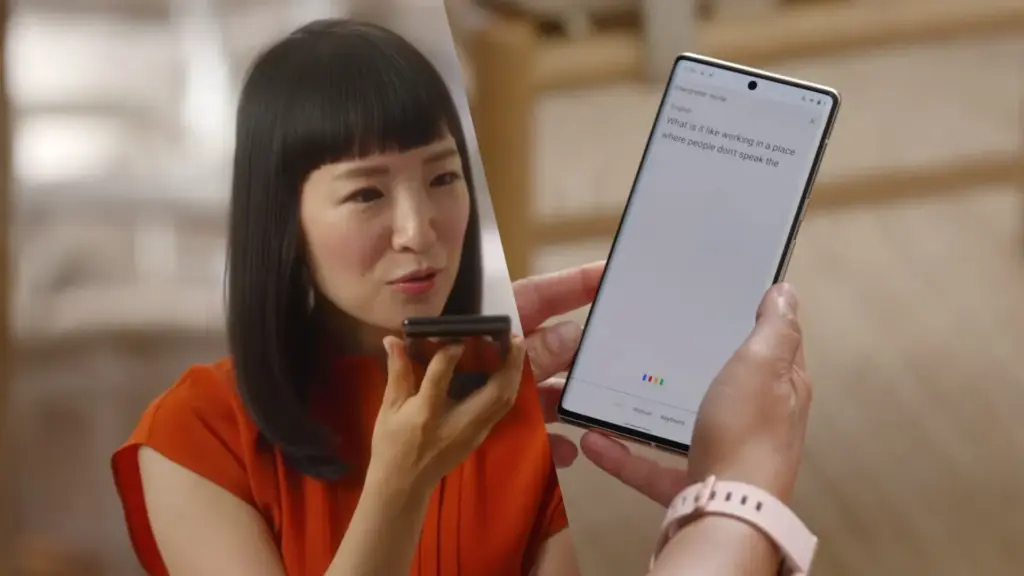
    Make use of Live Translate and Interpreter Mode

    Tensor-powered Pixels offer offline translation tools. Live Translate enables you to automatically translate text messages in real time.

    pixel 6 live translate

    Go to Settings > System > Live Translate, then Add a language. Depending on your choices, you’ll have access to services such as in-message translation, camera view translation, and live captioning for videos. Interpreter mode still requires Google Assistant, which is becoming less important now that Gemini has taken over.

    Google Pixel 9 Pro XL
    $1,099.0$899.00Amazon
    Google Pixel 9 Pro
    $999.00$799.00Amazon
    Google Pixel 9
    $799.00$599.00Amazon
    Google Pixel 9a
    $499.00Amazon

    A few small changes can help your new Pixel feel faster, smarter, and more personal. Whether this is your first Pixel or you’ve lost count by now, taking the time to explore these options unlocks some of the best of what Google has to offer.

  • Samsung Galaxy A35 gets the OneUI 7 update

    Samsung Galaxy A35 gets the OneUI 7 update

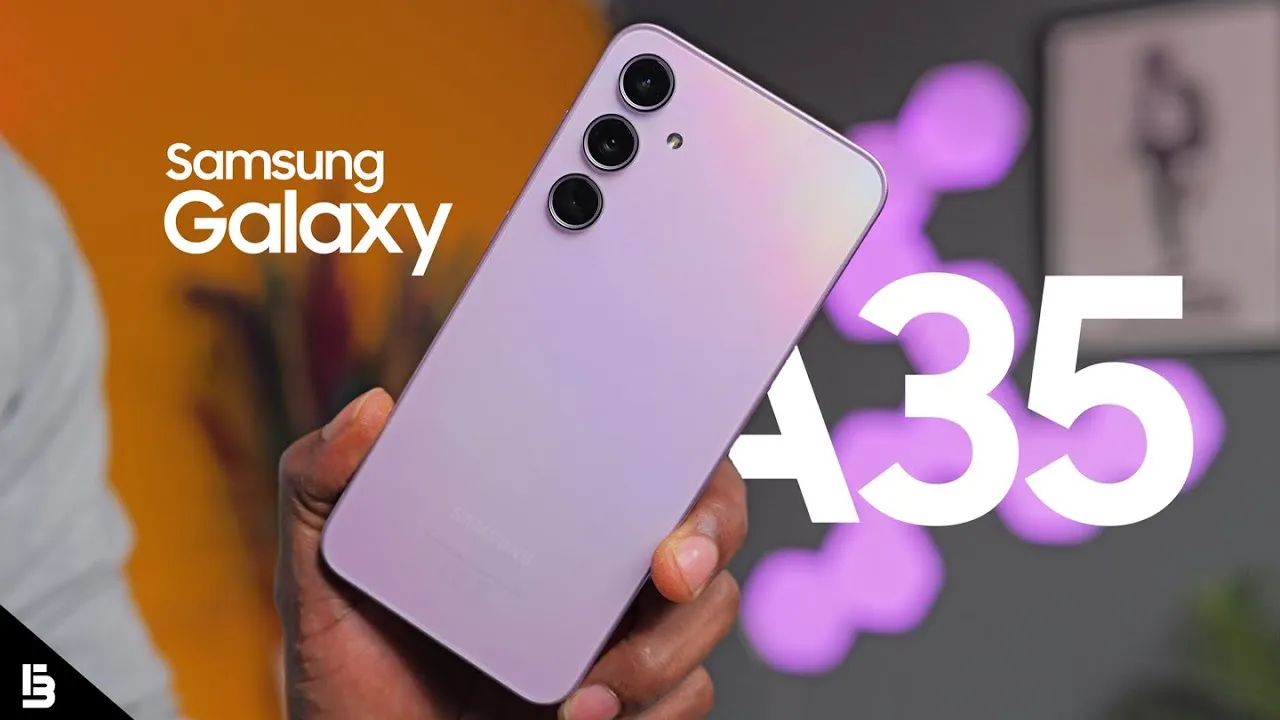
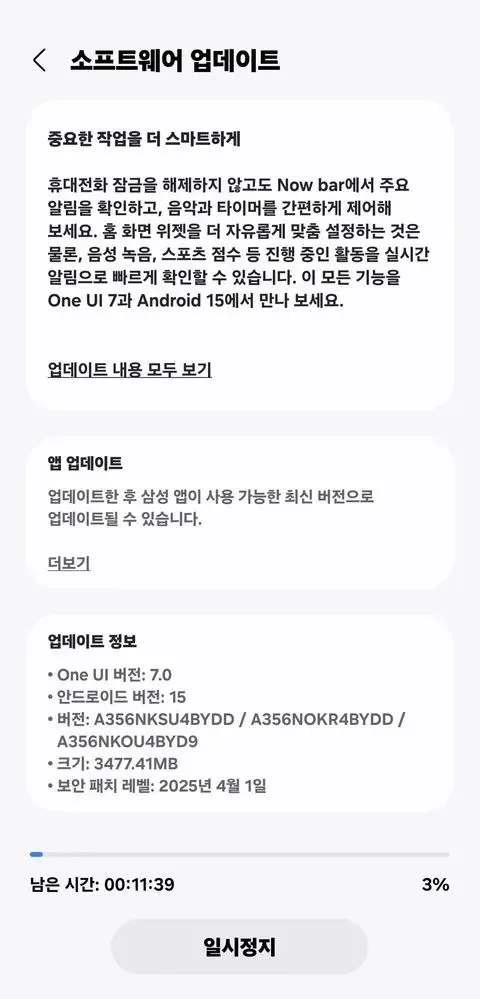
    Samsung appears to be looking forward to bringing the next Android 15-based One UI 7 update to more Galaxy smartphones around the world. Samsung has already delivered the upgrade to major flagships, but it is now time for previous generation devices, including the A portfolio, as Galaxy A35 phones have lately begun receiving the software.

    More precisely, Samsung has initiated a solid rollout for the Galaxy A35 models in its native country of South Korea, with wider availability coming soon. The device’s upgrade is identifiable by the build number A356NKSU4BYDD.

    Galaxy A35 One UI 7 Update

    Meanwhile, the update contains a number of fascinating improvements and changes, including better AI-powered functionality in the form of Awesome Intelligence, a scaled-down version of the full-fledged Galaxy AI suite.

    It includes a sophisticated user interface, highly customizable home screen widgets, and a new Now Bar feature that allows users to access all key information such as sports scores, health-related information, alerts, and more without unlocking the device, all while improving overall productivity, creativity, and security.

    galaxy s35

    Samsung Galaxy A35 5G

    6.6” FHD+ Super AMOLED Infinity-O, 120Hz Adaptive Refresh Rate, 1080×2340 pixels, 1000unit (Peak), 389ppi, 5000mAh Battery, Bluetooth 5.3

    $293.99See It

    At the same time, the update further integrates the April security patch, which focuses on improving the device’s overall security and core functionality that provides a more secure, smooth and efficient user experience.

  • The new design for Android was just leaked by Google.

    The new design for Android was just leaked by Google.

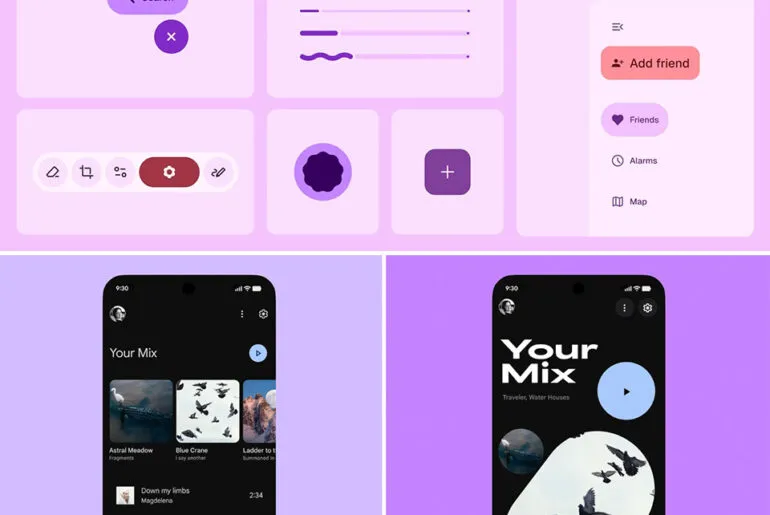
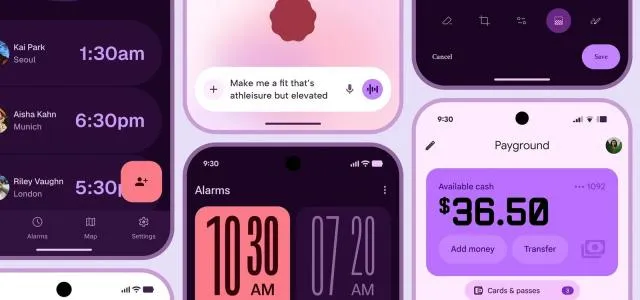
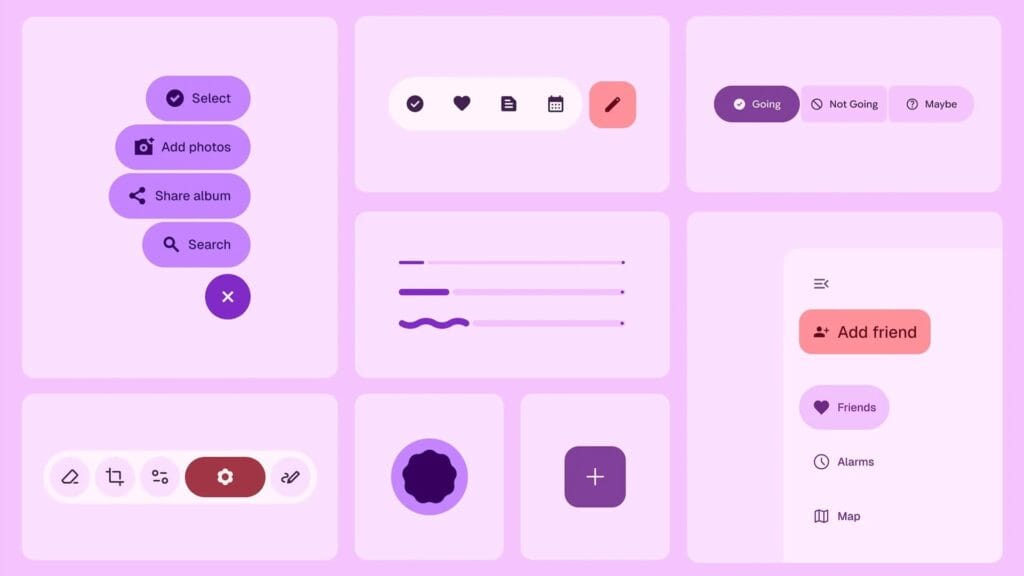
    Google recently unintentionally unveiled Material 3 Expressive, their upcoming major Android overhaul. The business calls the upgrade the “most researched” one to yet, aiming to make its UI more aesthetically pleasing and user-friendly, in a since-deleted blog post that 9to5Google saw.

    An archival copy of the removed webpage is available on the Wayback Machine and 9to5.Some of the photographs that Google did not save have been made public.

    6819c5d601787

    Google claims to have created Material 3 Expressive following 46 design and research iterations with more than 18,000 participants, as detailed in the post.The design makes a product “more useable” by utilizing color, shape, size, and motion. Later this month, it will also have a separate session at Google I/O.

    Google’s research included examining how participants responded to various looks, where they concentrated their attention within a design, and how quickly they grasped an interface. For example, “which progress indicator made the waiting time feel faster” and “how big a button may be for good gains in tap time without overwhelming other objects” were examined by the company as separate components.

    Material 3 Expressive 1

    When compared to the previous Material 3 design, Google claims that its Material 3 Expressive design made it up to four times faster for users to locate important items inside the interface. Material 3 Expressive “seems to level the playing field for users of all ages,” according to the report, since the design made it easier for individuals over 45 to recognize interface elements just as quickly as younger users.

    Reports over the last few days indicate that Google intends to implement improvements to Android’s user interface, such as updated fast settings menu, a new clock font, and revised status bar icons (such the battery icon). Changes to the Google Clock app have also been revealed by other leaks.

  • How to uninstall system apps on Android (without root)

    How to uninstall system apps on Android (without root)

    Unnecessary system apps and bloatware can be annoying. They drain your battery, take up important storage, operate in the background, and are frequently impossible to remove with standard methods. Although rooting your Android device gives you complete control over system programs, most users are not advised to do so because it violates your warranty and jeopardizes security.

    Thankfully, there are secure and efficient methods for disabling or removing system programs without rooting, particularly when using ADB (Android Debug Bridge). We will go over every technique in this article, from basic settings adjustments to more sophisticated (yet secure) desktop tools.

    android system apps unistall with adb

    What are system apps and why can’t you delete them easily

    Applications that are pre-installed by the manufacturer or carrier of the device are known as system apps. These consist include third-party programs like Facebook or Netflix that OEMs package, stock utilities, or branded services.

    They cannot be removed using the standard app menu since they are installed in the system partition. ADB commands, however, can be used to disable or even uninstall many.

    Common examples of pre-installed system apps include:

    • Duplicate media players or browsers
    • OEM app stores
    • Partner bloatware like Amazon Shopping, LinkedIn, or TikTok
    • Preloaded games or theme services

    Disable system apps from settings

    This is the simplest method and doesn’t require a PC.

    Steps:

    1. Open Settings > Apps.
    2. Tap See all apps to view the complete list.
    3. Select the system app you want to disable.
    4. Tap Disable. You may be asked to confirm your choice.

    What happens when you disable an app:

    • It is removed from the app drawer.
    • It can no longer run in the background.
    • It won’t receive updates or use system resources.
    • The app is still stored on your device but rendered inactive.

    Limitations:

    • Not all system apps can be disabled (depends on OEM).
    • Disabled apps can be re-enabled manually.

    This is the safest approach for beginners.

    Uninstall system apps using ADB (no root)

    You can use ADB to perform advanced commands on your Android device by connecting it to a computer. This technique allows you to remove system programs for the current user without requiring root access.

    Step 1: Set up ADB on your computer

    1. Download the Android SDK Platform Tools for Windows, macOS, or Linux from Google’s official site.
    2. Extract the contents to a folder (e.g., C:\adb).

    Step 2: Enable developer options and USB debugging

    1. Go to Settings > About phone.
    2. Tap Build number 7 times until you see a message saying “You are now a developer.”
    3. Go back to Settings > System > Developer options.
    4. Enable USB debugging.

    Step 3: Connect your phone to your PC

    • Use a USB cable to connect your device.
    • When prompted on your phone, allow USB debugging.

    Step 4: Open ADB and check the connection

    1. Open a terminal or command prompt in the ADB folder.
    2. Type: adb devices – you should see your device listed.

    Step 5: Find the package name of the app

    To uninstall an app, you need its package name. You can find this using:

    adb shell pm list packages | grep [app name]

    For example, to find Facebook‘s package name:

    adb shell pm list packages | grep facebook

    Step 6: Uninstall the app

    Use the following command:

    adb shell pm uninstall --user 0 com.facebook.katana

    That command will remove Facebook from your user profile, freeing up memory and removing it from the interface.

    Note: The app is only removed for the current user, not deleted from the system partition.

    Method 3: Use a no-root app debloater tool (GUI)

    If you’re not comfortable with the command line, you can use a graphical tool like:

    • Universal Android Debloater (UAD)
    • ADB AppControl
    • Android Debloater by XDA Developers

    These tools allow you to:

    • Browse installed system apps
    • Uninstall or disable them safely
    • See app names with friendly UI
    • Restore apps if needed

    Most tools require:

    • ADB installed on your system
    • USB debugging enabled
    • Windows PC (some versions work with Linux/macOS)

    They’re beginner-friendly and support a wide range of devices.

    Should you uninstall or disable every system app?

    No. Some system apps are critical to core Android functions. Removing them may cause:

    • Boot loops
    • Broken system features (e.g., notifications, calls, camera)
    • Incompatibility with future updates

    Always check what a system app does before removing it. You can research package names or use a debloater tool with built-in safety warnings.

    Safe-to-remove examples:

    • Social media bloatware
    • OEM-specific cloud services you don’t use
    • Built-in browser (if you use Chrome)
    • AR apps, Game Launcher, or duplicate music players

    Unsafe-to-remove examples:

    • com.android.systemui
    • com.google.android.gms
    • com.android.providers.*

    How to restore system apps uninstalled via ADB

    If you want to bring back an app removed via ADB:

    adb shell cmd package install-existing [package name]

    For example:

    adb shell cmd package install-existing com.facebook.katana

    This will restore the app for the current user, assuming it wasn’t fully deleted from the system partition.

    Uninstalling system apps without root gives you more control over your Android phone without compromising safety. ADB is a powerful tool that helps remove bloatware, reclaim storage, and speed up your device. If you’re cautious and avoid critical system packages, you can safely declutter your phone and enjoy a cleaner experience.

    Whether you’re using the built-in disable function or running ADB commands, you don’t need root access to take control of your device anymore.