Blog

  • Temporarily free Android and iOS apps and games

    Temporarily free Android and iOS apps and games

    Do you want to get free, high-quality apps and games? You are lucky! Every week, developers offer time-limited, totally free promotions on some of their top-paid apps on the Google Play Store and Apple App Store. We have selected the most recent selection of temporarily free downloads for iOS and Android, regardless of your preference for action-packed games, creative tools, or productivity tools. These deals could end at any moment, so take advantage of them while they are still available!
    apps and games

    Android apps and games

    Apps

    • IPTV Smart Player Pro: You can currently save almost ten euros by installing this app. With this player you can bring your TV content from your cell phone to your TV.
    • Reminder Pro – Reminder: With this app, you can always keep an eye on your reminders. You can create new reminders in seconds and decide when you want to be reminded.
    • Equalizer & Bass Booster Pro: Do you want to tweak your music on your cell phone? Then try this app to get the most out of the sound and bass.
    • Countdown Widgets: Whether it’s a vacation, Christmas or the next party night – with this app you can always keep an eye on the next event as a countdown widget on your cell phone. After all, anticipation is the greatest joy.
    • Color wheel: Top tool for anyone who works with colors – regardless of whether you are a painter, graphic designer or just need to determine the colors of a photo from time to time.

    Games

    • Cytus 2: Rayark International Limited is known for offering exciting games with a focus on music. Cytus 2 is one of them and is currently free.
    • Cartoon Craft: Fancy a real-time strategy game with a cute cartoon look? Then install this little game here.
    • Water Color Sort – Premium: This game principle, in which you decant colors into different bottles, is terribly relaxing. It’s like the lava lamp of mobile games.
    • Mini Crossword: This game is for crossword fans who want to pass the time on their cell phone with this classic word puzzle game.
    • Crafterok – Lords of Survival: You want to fight for survival on a desert island, but you also want it to look colorful and cuddly? Here you go!

    iOS apps and games

    Apps

    • Scrollit 2X – Visual messenger: If you’re looking for a tool that lets you scroll text across the iPhone display in a nice big way, you’ll find it here.
    • Infinity List: There are many list apps. But if it is rated with 4.6 stars, it must be really good. So make sure you put this download on your to-do list!
    • Timer for Rehearsal: You’re giving your speech and want to keep an eye on the remaining time? No problem with this versatile timer.
    • iKnow Dogs 2 Pro: With this app you have virtually infinite dog knowledge on your iPhone. Handy if you’re looking for a four-legged addition to the family.
    • Inkwork: With this app, you can turn your photos into ink-look paintings and choose from over 90 styles.

    Games

    • Tiny Orchestra: This game is a fun way to teach your little ones about music. Put together your own little iPhone orchestra.
    • Block Dash Watch: In this game you have to avoid any collisions. The highlight: You can play the game on both the iPhone and the Apple Watch.
    • Aw Craps! This is a game where you can pass the time with classic casino games.
    • Bully – Anniversary Edition: With this game from the GTA makers at Rockstar Games, you can prove who’s top dog in the schoolyard.
    • Minesweeper: I can recommend this classic game to anyone who wants to play this game in the simplest possible guise.

    That concludes our compilation of the games and apps that are now free. Some specials only last a few hours, so make sure to download your favorites before they go away! To receive weekly updates on the newest freebies, bookmark this page or sign up for our email. Did you find anything amazing we missed? We will incorporate it into the upcoming version if you let us know in the comments.
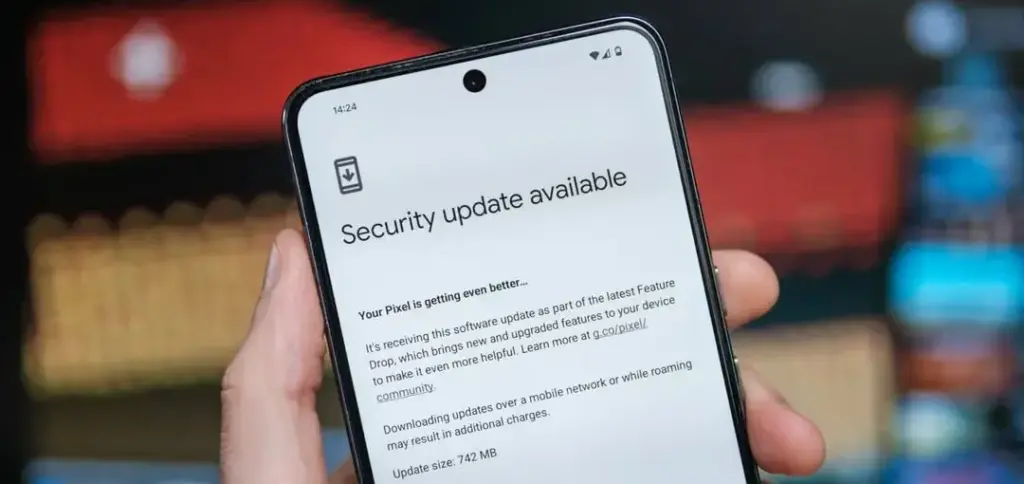
  • May Android security update available for Pixel devices

    May Android security update available for Pixel devices

    Given that Google is probably going to release stable Android 16 at Google I/O in a few weeks, I had a sneaking suspicion that we would not see the customary May Android 15 security update for Pixel devices. That aspect of me was incorrect because Google released the May 2025 Pixel update today.

    The list of devices receiving the May Pixel update includes the Pixel 6 and 6 Pro, Pixel 6a, Pixel 7 and 7 Pro, Pixel 7a, Pixel 8 and 8 Pro, Pixel 8a, Pixel Fold, and Pixel Tablet, as well as the Pixel 9, Pixel 9 Pro, Pixel 9 Pro XL, and Pixel 9 Pro Fold. The Pixel 9a is seeing a fresh update as well.

    monthly pixel security update

    According to Google, the May update will start to roll out today and should continue to do so in stages throughout the course of the following week. Your carrier – whether it is Verizon, AT&T, T-Mobile, or prepaid like Google Fi – often determines the date.

    Below is the list of the May Android update builds for your particular Pixel smartphone, broken down by worldwide, country, and carrier.

    Global

    • Pixel 6:               BP1A.250505.005
    • Pixel 6 Pro:        BP1A.250505.005
    • Pixel 6a:             BP1A.250505.005
    • Pixel 7:               BP1A.250505.005.B1
    • Pixel 7 Pro:        BP1A.250505.005.B1
    • Pixel 7a:             BP1A.250505.005.B1
    • Pixel Tablet:       BP1A.250505.005
    • Pixel Fold:          BP1A.250505.005.B1
    • Pixel 8:               BP1A.250505.005.B1
    • Pixel 8 Pro:        BP1A.250505.005.B1
    • Pixel 8a:             BP1A.250505.005.B1
    • Pixel 9:               BP1A.250505.005
    • Pixel 9 Pro:        BP1A.250505.005
    • Pixel 9 Pro XL:   BP1A.250505.005
    • Pixel 9 Pro Fold: BP1A.250505.005
    • Pixel 9a:              BD4A.250505.003

    Taiwan+EMEA

    • Pixel 9:                 BP1A.250505.005.A1
    • Pixel 9 Pro:          BP1A.250505.005.A1
    • Pixel 9 Pro XL:    BP1A.250505.005.A1
    • Pixel 9 Pro Fold: BP1A.250505.005.A1

    Verizon

    • Pixel 9:                 BP1A.250505.005.D1
    • Pixel 9 Pro:          BP1A.250505.005.D1
    • Pixel 9 Pro XL:    BP1A.250505.005.D1
    • Pixel 9 Pro Fold: BP1A.250505.005.D1

    Deutsche Telekom

    • Pixel 9:                 BP1A.250505.005.C1
    • Pixel 9 Pro:          BP1A.250505.005.C1
    • Pixel 9 Pro XL:    BP1A.250505.005.C1
    • Pixel 9 Pro Fold: BP1A.250505.005.C1

    2025 May Pixel Update Bug Fixes

    Regarding bug patches, Google has made three significant adjustments that affect all Pixel devices that are still supported. Google is fixing issues with quick settings, Bluetooth, and audio.

    Audio

    • Fix for degraded microphone recording quality in certain apps

    Bluetooth

    • Fix for Bluetooth pairing issues with certain smartwatches under certain conditions

    Framework

    • Fix for secondary language displayed in quick settings under certain conditions

    Again, Google (and its carrier partners like Verizon, T-Mobile, and AT&T) will begin pushing these updates over-the-air shortly (Settings>System>System update), but if you don’t want to wait for Google and prefer to update manually, you will soon find each factory image or OTA file at the links below.

  • Amazfit Active 2 receives a OS update

    Amazfit Active 2 receives a OS update

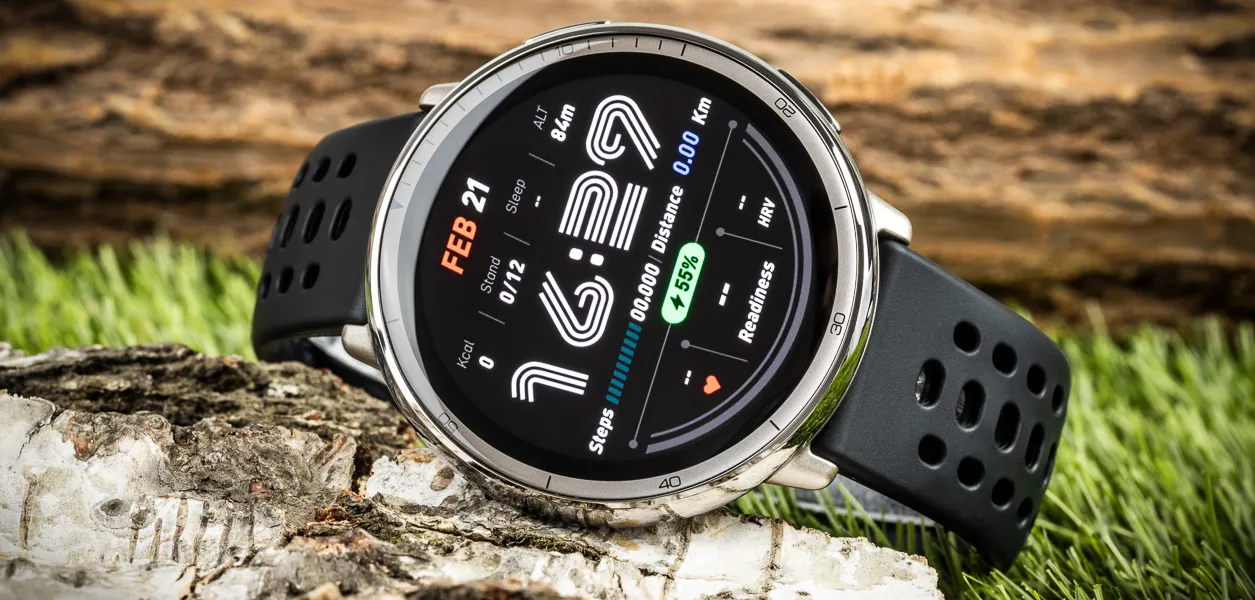
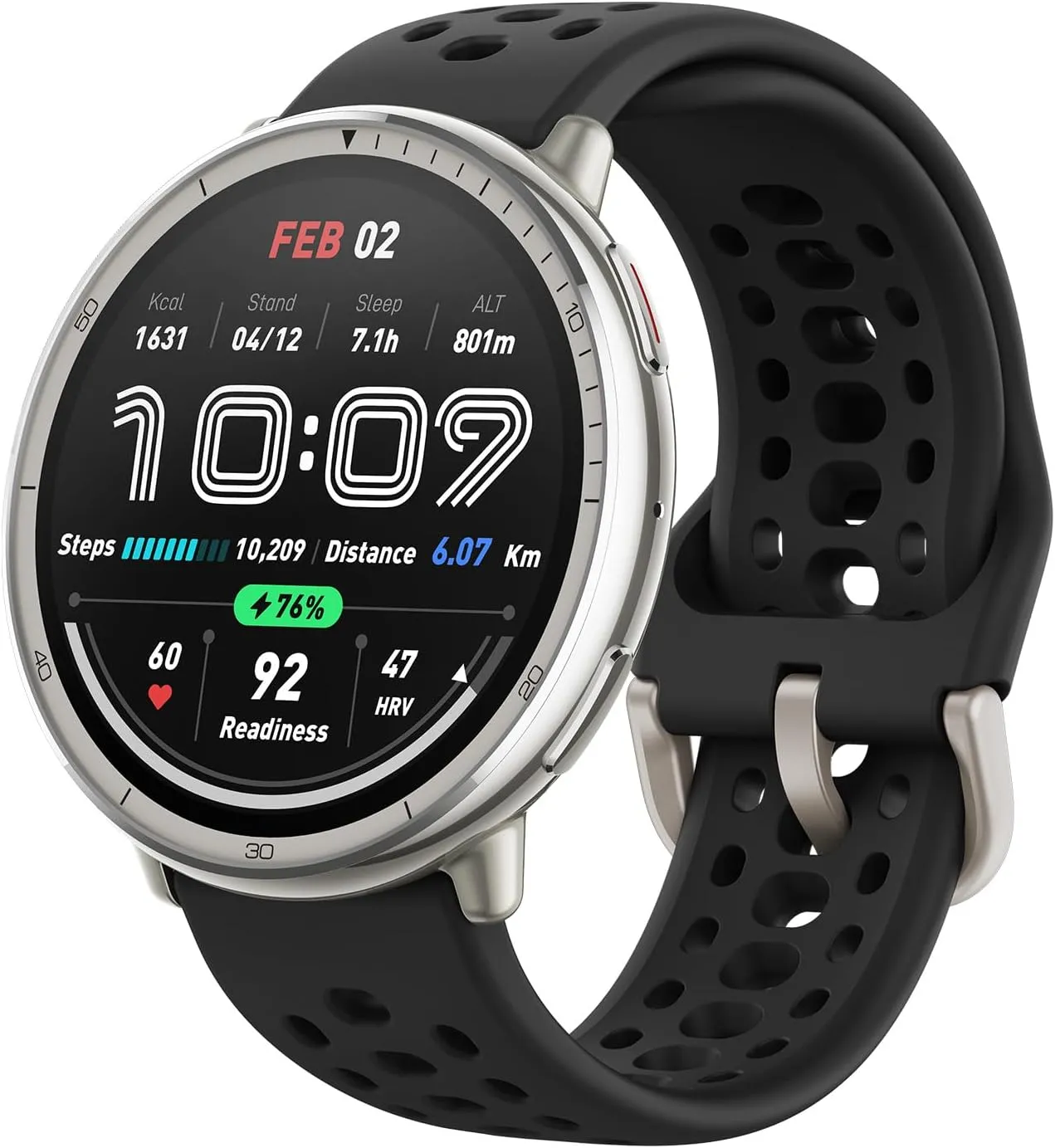
    The Active 2 smartwatch is getting a fresh update from Amazfit. In comparison to other recent releases, firmware version 6.0.14.1 seems to be a small update. According to reports, the raise-to-wake feature has undergone minor adjustments, and a few potential new problems have also been discovered.

    A new update is coming for the Amazfit Active 2 smartwatch. Launched in January 2025, this smartwatch features an AMOLED display and is reasonably priced for tracking exercise and health. This watch has previously received updates, including Zepp Flow 1.8.0 in early April and local music storage in March, before the latest firmware version 6.0.14.1.

    Amazfit Active 2

    Amazfit Active 2

    The sleek stainless steel build blends classic style with workout durability, while the bright 1.32″ AMOLED display keeps your data easy to read, even under bright sunlight.

    615JMD nXML. AC SL1500

    Several users on the web have reported firmware version 6.0.14.1. This update appears to focus on small tweaks and bug fixes, as several Active 2 owners have reported seeing no changes. A few users have noticed a minor change to the lift-to-wake feature, which allows you to activate the screen with this wrist gesture. Following this update, it appears that the screen is less sensitive to activation and stays active for a somewhat longer period of time. Other users have reported discovering potential new bugs. One user said that the swimming lap counter was no longer accurate, while another said they could no longer turn off notification sounds.

    While there have been reports of lower battery performance after applying the update, this can usually be rectified by restarting the watch. It is unclear when the apparent staggered distribution of software version 6.0.14.1 will be completed, reaching all users of the Amazfit Active 2 smartwatch.

    Amazfit Active 2

    Amazfit Active 2

    The sleek stainless steel build blends classic style with workout durability, while the bright 1.32″ AMOLED display keeps your data easy to read, even under bright sunlight.

  • How to create secure folders on any Android device

    How to create secure folders on any Android device

    Android users are particularly concerned about privacy and data safety, especially when saving sensitive files, images, or papers. Whether you are concerned about someone peeking through your gallery or want to protect business-related content, Android has built-in security features that do not require third-party apps.

    This guide describes how to use secure folders and app-based file protection features on several Android devices, including Samsung, Google Pixel, and more.

    What is a secure folder

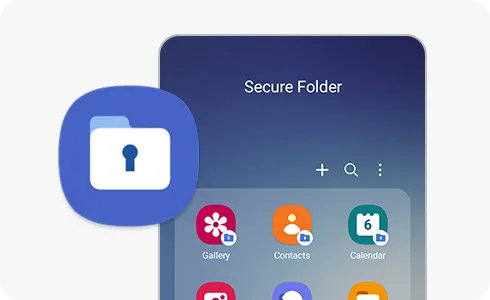
    A secure folder is a safe location on your Android smartphone where you can keep programs, files, and media separate from the main user interface. Access requires authentication (PIN, pattern, or fingerprint), ensuring that only you can open it. When data is moved to a safe folder, it is rendered invisible in conventional folders and apps such as Google Photos or File Manager.

    Samsung’s Secure Folder is the best-known example, however other manufacturers provide comparable functionality.

    How to use Secure Folder on Samsung Galaxy devices

    Samsung offers a native solution called Secure Folder, available on most devices running One UI:

    samsung secure folder
    1. Enable Secure Folder:
      • Go to Settings > Security and privacy > Secure Folder.
      • Sign in to your Samsung account if prompted.
      • Set your preferred lock method (PIN, password, or biometric).
    2. Add apps or files:
      • Open the Secure Folder app from your app drawer.
      • Tap Add apps to duplicate apps like Gallery, Notes, or Email.
      • Tap Add files to move photos, videos, or documents from regular storage.
    3. Access and manage your folder:
      • Secure Folder functions as a sandbox. Files here do not interact with the rest of your phone.
      • Notifications from apps inside Secure Folder can be hidden.
      • You can even hide the Secure Folder icon for additional privacy.

    Samsung’s Secure Folder is protected by Samsung Knox, ensuring hardware-based encryption.

    How to create secure folders on Google Pixel (and stock Android)

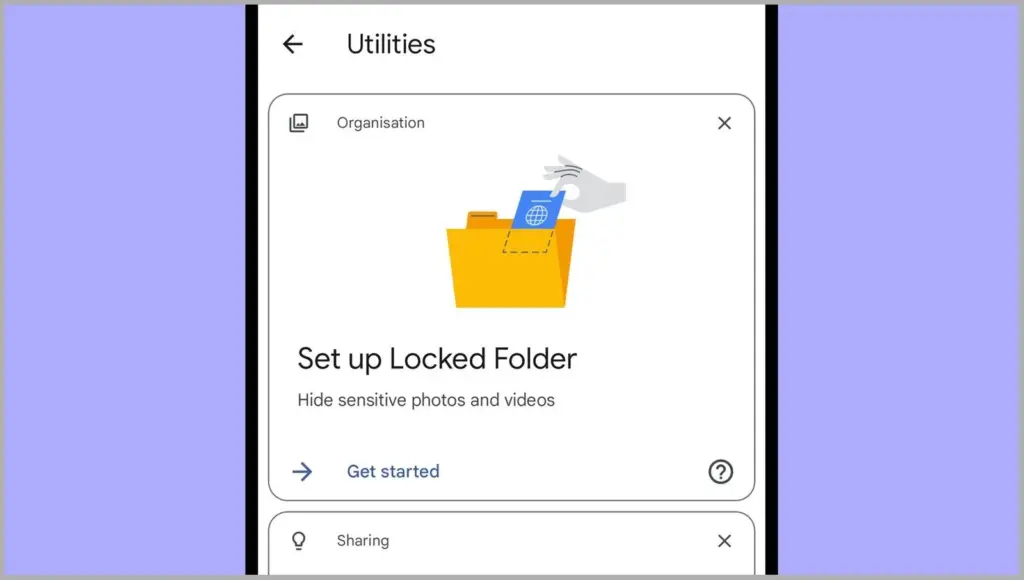
    secure folder on Google Pixel

    Google Pixel and stock Android phones don’t include a “Secure Folder” app like Samsung, but there are still options:

    1. Use Files by Google – Safe Folder

    Files by Google includes a Safe Folder to protect sensitive files.

    • Open the Files by Google app.
    • Tap Browse, then scroll to Collections > Safe folder.
    • Set up a 4-digit PIN when prompted.
    • Move any files (photos, documents, videos) into the Safe Folder for encryption and restricted access.

    Limitations:

    • No secure app duplication.
    • Cannot protect entire apps—only individual files.

    2. Use screen pinning or app lock (if supported)

    On Pixel phones, you can use screen pinning to lock a specific app:

    • Go to Settings > Security > Advanced > Screen pinning.
    • Turn it on and set it to ask for unlock credentials.

    When enabled, you can lock an app to the screen and prevent switching until your PIN or fingerprint is entered.

    Secure folder alternatives for OnePlus, Xiaomi, Vivo, and Realme

    Many Android OEMs offer their own version of secure folder functionality:

    • OnePlus (App Lock & Hidden Space):
      • Go to Settings > Utilities > App lock to lock apps.
      • Use Hidden Space (swipe right in the app drawer) to hide apps or files from plain view.
    • Xiaomi (Second Space or App Lock):
      • Second Space lets you create a full-profile clone for private use.
      • App Lock in Settings lets you password-protect apps and media.
    • Vivo/Realme:
      • Use File Safe or Private Safe under Security settings.
      • This lets you encrypt and store sensitive files securely.

    Each of these tools serves a similar purpose: creating a private area for your data and apps that only you can access.

    When should you use a secure folder

    Secure folders are ideal for:

    • Storing sensitive photos, work files, or legal documents
    • Keeping personal messages or notes private
    • Isolating apps with private data
    • Creating a private profile for shared phones or kids

    If your phone is shared, stolen, or accessed without your knowledge, a protected folder provides an additional layer of security.

    Android provides numerous options to protect your most sensitive data, with secure folders ranking among the best built-in solutions for the purpose. Whether you use Samsung’s powerful Secure Folder, Google’s Safe Folder, or manufacturer-specific features, these solutions offer true privacy without the need to install third-party apps. To protect your digital life, ensure that they are correctly configured and that you use a strong authentication technique.

  • How to increase RAM using virtual memory (Android 13+)

    How to increase RAM using virtual memory (Android 13+)

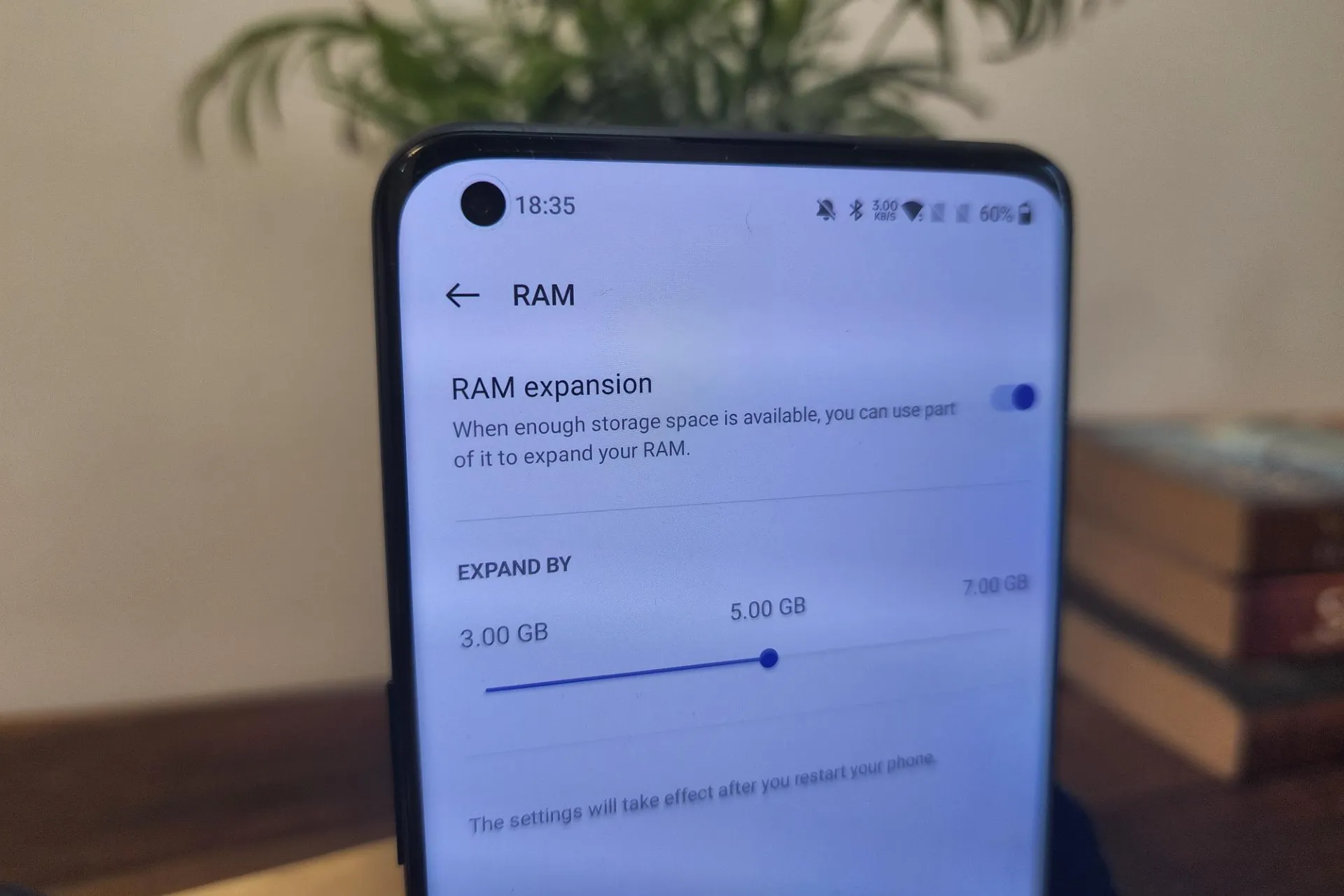
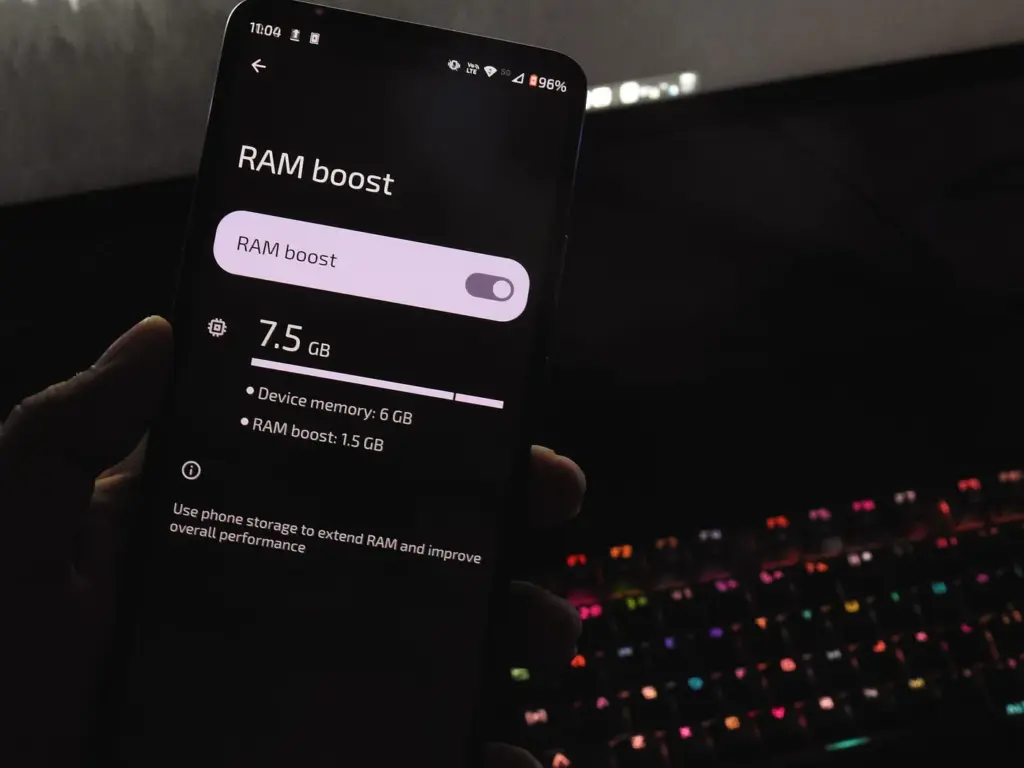
    Modern Android phones have powerful hardware, but even with high-end components, your handset may slow down while multitasking or gaming. To help with this, Android 13 added virtual RAM, sometimes known as “RAM Plus.” This function enables your device to use a portion of its internal storage as additional RAM, which improves performance in memory-intensive operations.

    This guide explains what virtual memory is, how it works on Android 13+, and how to enable or adjust it.

    virtual ram android

    What is virtual RAM and how does it work

    Virtual RAM, also known as virtual memory or swap space, is a technology that allows some of your phone’s internal storage to be used as RAM. While this memory is slower than physical RAM, it allows the system to manage more background processes, keep apps open for longer periods of time, and minimize app reloads.

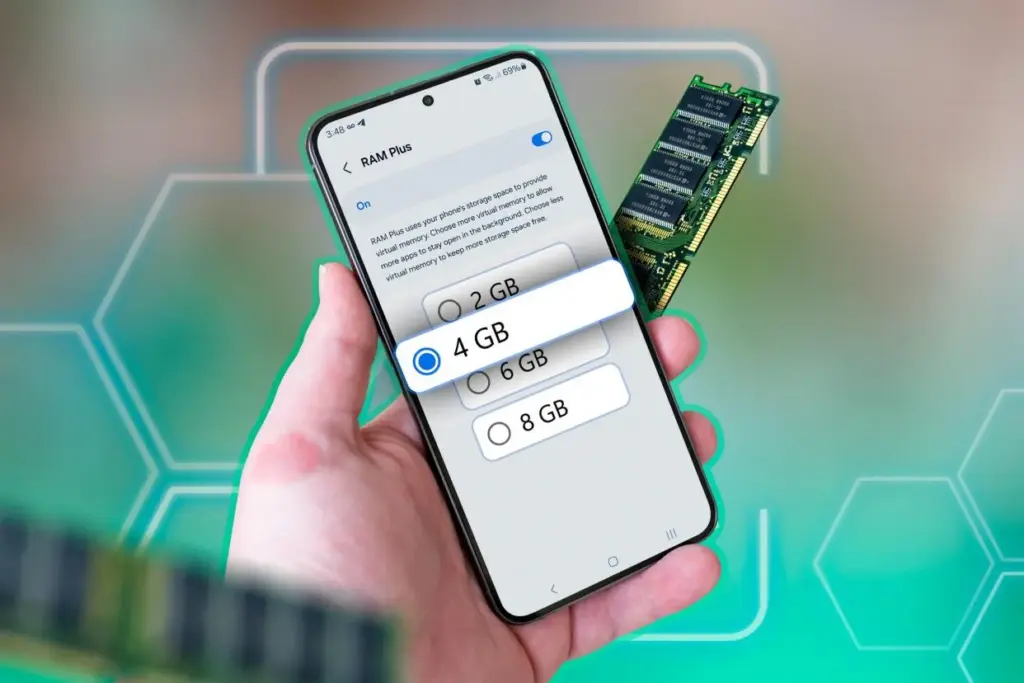
    In Android 13, many manufacturers added a user-accessible option known as “RAM Plus” or “Memory Expansion.” This feature is particularly handy on phones with 4GB to 6GB of RAM, as multitasking frequently exceeds physical RAM limits.

    How to check if your device supports RAM Plus

    Not every Android smartphone supports RAM increase. It is up to the manufacturer to incorporate the capability in their version of Android 13 or later. Here is how to check:

    1. Go to Settings.
    2. Scroll down and tap Battery & device care or About phone (varies by brand).
    3. Look for an option called RAM Plus, Memory Expansion, or similar.
    4. If it’s available, you’ll be able to view and configure it from here.

    Samsung, Xiaomi, Oppo, Realme, and Vivo are among the brands that offer this feature.

    Android ram boost

    Enable RAM Plus on Samsung devices

    Samsung phones running One UI 4.1 or later (based on Android 13) come with RAM Plus built-in. Here’s how to enable or adjust it:

    1. Open the Settings app.
    2. Scroll to Battery and device care.
    3. Tap Memory.
    4. Select RAM Plus.
    5. Choose the amount of virtual RAM to allocate (2GB, 4GB, 6GB, or 8GB).
    6. Restart your phone if prompted.

    Samsung doesn’t let you disable RAM Plus entirely but allows you to choose the allocation size.

    Enable virtual RAM on Xiaomi/Redmi/POCO phones

    Devices with MIUI 13+ (Android 13-based) often support memory extension:

    1. Open Settings.
    2. Tap Additional settings.
    3. Look for Memory Extension.
    4. Toggle it on and allocate additional storage as virtual RAM.
    5. Restart your phone for changes to take effect.

    The memory extension size is usually fixed depending on the device—commonly 2GB or 3GB.

    Enable virtual RAM on Realme, Oppo, and Vivo devices

    These brands typically offer memory expansion as well:

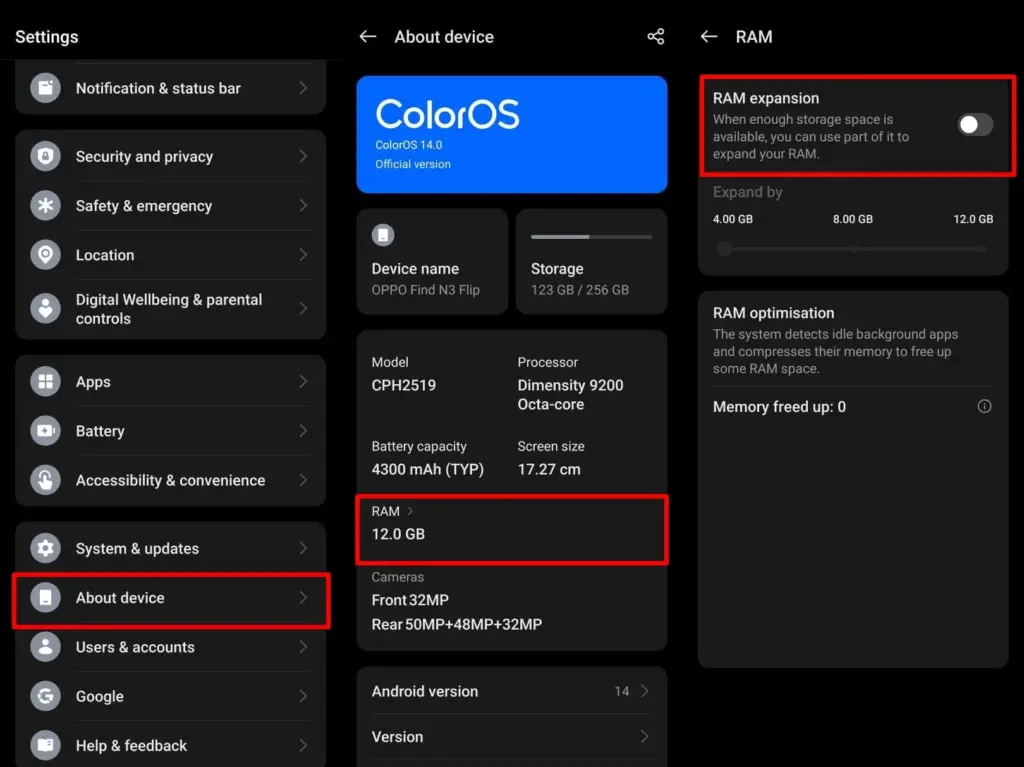
    • Realme UI/ColorOS:
      1. Open Settings.
      2. Tap About Phone > RAM.
      3. Enable RAM Expansion and select a size.
      4. Restart when prompted.
    • Vivo Funtouch OS:
      1. Open Settings.
      2. Tap RAM and storage space.
      3. Tap RAM Expansion.
      4. Turn on and choose the RAM boost size.

    If you can’t find this feature, ensure your phone is running the latest version of Android 13 or consult the manufacturer’s support site.

    color os extend virtual memory

    Does virtual RAM actually improve performance

    Virtual RAM helps in specific scenarios, especially on phones with less physical RAM (4GB or 6GB). Benefits include:

    • Reduced app reloads
    • Smoother multitasking
    • Better background app retention
    • Less lag during memory-heavy tasks

    However, it will not transform an affordable phone into a premium gadget. Because internal storage is slower than actual RAM, the benefit is minimal yet visible during heavy multitasking.

    How much virtual RAM should you use

    The best setting depends on your device’s internal storage space and usage pattern:

    • If your phone has at least 128GB of storage and you multitask often, you can allocate 4GB–6GB.
    • If your storage is nearly full, avoid setting high values to prevent system lag.
    • On 64GB devices, 2GB–3GB is usually safe.

    You can experiment to determine what works best, but keep some open storage space to avoid overall slowdowns.

    Virtual RAM is an excellent technique to increase your phone’s memory capacity without updating the hardware. While it is not a miracle cure, allowing RAM expansion can boost your Android device’s performance and multitasking abilities. If your phone supports it, give it a shot—just do not use up all of your storage space.

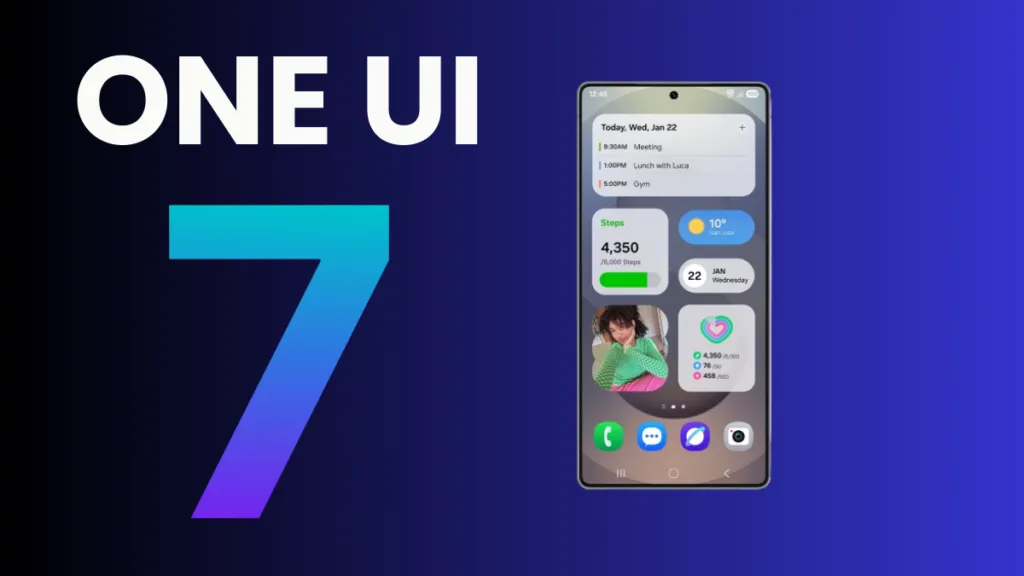
  • Samsung announces Galaxy devices getting One UI 7 in May 2025

    Samsung announces Galaxy devices getting One UI 7 in May 2025

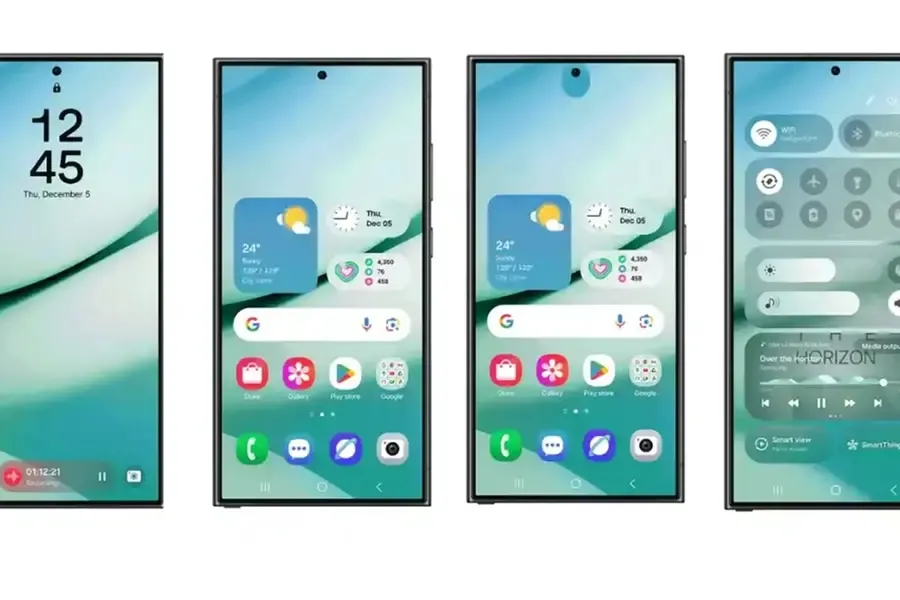
    The One UI 7 is Samsung’s most significant UI change to date. Even while the build included numerous amazing changes that fans had been anticipating, certain delays made the release a source of frustration among fans as well. Now that the stable release has begun, here are all of the Galaxy models set to receive the upgrade in May 2025.

    Essentially, Samsung began the One UI 7 stable update rollout on April 7 for the Galaxy S24 series, as well as the Galaxy Z Fold 6 and Flip 6, which were scheduled to receive the update in the first batch, while the rollout for the US market was scheduled to begin on April 10; however, due to a bug, Samsung had to pause the rollout.

    At the same time, the One UI 7 release resumed and is now reaching even more older generation handsets, excluding the Galaxy S24 family and the company’s 6th generation foldables.

    One UI 7 in May 2025

    Samsung has already begun to expand the reliable One UI 7 edition globally, starting in the company’s hometown of South Korea. So far, Samsung has delivered the stable update to numerous Galaxy phones and tablets since mid-April, and will continue to do so until every eligible device is covered.

    Furthermore, One UI 7 introduced many new features and modifications, although it is worth noting that a few Galaxy AI functions may not be available in previous Galaxy model lineups.

    List of samsung Galaxy devices receiving One UI 7 in May 2025.

    Now that we have entered the month of May, here are all of the Galaxy smartphones, tablets, and foldables that are expected to receive updates this month in the global market:

    Galaxy S Series 

    • Samsung Galaxy S24
    • Samsung Galaxy S24+
    • Samsung Galaxy S24 Ultra
    • Samsung Galaxy S24 FE
    • Samsung Galaxy S23
    • Samsung Galaxy S23+
    • Samsung Galaxy S23 Ultra
    • Samsung Galaxy S23 FE
    • Samsung Galaxy S22
    • Samsung Galaxy S22+
    • Samsung Galaxy S22 Ultra 
    • Samsung Galaxy S21
    • Samsung Galaxy S21+
    • Samsung Galaxy S21 Ultra
    • Samsung Galaxy S21 FE

    Galaxy Z series

    • Samsung Galaxy Z Fold6 and Z Flip6
    • Samsung Galaxy Z Fold5 and Z Flip5
    • Samsung Galaxy Z Fold4 and Z Flip4
    • Samsung Galaxy Z Fold3 and Z Flip3

    Galaxy Tablets

    • Samsung Galaxy Tab S10+
    • Samsung Galaxy Tab S10 Ultra
    • Samsung Galaxy Tab S9
    • Samsung Galaxy Tab S9+
    • Samsung Galaxy Tab S9 Ultra
    • Samsung Galaxy Tab S8
    • Samsung Galaxy Tab S8+
    • Samsung Galaxy Tab S8 Ultra
    • Samsung Galaxy Tab S9 FE
    • Samsung Galaxy Tab S9 FE+

    Galaxy A series 

    • Samsung Galaxy A55
    • Samsung Galaxy A35
    • Samsung Galaxy A54
    • Samsung Galaxy A34

    Galaxy M series

    • Samsung Galaxy M55
    • Samsung Galaxy M35
    • Samsung Galaxy M54
    • Samsung Galaxy M34

    Galaxy F series

    • Samsung Galaxy F55
    • Samsung Galaxy F54
    • Samsung Galaxy F34
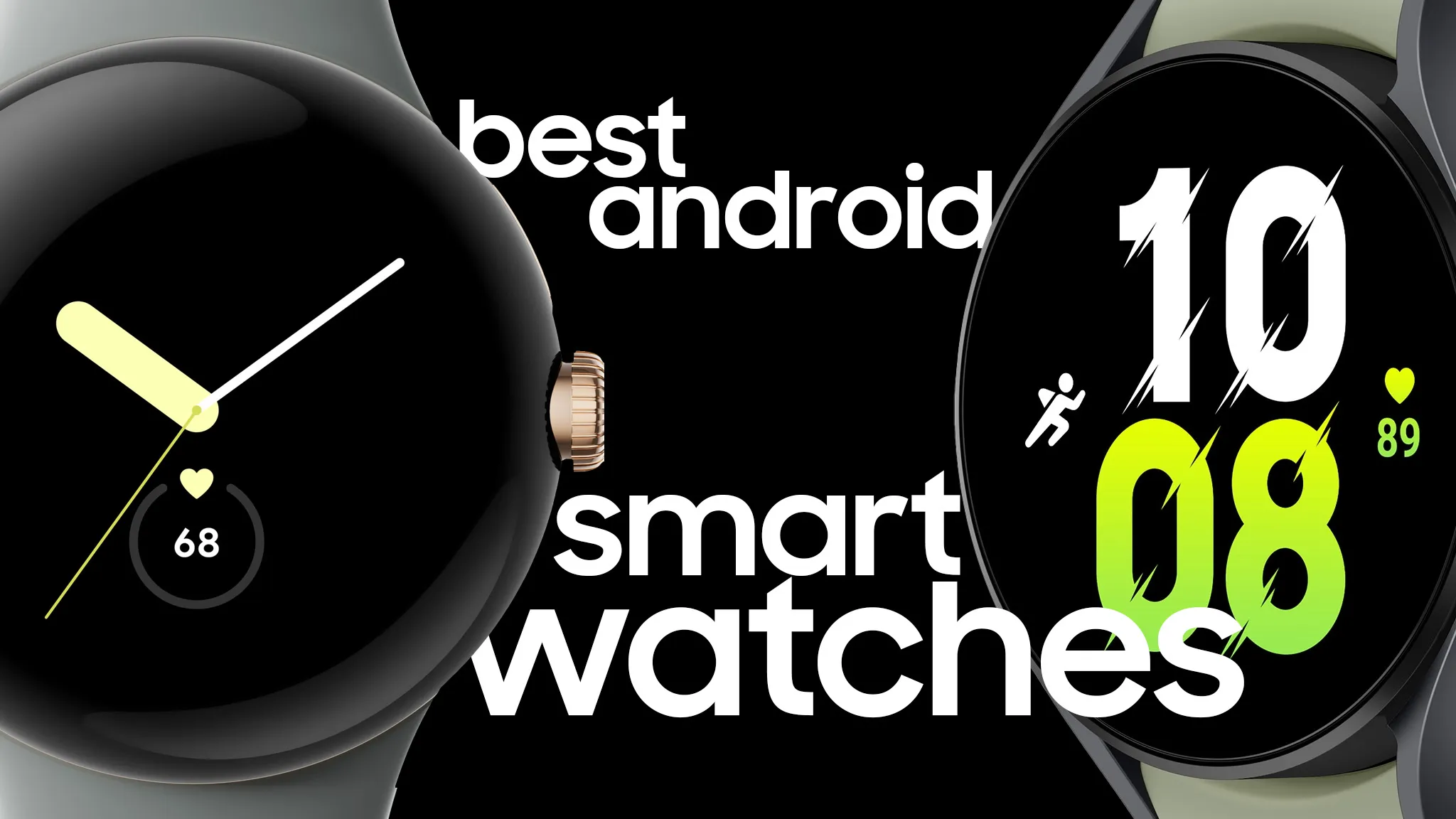
  • 4 best smartwatches for Android phones

    4 best smartwatches for Android phones

    Your phone allows you to answer calls, make and receive texts, and give commands to a voice-activated assistant. But sometimes it is more convenient to perform those things on your wrist, which is where a smartwatch comes in.

    The Apple Watch is the gold standard for smartwatches, but it is only compatible with Apple iPhones. If you own an Android phone, you have a lot more smartwatch alternatives, but there is also a lot more opportunity for misunderstanding. Most of the watches we have seen are too slow, cumbersome, or lacking in functionality to be worthwhile purchases. After testing hundreds of smartwatches for Android phones, including the most recent versions, we determined that the Samsung Galaxy Watch7 is the best option for the majority of Android phone users.

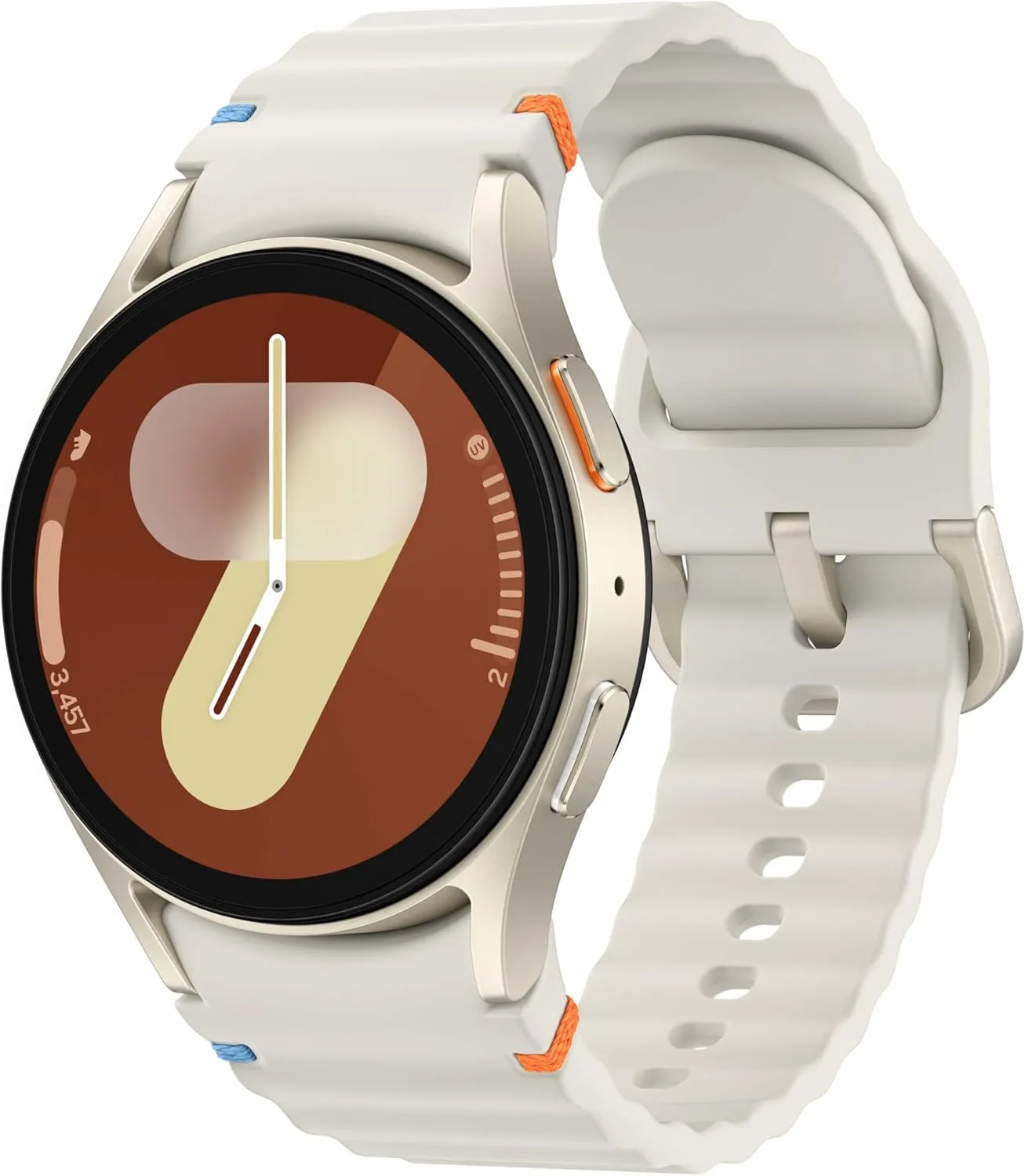
    SAMSUNG Galaxy Watch 7

    Samsung Galaxy Watch7

    Looking for a great way to bring out your personal best every day? Challenge yourself to excel on your next run or bike ride using tracking with Galaxy AI that lets you compare your current performance to your last one

    Best choice
    $299.99$209.99Amazon

    The Samsung Galaxy Watch7‘s robust shell comes in two sizes and is one of the most comfortable watches we have tested. The Watch7 runs the most recent Wear OS software and includes additional health and fitness capabilities such as sleep apnea detection, metabolic health monitoring, and an AI-based Energy Score that combines workout and sleep information. You can also use your fingers to engage with some watch features without touching the screen. Unfortunately, like its predecessor, the battery only lasts one day and requires hours to fully recharge.

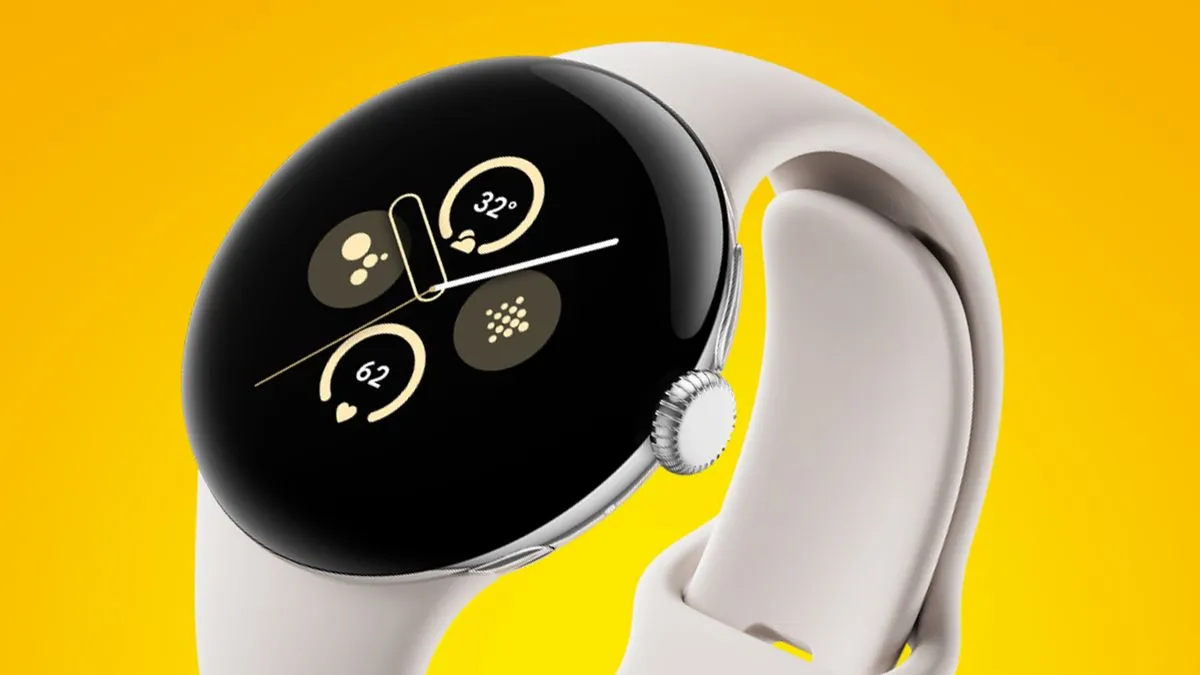
    pixel watch 3 closeup

    Google Pixel Watch 3

    The Google Pixel Watch 3 is designed for performance, with advanced fitness from Fitbit; the 45mm screen is twice as bright and 40% larger than before, making it easier to see your stats and info

    Very good choice
    $399.99$349.99Amazon

    The Google Pixel Watch 3 looks similar to the original Pixel Watch, but with slimmer bezels. The 41 mm and 44 mm variants have equal features, but the 44 mm watch has a longer-lasting battery. The Pixel Watch 3 has a new OLED display that can reach up to 2,000 nits of peak brightness. It also runs the most recent version of Google’s Wear OS 5, which includes additional health-related functions and improved connection with Google’s ecosystem. It retains the previous version’s unique band connector, which is only compatible with the bands provided by Google.

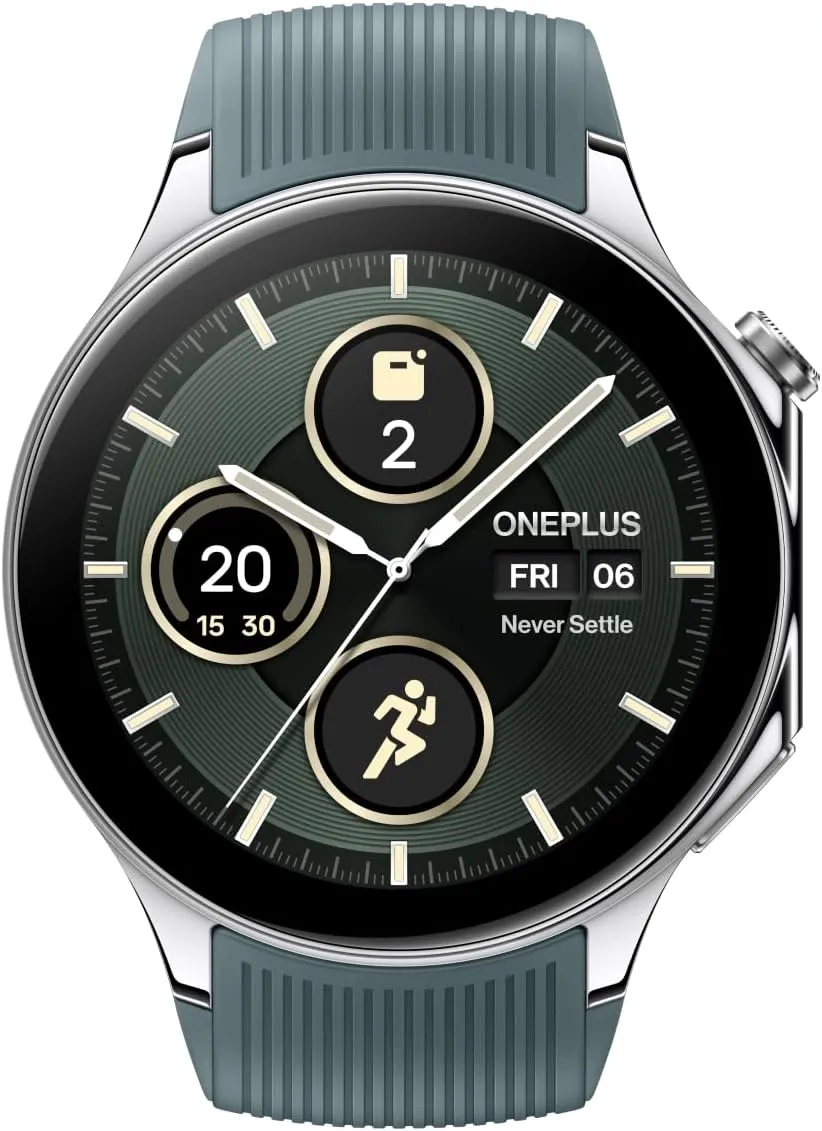
    oneplus 2

    OnePlus Watch 2R

    The OnePlus Watch 2 fuses a stainless-steel chassis with a robust 2.5D sapphire crystal face, delivering a sophisticated design that withstands daily wear and tear with a 5ATM and IP68 rating, and military-grade standard for durability.

    Good choice
    $299.99$209.99Amazon

    The OnePlus Watch 2R may last many days on a single charge while also providing important health tracking—all at an inexpensive price. Its 46 mm shell houses a big 1.43-inch OLED display with a maximum brightness of 1,000 nits, and it runs a hybrid system made up of two chips and two software setups, including Google’s Wear OS 4 and Google Assistant.

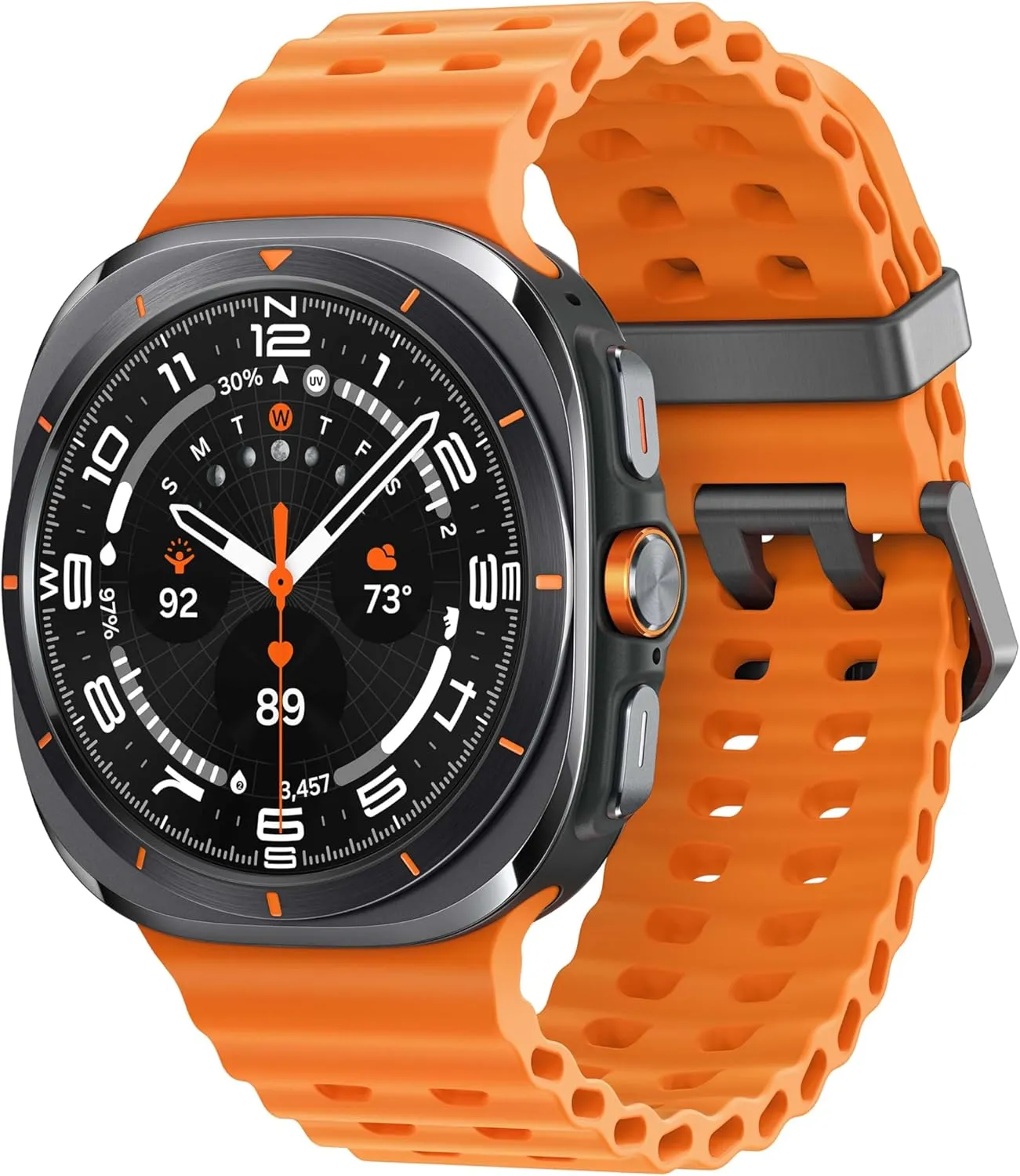
    galaxy watch ultra

    Samsung Galaxy Watch Ultra

    The Watch Ultra sports a huge 47 mm titanium body with a display that can reach up to 3,000 nits of peak brightness, making it easier to see your screen even in the darkest of nights and brightest of days.

    $390.00$291.00Amazon

    The Samsung Galaxy Watch Ultra incorporates a few extra capabilities than the Watch7 into a larger, more robust smartwatch. It offers fitness monitoring for triathletes, bikers, swimmers, and strong endurance users, with twice the battery life of the Watch 7. Many people are put off by its large size, heavy weight, and high price, but the features and battery life may be worth the premium.

  • #rumor – Xiaomi might build HyperOS 3 free of Google services

    #rumor – Xiaomi might build HyperOS 3 free of Google services

    There is currently a precarious scenario between the United States and China, with Huawei being the unlucky subject of trade sanctions. The constraints imposed on the erstwhile smartphone behemoth indicate that other Chinese corporations, like as Xiaomi, are not immune to incurring the same fate, which is why it is critical that these companies be well-prepared for any shocks. For the time being, the first order of business is a report that a HyperOS version devoid of Google Play apps and services, akin to Huawei’s HarmonyOS, is in the works, with BBK assisting with the changeover.

    Huawei’s experience in dealing with hardship will help Xiaomi develop its latest HyperOS 3 version.

    HyperOS 3 version

    A highly speculative rumor from XiaomiTime claims that Xiaomi is collaborating with Huawei and the BBK Group, the parent company of OPPO, Vivo, and OnePlus, to create a HyperOS 3 version that is free of Google’s apps and services. Xiaomi now has a license to use the Mountain View company’s smartphone operating system, but no one knows when the Trump administration may reconsider this collaboration.

    The US government’s concerns about Xiaomi may have been exacerbated when it was revealed that the company had successfully taped-out its custom 3nm chipset and was on track to launch its first in-house solution, Xring, later this month, though the intended timeline may be pushed back. Unfortunately, the only market where Xiaomi can achieve the majority of its success if it abandons Android is China, unless it can provide millions of customers with a custom app store that includes all of the essential alternatives, which is extremely difficult.

    It is likely that Xiaomi is keeping HyperOS 3 as a “ace up its sleeve” in case the Trump administration imposes a trade ban on the company, which would also prevent it from using Google Play services or apps. Until such an incident occurs, Xiaomi will most likely avoid losing a large number of consumers and millions of dollars in income.

  • How to change the default apps on new Android devices

    How to change the default apps on new Android devices

    You have complete control over the default apps you use on Android for email, calls, texts, browsing, and more. Android lets you select your favorite apps as defaults, whether it be Chrome or Firefox, Gmail or Outlook, or any other third-party software that is compatible, in contrast to other mobile operating systems that force you to use a limited number of apps.

    We will show you how to change the default Android apps in this tutorial. We will go over how it functions on both stock Android and well-known manufacturer skins, such as Xiaomi’s MIUI and Samsung’s One UI, as well as what to do in situations when Android lacks a default app option.

    Why change your default apps?

    Changing your default apps can increase productivity and improve your experience. For instance, you may wish to use:

    • A privacy-focused browser like DuckDuckGo instead of Chrome
    • A lightweight email app instead of the default one
    • A better gallery app with cloud backup support
    • A different SMS app with customization features

    Once set, Android uses your selected app automatically — no need to choose each time.

    change default apps in Android

    What types of default apps can be changed?

    Android supports default app selection for a variety of functions, including:

    • Browser (e.g., Chrome, Firefox, Brave)
    • Phone (dialer apps)
    • Messaging/SMS (e.g., Google Messages, Textra)
    • Email (e.g., Gmail, Outlook, K-9 Mail)
    • Home screen launcher
    • Digital assistant
    • Camera
    • Gallery/photos
    • Music player
    • Navigation apps (Maps, Waze, etc.)
    • Links handling (web, YouTube, etc.)

    Some apps will request to be the default when first installed or opened but you can always change this manually.

    How to change default apps on stock Android

    Here’s how to manage your default apps on phones running near-stock Android (such as Pixel, Motorola, or Nokia devices):

    1. Open the Settings app.
    2. Tap on Apps.
    3. Choose Default apps.
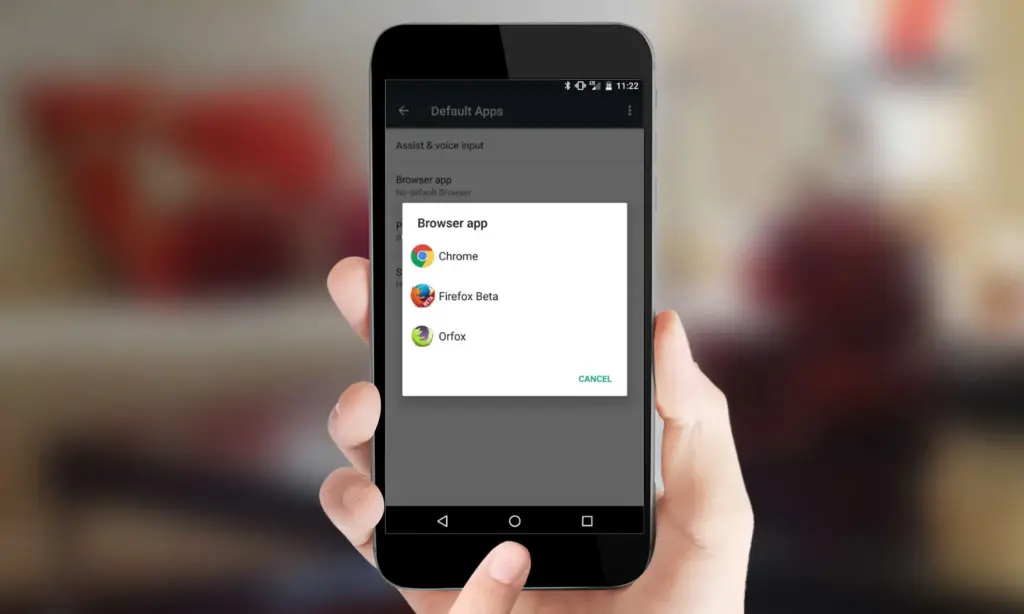
    4. You’ll see a list of categories: browser app, phone app, SMS app, assistant app, home app, etc.
    5. Tap any category to see installed apps compatible with that function.
    6. Choose your preferred app from the list.

    Android will immediately make the chosen app the activity’s default. If you change the browser’s default, for instance, any link you click will open in the selected browser.

    How to change default apps on Samsung (One UI)

    Samsung devices with One UI take a somewhat different path:

    1. Go to Settings.
    2. Tap on Apps.
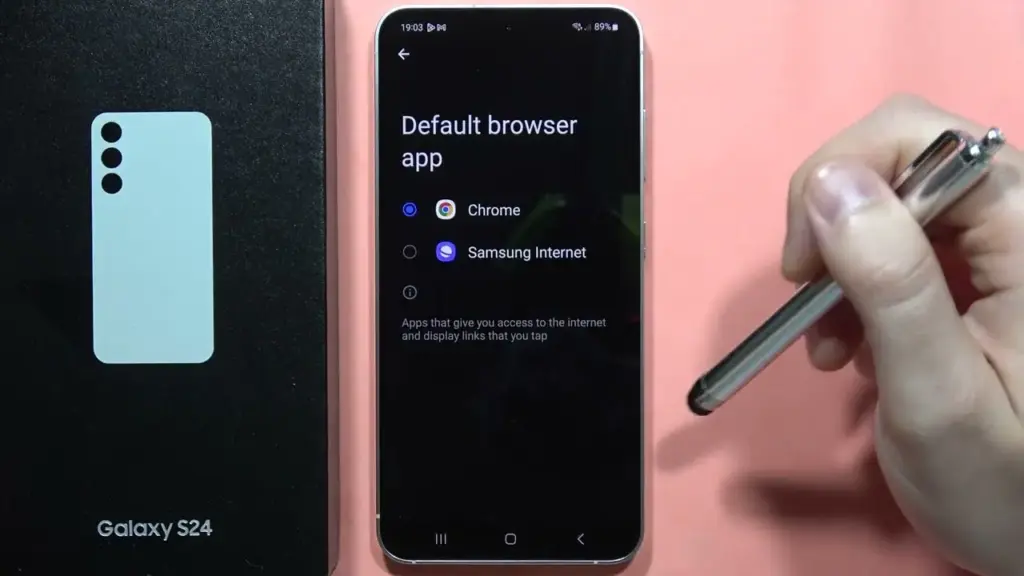
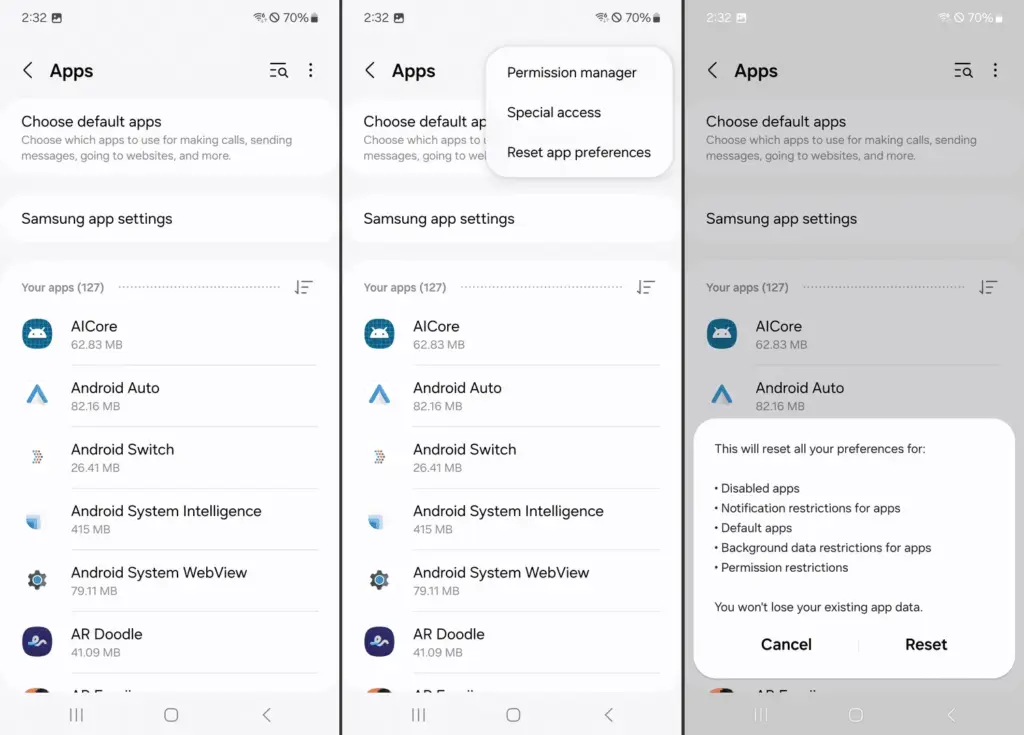
    3. Tap the three dots in the top-right corner and select Default apps.
    4. You’ll see the same categories as stock Android: browser, calling, messaging, and more.
    5. Tap the category you want to change.
    6. Select your new default app.
    change default broser on OneUI Samsung

    Samsung devices also let you reset all default apps at once via Settings > Apps > Three dots > Reset app preferences.

    How to change default apps on Xiaomi (MIUI)

    MIUI includes a “Manage apps” section to control default apps:

    1. Open the Settings app.
    2. Go to Apps > Manage apps.
    3. Tap the three dots in the top-right and select Default apps.
    4. Choose a category like browser, dialer, messaging, or gallery.
    5. Select your desired app.

    MIUI might ask you to select a new default app after installation or when you attempt to open related content.

    How to handle app-specific defaults (like file types or links)

    Some apps don’t appear in the general default app settings but can still be set as defaults when opening certain file types or links.

    To manage these:

    1. Go to Settings > Apps.
    2. Tap See all apps and choose the app you want to configure.
    3. Tap Open by default.
    4. Enable Open supported links or clear defaults by tapping Clear defaults.

    This is useful if you want all YouTube links to open in the app rather than in a browser, or if you have accidentally enabled an app to always open PDFs or photos.

    How to reset default apps

    reset default apps on Android

    If you’ve set the wrong default app or want to start over:

    1. Open Settings > Apps.
    2. Tap the three dots (or menu icon).
    3. Select Reset app preferences.
    4. Confirm to reset all app defaults.

    This won’t delete any data but will clear app defaults, disabled apps, and permission restrictions.

    Alternatively, to reset just one app:

    • Go to Settings > Apps > [App Name] > Open by default
    • Tap Clear defaults

    This lets you reassign that app’s function later.

    Choosing the best default apps

    Here are some recommended apps to consider setting as default:

    • Browser: Firefox Focus (privacy), Brave (ad blocking), Chrome (sync)
    • Email: Gmail (Google integration), Outlook (work email), BlueMail (multi-account)
    • Messaging: Signal (privacy), Google Messages (RCS), Textra (customizable)
    • Gallery: Simple Gallery, Google Photos, Aves
    • Music: YouTube Music, VLC, Poweramp
    • Navigation: Google Maps, Waze, HERE WeGo

    Make sure the app supports being set as a default. Some lightweight or older apps may not offer this functionality.

    What if Android won’t let you change a default?

    Some Android versions or manufacturers may restrict default app changes for certain functions — especially camera or dialer apps. In those cases:

    • Make sure the new app is fully updated and has the necessary permissions.
    • Check for manufacturer limitations in forums.
    • Use Activity Launcher or ADB commands (for advanced users) to override.
    • Root access may be required for some deep changes — though this is not recommended for most users.

    Changing the default apps on Android provides you control over your digital experience. Whether you want a speedier browser, a cleaner messaging app, or a more powerful camera, Android allows you to select what works best for you.

    By looking into your device’s default app settings, you may optimize your workflows and eliminate annoyances such as accessing links in the wrong app or using services you dislike. With a few touches, Android becomes your own—not what the manufacturer or carrier wants you to use.

  • How to take scrolling screenshots on Android – the easy way

    How to take scrolling screenshots on Android – the easy way

    With just a few button presses, you can quickly take a screemshot of your Android device screen.

    What occurs, though, if the material you are attempting to store is too large for a single screen? It could be an app settings page, a lengthy web page, or a conversation thread. Scrolling screenshots can help with that.

    This tutorial describes how to take scrolling screenshots on Android without the use of third-party apps, how to handle the situation where the choice is not available, and how it functions on various devices.

    What is a scrolling screenshot?

    You can record vertically scrollable content in a single lengthy image by taking a scrolling screenshot, sometimes referred to as an extended screenshot. Your phone does it automatically, saving you the trouble of painstakingly piecing together many screenshots and providing you with a clear, comprehensive representation of the full page or discussion.

    Although some manufacturers had already included this capability through custom Android skins prior to the official distribution, Android 12 marked the wide availability of this feature. After taking a standard screenshot, you can continue taking screenshots as you scroll by selecting the scrolling screenshot option.

    Why scrolling screenshots are useful

    When you need to record a lot of information without dividing it into many photos, scrolling screenshots come in handy. Typical use scenarios include the following:

    • Capturing an entire article from a website for offline reading
    • Saving long chats or SMS conversations
    • Recording step-by-step settings in apps or system menus
    • Documenting online orders, receipts, or bank statements
    • Archiving long social media posts or comments

    Instead of managing and sending five or six individual screenshots, you get a single, clean image that’s easier to share, store, or annotate.

    How to take a scrolling screenshot on stock Android

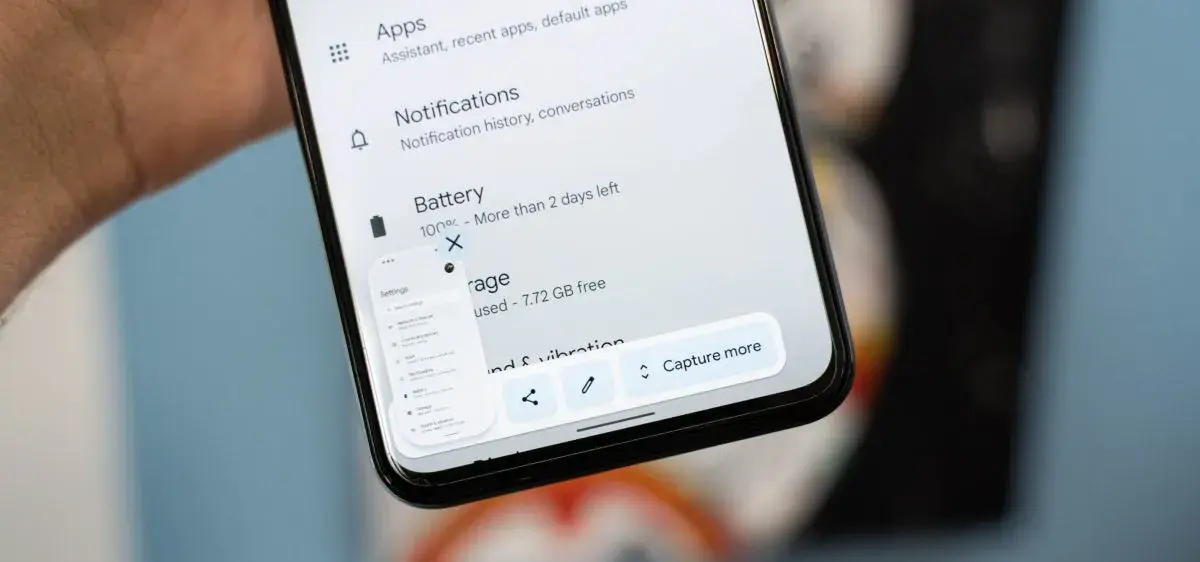
    scrolling screenshots on stock Android

    If you’re using a Google Pixel or another phone running near-stock Android 12 or higher, the steps are straightforward:

    1. Navigate to the screen you want to capture.
    2. Press the Power and Volume Down buttons at the same time to take a screenshot.
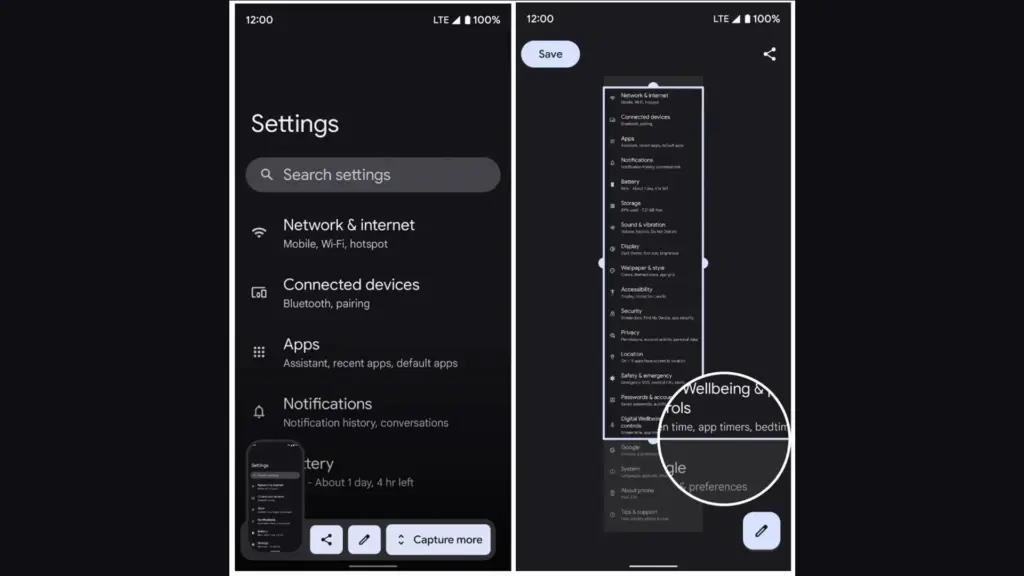
    3. After the screenshot is taken, a preview appears in the bottom corner with an option labeled Capture more.
    4. Tap Capture more to open a screen where you can scroll and adjust how much of the page to include.
    5. Drag the crop handles to select the desired length, then tap Save when finished.

    The scrolling screenshot will be saved to your Screenshots folder and accessible via the Google Photos or Files app.

    How it works on Samsung devices (One UI)

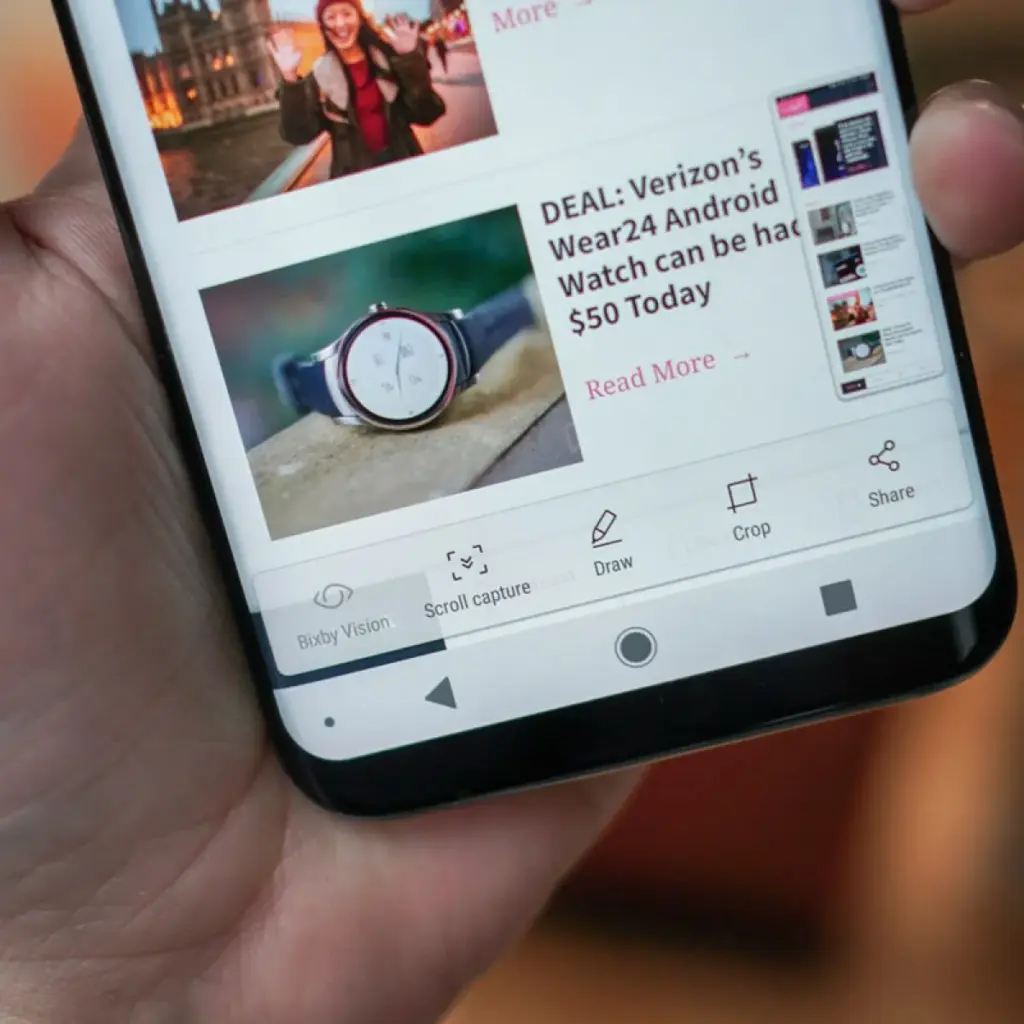
    Samsung introduced scrolling screenshots before Android 12 and calls the feature Scroll capture. To use it:

    scrolling screenshots on Samsung OneUI
    1. Open the page or conversation you want to capture.
    2. Take a screenshot by pressing Power + Volume Down, or use the palm swipe gesture if it’s enabled.
    3. A toolbar will appear at the bottom of the screen.
    4. Tap the Scroll capture icon (a downward arrow within a bracket) repeatedly to continue capturing more content.
    5. The phone scrolls down automatically each time you tap the icon, and stitches the new content to the previous image.
    6. Once finished, the combined screenshot is saved to your Gallery in the Screenshots folder.

    Samsung’s implementation is intuitive and works in most apps, including browsers, chat apps, and system settings.

    Taking scrolling screenshots on Xiaomi (MIUI)

    Xiaomi users with MIUI 12 or later can use the Scroll option built into the screenshot tool:

    1. Go to the screen you want to capture.
    2. Press Power + Volume Down, or use the three-finger swipe gesture.
    3. A floating screenshot preview will appear in the corner.
    4. Tap the Scroll option next to the preview.
    5. The device will automatically scroll the page and compile the screenshot.
    6. Tap Done or wait for the auto-scroll to finish.

    Your scrolling screenshot is then saved and ready to share or edit.

    How it works on OnePlus (OxygenOS)

    On most OnePlus phones running OxygenOS 11 or higher:

    1. Take a screenshot using Power + Volume Down or the three-finger swipe.
    2. A preview appears with a button called Expanded screenshot or Scroll.
    3. Tap the button, and the phone will begin scrolling down and capturing content.
    4. You can tap to stop the scroll when you’ve captured everything you need.
    5. The final result is a seamless long image.

    OnePlus makes the process easy and generally reliable in apps like Chrome, WhatsApp, and system menus.

    What to do if scrolling screenshot is not working

    If you don’t see the scrolling option after taking a screenshot, here are a few reasons and possible solutions:

    1. Your Android version is outdated

    With Android 12, scrolling screenshot functionality was formally introduced. The native option might not be available if you are using Android 11 or earlier and the manufacturer of your phone has not included the functionality in its unique user interface.

    Solution: Check for software updates under Settings > System > System update and update to the latest available Android version.

    2. The app you’re using doesn’t support it

    Certain applications may completely disable screen capture capabilities, particularly those with security limitations (such as banking or media streaming apps). In other situations, the scrolling capture feature will not be activated for static content that does not scroll vertically, such as games or films.

    Solution: Try taking the screenshot in another app to confirm the feature works elsewhere.

    3. The screenshot method didn’t trigger the right menu

    If you take screenshots using Google Assistant or a third-party button remapper, the scroll option may not appear.

    Solution: Stick with the hardware button method or built-in gesture support for consistent results.

    4. Your device brand disables it

    Rarely, the feature might be removed from select low-cost or carrier-locked devices. Check your device’s manual or a help website relevant to your brand if your Android version allows it but you are unable to see the choice.

    Solution: As a last resort, third-party apps like LongShot or Stitch & Share can be used, though they won’t integrate as seamlessly.

    Where scrolling screenshots are saved

    Your scrolling screenshots are typically saved in the same folder as regular screenshots. The default locations include:

    • Internal Storage > DCIM > Screenshots
    • Internal Storage > Pictures > Screenshots

    You can also find them in gallery apps like Google Photos under the “Screenshots” album. The long image format will usually be saved as a standard PNG or JPEG file, depending on your phone.

    Scrolling screenshots make it significantly easier to capture and share large amounts of vertical content in one image. Whether you’re preserving a full article, archiving a conversation, or saving a list of settings for future reference, this feature streamlines the process and saves time.

    Most modern Android phones with Android 12 or later support scrolling screenshots natively, with even better integration in custom skins from brands like Samsung, Xiaomi, and OnePlus. If the feature isn’t available on your phone, checking for updates or exploring brand-specific gestures may help you unlock it.

    Scrolling screenshots are one of those tiny but useful features that you will find yourself utilizing regularly once you get used to it, particularly if you share content or document information from your phone on a regular basis.