Author: Cristian Penisoara

  • Clean your browser junk files in a few steps.

    Clean your browser junk files in a few steps.

    Regularly clearing the cache and cookies in your web browser will help you get rid of unnecessary garbage files.

    Much of the information that your Android phone’s web browser gathers from the websites you visit is unnecessary for it to be on your phone.

    The information kept in your cookies and cache, regardless of whether you are using Samsung Internet, Mozilla Firefox, or Google Chrome, may come in handy occasionally. It is what keeps you signed into your accounts and enables you to swiftly access websites that you visit often. That is great, but your browser’s cookies and cache include a lot of unnecessary data that may even pose a privacy concern.

    The reasons behind periodicaly clearing your cache and cookies

    A large portion of the content that accumulates in your cookies and cache is just useless garbage. A portion of it might have come from single-visited websites. Some appear to be actively monitoring your browser history in order to provide you with adverts that are relevant to what you purchase or watch online. For example, after looking at a few stores, I keep getting advertising for buying glasses online, or I get ads from Amazon that just so happen to reflect what was last in my shopping basket.

    It is a good idea to periodically clean your cache because of this. It enables you to delete data from your phone that you no longer require, particularly if one of the cookies on your phone has an unknown data tracker. You will have to log back into some of your favorite websites after clearing your cache, but it is a tiny annoyance to ensure that your phone is not accumulating unnecessary data.

    The steps differ slightly depending on the type of phone and web browser app you’re using. Below, we’ll go over how to clear this data for Google’s Chrome browser (often the default for many Android phones, like the Google Pixel line), Samsung’s internet browser (often the default on the Galaxy phone series) and Mozilla’s Firefox browser.

    Google Chrome

    In the Google Chrome app for Android, you can clear your cache and cookies by first clicking the More button (shown by a column of three dots) in the top right corner of the browser, then selecting History, and then selecting Clear browsing data. Alternatively, you may access this by selecting Privacy and Security from the Chrome Settings menu, followed by Clear browsing data.

    Additionally, Chrome has Basic and Advanced settings for deleting cookies, site data, cached files and pictures, and browsing history. You can choose to erase all of your information or just a portion of it, ranging from the recent 24 hours to the previous four weeks, using the Time range drop-down menu. You can also delete Saved passwords, Autofill form data, and Site settings by tapping Advanced.

    chrome browser clear cache

    Once you have decided what to remove, hit the blue “Clear data” button. If Chrome considers any websites to be “essential” to you, you may receive an additional prompt, and you will be able to accept before clearing. In the event that you do not receive the prompt, Chrome will clear as soon as you tell it to.

    Samsung Internet

    You can delete the cache and cookie data from your Samsung Internet browser in two distinct methods. You have two options for clearing: using the Settings app on your phone, or directly from within the browser.

    To clear while in the Samsung Internet browser app, first tap the Options button in the bottom right corner represented by three horizontal lines, then Settings; scroll down to and tap Personal Data, then tap Delete browsing data to get a menu of options to delete. You can clear your Browsing historyCookies and site dataCached images and filesPasswords and Autofill forms in any combination. After tapping Delete data, you’ll then receive a prompt asking for you to confirm your choices before deleting.

    samsung internet cache clear

    You can customize what you want to erase the most by going through the browser app itself. Nevertheless, you may launch the Settings app, touch on Apps, scroll down to Samsung Internet, and then tap Storage if you want to access comparable choices from your phone’s settings menu.

    There are distinct options to clear data and clear cache at the bottom of Storage. Choosing Clear data triggers a warning that all of the application’s data, including files, settings, accounts, and databases, will be permanently erased. Tapping Clear cache will instantly remove the cache. This “going nuclear” method should erase all leftover data, even though it does not mention cookies, allowing you to restart the Samsung Internet browser as if it were a fresh install.

    Mozilla Firefox

    You may empty the cache from within the Mozilla Firefox Android app, just like you can with Google Chrome. Once more represented by three vertically aligned dots, the More button is located to the right of the address bar. Tap it to access this function. Next, select Settings and proceed to the Delete browsing data section.

    Of the three browsers we’re discussing here, Firefox gives you the most options under the Delete browsing data menu, allowing you to also delete any existing Open tabs, your Browsing history and site dataSite permissions and even your Downloads folder alongside Cookies and Cached images and files

    firefox browser cookies cache

    You can be more precise about the kind of data you want to erase, even though you are unable to select a time frame like you can with Chrome.

    Additionally, Firefox offers a second option for users who want not to store their browser history once they close the program. There is a Delete browsing data on stop option in Settings that tells Firefox to remove any combination of these same settings each time the program is closed. This is a helpful function if you want to maintain your browser clean and, for example, not unintentionally give your browsing history to someone who could have stolen or otherwise obtained access to your phone.

  • 6 Common Device Performance Issues and Solutions

    6 Common Device Performance Issues and Solutions

    Now more than ever, we depend on digital devices like smartphones and computers for work and entertainment.

    Users want a smooth experience. However, there are times when our devices show signs of poor performance and other issues.

    Let’s take a look at some of the most common problems and methods to minimize or eliminate these issues.

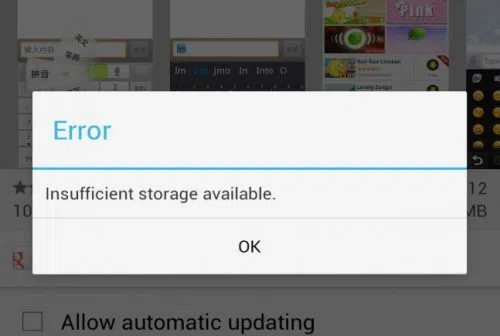
    1. Insufficient Storage

    insufficient strorage available error in android

    You work with a finite amount of storage. Some devices boast of having terabytes of available space, so running out of available disk space is often not a problem.

    On the other hand, some devices come with much less than that. It is crucial to keep an eye on what you download and store on the device. Get in the habit of deleting files you no longer need. 

    Remember that you do not need to store everything on the device. Cloud storage and external storage accessories (hard drives and USB flash sticks) offer a solid alternative.

    2. Overheating

    l intro 1657216441

    Overheating is one of those problems that you want to avoid as much as possible. The process works as an anxiety builder, making you aware that something is wrong. Ideally, your device should be lukewarm at most.

    Having said that, it is not how digital devices work, particularly when you initiate resource-heavy processes, such as video games. 

    Certain devices have more flexibility to adjust temperatures. For instance, the MacBook kernel_task high CPU is one such indicator, and it’s a built-in feature.

    Generally, overheating can be reduced by limiting background processes. Check background applications and close them. Moreover, if you have some time, clean the dust and other particles that are inside the device (provided you know what you are doing).

    3. Sluggish Performance

    A sluggish performance can be the result of different factors building up over time. More often than not, users don’t pay attention to basic maintenance routines, leaving their smartphones or computers to their own devices.

    Doing so is bound to backfire. As a rule of thumb, there should be a maintenance routine that users follow, regardless of how big or small it is.

    The goal is to ensure optimal device performance and increase its lifespan. At times, you may need to reinstall an operating system, ensure that the latest OS version is installed, and upgrade hardware when/if possible.

    4. Malware

    malware android

    Cybersecurity threats are running rampant online, attacking unsuspecting users. It is no longer enough to have reliable antivirus software, though it remains a cornerstone of a good anti-malware strategy.

    More and more people are looking to rely on virtual private networks to encrypt their surfing data and block devices from hackers. A VPN is helpful, particularly when you have to connect to public Wi-Fi, which is notorious for missing the necessary security protocols.

    The awareness via various campaigns comes in handy, too. Organizations are trying their best to educate people about the dangers of the internet. It goes beyond protecting your devices. Personal and sensitive information is another thing malicious cybercriminals are after.

    5. Poor Connectivity

    As much as we rely on our devices, the same can be said for the internet. Having a poor connection is enough to ruin somebody’s day.

    Naturally, some locations have a better internet connection. Certain ISPs are notorious for providing lackluster experience.

    Still, one should not underestimate the impact on the user itself. You may have an outdated router or a third-party device jamming the signal. Not to mention that sometimes restarting the device or reconnecting to the network is enough to solve the problem. 

    6. Lackluster Battery Life

    If you are on a desktop computer, battery lifespan problems are not something to worry about. Alternatively, smartphone and laptop users have to keep a close eye on the battery bar.

    The likelihood of running out of battery life is not zero. The bar might go down without you realizing it. And if there are no means to quickly recharge the device, you will be in trouble.

    Make sure to close background apps and other battery hogs. If the battery becomes outdated and struggles to recharge or maintain a decent battery life, you might have no other option but to get a replacement.

  • Make Your Instagram Page Explode with Followers by Using These Tips

    Make Your Instagram Page Explode with Followers by Using These Tips

    In the realm of social media, Instagram remains a kingdom of visual storytelling and brand marketing. In this dynamic platform, amassing followers isn’t just about popularity; it’s pivotal for businesses, influencers, and marketers looking to widen their reach. But how do you break through the clutter and make your Instagram page a magnet for followers? It’s not about chasing fleeting trends—it’s about strategic maneuvers and genuine engagement. In this blog post, we’ll walk you through the thrusts and parries of Instagram’s social chessboard. When you are a bit more versed in the art of Instagram, you can be sure your page will rise above the competition.

    Optimize Your Profile for Impact

    Before you dive into the strategies, ensure your home base is fortified—that is, your profile. Your profile is the first impression visitors have of your Instagram presence. It should encapsulate your brand identity, mission, and tone. Start with a clear and memorable profile picture that resonates with your brand. Your bio should succinctly convey who you are, what you do, and why people should care. A call-to-action linked to your website or latest promotion can funnel profile visitors into leads or customers.

    Remember, it’s also important to include relevant contact information and utilize the category feature to amplify your niche or industry. Optimization goes beyond looks—it’s about making your profile a launchpad for discovery and conversion.

    Buy Legit Followers from Trusted Sources

    While many purists would argue against buying followers, the practice is common in the cutthroat world of Instagram marketing. The critical aspect here is the authenticity and quality of purchased followers. There are reputable services that provide real followers, as opposed to bots or inactive accounts. 

    These followers can help bolster your social proof and make your account more attractive to potential organic followers. Always conduct thorough research and choose providers with credibility and positive testimonials before you invest. Namely, you can buy 100 Instagram followers with instant delivery guaranteed so that you can focus on crafting quality content and let the followers come to you. Considering how much time and effort go into building a sizable following, this strategy can be an effective shortcut to grow your page.

    Leverage Hashtags Effectively

    image1
    https://unsplash.com/photos/a-person-writing-on-a-piece-of-paper-with-a-marker-iOnN7Et1FhA

    Hashtags are the road signs that guide users to your content. They are incredibly potent when used correctly. But how do you use them effectively? First, research trending and relevant hashtags in your field. Think quality over quantity; it’s about being specific and relevant rather than casting a wide and vague net. Use a mix of popular, niche-specific, and branded hashtags to reach diverse segments of Instagram users.

    Remember, although Instagram allows you to use up to 30 hashtags per post, that doesn’t mean you should max out every time. 

    The sweet spot varies but using around five to ten pertinent hashtags can yield better engagement than overloading your posts. Even more so, the “follow hashtag” feature makes it even easier for users to discover content through hashtags. Make sure your posts are optimized with relevant tags and you could potentially reach new audiences beyond your followers.

    Engage with Your Audience

    One of Instagram’s golden rules is engagement. If you want followers, you need to interact. This means replying to comments, participating in conversations, liking, and sharing content from your followers and peers. Host Q&A sessions, polls on your stories, or schedule live sessions where you can interact in real time with your audience. Authentic interaction fosters community and loyalty, which in turn fuels organic growth.

    Don’t forget about the timing of your posts and engagement sessions. Utilize Instagram’s insights or third-party analytics tools to determine when your audience is most active. This increases the chance of your content being seen and interacted with.

    Collaborate and Cross-Promote

    Teaming up with other Instagrammers is like merging lanes on the social media highway. Collaborations and partnerships can expose your brand to a broader audience. This could be in the form of shoutouts, joint promotions, giveaways, or takeovers.

    Identify accounts that complement rather than compete directly with yours. Make sure any collaboration is aligned with your brand values and that the partner’s audience might be genuinely interested in what you have to offer. Transparency and alignment in collaborative efforts are critical to maintaining trust with your followers.

    In some cases, it may be beneficial to cross-promote on other social media platforms. For example, sharing your Instagram content on Facebook or Twitter can drive traffic and potential followers to your page. Being able to tap into different social media communities widens your reach and attracts a more diverse following.

    Explore Instagram Reels and IGTV

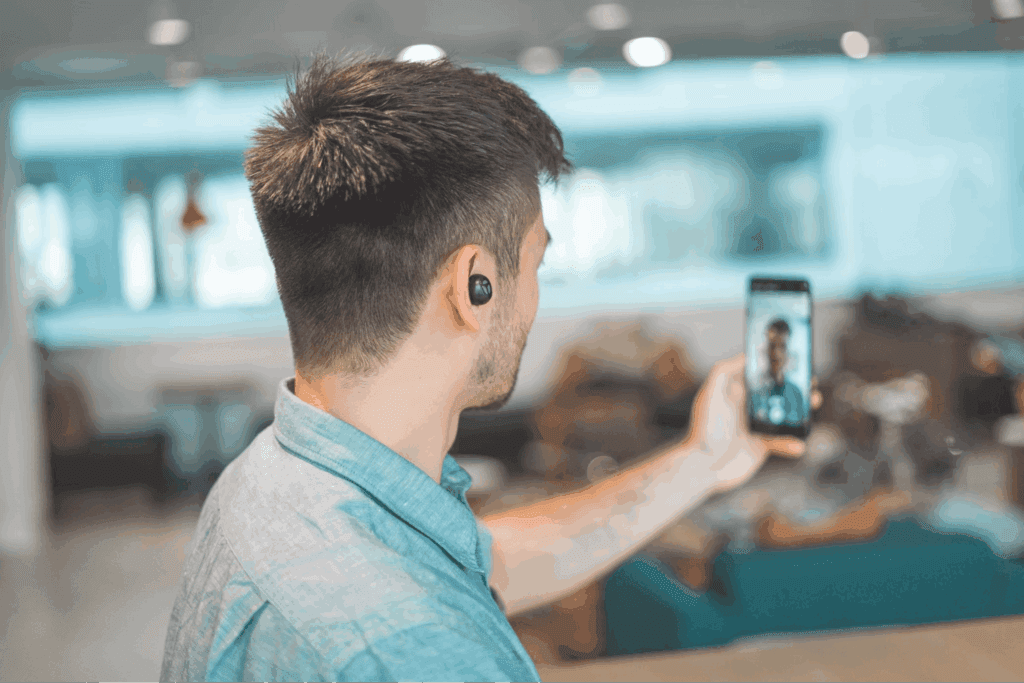
    image2
    https://unsplash.com/photos/shallow-focus-photo-of-man-in-gray-collared-top-taking-selfie-1-Osp6CvhXc

    Instagram loves to see users take full advantage of its features. Reels and IGTV offer more substantial content options beyond the constraints of a single post or Story, allowing you to share longer, more in-depth content. They are attractive tools for storytelling and showcasing different aspects of your brand or personality.

    Reels can be particularly powerful due to their prominent placement in the app and their shareable nature. Incorporating trendy music, engaging visual effects, and relevant content can get your reels noticed not just by your followers, but also by the broader Instagram community.

    Continuously Analyze and Adapt Your Strategy

    Even the best Instagram strategies can become outdated as the platform evolves and user behavior shifts. Therefore, it’s vital to monitor your account’s performance regularly and be ready to refine your approach. Analyze which types of content are resonating with your audience by reviewing engagement rates, reach, and the demographic data of your followers. Use Instagram’s in-built analytics to understand these metrics better or supplement with third-party tools for deeper insights.

    Remember, the algorithm favors accounts that keep users engaged and on the platform for extended periods. By analyzing your most successful posts, you can discern patterns that work and double down on similar content. Likewise, don’t be afraid to experiment with new content types or strategies to keep your feed fresh and engaging. As you iterate, maintain a balance between creative exploration and data-driven decision-making to foster an adaptive, growth-oriented Instagram presence.

    Mastering the art of Instagram marketing is an ongoing process of strategic planning, creative expression, and community engagement. By refining your profile, making informed choices about follower growth, leveraging hashtags, engaging with your audience, exploring collaborative opportunities, and staying adaptable to the platform’s changes, you set the stage for continued success. The tips outlined in this post are your arsenal in the ever-evolving social media landscape. Put these techniques into regular practice, and watch as your Instagram page transforms into a thriving hub for your brand, nurturing both connections and conversions. Remember, on Instagram’s vibrant stage, your brand’s narrative is unfolding one post at a time—make every frame count.

  • Xiaomi HyperOS secret codes: uncover hidden features and more

    Xiaomi HyperOS secret codes: uncover hidden features and more

    For users of Xiaomi smartphones running the Xiaomi HyperOS operating system, there are hidden codes that can unlock additional features and settings, providing a deeper level of customization and control. In this article, we’ll explore some of these secret codes and the functionalities they offer to enhance your Xiaomi HyperOS experience.

    *#06# – IMEI

    Need to check your device’s International Mobile Equipment Identity (IMEI) number? Dial *#06# to quickly access this information.

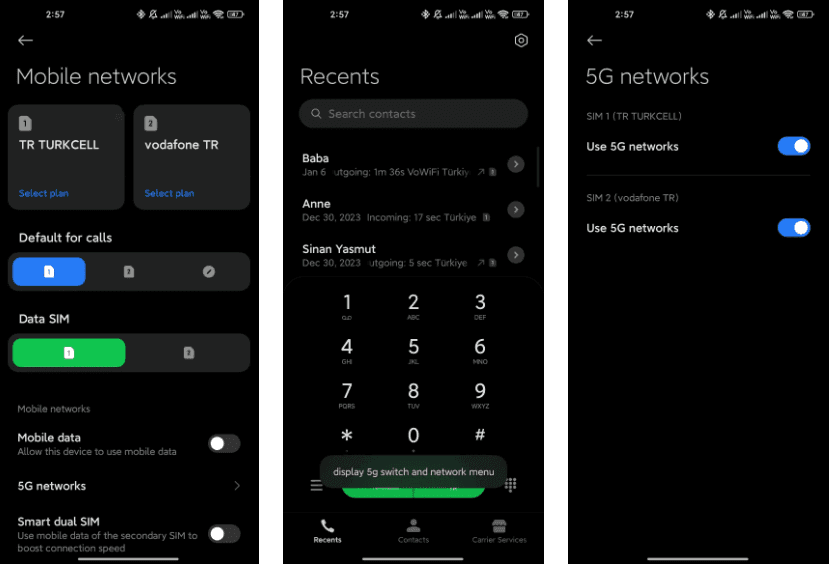
    *#*#*54638#*#* – Enable/Disable 5G Carrier Check

    Toggle the 5G carrier check with this code, giving you control over your network settings and the ability to enable or disable 5G functionality.

    5g switch

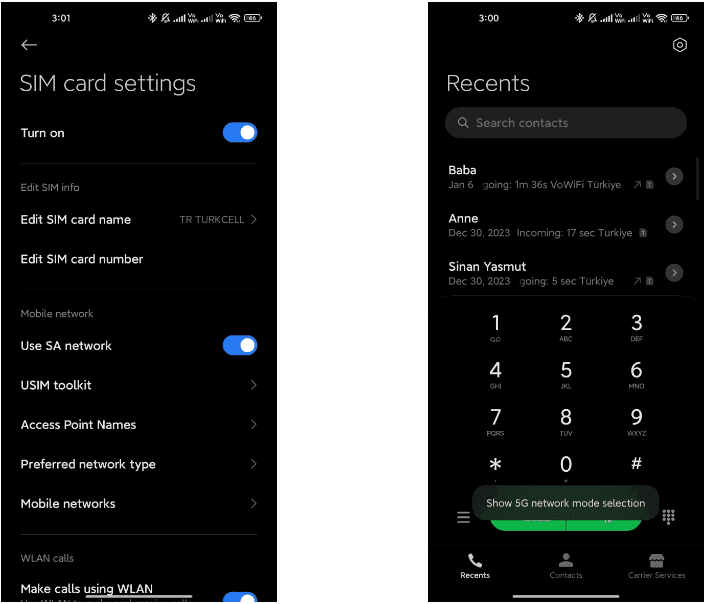
    *#*#726633#*#* – Enable/Disable 5G SA Option on HyperOS

    Unlock the 5G Standalone (SA) option on your network settings using this code, providing more control over your device’s connectivity.

    5g sa

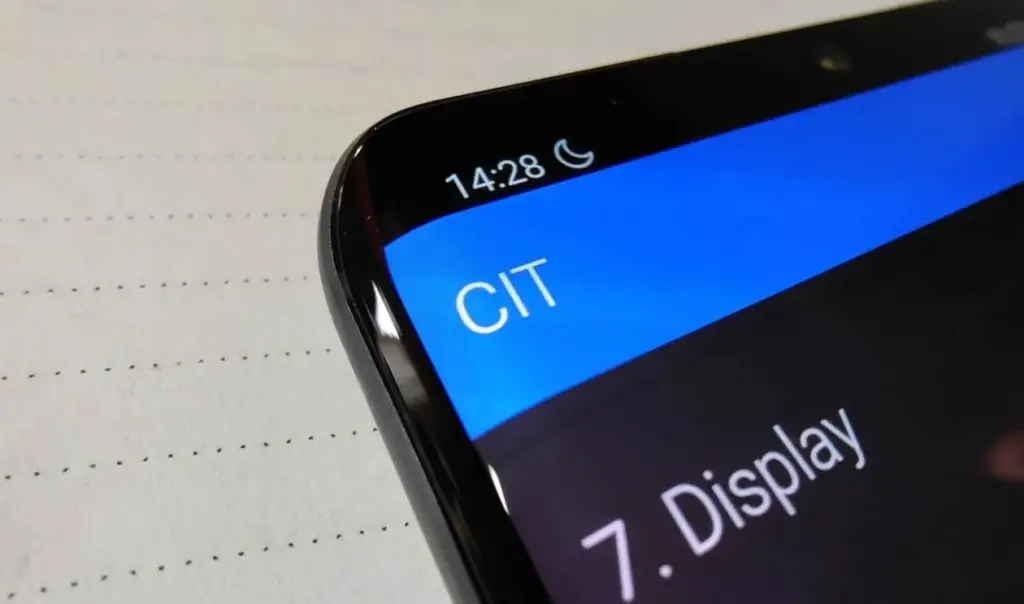
    *#*#6484#*#* – Xiaomi Factory Test Menu (CIT)

    Explore the Xiaomi Factory Test Menu for advanced testing and configuration options.

    xiaomi cit menu

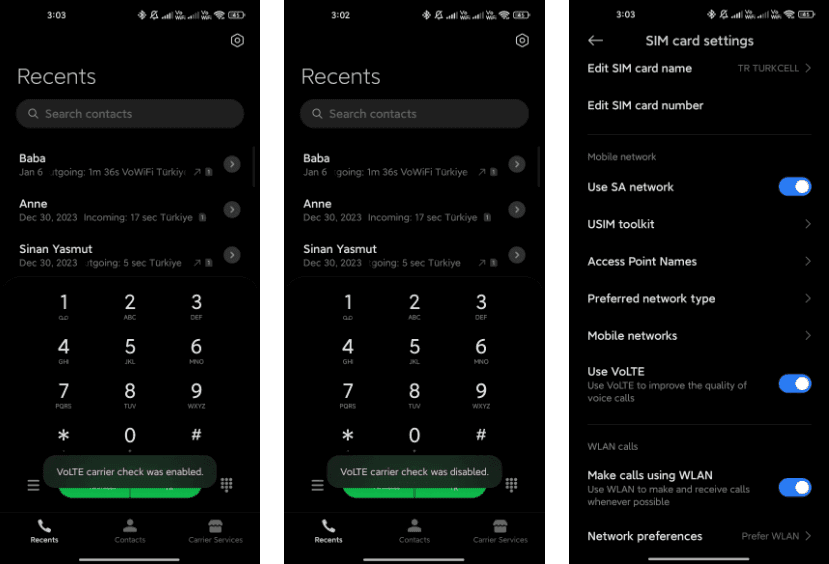
    *#*#86583#*#* –  Enable/Disable VoLTE Carrier Check

    Toggle the VoLTE (Voice over LTE) carrier check to customize your network settings and enable or disable this feature.

    volte carier check

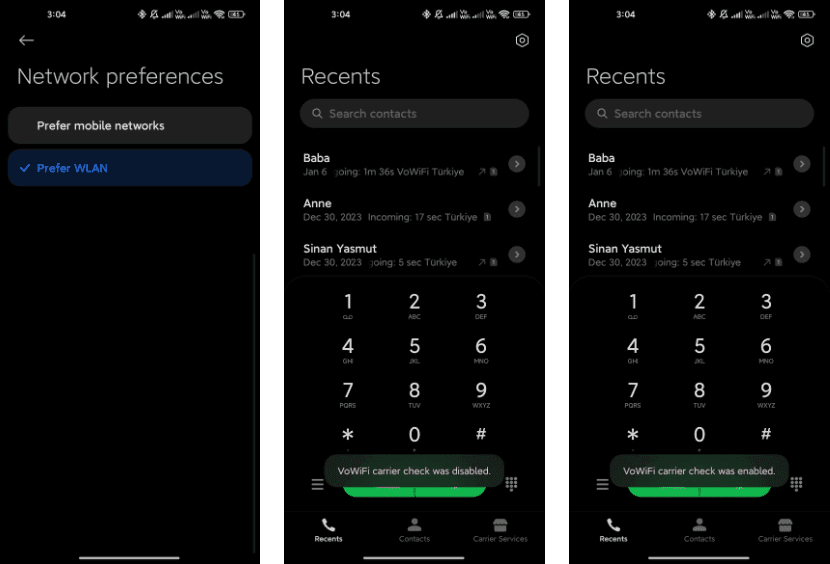
    *#*#869434#*#* –  Enable/Disable VoWi-Fi Carrier Check

    Take control of your Voice over Wi-Fi (VoWi-Fi) settings by using this code to enable or disable the carrier check.

    wofi

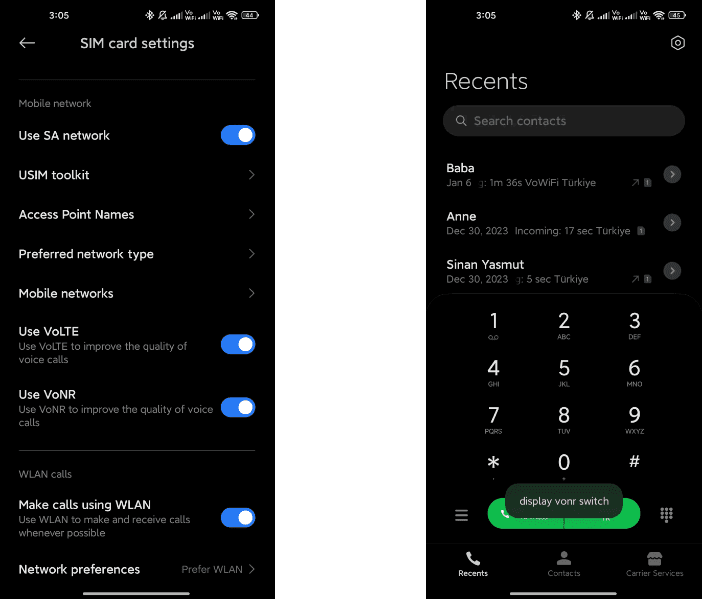
    *#*#8667#*#* – Enable/Disable VoNR

    Manage Voice over New Radio (VoNR) settings with this code, providing more options for your device’s voice capabilities.

    vonr

    *#*#4636#*#* – Network Information

    Access detailed network information to check your device’s status and connection details.

    *#*#6485#*#* – Battery Information

    Get insights into your device’s battery, including cycle information, actual and original capacity, charging status, temperature, health status, and charging protocol type.

    6485.jpg

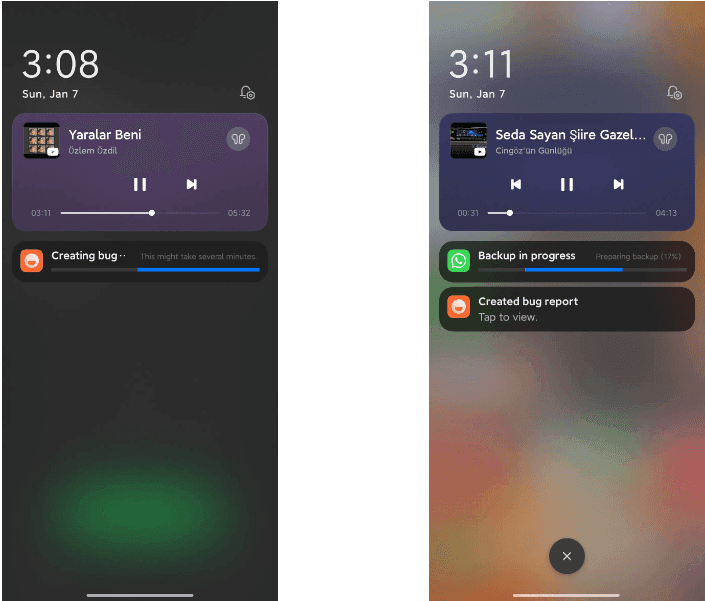
    *#*#284#*#* – Capture System Log

    Generate a BUG report to capture system logs, providing valuable information for debugging purposes. The report is saved in the MIUI\debug-log\ folder.

    system log

    *#*#76937#*#* – Disable Thermal Check

    Turn off thermal checking with this code, potentially preventing your device from throttling performance due to high temperatures.

    *#*#3223#*#* – Turn on DC DIMMING Option

    Activate the DC DIMMING option using this code, allowing you to adjust the display settings for a more comfortable viewing experience.

    Unlock the full potential of your Xiaomi device with these secret codes, and improve your Xiaomi HyperOS experience. These hidden codes offer Xiaomi HyperOS users a range of functionalities, from network customization to battery insights and advanced testing options. Users should exercise caution and be mindful of potential impacts on device settings while exploring these codes.

  • 3 methods improve your Android device performance

    3 methods improve your Android device performance

    If you paid a lot of money for your Android phone, it can be really annoying when it lags or performs poorly.

    There are three secret options on your device that you may adjust to improve performance if you are experiencing slow app loading times or a slow device overall.

    Limit background processes

    Numerous background-running apps are one of the main causes of slow phone performance. Even when you are not using them, these apps are continuously using resources, which can cause your phone to slow down. Fortunately, Android comes with a built-in feature to limit background activity.

    You can experiment with different values to find the one that works best for your device.

    By reducing background activity for apps that are not used frequently, you can free up resources for the apps that you do use, which will make your experience faster and smoother.

    To test this feature, go to Settings and then select Developer Options. From there, tap on Background Process Limit and set a process limit between 0 and 4.

    Remove old files

    remove old files on android

    One of the best ways to make your device feel brand new is to remove all of your old apps and files.

    These take up valuable space and no longer serve any purpose for you.

    The easiest way to manage the storage on your phone is to use the Files app, which you can access by swiping up from the bottom of the screen to open the Android app drawer, then tap My Files (also known as File Manager).

    From there, you can access your downloads, documents, images, audio, and other files.

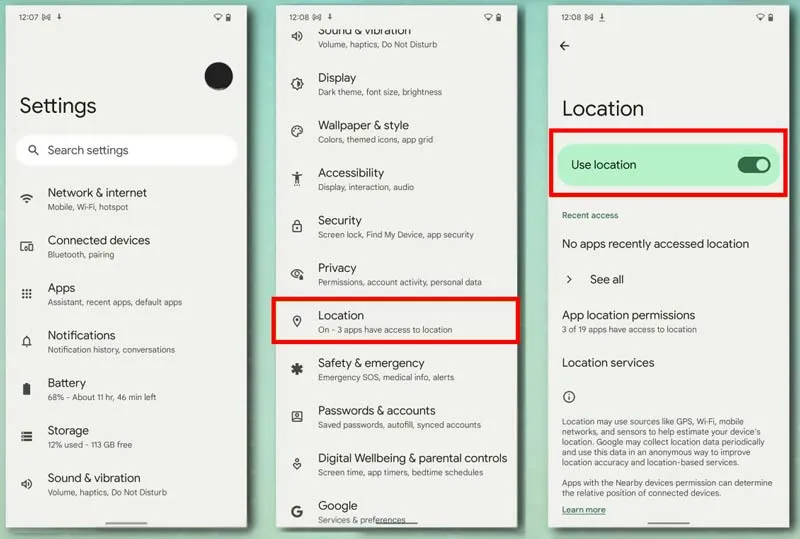
    Disable location services for better performance.

    turn off location on android

    You can see which apps are using location on your iPhone by going to Settings > Privacy > Location Services.

    Many smartphone apps use your location to improve your experience while using them.

    However, this service frequently drains your phone’s battery and ultimately shortens its lifespan.

    By turning it off, you not only better secure your privacy but also improve your phone’s battery life.

  • How to boost your phone charging speed

    How to boost your phone charging speed

    You are not alone if you have ever found yourself tethered to a charger, watching the battery bar slowly but surely creep towards a usable level. But fear not, fellow Android users – this guide is your road map to victory, filled with useful tips and tricks to turn your phone into a charging champion!

    Gone are the days of excruciatingly slow refills and battery anxiety—we are about to unlock the secrets to lightning-fast boosts that get you back online, streaming, and snapping in no time at all! Say hello to a world of stress-free power-ups!

    Wire will charge you faster.

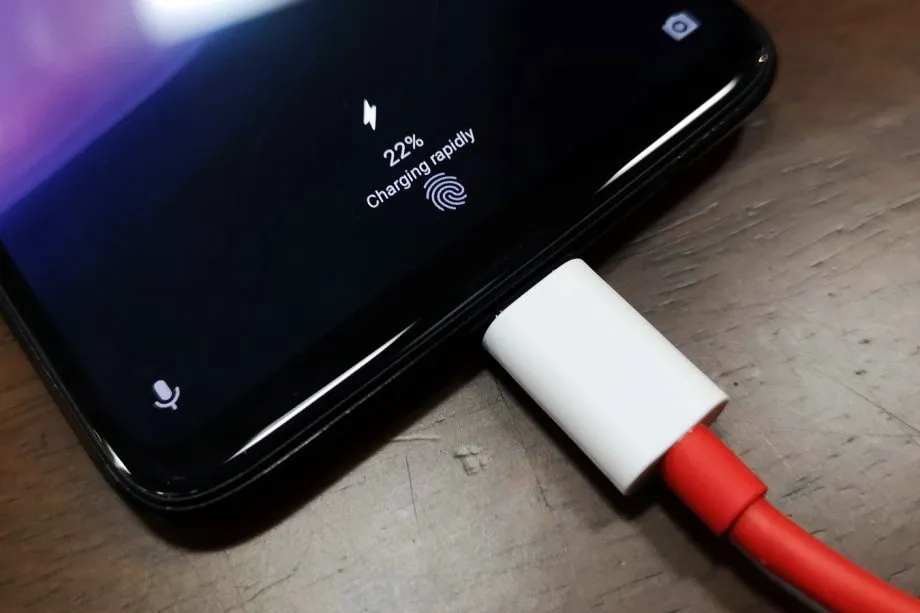
    The Realme GT 3 boosts an impressive 240W charging speed, theoretically allowing a 0 to 100% charge in less than 10 minutes. Some Samsung phones can reach 45W with USB charging. Wired charging is normally faster than wireless charging. Android phones typically reach their highest charging speeds through USB-C, often reaching speeds of over 20W. In contrast, wireless charging is usually limited to 10 to 15W.

    Additionally, USB-C is generally regarded as more dependable than wireless charging. While technologies like Qi2 with magnetic locking aim to address these issues, USB-C remains the more robust and dependable option. Wireless chargers rely on precise coil alignment for efficiency, and there is always a chance that a slight bump will displace your phone or knock it off the charger completely.

    If at all possible, turn off your smartphone to expedite the charging process.

    The best way to reduce battery life is to completely shut down your phone. Even in this case, it should continue to charge as fast as possible, so when it is connected to a compatible charger (which we cover in the next section), this provides the fastest possible charging scenario. The disadvantage is that you can not keep track of how fast your phone is charging, and you can not use apps or check notifications, so some people may decide not to use this option. If you are worried about receiving important messages from family or work, we strongly advise against using this method.
    Use a direct power brick instead of a power bank or computer.

    1. Only dedicated chargers guarantee fast wired charging:

    • While newer USB 3.x and 4.x ports can support super-fast charging (up to 240W) using a technology called USB-PD, they rarely reach that speed.
    • Most computer USB ports and portable power banks, even fancy ones, usually offer much slower charging than your phone’s dedicated charger. This is because they often lack the necessary power output capabilities.

    2. Dedicated chargers are the safest and most reliable option:

    • While exceptions like the Anker Prime exist, relying on non-dedicated chargers for fast charging introduces risk and uncertainty.
    • Your phone’s original charger or a high-quality replacement designed for your specific model are the safest and most reliable way to ensure optimal charging speed without damaging your phone’s battery.

    So, for the best, fastest, and most reliable wired charging experience, stick with your phone’s dedicated charger whenever possible.

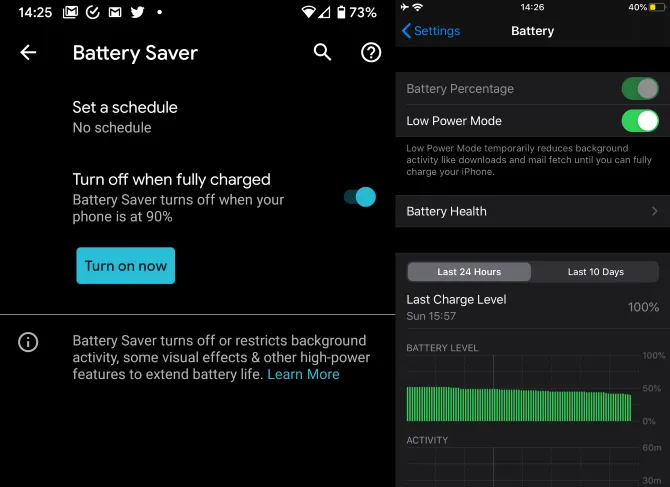
    charge speed and schedule

    Low power mode (also known as Battery Saver on most Android devices, though the name may differ on your phone) is the best option if you do not want to or are unable to turn off your phone. It helps save battery life by turning off certain functions and background activities, extending the time between charges.
    The low power mode on your phone can do a number of things, like accelerating the screen’s shut-off time, decreasing background sync activity, downgrading from 5G to 4G, and restricting the use of power-hungry apps. Pixel phones also have an Extreme Battery Saver mode that goes one step further, decreasing CPU speed and disabling notifications for apps that are paused. You may not use it constantly, but it is a way to concentrate on charging while maintaining access to critical features.

    Disable unused features

    While a phone’s screen and processor use up a lot of energy, wireless technology can also consume a significant amount, especially if your phone is frequently downloading files or searching for available networks.

    Using Airplane Mode is the easiest way to turn off wireless radios, but it is not always the best option because it usually disables Bluetooth and Wi-Fi in addition to cellular data, which can be problematic if you need to use wireless earbuds or have an internet connection. You may need to adjust the Airplane Mode settings or use Quick Settings to turn off individual radios that are not in use. For example, if you are going to be away from home, you can probably disable Wi-Fi unless you need it for hotspots or Android Auto.

    To increase the charging speed, do not use your smartphone while it is charging.

    Playing 3D games like Fortnite or PUBG Mobile can severely deplete your phone’s battery. It is important to emphasize that the more tasks your phone completes, the more power it will use. If at all possible, find something else to do with your time until you need to respond to important calls and messages.

    Keep your phone cool while charging

    The ideal temperature range for charging a phone is between 50 and 86°F (10 and 30°C). To make sure your phone stays in this range, try moving it out of direct sunlight, putting it near a fan, or taking it out of its case—especially if the case is insulating, like a leather wallet case. Keep in mind that your phone naturally warms up during charging, so if it is already close to the upper limit, charging could push it out of the ideal zone.

    In other cases, you might need to warm up your phone; for instance, a case that might be problematic in a Texas summer could be ideal for a cold winter in Ontario.

  • Blocking Blue Light on Android: tips and tricks for eye health

    Blocking Blue Light on Android: tips and tricks for eye health

    Blue light is a type of high-energy visible (HEV) light with a short wavelength in the visible light spectrum. It is part of the light emitted by the sun and various artificial light sources. Blue light is known for its stimulating and alertness-inducing properties, which can be both beneficial and potentially harmful.

    The primary source of blue light on Android devices is the screen display. Android smartphones and tablets emit this light from their screens to produce vibrant and colorful visuals.

    Most Android devices use LED (Light Emitting Diode) backlights for their screens. These backlights emit the light to create the white light that illuminates the screen. The intensity of blue light emitted by LEDs can vary depending on the device’s settings and brightness.

    The content displayed on Android devices, such as apps, websites, and videos, can contain varying degrees of blue light. For example, websites with bright backgrounds and certain apps may have a higher concentration of this light.

    Android operating systems often include features like adaptive brightness and night mode settings. These features can adjust the amount of blue light emitted by the screen based on the time of day and user preferences.

    The importance of addressing blue light exposure for eye health

    In our increasingly digital and screen-centric world, the exposure to blue light, especially from smartphones, tablets, and computers, has become a major concern for eye health. Here’s why it’s crucial to address this light exposure:

    1. Digital Eye Strain: Prolonged exposure to digital screens, which emit blue light, can lead to digital eye strain or computer vision syndrome. This condition includes symptoms like eye fatigue, dryness, redness, and blurry vision. It can cause discomfort and reduce productivity.
    2. Sleep Disruption: Blue light, particularly in the evening, can interfere with our natural sleep-wake cycle. It suppresses the production of melatonin, a hormone that regulates sleep. Exposure to blue light before bedtime can make it harder to fall asleep and negatively impact the quality of sleep.
    3. Potential for Long-Term Damage: Some studies suggest that prolonged exposure to blue light, especially from screens held close to the eyes, might contribute to long-term eye health issues. This includes concerns about the development of age-related macular degeneration (AMD), a leading cause of vision loss.

    Children and adolescents are increasingly using digital devices, and their eyes are more susceptible to damage from the light due to their clearer lenses. Addressing blue light exposure is particularly important for this age group to protect their developing eyes.

    Reducing the light exposure can enhance overall eye comfort, especially for individuals who spend extended periods in front of screens. This is crucial for professionals, students, and anyone who relies on digital devices for work or entertainment.

    To safeguard eye health, it’s essential to take measures to reduce the light exposure, especially during the evening and night time hours. This can be achieved through software settings, apps, screen protectors, and adopting healthy screen usage habits. Prioritizing eye health in the digital age is a proactive step toward maintaining comfortable vision and preventing potential long-term eye problems.

    With an Android device, there are essentially two ways to turn on Night mode or the blue light filter. You can either utilize some third-party apps or the OEM’s standard built-in blue light filter. If there isn’t a built-in filter, the latter is your only practical choice. Let’s examine both of these choices closely and discover how to use them.

    If your device doesn`t support any of the option above there is another way to block the blue light with blue light glasses.

    Let’s dive into our options:

    Enable native blue light filter in Android Devices

    The majority of Android smartphone manufacturers have developed unique user interfaces. The user interface has been altered and customized even though they are based on stock Android. The filter may therefore be available in Night mode, Read mode, etc.

    A step-by-step tutorial for turning on the blue light filter on your device is provided below.

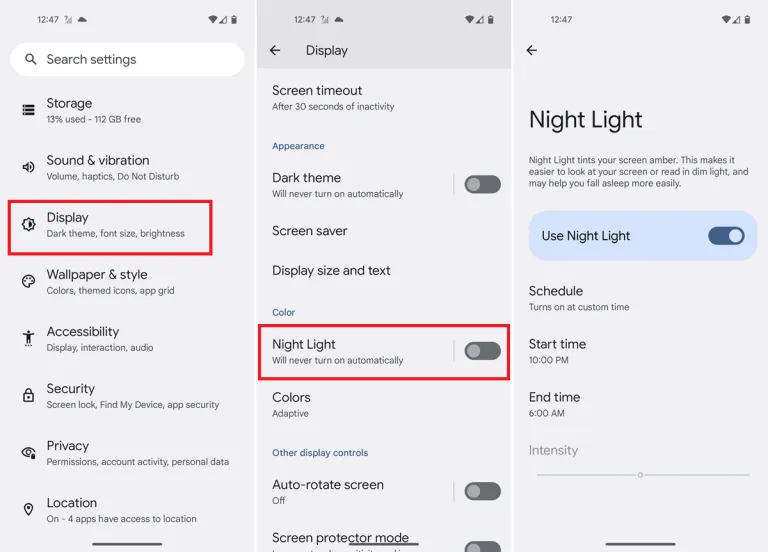
    You should typically be able to schedule the feature and change the color temperature to your preference. You can modify the color temperature with the Intensity or Opacity options, while the Schedule option lets you schedule when it turns on and off.

    1. Go into your phone settings and open your Display settings.
    2. From here, you should be able to see a section labeled Blue light filterNight shift, or Eye comfort shield, among others. The name changes depending on what phone you’ve got.
    3. Here, you can adjust the color temperature of your screen, turn the blue light filter permanently on, or set a schedule.
    4. When setting a blue light schedule, you can choose between an automatic sunset-to-sunrise schedule or a custom schedule.
    5. If using the sunset-to-sunrise schedule, then your location service will need to be on for your phone to know at which time the sun rises and sets in your local area.
    6. If setting a custom schedule, then you will be able to manually select at what time you would like the blue light filter to turn on and turn off each day.
    blue light filter

    Use third-party apps

    If a built-in blue light filter is not available, you can easily get an app for it from the Play Store. There are thousands of free third-party apps available that will turn on your phone’s blue light filter. A shortcut can be added to the home screen or quick access settings, the filter’s color can be selected, the strength can be changed, and other functions are available in some of these programs. We will go over some of the top third-party apps in this section that are offered on the Google Play Store.

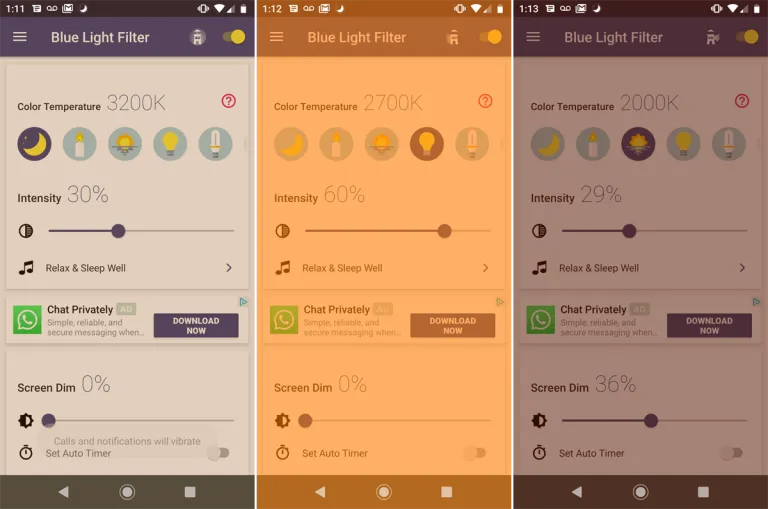
    Bluelight Filter

    blue light filter

    An outstanding program that provides far more than your default blue light filter is called Bluelight Filter. To use as a filter, you can pick from a variety of hues and hue combinations. Many people find the default green filter to be more calming than the normal yellow filter. The filter’s strength is another option. Also, it enables you to add a one-tap button to the Quick access settings and a toggle switch widget to the home screen. We advise everyone to check out this simple and lightweight program once.

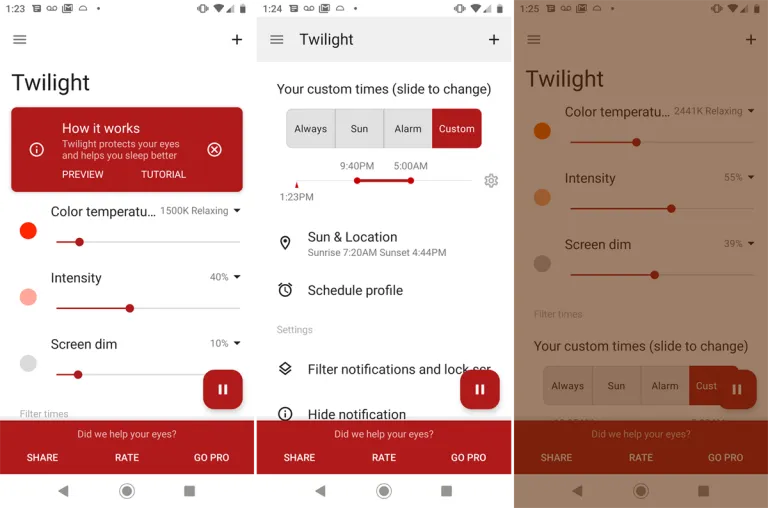
    Twilight

    twilight blue light filter

    Another widely regarded free blue light filter software is Twilight. Both PCs and smartphones can use it. Instead of the conventional yellow light filter, it has a red one. Sliders can be used to change the screen dim, color temperature, and intensity. The app makes the claim that it would enhance melatonin secretion and the sleep cycle.

    sFilter

    sfilter blue light filter

    Using this app, you may manually activate a blue light filter or schedule it to activate and deactivate at predetermined periods during the day or night. The filter’s hue, opacity, and brightness are all adjustable. To enable the filter without opening the program, you may even build a shortcut icon or widget.

    Blue light glasses

    13798 19032 800

    Using blue light glasses on all devices offers a multitude of benefits for both short-term comfort and long-term eye health. These specialized glasses effectively reduce eye strain caused by prolonged screen exposure, making it more comfortable to work, study, or enjoy entertainment on digital devices.

    By filtering out a portion of the potentially harmful light emitted by screens, they contribute to improved visual comfort, reducing symptoms like eye fatigue and headaches. Additionally, wearing blue light glasses in the evening can promote better sleep quality by minimizing disruptions to the body’s natural sleep-wake cycle.

    These glasses are particularly advantageous for children and adolescents, whose developing eyes are more susceptible to the effects of this light. Overall, blue light glasses are a practical and proactive solution to address the challenges posed by our modern screen-centric lifestyles, enhancing both immediate well-being and the long-term health of our eyes.

    Conclusion

    The advantages of preventing blue light from electronics are apparent, and they include both short-term comfort and long-term wellbeing. Digital eye strain can be considerably reduced by taking proactive steps to decrease its exposure, such as utilizing filters, blue light-blocking eyewear, or changing device settings. In turn, this improves our comfort and productivity while using screens for extended periods of time.

    Also, limiting exposure to nighttime helps to maintain a balanced sleep cycle, encouraging improved slumber and general wellness. Safeguarding our eyes against the potential long-term consequences of blue light is a critical investment in our future vision and eye health, especially for children and teenagers. In a time when digital gadgets play a significant role in our lives, reducing the negative effects is a sensible and proactive move that will make using digital devices more comfortable and healthy.

  • Wipe your Android smartphone before selling it or trading it in

    Wipe your Android smartphone before selling it or trading it in

    Are you planning to purchase the newest Samsung phone, or are you a bigger Pixel fan? You’ll want to reset your old Android phone to factory settings in order to remove all of your data before selling it on eBay, giving it away to a friend, discarding it, or trading it in for a discount on your new phone. Fortunately, doing that is fairly simple.

    Before you begin, keep in mind that while the process for the most of recent Android phones should essentially be the same, these instructions were tested on a Pixel 3 running Android 12. It goes without saying that you should first confirm that all of your data has been moved to your new phone, backed up, or both. No turning back after your previous phone has reset.

    • Go to Settings
    • Select System > Reset options
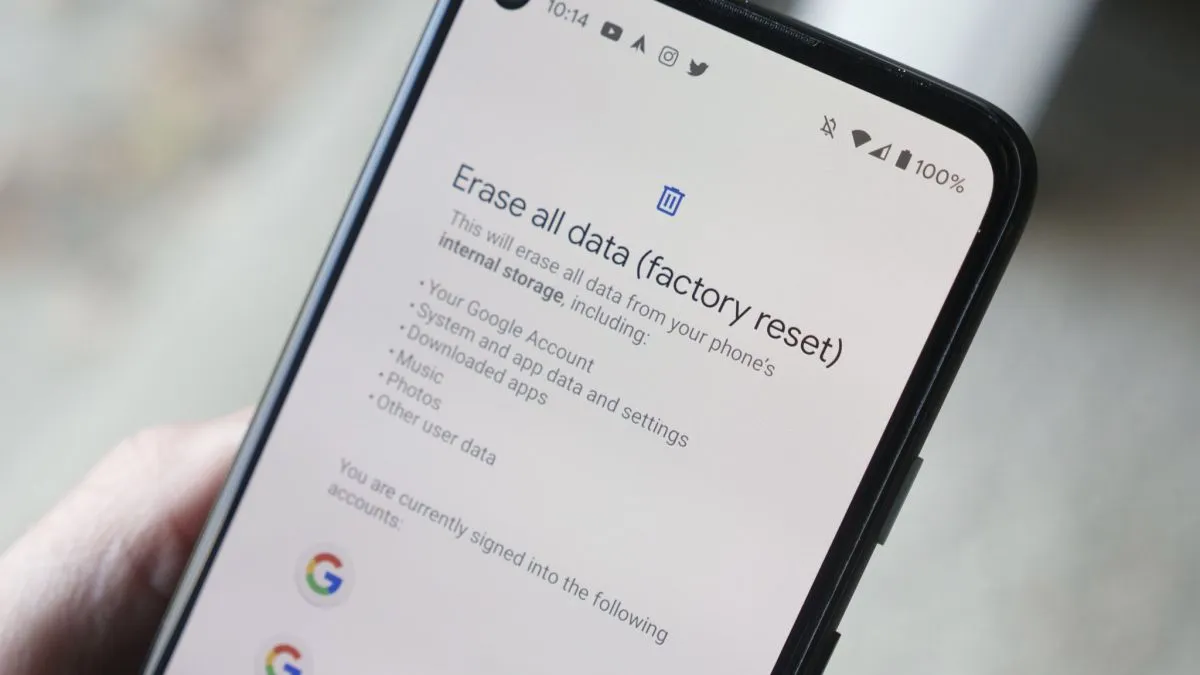
    • You will be presented with four choices. Reset Wi-Fi, mobile & Bluetooth is sometimes useful if you’re having trouble with connectivity. Reset app preferences will restore all of your app and notification defaults, among other things. Erase downloaded SIMs will help you delete any digital SIMs you no longer need. However, none of these will delete the data on your phone. That’s the job of the last choice, Erase all data (factory reset), and that’s the one you’re going to select.
    • The next screen will tell you what is going to be erased, and which accounts you’re signed into. Select Erase all data.
    • If you have a PIN or some other security setup, you’ll be asked to enter it
    • You’ll get another screen asking if you’re sure this is what you want to do. Are you sure? Then hit the Erase all data button.

    I’m done now! Typically, the procedure takes two to three minutes. After rebooting, your phone will ask you the customary questions about language, account, network, etc. When you see those, you’ll understand that it was successful.

    There are several things to keep in mind. Before you can reset your Samsung phone, you could first be prompted for your Samsung account password (provided you’ve made one and connected it to the device).

    If you’ve got an Android phone that is using an earlier version of the OS (say, before version 8), the reset may, after it reboots, ask for your login. This could be awkward if you’ve already sent the phone to someone else. As a result, if you’ve got an older phone, it’s a good idea to turn off your screen lock (by going to Security > Screen lock and selecting None) and deleting your Google account (which you’ll find at Settings > Account > Google) before you start the reset. (In fact, that may be a good idea in any case.)

    There is evidence that some data may remain on a phone even after it’s been reset. To be extra careful, you can encrypt the phone before resetting it:

    • Go to Settings > Security > Encryption & credentials and select Encrypt phone
    • Go back to your settings and start the reset process
  • How to increase touch sensitivity on a Android device

    How to increase touch sensitivity on a Android device

    To ensure optimal usability, smartphone makers tune the default touch sensitivity. However you might think it’s too low and have trouble with simple navigation. Poor calibration, low refresh rate settings, a thick screen protector, dampness, and other factors may all contribute to it. For your top budget phone, the majority of Android OEMs (original equipment manufacturers) provide pertinent alternatives to improve touch sensitivity.

    When the touch screen on your Android phone doesn’t respond to your touches correctly, you may expect a below-average experience. Such delays in touch annoy and perplex you. Use the tips below to increase the sensitivity of your Android phone before you trade it in for an iPhone.

    Increase touch sensitivity on Android

    A screen protector is one of the must-have accessories to protect your Android phone’s expensive display. However, many have noticed a degraded touchscreen sensitivity after applying tempered glass on their Android devices. If you are among them, make a tweak from Settings.

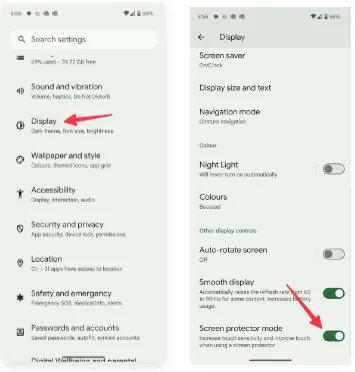
    1. Open Settings on your Android phone.
    2. Scroll to Display.
    3. Turn on the Screen protector mode toggle to increase the sensitivity level.
    touch sensitivity

    Increase touch sensitivity on Samsung Galaxy phones

    We talked about the default Settings menu that’s preinstalled on most Android phones, including the Google Pixel. Samsung uses a different Settings menu on One UI software. If you have one of the top Galaxy phones, use the steps below to change touch sensitivity.

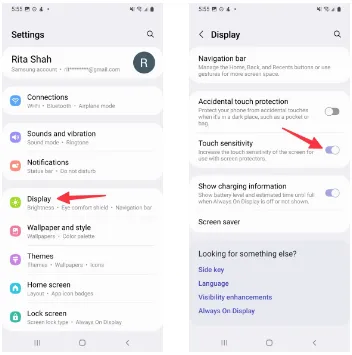
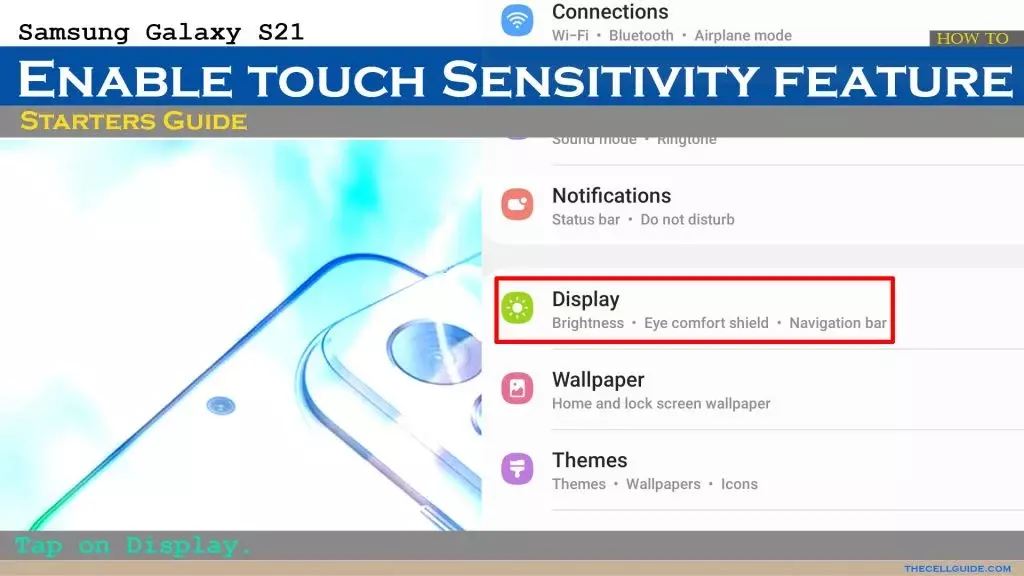
    1. Open Settings on your Samsung phone.
    2. Select Display and turn on the Touch sensitivity toggle.
    samsung display sensitivity

    Increase display refresh rate

    Did you set your mobile device’s refresh rate to 60 Hz instead of 120 Hz? To increase the battery life of their phones, many people lower the panel refresh rate. Nevertheless, switching back to 60 Hz after being accustomed to a refresh rate of 120 Hz or greater can impair your experience with touch sensitivity. It’s time to switch your Android phone to a high refresh rate.

    1. Open Settings and go to Display.
    2. Turn on the Smooth display toggle.

    Samsung phones

    Samsung users can go through the steps below to increase the refresh rate.

    1. Launch Settings and scroll to Display.
    2. Select Motion smoothness.
    3. Tap the radio button beside Adaptive.

    If your LTPO (low-temperature polycrystalline oxide) display automatically adjusts the refresh rate, you can adjust the Developer settings to force the peak refresh rate, which will enhance the quality of your animations and touch responsiveness.

    Increase pointer speed on Android

    Do you notice lag while using a Bluetooth mouse on your Android phone or tablet? You can change the pointer speed and wheel scrolling speed from Settings.

    1. Launch the Settings app and scroll to General management.
    2. Select Mouse and trackpad.
    3. Use the slider to increase the pointer speed and wheel scrolling speed.

    We used screenshots from a Samsung phone. The steps may change on your Android, OnePlus, or Google Pixel phone. On some phones, it’s often a part of the accessibility menu.

    Use a high-quality screen protector

    Did you buy a screen protector from a sketchy Amazon listing? These below-average screen protectors often cause issues with touch sensitivity even when you increase the touch sensitivity from Settings.

    You should stick to reputed names or opt for the official tempered glass from the OEM for your Android phone.

    Use phone-compatible gloves

    Traditional gloves don’t often play nice with modern smartphones. If your region has snowfalls during the winter, get a pair of gloves that are compatible with your smartphone.

    Let your phone cool down

    If you use your phone after a long gaming session or recording a lengthy 4K clip, the device temperatures go abnormally high, and you may face issues with touch sensitivity for a while. You may also notice lag with basic scrolling on the homescreen or the web page. Let your phone cool down and use it after some time has passed. The issue is more apparent on phones with poor cooling systems.

    Can you use third-party apps to improve touchscreen response speed?

    The Google Play Store is packed with third-party apps that claim to improve the touchscreen response speed and sensitivity of your screen during gaming. You should always take such apps with a pinch of salt. They also advertise calibrating the touchscreen to factory settings. Most of these apps are paid and may not work as expected. If you face this issue, get a refund from the Google Play Store.

  • How to Crop a Video on an iPhone: A Brief Guide

    How to Crop a Video on an iPhone: A Brief Guide

    Do you want to get creative with videos and crop them to share online? If so, you’ve come to the right place.

    Let us show you how to edit a video on iPhone with just a few taps. And since this task only takes a few minutes to complete, you can create fun and exciting videos in no time!

    All you need to do is follow our brief guide, and you’ll have the perfect cropped video in no time at all. So keep reading!

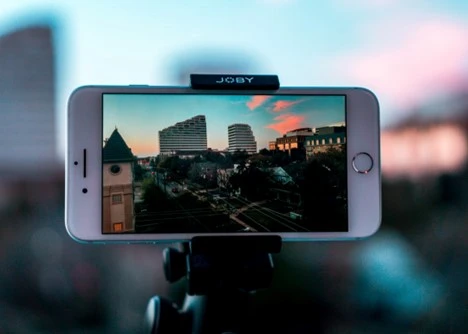
    crop a video on a iphone

    Navigating the Video Cropping Feature on iPhone

    To crop a video on an iPhone, start by opening the Photos app. Select the video you wish to crop, and tap on it to open.

    Next, click on ‘Edit’ found in the top right corner. Once you have entered the editing mode, you can select from the available editing features near the bottom of the screen.

    Select ‘Crop’ and adjust the video framing to the desired size. After making your desired changes, click Done in the top right corner and save the changes.

    Your cropped video is ready to be watched, shared, and more! To save the modified video, tap’ Done’ in the upper right corner, and the cropped video will be saved in your Camera Roll.

    Tips on Adjusting Cropping Parameters

    If you want to crop a video on an iPhone, these tips on adjusting cropping parameters can help you do so quickly and hassle-free.

    To zoom in and out, use a two-finger pinch gesture on the video until it is framed as desired, then tap Done. If you want to adjust the size of the crop, tap the crop icon found in the upper-right corner of your iPhone’s screen and enter specific dimensions.

    After you make your desired adjustment, tap Done.

    Adding Text and Other Elements to Your Cropped Video

    To add text and other elements to your cropped video, launch the iMovie or Clips app, select the video, and tap the ‘Text’ button.

    Choose the desired type of text, enter the desired words, and tap ‘Done.’ You can also add image or video clips, stickers, background colors, and other elements. To move elements around, use the ‘Edit’ button.

    When you’re happy with the look of your video, tap ‘Done’ to save your work.

    Best Practices for Sharing Your Cropped Video

    The best practices for sharing your cropped video include making sure the size of your frame corresponds to the platform where you want to share the video. For example, if you plan to upload to YouTube, your frame should be 16:9.

    Additionally, pay attention to any guidelines for the length specified by the platform, and consider your audience. For example, it’s a good idea to include closed captions or subtitles if you plan to share your cropped video with a global audience.

    You must also ensure the video file types are in the correct format. Usually, mp4 is the desired type. So be sure to use the best MP4 converter offerings for awesome results.

    Finally, review the video one last time before sharing it to ensure you are happy with the final product.

    Learn How to Crop a Video on iPhone Today

    Cropping a video on an iPhone is incredibly easy to do just open your editing app, select the video you’d like to crop, and make your adjustments. Now that you know how to crop a video on iPhone, go ahead and give it a try!

    Experiment with the different effects and get creative with your video projects!