Tag: android 12

  • Themes are coming to MIUI 13

    Themes are coming to MIUI 13

    Many of us have wanted the customization layers to merge with Android 12 since it was announced and the new mechanism for customizing mobiles with that version was released. The first to add it to One UI 4 in its own unique way was Samsung, and the next to do so will be Xiaomi, according to a leak shared on Twitter by user Mishaal Rahman.

    This has discovered within the Android internal code that the so-called Monet themes, which are hallmark of the purest version of Android, will also be in the Chinese manufacturer’s popular layer.

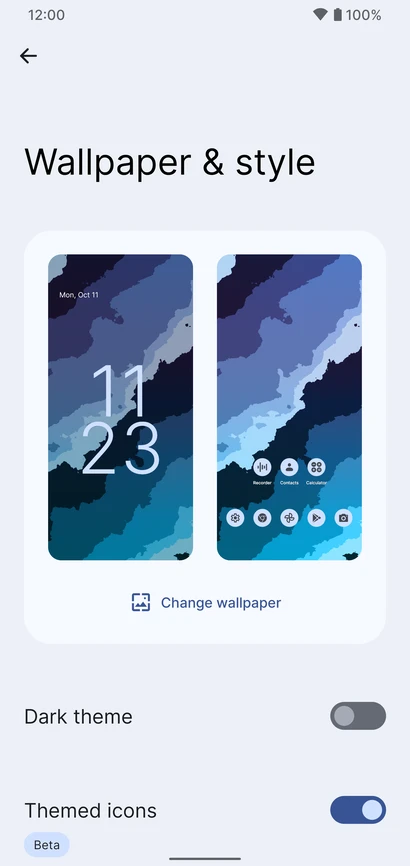
    A very important change, which gives more personality to Xiaomi brand mobiles, which with the themes already gave us a thousand and one possible style configurations. The colors are based on the wallpaper, but we can also choose our favorite combination of tones.

    The color arrives at Xiaomi

    Because of the photographs supplied by Xiaomi ui, we currently know how they operate and how they will behave on the Xiaomi’s smartphones, but it shouldn’t be long before we see additional circumstances where the adaptive colors of Android 12 reach Xiaomi smartphones. The feature is included in MIUI 13 version 22.1.17, which is currently only available in China.

    This option will be available to everyone in the future, albeit we will have to wait because it will not be included in the first global editions of MIUI 13. The program will be released later, allowing us to customize the appearance of our Android phone as if it were a Google Pixel.

    colores temas android 12 xiaomi miui 12 1

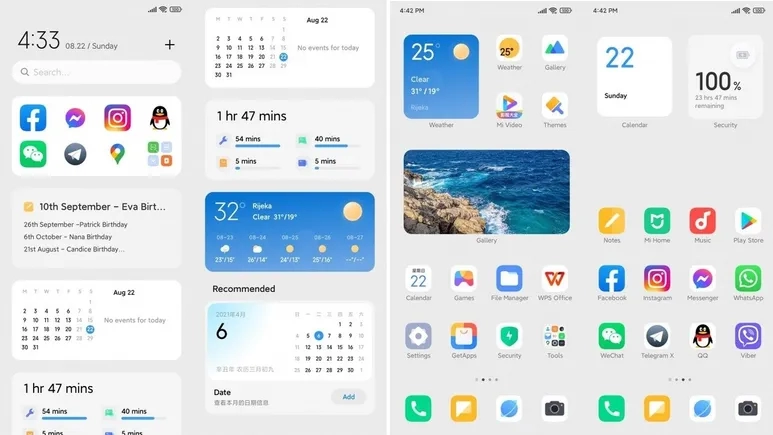
    The images show how the new Android 12 widgets, as well as Google Chrome tabs and even system components, adapt to the selected hue. All Google applications are expected to accept this shift, and we will gradually learn how other areas of the Xiaomi, Redmi, and Poco terminals will follow suit.

    For the time being, devices running Android 12 in its stock form can apply Monet themes to the icons and control panel, which is not possible with MIUI 13. However, we do not give up hope that they will arrive following this first application.

    What will happen to the themes?

    Until now, the best way to change the look of our Xiaomi device was to use MIUI’s themes app. We may find many other style combinations there, which we can customize to our liking on the smartphone by changing the icons, colors, and shapes. The incorporation of this new Android function raises a lot of questions about what will happen with this benefit.

    In recent months, the app has stopped integrating as many options in Europe, and some notable themes have been left alone in China.

    This could be the first step for Xiaomi to become more pure, at least for Spain and other countries, where stock Android is preferred and other systems that are visually much more complex are less popular.
  • Sony releases Android 12 stable for Xperia 1 III and Xperia 5 III

    Sony releases Android 12 stable for Xperia 1 III and Xperia 5 III

    Samsung, Xiaomi, Oppo, OnePlus, and Motorola, among others, have already revealed their Android 12 rollout plans, with Samsung in particular updating its massive smartphone array across geographies at a breakneck speed. Sony has entered the party with their own schedule (if you can call it that), albeit without any precise device timelines. Regardless, the stable Android 12 release for the Xperia 1 III and Xperia 5 III flagships is now available.

    Sony releases Android 12 stable for Xperia 1 III and Xperia 5 III

    The Sony Xperia 1 III and Xperia 5 III are among the most recent devices to receive Android 12, with build version 61.1.A.1.149 and the December 2021 security patch instead of the one for this month (per XDA-Developers). According to reports, the update is presently being given out in Russia, but only to Asian dual-SIM editions of the Xperia 1 III and Xperia 5 III with version numbers XQ-BC72 and XQ-BQ72, respectively.

    We’ll have to wait and watch when other regions get the upgraded firmware because Sony failed to release a thorough global distribution strategy. The update does not yet have a device-specific changelog, but you can reasonably assume that it includes all of the new features listed on the company’s rather generic Android 12 support page.

    ezgif.com gif maker 7

    For those unfamiliar, Sony’s version of Android is minimal and only makes a few tweaks to the AOSP build Google distributes to Android OEMs. The company does, however, improve the experience by using a unique 21:9 aspect ratio.

    If you have an Xperia 1 III or Xperia 5 III and haven’t received the OTA update yet, go to Settings > Software update to manually check for it. Long screenshots, one-hand mode, increased privacy and security, and, of course, Material You should all be available after you upgrade your handset to Android 12.

    Source: Sony

  • Xiaomi 12 series will launch next week alongside MIUI 13

    Xiaomi 12 series will launch next week alongside MIUI 13

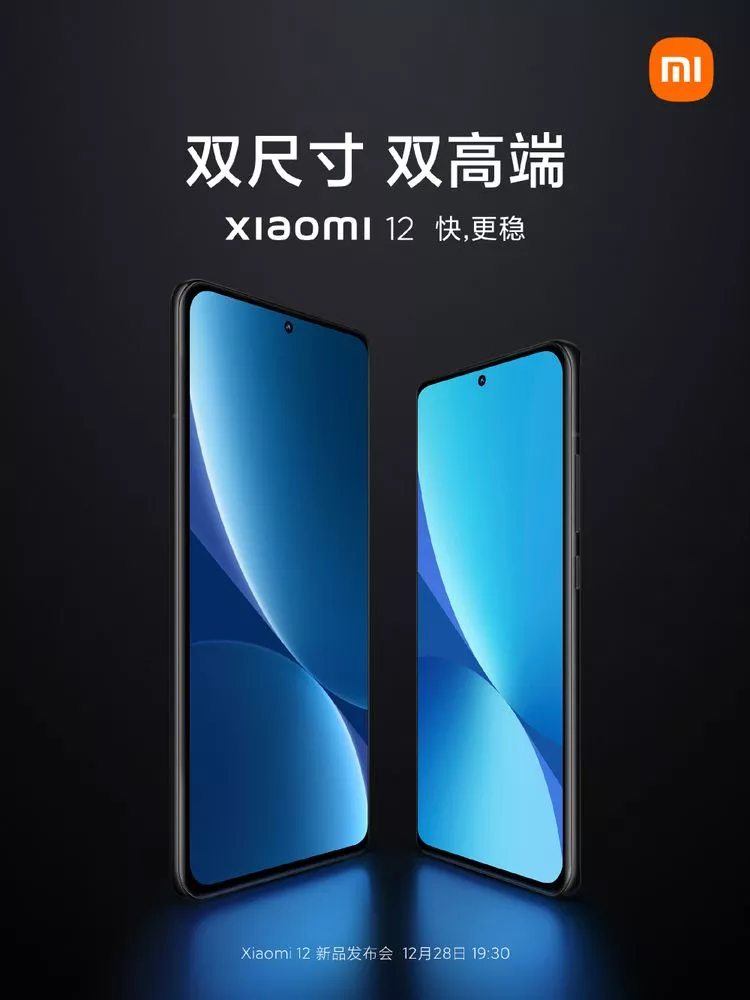
    We’ve already heard a lot about the Xiaomi 12 series, with leaks revealing the 12 Ultra’s large camera module and renders giving us an idea of how the normal 12 will look. Xiaomi is now preparing to make these phones public, as the firm announced on Weibo (via XDA Developers) that its new flagship series will be available in China on December 28.

    xiaomi 12

    Initially, the series will consist of at least two phones, the Xiaomi 12 and the Xiaomi 12 Ultra, but if previous lineups are any indication, a few additional models, such as a more cheap Xiaomi 12X, may be released in the near future. The series will premiere alongside MIUI 13, Xiaomi’s latest generation of its own skin on top of Android, according to the company’s CEO Lei June.

    Aside from that, we haven’t heard much about the new flagship series from the company. Only Qualcomm’s latest Snapdragon 8 Gen 1 chip will power the flagships, and the graphic hints that one of the phones, most likely the 12 Ultra, would be substantially larger than the other.

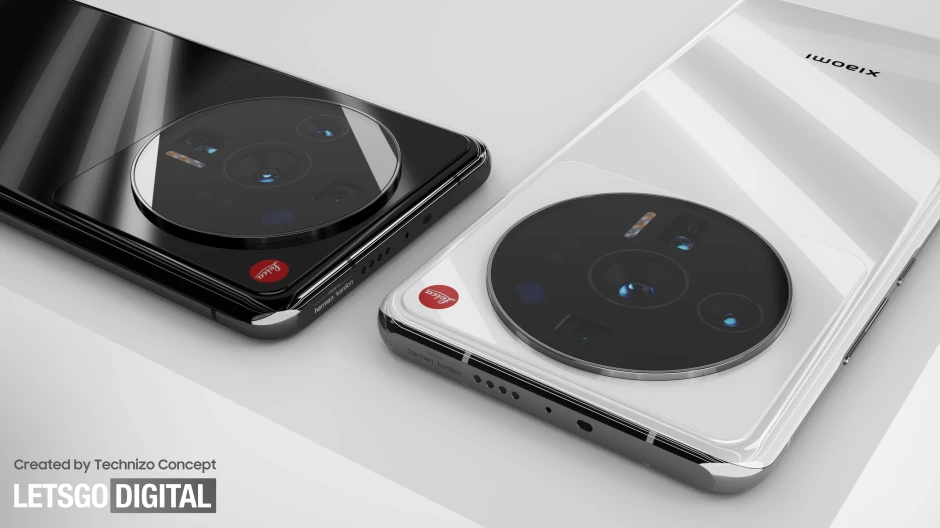
    A few more significant details have surfaced as a result of rumors and leaks. The Xiaomi 12 is said to have a 50MP camera, an OLED display with a high refresh rate, and 100W fast charging. The enormous camera array on the 12 Ultra reminds us of a washing machine, and it’ll reportedly have technology comparable to its smaller sister, including a QHD+ high-refresh rate screen, 120W fast charging, and a 5,000mAh battery.

    xiaomi 12 poster

    Aside from that, we haven’t heard much about the new flagship series from the company. Only Qualcomm’s latest Snapdragon 8 Gen 1 chip will power the flagships, and the graphic hints that one of the phones, most likely the 12 Ultra, would be substantially larger than the other.

    A few more significant details have surfaced as a result of rumors and leaks. The Xiaomi 12 is said to have a 50MP camera, an OLED display with a high refresh rate, and 100W fast charging. The enormous camera array on the 12 Ultra reminds us of a washing machine, and it’ll reportedly have technology comparable to its smaller sister, including a QHD+ high-refresh rate screen, 120W fast charging, and a 5,000mAh battery.

    We won’t have to wait long to learn everything there is to know about the smartphones when Xiaomi launches them in China on December 28. After that, the 12 series will make its way across the world.

  • The most popular Android version in 2021 is … old!

    The most popular Android version in 2021 is … old!

    Google has started disclosing Android fragmentation statistics on a yearly basis since 2018. The official Android OS distribution list was just posted as we near the end of 2021.

    The story is the same every time: Since its formal debut, iOS 15 has been installed on the majority of iPhones, but Android 12 is only on 0.1 percent of Android phones. The update procedure, on the other hand, is somewhat different. After all, Apple is in charge of both hardware and software development, in contrast to Android, where each manufacturer develops their own bespoke software and hardware.

    That doesn’t make looking at Google’s operating system’s distribution stats any less painful. Previously, the corporation published this information on a monthly basis, but since 2018, the list has been updated only once a year. Only versions with a distribution of more than 0.1 percent appear in it. Furthermore, the data is based on the number of Android devices that entered the Google Play Store in the previous month’s seven days.

    So it is possible that there are thousands of Android devices running older versions than Android 4.1, but these have a share of less than 0.1% and did not make it into this list. Also, it is worth mentioning that since September 27, Google started preventing logins on older versions of Android. This change affected versions before 2.3.7.

    Android versionAPI levelDistribution
    Android 4.1 Jelly Bean160.2%
    Android 4.2 Jelly Bean170.3%
    Android 4.3 Jelly Bean180.1%
    Android 4.4 KitKat191.4%
    Android 5.0 Lollipop210.7%
    Android 5.1 Lollipop223.2%
    Android 6.0 Marshmallow235.1%
    Android 7.0 Nougat243.4%
    Android 7.1 Nougat252.9%
    Android 8.0 Oreo264.0%
    Android 8.1 Oreo279.7%
    Android 9 Pie2818.2%
    Android 10 Q2926.5%
    Android 11 R3024.3%
    Android 12 Snow cone31

    The most popular official version of Google’s OS, as seen above, is Android 10 Q, which was released in 2019 and looks to be installed on 26.5 percent of active Android devices. Then there’s Android 11 R, which will be available in 2020 and is already used by 24.3 percent of active phones. Meanwhile, Android 9 Pie, which was released in 2018, is in third place with an 18.2 percent share, followed by Android 8.1 Oreo, which was released in 2017 and has a 9.7 percent share. My trusty calculator informs me that Android 9 or older is installed on 49.2% of all Android phones. In 2018, Pie was released.

    Even after months of testing, the most recent version of the operating system, in this case, Android 12, has yet to arrive on a significant number of handsets.

    Unfortunately, Android fragmentation has long been the Achilles heel of the world’s most popular mobile operating system. Google’s initiatives, on the other hand, appear to be making an impact. Previously, much older versions were the ones who got the biggest piece of the fragmentation cake. Most devices today, at least, run on newer versions.

    Also, security patches offer a longer life for phones bought more than three years ago, which makes Android 10’s high distribution less surprising. The same, however, cannot be said for the 5.1% share of Android 6.0 Marshmallow, announced in 2015!

  • First custom rom running Android 12 for Google Pixel 2 XL -ProtonAOSP

    First custom rom running Android 12 for Google Pixel 2 XL -ProtonAOSP

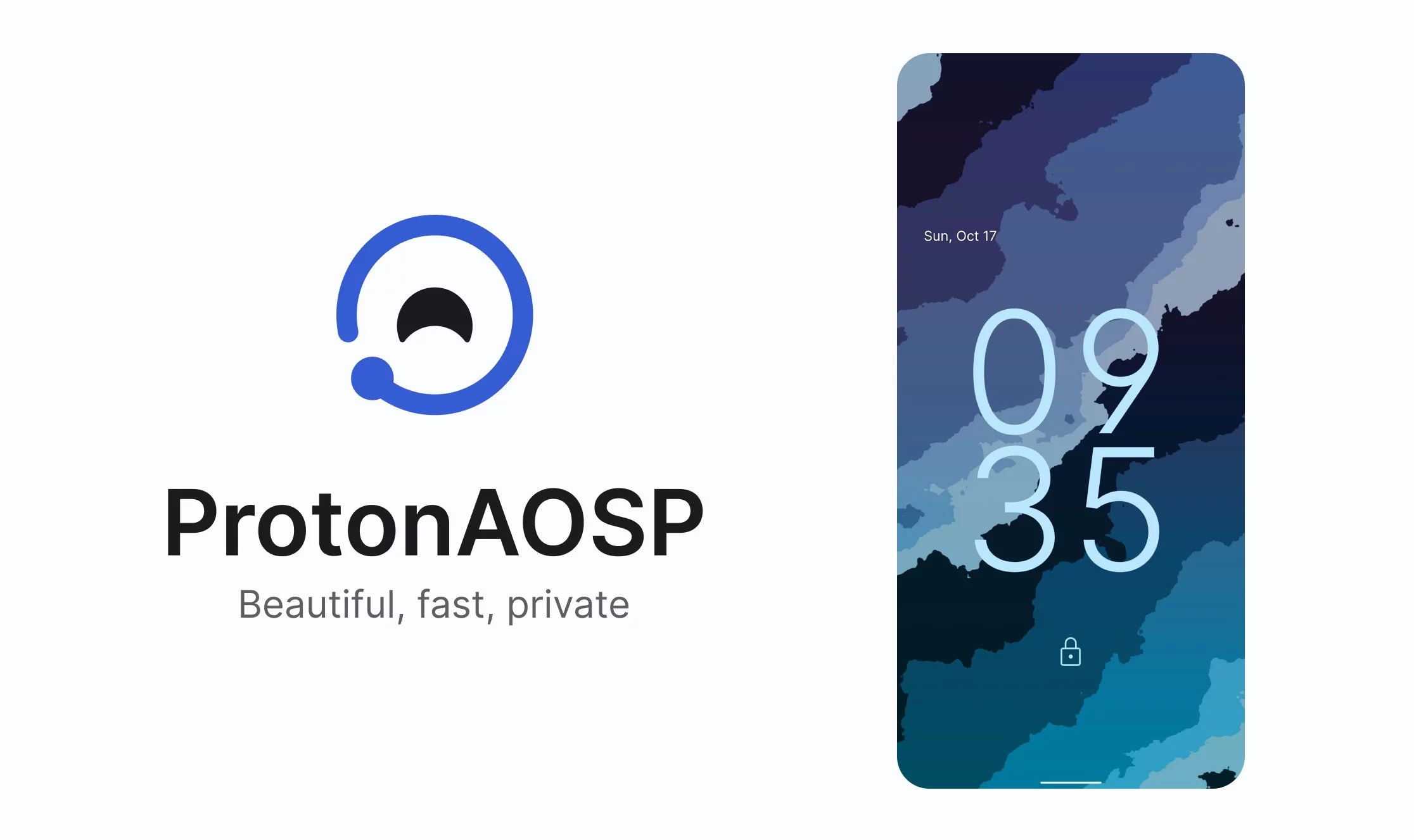
    The 2 XL’s update end-of-life date was in December of last year, just a few months after Google introduced Android 11. Even though they’re getting on in years, these phones are still adequate for basic day-to-day use. If you have a Pixel 2 XL and want to try Android 12 out, you can do so right now if you’re ready to take matters into your own hands. The first Android 12-based custom ROM for the Pixel has been launched, and it includes all of the important new features such as Material You, a redesigned Quick Settings panel, new system animations, and privacy improvements.

    While you can always install the GSI build of Android 12 on your Pixel, the experience isn’t stable enough for everyday use because it’s designed for developers. This is where ProtonAOSP comes in, since it provides a relatively stable option for Pixel 2 XL owners to try out the latest Android update on their aging hardware. The ProtonAOSP Android 12 ROM is currently only available for the Pixel 2 XL, but a build for the smaller Pixel 2 is on the way.

    Installing the ProtonAOSP’s Android 12 release is different from other ROMs as it is available as a factory image (see how over at XDA Developers). You’ll need to unlock the bootloader on your Pixel 2 and use the bundled flash-all script to install the ROM. If the installation fails, you may need to repartition and allocate more storage to various system partitions.

    If you do install the ProtonAOSP ROM on your Pixel 2 XL, be prepared to run into some bugs and occasional performance issues. The major ones are non-functional Wi-Fi and Permissive SELinux permission in the current build. There are likely other issues as well that haven’t been reported yet. Nonetheless, if you want to try out Android 12 on your Pixel 2 XL, this is your best bet right now.

    Manual install ProtonAOSP

    This is a guide for installing ProtonAOSP manually, using the command line. The web installer is recommended if you don’t have a specific need for this. Check the list of common misconceptions if you’re not sure.

    You can only use a Windows, macOS, or Linux computer for this manual installation; use the web installer if you want to install from a Chromebook or another phone.

    Download a build

    Download the build you want to install in factory images format.

    Prepare your phone

    Put your device into bootloader mode by restarting it and holding the volume down button until you see a red warning sign or green Android robot.

    Once your device is in bootloader mode, plug it into the computer or device you’re installing from. Make sure you use a high-quality USB cable, as many cables will cause issues. Avoid USB hubs if possible.

    Your USB cable needs to be able to copy files. Charging-only cables won’t work.

    If you’re switching from the stock OS or another ROM, make sure all your important data is backed up. You’ll need to wipe all your data in order to use ProtonAOSP.

    Prepare your system

    First, open the “Command Prompt” app from the Start menu.

    Next, download the Android SDK Platform Tools and extract them. Navigate to the extracted platform-tools folder in the terminal by typing cd  (with the space at the end) and dragging the folder into Command Prompt. Then run the following command:

    set PATH=%CD%;%PATH%

    If it’s your first time installing from this computer, you also need to install drivers:

    1. Open Settings → Windows Update
    2. Click “Check for updates” and wait
    3. Click “View optional updates”
    4. Select the “Android Bootloader Interface” update (ignore the brand name; it doesn’t matter)
    5. Click “Download and install” and wait for it to finish
    6. Unplug your device and plug it back in

    Wipe data#

    If you’re switching from the stock OS or another ROM, you need to wipe all data before installing ProtonAOSP:

    fastboot -w

    Otherwise, ProtonAOSP won’t boot and your phone will get stuck on the boot animation after the installation.

    DANGER

    All data on your phone will be lost, so make sure your important files are backed up before doing this.

    Install the build

    Factory images

    Extract factory images

    Extract the downloaded factory images package (e.g. proton-aosp_redfin-factory_11.5.0.zip). Navigate to the new folder (e.g. redfin-rq2a.210505.003) by typing cd  (with the space at the end) and dragging the folder into your terminal.

    Flash factory images

    Run the following command to flash the factory images:

    • Windows
    • macOS
    • Linux
    ./flash-all.sh

    Copy

    Don’t touch, unplug, or press any buttons on your device during the install. Your phone will restart several times, but don’t touch it. It will automatically boot into ProtonAOSP once the installation process completes.

    Finish

    You can now delete the factory images package, but don’t delete the platform tools — you’ll need them for updating in the future.

    See First Steps for what to do next.

    For security, you may also wish to re-lock the bootloader to enforce verified boot, which improves physical security and resistance against persistent attacks.

  • MIUI 13 – stable system with multiple changes

    MIUI 13 – stable system with multiple changes

    Xiaomi is actively developing MIUI 13, its upcoming Android skin. Remember that the MIUI 12 system was notoriously buggy, and the business had to cope with a slew of issues. In fact, Xiaomi will have to release an improved version of MIUI 12.5 to address the majority of the flaws. As it optimizes the MIUI 13 system, the Chinese maker keeps this in mind. Despite its flaws, MIUI is still one of the greatest Android skins created by Chinese manufacturers. MIUI is making every effort to improve and will undoubtedly perform better,” Xiaomi CEO Lei Jun said.

    Furthermore, Lu Weibing, general manager of the Redmi brand, credits MIUI’s work with the Redmi Note 11 Pro’s exceptional battery performance. The Redmi Note 11 Pro battery, he claims, gets people more excited about the MIUI system. These remarks from Xiaomi executives have sparked suspicion that the MIUI 13 operating system may include a slew of new features. Of course, it’s reasonable to expect a significant number of changes in MIUI 13. This is due to the fact that its predecessor did not do much, so it will have a lot to deal with.

    Furthermore, popular Weibo leakster, @DCS claims that the MIUI 13 comes with tons of changes. He further claims that many of the system interfaces have new UX. This Android skin will be based on Android 11 as well as Android 12.

    miui 13 1

    MIUI 13 – launch at the end of the year

    Not long ago, the Xiaomi MIUI team set up a pioneer team to fix various bugs and complaints coming from users. According to many user feedbacks, with the efforts of the MIUI pioneer team for several weeks, the current lagging and issues of many models have significantly reduced. The fluency and stability of the system are now gradually increasing.

  • Fix Android 12 app crashing issue

    Fix Android 12 app crashing issue

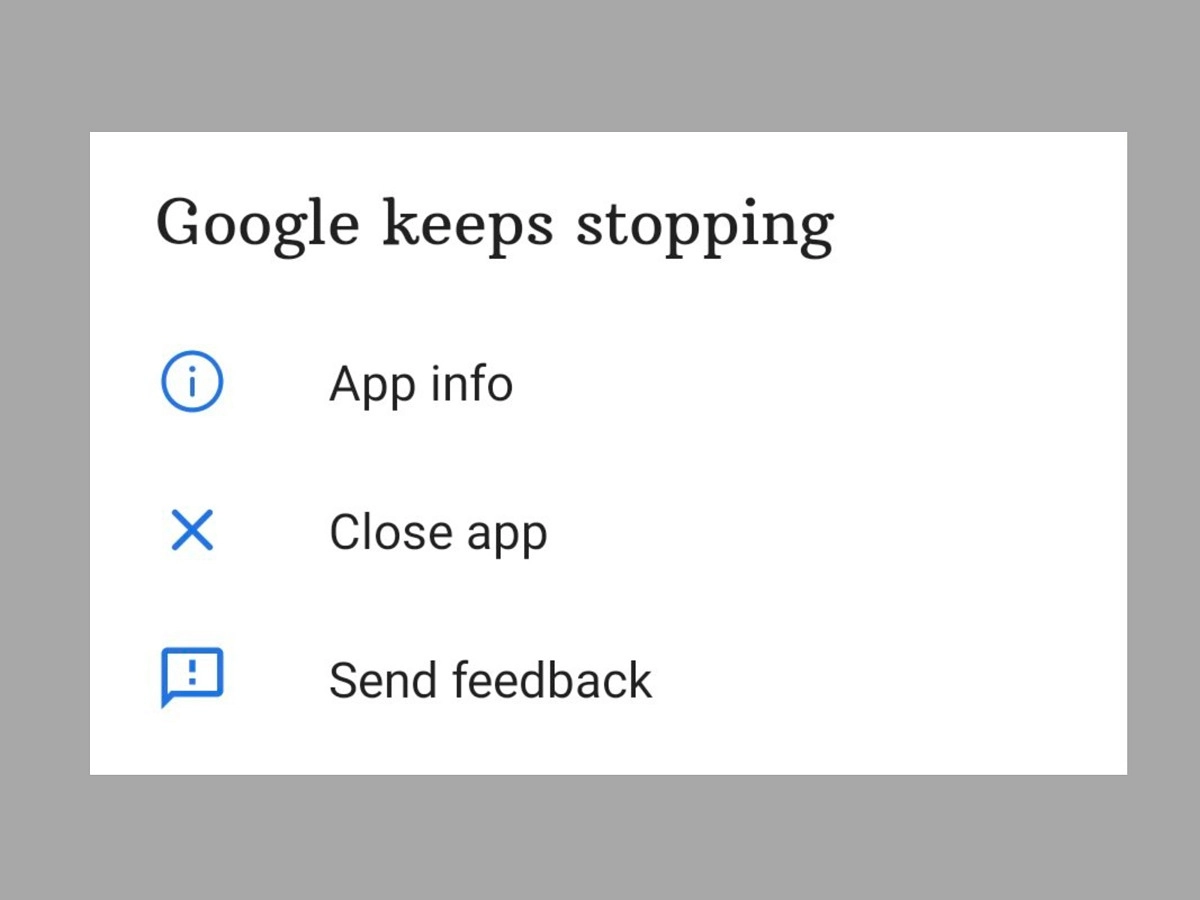
    We’ll teach you how to fix the Android 12 app crashing issue in this post. Android 12 is currently accessible in the market, albeit it is not available to all users. Pixel users have had the opportunity to test Android 12 in both developer preview and public beta versions.

    However, even after the stable build for the new Android iteration was released, there were several reports of glitches, freezing, lagging, and crashing.

    The new features and improvements may be significant, but the Android 12 app crashing issue is now more prominent and has become an issue that many users are facing.

    This tutorial is for individuals who are experiencing the same problem on their Android 12 phone and want to know how to repair the Android 12 app crashing issue. In this article, we’ll go through some troubleshooting options for this problem.

    A Pixel device has the advantage of allowing users to try out development builds and public betas for the latest Android releases. However, because these builds are fresh, they are not without flaws and have a number of issues. This is the reason why users have so many problems and bugs. This includes regular app crashes as well.


    Another issue that arose was that the Android WebView application was not working properly. For those who do not know, Android WebView is a tool that allows applications such as Gmail to display content from web pages through Chrome without having to leave the app’s own interface. But fortunately, the solution to this problem is now available on Google Issue Tracker.

    android 12 app crashing

    If you also face frequent app crashes on Android 12 and want to know how to fix Android 12 App crashing issue, then try one of the two methods given below:

    Tip1: Re-Enable Android System WebView

    1. First of all, head over to the Settings app on your device and then go to the Apps section.
    2. Then go to All Apps and then tap on Android System WebView
    3. Now tap on Disable, confirm when the pop-up asks you to.
    4. Now reset it by tapping on Enable.

    This was the first method to fix Android 12 App crashing issue. If the issue is still not resolved, then you should try the above steps a few more times. If you still keep facing the issue, then try the second method below.

    Tip 2: Uninstall Android System WebView

    1. First up, open up the Settings app on your device.
    2. After that, head over to the Apps section and then tap on All apps.
    3. Find Android System WebView and tap on it.
    4. Find the link to the App store page there.
    5. Now tap on uninstall and after that, tap on Enable.

    After that, your issue should be resolved. If you’re still having problems, your only choice is to wait until the developers address the problem with a new update.

    So that was our take on how to resolve the Android 12 app crashing issue. We hope you find this information to be useful. Leave your thoughts in the comments section below.

  • Unlock powerful hidden tools in Android 12 developer options

    Unlock powerful hidden tools in Android 12 developer options

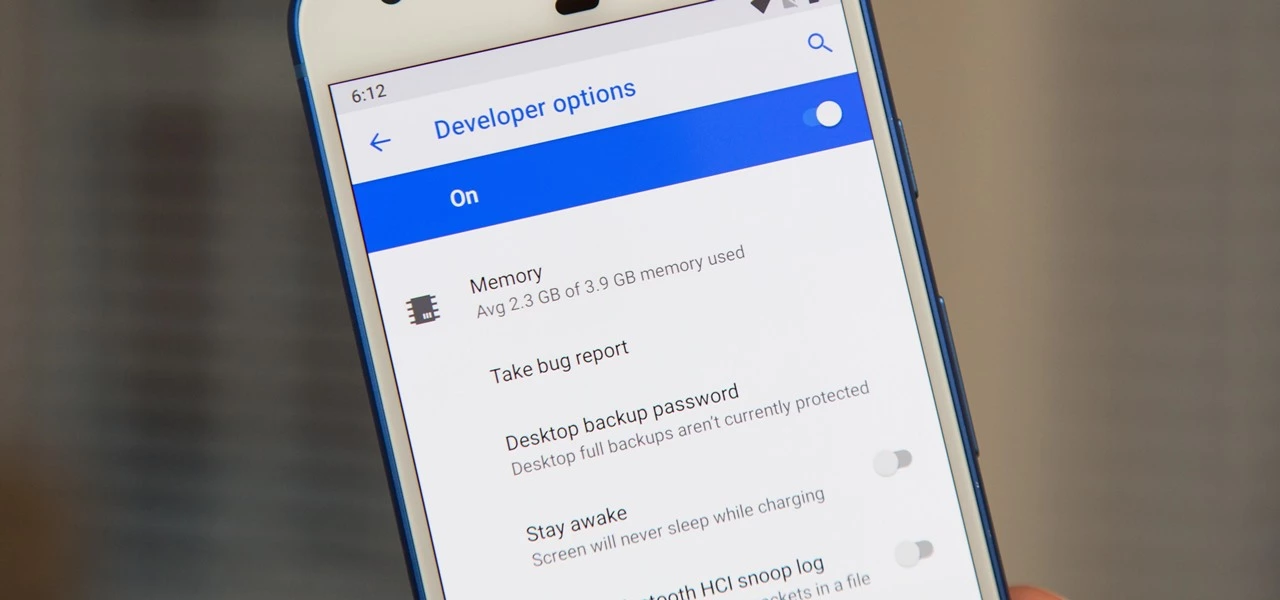
    One of the first things you should do when you get your new Google Pixel 6 or 6 Pro is open the hidden “Developer options” menu. Don’t be put off by the word “developer” because this hidden Android 12 menu contains functionality that any Android user can use.

    If you don’t have a Pixel 6 or 6 Pro, you can still access the “Developer options” menu on any other Pixel model, as well as devices from other OEMs such as Samsung. If you haven’t updated your system or purchased a Pixel 6 or 6 Pro, I’ll teach you how to accomplish it on Android 12. If you haven’t updated your system or purchased a Pixel 6 or 6 Pro, the process is basically the same on older Android versions.

    android developer tools

    Enable developer options in Android 12

    Open up your Settings app and tap “About phone” from the list. To get to this menu even faster, use the new search tool in Android 12 from your app library (swipe up on the home screen), search for “about,” and select “About phone” from the results.

    After that, scroll down to “Build number.” This is the backdoor to revealing the “Developer options” menu. Simply tap “Build number” at least seven times in a row, then confirm you want to unlock the menu by entering your PIN. (The PIN interface is concealed in screenshots, as shown below.)

    For a few moment, you should see “You are now a developer!” appear to let you know it worked. You’ve already unlocked the menu if it reads, “No need, you’re already a developer.”

    Newly unlocked developer options

    Return to your Settings app’s main menu, hit “System,” and then select “Developer options” from the bottom of the list. Unlike “About phone,” you can’t search for “developer” in your app library’s search bar to get there right away, but you can locate it in Settings’ search bar.

    In “Developer options,” there are plenty of things to explore. While there are plenty of reasons to unlock “Developer options” on your Pixel in Android 12, some quick ones to note include keeping your screen awake while charging, starting the process for unlocking your bootloader, making software updates install themselves when your device restarts, and showing a dot on the screen for each tap you make.

    USB debugging is another popular setting that lets you use ADB to talk to and issue commands to your Android device from your computer.

    Reset the developer options

    Let’s say you suspect that something you enabled in “Developer settings” is causing your Pixel to malfunction or produce unexpected results, but you have no idea what the issue is. In that situation, you may quickly restore the developer menu to its previous state.

    To do so, open the menu and untick the “Developer options” checkbox at the top. Then, on the “Allow development settings” prompt, toggle it back on and tap “OK.” Everything you changed in the menu earlier will be reset to their settings on Android.

    Hide the developer options

    You can hide the “Developer options” menu if you no longer want to utilize it. Toggle off the “Developer options” switch at the top of the menu by opening it. You won’t be able to get back into the menu unless you repeat Step 1 above.
    If you later re-enable “Developer options,” it will revert to its default settings, so any tools and preferences you specified before will have to be redone.

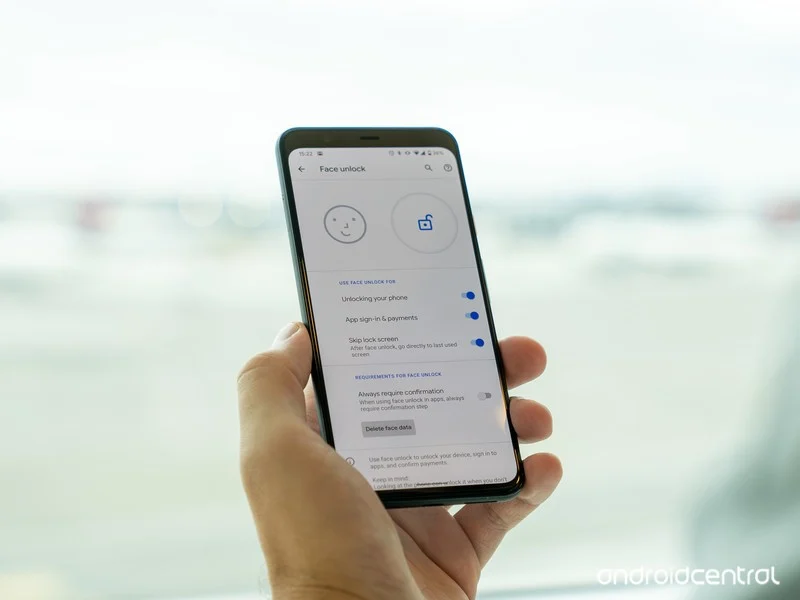
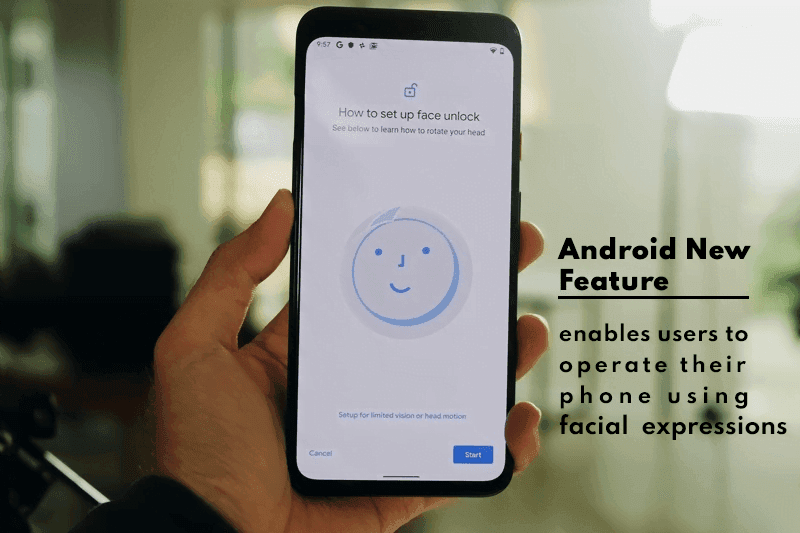
  • Android New Feature enables users to operate their phone using facial expressions

    Android New Feature enables users to operate their phone using facial expressions

    Google is one of the world’s most powerful technology companies. It has a wide ecosystem of products that can meet almost every technical need. Because it is always updated to provide the best experience to its consumers, the Silicon Valley-based corporation is usually at the top.

    The tech juggernaut has been adding new features to Android lately. Google aims to maximize the use of AI; its latest feature will enables users to operate their phone using facial expressions

    Latest Accessibility Feature

    Though it isn’t always used for that purpose, Android has long offered an Accessibility API that allows developers to create apps and experiences that aid people with disabilities. Screen readers, switch-based input systems, and voice-based input systems are among the categories that Google envisions for apps that use the Accessibility API.

    The company’s own “Android Accessibility Suite” software provides, as the name suggests, a set of accessibility capabilities to help people with disabilities use their devices. The Android Accessibility Suite’s most recent release provides a new option for users to control their devices: “Camera Switches.

    android

    The Android Accessibility Suite application was included in the fourth Android 12 beta release, which was pushed out to Pixel phones a few days ago, as beta version 12.0.0. Switch Access, one of the accessibility services included in the Android Accessibility Suite app, now has “Camera Switches.” Switch Access is a collection of tools that allow you to interact with your Android device without having to use the touchscreen.

    You can use Switch Access to select objects, scroll, type, and more by connecting an external device through USB or Bluetooth. Users can now control their device with nothing more than their face thanks to “Camera Switches.”

    Camera Switches now allows you to assign a few gestures to a few controllers, though this list may expand in the future. For example, you can have the app recognize when you wave your hand and then connect that to opening the notifications window. You may also have it detect when your brows are raised and then return the phone to the home screen.

    In Other News

    We noticed an intriguing pattern while looking through the Google Playstore recently. There appears to be a significant increase in utility apps, such as phone clone apps. The COVID-19 epidemic is most likely to blame for the rise in such apps. People have been forced to stay at home due to the pandemic, and as it continues to spread, they are turning to apps for help.

    People are looking for more convenient solutions to address their problems because almost every monotonous work has shifted to the virtual realm. We’ll have to see if this trend persists or if it’s just a passing craze.

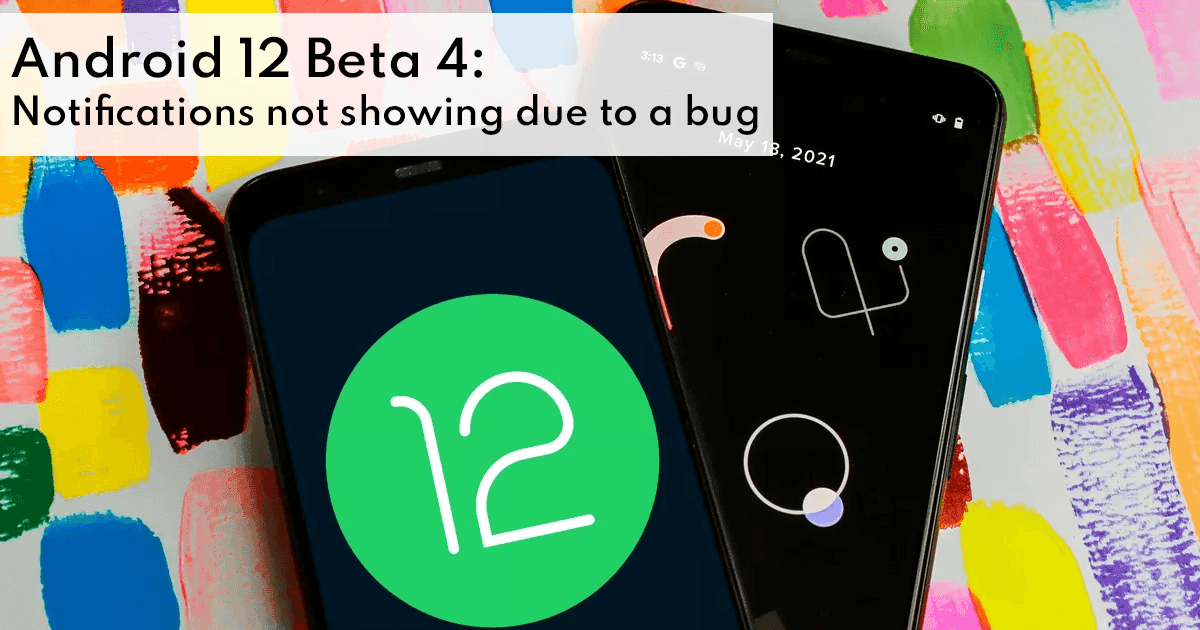
  • Android 12 Beta 4: Notifications not showing due to a bug

    Android 12 Beta 4: Notifications not showing due to a bug

    Google is one of the top tech company’s worldwide. It has a vast ecosystem of products catering to almost every technological need. The Silicon Valley-based company is always at the top since it keeps on updating to provide its users with the best experience.

    During the past year, Google has been working on the Android 12 update. The Beta version is available and has revealed some intriguing features. The details about which features will be kept in the final version are ambiguous but overall this seems to be the best update till now.

    Nevertheless, there seem to be a couple of issues that need to be resolved before the Android 12 update is rolled out worldwide. The most recent issue is with the notifications. Due to a bug, most notification banner pop-ups do not appear.

    android 12

    Notifications Bug

    Google is “moving into the final phase” of Android 12 with this week’s release, focusing on perfecting rather than introducing new features. However, most notification banners do not appear on Android 12 Beta 4 due to a glitch.

    When you receive a notification on Android, you should see the app icon/name in the status bar, as well as a short banner containing the sender name, message preview, and reply option. On Beta 4, users only see the status bar section of the notice, and they must swipe down to see the complete alert. The pop-up notification banner is missing.

    Consequently, if you use your device without sound or vibration, it’s incredibly simple to miss incoming alerts. If users forget the app name, they’ll have to keep an eye on the status bar. Rebooting does not fix the problem, as the impacted apps’ “Pop-up screen” notification feature stays enabled.

    Regardless of whether your device is set to receive all notifications, only vibrate, or is silent, this is a common problem reported by Pixel 3, 4, and 5 owners. Some apps, on the other hand, appear to be unaffected, while the banner appears when two warnings arrive at the same time. On the lock screen and always-on display, banners work normally.

    Summing Up

    Google will almost certainly have to fix the notification flaw, but it’s unclear if that will happen in an Android 12 Beta 4.1 update or when the Release version arrives “in the weeks ahead.” Although this is the final beta, it is evident that there are still some usability issues.

    However, it is worth mentioning that the Android 12 will make it easy to perform tasks such as file sharing. This bundle of features known suggests that Google is attempting to improve the usability of its operating system since it enables users to personalize and alter their devices. We will have to wait a bit more to see which features end up in the final “polished” version. Additionally, it appears that Google agrees with Apple’s privacy regulations, which have been the subject of debate since their debut. Many of the details of these features are unknown, and the majority of them are just suppositions. We’ll have to wait for the build to see how correct our leak-based assumptions were.