Author: Cristian Penisoara

  • Here are 3 reasons why you should enable ADB on your Android device

    Here are 3 reasons why you should enable ADB on your Android device

    You have heard about ADB and that you ought to turn it on for your Android phone. But why?

    Here are three reasons to enable ADB on your smartphone right now.

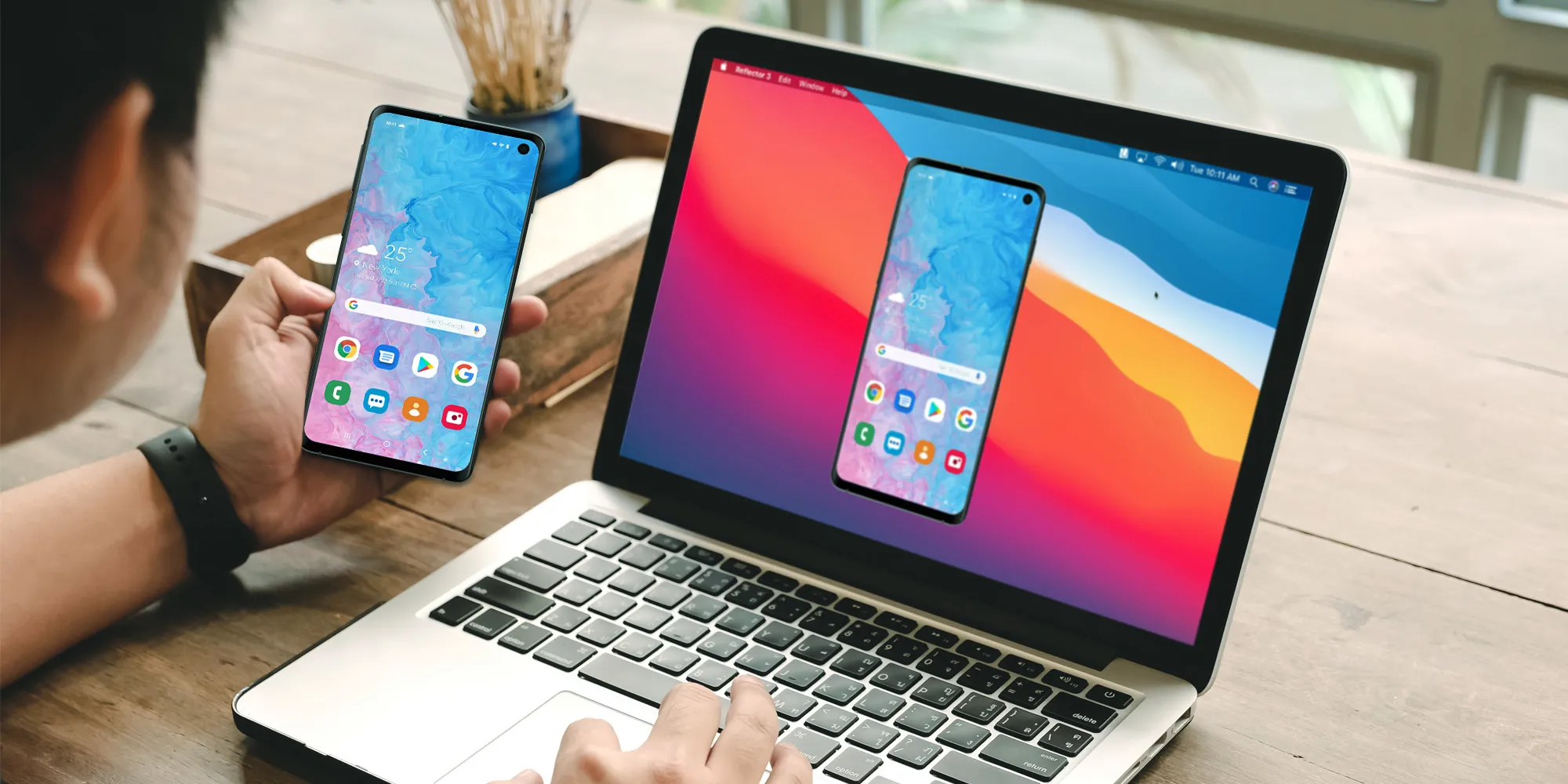
    Wirelessly mirroring phone to PC

    The most recent versions of macOS and iOS allow you to mirror the screen of your iPhone to your Mac. In certain situations, this can be really helpful. However, what about Android? Unfortunately, there is not a built-in method for mirroring the screen of your Android handset to a Windows computer—or any computer, really.

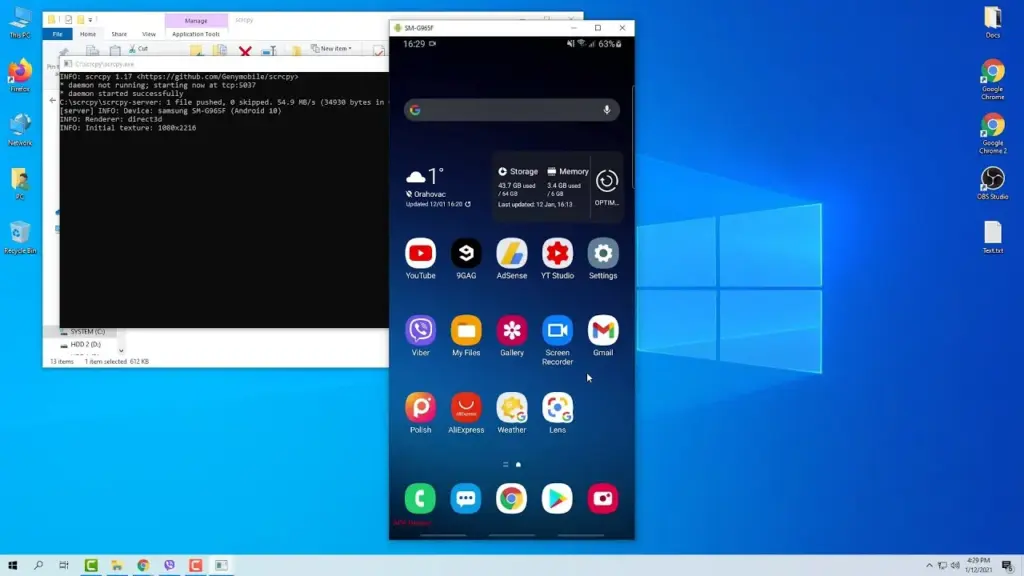
    But that is where scrcpy is useful. “Screen copy” is represented by the unusual name, and the application’s name is bolded. I was able to utilize scrcpy with ADB over my home network on my OnePlus 13R, and it was great, despite the strange name.

    The mirrored display functions just as it would if you were physically touching it, and there was hardly any lag when using Scrcpy. Everything worked as I had anticipated, and I could utilize gestures just like I could with the OnePlus 13R.
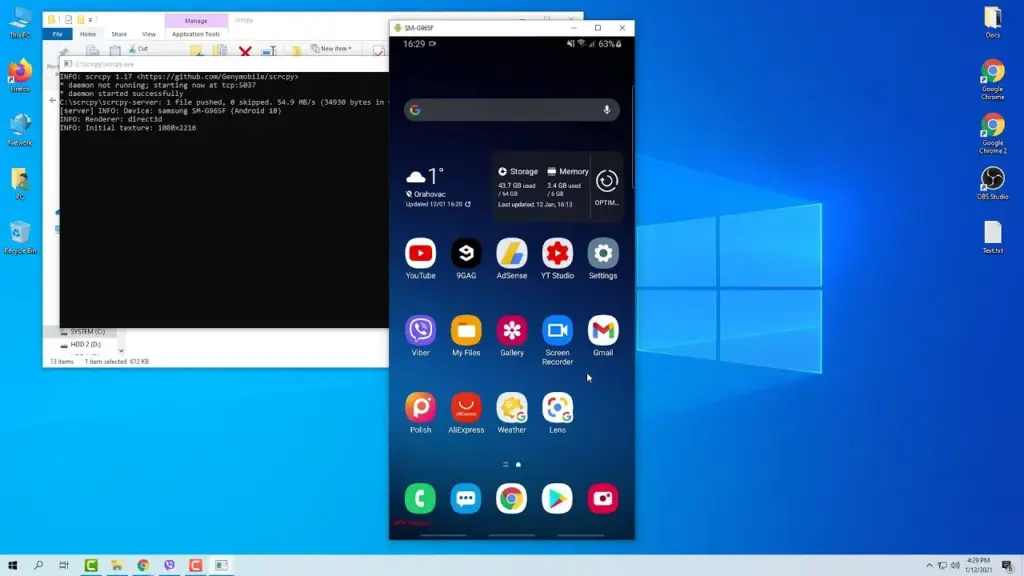
    scrcpy mirror android via adb

    You can use the command scrcpy in the terminal to remotely connect to your phone and display (and interact with) its screen on your computer after it has been installed on macOS, Windows, or Linux.

    I have two devices linked to my PC: a Wi-Fi device and a USB device. To force the connection over Wi-Fi, I used the command scrcpy -e, and it worked perfectly. Using scrcpy -d would force the connection over USB, but unless you do not have a reliable Wi-Fi network, I do not see why you should do this.

    In any case, utilize scrcpy to keep your phone’s screen shown on your computer. Just be aware that the program will only function if your phone is unlocked and the screen is turned on. You will also need to input any passcodes on your phone’s screen, not your computer’s.

    Sync files between your computer and phone

    Even though ADB comes with the adb push and adb pull commands built in, I much like use the program better-adb-sync than the built-in options. It is more akin to an rsync tool that allows you to synchronize files between your phone and computer.

    The –show-progress parameter is one feature that sets it apart from the built-in commands, even if the core operation is fairly similar to that of adb push and adb pull. This will display the status of the file transmission between your computer and phone. After installation, the better-adb-sync command is simply adbsync. If you want to transfer a video file from your phone’s storage to your computer while displaying the progress, you would use a command like adbsync –show-progress pull /sdcard/video.mp4.
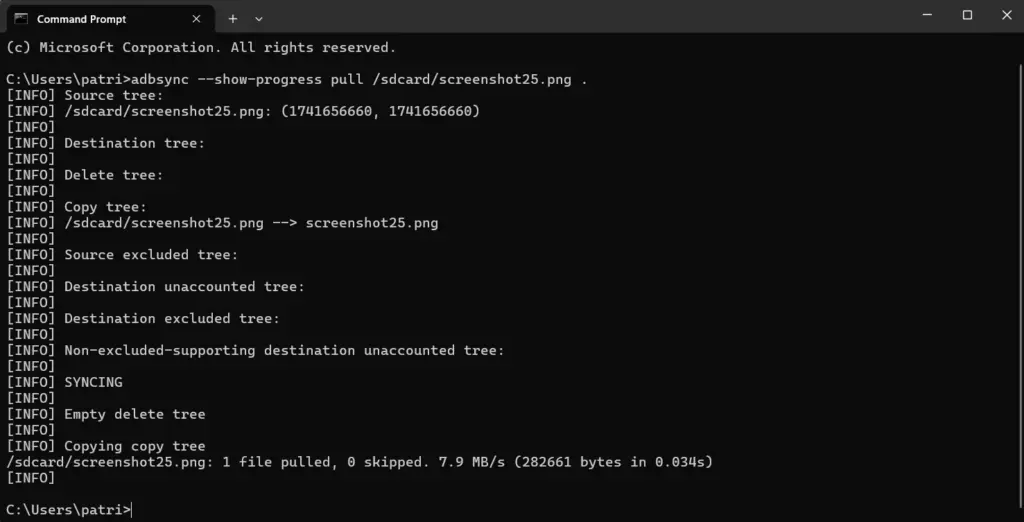
    screenshot 2025 03 10 203417

    Personally, I think it is essential to know the status of a transfer. Sending a command and then waiting for a blank response till it fails or succeeds is something I detest. Does it still function? Does the transfer continue? Was it stalling? Is it moving slowly? Is it taking so long because of that? I frequently ask all of these questions when transferring files in the terminal.

    I think it is essential to be able to use the –show-progress flag with better-adb-sync, and I am sure you will find it useful as well.

    Move files to your computer wirelessly

    ADB is the answer if you have ever wished to quickly take a screenshot of your phone and transfer the image to your computer.

    To take a screenshot of your phone’s screen, just type the command adb shell screencap /sdcard/screen.png. After that, the file will be pulled to your computer using a program like adbsync pull /sdcard/screen.png. If you are also wirelessly connected to your phone, you may accomplish all of this over Wi-Fi without the need for wires.

    When you require the information from your phone but are attempting to send anything from your computer, this can be helpful. If you have multiple phones and are unable to recall which button shortcut to use to capture a screenshot, you could also just utilize it.

    There are several justifications for using this command, and I believe each one is sound. Additionally, it works well with better-adb-sync, which makes it simple to transfer the file to your computer after taking a screenshot.

    Do you want to know additional ADB commands for your Android phone? Every Android user should be familiar with these nine of the greatest ADB commands.
  • How to add you ID to Google Wallet

    How to add you ID to Google Wallet

    You can link your driver’s license or state ID to your Google Wallet in certain US states. It is a practical way to carry and show your ID, however there are some restrictions. Google has caught up to Apple, which was the first to introduce this feature in 2021.

    You can add your driver’s license to Google Wallet if you know how to add your credit card. We let you know if you can add your driver’s license or state ID to Google Wallet and walk you through the process of adding and removing it. Google Wallet works with devices other than smartphones. With any of our favorite smartwatches, you can show your ID right from your wrist.

    Where you can use your ID from Google Wallet

    The only US states that permit IDs to be kept in the Google Wallet app are Arizona, Colorado, Georgia, and Maryland. Additionally, several states permit the storage of their IDs in Apple Wallet.

    Since Google must collaborate with each state to integrate its IDs into Google Wallet, the rollout to more states is sluggish. The process is slowed substantially by the fact that every state handles IDs differently. Since Arizona and Georgia partnered with Apple in 2021, just six states have implemented digital ID systems.

    The driver license can be added to Google Wallet too

    Georgian and Maryland digital IDs saved in Google Wallet are accepted at a few participating airports nationwide. Colorado and Utah IDs are accepted in more contexts, such as when demonstrating your age at a restaurant. However, in any circumstance where your digital ID is approved, you must always carry your physical ID with you.

    California and Utah, if you reside there, have their own digital ID applications and regulations regarding where you can use your ID. Whether Google Wallet will be supported in these states is unknown.

    Is safe to store your ID in Google Wallet?

    Although a digital copy of your driver’s license or state ID may appear less secure, there are steps in the process that ensure the security of your personal information. These components guarantee that only you have access to your personal information, however part of this is because of the setup procedure (which we will take you through soon).

    • Your digital ID is encrypted on your phone.
    • It can only be accessed with biometric authentication.
    • You choose what data is shared each time you show your ID.
    • Your digital ID can be deleted remotely.

    How to add the ID or driver’s license to Google Wallet

    You will know how to begin if you have added credit cards, transport passes, or rewards cards to Google Wallet before. But adding your driver’s license or state ID requires a more extensive procedure.

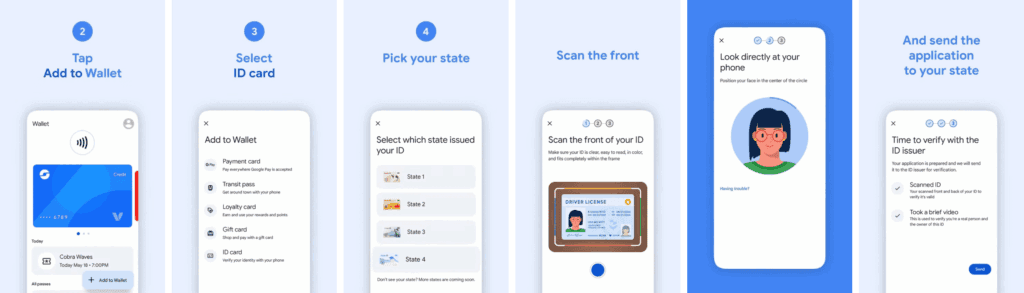
    1. Open the Google Wallet app.
    2. Tap Add to Wallet in the lower-right corner of your screen.
    3. Tap ID card. This option only appears if you live in the US.
    4. Tap your state ID.
    5. Scan the front and back of your ID.
    6. Record a short video where you’ll turn to show the front, sides, and bottom of your face.
    7. Submit your application to the state.
    add id to google wallet 1

    Your application takes a few minutes to process. Your driver’s license is ready to view in Google Wallet when you receive the confirmation notification.

    How to remove your state ID or driver’s license from Google Wallet

    It only takes a few touches to delete your driver’s license or state ID if you are worried about its security. You can delete it remotely using the same technique as taking any digital card out of your wallet.

    Remove your digital ID from the Google Wallet app

    1. Open Google Wallet
    2. Tap your ID card.
    3. Tap the three-dot button in the upper-right corner of the screen.
    4. Tap Remove.

    Remove your digital ID remotely

    1. Login to your Google Account page on any browser.
    2. Click Personal info from the top of your screen.
    3. Scroll down and click Manage digital ID.
    4. Click Delete next to your ID.

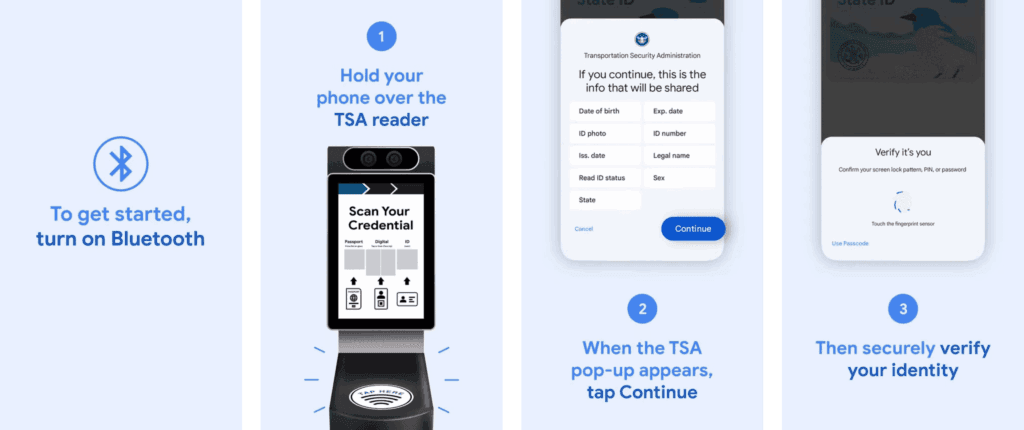
    How to provide your electronic identification at TSA PreCheck

    You can display a QR code or utilize NFC with tap-to-pay to use your digital ID card. First, you must schedule an in-person visit at an enrollment location to register for TSA PreCheck. To utilize your digital ID after registering, take the following actions:

    1. Turn on Bluetooth on your phone.
    2. Hold your phone over the TSA reader terminal. The reader automatically pulls up your ID.
    3. Confirm the data you are sharing by tapping Continue in the lower-right corner of your phone screen.
    4. Verify your identity using biometric identification.
    provide your electronic identification at TSA PreCheck

    Display your ID safely and conveniently

    There are numerous benefits to carrying your driver’s license on your phone as opposed to a physical card. It eliminates the need to carry your wallet to bars, though employees may refuse to serve you if they think it is inappropriate. You can only present the necessary documentation.

    NFC communication is the backbone behind sharing your digital ID.

  • How to control your Android phone from a PC

    How to control your Android phone from a PC

    Picking up my phone to check a notification or respond to a text annoys me since I want convenience. I always keep WhatsApp Web open in a tab because of this. Even while it meets the most of my communications requirements, it is insufficient. As a huge admirer of Apple’s iPhone Mirroring function, I have been searching for a practical method to manage my Android phone from my computer. I can do just that with these four apps.

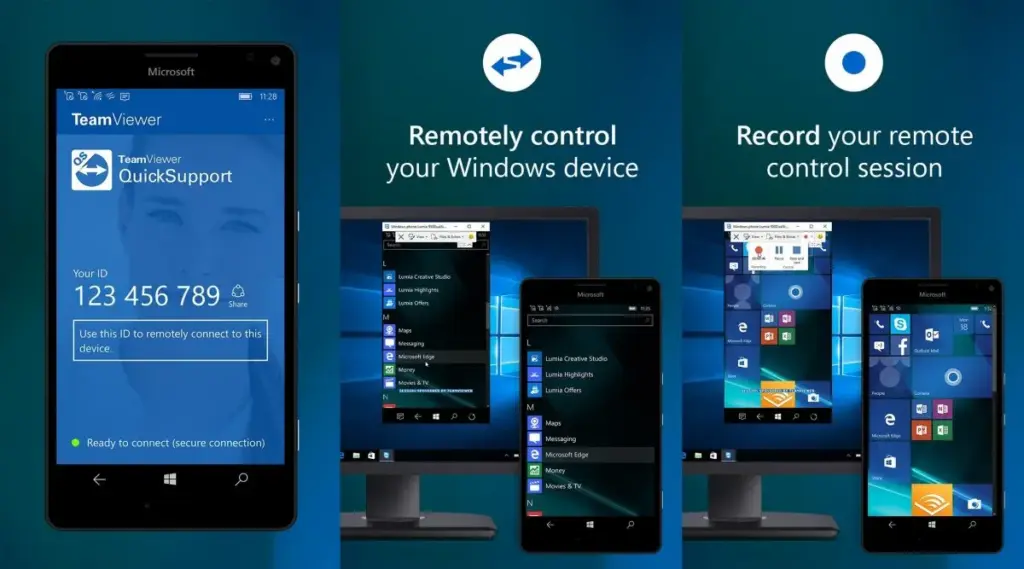
    TeamViewer QuickSupport

    control your android device remotly

    Sometimes you need to remotely control your Android phone, either to access your device from a distance or to assist a buddy in troubleshooting a problem. This is made simple by TeamViewer QuickSupport, which provides complete remote control, enabling you to install apps, change settings, and browse menus from your PC.

    It is easy to set up. Install the QuickSupport app on your phone, connect using the TeamViewer desktop app, and give the person helping you the unique ID. They are perfect for remote management, troubleshooting, and technical help because they can operate your device in real time when they are linked. In contrast to many alternatives, TeamViewer is compatible with web browsers, Linux, macOS, and Windows. End-to-end encryption and two-factor authentication are two of its robust security features. Additionally, it facilitates communication and file transfers, which facilitates teamwork.

    There are certain drawbacks to TeamViewer. Access may be restricted by the limited free version, which may mark frequent personal use as commercial. Since network quality affects performance, lag may result from slower connections. It works well for remote control, but unlike Phone Link or Scrcpy, it is not designed for everyday phone mirroring.

    TeamViewer QuickSupport is still among the best choices for safe, cross-platform remote access, particularly for IT assistance and troubleshooting.

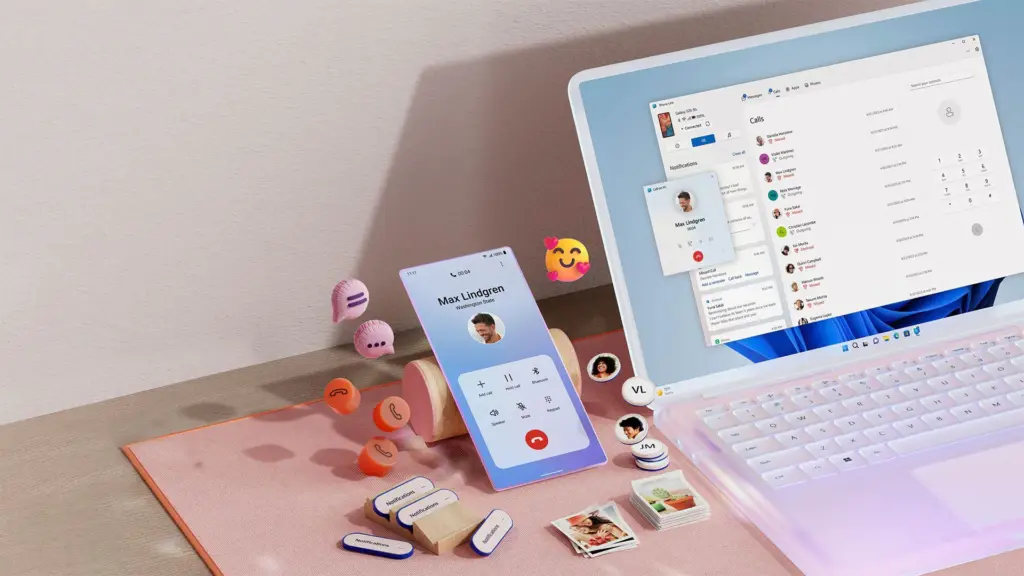
    Microsoft Phone Link

    control your android device from PC

    Microsoft Phone Link, which is integrated into Windows 10 and 11, allows you to easily connect your Android phone to your PC. Without touching your phone, you can make calls, control notifications, send texts, and view recent photos.

    The ability to replicate apps is one of its strongest features. For apps without web versions, you can use your mouse and keyboard to interact with them when you launch specific mobile apps on your PC. It is easy to set up. You can connect your Android phone to your PC via Bluetooth or Wi-Fi after installing the Link to Windows app on your phone. Everything updates automatically once it is synchronized, and the connection is secure.

    Phone Link is revolutionary if you operate on a computer for extended periods of time. It ensures that you remain connected while minimizing distractions. The majority of Android phones can utilize its primary functions, albeit Samsung Galaxy devices are the greatest fit for it.

    AirDroid

    control your android device on air

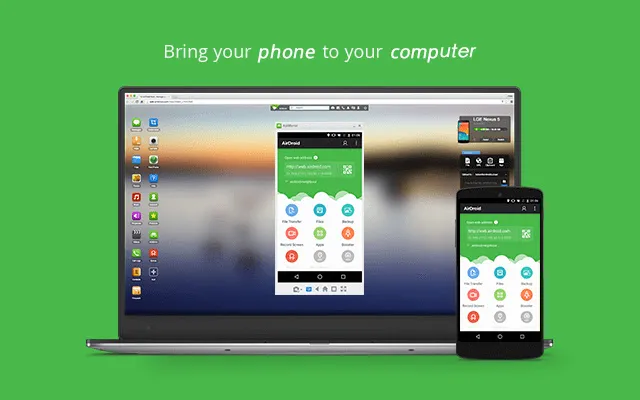
    AirDroid is another excellent option if you want complete control over your Android phone from your PC. It is cross-platform, having a web interface and specific Windows and macOS programs, unlike some rivals. Once configured, you can remotely access your phone’s camera, manage SMS messages, respond to notifications, transfer files, and mirror your screen without ever touching your device.

    It is easy to get started. Use the desktop software or log in via a browser after installing the AirDroid app on your Android phone and creating an account. Everything connects immediately if you are on the same Wi-Fi network. Although remote access is feasible, a paid subscription is needed for services like screen mirroring over mobile networks.

    AirDroid’s versatility is what sets it apart. For presentations or to view particular apps, you can mirror your screens. You can even transfer data across devices wirelessly. Another benefit that helps you stay informed about messages and alerts while working is notification mirroring. Despite having a lot of functionality, AirDroid maintains simplicity with a clear, user-friendly interface. Premium users receive end-to-end encryption for added security if security is a top concern.

    Scrcpy

    Scrcpy control phone from PC

    It can be inconvenient to constantly pick up your phone to check things, particularly if you work on a PC. By enabling you to mirror and manage your Android phone from your PC, Scrcpy solves this problem. It has no bloat and is free.

    With an emphasis on low-latency, high-resolution screen mirroring without root access, Scrcpy is quick, light, and open source in contrast to many commercial programs. You have the option of using Wi-Fi or USB, depending on what is more convenient for you. It is easy to set up. After downloading the app, connect your phone to your PC and turn on USB debugging. When it is operating, you may use your keyboard and mouse to interact with your phone’s screen, which displays in real time.

    Scrcpy is a comprehensive mirroring solution that supports audio forwarding in its latest versions. Wireless performance can vary, though, and some users may find the absence of integrated file sharing and multi-device functionality to be a drawback. Furthermore, even though third-party graphical interfaces are available, people who are not familiar with Scrcpy may find its command-line configuration daunting.

    On the plus side, Scrcpy does not need to be installed on your phone, which lowers security concerns and conserves storage space. It improves with frequent updates because it is open source. Scrcpy is among the greatest free programs for managing your Android phone from a PC, provided you are prepared to overcome its drawbacks.

    How you work will determine which tool is ideal for you.

    For Windows users seeking a native, hassle-free method of syncing calls, messages, and notifications, Phone Link is my top pick. With file transfers, remote access, and notification mirroring, AirDroid goes above and beyond; however, some premium capabilities are subscription-based.

    I have experimented with Scrcpy since I love open source software. Although it offers little lag and high-performance screen mirroring, I find its command-line configuration to be less than ideal. Last but not least, TeamViewer QuickSupport is an option; nevertheless, its limitations in the free edition make it most appropriate for infrequent use.

    The most important factors – productivity, ease of use, or complete control – determine which tool is best. Whichever option you select, these options facilitate communication and task completion. It has never been simpler to control your Android phone from your PC. There is a solution that suits your operation, whether you require remote help, sophisticated functionality, or smooth integration.

  • How to check battery status for your phone, work on Samsung, Xiaomi, and Other Phones

    How to check battery status for your phone, work on Samsung, Xiaomi, and Other Phones

    Is the battery on your smartphone giving you trouble? Is your phone running out of battery or is it no longer charging? You should check your smartphone’s battery immediately, regardless of whether it is a Xiaomi, Samsung, or another brand.

    “Why has my smartphone suddenly stopped charging?”

    If, like most users, you have an Android smartphone with a non-removable lithium battery, it is hard to answer this question. The repairable Fairphone 5 and older cellphones are among the few that have a detachable battery.

    Thankfully, there is a method for assessing the state of the battery in your smartphone so that you can evaluate whether or not to replace it. Discover which of the several options—some of which are also provided directly by the manufacturer – is best for you here.

    How to check the battery status on Samsung

    Since Samsung’s Galaxy smartphones are the most popular, let us start with them. There are now two ways to check the battery level of your Samsung phone: using the diagnostic feature using the secret code *#0228#. The latter is accessible through the Samsung Members app as well as the settings.

    But it appears that the USSD code is no longer functional. We have spoken with Samsung and will keep you informed of developments. Therefore, until further notice, we have deleted the portion about the Samsung code from a previous version of the text.

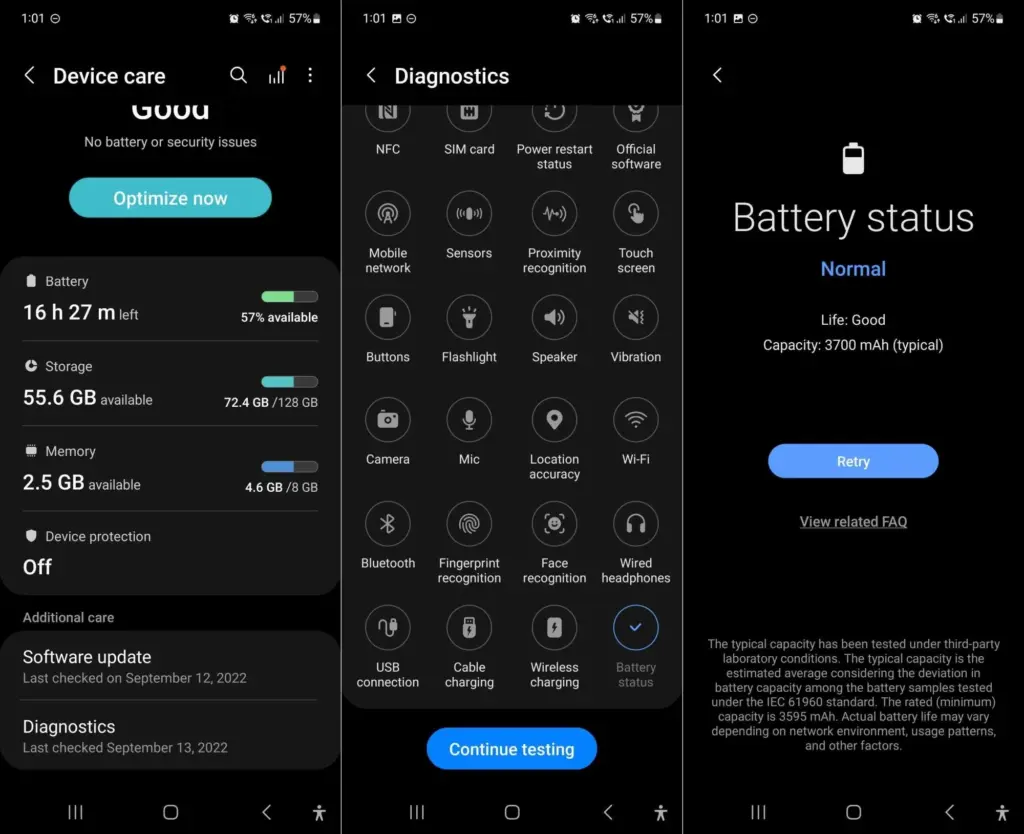
    You can start a variety of diagnostic features with Samsung to see if your smartphone is operating correctly at the hardware level. Twenty-five functions and components are available for testing. from network connectivity and sensors to the battery. There are two ways to use this diagnostic feature, depending on whether One UI 6 or a later version is installed.

    1. Open the Samsung Members app (or install it).
    2. Tap Help in the bottom navigation bar.
    3. Tap on Show tests in the Diagnostics section.
    4. Select Battery status and start the test.
    samsung battery health

    Now you can see your battery’s state, which should be “Good” in the best scenario. Additionally shown is the charging capacity, which should match the details on the data sheet for your smartphone.

    Please be aware that the most recent in-house user interface, One UI 6, which is based on Android 14, is now installed on your Samsung Galaxy smartphone. Without utilizing Samsung Members, you can utilize the battery settings to manually invoke this diagnostic feature.

    1. Go to the Settings.
    2. Tap on Device maintenance.
    3. Scroll down to Diagnostics and follow steps 3 and 4 mentioned above.
    samsung battery diagnostic

    How to check the battery status on Xiaomi

    Sadly, there are not many ways to find out how well your Xiaomi smartphone is doing. Compared to Samsung, these are less diversified. Entering the secret code is your only choice.

    1. Enter the code *#*#6485#*#* on the keyboard of your phone app (native).
    2. Check that MB_06“Good” is displayed.

    MB_06 refers to your battery’s current state of health. However, this specific menu contains additional information that might be useful. Since the official sources are once more somewhat dubious, I have compiled a list for you using the information I have discovered in the several Xiaomi forums:

    The “MB_” codes:

    • MB_00 Percent of battery remaining
    • MB_01 Battery status: charged/discharged
    • MB_02 Charging protocol (fast, etc.)
    • MB_03 Voltage of the charging process
    • MB_04 Voltage used (volts), e.g. 117000 corresponds to 1.17 volts.
    • MB_05 Temperature of the battery, here 260 corresponds to 26 °C.
    • MB_06 Health of the battery
    • MB_07 Temperature of the charger/adapter.
    • MB_08 Temperature monitoring status
    • MB_09 Maximum voltage of the battery at full charge.

    The “MU_” codes:

    • MU_00 Type of charger
    • MU_01 Charging mode
    • MU_02 Direction of charging: (0: no charging / 2: charging / 3: reverse charging)
    • MU_03 Maximum input voltage via USB
    • MU_04 Current input voltage via USB.

    The “MF_” codes:

    • MF_01: Current state of charge. If this value differs from the value under MB_00, this is an indication of a battery problem.
    • MF_02: Number of charging cycles (charging from 0 to 100 % since first use).
    • MF_05: Actual capacity of the battery
    • MF_06: The charging capacity specified by the manufacturer.

    The “MM_” codes:

    • MM_00: AICL result (adaptive input current limitation)
    • MM_01: USB input current
    • MM_02: Maximum charging voltage of the charger
    • MM_03: Current maximum charging capacity. If it differs from the values specified in MF_06 or MF_05 (or in the data sheet), your battery is damaged.

    Apps to check the health of your battery

    Thus far, we have examined methods that are highly manufacturer-specific and, similar to secret codes, may not be the most obvious. Installing an Android app that lets you monitor the battery level of your phone is the simplest method.

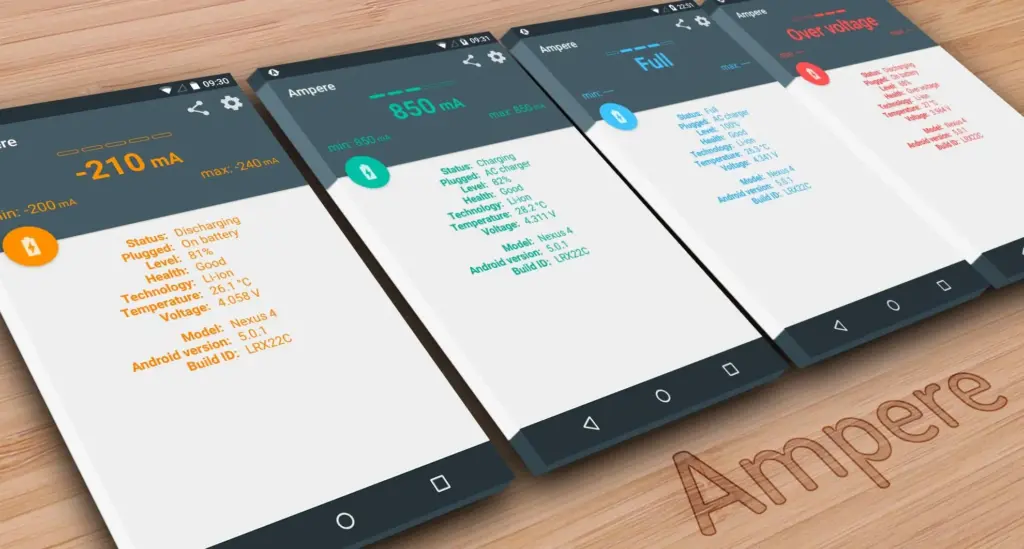
    Ampere

    When charging your smartphone, Ampere shows the electrical current. This enables you to evaluate various chargers and select the most suitable one for your smartphone. The app also allows you to monitor the rate at which your battery is depleting.

    Download the Ampere app from the Google Play Store.

    Ampere check battery level

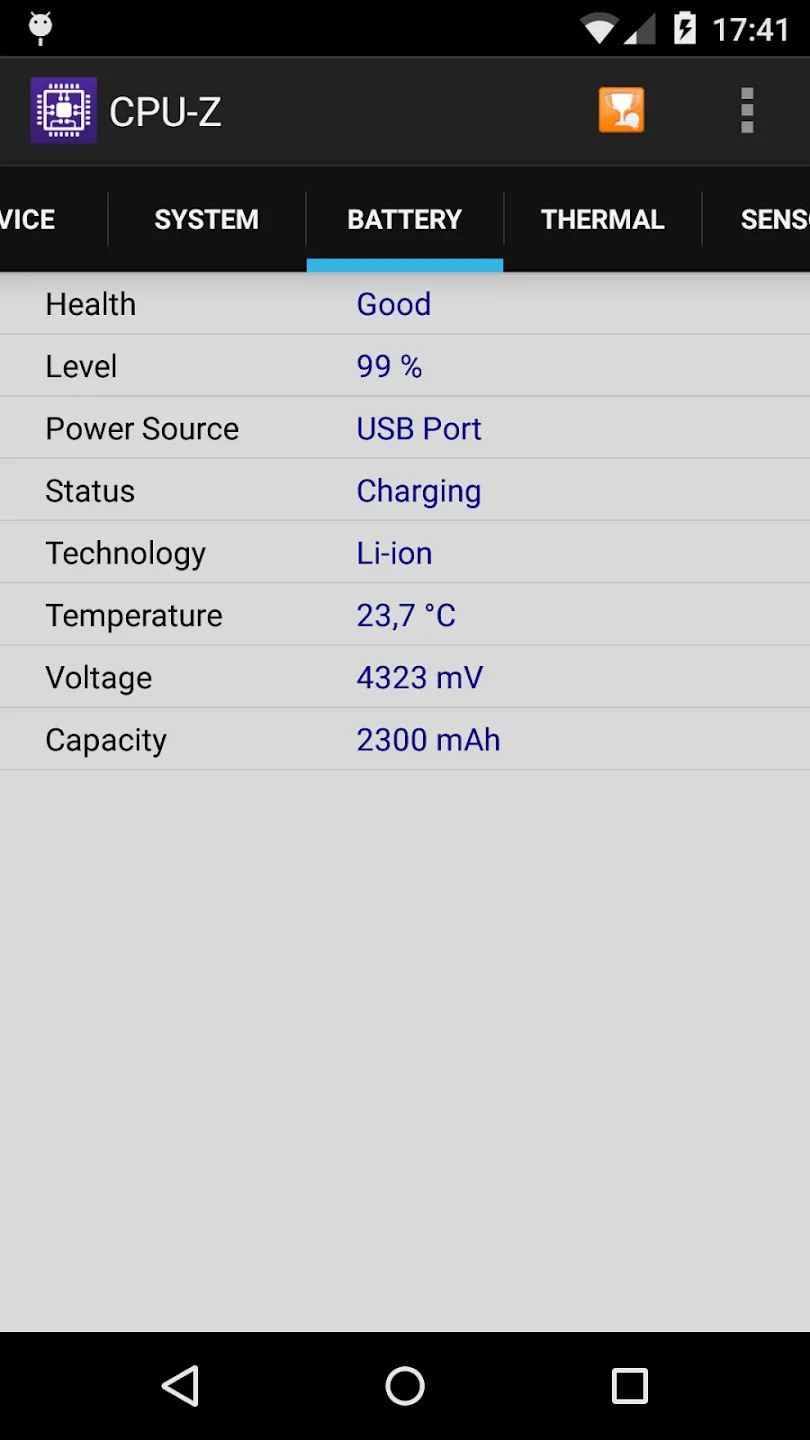
    CPU-Z

    Another option is to look at CPU-Z, which provides details about your smartphone’s battery as well as numerous other components. The build number, processor core speed, temperature, and sensor information are all shown.

    Download the CPU-Z app from the Google Play Store

    cpu-z battery stats

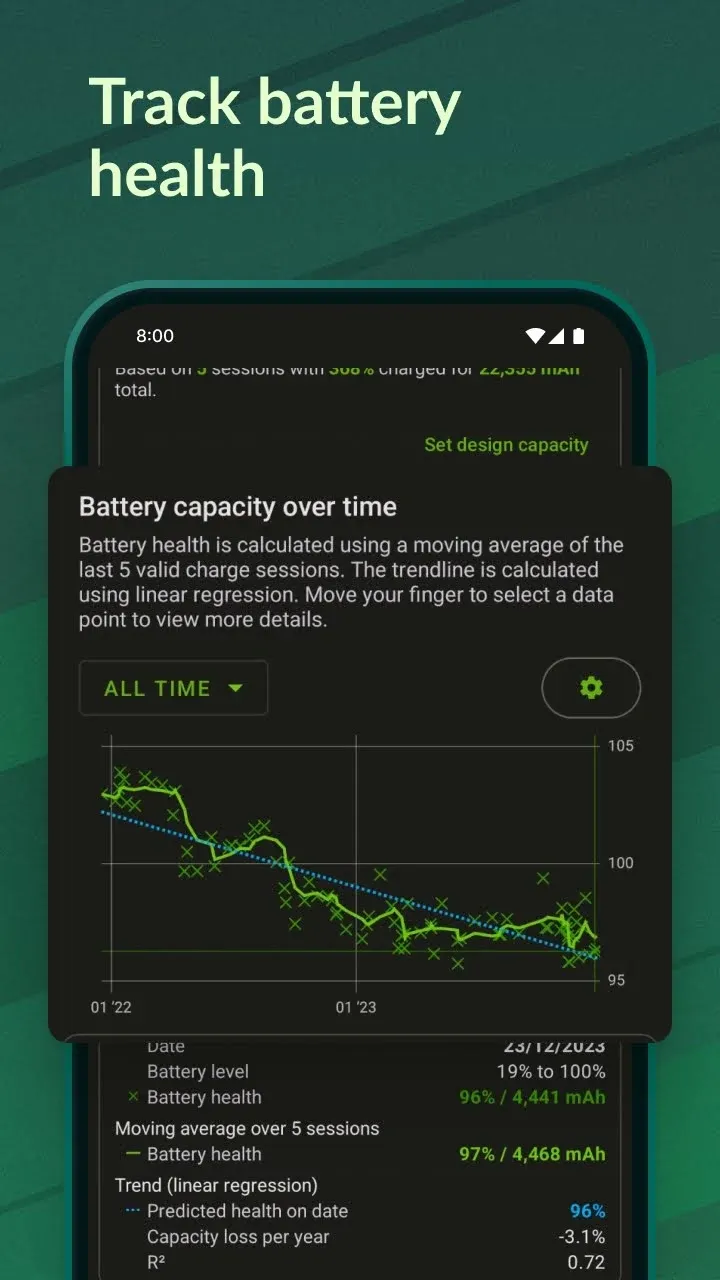
    AccuBattery

    I would only suggest the AccuBattery app to those of you who are truly interested in knowing the precise condition of your battery. AccuBattery is not for you if you are only curious because it requires time for the program to measure usage and generate estimations.

    AccuBattery’s analysis of your battery performance gets more precise the more you use it. The four tabs of AccuBattery are History, Health, Charging, and Discharging. AccuBattery calculates the charge capacity when you charge your phone. AccuBattery can assess your battery’s state by comparing it to the “official” charge capacity, which you must manually enter.

    Download the AccuBattery app from the Google Play Store

    acubattery battery test

    Android secret codes

    Like USSD codes, Android secret codes frequently begin with an asterisk. The secret codes can be activated without a network, which is how USSD codes differ from one another. Depending on the version that is loaded on the smartphone, they are kept in system files.

    When moving to Android 4.3 Jelly Bean and then Lollipop, many codes become obsolete. Actually, codes are added and removed with every new edition. Not to mention the particular codes for some Android overlays, like MIUI or One UI, which were discussed before in this post.

    Please take note that the code ##4636##, which displays an information menu that includes, among other things, your battery status, is compatible with practically all Android devices in addition to the Samsung and Xiaomi codes. However, we tested it on an Asus with Zen UI 9, a Xiaomi with MIUI 13, a OnePlus with OxygenOS 13, and a Samsung with OneUI 6.

  • How to clear the cache on your Android device

    How to clear the cache on your Android device

    You are not alone if your Android device has started to lag. Many gadgets have the potential to slow down over time, but there are easy solutions to boost performance. Restarting the device is a quick fix that can resolve a lot of frequent problems. Clearing up cached data from websites and apps is another efficient way to increase speed and free up storage.

    With the use of simple steps, you will go through the process of clearing your Android device’s cache. Depending on the manufacturer and software customisation of your Android device, the steps described may differ, but the overall procedure is the same, and this guide should help you get started.

    View every application that is installed on your Android smartphone.

    To easily view all of the apps on your Android phone or tablet, launch the Settings app. Scroll until you see Storage, then tap on it. Next, check for the Apps option. On some Android devices, Storage may not appear, and you can navigate directly to Apps from the Settings menu.

    If you’re having trouble finding the Apps section, you can always use the search bar at the top of the Settings app to help.

    When you are in the Apps area, some Android versions make it simple to view which apps use the most space. Simply hit the three-dot menu in the upper right corner and select Sort by Size.

    Clear the cache

    Clear the cache of of the installed apps

    Select an app from the list to remove its cache. Just a heads up: I prefer using an app you installed over a system service like Android System Intelligence. I have had inconsistent outcomes with emptying the cache of system apps, thus it is recommended to only delete the cache for apps you added yourself.

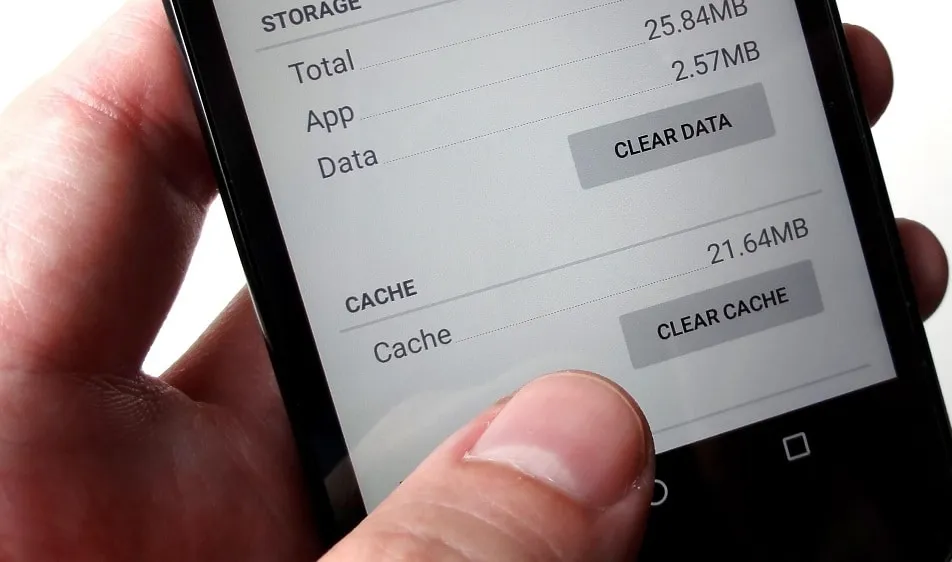
    When you open an app, you will see facts such as its size, user data, cache size, and total storage usage. At the top of the page, you will find two options: Clear storage and Clear cache.

    Tap Clear cache to clear the cache for that app. However, avoid tapping Clear storage because it will reset the app, requiring you to set it up again. Clearing the cache will not cause any problems.

    Continue to browse your list of installed apps, checking for any programs that take up a lot of space and removing their cache.

    If you are feeling particularly thorough, you might erase the cache for each app on your phone. However, it is a good idea to start with the biggest offenders, such as the Facebook app.

    Clear the cache from Chrome

    If Chrome is your primary browser, it may have accumulated a large amount of data, which can slow down your device. Here’s how to clear the cache.

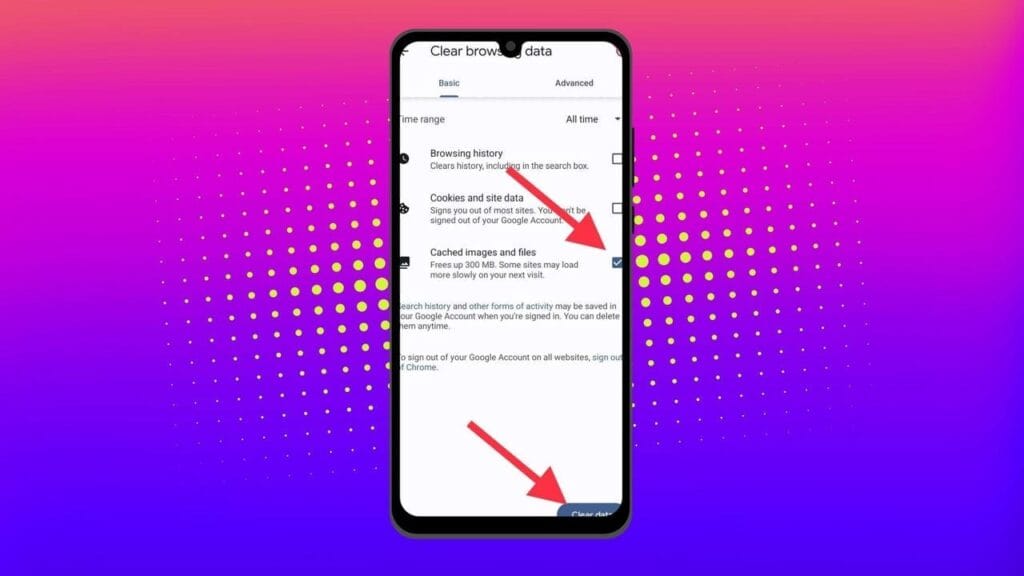
    Go to History settings in Chrome – Open the Chrome app on your Android device, press the three-dot menu in the top-right corner, click History, and then Clear browsing data.

    Choose the data you want to delete – The following screen will display a selection of alternatives, allowing you to select whatever data you want to erase from Chrome.

    You can also provide a timeframe for when you want the data cleared. Each option gives a brief explanation of what it does and how it may affect your browsing experience. For example, deleting cookies and site data will log you out of most (if not all) websites. Clearing cached images and files may cause Chrome to load images more slowly the next time you visit a website.

    clear the cache in chrome Android app

    In later versions of Chrome for Android, hitting the menu button displays the option “Clear Browsing Data”. When you select this option, a popup will display, allowing you to erase browsing data for a defined time period.

    If you choose More Options, you’ll be taken to the Browsing Data screen, where you can select the data to delete and choose the time range.

    What does cached data mean?

    Cache is temporary storage that stores data like as photos, files, and scripts from websites or apps you have visited in order to speed up their loading time. Clearing cached data, whether for Chrome or any other app, removes the files that have been kept on your device. For example, on Facebook, cached data could contain profile pictures, photos, and videos.

    Deleting cached data from the Facebook app removes these temporary files from your smartphone, which may cause the program to take longer to load content the next time you use it. However, this strategy will have no effect on the accounts you visit, the postings you make, or your personal information.

    Will deleting the cache remove all app data?

    No, emptying an app’s cache does not destroy crucial data such as login credentials or saved settings. It merely deletes temporary files that help the app load faster, so you do not lose any important data.

    Will deleting the cache make your Android device faster?

    Yes, clearing the cache can free up storage and remove corrupted or outdated files that may slow down your device, leading to smoother performance.

    How often should you clear your cached data?

    It depends on how well your equipment performs. If you are experiencing slowdowns or other problems, emptying the cache can be part of the solution. Otherwise, you may only need to perform it once every three to six months.

    Is the purpose of clearing the cache only to increase storage space?

    No. Clearing the cache is one of the first steps you should take when dealing with bugs or difficulties in an app. Cached files frequently get corrupted or outdated, and removing them causes the app to reload the cache, which can resolve the issue. As a result, deleting the cache can assist solve problems rather than simply free up space.

    Can you clear the cache for all Android apps simultaneously?

    There is no built-in method to remove the cache for all Android apps at once, but you can browse through the list and clear each app’s cache separately.

  • How to activate secret Pixel camera setting that enhances the vibrancy of your images

    How to activate secret Pixel camera setting that enhances the vibrancy of your images

    The camera on the Pixel phones is one factor contributing to its success. Most phone cameras are unable to match the depth, clarity, and vivid/accurate colors.

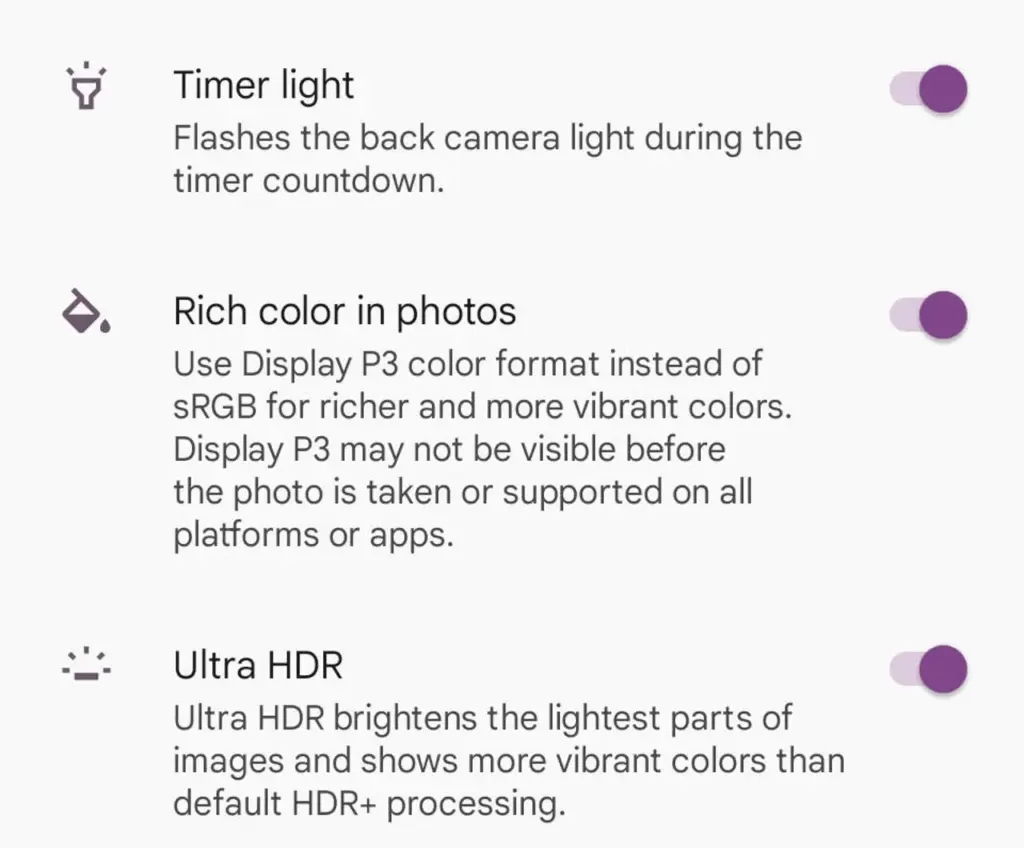
    With each new edition of the Pixel camera, Google aims to surpass itself. Google first debuted the P3 wide gamut capture feature with the Pixel 8, which was accompanied by the Ultra HDR format of Android 14. Photos truly come to life with color thanks to the Display P3’s wide gamut capture.

    Display P3: What is it?

    Display P3 is a color space that combines the following:

    • DCI-P3 color gamut
    • D65 white point
    • sRGB gamma curve

    Gamma is a nonlinear operation that is used to encode and decode brightness in images and videos, for those who were not present at the popular photography club table over lunch. Gamma is defined as the relationship between the luminance and the numerical value of a pixel, which is an even simpler description. Your photographs would not capture color as your eyes perceive it if gamma were not present.

    A camera can prevent color and light tint by using white point, often known as white balance. Consider it in terms of the temperature of color. Are you recording in warm inside light or in the daylight? Your images may appear amber or blue if the white point is set incorrectly.

    The range of colors in a color space that a device can replicate is known as the color gamut.

    The Society of Motion Picture and Television Engineers and the Digital Cinema Initiatives developed Display P3, or DCI-P3, as a color space in an effort to standardize colors used in motion pictures. P3 focuses on what you see in movies. The coordinates of the red (x =.68, y =.332), green (x =.265, y =.69), blue (x =.15, y =.06), and white points (x =.134, y =.351) are even charted.

    Anyone wishing to improve their smartphone photography skills should think about utilizing Display P3, as it gives a far wider variety of colors than sRGB. All of the phones in that range support P3, so if you own a Google Pixel 8 or 9, you are in luck.

    How to enable P3 in the Pixel camera app

    A Pixel 8 or 9 phone is all you will need for this. It may be XL, Pro, or ordinary.

    • Open the Camera app – to begin, unlock your phone and open the camera app.
    • Open Settings – Ttap the gear icon in the lower left corner of the window to open Settings.
    • Open More Settings – From the Settings pop-up, tap “More settings.”
    • Enable P3 – Move the On/Off slider for that entry until it’s in the On position. You can now back out of settings. 
    pixel camera setting

    The color enhancement may appear mild on some devices and striking on others when you take pictures.

    It should be noted that not all devices are compatible with P3. You may use the P3 gamut to snap a picture and then send it to someone whose device does not support it. The shot will not look nearly as good on their device as it does on yours.

  • Simple guide on how to make moving images on your smartphone

    Simple guide on how to make moving images on your smartphone

    We will learn how to create moving pictures on your phone today. It is a wonderful thing to capture a moment. However, what if your ideal image could be animated? What if a static moment in time could have a movement added to it? How awesome would that be? Imagine having a photograph of a waterfall. If the waterfall moved and everything else remained motionless, that would be amazing. Or picture a sunset.

    An already stunning composition would get a whole new level if a portion of the image were animated. Use this guide to improve your social media game and produce stunning moving graphics. Show off your editing and photography prowess to your friends.

    We will concentrate on only one photo editing app, despite the fact that there are many that allow you to create moving photographs Pixaloop.

    Pixaloop is a free app that is available on both the Apple App Store and Google Play. It enables users to create GIF animation effects, live images, and backgrounds.

    It uses their cutting-edge photo animator to give static photographs alive. You have a successful app when you combine that with a simple and user-friendly UI. Let us test this application instead of just discussing it.

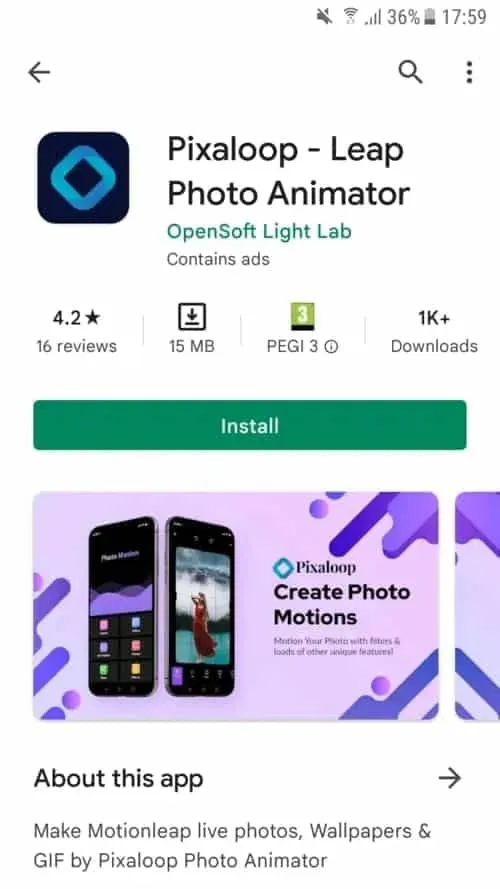
    Install Pixaloop

    Pixaloop is available on the Apple App Store and Google Play Store. I will be downloading and installing it from the Play Store because this demonstration is being done on an Android smartphone.

    1 install pixaloop 1

    Choosing an Image

    You begin by selecting an image, just like you would with any other image editing program. However, you can also choose to open your camera and take a fresh picture. I let you make that choice. Making moving pictures while on the fly might be entertaining at times. I will be selecting a picture from my collection for the tutorial.

    istockphoto 1133155890 612x612 1

    It’s an image I have previously downloaded on my phone.

    This is an awesome picture. We are going to be using it to demonstrate how to make moving image using your phone.

    Create a moving image on your device

    When you launch Pixaloop it looks something like this

    2

    Your image can be animated in two different ways. You can either import an existing image or take a new one with your phone’s camera. I will bring mine in.

    3 crop image

    Before applying the motion effect, you can crop the image on the first screen. Cropping your work in advance is a good idea, depending on where you want to publish it.

    Personally, I think this works really well. I am not going to perform any cropping. will start working on a motion picture right away.

    I see a cascading waterfall in this picture, with the figure motionless. This picture will, in my opinion, take on a completely new level if the background is animated.

    4 masking the subject

    I also carried out my masking technique on the background. At least a portion of it. I do not want the ground to move either. The moving image does not look nice with it. Simply said, it is not natural. Trial and error is how you go about this procedure.

    After making your adjustments, hit the Play button. Proceed to the following step if you are satisfied with the outcome. If not, go back and make all the changes you dislike.

    6 animating the waterfall

    I decided to use Motion Animation for this picture. Clicking the Motion button at the bottom of the screen will activate it. You can specify the animation’s path to the program when this parameter is enabled.

    As you can see, I made six pathways, each of which points downhill. I am emulating the course a waterfall would naturally follow.

    You can also adjust the waterfall upward if you would like. Using this tool to create a moving image would cause everything to animate in a downward manner. And I mean all of it. I discovered that both the top and bottom are dragged down after playing my clip. I utilized Anchor Points to resolve this problem.

    Five anchor points are visible on top of the photograph, and seven anchor points are directly above my ground mask. This keeps the image from moving strangely on the top and bottom. I was happy with the outcome after a few attempts, shifting and adding anchor points.

  • Android 15 can change the intensity of vibrations according to your environment.

    Android 15 can change the intensity of vibrations according to your environment.

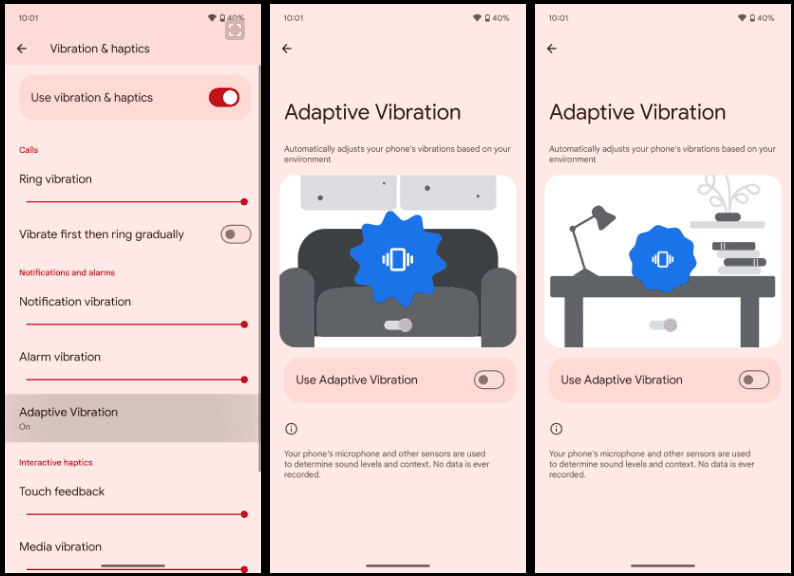
    With Android 15 Beta 2, Google introduced a brilliant new “Adaptive Vibration” setting that lets Pixel phones use their microphones to change the intensity of vibration. Almost everyone has experienced a circumstance when their phone’s vibration was louder than the ringing it was supposed to replace. The ability to manually change the vibration intensity has existed for a while, but Google is now expanding on it.

    Google introduced “Adaptive Vibration” to Pixel Phones in Android 15 Beta 2. This new setting, located in Settings under the “Vibration & haptics” menu, is set to off by default. According to Google, the setting uses sensors to automatically modify the vibration intensity based on your environment.

    According to the animation on the new Adaptive Vibration website, when the device is placed on a table, the vibration intensity decreases, which is what Pixel phones will do when the feature is enabled. The “Adaptive alert vibration” setting, which can reduce vibration intensity while the phone is face up with the screen on, is distinct from this.

    Screenshot 2024 10 20 195238

    The Pixel 7a introduced that capability. This feature appears to be helpful, but we will have to wait and see how it functions in practice. Although it is still disabled by default, the functionality was being developed in earlier beta editions, according to Android Authority. It is difficult to predict when these things will become live.

    If Google’s various other “Adaptive” settings shown anything, it’s that this new option could prove invaluable to the experience in the long run.

  • Take the Next Step: Global NLP Training for a Brighter Tomorrow

    Take the Next Step: Global NLP Training for a Brighter Tomorrow

    Introduction

    Understanding NLP Training

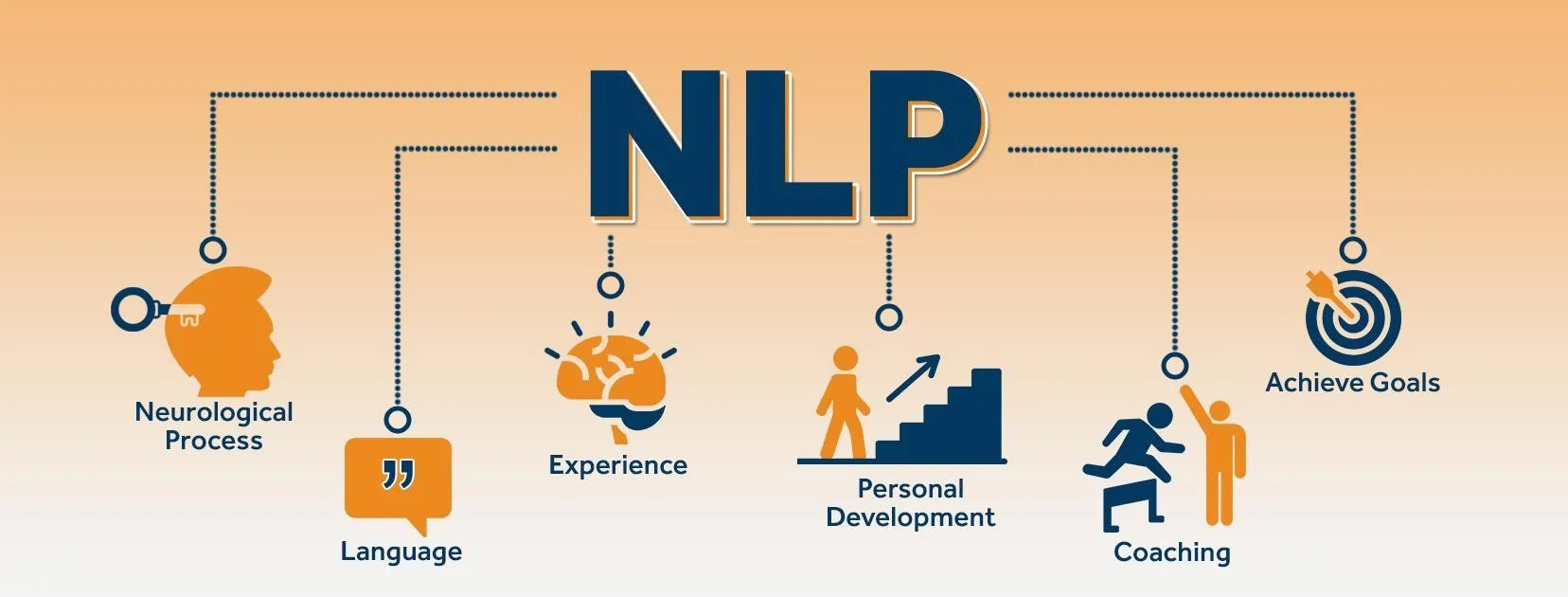
    Neuro Linguistic Programming, or NLP, serves as a transformative toolbox designed to optimize our thoughts, feelings, and behaviors. It emerged from the desire to understand and model the strategies of high achievers across various fields, including business, education, and sports. The founders of NLP did not focus on traditional psychotherapy but instead sought practical applications that could enact real-world change. This approach has allowed countless individuals over the decades to develop vital skills for personal and professional success. For example, one might practice reframing negative thoughts into constructive ones. This simple yet powerful shift fosters a more positive mindset and enhances overall well-being.

    Importance of Global NLP Training

    The significance of global NLP training cannot be overstated; it provides individuals from diverse backgrounds access to these life-altering techniques. NLP training is not limited to a specific demographic; instead, it welcomes professionals, educators, therapists, and anyone seeking personal growth. Benefits of global NLP training include:

    • Cultural Exchange: Participants bring unique perspectives, enriching the learning experience.
    • Networking Opportunities: Building connections with like-minded individuals from across the globe.
    • Adaptability: Learning various NLP techniques allows individuals to adapt them to their own cultural contexts.

    By engaging in NLP training worldwide, individuals become part of a movement aimed at personal transformation and collective betterment, fostering a brighter future for themselves and their communities.

    Nicole

    Benefits of NLP Training

    Enhanced Communication Skills

    One of the standout benefits of NLP training is its ability to significantly enhance communication skills. Whether in a professional or personal context, the effectiveness of communication can dramatically influence outcomes and relationships. Through NLP techniques, individuals learn to:

    • Mirror and Match: This method involves reflecting a client’s body language and vocal tone, establishing rapport in conversations. By practicing this, participants can create an atmosphere of comfort and trust.
    • Active Listening: It’s not just about hearing words; it’s about understanding the emotions and intentions behind them. NLP teaches coaches to truly listen, fostering a deeper connection and realization of a client’s needs.

    In my experience as an Certified NLP practitioner, I’ve witnessed clients transitioning from hesitant speakers to compelling communicators who can engage with audiences effortlessly.

    Personal Growth and Development

    NLP training is not solely about improving professional interaction; it also facilitates profound personal growth. This methodology empowers individuals to tackle their limiting beliefs and emotional barriers head-on. Key aspects of personal development through NLP include:

    • Overcoming Limiting Beliefs: Participants learn techniques to identify and reframe the negative beliefs that hold them back, fostering a healthier mindset.
    • Increased Self-Awareness: NLP encourages introspection, enabling individuals to understand their thoughts, feelings, and behaviors better.
    • Resilience: By applying NLP strategies, many have reported feeling more resilient in facing life’s challenges, enhancing their overall well-being.

    Those who have undergone NLP training often reflect on their transformative journeys, sharing how the experience has reshaped their perspectives and behaviors for the better. The tools gained through NLP not only enhance their communication but also elevate their quality of life.

    Global NLP Training Programs

    Online NLP Courses

    Global NLP Training offers a variety of online NLP courses designed for those seeking flexibility without compromising on quality. These courses can be completed at your own pace, allowing individuals to absorb materials and practice techniques from the comfort of their homes. Some benefits of online NLP courses include:

    • Accessibility: No matter where you are, you can participate in NLP training from anywhere in the world.
    • Video Lessons and Resources: Engaging video content and comprehensive materials allow for a rich learning experience.
    • Interactive Components: Many online programs integrate forums and webinars for real-time interaction with trainers and peers.

    Having taken an online NLP course myself, I found the blend of flexibility and interaction to be incredibly enriching, as I could apply what I learned in real-time while balancing my everyday responsibilities.

    In-Person NLP Workshops

    For those who thrive in immersive environments, in-person NLP workshops offer transformative experiences that go beyond traditional learning. Global NLP Training provides several locations—Europe, the USA, Asia (Bali), and Mexico—where participants can engage deeply with the material. These workshops often feature:

    • Full Immersion Experiences: Participants undergo an intensive 16-day program that enables them to focus solely on their growth and mastery of NLP techniques.
    • Hands-On Practice: There’s no substitute for practicing NLP techniques in real-time with fellow participants and trainers, which cements learning and builds camaraderie.
    • In-Depth Certification Programs: Earn certifications as an NLP Practitioner, Master Practitioner, or Life Coach, which can elevate your career in the coaching industry.

    I recall attending an in-person workshop where the collaborative environment fostered personal breakthroughs and skill enhancements, reinforcing the power of face-to-face learning. Whether online or in person, engaging in NLP training can open new doors for both personal and professional development.

    Accreditation and Certification

    Recognized NLP Certifications

    Understanding the significance of accreditation in Neuro Linguistic Programming (NLP) training is essential for anyone considering entering this field. Recognized certifications can profoundly impact a professional’s credibility and career opportunities. Major certifications include:

    • NLP Practitioner: This foundational certification equips individuals with essential NLP skills for personal development and coaching.
    • NLP Master Practitioner: Building on the practitioner level, this advanced certification dives deeper into complex NLP techniques and theories to refine coaching abilities.
    • Mindset and Life Strategy Coach Certification: This certification offers a blend of NLP with strategic communication, enabling practitioners to enhance client transformations effectively.

    Having undergone NLP training myself, I can attest to how these certifications boost confidence and recognition among peers and clients alike. They signify that individuals have met rigorous standards of knowledge and skill in NLP.

    Accredited NLP Training Institutions

    Accreditation plays a crucial role in ensuring the quality of NLP training programs. Institutions like the International NLP Association (INA) and the International Coaching Federation (ICF) establish a framework that sets high standards for educational programming. When choosing a training institution, consider:

    • ICF Accreditation: The ICF requires a curriculum that meets specific core competencies.
    • Comprehensive Course Materials: High-quality training institutions provide extensive course materials, including videos, live sessions, and practical assignments.
    • Lifetime Access and Ongoing Support: Many accredited programs offer lifetime access to resources and trainer support, ensuring a network for continual learning.

    Selecting an accredited NLP program not only enhances one’s education but also ensures that you receive a quality experience that can facilitate personal and professional growth.

    Career Opportunities in NLP

    NLP Practitioner Roles

    Embracing a career as an NLP practitioner offers a wide array of fulfilling opportunities. Whether you aspire to work in individual coaching, corporate training, or facilitation, the skills acquired during your NLP training can be instrumental in guiding others toward personal and professional breakthroughs. Common roles include:

    • Life Coach: Helping clients set and achieve personal goals, overcome limiting beliefs, and enhance self-awareness.
    • Corporate Trainer: Conducting workshops and seminars for businesses, focusing on communication skills or team dynamics.
    • Therapist or Counselor: Utilizing NLP techniques to assist clients with emotional and behavioral challenges, fostering deeper understanding and healing.

    Having stepped into my own role as an NLP practitioner, I’ve found that the diversity of the career path ensures continual growth and learning—there’s always something new to explore, whether it’s through working with different clients or integrating new techniques.

    Advancing in the NLP Field

    For those already established in NLP, advancing your career can lead to even more rewarding paths. Here are some options for growth:

    • Specialization: You can deepen your expertise by focusing on specific niches such as wellness coaching, career coaching, or executive coaching.
    • Master Practitioner Certification: Pursuing further certifications can enhance your credentials and open higher-level coaching positions, allowing for greater responsibilities and impacts.
    • Teaching and Mentoring: After gaining experience, you might choose to become a trainer or mentor, teaching the next generation of NLP practitioners.

    Engaging in continued education and connecting with the wider NLP community are vital strategies for fostering growth and ensuring that you remain at the forefront of the field, ultimately enhancing your ability to facilitate change in others.

    This post was delivered to you by the Accessily platform. If you want to showcase your content on our site, visit the Accessily Guest Post Marketplace.

  • US Carriers that enabled RCS messaging for iPhones

    US Carriers that enabled RCS messaging for iPhones

    This week, Apple unveiled iOS 18, which includes a number of improvements, including the long-awaited Rich Communication Services, or RCS. The iPhone 16 was also announced alongside iOS 18. Since carrier activation is necessary for the messaging service to function, not all American networks will offer it at launch. The most recent list of carriers that support RCS on iPhones can be found on Droid Tools.

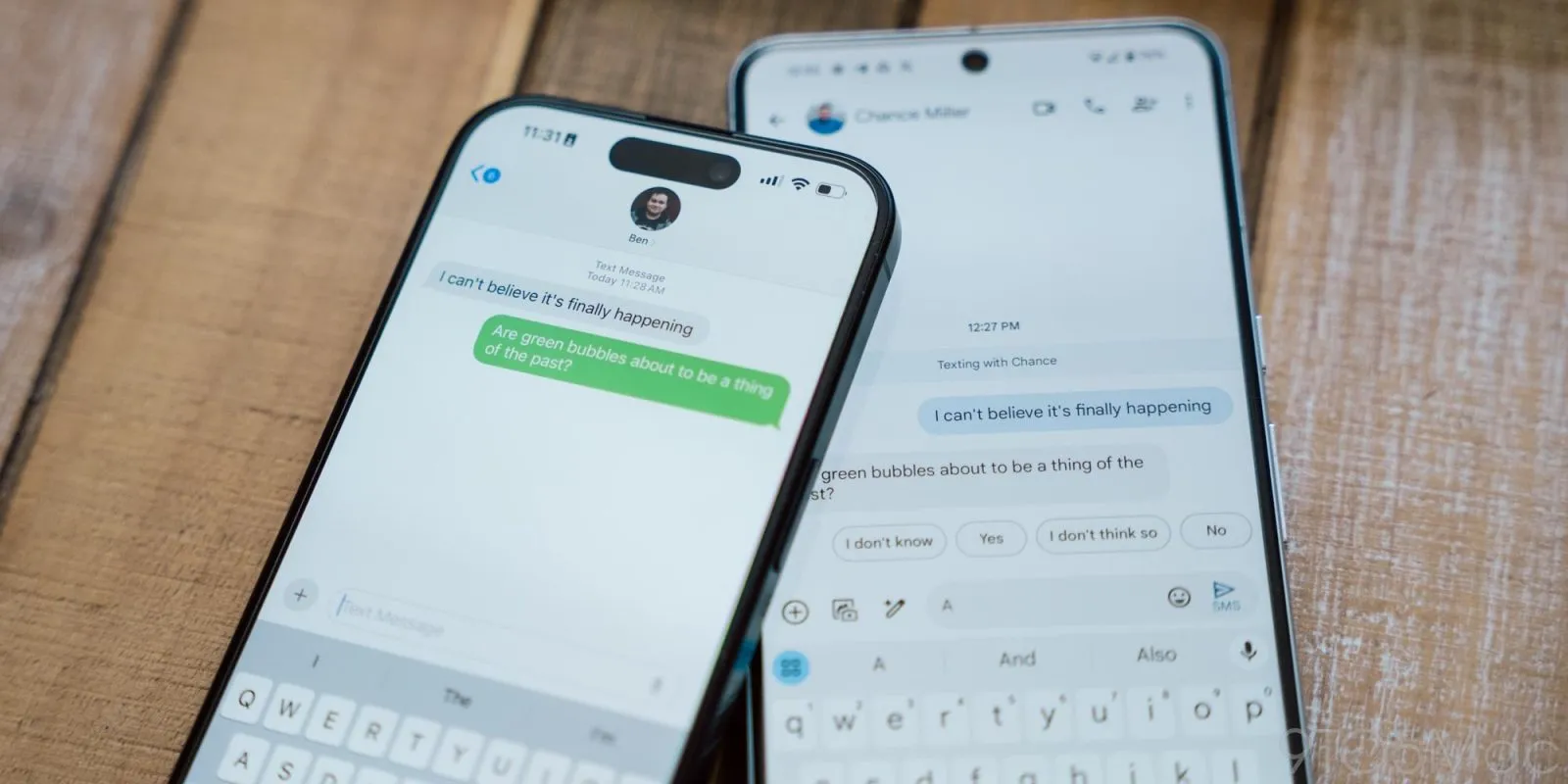
    Since Google originally implemented RCS on iPhones a few years ago, it has been a frequently desired feature. This messaging protocol was created to take the place of SMS and MMS on mobile or cellular phones. This has several capabilities including sending and receiving high-resolution photos, read receipts, typing indicators, and improved group chat management, even if it does not eliminate the green bubbles from Android messages.

    How to turn on RCS on an iPhone

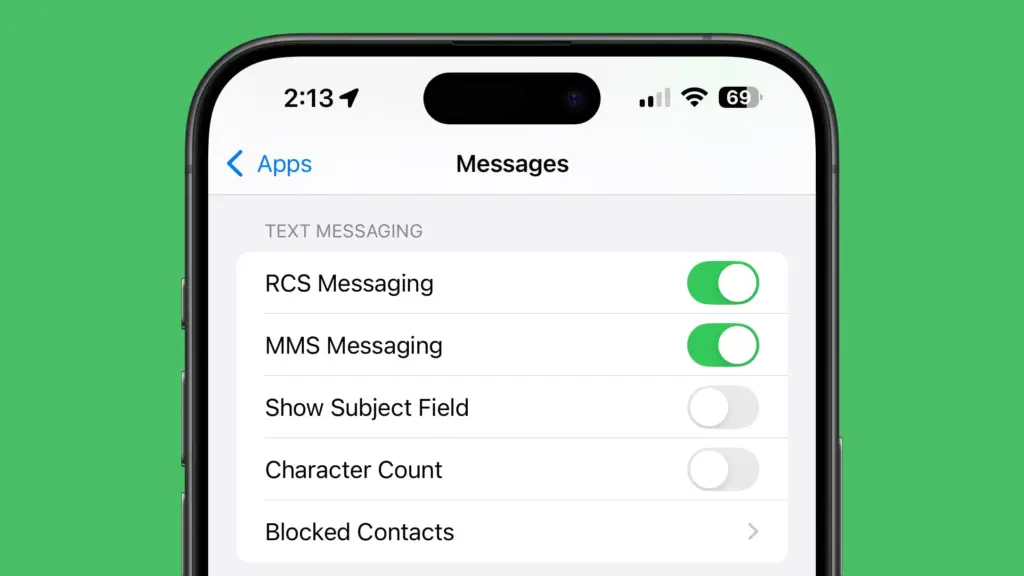
    Even after updating to iOS 18, RCS messaging is disabled by default. Users of upgraded iPhones will need to activate it through the settings. How to do it is as follows:

    1. Open the Settings app on your iPhone.
    2. Scroll down and tap Apps.
    3. Select Messages from the menu.
    4. Toggle on RCS.
    5. Exit the window to save changes.
    RCS messaging

    Which US carriers offer RCS for iPhones?

    Only a few carriers have enabled RCS since iOS 18 was released for compatible iPhones. Major carriers have been on the list, nevertheless, since the beginning. The carriers listed below provide RCS for iPhones.

    1. AT&T
    2. T-Mobile
    3. Verizon
    4. Metro by T-Mobile
    5. U.S. Cellular
    6. Cricket
    7. Spectrum
    8. TracFone
    9. Straight Talk
    10. Xfinity Mobile
    11. C Spire
    12. Consumer Cellular
    13. FirstNet
    14. PureTalk
    15. Red Pocket
    16. Visible

    There is no confirmation yet when other telco operators like Mint and Boost will enable RCS on their network.

    Which Canadian carriers offer RCS for iPhones?

    If you’re residing in Canada or traveling there, most major carriers there offer RCS on iPhones as well. You can find the list below.

    1. Bell
    2. Rogers
    3. Telus
    4. Fido
    5. Virgin Mobile
    6. Freedom Mobile
    7. Koodo
    8. Lucky Mobile
    9. Videotron
    10. Chatr

    If you would rather see it in a more organized manner, Apple’s support page has a list of several wireless providers in various nations and areas that have already integrated RCS into their networks.