There comes a point where upgrading your smartphone every year or two just does not make much sense anymore. My Google Pixel 9 Pro from 2024 is still performing well, and unless the next upgrade brings something meaningful, I do not see myself moving to the Pixel 11 Pro either.
The trade-off for keeping a phone longer is that it slowly starts to feel cluttered. You install the apps you need over time, and unlike the old days of swapping to a fresh device, everything accumulates. At this point, I have well over 100 apps on my phone.
The issue is that many of these apps keep running in the background, using RAM and other system resources even when they are not open. That can make your phone feel slower, less responsive, or just not as smooth as before.
Android includes a hidden setting that lets you see exactly how much memory each app is using. It makes it much easier to figure out which apps are worth keeping and which ones are just sitting there eating resources and slowing down your phone.
You need Developer Options first
Before you can check this, you need to enable Developer Options on your device, which is probably why you have never run into this setting before.
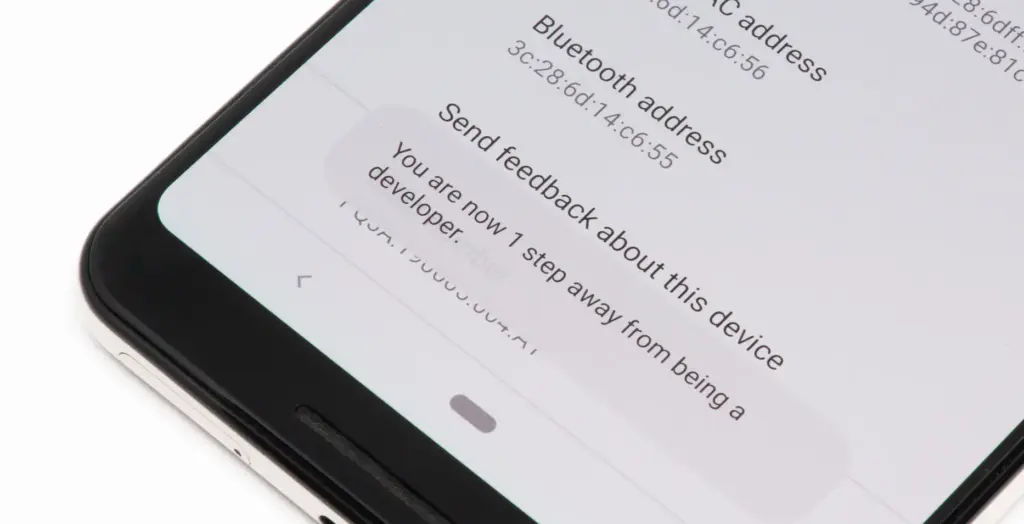
To turn it on, open the Settings app on your phone, then go to the About Phone section. From there, tap the Build number seven times. After a few taps, you should see a message saying, “Developer options have been enabled.”
Once that is done, go back to System settings and open Developer Options. Near the top, you will find a Memory section. On some devices, especially Google Pixel phones, memory usage profiling may not be enabled by default, so you may need to switch it on and restart your device before you can use it.
What the numbers mean
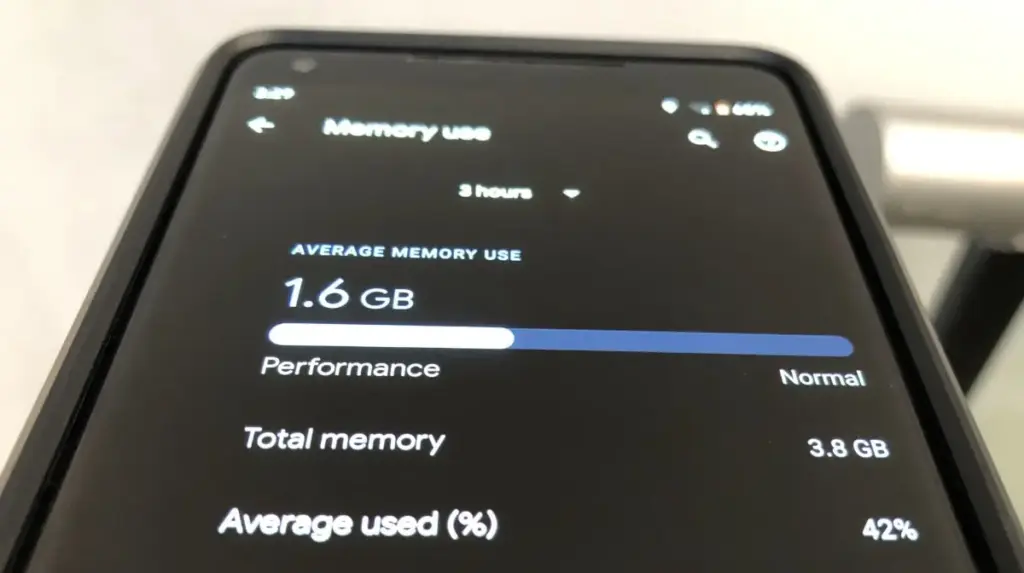
Inside the Memory section, you will see how much RAM your phone has, how much is being used on average, and a general overview of overall performance.
If you want to see which apps are using memory, tap the Memory used by apps option. This section lists apps based on how much RAM they have used over the past three hours by default.
At the top, there is a drop-down menu that lets you change the time frame to three hours, six hours, 12 hours, or one day. In practice, 12 hours or one day gives a much better picture of which apps consistently use the most memory throughout the day.
In most cases, Android OS will appear at the top, and that is completely normal. The system itself runs several background processes, and all of that gets grouped under Android OS.
What matters more is spotting third-party apps that are using more RAM than expected. You can tap any app to see details such as its average and peak memory usage.
For example, I do not currently have a Pixel Watch paired with my Pixel 9 Pro, but the Pixel Watch app and Fitbit app together were using around 250MB of RAM in the background. That is a lot for something I am not even using.
If you notice similar apps on your phone, you can open their info page and use the three-dot menu to force stop them if needed.
RAM use is not always bad
That said, RAM being used is not automatically a problem.
Android is designed to use available RAM to keep apps ready in the background, so it does not always mean your phone is wasting resources. The real goal is to identify what is actually unnecessary.
If you find an app that you do not really use but it is still taking up a lot of memory, you can stop it from this menu. Even better, uninstalling it completely is usually the smarter choice.
Force stopping only works temporarily, since the app will start using memory again the next time you open it. If you no longer use the app at all, removing it entirely ensures it will not keep using RAM in the future.
Recent apps are not enough
If you think the apps in your Recents menu are the only ones using your phone’s resources, closing them will not solve everything.
Those are just the apps that are currently active, but many Android apps continue running background processes that you do not see in Recents or on the screen.
That is exactly why this feature shows average memory usage over the past few hours, giving you a much clearer view of what is really using RAM behind the scenes.
Overall, this tool should help you spot the apps that are using more memory than they actually need. It gives you a clearer sense of what is running in the background and what is worth keeping installed.
If your phone feels slower or the battery is draining faster than usual, there are also other steps you can take to optimize your Android phone and help it last longer.
Kaspersky ICS CERT has publicly detailed a critical hardware vulnerability hitting a wide array of Qualcomm Snapdragon chipsets. The exploit, presented at Black Hat Asia 2026 on April 23 and tracked as CVE-2026-25262, has rattled the security community. First confirmed by Qualcomm in April 2025, full technical details are now available, exposing a backdoor capable of total device takeover and data destruction.
The Sahara Protocol and BootROM Flaw
The issue lies deep in the BootROM, the silicon-hardcoded firmware that runs first when a device powers up. Because this code is etched into the hardware itself, standard OTA software updates can’t touch it, making patches nearly impossible.
Researchers uncovered a major weakness in Qualcomm‘s Sahara protocol handling. For those who work with device flashing, Sahara manages low-level communication in Emergency Download (EDL) mode to load critical software before the main OS starts.
With just a few minutes of physical access, attackers can exploit this to sidestep the entire secure boot chain. Once inside the application processor, they gain the ability to:
Install persistent backdoors that survive reboots.
Pull sensitive data like passwords, files, contacts, and real-time location.
Take over device sensors for covert camera and microphone access.
The malware even fakes a system reboot to throw off users. Clearing the infection often requires draining the battery completely to wipe volatile memory, and detection remains extremely challenging.
Affected Chipsets and Devices
While newer flagships like Snapdragon 8 Elite have stronger defenses, this flaw hits many older and mid-range chips still in widespread use.
Vulnerable Qualcomm Chipsets:
MSM8916 (Snapdragon 410) (Xiaomi REDMI 2)
SDX50 (Xiaomi Mi MIX 3 5G and Mi 9 Pro 5G)
MDM9x07
MDM9x45 (Xiaomi Mi 5, Mi 5s, Mi 5s Plus, Mi Note 2, Mi MIX)
MDM9x65
MSM8909
MSM8952
Real-World Impact
Physical access requirements limit mass remote attacks, but the risk to supply chains, repair shops, and targeted users remains severe. Compromised devices turn into perfect surveillance tools. With hardware deployed across consumer REDMI phones to industrial IoT systems, the potential fallout spans far beyond typical mobile threats.
A new OnePlus smartwatch has cleared Google certification ahead of its official debut. The OnePlus Watch 4 is expected to launch soon and will come in two colour options — though owners of the Watch 3 may find the hardware underneath very familiar.
OnePlus spent last week teasing the Pad 4 tablet, a high-end release confirmed for India so far. Around the same time, early details about the company’s next smartwatch began circulating on X. Now, that same device has shown up on the Google Play Console, carrying the identical model number and retail name from last week’s leak. The listing doesn’t pin down a release date, but it does shed light on several key specifications before any official announcement.
The news isn’t particularly exciting for Watch 3 owners hoping for a hardware leap. As earlier rumors suggested, OnePlus appears to have carried over the internal components largely unchanged. The Google Play Console listing confirms the Watch 4 pairs 2GB of RAM with Qualcomm’s Snapdragon W5 Gen 1 chipset — not the newer Snapdragon Wear Elite that some had hoped to see.
The display situation follows the same pattern. The Watch 4 is listed with a 466 x 466-pixel resolution at 320 DPI, matching the Watch 3’s screen specs exactly, which points to a 1.5-inch panel once again. Taken together, the Watch 4 is shaping up to look a lot like a rebranded Oppo Watch X3 — a device Oppo is set to launch in the Eurozone on April 21 for €379 (approximately $449). The OnePlus Watch 3, for reference, is currently available on Amazon for $249.99, so it’ll be interesting to see where OnePlus prices its successor given the minimal spec changes.
The Play services, Play Store, and Play system update for Android phones and tablets, Wear OS, Google/Android TV, Auto, and PC are the main topics covered in the monthly “Google System Release Notes.” While certain features are intended for developers, others are applicable to end users.
The “Google System” is made up of the following third-party apps:
To update, launch the Settings app, press your name at the top of the “Google services” page, then select All services > Privacy & security > System services.
A feature is not necessarily publicly accessible just because it appears in the changelog. The full launch of some capabilities takes months.
Google Play services v26.15 (2026-04-20)
Device Connectivity
[Auto, Phone, Wear] Bug fixes for Device Connections and System Management & Diagnostics related services.
Location & Context
[Phone] Bug fixes for Location Services related services.
Wallet
[Phone] With this update, a message at the bottom of the screen tells the user how to add a card to Wallet.
[Phone] With this update, you’ll get a new entry point for MyCommute.
Android System Intelligence B.24 (2026-04-16)
[Phone] Maintenance changes.
Google Play services v26.14 (2026-04-13)
Account Management
[Phone] With this update, you’ll get a faster way to set up your device when you transfer accounts and settings from an existing device.
System Management
[Auto, PC, Phone, TV, Wear] You can now find open source licenses for Android Pulse in GMS Core.
Wallet
[Phone] You can now control how private passes in Wallet work with other Google services like Autofill through new per-pass privacy settings.
[Phone] You can now use a redesigned Wallet interface for quick access, search, and discovery.
Google Play Store v51.0 (2026-04-13)
[Phone] You can now provide feedback on AI-generated summaries of user reviews.
[Phone] You can now create a Gamer Profile directly from You tab.
[Phone] You can now play some games on the You tab with no install required.
Google Play services v26.13 (2026-04-06)
Account Management
[Auto] When a user signs in to their Google account on Android Automotive devices via QR code, the sign-in confirmation displays the requesting device’s name.
Device Connectivity
[Phone] New developer features for Google and third party app developers to support Device Connectivity related processes in their apps.
Location & Context
[Phone] With this update, Location Sharing APIs are refined and new location requests are introduced.
[Phone] With this update, On-Device Location History Store Visits processes more frequently.
System Management
[Auto, PC, Phone, TV, Wear] Updates to system management services that improve Security and Stability.
Wallet
[Phone] Bug fixes for Wallet related services.
Google Play Store v50.9 (2026-04-06)
[Phone] This update adds download numbers to some app and game ads to help you make informed choices.
[Phone] You can now join and compete in Play Games Leagues directly from the You tab.
Android 17 Beta 4 is now rolling out to Pixel devices, and Google says it is the “last scheduled beta of this release cycle.” After the larger Beta 3 update brought new features and platform stability, this release appears focused on final refinements ahead of a stable launch later this quarter.
To install Android 17 Beta 4, Pixel users can enroll through the Android Beta program and wait for the over-the-air update. Those who prefer the manual route can also flash a factory image or OTA file.
The latest build details are below:
Release date: April 16, 2026 Build: CP21.260330.008 Emulator support: x86 (64-bit), ARM (v8-A) Security patch level: 2026-04-05 Google Play services: 26.11.36
Android 17 Beta 4 supports Pixel devices back to the Pixel 6 lineup.
Developer changes
One of the main additions in Android 17 Beta 4 is conservative app memory limits, which are meant to improve system stability. If an app is killed because of these limits, ApplicationExitInfo.getDescription will return “MemoryLimiter.” Developers can also use trigger-based profiling with TRIGGER_TYPE_ANOMALY to capture heap dumps when the limits are reached.
Google has also tightened background audio rules. Starting in Android 17, the audio framework restricts background interactions such as audio playback, audio focus requests, and volume change APIs. Some changes were made after feedback from beta 2, including targetSDK gating for while-in-use FGS enforcement and exemptions for alarm audio.
Bug fixes
Android 17 Beta 4 also includes a long list of bug fixes:
An issue where webpage URLs were automatically included when sharing screenshots from the capture preview, causing unwanted links to be shared with image files. (Issue #444631269)
An accessibility issue caused the device to become completely unresponsive and unusable. (Issue #484755628)
An issue where the media control widget could disappear or fail to navigate between multiple active media sessions. (Issue #457008153, Issue #466760800, Issue #497131275, Issue #499041878)
An issue where dream services failed to correctly process key events, trigger keyguard bouncer prompts, or execute service lifecycle callbacks. (Issue #485661973)
An issue that prevented users from successfully downloading and applying cinematic or local weather wallpaper effects. (Issue #475924636)
An issue where the device would freeze and spontaneously restart while typing in messaging applications. (Issue #478417840)
A critical system instability issue that causes the device to hang and crash during normal usage. (Issue #427436873, Issue #428838049)
An issue causing devices to experience significantly reduced charging speeds when approaching the 80% battery limit, resulting in long delays before the device reaches its target charge and enters bypass mode. (Issue #485148344, Issue #490178498)
A rendering issue that caused multicolored horizontal lines to randomly obscure the device display. (Issue #478953060, Issue #478177624, Issue #483765859, Issue #487263076)
Pulling down the notification drawer while a feedback report is in progress can cause a System UI crash and device freeze. (Issue #488920581)
Critical system components including Pixel Launcher and navigation may crash or become unresponsive for several minutes after a device reboot. (Issue #317282987, Issue #316689583, Issue #316188779)
An accessibility issue that prevents users from properly interacting with apps after minimizing and returning to a split-screen view. (Issue #490735259)
An issue that prevented Bluetooth from being re-enabled after it was turned off via the system settings or quick settings panel. (Issue #498320401)
Notifications marked with setSilent(true) may unexpectedly play alert sounds on Android 16 when multiple notifications are present in the shade. (Issue #467164528)
Wi-Fi analyzer applications fail to detect any available Wi-Fi signals, preventing network scanning and signal monitoring.
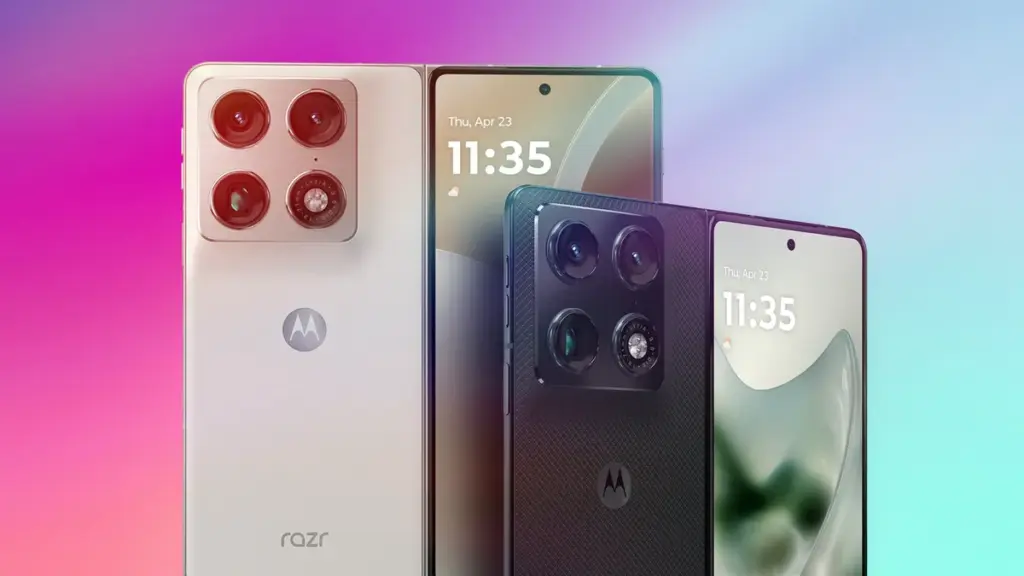
Motorola didn’t exactly shout it from the rooftops, but buried in the fine print of its UK pre-order page is a shipping date: May 6.
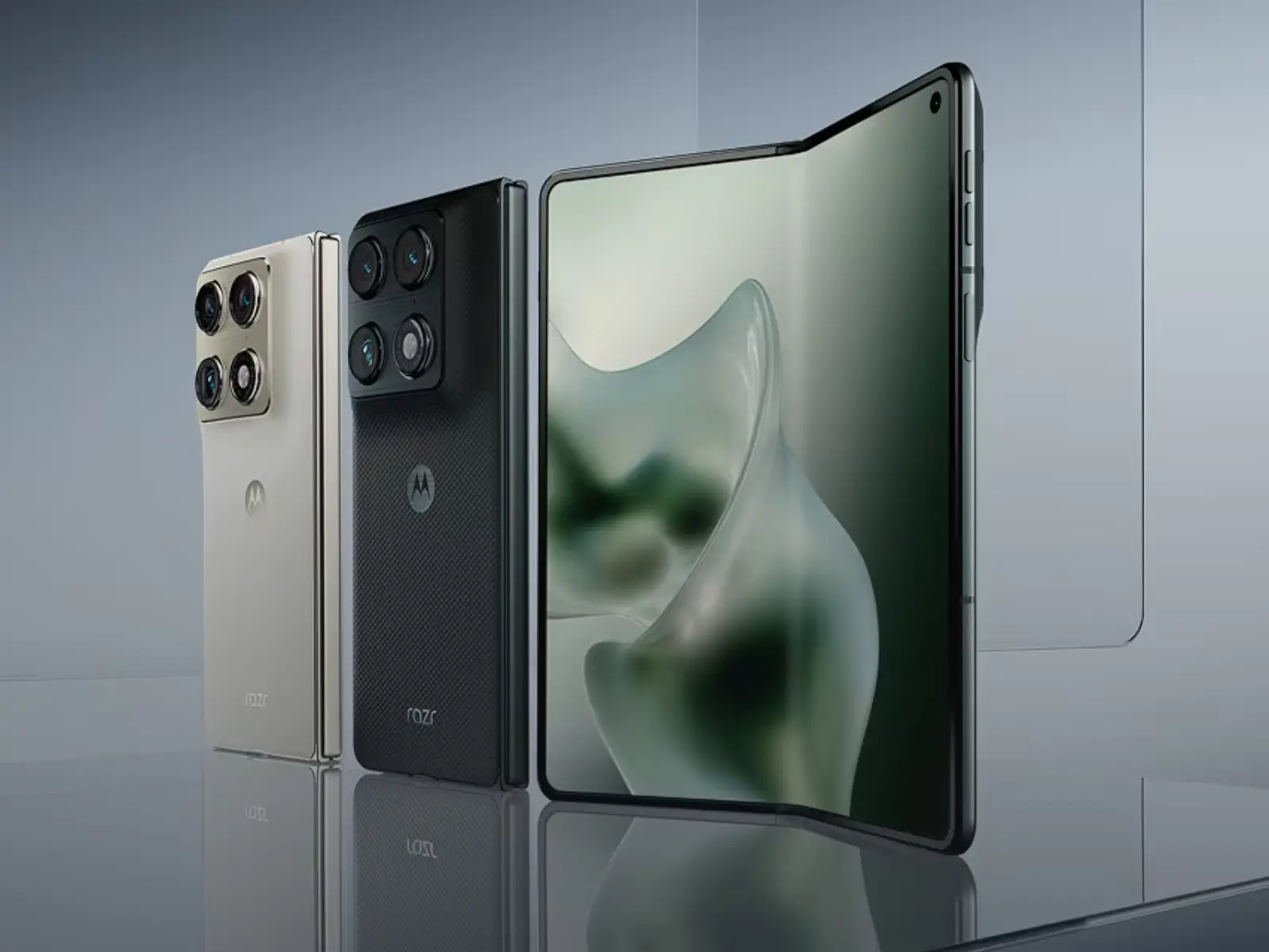
That makes the Razr Fold — Motorola’s first book-style foldable, departing from its signature flip-phone Razr lineup — one of the most imminent big foldable launches of the year.
Pre-orders are live in the UK and Europe
Motorola is already taking pre-orders across the UK and Europe, and the early incentives are hard to ignore. Every pre-order comes with a free Moto Watch and Moto Buds Loop. UK buyers also get a £220 discount, dropping the price to £1,579.99. European customers save €250, bringing it down to €1,749.99.
No official US release date has been announced yet, though Motorola is collecting registrations on its US site.
What will it cost in the US?
Direct currency conversion puts the UK price around $2,443 and the European price around $2,362 — but those figures won’t translate to US shelf prices. Based on Motorola’s typical pricing patterns, expect a $1,999 starting price stateside, which would put it squarely in line with Samsung’s Galaxy Z Fold 7.
One edge the Razr Fold has at that price: 512GB of storage comes standard on the entry model.
What you’re actually getting
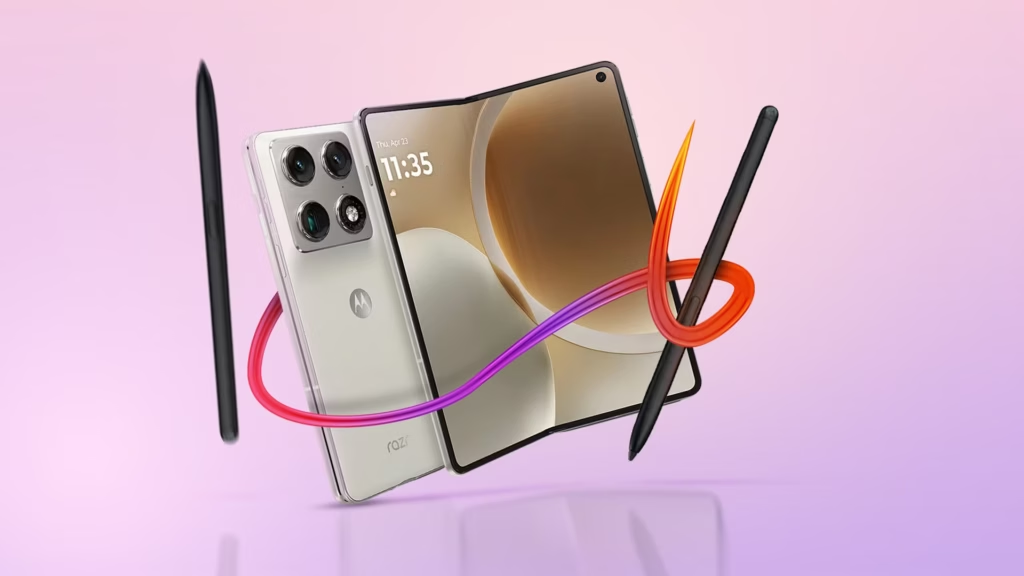
In hands-on time with the device, the Razr Fold feels slightly thicker and heavier than its competition — a fair trade-off for what’s packed inside. The spec sheet is legitimate flagship territory: triple 50MP cameras, a 6,000 mAh battery, Snapdragon 8 Elite Gen 5, 16GB RAM, and support for the Moto Pen Ultra stylus.
No obvious compromises. Just a different form factor than Razr fans are used to.
The bigger picture
Motorola is entering the book-style foldable market at a smart moment — ahead of Apple’s widely anticipated iPhone Fold, expected this fall. Whether “Razr” is the right name for a phone that doesn’t flip is a fair question, but the hardware makes a strong case for itself.
The foldable wars are heating up. Motorola just picked a side.
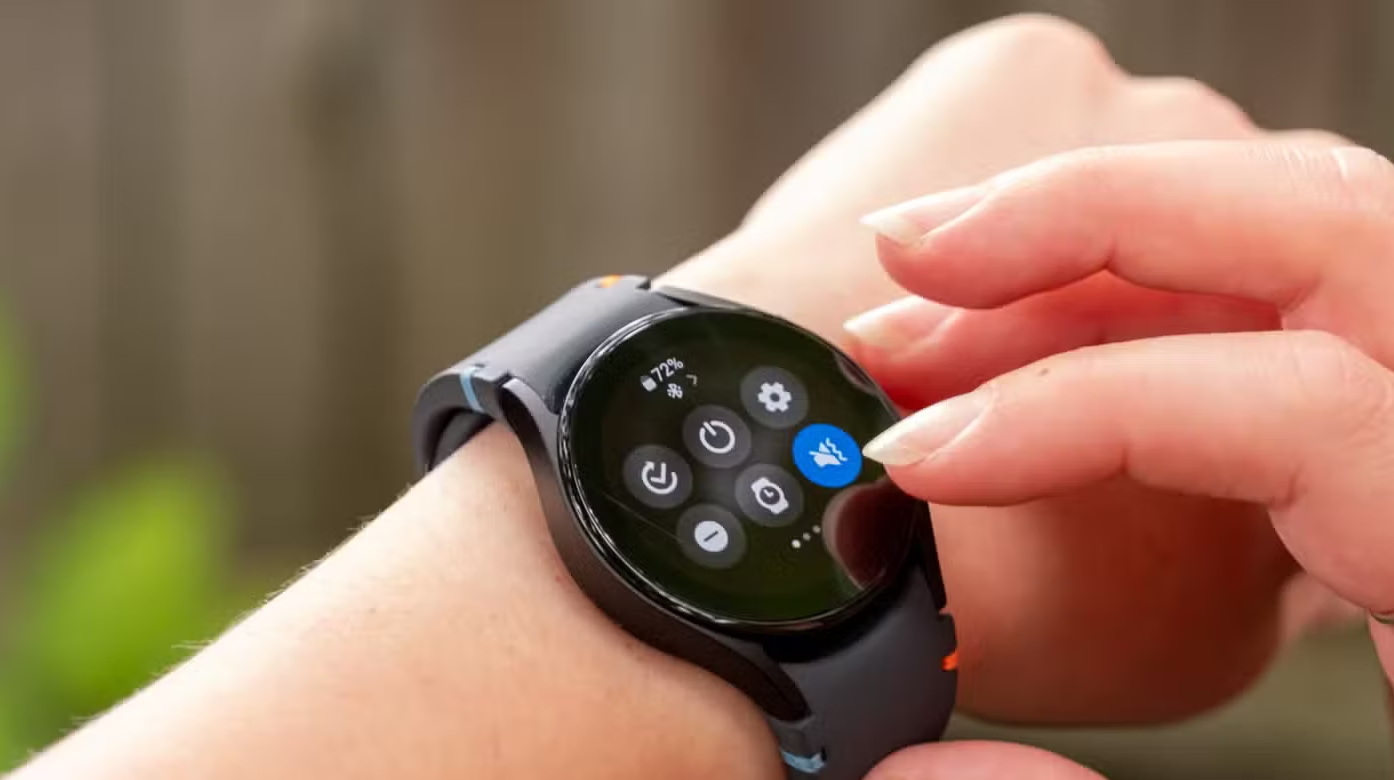
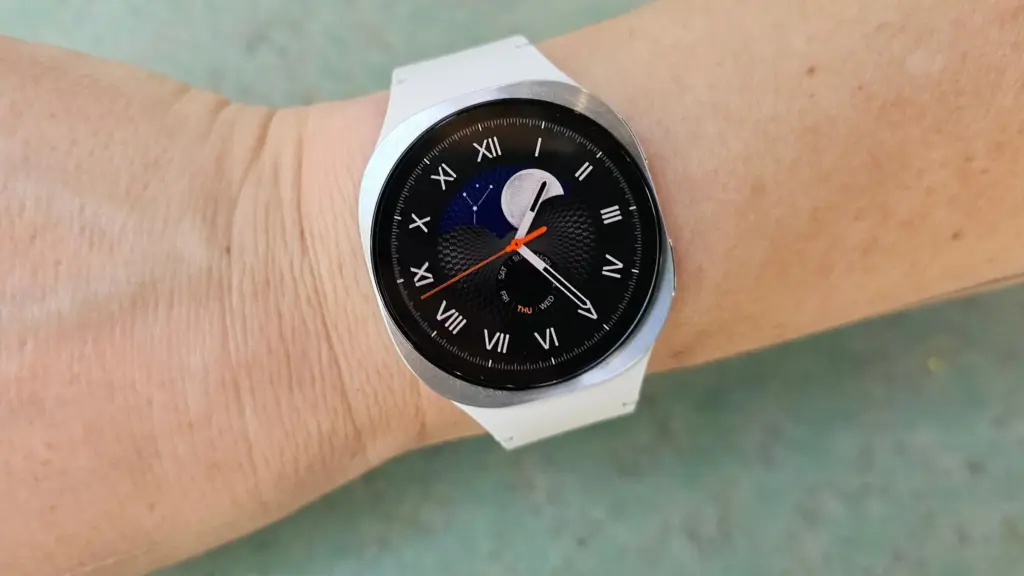
Your Galaxy Watch has a lot in common with a cluttered desk. The longer you use it – jumping between apps, running things in the background, switching modes – the more it accumulates invisible junk that slows everything down. Frozen screens, laggy responses, battery that drains faster than it should. Sound familiar?
The good news: you almost certainly don’t need a new watch. Nine times out of ten, the culprit is a bloated cache, and clearing it is one of the easiest things you can do.
What’s a cache, and why does it matter?
Your watch stores temporary data – bits of information from apps and processes – to help things run faster in the moment. Over time, that pile grows. What was meant to speed things up starts doing the opposite, and your watch starts feeling like it’s running through mud.
Samsung says the Galaxy Watch handles memory optimization automatically in the background, but that doesn’t mean you can’t give it a nudge yourself. Sometimes it needs one.
How to clear your Galaxy Watch cache
Clear your recent apps
Swipe up from the watch face and tap the Recent apps icon. Hit Close all to shut everything down at once.
If you want to be more selective, open Recent apps again and tap Active in background. You’ll see which apps are running silently and can close whichever ones you don’t need.
Clean up the watch’s memory
Go to Settings > Device Care > Memory, then tap Clean Now. That’s it – your watch will free up whatever space it can.
Do both of these and you’ll likely notice a difference right away. Faster app launches, smoother navigation, better battery life. If your watch has been frustrating you lately, start here before assuming it’s time to upgrade. It usually isn’t.
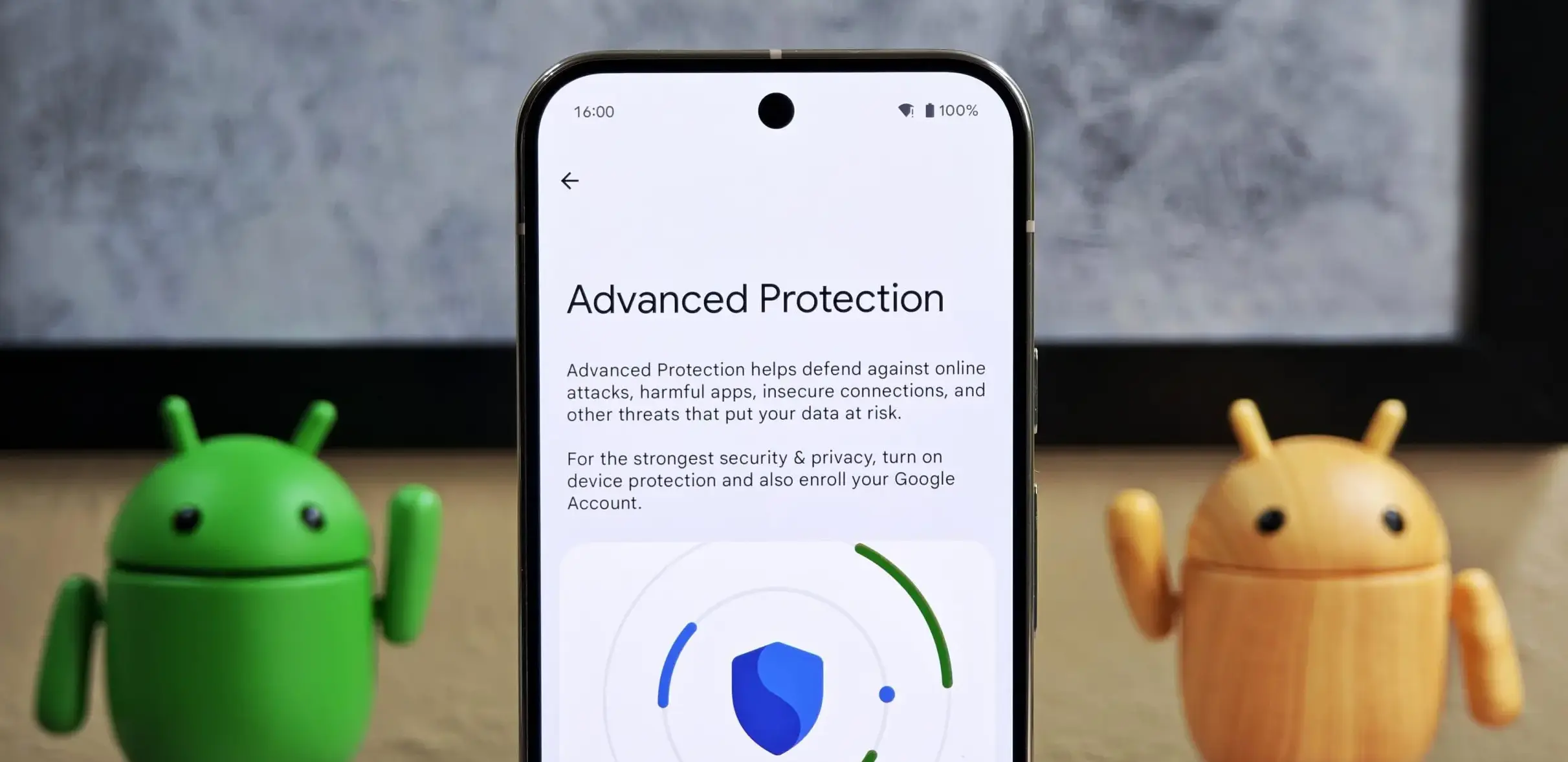
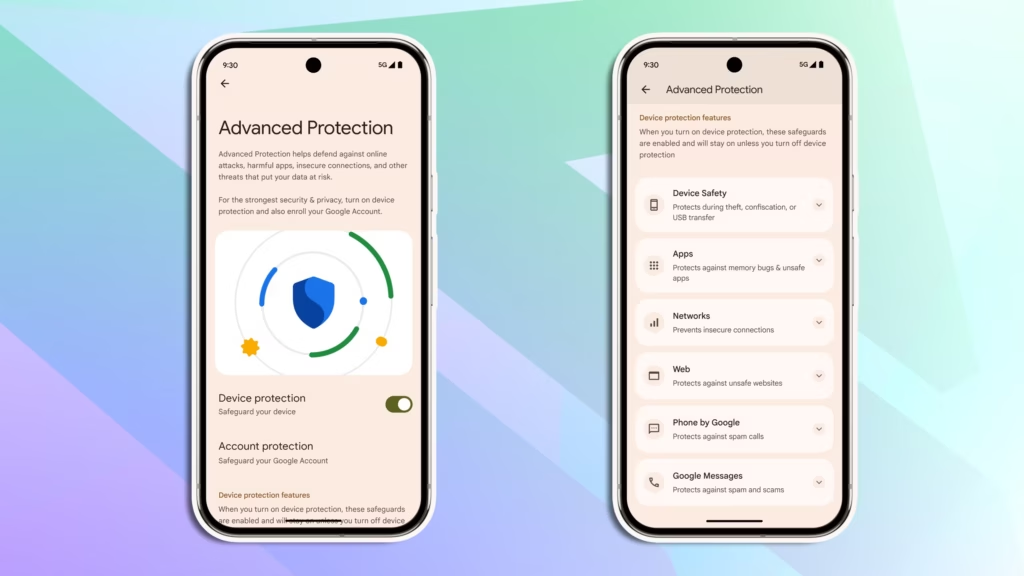
Android 16 quietly shipped with a feature called Advanced Protection, and it’s the closest thing Android has to a panic button for your privacy. Instead of digging through a maze of settings menus to harden your phone, you flip one switch — and Google activates its strongest security defenses all at once.
Think of it like Apple’s Lockdown Mode, but for Android. It protects you against theft, shady apps, unsecured networks, scam texts, and spam calls. The reason it’s off by default? It’s deliberately strict. There’s some friction involved. But if you actually care about who’s watching your data, that friction is worth it.
Here’s how to turn it on.
What you need first
Advanced Protection only works on Android 16. Before you do anything, check that your phone is up to date: go to Settings > System > Software update (or System update, depending on your device) and install anything pending. Android 16 is available on most Pixel phones and major Android models. You’ll also need a screen lock set up.
Step 1 — Find the setting
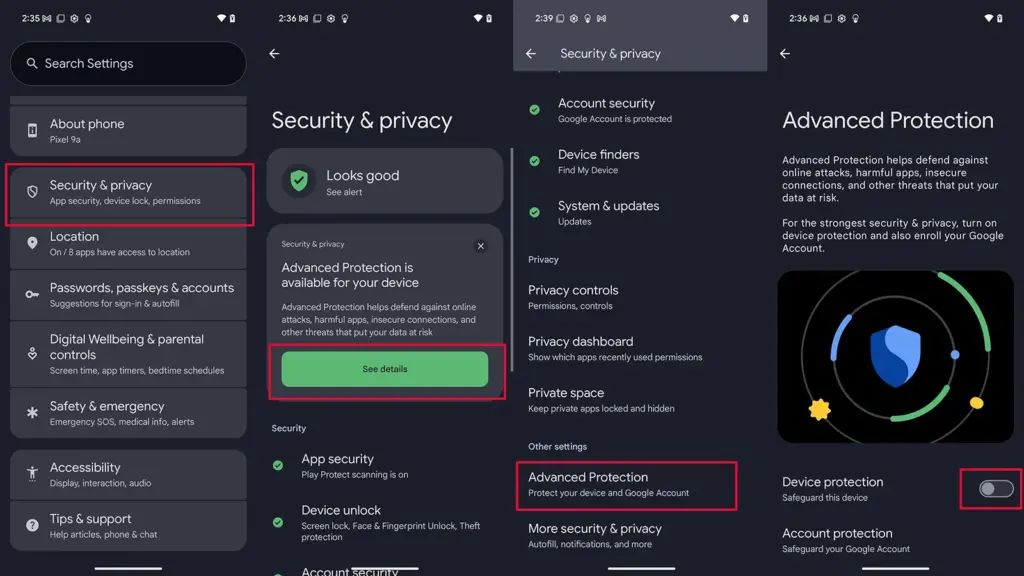
Open Settings
Tap Security and privacy
Select Advanced Protection (on some devices it’s tucked under Other settings)
Step 2 — Turn it on
Under Advanced Protection, toggle on Device protection
Tap Turn on
Restart your phone if prompted
That’s it. One switch activates a stack of protections: always-on malware scanning, a block on sideloading unknown apps, theft and offline device locks, spam and scam text filters, a block on weak 2G connections, tighter call screening, and stronger Chrome security settings — among other things.
Step 3 (optional) — Protect your Google account too
Turning on Advanced Protection for your device secures what’s on your phone. But your Google account — Gmail, Drive, Docs, Photos — is a separate story.
Google’s Advanced Protection Program is an opt-in service that locks down your account with stronger sign-in requirements, like passkeys or physical security keys, and limits which third-party apps can touch your data. If you’re a journalist, activist, executive, or anyone else with a good reason to be more cautious online, this is worth setting up.
To enroll:
Go to Advanced Protection in your Google Account settings and sign in
Follow the on-screen steps — you’ll likely be asked to set up a passkey or security key, and add a backup phone number and email
Tap Enroll to finish
To unenroll later: tap your Google Account profile photo > Manage your Google Account > Security > Advanced Protection Program > Manage Advanced Protection, then select Unenroll.
For most people, enabling device-level protection alone is a meaningful upgrade. If you want the full picture, pair it with account-level enrollment. Either way, it takes about two minutes — and it’s two minutes well spent.
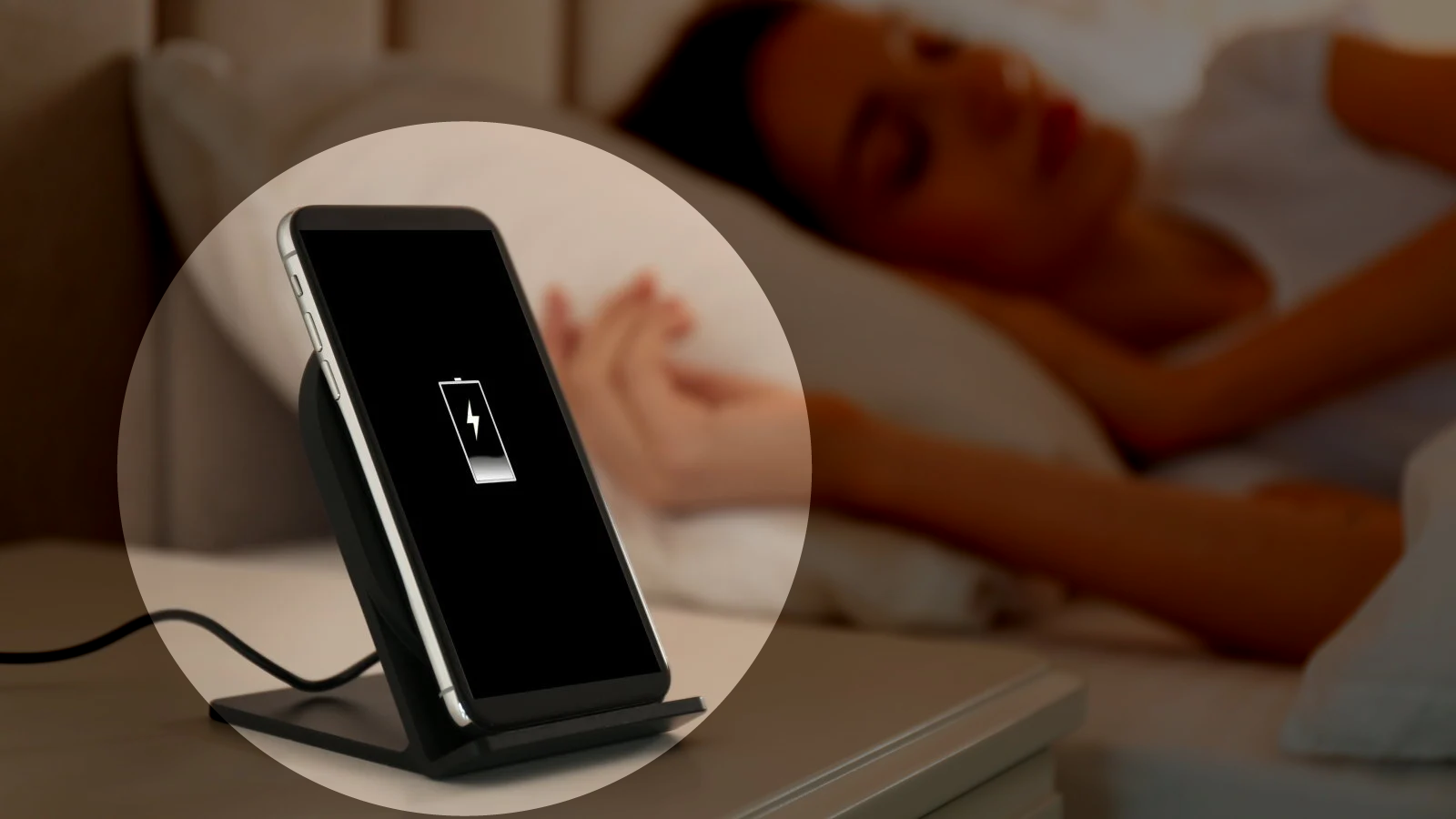
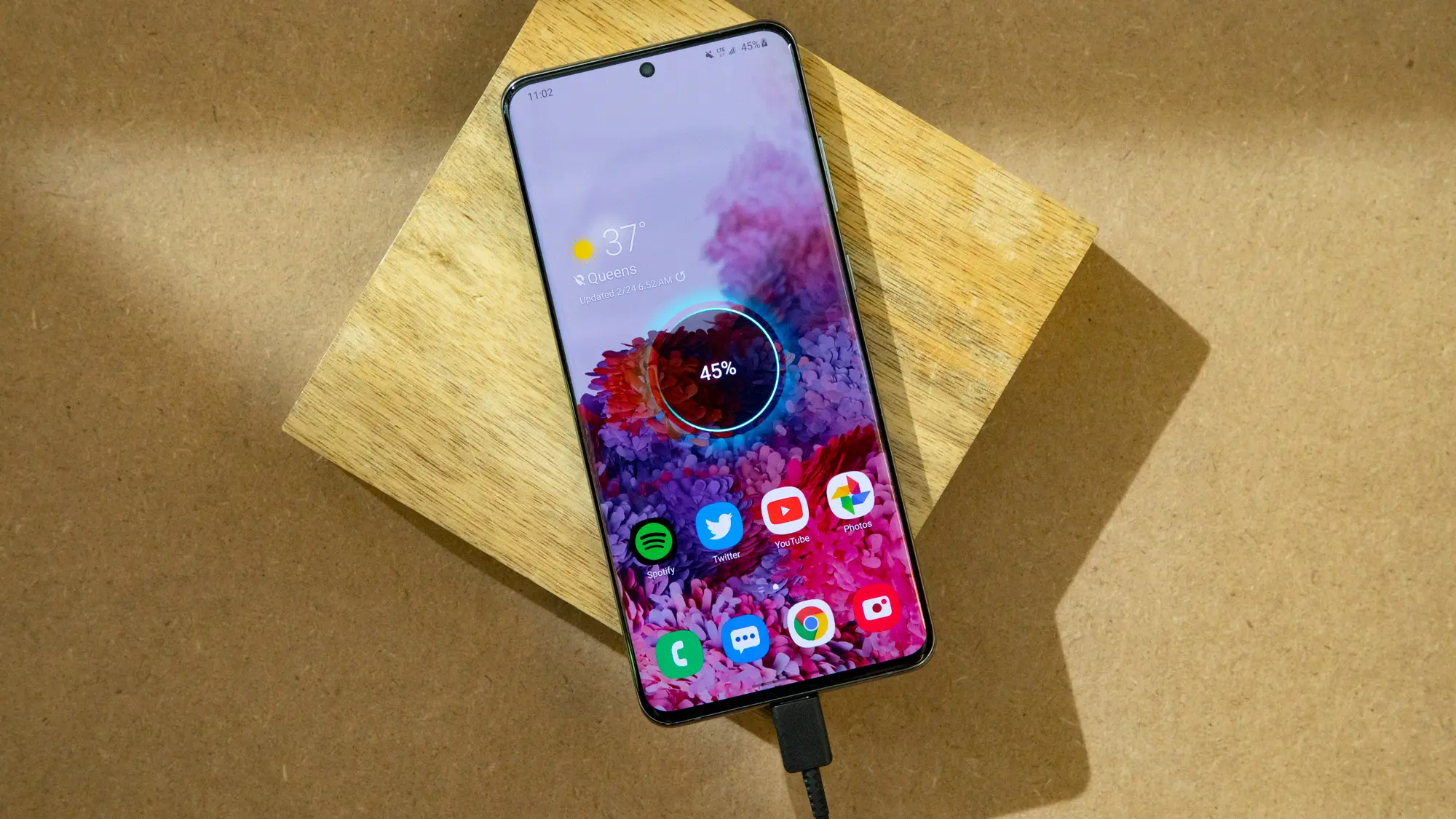
You’ve probably heard it a hundred times: “Don’t charge your phone overnight—it’ll ruin the battery.” Or maybe the opposite: “It’s fine, modern phones know what they’re doing.” Both sides sound convincing, but which is true? Overnight charging doesn’t destroy your battery overnight (pun intended), but there are real effects worth knowing about.
This guide cuts through the noise. We’ll look at what actually happens during overnight charging, why the myths persist, and what small changes can protect your battery without making life inconvenient. No scare tactics. Just facts and practical steps.
The science behind overnight charging (simpler than it sounds)
Modern smartphone batteries are lithium-ion cells with built-in smarts. When you plug in, the phone doesn’t just blindly pump electricity until something explodes. It has charging circuits that monitor voltage, current, and temperature, stopping the charge at 100% and switching to “trickle” mode to maintain it.
Here’s where confusion creeps in. Once your phone hits 100%, it doesn’t “overcharge” in the classic sense. But it does sit at full capacity for hours – sometimes 6-8 hours if you charge from bedtime to wake-up. That full state puts mild stress on the battery chemistry, especially if the phone gets warm.
On one hand, a single night of overnight charging won’t noticeably hurt. On the other hand, doing it every single night for two years adds up. Battery capacity naturally degrades over time anyway (to about 80% after 500 full cycles), but certain habits can speed that up or slow it down.
Why overnight charging gets such a bad rap
The fear comes from older battery tech and nickel-cadmium cells that really could overcharge and bulge. Those died out 20 years ago. Today’s lithium-ion batteries have protection circuits, and manufacturers test for worst-case scenarios.
But here’s the nuance: while overnight charging won’t brick your phone tomorrow, keeping lithium-ion batteries at 100% for extended periods accelerates chemical aging. It’s not dramatic day-to-day, but over months, it contributes to capacity loss. Heat makes it worse – think charging under a pillow or in a thick case.
Most phones now include features to counter this. Samsung’s “Protect battery” limits to 85%. Google Pixel has adaptive charging that learns your routine and finishes at wake-up time. These exist because overnight charging is common, but manufacturers know the trade-offs.
What really happens during an overnight charge
Let’s break down a typical 8-hour overnight charge:
Fast charge phase (0-80%): Phone pulls maximum safe current. This generates some heat.
Top-off phase (80-100%): Slower charging to avoid stress.
Full (100%+): Trickle mode kicks in. Phone sips tiny amounts of power to counter self-discharge. Battery sits at full voltage.
That trickle phase is where most “overnight charging damage” debates live. It doesn’t overcharge, but full voltage stresses the battery’s cathode material over time. Studies show batteries degrade faster when held at 100% vs cycling 20-80%.
Real-world tests confirm: phones charged overnight for a year lose slightly more capacity than those using charge limits. But the difference is often 2-5% over 12-18 months—not make-or-break unless you keep phones forever.
Common mistakes with overnight charging
People get overnight charging half-right, then undermine it:
Charging in hot environments: Under pillows, blankets, or summer cars. Heat accelerates everything bad about full-charge states. Solution? Charge on a nightstand, case off if warm.
Ignoring phone smarts: Many skip “adaptive charging” because they don’t trust it. Most phones learn your schedule after 3-5 nights and time the final 20% perfectly.
Thick cases during charging: They trap heat. Remove for overnight sessions, especially fast chargers.
Old cables/chargers: Cheap or damaged ones deliver unstable power, stressing circuits. Use originals or high-quality replacements.
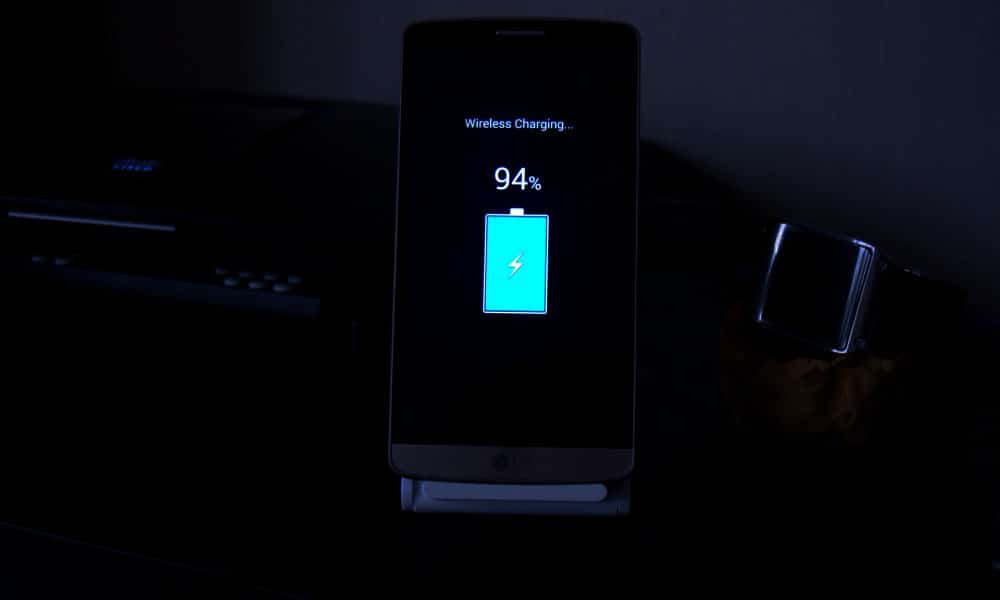
Wireless pads overnight: They run warmer than wired. Fine occasionally, but wired wins for regular overnight charging.
What most people miss: overnight charging isn’t “bad” in isolation. Context matters—phone model, case, room temp, charger quality.
Battery health checklist for overnight charging
Quick habits that make a difference:
Enable adaptive/optimized charging if available
Remove case during charging if phone feels warm
Charge on a hard surface (nightstand > pillow)
Use original or certified chargers/cables
Check battery health yearly (most phones show this in settings)
The 80-85% charging rule: worth it or overkill?
You’ve seen the advice: “Charge only to 80% for longevity.” It’s rooted in truth—batteries age slower in mid-range states—but it’s not universal.
When it helps most:
You keep phones 2+ years
Your phone has a built-in charge limit
Overnight charging is your main routine
When full charges make sense:
Travel days
Long meetings
Emergencies
Many flagships now automate this. OnePlus OxygenOS pauses at 80% until 30 minutes before your usual unplug time.
For average users: enable limits if available, charge to 100% when needed. The difference won’t make your phone immortal either way.
Heat: the real overnight charging villain
Temperature matters more than charge percentage. Lithium-ion batteries degrade 2-3x faster above 30°C (86°F). Overnight charging often coincides with warm rooms or insulating cases.
Quick fixes:
Room at 18-24°C (65-75°F) ideal
No blankets/pillows
Thin or no case
Avoid direct sun mornings
Phones throttle charging if too hot, but prevention beats reaction.
Alternatives to traditional overnight charging
Wireless slow charging: Less heat than fast wired, but pads must stay cool.
Power banks: Charge to 80-90% daytime, top off from bank evening. Less full-state stress.
Scheduled charging: Apps or built-in features pause at set times.
USB computer charging: Slower, cooler currents.
None beat wired overnight for convenience, but mixing methods spreads stress.
When overnight charging might actually help battery life
Counterintuitive truth: if your alternative is letting the phone hit 5% daily, overnight charging to 100% reduces deep discharges—which also stress batteries.
Deep cycles (0-100%) age cells faster than shallow ones (20-80%). Someone constantly running to 0% might benefit more from reliable overnight top-offs than perfect 80% habits.
Balance matters.
What phone makers don’t tell you about battery reporting
Most Android phones show “battery health” now, but accuracy varies:
Samsung: Precise cycle count, capacity % Google Pixel: Basic health percentage OnePlus/Xiaomi: Cycle count, sometimes estimated capacity
Check monthly. If capacity dips below 85% after 12-18 months of heavy overnight charging, habits might contribute. Most settle at 88-92% after two years regardless.
Common mistakes section: overnight charging edition
Forgetting phone features exist: Adaptive charging on Pixel/Samsung learns your wake-up. Use it.
Blaming overnight charging for all drain: If battery dies mid-day, screen/apps/signal matter more.
Using junk chargers: Unstable voltage stresses circuits more than time-at-100%.
Ignoring heat signs: Warm phone mornings? Case off, room cooler.
One-size-fits-all thinking: Your 3-year-old phone reacts differently than a new flagship.
Battery Life is the one Android topic where everyone has an opinion—and somehow, half of those opinions are stuck in 2011. You’ve probably heard “drain it to zero,” “never charge overnight,” or “close every app or your battery will melt.” Meanwhile, your phone still hits 18% before dinner.
This guide is here to cleanly separate Battery Life myths from the real fixes that make a difference. Not miracle tricks. Not “turn off everything until your phone is basically a calculator.” Practical stuff you can do today, plus a few habits that keep your battery healthier over time.
Why Battery Life Feels Random (But Usually Isn’t)
Battery Life can feel unpredictable because it’s influenced by things you don’t notice in the moment—signal strength, background syncing, location services, screen brightness, and heat. Sometimes you change one setting, your phone lasts longer, and you assume you found “the secret.” Other times you do everything right and it still drains fast.
On the one hand, modern Android is genuinely good at managing power in the background. But here’s the catch: one badly-behaved app, a weak 5G signal, or a hot charging session can undo all that smart optimization. So the goal isn’t perfection. It’s control.
Before we fix anything, let’s kill the myths that waste your time.
Myth #1: “You Must Drain Your Phone to 0% to Keep the Battery Healthy”
This one is everywhere, and it sounds logical… until you remember: modern phones use lithium-ion batteries, not the older battery types that suffered from “memory effect.” Deep discharges can stress lithium-ion batteries over time, which is why many guides recommend avoiding constant 0% runs.
What to do instead (realistic version):
Try not to make 0% a daily habit.
If your day usually ends around 20–30%, that’s a pretty comfortable routine for both Battery Life and battery longevity.
Small nuance: letting your phone hit 0% occasionally isn’t a crime. It’s the repeated “red zone lifestyle” that tends to age batteries faster.
Myth #2: “Charging Overnight Overcharges and Ruins Your Battery”
Modern phones are designed to stop charging at 100%, so the old-school “overcharging” fear is mostly outdated. Overnight charging, by itself, isn’t automatically destructive.
But—and this is where people get it half-right—keeping a battery sitting at 100% for hours can add stress over the long term, especially if the phone is warm while charging. That’s why features like adaptive/optimized charging and charge limits exist.
Real fix:
Turn on “Adaptive Charging” / “Optimized Charging” if your phone offers it.
If there’s a “Protect Battery” or “Charge to 80–85%” option, use it when you can (especially if you keep phones for 2+ years).
Myth #3: “Closing All Apps Saves a Ton of Battery”
This is the classic “swipe everything away” habit.
Sometimes it feels like it helps, because your phone looks “clean.” But Android often manages background apps efficiently on its own, and constantly force-closing apps can even add overhead because apps need to reload again and again. (It’s like turning your car off at every red light to save fuel—technically it changes consumption, but not in the way you want.)
When it actually helps: when a specific app is misbehaving—running in the background, looping, overheating, or abusing location. In that case, the fix isn’t “close everything.” It’s “find the one problem app and deal with it.”
Myth #4: “Fast Charging Always Kills Batteries”
Fast charging is not automatically a battery death sentence. Real-world testing and good charging management have improved a lot. But here’s the catch: heat is the enemy.
Fast charging can create more heat depending on the charger, phone design, and environment. Heat accelerates battery wear, so it’s not the speed itself you fear—it’s the temperature that sometimes comes with it.
Practical approach:
Use fast charging when you need it (workdays, travel).
Use slower charging when you don’t (overnight, desk time), especially if your phone tends to run warm.
Myth #5: “Wi‑Fi and Bluetooth Should Always Be Off”
This used to be decent advice years ago. Today it’s more “it depends.”
Wi‑Fi can actually be more power-efficient than mobile data in many situations, and modern Bluetooth is generally low energy. The bigger issue is constant scanning, weak signals, and background activity triggered by connectivity.
Real fix:
Keep Wi‑Fi on if you’re in stable coverage; it can help Battery Life compared to a phone fighting for cellular signal.
Turn off unnecessary scanning settings if you don’t need them (varies by Android version/brand).
The Real Fixes: What Actually Improves Battery Life (Without Making Life Miserable)
Now the part that matters. These are the changes that most people can feel within 24–72 hours.
Fix #1: Control the Screen (Brightness and Sleep Timer)
For many users, the display is the biggest Battery Life drain. Not because your phone is “bad,” but because modern screens are bright and we keep them on longer than we realize.
Try this:
Enable Adaptive Brightness (so you’re not blasting 100% indoors).
Lower brightness one notch more than you think you need.
Reduce screen timeout (sleep) to something sensible (30 seconds to 1 minute).
Use Dark Mode if you like it—especially helpful on OLED screens.
This is not anti-app paranoia. It’s basic hygiene. Even reputable apps can bug out after updates.
Fix #3: Fix Location Permissions (Quiet Drain, Big Impact)
Location is one of the easiest Battery Life drains to miss, because it doesn’t always “look active.”
Set most apps to:
“While in use”
Only keep “Always” for apps that truly need it:
navigation while driving (if you want alerts)
family safety apps (if you use them intentionally)
Also consider turning off “precise location” for apps that don’t need it. Your weather app doesn’t need to know which side of the couch you’re on.
Fix #4: Signal Strength Matters More Than People Think
Here’s a sneaky Battery Life killer: poor signal.
When your phone struggles to maintain connection, it works harder—especially on unstable 5G. If you’re in a weak coverage area, your battery can drop faster even if you’re barely using the phone.
Try:
Use Wi‑Fi calling (if available).
Prefer Wi‑Fi when you’re home/work instead of letting mobile data do everything.
If 5G is unreliable in your area, test LTE for a day and compare Battery Life.
Fix #5: Use Battery Saver Earlier (Not Only at 10%)
Battery Saver isn’t only for emergencies. It’s a tool for predictable long days.
Try:
Turn Battery Saver on at 30–40% if you know you’ll be away from a charger.
Use “Extreme Battery Saver” only when you truly need survival mode.
This doesn’t mean living in Battery Saver forever. It means using it strategically—like carrying an umbrella when the sky looks suspicious.
What Most People Get Wrong About Battery Life (A Quick Reality Check)
Let’s call it out plainly:
People optimize the wrong things (closing apps constantly) and ignore the big drains (screen and signal).
People chase magic numbers (“always 80%”) but ignore heat, which often matters more.
People think “new phone = perfect Battery Life,” but a single app or a bad network environment can wreck it.
People don’t verify backups/updates and blame “Android” when it’s actually one app misbehaving.
And yes—sometimes the battery is simply aging. No setting can reverse chemistry.
Battery Life Checklist (Do This Today)
Quick checklist, no nesting, no drama:
Turn on Adaptive Brightness and reduce screen timeout.
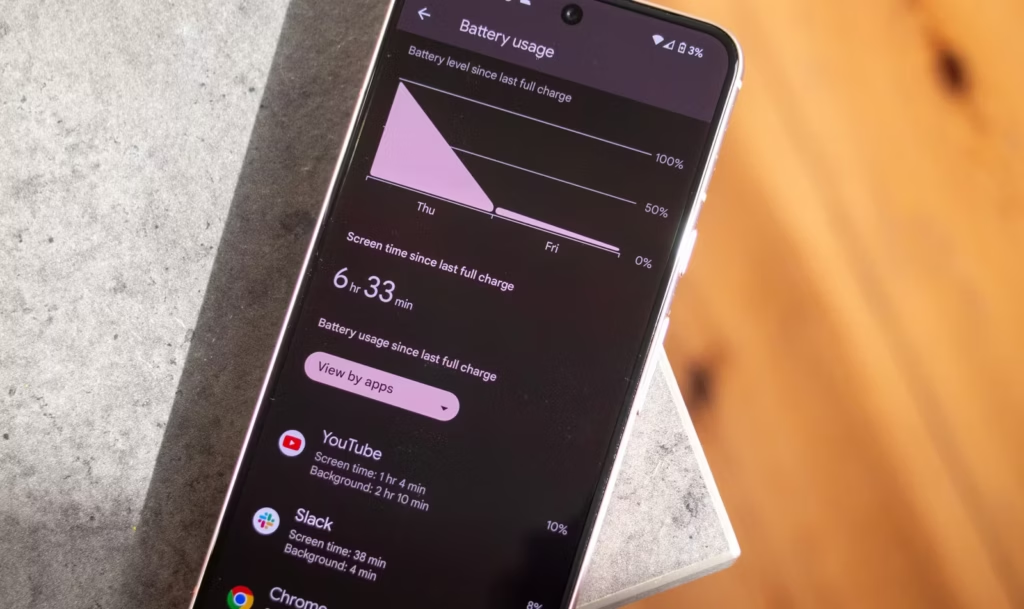
Check Battery usage and identify the top 3 apps.
Restrict or remove the top “background drain” app you don’t trust.
Review Location permissions and switch most apps to “While in use.”
Enable Adaptive/Optimized Charging or an 80–85% limit if available.
Keep the phone cool while charging (no blankets, no hot car).
Charging Habits That Protect Battery Life Long-Term
Battery Life today is one thing. Battery health over two years is another.
A few habits that help longevity without making you obsessive:
Keep heat low (the boring but true advice)
Heat accelerates battery wear, so avoid:
charging under a pillow
gaming while charging
leaving the phone in direct sun while charging
This isn’t fear-mongering. It’s just how batteries age.
Use the “80% rule” as a tool, not a prison
Many sources recommend a “20–80%” or “30–80%” range for slower battery aging, but the exact number isn’t magical. The point is reducing time spent at very high charge levels, especially with heat.
If you’re traveling or need maximum Battery Life that day, charge to 100%. No guilt. Just don’t keep it sitting at 100% hot for hours every single day.
When It’s Not Settings: Signs Your Battery Is Actually Worn Out
Sometimes your Battery Life issues aren’t fixable with tweaks because the battery has aged.
Common signs:
Sudden drops from 30% to 10%
Random shutdowns at 15–20%
Noticeable heat during light tasks
Battery percentage behaving “jumpy”
At that point, consider:
battery replacement (often worth it on mid/high-end phones)
or upgrading if the phone is old and already struggling with performance
No shame either way. Batteries are consumables.
FAQs
1) Is it bad to charge my phone overnight?
Modern phones prevent classic “overcharging,” but staying at 100% for hours—especially with heat—can contribute to wear over time, so adaptive charging or charge limits are helpful.
2) Should I always charge only to 80% for better Battery Life?
Charging to 80–85% can reduce stress for long-term battery health, but it’s not mandatory. Use it when convenient, and charge to 100% when you need full-day Battery Life.
3) Does closing apps improve Battery Life?
Not usually in a big way. It helps mainly when an app is misbehaving and draining battery in the background.
4) Does Dark Mode improve Battery Life?
It can help, especially on OLED screens, because darker pixels can use less power. The impact varies by device and brightness.
5) Why does my Battery Life get worse in places with poor signal?
Your phone works harder to maintain a connection when coverage is weak, which increases power use—even if you’re not actively using the phone.
What to Do Next
If Battery Life has been frustrating lately, don’t try to fix everything at once. Do this in order:
Check Battery usage and identify the top drainers.
Reduce screen drain (brightness + timeout).
Fix location permissions and notifications.
Watch heat while charging for a week.
If nothing improves, consider battery wear and replacement.
Give it 2–3 days after changes and compare. Battery Life improvements are often “quiet,” not dramatic—but they’re real when you focus on the big levers.