Author: Cristian Penisoara

  • Android device repair prep (stress-free) – the power guide to protect your data

    Android device repair prep (stress-free) – the power guide to protect your data

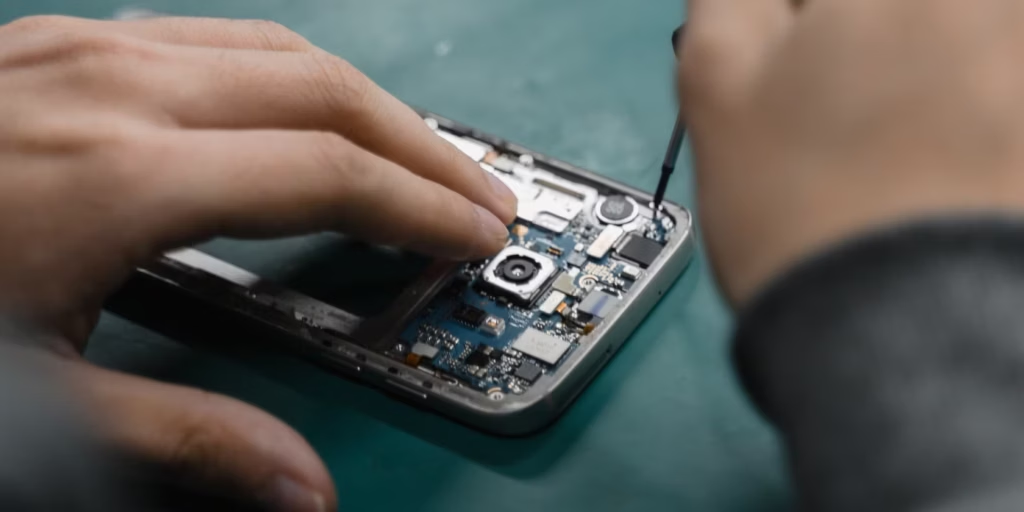
    Your android device is going in for service or repair, and yeah… it’s easy to tell yourself, “It’s just a screen replacement, what could happen?” Then you remember: your phone is basically your pocket brain. Photos, notes, bank apps, work chats, that one folder you never show anyone—everything.

    So let’s do this properly.

    This guide is a practical, no-drama checklist to prepare your android device before you hand it to a technician. Not the paranoid kind of prep. The smart kind. The kind that prevents data loss, protects your privacy, and makes the repair process smoother.
    android device preparation before repair

    Secondary keywords used naturally: Android backup, factory reset, phone repair checklist, protect personal data, Google account removal, SIM card and SD card, Find My Device.

    The “Quick Outline” (Internal, For Flow)

    You’ll go through:

    • Why prep matters (even with trustworthy shops)
    • Backup (cloud + local)
    • Remove SIM/SD and sensitive access
    • Decide on factory reset (and when not to)
    • Document your issue like a grown-up (so repairs go faster)
    • Privacy + security settings that actually matter
    • What to do at drop-off and pickup
    • Common mistakes and a simple final checklist

    Why Preparing an Android Device Before Repair Matters (More Than You Think)

    Here’s the uncomfortable truth: even honest repair shops can cause data loss.

    Not because they’re evil. Because diagnosing problems often involves resets, firmware updates, battery disconnects, or tests that can corrupt storage. And if your android device is acting weird already (boot loops, overheating, random restarts), the risk of “it died during testing” is real.

    Also, there’s privacy. Most technicians don’t care about your personal life. But your phone is still unlocked data sitting in someone else’s hands. It’s like leaving your house keys on the counter and hoping nobody opens the wrong door.

    You don’t need to be anxious. You just need a process.

    Step 1: Back Up Your Android Device (Cloud First, Local Second)
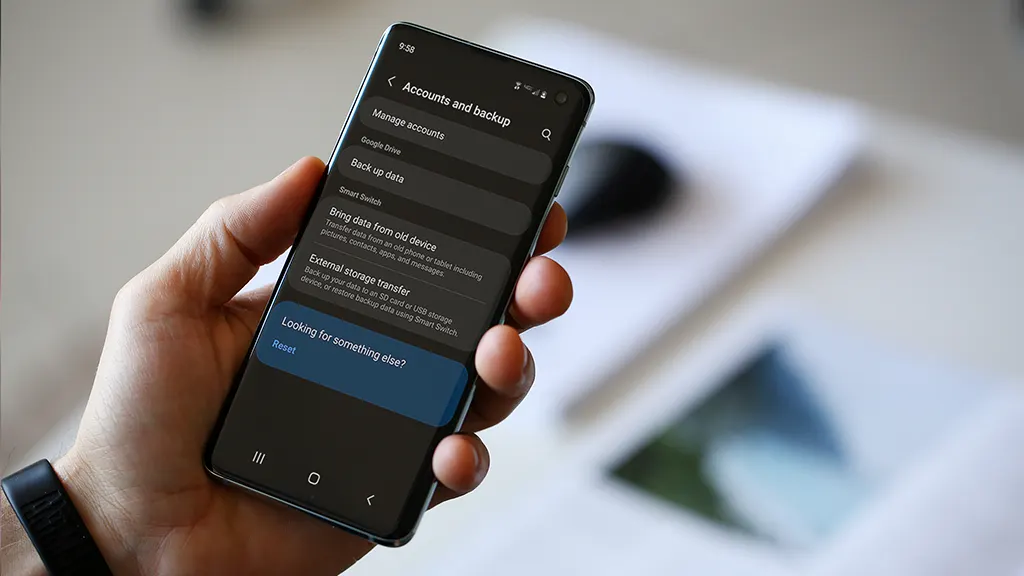
    android device backup

    If you only do one thing, do this.

    Use Google Backup (Fast and Built-In)

    On most phones:

    • Settings → Google → Backup
      or
    • Settings → System → Backup

    Turn it on and let it run. Then check the backup timestamp. Don’t assume it worked “at some point.”

    What it usually covers:

    • App list and some app data
    • Call history
    • Contacts (often via Google Contacts sync)
    • Device settings
    • SMS/MMS (on many devices)

    But – small contradiction – Google backup is both great and not enough. It’s reliable for basics, but it’s not a perfect clone of your phone.

    Back Up Photos and Videos

    If you use Google Photos:

    • Open Google Photos → profile icon → Photos settings → Backup

    Then scroll your gallery and confirm recent photos actually uploaded. People think they’re backed up… until they aren’t.

    Make a Local Copy (Because Clouds Have Limits)

    Plug your android device into a laptop/PC:

    • Select “File Transfer” (MTP)
    • Copy these folders:
      • DCIM (camera photos/videos)
      • Pictures
      • Download
      • Documents
      • WhatsApp/Telegram media folders (if you use them heavily)

    If you don’t have a PC, use:

    • An external USB drive with an OTG adapter
    • A microSD card (if your phone supports it)

    Local backup feels old-school. But it’s the “seatbelt” you’ll appreciate if the cloud fails.

    [img here – alt: android device backup before service]

    Don’t Forget Two “Annoying” Things

    These are the ones that hurt most when they’re gone:

    • Notes (Google Keep / Samsung Notes / third-party apps)
    • Authenticators (2FA apps)

    For authenticator apps, check inside the app for export/transfer options before your device gets wiped. Otherwise you might lock yourself out of accounts. Not fun.

    Step 2: Remove SIM Card and SD Card (Small Action, Big Protection)

    This part is quick and oddly satisfying.

    • Remove the SIM card (your number and carrier access)
    • Remove the SD card (your personal files and media)

    Even if the repair shop is trustworthy, SIM/SD cards can be misplaced. They’re tiny. Things happen.

    Also, if your SD card has photos—don’t leave it in the phone. Just don’t.

    Step 3: Decide If You Should Factory Reset the Android Device
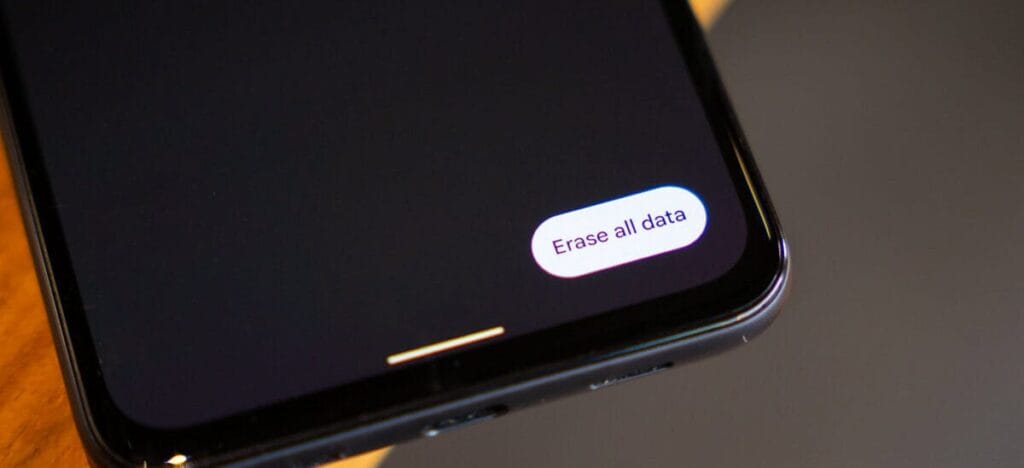
    Android factory reset e1768831900326

    This is where people get stuck.

    When a Factory Reset Makes Sense

    A factory reset is smart when:

    • The repair is software-related (crashes, freezing, weird bugs)
    • You’re shipping the phone to a service center
    • You don’t want anyone to access anything—even by accident
    • You’re okay with restoring everything later

    Path usually looks like:

    • Settings → System → Reset options → Erase all data (factory reset)

    When You Shouldn’t Reset Yet

    Don’t reset if:

    • You need to show the issue (random reboots, screen glitch, camera error)
    • The repair center asks you not to (rare, but possible)
    • You rely on on-device data that you can’t back up properly

    Here’s the clarification: privacy matters, but so does diagnosis. If the technician can’t reproduce the issue, you might get the dreaded “no fault found” result. So sometimes you keep the data… but you lock it down.

    Step 4: Lock Down Access (Without Making the Repair Impossible)

    If you’re not factory resetting, this part is essential.

    Use a Strong Lock Screen

    Set a PIN (not 0000, please).
    Disable “Smart Lock” features that keep the phone unlocked at home or near a watch.

    Pause or Remove Highly Sensitive Apps

    For apps like:

    • Banking
    • Crypto wallets
    • Password managers

    At minimum:

    • Sign out
    • Remove biometric login
    • Consider uninstalling temporarily (after backup)

    Technicians don’t need that access to replace a screen.

    Keep “Find My Device” Enabled (Usually)

    If the phone is lost during transit or at a large facility, Find My Device can help locate it. Just make sure you remember your Google login.

    Step 5: Write a Simple Repair Note (This Speeds Everything Up)

    A good repair note is like giving the mechanic a clean description of the engine noise.

    Create a note (or email) with:

    • Phone model (e.g., “Samsung Galaxy A54”)
    • Android version (Settings → About phone)
    • What’s wrong (specific symptoms)
    • When it happens (after charging? after updates? only on Wi‑Fi?)
    • What you already tried (restart, safe mode, clearing cache, uninstalling an app)

    Example (copy style, not text):

    • “Screen goes black during calls, but touch still works. Happens 3–4 times/day. Started after last system update. Restart fixes temporarily.”

    That’s gold for technicians.

    Step 6: Clean Up “Embarrassing” Stuff (No Shame, Just Practical)

    This isn’t about being dramatic. It’s about comfort.

    Before service:

    • Close private tabs in your browser
    • Remove sensitive photos from the main gallery (move to a secure folder or cloud)
    • Turn off notification previews on lock screen

    Even if your phone stays locked, notifications can reveal a lot.

    [img here – alt: android device privacy before repair]

    Step 7: At Drop-Off—Ask the Right Questions (Politely)

    A simple script:

    • “Will you need my unlock code?”
    • “Is a factory reset likely?”
    • “Do you keep devices overnight, and how are they stored?”
    • “Can you note the condition (scratches/dents) on the intake form?”

    Also: take quick photos of your phone from all angles before you hand it over. It’s not accusatory. It’s just smart.

    Step 8: After Repair—Test Before You Leave

    Don’t rush out. Do a 2-minute test:

    • Screen touch everywhere
    • Charging port
    • Speaker and mic (quick voice recording)
    • Camera front/back
    • Wi‑Fi and Bluetooth
    • Fingerprint sensor (if you use it)

    If anything feels off, say it immediately. Fixes are easier on the spot.

    Common Mistakes People Make (So You Don’t)

    • Backing up “later” (and then forgetting)
    • Assuming Google Photos uploaded everything
    • Leaving the SIM/SD in the phone
    • Handing over a phone with banking apps logged in
    • Not writing down the symptoms (leading to “we can’t reproduce it”)
    • Forgetting 2FA authenticator migration
    • Not taking photos of device condition before drop-off

    The Final Checklist (Print This Mentally)

    Before service or repair:

    • Backup complete (cloud + local copy)
    • Photos verified in cloud
    • 2FA/authenticator transferred or backed up
    • SIM removed
    • SD card removed
    • Banking/password apps logged out or removed
    • Strong lock screen enabled (or factory reset done)
    • Repair note written (symptoms + model + what you tried)
    • Photos taken of device condition

    That’s it. That’s the whole play.
  • How to get Xiaomi’s new control center on unsupported Redmi and POCO phones

    How to get Xiaomi’s new control center on unsupported Redmi and POCO phones

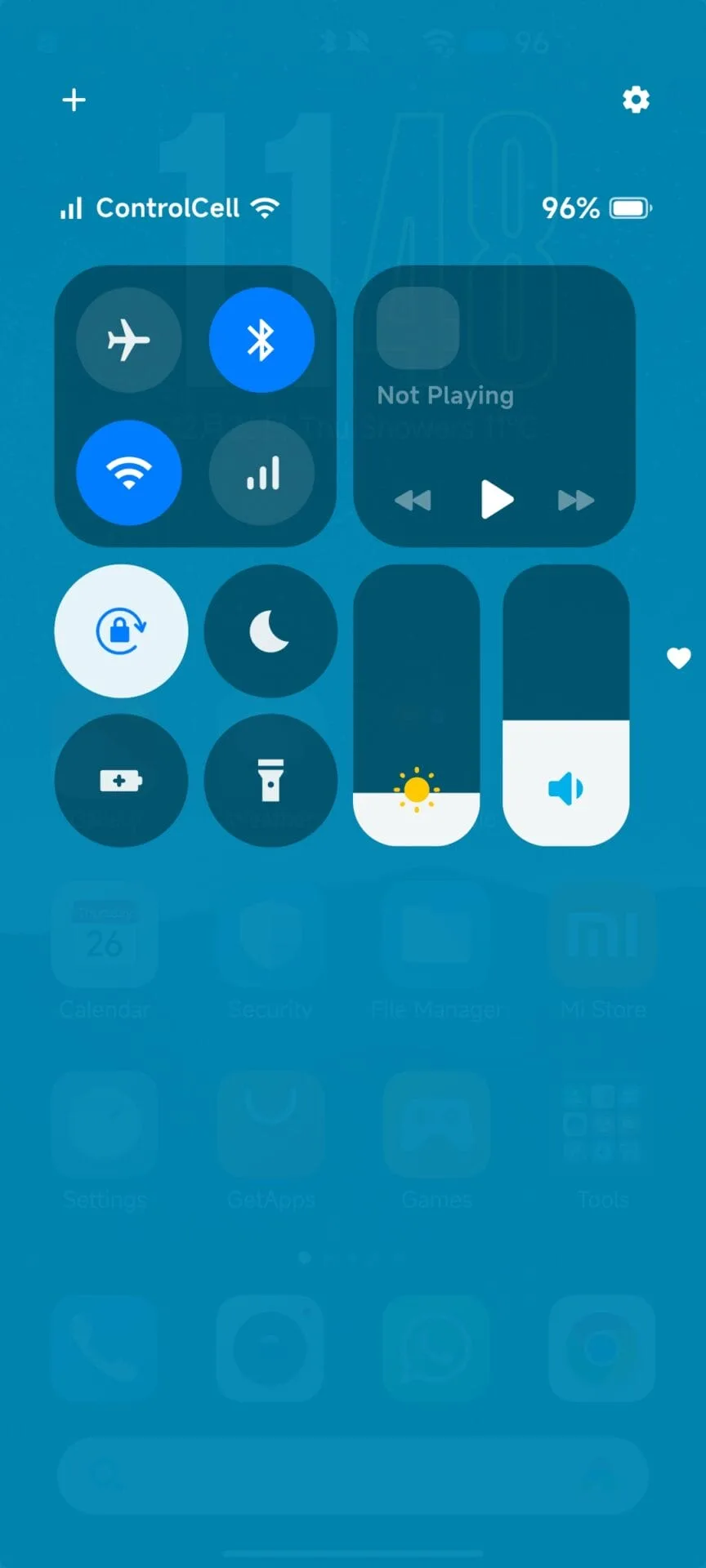
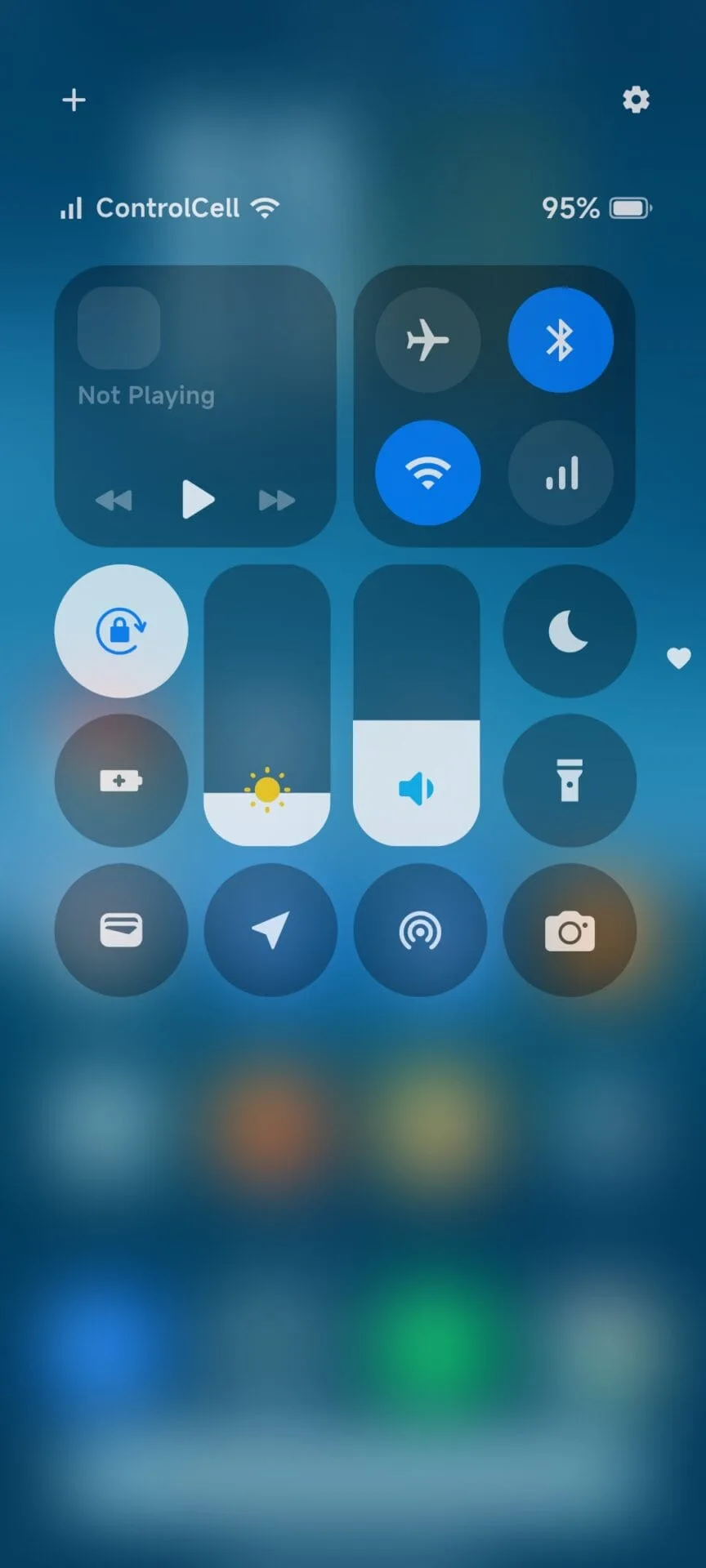
    Many affordable Xiaomi phones, such the Redmi 15, Redmi 14C, and Redmi 13X, continue to use the conventional Android-style control panel rather than the contemporary iOS-inspired Control Center found on high-end phones running HyperOS. The main cause of this limitation is hardware and performance issues, which make it difficult to execute sophisticated animations and transitions smoothly.

    Users of Xiaomi do not have to give up the new features and design in spite of this. It can be set up to mimic the new Control Center appearance on the majority of Redmi and POCO phones with the aid of third-party modification applications like Control Center 18.

    Control Center iOS 18 9

    Announced alongside HyperOS 1.0, Xiaomi’s new Control Center features an iOS 18-like interface, smoother animations, and adjustable brightness adjustments. But not every gadget satisfies the necessary performance requirements. Xiaomi limits the new UI to mid-range and flagship smartphones since entry-level handsets with low GPU and memory capacity can encounter lag or frame drops.

    Xiaomi’s software framework is still adaptable, though. You may still improve the visual experience using third-party solutions like Control Center 18, which essentially replicates the look and functionality of the HyperOS Control Center, even if your phone doesn’t support the most recent control center natively.

    Get the New Control Center with Control Center 18

    You can simply duplicate the new Control Center with Control Center 18 app if your Redmi or Xiaomi phone does not have it natively loaded. With smooth animations, toggleable toggles, and quick access to your most commonly used options, this layout is almost exact.

    Control Center iOS 18 7 2
  • This hidden Pixel feature can significantly boost battery life

    This hidden Pixel feature can significantly boost battery life

    Is this the end of battery issues on Pixel smartphones? The November update includes a power‑saving mode that employs the always‑on display to conserve energy, providing greater screen time for navigation and daily use. Here’s how it works.

    Compared to other competing smartphones, Pixel handsets are not known for having the best battery life. However, Google has progressively added intelligent features over the years to help stretch screen time. The most recent is a new Google Maps power-saving function that was added with the November update and is currently being made available to more Pixel 10 owners.

    google pixel 10 pro with power saver mode maps to save battery life

    How to save battery while using Google Maps

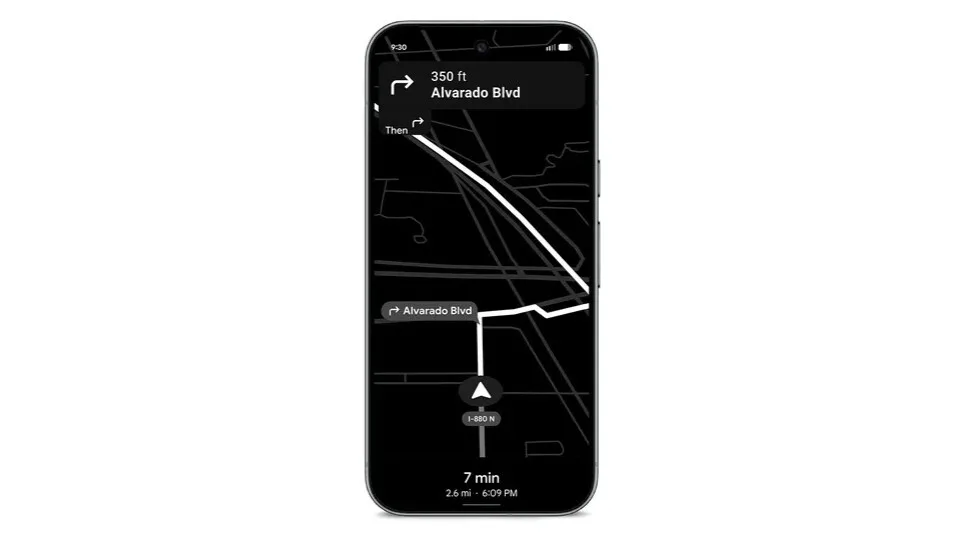
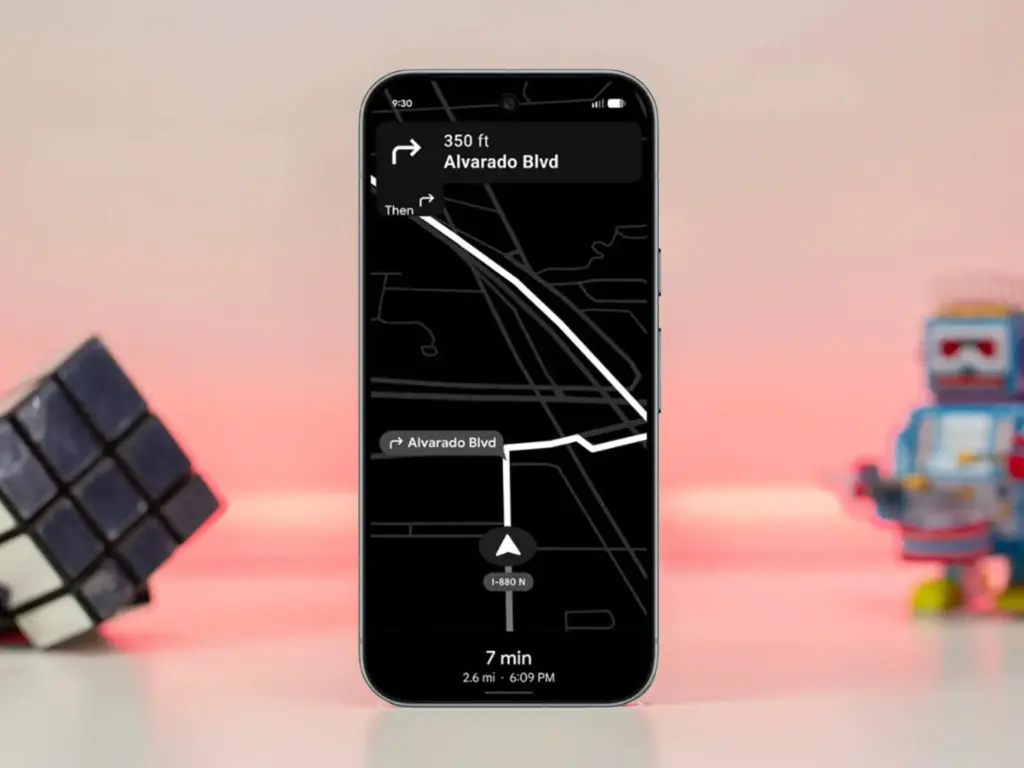
    The addition, as its name suggests, offers a power saver mode to Google Maps. In theory, it makes use of the Pixel 10’s always-on display when navigating. This saves battery compared to fully utilizing the normal OLED panel, since most elements transition to black and white with inactive pixels switched off.

    In addition, the mode lowers the screen refresh rate and brightness to further preserve power. Some UI components and metrics in Google Maps won’t be available when enabled, and only portrait orientation is supported.

    Google Maps Power Saver: how to turn it on

    If the feature is accessible on your Pixel 10 or Pixel 10 Pro, you’ll see a pop‑up card pointing you to the option in driving settings. Alternatively, you may manually activate it by going into Maps settings and finding it under driving choices.

    It’s unclear why Google is limiting the feature to the Pixel 10 series, especially given earlier versions like the Pixel 9 and Pixel 9 Pro use the same LTPO OLED displays. However, it’s feasible that Google will increase support later on.

    Google is also working on another battery‑saving feature for Pixel and Android devices: a smarter always‑on display that automatically shuts off when the device isn’t in use or after a specified duration.

  • List of Samsung Galaxy preinstalled apps you can safely delete

    List of Samsung Galaxy preinstalled apps you can safely delete

    After setting up a new Samsung Galaxy, you should think about the apps you use and don’t use.

    There are many unnecessary preinstalled apps on your phone that don’t always enhance the user experience. Therefore, it is safe to remove any bloatware and superfluous apps.

    These apps clog your home screen, suck up storage space, and slow down your phone.

    All of Samsung’s devices, from the most recent high-end Galaxy phones to the most affordable variants, come with these apps.

    When setting your Samsung Galaxy device, stay away from adding bloatware.

    samsung bloatware remove unused apps

    You are prompted to install extra apps when you set up a new Samsung device.

    Take your time and uncheck the apps you don’t need because it automatically chooses the ones on that list. This is a simple method of avoiding additional bloatware.

    If not, you’ll have to take them out by hand when you decide they’re useless.

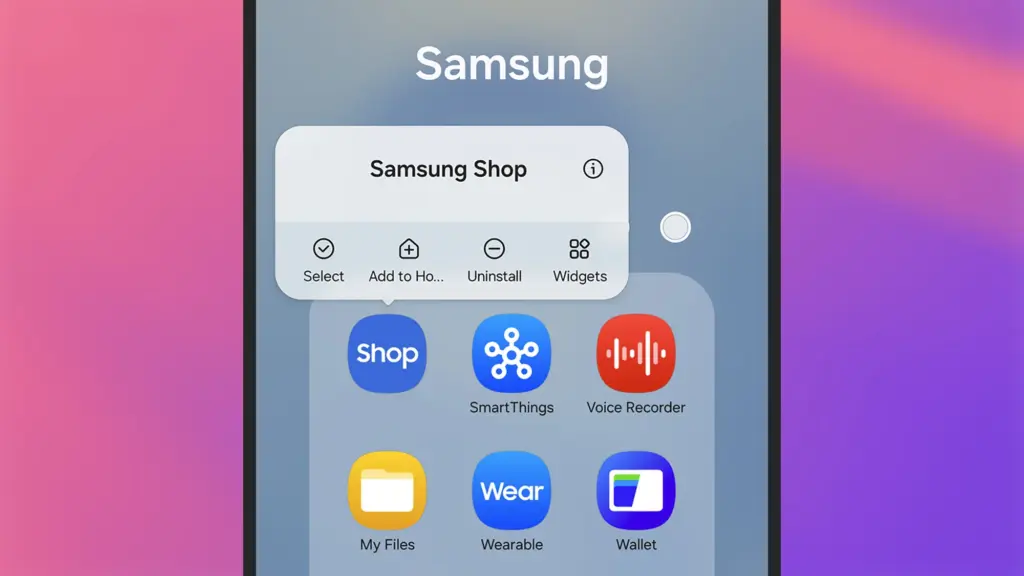
    Which apps on your Samsung Galaxy phone are safe to remove or deactivate?

    On a Samsung phone, deleting and uninstalling apps is simple. The Settings menu allows you to remove or deactivate the majority of apps; for others, you can use ADB commands.

    Many preloaded system-related apps can be securely removed, although we don’t advise the typical user to do so.

    hero image

    Although these apps don’t take up much space, you may need to factory reset your phone in order to restore it if you remove the incorrect one.

    Additionally, you are unable to remove or disable apps that are essential to the phone’s operation. Put them in a different folder if you want them hidden.

    The popular apps that you can remove or disable from your Samsung Galaxy phone are listed below. You might see different apps than those on this list depending on your area or carrier.

    Smart SwitchSamsung Pass
    SmartThingsSamsung Members
    Samsung WalletSamsung DeX
    Game LauncherSamsung Kids
    Samsung HealthSamsung Global Goals
    Galaxy StoreFind My Mobile
    Samsung InternetSamsung Health Monitor
    Samsung CloudPENUP
    Galaxy ThemesMicrosoft Office
    Samsung NotesMicrosoft Outlook
    BixbyLinkedIn
    Google WalletGoogle Maps
    Google DriveGoogle TV
    Google PhotosGalaxy Wearable
    Google CalculatorGame Booster Plus
    GmailYouTube

    Many of them are Samsung’s substitutes for Google apps like Drive or Chrome. Since they don’t interfere with how your device functions, you can safely uninstall them—especially if you like Google’s app suite.

    These are some great alternatives that you can download from the Play Store if you don’t want to utilize Google or Samsung apps.

    Get the best possible performance out of your new Samsung Galaxy mobile.

    One of the first things you should do when configuring your Samsung Galaxy phone is to remove any unneeded software. Performance can be enhanced, particularly on low-cost Samsung phones.

    Additionally, removing bloatware frees up space on your Samsung phone. Installing Good Lock modules will help you take advantage of this.

    Exclusive to Samsung phones, these customization options provide access to intriguing features.

  • Switching from iPhone to Android? Apple’s new feature makes it effortless

    Switching from iPhone to Android? Apple’s new feature makes it effortless

    It might be difficult to switch between an Android phone and an iPhone, especially for novice users. App settings seldom ever survive the changeover, half of your logins are lost, and saved game data is erased. However, Apple may be changing that at last.

    Developers discovered a new framework called AppMigrationKit in the iOS 26.1 beta. It is intended to assist apps in moving data from the iPhone to other platforms, such as Android. Although it isn’t currently available to the public, it suggests that Apple is covertly creating a more adaptable migration system that doesn’t totally entail you in its ecosystem.

    Developers that choose to support the toolkit can utilize it to enable the transfer of offline files, saved preferences, and game progress while configuring a new phone. It expands on Apple’s Move to iOS functionality, but it does it in reverse this time, possibly enabling Android users to transfer their data back to iOS.

    apple to Android

    According to reports, a “Transfer to iPhone” feature will be included in Android’s upcoming version, beginning with eSIM data. When taken as a whole, they imply that both digital behemoths are at last embracing the concept of seamless cross-platform switching, something consumers have long desired.

    AppMigrationKit is currently only in early testing, and how quickly developers accept it will determine how widely it is used. Support will probably be released update by update and app by app. However, if Apple continues on its current path, switching phones may soon no longer feel like a fresh start in the digital world.

    AppMigrationKit may be the first step toward a more transparent Apple, one that acknowledges that users may come and go. Additionally, it allows developers to maintain privacy while controlling what data is transferred and how. If it performs as advertised, you may finally be able to stop losing your digital footprint whenever you change phones.

    Now, the question is whether Apple’s competitors and app developers will act quickly enough to make switching ecosystems as simple as switching devices.

  • Forget Android emulators — this open-source alternative does it better

    Forget Android emulators — this open-source alternative does it better

    I have six computers of different sizes and specs, but lately I’ve noticed that I use my Chromebook more frequently. It has one amazing feature that I can’t live without, despite its obviously poor performance and small 11-inch footprint: full-fledged Android app support. I’m not just saying this because I write for Android Authority; having access to smartphone apps that don’t have a true PC equivalent is revolutionary.

    Unfortunately, earlier this year Microsoft ended the Windows Subsystem for Android (WSA) experiment, which enabled the use of Android apps on Windows 11. Additionally, Phone Link is still in use, although it just lets you mirror the screen of your smartphone. Furthermore, the Pixel and the great majority of other devices still do not have screen sharing enabled by Microsoft. Therefore, I have to decide between using an emulator or a Chrome OS device if I want the finest Android experience on my PC.

    The sole issue? At best, Android emulators on PC provide a mediocre experience. Performance is lost due to emulation costs, and even the best Android emulators, such as BlueStacks, have crowded interfaces and advertisements designed for particular applications, like gaming. On Chrome OS, however, the experience is far more seamless: you may open individual Android apps, and they coexist peacefully with native apps.

    WayDroid

    Waydroid

    Waydroid brings all the apps you love, right to your desktop, working side by side your Linux applications. 

    Is it possible to accomplish this Android-PC harmony without installing Chrome OS and forfeiting the ability to use a conventional desktop environment? Yes, but the only catch is that Linux is needed. Nevertheless, I believe it’s totally worth it, and Microsoft’s growing hostility against Windows privacy is just one more reason to think about switching.

    Forget Android emulators — this open-source alternative does it better

    Why running Android apps on PC matters more than ever

    I enjoy having access to Android’s extensive app store on my PC for a number of reasons, including my investing portfolio tracker and other smart home apps. I frequently think that Android services are simply superior to their web or PC versions. For instance, WhatsApp for PC keeps me from scaling the window to my preferred size. In particular, it feels like a needless waste of screen space because it won’t shrink any smaller than a quarter of my screen.

    Apps for smartphones, on the other hand, are made to fit on almost any screen size. Therefore, the window size should be much more adjustable if you can figure out how to run them on a computer. Additionally, you may already understand the appeal if you have ever tried multitasking on a computer with a single display.
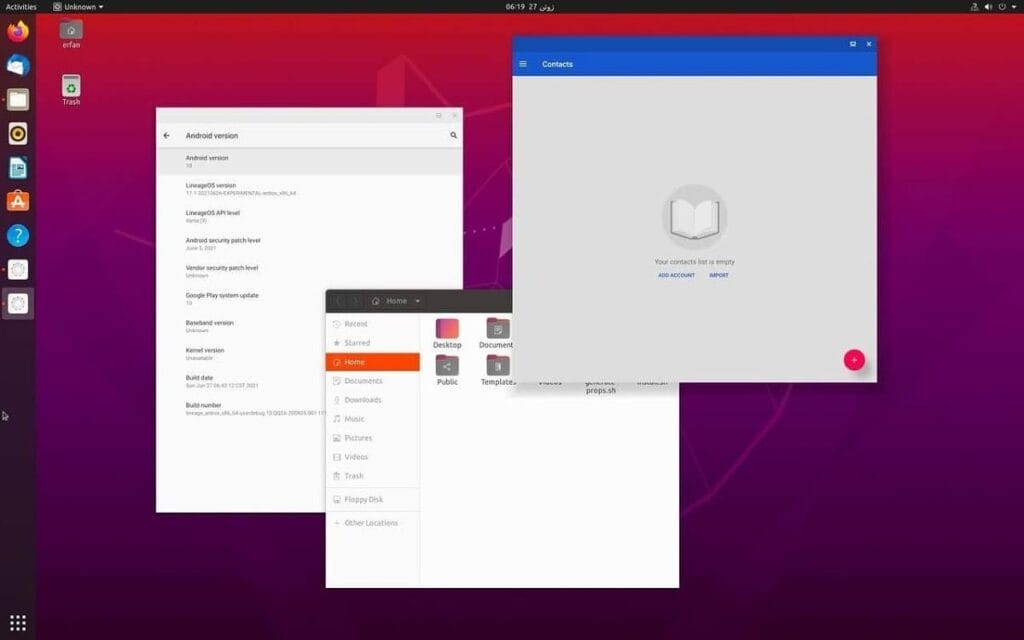
    Waydroid on Ubuntu

    Try using a web browser to launch Google Maps and minimizing the window size (see below). As soon as you click on a business, the sidebar will occupy all of the available space, leaving you with nothing except the search box. Without ignoring this sidebar, you are unable to move about the map.

    You can see how much smaller the windows for the Android versions of WhatsApp and Google Maps can get on the right. This discrepancy is not the fault of Meta or any other developer; desktop applications are made to work on reasonable screen sizes, and my smaller windows don’t precisely meet that requirement.

    Nevertheless, the difference is clearly noticeable on a 24-inch screen, such as the monitor on my gaming PC. I’ve considered purchasing a second monitor, but my desk isn’t large enough to fit one. I must therefore use every available inch of screen real estate for the time being. Aside from density considerations, I occasionally like mobile apps because of their simple user interfaces. For instance, AI mobile apps respond far more quickly than the web version, which is useful when I only need a brief response to a small query.

    Because of my propensity for multitasking, I usually find myself using two chat apps (WhatsApp and Telegram) in addition to a full-featured web browser and possibly one other program, such as Maps or a social media app like X/Twitter. Normally, switching between the different full-screen windows would require a lot of Alt+Tab. However, with top-notch Android app support, I can use many windows simultaneously.

    Android apps on PC without emulation

    I came found Waydroid, an open source project that lets you run Android apps on a PC. Waydroid doesn’t simulate a whole Android device in a virtual machine, in contrast to Android emulators like BlueStacks or Genymotion, which you may already be familiar with. Rather, it shares the host OS’s kernel and makes use of Linux namespaces. In summary, it runs an entire Android system directly on Linux using a container-based methodology. This results in near-native performance with no overhead or performance penalty associated with virtualization.

    Admittedly, installing Waydroid is more complicated than just downloading the installer for an emulator and repeatedly selecting Next, as is the case with Windows. However, it merely required entering two simple commands into the terminal, and Waydroid is available in the app stores of many distributions. It wasn’t a problem for me because I already use Linux on a daily basis, but I would advise you to give the operating system a try if you haven’t used it recently. Stable versions, such as Ubuntu, are largely similar to Windows and require no tweaking.

    waydroid install

    Returning to the topic of Waydroid, there are two builds available: one with Google apps (GApps) and one without. I chose the former, which included a minimum build of Android 13 based on LineageOS along with the Play Store and Google Play Services framework.

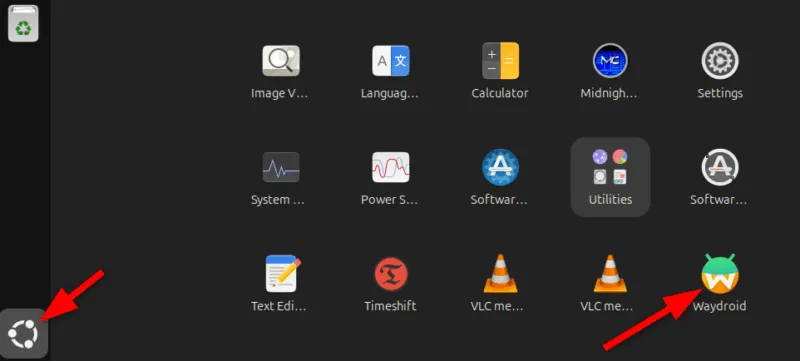
    After installation, Waydroid displays installed Android apps in the application menu of your computer, complete with taskbar entries and unique icons, just like native programs. Additionally, you may enable multi-window mode, which lets each program open in a separate window, by changing one setting.

    Is using Waydroid pleasant?

    WayDroid

    Waydroid

    Waydroid brings all the apps you love, right to your desktop, working side by side your Linux applications. 

    Despite being an open-source, community-built program, Waydroid feels quite well-designed. With the exception of a few configurable configuration changes (such as turning off the on-screen keyboard), the main experience is identical to that of an Android tablet. I can use my monitor without even using my keyboard and mouse because it allows touch input.

    I was pleasantly happy to discover that practically every software I wanted to run on Waydroid worked without any issues, despite my initial concerns about compatibility. You must first take a moment to register your Waydroid installation with Google Play Protect, but I could download everything from the Play Store. Of course, you may also utilize other app stores like F-Droid or sideload apps. Compared to Windows Subsystem for Android, which was formally restricted to the Amazon App Store, this is already a significant improvement.

    We tested all of my favorite apps, including Telegram, YouTube, and Google Maps, and they all functioned perfectly without a single frame loss. Even my Chromebook, which runs Android apps less effectively, stands in sharp contrast to this. You see, with the release of Chrome OS 109 in 2023, Google shifted to a virtualization-based strategy for running Android. Since then, a lot of Chromebooks with lower specs have had trouble running Android apps.

    The term “way” alludes to Waydroid, a crucial part of the graphics infrastructure of contemporary Linux that enables even hardware acceleration and fluid input. Even though I have AMD hardware, as the project suggests, I tested a few simple games and they ran perfectly. Allowing Waydroid to utilize your PC’s built-in graphics or switching to software rendering are two workarounds for NVIDIA’s lack of official support.

    d6a52c0e9479dc6c833c78da46a1c4e3

    That’s not to imply that Waydroid doesn’t have drawbacks. You’ll soon discover that you can’t view incoming notifications when you run programs in multi-window mode. Apps lack the ability to send notifications outside of the container they reside in, in contrast to Chrome OS. If you install the appropriate desktop application and use a forwarding app, such as KDE Connect, you can easily get around this.

    Additionally, Waydroid shields a large portion of your device’s hardware from Android apps. For example, the camera input is broken, which is really important if you care about video calls. Similarly, apps are inherently unable to directly access Bluetooth or GPS. However, this only truly matters in ancillary use scenarios, such as when attempting to configure a smart home device straight from Waydroid.

    Overall, Waydroid fills the void better than anything else available at the moment, although it doesn’t completely replace my Pixel or even my detachable Chromebook. I can highly recommend Waydroid if you’re among the numerous folks who either use an emulator or wish that Windows Subsystem for Android would come back.

    WayDroid

    Waydroid

    Waydroid brings all the apps you love, right to your desktop, working side by side your Linux applications. 

  • The hidden Xiaomi battery setting you should enable right now

    The hidden Xiaomi battery setting you should enable right now

    From background controls to looks, Xiaomi’s HyperOS offers consumers a great deal of customization options for their phones. Nevertheless, one tiny switch among all of these choices could stealthily drain battery life without your knowledge. Owners have recently complained of unexpected power consumption in user forums and on Reddit, even while their phones are just sitting on a desk.

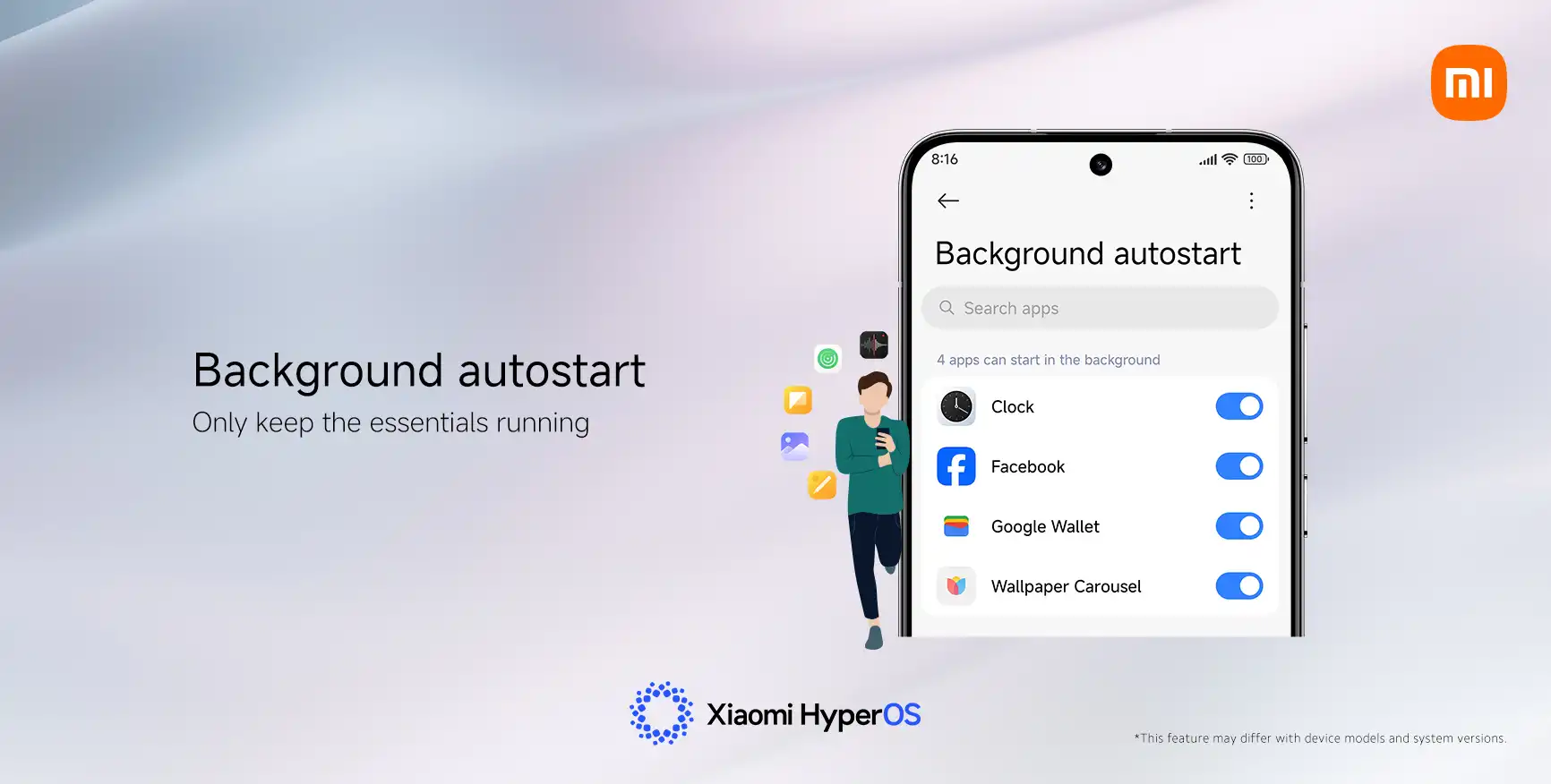
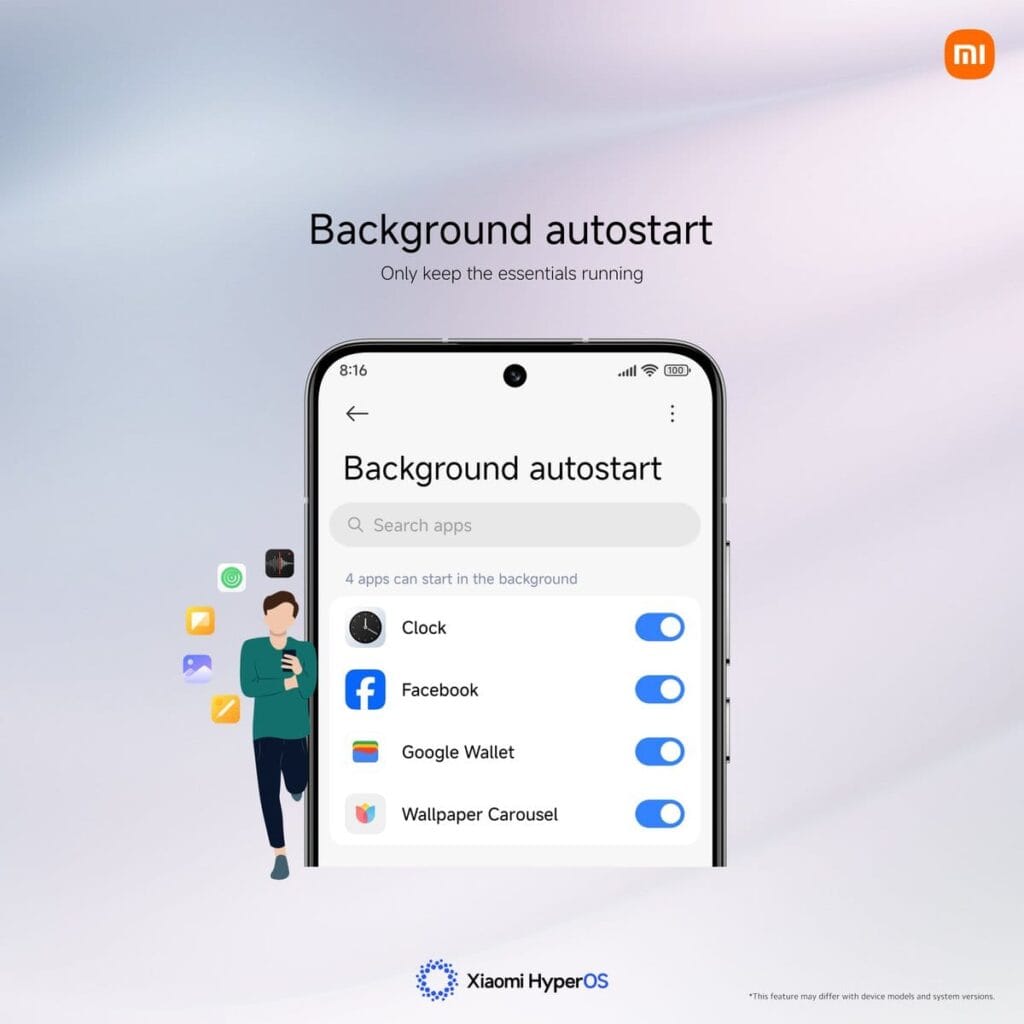
    “App Autostart” is one feature that frequently appears. Its original purpose was to speed up the delivery of notifications in older MIUI systems. However, Xiaomi has already made improvements to HyperOS‘s notification system, so this choice is no longer as important.

    Apps can operate automatically in the background when Autostart is enabled. Those apps continue to use memory and power even while you are not accessing your device. According to several users, turning off unnecessary autostart permissions can extend the standby duration of their phones by up to ten times.

    How to Fix It in a Few Steps

    You don’t need to be a tech expert to save battery life. Here’s the simple way to manage it:

    1. Open Settings on your Xiaomi phone.
    2. Tap Apps, then Permissions.
    3. Select Background Autostart.
    4. Check which apps are allowed to start automatically.
    5. Turn off Autostart for any that aren’t essential.
    xiaomi hyperos battery autostart apps

    It makes sense to limit the use of this feature to essential messaging apps like Telegram and WhatsApp. You can safely leave off tools you don’t use often, games, and shopping apps.

    Other Easy Ways to Get More Battery Life

    Turning off Autostart is a big help, but you can stretch your power even further by combining a few other habits:

    • Limit or disable Always-On Display to cut screen power use.
    • Use Dark Mode, especially on AMOLED screens.
    • Review notification permissions and mute apps that alert too often.
    • Shorten screen timeout so the display turns off faster.
    • Activate Battery Saver mode for less important apps.

    A HyperOS developer recently explained on Xiaomi’s forum that small tweaks like these often have the biggest effect: “You don’t need deep settings knowledge—just consistency. Tiny adjustments add up to big savings.”

    Key Points

    1. “App Autostart” can drain battery silently in HyperOS.
    2. Turning it off saves power and improves standby time.
    3. Only key messaging apps should keep it active.
    4. Combine small changes for longer daily use.
    5. Xiaomi keeps battery controls simple but powerful.

    Ultimately, practical flexibility is what Xiaomi strives for. Deep control is available when you want it, but the default settings are still user-friendly enough for everyone. A phone that drains quickly can be made to last from morning to night with a few well-considered adjustments.

  • How to access the hidden Wi-Fi menu on your Samsung phone

    How to access the hidden Wi-Fi menu on your Samsung phone

    This OneUI feature is perfect for fans of Samsung’s everything-but-the-kitchen-sink software strategy. Was one of the Samsung Galaxy phones’ best-kept secrets just revealed by a Reddit user? The most well-known aspect of OneUI, the software launcher that runs Samsung phones, is how many functions it has. Some of them are so buried or too many that you won’t utilize them at all.

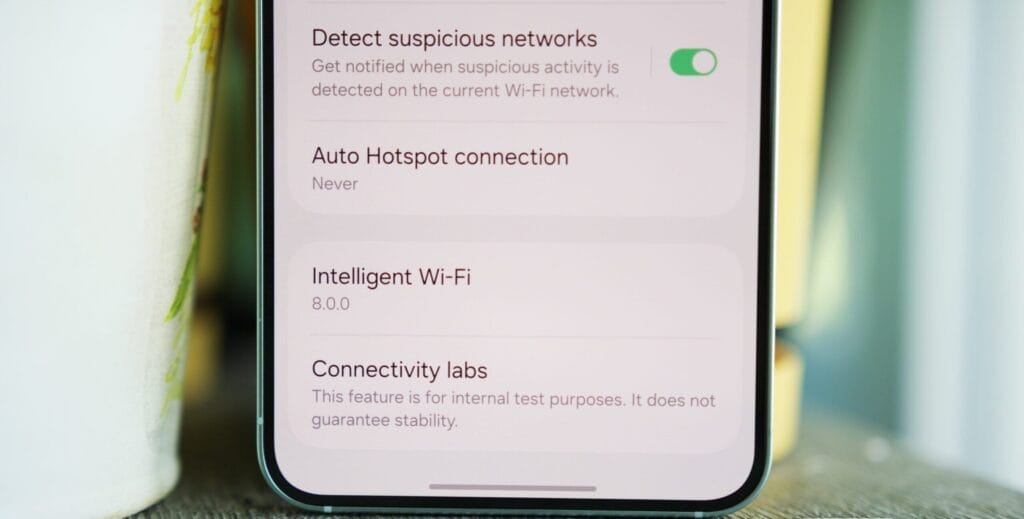
    The best hidden feature award can go to a new discovery. The function, known as “Connectivity Labs,” can only be accessed by a hidden gesture in the Wi-Fi settings on your phone. That’s cool, isn’t it?

    Even more amazing are the features offered by Connectivity Labs, which include developer options, AI-powered mobile data switching, a home Wi-Fi assessment tool, and more. Here are some of the greatest features you should start utilizing, how to access them, and which Samsung models are compatible.

    Opening Intelligent Wi-Fi settings

    samsung Intelligent Wi-Fi settings

    In order to access your Intelligent Wi-Fi settings, you must first launch the Settings app, hit the Connections tab, select Wi-Fi, then tap the three dots in the upper-right corner (to expand options), and then select Intelligent Wi-Fi.

    You will then get a list of Wi-Fi alternatives that are adaptable.

    Turning on Connectivity Labs

    Scroll to the bottom of the Intelligent Wi-Fi page, then tap the software version (now known as Intelligent Wi-Fi 7.0.0) seven times to enable Connectivity Labs.

    You should see a pop-up message indicating the number of taps required to activate Connectivity Labs as you continue to tap. The secret menu will then show up at the bottom of the site after that.

    samsung connectivity labs nearby

    Connectivity Labs

    A column of graphs showing the different bands, types, and networks your phone is linked to appears when you first launch Connectivity Labs. Additionally, there is a “Daily Average” ticker that shows how long your phone spends on Wi-Fi each day.

    But the bottom half of this page has the main content. A list of helpful internet connection toggles, such as Wi-Fi 7 mode, Wi-Fi handover, network quality information, and more, can be found as you read down.

    Although the most of the alternatives are specialized, I’ve been trying with all of them, and three are generally helpful:

    • Home Wi-Fi inspection: This feature tests your Wi-Fi signal in real time, displaying connection strength fluctuations as you move around your house. I needed a convenient location for the monitoring hub after I recently placed new video security cameras across my property. After using the Wi-Fi inspection tool, I located a strong signal spot in my office and configured it.
    • Switching to mobile data faster: Have you ever had slow internet because your phone was switching between Wi-Fi and mobile data while you were outside of a cafe or office building, for example, and you were on the edge of a public connection? If you select this option, the phone will immediately switch to mobile data if it senses that your Wi-Fi signal is waning. If you have an unlimited data plan, this is a fantastic alternative.
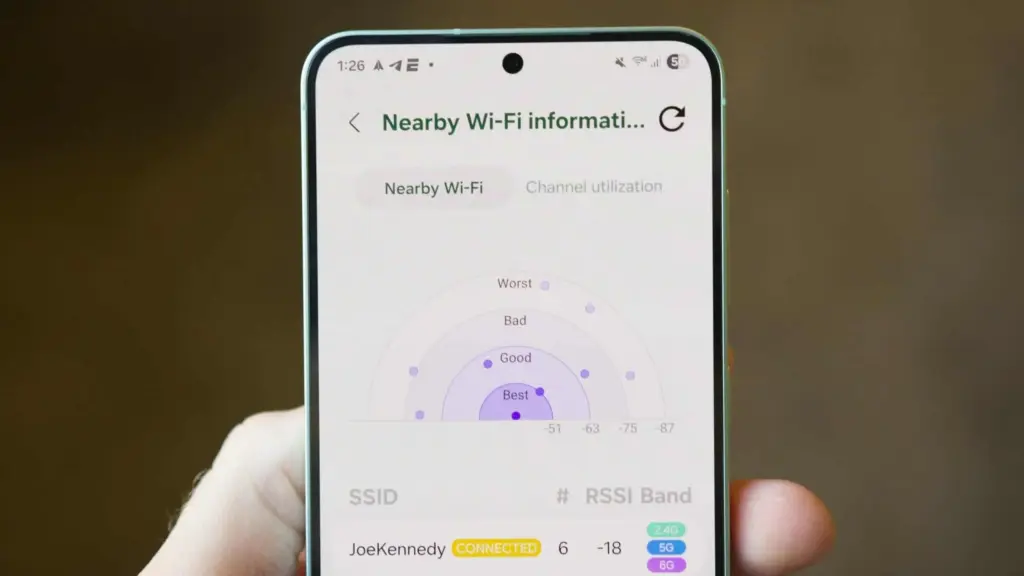
    • Wi-Fi Developer Options: One of the most useful settings on this menu is “Nearby Wi-Fi information,” which provides a list of the signal strengths of your nearby networks. When there are several public Wi-Fi networks available, such as at an airport, and you want to know which one will provide the quickest surfing speeds, this can be helpful.

    Although I have only touched the surface of Connectivity Labs’ potential, it is evident that there are many helpful tools available to make more exploration worthwhile. I strongly advise spending some time looking into these settings, experimenting with them, and figuring out which ones best suit your unique need for internet connectivity. The amount of control and optimization you may attain without spending any money may surprise you.

  • Boost your Samsung TV performance with these 6 simple settings

    Boost your Samsung TV performance with these 6 simple settings

    Let’s say you just got a brand-new, sparkling TV. Like a child at Christmas, you open the box and get ready to enjoy all of its aesthetic splendor. It’s 2025,” you think to yourself. TV technology is booming, and it will always look fantastic. Thus, you plug it in without even checking the default settings. A huge error.

    I’ve done it myself. And because it’s generally acknowledged that most customers forget to change the most fundamental settings when configuring their televisions, I’m fine with it. You may have never changed the default settings on your TV, even if it’s a few years old.

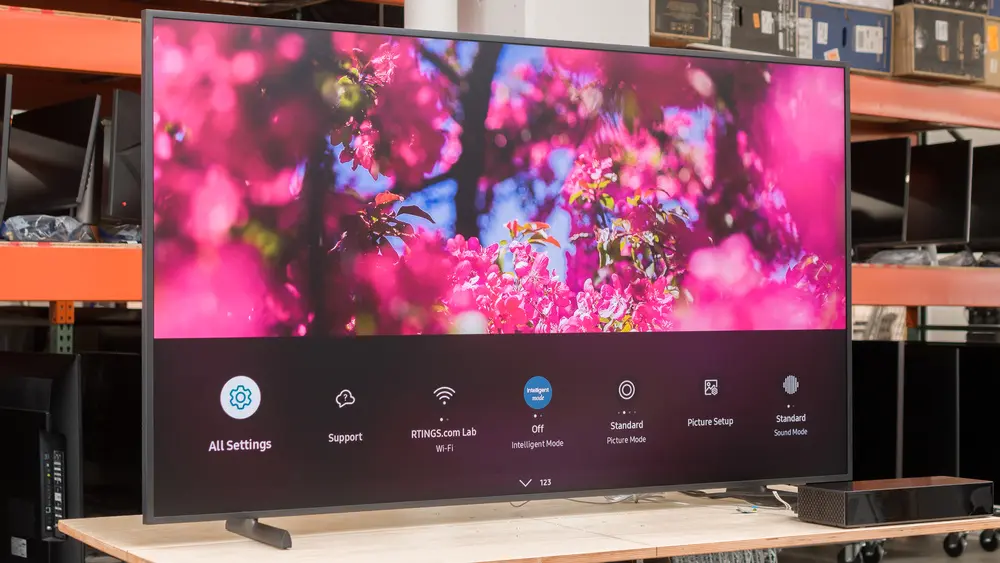
    You may adjust a few settings on Samsung TVs in particular to enhance your viewing experience and add even more appeal to a dystopian survival thriller. Here are six suggestions to help you do that.

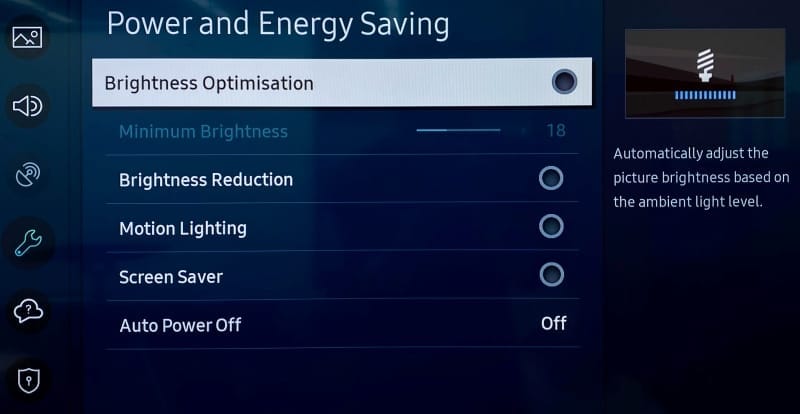
    Turn off Brightness Optimization

    Go ahead and turn off Brightness Optimization by turning it off as you’ve already reached Power and Energy Saving.

    samsung turn off Brightness Optimization

    Nowadays, a lot of TVs have optical sensors that can determine the brightness of your room and its potential temperature. The TV then makes adjustments on its own, ostensibly optimizing color temperature and brightness based on that information. This isn’t always accurate, and the feature may end up producing worse results, particularly in a space where lighting conditions can fluctuate, such as on a sunny day when the sky is obscured by large clouds.

    Adjust Brightness levels to suit your eyes

    The type of content you’re viewing will determine the optimal brightness level. Even if HDR (high dynamic range) is gradually gaining popularity, SDR (standard dynamic range) has been the only option for decades of movies. You can readily change the brightness levels for both situations, though.

    Open any software, like Prime, for SDR, but don’t start watching a video just yet. Proceed to All Settings > Picture > Expert Settings > Brightness (keep in mind that this is located under Picture Setup on some Samsung models). Adjust the sliders to determine the SDR brightness sweet spot, in your opinion.

    Finding a video that is shown in high dynamic range is the first step in adjusting HDR brightness. Since many of its movies are tagged with brief descriptions identifying their genre, visiting YouTube TV is a quick way to make sure you are watching HDR content. Another option is to just search for “HDR video.”

    You will notice a difference when viewing both technologies (SDR/HDR), however the brightness level you select depends on your personal preferences. I think HDR looks its best when the brightness is at its highest. You may discover that SDR appears best at a lower level.

    Turn off Motion Smoothing for cinematic viewing

    The majority of films are (and have always been) shot at 24 frames per second. Motion smoothing reduces juddering and blur by interpolating images in footage captured at 24 frames per second. Given that live television is filmed at 30 frames per second, this can be useful when watching sports.

    disable samsung Motion Smoothing

    However, Motion Smoothing—another popular default feature—has a reputation for giving televisions a “soap opera appearance.” Just from that description, you’ll likely understand. In photographic prints, I conceive of it as glossy versus matte, where glossy refers to the look of a soap opera that mimics a live broadcast. Even though I always strive for an immersive viewing experience, I don’t have to see the actors and crew filming the scene on the set.

    Browse to Picture Clarity Settings under All Settings > Picture > Expert Settings.(Note that Motion Smoothing is referred to as Picture Clarity or Auto Motion Plus on Samsung TVs.)

    From here, you can select Custom Settings or completely disable Picture Clarity (Motion Smoothing). You may want to increase the Blur Reduction and Judder Reduction sliders there if you’re playing a video game or watching a soccer match. Turning off Motion Smoothing, however, is the best option for traditional (filmic) aesthetics.

    Choose a Picture Mode that suits you

    The Movie, Cinema, or Filmmaker modes, in my opinion, are typically the best since they seek to offer the most genuine and accurate depiction of the content creator’s vision. These settings also lessen the possibility of introducing artifacts and other problems with image quality by cutting down on superfluous image processing.

    Select Picture Mode from the All Settings menu. Then browse between these three selections (Movie, Cinema, or Filmmaker) to find your favorite.

    The color temperature is typically cooler or bluer when using the standard mode by default. Vivid mode, which Samsung refers to as Dynamic mode, is frequently included with TVs. Both the Dynamic and Sports modes can make colors appear overly bright, giving the entire image a harsh shine, therefore I would suggest avoiding that. Because the colors will stand out more in storefronts, businesses are more likely to employ these modes when setting up display TVs.

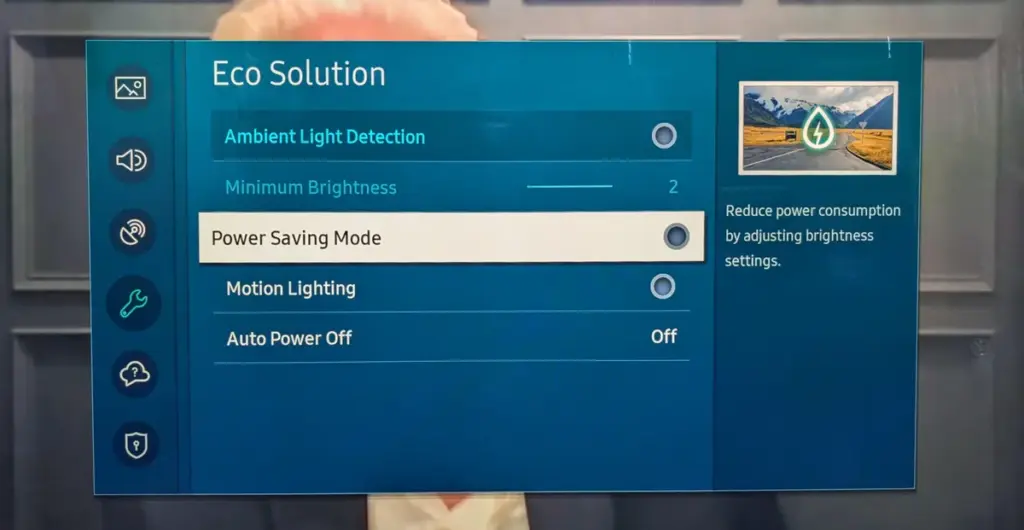
    Turn off Eco Mode

    samsung eco mode

    Nowadays, almost every TV has some sort of “Eco Mode” on by default. By lowering the contrast and dimming the TV’s brightness, Eco Mode is intended to conserve power. According to a recent research, turning on Eco Mode can reduce your annual electric cost by as low as $7. (That is a daily amount of less than two cents.) There are other ways to more efficiently lower your carbon footprint, therefore it doesn’t make a big difference whether “eco” stands for economics or ecology.

    To disable Eco Mode, click the gear button on your Samsung remote to access the settings. Then follow this path: All Settings > General and Privacy > Power and Energy Saving > Energy Saving Solution. Lastly, toggle Energy Saving Solution off.

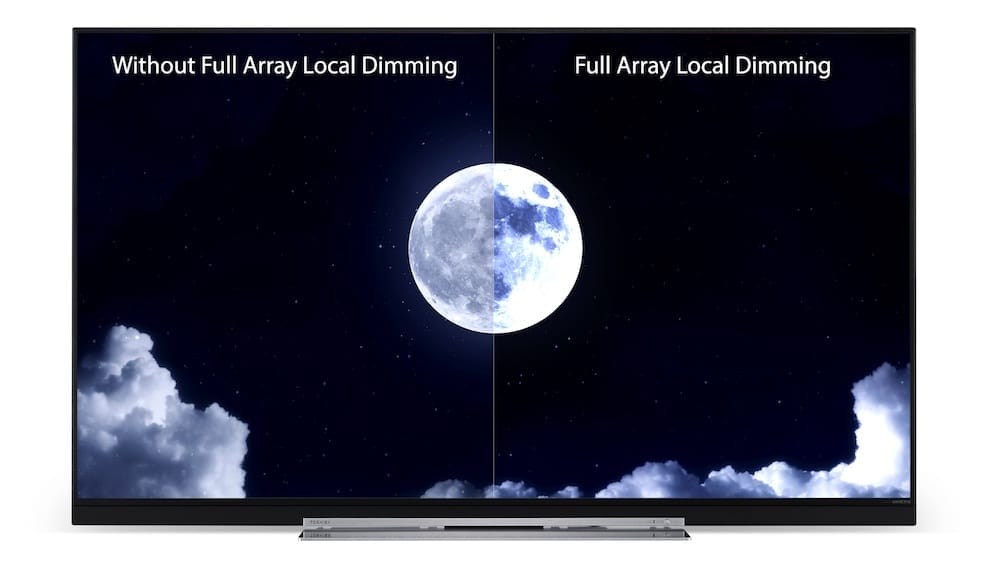
    Check Local Dimming

    There are three settings for Local Dimming on Samsung TVs, which is another control that affects brightness levels. Select Local Dimming under All Settings > Picture > Expert Settings.

    samsung Local Dimming

    To find the one that works best for you, try sampling Low, Standard, and High. When Local Dimming is set to Low, bright objects on dark backgrounds see reduced halo and blooming. My favorite setting on Samsung TVs is High since it maintains maximum brightness without haloing surrounding images.

    After making changes to Local Dimming, you may wish to go back and evaluate if the brightness levels on both SDR and HDR content are adequate.

  • Hidden Pixel tools: 8 features that enhance productivity

    Hidden Pixel tools: 8 features that enhance productivity

    The Pixels are even more feature-rich than Android. You find more the deeper you go. Given that he finds more features than Google even promotes, our own Mishaal Rahman may likely attest to that. And that speaks volumes about a platform that the majority of us use on a regular basis on our phones, which are our main devices.

    Having spent years immersed in the vibrant and colorful world of Android, I have created certain personal favorites—features that are really essential yet still go unappreciated. Although you may be aware of them all, I’m willing to wager that many of us are unaware of them until we come across them in a random Reddit comment.

    I now use these functions on a regular basis; some are exclusive to the Pixel, while others are available on all Android devices.

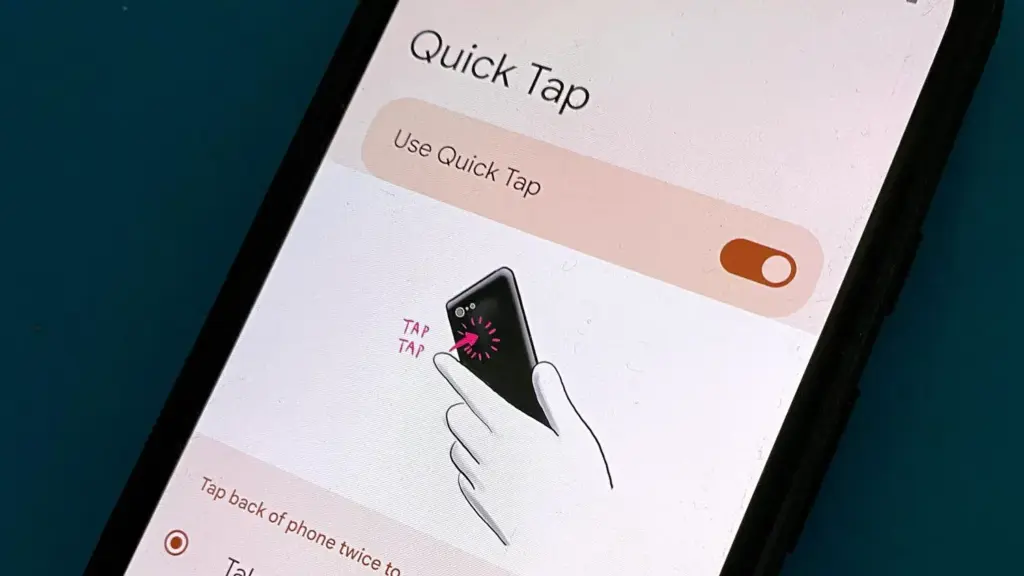
    Quick tap

    Double-tapping the back of a Pixel phone activates shortcuts, which is a great gesture. I have my Quick Tap in Settings app set to pull down the notification shade, which I probably do a thousand times a day, whether it’s to ignore a barrage of Instagram direct messages or obsessively check for a message.

    pixel double tap feature d1ceb3a

    Particularly when utilizing an app, it’s far simpler than reaching your thumb all the way to the top of the screen. I just need to lightly tap my index finger, which is where it naturally sits, to check who has ping-ed me, and then I can immediately resume my job while ignoring them. Easy.

    Clipboard manager on Gboard

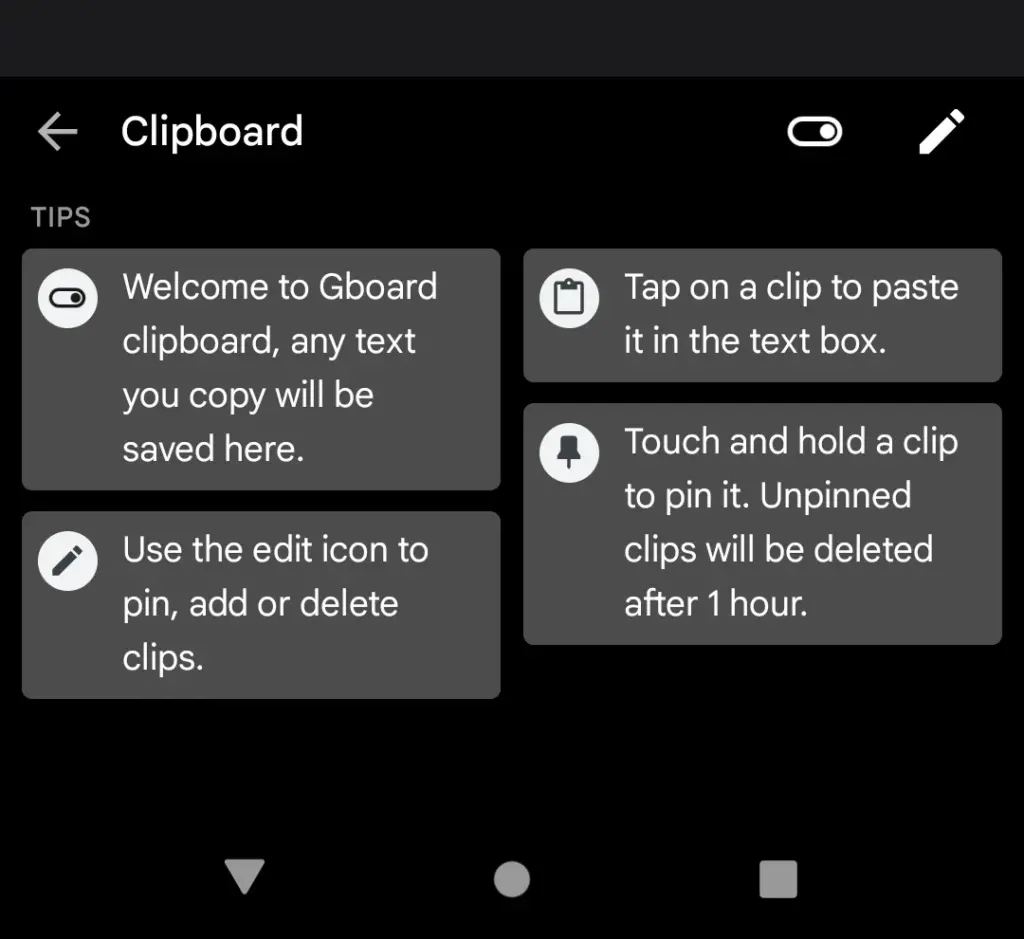
    Sincerely, I’m not sure how I’ll manage without this anymore. I’m always storing text snippets, URLs, package tracking numbers, and even Instagram captions that I’m still working on using Gboard’s clipboard manager. Additionally, it is located beneath Gboard‘s menu selections and is only a tap away.

    Gboard clipboard manager

    It’s an underappreciated talent to be able to pin things so they don’t disappear after an hour. Additionally, it helps me fill out those nagging forms that always reload when I switch between apps. My sanity has been rescued numerous times by having lengthy responses stored in the clipboard.

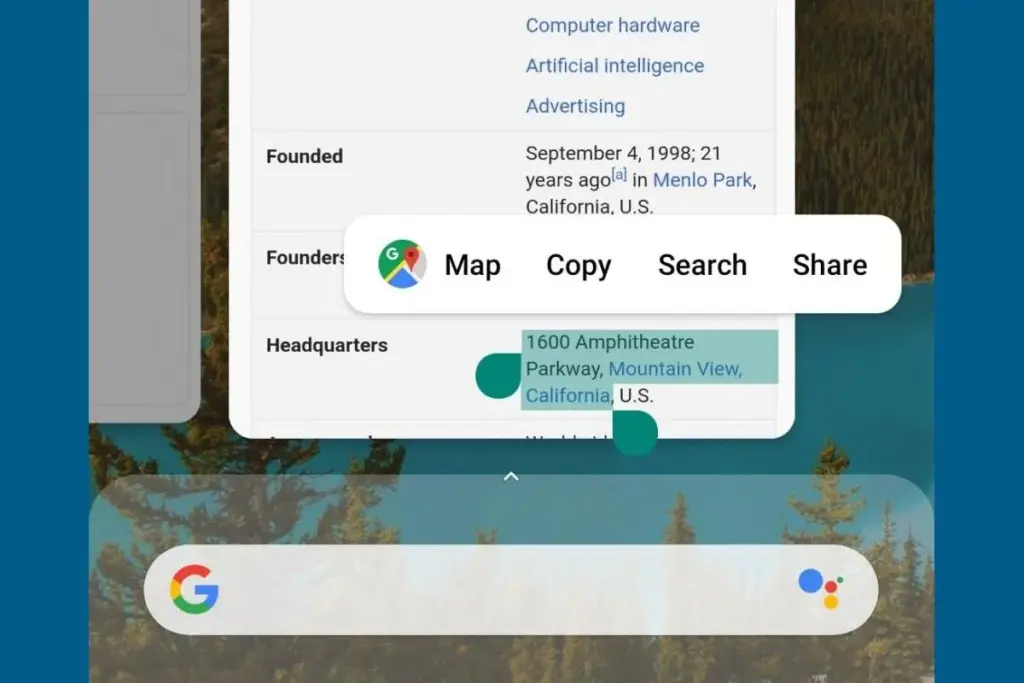
    Smart text selection in overview

    Who knew it could feel like such a victory to save one more tap? Long-pressing text in the app overview screen on Pixel phones allows you to copy it without having to return to the app.

    Smart text selection in overview

    At first, it might not seem like a significant deal. However, those saved taps add up if you’re copying information one by one, for example, from WhatsApp to fill out a form somewhere else while making sure everything is correct. It’s a minor detail that helps me avoid a lot of conflict and irritation.

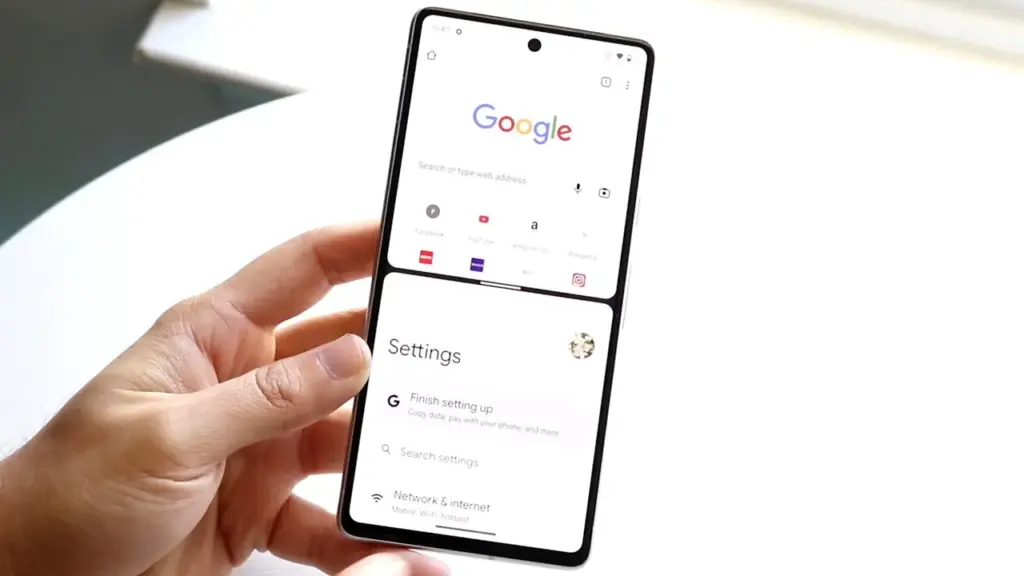
    Multitasking with split-screen

    I believe this function to be equally useful on smaller devices, even though it’s frequently marketed for phones with giant screens and foldables. To avoid continually switching between apps, I regularly utilize it to run utilities like the calculator alongside other programs, again from the Overview page.

    Split-screen multitasking

    I’ll admit that I occasionally forget it’s there, but I spare myself the hassle by arranging my programs into split-screen the instant I see myself switching between them too frequently.

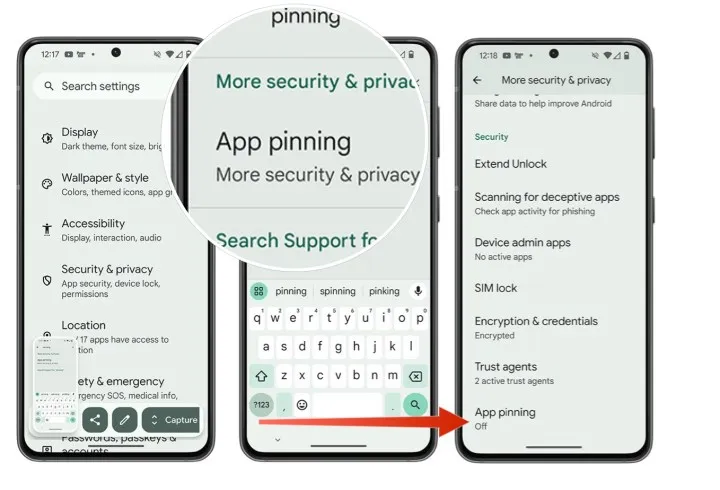
    App pinning

    It’s simple but incredibly underappreciated. I pin the app by choosing the Pin option from the Overview screen whenever I give my phone to someone, such as to pick up a contact or scan a QR code at a movie theater (you must first enable app pinning in your phone’s Security and privacy settings). This prevents them from inadvertently or purposely swiping into another app.

    App pinning

    When I show friends and family a single picture, I can’t stop them from idly browsing around my gallery, but I can stop them from switching to Messages or Keep. It comes in particularly handy when my young niece or nephew borrows my phone to play games and I don’t want them to change applications or erase random notes.

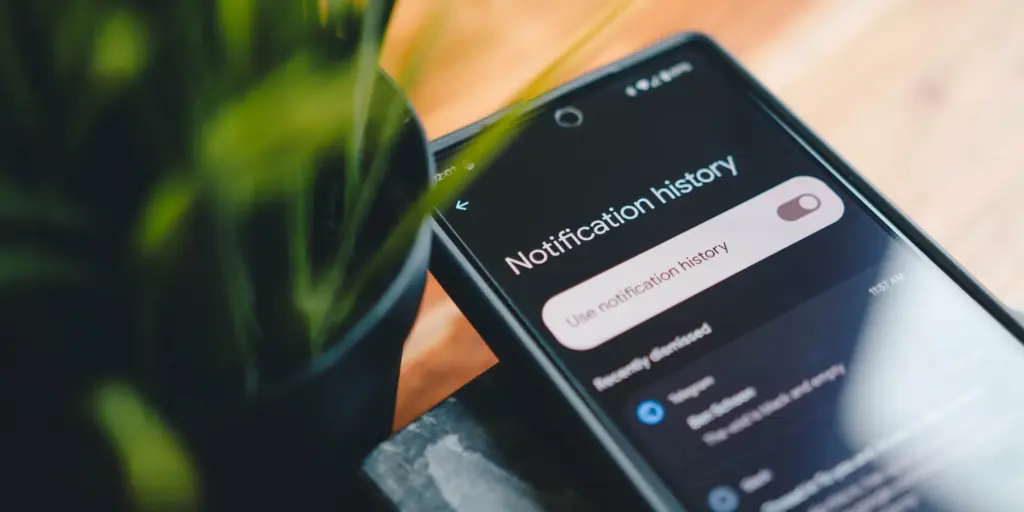
    Notification history if you dismissed one by mistake

    It would be an understatement to say that this is a lifesaver. I vividly recall how taken aback I was to discover that Android even possessed this capability.

    Notification History on Pixel 6

    I occasionally unconsciously swipe away notifications from a particular app out of habit, only to discover later that I truly needed that particular app. Even if accessing notification history through the Notifications area of the Settings app isn’t the most user-friendly method, knowing that those messages aren’t permanently erased calms my racing thoughts.

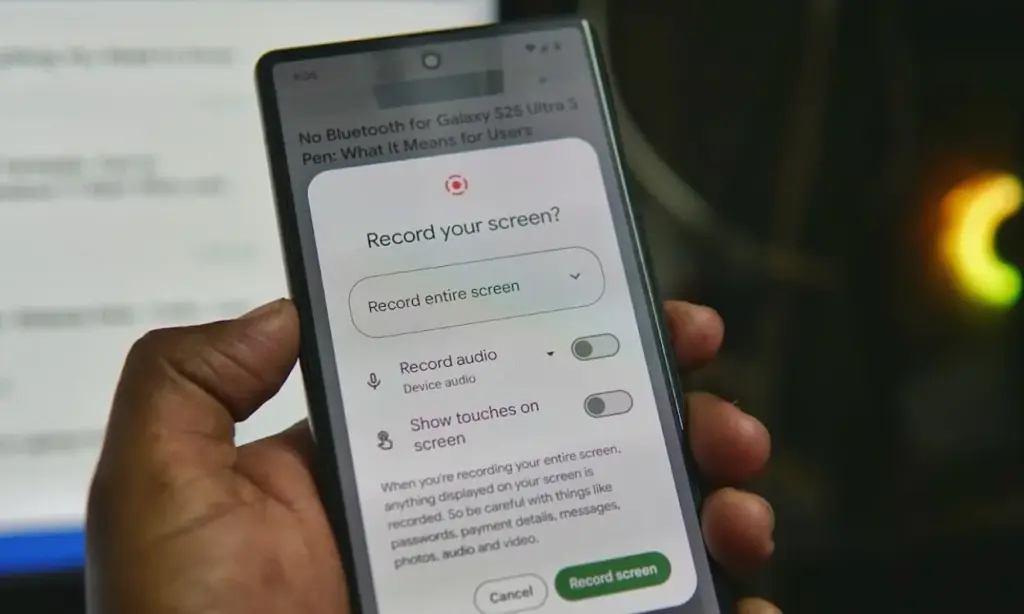
    Screen recording has built-in audio

    In addition to recording the screen, Android’s built-in screen recorder also records internal audio, not simply microphone input. Every time you choose the option from the Quick Settings menu, it allows you to choose the audio source.

    Screen recording with built-in audio

    I utilize the functionality for more enjoyable (and practical) purposes, but it’s also useful for sending how-tos to friends and relatives. When a song strikes, you can save synced lyrics from music applications to share with someone, record buggy app behavior to report bugs (and collect huge bug bounties, just saying), or record clear audio broadcast parts from YouTube.

    The microphone does not pick up any noise during any of this. Furthermore, you definitely don’t need any dubious third-party tools for this.

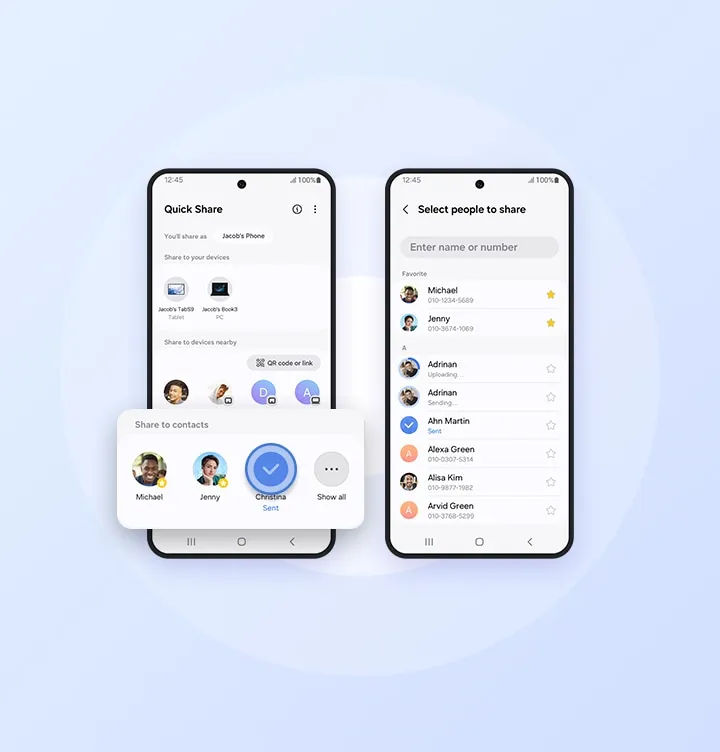
    Quick Share

    Fast file transfers between devices are a feature of Quick Share, however I use it more for myself than for other people.

    android Quick Share

    I frequently have to transfer screenshots and images from my Pixel to my Mac for work. I can share files as quickly and smoothly as AirDrop if I have a third-party app installed on macOS. Even better, Google’s first-party Quick Share software functions flawlessly on Windows, so you’re in luck.

    google pixel 10 pro xl

    Google Pixel 10 Pro XL

    Google Pixel 10 Pro XL is the ultimate Pixel experience, featuring advanced AI – Gemini, unbelievable camera quality, impeccable design, and the next-gen Google Tensor G5 chip

    $1,199.00Amazon

    I’m confident that there are a dozen more hidden gems like this in the UIs of Android and Pixel if I look more closely. However, I use these on my Pixel every single day. My flow and my sanity would be totally disrupted if I were to lose even one of them.