Author: Cristian Penisoara

  • The easiest ways to take a screenshot on any Android device (no 3rd app required)

    The easiest ways to take a screenshot on any Android device (no 3rd app required)

    Screenshots are quite useful. Most Android users save receipts, share humorous memes, and capture bugs to report on a daily basis. However, not all Android phones employ the same approach for taking screenshots.

    In this guide, you will learn how to take a screenshot on any Android device, including Samsung, Google Pixel, Xiaomi, OnePlus, and others. We will also show you how to take screenshots without using physical buttons, which are sometimes damaged or inconvenient.

    ✅ Common Methods to Take a Screenshot on Android

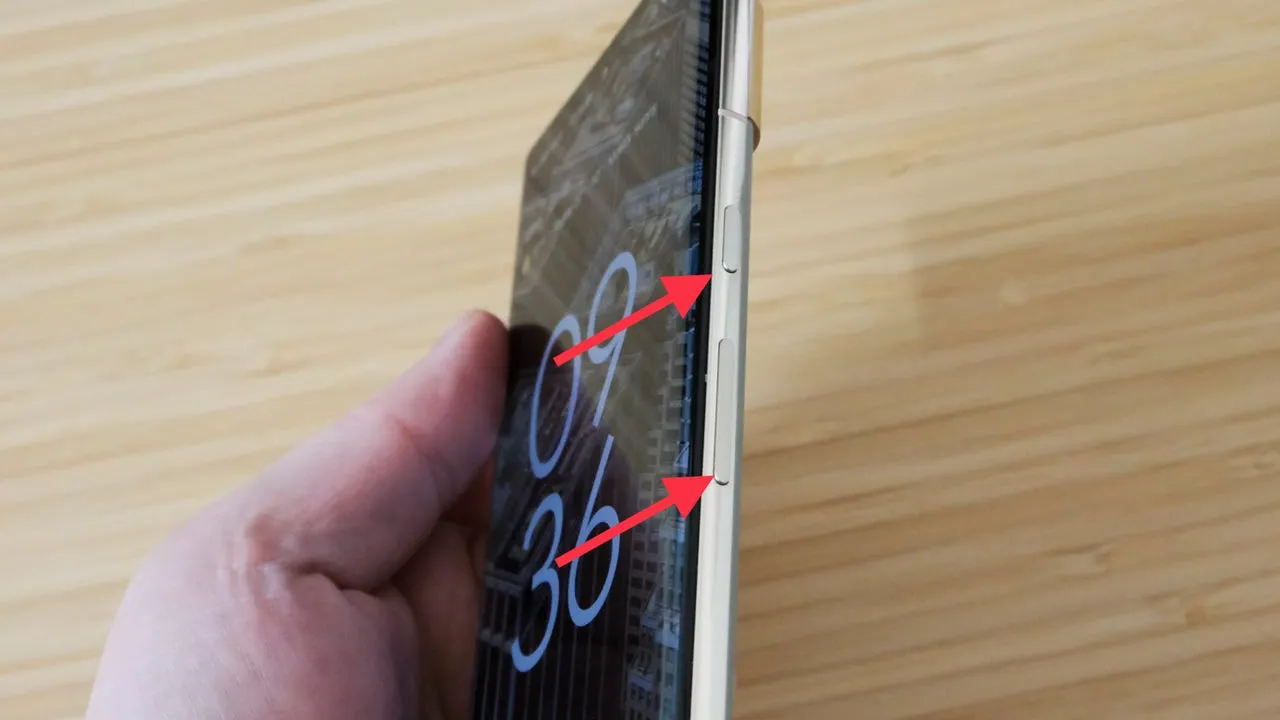
    📱 1. The Universal Button Combo: Power + Volume Down

    This method works on 99% of Android devices:

    • Press and hold the Power button and Volume Down at the same time
    • Hold for about 1 second until the screen flashes or you hear a shutter sound
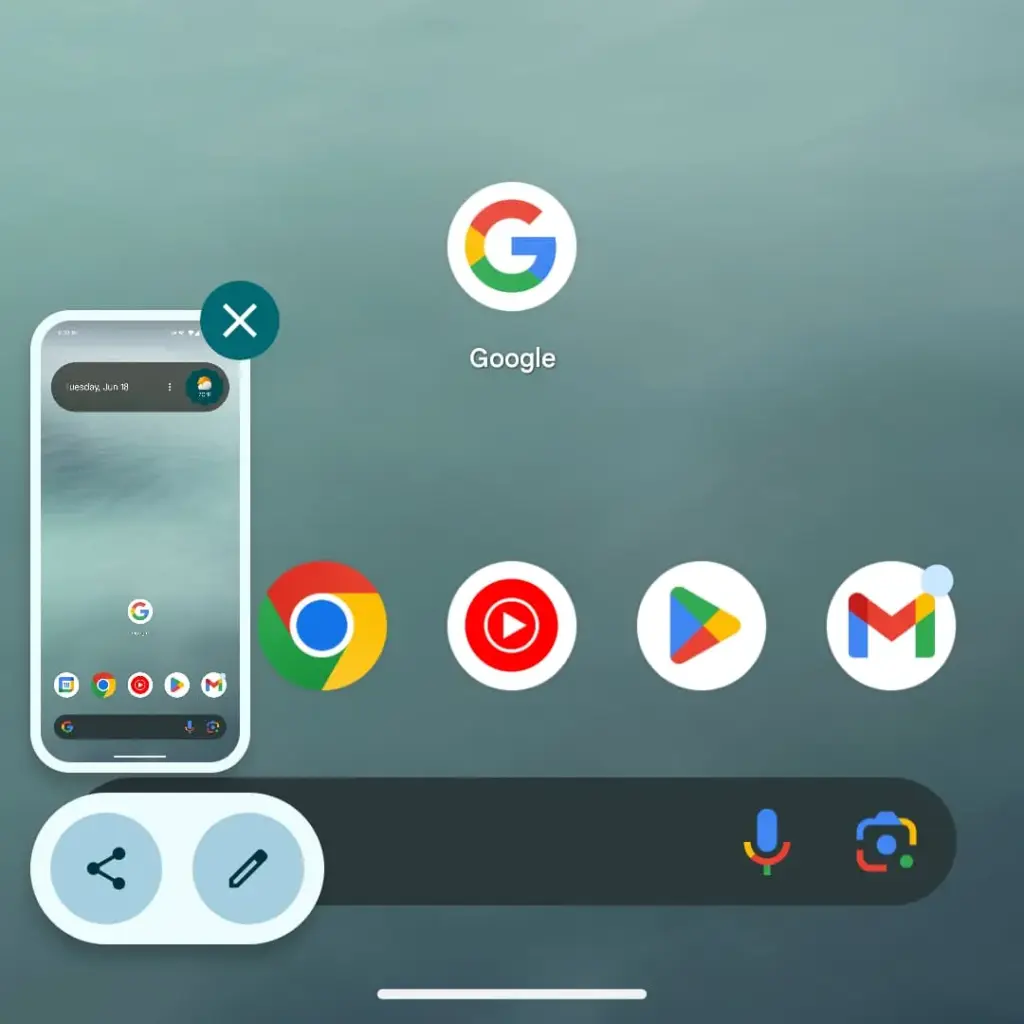
    • A preview of the screenshot will appear with options to Edit, Share, or Delete

    📝 Works on: Samsung, Pixel, OnePlus, Xiaomi, Motorola, Realme, and most others.

    📸 Recommended image here: A screenshot showing fingers pressing Power + Volume Down on a phone.

    📲 Brand-Specific Methods (With Enhancements)

    📱 Samsung Galaxy Devices

    Samsung offers multiple screenshot options beyond the button combo:

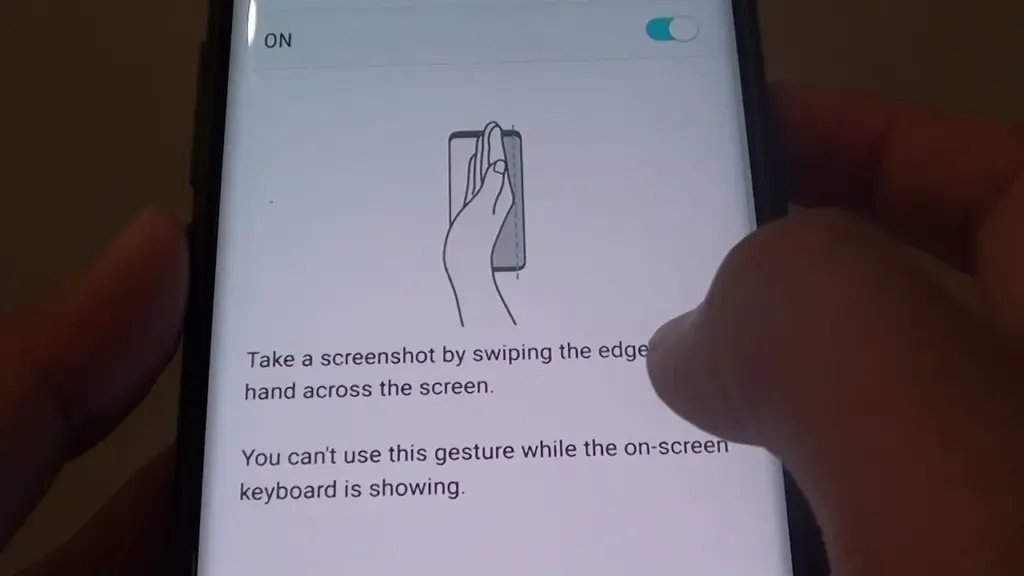
    ✋ Palm Swipe Gesture

    • Go to Settings > Advanced Features > Motions and Gestures
    • Toggle on Palm swipe to capture
    • Swipe your palm horizontally across the screen (left to right or vice versa)
    maxresdefault

    ✨ Smart Capture (Scroll Capture)

    • After taking a screenshot, tap the scroll icon in the preview to capture an entire page (e.g., a long webpage)

    🧠 Tip: Scroll Capture is perfect for saving full chats, articles, or receipts.

    📷 Google Pixel Devices

    Google Pixel sticks to simplicity:

    • Power + Volume Down is the main method
    • On Android 13+, when you open the Recent Apps view, there’s a Screenshot button under each app window

    🔒 Screenshots are disabled for secure apps like banking apps or Netflix (for DRM protection)
    android screenshot options

    ⚙️ Xiaomi, Redmi, and POCO (MIUI)

    Xiaomi devices give you gesture and quick-access methods:

    • Power + Volume Down (standard)
    • Swipe three fingers downward on the screen for a quick snap
    • Use the Quick Ball feature:
      • Enable via Settings > Additional Settings > Quick Ball
      • Tap it, and choose Screenshot from the floating menu

    🔴 OnePlus (OxygenOS)

    • Power + Volume Down
    • Three-finger swipe down also works (enable in Settings > Buttons & Gestures)
    • Long screenshot (scrolling) is available on preview pop-up

    🧑‍💻 How to Take a Screenshot Without Buttons

    If your power or volume buttons are broken, don’t worry—you can still capture the screen using these workarounds:

    🧠 1. Use Google Assistant or Voice Command

    Just say:

    “Hey Google, take a screenshot.”

    The Assistant will snap the screen and save it to your gallery.

    🔒 Note: Google Assistant cannot take screenshots in some secure apps or during voice calls.

    🧮 2. Enable On-Screen Screenshot Shortcut

    Some phones let you add a screenshot shortcut to the navigation bar or status shade:

    • Samsung: Add “Screenshot” to the Edge Panel or Quick Settings
    • Xiaomi: Enable Quick Ball or Button Shortcuts
    • OnePlus: Add Screenshot to the Navigation gestures

    ♿ 3. Use Accessibility Menu (for all Android phones)

    If you’re on Android 9 or later:

    1. Go to Settings > Accessibility > Accessibility Menu
    2. Enable it
    3. You’ll see a little person icon at the bottom right
    4. Tap it > Tap Screenshot

    This is a great method for users with limited mobility or hardware button issues.

    💡 4. Use Third-Party Apps (Optional)

    If built-in methods don’t work for you, apps like:

    • Screenshot Easy
    • Screen Master
    • Assistive Touch for Android

    …can provide floating buttons, auto scroll, and editing tools. But these aren’t always needed if your Android version is recent.

    🖼️ Where Are Screenshots Saved?
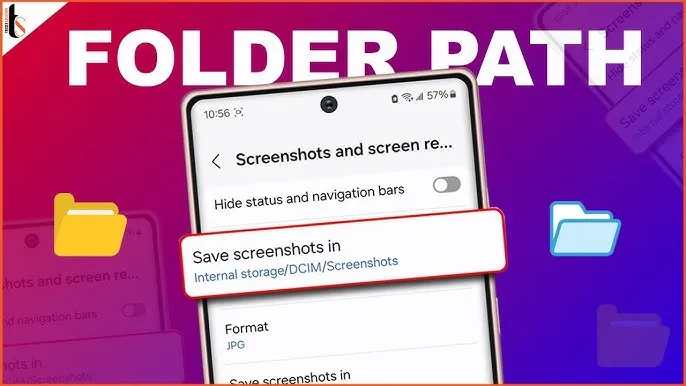
    Where Are Screenshots Saved?

    After taking a screenshot, your phone automatically saves it in a specific folder based on the manufacturer, Android version, and any file management settings.

    Here’s how to find them on most Android phones.

    DCIM > Screenshots
    This is the most common location for screenshots. “DCIM” stands for Digital Camera Images, and it’s where the system stores photos taken with your camera and screenshots.

    Pictures > Screenshots
    On some devices or third-party camera apps, screenshots go here instead of DCIM. This is especially true for older Android versions or modified versions like MIUI (Xiaomi) or ColorOS (OPPO/Realme).

    🧭 To manually browse:

    Navigate to DCIM > Screenshots or Pictures > Screenshots

    Open your File Manager or My Files app

    Tap Internal Storage

    You can also find them in the Google Photos app under the “Screenshots” section.


    ✂️ How to Edit or Share a Screenshot Instantly

    After taking a screenshot:

    • Tap the preview popup before it disappears
    • You can:
      • Crop or annotate the image
      • Share via WhatsApp, Gmail, social media
      • Delete if it was a mistake

    Some phones even allow adding text, shapes, or blur effects directly in the screenshot editor.

    🧼 Screenshot Tips & Tricks

    ✔️ Tip 1: Use Scroll Capture for Long Pages

    Don’t take 5 screenshots for a single chat—use the scrolling option instead.

    ✔️ Tip 2: Organize Your Screenshots

    Create folders like Receipts, Meme folder, Work notes in your file manager.

    ✔️ Tip 3: Don’t Rely on Screenshots for Sensitive Info

    Avoid screenshotting 2FA codes, passwords, or anything too personal. Use a secure note app instead.

    🔚 Wrapping Up

    Taking a screenshot on Android is easier than ever, with different options based on your phone and preferences. Whether you like buttons, gestures, or voice commands, Android has a technique for you.

    Now that you know how to screenshot on any Android phone, try each approach and discover which one works best for you. Also, remember to wipe up old screenshots every now and then – those memes add up quickly!
  • How to speed up your Android device in just minutes

    How to speed up your Android device in just minutes

    You are not dreaming if your Android phone used to be blazing fast but suddenly feels slow. Android devices naturally slow down over time for a number of reasons, the majority of which are entirely resolvable without the need for third-party apps or technical know-how.

    Why Android is getting slower?

    📦 1. App Cache Buildup

    An application, such as Instagram, YouTube, or your web browser, saves small amounts of temporary data (called cache) each time you use it so that it loads more quickly the following time. Although useful when used sparingly, this cache accumulates over time, depleting storage and occasionally making the program (or even your phone) slow.

    Example: Chrome can build up hundreds of MBs in cache after a few weeks of browsing. Clearing it can noticeably improve speed.

    ⚙️ 2. Background Processes Piling Up

    Applications do not simply launch when you use them. Multiple apps keep running in the background, syncing data, giving notifications, and even tracking position. This depletes the battery and RAM (your phone’s memory), which can affect speed.

    Tip: Social media and messaging apps are the biggest offenders. If you’ve got 10+ apps running in the background, expect a performance dip.

    📲 3. Unused or Pre-installed Apps

    Bloatware is the term for the numerous apps that are pre-installed on your phone and frequently continue to run in the background even if you have never used them. You end up with a cluttered, overloaded system when you include the apps you downloaded, used once, and then forgot about.

    You don’t have to delete everything, but disabling or uninstalling apps you don’t use makes a big difference.

    🔁 4. Software Updates and Feature Overload

    Software updates can be bulky, yet they are necessary for security and new functionality. Updates for apps and newer Android versions are gradually tailored for more modern hardware. This implies that all of the new features and animations may be too much for your outdated device to handle.

    Ever noticed how a major Android update seems to slow your phone a bit? That’s usually why.

    🗄️ 5. Low Internal Storage

    For Android to function properly, it requires a buffer of free space. Your phone may begin to crawl if it is overloaded with pictures, movies, downloads, and residual program data for background processing.

    Rule of thumb: Keep at least 4 GB free at all times. If you’re below that, expect slowdowns.

    ✅ The Good News?

    You don’t need root access, expensive cleaner apps, or a trip to the repair shop. Most speed issues can be solved in just a few minutes using built-in settings.

    📍 In the next section, we’ll walk through the exact steps you can take right now to get your Android device running like new again.

    how to speed up android phone wi

    ✅ 1. Restart Your Phone

    Why it matters: Restarting your phone clears temporary files, ends frozen background processes, and resets system performance. It’s like giving your phone a fresh breath of air.

    What to do:

    • Hold the Power button until the menu appears
    • Select Restart (or Power Off, then turn it back on)

    📌 Do this at least once a week — it can fix lag, crashes, and battery issues instantly.


    🧹 2. Clear App Cache (Not Data!)

    Apps store cache to improve loading times, but too much of it can cause lag, glitches, or even crashes.

    Here’s how to clear cache:

    1. Go to Settings > Apps
    2. Tap on an app like Chrome, TikTok, or Instagram
    3. Tap Storage & Cache
    4. Tap Clear Cache

    ⚠️ Important: Don’t tap Clear Storage/Data unless you want to log out or reset the app.

    🧠 Pro Tip: Clear cache for your most-used apps once every 2–3 weeks.


    📦 3. Uninstall or Disable Unused Apps

    Apps you never use can:

    • Take up precious storage
    • Run silently in the background
    • Slow down boot times

    To remove them:

    • Long-press the app icon > tap Uninstall
    • OR go to Settings > Apps > [App Name] > Uninstall

    If an app can’t be uninstalled:

    • Tap Disable — it won’t run or consume resources anymore.

    🔇 Example: Carrier apps, pre-installed games, or assistant tools you never asked for.


    🛠️ 4. Reduce Animations (Developer Options)

    Android’s transitions and animations may look sleek — but they can delay actions on older or budget phones.

    Here’s how to disable or reduce animations:

    1. Go to Settings > About Phone
    2. Tap Build Number 7 times to unlock Developer Options
    3. Go back to Settings > System > Developer Options
    4. Scroll down to:
      • Window Animation Scale
      • Transition Animation Scale
      • Animator Duration Scale
    5. Change all three to 0.5x or Animation Off

    📈 Expect a noticeable speed boost — especially on devices with less RAM.


    🗃️ 5. Free Up Storage Space

    Storage nearing full = a major performance killer. Your phone needs free space to install updates, load files, and run background tasks.

    Quick ways to free up space:

    • Open Files by Google > Clean to remove junk, large files, and duplicates
    • Go to Gallery > Albums > Downloads and delete old files
    • Offload videos/photos to Google Photos or an SD card

    💾 Aim to keep 15–20% of your total storage free (e.g. at least 4–6 GB on a 32 GB phone).


    🔋 6. Disable Background Sync & Battery Hogs

    Many apps sync data constantly — even when you’re not using them.

    To limit background activity:

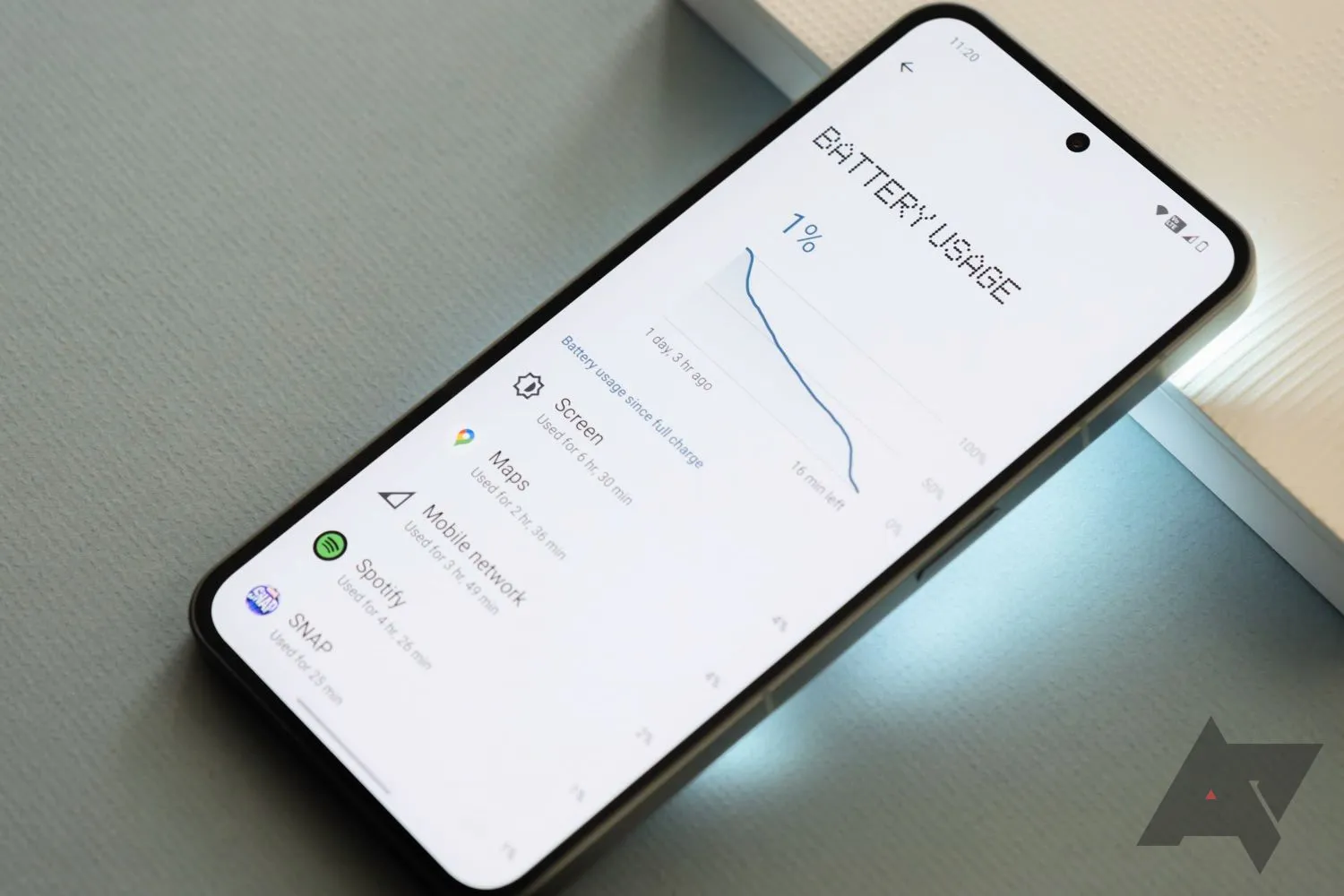
    • Go to Settings > Battery > App usage
    • Tap on heavy apps (Facebook, Gmail, etc.)
    • Restrict background use or set to “Battery Optimized”

    For syncing:

    • Go to Settings > Accounts > Auto-sync Data
    • Turn it off for accounts you rarely use

    💡 This saves RAM and battery life — a win-win.


    🔄 7. Update Android & Your Apps

    Updates contain bug fixes and performance improvements. If you’re behind, you could be missing important optimizations.

    Update system:

    • Settings > System > System Update > Check for updates

    Update apps:

    • Open Google Play Store
    • Tap your profile icon > Manage apps & device
    • Tap Update All

    🔄 Do this monthly, especially if you notice app crashes or slowness.


    🧩 8. Use Lite Versions of Apps

    Heavy apps = more RAM, more battery, more lag.

    Try these alternatives:

    • Facebook Lite instead of Facebook (saves over 500 MB!)
    • Messenger Lite instead of Messenger
    • YouTube Go (lighter on data and resources)
    • Twitter Web via browser instead of the app

    You’ll free up space and speed up daily use.


    🖼️ 9. Use Static Wallpapers

    Live wallpapers constantly run behind the scenes, draining battery and processing power.

    Change it:

    • Long press on the home screen > Wallpaper & Style
    • Choose a static image from your gallery or system wallpapers

    🌓 Tip: Dark wallpapers also save battery on AMOLED/OLED screens.


    🧠 10. Try a Lightweight Launcher

    Your phone’s default launcher (like Samsung’s One UI or Xiaomi’s MIUI) can be bloated and animation-heavy.

    Better options:

    • Nova Launcher (fast, customizable)
    • Niagara Launcher (minimalist & smooth)
    • Smart Launcher 6 (lightweight & sleek)

    Switching to one of these can reduce memory use and simplify your experience.

    speed up android
  • Android 15 Adaptive Vibration – how to setup guide

    Android 15 Adaptive Vibration – how to setup guide

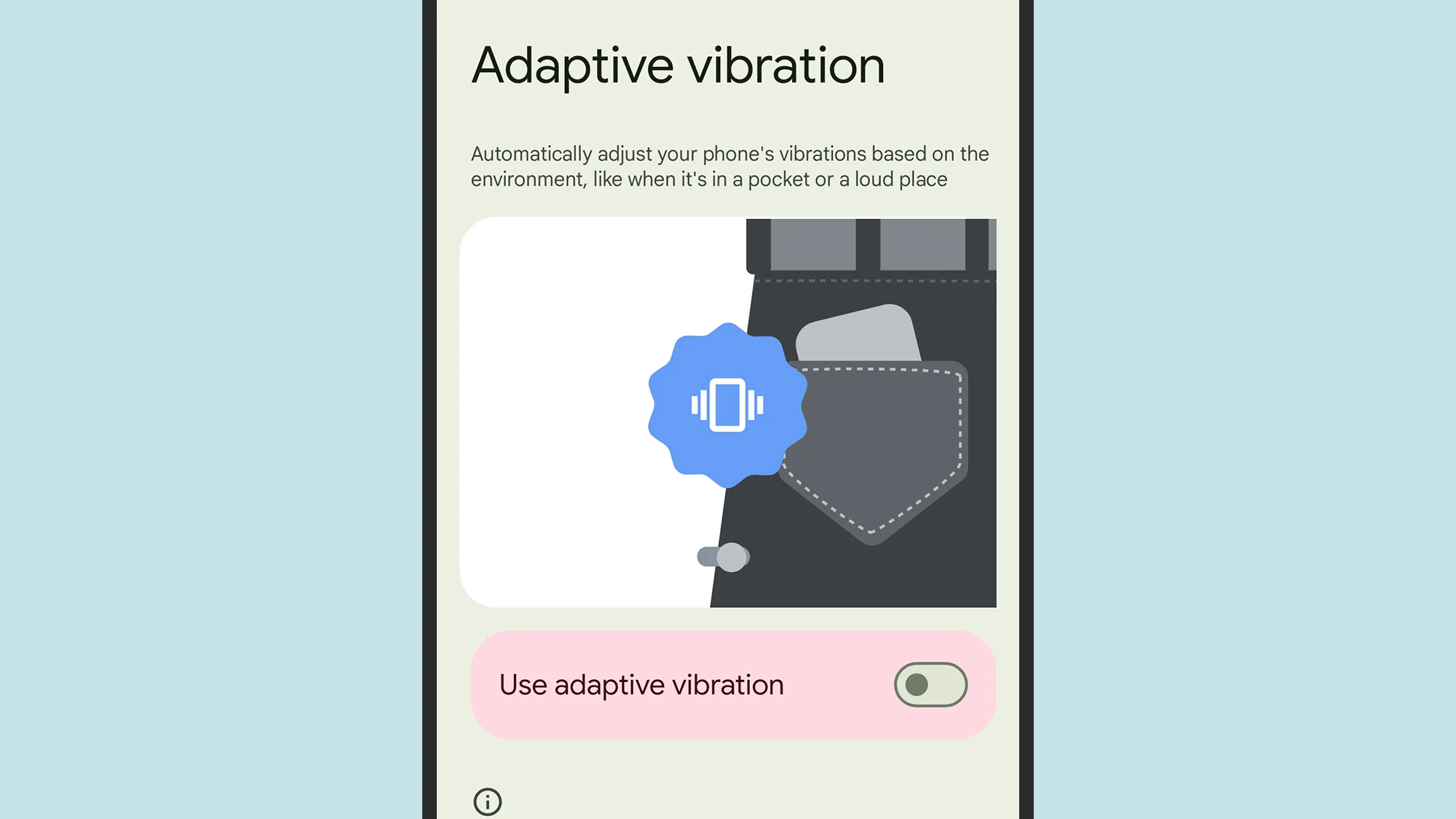
    When your phone is vibrating, do you miss any calls or messages? It is easy, and you are not alone. Google has an answer. The most recent Android 15 version for Google Pixel smartphones has an Adaptive Vibration feature to help you avoid missing notifications. This function determines the degree of movement, location, and environment the device is in using the microphones and sensors on your phone. It modifies the vibration motor’s strength based on the contextual information.

    You will notice when your phone buzzes thanks to Adaptive Vibration, even whether it is in your backpack, pocket, or lying away from you on your bed. It prevents loud vibrations when the gadget is put on a hard surface, such as a table. Adaptive Vibration takes only a few seconds to set up.

    How to turn on Adaptive Vibration

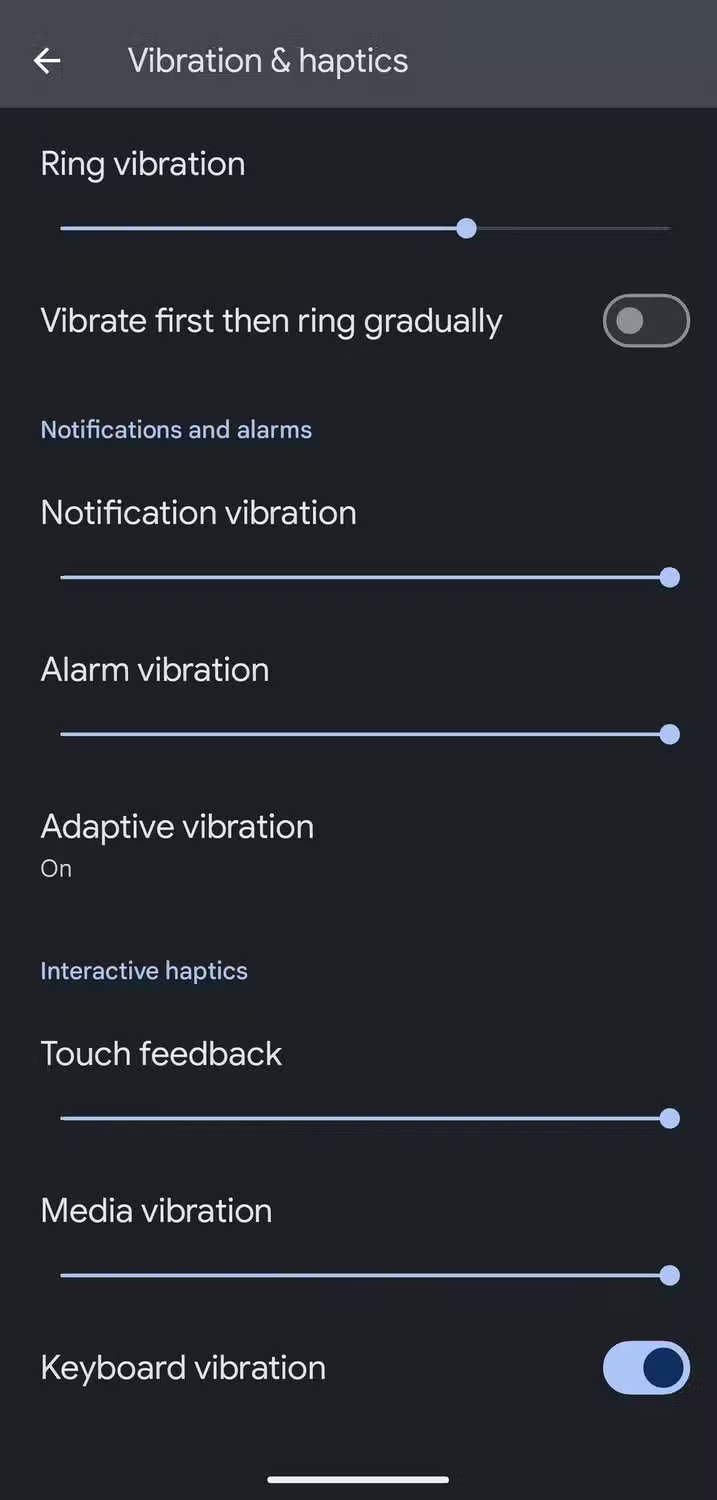
    To enable Android 15’s Adaptive Vibration function, launch the Pixel Settings app, navigate to the Sound & Vibration section, scroll down, and select Vibration & Haptics. Then select Adaptive Vibration and tap the toggle to enable it.

    android 15 vibration and haptics

    When turned on, it begins operating on incoming notifications like as calls and messages. The haptics of the keyboard are unaffected. Adaptive Vibration is useful in a variety of contexts, particularly in noisy surroundings where incoming notifications are difficult to detect. It also works the opposite way around, dampening the vibration in quiet environments where it could cause a stir, such as when resting the handset on a table in a library or at a movie theater.

    The feature is accessible on Google Pixel 7 phones and higher. You will need Android 15. If you have a compatible smartphone but can not discover the function, make sure it is up to date by accessing the device Settings, navigating to the System section, hitting Software Updates, and ensuring you are running Android 15.

    Other vibration features do Google Pixel phones

    Adaptive Vibration is the most recent vibration feature, however it is not the only one worth knowing about. For example, you can select several vibrating ringtones. Open the device’s Settings app, navigate to the Sound & Vibration section, and select an audible ringtone from the Phone Ringtone menu. When you flip between them, the vibration pattern adjusts to match the sound.

    The Vibration & Haptics option allows you to customize the strength of the vibration for each sort of alert, such as calls, notifications, and alarms. For phone calls, you can begin with a vibration before gradually turning on the out loud ring. On the same page, you may change the amount of haptic feedback you get when you touch the screen or keyboard, as well as when media plays.

    Another interesting way Pixel phones employ vibration is in the Weather app. If it is raining, the vibration motor simulates the sense of raindrops on the phone when you start the app, accompanied with an animation of rain falling. It is not the most useful feature, but it is a pleasant addition.

  • Step-by-step guide: move from a physical SIM to an eSIM on your smartphone – Android and iOS

    Step-by-step guide: move from a physical SIM to an eSIM on your smartphone – Android and iOS

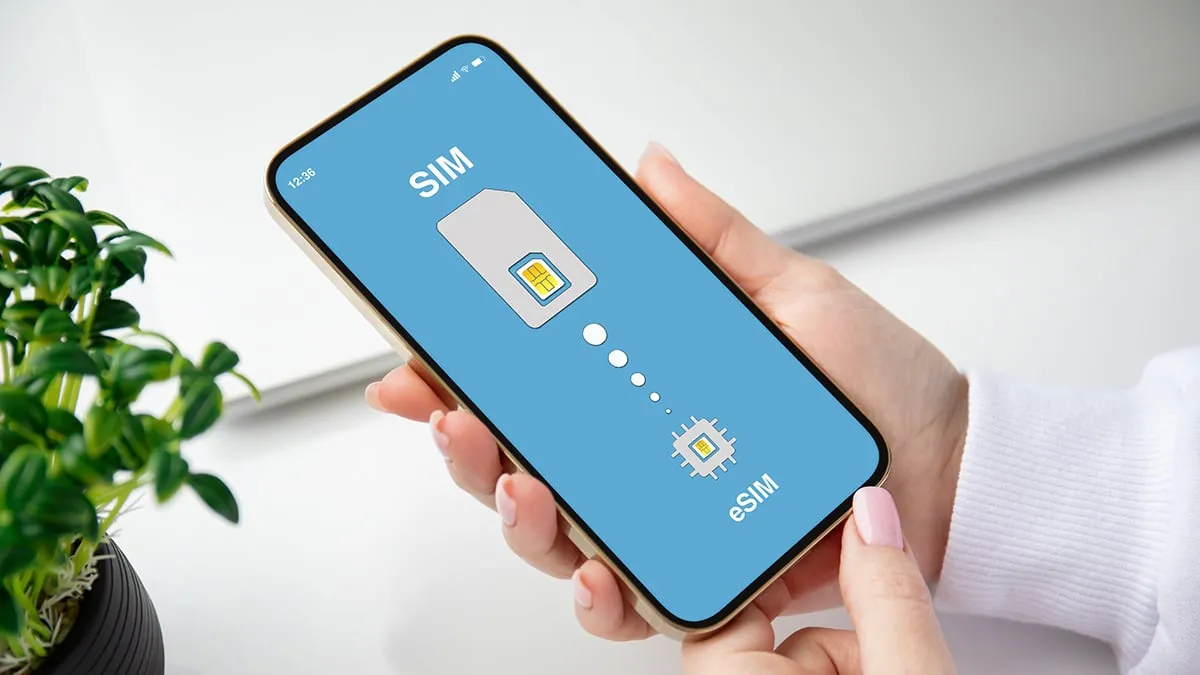
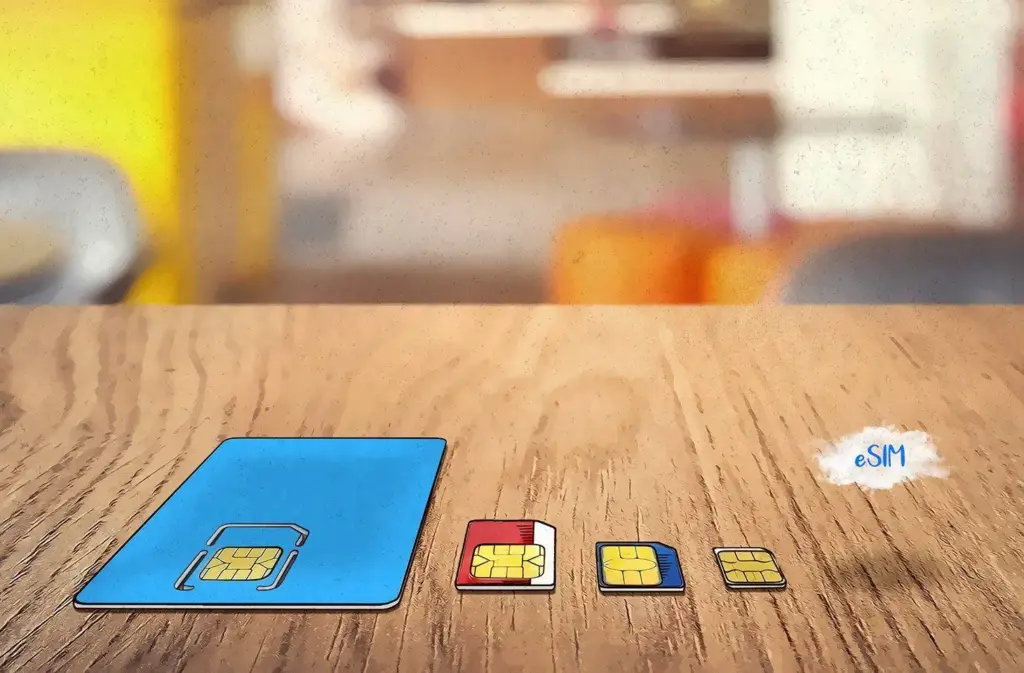
    The SIM card, a small chip in your phone that links it to your chosen cell phone provider, is probably already obvious to you. For many years, this chip was located on a physical card that you could replace by removing your phone’s SIM card tray. However, the majority of contemporary phones also support eSIMs. eSIMs are integrated into the phone’s hardware in place of a physical card, and software is used to remotely program the carrier information.

    A few conveniences are made possible by this, like the ability to test out service on a different carrier without having to pick up an actual SIM card in person or over the mail.

    Converting an existing physical SIM card to an eSIM presents a challenge. If you want to load many eSIMs into a single device or if a new phone is eSIM-only, you might want to do this. Or maybe you simply do not want to go through the trouble of constantly changing actual cards between machines. Thankfully, the process of switching a physical SIM to an eSIM is not too difficult.

    Make sure your new phone is compatible with eSIMs before you begin. The majority of contemporary phones do, as we already stated. In the US, the iPhone 14 and later are eSIM-only, however all iPhones since the iPhone XS and XR support eSIM. The majority of Android phones—including the Google Pixel 6 and later, as well as the Samsung Galaxy S21 and later—also support eSIM.

    move to esim on Android and iOS

    eSIM on an Android phone

    Depending on the manufacturer, there may be differences in how to convert a physical SIM to an eSIM on Android. Telling your carrier that you are moving to an eSIM is the most reliable method to accomplish this. After that, they will either send you a QR code or manually lead you through the procedure. Here’s how to add a QR code to your phone if they do send one.

    1. Go to Settings. Then tap either Connections or Network & Internet.
    2. Select Sim Manager or SIMS.
    3. Tap Add mobile plan or Download SIM card or Add SIM.
    4. Then follow the on-screen instructions and scan the QR code when prompted.

    However, the procedure is a bit simpler if you own a Samsung handset. To do it on a Samsung, follow these steps.

    • Launch Settings. Then tap Connections.
    • Select SIM card manager.
    • Choose your SIM (If you only have a physical SIM, it’ll just be the only one listed).
    • Tap Convert to eSIM.
    • Follow the on-screen instructions and then you’re done.

    eSIM on an iPhone

    Converting a physical SIM to an eSIM on an iPhone can be done in a few different ways.

    If you want to change a physical SIM to an eSIM on the same iPhone (which requires the phone to support both), here’s how to accomplish it.

    1. Open Settings, then select Cellular.
    2. Then, if your carrier allows it, you’ll see an option that says Convert to eSIM. If you don’t see it, then your carrier likely does not support this action.
    3. Tap Convert Cellular Plan.
    4. Tap Convert to eSIM. Your eSIM will now activate.

    If, on the other hand, your transferring a physical SIM to an eSIM on a completely different iPhone, here’s how to do it.

    1. On your new iPhone, go to Settings, then choose Cellular.
    2. Scroll down until you see Add eSIM. Select it.
    3. Then you have two choices. One is Transfer From a Nearby Phone, which requires both handsets to have iOS 16 or newer. If you select that, you’ll follow the instructions on your previous iPhone. You can then select Transfer to confirm and then enter a verification code. Obviously this only works if both phones are iPhones.
    4. Another option is to Use a QR Code. This is what you would use if a QR Code is provided by your carrier, or if your previous phone was a non-Apple handset. To scan the code, you open up the Camera app and point it at the QR Code. Tap the Cellular Plan Detected notification. If using an iPhone with iOS 17.4 or later, you can touch and hold the QR code and then tap Add eSIM.
    5. Go ahead and follow the on-screen instructions, hit Continue and tap Add Cellular Plan.

    If your carrier supplied the eSIM information, you may also opt to manually enter it. You can choose Settings, Cellular, Add Cellular Plan, and then Enter Details Manually if you wish to accomplish so.


    how esim works featured1

    It should be understood that inserting a new eSIM to your device may be done differently by different carriers. Please get in touch with them directly if you have any issues. Additionally, you will need to receive help from your carrier to make the switch if you are switching from an iPhone to an Android phone or vice versa.

    Take a look to our eSIM guide, which goes into greater detail on the benefits and drawbacks of each, if you would like to understand more about eSIMs and if they are superior than physical cards.

  • Loss of Pulse Detection was launched in US for Pixel Watch 3

    Loss of Pulse Detection was launched in US for Pixel Watch 3

    Google is now implementing Loss of Pulse Detection in the US after yesterday’s April 2025 OTA update and Scam Detection.

    Google is officially launching Loss of Pulse Detection in the US after receiving FDA approval, which was initially anticipated at the end of March. Last year, it became available throughout Europe.

    Make sure your Pixel Watch 3’s Personal Safety Wear OS software is up to date before turning it on. 2025.03.19.x is the most recent version that is available on the Play Store.

    Afterwards, go to the Pixel Watch companion app on your phone (version 3.4+) > Safety & emergency > Loss of Pulse Detection to start the set-up process.

    Google tells us that it’s beginning to roll out today and will be fully available over the coming weeks.

    loss of pulse
    Pixel Watch 3 1

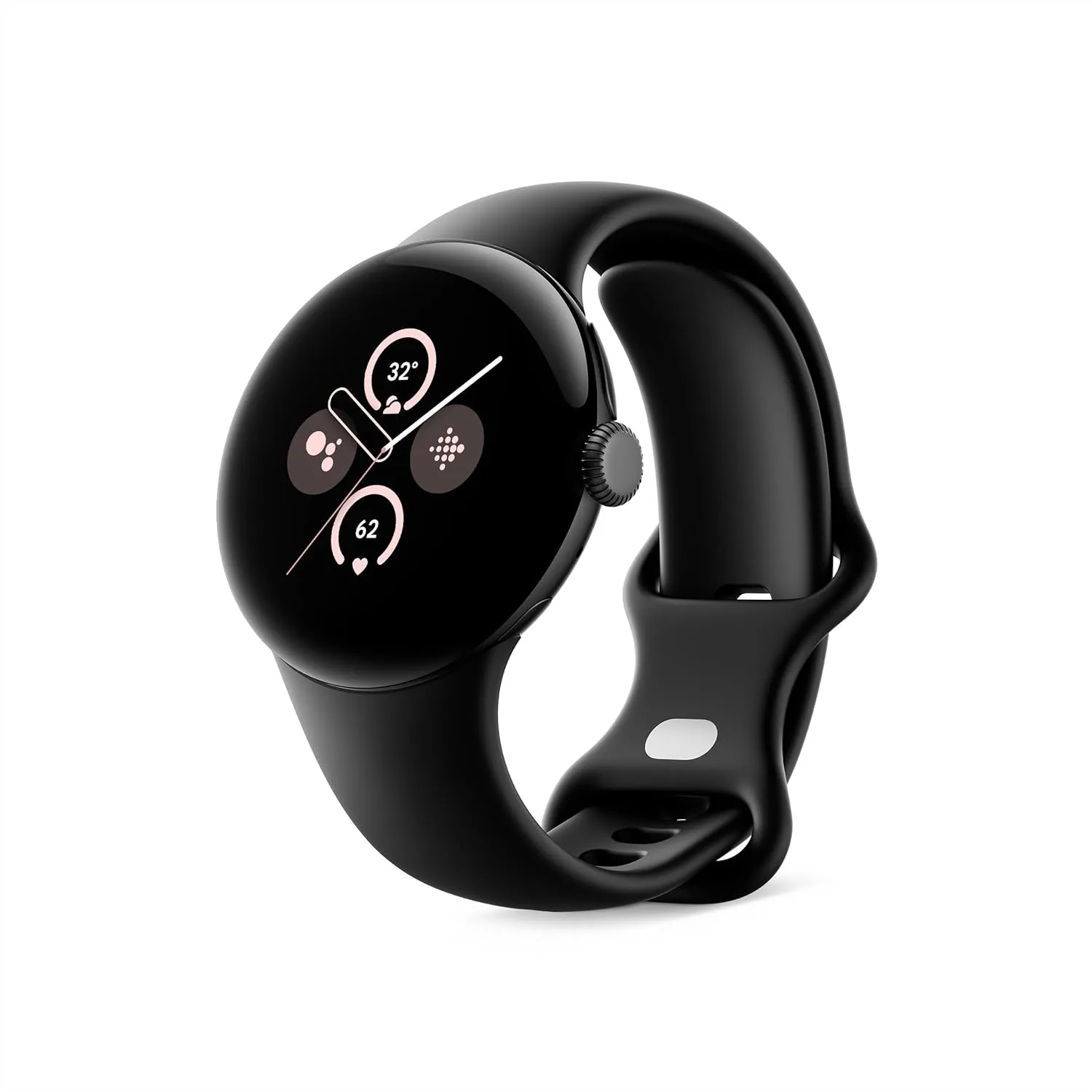
    Google Pixel Watch 3 (45mm)

    The Google Pixel Watch 3 is designed for performance, with advanced fitness from Fitbit; the 41mm screen is twice as bright and 10% larger than before, making it easier to see your stats and info[

    Best choice
    $399.99See It

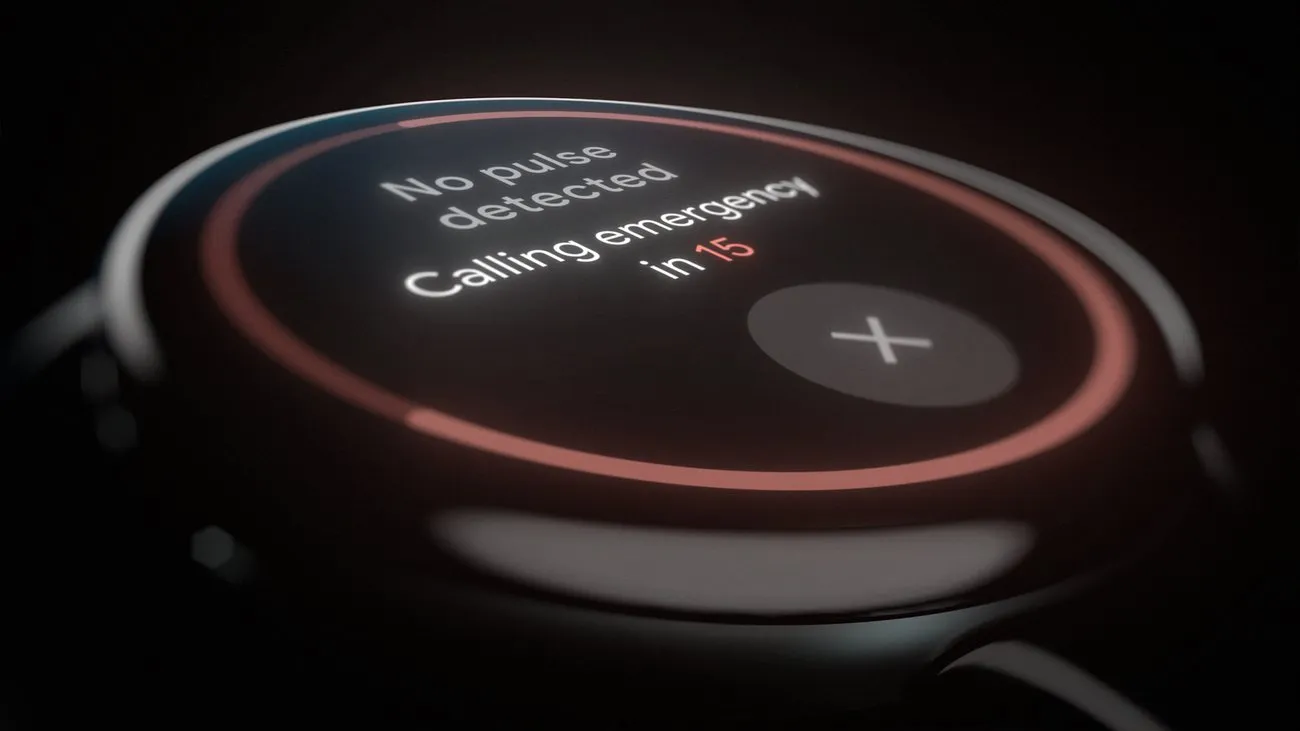
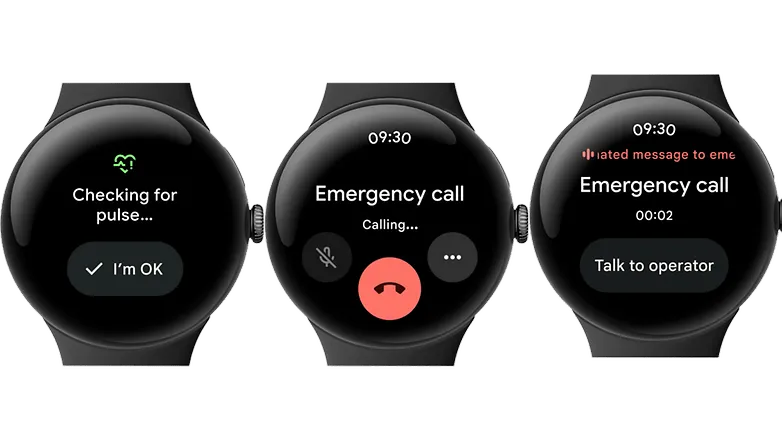
    A loss-of-pulse event is when your heart stops beating, which can happen during a cardiac arrest, respiratory or circulatory failure, overdose, or poisoning. Similar to Fall and Car Crash Detection, the Pixel Watch 3 will ask users to certify their safety when it detects something.

    In the event that there is no reaction (or movement), the wearable will notify emergency personnel, give your location, and provide information about what is going on. The Pixel Watch 3‘s multipath heart rate monitor, additional sensors, and a “multi-check, AI-based algorithm” are all used by Loss of Pulse Detection.

    According to the official statement, “Loss of Pulse Detection may not detect every instance of a loss of pulse and is not intended for users who require cardiac monitoring or who have pre-existing heart conditions.” It does not offer follow-up care or diagnose or treat any medical conditions.

    Pixel Watch 3 1

    Google Pixel Watch 3 (45mm)

    The Google Pixel Watch 3 is designed for performance, with advanced fitness from Fitbit; the 41mm screen is twice as bright and 10% larger than before, making it easier to see your stats and info[

    Best choice
    $399.99See It
  • How to lock apps on Android without third-party apps

    How to lock apps on Android without third-party apps

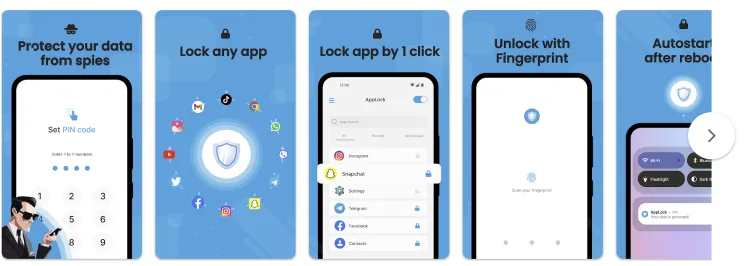
    Want to lock apps without downloading extra software? Learn how to use built-in tools on Samsung, Xiaomi, OnePlus, and other Android phones to secure your apps with passwords or biometrics – no third-party apps required.

    Why Lock Apps on Android?

    Your smartphone contains plenty of personal information, including images, bank accounts, social network profiles, and private messages. Locking specific apps provides an additional layer of security, particularly when sharing your device or preventing unintentional snooping.

    Most people jump straight to third-party app lockers. But these:

    • May ask for invasive permissions
    • Show ads or collect data
    • Drain battery and storage

    That’s why using built-in features is often the smarter, safer move.

    lock apps on Android devices

    Samsung Devices (One UI) – Use Secure Folder

    Samsung includes a powerful privacy tool called Secure Folder, protected by Samsung Knox.

    How to use:

    1. Open Settings
    2. Tap Biometrics and security
    3. Select Secure Folder and sign in with your Samsung account
    4. Set up a lock type (PIN, password, fingerprint, etc.)
    5. Add apps or files to your Secure Folder

    Bonus Tip: You can also hide the Secure Folder icon from the app drawer to keep it totally invisible.

    Xiaomi / Redmi / POCO Devices (MIUI) – Use App Lock

    MIUI has a built-in App Lock feature that is super easy to set up.

    Steps:

    1. Open Settings
    2. Go to Apps > App Lock
    3. Set a privacy password (or use your existing phone lock)
    4. Choose which apps to lock
    5. Optionally enable fingerprint unlock for convenience

    This works for apps like WhatsApp, Facebook, Instagram, Gmail, and more.

    OnePlus Devices (OxygenOS) – Use App Locker

    OnePlus provides App Locker, a native feature that locks your apps and hides their notifications.

    How to enable:

    1. Open Settings
    2. Scroll to Utilities > App Locker
    3. Tap Add Apps and select the apps you want to lock
    4. Enable Fingerprint Unlock for fast access
    5. Toggle Hide Notification Content to prevent preview leaks

    App Locker can even keep apps locked in the background, offering persistent protection.

    Realme / Oppo Devices (ColorOS) – Use App Lock

    These brands offer similar features under the Privacy menu.

    Steps:

    1. Go to Settings > Privacy > App Lock
    2. Set a privacy password (separate from your phone unlock)
    3. Select apps you want to lock
    4. Enable Face or Fingerprint Unlock

    You’ll be asked for verification each time the app is opened.

    Huawei / Honor Devices (EMUI) – Use App Lock

    Huawei’s App Lock is baked into the EMUI interface.

    To set it up:

    1. Open Settings
    2. Tap Security & Privacy > App Lock
    3. Set a password
    4. Select apps to protect

    This feature integrates well with fingerprint unlock, so you won’t have to type the password every time.

    Your phone does not have App Lock?

    If your phone’s Android version or manufacturer doesn’t include app locking, here are a few alternatives:

    • Screen Pinning: Locks your phone to one app.
      • Settings > Security > Screen Pinning
      • Useful for letting kids watch YouTube without leaving the app
    • Multiple Users / Guest Mode:
      • Settings > System > Multiple Users
      • Create a guest profile for others using your phone
    • Trusted Third-Party Apps (as a last resort):

    If you go this route, always read reviews and limit permissions.

    Pro Tips to Enhance App Security

    • ✅ Enable biometric unlock for locked apps
    • ✅ Hide notification previews (especially for messaging and banking apps)
    • ✅ Use Strong screen locks (PIN, pattern, or fingerprint)
    • ✅ Keep your phone’s software updated for security patches
    • ✅ Be cautious about sharing your device or leaving it unlocked

    Locking apps without third-party apps is easier, more effective, and safer than you might expect. Whether you utilize Samsung’s Secure Folder, Xiaomi’s App Lock, or OnePlus’ App Locker, you can protect your important data with a few touches.

    So, before you download another app, check your phone’s settings as you may already have all you need to keep your digital life private and secure.

  • How to customize your home screen: a step-by-step guide for Android and iOS

    How to customize your home screen: a step-by-step guide for Android and iOS

    The home screen of your smartphone serves as the entryway to your digital life, and you may personalize it to improve its usability, functionality, and aesthetic appeal. This article explains how to customize your home screen for a genuinely one-of-a-kind experience, from altering the background to adding widgets and arranging apps.

    Change wallpaper

    The aesthetic tone of your smartphone is established by your wallpaper. Changing your wallpaper is easy, regardless of your preference for abstract art, beautiful landscapes, or intimate portraits.

    On Android:

    1. Long-press an empty space on the home screen.
    2. Select Wallpaper or Wallpaper & style from the pop-up menu.
    3. Choose a pre-installed wallpaper or select an image from your gallery.
    4. Adjust the image as needed and tap Set wallpaper.
    5. Decide whether to apply it to the Home screenLock screen, or both
    customize your home screen android

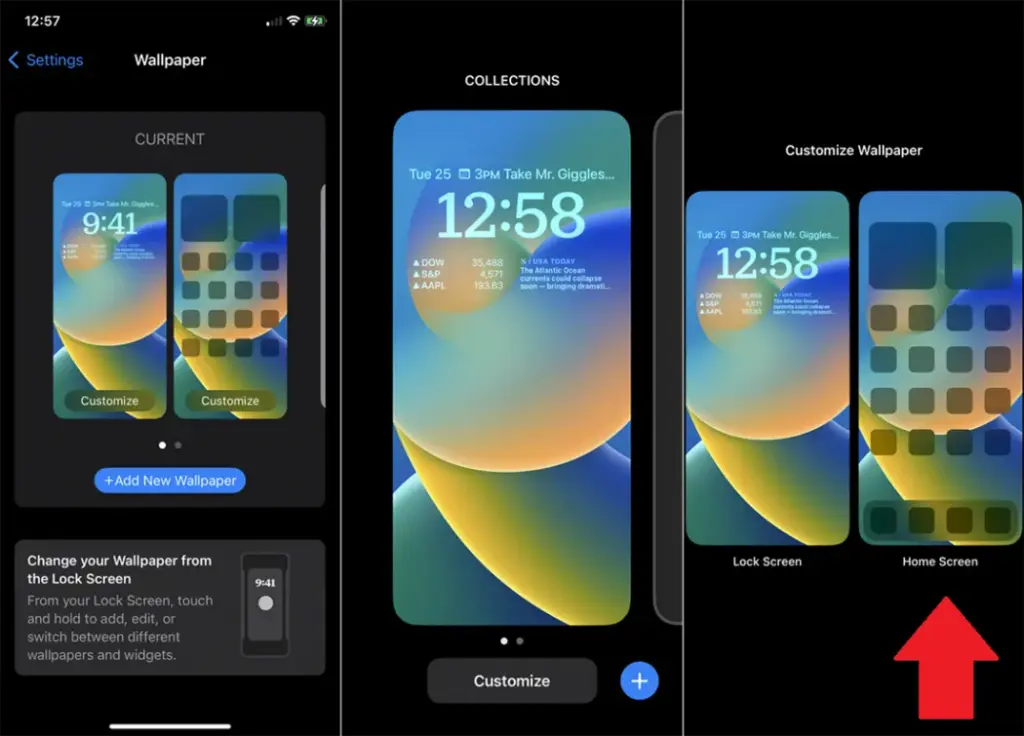
    On iOS:

    1. Open Settings > Wallpaper > Choose a New Wallpaper.
    2. Select an image from Apple’s preloaded options or your photo library.
    3. Adjust and tap Set to apply it to the Home screen, Lock screen, or both9
    customize your home screen ios

    Add widgets for quick access

    Without opening apps, widgets offer functionality and information at a glance.

    On Android:

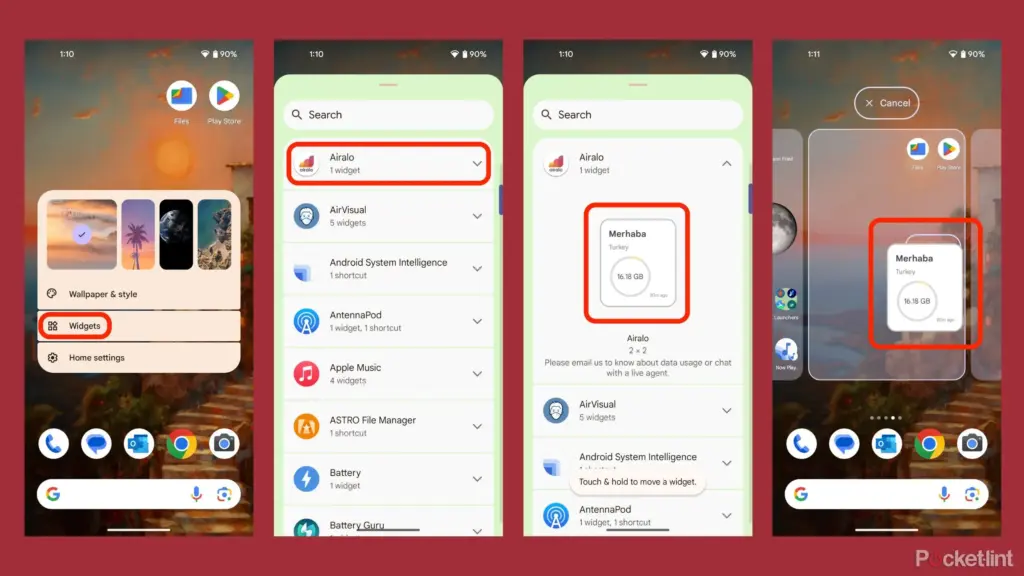
    1. Long-press an empty area on the home screen and tap Widgets.
    2. Browse through available widgets (e.g., clock, weather, calendar).
    3. Select a widget and drag it to your desired location on the screen.
    how to add widgets to your andro

    On iOS:

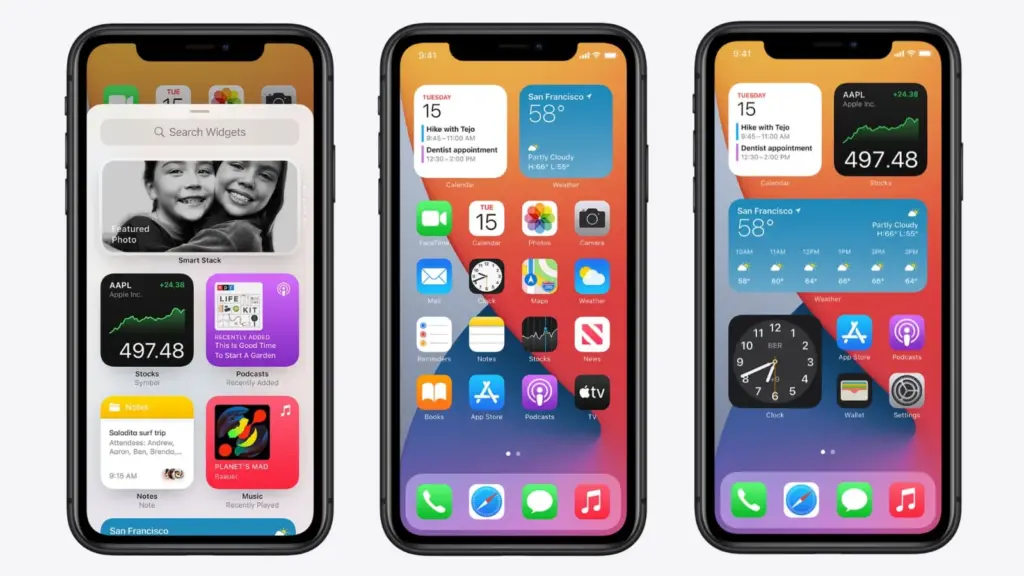
    1. Touch and hold the Home Screen background until apps jiggle.
    2. Tap the “+” icon in the upper-left corner.
    3. Choose a widget from the list and select its size (small, medium, large).
    4. Tap Add Widget, then drag it into place
    ios14 widgets guide

    Organize apps

    A clutter-free home screen improves usability and makes navigation faster.

    Create Folders:

    • Drag one app icon onto another to create a folder.
    • Add more apps by dragging them into the folder.
    • Rename folders by tapping on them and selecting the name field.

    Arrange Apps:

    • Move frequently used apps to the first page of your home screen for quick access.
    • Drag icons to different pages or positions by holding and moving them.

    Advanced Organization Tips:

    • Use themed rows (e.g., “Work,” “Social,” “Entertainment”).
    • Sort apps by frequency of use or color coding for visual appeal.

    Use customization apps

    Download specialized home screen customization programs like WidgetClub or Nova Launcher for more sophisticated customization choices including unique icons, fonts, and themes.

    Benefits:

    • Access all-in-one themes that include wallpapers, widgets, and icons.
    • Customize grid layouts for app placement flexibility

  • Increase battery life on Android: 9 settings you need to change now

    Increase battery life on Android: 9 settings you need to change now

    I have spent a significant chunk of my life looking for ways to extend the battery life of my Android phones. That may sound dramatic, but growing up with only inexpensive models meant I was constantly modifying device settings to get the most out of their batteries. Thanks to this micromanaging, I was able to drive the batteries on all of my previous devices to their utmost limits. I do not want to keep this knowledge for myself, so I chose to share it with everyone.

    There are numerous strategies for extending battery life. However, there are 12 important options that can be changed right now to see immediate results. The following list highlights the most effective, simple, and quick modifications to boost device longevity regardless of the Android phone you are using, whether it is the latest Samsung model, a luxury Google Pixel, or a cutting-edge OnePlus 13. Furthermore, you will not have to compromise the high-quality experience of using your phone.

    Although the power settings are nearly identical on every Android phone available, the procedure of changing them varies by device. Keep this in mind when following the procedures I have outlined, as the technique may alter slightly based on the model you are using.

    Turn off the always-on display

    Turn off the always-on display to increase battery life

    The always-on display is one of the largest battery drainers on any smartphone. Companies frequently claim that this display setting only consumes 1% to 2% per hour, but let us be honest: it is always far more. It may be convenient to check the time on your phone while it is sitting on a table, but it is unlikely to be worth the sacrifice of battery life.

    Open the Settings app and navigate to the Lock Screen section. This section will most likely be found in the main Settings list or under “Display.” From there, look for the option to “always show info” or a simple toggle to enable the Always On Display. In any case, disable the option and ensure that when you lock your device, it turns absolutely blank.

    Switch to dark mode

    Switch to dark mode on Android devices

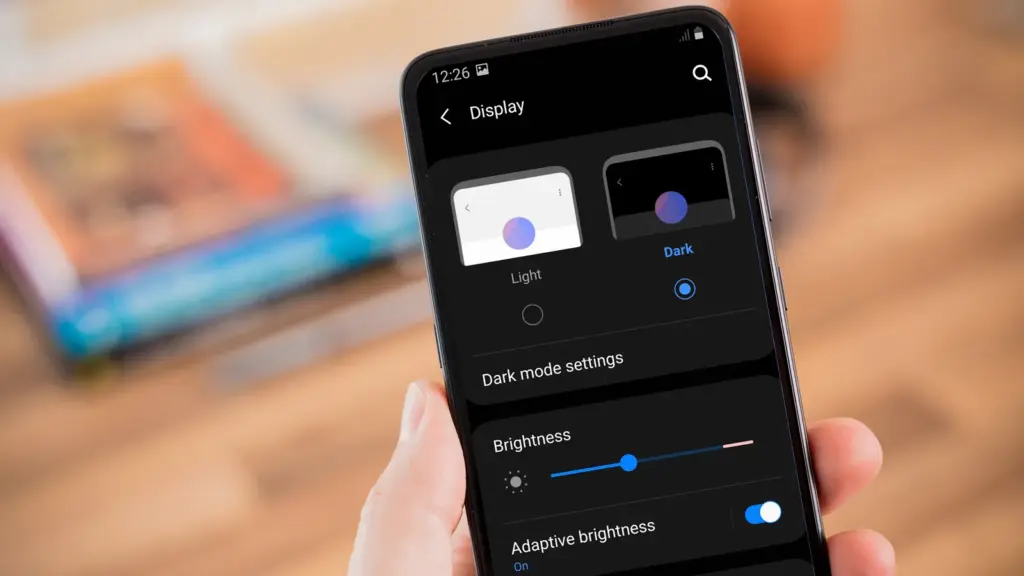
    Over the last few years, many midrange and inexpensive Android phones have followed in the footsteps of their flagship counterparts, adopting OLED displays. When not in use, the technology allows individual pixels to fade or turn entirely off. This feature is considerably more efficient for battery life than typical LCD screens with a single large backlight. By switching to your phone’s dark theme, those pixels will get dimmer much more frequently, saving some battery life.

    Go to Settings > Display on your Android device. There are options to choose between a light and dark theme, as well as to have dark mode turn on automatically at specific times of day. To get the most out of your battery, I recommend having dark mode on constantly.

    Remove unused accounts

    We have all done it: you open a new account for a social networking app or email service (which you subsequently forget about) and then create another account to serve as your primary account for that service or platform. I have been through this process several times. If you create accounts on your phone, all previous accounts stay, constantly refreshing and depleting your battery life in the background. I strongly advocate uninstalling some outdated accounts from your smartphone as soon as possible.

    Go to the Settings app and find the accounts section (on Samsung phones, it’s called “Accounts and backup” while Pixel phones use “Passwords & accounts“). You’ll find a list of all the accounts synced to your phone. Tap on one of them and scroll down to the “Remove account” button. Tap it, and the account will disappear.

    Reduce the screen’s refresh rate.

    adjust refresh rate2

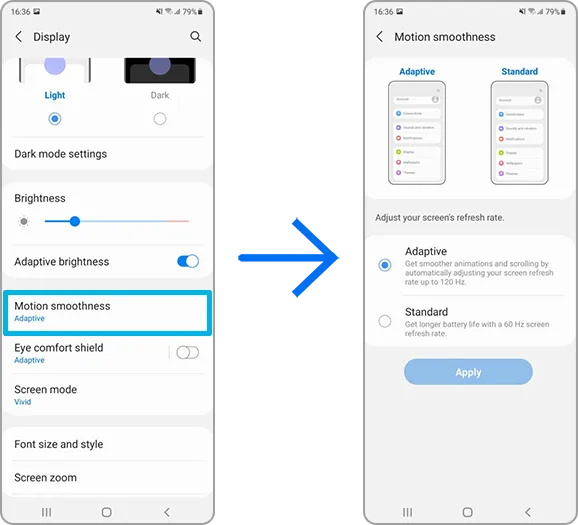
    Phone screens have improved dramatically in recent years, thanks in part to quicker refresh rates implemented by manufacturers. Increasing the frequency with which a screen refreshes, whether at 90Hz, 120Hz, or even faster, makes animations, scrolling social media, and everyday activities feel smoother and more responsive. Unfortunately, a fast refresh rate consumes more battery power; you may be better off removing the option in some cases.

    Open the Settings app and go to the Display section. Here you will find the options for configuring your refresh rate. Most smartphones refer to the function differently; for example, Google refers to it as “Smooth Display” whereas Samsung refers to it as “Motion Smoothness” Find the refresh rate setting and reset it to the regular rate. Your screen will most certainly appear choppier as a result, but this is totally normal. It simply means that it operates at 60Hz, which was the pace at which even the greatest phones ran a few years ago.

    Turn off “Hey Google”

    hey google header

    If your phone is always listening for you to say, “Hey, Google,” your battery is probably running low. Your microphone is engaged, waiting to hear you utter the two magic phrases that activate the digital assistant, and running that procedure all day consumes a significant amount of energy. Anyone who does not utilize the Assistant on a daily basis should disable the feature without hesitation. And let us be honest: how many of us use the assistance every day?

    Open the Google app on your phone and select your profile photo from the top-right corner. Then, go to Settings > Google Assistant > Hey Google & Voice Match, and turn off “Hey Google” Now, your phone will only activate the Assistant if you hold down the power button or use another method.

    Block apps to send notifications

    You may not realize it, but notifications can be one of the most significant drains on your phone’s battery life. Not only does your phone buzz and ding all day, but the applications themselves are continually refreshing in the background, looking for new notifications to transmit to you. Most apps provide options for reducing the number of alerts you receive, but the simplest way to turn them off is through your phone’s Settings app.

    Go to Settings > Notifications > App notifications to see a list of all the apps installed on your phone. Next to each entry are toggles that, when flipped, will disable all notifications for that particular app.

    Keyboard sounds and haptics

    Keyboard sounds and haptics android

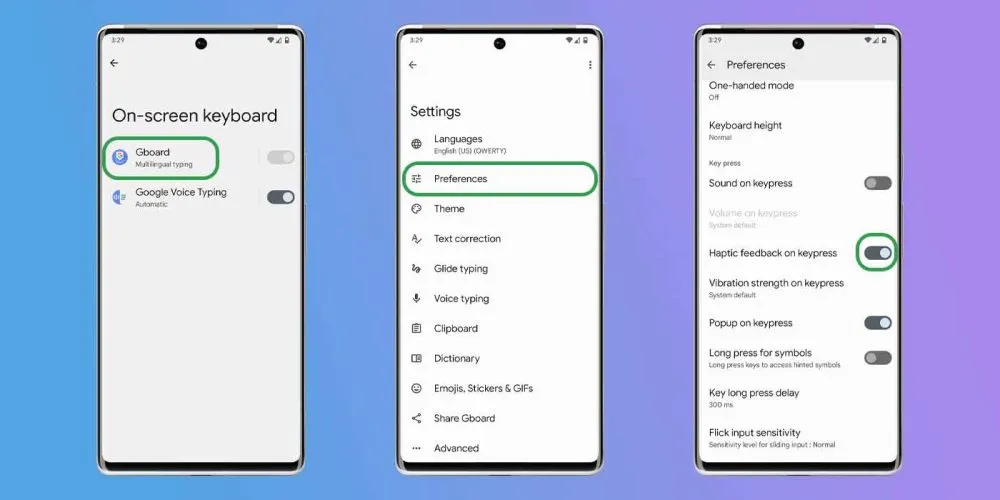
    If you are using your phone, you are probably typing on the keyboard a lot, whether it is to post on social media or answer to messages from friends. If you activate sound and haptic feedback, your phone’s battery life may suffer since it must produce a succession of vibrations and noises each time you tap a letter. Hearing and feeling the keyboard as you type is a pleasant experience, but it is not ideal for getting the most out of a fully charged battery.

    Open the Settings app and navigate to “Language and input” This section contains your keyboard settings. Find the place where you may select your default keyboard and hit the gear icon next to it to modify settings. If you use Gboard (like most people), go to Preferences > Keypress and turn off “Sound on Keypress” and “Haptic feedback on Keypress

    Enable Adaptive Battery

    android adaptive battery AM AH

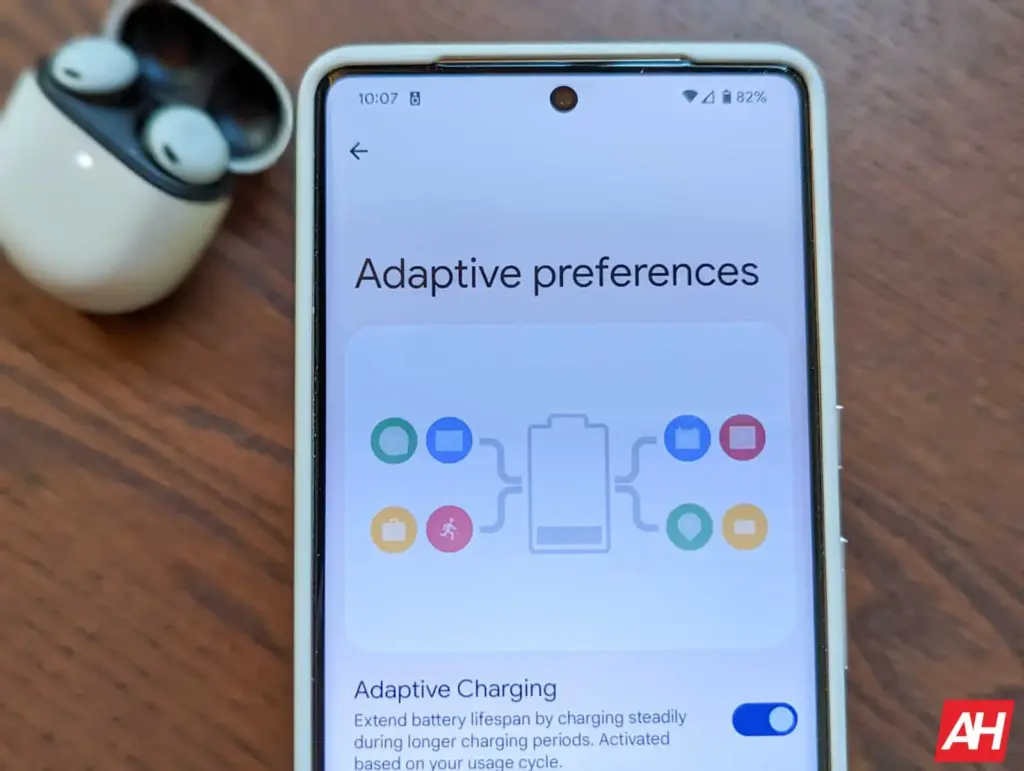
    Android include a useful function called Adaptive Battery, which is available on most handsets. Adaptive Battery may automatically control your phone’s performance and efficiency in the background, extending battery life through specific methods. For example, when you do not need maximum speed for something as basic as browsing through your inbox, the setting will slow things down and save you some battery life.

    Go to Settings > Battery > Adaptive preferences and check to ensure “Adaptive battery” is enabled. If it’s not, flick it on.

    Use battery saver to increase battery life

    Battery Saver mode, like Adaptive Battery, is a useful function that helps increase the life of your smartphone between charges. The function makes significant modifications to your device’s firmware, including as limiting visual effects, restricting background apps, and putting on dark mode if it is not already enabled.

    Most, if not all, Android phones have a Battery Saver feature, albeit it may have a different name. On Galaxy phones, for example, it is known as Power Saving Mode. Some may refer to it as low-power mode. For assistance with your specific model, check your phone manufacturer’s support website.

    On Pixel phones, go to Settings > Battery > Battery Saver. You can also choose a schedule for when the feature will activate or turn off automatically. On Galaxy phones, go to Settings > Battery and Device Care > Battery. Flip the toggle switch next to Power Saving to activate the feature.

    Our recommendations

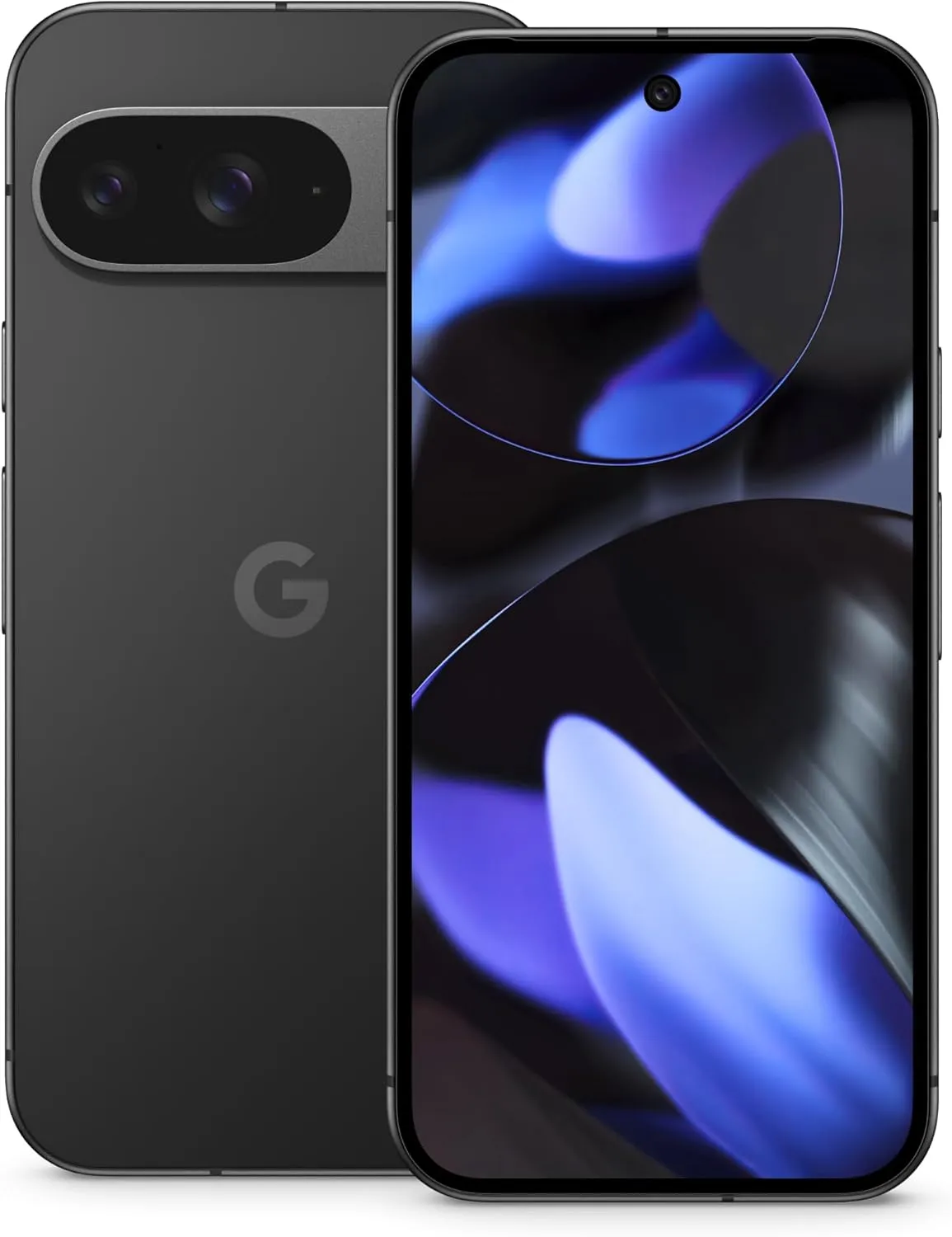
    Google Pixel 9
    $99 $629.99Buy on Amazon
    Google Pixel 9 Pro
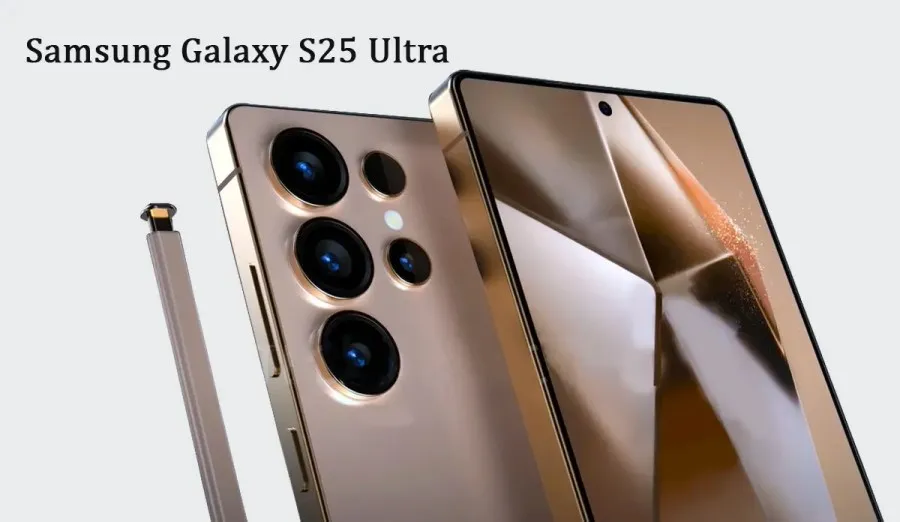
    SAMSUNG Galaxy S25 Ultra
    $1,419.99$1,188.50Buy on Amazon
    SAMSUNG Galaxy S25+
    $1,119.99 $1,019.99Buy on Amazon
  • Drastically improve the user experience on any Samsung with OneUI

    Drastically improve the user experience on any Samsung with OneUI

    Samsung’s One UI 7 is now my favorite Android skin. It is quick, responsive, and simple. However, nothing is pre-programmed for your specific experience. You should personalize your smartphone to make it more appealing. I modify about a dozen settings on each Samsung Galaxy phone to better fit my needs, and I believe these will improve your user experience as well.

    Here are some OneUI settings that I recommend adjusting to improve your Galaxy phone experience, ranging from selecting the highest attainable screen resolution to adding extra privacy-focused features. Please be aware that some settings may be phone-specific.

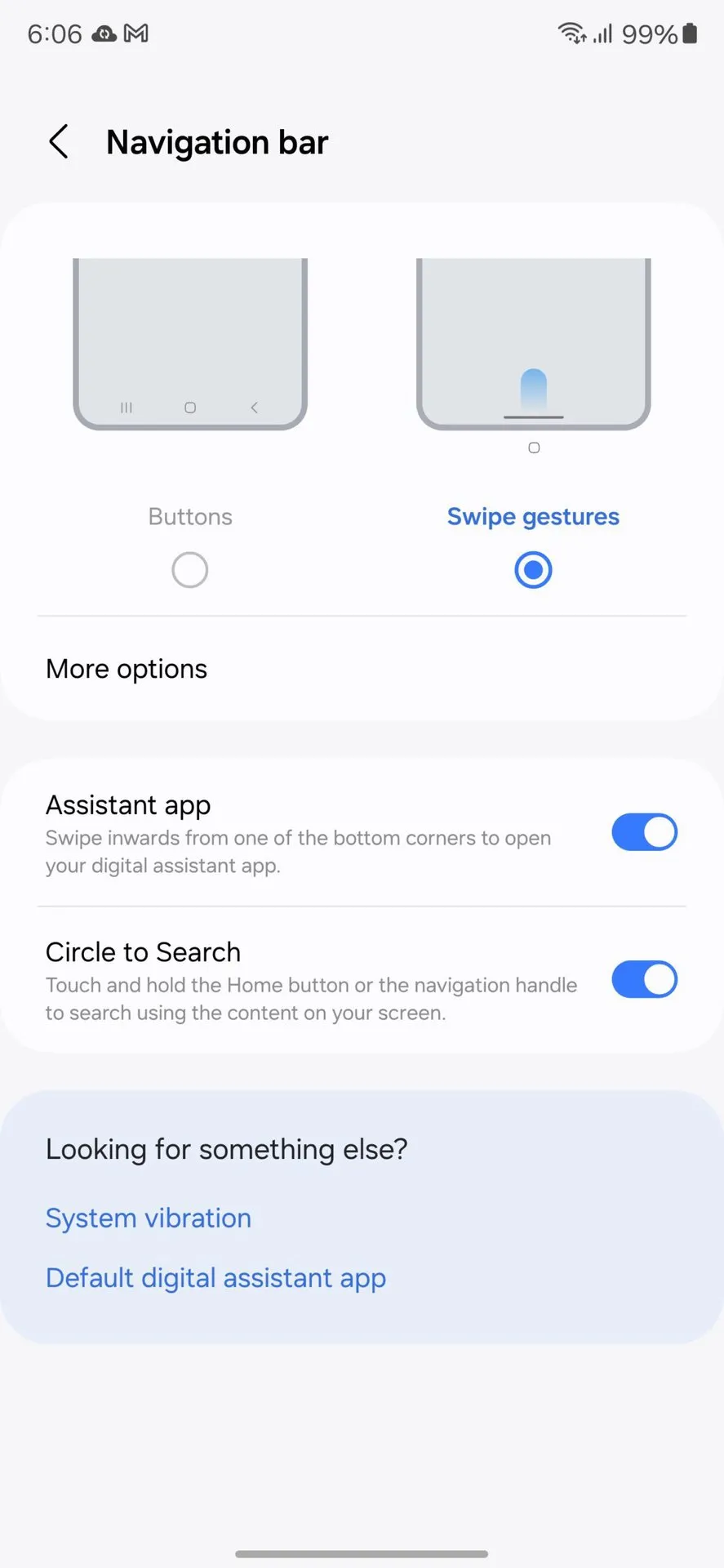
    Switch to gesture navigation

    Unless you are setting up your new Samsung Galaxy phone from an older model, it will use the outdated three-button navigation mechanism. If you enjoy it, that is OK. However, I find Android’s gesture navigation more intuitive—everything is a swipe away rather than an on-screen button.

    If you want that, you can change the system navigation to gestures by going to Settings > Display > Navigation bar > Swipe gestures.

    OneUI Navigation gestures

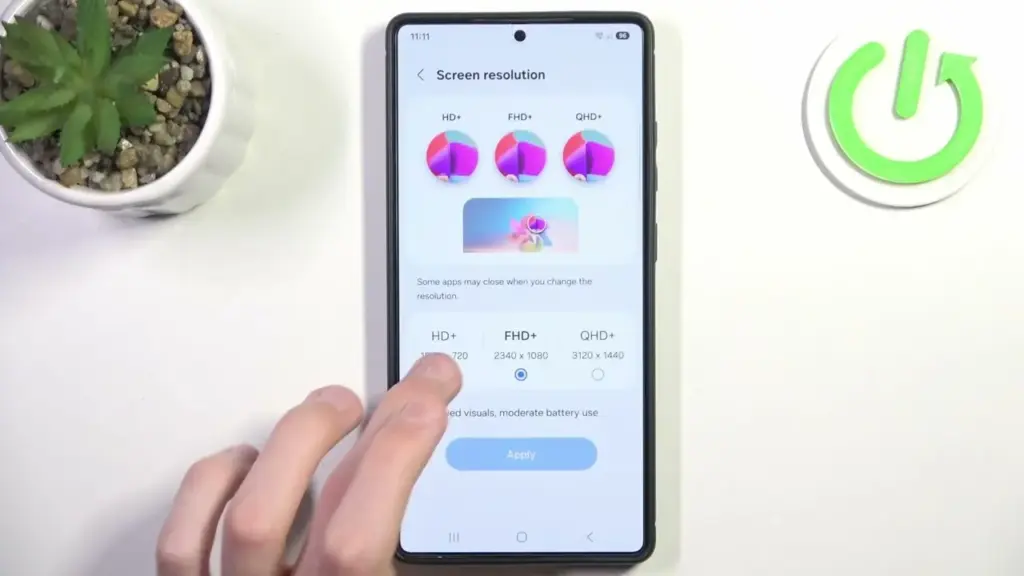
    Set screen resolution to high – QHD+

    The Samsung Galaxy S25 Ultra boasts the finest smartphone display available right now. It is less reflective and has better color display than its predecessor, thanks to second-generation Gorilla Armour. You have a great QHD+ screen, but it is not set to that resolution by default.

    To have the best possible viewing experience, navigate to Settings > viewing > Screen resolution. The Ultra will consume more battery, but it is an efficient smartphone. Even after maxing out the screen resolution, I still have an all-day battery life.

    samsung oneui change screen resoltuion to QHD+

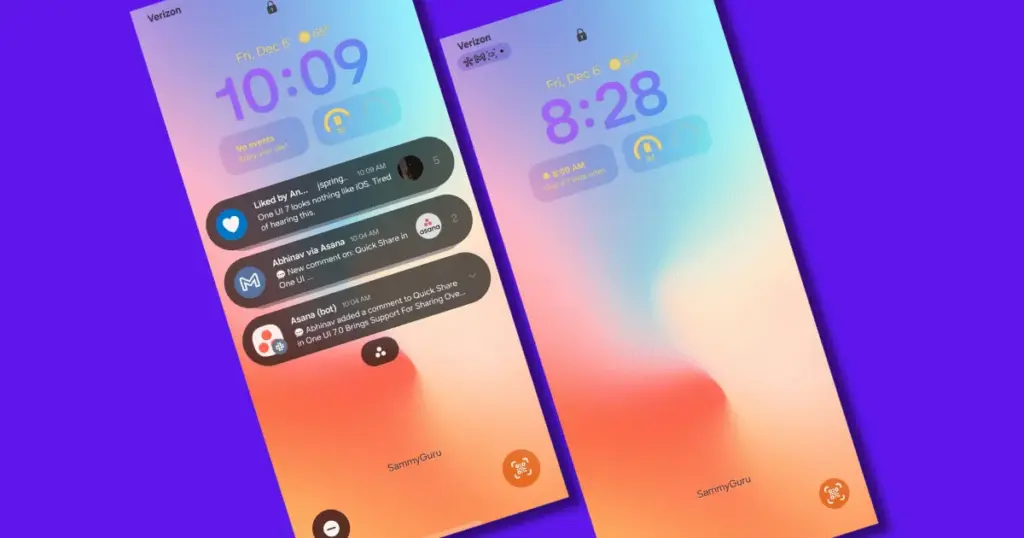
    Adjust the lock screen notifications.

    One UI 7 has modified the way notifications appear on your lock screen. It is set to display icons in the top left corner by default, which is a significant departure from the prior card view. I prefer that apps display notifications in the latter way. To modify this, navigate to Settings > Notifications > Lock screen notifications > Cards.

    I also hide important notification content on the lock screen since I do not want anyone walking up to my phone and reading my personal communications. To modify this setting, select Hide content from the same Lock screen notifications menu.

    Adjust the lock screen notifications. oneui Samsung galaxy

    Uninstall the bloatware

    Samsung Galaxy phones provide numerous apps that you may not utilize. Unlike prior years, you may now remove or disable them to conserve memory. For example, I do not own a Samsung TV and do not want the Microsoft CoPilot app on my phone, so I uninstall both TV and CoPilot. Other programs that I disable or uninstall include Facebook, Samsung Tutor, and OneDrive.

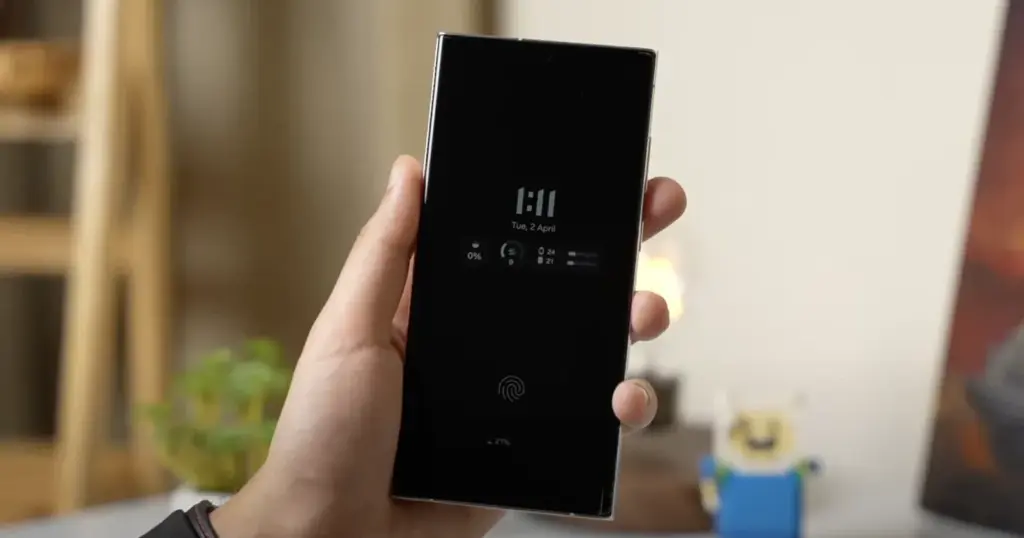
    Always-on display

    Samsung phones have efficient screens; make the most of them by enabling everything, including the Always On display. I enjoy having the time, day, and date information there on the screen, accessible at a look. Samsung defaults to the Tap to see setting, which requires you to tap on the screen to access information.

    I recommend altering that to Always to make it more useful. Navigate to Settings > Lock Screen and AOD > Always-On Display > Always. You may select whether or not to display the wallpaper; I have set it to only display a black screen to save battery life.

    Always-on display on Samsung and oneui7

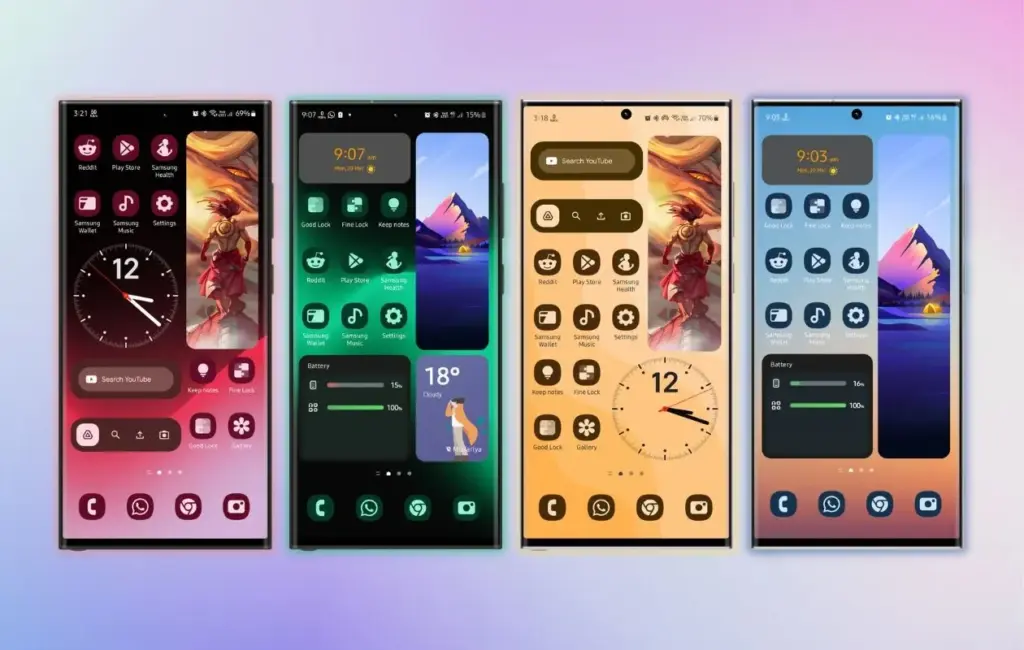
    Homescreen customization

    Samsung’s phone widgets are among the best available. I enjoy the Calendar widget since I can change the transparency. As a consequence, it looks nicer and retains functionality while preserving the structure of my home screen. I set it at the top so that everything is just a glance away, but it never asks for attention, unlike other opaque Calendar widgets.

    Also, change the icon grid to a 5×5 layout to permit more icons in the bottom row. They are only a thumb tap away. In addition, I apply my wallpaper color tones to the program icons for a more appealing appearance. To apply wallpaper colors to the entire system, navigate to Wallpaper and Style > Color Palette and turn it on. It is not flawless, and some icons may still be unsupported. However, it appears better than the standard colors.

    Homescreen customization on Samsung galaxy phone with OneUI
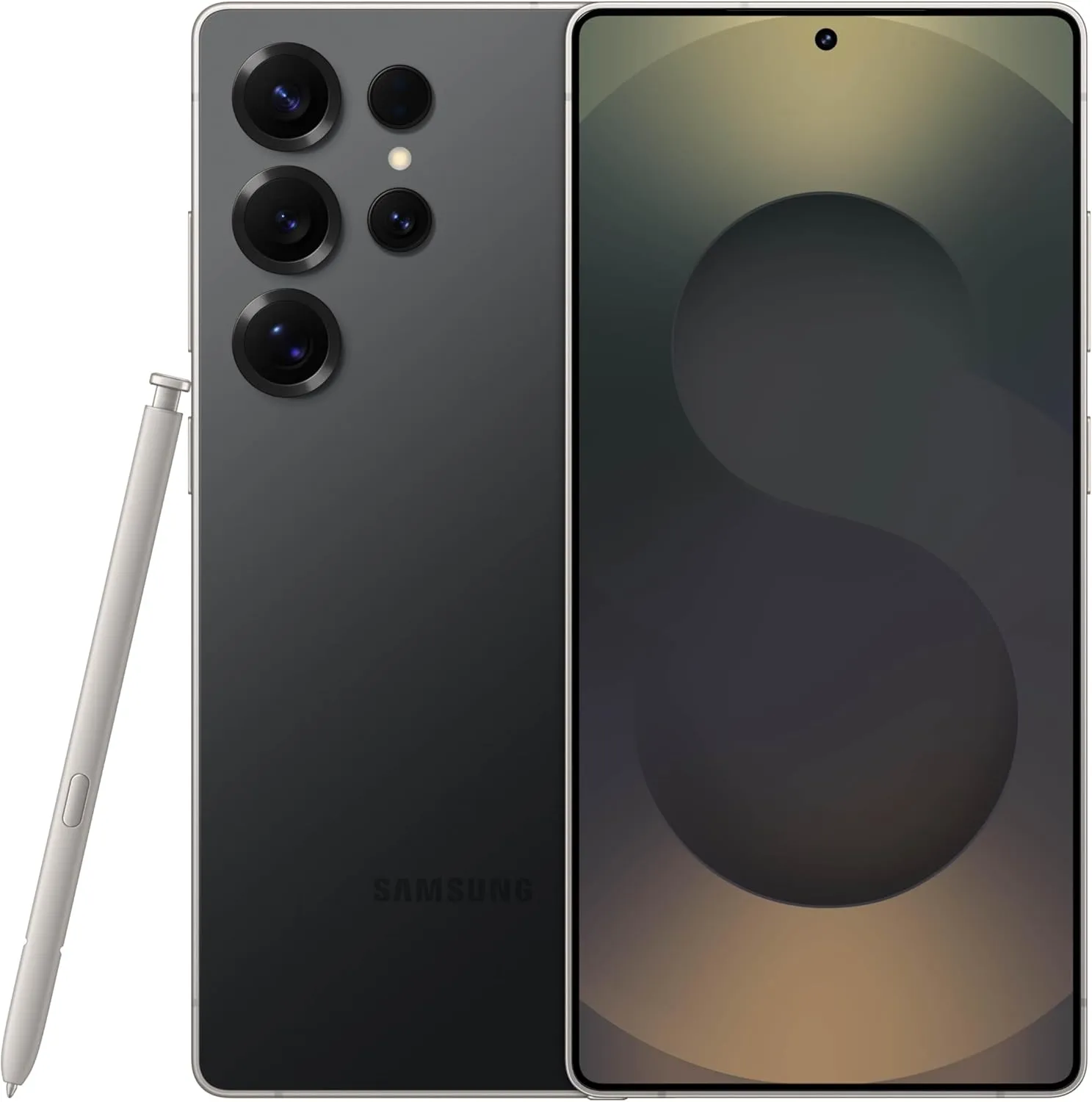
    samsung galaxy s25 ultra

    SAMSUNG Galaxy S25 Ultra

     Streamline your day with an assistant that gets you. Ask it to Google search for a pet-friendly vegan restaurant nearby and text it to your friend— your Galaxy S25 Ultra handles multiple tasks with a single ask.

    Best choice
    $1,299.99$1,141.75See It

    Other things I do on my Galaxy phones include switching to Google Keyboard and organizing the home drawer icons alphabetically for easier navigation. Samsung phones are among the best on the market. While they do not promise groundbreaking features, they are dependable and provide the most refined user interface with One UI. Simply modify these few options, and you will be all set.

  • How to fix Galaxy Watches that aren’t tracking sleep properly

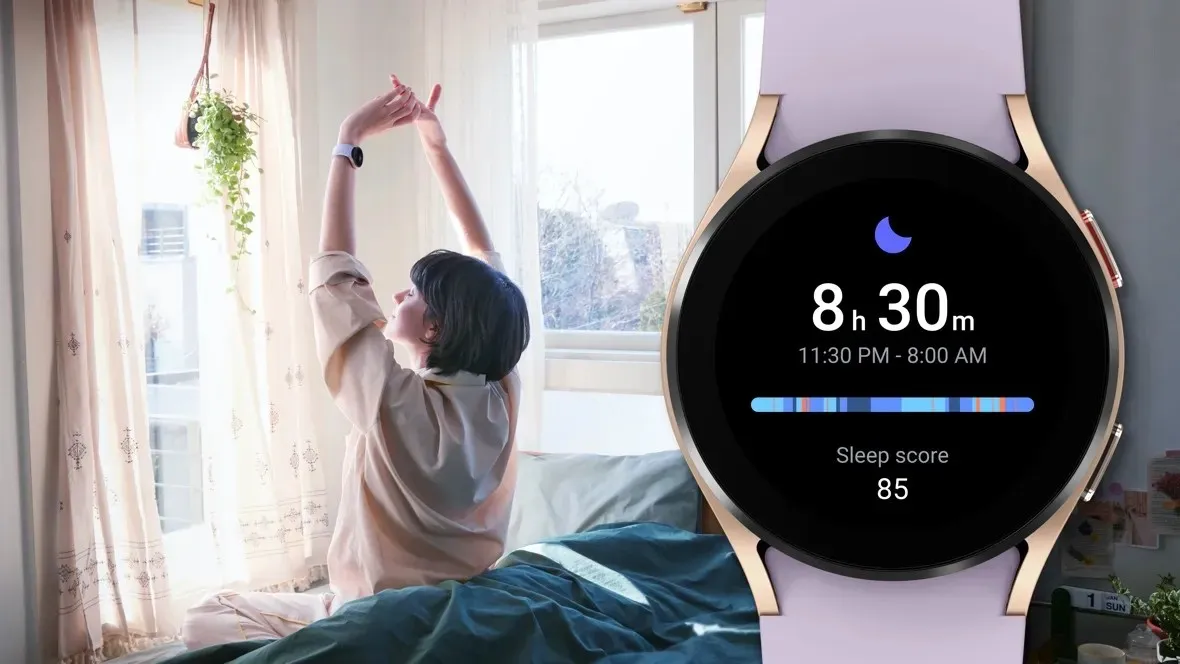
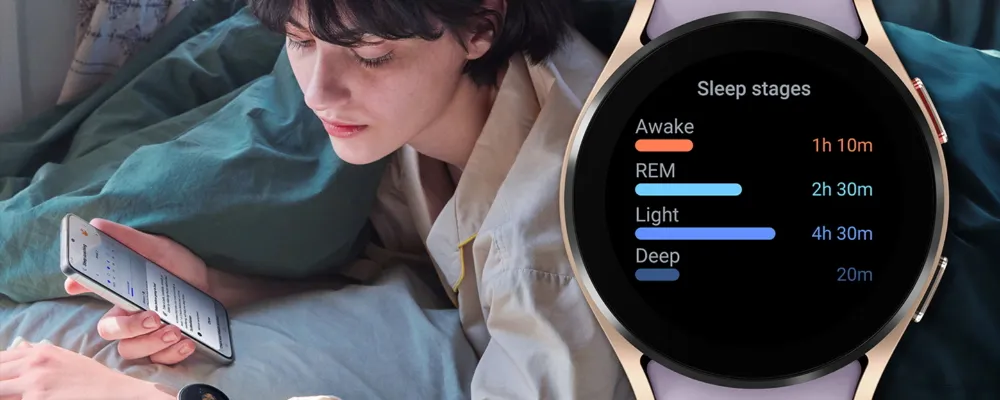
    How to fix Galaxy Watches that aren’t tracking sleep properly

    Samsung has acknowledged that a sleep-tracking problem affects a number of its most recent Galaxy Watch models, but thankfully, it has also suggested a few solutions.

    SamMobile discovered a Samsung Community forum in Korea where the firm disclosed that the Galaxy Watch 7 and Galaxy Watch Ultra, two of its top smartwatches, might not be accurately detecting sleep.

    SamMobile discovered a Samsung Community forum in Korea where the firm disclosed that the Galaxy Watch 7 and Galaxy Watch Ultra, two of its top smartwatches, might not be accurately detecting sleep.

    The issue, which also affects the Galaxy Watch 4, 5, and 6, means that “sleep-related measurement values are not reflected properly in the Samsung Health app on the Galaxy Watch.”

    For consumers who might be having problems, Samsung has provided a few patches. We have contacted Samsung for further information, but as mentioned, this message was only made on a Korean forum, so it is unclear at this time whether the problem is regional.

    In any case, here are some fixes for your Galaxy Watch if you are experiencing problems with sleep monitoring.

    Galaxy Watch4 Sleep Week NSF mai

    How to correct the Galaxy Watch’s sleep tracking

    Samsung advises users to turn the device off and on again as the initial step in tech troubleshooting. It claims to be working on a new version of the Samsung Health app to address the problem in the meanwhile.

    In particular, Samsung advises users to activate and then deactivate the Galaxy Watch’s power-saving mode under the Watch’s Settings app.

    Lastly, users should get the most recent version of the Samsung Health software from the Galaxy Store. It is unclear whether this is the promised upgrade to the app or a temporary solution. However, all of these adjustments are fantastic starting points if your Galaxy Watch is having trouble tracking your sleep.

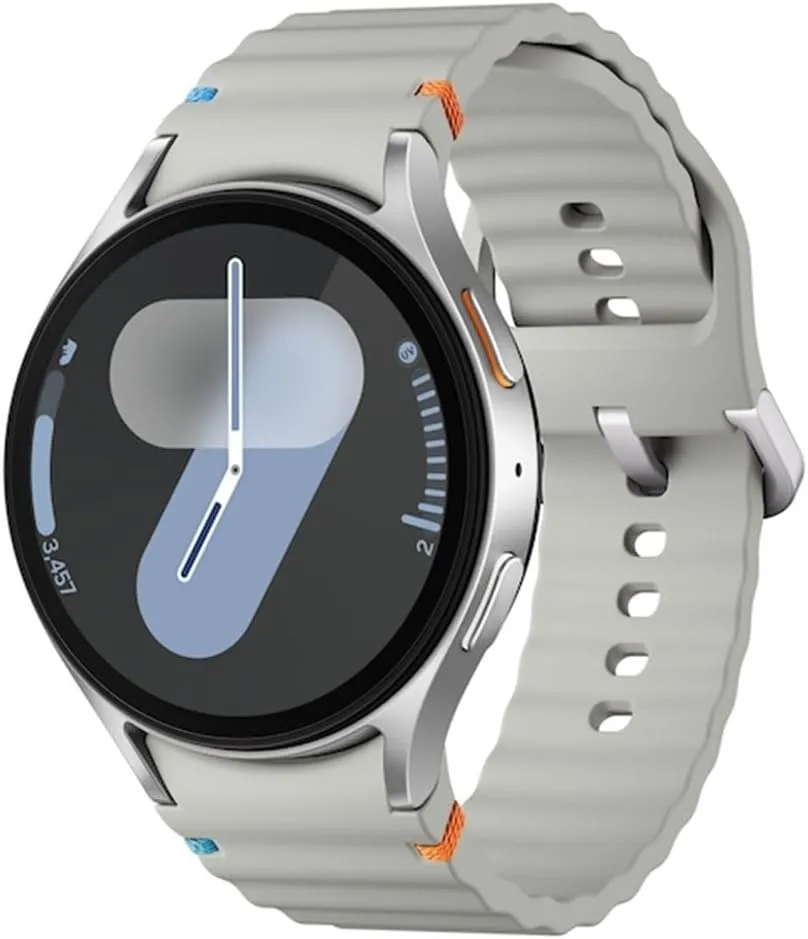
    galaxy watch 7

    Samsung Galaxy Watch 7

    1.5″ Super AMOLED, 480x480px ~327ppi, 425mAh Battery, Bluetooth 5.3, Wi-Fi, MIL-STD-810H compliant, 50m/5ATM water resistant (IP68), ECG certified, Sleep Coach, Heart Monitor

    very good