Author: Cristian Penisoara

  • How to fix “OK Google” not working

    How to fix “OK Google” not working

    With our very own, always-on virtual assistants in our pockets, a futuristic utopia where Google Assistant was created was meant to be a reality for everyone. But even the best technology occasionally fails to function in the real world. In this post, we’ve outlined a number of actions you can do if your phone’s “OK Google” or “Hey Google” voice command isn’t functioning. To learn more, scroll down!

    Identify the problem

    Sometimes a bothersome problem can be resolved without the need for extensive, laborious, complicated debugging efforts. Something extremely simple might be the answer. And that’s precisely what we’re aiming for here. Let’s start with a few simple ways to fix your “OK Google not working” problem before moving on to some of the more challenging ones.

    Is Google Assistant is turned on?

    You might be astonished to learn just how many individuals may have just disabled the Google Assistant feature and then wondered why it wasn’t working, despite how simple it may seem. If you frequently give your phone to your children, they may occasionally tinker with the settings and mistakenly disable Google Assistant (including the “OK Google” command). Make sure Google Assistant is turned on before even reading about basic troubleshooting procedures.
    activate ok google

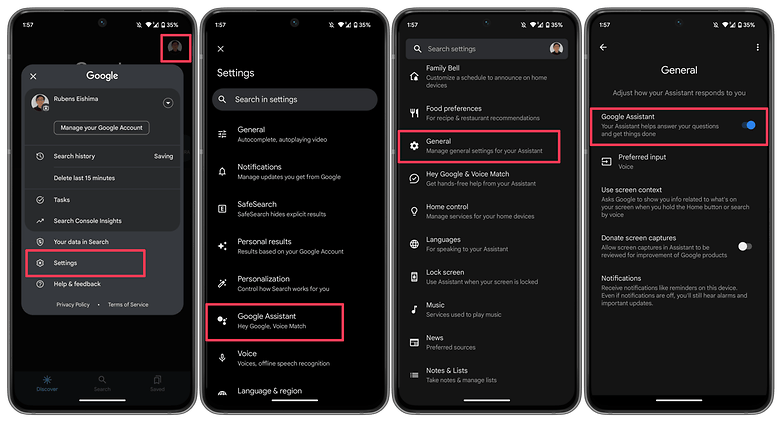
    How to:

    1. Launch the Google app on your phone.
    2. Tap on your profile picture.
    3. Select Settings.
    4. Choose Google Assistant.
    5. Tap on the General option.
    6. Make sure that Google Assistant is enabled.

    As an additional step, you may also want to check the following:

    1. Follow steps 1 to 4 as mentioned above.
    2. Select Hey Google & Voice Match.
    3. Make sure the Hey Google option is enabled.

    Make sure you’re connected to the Internet

    Even though it may seem obvious, Google Assistant often requires a Wi-Fi or mobile data connection to work, so be sure your phone is connected before starting a search. Additionally, and this is arguably the oldest piece of wisdom in the book, it never hurts to run a quick reboot because magic can happen there from time to time!

    Check if you’re not alone

    It’s always good to know if the problem you’re facing is affecting just you and nobody else. There have been occasions when people noticed that the problem is on Google’s side rather than theirs. Check Twitter, Reddit, and Google’s support forums to see if other users are complaining about ‘OK Google’ not working or that ‘Google Voice’ is not working as it should. You can also try searching for a solution using the term ‘Google assistant not working.’

    Check your language settings

    Checking your phone’s language settings has proven to be a reliable solution for many people who experience the dreaded “Ok Google not working” problem. What if it transpires that the only reason Google Assistant isn’t responding to you is that you’re using the incorrect language when you speak to it?

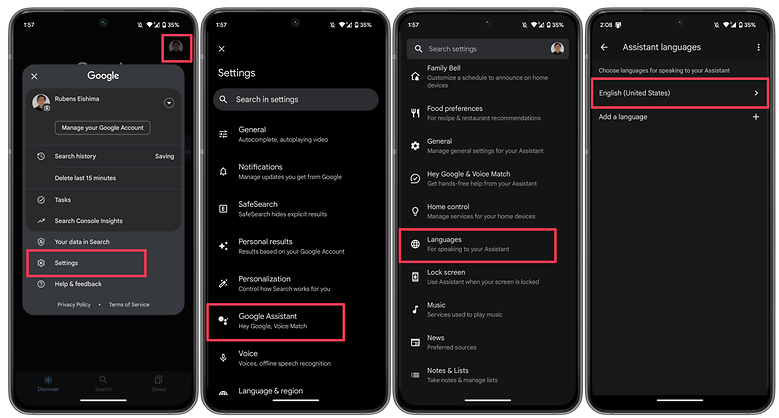
    Note that US English will be the default language for many users, but it’s still worth checking in the Settings menu and making the necessary changes as required. To do this, perform the following steps:

    1. Launch the Google app on your phone.
    2. Tap on your profile picture.
    3. Select Settings.
    4. Choose Google Assistant.
    5. Tap on Languages.
    6. Select the first option to change the main language, or add a new language. 

    This same menu can show you dozens of language options, each one with a checkbox, allowing you to set primary and secondary languages if desired. Google will automatically detect which language you’re speaking and automatically switch between them. If you’re multilingual, be warned that voice recognition for languages other than English can sometimes be subpar.
    google asisant set language

    Check microphone

    Google Assistant depends on constant access to your smartphone’s microphone because it is a voice-based technology. The microphone symbol on the right side of the search bar should be bold and have well-defined lines when you first open the Google app. If there is a dotted line, your microphone might be malfunctioning.

    If you carefully dig about with a safety pin or something similar to clear the debris in the tiny microphone hole, which is frequently located near to the charging port, you should be able to resolve the issue. Check the Google app’s microphone settings if that doesn’t work.

    Occasionally, apps running in the background generate audio that may interfere with the microphone’s ability to pick up your voice, so check these too, and kill any apps that you think can be generating audio.

    Turn off battery saver mode 

    To ensure you get the most life out of the battery, Android smartphones have a specific power-saving mode that shuts off background processes. Your Google Assistant (and the OK Google command) ceasing to function as a result is an unforeseen effect of this. Before you point the finger at anything else for OK Google not working, it is a good idea to make sure that the battery-saving mode on your phone is turned on.

    On stock Android, you can check if the Battery saver option is enabled by taking these steps.

    1. Launch the Settings app.
    2. Scroll down and select Battery.
    3. Choose the Battery Saver option.
    4. Disable the Use Battery Saver option.

    On other Android skins, the same option may appear under a different name, i.e. Adaptive Battery.

    Update the Google app to the latest version

    One possible fix to your OK Google problem is to ensure that your smartphone is running the latest version of the Google App. Here’s how you can make sure you’re on the newest version of the app.

    1. On your smartphone, launch the Google Play Store.
    2. Search for the Google app.
    3. On the Google app page, check whether there is an option to Update instead of Uninstall.
    4. Update the app by selecting Update to see whether the issue is resolved.

    6. Retrain the “Ok Google” voice model

    Sometimes, for reasons unknown, Google Assistant doesn’t retain the commands you have given it. If all else fails, it might be time to retrain your digital companion. Here’s how you can do so.

    1. Launch the Google app.
    2. Tap on your profile picture.
    3. Select Settings.
    4. Choose Hey Google & Voice Match.
    5. Select Voice Model.
    6. Tap on Retrain voice model and follow the on-screen instructions.

    Now that you have reached the end of this article, do let us know if these steps helped you resolve the issue. Additionally, do let us know if we have missed any useful fixes.
  • How to configure and use Android’s ADB wirelessly

    How to configure and use Android’s ADB wirelessly

    ADB is a command-line tool that makes it easier for your Android smartphone and a PC to communicate. The tool has many more applications besides only rooting and updating Android ROMs (more on this later).

    The traditional method for using ADB entails connecting your Android device to the Desktop through USB. But there is an alternative. Let’s examine at some wireless ADB usage options.

    Set up ADB

    You can skip this step if ADB has previously been configured on your Android and PC. If you haven’t, remember that everything is new to you!

    You must first download and unzip the Android SDK Platform Tools from the Android developer website before you can use ADB on your machine.

    By executing the command: brew install homebrew/cask/android-platform-tools, Mac users can use Homebrew to install ADB.

    Before you may connect your Android smartphone using ADB, you must first enable USB debugging in the developer settings.

    wireless adb setup

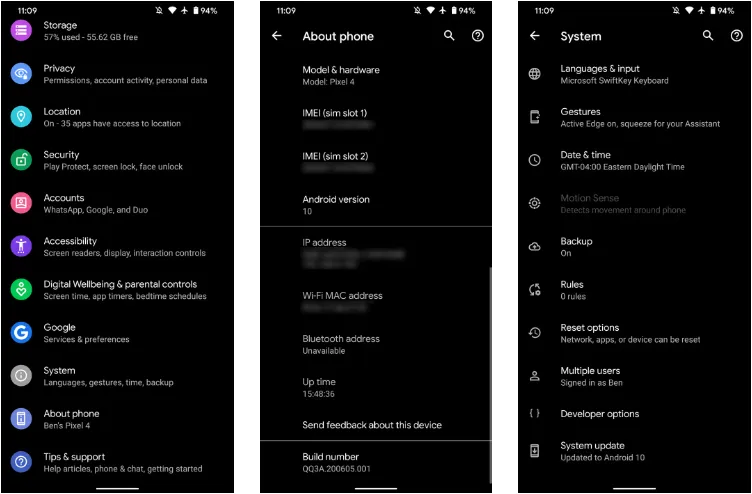
    Go to Settings > About phone then tap on the Build number several times. Once again, go to Settings > Developer options, then toggle on USB debugging.

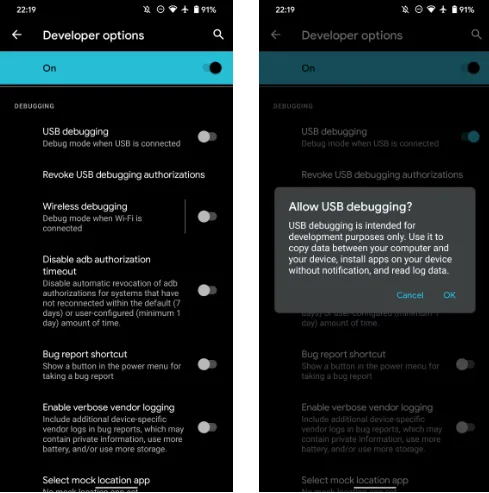
    Once that is finished, use a USB cord to connect the Android device to your Desktop. You must utilize a cable initially even though we’re going to set up a wireless connection. The USB debugging prompt that will display on your Android device should always be accepted.

    enable usb debugging for ADB

    Open the command line or Terminal and navigate to the Platform Tools folder.

    If you’re on Windows, you can head to the downloaded Platform Tools folder and open the PowerShell window by pressing Shift and right-clicking anywhere in the folder, and selecting Open PowerShell Window here. On a Mac, open the Platform Tools folder and go to Finder > Services > New Terminal at Folder.

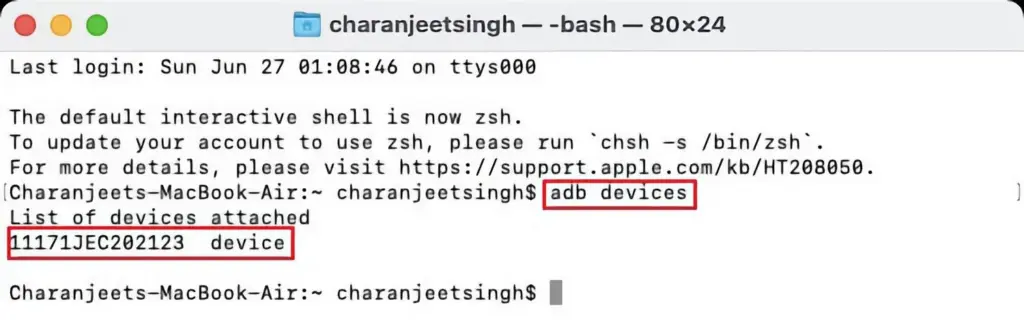
    If you’re using Windows, use the command adb devices into the command prompt. All instructions should be prefixed by a dot-slash on Linux and Mac, so it would be./adb devices.

    You should be able to find your device’s serial number in the list of attached devices if everything functions as it should.

    adb devices

    How to use Android wireless ADB

    The main topic at hand right now is how to connect your Android smartphone wirelessly to an ADB server. To use ADB wirelessly after configuring it and connecting your Android device to your PC, follow the instructions below.

    1. Type adb tcpip 5555 in the command line or Terminal and press Enter.
    2. Find your phone’s IP address in Settings > About Phone > Status > IP Address.
    3. Back in the command line or Terminal, type adb connect [your Android device’s IP address].
    4. Finally, press Enter again.

    The Android device should now be connected to ADB over a wireless connection. You can safely remove the USB cable.

    Is wireless ADB not working?

    Try installing Minimal ADB and Fastboot from the XDA Forums if your Android device won’t connect to Windows using ADB (you are getting errors in the command line). The required Android drivers are installed by this package, which may also assist you in fixing any command line issues.

    You can also utilize WebADB, which transfers all of ADB’s capabilities to your web browser. You can use the online tool to use ADB via Wi-Fi. In other words, you can completely forego installing ADB.

    What is ADB used for?

    The idea that Android ADB is solely helpful when rooting Android is a common one. It, however, is merely one of the several uses for the Android Debug Bridge.

    For example, you can use an ADB command to delete pre-installed apps from your Android device that is not rooted. Unwanted apps may be tough to remove from some Android cellphones, but ADB can assist.

    Without needing to root your device, you may also mirror your Android screen to a Desktop using the command line utility. This can be done using the free program Scrcpy. The tool’s wireless ADB connection results in extremely fantastic performance.

    Is safe to use?

    Using the utility won’t be a problem if you are familiar with ADB commands. There are risks involved with using ADB, especially if you are new to this field. If you are trying to root your device, using the incorrect commands could result in problems or, at worse, brick your phone.

    Although your Android smartphone won’t have any problems once you set up wireless ADB, you should always keep a backup of your data in the cloud or on an external storage device as a safety measure.

    No cables anymore

    Although though you first require a USB cord to set up ADB, the ability to utilize it wirelessly is incredibly useful. It allows you to walk around more freely while you work, allows you to simultaneously charge your phone at full speed, and is just much more practical in general. It’s definitely worth a go if you use ADB.

  • Remove all bloatware apps from your device – debloater

    Remove all bloatware apps from your device – debloater

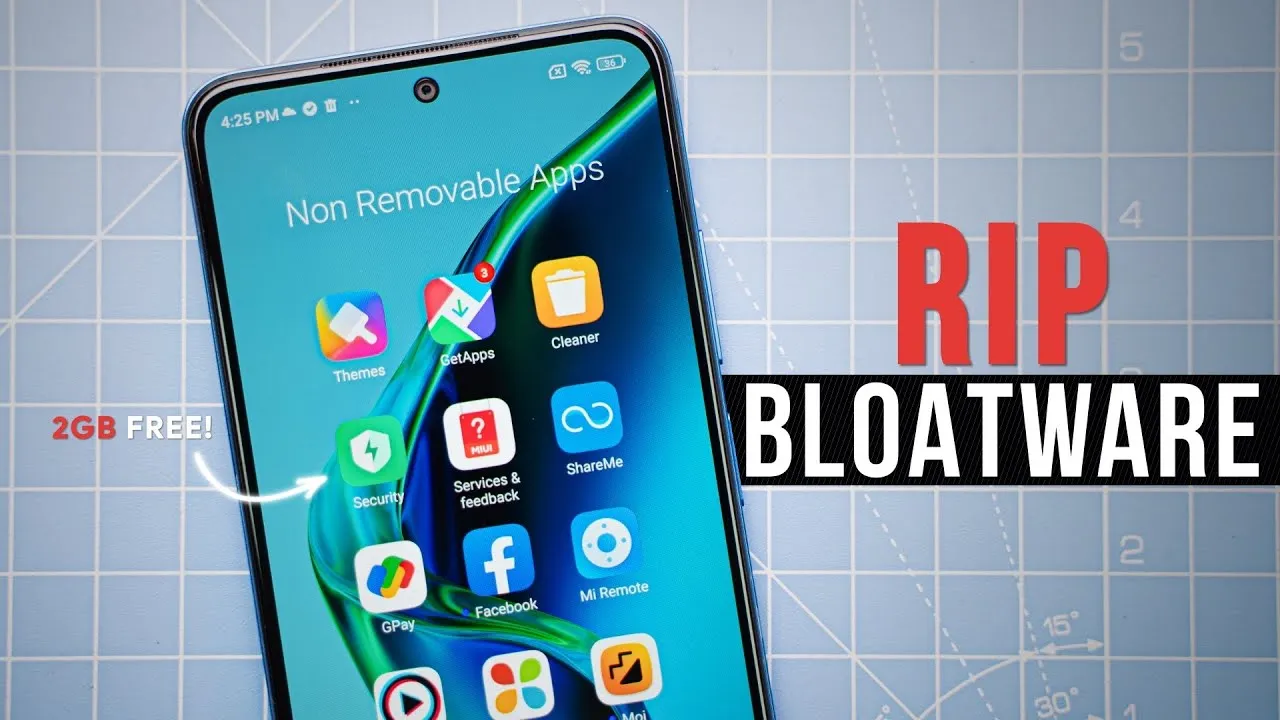
    Bloatware is an awful phenomenon that millions of consumers encounter in the broad world of Android smartphones. The term “Android bloatware” describes the pre-installed applications that come with a new device and take up important storage space and system resources.

    This article discusses the idea of “bloatware,” considers its ramifications, and investigates solutions to lessen its negative effects on the Android experience.

    What is bloatware?

    Bloatware is a term used to describe a variety of unwanted apps that customers may find redundant or superfluous and is frequently installed by device manufacturers or carriers. These apps could include demo versions of purchased software, carrier brand apps, and utilities tailored to particular manufacturers.

    While some of the pre-installed apps may be beneficial, a large number are rarely used, clutter the device, and suck up resources. Bloatware installation is frequently motivated primarily by financial gain because app developers may pay device makers and carriers to include their programs.

    android bloatware

    Implications and Challenges

    Bloatware’s presence can affect Android users in a variety of ways. First of all, it limits the amount of storage space that is available on a device, making it harder for users to install and save their favourite media and programs. Second, these undesirable programs might operate in the background, using up system resources, drained battery life, and possibly impairing device performance. Bloatware can also compromise user security and privacy since some pre-installed apps may gather private information or have security flaws that could be used by hackers. Last but not least, bloatware frequently can’t be removed, which frustrates consumers and prevents them from taking back control of their devices.

    Bloatware impact

    While completely eradicating bloatware without rooting the device is difficult (doing so can violate warranties and present security issues), there are a few tactics that can be used to lessen its negative effects. The first option is for users to disable or conceal unneeded apps in their device settings. This operation saves system resources by preventing the programs from running in the background and clogging up the app drawer. Second, using third-party app managers or cleaners can help with bloatware identification and removal, but caution must be used to prevent mistakenly uninstalling crucial system components.

    Consider buying unlocked gadgets straight from manufacturers as an alternative strategy. These gadgets frequently have a cleaner Android experience and are devoid of carrier-specific software. Additionally, bloatware-free experiences can be had with custom ROMs and alternative firmware, like LineageOS, but these options call for technical know-how and may not be acceptable for all users.

    Android debloater

    he main goal is to improve battery performance and privacy by removing unnecessary and obscure system apps. This can also contribute to improve security by reducing the attack surface.

    Packages are as well documented as possible in order to provide a better understanding of what you can delete or not. The worst thing which could happen is removing an essential system package needed during boot causing then an unfortunate bootloop. After about 5 failed system boots, the phone will automatically reboot in recovery mode and you’ll have to perform a FACTORY RESET. So make a backup first!

    In any case, you can NOT brick your device with this script ! That’s the main thing, right ? 

    image

    Features

    • Uninstall/Disable and Restore/Enable system packages
    • Multi-user support (e.g apps in work profiles)
    • Export/Import your selection in uad_exported_selection.txt
    • Multi-device support: you can connect multiple phones at the same time
    • All your actions are logged so you never forget what you’ve done

    NB : System apps cannot really be uninstalled without root (see the FAQ)

    Universal debloat lists

    • GFAM (Google/Facebook/Amazon/Microsoft)
    • AOSP
    • Manufacturers (OEM)
    • Mobile carriers
    • Qualcomm / Mediatek / Miscellaneous

    Manufacturers debloat lists

    • Asus
    • LG
    • Google
    • Fairphone
    • Huawei
    • Motorola
    • Nokia
    • OnePlus
    • Oppo
    • Samsung
    • Sony
    • Xiaomi

    Mobile carriers debloat lists

    • French carriers: SFR / Orange / Free / Bouygues
    • US carriers: T-mobile / Verizon / AT&T / Sprint
    • German carriers: Telekom
    • UK: EE

    How to use

    • Enable Developer Options on your smartphone.
    • Turn on USB Debugging from the developer panel.
    • From the settings, disconnect from any OEM accounts (when you delete an OEM account package it could lock you on the lockscreen because the phone can’t associate your identity anymore)
    • Install ADB: instructions
    • Download the latest release of UAD GUI for your Operating System here. Take the opengl version only if the default version (with a Vulkan backend) doesn’t launch.

    NOTE: Chinese phones users may need to use the AOSP list for removing some stock apps because those Chinese manufacturers (especially Xiaomi and Huawei) have been using the name of AOSP packages for their own (modified & closed-source) apps.

    IMPORTANT NOTE: You will have to run this software whenever your OEM pushes an update to your phone as some uninstalled system apps could be reinstalled.

  • How to synchronize 2FA codes with Google Authenticator

    How to synchronize 2FA codes with Google Authenticator

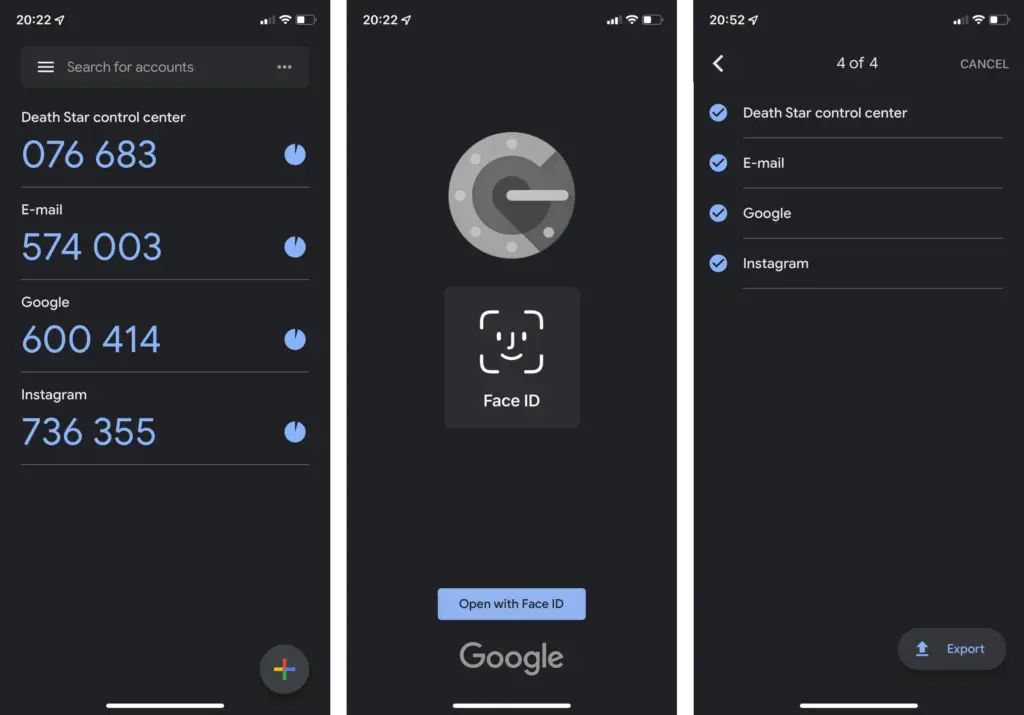
    One of the easiest methods to increase the security of your user accounts is by using Google Authenticator. The ability to synchronize the 2FA generation between phones using the Google Account was recently enabled. Find out how to do it in the following stages.

    Up until recently, it was not able to automatically synchronize the token creation between devices, which was one of the biggest drawbacks of utilizing Google Authenticator. Accounts in the app could be manually exported and imported, but users could momentarily lose access to their accounts if their phone was stolen or misplaced.

    google authenticator

    Synchronize 2FA codes between phones on Google Authenticator

    The new automatic syncing relies on the Google Account associated with the device but is optional in case you don’t want to have your security codes synced on Google’s servers—especially since Google doesn’t enforce another type of confirmation before syncing as Authy does. Having said that here is how you start syncing 2FA tokens using Google Authenticator:

    1. Update or install Google Authenticator (Android | iOS).
    2. On the “Welcome” screen, select the Google account used to synchronize 2FAs. 

    If you skipped the account selection during the first run, activating syncing is as simple as switching an account on any other Google app:

    1. Tap on the profile logo in the top right corner.
    2. Select the Google Account to synchronize 2FA.

    When the 2FA codes are synced with the Google Account, it is indicated in both instances by the green cloud icon in the top right corner. Simply choose the same Google account the next time you open Google Authenticator on a new phone to enable the 2FA generators.

    How to stop syncing 2FA online on Google Authenticator

    If you want to stop syncing code generation in the Google Authenticator, the steps are similar:

    1. Tap on the profile picture in the top right corner.
    2. Select Use without an account.
    3. Confirm the action by tapping on the Continue button.

    Tech companies are slowly starting to implement Passkeys to replace passwords and 2FAs, but two-factor authentication is not going away anytime soon apparently, with even fewer services supporting the new security standard.

  • Express guide on how to root an Android device

    Express guide on how to root an Android device

    Please note that rooting your Android phone can be a complex and potentially risky process. Before proceeding, it’s important to research thoroughly, understand the risks and potential consequences, and proceed at your own risk. Also, the information I provide in this article may not apply to all Android devices, as different manufacturers may have different procedures and requirements for rooting. With that in mind, let’s dive in:

    What is rooting and why would you want to do it?

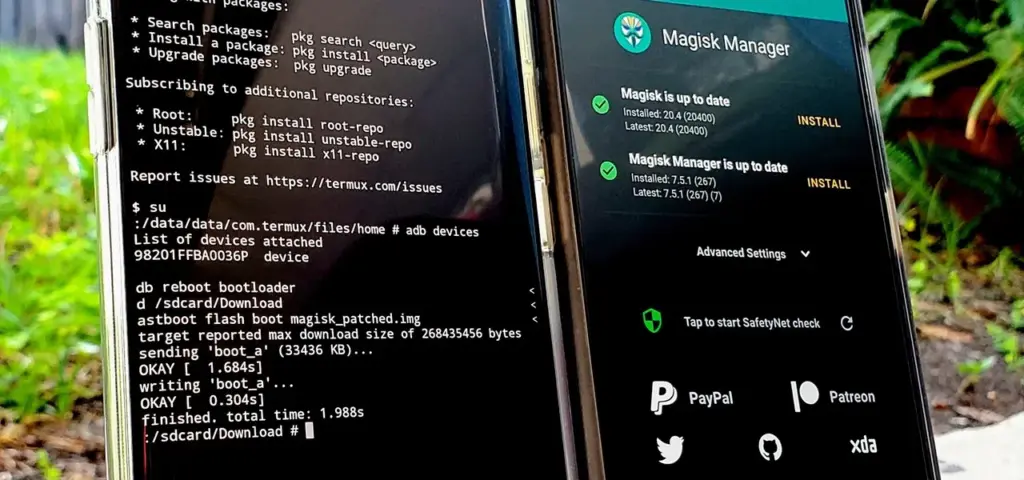
    root android with magisk

    Rooting is the process of gaining access to the root directory of an Android device. This allows you to have administrative privileges on your phone, which can give you more control over your device and the ability to customize it to your liking. For example, you can install custom ROMs, remove pre-installed apps, tweak settings that are not available in the default user interface, and much more.

    However, rooting also comes with some risks. It can void your warranty, make your phone less secure, and even brick your device if you don’t follow the instructions carefully. Therefore, it’s important to proceed with caution and do your research before attempting to root your Android phone.

    Step-by-step guide to rooting your Android phone

    Check your phone’s compatibility

    Before you start rooting, make sure your Android device is compatible with the rooting method you want to use. Different phones have different hardware and software configurations, so not all rooting methods work on all devices. To check compatibility, you can search online for your phone’s model number and the specific rooting method you want to use.

    Backup your data

    Rooting can potentially erase all the data on your phone, so it’s important to back up your data first. You can use your phone’s built-in backup feature, or use a third-party backup app to backup your data to an external device or cloud storage.

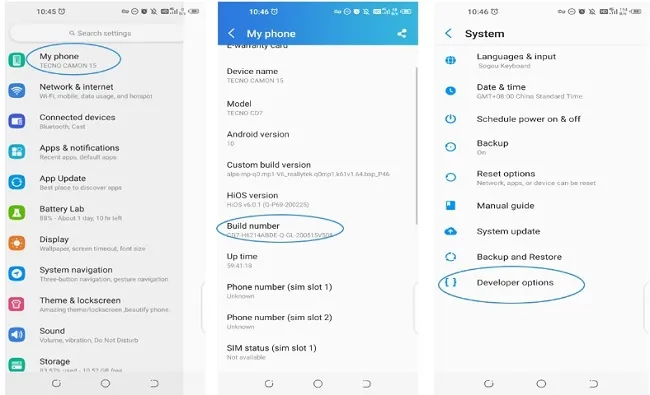
    Enable developer options

    android root developer options

    To root your phone, you need to enable developer options on your Android device. To do this, go to “Settings”, then “About phone”, then tap “Build number” seven times. This will enable developer options on your phone.

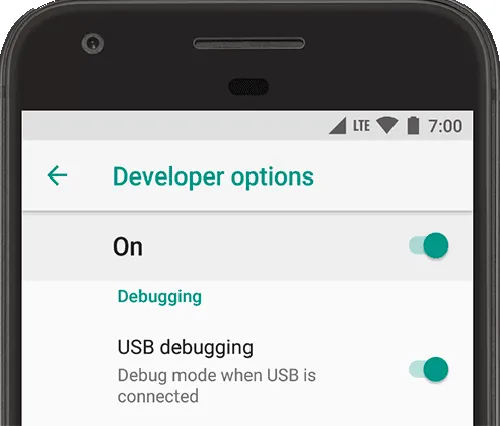
    Enable USB debugging

    dev options

    Once you’ve enabled developer options, you need to enable USB debugging on your Android device. To do this, go to “Settings”, then “Developer options”, then toggle on “USB debugging”.

    Download and install the rooting software

    There are many rooting software options available online, such as KingRoot, Magisk, and SuperSU. Choose the one that’s compatible with your phone and download it from a trusted source. Once you’ve downloaded the software, install it on your computer.

    Connect your phone to your computer

    Connect your Android device to your computer using a USB cable. Make sure your phone is in “USB debugging” mode.

    Root your phone

    Launch the rooting software on your computer and follow the instructions carefully. The rooting process may take a few minutes, and your phone may restart several times during the process. Be patient and don’t disconnect your phone from your computer until the process is complete.

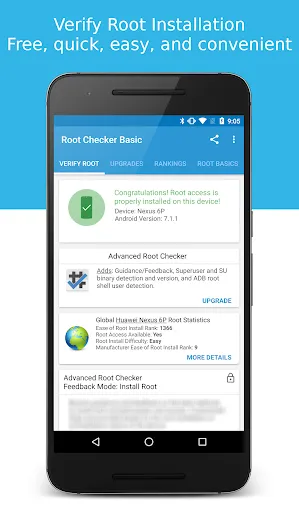
    Verify root access

    Once the rooting process is complete, you can verify that your phone is rooted by installing a root checker app from the Google Play Store. If the app confirms that your phone is rooted, congratulations! You now have administrative privileges on your Android device.

    Conclusion

    In conclusion, rooting your Android phone in 2023 can give you more control over your device and the ability to customize it to your liking. However, it’s important to proceed with caution and do your research before attempting to root your phone. By following the step-by-step guide above, you can root your Android phone safely and enjoy the benefits of administrative privileges on your device.

  • 4 methods to unbrick your Android device

    4 methods to unbrick your Android device

    So your phone is bricked. Your phone won’t boot because you flashed a ROM, installed a mod, modified a system file, or did something else.

    Not to worry! It can probably be fixed. Unbricking an Android device is explained here.

    What ‘Bricking’ or a ‘Bricked Phone’ mean?

    ‘Bricking’ your phone essentially means that your once useful device is now only as useful as a brick. A ‘bricked phone’ is usually unresponsive, won’t power on, and doesn’t function normally.

    How is your phone bricked?

    Depending on how a phone was bricked in the first place, different steps are required to unbrick it. Bricked phones fall into one of two categories:

    • The soft brick. The phone freezes on the Android boot screen, gets stuck in a boot loop, or just goes straight to recovery. So long as something happens when you press the power button, it’s soft bricked. The good news is these are pretty easy to fix.
    • The hard brick. You push the power button, and nothing happens. Hard bricks can be caused by issues like attempting to flash an incompatible ROM or kernel, and there’s normally no software solution for them. Hard bricks are terrible news, but fortunately, they’re quite rare.

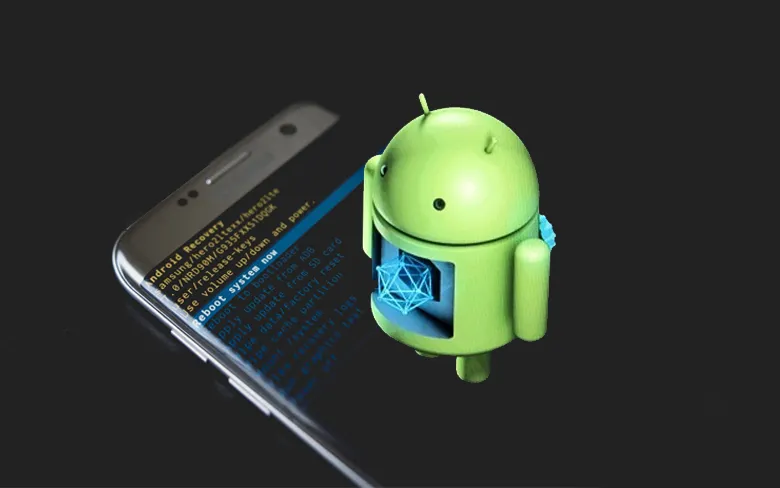
    You’re probably soft bricked, and you’ll see something similar to the picture above. Although it’s challenging to develop a one-size-fits-all method to unbrick Android due to the variations in how various devices operate, there are four typical techniques you can try to get things back on track:

    • Wipe the data, then re-flash a custom ROM
    • Disable Xposed mods through recovery
    • Restore a Nandroid backup
    • Flash a factory image

    Before you get started, make sure your phone and computer are set up and ready with the proper tools.

    What you need to unbrick a Android device?

    Most of the equipment you need to repair your phone probably already exist in your possession. Since you already know how to use them because you used them to root your device and flash ROMs, they shouldn’t be a problem. However, make sure before you start.

    Custom recovery is most crucial. This was probably installed when you rooted your phone, however it could occasionally be completely erased or rewritten by the default recovery. We advise using TWRP if you do need to reinstall it. It is a completely functional custom recovery with builds for the majority of common devices but is also far too simple to use.

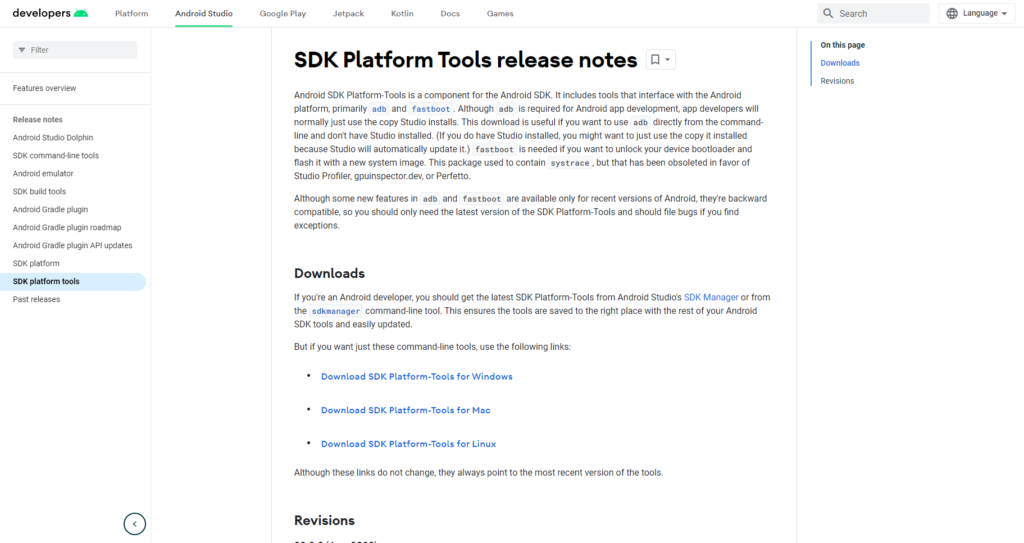
    Then, you might require ADB and Fastboot. You can obtain both of them from the website for Android Developers, and they are frequently used for rooting and flashing system mods. If you are unfamiliar with Fastboot and ADB, see our introduction to them.

    android sdk tools for unbrick Android

    And finally, some manufacturers use special software to flash factory images. Hopefully, you can avoid doing this, but if you need to, you can use Odin for Samsung, the LG Flash Tool for LG devices, or the ZTE Unbrick Tool if you’ve got a ZTE device. Just make sure that they support your specific model of device.

    Most of these tools will let you fix a bricked Android phone using a PC. However, you can often do the job directly on the phone itself.

    Wipe data and ee-flash a custom ROM

    If you flashed a ROM and Android won’t boot, try this method.

    When you have issues while flashing a fresh custom ROM, it’s one of the most likely scenarios that your phone will soft brick. Your failure to first erase your data is frequently to blame in this situation.

    When you decide to flash a new ROM over top of your old one instead of having to restore your applications and data, this is known as a “dirty flash” and takes place. Generally speaking, if you’re flashing a newer version of your current ROM, you can get away with it, but you must always delete your data anytime you flash a different ROM.

    Fortunately, it’s easy to fix—as long as you’ve backed up your phone properly. If you haven’t, well, you’ve learned an important lesson the hard way. Follow these steps:

    1. Boot into your custom recovery.
    2. Navigate to the Wipe option and choose Advanced Wipe.
    3. Check the box marked Data (you can wipe the system, ART cache, and cache again, too), then hit Confirm.
    4. Re-flash your custom ROM.

    A factory reset is effectively accomplished by wiping your data, although your internal storage or SD card shouldn’t be erased by this process (although, again, you should back it up just to be safe). Your phone will display the Android setup screen after restarting. Your programs ought to start reinstalling themselves immediately after inputting your Google account details.

    You can use your Nandroid backup to recover your data if necessary.

    Disable Xposed Modules in Recovery

    Try this method if: You get boot loops after installing a new Xposed module.

    The Xposed Framework isn’t as common as it once was, but it’s still a simple way to mod your phone, and also one of the most dangerous.

    The best Xposed modules are so easy to install—many of them are available in the Play Store—that they lull you into a false sense of security. It’s unlikely anyone makes a Nandroid backup before installing a new Xposed module, even though they can brick your phone.

    Use ADB Push to Install the Xposed Uninstaller

    The best way to deal with these problems is with the Xposed Uninstaller, if it’s available for your version of Android. This is a small flashable ZIP that you can install through the recovery to remove Xposed from your device.

    If you don’t already have it on your phone, you can put it on an SD card, or you might be able to copy it over using the ADB push method:

    1. Download the Xposed Uninstaller to your desktop.
    2. Connect your phone to your computer via USB and boot into recovery.
    3. Launch the command prompt (Windows) or Terminal (Mac) and use the cd command to change the directory to where you have adb installed.
    4. Type adb push [full path to xposed uninstaller.zip] [full path to destination]. On Mac and Linux, precede the command with ./ (such as ./adb).
    5. When the file finishes copying, flash it through the recovery.

    How to Disable Xposed Modules in Recovery

    If you can’t use ADB push and the Xposed Uninstaller, try either of these solutions.

    This method lets you disable Xposed through recovery:

    1. Boot into recovery, then navigate to Advanced > Terminal command.
    2. Create a file called /data/data/de.robv.android.xposed.installer/conf/disabled
    3. Reboot your phone.

    This method prevents Xposed modules from starting:

    1. Boot into recovery and select File Manager.
    2. Navigate to the folder /data/data/de.robv.android.xposed.installer/conf/ then delete the file modules.list
    3. Reboot your phone.

    None of these fixes will reverse the modifications that the modules have made to your system. You will need to restore your Nandroid backup if these changes bricked your phone.

    Restore a Nandroid Backup

    Try this method if: You need to remove other system mods, replace a tweaked system file, or if the methods above didn’t work.

    The safety net for Android mods and customizations is the Nandroid backup. It’s a full snapshot of your phone, including the operating system as well as your data and applications. You can restore your soft-bricked device to working order as long as you have access to your custom recovery and a Nandroid backup.

    twrp restore bricked device
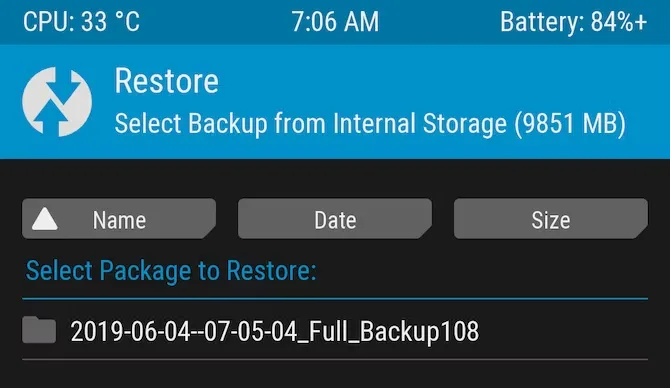
    1. Boot into recovery and navigate to Restore.
    2. Select your backup from the list, confirm, and wait while it’s restored.
    3. Reboot your phone.

    Nandroid backups are a bit of a pain to make. They take a while and cannot be done in the background. But they’re worth it: they’re the simplest way to unbrick your phone.

    Recover Data From a Nandroid Backup

    A Nandroid backup can also save the day if you had to wipe your data and didn’t back it up in an easily restorable form. It’s possible to extract specific parts of a Nandroid, so you can restore your apps and data without needing to restore the operating system as well.

    Here are the instructions for this:

    1. Boot into Android and install Titanium Backup from the Play Store. While this app hasn’t been updated for a while, it’s still one of the best options for this task.
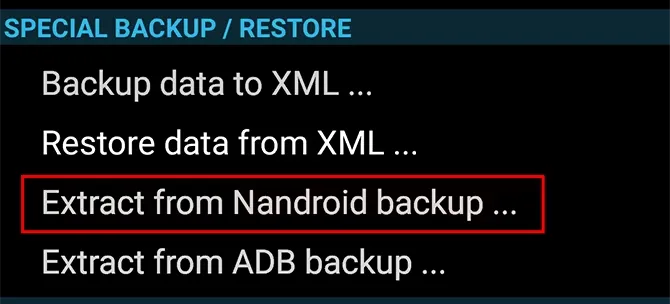
    2. Tap the menu button and navigate to Special Backup/Restore > Extract from Nandroid Backup.
    3. Select your backup from the list.
    4. Choose whether to restore apps, data, or both, and select them (or hit Select All).
    5. Tap the green tick icon to start the restore process.
    nanddroid backup restore unbrick

    Flash the factory image

    Try this method if: None of the other options work.

    Re-flashing a factory image is your only remaining choice if your attempts to unbrick Android have so far failed. This erases everything on your internal storage and returns the phone to its factory settings. Your phone will be unrooted as well.

    You might be better off trying to flash a stock ROM first because it removes everything. Instead of factory images, OnePlus offers flashable ROMs for recovery. You can find similar files for almost every device at xda-developers.com. For added convenience, you can often flash a stock ROM that has already been root access.

    Flashing a factory image varies from flashing a ROM in that it occurs via a desktop computer connection as opposed to recovery. Other devices make use of customized software while some use the Fastboot utility from the Android SDK. For instance, Samsung makes use of the Odin tool.

    The instructions for flashing a factory image vary for each device due to the various techniques used. Additionally, not all manufacturers make their firmware accessible to the general public, so you must find them from unofficial sources.

    Here’s where to find factory images for some popular Android brands:

    Hard brick?

    Hard bricked phones are notoriously more difficult to fix, but thankfully they’re also much rarer.

    How to unbrick a hard bricked Android device

    Make sure the phone is truly bricked by plugging it in and letting it charge for some time. Try to reset it by depressing the power button for 10 to 15 seconds (or removing the battery if your gadget is older). You might also want to try putting it into your computer; if your PC does not recognize it, you can be very sure that your phone has been severely bricked.

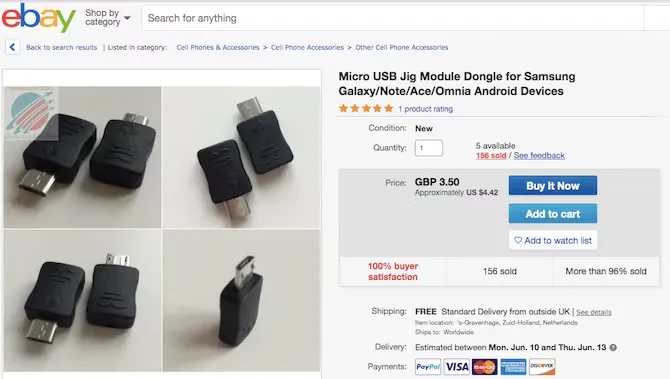
    If it is unquestionably hard bricked, your options may be limited. A USB Jig, a little gadget that fits into the USB port and puts the phone into Download Mode to reload the default software, can resurrect a few phones.

    usb jig

    On eBay, you can find cheap USB Jigs for hard-bricked phones, but only for a very limited selection of outdated gadgets. Even then, there is no assurance that they will be successful.

    Beyond that, you might need to either find a local phone repairman or send your phone in for repair (though rooting it might have void your warranty). However, you’ll probably end up having to buy a new gadget.

    Stay safe

    Hopefully, this guide has helped you to unbrick your Android phone. And hopefully, your experience hasn’t put you off rooting and hacking Android altogether.

    But if you’d rather play it safe in future, you can still have a lot of fun with your phone. Take a look at our guide to the best Android tweaks you can make without rooting for some amazing ideas.

  • Configure Android USB tethering on macOS

    Configure Android USB tethering on macOS

    Even though Wi-Fi tethering is the most practical method for connecting an Android phone to a Mac, you may occasionally need to utilize USB instead.

    However, USB tethering between Android and Windows is simple, but depending on the Android device you’re using, connecting it between Android and Mac can be more difficult. Here’s how to configure Mac OS for Android USB tethering.

    Use the Built-In USB Tethering Option (if Supported)

    A contemporary Android device running Android 12 or later may already have built-in support for USB tethering on macOS. To make it work, you might not need any additional strategies. For instance, on a Pixel 7 running Android 13, all you need to do is connect your phone to your computer to get started.

    1. Unlock and connect your phone to your Mac via a USB cable.
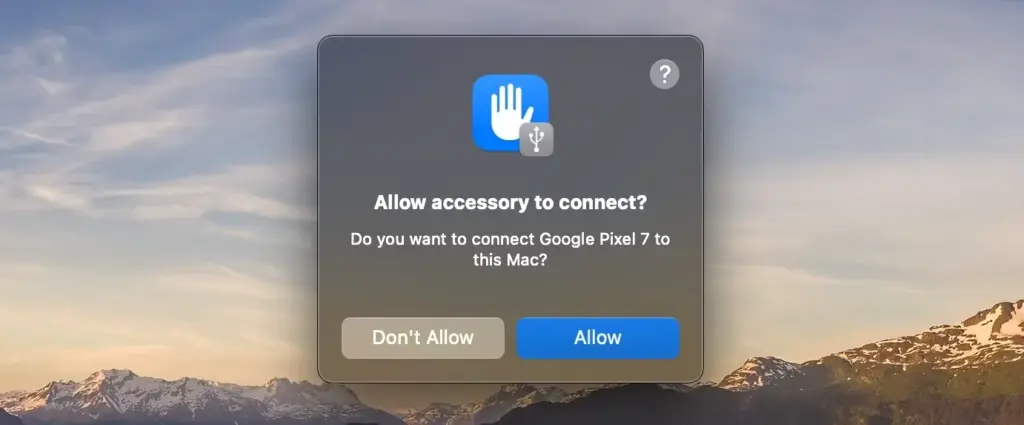
    2. If you’re using macOS 13, you may need to click to allow your phone to connect
    3. A notification will appear on your phone labeled something like Charging this device via USB. Tap on it.
    4. Under the USB Preferences screen that opens, set Use USB for to USB tethering.
    macOS tethering
    USB tethering Android

    Now that the issue has been resolved, you should be able to use your Mac to access the internet as usual. If you have a limited data plan and are using a 4G or 5G mobile data connection, be mindful of your usage.

    If the notification doesn’t appear when you connect your phone, you can instead go to Settings > Network and Internet > Hotspot and tethering and toggle on USB tethering. This option will be grayed out if your phone isn’t connected to a computer using a USB cable, and remember that some of the menus may be slightly different depending on what phone you’re using.

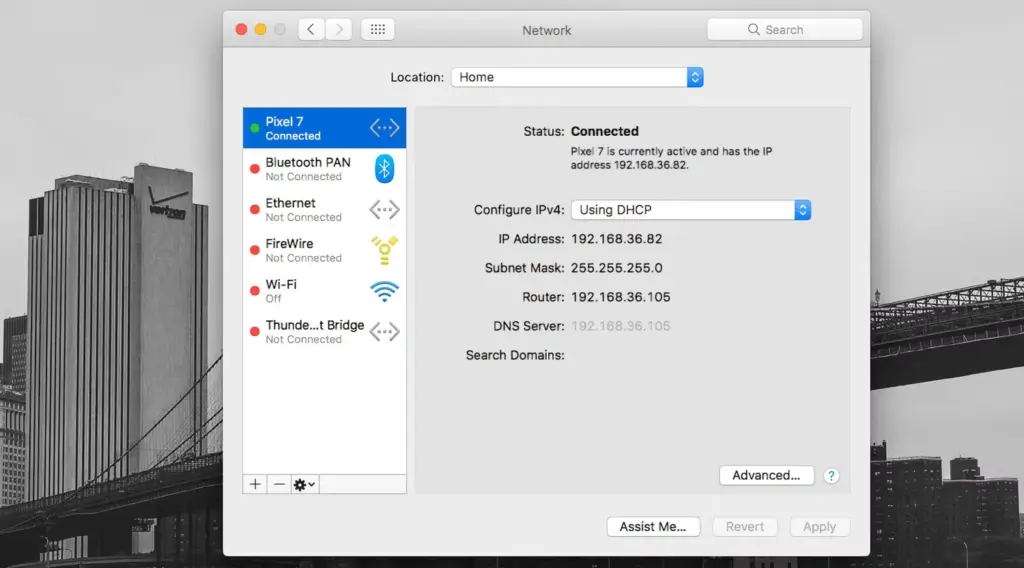
    To verify the connection on your Mac, go to System Settings (or System Preferences) > Network, where you’ll see your phone’s name listed with a green dot next to it.

    If USB tethering on macOS isn’t supported on your phone and you can’t set up Wi-Fi tethering, you do have another option. However, this comes with a potential snag of its own.

    Use the HoRNDIS Driver

    The required driver is not present on older Android devices or those that lack built-in support for USB tethering on a Mac, which prevents the sharing of an internet connection. Fortunately, you can get it working by installing the third-party HoRNDIS driver. All Android devices are compatible with this driver, which is akin to the one used by Windows computers.

    HoRNDIS is free and open-source and should work well in many cases. However:

    • It hasn’t been updated since 2018, so may not support newer versions of macOS.
    • It doesn’t work on Macs powered by Apple Silicon.

    The discussions on the software’s Github page do include some workarounds to get HoRNDIS running on M1 and M2 machines. But it’s a complicated process that involves disabling your Mac’s System Integrity Protection, so is not suitable for most users.

    Assuming the caveats don’t apply to you, here’s how to set up HoRNDIS on your (Intel-based) Mac.

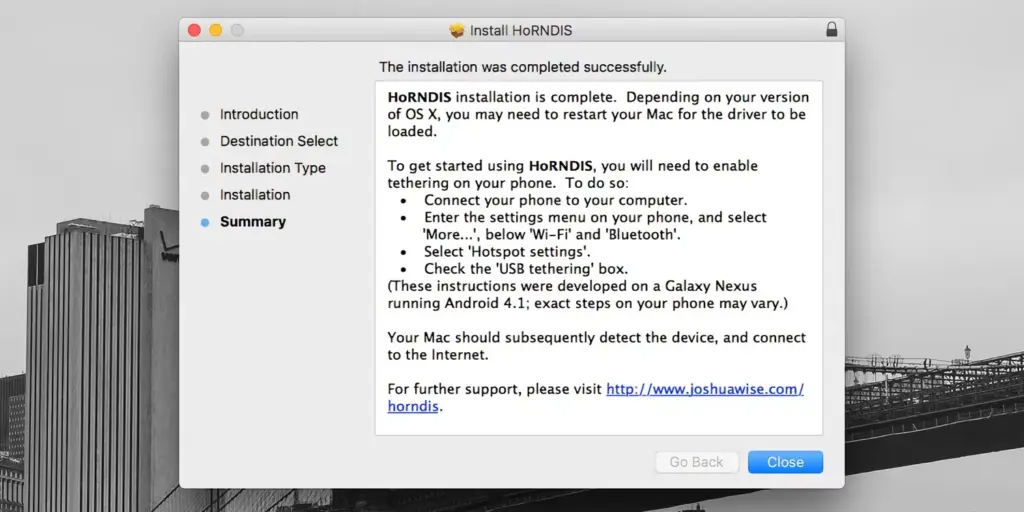
    1. Download and install the most recent version of HoRNDIS on your Mac (the PKG file).
    2. It’s a good idea to reboot your Mac at this stage, although this may not be necessary depending on what version you’re using.
    3. Now run through the steps we outlined above. Connect your phone via USB, tap the notification labeled Charging this device via USB, and set Use USB for to USB tethering.
    MacOS tethering horndis

    You should now be able to connect to the internet. Go to System Preferences > Network, where you should see your phone listed with the green dot alongside it. This confirms that the connection is active.

    To uninstall HoRNDIS, check the /System/Library/Extensions/ and /Library/Extensions/ folders and delete HoRNDIS.kext. Then reboot your Mac.

    tethering connect macos

    Using HoRNDIS is easy enough if your Mac is compatible. However, we’d only choose to use it if wireless tethering is not an option. You can troubleshoot your Android mobile hotspot to see if that helps.

    USB Tethering on macOS Is Simple

    If your Android phone doesn’t support USB tethering with a Mac natively, you’ll need to install a driver, but it’s simple to accomplish and functions as expected.

    Sharing a data connection with a desktop or laptop from your phone is practical. However, you may share the connection from your Mac to other devices as well, so it doesn’t stop there.

  • Take screenshots on Android when the app doesn’t allow it

    Take screenshots on Android when the app doesn’t allow it

    The freedom to do whatever you want is one of the key reasons why many tech enthusiasts prefer Android to other mobile operating systems. You may install anything and alter almost every aspect of your phone using Android.

    Despite all of this, there are still some things you are unable to perform. For instance, some apps decide to prohibit you from taking screenshots of the app for a variety of reasons. Then again, you might still want to grab a screenshot for a variety of reasons. Continue reading to see how to get around this limitation.

    Why these restriction?

    Despite how annoying it is, developers don’t prevent screenshots without a good cause. There is always some justification, whether it be for security or privacy.

    For security concerns, the majority of banking and payment apps prohibit screenshots. For privacy reasons, Chrome disables screenshots in Incognito tabs and windows. Another example would be the non-screenshottable self-destructing images on Telegram.

    You are still permitted to capture screenshots wherever you wish, despite the developers’ decision to limit them. Simply get your hands a little bit messy.

    There are various methods for taking screenshots in apps that don’t let you. Some methods work in most apps though not all. Here we take a look at two of these methods: One easy method which works in some cases, and an advanced method that should work every time.

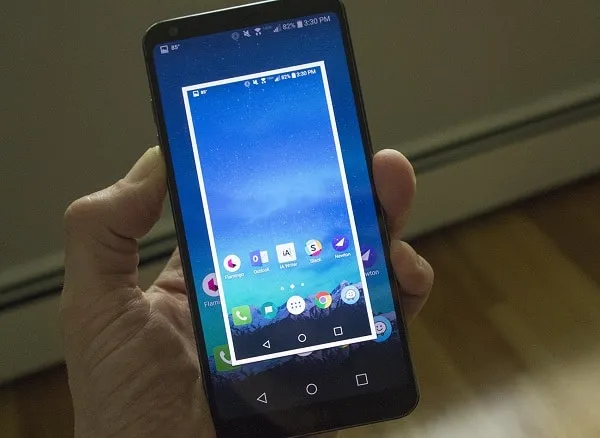
    1. Google assistant can helps you

    Some Android apps that prevent screenshots only prevent your phone’s screenshot button combination from working. This indicates that if you take a screenshot using a technique other than tapping the button combination, you can get around the restriction.

    Google Assistant is a built-in app in most Android phones that lets you capture screenshots without using the button combination.

    1. Open the app that you want to screenshot.
    2. Activate Google Assistant. You can do this by saying Hey Google! or holding the home key depending on your settings.
    3. Say or type Take a screenshot. Google Assistant will now capture a screenshot.

    This approach, despite being straightforward, has little chance of working because it has been anticipated by the majority of apps that take screenshot blocking seriously. For instance, if you ask Google Assistant to take a screenshot of a Chrome Incognito tab, all that will appear on the screen is a black screen.

    Continue reading the following section where we’ll explain a method that allows you to take a screenshot of any app on your phone if this one didn’t work for you.

    2. scrcpy

    This is the ultimate method as it can bypass virtually any sort of screenshot restriction in Android apps. scrcpy is a lightweight screen mirroring program that lets you view and control your Android phone’s display on your PC. Once you mirror your Android phone’s screen on your computer, you can simply use print screen or Snipping Tool to take screenshots.

    scrcpy is available on Windows, macOS, and Linux. You can install scrcpy with Homebrew on macOS. Check the download link below for more details on installing scrcpy on Mac and Linux.

    As for this article, we’re going to install scrcpy on Windows, which you can do using Scoop. Read our article on how to install Scoop to get started.

    Download: scrcpy (Free)

    Once you have Scoop installed, it’s time to install scrcpy.

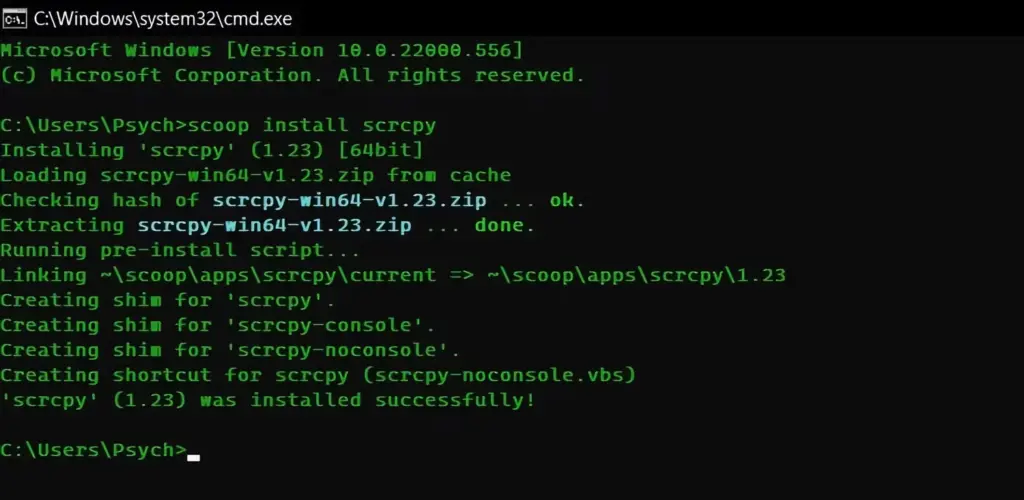
    1. Open Command Prompt. You can do this by searching for cmd in the Start menu.
    2. Once inside Command Prompt, run the following command: scoop install scrcpy
    3. This command will call on Scoop to install scrcpy. This can take a while depending on how fast your connection is.

    scrcpy screenshots

    Now that you have scrcpy installed the next stage is preparing your phone. For scrcpy to access your phone’s screen, you need to enable USB debugging on your Android device. You need to have Developer mode enabled to do this.

    1. Go to Settings on your Android phone.
    2. Scroll down to the bottom and select Developer options.
    3. Tap the switch next to USB Debugging to change it to On.

    Now both your phone and your computer are ready. Connect your phone to your computer’s USB and let’s get to the final steps.

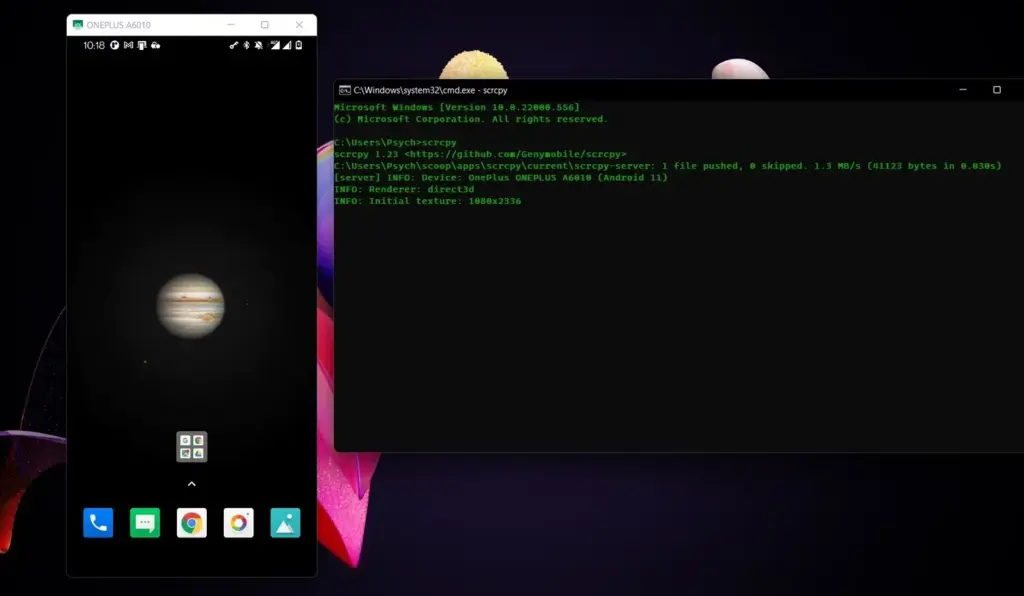
    1. Open Command Prompt.
    2. Type in the command scrcpy and press Enter.

    scrcpy android user

    Your phone’s screen will be visible in an emerging window. Through this window, you may even navigate and type on your phone using the mouse and keyboard from your computer. You can freely take screenshots using print screen and other screen capture techniques now that the screen of your phone is mirrored onto your computer.

    Anything and Everything

    Even while some apps try to prevent you from taking screenshots within the program, if you’re determined to capture your screenshots, they will ultimately fail. Now that you’ve read this post, you know how to screenshot any program, despite any limitations. After all, it’s your phone, so you should be able to use it anyway you like.

  • 7 awesome Google Pixel features to use

    Right now, it’s difficult to talk about Pixels without the topic eventually turning to the brand-new Pixel 7 and Pixel 7 Pro. And it’s understandable why: both inside and out, Google’s most recent Pixel smartphones are just incredible. They have a ton of power and exciting new tricks that just ooze out of them.

    But what’s this? To reward yourself to new and exciting phone features, you don’t need to be the owner of a Pixel 7. Because your device’s software is always being updated, there are tons of valuable jewels hiding beneath the surface, which is the beauty of the Pixel world. The majority of Pixel owners simply don’t notice them, or perhaps they do but quickly forget afterward.

    In order to give several noteworthy Pixel features the attention they merit, today we’re going to take a step back. They should function for you regardless of whether you’re holding a Pixel 7 or an older model—even, in most circumstances, if your Pixel is too old to have received the most recent Android 13 update.

    Discover some extraordinary Pixel gems by reading on, then continue the celebration by enrolling in my Pixel Academy e-course. For my favorite Android Police friends, it’s a seven-day email trip that teaches you a ton of time-saving Pixel information and is totally free.

    Smarter storage

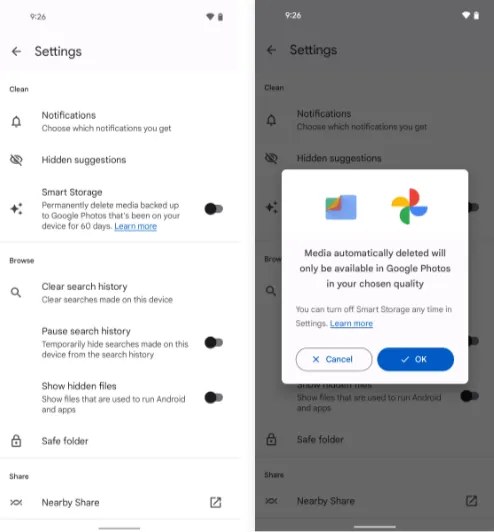
    The following is a further automation-focused intellect built into your Pixel and ready to be cuddled: The technology automatically deletes duplicates of the photos and movies you’ve already backed up to Google Photos when your phone’s local storage starts to run out of room.

    Of course, you can always do it on your own, but doing so requires (a) actually remembering to do it frequently and (b) spending the time to complete the process’s several manual phases. And while I don’t know about you, my brain is now made up of about 97% oatmeal, so everything I can automate to reduce the load on myself is a win in my book.

    Your path to effortless storage nirvana will vary depending on what Android version your personal Pixel companion is running:

    With Android 12

    If you’ve got a current Pixel with the snazzy new Android 12 software on it, open up the Files by Google app (or go download it, if it isn’t already on your phone).

    Then:

    • Tap the three-line menu icon in the app’s upper-left corner.
    • Select “Settings” in the menu that comes up.
    • Flip the switch next to “Smart Storage” into the on position and confirm that you want to activate the feature.
    pixel storage

    With Android 11 or earlier

    If your Pixel is on an older version of Android (howdy, Pixel 2 partners!), you’ll find the same option within your phone’s system settings:

    • Open up your settings and tap “Storage.”
    • Look for the line labeled “Smart Storage.” Tap it — tap it with gusto, damn it!
    • Choose whether you want your already-backed-up items to be deleted when they’re 30, 60, or 90 days old.
    • Activate the toggle at the top of the screen.

    Either way, you’ll just need to make sure you’re set to sync your photos and videos to Google Photos — by tapping your profile picture in the Google Photos app and then looking for the “Backup” line in the menu that comes up — and you’ll never have to think about your storage running low again.

    Image extracting

    Save yourself some time and let your Pixel make it simple the next time you need to grab a picture from someplace, whether it’s a website, a text message, a forum for earwig aficionados, or whatever the situation may be.

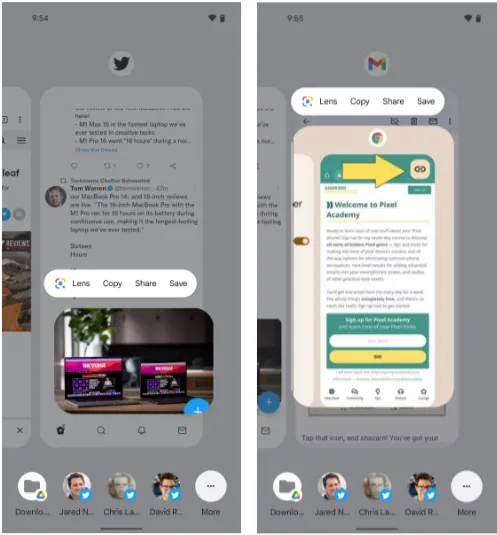
    The Overview screen on your Pixel phone includes a secret feature that lets you take pictures almost anywhere. And all it takes to access its magic is a simple swipe and a few fast taps:\

    • While you’re viewing any app with a visible image, open up the Overview interface — by swiping up about an inch from the bottom of your screen and then stopping, if you’re using the current Android gestures system, or by tapping the square-shaped icon along your screen’s lower edge, if you’re still using the old legacy button-nav setup.
    • Touch and hold your finger onto the image within the app’s preview.
    • Select the option to copy, share, or save the image — or use Google Lens to analyze it, if you really want to get wild.

    This will work in most any app where an image is present — even if it’s an app where you couldn’t typically save an image in any easy way (Gmail, Twitter, Earwiggalicious, etc).

    Let’s all say it together now: Pixel features can be incredibly beneficial once you remind yourself of their possibilities and then learn to properly take advantage of them! (Okay, so that rallying cry might need a little work.)

    image extraction

    Text extraction

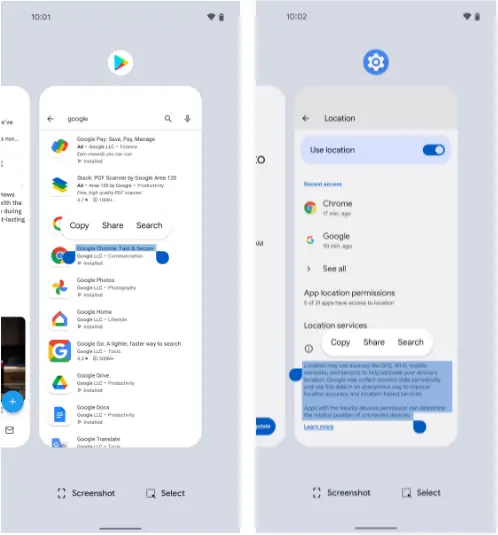
    Following up on our previous Pixel feature, your fancy Google phone can help you pull text out of practically anywhere imaginable and then copy it, share it, and search for it to your heart’s content.

    What’s especially useful here is that just like with the last item, this feature works even in places where you couldn’t typically copy text — your feed in social media apps, parts of the Play Store, or even sections of your system settings.

    And it’s right in the same place as the image extractor we just finished exploring:

    • Head back into your Pixel’s Overview area.
    • Touch and hold your finger onto any text in the current app’s preview — or, if you’d rather (and if your Pixel is recent enough to be running Android 10 or higher), tap the “Select” text at the bottom of the screen and then highlight the specific text you want from there.
    • Choose “Copy,” “Share,” or “Search” from the menu that comes up.
    • Smirk knowingly at any iPhone users in the vicinity.
    pixel text extraction

    Simple screenshots

    One of the most frequent complaints I get from my fellow Android-loving primates is how difficult it may be to take a screenshot on a Pixel. ‘ See, back then, the system power-button menu on Pixels included a straightforward option to take a screenshot of the screen. But after that, Google, well, Googled. It changed that menu, and then, um, it changed it again a year later, and the choice vanished.

    Hold the phone, though: If you aren’t a fan of the old-fashioned physical button mechanism for capturing a screenshot, there is still another way.

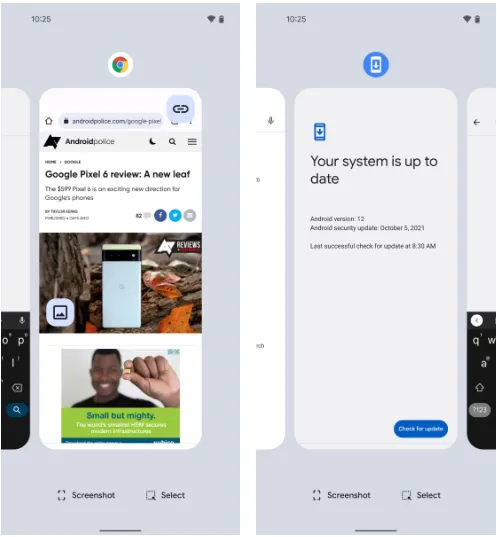
    It’s right there in plain sight on that same Overview screen we were just gawking at, in fact, and yet hardly anyone seems to notice it.

    pixel screenshot

    Yes, that’s it; it’s down there on the screen. As long as you have Android 11 or higher, your Pixel will always offer up a “Screenshot” option directly inside its Overview interface, regardless of the program or area of Android you’re looking at. And selecting that will record whatever is visible on the screen of the active process.

    The system status bar, the bottom-of-screen navigation area, and any other extraneous items won’t appear in screenshots you take in this fashion as a bonus; this is a notable and occasionally useful departure from Android’s customary physical-button screenshot-capturing method.

    Tap to wake

    Pixels have plenty of options for easy screen activation. Maybe you like using the always-on time and info system, for instance. Or maybe you’re more of a lift-to-check kind of Pixel owner.

    Whether you’re using any of those features or not, though, your Googley phone has another useful system for waking up its display in a jiff. It harkens back to an earlier Android era, and it’s one of the Pixel’s most overlooked possibilities.

    Ready? Simply press the display twice to turn on the screen of your Pixel whenever you want. Just two quick taps are all it takes to wake up your phone. The unknown!

    The “Tap to check phone” option should be present on your lock screen by default, but if it isn’t, check your system settings, go to “Display,” then “Lock screen,” and see whether the option is present. If it is, you can verify that it is on and enabled. (On Pixels running previous versions of Android, you’ll need to touch “Advanced” before you can access that option, which is labeled “Double-tap to check phone.”)

    Automation

    Although there are many chances for advanced automation on Android, your Pixel comes with its own native rules system that can significantly increase the intelligence of your phone with hardly any work.

    It’s called, rather fittingly, Rules — and with about 30 seconds of setup, it can allow your phone to change its ringing and notification behavior based on where you are or what Wi-Fi network you’re connected to at any given moment.

    Here’s how to get it up and running:

    • Head into your Pixel’s system settings (by swiping down twice from the top of the screen and then tapping the gear-shaped icon in the lower-right corner of the panel that pops up).
    • Tap “System” followed by “Rules.”
    • Make sure the toggle at the top of the screen that says “Always allow location for Rules” is in the on position.
    • Look for a line that prompts you to allow the feature to run in the background. If you see that, tap it and then tap “Allow” on the confirmation that appears.
    • Pause to take a sip of the nearest fizzy beverage.
    • Tap “Add rule” and then consider your options.

    Then what? That’s really up to you. For a few ideas, you could instruct your Pixel to vibrate for incoming alerts when you’re at work, make it to go into Do Not Disturb mode whenever you’re at the movies, or configure it to ring whenever you’re connected to your home network.

    Smart screens

    The last item in our list of overlooked Pixel characteristics is a two-parter that your eyes will like.

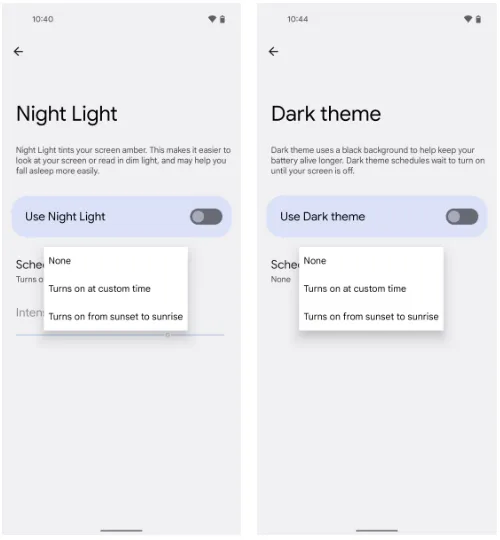
    The screen-tinting Night Light option can be automatically activated on your Pixel based on the sunrise and sunset times in your current location or a schedule you create. In this manner, your phone’s screen will adopt a softer, less harsh type of coloring that will be easier on your eyes when night falls and the lights get faint. And as soon as morning comes around, it will switch back to the regular daytime mode.

    Return to your Pixel’s system settings, select “Display,” then press “Night Light,” then “Schedule,” to configure your automated Night Light activation routine. The options to select the sunset-to-sunrise setup or to enter your own unique hours for dim-environment optimization are displayed there.

    While we’re on the subject of screen intelligence, think about if your phone’s theme changing from a lighter theme during the day to a darker one at night might be a good addition to your new Night Light intelligence. For me, the two patterns—standard screen colors and a light theme during the day and Night Light and Android’s dark mode during the night—are a lovely and extremely natural pairing.

    night light on pixel

    If you want to give that double-display whammy a whirl, back out to the main “Display” menu and look for the “Dark theme” line. Tap it, then tap “Schedule,” and you’ll see a selection that’s identical to the one you just configured for the Night Light.