Tag: root

  • Express guide on how to root an Android device

    Express guide on how to root an Android device

    Please note that rooting your Android phone can be a complex and potentially risky process. Before proceeding, it’s important to research thoroughly, understand the risks and potential consequences, and proceed at your own risk. Also, the information I provide in this article may not apply to all Android devices, as different manufacturers may have different procedures and requirements for rooting. With that in mind, let’s dive in:

    What is rooting and why would you want to do it?
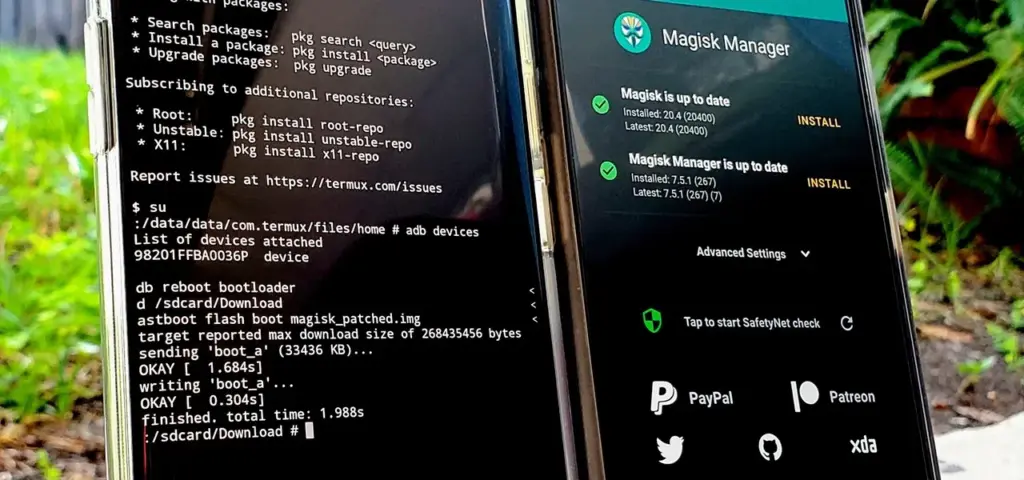
    root android with magisk

    Rooting is the process of gaining access to the root directory of an Android device. This allows you to have administrative privileges on your phone, which can give you more control over your device and the ability to customize it to your liking. For example, you can install custom ROMs, remove pre-installed apps, tweak settings that are not available in the default user interface, and much more.

    However, rooting also comes with some risks. It can void your warranty, make your phone less secure, and even brick your device if you don’t follow the instructions carefully. Therefore, it’s important to proceed with caution and do your research before attempting to root your Android phone.

    Step-by-step guide to rooting your Android phone

    Check your phone’s compatibility

    Before you start rooting, make sure your Android device is compatible with the rooting method you want to use. Different phones have different hardware and software configurations, so not all rooting methods work on all devices. To check compatibility, you can search online for your phone’s model number and the specific rooting method you want to use.

    Backup your data

    Rooting can potentially erase all the data on your phone, so it’s important to back up your data first. You can use your phone’s built-in backup feature, or use a third-party backup app to backup your data to an external device or cloud storage.

    Enable developer options
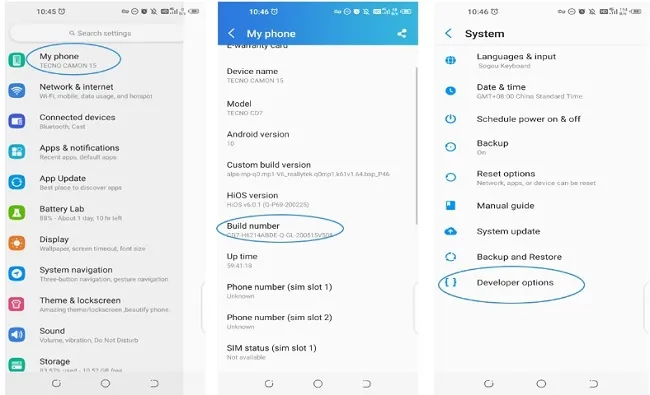
    android root developer options

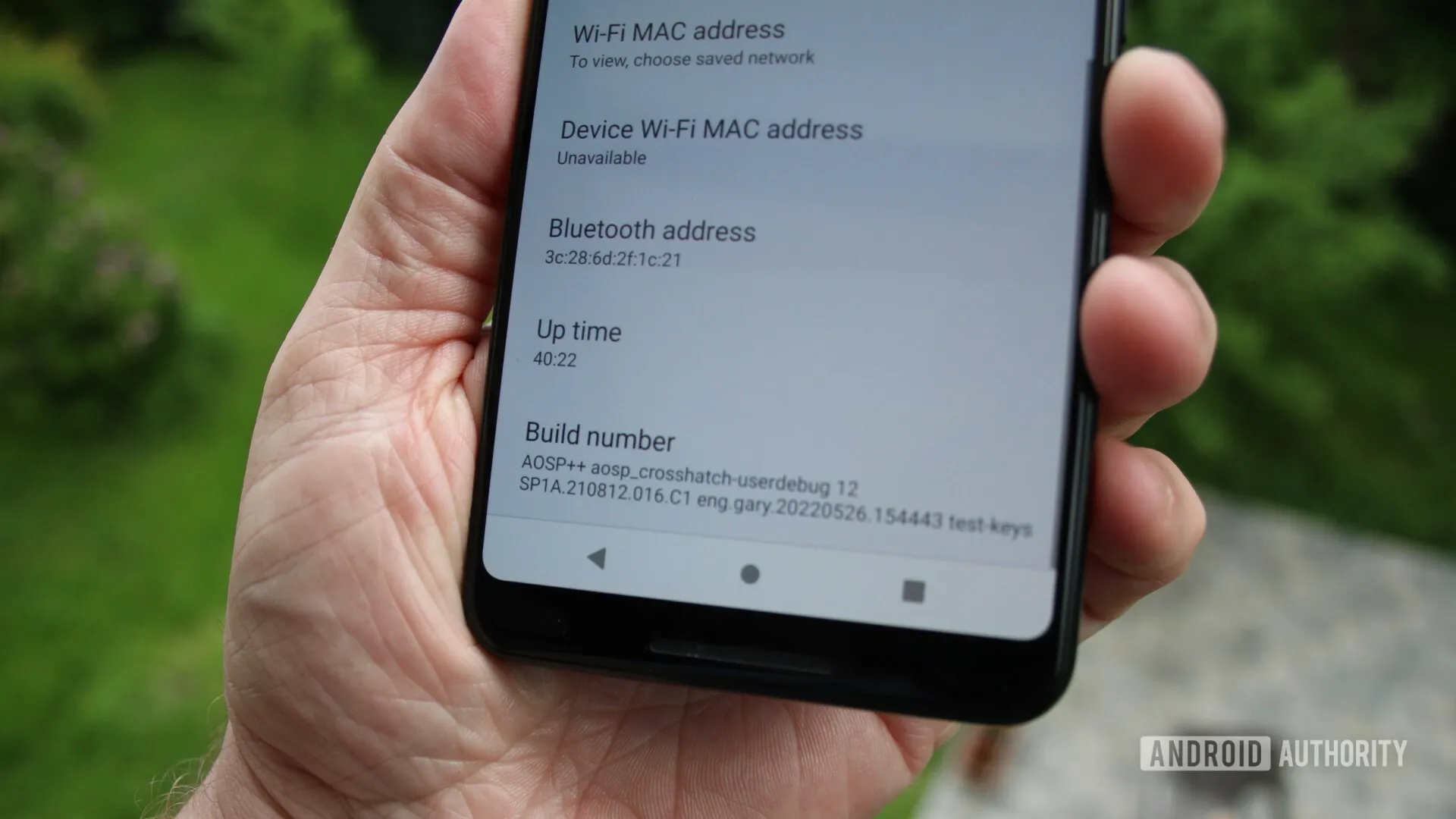
    To root your phone, you need to enable developer options on your Android device. To do this, go to “Settings”, then “About phone”, then tap “Build number” seven times. This will enable developer options on your phone.

    Enable USB debugging
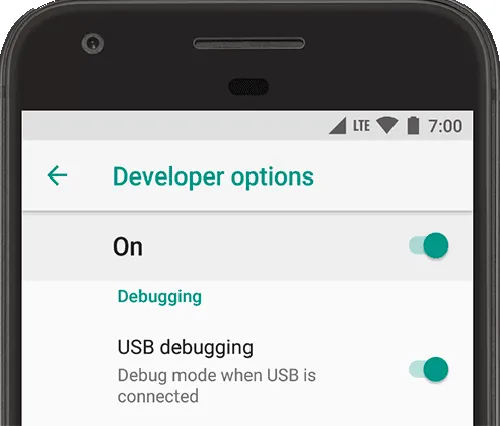
    dev options

    Once you’ve enabled developer options, you need to enable USB debugging on your Android device. To do this, go to “Settings”, then “Developer options”, then toggle on “USB debugging”.

    Download and install the rooting software

    There are many rooting software options available online, such as KingRoot, Magisk, and SuperSU. Choose the one that’s compatible with your phone and download it from a trusted source. Once you’ve downloaded the software, install it on your computer.

    Connect your phone to your computer

    Connect your Android device to your computer using a USB cable. Make sure your phone is in “USB debugging” mode.

    Root your phone

    Launch the rooting software on your computer and follow the instructions carefully. The rooting process may take a few minutes, and your phone may restart several times during the process. Be patient and don’t disconnect your phone from your computer until the process is complete.

    Verify root access
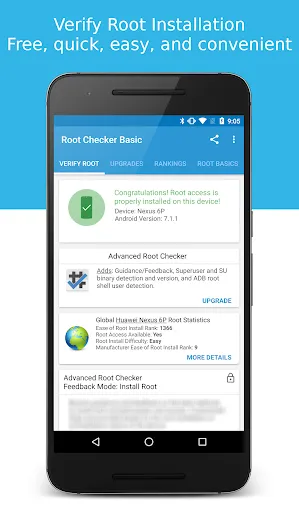
    Once the rooting process is complete, you can verify that your phone is rooted by installing a root checker app from the Google Play Store. If the app confirms that your phone is rooted, congratulations! You now have administrative privileges on your Android device.

    Conclusion

    In conclusion, rooting your Android phone in 2023 can give you more control over your device and the ability to customize it to your liking. However, it’s important to proceed with caution and do your research before attempting to root your phone. By following the step-by-step guide above, you can root your Android phone safely and enjoy the benefits of administrative privileges on your device.
  • Android 14 may come with root certificates

    Android 14 may come with root certificates

    The foundation of Public Key Infrastructure (PKI) is its root certificates, which are certified by reputable Certificate Authorities, or CAs. A pre-packaged root store seen in browsers, apps, and other programs serves as a trust seal for these certificates. A website that supports HTTPS but isn’t using a certificate signed by a CA in the root store of your browser will be marked as insecure when you visit it. Applications and browsers can frequently update their certificates, but unless you use an OTA update, your phone cannot. According to Esper, with Android 14, that might alter.

    Due to our reliance on certificates as the foundation of a chain of trust when visiting websites, there have been a few scares involving them throughout the years. Let’s Encrypt, a nonprofit CA, has signed the certificate used here on XDA. Your connection to this website is safe and secure thanks to their certificate, which was signed by the Internet Security Research Group. The same holds true for any other HTTPS-enabled website you visit.

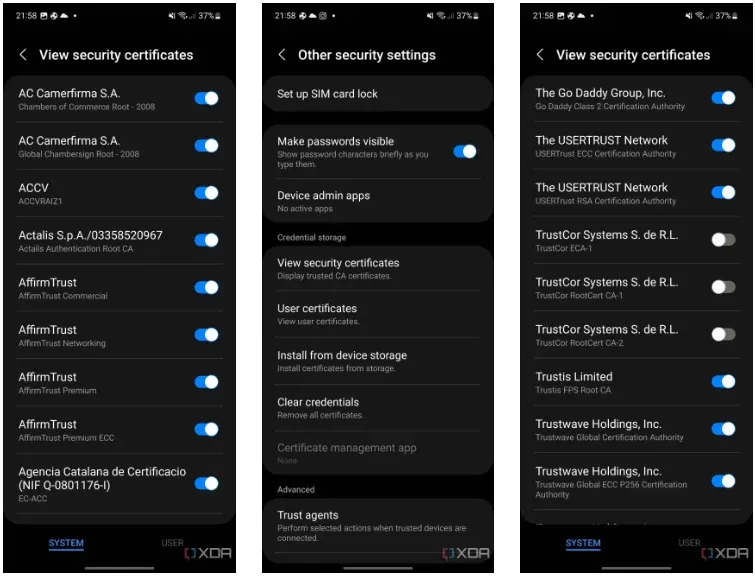
    Every operating system has its own built-in root store, and Android is no different. You can actually view this root store on your Android smartphone by navigating to security and privacy in your device’s settings. From there, it will depend on the type of device you’re using, but the screenshots below show where it is on OneUI 5.

    android 14 root certificates

    But even this root shop isn’t the be-all and end-all, you know? In an effort to fend off Man-in-the-Middle (MITM) attacks, apps can choose to utilize and trust their own root store (like Firefox does) and they can accept only particular certificates (a practice known as certificate pinning). Users can install their own certificates, but since Android 7, app developers have had to agree to let their apps utilize these certificates.

    Why having these root certificates is important

    A large portion of the internet depends on the security of the Internet Security Research Group since Let’s Encrypt certificates are cross-signed by this organization. The ISRG would have to revoke the key if it lost control of its private key (should it be stolen, for instance). Depending on how businesses react, some portions of the internet may become inaccessible to hardware lacking an updateable root certificate. Even though it’s a completely improbable nightmare scenario, Google aims to prevent situations like that from happening. Because of this, what is happening with TrustCor right now might be telling Google that it’s time to give Android updatable root certificates.

    As an example, academics have questioned TrustCor after discovering that company allegedly has close ties to a US military contractor. Although TrustCor still has access to its private key, many businesses that must choose which certificates to include in their root stores no longer trust the company. These researchers said that TrustCor, a contractor for the US military, had paid programmers to include malware that gathered data from smartphone apps. Faith is crucial in PKI, but after these claims surfaced, TrustCor lost that trust. Since then, TrustCor has been abandoned as a certificate authority by organizations like Google, Microsoft, and Mozilla. But even though the commit has already made, an OTA update will be necessary to remove TrustCor’s certificates from the Android root store.

    The upside is that you can disable TrustCor’s certificates on your device now by going to your certificates on your device, as we showed above, and then scrolling to TrustCor and disabling the three certificates that come with your device. According to developers from the GrapheneOS project, there should be “very little impact on web compatibility due to this CA barely being used by anyone other than a specific dynamic DNS provider.”

    Solution: Project Mainline

    If you’re familiar with Project Mainline, then you can already see how this can help solve the problem. Google makes use of Mainline modules which are delivered through the Google Play Services framework and the Google Play Store. Each Mainline module is delivered as either an APK file, an APEX file, or an APK-in-APEX. When a Mainline module is being updated, the user sees a “Google Play System Update” (GPSU) notification on their device. Effectively, to deliver updates to critical components, Google has bypassed the need to wait for an OEM to roll out an update, choosing to do the task itself. Bluetooth and Ultra-wideband are two essential Mainline modules handled by Google.

    Conscrypt, a Mainline module that provides Android’s TLS implementation, will allow updatable root certificates in a future release, according to changes on the AOSP Gerrit (found by Esper). In the event that a situation similar to TrustCor (or worse) arises in the future, this would mean that certificates may be removed (or even added) via a Google Play System Update through Project Mainline, ensuring a considerably speedier process. It’s unclear when this will launch, but Android 14 is probably going to get it. Technically, Google could launch it with Android 13 QPR2, but it would only help Google Pixel users until Android 14 is released to the rest of the world next year. This is due to the fact that other OEMs usually do not release QPR updates.

    The entire reason for this to exist would be so that Google can maintain control over another crucial aspect of device security without needing to rely on OEMs pushing updates instead. An OTA is currently required to update certificates, but in an emergency situation, every day where users don’t have an update could matter. Utilizing Project Mainline to ensure that users can get crucial certificate updates in time if they’re ever needed is certainly a welcome change.

  • Rooting – custom ROMs –  Android language

    Rooting – custom ROMs – Android language

    Every profession or pastime creates its own own particular jargon for explaining complex concepts in an understandable manner, and the Android world is no exception.

    This article is for you if you’ve googled a problem with your Android smartphone or tablet and came across terms like “rooting,” “flashing a custom ROM,” “unlocking the SIM,” or anything similar that you didn’t understand.

    This article is a reference for the novice who wants to learn about all the terminology behind our Android nerdiness because Android experts presumably already know what these phrases represent.

    custom rom

    What Is Rooting?

    Getting access to the system files on your Android device is what it means to root your phone. No Android device comes pre-rooted by default. Therefore, it is probably not rooted if you recently purchased an Android device and did nothing to it. 

    Manufacturers take this action because allowing everyone root access would cause several issues. You can access files on your device that, if deleted or altered improperly, could damage it if you have root access. 

    But many people still decide to root their devices because it enables them to make a lot of pretty fascinating adjustments if they know what they’re doing. It should be noted that rooting an Android device would void the warranty. 

    Youtube video

    How you root your device is different for every single model. For some devices, this can prove to be a difficult process involving circumventing the manufacturer’s safety precautions. For others, it can be as simple as plugging your phone into your computer and pressing a button. You can always check out the XDA forums for instructions for your specific device. 

    You won’t instantly notice any significant changes after your device has been rooted. The excitement is in what you can do with a rooted device. Then, you may utilize root-required apps, flash custom ROMs, modify specific features of your phone, and more—which we’ll go over in more detail later. 

    For instance, when unrooted, you can remove some bloatware, but rooting your device and using Titanium Backup or a root uninstaller are required to completely remove it. 

    What Is Unlocking?

    Unlocking is a confusing term because there are different things you could unlock. 

    Unlocking the Network/SIM

    A device that has been network/SIM locked was typically purchased through a carrier or for a certain carrier at a discounted price. That phone is then locked by the carrier so that you can only use it with them. 

    However, if you pay off the phone and decide to switch carriers, the carrier is obligated by law to provide you with the unlock code (at least in the US and the EU). To obtain the code, simply get in touch with your current carrier. 

    Sometimes, unlocking your device gets more complicated than that, so we have a guide to SIM unlocking. Other times, you buy your phone unsubsidized and unlocked, meaning you can already use it with any carrier. 

    Unlocking the Bootloader

    The bootloader is a piece of software that runs every time you switch on your Android phone, and it is usually locked by the manufacturers. With a locked bootloader, you can’t root your device. Instructions for unlocking your bootloader are found within the instructions for rooting your device.

    What Are Custom ROMs?

    Read-Only Memory is referred to as ROM, however the term is somewhat misleading today because it has nothing to do with it. A ROM is essentially the software that runs on your device, at least in the Android universe. 

    Therefore, a Xiaomi smartphone looks and operates differently than a Samsung smartphone when you pick it up. This is so that Xiaomi and Samsung could each create their own ROMs by altering the original Android code. Even though they both run Android, Xiaomi’s ROM and Samsung’s ROM are distinct from one another. 

    A custom ROM, then, is a ROM that was built not by the manufacturer but by someone else. Sometimes it’s just a lone programmer with some time on their hands and a passion for making ROMs—other times, it’s a bigger group like LineageOS that has a team and intentionally makes a certain type of ROM. 

    Once you’re rooted, you can flash a custom ROM. Flash, in this case, basically means to load or install. Flashing a custom ROM means you are installing a new ROM on your device and completely wiping the old ROM. 

    When looking for custom ROMs for your device, there are some names you’re likely to run into:

    • Pixel Experience: As the name suggests, features a ROM similar to that of Google’s Pixel phones. This ROM is currently one of the most commonly used custom ROMs out there, and for good reasons. 
    • LineageOS: LineageOS, formerly known as CyanogenMod, is one of the most popular custom ROMs you’ll come across. It offers a great feature set and has even featured as the stock ROM for some manufacturers in the past. 
    • AOSP: Android Open Source Project is the version of Android that Google gives to the world, often called stock or stock Android. You might see people say that their ROMs are “AOSP-based” or “based on stock Android,” which just means they took the AOSP code and altered it to their liking. 
    • AOSIP: Android Open Source Illusion Project integrates features from various popular custom ROMs into AOSP ROMs. 

    However, don’t be hesitant to try ROMs with different names from less well-known people. There are other reliable ones besides these. They’re simply the most well-known in general.

    Other Android Terms

    Custom recovery

    If you enjoy playing around with your Android device, the recovery process could take a while. It’s where you can perform the necessary heavy lifting, create backups, and flash ROMs. 

    You need a custom recovery because the stock recovery on your device is unable to perform any of those tasks. For installing custom ROMs, TWRP is the preferred custom recovery. Team Win Recovery Project is referred to as TWRP. 

    Nandroid backup

    There are, of course, ways to backup your Android device without rooting it, but a Nandroid backup is a complete backup. It essentially makes a full copy of everything on your device and saves it. That way, if you screw up anything (since you have root access and that is possible), you can always just flash your Nandroid backup and return to where you were. 

    The name is just NAND (a type of flash memory) and Android mashed together. 

    Kernel

    The kernel is like the engine of your operating system—you don’t really see it, but it’s in the background doing all the hard work. 

    If you want, you can flash a custom kernel. Sometimes these kernels are optimized for performance or battery life—sometimes, they’re just necessary to get some feature to work right. Either way, you can be okay just sticking with your stock kernel unless you really want to change it. 

    Brick

    Bricking your phone is essentially breaking it. If your phone isn’t working anymore, you’ve bricked it. This is generally not a phrase you’re going to be happy to run into. 

    • A soft brick usually means it’s fixable. Maybe you’re stuck in a bootloop (your phone just continually reboots), or you boot it up, but it only displays half the screen properly. That’s generally something you can get out of quite easily. 
    • A hard brick is when the device is toast. You messed with something at a system level that can’t be fixed, and your device is out of commission. Sorry. This is a rare thing to happen, but it can happen—and you’ll see warnings everywhere that no one but yourself is responsible for your device being bricked. 

    If you end up bricking your Android phone, try these steps to try and unbrick it

  • Pass SafetyNet on Android after rooting or installing a custom ROM

    Pass SafetyNet on Android after rooting or installing a custom ROM

    Google and the community have been playing a cat and mouse game for a long time over evading SafetyNet. The community enjoys tinkering with the software on their phones, which usually starts with bootloader unlocking. However, this trips SafetyNet, causing a number of popular apps to cease working on the phone, some of which are justifiably so because they rely on a tamper-proof environment for execution.

    SafetyNet is aimed at app creators, but they can choose whether or not to use it. However, as an ordinary end user, you have two options: give up on Android’s modding potential and pass the SafetyNet compatibility tests, or risk being blacklisted by software publishers. This guide should let you pass SafetyNet even if you’ve rooted or installed a custom ROM on your smartphone.

    safetynet

    What is SafetyNet?

    Android is built to run without granting the end user any privileged access to the underlying subsystems. If a person with administrative (a.k.a. “superuser”) capabilities on an Android device has similar access to administrative (a.k.a. “root”) permissions on a Linux machine, they can virtually change or replace Android system applications and settings. From the standpoint of an app developer, this means that the device on which their program is operating may be compromised. Some form of abuse detection mechanism should be in place to check the device’s software and hardware surroundings and reassure app developers that everything is fine. This is when SafetyNet enters the picture.

    safetynet

    While modding is an important component of the Android ecosystem, security standards sometimes necessitate a high level of rigor in the operating system. The Google Play Services include a set of abuse-detection APIs called SafetyNet. Third-party applications can use the SafetyNet Attestation API to see if the device’s software environment has been tampered with in any way. The API compares the current state of the target Android device and verifies the integrity of the environment against a known’safe’ value on the server-side by checking for things like bootloader unlock status, signs of superuser binaries, and more.

    SafetyNet tripping and its consequences

    SafetyNet tripping is caused by a series of events that differ from the factory setup of an Android device. Even if you simply unlock your phone’s bootloader and leave the factory-installed OS alone, the SafetyNet check may fail due to a “CTS profile mismatch” (where CTS stands for the Compatibility Test Suite) issue. You’ll almost certainly wind up with a SafetyNet failed status if you root your Android device or replace the base firmware with a custom ROM. As a result, you won’t be able to utilize apps or games on the device that use SafetyNet validation. This is particularly true for banking and other financial apps like Google Pay, which rely solely on the SafetyNet Attestation result and will not accept anything else.

    When it comes to games, developers use SafetyNet for assessing the device’s integrity so that they can prevent rogue players from cheating or modifying in-game variables for unfair advantages. Last but not least, you can also come across examples where publishers are simply misusing Google’s tamper detection mechanism for no practical reason, which is why power users want to evade the detection routines.

    In a nutshell, the modding community will have to choose between having access to root/custom ROMs/kernels/etc. or their preferred apps and games. This might sound like the end of aftermarket development on Android, but there is hope.

    Pass SafetyNet attestation

    There is no true universal solution to avoid the inspections because Google modifies the backbone of the SafetyNet Attestation API on a regular basis. Because the limits are based on a variety of criteria, you may be able to get around SafetyNet in a modified environment by faking the most important characteristics on legacy devices, but the same approach may not work on later phones. Because of the ever-changing nature of the anti-abuse API, the aftermarket development community has come up with a number of approaches for passing the SafetyNet tests. However, keep in mind that a general implementation isn’t viable. This is a cat-and-mouse game; one day you’ll be ahead, the next day you won’t.

    Google is depending on the security of the phone’s Trusted Execution Environment (TEE) or dedicated hardware security module (HSM) for tamper detection as it moves toward a hardware attestation method. Finding a serious security flaw in a device’s isolated secure environment and exploiting it to spoof SafetyNet’s client-side response isn’t a viable strategy, but there are alternative options.

    1. Restoring the original firmware and relocking the bootloader

    This is perhaps the simplest way to pass SafetyNet, but it has its own merits and demerits. All you need to do is find the correct firmware for your Android device, flash it, and finally re-lock the bootloader. Of course, you’ll lose most of the bells and whistles of Android modding, but it actually makes sense when you need to use your device in a managed environment with strict security policies or you’re trying to sell your device.

    2. Using Magisk

    If you own a legacy Android smartphone, Magisk is your best bet to pass SafetyNet without much hassle. Even though the current Canary channel of Magisk doesn’t feature MagiskHide anymore, you can still stick to last stable release (v23.0) and utilize MagiskHide to hide root status from apps. Furthermore, you can install Magisk modules like MagiskHide Props Config to change the device fingerprint in order to pass SafetyNet.

    Talking about the Canary channel, the new “DenyList” feature of  Magisk is an interesting development, which allows users to assign a list of processes where Magisk denies further modifications and reverts all changes it had done. With an appropriate configuration, it can also be used to pass SafetyNet in some scenarios.

    Magisk XDA Forums

    Lastly, there’s Shamiko — a work-in-progress module written on top of Zygisk (Magisk in the zygote process). It reads the list of apps to hide from Magisk’s denylist to hide Magisk root, Zygisk itself, and Zygisk modules to circumvent SafetyNet. However, Shamiko can only work after disabling the DenyList feature.

    3. Using Universal SafetyNet Fix

    Bypassing Google’s hardware-backed SafetyNet attestation technique is a tad bit difficult, but it’s not entirely impossible. The Universal SafetyNet Fix project by XDA Senior Member kdrag0n cleverly accomplishes this feat by forcing the basic attestation over the hardware-backed checks.

    Notably, Universal SafetyNet Fix has a dependency on Magisk when it comes to passing the basic attestation part. The developer offers two different builds of the fix: The Zygisk variant for Magisk Canary and the Riru variant for stable Magisk.

    Universal SafetyNet Fix: GitHub Repo |||  XDA Discussion Thread

    4. ih8sn

    In case you don’t want to rely on Magisk to pass SafetyNet attestation, you can try out an experimental add-on named ih8sn. After applying, it can spoof a plethora of prop values in order to circumvent SafetyNet checks like the MagiskHide Props Config module, but there’s no dependency on Magisk in the first place.

    The ih8sn tool is maintained by several LineageOS developers, but the LineageOS project doesn’t officially endorse it yet. To know more, take a look at its codebase by following the link below.

    ih8sn GitHub Repo


    Verification

    After applying one of the aforementioned SafetyNet passing methods, you may wish to verify the result. The Magisk app comes with an option to initiate the SafetyNet checking routine right from its main menu, which is really handy. You can also opt for an open source app named YASNAC (short for Yet Another SafetyNet Attestation Checker) to check the status and (optionally) examine the JSON response.

    That’s how you can use your phone to pass SafetyNet. With a little effort and care, you can restore Android’s true modding capability without having to worry about SafetyNet Attestation failures. We’ll be adding more SafetyNet passing ways to this guide in the future, so check back!

  • Download Magisk v23.0 And Magisk Manager

    Download Magisk v23.0 And Magisk Manager

    nexus2cee Magisk Generic Hero

    Magisk v23.0

    Magisk is a fantastic tool for advanced Android users. It is a one-of-a-kind systemless interface designed by XDA Senior Recognized Developer topjohnwu that can be used for much more than simply rooting your devices. The interface allows users to tinker with system settings without actually changing the system files.

    Another reason for Magisk’s popularity is the possibility of circumventing Google’s SafetyNet, which prevents certain apps from running on rooted devices. The most recent Magisk update is Magisk version 23.0, which includes several bug fixes for root access.

    The developer announced the new update on Twitter today, saying the focus is primarily on stability improvements. In case you’re using the Magisk app solely for SafetyNet attestation checking and you’ve found the functionality broken during the last few weeks, then you’ll be happy to know that this release addresses the issue as well.

    Full changelog for Magisk v23.0:

    • [App] Update snet extension. This fixes SafetyNet API errors.
    • [App] Fix a bug in the stub app that causes APK installation to fail
    • [App] Hide annoying errors in logs when hidden as stub
    • [App] Fix issues when patching ODIN tar files when the app is hidden
    • [General] Remove all pre Android 5.0 support
    • [General] Update BusyBox to use proper libc
    • [General] Fix C++ undefined behaviors
    • [General] Several sepolicy.rule copy/installation fixes
    • [MagiskPolicy] Remove unnecessary sepolicy rules
    • [MagiskHide] Update package and process name validation logic
    • [MagiskHide] Some changes that prevents zygote deadlock

    One important thing to note that with this release, Magisk has finally stopped supporting Android versions older than Android 5.0 Lollipop. If you still have a device running Android KitKat or Jelly Bean and want to root it using Magisk, you have to stick with the legacy builds.

  • Download Magisk v22.0

    Download Magisk v22.0

    Magisk doesn’t need to be introduced to the world of Android custom ROMs, so we’ll spare you some time. Topjohnwu has announced today that Magisk is being updated to version 22.0. The need and desire for root-level access to Android devices has helped Magisk to stay on top of the list for a number of years as one of the most dynamic and creative root solutions. The new update only goes to show that the above is real.

    In the past few weeks, we have seen a couple of updates from topjohnwu in various forms, ranging from the merger of the Magisk Manager app with the Magisk installer ZIP to news regarding compatibility with Samsung’s latest flagship Galaxy S21 series. Earlier today, all the updates, technical chats, and discussions finally took the shape of a major update via stable channel. Version 22.0 formally marks the end of a separate Magisk Manager companion app, as the Magisk APK — simply referred to as the Magisk app from now on — can act as both a typical Android installation package and as a flashable ZIP file recognized by TWRP.

    v22.0 changelog:

    • [General] Magisk and Magisk Manager is now merged into the same package!
    • [App] The term “Magisk Manager” is no longer used elsewhere. We refer it as the Magisk app.
    • [App] Support hiding the Magisk app with advanced technique (stub APK loading) on Android 5.0+ (it used to be 9.0+)
    • [App] Disallow re-packaging the app on devices lower than Android 5.0
    • [App] Detect and warn about multiple invalid states and provide instructions on how to resolve it
    • [MagiskHide] Fix a bug when stopping MagiskHide does not take effect
    • [MagiskBoot] Fix bug when unpacking lz4_lg compressed boot images
    • [MagiskInit] Support Galaxy S21 series
    • [MagiskSU] Fix incorrect APEX paths that caused libsqlite.so fail to load
  • TWRP on Samsung Galaxy M31 (SM-M315F) – Android 10

    TWRP on Samsung Galaxy M31 (SM-M315F) – Android 10

    After the Magisk method is published, the root process is simple to compare with conventional methods. Yet it’s got its limits. We can’t use custom ROMs unless we have some custom recovery enabled. So, even after users have access to root, they prefer the TWRP method when it is released. Samsung Galaxy M31 comes with upper mid-range specs and can handle all of the apps. But if you need root access, you can use the following method to root your Samsung Galaxy M31 Android 10. Since we use custom recovery in this phase, you can install any necessary custom ROMs on your mobile device.

    Compare with standard other root methods, this method has additional steps. So, You should care a little bit when you do the process. Since it doesn’t use a custom recovery, You can’t install custom ROMs. But, It is enough to run most of the root apps.

    After root, you lose the official alerts. You need to update your smartphone manually. So, you should know why you need to do this before continuing with the process. If you are a frequent user, you can try some alternatives that do not require root for your function. If you are a frequent user and developer of root apps, you can follow the guide below to get root on your smartphone.

    Root and Install TWRP on Samsung Galaxy M31 Android 10 One UI 2.0, 2.5 (SM-M315F)

    Thanks to the developer- afaneh92 for the Root method and topjohnwu – this genius is the one who discovered and maintained Magisk. Samsung Galaxy M31 variants come with a flexible bootloader in some regions. It means that the smartphone can be easily rooted. The device can also accept installing TWRP recovery or any other custom recovery file/app. Don’t try with Snapdragon US Variants like Verizon devices. They come with a locked Bootloader.

    But In the below method, we are going to Root this device by using Magisk. You can install Official TWRP using the official app when it is released. TWRP recovery is a custom recovery file that must be installed on your devices because you can root them successfully. This article explained the easiest method to follow and install Magisk on Samsung Galaxy M31. However, the tool required for rooting this device is the Magisk App.

    Once available, you can flash TWRP. With the support of TWRP Recovery, you can easily flash Custom ROMs to your Samsung Galaxy M31. Before sharing a tutorial, you may want to know that you can easily install any root apps with Magisk on your computer. Does that sound complicated? Relax; everything will be briefly explained in the bullets.

    Things to check out for;

    • Check your device model number.
    • You should Backup your current files and data- Full Data Loss Process (save them on external storage).
    • Install Latest Magisk Manager.
    • Make sure your device battery is above 50%
    • You cannot use Samsung Pay, Secured folder, and some official apps from Samsung.
    • You can’t update your firmware; to get new firmware, you must follow the below steps with the latest firmware.
    • Read the full tutorial before the process.

    Unlock Bootloader

    Enable USB Debugging Mode and OEM Unlock on your mobile. To do this, go to settings >>> about >>> Tap on the “Build Number” 7-10 times consistently to enable “Developer Options,” then go to the “Developer Options” and enable USB Debugging Mode and OEM Unlock. There is no complicated process in the Samsung Galaxy M31.

    Switch off your device. Enter into Download Mode-> Volume Down+ Volume Up and Connect your mobile with PC using USB Cable. When the Download mode warning screen Appears, Press the Volume Up button to unlock Bootloader.

    The above process will wipe your user data. After Setup your device, Please recheck the OEM Unlock in the settings. Sometimes It Will Lock Again.

    Download Files

    Prepare patched boot image file

    Galaxy M31

    Download 7Zip-ZSLZ4, and Install both on your PC. Extract the files in downloaded firmware using 7Zip-ZS. You will get four files. Click on the AP File and Extract again. You will get some data along with the boot.img.lz4.

    Copy the boot.img.lz4 and Vbmeta.img.lz4 to LZ4 Installed folder. Convert the lz4 file to a .img file by dragging the .img file to the lz4 application file. You have to drag the file to that application. The script will automatically convert the file to .img format. After the conversion, Copy the boot — img file to your mobile. Leave Vbmeta in the PC folder.

    Download Magisk Manager (Download Latest version) or Magisk canary and Install it on your mobile. Open Installed Magisk and Select Install in Magisk; it will ask For a zip file and Patch Boot Image File. Select the Boot Image file.

    Magisk Boot Image File

    Navigate to your copied boot image file and patch the file.

    Wait for the process to complete, in the end, you will get a magisk patched .img file. Rename this file into the boot.img.

    Now copy boot. img and Vbmeta. img files to your PC. We already leave the Vbmeta. img file on PC. Drag those files into the downloaded TWRP.tar file. Now you can see there are three files within the TWRP.tar file. Don’t extract the data. The three files contain a single .tar file that should be flashed using ODIN.

    Flash TWRP.tar with ODIN

    samsung odin
    • Connect your USB cable with your PC. Switch off your device. Then, enter into Download mode. To do this, press and hold Volume Down+ Volume Up Buttons and Connect Your Mobile To PC via USB Cable; after Samsung Logo Appear, Release all keys.
    • Press the Volume Up button to continue when you see the warning message.
    • Now, connect the Samsung Galaxy M31 mobile to the computer via USB cable.
    • Launch the Odin app on your computer. If the device is detected by this app (Odin), it will show you a message that reads – added!!!
    • However, if the device is not correctly connected to the PC, you won’t see this message. So, you have to check the USB cable if it is reasonable and reconnect the device.
    • After connecting the Samsung device, click on the PDA/PA/AP button to browse/search and get the TWRP from where you saved it on your PC. Also, navigate to “options” and Un-tick the Auto-Reboot.
    odin untick re-partition
    • Click on “Start”
    • Once the file is loaded into the device, reboot your device.

    Now you have just Installed the TWRP on your Samsung Galaxy M31. We installed TWRP. Don’t turn on your mobile.

    Immediately, move to Magisk Installation steps.

    Press the Volume Down+Power button to exit Download mode and quickly press Volume Up+ Volume Down+ Power Button to boot into Recovery mode.

    Install Magisk on your Samsung Galaxy M31 with TWRP

    • Now you are in TWRP Recovery Mode.
    • Select Wipe->Advance Wipe->Select Cache Data. You can also take complete backup using TWRP. It will help you when something goes wrong.
    • Return to Home of TWRP select Install.
    • Select Multi disabler.zip.
    • Return to Home of TWRP select Install.
    • Select Magisk.zip.
    • You should Install them One by One. Don’t add more zips feature in TWRP. After the Installation, Reboot Your Mobile.
    twrp install magisk
    • You can also install Magisk.apk in your Mobile Applications. Multi disabler avoids the Encryption issue after rooting. You can check your root status using Root Checker.
    • If you didn’t find Magisk in App Drawer, you should Install the Magisk app again.
  • How to edit build.prop file without root

    How to edit build.prop file without root

    Android is one of the most preferred operating systems out there, simply because of the customizability it offers. 

    Almost every element of one’s computer can be modified by the consumer, and even tweaked in some ways to make sure their devices work better. All of this depends primarily on the config file of your computer, that is, the file build.prop. This file contains all of your device’s configuration data as well as the Android framework built on it. Many power users alter this file in order to further tweak their computer. We have recently done an article for your Android device on some of the coolest build.prop tweaks. Unfortunately, though, because this is a system file, the general principle is that a rooted computer is required. Ok don’t worry, because there’s still a way around that.

    So, if you’re an Android user looking to the build.prop file on their Android device but don’t have root access, read on, as we share with you our guide on how to edit build.prop without root access:

    Edit Build.prop without root access

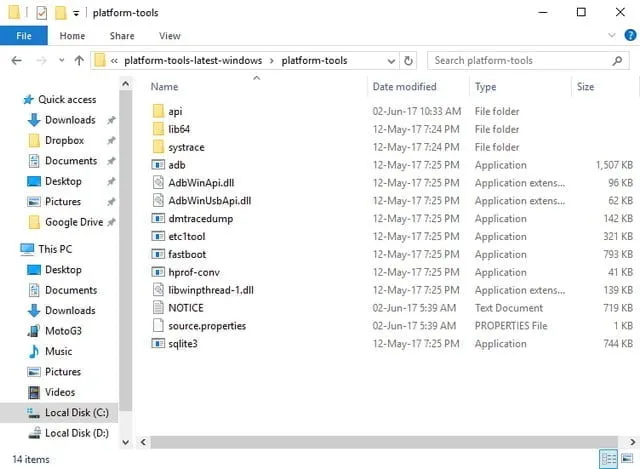
    To begin with, download and install ADB and Fastboot drivers onto your system, as shown here.

    adb files

    Install an advanced text editor like Notepad++ or Sublime Text on your system. This is will be used later on to edit the build.prop file.

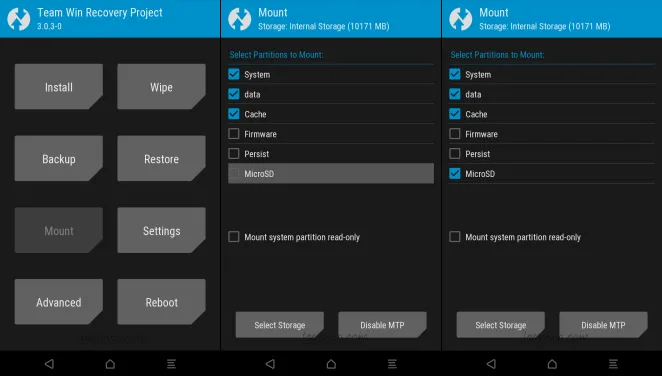
    Next up, switch off your device and head over to the recovery mode. Once there, tap on “Mount”. A list of all the partitions on your device will open up. Make sure the checkbox next to ‘System’ is checked, and the checkbox next to “Mount system partition read-only” is unchecked.

    twrp mount system

    Once you’ve mounted the /system partition, connect your device to your PC and open the ADB window. Once there, type in the following command to transfer the build.prop file onto your system:

    adb pull /system/build.prop <path to save file>

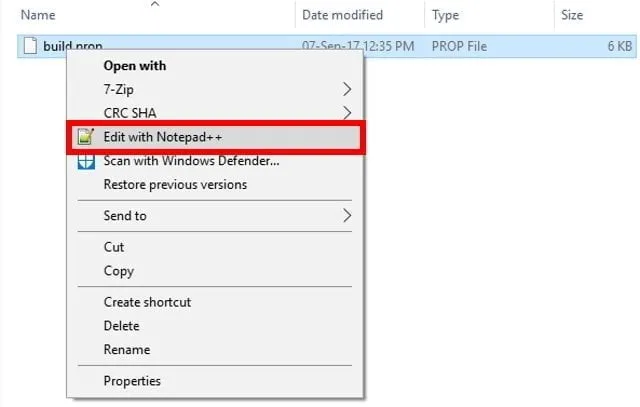
    Now that your build.prop file has been transferred to your system, you can edit it easily using the text editor you downloaded previously. To do so, simply right-click on the build.prop file and select “Edit with Notepad++” or any other text editor that you may have downloaded.

    edit with notepad

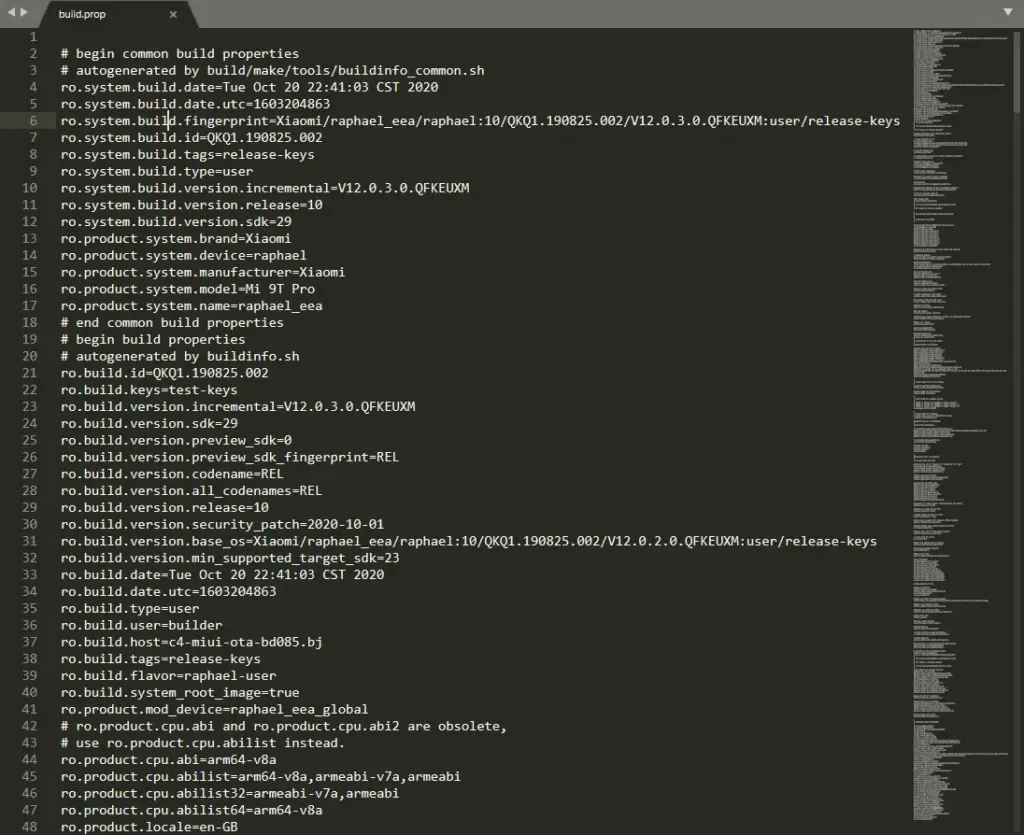
    A new Notepad++ window should now open and you should easily be able to modify the build.prop file. Once you’re done with your edits, simply save the changes.

    build.prop

    Now that you’ve edited the build.prop file, we need to transfer it back to your device. To do so, run the following command in the ADB window:

    adb push <path to your file>/system/build.prop

    Now that you’ve transferred the modified build.prop file, you need to set its permissions as well. To do so, open up the ADB shell by typing in the following command:

    adb shell

    Once you’re inside the ADB shell mode, type in the following command to set the right permissions:

    chmod 644 /system/build.prop

    And that’s it. You can now close the ADB window. Your build.prop file has now been modified as per your preferences.

    It will help you get something out of your Android device by changing your build.prop file. Android’s greatest advantage over other operating systems is its level of customizability, which relies largely on the build.prop file. And while not everyone has root access, using the above form, one can still change their build files. Note that whatever you are doing with your build.prop file, just in case, always and always have a backup available. Well, this is all from my hand, but in the comments section below, I’d love to hear the various tweaks you tried to implement on your computer.

  • Magisk 21.0 and Magisk Manager 8.0.0 APK – download

    Magisk 21.0 and Magisk Manager 8.0.0 APK – download

    Magisk – one of the most common rooting methods for any Android device. For rooting Android devices, stock firmware and custom ROMS, SuperSU was once the go to exploit. The growth is now continuing with the latest Magisk method.

    However, Magisk is much more advanced and matured over the years for a full-fledged rooting software. Some of the features, apart from gaining systemless root access on Android, include – MagiskHide for bypassing root detection, Google’s SafetyNet bypass, third-party modules support, etc. The developer, topjohnwu, just released a new version of Magisk v21.0 today with official Android 11 support. So download and install stable Magisk 21.0 zip and latest Magisk Manager v8.0.0 APK.

    Latest Magisk v21 brings official support for Android 11. Now you can gain root access on most of the smartphones and tablets running Android 11 from various manufacturers. This includes Google’s Pixel lineup, Oxygen OS 11 for OnePlus phones, MIUI 12 for Xiaomi devices, One UI 3.0 from Samsung, ColorOS 11, and much more. It also includes custom ROMS like Lineage OS 18 and AOSP based Android 11 GSI builds for Project Treble devices.

    All of your favorite features from previous releases, like Magisk v20.4 with official support for the Android 10 OS update, are also included in the new version. It also changed the MagiskSU (supersu) on many Android devices for better root support. The developer has also made substantial improvements to the root structure on Android phones and the way Magisk hides root detection. For banking apps, Google Pay, Samsung Pay on rooted devices, you get a full proof solution for root hide (or root detection) with Magisk v20. With the new versions of Android 11, 10, 9.0 Pie, 8 Oreo, 7.0/7.1 Nougat, Marshmallow or earlier, the SafetyNet bypass is already introduced.

    An upgrade to build 8.0.0.0. was also given to Magisk Manager APK Magisk 21.0 brings a range of changes in reliability and bug fixes. All the technical information can be found out from the change log below.

    [General] Support Android 11 ????
    [General] Add Safe Mode detection. Disable all modules when the device is booting into Safe Mode.
    [General] Increase post-fs-data mode timeout from 10 seconds to 40 seconds
    [MagiskInit] Rewritten 2SI support from scratch
    [MagiskInit] Support when no /sbin folder exists (Android 11)
    [MagiskInit] Dump fstab from device-tree to rootfs and force init to use it for 2SI devices
    [MagiskInit] Strip out AVB for 2SI as it may cause bootloop
    [Modules] Rewritten module mounting logic from scratch
    [MagiskSU] For Android 8.0+, a completely new policy setup is used. This reduces compromises in Android’s sandbox, providing more policy isolation and better security for root users.
    [MagiskSU] Isolated mount namespace will now first inherit from parent process, then isolate itself from the world
    [MagiskSU] Update communication protocol with Magisk Manager to work with the hardened SELinux setup
    [MagiskPolicy] Optimize match all rules. This will significantly reduce policy binary size and save memory and improve general kernel performance.
    [MagiskPolicy] Support declaring new types and attributes
    [MagiskPolicy] Make policy statement closer to stock *.te format. Please check updated documentation or magiskpolicy --help for more details.
    [MagiskBoot] Support compressed extra blobs
    [MagiskBoot] Pad boot images to original size with zeros
    [MagiskHide] Manipulate additional vendor properties

    Download Magisk 21.0

    Following are the direct download links right from the Github repository of the project.

    Full downloads repository:

    Use either the stable or beta Magisk v21+ zip and flash it via TWRP recovery to root Android devices running Android 9.0 Pie, 8.0/8.1 Oreo, 7.0/7.1 Nougat, Marshmallow or earlier. You may also need to install Magisk Manager APK after you have booted into the system.

    In case you don’t want Magisk or want to completely unroot your Android phone, then flash the Magisk uninstaller zip via TWRP recovery.

  • Magisk modules you should have in 2020

    Magisk modules you should have in 2020

    Magisk modules for this month

    Nowadays, rooting your own Android device gives you longer benefits than it failed earlier, as long as you root it with all the systemless frame of Magisk.

    Maybe Magisk doesn’t only bypass the safety net, but it also gives you the option to put in multiple modules. Such modules exhibit unique characteristics.

    If you had an Android phone frozen, you would have been aware of Magisk. It is now the most widely used rooting remedy for Android Phones, overtaking the SuperSU of Chainfire. Magisk can also be a rooting mechanism that is systemless, such that nothing from the partition can be changed. So Google’s Security Web checks can go to a computer precisely frozen with Magisk. Numerous services such as Netflix, Pokemon Continue, banking services, etc. use the Security Web. Sequence to avoid frozen computer use. With SuperSU, the service for Magisk modules, Magisk also has another major benefit. Magisk is all about Xposed Systemless. Even, to learn more about your favorite celebrities, make sure you check out the Names Wiki.

    Although fair, Magisk has 50 percent of the variety of modules that the Xposed frame is likely to have. Even so, there are plenty of Magisk channels out there, a number not in the state repositories. The truth is that the systemless setup of Xposed by way of Magisk is also possible. However, if you are inexperienced, you may want to look at how exactly to bring Magisk in. Currently, we are going to take a look at a number of the very optimal / optimal Magisk modules you need to download and also try to.

    How To Install

    • Your device should be Rooted with Magisk manager How to Root
    • After Rooting your device download Magisk Modules from the link below or from Magisk Manager.
    • Open up Magisk Manager go to modules and click on + button and flash downloaded module.
    • Or just open up Magisk Manger and go to downloads and search any module and install it.
    • Reboot and enjoy.

    Magisk Modules Download And Setup Actions

    1. Open up Magisk Manager.
    2. Swipe in your left border of this display screen to start the side bar and then decide on Downloads.
    3. You will now find a set of obtainable Magisk modules. Harness you to find out details, for example any extra directions about what best to set up or utilize it. You are going to wish to be cautious here because not only all of Magisk modules are intended for each and every telephone. Many are distinctive to Devices from the specific manufacturer and sometimes perhaps a particular Devices like these modules such as your OnePlus mobiles .
    4. To put in a module, then tap the down load icon near its title . A popup will subsequently appear providing you several possibilities which you are able to choose 1. Down load conserves the module into a mobile’s storage, then and then you’re have to manually put in it manually along with set up downloads and supports immediately.
    5. Pick Set up . The method will not require overly much time, however nevertheless, it is going to be dependent in your own online rates and also the magnitude of this module.
    6. Harness Display once prompted, and also your mobile will automatically re start and also the module will likely be working as it boots .In the event you were to think we missed a few wonderful Magisk module at our list, then please tell us.

    Downloads

    • Foxy Boot : Download
    • Kali NetHunter Module:-Download
    • Facebook Emoji:-Download
    • Font Changer:-Download
    • Round Corners:-Download
    • Debloater : Download
    • Sa2ration APK : Download
    • Viper4Android : Download
    • Universal GSM Doze In the event you have used a device with no Google programs, for example Google perform companies, perform retail store, etc., you will know that these Device normally have far superior battery lifetime. That is since Google engage in products and services along with other programs which are a part of all GMS (Google cell Suite) are derived from Android’s battery-saving capabilities.

    This module handles the and also makes positive the doze options apply to GMS programs. It’s contained inside the Magisk repositories and will be downloaded by your Magisk supervisor program.