Tag: root

  • Disable trackers/loggers – Warden #root

    Disable trackers/loggers – Warden #root

    It’s no secret that while on the Internet, we are constantly tracked. Although advertisers and organizations claim that monitoring users help them understand their actions and interests to enhance their programs, many users find that monitoring is intrusive. Some users may also end up sharing more information about their browsing habits than they expected, perhaps by visiting some unsafe or untrusted websites.

    While its commonly believed that most of the tracking online happens while browsing the Internet on our PCs, there are hundreds of Android apps out there that come with built-in trackers to not just store information about you but also share that information with potential third-party clients such as advertisers.

    If you take privacy more seriously than the average user and want to stop device monitoring on your devices, try a new open-source app named Warden that claims to block trackers and loggers hidden inside apps. Warden is created by WhyOrean, a senior member of XDA who is notable for his work behind the popular, unofficial, open-source Google Play Store client Aurora. Using root access, Warden allows the user to deactivate all trackers and loggers detected within apps. It also features a “debloater” that supports scripting, based on profiles. The software supports version 5.0 of Android, and above.

    The Warden Program Manager uses a centralized list of trackers and loggers provided by Exodus Privacy, a French ngo. It reads the dex (Dalvik Executable) files within each device installed on your phone to see whether any of the class names from the above list match a known tracker or logger. In this sense, loggers means “all tools that are used to log user activity on an device or logcat in general.” WhyOrean states that not all loggers are bad, and some can be used to log user activity for specific (legitimate) purposes. There are however a few “like ACRA, xLog” logging tools that are powerful tools that can “send user data to devs without user consent.”

    In addition to offering an insight into heinous trackers, Warden comes with a “De-Bloater” and “Nuke it! “Mode which requires root access to both. While the De-Bloater allows users to deactivate, hide or uninstall fishy tracker apps, the Nuke it! Feature allows users to scan all device-installed apps and automatically deactivate all known tracker components (Activities, Services, Providers, and Receivers). Both “Nuke it!” and “De-Bloater! Are currently considered experimental features, so be sure to visit the thread below to give the developer feedback if you have any problems or suggestions.
  • Root Lenovo K6 / K6 Power – unlock the booloader – karate

    Root Lenovo K6 / K6 Power – unlock the booloader – karate

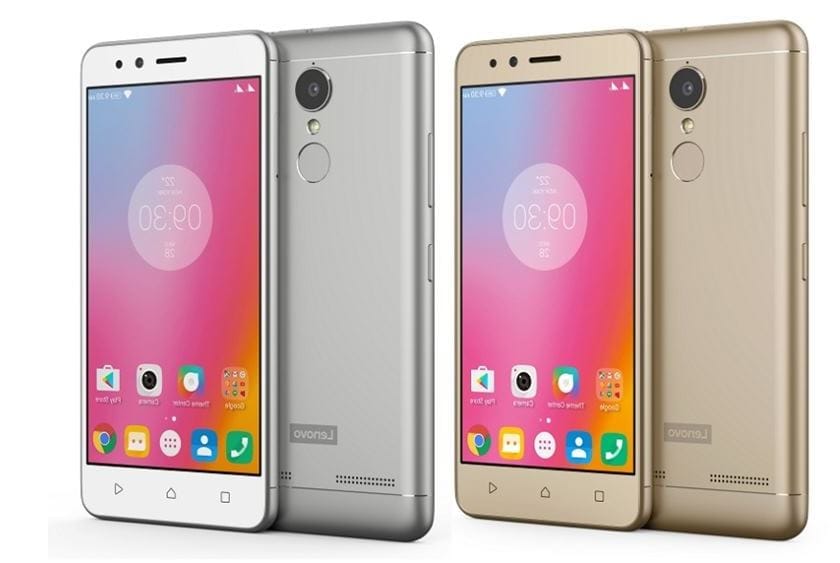
    Lenovo K6/K6 Power features a 5” 1080P IPS LCD display, giving a pixel density of ~441 PPI. Under the hood sits a Qualcomm Snapdragon 430 SoC, which utilises a 1.4 GHz octa-core CPU, an Adreno 505 GPU and 2 or 3 GB of RAM.

    lenovo k6

    The 16 GB internal storage version packs 2 GB of system RAM, the 32 GB, has 3 GB. The primary camera is capable of capturing images at 13 MP, the secondary at 8 MP. The whole 145g package is powered by a non-removable 4000mAh battery.

    *Your Warranty will be void after unlocking bootloader*

    What you will need:

    Unlocking Your Bootloader

    • First of all Install ADB drivers In Your Laptop/PC , Link is Here
    • Now Go to Settings of Your Phone , Scroll Down and go to About Phone And Click on Build Number Until Your Developer Options Is enabled .
    • Now go to the Developer Options and turn on USB debugging and OEM unlocking.
    • Connect Your Mobile To your Pc through a USB cable.
    • Open ADB folder on Your Pc ( It will be in Local Disk C on your My files ) .
    • Right click + Press Shift in Adb folder , a popup will open , choose open command window here .
    • Write Commands
    adb reboot bootloader
    fastboot -i 0x17ef oem unlock-go

    This will unlock your bootloader and it will wipe your internal storage so better to backup first


    Flash custom recovery

    1. Download the twrp for Lenovo k6/k6 power (karate) from official twrp site.
    2. Place it in the adb folder and rename it to recovery.img .
    3. Now run these command
    adb reboot bootloader
    fastboot -i 0x17ef flash recovery recovery.img
    fastboot flash recovery recovery.img

    You have now a custom recovery on your device.

    For rooting your device with Magisk follow our guide: https://api.droid.tools/install-magisk-root-android-any-device/

  • Samsung A51 unlock bootloader

    Samsung A51 unlock bootloader

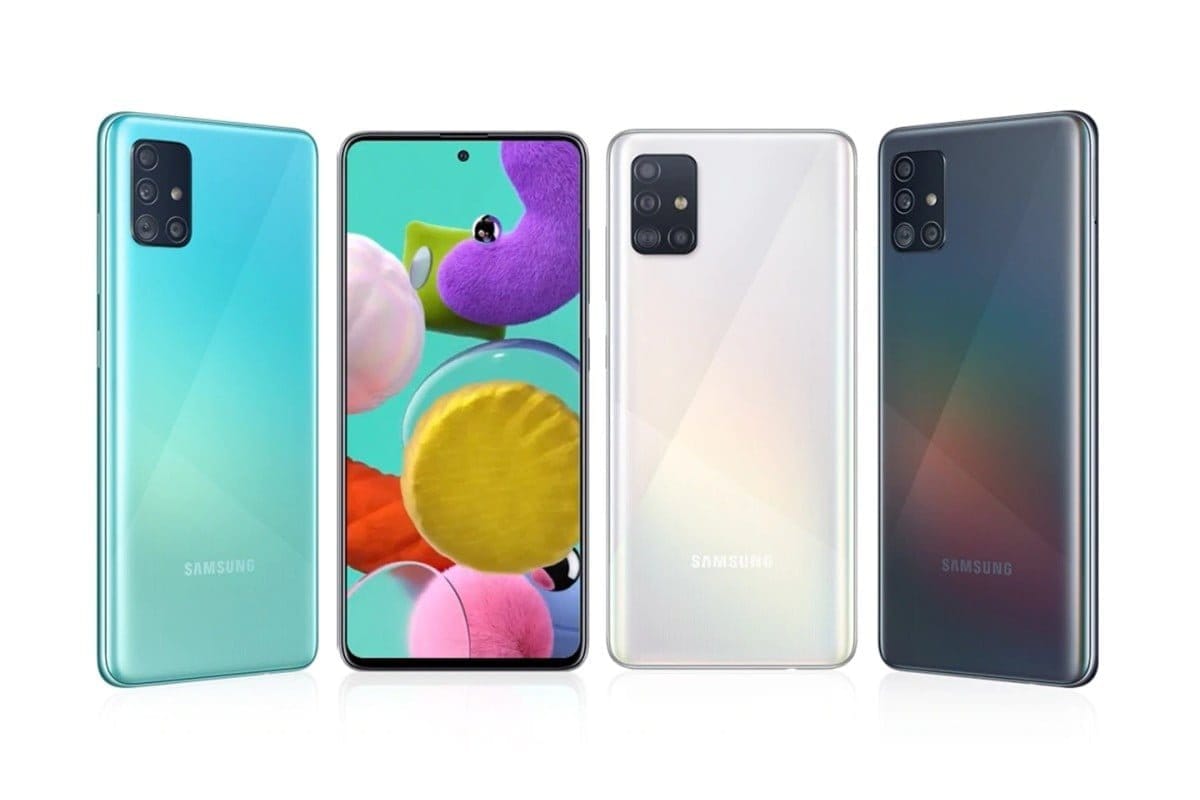
    Unlocking your Android phone’s bootloader is the first step to rooting and flashing custom ROMs. And, contrary to popular belief, it’s actually fully supported on many phones. Here’s how to unlock your bootloader the official way.

    Requirements:

    Download latest firmware for you model directly from official servers using https://samfirmtool.com/samfirm-v0-4-1 or
    https://github.com/wssyncmldm/frija/releases

    Download and install following packages Microsoft Visual C++ 2010 Redistributable Package and Microsoft Visual C++ 2008 Redistributable Package:

    Open Frija and type in your model (ex. SM-A515F) and your CSC : ex. LUX).

    You can check all CSC’s and models on Samfrew: https://samfrew.com/model/SM-A515F/

    After download is complete extract SM-A515XX_1_00000000000000_xxxxxxxxxx_fac.zip

    On device:

    • Go to Settings then to About phone and find your build number.
    • Tap on your build number 6 times until you see “You’re now a developer”.
    • Go in Developer options > enable OEM unlocking.
    • Connect the device to your PC.
    • Power off your device with POWER and volume DOWN and directly hold volume UP and DOWN together
    • Device will boot in DOWNLOAD MODE.
    • Long press volume UP to unlock the bootloader

    This will wipe your data and automatically reboot your device!

  • GravityBox – Xposed module

    GravityBox – Xposed module

    All-in-one tweak box for Android

    GravityBox main concept is to make most of the preference changes to be done on the fly without need to reboot a device to achieve custom-ROM like experience. This means it is not possible to “completely deactivate” particular feature if it causes trouble on your device or if you installed GB because you want to use only one particular feature you can’t find elsewhere. This results in issues on ROMs/devices that have parts that are diverting from default Android implementation too much, or are running heavily modified custom ROMs.

    GB is a complex module and is not suitable for 1 purpose scenario. This means, if you are running custom ROM built from source, and you are missing a certain feature, your best option is to go ask creators of those ROMs to implement those additional features. Supplementing missing features on well-known custom ROMs built from source by installing xposed modules (especially complex ones) is definitely not a good way to go and can cause more trouble than good. GB being a complex module, it shouldn’t be combined with other complex modules often racing for the same goal. They can conflict/fight on the same playground and there’s no way you can deterministically say which one’s going to win. They can even lose both.

    If you experience weird issues after installing GB, even if you didn’t activate a particular feature, it is not because of GB is broken, it is because it is not compatible with your ROM. It is very similar to a situation when you installed ROM built from source for Nexus to some Xperia device – it won’t work.

    GravityBox [Q] has been tested on
    – OnePlus 7 Pro running OxygenOS 10
    – Nexus 5X running Pixel Experience 10

    For older Version follow XDA:

    Version for JellyBean is available in this thread:https://forum.xda-developers.com/sho….php?t=2316070
    Version for KitKat is available in this thread:https://forum.xda-developers.com/sho….php?t=2554049
    Version for Lollipop is available in this thread:https://forum.xda-developers.com/sho….php?t=3037566
    Version for Marshmallow is available in this thread:https://forum.xda-developers.com/sho….php?t=3251148
    Version for Nougat is available in this thread:https://forum.xda-developers.com/sho….php?t=3653953
    Version for Oreo is available in this thread:https://forum.xda-developers.com/sho….php?t=3739929
    Version for Pie is available in this thread:http://forum.xda-developers.com/show….php?t=3908768

    The app utilizes Riru and EdXposed Magisk module which uses original Xposed Framework API created by rovo89.

    This module utilizes EdXposed Framework which is still in early development stage and may contain bugs or might not be fully compatible with system of your Android device. I take no responsibility for any issues arising from using GravityBox with EdXposed and strongly recommend creating a full backup of your device before activating the module.

    Droid Tools

    Requirements:

    Magisk v19 or later
    Riru v19.5 or later (Magisk module)
    Official EdXposed release (Magisk module) (CHOOSE WHATEVER VERSION WORKS BEST ON YOUR SETUP – EXPERIENCE SHOWS THAT DIFFERENT VERSIONS WORK DIFFERENTLY ON DIFFERENT DEVICES/SYSTEMS)
    EdXposed Manager (Application)
    – Avoid using Resource hooking support if possible (Can be disabled in EdXposed Manager settings)

    Installation

    This procedure assumes you have working Magisk installation.
    1) Install Riru and EdXposed modules using Magisk Manager
    2) Install EdXposed Manager app
    3) Reboot and open EdXposed Manager app to check if EdXposed works and is active
    4) Install GravityBox and enable it in EdXposed Manager
    5) Reboot

    Feature highlight

    – Lockscreen tweaks
    – QuickSettings tile management with additional tiles
    – Statusbar tweaks
    – Navigation bar tweaks
    – Pie controls
    – Power tweaks
    Display tweaks
    – Phone tweaks
    – Media tweaks
    – Hardware/navigation key actions
    – GravityBox Actions – interface for 3rd party apps
    – Notification control (per-app notification LED/sounds/vibrations)
    – Fingerprint launcher
    – Advanced tuning of Framework and System UI parameters

  • Install Magisk – root Android any device

    Install Magisk – root Android any device

    If you’ve been around the world of Android for the past couple of years, you’ve probably heard the term “Magisk” thrown around. It is a relatively best method for Android devices to be customised. It was created in 2016 by topjohnwu of XDA Developer. Magisk is an alternative to the SuperSU of long standing, but it is much more than just a root process. Until you dive in there are some key things you should know about this famous method.

    Required to flash Magisk

    • A device running Android 4.2+
    • Custom Recovery (how to install). We’ll be using TWRP in this guide

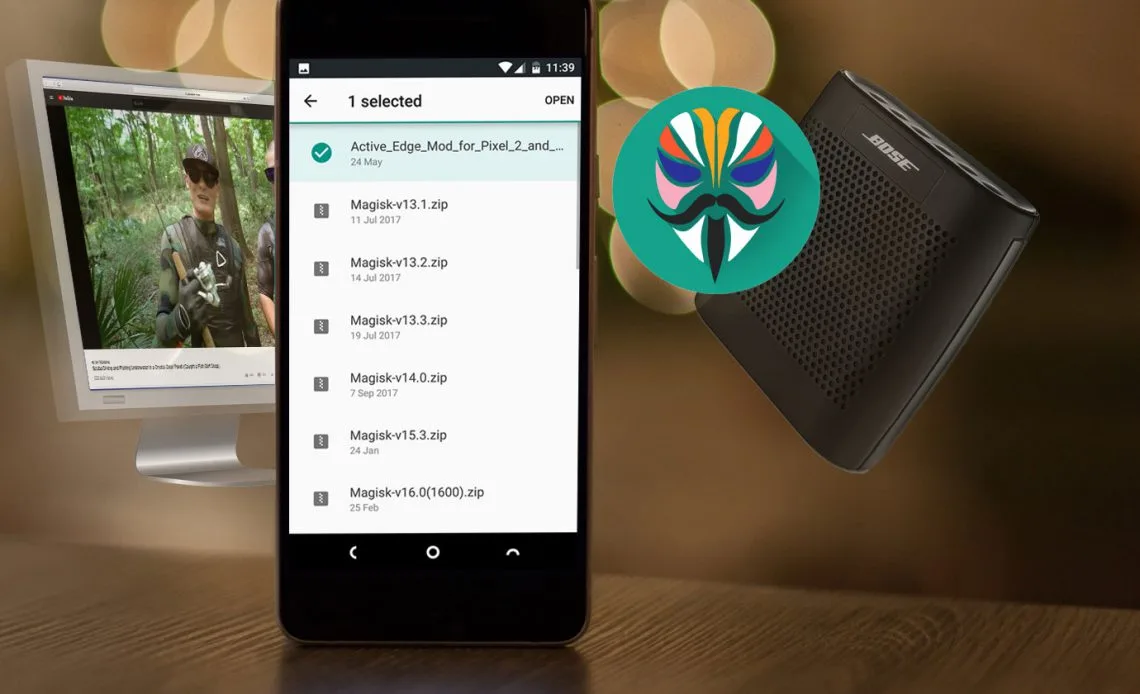
    The first thing you’ll need is the Magisk zip file, assuming your phone got a custom recovery. This is the file that we are going to flash up in the next step. The most recent version of the zip can be found on the official XDA thread. Install and pass the new zip to your phone / tablet, or install it directly to your phone / tablet. An easy way to do this is to install the Magisk Manager app (found in Step 3) that will prompt you to download the latest zip available at the moment.

    Now let’s flash Magisk

    Go to recovery mode and flash the zip. Using this guide to find out how to boot to recovery mode on your computer. Typically this will be a combination of the power button and the volume key. Follow these steps once you boot up into your custom recovery:

    1. In recovery mode, select the Install button.
    2. Find the folder where you download the zip file.
    3. Select the zip file
    4. Swipe the slider to install Magisk
    5. Tap Reboot System

    Now you have the Magisk system installed on your computer. You’ll need the suitably appointed Magisk Director to handle it. That’s what lets you install modules. Download the latest Magisk Manager APK here and make sure that you have enabled “Unknown Sources” in the Settings. Download the document, and open it.

    The Manager software allows you to adjust root settings and also to add modules which are plugins that can be installed. The software serves as a repository for a whole bunch of great plugins that can quickly expand your device’s functionality. An important part of getting the most out of this root system is using the Manager software.

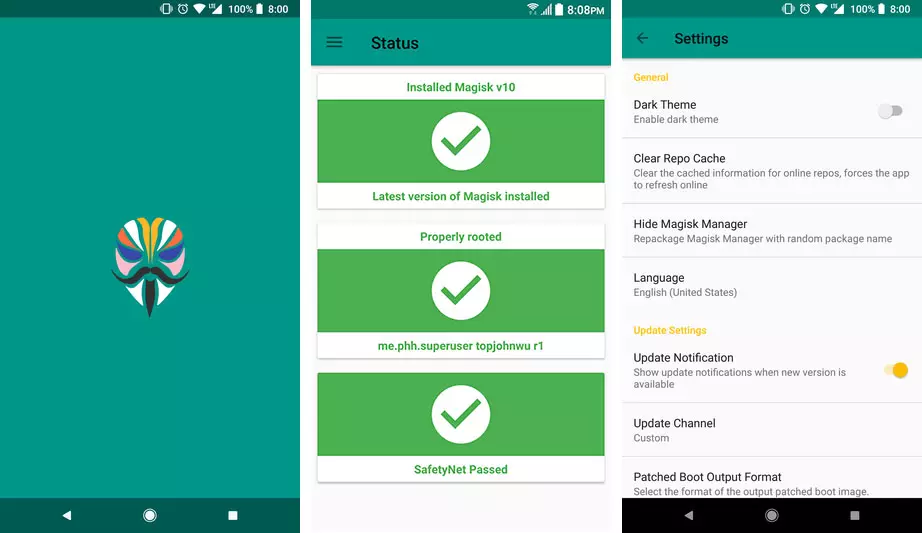
    The final step is to verify that all is working properly. Open the Manager app that has just been installed. We want a bunch of green check marks to appear in the script. It means you got root successfully. Good job! 

    magisk manager app
  • Download Magisk – latest official

    Download Magisk – latest official

    Installing Magisk will give you ROOT, a super powerful Systemless Interface, Magisk Modules support, and hide from tons of integrity tests like SafetyNet!

    Download Magisk

    Downloads

    Magisk features:

    • Open Source:
      100% open source and easy to build on all Google supported platforms.
    • Magic Mount:
      Modify system (vendor) without tampering the partitions.
    • MagiskSU:
      Unleash your device’s root access.
    • MagiskHide:
      Hide Magisk from detections: Google SafetyNet, enterprise / bank system integrity checks, game tamper checks.
    • Resetprop:
      Modify or delete any system properties, including read-only props.
    • Online Module Repo:
      Install Magisk Modules from the community driven Magisk Module Repo.
  • MTK Droid Tool – Root & Tools Features for Mediatek devices

    The majority of users of smartphones use Android devices that have different chipsets. You have smartphone users amongst them only, who also use MediaTek chipset devices. Despite the fact that MediaTek chipset devices are a bit different from others.

    MTK Droid tool is only designed to work with MediaTek models. It is compatible with just the same. Remember, though, that other chipset devices may not work well. MTK Droid Tool includes a Files > pwn malware that is present. This file isn’t harming your computer or phone, however.

    If you own a MediaTek smartphone and want to use the latest version of MTK Droid Tool to root or flash it, then I have to assume that you fell to the exact location you should be. In this post, I listed the download links of different versions of MTK Droid Tool as well as a full guide on how to root your MediaTek computer using MTK Droid Tool. There are some of the basics and functions with that, too. Continue reading on for more.

    Flashing or rooting through this tool or anyhow can void the warranty of your device. There exists a chance of getting your device bricked as well. But that is not the case every time. So whatever you choose, choose it wisely.

    Your warranty will be void. Droid Tools is not responsible for bricked devices, dead SD cards etc…

    MTK Droid Root & Tools Features

    1) Supports All MediaTek Devices: If you are using an Android device with MediaTek device then you can use this tool for creating scatter files, creating stock firmware backup’s, etc. This tools supports all devices with MediaTek chipset.

    2) Create Scatter File: Using this tool, you can easily create a scatter file of your firmware. You can use this scatter file to flash stock firmware on your corrupted and bricked device.

    3) Backup Stock Firmware: MTK Droid Root & Tools lets you to take backup of your device’s stock ROM firmware. This is the best Windows tool for creating backup of MediaTek device’s stock firmware.

    4) Backup Stock Recovery: Apart from backing up stock firmware, you can use this tool for taking backup of you device’s stock recovery. You can also restore the same using this tool.

    5) Backup & Restore IMEI: Using MTK droid tools, you can take a backup of your IMEI number. After flashing stock firmware or custom ROM firmware, you can restore the IMEI using this tool.

    What you need to use this tool

    MTK Droid Tool
    MTK Droid Tool

    Root MediaTek Device with MTK Flash Tool

    Step 1. To begin with, the process of rooting, Go to Settings> Developer> Click on USB Debugging option.

    Step 2. Now connect your MediaTek device with your PC through an appropriate USB Cable.

    Step 3. You will now receive a message saying- “Drivers Successfully installed” at the time of completion of the installation process.

    Step 4. Now you will need to run the Tool as Administrator. For which you will have to right click first and then select ‘Run as Administrator’.

    Step 5. At the left side of the tool detects and displays device information.

    Step 6. Then at the bottom of the screen, click on the Root option and if any window pops up asking permission or on mobile you receive any notification, click OK on it.

    Step 7. Soon a progress bar will appear on the screen that will gradually turn yellow to green.

    Step 8. Before rooting, click on the Backup Option and create a backup.

    Step 9. Once the back up is finished, click on- To prepare blocks for flash tool.

    Step 10. Now follow the instructions that show on the display and MDK Droid Tool will soon start rooting your MediaTek device.

    And your job is done here! All you got to do now is wait. Soon the rooting process will be finished.