Tag: twrp

  • Rooting – custom ROMs –  Android language

    Rooting – custom ROMs – Android language

    Every profession or pastime creates its own own particular jargon for explaining complex concepts in an understandable manner, and the Android world is no exception.

    This article is for you if you’ve googled a problem with your Android smartphone or tablet and came across terms like “rooting,” “flashing a custom ROM,” “unlocking the SIM,” or anything similar that you didn’t understand.

    This article is a reference for the novice who wants to learn about all the terminology behind our Android nerdiness because Android experts presumably already know what these phrases represent.
    custom rom

    What Is Rooting?

    Getting access to the system files on your Android device is what it means to root your phone. No Android device comes pre-rooted by default. Therefore, it is probably not rooted if you recently purchased an Android device and did nothing to it. 

    Manufacturers take this action because allowing everyone root access would cause several issues. You can access files on your device that, if deleted or altered improperly, could damage it if you have root access. 

    But many people still decide to root their devices because it enables them to make a lot of pretty fascinating adjustments if they know what they’re doing. It should be noted that rooting an Android device would void the warranty. 

    Youtube video

    How you root your device is different for every single model. For some devices, this can prove to be a difficult process involving circumventing the manufacturer’s safety precautions. For others, it can be as simple as plugging your phone into your computer and pressing a button. You can always check out the XDA forums for instructions for your specific device. 

    You won’t instantly notice any significant changes after your device has been rooted. The excitement is in what you can do with a rooted device. Then, you may utilize root-required apps, flash custom ROMs, modify specific features of your phone, and more—which we’ll go over in more detail later. 

    For instance, when unrooted, you can remove some bloatware, but rooting your device and using Titanium Backup or a root uninstaller are required to completely remove it. 

    What Is Unlocking?

    Unlocking is a confusing term because there are different things you could unlock. 

    Unlocking the Network/SIM

    A device that has been network/SIM locked was typically purchased through a carrier or for a certain carrier at a discounted price. That phone is then locked by the carrier so that you can only use it with them. 

    However, if you pay off the phone and decide to switch carriers, the carrier is obligated by law to provide you with the unlock code (at least in the US and the EU). To obtain the code, simply get in touch with your current carrier. 

    Sometimes, unlocking your device gets more complicated than that, so we have a guide to SIM unlocking. Other times, you buy your phone unsubsidized and unlocked, meaning you can already use it with any carrier. 

    Unlocking the Bootloader

    The bootloader is a piece of software that runs every time you switch on your Android phone, and it is usually locked by the manufacturers. With a locked bootloader, you can’t root your device. Instructions for unlocking your bootloader are found within the instructions for rooting your device.

    What Are Custom ROMs?

    Read-Only Memory is referred to as ROM, however the term is somewhat misleading today because it has nothing to do with it. A ROM is essentially the software that runs on your device, at least in the Android universe. 

    Therefore, a Xiaomi smartphone looks and operates differently than a Samsung smartphone when you pick it up. This is so that Xiaomi and Samsung could each create their own ROMs by altering the original Android code. Even though they both run Android, Xiaomi’s ROM and Samsung’s ROM are distinct from one another. 

    A custom ROM, then, is a ROM that was built not by the manufacturer but by someone else. Sometimes it’s just a lone programmer with some time on their hands and a passion for making ROMs—other times, it’s a bigger group like LineageOS that has a team and intentionally makes a certain type of ROM. 

    Once you’re rooted, you can flash a custom ROM. Flash, in this case, basically means to load or install. Flashing a custom ROM means you are installing a new ROM on your device and completely wiping the old ROM. 

    When looking for custom ROMs for your device, there are some names you’re likely to run into:

    • Pixel Experience: As the name suggests, features a ROM similar to that of Google’s Pixel phones. This ROM is currently one of the most commonly used custom ROMs out there, and for good reasons. 
    • LineageOS: LineageOS, formerly known as CyanogenMod, is one of the most popular custom ROMs you’ll come across. It offers a great feature set and has even featured as the stock ROM for some manufacturers in the past. 
    • AOSP: Android Open Source Project is the version of Android that Google gives to the world, often called stock or stock Android. You might see people say that their ROMs are “AOSP-based” or “based on stock Android,” which just means they took the AOSP code and altered it to their liking. 
    • AOSIP: Android Open Source Illusion Project integrates features from various popular custom ROMs into AOSP ROMs. 

    However, don’t be hesitant to try ROMs with different names from less well-known people. There are other reliable ones besides these. They’re simply the most well-known in general.

    Other Android Terms

    Custom recovery

    If you enjoy playing around with your Android device, the recovery process could take a while. It’s where you can perform the necessary heavy lifting, create backups, and flash ROMs. 

    You need a custom recovery because the stock recovery on your device is unable to perform any of those tasks. For installing custom ROMs, TWRP is the preferred custom recovery. Team Win Recovery Project is referred to as TWRP. 

    Nandroid backup

    There are, of course, ways to backup your Android device without rooting it, but a Nandroid backup is a complete backup. It essentially makes a full copy of everything on your device and saves it. That way, if you screw up anything (since you have root access and that is possible), you can always just flash your Nandroid backup and return to where you were. 

    The name is just NAND (a type of flash memory) and Android mashed together. 

    Kernel

    The kernel is like the engine of your operating system—you don’t really see it, but it’s in the background doing all the hard work. 

    If you want, you can flash a custom kernel. Sometimes these kernels are optimized for performance or battery life—sometimes, they’re just necessary to get some feature to work right. Either way, you can be okay just sticking with your stock kernel unless you really want to change it. 

    Brick

    Bricking your phone is essentially breaking it. If your phone isn’t working anymore, you’ve bricked it. This is generally not a phrase you’re going to be happy to run into. 

    • A soft brick usually means it’s fixable. Maybe you’re stuck in a bootloop (your phone just continually reboots), or you boot it up, but it only displays half the screen properly. That’s generally something you can get out of quite easily. 
    • A hard brick is when the device is toast. You messed with something at a system level that can’t be fixed, and your device is out of commission. Sorry. This is a rare thing to happen, but it can happen—and you’ll see warnings everywhere that no one but yourself is responsible for your device being bricked. 

    If you end up bricking your Android phone, try these steps to try and unbrick it

  • TWRP on Samsung Galaxy M31 (SM-M315F) – Android 10

    TWRP on Samsung Galaxy M31 (SM-M315F) – Android 10

    After the Magisk method is published, the root process is simple to compare with conventional methods. Yet it’s got its limits. We can’t use custom ROMs unless we have some custom recovery enabled. So, even after users have access to root, they prefer the TWRP method when it is released. Samsung Galaxy M31 comes with upper mid-range specs and can handle all of the apps. But if you need root access, you can use the following method to root your Samsung Galaxy M31 Android 10. Since we use custom recovery in this phase, you can install any necessary custom ROMs on your mobile device.

    Compare with standard other root methods, this method has additional steps. So, You should care a little bit when you do the process. Since it doesn’t use a custom recovery, You can’t install custom ROMs. But, It is enough to run most of the root apps.

    After root, you lose the official alerts. You need to update your smartphone manually. So, you should know why you need to do this before continuing with the process. If you are a frequent user, you can try some alternatives that do not require root for your function. If you are a frequent user and developer of root apps, you can follow the guide below to get root on your smartphone.

    Root and Install TWRP on Samsung Galaxy M31 Android 10 One UI 2.0, 2.5 (SM-M315F)

    Thanks to the developer- afaneh92 for the Root method and topjohnwu – this genius is the one who discovered and maintained Magisk. Samsung Galaxy M31 variants come with a flexible bootloader in some regions. It means that the smartphone can be easily rooted. The device can also accept installing TWRP recovery or any other custom recovery file/app. Don’t try with Snapdragon US Variants like Verizon devices. They come with a locked Bootloader.

    But In the below method, we are going to Root this device by using Magisk. You can install Official TWRP using the official app when it is released. TWRP recovery is a custom recovery file that must be installed on your devices because you can root them successfully. This article explained the easiest method to follow and install Magisk on Samsung Galaxy M31. However, the tool required for rooting this device is the Magisk App.

    Once available, you can flash TWRP. With the support of TWRP Recovery, you can easily flash Custom ROMs to your Samsung Galaxy M31. Before sharing a tutorial, you may want to know that you can easily install any root apps with Magisk on your computer. Does that sound complicated? Relax; everything will be briefly explained in the bullets.

    Things to check out for;

    • Check your device model number.
    • You should Backup your current files and data- Full Data Loss Process (save them on external storage).
    • Install Latest Magisk Manager.
    • Make sure your device battery is above 50%
    • You cannot use Samsung Pay, Secured folder, and some official apps from Samsung.
    • You can’t update your firmware; to get new firmware, you must follow the below steps with the latest firmware.
    • Read the full tutorial before the process.

    Unlock Bootloader

    Enable USB Debugging Mode and OEM Unlock on your mobile. To do this, go to settings >>> about >>> Tap on the “Build Number” 7-10 times consistently to enable “Developer Options,” then go to the “Developer Options” and enable USB Debugging Mode and OEM Unlock. There is no complicated process in the Samsung Galaxy M31.

    Switch off your device. Enter into Download Mode-> Volume Down+ Volume Up and Connect your mobile with PC using USB Cable. When the Download mode warning screen Appears, Press the Volume Up button to unlock Bootloader.

    The above process will wipe your user data. After Setup your device, Please recheck the OEM Unlock in the settings. Sometimes It Will Lock Again.

    Download Files

    Prepare patched boot image file

    Galaxy M31

    Download 7Zip-ZSLZ4, and Install both on your PC. Extract the files in downloaded firmware using 7Zip-ZS. You will get four files. Click on the AP File and Extract again. You will get some data along with the boot.img.lz4.

    Copy the boot.img.lz4 and Vbmeta.img.lz4 to LZ4 Installed folder. Convert the lz4 file to a .img file by dragging the .img file to the lz4 application file. You have to drag the file to that application. The script will automatically convert the file to .img format. After the conversion, Copy the boot — img file to your mobile. Leave Vbmeta in the PC folder.

    Download Magisk Manager (Download Latest version) or Magisk canary and Install it on your mobile. Open Installed Magisk and Select Install in Magisk; it will ask For a zip file and Patch Boot Image File. Select the Boot Image file.

    Magisk Boot Image File

    Navigate to your copied boot image file and patch the file.

    Wait for the process to complete, in the end, you will get a magisk patched .img file. Rename this file into the boot.img.

    Now copy boot. img and Vbmeta. img files to your PC. We already leave the Vbmeta. img file on PC. Drag those files into the downloaded TWRP.tar file. Now you can see there are three files within the TWRP.tar file. Don’t extract the data. The three files contain a single .tar file that should be flashed using ODIN.

    Flash TWRP.tar with ODIN

    samsung odin
    • Connect your USB cable with your PC. Switch off your device. Then, enter into Download mode. To do this, press and hold Volume Down+ Volume Up Buttons and Connect Your Mobile To PC via USB Cable; after Samsung Logo Appear, Release all keys.
    • Press the Volume Up button to continue when you see the warning message.
    • Now, connect the Samsung Galaxy M31 mobile to the computer via USB cable.
    • Launch the Odin app on your computer. If the device is detected by this app (Odin), it will show you a message that reads – added!!!
    • However, if the device is not correctly connected to the PC, you won’t see this message. So, you have to check the USB cable if it is reasonable and reconnect the device.
    • After connecting the Samsung device, click on the PDA/PA/AP button to browse/search and get the TWRP from where you saved it on your PC. Also, navigate to “options” and Un-tick the Auto-Reboot.
    odin untick re-partition
    • Click on “Start”
    • Once the file is loaded into the device, reboot your device.

    Now you have just Installed the TWRP on your Samsung Galaxy M31. We installed TWRP. Don’t turn on your mobile.

    Immediately, move to Magisk Installation steps.

    Press the Volume Down+Power button to exit Download mode and quickly press Volume Up+ Volume Down+ Power Button to boot into Recovery mode.

    Install Magisk on your Samsung Galaxy M31 with TWRP

    • Now you are in TWRP Recovery Mode.
    • Select Wipe->Advance Wipe->Select Cache Data. You can also take complete backup using TWRP. It will help you when something goes wrong.
    • Return to Home of TWRP select Install.
    • Select Multi disabler.zip.
    • Return to Home of TWRP select Install.
    • Select Magisk.zip.
    • You should Install them One by One. Don’t add more zips feature in TWRP. After the Installation, Reboot Your Mobile.
    twrp install magisk
    • You can also install Magisk.apk in your Mobile Applications. Multi disabler avoids the Encryption issue after rooting. You can check your root status using Root Checker.
    • If you didn’t find Magisk in App Drawer, you should Install the Magisk app again.
  • Realme 5 PRO – flash TWRP recovery

    TWRP is an open source, community project. TWRP development is done by roughly 4 people at this point. We also have a large support community with many people who are willing to answer questions and help people with their devices either through our IRC channel or on forums like xda-developers.

    Features:

    • – Decryption works
    • – Otg works
    • – Backups works
    • – Flash Rom works
    • – Sdcard works

    Flash TWRP on Realme5 PRO

    fastboot flash recovery twrp-RMX1971-20191017.img

  • Install Magisk – root Android any device

    Install Magisk – root Android any device

    If you’ve been around the world of Android for the past couple of years, you’ve probably heard the term “Magisk” thrown around. It is a relatively best method for Android devices to be customised. It was created in 2016 by topjohnwu of XDA Developer. Magisk is an alternative to the SuperSU of long standing, but it is much more than just a root process. Until you dive in there are some key things you should know about this famous method.

    Required to flash Magisk

    • A device running Android 4.2+
    • Custom Recovery (how to install). We’ll be using TWRP in this guide

    The first thing you’ll need is the Magisk zip file, assuming your phone got a custom recovery. This is the file that we are going to flash up in the next step. The most recent version of the zip can be found on the official XDA thread. Install and pass the new zip to your phone / tablet, or install it directly to your phone / tablet. An easy way to do this is to install the Magisk Manager app (found in Step 3) that will prompt you to download the latest zip available at the moment.

    Now let’s flash Magisk

    Go to recovery mode and flash the zip. Using this guide to find out how to boot to recovery mode on your computer. Typically this will be a combination of the power button and the volume key. Follow these steps once you boot up into your custom recovery:

    1. In recovery mode, select the Install button.
    2. Find the folder where you download the zip file.
    3. Select the zip file
    4. Swipe the slider to install Magisk
    5. Tap Reboot System

    Now you have the Magisk system installed on your computer. You’ll need the suitably appointed Magisk Director to handle it. That’s what lets you install modules. Download the latest Magisk Manager APK here and make sure that you have enabled “Unknown Sources” in the Settings. Download the document, and open it.

    The Manager software allows you to adjust root settings and also to add modules which are plugins that can be installed. The software serves as a repository for a whole bunch of great plugins that can quickly expand your device’s functionality. An important part of getting the most out of this root system is using the Manager software.

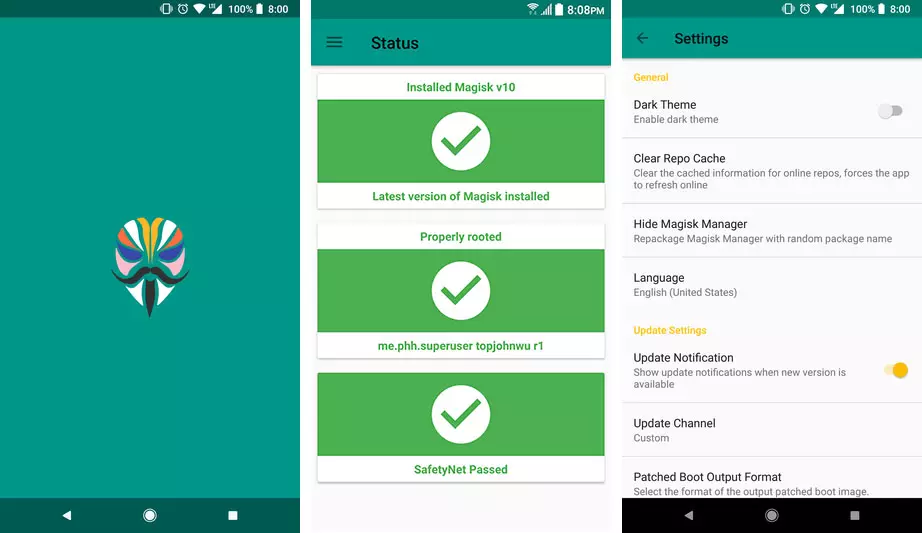
    The final step is to verify that all is working properly. Open the Manager app that has just been installed. We want a bunch of green check marks to appear in the script. It means you got root successfully. Good job! 

    magisk manager app