So your phone is bricked. Your phone won’t boot because you flashed a ROM, installed a mod, modified a system file, or did something else.
Not to worry! It can probably be fixed. Unbricking an Android device is explained here.
What ‘Bricking’ or a ‘Bricked Phone’ mean?
‘Bricking’ your phone essentially means that your once useful device is now only as useful as a brick. A ‘bricked phone’ is usually unresponsive, won’t power on, and doesn’t function normally.
How is your phone bricked?
Depending on how a phone was bricked in the first place, different steps are required to unbrick it. Bricked phones fall into one of two categories:
- The soft brick. The phone freezes on the Android boot screen, gets stuck in a boot loop, or just goes straight to recovery. So long as something happens when you press the power button, it’s soft bricked. The good news is these are pretty easy to fix.
- The hard brick. You push the power button, and nothing happens. Hard bricks can be caused by issues like attempting to flash an incompatible ROM or kernel, and there’s normally no software solution for them. Hard bricks are terrible news, but fortunately, they’re quite rare.
You’re probably soft bricked, and you’ll see something similar to the picture above. Although it’s challenging to develop a one-size-fits-all method to unbrick Android due to the variations in how various devices operate, there are four typical techniques you can try to get things back on track:
- Wipe the data, then re-flash a custom ROM
- Disable Xposed mods through recovery
- Restore a Nandroid backup
- Flash a factory image
Before you get started, make sure your phone and computer are set up and ready with the proper tools.
What you need to unbrick a Android device?
Most of the equipment you need to repair your phone probably already exist in your possession. Since you already know how to use them because you used them to root your device and flash ROMs, they shouldn’t be a problem. However, make sure before you start.
Custom recovery is most crucial. This was probably installed when you rooted your phone, however it could occasionally be completely erased or rewritten by the default recovery. We advise using TWRP if you do need to reinstall it. It is a completely functional custom recovery with builds for the majority of common devices but is also far too simple to use.
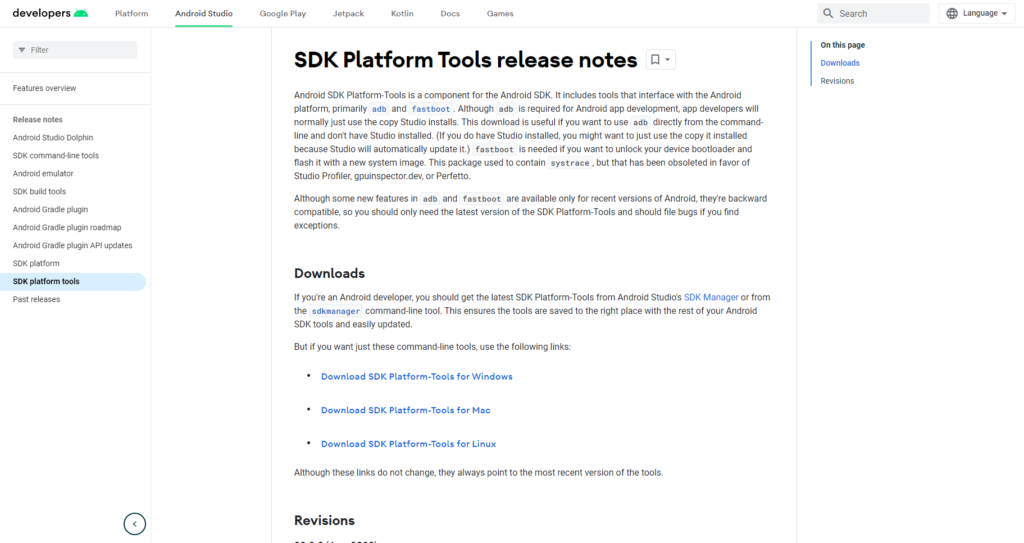
Then, you might require ADB and Fastboot. You can obtain both of them from the website for Android Developers, and they are frequently used for rooting and flashing system mods. If you are unfamiliar with Fastboot and ADB, see our introduction to them.
And finally, some manufacturers use special software to flash factory images. Hopefully, you can avoid doing this, but if you need to, you can use Odin for Samsung, the LG Flash Tool for LG devices, or the ZTE Unbrick Tool if you’ve got a ZTE device. Just make sure that they support your specific model of device.
Most of these tools will let you fix a bricked Android phone using a PC. However, you can often do the job directly on the phone itself.
Wipe data and ee-flash a custom ROM
If you flashed a ROM and Android won’t boot, try this method.
When you have issues while flashing a fresh custom ROM, it’s one of the most likely scenarios that your phone will soft brick. Your failure to first erase your data is frequently to blame in this situation.
When you decide to flash a new ROM over top of your old one instead of having to restore your applications and data, this is known as a “dirty flash” and takes place. Generally speaking, if you’re flashing a newer version of your current ROM, you can get away with it, but you must always delete your data anytime you flash a different ROM.
Fortunately, it’s easy to fix—as long as you’ve backed up your phone properly. If you haven’t, well, you’ve learned an important lesson the hard way. Follow these steps:
- Boot into your custom recovery.
- Navigate to the Wipe option and choose Advanced Wipe.
- Check the box marked Data (you can wipe the system, ART cache, and cache again, too), then hit Confirm.
- Re-flash your custom ROM.
A factory reset is effectively accomplished by wiping your data, although your internal storage or SD card shouldn’t be erased by this process (although, again, you should back it up just to be safe). Your phone will display the Android setup screen after restarting. Your programs ought to start reinstalling themselves immediately after inputting your Google account details.
You can use your Nandroid backup to recover your data if necessary.
Disable Xposed Modules in Recovery
Try this method if: You get boot loops after installing a new Xposed module.
The Xposed Framework isn’t as common as it once was, but it’s still a simple way to mod your phone, and also one of the most dangerous.
The best Xposed modules are so easy to install—many of them are available in the Play Store—that they lull you into a false sense of security. It’s unlikely anyone makes a Nandroid backup before installing a new Xposed module, even though they can brick your phone.
Use ADB Push to Install the Xposed Uninstaller
The best way to deal with these problems is with the Xposed Uninstaller, if it’s available for your version of Android. This is a small flashable ZIP that you can install through the recovery to remove Xposed from your device.
If you don’t already have it on your phone, you can put it on an SD card, or you might be able to copy it over using the ADB push method:
- Download the Xposed Uninstaller to your desktop.
- Connect your phone to your computer via USB and boot into recovery.
- Launch the command prompt (Windows) or Terminal (Mac) and use the cd command to change the directory to where you have adb installed.
- Type adb push [full path to xposed uninstaller.zip] [full path to destination]. On Mac and Linux, precede the command with ./ (such as ./adb).
- When the file finishes copying, flash it through the recovery.
How to Disable Xposed Modules in Recovery
If you can’t use ADB push and the Xposed Uninstaller, try either of these solutions.
This method lets you disable Xposed through recovery:
- Boot into recovery, then navigate to Advanced > Terminal command.
- Create a file called /data/data/de.robv.android.xposed.installer/conf/disabled
- Reboot your phone.
This method prevents Xposed modules from starting:
- Boot into recovery and select File Manager.
- Navigate to the folder /data/data/de.robv.android.xposed.installer/conf/ then delete the file modules.list
- Reboot your phone.
None of these fixes will reverse the modifications that the modules have made to your system. You will need to restore your Nandroid backup if these changes bricked your phone.
Restore a Nandroid Backup
Try this method if: You need to remove other system mods, replace a tweaked system file, or if the methods above didn’t work.
The safety net for Android mods and customizations is the Nandroid backup. It’s a full snapshot of your phone, including the operating system as well as your data and applications. You can restore your soft-bricked device to working order as long as you have access to your custom recovery and a Nandroid backup.
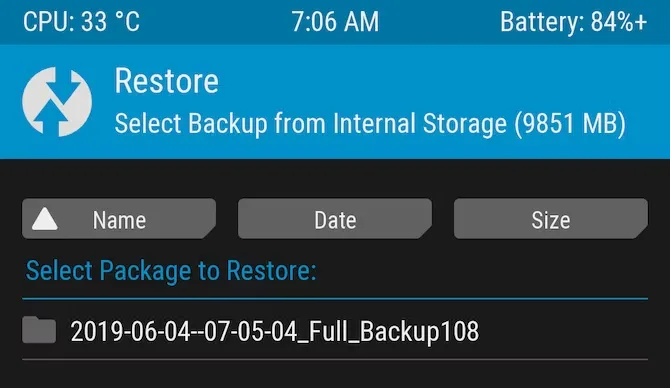
- Boot into recovery and navigate to Restore.
- Select your backup from the list, confirm, and wait while it’s restored.
- Reboot your phone.
Nandroid backups are a bit of a pain to make. They take a while and cannot be done in the background. But they’re worth it: they’re the simplest way to unbrick your phone.
Recover Data From a Nandroid Backup
A Nandroid backup can also save the day if you had to wipe your data and didn’t back it up in an easily restorable form. It’s possible to extract specific parts of a Nandroid, so you can restore your apps and data without needing to restore the operating system as well.
Here are the instructions for this:
- Boot into Android and install Titanium Backup from the Play Store. While this app hasn’t been updated for a while, it’s still one of the best options for this task.
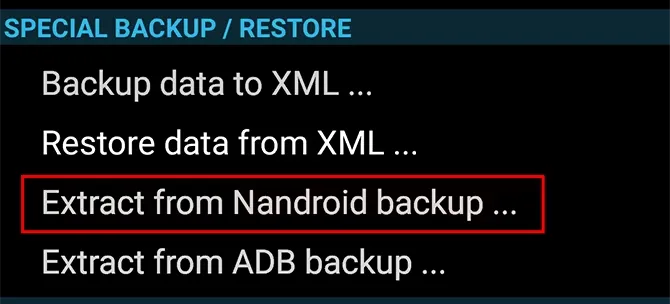
- Tap the menu button and navigate to Special Backup/Restore > Extract from Nandroid Backup.
- Select your backup from the list.
- Choose whether to restore apps, data, or both, and select them (or hit Select All).
- Tap the green tick icon to start the restore process.
Flash the factory image
Try this method if: None of the other options work.
Re-flashing a factory image is your only remaining choice if your attempts to unbrick Android have so far failed. This erases everything on your internal storage and returns the phone to its factory settings. Your phone will be unrooted as well.
You might be better off trying to flash a stock ROM first because it removes everything. Instead of factory images, OnePlus offers flashable ROMs for recovery. You can find similar files for almost every device at xda-developers.com. For added convenience, you can often flash a stock ROM that has already been root access.
Flashing a factory image varies from flashing a ROM in that it occurs via a desktop computer connection as opposed to recovery. Other devices make use of customized software while some use the Fastboot utility from the Android SDK. For instance, Samsung makes use of the Odin tool.
The instructions for flashing a factory image vary for each device due to the various techniques used. Additionally, not all manufacturers make their firmware accessible to the general public, so you must find them from unofficial sources.
Here’s where to find factory images for some popular Android brands:
Hard brick?
Hard bricked phones are notoriously more difficult to fix, but thankfully they’re also much rarer.
How to unbrick a hard bricked Android device
Make sure the phone is truly bricked by plugging it in and letting it charge for some time. Try to reset it by depressing the power button for 10 to 15 seconds (or removing the battery if your gadget is older). You might also want to try putting it into your computer; if your PC does not recognize it, you can be very sure that your phone has been severely bricked.
If it is unquestionably hard bricked, your options may be limited. A USB Jig, a little gadget that fits into the USB port and puts the phone into Download Mode to reload the default software, can resurrect a few phones.
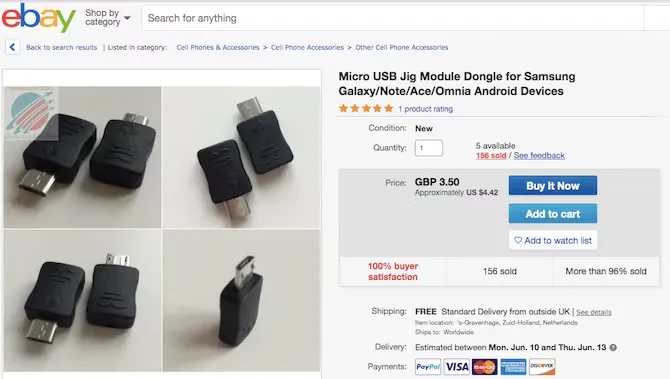
On eBay, you can find cheap USB Jigs for hard-bricked phones, but only for a very limited selection of outdated gadgets. Even then, there is no assurance that they will be successful.
Beyond that, you might need to either find a local phone repairman or send your phone in for repair (though rooting it might have void your warranty). However, you’ll probably end up having to buy a new gadget.
Stay safe
Hopefully, this guide has helped you to unbrick your Android phone. And hopefully, your experience hasn’t put you off rooting and hacking Android altogether.
But if you’d rather play it safe in future, you can still have a lot of fun with your phone. Take a look at our guide to the best Android tweaks you can make without rooting for some amazing ideas.