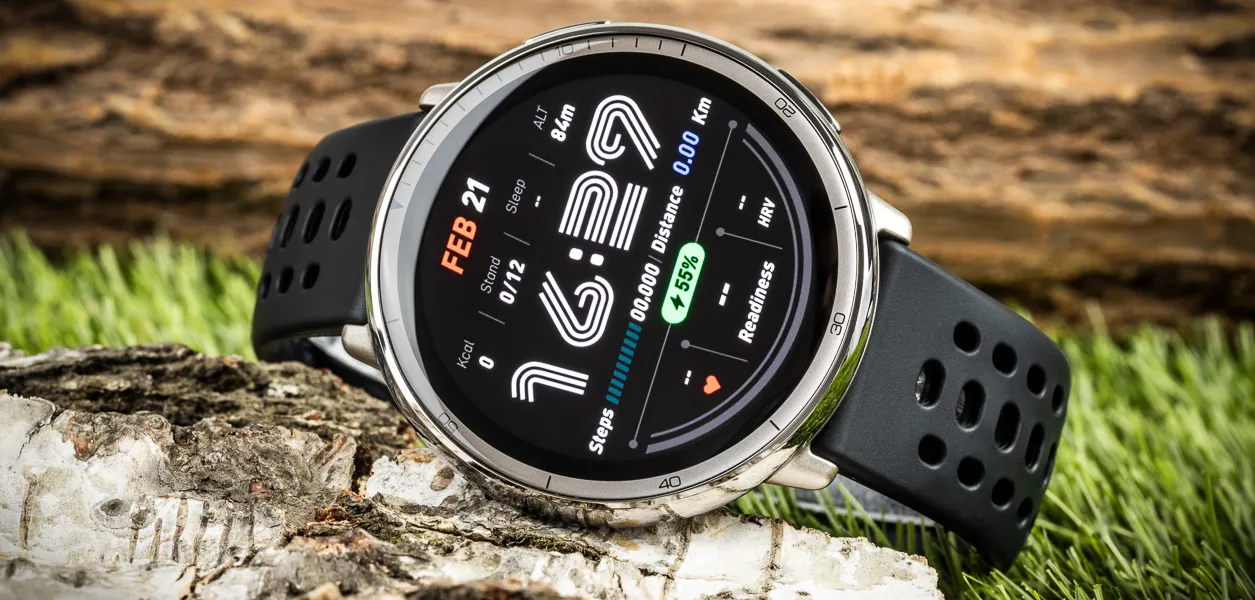
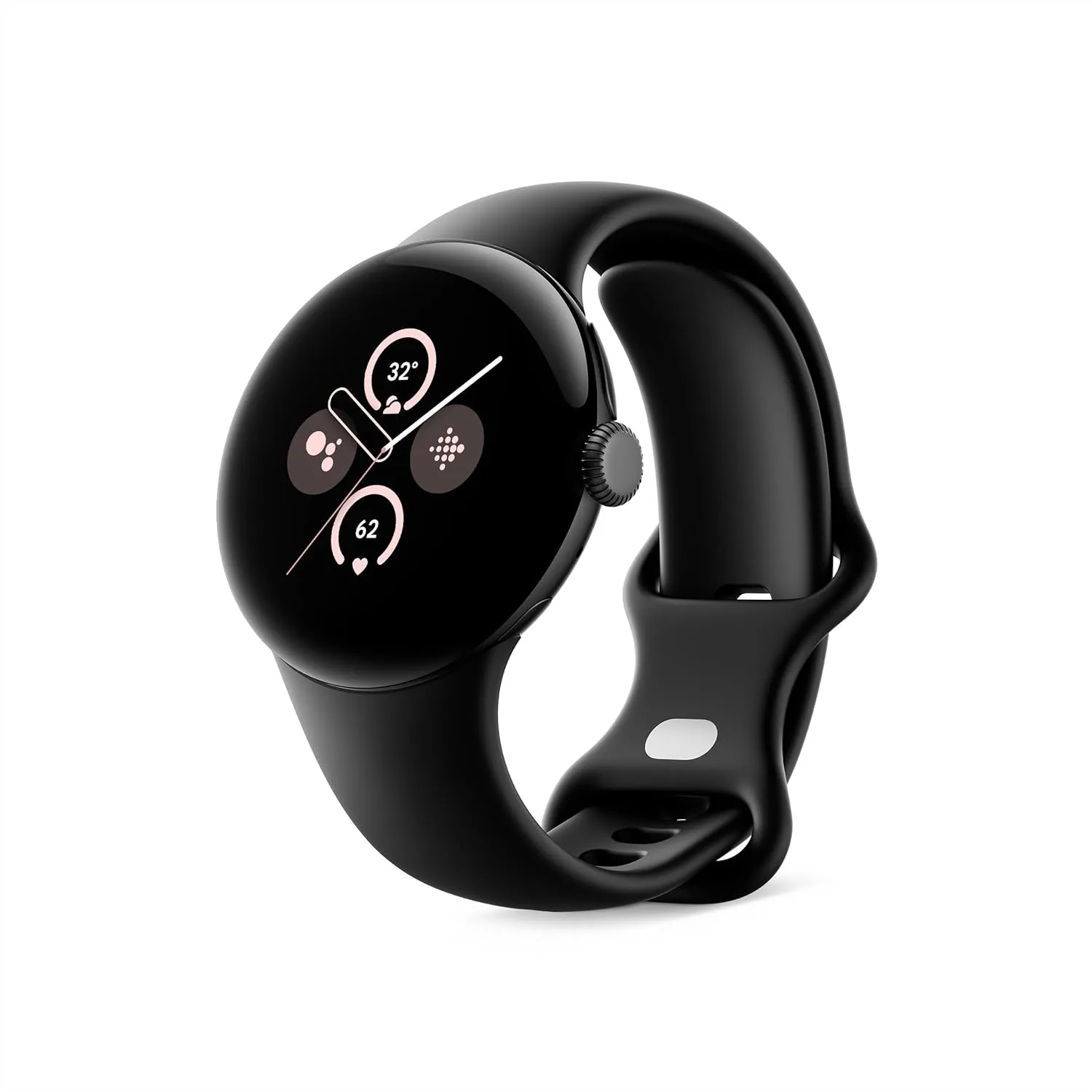
The Active 2 smartwatch is getting a fresh update from Amazfit. In comparison to other recent releases, firmware version 6.0.14.1 seems to be a small update. According to reports, the raise-to-wake feature has undergone minor adjustments, and a few potential new problems have also been discovered.
A new update is coming for the Amazfit Active 2 smartwatch. Launched in January 2025, this smartwatch features an AMOLED display and is reasonably priced for tracking exercise and health. This watch has previously received updates, including Zepp Flow 1.8.0 in early April and local music storage in March, before the latest firmware version 6.0.14.1.
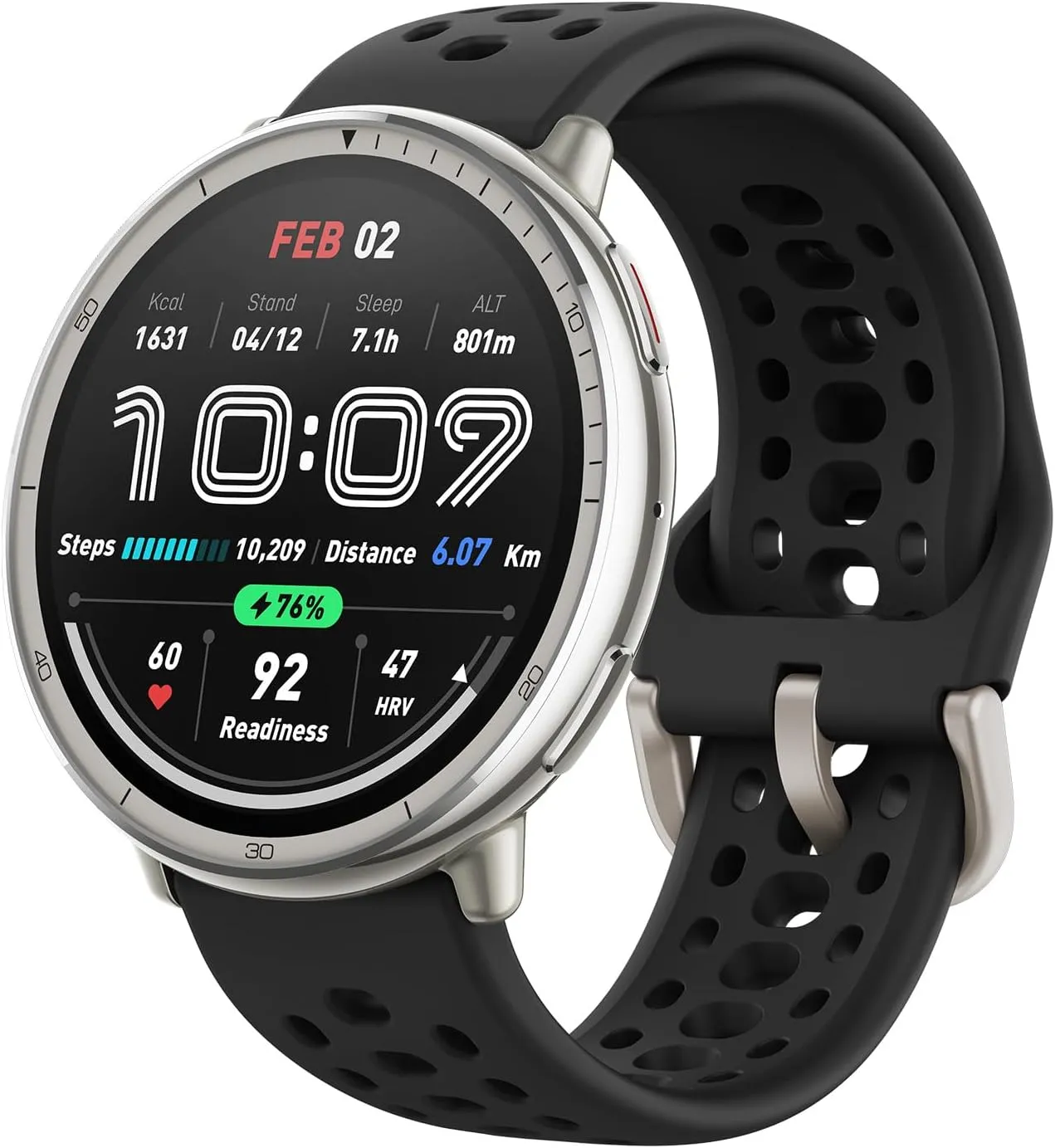
The sleek stainless steel build blends classic style with workout durability, while the bright 1.32″ AMOLED display keeps your data easy to read, even under bright sunlight.
Several users on the web have reported firmware version 6.0.14.1. This update appears to focus on small tweaks and bug fixes, as several Active 2 owners have reported seeing no changes. A few users have noticed a minor change to the lift-to-wake feature, which allows you to activate the screen with this wrist gesture. Following this update, it appears that the screen is less sensitive to activation and stays active for a somewhat longer period of time. Other users have reported discovering potential new bugs. One user said that the swimming lap counter was no longer accurate, while another said they could no longer turn off notification sounds.
While there have been reports of lower battery performance after applying the update, this can usually be rectified by restarting the watch. It is unclear when the apparent staggered distribution of software version 6.0.14.1 will be completed, reaching all users of the Amazfit Active 2 smartwatch.
The sleek stainless steel build blends classic style with workout durability, while the bright 1.32″ AMOLED display keeps your data easy to read, even under bright sunlight.
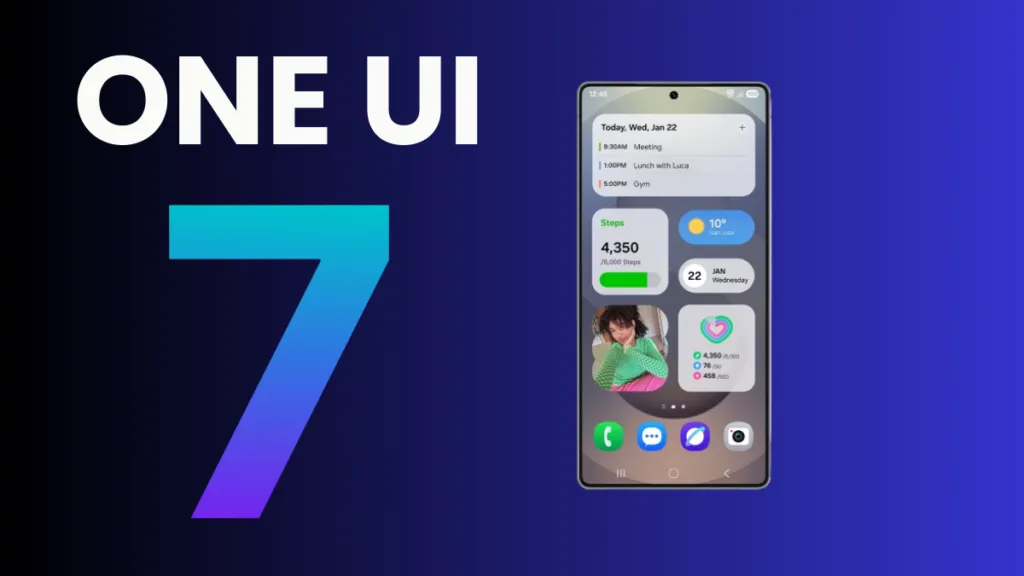
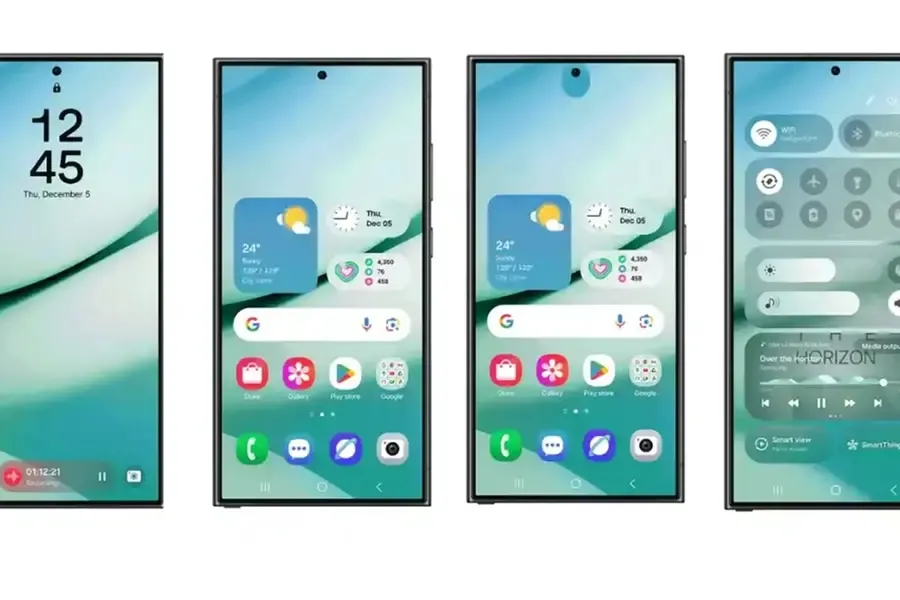
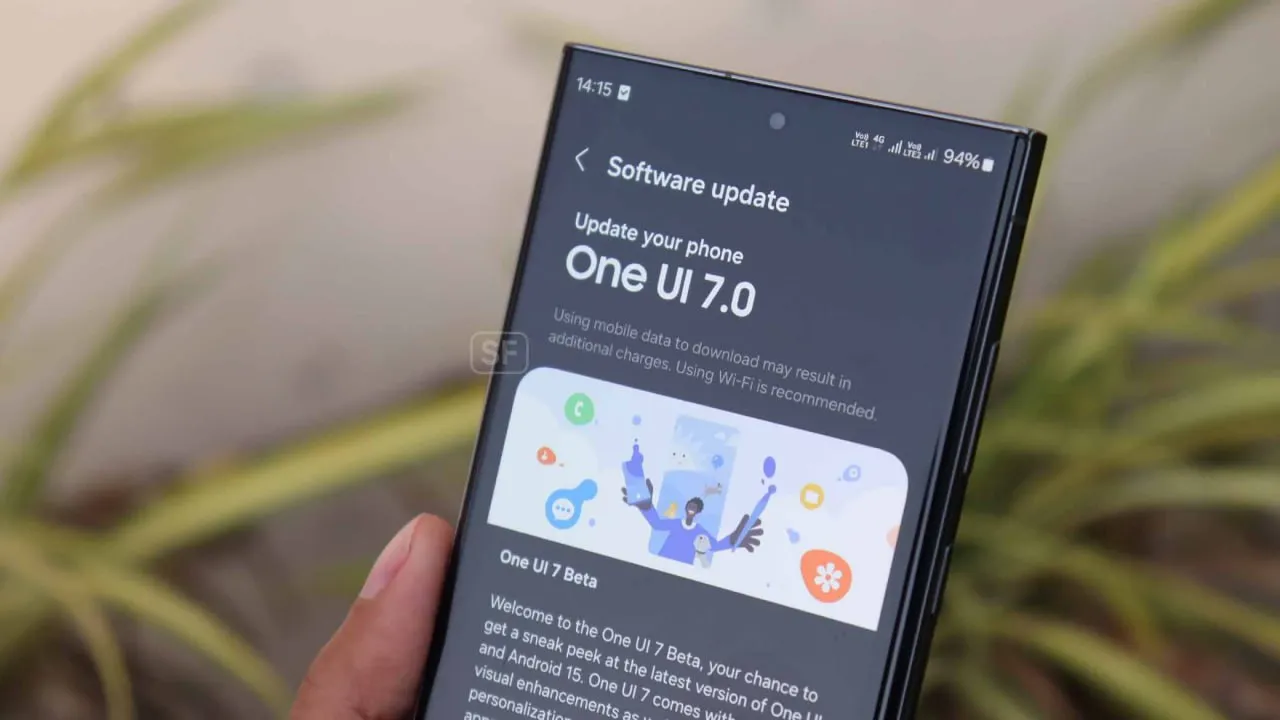
The One UI 7 is Samsung’s most significant UI change to date. Even while the build included numerous amazing changes that fans had been anticipating, certain delays made the release a source of frustration among fans as well. Now that the stable release has begun, here are all of the Galaxy models set to receive the upgrade in May 2025.
Essentially, Samsung began the One UI 7 stable update rollout on April 7 for the Galaxy S24 series, as well as the Galaxy Z Fold 6 and Flip 6, which were scheduled to receive the update in the first batch, while the rollout for the US market was scheduled to begin on April 10; however, due to a bug, Samsung had to pause the rollout.
At the same time, the One UI 7 release resumed and is now reaching even more older generation handsets, excluding the Galaxy S24 family and the company’s 6th generation foldables.
Samsung has already begun to expand the reliable One UI 7 edition globally, starting in the company’s hometown of South Korea. So far, Samsung has delivered the stable update to numerous Galaxy phones and tablets since mid-April, and will continue to do so until every eligible device is covered.
Furthermore, One UI 7 introduced many new features and modifications, although it is worth noting that a few Galaxy AI functions may not be available in previous Galaxy model lineups.
List of samsung Galaxy devices receiving One UI 7 in May 2025.
Now that we have entered the month of May, here are all of the Galaxy smartphones, tablets, and foldables that are expected to receive updates this month in the global market:
Experiencing battery drain after updating to One UI 7 on your Samsung Galaxy device? This comprehensive guide explains why battery drain happens, how to fix it, and the best settings to optimize battery life on One UI 7. Follow these proven steps to restore your phone’s battery performance and enjoy the latest features without compromise.
Battery drain after a major update like One UI 7 is common. Your device may use more power due to background optimization, app updates, and new features. Additionally, system apps such as location services may run more often, impacting battery life.
1. Allow System Optimization
It may take up to 14 days for your Galaxy phone to optimize battery usage after downloading One UI 7. Avoid making significant modifications during this time, and keep an eye out for any natural improvements in battery life.
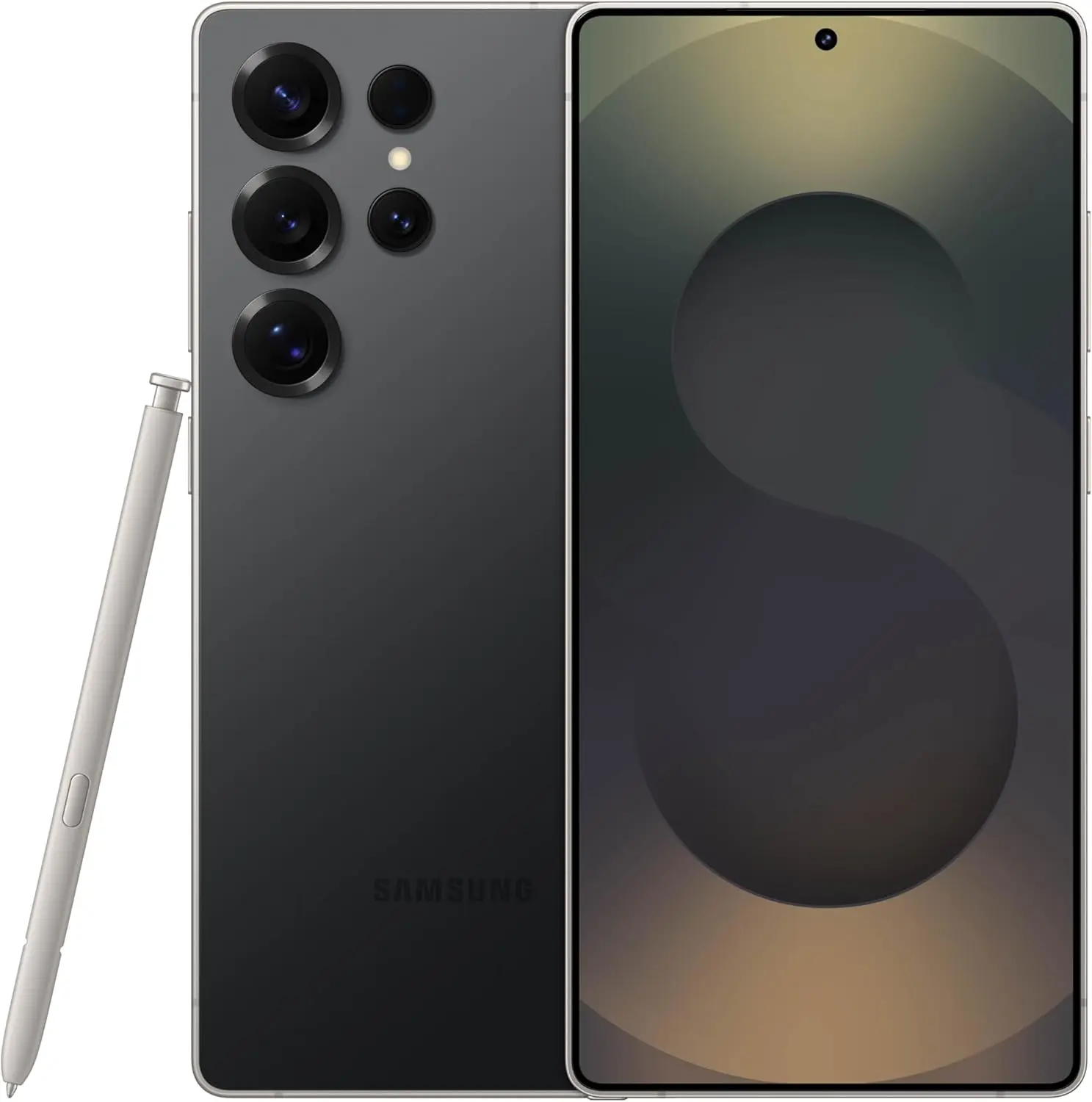
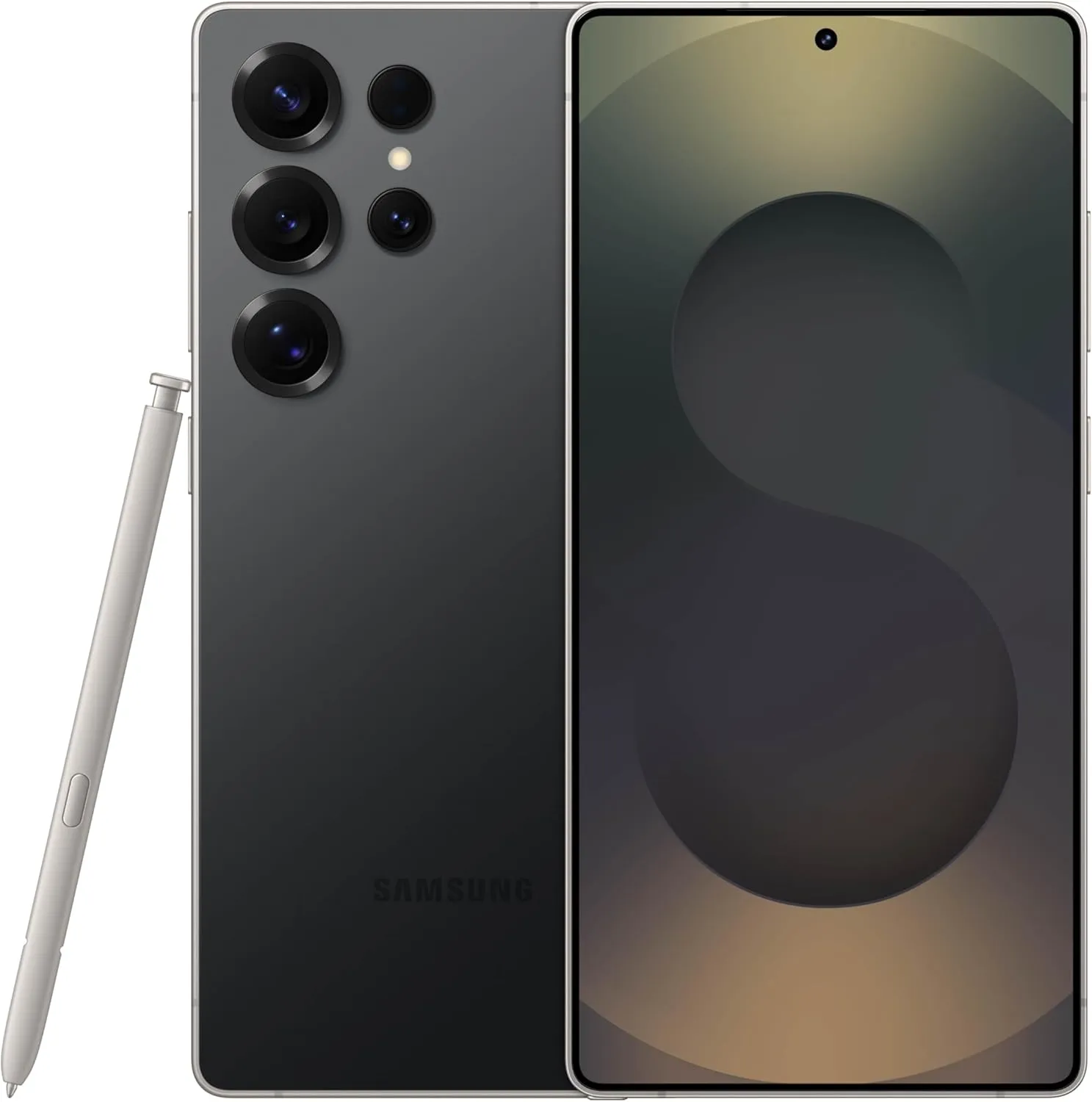
Samsung Galaxy S25 Ultra
Streamline your day with an assistant that gets you. Ask it to Google search for a pet-friendly vegan restaurant nearby and text it to your friend – your Galaxy S25 Ultra handles multiple tasks with a single ask.
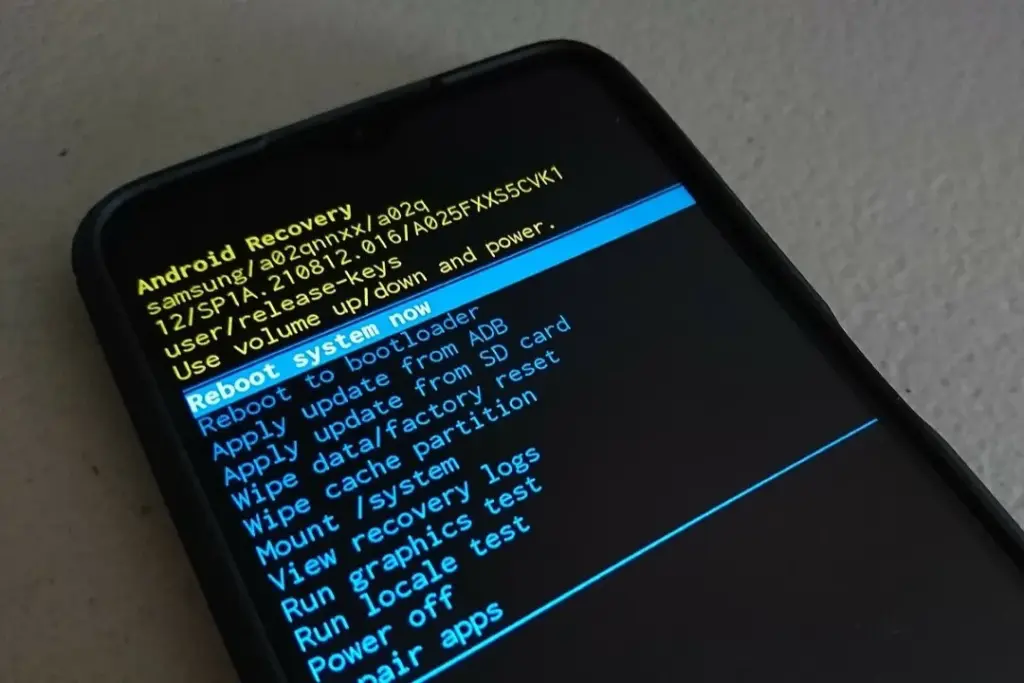
After an update, a damaged cache may result in excessive battery consumption. One secure method to fix this without erasing sensitive information is to wipe the cache partition.
How to Wipe Cache Partition:
Turn off your Galaxy device.
Connect it to a computer via USB.
Hold Power + Volume Up until the Samsung logo appears.
Use the volume buttons to highlight “Wipe cache partition” and press Power.
Confirm and reboot.
3. Update All Apps
Older apps might not be One UI 7 compatible. To guarantee compatibility and effectiveness, update every app from the Google Play Store and Galaxy Store.
4. Check Battery and Location Settings
To find out which apps use the most power, navigate to Settings > Battery & Device Care > Battery.
Limit background activity for apps that use a lot of resources.
For apps that do not require continuous access, check location permissions and turn off “Allow all the time.”
5. Use One UI 7 Battery Protection Features
One UI 7 introduces new battery protection tools:
Adaptive Mode: Limits charging to 80% overnight, topping up before you wake.
Maximum Mode: Set a custom maximum charge (80%, 85%, 90%, 95%) to extend battery lifespan.
Auto Dim Screen: Automatically dims the display when battery drops below 5%.
Access these in Settings > Battery > Battery Protection and Settings > Display > Auto Dim Screen.
6. Factory Reset as a Last Resort
If other solutions fail, a factory reset can resolve persistent battery drain. Back up your data before proceeding.
Extra Tips to Extend Battery Life on One UI 7
Turn off functions you do not use, such as background sync, fast refresh rate, and always-on display.
Reduce screen timeout and screen brightness.
When necessary, activate power-saving modes.
Frequently Asked Questions (FAQ)
How long does it take for battery life to stabilize after updating to One UI 7?
It can take up to two weeks for your device to optimize battery usage after a major update.
Will wiping the cache partition delete my personal data?
No, wiping the cache partition only clears temporary system files and does not affect your personal data.
Why is my location icon always on after the update?
Some apps may have gained new permissions. Review your location settings and restrict access where unnecessary.
Quick Fixes for One UI 7 Battery Drain
Solution
Effectiveness
Data Loss Risk
Difficulty
Wait for optimization
Moderate
None
Easy
Wipe cache partition
High
None
Medium
Update all apps
Moderate
None
Easy
Adjust battery settings
Moderate
None
Easy
Factory reset
High
Yes
Hard
If you’re still experiencing battery drain after trying these steps, keep your device updated and monitor community forums for official fixes. Reporting your issue helps Samsung identify and resolve widespread problems faster.
Samsung Galaxy S25 Ultra
Streamline your day with an assistant that gets you. Ask it to Google search for a pet-friendly vegan restaurant nearby and text it to your friend – your Galaxy S25 Ultra handles multiple tasks with a single ask.
Software updates are vital for keeping your Android smartphone secure, efficient, and compatible with the most recent apps. However, many users disable auto-updates, either to save data or to avoid unpleasant modifications. What is the good news? You can still manually check for and apply updates, rather than waiting for a system prompt.
In this extensive article, we will teach you how to manually check for Android system updates across many brands and what to do if no update appears – even if you assume one is available.
Why Android updates matter
There are several good reasons to check for Android updates manually:
1. Get Critical Security Patches Faster
Waiting for the automatic update prompt could expose your phone to known exploits. Manually checking allows you to keep ahead of security issues by ensuring that your device always has the most recent patch.
2. Access New Features Early
Android upgrades frequently include new interface modifications, battery optimizations, and system features. Manual updates allow you to try the latest enhancements as soon as they are published.
3. Fix Device Glitches or Bugs
Some updates contain stability fixes for specific devices. If your phone has been behaving up, a system update may fix crashes, poor performance, or connectivity issues.
4. Ensure App Compatibility
Many apps now require the latest Android versions to function properly. Without regular upgrades, your favorite apps may cease to function or lose essential features.
Check for updates via settings (standard Android)
This is the most common way to check for updates on Android, regardless of the manufacturer.
Steps:
Open your device’s Settings.
Scroll down and tap on System.
Tap Software Update or System Update (name may vary).
Tap Check for updates.
If an update is available, follow the on-screen instructions to download and install.
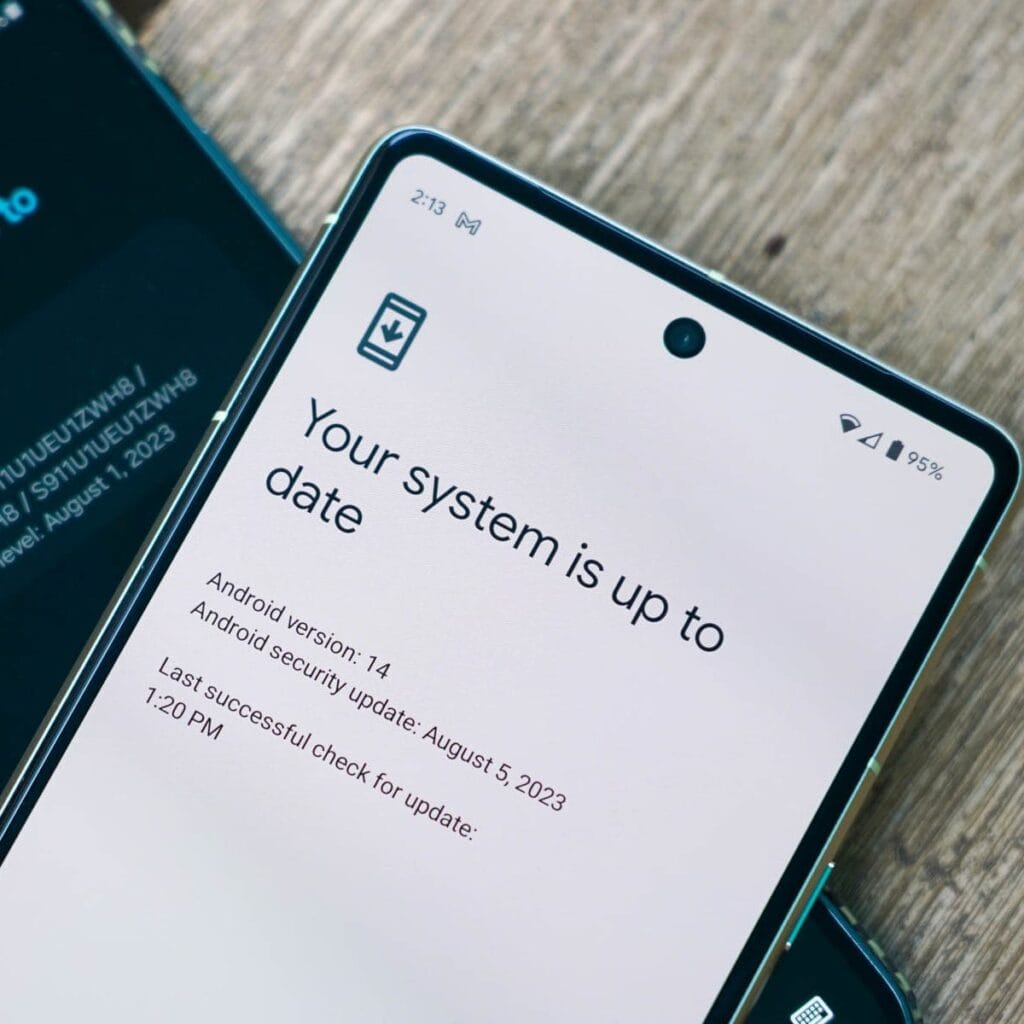
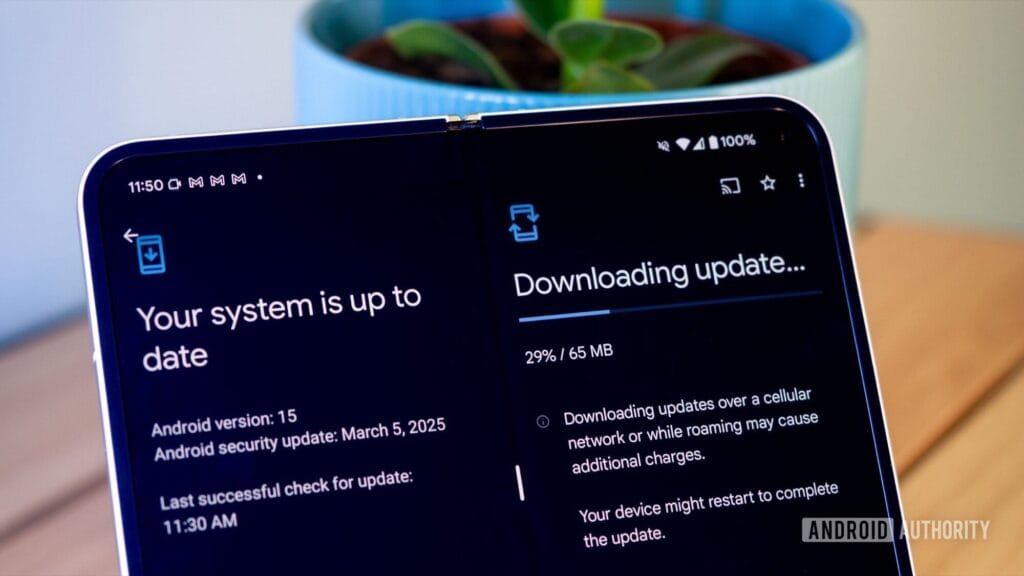
What if it says “Your system is up to date”?
That alerting does not always indicate that there is no update; it could simply have not yet reached your region or device build. In that situation, consider the advanced methods listed below.
How to check updates on specific Android oems
Because manufacturers customize Android OS, the update settings may be in slightly different locations.
Samsung Devices
Go to Settings > Software update > Download and install
Samsung pushes monthly security patches and One UI feature updates through this panel.
Google Pixel
Go to Settings > System > System update
Pixel devices receive updates directly from Google — typically first among all brands.
Xiaomi, Redmi, POCO (MIUI)
Go to Settings > About Phone > MIUI Version
Tap on Check for updates.
For advanced control, use the Updater app found in system apps.
OnePlus (OxygenOS)
Go to Settings > About phone > OxygenOS version
Tap Check for updates
Alternatively, download the OnePlus Updater APK for sideloading updates.
Oppo / Realme (ColorOS & Realme UI)
Go to Settings > Software update
Tap on Check for updates
Oppo also has an “Early Access” program for beta releases.
Motorola
Go to Settings > System > Advanced > System Updates
Tap Check for updates
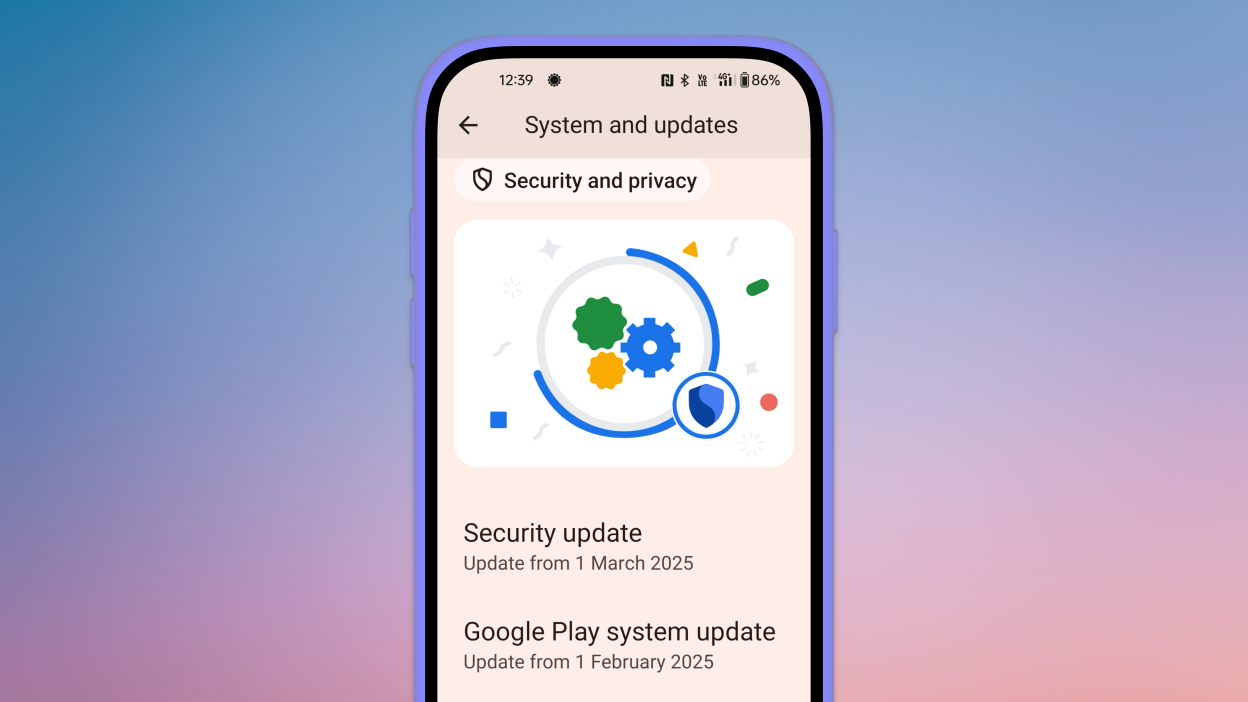
Use Google Play system updates (separate from OS)
Since Android 10, Google has separated certain security and performance updates from full OS upgrades. These are delivered via Google Play system updates.
How to check:
Go to Settings > Security > Google Play system update
Tap Check for update
These are smaller updates that often improve background processes like biometric security, encryption modules, or system services.
Force update with OTA Zip files (advanced users)
If your manufacturer has released an official firmware update but it hasn’t reached your phone yet, you can manually install it using an OTA (Over-The-Air) zip file.
Steps (for advanced users):
Visit your manufacturer’s official website or trusted forums like XDA.
Download the correct OTA update file for your model and region.
Place the file in the root directory of your internal storage.
Boot into Recovery Mode (usually via holding Power + Volume Up).
Choose Apply update from SD card or Install update.zip.
⚠️ Caution: Flashing the wrong file or interrupting the process can brick your device. Always back up your data.
What to Do If No Update Appears?
If you’ve tried everything and your device still says it’s up to date, here are possible reasons:
Carrier Delay: Devices tied to mobile carriers often receive updates later than unlocked models.
Staged Rollouts: Updates are released in waves. Your device may be queued for later.
Region Restriction: Updates may reach some countries first. A VPN won’t help because updates are tied to device build numbers, not IP addresses.
Outdated Device: If your device is more than 2–3 years old, it may have reached its end of life for updates.
Pro Tips to Get Updates Faster
Enroll in beta programs if your phone supports them (Pixel, Samsung One UI Beta, etc.)
Use the manufacturer’s official updater app (like the Xiaomi Updater).
Keep at least 3–5 GB of free storage so updates can install smoothly.
Fully charge your battery before downloading any major update.
Final Thoughts
Checking for Android updates manually is a good practice, especially if you value efficiency, security, or new features. While auto-updates may manage this silently in the background, taking control ensures that you are always using the most recent and safest version of Android.
Whether you are using a Samsung, Pixel, Xiaomi, or Motorola, the steps are usually only a few taps away. Stay up to date and secure.
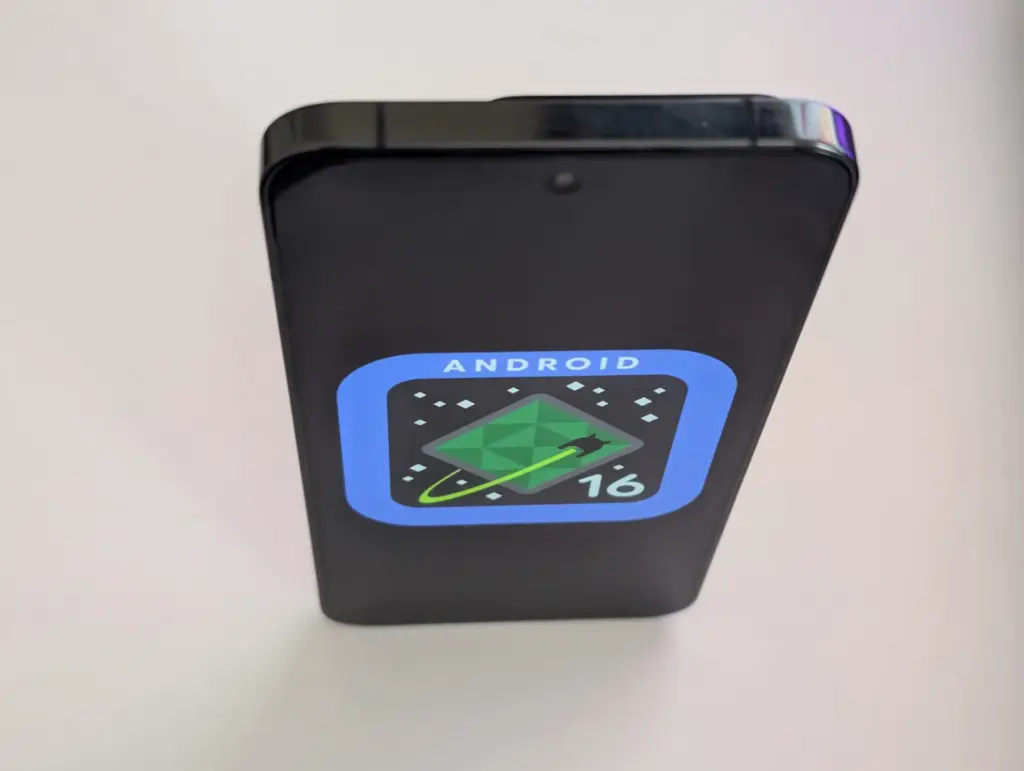
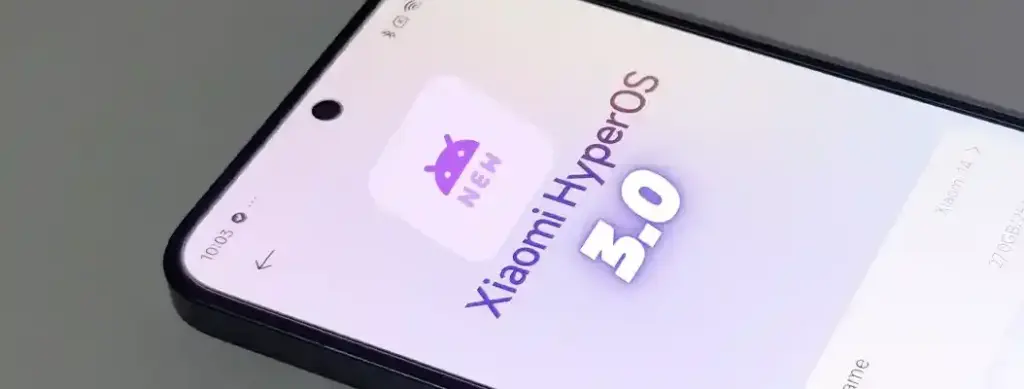
A number of cutting-edge features from the soon-to-be released Android 16 will also be included in Xiaomi’s eagerly anticipated HyperOS 3, setting a new standard for mobile operating systems for the company’s diverse range of devices. HyperOS 3 will deliver cutting-edge capabilities that will transform how people use their devices as Xiaomi develops its ecosystem integration, adds cutting-edge security measures, and keeps improving its software experience.
The upcoming upgrade is expected to offer an unparalleled combination of performance, functionality, and configurability, continuing Xiaomi’s tradition of perfecting the foundations of Android.
Important changes to expect in HyperOS 3
Android 16 will be the starting point for HyperOS 3 to introduce many significant upgrades that Xiaomi will probably enhance and build upon:
Live Updates: Delivery of information in real time without apps
Hybrid auto-exposure for improved low-light photography
Exact colour temperature controls Night mode Camera extension API
Motion photo capture functionality
Display Optimizations
Improved Adaptive Refresh Rate support
Forcing edge-to-edge app support
Ultra HDR image enhancements
These enhancements are a perfect fit for Xiaomi’s mission to deliver superior multimedia experiences across its line of devices, especially so across its camera-focused devices such as the latest Xiaomi 14 series.
Performance and System Improvement
The fundamental system architecture within HyperOS 3 will probably undergo major upgrades:
Vulkan: Presently the official graphics AkPI for Android
Cloud compilation: Quicker app installations
Improved app adaptability: Increased performance across device types
Xiaomi has consistently prioritized performance optimization in its previous operating systems, suggesting that HyperOS 3 would further enhance these features to allow for even higher responsiveness and speed.
Connectivity and Accessibility Features
HyperOS 3 is also anticipated to advance how people interface with their devices and one another:
Volume controls for ambient sound: For hearing aids using LE Audio
Generic ranging APIs: Enhanced location services
Gemini Extensions: Extended AI assistant capabilities
These features support Lei Jun’s idea of seamless integration throughout the Xiaomi product range and are evidence of Xiaomi’s continuous efforts to provide a simpler and more connected device ecosystem.
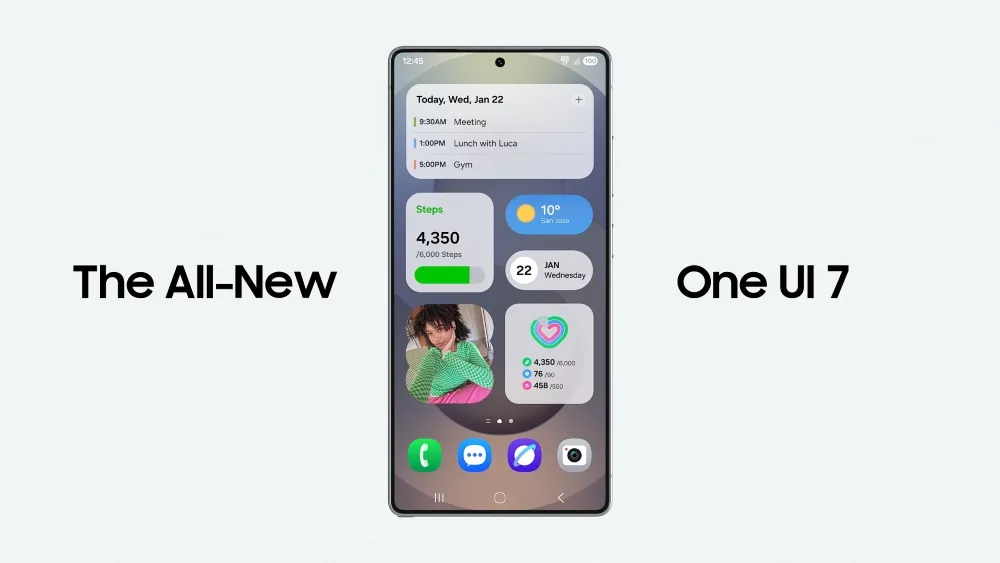
There is no sugarcoating it. Samsung botched the deployment of One UI 7 on the top Galaxy phones. Still, it is one of the most significant redesigns in One UI history, adding an unmatched level of polish to the company’s appearance. You have surely heard about the Now Bar and the huge Galaxy AI improvements in One UI 7, but here are several tiny, underappreciated updates you might have overlooked.
Double-tap playback controls in AOD
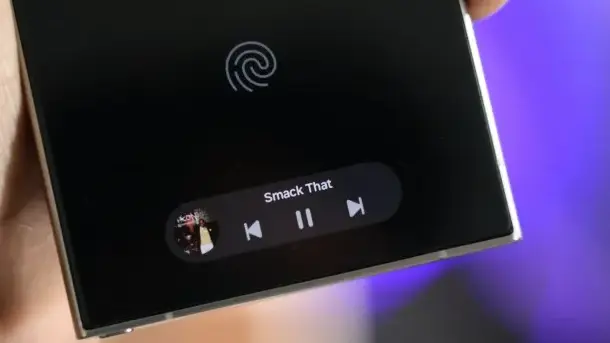
Now Bar is one of the significant new features in One UI 7, promising to provide relevant information at the right time. It also works with Always-on Display, displaying softly at the bottom. This is not the only way Samsung enhanced the Always-on Display with One UI 7. You may now control media playback via the Always On Display (AOD).
If you lock your Galaxy phone running One UI 7 while media is playing, the playback controls show at the bottom of the Now Bar. A single tap does nothing, but double tapping the playback controls will play, pause, or skip the current song or movie.
When you double-tap the album art, an expanded view of the media player appears, complete with larger controls and the ability to adjust media output.
Vertical app drawer
One UI 7 introduces a vertical app drawer to the One UI launcher. The option was included in One UI 5 and earlier releases, however it was deleted with Samsung’s Android 14-based One UI 5 update. The business promised to bring back the vertical app drawer with One UI 6.1.1, however this never happened.
If you have hundreds of apps installed on your Galaxy phone, a vertical app drawer will help you to easily swipe through them. In true Samsung form, there is an anomaly in how the feature was implemented.
Samsung does not specifically refer to it as a vertical app drawer. Instead, open the app drawer, hit the overflow menu button in the lower-left corner of the search bar, and choose Sort, then Alphabetical order. This converts the app drawer to a vertical style and organizes apps by name. You cannot move apps in this view, but you may position them within folders. Folders are located at the top, followed by applications and games.
A useful feature of the vertical app drawer is the addition of a fast-scroll bar on the right, which allows you to swiftly skim through and jump to any portion of your app list. The Home Up Good Lock module, which was updated with One UI 7, allows for more customisation of the home screen and app drawer.
Quick switch between the notification panel and Quick Settings
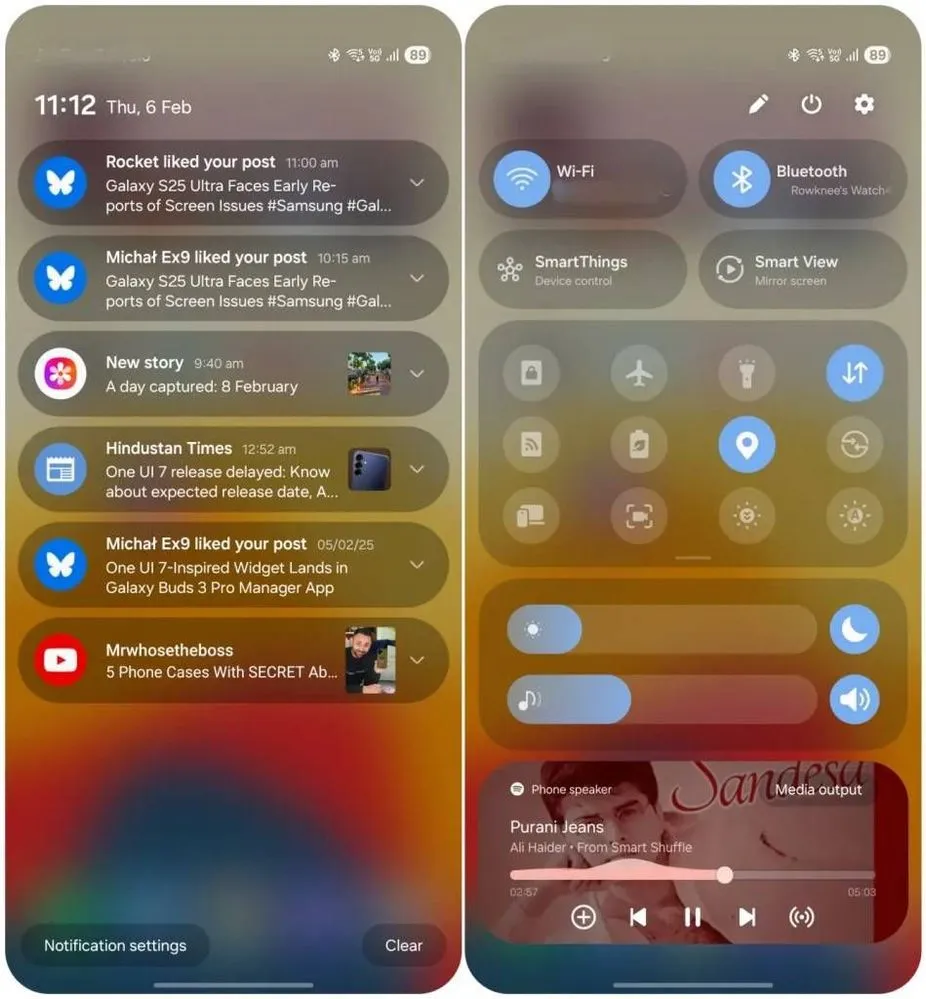
Samsung used an iOS-like approach with One UI 7, separating the notification panel and Quick Settings into two sections. You can return to the former One UI 6-like layout, but sample this adjustment for a few days before making a decision.
Compared to Apple’s distinct Quick Settings and notification panel design, Samsung’s method has one significant advantage. Swiping between the Quick Settings panel and the notification shade allows you to rapidly move between them. The same is true for phones from Xiaomi, Oppo, and OnePlus, all of which have long used separate Quick Settings and notification panels.
Although Samsung was not the first to market with the idea, it made care to include a helpful change in One UI 7.
Minimized pop-up apps group together
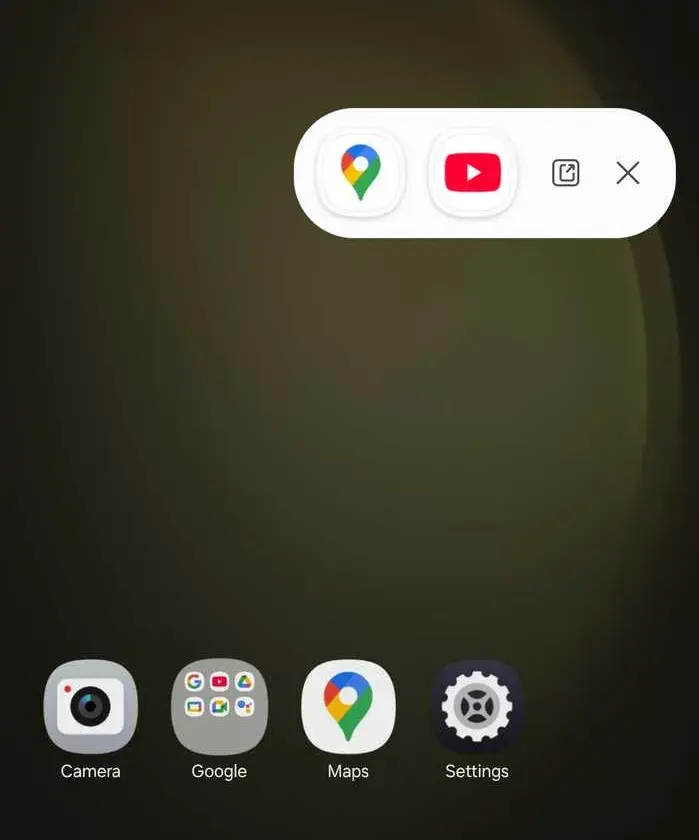
Samsung’s Android skin includes a variety of useful multitasking capabilities, including the option to run programs in a pop-up view. This allows you to run many programs simultaneously and minimize them into a floating shortcut. When you minimize numerous apps in pop-up mode, your Galaxy phone’s display may appear cluttered.
One UI 7 solves this problem by grouping the floating shortcuts of all minimized programs. Even better, there is a shortcut for launching all minimized apps at once. If you do not frequently utilize pop-up view multitasking on your Galaxy phone, you may disregard this as a minor modification. If you rely significantly on it, you will benefit from this modification.
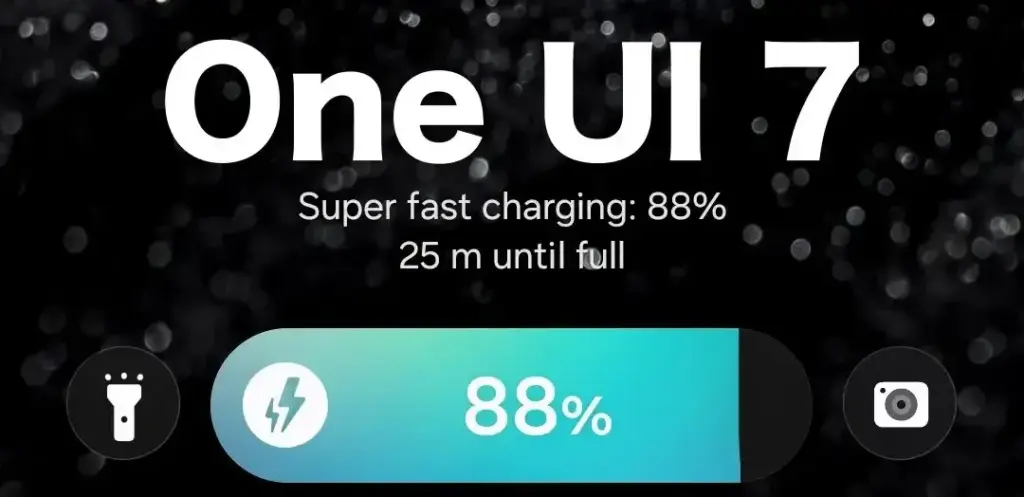
New charging animation
Samsung’s work with One UI 7 is evident, from the smooth system animations to the general fluidity. The experience rivals iOS in polish and feels substantially better than other Android skins. You will not encounter sporadic lags or stutters. The new charging animation demonstrates Samsung’s attention to detail in One UI 7.
If you put in your Galaxy phone to charge when the display is turned off, a charging pill with a slick animation appears at the bottom, where the Now Bar resides. It does not appear in extreme brightness, but rather in a dimmed state. When you are in a dark room, the phone automatically adjusts the brightness to make it even darker. The charging information can be displayed even when the screen is turned off.
One UI 7 is really improved
Samsung’s Android skin offers a feature-rich experience, including useful multitasking options. Still, it felt like One UI lacked the polish and attention to detail that Pixel UI and iOS possessed.
With One UI 7, Samsung steps up, demonstrating that when it wants to, it can create a professional and well-rounded Android experience while correcting some of its long-standing faults. So it is sad that the focus on One UI 7 is primarily on its rollout delays, rather than the polish and enhancements it delivers.
Google has released rich media controls for the Pixel Watch, following the March 2025 Feature Drop teaser.
Last month, Google teased the upgrade as such:
“Make it easier to control audio content from the watch with control types based on content being played (such as Podcasts within YouTube music).”
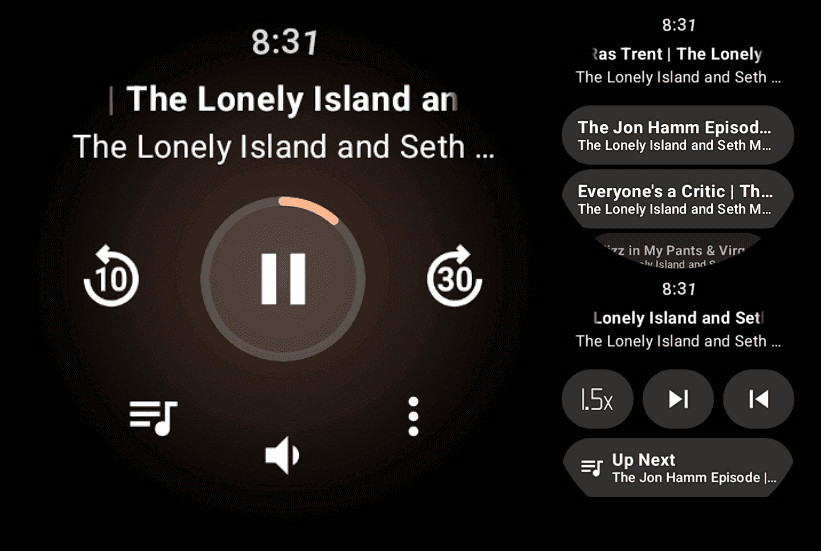
“Manage your favorite audio content with new actions on Pixel Watch to fast forward and rewind, adjust playback speed or control playback queue.”
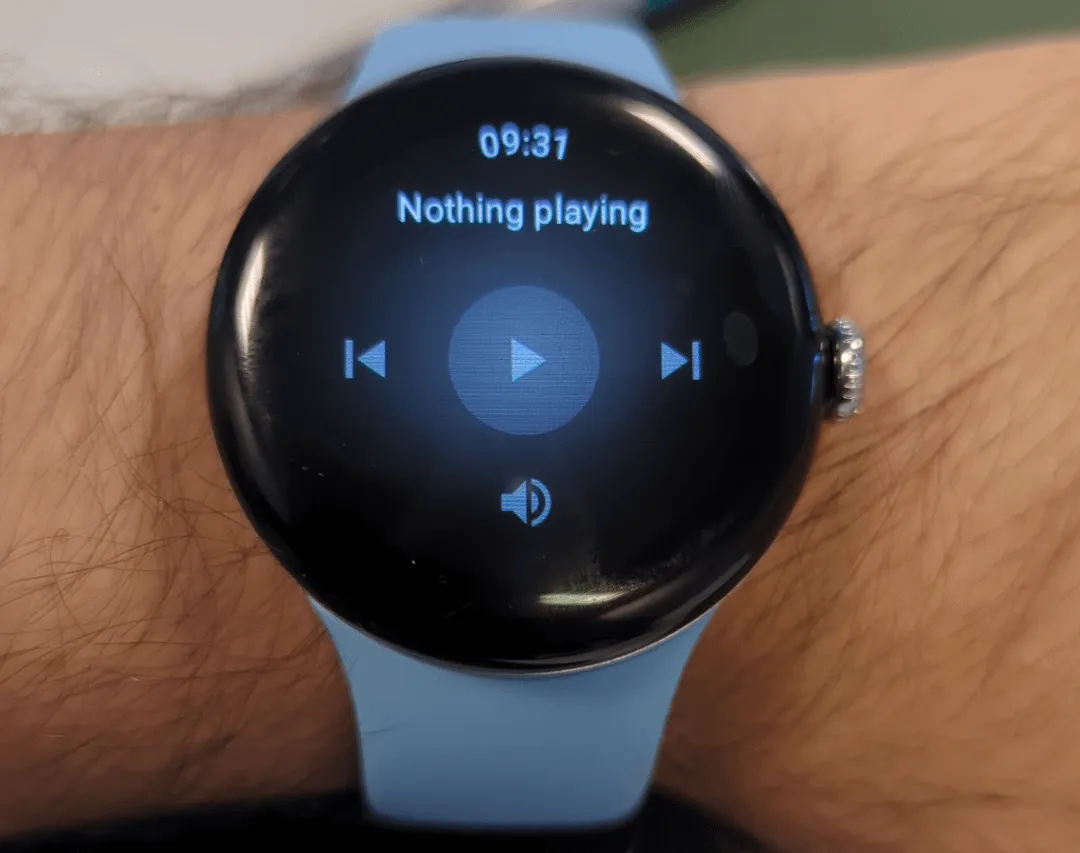
In the past, the Pixel Watch‘s system media controls only let you to change the volume, play/pause, and next/previous. This is on top of the tracking data for the music that is currently playing on your phone.
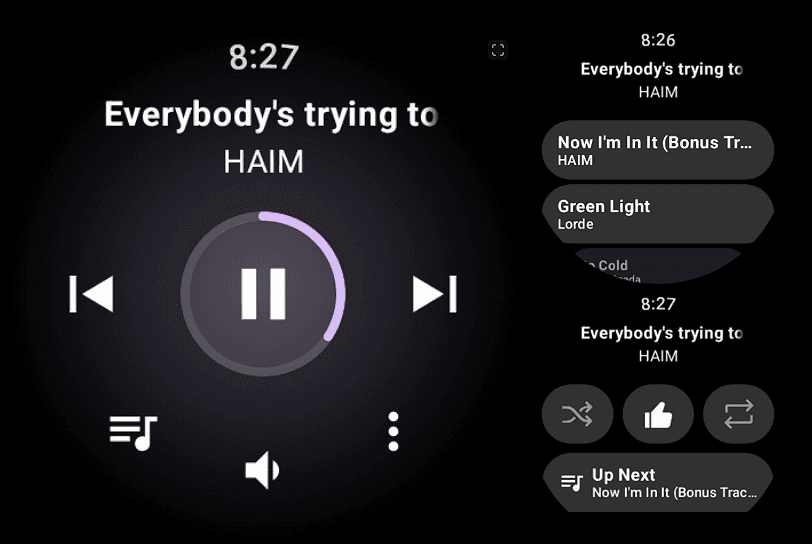
By tapping the new button on the left, you can now see your Up Next queue in addition to those actions. With YouTube Music, this displays the next 24 tracks, which can be tapped to begin playing right now.
In the meanwhile, you can repeat, thumbs up, and shuffle a track (in YTM) with the three-dot overflow button on the right. For Up Next, you also receive an additional tablet.
You may adjust the playback speed of podcasts (in YouTube Music), with each tap resulting in a larger increment. Additionally, you can go to the previous or next episode.
These updated media controls for the Pixel Watch are not supported by all apps. The extra features are grayed out in the screenshot below, which is from Pocket Casts (played on my phone).
The Pixel Watch 3 running Wear OS 5.1 is where we are experiencing this, and you should confirm that “Wear Media” in the on-watch Play Store is completely current (version 1.6.7.x).
Google Pixel Watch 3
The Google Pixel Watch 3 is designed for performance, with advanced fitness from Fitbit; the 41mm screen is twice as bright and 10% larger than before, making it easier to see your stats and info.
Xiaomi is still updating a variety of devices with the HyperOS 2.1 upgrade, which is based on Android 15. However, all eyes are now on HyperOS 3, which is based on Android 16, the upcoming major release. This one will come with enormous improvements in terms of performance, features, and design.
Xiaomi to roll out HyperOS 3 update based on Android 16
A recent article from XiaomiTime states that the release of HyperOS 3 is anticipated to be in July 2025. Although Xiaomi has not yet released an official announcement regarding the complete list of devices, the report offers us a good idea of which models should be updated. Xiaomi, Redmi, and POCO devices will be included in the upgrade, demonstrating the company’s dedication to providing long-term software support.
What to Expect in HyperOS 3
Improved multitasking, improved battery life optimization, more intelligent AI-based capabilities, and a redesigned user interface are just a few of the many new features that HyperOS 3 is said to offer. It is anticipated that a primary focus will be on improving device integration and performance, particularly with regard to tablets and foldables.
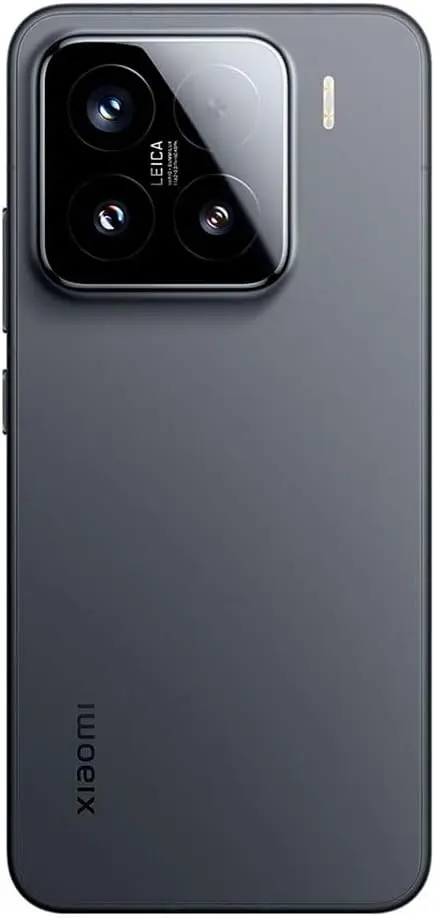
Xiaomi 15 5G
Snapdragon 8 Elite Mobile Platform3nm manufacturing processCPU2 x Prime Core, up to 4.32GHz6 x Performance Core, up to 3.53GHzGPUAdreno GPUAIQualcomm AI engine.
Leica Summilux optical lensLEICA VARIO-SUMMILUX 1:1.62-2.2/14-60 ASPHLeica main camera50MPLight Fusion 900 image sensor2.4μm 4-in-1 Super Pixelf/1.62OIS23mm equivalent focal lengthLeica 60mm floating telephoto50MPf/2.0OIS60mm equivalent focal lengthLeica ultra-wide camera50MPf/2.214mm equivalent focal length115°. 32MP FRONT CAMERA
Redmi Note 12, 13, and 14 series (4G, Turbo, and Pro models)
Redmi 12, 13, and 14 series (C and A models)
Redmi K50, K60, K70, and K80 series
Redmi Pad SE, Pad SE 8.7, Pad Pro, and Pad Pro 5G
POCO Devices:
POCO F5, F5 Pro, F6, F6 Pro, F7, F7 Pro, and F7 Ultra
POCO X6 5G, X6 Pro 5G, X7, X7 Pro, and X7 Pro Iron Man Edition special edition
POCO M6 (4G, 5G, and Pro versions), M7, and M7 Pro 5G
POCO C65, C75, and C75 5G
With a wider rollout, Xiaomi will gradually introduce the most recent Android experience across a diverse range of devices. It is likely that HyperOS 3 will improve on everything you do on a flagship, mid-range, or low-cost phone. Xiaomi is going to make the announcement, so keep a look out!
In October 2023, Xiaomi unveiled their new Android-based operating system, or Android skin as some of you could refer to it. It was the successor of MIUI and is called HyperOS. Sincerely, HyperOS ended up looking a lot like MIUI, and although it did provide some nice modifications, it also brought about some unfavorable ones. HyperOS is undoubtedly a highly powerful piece of software, but there is still a lot of space for improvement. Although Xiaomi’s HyperOS has a lot of promise, a few things must alter if it is to advance.
So far, I have been running HyperOS on several Xiaomi and Redmi devices. I have discovered a number of things that I would alter during my time with it. To be clear, you might not have an issue with some or all of these things. Nevertheless, I think HyperOS has a lot of promise and can reach that point with just a few smart actions from Xiaomi. Keep in mind that, as is typical with these kinds of pieces or editorials, personal opinion does come through. Views vary. So, let us examine HyperOS’ shortcomings, shall we? I will not do it in any specific order.
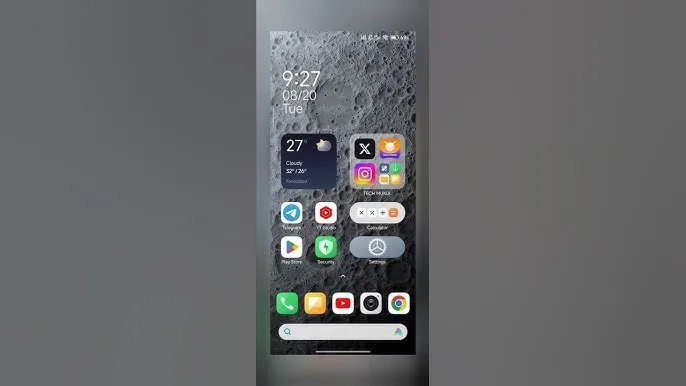
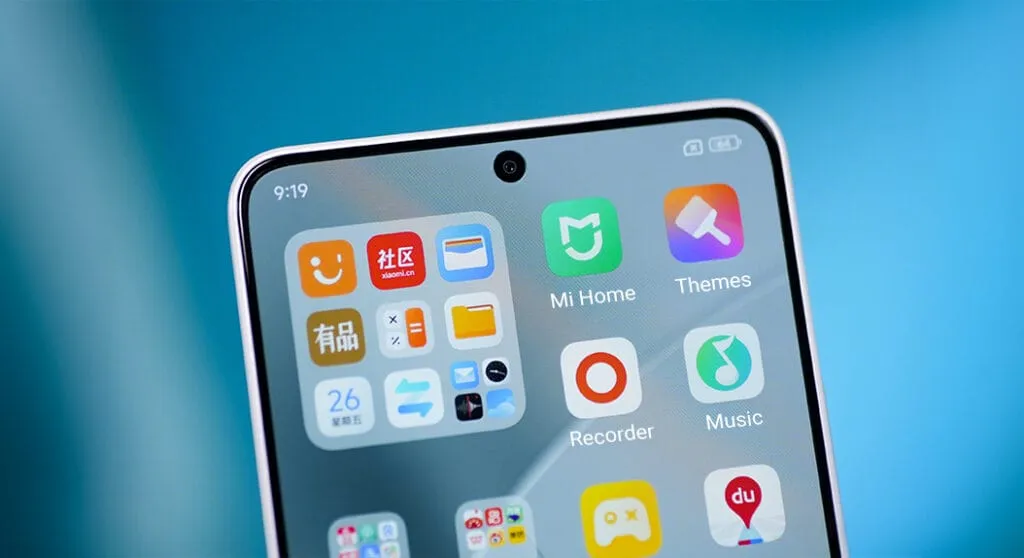
Home screen customization
There is a lot of flexibility available with HyperOS. Still, there is potential for improvement. I made the decision to pay close attention to the home screen. Why? Xiaomi can improve this in a number of ways that will help consumers. First and foremost, using icon packs from the Google Play Store would be great. Setting up icon packs is practically impossible since we are unable to use third-party launchers. Xiaomi has no reason not to implement this change in their stock launchers, as many other Android OEMs do.
Plus, it would be fantastic to give customers additional grid size options. There are very few options available presently. However, there is a problem with nearly all other Android OEMs. The home screen’s app dock row comes next. It would be great if we could eliminate it completely and have a single, consistent canvas on the home screen because some users choose not to use it at all.
Unblock third-party launchers
One of my main complaints with HyperOS is this. The only significant Android skin that totally prevents third-party launchers from working is this one. Although it is likely that you will have problems with gesture navigation, other OEMs let you set them. Actually, Google is to blame for this, as it restricts access to certain APIs for third-party developers. It has been a persistent problem. To change that, they even petitioned Google.
However, for some reason, Xiaomi chose to restrict third-party launchers entirely. Actually, it was not the case with MIUI in the past. In actuality, third-party launchers performed best on Xiaomi smartphones in terms of animations and other features. It was a significant shift when Xiaomi blocked them. Since many fans use Xiaomi phones, it should be possible to enable third-party launchers and let them function properly.
Toggles
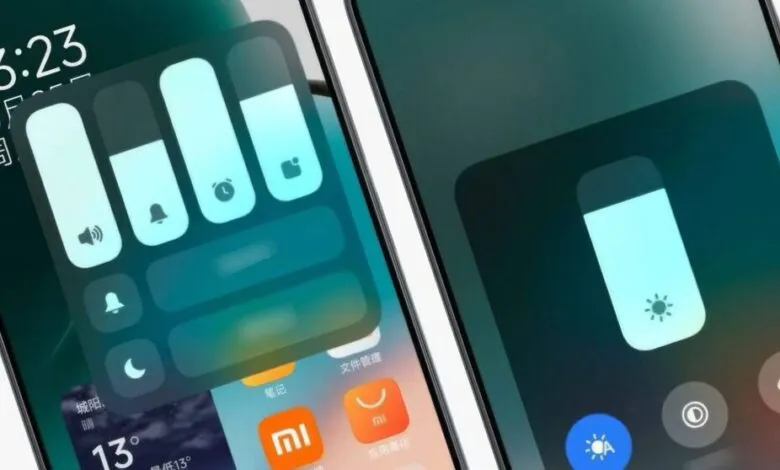
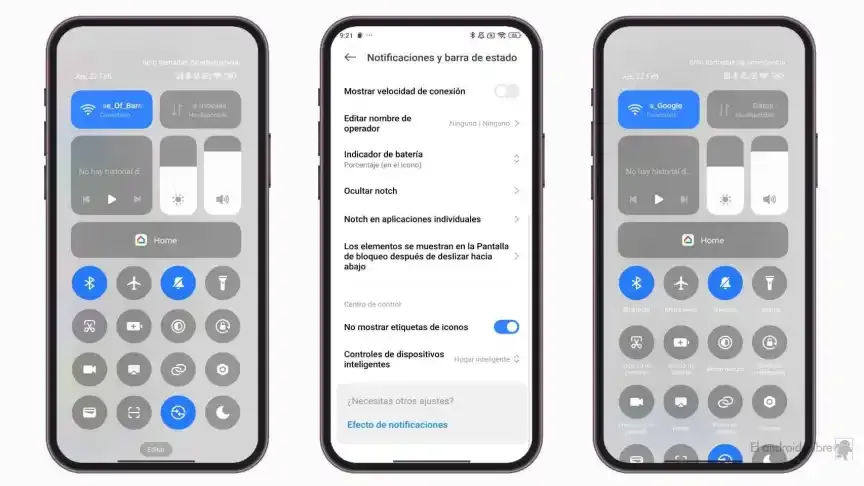
The Quick Toggles screen might be enhanced by Xiaomi as well. Although it makes us think of iOS, it is not an issue in this case. This Android skin lacks a dedicated Settings toggle, in contrast to the majority of others. Although there is a toggle, it is a component of every other toggle. Although you can move it around and position it wherever you choose, it is not independent and lacks sufficient intuitiveness. It would be convenient if it were distinct because many users are accustomed to opening Settings from there.
In addition, there are just two sizable toggles there, and regrettably, you are unable to alter that. The WiFi and mobile data toggles are the only sizable toggles you receive. For example, the Bluetooth toggle and the screen rotation toggle cannot be made huge. If Xiaomi made this possible and let users fully design the Quick Toggles interface, it would be great.
Push notifications
Unbelievably, HyperOS still has problems with push notifications. At least the way it is configured right out of the box. I have been experiencing problems with the majority of apps. By default, apps are set to “Battery Saver,” which is the suggested setting. You will not have these problems, though, if you unblock them from their limitations in the settings (each program independently). It will be possible for notifications to reach their destination on schedule.
The problem is that ordinary consumers will not be aware of that. They will not consider changing that function by going into the settings. Of course, that is problematic. Many of them will find it annoying because they will not be receiving notifications right away. As a result, they become irritated with the business—in this example, Xiaomi—and develop a bad opinion of their goods. To be honest, Xiaomi should make changing this a high priority. Push alerts need to function normally right out of the box.
The 10-second countdown
Another noticeable issue when it comes to HyperOS has to do with the timeout Xiaomi is placing on its consumers. Essentially, a warning pop-up will appear each time you attempt to modify a more complex setting, such as an accessibility setting. That is typical, is not it? Yes, it is; all OEMs carry it out. The 10-second countdown, however, is unusual. You cannot approve or reject anything on Xiaomi until ten seconds have elapsed. This is most likely in place to allow you sufficient time to read the warning.
You truly do not need to read it again after you have seen it for the first time. That countdown is incredibly annoying since you know exactly what you want to do. It makes sense if Xiaomi only did it once after you had configured your device. However, in HyperOS, you receive it each time a more complex configuration is altered.
Notifications
I wanted to draw attention to a few more notifications-related problems besides push notifications. For other people, lock screen notifications are an additional problem. They work similarly to what you get on iOS the way they are currently configured. It goes without saying that many individuals will find that offensive. What is wrong? You will notice your new notifications when you get to the lock screen. However, they will not be there the next time you get to the lock screen, even if you do not read or open them and then lock the device.
Yes, they will still remain in the notification shade, however this is a problem if you use your lock screen a lot. That is not what the great majority of other Android OEMs do. Similar to the notification shade, notifications will remain on your lock screen unless you choose to dismiss or open them. This distinction between the lock screen and notification shade is completely superfluous, and I sincerely hope Xiaomi will eliminate it soon.
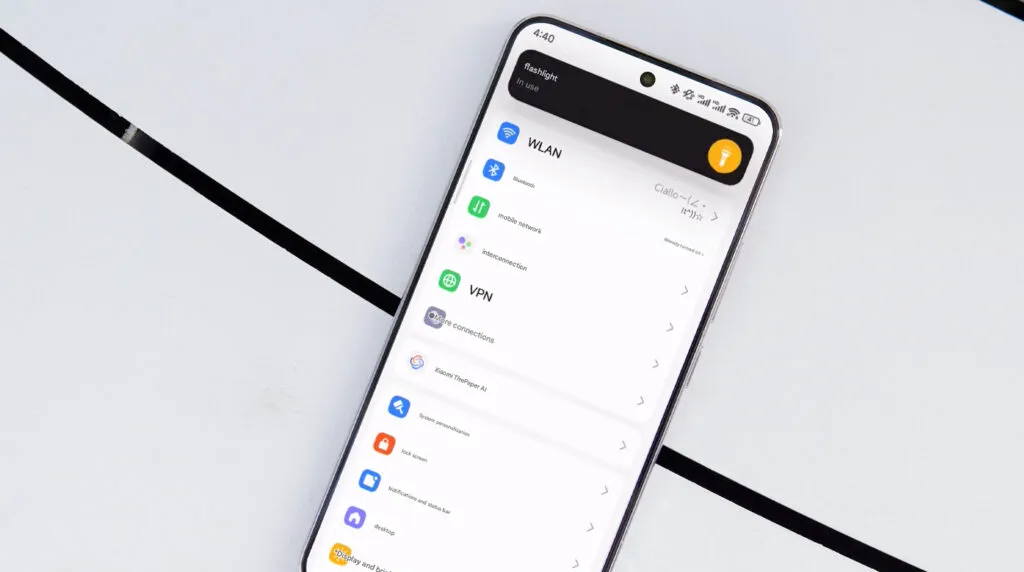
Status bar icons
Xiaomi can also make the HyperOS status bar better. When it comes to it, there are a number of various irritations. Notification icons are the subject of the first one. Xiaomi restricts you to a single app notification icon in the upper-left area by default. However, you have the option to enable up to three app notification icons to show. Only the three most recent alerts from various applications will show up if you have more than three.
Almost all other Android OEMs permit as many app notification icons as they can fit on the screen. It does not restrict you in that manner, which is the proper approach. The fact that Xiaomi only allows one icon by default and that you are unable to enable more than three icons is not the only issue. Simply put, HyperOS introduced a totally needless modification that was not a problem on MIUI.
Additionally, if HyperOS allowed users to remove some of the status bar icons, that would be great. For instance, it is superfluous that the Bluetooth indicator is always up there. Many individuals always have Bluetooth turned on for their headphones, smart watches, or other accessories. That icon does not really need to be up there all the time if it is always on. If we could take it off and forget about it, that would be great.
For optimal performance and user experience, it is imperative to keep your Xiaomi smartphone updated, especially with the new HyperOS ecosystem. Five essential system apps will receive significant updates in April 2025 that enhance their usability, security, and appearance. All Xiaomi phones will offer a better, more potent experience thanks to these updates, which are made to work perfectly with HyperOS 2.1.
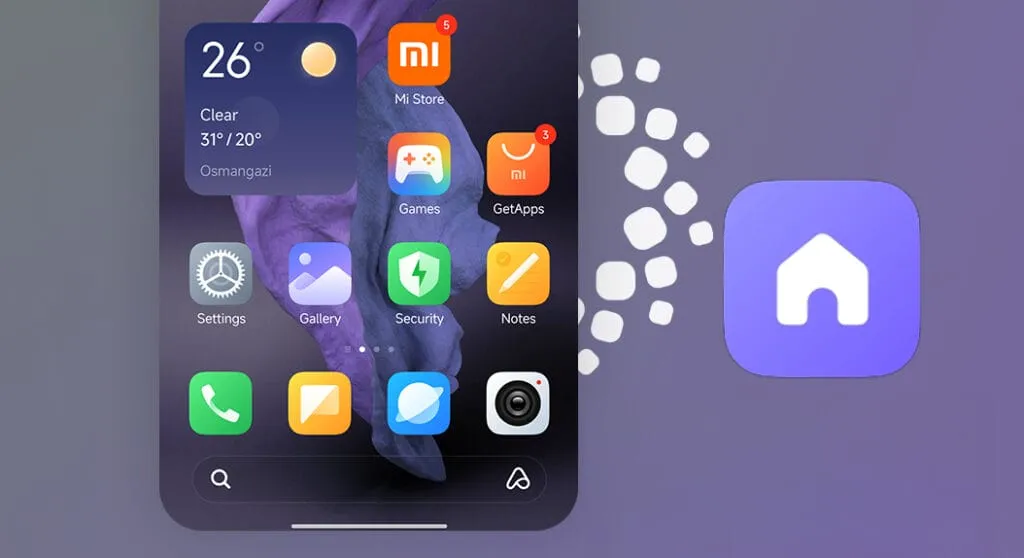
HyperOS Launcher
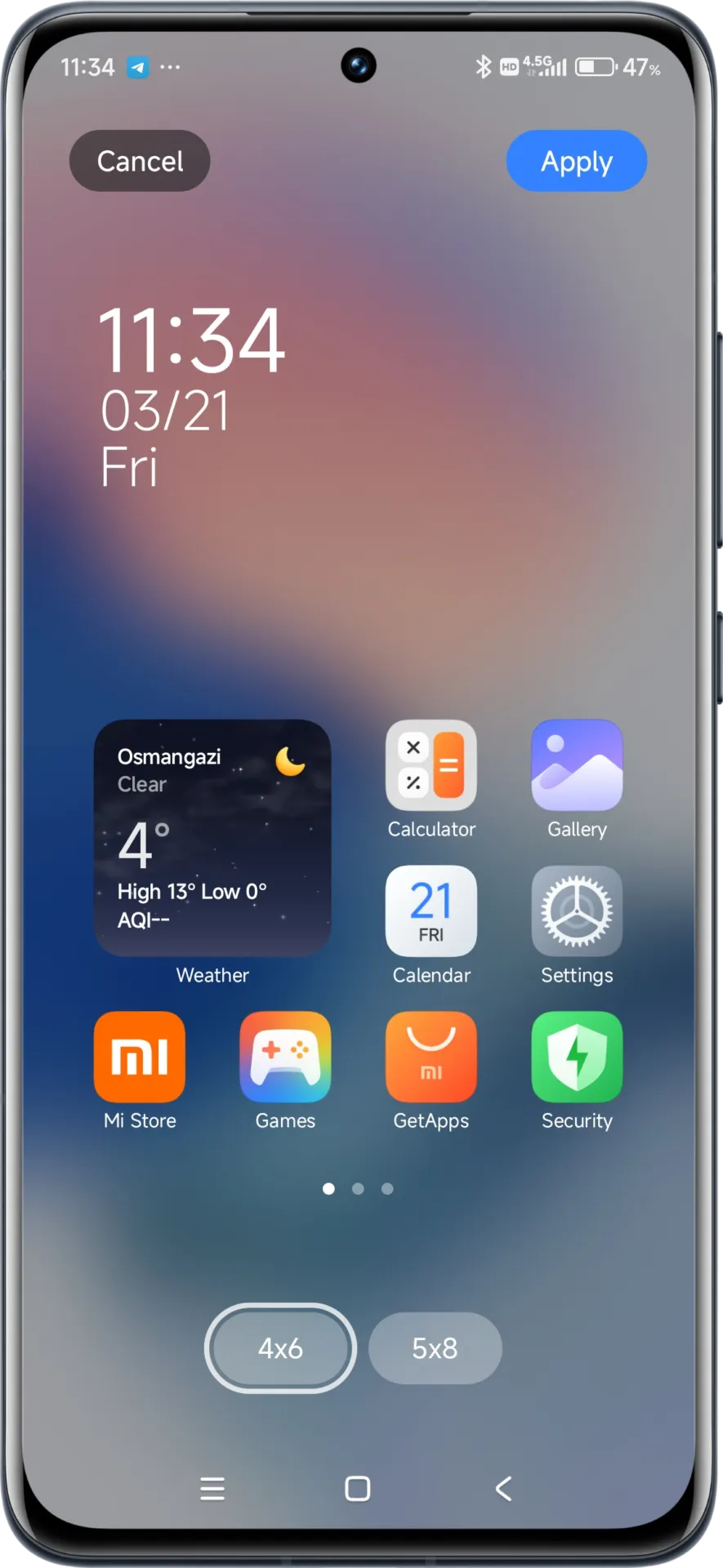
Updated on HyperOS Launcher was overhauled in full with many enhancements:
Improved Animations: Better folder animations bring a more refined, pleasing aesthetic experience
Enhanced Readability: Large fonts on the top drawer bar improve readability
MIUIX V3 UI Library: Implements modern design language for a fresher appearance with more uniform features
Adjustable Layout Options:
4×6 layout with search box 4×7 layout without search box
2K Screen Optimization: Popup UI now scaled correctly for high-resolution screens
The update to the launcher is centered on aesthetics and functionality, resulting in an improved user experience that still offers high performance.
HyperOS Themes
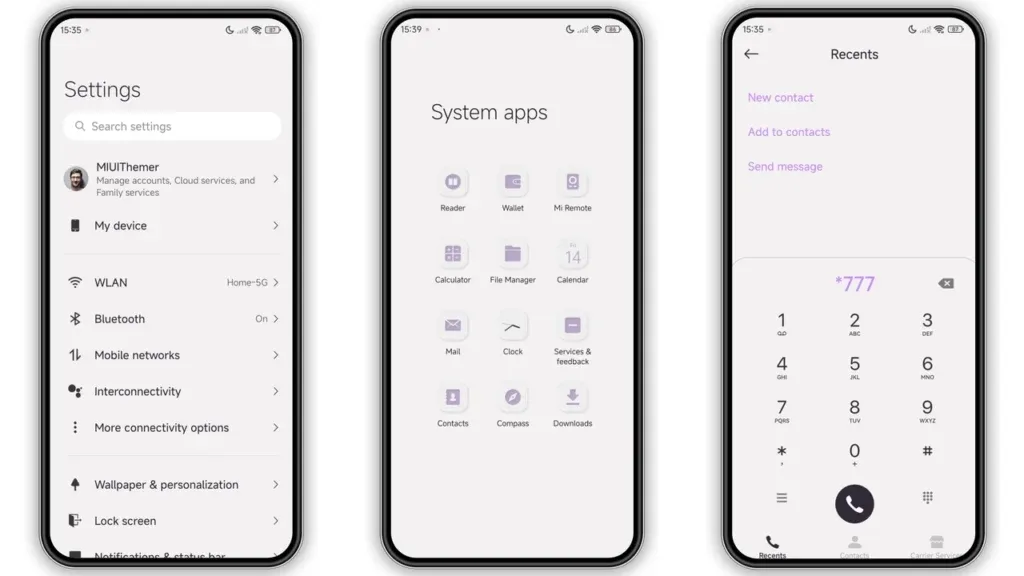
The updated HyperOS Themes has a better, more streamlined user interface. The update makes device customisation more comprehensive and accessible, allowing users to alter their gadgets to better reflect their own unique style.
With improved previewing and classifying capabilities, the simplified interface makes it possible to find and use new themes more quickly and easily.
HyperOS Security
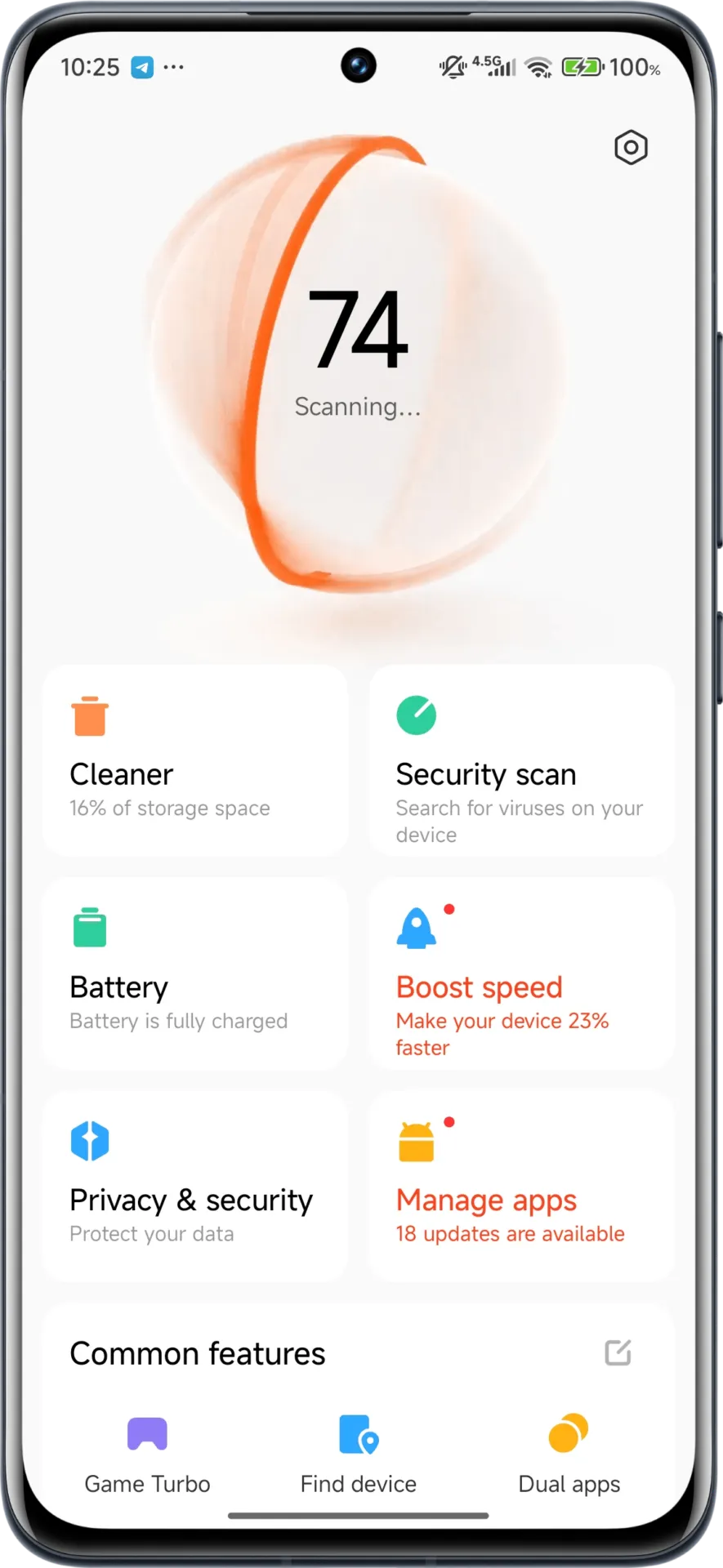
The HyperOS Security updated for brings essential enhancements to gaming performance and device protection:
Turbocharged Game Performance: All-out performance enhancements with advanced optimization capabilities
Security Improvements: Several behind-the-scenes updates improve system and data security
Performance Optimizations: Enhanced resource allocation to ensure seamless performance even on high-intensity tasks
Privacy Controls: Broader choice for controlling app permissions and data access
These security enhancements play a crucial role in shielding personal data while providing stable system performance.
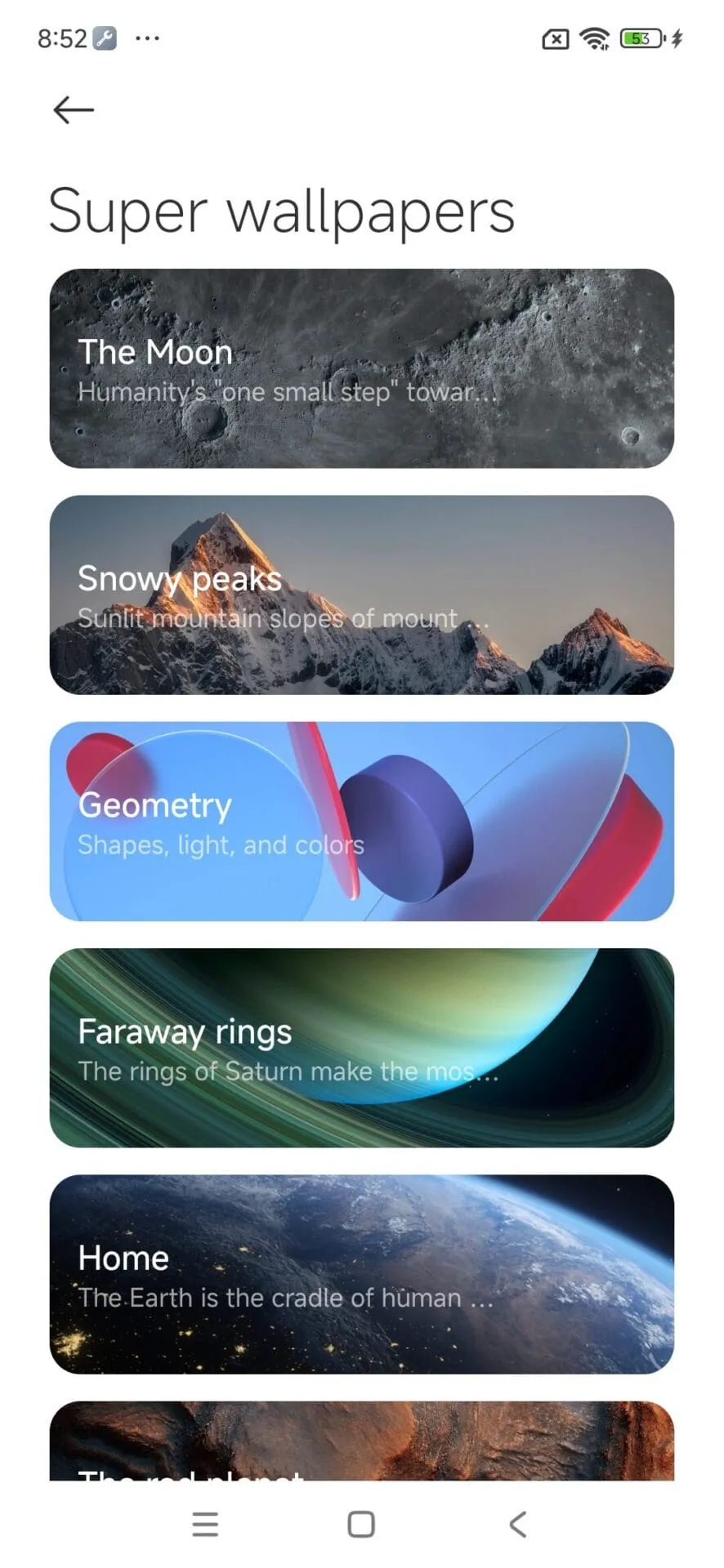
HyperOS Wallpaper
Updated on April. This new version emphasizes fixing bugs and performance enhancements. This update also solves problems that were causing lock screen and home screen wallpapers to:
Improved fluidity in switching wallpapers Improved stability throughout system transitions
Enhanced resource management for reduced battery usage
Improved integration with dynamic wallpaper features
Though mostly an update for maintenance, these changes considerably improve overall Wallpaper experience.
How to update HyperOS system apps
For an optimized upgrading process, Xiaomi users have an available HyperOS Downloader app: