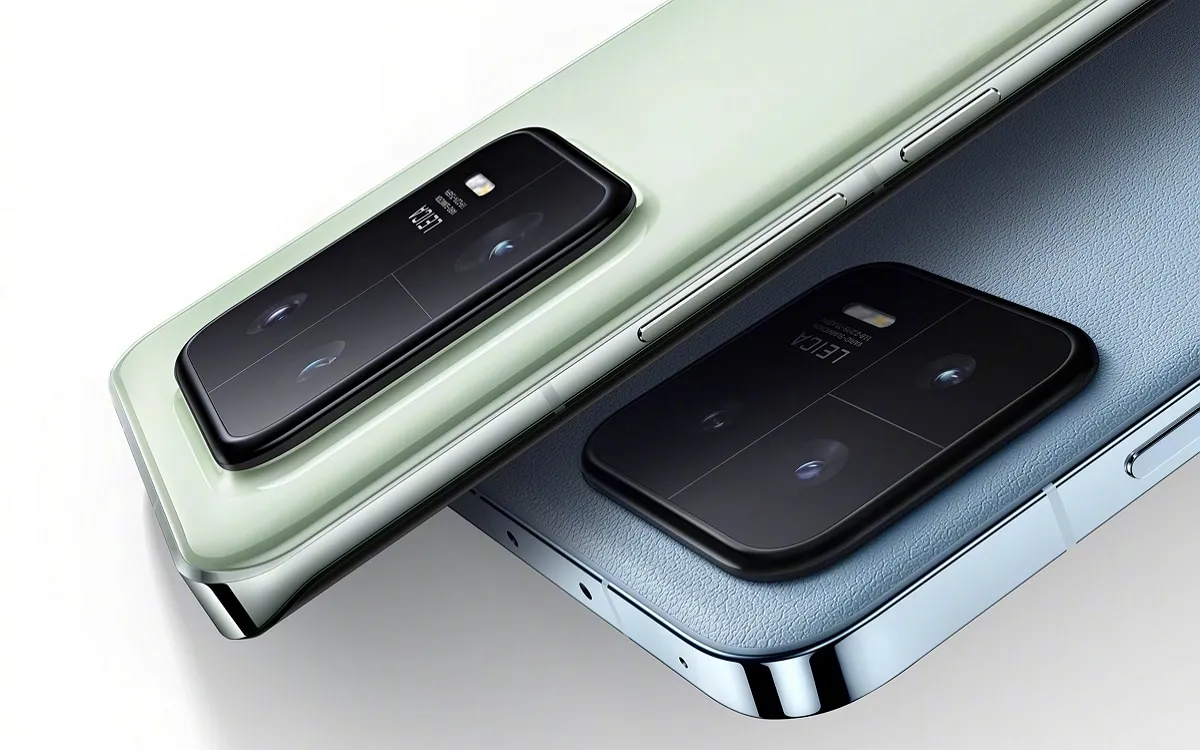
After making its debut in November, the new Snapdragon 8 Gen 2 is now slowly making its way into the market. The new Xiaomi 13 series is powered by the company’s flagship processor, and the Xiaomi 13 Pro has just been put to the test in a competitive gaming environment.
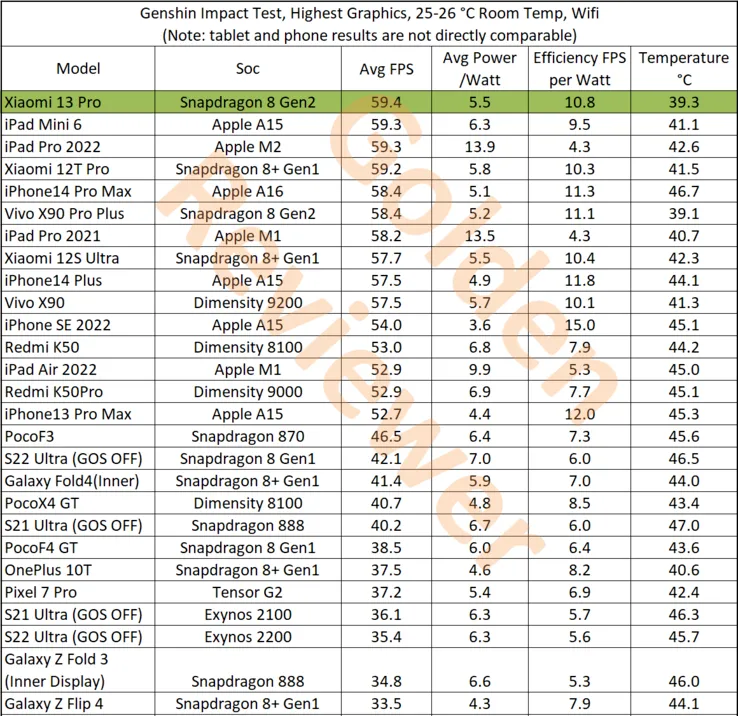
This test, conducted by Golden Reviewer on the well-known game Genshin Impact, demonstrates the Snapdragon 8 Gen 2 in the Xiaomi 13 Pro’s performance, which easily exceeds all competitors. The Xiaomi 13 Pro has the highest tested raw performance, averaging 59.4 frames per second (FPS). Comparatively, the Dimensity 9200 on the Vivo X90 achieves 57.5 FPS while the iPhone 14 Pro Max and its A16 Bionic accomplish 58.4 FPS.
With higher efficiency scores and lower power consumption than the Dimensity 9200, the Xiaomi 13 Pro and Snapdragon 8 Gen 2 also outperform it in terms of efficiency. However, the iPhone 14 Pro Max does have a slight edge in some areas. Most impressively, though, is that the Xiaomi 13 Pro achieves these performance benchmarks while remaining cooler than every other tested tablet. It only reaches a maximum temperature of 39.3°C. In contrast, the iPhone 14 Pro Max achieves a maximum temperature of 46.7°C, while a tablet like the iPad Pro 2022 only hits 42.6°C.
It is widely known that the security of networks, devices, and information from cyberthreats is referred to as cybersecurity. This involves safeguarding against criminals, hackers, and other harmful agents who may attempt to acquire unauthorized exposure to networks or seize sensitive data.
Measures to defend against inadvertent data loss or destruction due to human mistake, hardware or software malfunction, or natural catastrophes are also included in cyber security. If you are someone interested in being a part of Cyber Security, then we strongly recommend you to enroll in Cyber Security Course!
In this blog we will be discussing cyber security and what role does it play in electronic devices:
Why do we use Cyber Security?
Cybersecurity is absolutely crucial because it protects people, organizations, and government from destructive assaults and data breaches. Cyber security protects against worms, spyware, and other dangerous software while also simultaneously preventing data access. Forgery, extortion, and other internet frauds are also protected by cyber security. It also helps to secure data integrity and confidentiality, as well as defend against data breaches.
Today’s cyber security sector is largely concerned with defending devices and systems from attackers. While the bits and bytes driving these efforts might be difficult to visualize, the implications are much easier to consider. Many websites would be practically impossible to enjoy if cyber security specialists did not work ceaselessly to prevent denial-of-service attacks.
Without strong cyber security measures, it would be relatively easy to destroy modern-day necessities such as electricity systems and water treatment plants that keep the globe operating smoothly.
Who is a Cyber Security Professional?
A Cyber Security Professional is someone who is in charge of securing computer systems, networks, and records against hostile assaults or illegitimate access. They are in charge of developing, executing, and administering safety procedures to safeguard an organization’s computer networks, systems, and data against cyber attacks. They often develop security rules, monitor networks for suspicious behavior, investigate security breaches, and provide technological solutions to improve security.
What Role Cybersecurity Plays in Electronic Devices
Cybersecurity is an important feature of electronic equipment because it protects them from malicious assaults and manipulation. Cybersecurity may be used to stop online criminals from gaining access to sensitive data like passwords, credit card numbers, and personal details. It also assists in safeguarding against viruses and other undesirable apps that might impair a device’s functionality. Cybersecurity solutions such as encryption, two-factor authentication, and firewalls can help safeguard devices from hostile attackers. Additionally, people should be conscious of the dangers of utilizing electronic devices and exercise good cyber hygiene by using secure passwords and updating their software.
Cyberspace does not exist in isolation. The actual hardware of semiconductor chips, which are present in all contemporary electronics, computers, communications networks, and other essential infrastructure, is used to construct all cyber systems. Since these processors are getting faster, more affordable, and more potent, autonomous systems, the internet of things (IoT), and artificial intelligence have emerged as important future technologies.
Absolute faith in hardware is no longer an option as the globe grows more dependent on cutting-edge technologies for national security and economic success. In the end, the basis for digital trust is hardware. The cybersecurity of a system can be fatally undermined by a compromised physical component, which can also compromise all other levels. As a result, hardware security focuses on safeguarding systems against vulnerabilities at the physical layer.
Computers are more than just laptops and desktop computers. Many electronic gadgets, from mobile phones and tablets to video games and auto navigation systems, are computers. While computers provide more capabilities and capability, they also pose new dangers. Attackers may be able to target previously “safe” gadgets because of technical improvements. An attacker, for example, may infect your phone with a virus, take your phone or cellular service, or access the data on your device. These activities not only have repercussions for your personal information, but they may also have major effects if you store company data on the device.
So, What kinds of gadgets are at risk?
Any electrical device that contains a computerized component is prone to software flaws and vulnerabilities. If the gadget is linked to a network or the internet, which an attacker might be able to access, the hazards rise. Keep in mind that a wireless connection adds these hazards as well. An attacker can use the outside connection to send information to or take information from your device.
But, you can always take some precautions to prevent it all and ultimately protect yourself:
Keep physical security in mind
Physical access to a device facilitates an attacker’s extraction or corruption of data. In public or easily accessible places, never leave your device alone.
Maintain software updates
If the manufacturer provides software updates for your device, install them as soon as possible. Installing these will prevent attackers from exploiting known flaws or vulnerabilities.
Make use of strong passwords
Choose gadgets that allow you to password-protect your data. Choose passwords that are difficult to guess for criminals, and use separate passwords for different applications and devices.
Turn off remote connection
Some mobile devices have wireless technologies, such as Bluetooth, that allow them to communicate with other devices or computers. When not in use, you should disable these functionalities.
Encrypt your files
Check to determine if your device allows you to encrypt files containing personal or business information. Encrypting files ensures that unauthorized individuals cannot examine data even if they have physical access to it. It is critical to remember your passwords while using encryption; if you forget or lose them, you may lose your data.
Future of Cyber Security
It is obvious that cyber security will continue to be a major focus and investment subject in the coming years. Risks will grow along with technology, and firms and governments must stay up.
Encryption and two-factor authentication will be used in both proactive and reactive cyber security measures in the future. As the internet of things expands, so will the demand for security, as these devices become increasingly vulnerable to attacks.
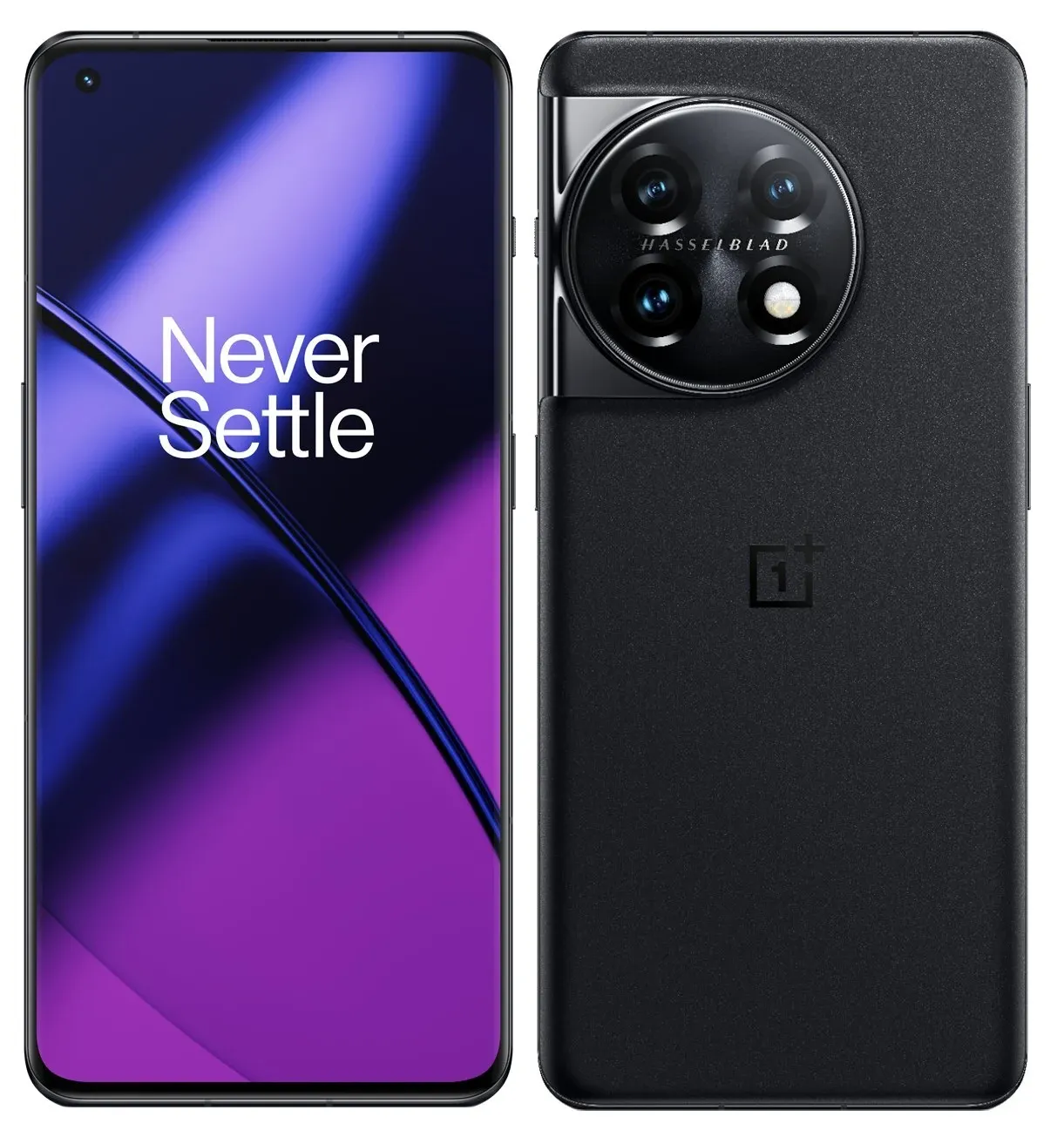
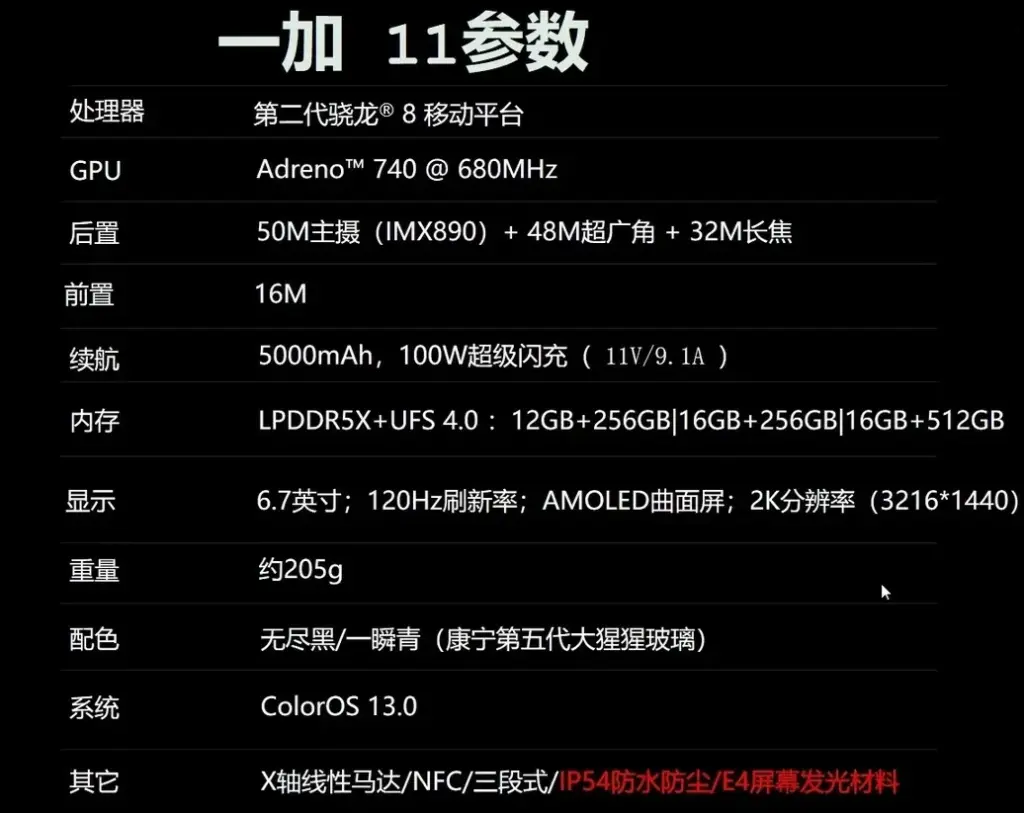
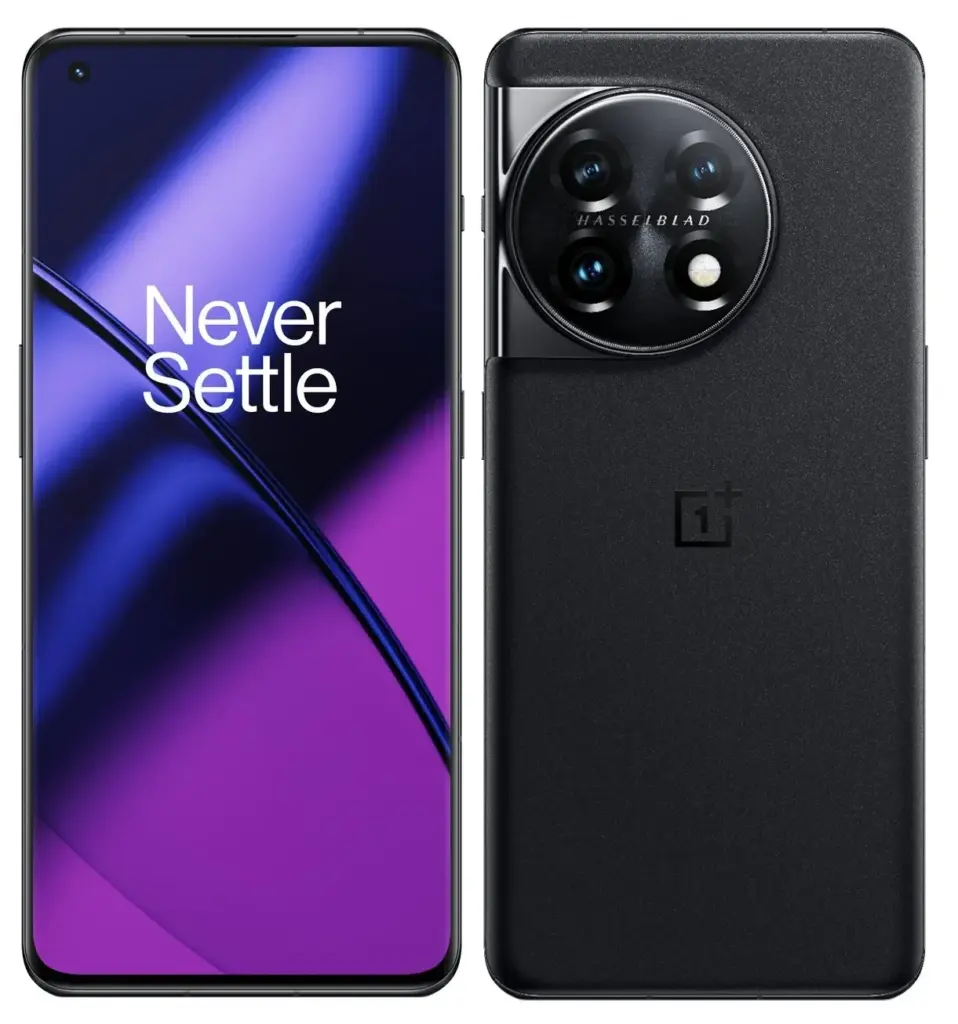
The OnePlus 11 is scheduled to be revealed in China on January 4 before going global on February 7 in India. Despite the fact that we have already seen images of the phone, the one and only Evan Blass has added some new shots and information to his Twitter page. Before many of today’s tipsters even knew what a smartphone was, Blass has been providing trustworthy photographs and information about impending products.
According to the tweet, the OnePlus 11 will feature a 6.7-inch AMOLED curved display with a QHD+ resolution of 1440 x 3216. The Snapdragon 8 Gen 2 SoC will be under the hood with the following configurations offered: 12GB of RAM with 256GB of storage, 16GB of RAM with 256GB of storage, and 16GB of RAM with 512GB of storage. The phones will employ the fastest LPDDR5X RAM chips with UFS 4.0 storage. OnePlus has spared no expense as far as this aspect of the phone is concerned.
The primary camera on the back of the phone will be powered by a 50MP Sony IMX890 sensor. A 48MP ultra-wide camera and a 32MP telephoto lens with a 2x optical zoom are also included in the array. The 16MP front-facing camera is used for selfies and video calls. A 5000mAh battery with a 100W quick charging capacity keeps the lights on. The phone will have an IP54 rating, which will protect it from sporadic sprays of water and dust. Don’t intentionally immerse the phone.
ColorOS 13.0 will be pre-installed on the OnePlus 11 when it is unveiled in China. Its foundation is Android 13. The phone weights 205 grams and is available in Green and Black
Blass’ leak also includes an image showing what will be inside the OnePlus 11 box. Besides the phone, there is a protective cover, a SIM tray pin, a manual, a charger (!), and a USB-C charging cable.
The Huawei Nova 9 SE was released in March, and of course, the specifications of the device had to abide with the limitations imposed on Huawei by the US. This indicates that the 6nm Snapdragon 680 4G SoC powers the phone. You see, a current export regulation forbids foundries employing American technology from exporting chips to Huawei, even if those chips are created by the company itself, preventing Huawei from having its devices enable 5G.
In order to get around this, Huawei has filed a patent for parts that would be used by an ultra-violet lithography device (EUV). There is only one business in the world that makes this equipment, and that company, ASML, does not send EUV machines to China. This machine etches circuity patterns on a silicon wafer that are thinner than the width of a human hair. In order to cram billions of transistors into a chip, smaller designs are required. A chip becomes more powerful and energy-efficient as its transistor count increases.
Huawei might make a significant comeback in the smartphone industry if it can construct its own EUV machine, which is something that isn’t totally evident right now. Its ecosystem, app marketplace, and operating system are all unique. Huaweri only need cutting-edge chips, and if it develops its own EUV, it might be able to assist SMIC, China’s top foundry, in producing chips that are compatible with the silicon offered by TSMC and Samsung Foundry.
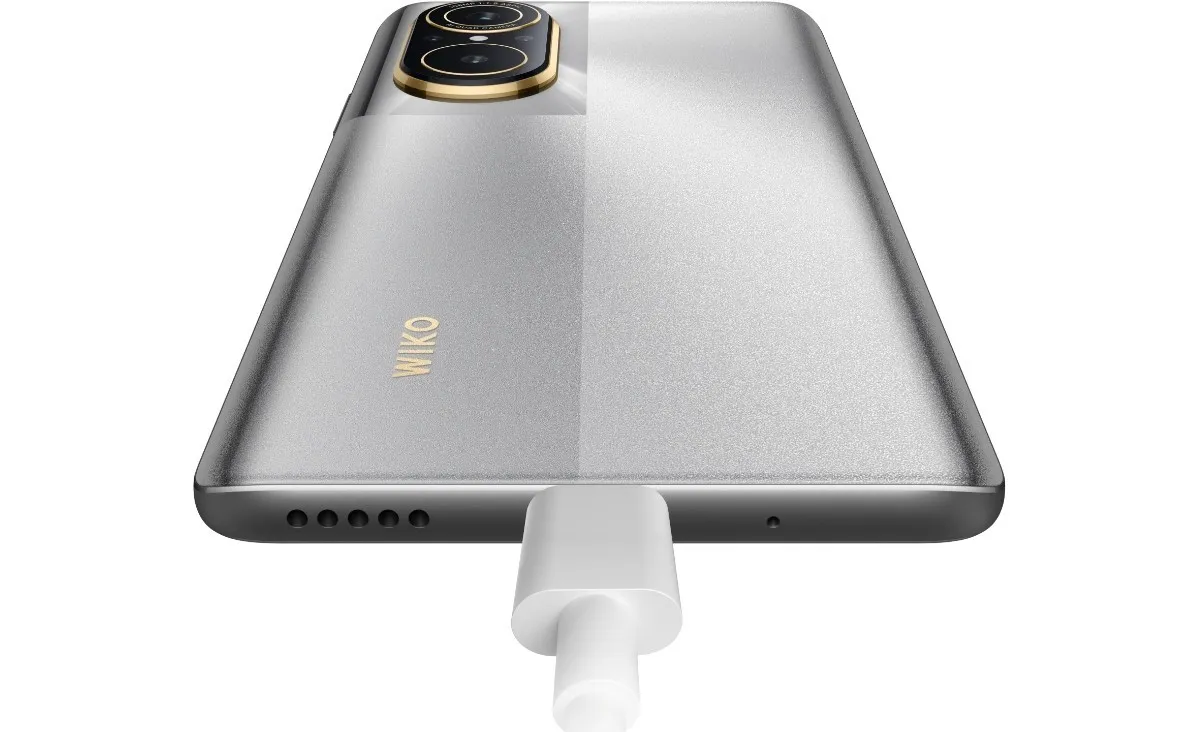
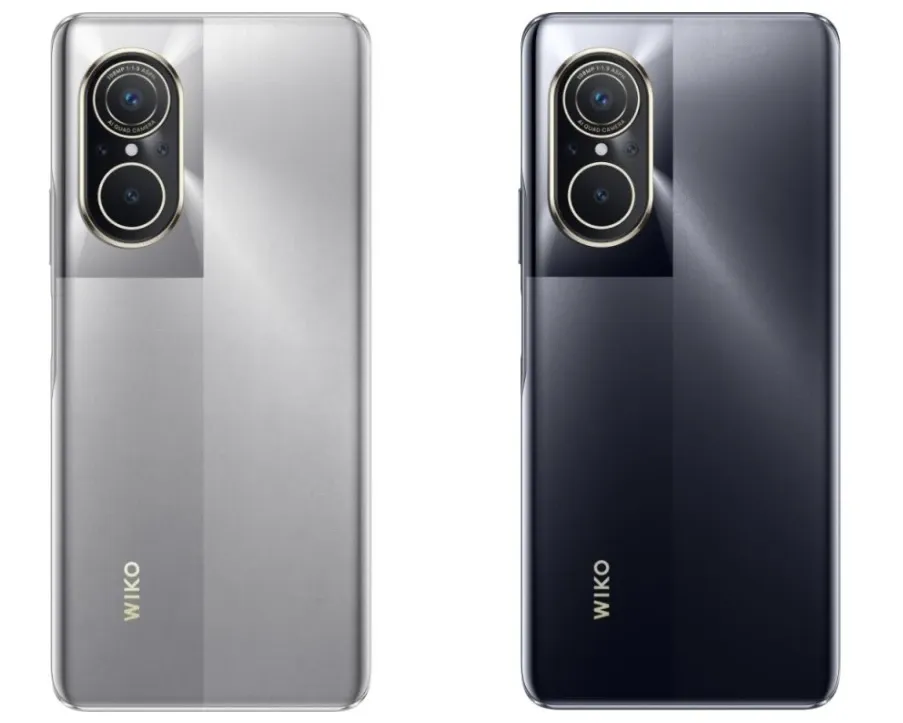
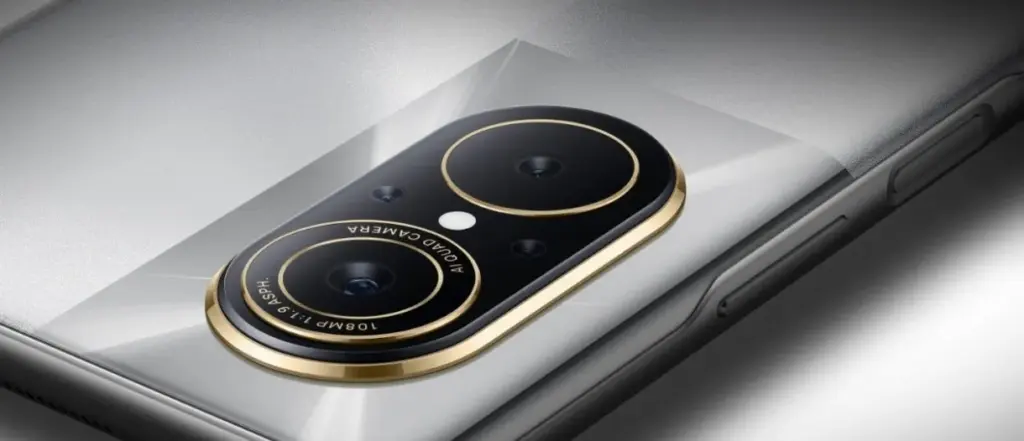
According to GSMArena, a French company using the Wiko brand name is trying to make a comeback in the marketplace by rebranding the Huawei Nova 9 SE as the Wiko 5G. The phone uses a chipset that Huawei doesn’t have access to, the Snapdragon 695 SoC which does feature 5G support. The Wiko 5G, like the Nova 9 SE, sports a 6.78-inch LCD display with an FHD+ resolution of 1080 x 2388 and a 120Hz refresh rate.
The Wiki 5G features 8GB of RAM along with either 128GB or 256GB of storage. Keeping the lights on is a 4000mAh battery with 66W wired charging. The rear camera array is intriguing as it comes with a 108MP Primary camera, an 8MP Ultra-wide camera, a 2MP Macro camera for extreme close-ups, and a 2MP depth sensor. The front-facing selfie snapper weighs in at 16MP. The handset is pre-installed with HarmonyOS which means that software updates for the device will be coming straight from Huawei.
The price for the Wiko 5G is 1,999 Chinese yuan ($287) for the model with 128GB. The model with 256GB of storage is priced at 2,199 Chinese Yuan ($315).
The rush to find the right presents may become a true race against time when the holiday season enters full swing. Thankfully, Google has offered a simple solution along with some fantastic Christmas promotional deals. Here are the interesting offers that are available over the Christmas season, ranging from savings on Google’s premium smartphone, the Pixel 7, to Google limited series.
Pixel 7 Pro Holiday Sale
The most recent Google smartphone release is the Pixel 7 Pro. The incredible deal to get a Pixel 7 Pro for $120 cheaper than the retail cost begins on December 25 and runs until January 10 of 2023. Utilize the opportunity to purchase a reasonable present for your relatives or friends. When you purchase this smartphone, make sure to download any send anywhere file transfer app to shift all of your favorite photos and clips to enjoy the highest quality experience. The Pixel 7 offers all the features you could want in a smartphone and more, along with outstanding technology. All of the benefits of the OLED screen are there in the sleek form, which also conceals some excellent technology.
Pixel 6a Discount Package
The Pixel 6a is evidence that you don’t need to spend a lot of money to have a good phone. At a fraction of the cost of comparable smartphones, the gadget has a powerful Tensor engine and unique Google software. It does, however, get better. Get a $120 discount on the Pixel 6a from December 25 until January 5. The Google Pixel 6 is the enhanced version of the Google Pixel 6a, and its greater price is justified by the phone’s bigger 6.4-inch OLED screen and the faster refresh rate. If you can afford it, the increased price tag is well worth it for the Google Pixel 6.
Choose the Best Affordable Deal
Google’s holiday sales will make the greatest products from the digital giant more affordable than ever, whether you want to upgrade your gadgets or are seeking the perfect present for a loved one. Don’t think twice about taking advantage of the chance, and make sure you don’t miss the window of opportunity to start the new year with the finest Google has to offer.
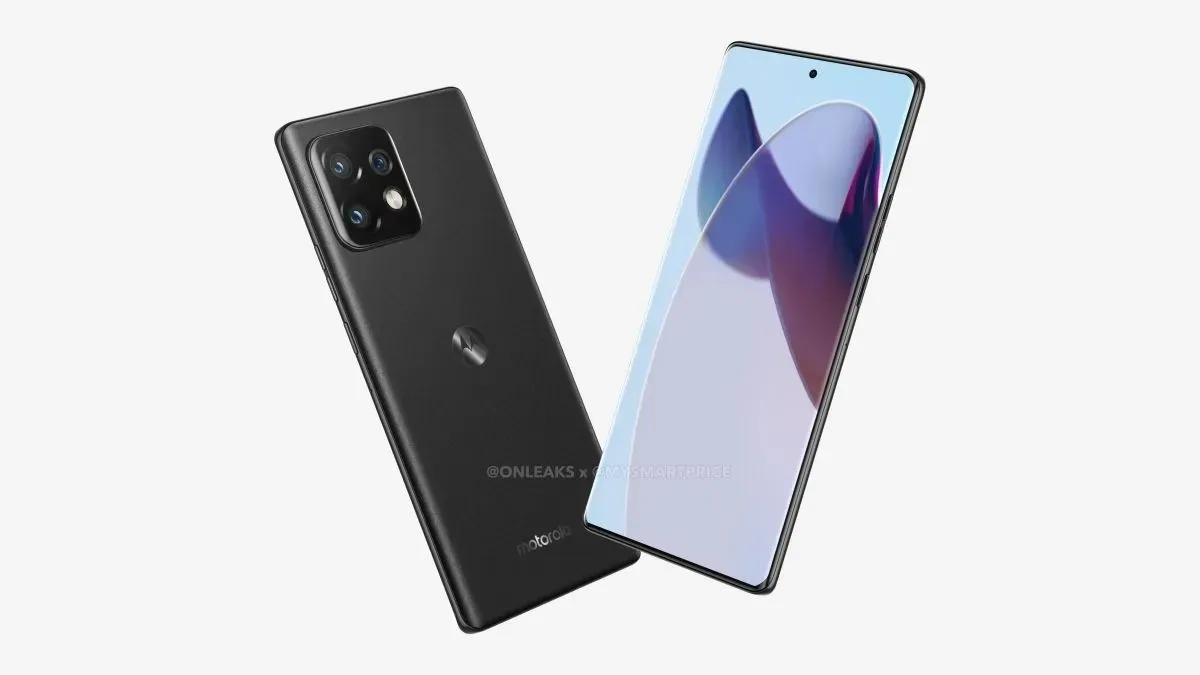
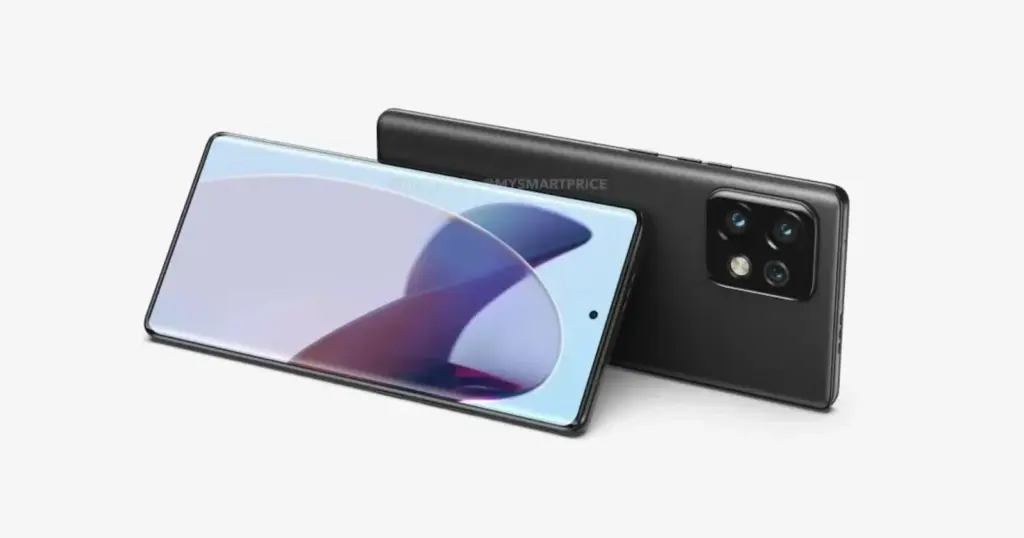
The long-rumored, relentlessly teased Motorola X40 is now a reality. The Xiaomi 13 series and the Vivo X90 Pro Plus arrived at the Snapdragon 8 Gen 2 party before Motorola, but the X40 has many positive specs.
To begin with, Motorola is now providing a 6.7-inch OLED screen with a display refresh rate of a whopping 165Hz. That is not the quickest refresh rate ever achieved on a smartphone. Device refresh rates of up to 240Hz have been observed in the past. However, the average flagship’s maximum frequency is 120Hz. Motorola is attempting to entice gamers with a combination of a more cheap price, the potent Adreno 740 GPU, and a modest Full HD+ resolution that won’t be as resource-intensive as QHD+ panels found on other flagships by maintaining the refresh rate at par with phones like the ROG Phone 6 Pro.
The Motorola X40’s 125W charging is another impressive feature. It also has wireless charging, but it’s dismally weak at only 15W, compared to 50W on the X30 Pro (Edge 30 Ultra worldwide), the flagship from the previous year. However, many people should be able to get by with the cable charger because it can top off the phone’s 4,600mAh battery to 50% in just 7 minutes.
The Motorola X40 has three lenses: a 50MP main sensor, a 50MP ultrawide lens, and a 12MP camera with a 2x optical zoom. Given that the Edge 30 Ultra from the previous year had a 200MP camera on board, the phone’s muffled camera specifications suggest a Pro version may be in the works.
Motorola X40 price and availability
When it comes to price, the X40 occupies a highly desirable position among flagship models. The 8GB RAM + 128GB storage option is available for just 3,400 Chinese yuan (about $490). Additionally, it is available in versions with 8GB and 256GB of storage for 3,700 yuan (about $530), 12GB and 256GB for 4,000 yuan (about $573), and 12GB and 512GB for 4,300 yuan (about $616).
China will start selling the phone on December 22. It is anticipated to make its debut early in 2019.
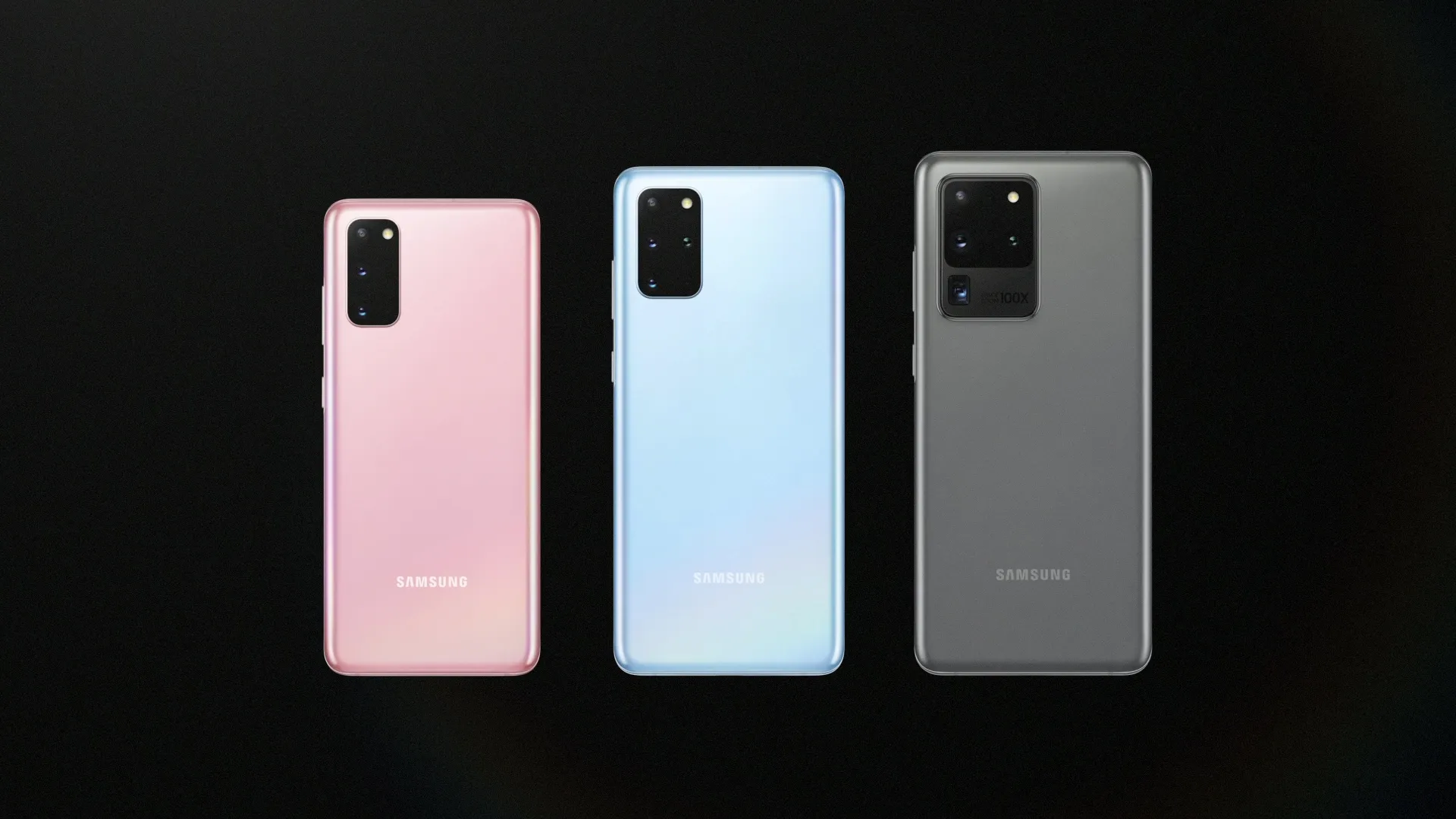
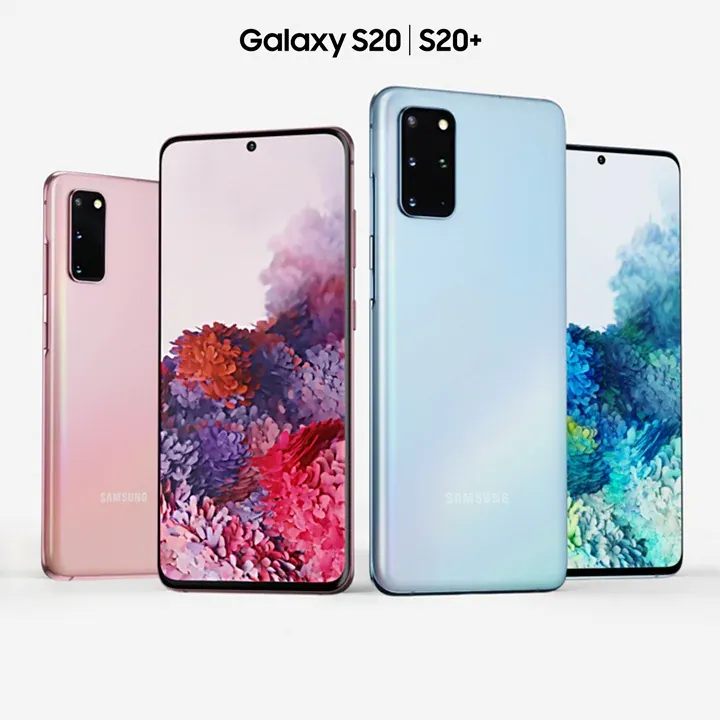
Samsung Galaxy S20, S20 Plus, and S20 Ultra updates
Starting with devices in Europe, Samsung has started distributing the December security update to the Galaxy S20 series. SamMobile claims that certain countries, including Austria, Bulgaria, Croatia, Czech Republic, France, Germany, Greece, Hungary, Italy, Luxembourg, Poland, Portugal, Romania, Slovakia, Slovenia, Southeast Europe, Spain, Switzerland, the Baltic states, the Netherlands, and the UK, have access to the update. Firmware version G98xBXXSFGVK7 will be installed on all devices in the series. The patch from December will address 67 security flaws.
Previous Samsung Galaxy S20 series updates
November 7, 2022: The Galaxy S20, Galaxy S20 Plus, and Galaxy S20 Ultra are receiving the stable version of One UI 5. At the time of writing, the major OS update is only available in Switzerland and Germany. Other markets should follow soon.
November 1, 2022: The latest security update for unlocked versions of the Galaxy S20 and Galaxy S20 Ultra is rolling out for users in the US. According to SamMobile, this is the October 2022 security update and comes with firmware version G98xU1UES3FVI6. The new update will fix a variety of privacy and security issues and may also provide stability and bug fixes.
September 15, 2022: Samsung has rolled out its September security update for the Galaxy S20 series. According to SamMobile, the LTE versions will receive firmware version G985FXXSFFVHA. As for the 5G variants, they will get firmware version G986BXXSFFVHA.
July 28, 2022: The August 2022 security update is arriving for the Galaxy S20 series in Germany (via SamMobile). As usual, the update is expected to hit other countries in Europe before coming to other parts of the world. Firmware version G98xBXXUEFVG5 will be coming to the Galaxy S20 5G, Galaxy S20 Plus 5G, and Galaxy S20 Ultra 5G. The LTE versions will instead be getting firmware version G980FXXUEFVG5.
July 11, 2022: Samsung has started rolling out the July 2022 security update to Galaxy S20 series devices in Europe (via SamMobile). The update is firmware version G98xxXXSEFVF4 and appears to only contain the security patch with no other new features.
May 12, 2022: Samsung has started rolling out the May 2022 security update to carrier-unlocked Galaxy S20 series devices in the US (via SamMobile).
March 28, 2022: Samsung has started pushing out the One UI 4.1 update to the Galaxy S20 series in some parts of the world.In the US, the update is going out to carrier-locked models with firmware version G98xUSQU2FVC5 (h/t SamMobile). It also adds the March security patch to the phones.
January 31, 2022: Samsung pushed the February update to the Galaxy S20 series ahead of time. Firmware versions G98xFXXUDEVA9 and G98xBXXUDEVA9 came to 4G and 5G devices, respectively (h/t SamMobile).
January 13, 2022: Samsung rolled out the January 2022 security patch to Galaxy S20 devices in the US. Per SamMobile, the update included firmware G98xU1UES2DUL2 and ten fixes from Samsung, with an additional 52 from Google.
December 28, 2021: Samsung kicked off the stable Android 12-based One UI 4 rollout to the S20 family starting in Switzerland (h/t XDA-Developers).
November 10, 2021: According to Droid-Life, the Galaxy S20 series is now receiving the November Android security patch through the Verizon network. Usually, a Verizon rollout means most other countries/variants are getting it at the same time. Unfortunately, the security patch appears to be the only thing that’s new in this rollout.
September 30, 2021: Next month’s security update is rolling out now to the Galaxy S20 lineup in South Korea. Per SamMobile, the update carries firmware version G98xNKSU1EUI3 and should have some other fixes included aside from just the October 2021 patch. However, we won’t know what’s included until the rollout comes to other countries.
September 17, 2021: The Galaxy S20 trio gained the September 2021 Android security patch across the world, including unlocked and carrier-locked models. According to SamMobile, the update brought firmware version G98xxXXSADUH5.
Hell has turned to ice. Finally, you can use the same WhatsApp account on two different phones. It takes a little getting used to at first, but the important thing is that it works.
The ability to link your existing account to an Android tablet has just been available on WhatsApp (in beta). When setting up the app on your Android tablet if you have version 2.22.25.8 beta installed on both your Android phone and tablet, you should have the option to scan the QR code. This is essentially the same as using WhatsApp on Windows or Mac right now; while your phone continues to be the primary device, your secondary devices are somewhat independent and can continue to function even if your primary phone is offline.
This new Android tablet process works on phones too, but you have to briefly trick WhatsApp into thinking your second phone is a tablet.
1: Ensure your primary phone has WhatsApp v2.22.25.8 beta installed, signed in, and working. If you’re running an older version of the app, you can grab the APK file from APKMirror. (It’s a trusted source, don’t worry about malware.)
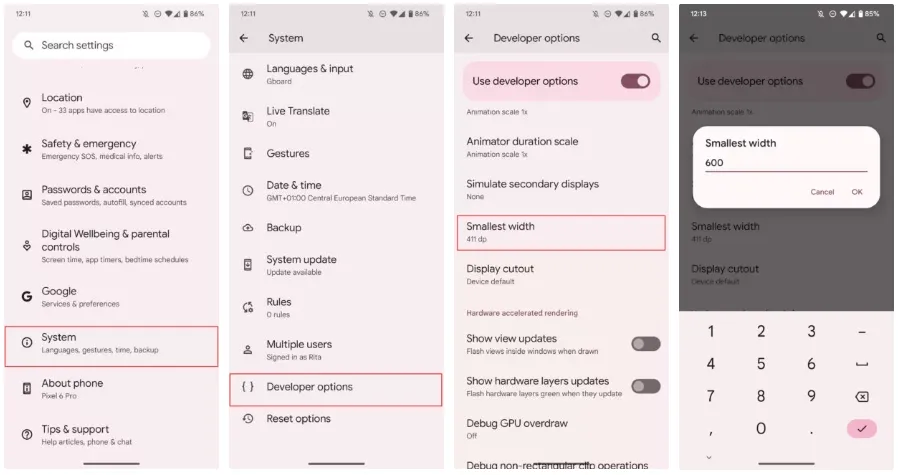
2: On your second phone, you start by enabling Developer Options in Android’s main settings. (Go to Settings > About phone and tap multiple times on Build number until you see a pop-up that says You are now a developer.)
3: Stay on the second phone. Go to Settings > System > Developer options > Smallest width. You can use the search option if you don’t find it. Note down the current number (you’ll need it to revert later), then change it to 600. This will transform your phone’s interface into a tablet interface. Fonts and icons will be smaller, but we’ll return to the regular sizes, don’t worry. On my Pixel 6 Pro, which runs Android 13, I get the taskbar at the bottom for example. Fun stuff.
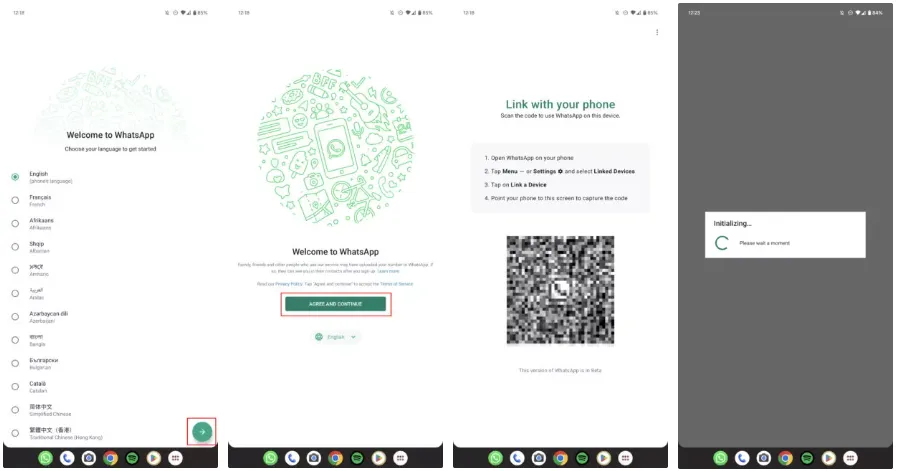
4: Now install WhatsApp v2.22.25.8 on this second phone. Again, you can do this from the Play Store if you’re enrolled in the beta or you can manually grab the same APK from APKMirror.
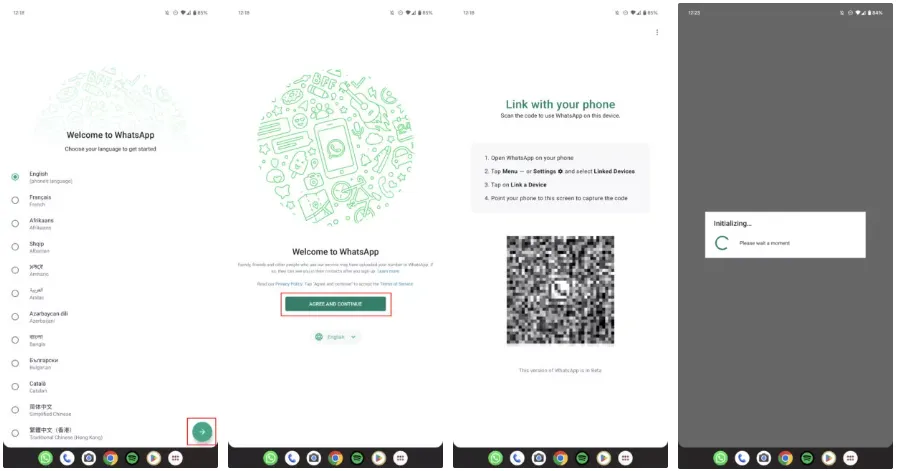
5: Open WhatsApp, choose the language, tap Agree and continue, and you should see the Link with your phone screen with your unique QR code. (If you see the page where you’re asked to sign in with a phone number, it means your phone wasn’t tricked into “becoming” a tablet. Try a higher number for the Smallest width setting. But 600 should do it, in theory.)
6: Go back to your main phone now. Open WhatsApp, tap the overflow ⋮ button on the top right, then Linked devices > Link a device. This will bring up the QR code scanner, so scan the code that was displayed on the second phone. And ta-da. Your second phone should reload WhatsApp with the same account as your primary device.
7: If you don’t like the tablet interface and small fonts on your second phone, you can repeat Step 3 and go back to the original Smallest width setting. WhatsApp will remain linked to your account.
There it is, then. Messages, calls, and pretty much everything else will be delivered to both smartphones. Both allow you to start calls and chats. A message is marked as read on one if you read it, and vice versa.
Your primary phone is still in charge and the one that has the ability to delink the second device if necessary. The desktop version of this needs to refresh every so often if you haven’t used it in a while, and I haven’t used it long enough to notice if there is any slowness or delay in grabbing messages like in that version. But it appears that’s not a problem right now.
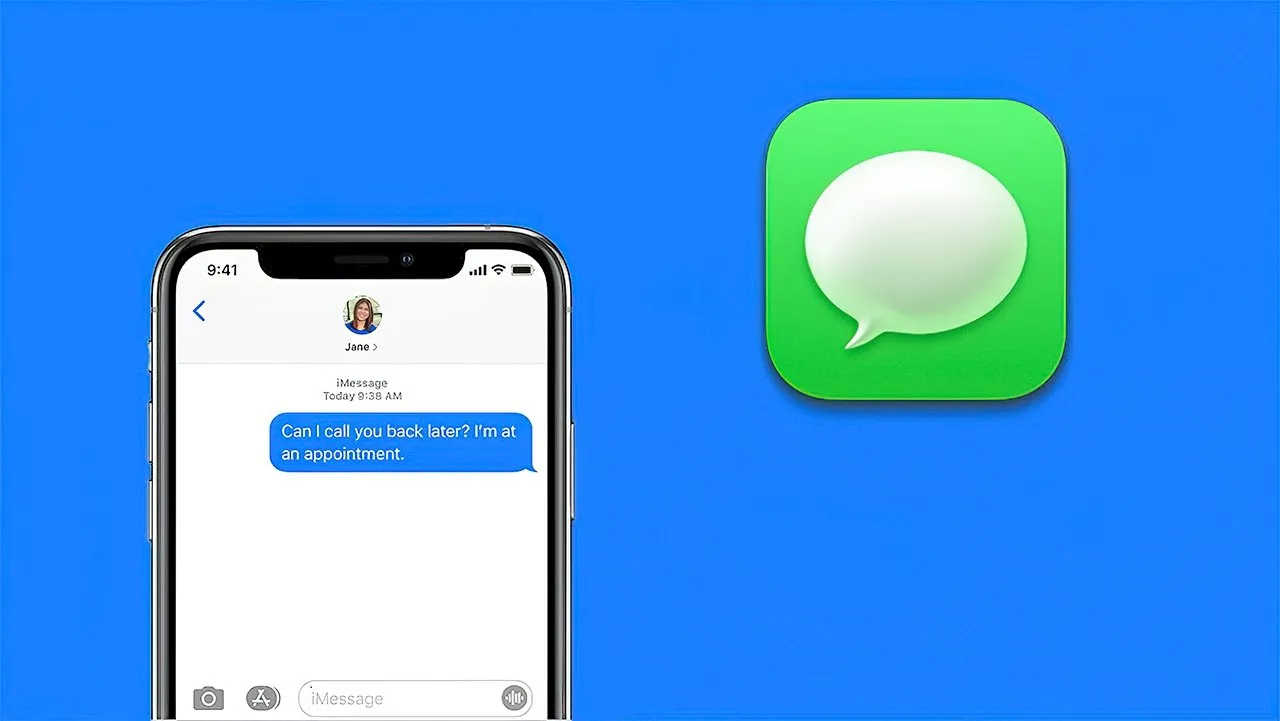
iMessage has long been the primary distinction between iPhone and Android users (well, here in the US anyway). It’s created a massive rift between the two platforms because iPhone users have their own exclusive space to hang out where Android users are at best annoying and at worst downright prohibited.
Many businesses have made an effort to address this issue. Despite its wealth and influence, Google has chosen to publicly mock the entire issue and urge Apple to implement RCS. By charging customers to link an Android handset with a real Apple device, like a Mac or even an iPhone, Beeper provides iMessage to Android.
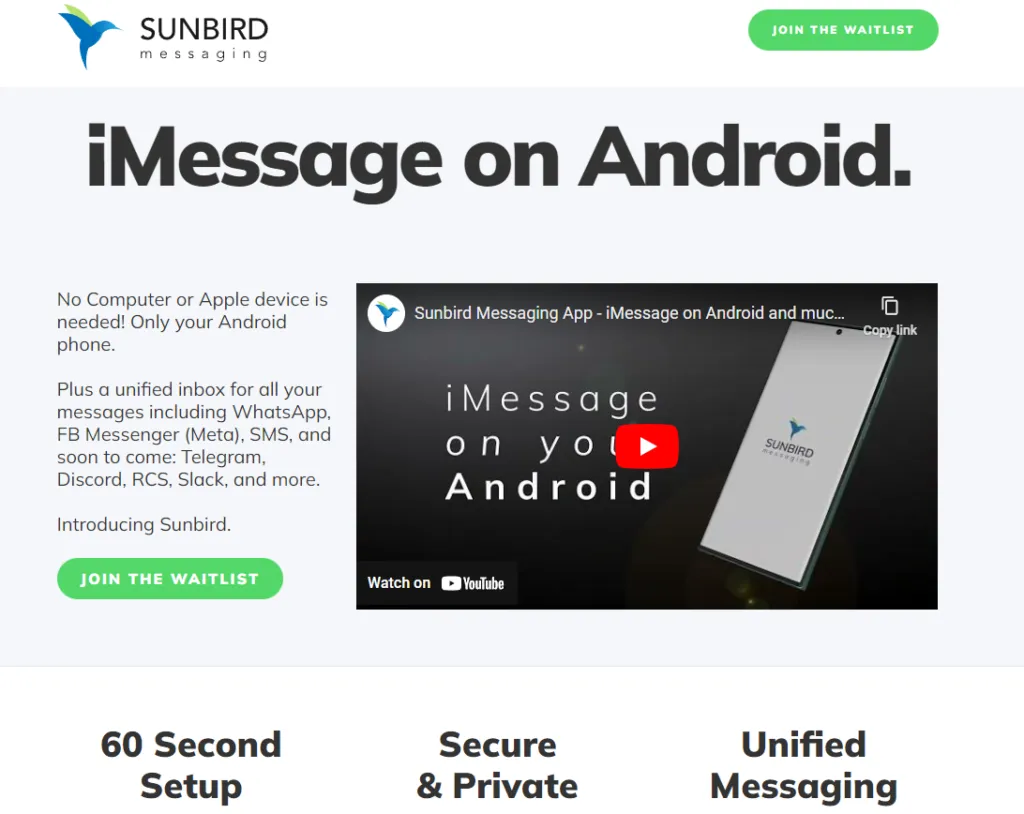
Sunbird, though, is looking to be the one true app to rule them all. Today, the company gave Android Authority a rundown of the app (which is still in alpha) and how it works.
Sunbird: iMessage on Android
A pre-recorded screencast showing a Samsung phone interacting with what appears to be an iPhone via iMessage was displayed during the company’s presentation. Blue bubbles, Emoji replies, typing indicators, etc. were all present. It appeared as though the Samsung phone was an iPhone in all respects.
But the business never displayed what the iPhone saw. The fact that it was a pre-recorded film just added to our natural skepticism. We eventually received early access to the Sunbird app from the company so that we could test it out for ourselves.
The good news is that Sunbird and my Apple ID might be linked. I was able to hypothetically connect the two by logging into Apple via the Sunbird app. My subsequent attempts to send iMessages were unsuccessful. Whether it was text, a picture, or a vCard, my messages were simply never delivered to my intended receivers.
Sunbird and I tried to troubleshoot together, but we were unsuccessful. If we are successful in getting it running in the future, we will let you know.\
Does it work and what will it cost?
Sunbird has no intention of making its iMessage-to-Android technology open-source. Therefore, we were not given a thorough explanation of how this program functions (or at least should work).
However, based on what the business did state, it appears like it has expanded on the Beeper approach, which involves connecting an Android phone to an Apple-based system. The first is that each user does not require their own connected gear. Sunbird has developed a method that enables tens of thousands of users to connect to a single computer. Second, the company has also discovered a way to maintain end-to-end encryption using this technique, something Beeper and similar companies are unable to do. Once more, Sunbird withheld its method of operation.
Thankfully, if and when it does work and launches to the public, Sunbird says the app will be free — for a while. Early birds will get access to iMessage on Android and not have to pay a dime. In the future, the company could monetize the app by charging for other connected services, such as Telegram, Signal, or other chat apps.
In the meantime, we’ll continue working with Sunbird to get the app up and running on our own devices.
So your phone is bricked. Your phone won’t boot because you flashed a ROM, installed a mod, modified a system file, or did something else.
Not to worry! It can probably be fixed. Unbricking an Android device is explained here.
What ‘Bricking’ or a ‘Bricked Phone’ mean?
‘Bricking’ your phone essentially means that your once useful device is now only as useful as a brick. A ‘bricked phone’ is usually unresponsive, won’t power on, and doesn’t function normally.
How is your phone bricked?
Depending on how a phone was bricked in the first place, different steps are required to unbrick it. Bricked phones fall into one of two categories:
The soft brick. The phone freezes on the Android boot screen, gets stuck in a boot loop, or just goes straight to recovery. So long as something happens when you press the power button, it’s soft bricked. The good news is these are pretty easy to fix.
The hard brick. You push the power button, and nothing happens. Hard bricks can be caused by issues like attempting to flash an incompatible ROM or kernel, and there’s normally no software solution for them. Hard bricks are terrible news, but fortunately, they’re quite rare.
You’re probably soft bricked, and you’ll see something similar to the picture above. Although it’s challenging to develop a one-size-fits-all method to unbrick Android due to the variations in how various devices operate, there are four typical techniques you can try to get things back on track:
Wipe the data, then re-flash a custom ROM
Disable Xposed mods through recovery
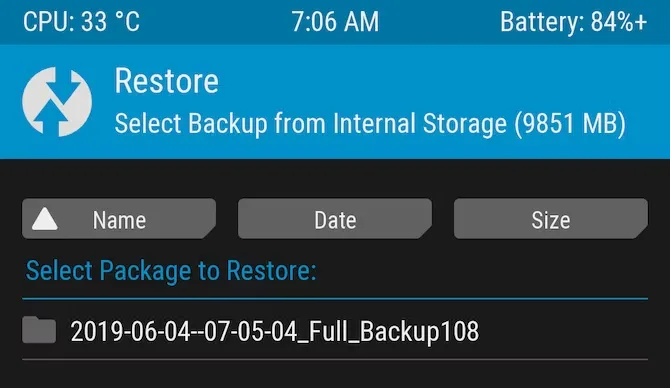
Restore a Nandroid backup
Flash a factory image
Before you get started, make sure your phone and computer are set up and ready with the proper tools.
What you need to unbrick a Android device?
Most of the equipment you need to repair your phone probably already exist in your possession. Since you already know how to use them because you used them to root your device and flash ROMs, they shouldn’t be a problem. However, make sure before you start.
Custom recovery is most crucial. This was probably installed when you rooted your phone, however it could occasionally be completely erased or rewritten by the default recovery. We advise using TWRP if you do need to reinstall it. It is a completely functional custom recovery with builds for the majority of common devices but is also far too simple to use.
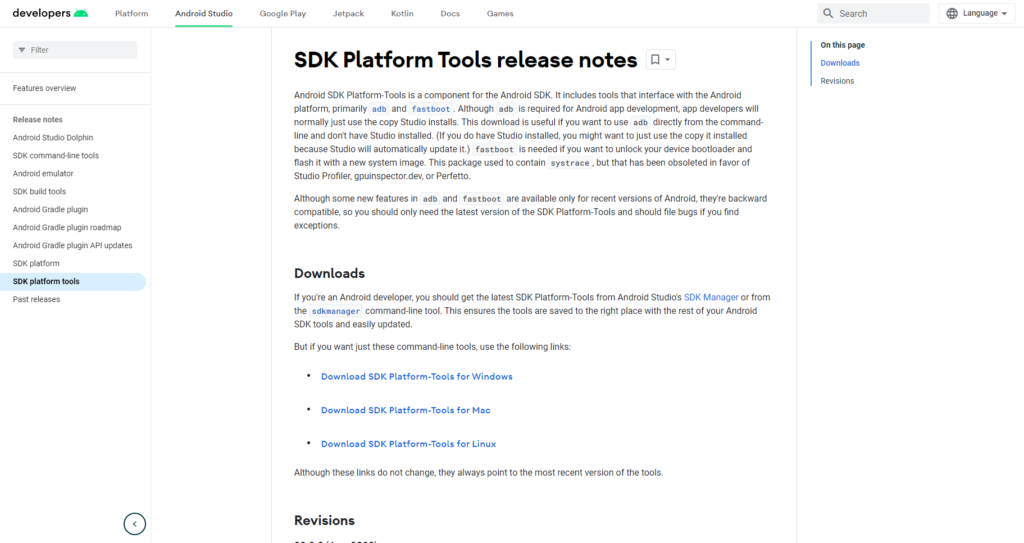
Then, you might require ADB and Fastboot. You can obtain both of them from the website for Android Developers, and they are frequently used for rooting and flashing system mods. If you are unfamiliar with Fastboot and ADB, see our introduction to them.
And finally, some manufacturers use special software to flash factory images. Hopefully, you can avoid doing this, but if you need to, you can use Odin for Samsung, the LG Flash Tool for LG devices, or the ZTE Unbrick Tool if you’ve got a ZTE device. Just make sure that they support your specific model of device.
Most of these tools will let you fix a bricked Android phone using a PC. However, you can often do the job directly on the phone itself.
Wipe data and ee-flash a custom ROM
If you flashed a ROM and Android won’t boot, try this method.
When you have issues while flashing a fresh custom ROM, it’s one of the most likely scenarios that your phone will soft brick. Your failure to first erase your data is frequently to blame in this situation.
When you decide to flash a new ROM over top of your old one instead of having to restore your applications and data, this is known as a “dirty flash” and takes place. Generally speaking, if you’re flashing a newer version of your current ROM, you can get away with it, but you must always delete your data anytime you flash a different ROM.
Fortunately, it’s easy to fix—as long as you’ve backed up your phone properly. If you haven’t, well, you’ve learned an important lesson the hard way. Follow these steps:
Boot into your custom recovery.
Navigate to the Wipe option and choose Advanced Wipe.
Check the box marked Data (you can wipe the system, ART cache, and cache again, too), then hit Confirm.
Re-flash your custom ROM.
A factory reset is effectively accomplished by wiping your data, although your internal storage or SD card shouldn’t be erased by this process (although, again, you should back it up just to be safe). Your phone will display the Android setup screen after restarting. Your programs ought to start reinstalling themselves immediately after inputting your Google account details.
You can use your Nandroid backup to recover your data if necessary.
Disable Xposed Modules in Recovery
Try this method if: You get boot loops after installing a new Xposed module.
The Xposed Framework isn’t as common as it once was, but it’s still a simple way to mod your phone, and also one of the most dangerous.
The best Xposed modules are so easy to install—many of them are available in the Play Store—that they lull you into a false sense of security. It’s unlikely anyone makes a Nandroid backup before installing a new Xposed module, even though they can brick your phone.
Use ADB Push to Install the Xposed Uninstaller
The best way to deal with these problems is with the Xposed Uninstaller, if it’s available for your version of Android. This is a small flashable ZIP that you can install through the recovery to remove Xposed from your device.
If you don’t already have it on your phone, you can put it on an SD card, or you might be able to copy it over using the ADB push method:
Connect your phone to your computer via USB and boot into recovery.
Launch the command prompt (Windows) or Terminal (Mac) and use the cd command to change the directory to where you have adb installed.
Type adb push [full path to xposed uninstaller.zip] [full path to destination]. On Mac and Linux, precede the command with ./ (such as ./adb).
When the file finishes copying, flash it through the recovery.
How to Disable Xposed Modules in Recovery
If you can’t use ADB push and the Xposed Uninstaller, try either of these solutions.
This method lets you disable Xposed through recovery:
Boot into recovery, then navigate to Advanced > Terminal command.
Create a file called /data/data/de.robv.android.xposed.installer/conf/disabled
Reboot your phone.
This method prevents Xposed modules from starting:
Boot into recovery and select File Manager.
Navigate to the folder /data/data/de.robv.android.xposed.installer/conf/ then delete the file modules.list
Reboot your phone.
None of these fixes will reverse the modifications that the modules have made to your system. You will need to restore your Nandroid backup if these changes bricked your phone.
Restore a Nandroid Backup
Try this method if: You need to remove other system mods, replace a tweaked system file, or if the methods above didn’t work.
The safety net for Android mods and customizations is the Nandroid backup. It’s a full snapshot of your phone, including the operating system as well as your data and applications. You can restore your soft-bricked device to working order as long as you have access to your custom recovery and a Nandroid backup.
Boot into recovery and navigate to Restore.
Select your backup from the list, confirm, and wait while it’s restored.
Reboot your phone.
Nandroid backups are a bit of a pain to make. They take a while and cannot be done in the background. But they’re worth it: they’re the simplest way to unbrick your phone.
Recover Data From a Nandroid Backup
A Nandroid backup can also save the day if you had to wipe your data and didn’t back it up in an easily restorable form. It’s possible to extract specific parts of a Nandroid, so you can restore your apps and data without needing to restore the operating system as well.
Here are the instructions for this:
Boot into Android and install Titanium Backup from the Play Store. While this app hasn’t been updated for a while, it’s still one of the best options for this task.
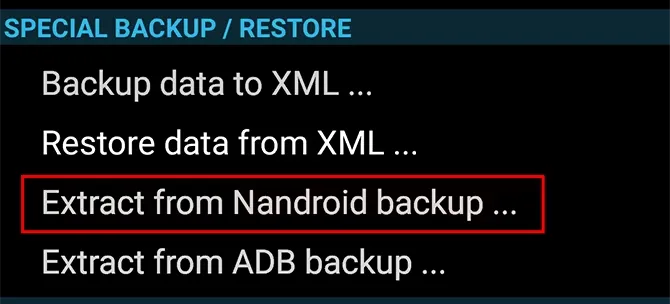
Tap the menu button and navigate to Special Backup/Restore > Extract from Nandroid Backup.
Select your backup from the list.
Choose whether to restore apps, data, or both, and select them (or hit Select All).
Tap the green tick icon to start the restore process.
Flash the factory image
Try this method if: None of the other options work.
Re-flashing a factory image is your only remaining choice if your attempts to unbrick Android have so far failed. This erases everything on your internal storage and returns the phone to its factory settings. Your phone will be unrooted as well.
You might be better off trying to flash a stock ROM first because it removes everything. Instead of factory images, OnePlus offers flashable ROMs for recovery. You can find similar files for almost every device at xda-developers.com. For added convenience, you can often flash a stock ROM that has already been root access.
Flashing a factory image varies from flashing a ROM in that it occurs via a desktop computer connection as opposed to recovery. Other devices make use of customized software while some use the Fastboot utility from the Android SDK. For instance, Samsung makes use of the Odin tool.
The instructions for flashing a factory image vary for each device due to the various techniques used. Additionally, not all manufacturers make their firmware accessible to the general public, so you must find them from unofficial sources.
Here’s where to find factory images for some popular Android brands:
Hard bricked phones are notoriously more difficult to fix, but thankfully they’re also much rarer.
How to unbrick a hard bricked Android device
Make sure the phone is truly bricked by plugging it in and letting it charge for some time. Try to reset it by depressing the power button for 10 to 15 seconds (or removing the battery if your gadget is older). You might also want to try putting it into your computer; if your PC does not recognize it, you can be very sure that your phone has been severely bricked.
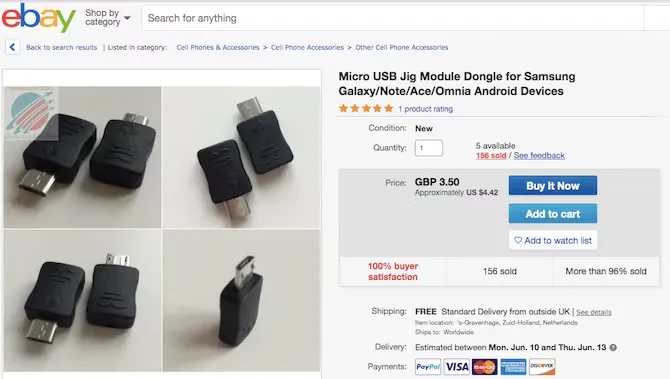
If it is unquestionably hard bricked, your options may be limited. A USB Jig, a little gadget that fits into the USB port and puts the phone into Download Mode to reload the default software, can resurrect a few phones.
On eBay, you can find cheap USB Jigs for hard-bricked phones, but only for a very limited selection of outdated gadgets. Even then, there is no assurance that they will be successful.
Beyond that, you might need to either find a local phone repairman or send your phone in for repair (though rooting it might have void your warranty). However, you’ll probably end up having to buy a new gadget.
Stay safe
Hopefully, this guide has helped you to unbrick your Android phone. And hopefully, your experience hasn’t put you off rooting and hacking Android altogether.
But if you’d rather play it safe in future, you can still have a lot of fun with your phone. Take a look at our guide to the best Android tweaks you can make without rooting for some amazing ideas.