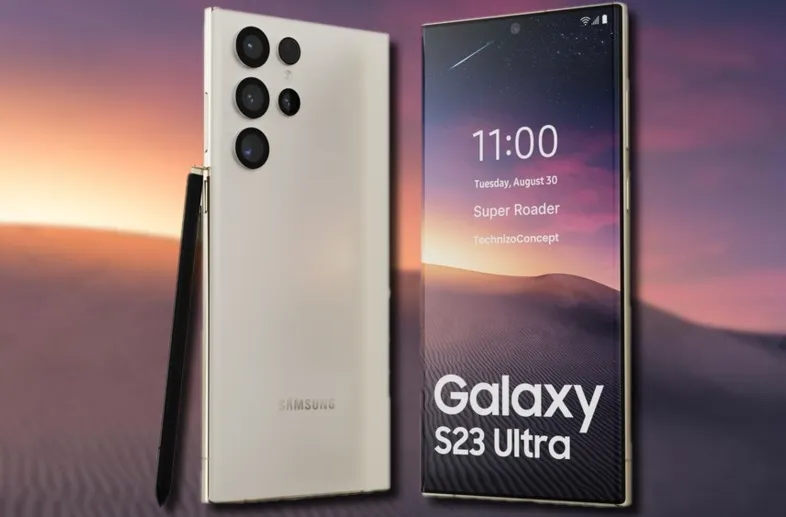
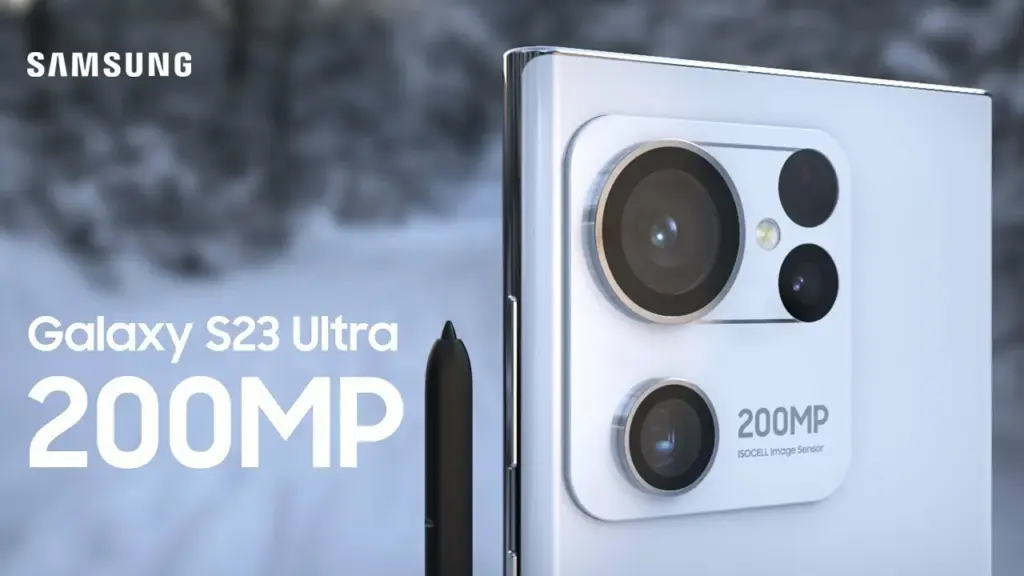
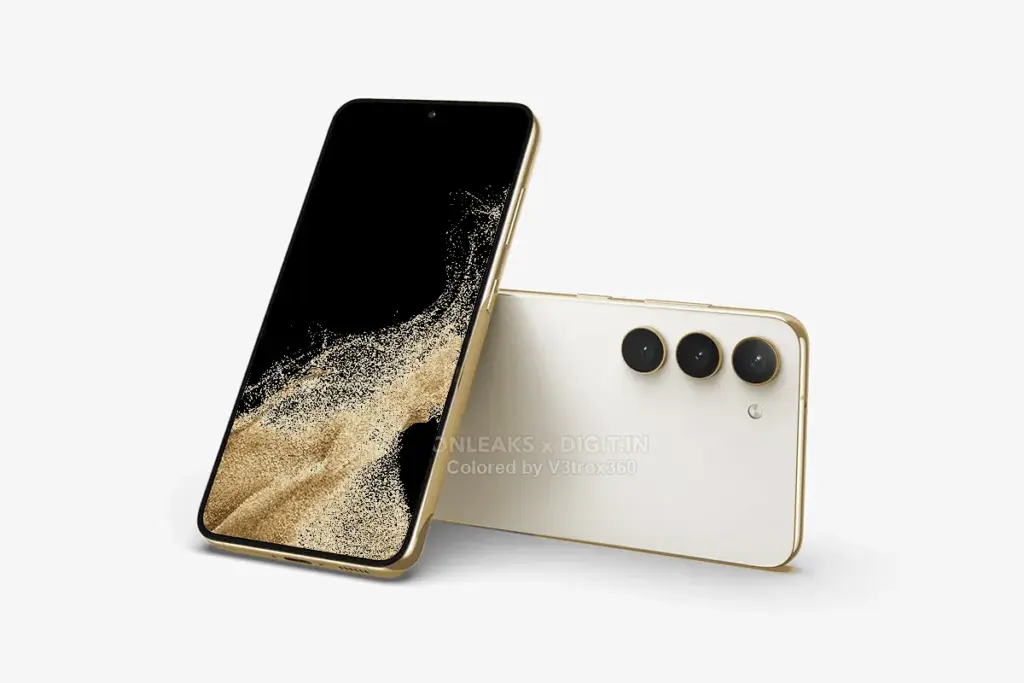
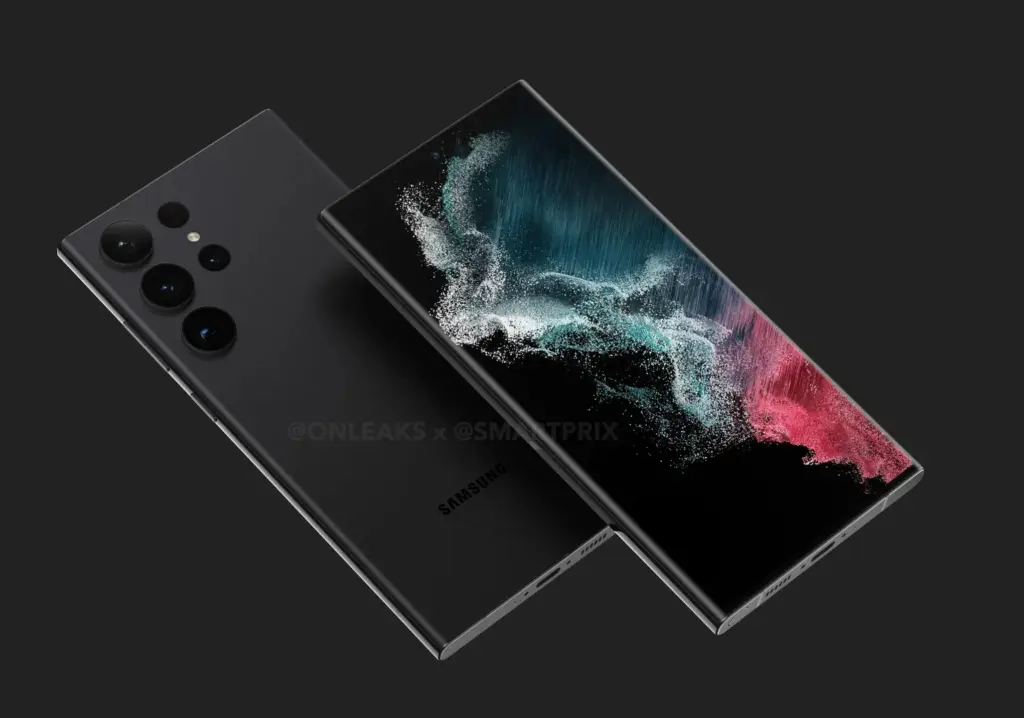
Aside from its opulent folding phones, Samsung produces some of the greatest Android phones money can now buy, and its Galaxy S22 models from this year are possibly the most attractive of them all. The Galaxy S23 series, which includes the S23 Ultra, S23 Plus, and regular S23 models, is now something we’re anticipating. The most recent hardware rumor is currently aiming to raise our expectations for the 200MP primary camera on the flagship Galaxy S23 Ultra.
The Galaxy S23 Ultra’s behemoth of a sensor, according to leaker Ice universe on Twitter, will not only be absurdly high-res but will also have better performance in some key areas, bringing about the “biggest improvement” in Samsung flagships in years. We have already heard a lot about the likelihood that a 200MP sensor will serve as the primary lens on the device. In particular, the advancements might lead to greater low-light photography and videography outcomes.
The latest Expert RAW update improved the astrophotography capabilities of the current-generation Galaxy S22 series, and this rumor says that the 200MP low-light photos of the Galaxy S23 Ultra should be something to look forward to. It is unclear, though, if the sensor’s advancements would take the shape of bigger individual pixels or some other type of hardware improvement.
However, we are yet unsure of how well this will actually function and whether we can expect a smartphone’s camera to produce 200MP full-resolution photographs that are acceptable in low light. The tiny individual pixels in high-resolution smartphone sensors would struggle to collect enough information to recreate colors naturally, therefore pixel binning is likely here to stay for low-light performance.
Besides the 200MP primary, we can expect the Galaxy S23 Ultra to have a 12MP ultrawide and dual 10MP telephoto cameras. Under the hood, Samsung is likely to toss in the Qualcomm Snapdragon 8 Gen 2 SoC along with up to 12GB of RAM and 1TB of onboard storage.
Age of Empires is a game that every original PC gamer has heard of. Although this game mostly existed on the PC platform, it appears that it will be growing over the coming months. This also includes an upcoming Age of Empires mobile game.
Given that the franchise has recently turned 25, this is a rather significant milestone. Here is a brief recap of the game in case you are new to it. In 1997, the first Age of Empires game was released. In this simulation game, you expand your kingdom. You begin with a group of cavemen and gradually expand your civilisation into a vast empire by gathering resources, going on food hunts, etc.
Now, Age of Empires is coming to mobile
Is a really popular game, but it suffered from one pitfall: it only really lived on one platform. This game didn’t really migrate outside of the PC ecosystem. There were two mobile releases several years ago, but those didn’t share the formula of the core games.
Now, Microsoft is taking another crack at bringing this game to the small screens. World’s Edge, the developer behind this game, posted a short teaser of an Age of Empires game built from the ground up for mobile hardware. This game seems to be more closely related to the original titles. The teaser didn’t show much, however, it let us know that it’s going to be for mobile, and that it’s coming soon.
Also coming to Xbox
Because Microsoft is going all out to celebrate this game’s 25th anniversary, more people will be able to enjoy the series. But those hoping for the original title will be let down.
On January 31st, Age of Empires II: Definitive Edition will be released on Xbox platforms, while Age of Empires IV will follow later in 2019. Additionally, Age of Empires IV Anniversary Edition will receive some new content. Two new civilizations are represented by this: Milian and Ottoman. In addition, there are 11 new game languages, 8 new multiplayer maps, new biomes, achievements, and challenges. All users can access this update for free.
Looking for the first Age of Empires Game?
If you’re craving the original title, then there is some good news. At the time of writing this article, Age of Empires: Definitive Edition is now only $4.99 on steam. That’s a 75% discount from the $19.99 price. You’ll want to act fast, as this sale ends on November 1st!
Right now, it’s difficult to talk about Pixels without the topic eventually turning to the brand-new Pixel 7 and Pixel 7 Pro. And it’s understandable why: both inside and out, Google’s most recent Pixel smartphones are just incredible. They have a ton of power and exciting new tricks that just ooze out of them.
But what’s this? To reward yourself to new and exciting phone features, you don’t need to be the owner of a Pixel 7. Because your device’s software is always being updated, there are tons of valuable jewels hiding beneath the surface, which is the beauty of the Pixel world. The majority of Pixel owners simply don’t notice them, or perhaps they do but quickly forget afterward.
In order to give several noteworthy Pixel features the attention they merit, today we’re going to take a step back. They should function for you regardless of whether you’re holding a Pixel 7 or an older model—even, in most circumstances, if your Pixel is too old to have received the most recent Android 13 update.
Discover some extraordinary Pixel gems by reading on, then continue the celebration by enrolling in my Pixel Academy e-course. For my favorite Android Police friends, it’s a seven-day email trip that teaches you a ton of time-saving Pixel information and is totally free.
Smarter storage
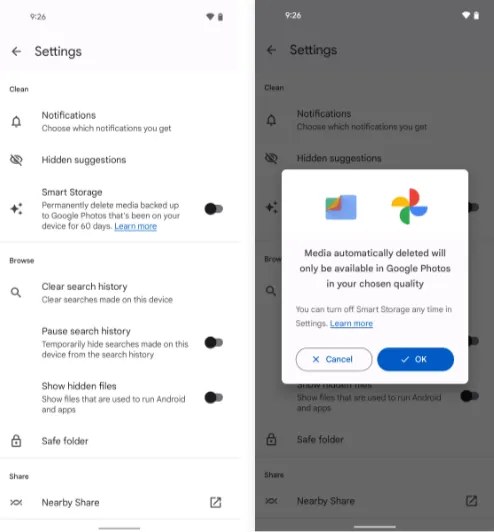
The following is a further automation-focused intellect built into your Pixel and ready to be cuddled: The technology automatically deletes duplicates of the photos and movies you’ve already backed up to Google Photos when your phone’s local storage starts to run out of room.
Of course, you can always do it on your own, but doing so requires (a) actually remembering to do it frequently and (b) spending the time to complete the process’s several manual phases. And while I don’t know about you, my brain is now made up of about 97% oatmeal, so everything I can automate to reduce the load on myself is a win in my book.
If you’ve got a current Pixel with the snazzy new Android 12 software on it, open up the Files by Google app (or go download it, if it isn’t already on your phone).
Then:
Tap the three-line menu icon in the app’s upper-left corner.
Select “Settings” in the menu that comes up.
Flip the switch next to “Smart Storage” into the on position and confirm that you want to activate the feature.
With Android 11 or earlier
If your Pixel is on an older version of Android (howdy, Pixel 2 partners!), you’ll find the same option within your phone’s system settings:
Open up your settings and tap “Storage.”
Look for the line labeled “Smart Storage.” Tap it — tap it with gusto, damn it!
Choose whether you want your already-backed-up items to be deleted when they’re 30, 60, or 90 days old.
Activate the toggle at the top of the screen.
Either way, you’ll just need to make sure you’re set to sync your photos and videos to Google Photos — by tapping your profile picture in the Google Photos app and then looking for the “Backup” line in the menu that comes up — and you’ll never have to think about your storage running low again.
Image extracting
Save yourself some time and let your Pixel make it simple the next time you need to grab a picture from someplace, whether it’s a website, a text message, a forum for earwig aficionados, or whatever the situation may be.
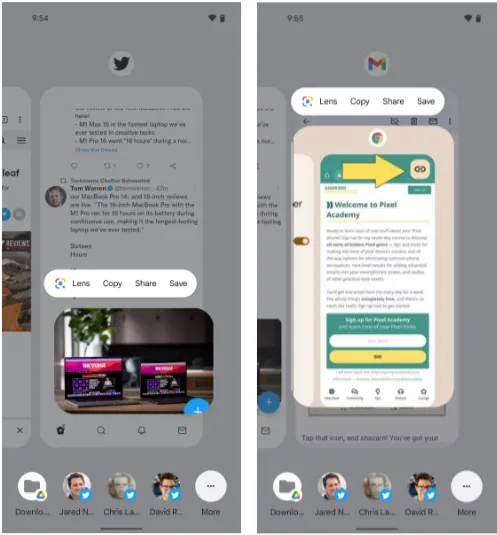
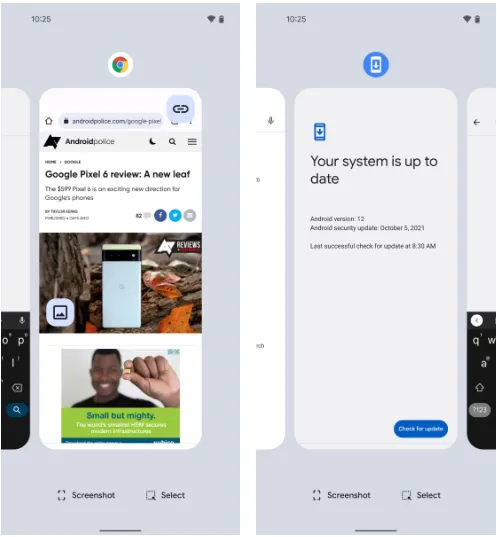
The Overview screen on your Pixel phone includes a secret feature that lets you take pictures almost anywhere. And all it takes to access its magic is a simple swipe and a few fast taps:\
While you’re viewing any app with a visible image, open up the Overview interface — by swiping up about an inch from the bottom of your screen and then stopping, if you’re using the current Android gestures system, or by tapping the square-shaped icon along your screen’s lower edge, if you’re still using the old legacy button-nav setup.
Touch and hold your finger onto the image within the app’s preview.
Select the option to copy, share, or save the image — or use Google Lens to analyze it, if you really want to get wild.
This will work in most any app where an image is present — even if it’s an app where you couldn’t typically save an image in any easy way (Gmail, Twitter, Earwiggalicious, etc).
Let’s all say it together now: Pixel features can be incredibly beneficial once you remind yourself of their possibilities and then learn to properly take advantage of them! (Okay, so that rallying cry might need a little work.)
Text extraction
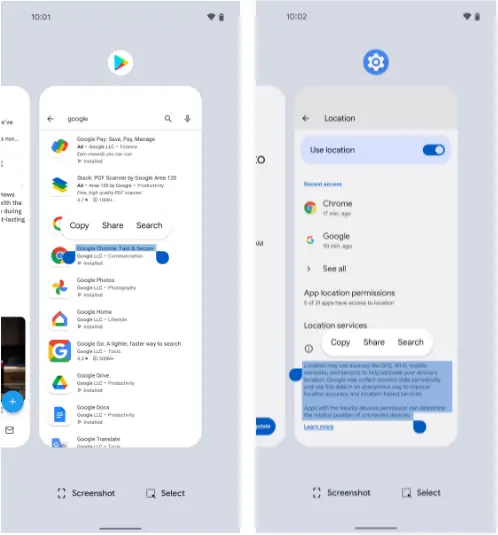
Following up on our previous Pixel feature, your fancy Google phone can help you pull text out of practically anywhere imaginable and then copy it, share it, and search for it to your heart’s content.
What’s especially useful here is that just like with the last item, this feature works even in places where you couldn’t typically copy text — your feed in social media apps, parts of the Play Store, or even sections of your system settings.
And it’s right in the same place as the image extractor we just finished exploring:
Head back into your Pixel’s Overview area.
Touch and hold your finger onto any text in the current app’s preview — or, if you’d rather (and if your Pixel is recent enough to be running Android 10 or higher), tap the “Select” text at the bottom of the screen and then highlight the specific text you want from there.
Choose “Copy,” “Share,” or “Search” from the menu that comes up.
Smirk knowingly at any iPhone users in the vicinity.
Simple screenshots
One of the most frequent complaints I get from my fellow Android-loving primates is how difficult it may be to take a screenshot on a Pixel. ‘ See, back then, the system power-button menu on Pixels included a straightforward option to take a screenshot of the screen. But after that, Google, well, Googled. It changed that menu, and then, um, it changed it again a year later, and the choice vanished.
Hold the phone, though: If you aren’t a fan of the old-fashioned physical button mechanism for capturing a screenshot, there is still another way.
It’s right there in plain sight on that same Overview screen we were just gawking at, in fact, and yet hardly anyone seems to notice it.
Yes, that’s it; it’s down there on the screen. As long as you have Android 11 or higher, your Pixel will always offer up a “Screenshot” option directly inside its Overview interface, regardless of the program or area of Android you’re looking at. And selecting that will record whatever is visible on the screen of the active process.
The system status bar, the bottom-of-screen navigation area, and any other extraneous items won’t appear in screenshots you take in this fashion as a bonus; this is a notable and occasionally useful departure from Android’s customary physical-button screenshot-capturing method.
Tap to wake
Pixels have plenty of options for easy screen activation. Maybe you like using the always-on time and info system, for instance. Or maybe you’re more of a lift-to-check kind of Pixel owner.
Whether you’re using any of those features or not, though, your Googley phone has another useful system for waking up its display in a jiff. It harkens back to an earlier Android era, and it’s one of the Pixel’s most overlooked possibilities.
Ready? Simply press the display twice to turn on the screen of your Pixel whenever you want. Just two quick taps are all it takes to wake up your phone. The unknown!
The “Tap to check phone” option should be present on your lock screen by default, but if it isn’t, check your system settings, go to “Display,” then “Lock screen,” and see whether the option is present. If it is, you can verify that it is on and enabled. (On Pixels running previous versions of Android, you’ll need to touch “Advanced” before you can access that option, which is labeled “Double-tap to check phone.”)
Automation
Although there are many chances for advanced automation on Android, your Pixel comes with its own native rules system that can significantly increase the intelligence of your phone with hardly any work.
It’s called, rather fittingly, Rules — and with about 30 seconds of setup, it can allow your phone to change its ringing and notification behavior based on where you are or what Wi-Fi network you’re connected to at any given moment.
Here’s how to get it up and running:
Head into your Pixel’s system settings (by swiping down twice from the top of the screen and then tapping the gear-shaped icon in the lower-right corner of the panel that pops up).
Tap “System” followed by “Rules.”
Make sure the toggle at the top of the screen that says “Always allow location for Rules” is in the on position.
Look for a line that prompts you to allow the feature to run in the background. If you see that, tap it and then tap “Allow” on the confirmation that appears.
Pause to take a sip of the nearest fizzy beverage.
Tap “Add rule” and then consider your options.
Then what? That’s really up to you. For a few ideas, you could instruct your Pixel to vibrate for incoming alerts when you’re at work, make it to go into Do Not Disturb mode whenever you’re at the movies, or configure it to ring whenever you’re connected to your home network.
Smart screens
The last item in our list of overlooked Pixel characteristics is a two-parter that your eyes will like.
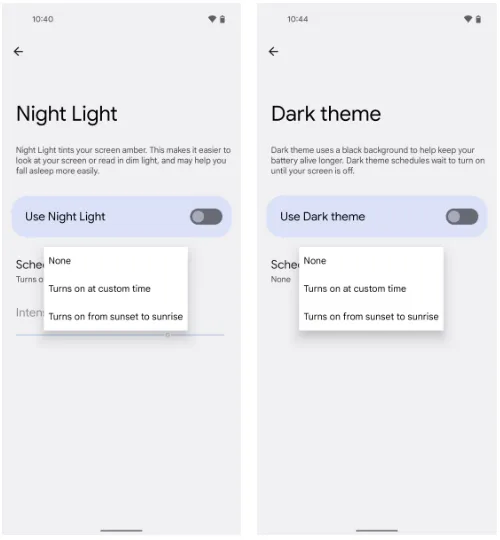
The screen-tinting Night Light option can be automatically activated on your Pixel based on the sunrise and sunset times in your current location or a schedule you create. In this manner, your phone’s screen will adopt a softer, less harsh type of coloring that will be easier on your eyes when night falls and the lights get faint. And as soon as morning comes around, it will switch back to the regular daytime mode.
Return to your Pixel’s system settings, select “Display,” then press “Night Light,” then “Schedule,” to configure your automated Night Light activation routine. The options to select the sunset-to-sunrise setup or to enter your own unique hours for dim-environment optimization are displayed there.
While we’re on the subject of screen intelligence, think about if your phone’s theme changing from a lighter theme during the day to a darker one at night might be a good addition to your new Night Light intelligence. For me, the two patterns—standard screen colors and a light theme during the day and Night Light and Android’s dark mode during the night—are a lovely and extremely natural pairing.
If you want to give that double-display whammy a whirl, back out to the main “Display” menu and look for the “Dark theme” line. Tap it, then tap “Schedule,” and you’ll see a selection that’s identical to the one you just configured for the Night Light.
Users can use WhatsApp on numerous devices without their primary smartphone’s primary smartphone needing to have an active internet connection thanks to WhatsApp’s multi-device capability. WhatsApp is still in the early stages of multi-device compatibility; the firm releases new functionality every other week. You may now use WhatsApp on both expensive and low-cost Android tablets thanks to a recent beta release from WhatsApp. Here’s how to set up and use WhatsApp on several devices if you haven’t already used this function.
Using WhatsApp on multiple devices: What you need to know
End-to-end encryption for WhatsApp is supported by its support for multiple devices. This implies that the implementation has certain constraints, though. Your primary phone is one of the five connected devices that WhatsApp supports. You cannot link the service to several phones because your WhatsApp account can only be connected to one phone number.
The WhatsApp upgrade makes it simpler to communicate with others because you may send messages from your computer or browser without your phone being connected to the internet. However, if your main phone does not go online at least once every 14 days, you are immediately logged out from all devices. In order to connect any new device to your account, you also need the phone.
On desktops, the multi-device capability is functional, while on tablets, it is currently in beta. Additionally, only Android tablets are compatible with WhatsApp’s multi-device capability in the current beta. You can access your chats on your tablet using the WhatsApp Web client if you use an iPad or are not a beta tester. For more information, see our guide on using WhatsApp on tablets.
Also, certain WhatsApp features can only be used on your smartphone:
Clearing or deleting chats on linked devices if your primary device is an iPhone.
Messaging or calling someone who uses an older version of WhatsApp on their phone.
Viewing live location on linked devices.
Creating and viewing broadcast lists on linked devices.
Sending messages with link previews from WhatsApp Web.
How to link a device to your WhatsApp account
Follow these steps to connect your phone or tablet to your WhatsApp account:
Open the Google Play Store and make sure the latest version of WhatsApp is installed on your phone.
Open WhatsApp.
Tap the three-dot menu button in the upper-right corner, and then tap Linked devices.
Select Link a Device option.
Verify your identity using your fingerprint or the device pattern/pin unlock.
Give WhatsApp access to your phone’s camera if you have not done so.
Scan the QR code shown on the page using your phone.
On your iPhone, open WhatsApp, go to Settings > Linked Devices > Link a Device, and scan the QR code.
WhatsApp loads your chats and group conversations.
How to unlink a device from your WhatsApp account
The process to unlink a device from your WhatsApp account is relatively simple. Follow these steps:
Open WhatsApp.
Tap the three-dot menu button in the upper-right corner, and then tap Linked devices.
The devices linked to your WhatsApp account appear here.
Tap any device name to unlink it.
Confirm your selection by selecting Log Out from the dialog box that appears.
To unlink a device on your iPhone, go to Settings > Linked Devices, and tap the device you want to unlink. Use the Log Out button to unlink the device. You can re-link any removed device again without any issues.
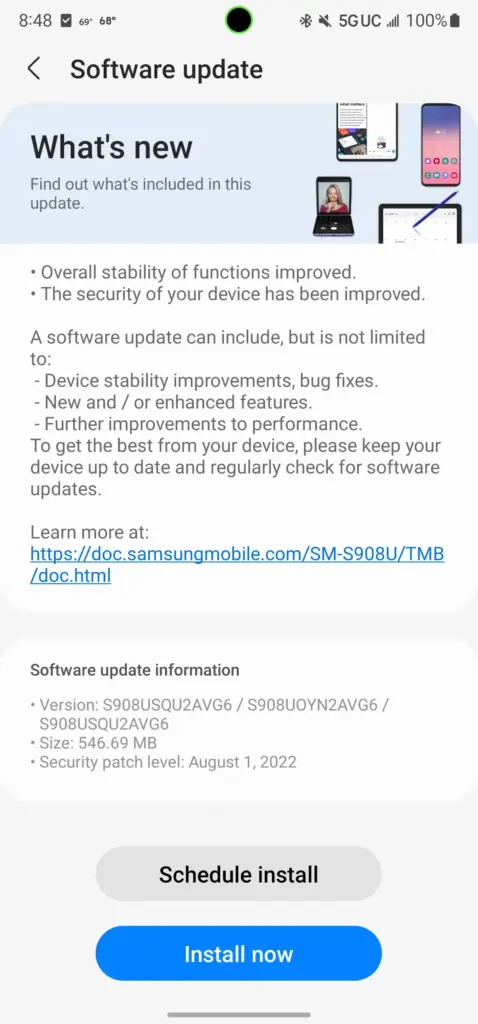
When it comes to upgrades, carrier-locked phones typically lag behind their unlocked counterparts since carriers enjoy taking the time to customize stock firmware. While this is true for many phones in the US, Samsung’s experience is unique. US carrier-locked variants of the Galaxy S22 series are now receiving the same treatment as the unlocked ones, following the August security patch’s international rollout to the company’s newest flagships late last month.
With this month’s security patch, Samsung began distributing software version S908USQU2AVG6 to carrier-locked models of the Galaxy S22, S22+, and S22 Ultra in the US yesterday. According to SamMobile, the three have joined their Russian, Korean, and Latin American counterparts in utilizing the August security patch, leaving only the unlocked variations in the US and Asian regional models.
The firmware for the carrier-locked models appears to be a simple security patch, similar to the last update that went out to these devices globally. However, Samsung claims in the changelog that the “overall stability of functions” has been improved, so expect updates to the system apps or other undocumented changes along with it.
As always, we’ll keep this article updated as more Samsung devices get the August 2022 security patch in the US.
Galaxy S10 series
Verizon
Galaxy S10e: SP1A.210812.016.G970USQU6IVH2, released August 31st
Galaxy S10: SP1A.210812.016.G973USQU6IVH2, released September 2nd
Galaxy S10+: SP1A.210812.016.G975USQU6IVH2, released September 2nd
Galaxy S10 5G: SP1A.210812.016.G977UVRU8HVH1, released August 31st
The Samsung Galaxy S22 series was an incremental improvement over the Galaxy S21 series from 2021. Although the non-Ultra variants had a faster CPU and a newer primary camera sensor, overall these phones were not much different from their predecessors.
Given how excellent Samsung’s flagship phones are, the company’s decision to make little changes was not unwise.
For the Galaxy S23, the Korean manufacturer is anticipated to use the same approach while making a few small design adjustments. This is further supported by a fresh leak, which suggests that Samsung may make changes to fix two serious problems with its current infant flagship.
The Galaxy S22 received criticism for its poor battery life, throttling under heavy load, and poor sustained performance. Its 3,700mAh battery was nowhere near enough to power the device for an entire day. Now, rumored Galaxy S23 specifications indicate that the Korean company may use a larger 3,900mAh battery and Qualcomm’s Snapdragon 8 Gen 2 CPU in its smallest flagship phone for 2023. For instance, Samsung employed a 4,000mAh battery in its Galaxy 21 device, and the device’s battery life was adequate for a typical workday.
According to rumors, Qualcomm’s upcoming flagship processor will significantly improve CPU and GPU performance. According to reports, it will be based on TSMC’s 4nm fab, which ought to improve power efficiency. The Galaxy S23’s 200mAh larger battery and quicker chip should help with the current model’s overheating issues and short battery life.
According to reports, the baby Galaxy S23’s other specifications won’t change from the present model. It is expected to maintain its 6.1-inch FHD+ 120Hz AMOLED display, triple-camera system with a 50MP main camera, 8GB RAM, and 128 or 256GB of storage.
If Samsung can ensure the Galaxy S23 can last an entire day of use on a single charge, it could have a winner on its hands despite following the same formula as last year.
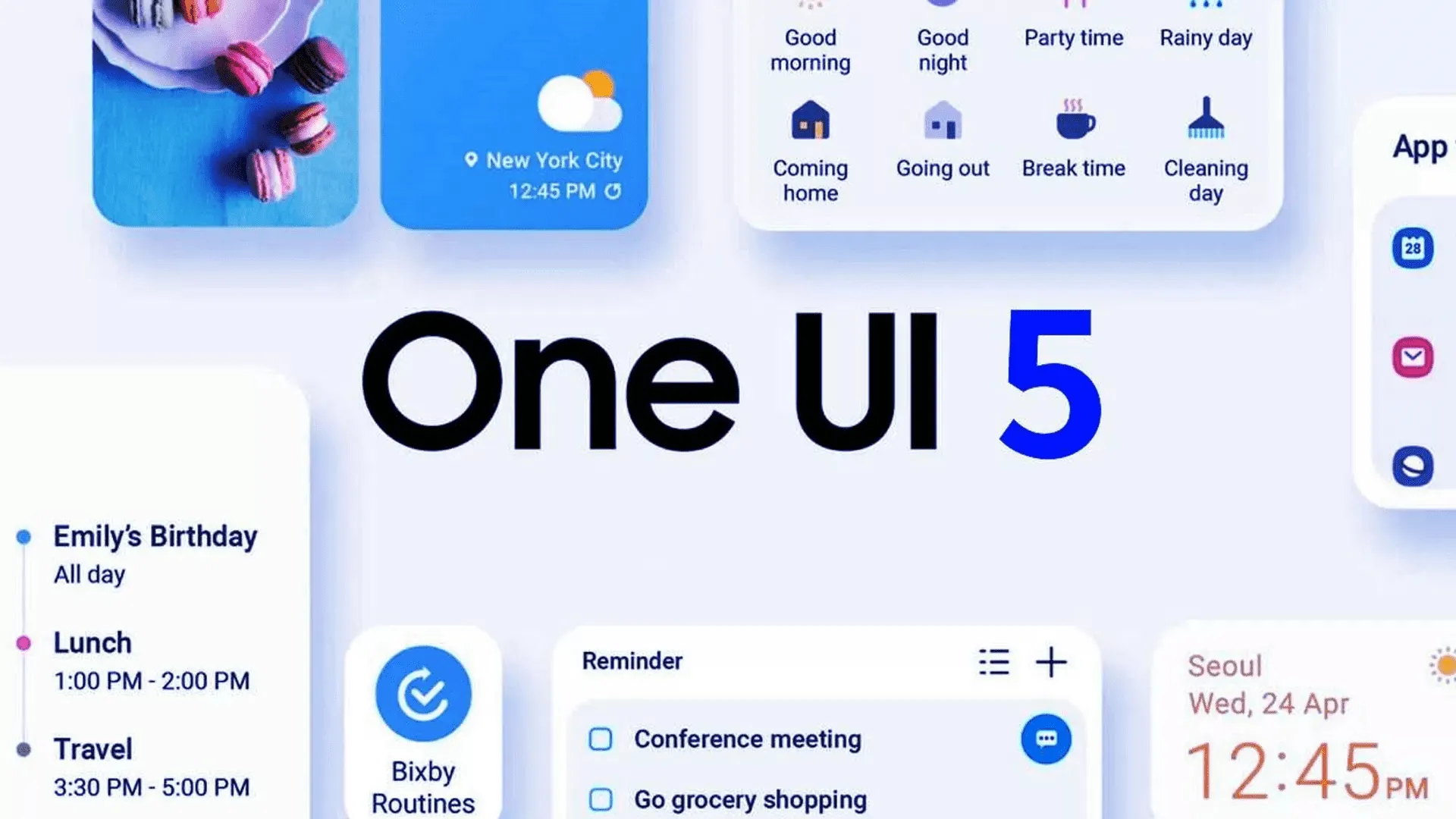
Yesterday, Samsung updated the Galaxy Z Fold 4 and Galaxy Z Flip 4 with its One UI 5 beta upgrade, which is based on Android 13. Owners of the Galaxy Z Fold 2 can now enroll in the beta program.
The Samsung Galaxy Z Fold 2 was promised three significant OS updates and shipped with Android 10 out of the box. Owners of the Fold 2 can anticipate receiving Android 13 as the last significant OS upgrade. Even for Galaxy S22 devices, the stable version of One UI 5 is still not ready for release, but the beta version is currently accessible for download in South Korea. Other locations should soon receive the update.
All you have to do to try out the beta is go to the Samsung Members app. You’ll have the option to sign up for Samsung’s beta program there. Simply launch the app and select the banner for the beta announcement. You can register by entering your information on the registration page that is linked by the banner. After that is finished, you ought to see an update notification.
If you choose to install it, as with any beta, you can encounter issues. Always make a backup of your data before updating to the One UI 5 beta.
The Galaxy Z Fold 2 will receive Android 13 as its final major operating system, but it won’t be the last upgrade. the object
Although Android 13 will be the Galaxy Z Fold 2’s last major operating system, it won’t be the last upgrade. More security updates for the gadget are still planned, although they should stop in late 2024.
On Friday, Meta Platforms announced that it had discovered over 400 malicious apps on Android and iOS that it claimed were aimed at online users in order to steal their Facebook login credentials.
According to a study provided with Droid Tools by the social media giant, “These programs were placed on the Google Play Store and Apple’s App Store and disguised as photo editors, games, VPN services, business apps, and other utilities to deceive consumers into downloading them.”
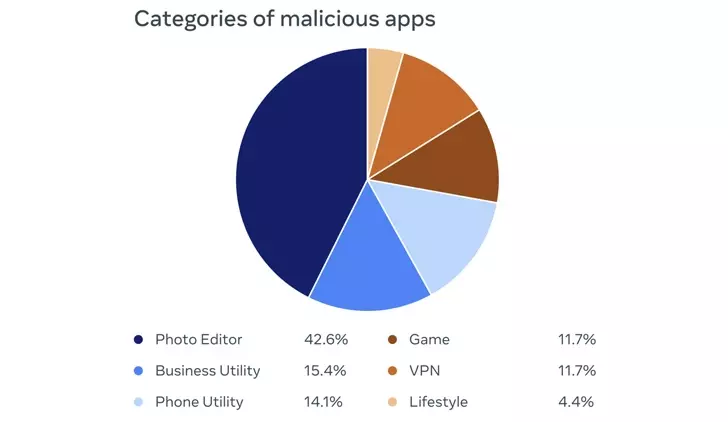
42.6% of the rogue apps were photo editors, followed by business utilities (15.4%), phone utilities (14.1%), games (11.7%), VPNs (11.7%), and lifestyle apps (4.4%). Interestingly, a majority of the iOS apps posed as ads manager tools for Meta and its Facebook subsidiary.
The owners of the plan not only disguised its nefarious nature as a collection of seemingly innocent apps, but they also posted fictitious reviews in an effort to counteract any unfavorable comments made by users who may have previously downloaded the apps.
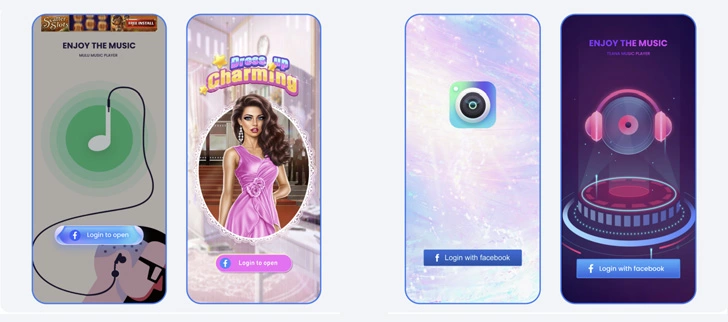
By presenting a “Login With Facebook” prompt, the apps ultimately served as a way to steal the user login information.
“If the login information is stolen, attackers could potentially gain full access to a person’s account and do things like message their friends or access private information,” the company said.
Both app stores have removed all of the disputed apps. You may view the list of 402 apps, which includes 355 Android apps and 47 iOS apps.
It is crucial to use caution while downloading apps and providing access to Facebook in order to get the claimed functionality, as it is with all programs of this nature. This entails carefully examining app permissions and user evaluations as well as confirming the legitimacy of the app creators.
The disclosure was made at the same time that three Chinese and Taiwanese businesses were sued by Meta-owned WhatsApp for allegedly deceiving over a million users into compromising their own accounts by disseminating fake versions of the messaging software.
Although it’s not everyone’s cup of tea, this strategy has been employed by Google for a while and makes a lot of sense.
This is due to the phased rollout strategy giving Google more time to monitor the rollout and identify any potential difficulties in advance, effectively lowering the possibility that new app versions may seriously affect the devices on which they are installed.
The most recent version of the app, Android Auto 8.2, is currently available to users. Fortunately, there is a quick method to download the program without having to wait for it to appear on the Google Play Store.
You should be aware that this alternate option essentially involves manually downloading Android Auto 8.2 onto your smartphone. To accomplish this, you must download the standalone APK installer and then run it on your device.
The Android Auto 8.2 APK installer should first be downloaded from this page. Once the download has finished, navigate to the file’s destination and tap it.
You should be prepared to move on at this point if your Android device is set up to permit the installation of apps from sources other than the Google Play Store. If not, the operating system should automatically prevent the installation and ask you to approve its completion.
When the installation is complete, which shouldn’t take more than a few seconds, Android Auto should function normally. When manually installing the most recent update, you do not need to remove the version that is already installed on your device.
What’s new in Android Auto 8.2
There isn’t much information available on this front because Google hasn’t published a thorough changelog. However, based on the most current user comments on social media, it appears like Android Auto 8.2 doesn’t bring about any noteworthy changes other from a bug that most users would find annoying.
The weather and temperature icons in the status bar appear to be gone in Android Auto 8.2, although as was previously said, this is probably simply a quirk since hardly everyone notices it.
Since no workaround has been found, it appears to be a server-side bug that Google should be able to resolve without releasing another update.
What’s not included in Android Auto 8.2
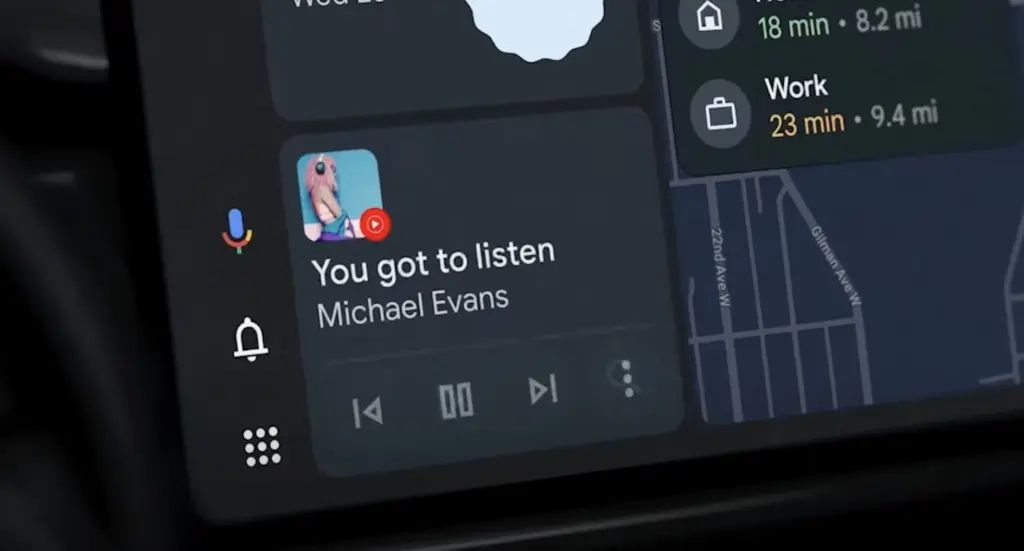
Since everyone seems to be anticipating the revamp of Coolwalk in Android Auto, you’ll likely be disappointed to learn that version 8.2 doesn’t bring any changes in this area.
In other words, if you hurriedly downloaded and installed Android Auto 8.2 in the hopes of obtaining Coolwalk, this UI change isn’t yet accessible. You should also be aware that Google will enable the new function with a server-side switch, so the distribution of Coolwalk isn’t dependent on a specific Android Auto update.
The majority of the code for Coolwalk is already present, therefore Google is currently only focusing on final polishing. This indicates that the release of Coolwalk shouldn’t be too far away, even though there is currently no other information on the ETA.
If you don’t want to manually install version 8.2 on your smartphone, the wait shouldn’t be too long as the automated deployment of Android Auto upgrades normally ends after a few weeks. In other words, as part of the gradual deployment described above, this most recent version of the app should be made available to all Android smartphones running Android Auto by the end of the month.
The greatest Android game and software bargains for Monday afternoon are now available below the fold. Along with the software discounts, there are also price reductions for the OnePlus 10 Pro 5G, Samsung’s most recent Galaxy Z Fold 4 foldable, and the Chromecast with Google TV 4K. However, the focus of today’s bargains is on apps, with titles like Pavilion: Touch Edition, ProCam X, Evoland 2, YoWindow Weather, Hack, Slash, Loot, Crystalline, and others among the highlights. For a detailed look at today’s top Android app bargains, courtesy of Google Play, continue reading below.