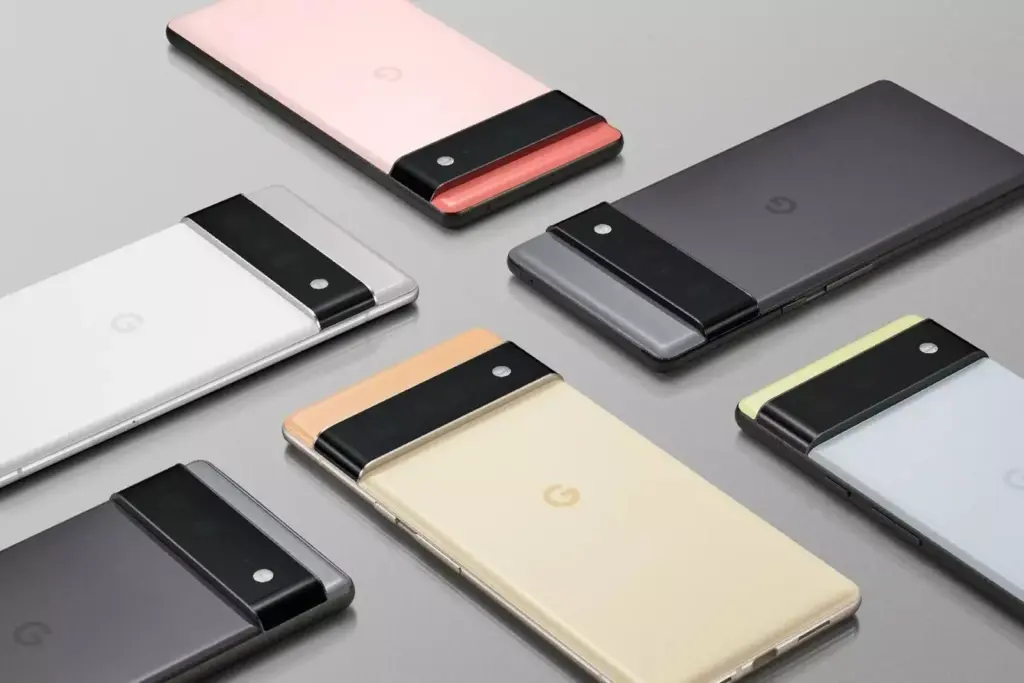
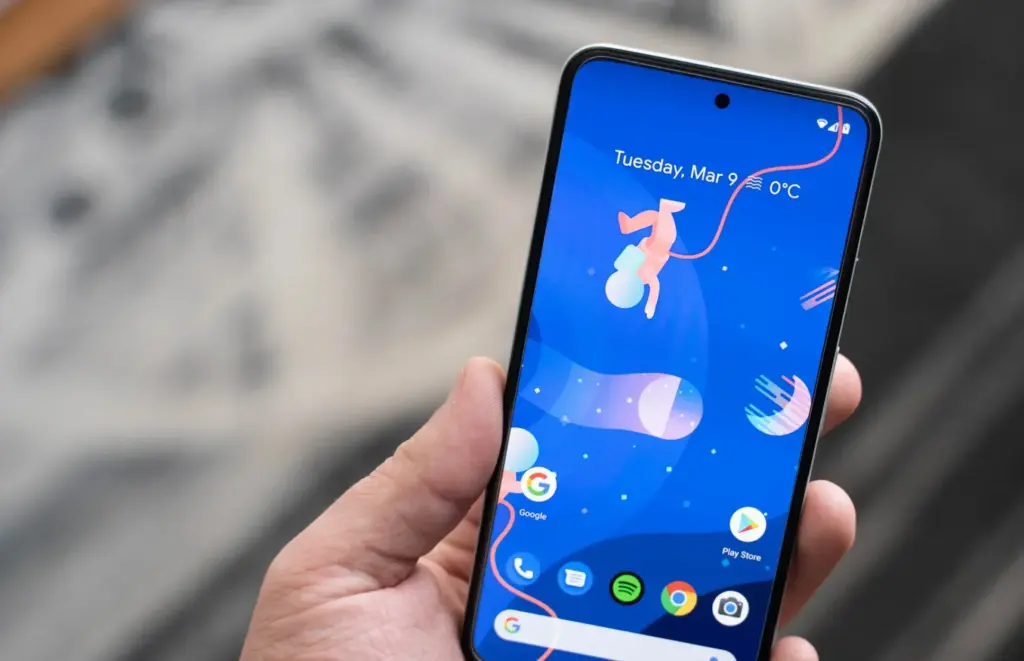
The Android 13 October update is releasing now and contains nine fixes in front of upcoming Pixel phones.
This second update boasts nine enhancements across Audio, Connectivity, User Interface, and Wi-Fi after only five changes were made last month.
The Android 13 UI is the focus of this month’s updates, which also address empty Quick Settings tiles and widget compatibility issues. As well as fixing a device crash when playing audio from local storage, there is a fix for several programs that don’t display an icon in the media player.
Use the following device key to interpret the Android 13 Pixel changelog:
*[1] Included on Pixel 4, Pixel 4 XL, Pixel 4a, Pixel 4a (5G), Pixel 5 and Pixel 5a (5G)
(This only applies to the first issue under Audio, with everything else in the October update benefiting all Android 13 Pixel devices.)
Audio
Fix for issue occasionally causing audible humming or noise artifacts during calls while using wired headsets *[1]
Fix for issue preventing device volume controls in media player notification to work under certain conditions
Connectivity
Fix for issue causing launcher crash when connecting to VPN in certain conditions
Autocorrect on Android devices may be both a benefit and a burden. It will spare you an embarrassing typo in a communication to your boss by a minute. Then, you’ll be embarrassed as you text a family member something utterly improper.
It’s time you regained initiative. Continue reading to find out how to enable autocorrect on your Android device as well as how to disable it once more. In order to assist you get the autocorrect feature working the way you want it to, we’ll also touch on a few other settings.
How to Turn Off Autocorrect on Android
Gboard, Google’s proprietary keyboard program, comes preinstalled on the majority of Android smartphones by default. You can disable autocorrect by following our instructions if you’re using Gboard.
However, if you prefer a different keyboard, you can quickly switch to an alternative with one of the numerous third-party apps offered in the app store. However, the directions for disabling autocorrect may vary significantly. For more details, go to the official material produced by the keyboard’s creator. Additionally, this process could differ slightly depending on your device.
Gboard’s autocorrect toggle is tucked away in the Settings menu of your phone.
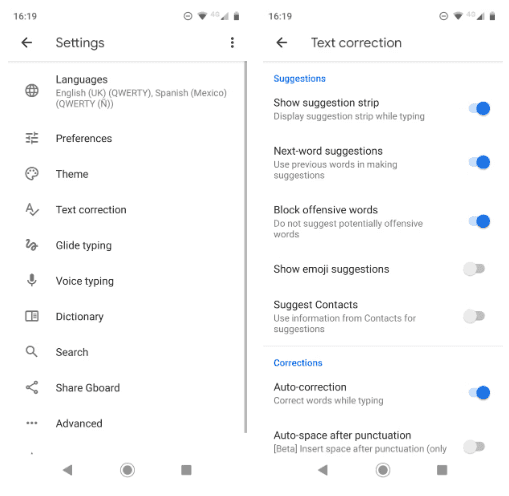
You must access it by opening the Gboard settings. You can do this by navigating to Settings > System & updates > Languages and input > Keyboards > Gboard in the Settings app. On Android smartphones, you may access the autocorrect section more quickly by opening your keyboard, holding down the comma key for a long time, and then tapping the gear symbol that appears.
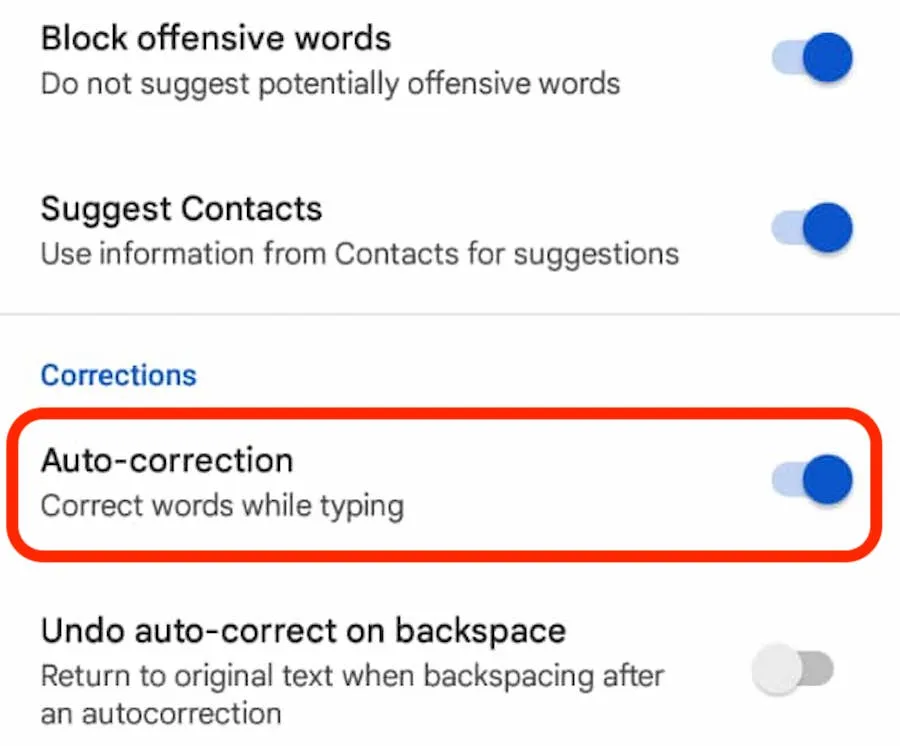
Once you reach Gboard’s settings with either method, select Text correction. Next, under the Corrections heading, slide the toggle for Auto-correction into the Off position.
Turn On Autocorrect on Android
If you change your mind later, you can re-enable the autocorrect feature at any time. Simply perform the same instructions as above, tweaking the final step:
Open the Settings app and go to System & updates > Languages and input > Keyboards >Gboard. Alternatively, you can also open the keyboard, hold the comma key, and tap the gear icon to reach the settings area.
Choose Text correction and scroll down to the Corrections section.
Locate the toggle labeled Auto-correction and slide it into the On position.
Again, if you’re using a different Android keyboard, you might find that the instructions vary. Any keyboard you have installed should appear under the Keyboards section of the Settings app. Open it from there, and then you’ll need to look for the appropriate setting.
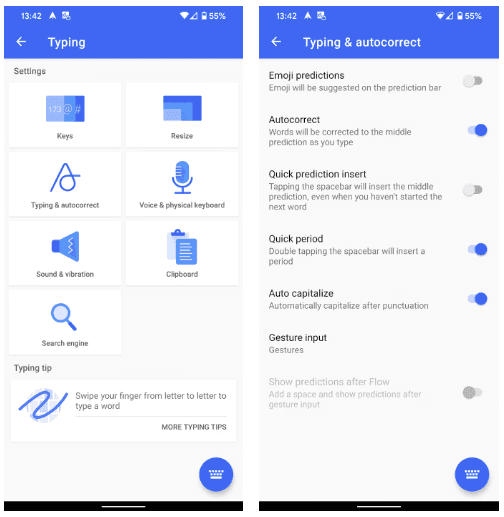
SwiftKey, for example, has the autocorrect feature stored under Typing > Autocorrect. You can easily toggle the feature anytime you want.
Turn Off Autocorrect on Samsung Devices
You are aware that Samsung does not use the original Android operating system if you have ever acquired a Samsung smartphone or tablet. Samsung smartphones instead use a specialized Android skin called One UI.
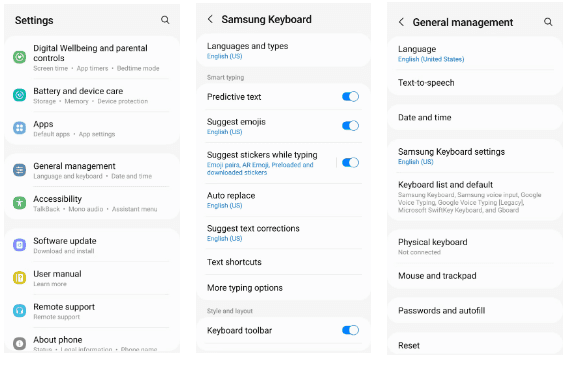
Stock Android and Samsung’s skin differ in a lot of ways, one of which is how to turn autocorrect on and off. Below are instructions on how to turn off autocorrect on Samsung devices running Android 11 and up:
Open the Settings app.
Go to General management and select Samsung Keyboard Settings assuming that you’re using the built-in solution.
Turn Predictive text off under Smart typing.
If you want to know how to turn off autocorrect on Samsung phones and tablets that are from older generations, you’ll need to follow these instructions:
Open the Settings app by heading to Apps > Settings.
Scroll down to the System section.
Tap on the icon labeled Language and input.
Select Default from the list of options available. This may have a different name if you have a different keyboard installed.
Scroll down until you find the Auto replace menu item and select it.
Flick the toggle in the upper right-hand corner into the Off position.
As you can see, disabling autocorrect on Samsung devices isn’t a particularly difficult process. Of course, you may use the same steps but modify the final step if you’re curious about how to enable autocorrect on your Samsung device.
Improve Autocorrect on Android
Everyone has seen those hilarious screenshots of autocorrect. It makes sense why you might feel the sudden need to turn off autocorrect on your Android device after reading some of these.
But in reality, such extreme steps are rarely necessary. There are a ton of choices available on Android keyboards that let you adjust, hone, and enhance the autocorrect feature to better suit your needs.
Auto-Capitalization
As you type, Android can automatically correct capitalization of proper nouns and the beginning of phrases.
It is a valuable feature in most situations. But it might not be the best option for everyone. Many words function as both proper nouns and common nouns (for example, “Turkey” the country, and “turkey” the bird). If you frequently use words like these, you may want to disable the auto-capitalization option.
You can do so by heading to Settings > System > Language and input > Keyboards > Gboard > Text correction > Auto-capitalization. Slide the toggle into the Off position to disable it.
Spell Check
Instead of relying on autocorrect to correct your mistakes, you could just turn on spell checking for Android. It will use those recognizable red squiggly lines under the text to highlight typos and other misspelled words for you.
To turn spell check on or off on Android, you need to go to Settings > System > Language and input > Keyboards > Gboard > Text correction > Spelling > Spell check and flick the toggle into the desired position. In order for this feature to work, you’ll need to ensure you’ve selected a default language for your keyboard.
Customize the Android Dictionary
There are always going to be some real terms that aren’t in the dictionary that comes with Android. Common offenders include obscure place names, brand names, and specialized lingo connected to your line of work.
When Android consistently tries to autocorrect words like “Sonos” or “Logitech,” it quickly becomes tiresome. You should include the words into your own personal vocabulary to avoid this from occurring and relieve some of your stress in the process.
You can access the dictionary by heading to Settings > System > Language and input > Keyboards > Gboard > Dictionary > Personal Dictionary. Tap the language you’d like to edit the dictionary for, even if you only have one installed. Then you can use the Plus button to add new words.
Voice Typing
You may find several functions on some keyboards, like Gboard, to help you become a better typist. As an alternative, you can begin speaking instead of utilizing the touch-screen keyboard.
When speaking as opposed to typing, you’re less likely to make a mistake in autocorrect. However, if you have any kind of accent, you run the risk of your remarks being misinterpreted. You can always use our advice for quick Android typing if you desire both speed and accuracy.
If you would like to try voice typing, go to Settings > System > Language and input > Keyboards > Gboard > Voice typing and turn the toggle on. Then you can tap the Microphone icon at the top-right of the keyboard to speak.
Learn More About Typing on Android
Your typing experience on an Android device can be enhanced by using autocorrect and understanding how to turn it on and off. For instance, you can install third-party features, alter the keyboard’s style, or even select a different keyboard layout than the QWERTY.
If you do decide to switch to a new keyboard, you should always make sure to go with a reputable manufacturer.
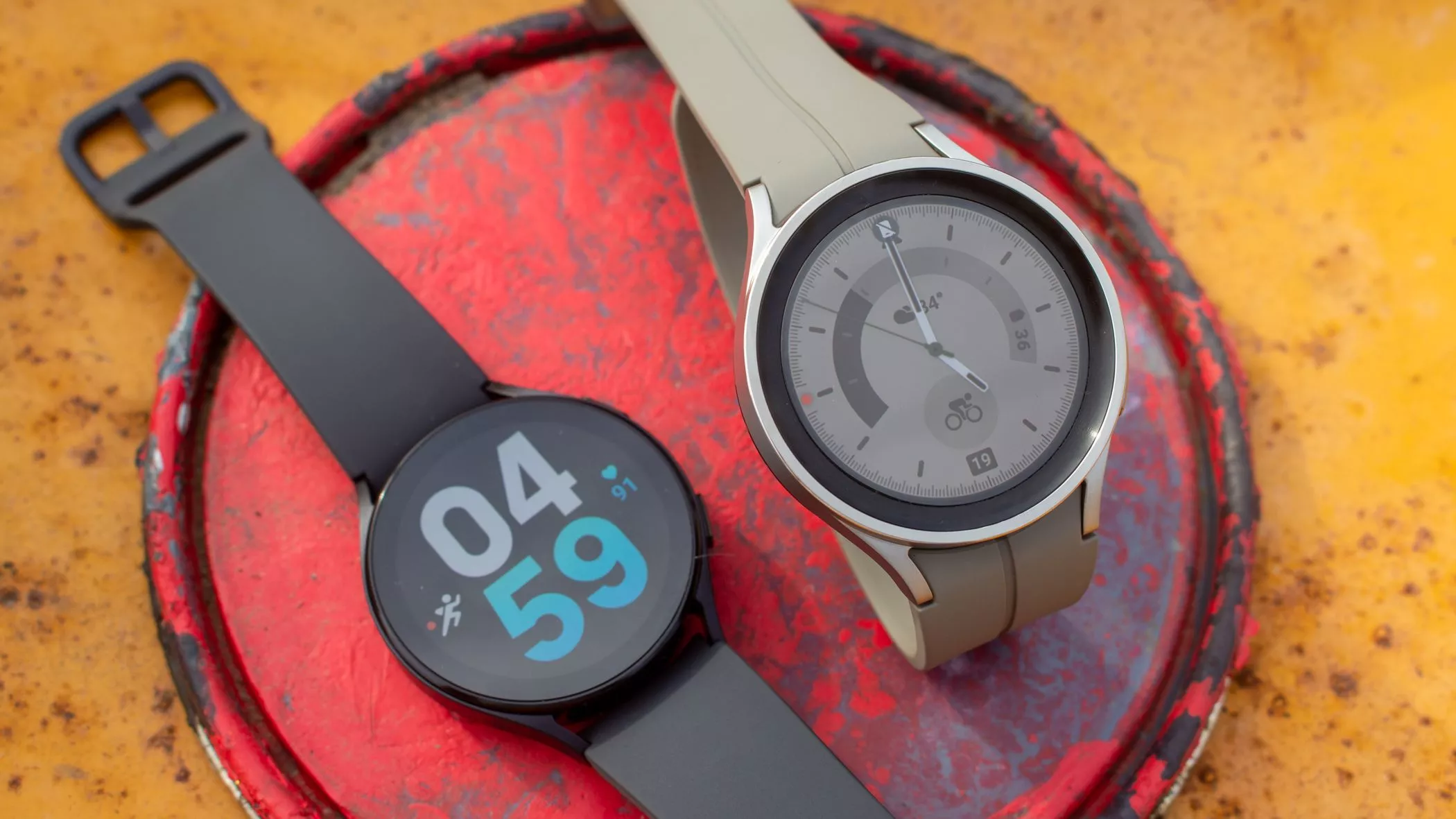
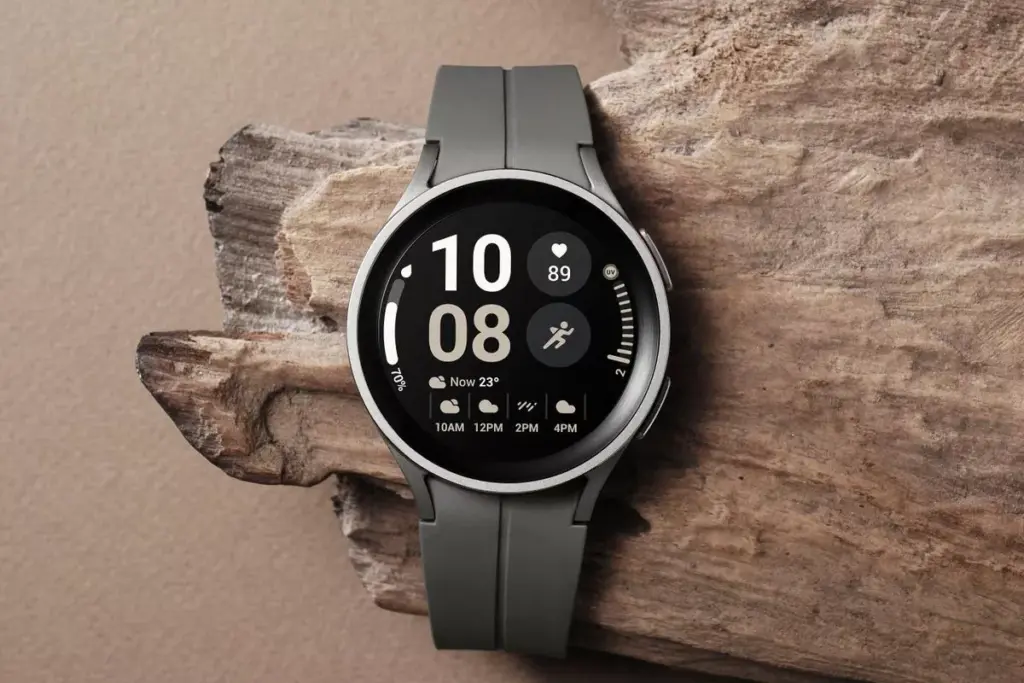
In response to the popularity of the previous Samsung Galaxy Watch, Samsung recently introduced the Galaxy Watch5 and Watch5 Pro. The most recent Samsung Galaxy Watch uses the same cutting-edge technologies but drastically alters the Battery Life rather than reinventing the wheel. The Samsung Galaxy Watch5 series offers a surplus of health and wellness features, in contrast to its older predecessor. Additionally, the most recent Samsung Galaxy Watch now has a fall detection feature and emergency help.
You might be wondering what is fall detection feature. It’s a completely life-saving feature that monitors the random or hard falls. It’s equipped with an accelerometer that helps to detect all your body movements. During a hard fall, it will feature emergency assistance. And in case, if you didn’t reply in a design within 60 seconds of time-frame, it will instantly and automatically deliver the SOS alert to the emergency contacts and services.
Can The Samsung Galaxy Watch5 Series Detect A Fall?
As of now, the Galaxy Watch5 series is craved with a feature known as the Fall detection feature. Here in this guide, we have mentioned step-by-step to set up the fall detection feature on Galaxy Watch5 Pro and Galaxy Watch5
Steps To Set up Fall Detection On Galaxy Watch5 Series
First of all, to use the SOS feature, your watch must be connected to a phone. At the same point, you should keep the Emergency Contact on the list through an application.
Step 1 → Navigate to the Galaxy Wearable App on your device.
I’m damn sure you are now updated with what is fall detection and how to setup it up on the Galaxy Watch5 series. In case, if your loved one, parent, toddler, or grandmother has Samsung Watch, prompt them to enable the feature as it’s completely life-saving.
How Do You Use Fall Detection On Galaxy Watch?
If you have fall detection compatible Galaxy Watch, you can easily activate “Hard Fall Detection” from the phone settings: Navigate to the Galaxy Wearable App > Watch Settings > SOS > tap on the toggle next Detects Falls.
Does Samsung Have Hard Fall Detection?
Thanks to it’s advanced Accelerometer will help alert you when your device attempts random falls.
Do you want to use your Samsung smartphone to record calls? All Galaxy devices come with the call recording feature out of the box, which streamlines the process. This implies that you can record calls on your Galaxy smartphone without using a third-party program.
Are You Allowed to Record Phone Calls?
Before you begin recording calls on your Samsung Galaxy phone, you should be aware that certain local laws and regulations may prevent you from using the feature in your nation or neighborhood.
In some countries, it is illegal to record calls without the other party’s consent. So don’t be surprised if the call recording feature is missing from your Samsung Galaxy device. In such cases, you are out of luck as there’s nothing that can be done to enable this functionality.
In a few locations, even when recording is legal, Samsung may still not have implemented it. This could help explain why the call recording option is not showing up on your Samsung phone.
It is not possible to record VoWiFi calls, i.e., voice calls that happen over Wi-Fi.
Also, note that you cannot record calls on Android using a third-party app. Due to privacy reasons, these apps don’t work on Android 9 or a newer version of the OS. Any app that claims to work will require you to root your Android device, which could void its warranty.
Therefore, you cannot just download an app from the Play Store to add call recording capabilities to your device if it lacks it. You can follow our instructions for recording calls using the Google Phone app if it is the default dialer on your Android smartphone.
The pre-recorded message warning the parties that the call is being recorded is not played by Samsung’s call recorder. It has a significant advantage over devices that use the Google Phone app as the default dialer as a result of this. It is impossible to record a call on such devices without the other side being aware of it. All callers will hear a “This call is being recorded” announcement whenever you begin or end a call recording.
Automatically record calls on a Samsung Device
You may set your Samsung Galaxy device to automatically record all calls.
You can choose to record calls from all contacts in your phone book, solely from selected contacts, or only from unknown numbers, depending on your preferences.
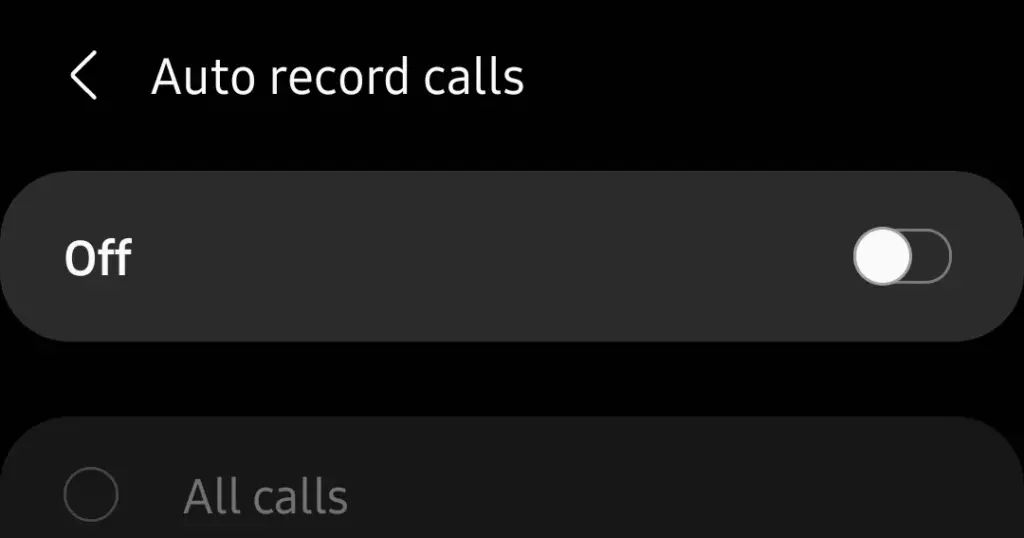
Tap the 3-dot overflow menu button in the top-right corner, followed by Settings > Record calls.
Jump into the Auto record calls menu and enable the feature.
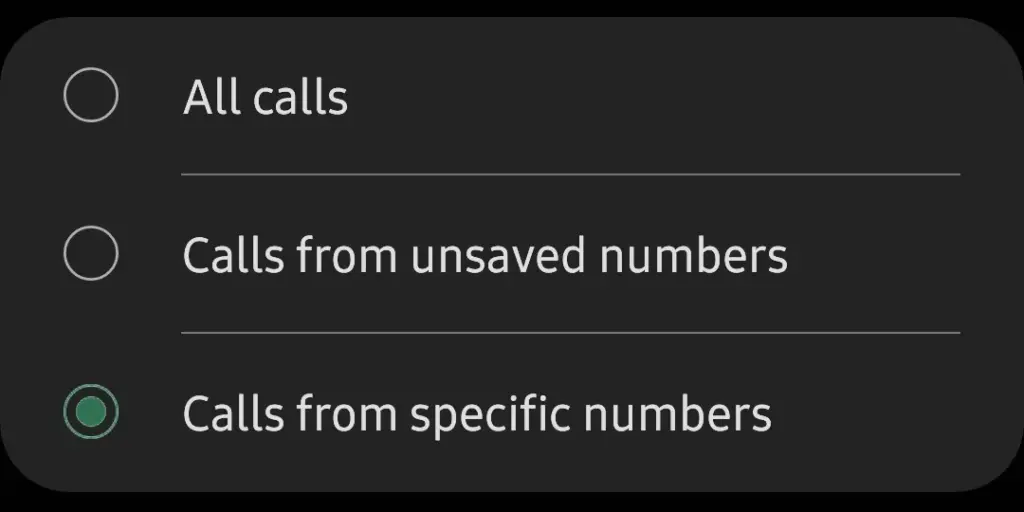
Proceed to select whether you want to record All calls, Calls from unsaved numbers, or Calls from specific numbers.
How to Manually Record Calls on a Galaxy Phone
You can also manually record single calls on phones like the Samsung Galaxy S22, Note, or Galaxy Fold series. Here’s how:
Open the Phone app on your Samsung device and call the contact whose call you’d like to record. Alternatively, accept the incoming call that you want to record.
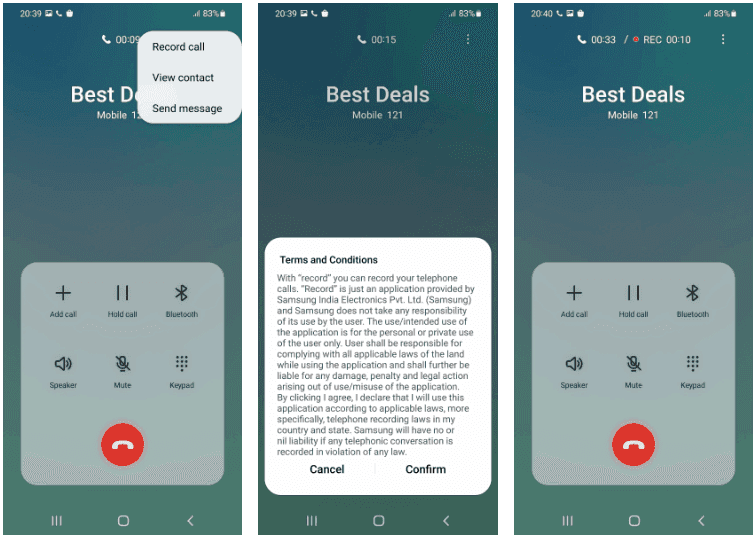
On the call screen, tap the Record call button to start recording. If the option does not show up on the call screen, tap the 3-dot menu button on the top-right and then select the Record call option.
The first time you use the call recording feature, you’ll be prompted to accept the terms and conditions.
Manually record calls on Samsung Android Devices
Contrary to several other phones, you can record calls without alerting the other party. Only Android phones that have the Google Phone app set as their default dialer app experience this.
On One UI 4 and One UI 5, the method to record a phone call is the same.
How to View Recorded Calls
You can view recorded calls on your Samsung Galaxy device from the Phone app.
Open the Phone app on your Samsung Galaxy device.
Tap the 3-dot overflow menu button in the top-right corner.
Navigate to Settings > Record calls > Recorded calls. All the recorded calls will show up here. The file name will show the contact name or the phone number to easily identify the recorded calls.
You can select any recorded audio file and then tap the Share option to share the recorded call on WhatsApp, Gmail, Drive, etc.
Call Recording on Samsung Galaxy Devices
As we’ve seen, it’s rather simple to record calls on a Samsung Galaxy smartphone, assuming local regulations don’t restrict the firm from providing the feature there.
And always keep in mind that when you have power, you also have duty, thus you should never record a call without first telling the other person on the line.
One of the many features you’ll only find on Samsung smartphones and not on other Android phones is call recording. It’s highly recommended to check out some of the additional features offered by the Galaxy One UI software.
On October 6, Google will hold its upcoming hardware launch event, during which the Pixel 7 series and a number of other new items will be made public. The Pixel 7 series duo was originally shown off by Google at its 2022 I/O event, but additional crucial information has been kept under wraps.
The pair has been the subject of numerous rumors, and Google has been gradually disclosing features from the Pixel 7 series. We’ll outline how to watch the Pixel 7 series event live as well as what to look forward to.
When will Google launch the Pixel?
On October 6, 2022, Google’s Pixel 7 series will debut. At a live event in Brooklyn, New York, beginning at 10 AM ET, Google will reveal the Pixel 7. (3:00 PM London time, 9:30 PM Indian time).
How to watch Google’s launch event
Although Google’s hardware event will take place in person, you can watch it live online from the comfort of your home. The Made by Google YouTube channel will broadcast the event live.
What to expect at Google’s event
What hardware is hence most likely to be presented at the event? While rumors and leaks have disclosed some of the other details, Google has already confirmed a large portion of it.
1. Google Pixel 7 Series
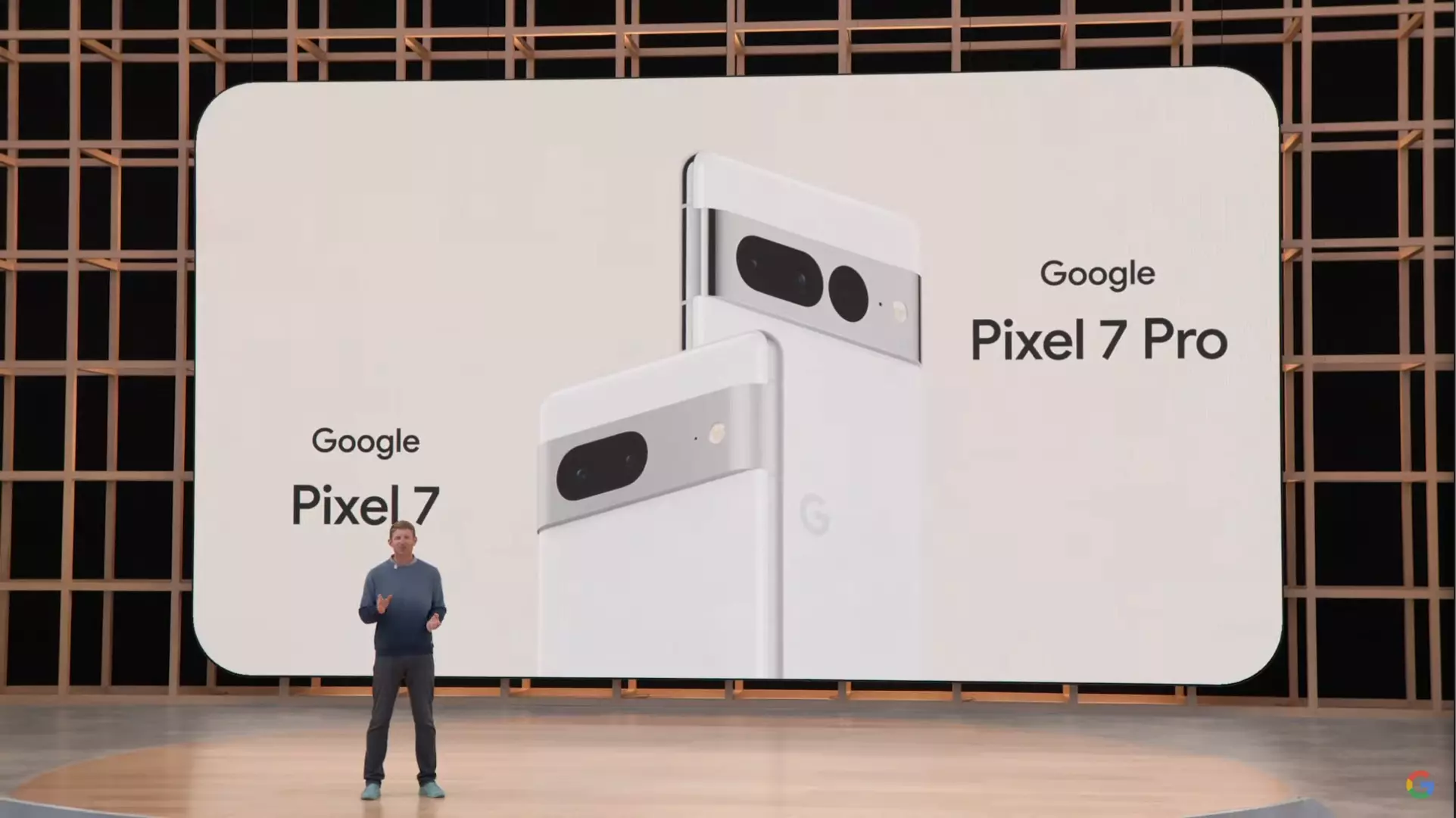
Google will unveil two models, the standard Pixel 7 and the Pixel 7 Pro. The duo maintains Google’s modern design introduced with the Pixel 6 series in 2021.
The edge-to-edge rear camera bar is still there on both phones, but Google is prepared to differentiate between the two by adding a third camera to the Pro model, making a total of three. The third rear camera on the Pixel 7 Pro is also located in a distinct dot cutout. Both variants’ back camera bars are made of metal instead of the glass found on the Pixel 6.
Google recently posted a photo showing the Pixel 7 Pro’s display, which is somewhat curved. Google continues to employ a rounded notch, which is said to include an 11MP Samsung 3J1 front camera.
According to 9To5Google, rumors indicate that Google will keep using the primary 50MP Samsung GN1 sensor and Sony’s IMX381 for ultrawide pictures. The usage of Google’s second-generation Tensor G2 processor, which is expected to employ a 4nm chip with Samsung’s upcoming Exynos 5300 modem, is one of the greatest upgrades.
The Tensor G2 is supposedly combined with 12GB of memory and 128GB of storage on the Pixel 7 Pro, according to a report from Android Authority. According to rumors, the stock Pixel 7 will have Bluetooth Low Energy-enabled dual speakers, 8GB of RAM, 128/256GB of storage, a 4700mAh battery, 30W charging capability, and a 6.3-inch display.
Both versions will be available in the colors Obsidian and Snow out of the box, but there is also a third special choice for each model: Hazel for the Pro and Lemongrass for the Pixel 7.
Early price rumors have suggested the Pixel 7 series starts at $599 for the standard model and $899 for the Pro model, identical to the Pixel 6 and Pixel 6 Pro launch prices, respectively.
While there’s still uncertainty on other important features of the Pixel 7 series like battery, fast charging speeds, camera, price, and more, it looks like you shouldn’t expect a massive update from the Pixel 6 series.
2. Pixel Watch
Google is almost ready to introduce its first wristwatch. In leaked images, the Pixel Watch has a svelte circular shape and muted hues similar to the Pixel 7 series. It has a pill-shaped button on the right and a silver crown on the left.
According to an early hands-on in the wild that was posted on Reddit in April 2022, the Pixel Watch is expected to be 40mm in diameter, 14mm thick, and 30mm in diameter (without the bezels).
https://youtube.com/watch?v=_p7v1PTABSU
It has been suggested that the Pixel Watch would include fitness and health tracking capabilities for heart rate, blood oxygen, skin temperature, and other parameters. Most significantly, the Fitbit Charge 5 has been compared to the Pixel Watch’s rear sensors, which debuted in 2021.
The Fitbit’s Charge 5 has several tracking features, including an ECG and EDA sensor. Besides, Google notes in a teaser that Fitbit powers the smartwatch’s health and fitness features, and, as a result, you may need a Fitbit account as well as the app to enjoy some functionalities.
Reports suggest Google could use the Exynos 9110 chip, an old chip first seen in Samsung’s 2018 Galaxy Watch, according to a 9To5Google report. On the bright side, Google will reportedly include over 1.5GB of memory to compensate for that.
Under the hood, the Pixel Watch will run Wear OS 3, the latest version of Google’s smartwatch operating system.
3. Google Nest Wi-Fi Pro and Nest Doorbell (Wired)
The newest Nest Wi-Fi mesh network is anticipated to be unveiled by Google’s Nest division. The Nest Wi-Fi Pro will be the name of the next-generation Wi-Fi mesh network, according to a B&H retail page leak. According to reports, it will start at $199 for a single router and enable Wi-Fi 6E.
The Nest Doorbell (wired), a variation of the current Nest Doorbell, could also be announced (battery). Despite the fact that no significant modifications have been noticed in terms of design, leaks indicate it may be shorter but thicker than the Nest Doorbell (battery).
Get Ready for Google’s Hardware Event
The Pixel 7 and Pixel Watch are expected to be unveiled in person at Google’s fall hardware event. The Nest Wi-Fi Pro and Nest Doorbell could also be made public by the business (wired). Prepare for the event because Google may have further surprises in addition to these.
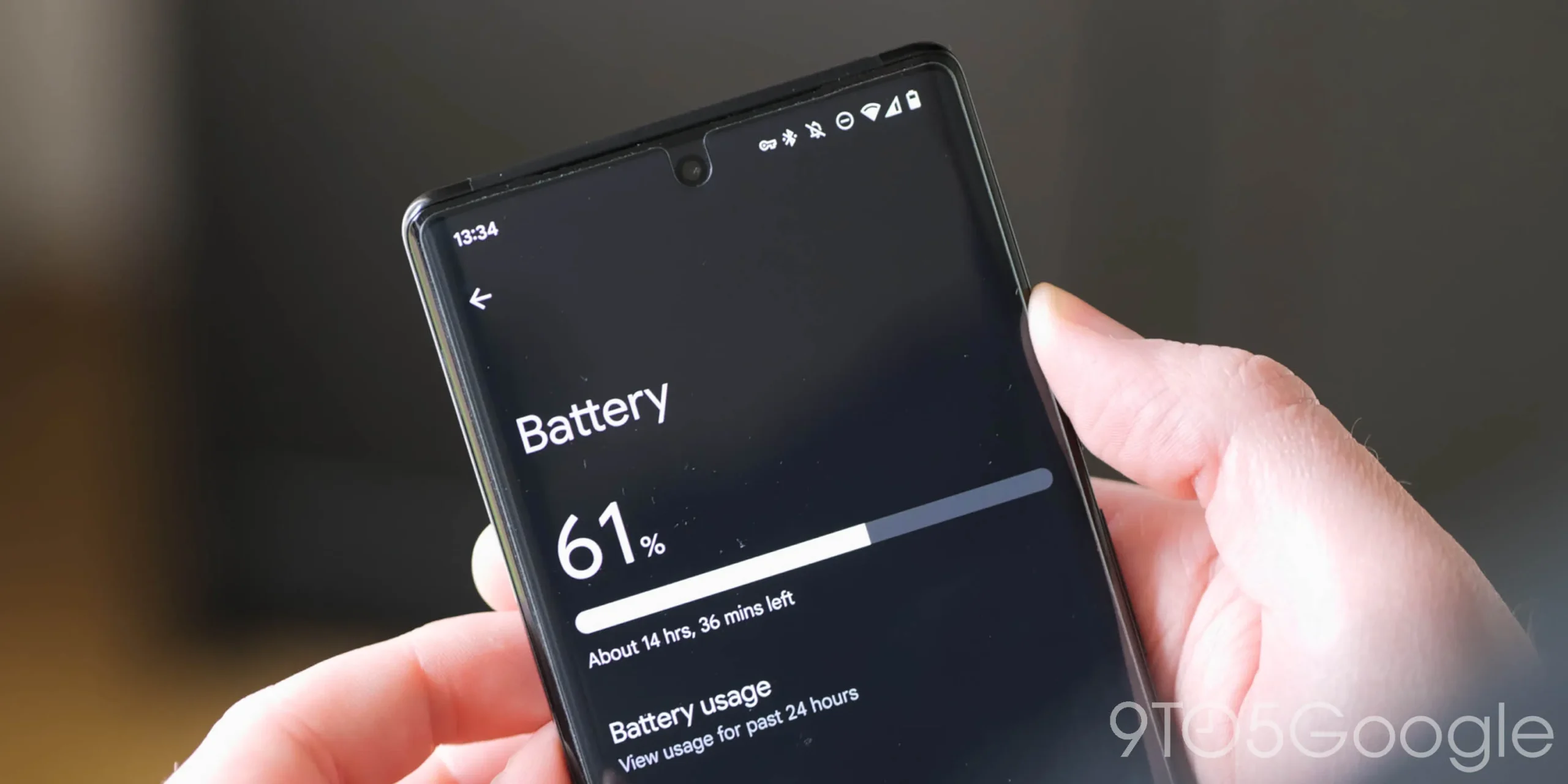
Owners of the Google Pixel 6 and Pixel 6 Pro recently had a problem with their handsets burning so hot and the batteries draining so quickly that some ran out of power by midday. Google’s September update was supposed to fix the issue, however Verizon customers who received the update late last week did not. These files, in the author’s personal experience, have not yet been received.
Here’s a quick fix for your Pixel 6 series phone that will extend battery life and reduce heat.
If you haven’t yet received the September update for your Pixel 6 or Pixel 6 Pro, or if the update hasn’t stopped your battery from draining, a Reddit user going by the handle Human Individual 815 made a suggestion that was initially so mocked by other owners of the Pixel 6 series that he had to remove it. But after hearing from others that this short fix was lengthening battery life while also cooling down the phones, he decided to repost the article. Judging by the feedback, it appears that the article will remain up.
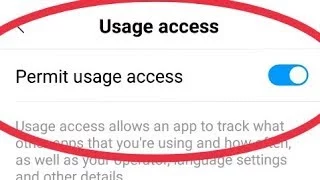
Toggle off Usage access to Digital Wellbeing and Device Health Services to attempt and extend the battery life and lower the temperature of your Pixel 6 series phone. To do this, open Settings and type “Usage access” into the search box at the top of the screen. You may access a list of apps by tapping on Usage access. Click Device Health Services, then turn “Permit usage access” off. Apply the same strategy to the listing for digital wellbeing. Restart and reboot.
Some functionalities will be removed if you do this. The Redditor who came up with this strategy claimed that by closing the two aforementioned apps, his battery life doubled. He added as well that “It will have an impact on charging and adaptive batteries. The adaptive connection will be impacted. Any of your bedtime mode items will be affected. Fitbits, fitness watches, and other devices of that nature, as well as probably many others, will be impacted. That we must disable these functionalities in order to use our phone is truly terrible.”
Impressive outcomes have been obtained. Using the username cloudacoustic93, a Reddit user comments, “Wow, this really worked. It’s only been a few hours, yet already there is a difference.” Rk3h, a different participant, claimed that after restarting and charging, the Accubattery app’s battery life immediately increased. Others were experiencing success. One Pixel 6 series user stated, “Tried and it is working for me, battery last more.” Another person responded, “Perfect, thank you.
Disable features you don’t use.
We can keep providing you with more feedback from others who have tried this. One of the best replies came from a member by the name of novelomaly, who said, “Thanks a lot! This worked for me, and now I can use my phone normally without worrying that it may die if I forget to charge it at night.”
Another post includes some information that we can consider: “Update: In 5h 23m SOT, we are at 40%! This seems to have worked out perfectly! By now, it should be at 10%. Most significantly, my phone hasn’t heated up at all, so that’s a great advantage. Regards for the advice! I hope things continue how they are until Google fixes the issue.”
What about yourself, then? Well, I consider myself to be a heavy user, so the battery life may have improved. My Pixel 6 Pro is not as hot as it was before I turned off usage access to Digital Wellbeing and Device Health Services, that much is for sure. Since my phone hasn’t yet received the September update, I’m waiting to see if it really makes a difference.
Why not give this a try if you have the Pixel 6 or Pixel 6 Pro, can fry an egg on it, and the battery isn’t lasting you until lunch? You can easily reverse it, and you might not care at all about the aspects that are affected. By leaving a comment in the box below, let us know whether you detect a change in the battery life of your Pixel 6 series phone.
The introduction of Qualcomm’s upcoming flagship system on a chip (SoC) is about to be announced; it is anticipated to take place during the company’s event in November. Although the Snapdragon 8 Gen 2 has been anticipated for some time, there is a speculation that a surprise version of the chipset may be on the horizon.
The rumor was passed along via informant Digital Chat Station. According to a post on the Chinese social media platform Weibo, Qualcomm may be getting ready to introduce two different Snapdragon 8 Gen 2 processor models.
According to reports, this variant would have a microprocessor with an ultra-high frequency that significantly increases clock rates. One of the chipsets would be your typical chipset, while the ultra-high frequency processor may operate at 3.4 to 3.5GHz, according to Digital Chat Station. Snapdragon 8 Gen 1 currently operates at 3.19GHz as a point of comparison.
Even while everything seems thrilling, you should treat this rumor with a lot of skepticism. The likelihood of this rumor being true is remote. The rumor is that Qualcomm will release two chipsets simultaneously, which wouldn’t make much sense.
The informant also highlighted Mediatek’s future Dimensity chip in addition to the Snapdragon 8 Gen 2 chip. They assert that Mediatek’s upcoming chip could significantly boost CPU performance. Check out the comparisons here to see how the Dimensity 9000 and the current Snapdragon 8 Gen 1 stack up against one another.
Since Apple’s official unveiling of the iPhone 14 range has not yet settled, several of the announcements caught us off guard. Although I’ll reserve my opinions on the Apple Watch Ultra for another time, I do have some thoughts on it. Instead, I’m going to discuss a few features that the iPhone 14, namely the Pro and Pro Max, “stole” from earlier Android devices.
Dynamic Island from LG V10
The debut of the Dynamic Island along with the iPhone 14 Pro and Pro Max was perhaps the announcement made during Apple’s “Far Out” event that sparked the most heated debate. Since the release of the iPhone X, everyone has been requesting that Apple remove the notch, and they have finally done so. Although it’s still present on the iPhone 14 and iPhone 14 Plus, it makes sense from the standpoint of Apple wanting to provide a feature that sets its non-Pro and Pro models apart.
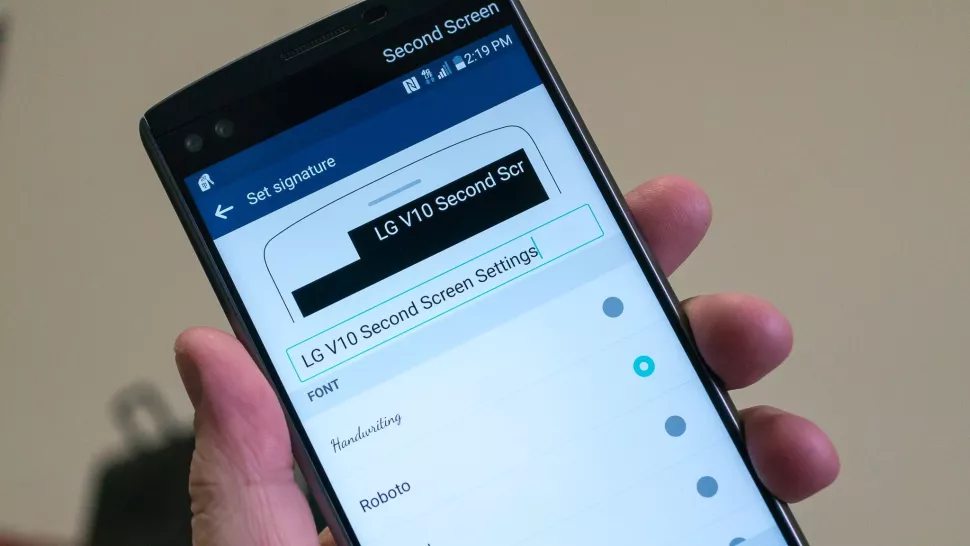
While the Dynamic Island may appear to be a ground-breaking new feature, LG actually arrived first with the LG V10, despite the fact that this is accurate to some extent. LG introduced the “Second Screen,” which allowed users to read incoming notifications, make shortcuts for contacts, and control any music that was playing without using the primary display, in an effort to provide users a another method to interact with their alerts.
It was one of those instances where LG tried to do something different, but the overall implementation and lack of support doomed the Second Screen from the start. The LG V20 kept the Second Screen around, providing essentially the same implementation, but it was still met with mixed results. Some V20 owners found this to be extremely convenient, while others found that “it doesn’t really add much to the experience.”
Apple’s implementation of Dynamic Island merely operates in a completely different manner as opposed to introducing a new screen. The “Island” will display “Dynamic” information, such as the song’s album art, when you start playing music and quit the app. Additionally, instead of taking up your full screen for simple notifications like when FaceID is required, it turns them into a drop-down image tied to the Island.
Although Dynamic Island isn’t an identical copy of LG’s Second Screen, it’s very obvious that there is some inspiration.
Hole-punch selfie camera
Speaking of the notch, we were aware that Apple wouldn’t use it indefinitely. It was only a matter of time before the company made the “revolutionary” decision to use a hole-punched selfie camera cutout. Apple had to alter the modules it uses because of the different sensors that are integrated into the notch, and there are actually two cuts. The selfie camera is in one, while the proximity sensor and other Face ID-related components are housed in the other.
With the Huawei Nova 4, the first business to completely do away with the notch, Huawei introduced the hole-punch selfie camera. However, it has been more difficult to find a smartphone that doesn’t include one since then. Many of the top Android smartphones are included in this, including the Galaxy S22 series, Pixel 6, ASUS ZenFone 9, and others.
Apple is obviously falling behind the curve here, as a few phone manufacturers are starting to adopt an under-display selfie camera. Notably, the Galaxy Z Fold 4 and ZTE Axon 40 Ultra are two of the most recent models with a UDC; nevertheless, it wouldn’t be surprising to see further phones produced in the near future with such a change.
Always-On Display
Consider how long Apple has taken to provide a feature that it ought to have done years ago. Android phones have long had the Always-On Display (AOD), which allows users to quickly and easily see the time and any unread alerts. Following the announcement of iOS 16 and the addition of lock screen widgets, the writing was already on the wall.
Then, one of the iOS 16 Developer Beta builds kind of let the cat out of the bag when several users discovered that the UI on their iPhone lock screens was unfamiliar. In actuality, Apple was simply putting the software in place to support the Always-On Display.
In true Apple fashion, this isn’t available on all four iPhone 14 models, as the AOD is reserved solely for the iPhone 14 Pro and Pro Max.
Dynamic Refresh Rate
It’s still remarkable that Apple waited so long to implement quicker refresh rates and dynamic refresh rates considering how long Android users have enjoyed this privilege. ProMotion was created because we anticipated Apple would substitute “dynamic refresh rates” with some fancy marketing word. The iPhone 13 Pro and Pro Max from last year were the first devices to feature this, but they could only refresh the screen between 24Hz and 120Hz.
Apple decided it was high time to slow things down even further with the release of the iPhone 14 Pro and Pro Max with the Always-On Display. With its ProMotion display, the iPhone 14 Pro range can now dynamically refresh the screen all the way down to 1Hz instead of bottoming out at 24Hz. Since stale content doesn’t need to be refreshed as frequently, the obvious benefit is to prevent battery drain anytime the AOD is shown on the iPhone.
Due to the LTPO display, the OnePlus 9 Pro and Oppo Find X3 Pro were two of the first smartphones to provide dynamic refresh rates between 1Hz and 120Hz. And as you might anticipate, this has appeared on additional gadgets, like the Galaxy S22 Ultra and the current generation of iPhone 14 Pro models.
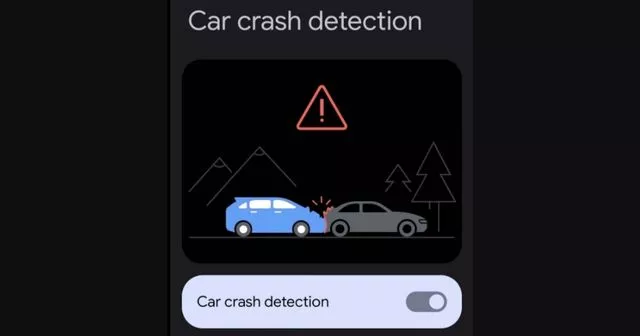
Car Crash Detection
If you were able to endure the full “Far Out” event, you might have become weary of the numerous commercials showcasing the positive effects the Apple Watch and iPhone have had on people’ lives. One new feature, though, is something that everyone should be grateful to Google for introducing with the Pixel back in 2020. As part of the March 2020 Feature Drop for owners of the Pixel 2, 3, and 4, Car Crash Detection was initially integrated to Android.
The many motion sensors and ambient sounds on your Pixel phone were used to make this feasible. Your phone can sound an alarm in the event of a car mishap, prompting you to decide whether you require additional assistance. If no response is given, emergency services will be contacted and their location will be given by your Pixel.
Apple is adding this to all of its iPhone 14 models, but the Apple Watch Series 8 is also the first wearable to do so. Apple has updated its three-axis gyroscope and combined it with a “high g-force accelerometer” that can measure up to 256 gs of force to enable this. Once an algorithm has determined whether an accident has happened, the iPhone and/or Apple Watch will inform emergency contacts and services if no answer is received within 10 seconds.
In June 2022, it was discovered that the Car Crash Detection feature might not be exclusive to Pixel phones for much longer. Hidden code within Google’s Personal Safety app suggests that this functionality could make its way to other Android phones in a future update. But at the time of this writing, it looks like Google and Apple will be the only phone makers with this available.
One of the most popular ways to root an Android device is with Magisk. SuperSU was formerly the go-to exploit for rooting Android devices, stock firmware, and customized ROMS.
Magisk, on the other hand, is a much more sophisticated and experienced rooting tool now than it was in the past. Along with enabling systemless root access on Android, some of the features include compatibility for third-party modules, Google’s SafetyNet bypass, and MagiskHide for avoiding root detection.
There are modules for theming, ad blocking, activating Camera2API, and many other system-level changes you can’t make otherwise. Try out this tool if you’re a power user who wants to increase the usefulness of your phone and push it to its limits. If all of this sounds like fun to you, we’ll explain how to install on your Android device so you can personalize it and perform tasks you never imagined you could perform on your phone.
Download version 25.2
Following are the direct download links right from the Github repository of the project.
Use either the stable or beta and flash it via TWRP recovery to root Android devices.
Installation
If you already have it installed, it is strongly recommended to upgrade directly via the app using its “Direct Install” method. The following tutorial is only for the initial installation.
Getting Started
Before you start:
This tutorial assumes you understand how to use adb and fastboot
If you plan to also install custom kernels, install it after Magisk
Your device’s bootloader has to be unlocked
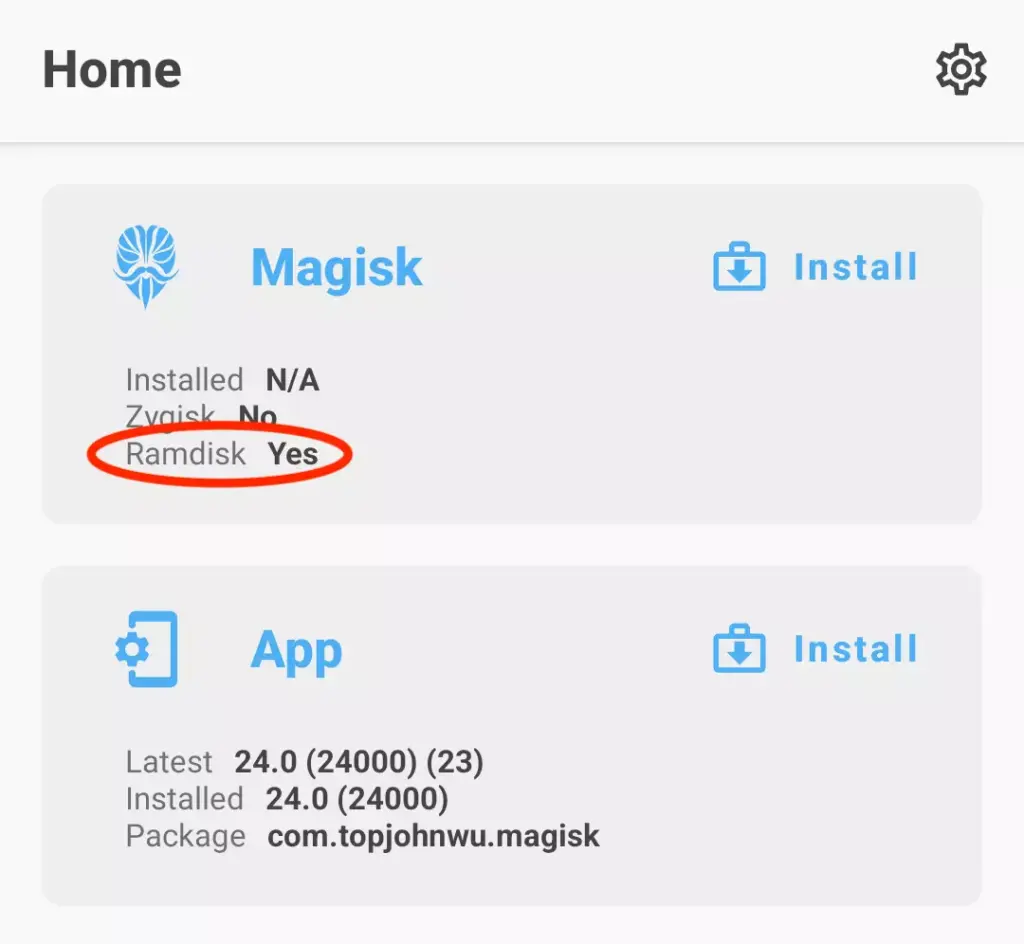
Download and install the latest Magisk app. In the home screen, you should see:
The result of Ramdisk determines whether your device has ramdisk in the boot partition. If your device does not have boot ramdisk, read the Magisk in Recovery section before continuing.
(Unfortunately, there are exceptions as some devices’ bootloader accepts ramdisk even if it shouldn’t. In this case, you will have to follow the instructions as if your device’s boot partition does include ramdisk. There is no way to detect this, so the only way to know for sure is to actually try. Fortunately, as far as we know, only some Xiaomi devices are known to have this property, so most people can simply ignore this piece of information.)
If you are using a Samsung device that is launched with Android 9.0 or higher, you can now jump to its own section.
If your device has boot ramdisk, get a copy of the boot.img. If your device does NOT have boot ramdisk, get a copy of the recovery.img. You should be able to extract the file you need from official firmware packages or your custom ROM zip.
Next, we need to know whether your device has a separate vbmeta partition.
If your official firmware package contains vbmeta.img, then yes, your device has a separate vbmeta partition
You can also check by connecting your device to a PC and run the command: adb shell ls -l /dev/block/by-name
If you find vbmeta, vbmeta_a, or vbmeta_b, then yes, your device has a separate vbmeta partition
Otherwise, your device does not have a separate vbmeta partition.
Quick recap, at this point, you should have known and prepared:
Whether your device has boot ramdisk
Whether your device has a separate vbmeta partition
If you are patching a recovery image, check the “Recovery Mode” option
If your device does NOT have a separate vbmeta partition, check the “Patch vbmeta in boot image” option
Choose “Select and Patch a File” in method, and select the boot/recovery image
Start the installation, and copy the patched image to your PC using ADB: adb pull /sdcard/Download/magisk_patched_[random_strings].img
Flash the patched boot/recovery image to your device. For most devices, reboot into fastboot mode and flash with command: fastboot flash boot /path/to/magisk_patched.img or fastboot flash recovery /path/to/magisk_patched.img
(Optional) If your device has a separate vbmeta partition, you can patch the vbmeta partition with command: fastboot flash vbmeta --disable-verity --disable-verification vbmeta.img
Reboot and voila!
Uninstallation
The easiest way to uninstall it is directly through the app. If you insist on using custom recoveries, rename the Magisk APK to uninstall.zip and flash it like any other ordinary flashable zip.
Magisk in Recovery
In the case when your device does not have ramdisk in boot images, it has no choice but to hijack the recovery partition. For these devices, you will have to reboot to recovery every time you want root enabled.
When it hijacks the recovery, there is a special mechanism to allow you to actually boot into recovery mode. Each device model has its own key combo to boot into recovery, as an example for Galaxy S10 it is (Power + Bixby + Volume Up). A quick search online should easily get you this info. As soon as you press the key combo and the device vibrates with a splash screen, release all buttons to boot into recovery. If you decide to boot into the actual recovery mode, long press volume up until you see the recovery screen.
As a summary, after installing it in recovery (starting from power off):
(Power up normally) → (System with NO Magisk)
(Recovery Key Combo) → (Splash screen) → (Release all buttons) → (System with Magisk)
(Note: You CANNOT use custom recoveries to install or upgrade in this case!!)
Samsung (System-as-root)
If your Samsung device is NOT launched with Android 9.0 or higher, you are reading the wrong section.
Before Installing
Installing Magisk WILL trip KNOX
Installing Magisk for the first time REQUIRES a full data wipe (this is NOT counting the data wipe when unlocking bootloader). Backup your data before continue.
Download Odin (only runs on Windows) that supports your device.
Unlocking Bootloader
Unlocking the bootloader on modern Samsung devices have some caveats. The newly introduced VaultKeeper service will make the bootloader reject any unofficial partitions in some circumstances.
Allow bootloader unlocking in Developer options → OEM unlocking
Reboot to download mode: power off your device and press the download mode key combo for your device
Long press volume up to unlock the bootloader. This will wipe your data and automatically reboot.
Go through the initial setup. Skip through all the steps since data will be wiped again in later steps. Connect the device to Internet during the setup.
Enable developer options, and confirm that the OEM unlocking option exists and is grayed out. This means the VaultKeeper service has unleashed the bootloader.
Your bootloader now accepts unofficial images in download mode
Instructions
Use either samfirm.js, Frija, or Samloader to download the latest firmware zip of your device directly from Samsung servers.
Unzip the firmware and copy the AP tar file to your device. It is normally named as AP_[device_model_sw_ver].tar.md5
Press the Install button in the Magisk card
If your device does NOT have boot ramdisk, check the “Recovery Mode” option
Choose “Select and Patch a File” in method, and select the AP tar file
Start the installation, and copy the patched tar file to your PC using ADB: adb pull /sdcard/Download/magisk_patched_[random_strings].tar DO NOT USE MTP as it is known to corrupt large files.
Reboot to download mode. Open Odin on your PC, and flash magisk_patched.tar as AP, together with BL, CP, and CSC (NOTHOME_CSC because we want to wipe data) from the original firmware.
Your device should reboot automatically once Odin finished flashing. Agree to do a factory reset if asked.
If your device does NOT have boot ramdisk, reboot to recovery now to enable it.
Install the app you’ve already downloaded and launch the app. It should show a dialog asking for additional setup.
Let the app do its job and automatically reboot the device. Voila!
Upgrading the OS
Once you have rooted your Samsung device, you can no longer upgrade your Android OS through OTA. To upgrade your device’s OS, you have to manually download the new firmware zip file and go through the same AP patching process written in the previous section. The only difference here is in the Odin flashing step: do NOT use the CSC tar, but instead use the HOME_CSC tar as we are performing an upgrade, not the initial install.
Important Notes
Never, ever try to restore either boot, recovery, or vbmeta partitions back to stock! You can brick your device by doing so, and the only way to recover from this is to do a full Odin restore with data wipe.
To upgrade your device with a new firmware, NEVER directly use the stock AP tar file with reasons mentioned above. Always patch AP in the app and use that instead.
Never just flash only AP, or else Odin may shrink your /data filesystem size. Flash AP + BL + CP + HOME_CSC when upgrading.
Custom Recovery
This installation method is deprecated and is maintained with minimum effort. YOU HAVE BEEN WARNED!
Installing using custom recoveries is only possible if your device has boot ramdisk. Installing through custom recoveries on modern devices is no longer recommended. If you face any issues, please use the proper Patch Image method.
Download the the APK
Rename the .apk file extension to .zip, for example: Magisk-v24.0.apk → Magisk-v24.0.zip. If you have trouble renaming the file extension (like on Windows), use a file manager on Android or the one included in TWRP to rename the file.
Flash the zip just like any other ordinary flashable zip.
Reboot and check whether the Magisk app is installed. If it isn’t installed automatically, manually install the APK.
Warning: the sepolicy.rule file of modules may be stored in the cache partition. DO NOT WIPE THE CACHE PARTITION.
Changelog
v25.2
[MagiskInit] Fix a potential issue when stub cpio is used
[MagiskInit] Fix reboot to recovery when stub cpio is used
[MagiskInit] Fix sepolicy.rules symlink for rootfs devices
[General] Better data encryption detection
[General] Move the whole logging infrastructure into Rust
v25.1
[MagiskBoot] Fix ramdisk backup being incorrectly skipped
[MagiskBoot] Add new feature to detect unsupported dtb and abort during installation
[Zygisk] Change binary hijack paths
[App] Fix incorrect recovery mode detection and installation
[MagiskInit] Fix config not properly exported in legacy SAR devices
[General] Enforce the Magisk app to always match or be newer than magiskd
Apple excels at retaining consumers inside of its ecosystem. Once you experience the iPhone world and fall in love with its distinct features or apps, switching to Android is challenging. iMessage is one of the key iOS apps we wish existed on Android and Windows. Although there isn’t an official way to use iMessage on Android, Beeper’s unified chat software makes it possible.
What is Beeper?
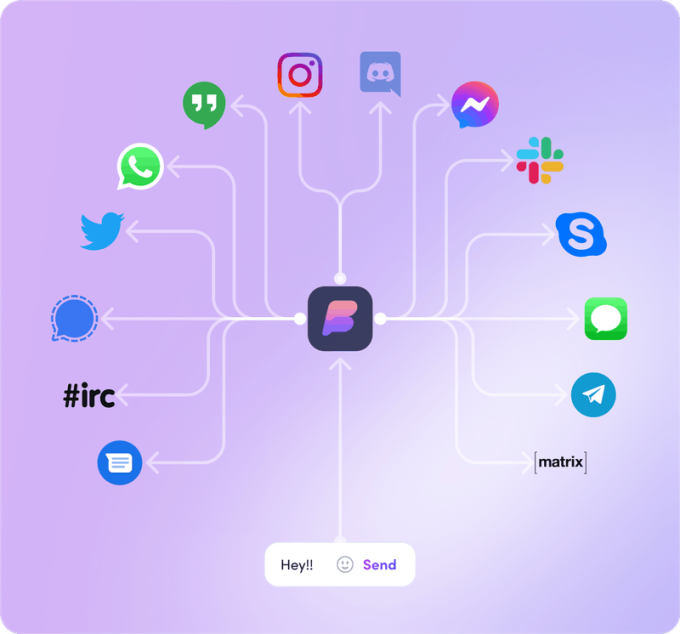
An integrated chat and inbox app is called Beeper. Former Pebble CEO and Founder Eric Migicovsky is one of the project’s key figures. It is renowned for smoothly integrating all of your communications and social networks. Additionally, you can set notes, search all services, and make voice and video conversations.
Google Chat, Instagram, Messenger, Signal, WhatsApp, Twitter, Discord, Slack, and more services are also supported.
We’ll talk more about this later. The app is presently in beta, and the only way to access it is with an invite.
How does it work?
If iMessage isn’t available outside of Apple devices, how does it manage this?
It functions as an intermediary between your iMessage content and your other devices. It redirects conversations through its messaging software and links your Apple ID account to its own servers. In essence, you send a message to their servers, which then forward it to iMessage so that the receiver may get it. The opposite also holds true.
The waitlist
As previously mentioned, the app is still in a closed beta stage. This means you’ll need an invite in order to get access to the app. Click on the button below to get on the waitlist, and hopefully you can get in soon.
The app seems really awesome, no? It completes a task for which we have been waiting years, even in beta. The unified chat service is functional, attractively designed, and compatible with all significant platforms. You are correct to believe that such kindness cannot be offered for free. It charges $10 per month, even though it’s still in beta. For a service that isn’t even ready for prime time yet, it’s a little on the costly side, but some of you might find it worthwhile.
The bad
Beeper has to go through some hurdles in order to use iMessage on Android or Windows because there isn’t an official way to do so. They’ll need access to your Apple ID account, and that’s the trick here. Even though it claims it will only utilize this information to obtain your messages through iMessage, some security-conscious people may have some worries about this. These accounts are kept by Beeper on a Mac Mini server. To make chat easier, they will also access your contacts. If you do this, you must have faith in it. You must also have faith in their ability to avoid hacking.
One more significant drawback is that it doesn’t support RCS (Rich Communications Services). The SMS and MMS replacement, which can use data for messages, video, and other communication tools, is a crucial feature for Android users and is essentially an iMessage rival. The Google Messages app contains it. If you continue to use Google Messages as your main messaging app, RCS will continue to work. Then, you can use Beeper’s iMessage feature as a backup service. RCS support will be lost if Beeper becomes the standard messaging program.
Finally, a PC must be used to set up Beeper. It cannot just be installed and run using the Android app. More specifically, the Android app does not allow you to add services to your account. The purpose of the app is to sync with your account, which is managed by the PC program. That essentially eliminates this for anyone without access to a computer.
How to set up iMessage on Beeper
Are you ready to move forward? If you got your invite, it’s time to set up iMessage on Beeper. You’ll get notified when it’s your turn. In which case you have to follow instructions to set up Beeper.
Follow the instructions to install the Beeper app on your Windows PC, and create your account.