Blog

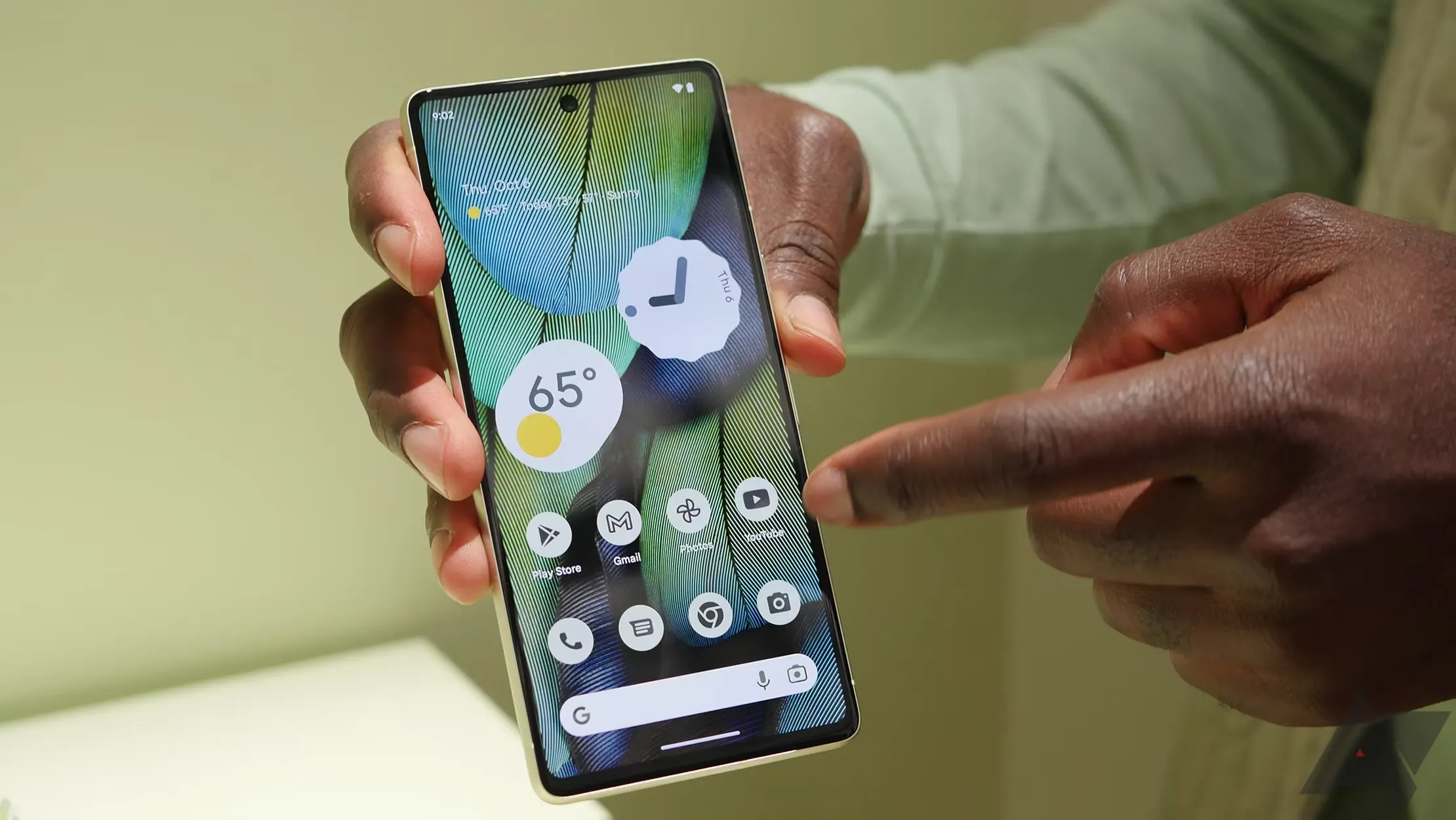
  • Pixel phones get Android 13 QPR2 Beta 3 – whats new?

    Pixel phones get Android 13 QPR2 Beta 3 – whats new?

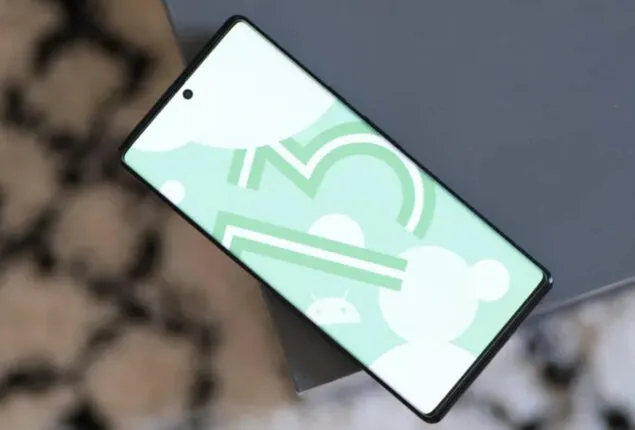
    Today brings the release of Android 13 QPR2 Beta 3, which is anticipated to be the last significant preview before the stable rollout in March.

    It is notable that it still includes the January 2023 security patch, which might be fixed in a later version (perhaps a Beta 3.1). The problems with Beta 3 (T2B3.230109.002) have been fixed.
    android 13 beta 3

    Developer-reported and user-reported issues

    • Fixed an issue where notifications in a notification group were sometimes displayed with straight corners instead of rounded corners. (Issue #264287776Issue #265529116)
    • Fixed an issue where the message in the notification shade that indicates an active VPN connection overlapped with the message about apps with active foreground services. (Issue #266075977)
    • Fixed an issue where the overflow menu couldn’t be accessed when editing Quick Settings tiles. (Issue #263484657)
    • Fixed an issue that sometimes caused a device with vibration enabled to vibrate for too long after it received a notification. (Issue #239676913)

    Other resolved issues

    • Fixed an issue that sometimes caused messaging apps to crash or fail to send notifications.
    • Fixed a GPU issue that prevented apps from using certain visual effects.
    • Fixed an issue where Quick Settings tiles for a work profile were not added after setting up a new device.
    • Fixed an issue that sometimes caused the Pixel launcher to crash when using the Search bar in the app drawer.
    • Fixed an issue that sometimes prevented a device from being unlocked using a pattern after the Google Assistant was activated.
    • Fixed an issue in the com.android.qns system process that sometimes caused crashes.
    • Fixed an issue with the Pixel launcher that prevented Chinese text input from being recognized when typing in the Search bar in the app drawer.
    • Fixed an issue where when entering and exiting Picture-in-picture (PiP) mode from an app after changing the screen orientation, the system Settings app crashed with a “Settings keeps stopping” message and then the system Settings app couldn’t be opened.
    • Fixed an issue with the System UI that sometimes caused it to crash from a null pointer exception.
    • Fixed an issue where the connection status of a Bluetooth device sometimes did not match the actual device state.
    • Fixed an issue where the Pixel launcher crashed when a user tapped a web search suggestion for a query term.
    • Fixed an issue that caused status bar icons to overlap with the date text when font and display settings were set to their maximum level on a device.

    The “list of Recent apps sometimes becomes sluggish if the screen orientation is changed while the list is open” has one more problem, though.

    As Google typically publishes betas after the most recent monthly Android security patch has issued, Android 13 QPR2 Beta 3 lingering on the January 2023 security patch level is extremely peculiar. That is not anticipated until February 6th, Monday.

    If you have installed the QPR2 Beta, leaving the program will result in a wipe and your next opportunity to exit without losing data will be in March after the stable launch.

    Android 13 QPR2 Beta 3 system images are available for the Pixel 4a, Pixel 4a 5G, Pixel 5, Pixel 5a, Pixel 6, Pixel 6 Pro, Pixel 6a, Pixel 7, and Pixel 7 Pro. as well as in the Android Emulator.

    Androdi 13 beta 3 downloads

    Most users will be installing Beta 3 from the Android Beta Program website. You can expect an OTA update in the coming hours. If you need help, here’s our full guide on installing Android 13.

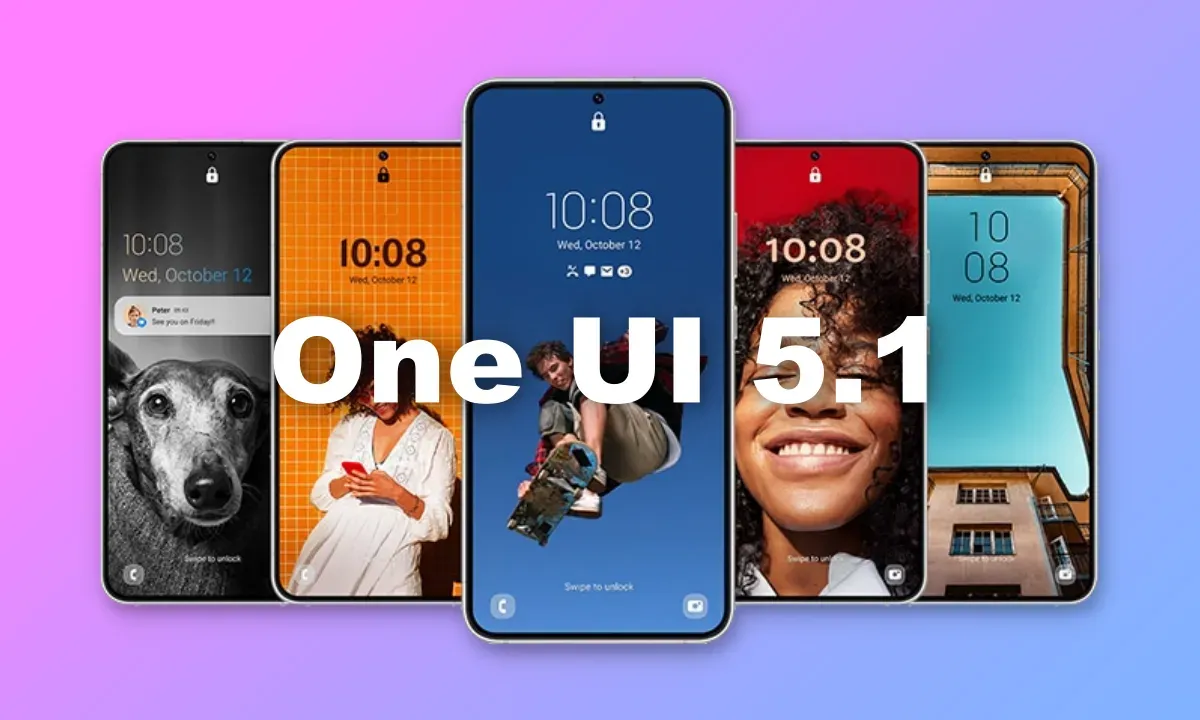
  • OneUI 5.1 full features list – #leak

    OneUI 5.1 full features list – #leak

    Snoopy Tech, a Twitter tipster, has published a number of documents that appear to be original Samsung docs. The sites add to the previously disclosed material we revealed in the original post below by listing the complete One UI 5.1 changelog.

    The information in the tweets below also includes some existing OneUI 5 features, but the new ones are marked with “5.1” next to their description. Features market with the number “1” are those that’ll be exclusive to the Galaxy S23 series, S21 Ultra, Note 20 Ultra, S20 Ultra, Z Fold 4, Z Fold 3, and Z Fold 2.

    https://twitter.com/_snoopytech_/status/1619654367543701504

    Samsung’s flagship Galaxy S23 devices with OneUI 5.1 will go on sale. Older Galaxy flagships are also anticipated to receive the new software, although initially, it appears that the Galaxy S23 series will get some special features.

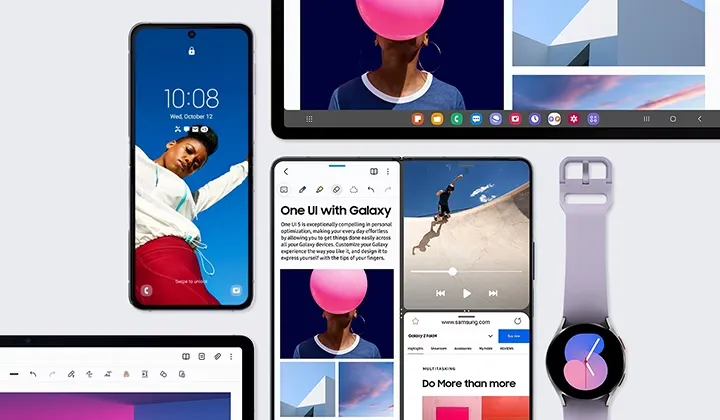
    The new OneUI 5.1 features and updates are now clear to us thanks to a thorough leak from WinFuture. Instead of making substantial design modifications, the program will introduce a variety of functional enhancements. The entire OneUI 5.1 changelog has been placed at the end of this article. Let’s discuss some of the most noticeable modifications that the new software is expected to make for the time being.

    What’s new?

    With OneUI 5.1, the Gallery app is expected to receive the most new features. Now, you may share albums with your loved ones. By utilizing AI to recognize family members’ faces, the app will suggest images to add to your family albums. For what it’s worth, this function is already available in Google Photos. Up to six family members will each receive 5GB of free media storage from Samsung.

    Additionally, the Gallery app’s search function is getting more practical. Now, you can look up multiple people at once. Instead of utilizing their tagged names, you may also search for people by looking up their faces.

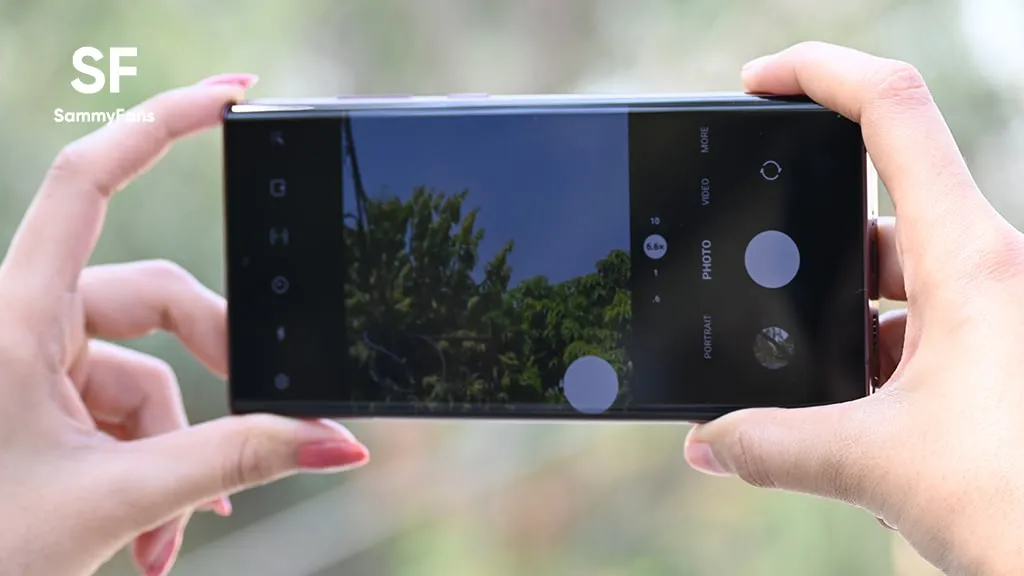
    With the Effects button on the side of the screen in the Camera app, OneUI 5.1 will make it simple to alter the color of selfies. The Advanced menu now makes it simple to use the Expert RAW app as well.

    oneui camera raw

    With OneUI 5.1, the AR Emoji Camera also gains greater functionality. Now, you can use Mask mode to take pictures of up to three people and swap out their faces for emojis.

    OneUI 5.1 also has a new battery widget. From your home screen, you can check the battery life of your phone and any Galaxy devices that are connected to it, including your Galaxy Watch, Galaxy Buds, and more.

    Depending on the phone mode you’ve selected, you can also set alternative backgrounds for the lock screen and home screen. As a result, by selecting several modes, you can have various backdrops for business, sports, and more.

    If you’re migrating from an earlier Galaxy or another Android phone, one Galaxy S23-only feature will make it simpler to set up your new phone. By scanning a QR code on your previous device, it uses Bluetooth Low energy to assist you in moving your Wi-Fi networks, Samsung account, and Google account to the new device. According to the source, the Galaxy S23 series will have “AI Restoration,” another new OneUI 5.1 feature. It isn’t specifically mentioned in the changelog, though.

    One UI 5.1 features

    oneui features

    Camera

    • Changing the hue for a selfie just got easier: Easily change the hue of your selfies with the Effects button on the side of the screen.
    • Quick access to Expert RAW: The Expert RAW app allows you to capture high-quality images without any processing or compression, perfect for those who want to edit their photos later. Accessing Expert RAW is now easier from the Advanced menu.

    Gallery

    • Common family album: With Shared Family Album, sharing photos with your family is easier than ever. Gallery recommends photos to add to your shared family album by recognizing your family members’ faces. You also get 5GB of storage per family member (up to 6 people).
    • Improved handling: Processing automatically removes shadows and reflections to make your photos look great. You can also recreate GIFs for better resolution and clarity.
    • Convenient information display: If you swipe up when viewing a picture or video in your gallery, you can see at a glance when and where the picture was taken, on which device, where it’s stored, and more.
    • Search has become more powerful: You can now search for more than one person or item at a time. You can even search for people without tagging their names, just by clicking on their faces.
    • Choose a location to save screenshots: Now you can save screenshots and screen recordings in a folder of your choice by setting it up in the advanced features.

    AR Zone and AR Emoji

    • Use 3 Emojis in AR Emoji Camera: Take fun photos and videos with friends (up to 3 people) in mask mode. You can replace your friends’ faces with other characters by clicking the emoji.
    • Layout and editing improvements in AR Doodles: The brushes are now available on the main AR Doodle screen for quicker access. You can also resize and move drawings after you create them, and the new eraser tool lets you erase just a portion of your drawings without completely erasing them.

    Widgets

    • New battery widget: With the new battery widget you can check the battery level of your Galaxy devices. Right from the home screen, you can see how much battery your smartphone, Galaxy Buds, Galaxy Watch and other supported devices have left.
    • Intuitive weather widget: The new illustration style and a summary of the current weather conditions make it easy to know the weather information, whether it’s sunny, cloudy, raining or snowing.

    Modes and Scenarios

    • Different wallpapers depending on the mode: Set different wallpapers on the lock screen and the home screen depending on your current activities. Choose a background for work, one for sport and more by setting different modes.
    • More conditions and actions for scenarios: Run scripts automatically when you turn on airplane mode or mobile hotspot. Scripts can now open some apps, adjust left/right audio balance, and more. New actions now let you control Quick Share and touch sensitivity, as well as change the ringtone and font style.

    Connectivity

    • Collaboration in Samsung Notes: Create a shared note that multiple people can edit at the same time. Write a report with colleagues, take notes for a study group, or draw a picture with a friend. The possibilities are endless.
    • Inviting to shared apps made easy: Now you can easily invite people to shared albums, notes, and calendars using a link that can be shared across apps like messenger, email, and social networks.
    • Advanced multiple controls between Galaxy Book and smartphone: Now you can use your Galaxy Book’s mouse, keyboard, or trackpad not only with your Galaxy tablet, but also with your Galaxy smartphone. You can easily copy and paste text and drag and drop images from one device to another as if it were the same device.
    • Media output for WiFi speakers: If you want to continue listening to music on Wi-Fi speakers via Spotify Connect and the built-in Chromecast™, simply open the media output from the quick access toolbar, not the music apps.
    • Continue surfing on the PC: If you surf the Internet on your smartphone with Samsung Internet and then continue browsing on your PC, you can find the websites you opened on your smartphone and continue browsing them with the PC browser.

    Samsung Dex

    • Improved multitasking in DeX: In split screen mode, you can now drag the splitter in the middle of the screen to resize both windows. You can also snap a window to one of its corners so that it takes up a quarter of the screen.

    Settings

    • Settings suggestions: Suggestions are now displayed at the top of the settings screen, letting you know about useful features to try or settings that need your attention so you can enable or try them right away.

    Samsung Internet

    • Improved search: You can now search by folder name in bookmarks or by group name in tabs. Improved search logic allows you to find what you’re looking for, even if something is misspelled.

    Setup Wizard

    • Faster and easier initial setup of your new Galaxy: If you’re switching to a new Galaxy from a Galaxy or other Android device, simply scan the QR code on your old device to automatically migrate your Wi-Fi networks, Samsung account, and Google account to the new one Device to transfer without typing anything.

    Weather

    • Detailed weather information at a glance: Useful weather information is now displayed on the main screen of the Weather app. You can check severe weather alerts, daily weather reports, hourly precipitation and color temperature charts.

    Calls

    • Bixby text calls: Use Bixby text calls to automatically answer calls and find out the purpose of the call. You’ll see what the caller is saying in a text chat, and you can tap or type replies to have them read aloud to the caller. Bixby text calls are only available in English and Korean.

    OneUI 5.1 availability

    According to information accidentally put out by Samsung itself, One UI 5.1 would be coming to “flagship models released after Galaxy S20 and Galaxy Z Flip.” This means the update should be headed to the Galaxy S21 series, Galaxy S22 series, and nearly all of Samsung’s foldables, including the Galaxy Z Fold 2, Galaxy Z Fold 3, Galaxy Z Fold 4, Galaxy Z Flip 5G, Galaxy Z Flip 3, and Galaxy Z Flip 4.

    Since the software will debut with the Galaxy S23 series in February, it should start showing up on older Galaxy phones by March.

  • Messenger is wasting your phone’s battery running background tests – I knew it!

    Messenger is wasting your phone’s battery running background tests – I knew it!

    One of the most widely used messaging services is Facebook Messenger, but its parent company, Meta, has a spotty history of protecting users’ interests. The social media behemoth has recently been the target of multiple security breaches and is infamously linked to the Cambridge Analytica affair. The fact that a former data scientist for the firm believes Messenger can intentionally drain your smartphone’s battery in the sake of feature testing, potentially placing you in danger, is concerning because it shows that user interests continue to be Meta’s secondary concern.

    Data scientist George Hayward, 33, filed a lawsuit against his former employer in Manhattan Federal Court after being fired in November, terminating his three-year employment with Meta (via Android Authority). According to Hayward’s lawsuit, the business let him go because he refused to participate in negative testing, which is the technique of deliberately supplying false data to an app to ensure that it will work when users use it inappropriately.

    Messenger

    Hayward disagreed with negative testing, but not because of the method Meta used to conduct it. The battery life of a Messenger user’s phone would suffer when the business remotely initiated negative testing on that user’s device. The majority of people keep a close eye on their phone’s battery level throughout the day, but in the event of an extreme depletion, they can find themselves in a situation where they are unable to contact family or emergency services.

    According to Hayward, who spoke with the New York Post, the true risk comes from users not being aware of Meta’s negative testing procedures. But that’s not all; according to reports, Meta also gives staff members manuals on how to conduct considerate negative tests that use examples from actual research. This appears to suggest that Meta runs these tests frequently and would perhaps assign larger teams to the job. Sadly, Hayward continues, discussing the appropriateness of the procedures with superiors didn’t go over well; he hinted that refusing to submit to the tests would result in his termination.

    Hayward made certain claims, but Meta hasn’t responded to them. The lawsuit has subsequently been dropped. If the required arbitration attempts between the two parties are failed, it may go on.

    If you’re worried about Messenger’s negative testing in the interim, you can go to its Program Info page on your Android phone, pick “Battery,” and then select “Restricted,” to stop the app from operating in the background. However, be aware that this could cause delayed message alerts. Reviewing the privacy settings on your phone and looking for more battery-saving techniques may be a preferable course of action.

  • Choose the best Google Pixel 7 Pro screen protectors

    Choose the best Google Pixel 7 Pro screen protectors

    The Google Pixel 7 Pro‘s display is simply beautiful. The curved AMOLED QHD+ 120Hz display is simply stunning. However, because it is curved, replacing it if it breaks or cracks can be quite expensive. Therefore, purchasing a screen protector is both a really smart idea and absolutely necessary.

    Here, we’ve compiled a list of the top screen shields for the Google Pixel 7 Pro. So that you may protect that lovely display from scratches.

    Best Google Pixel 7 Pro screen protectors

    You can find the standard, inexpensive plastic screen protectors on this list. Several toughened glass screen protectors are also included. We would advise using tempered glass screen protectors. As they will feel identical to the display itself. Furthermore, they appear better. However, they might also cost more, so bear that in mind.

    CostWhere to buy
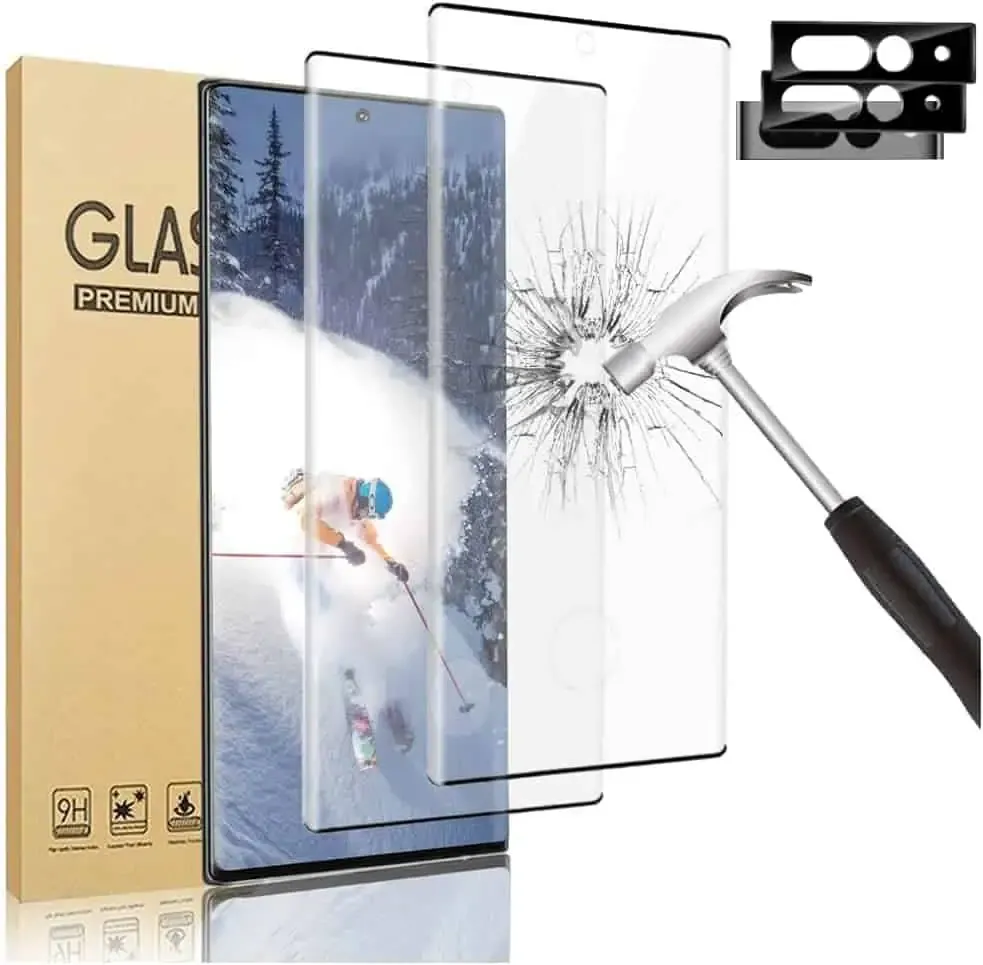
    AFSKU Tempered Glass Screen Protector$15Amazon
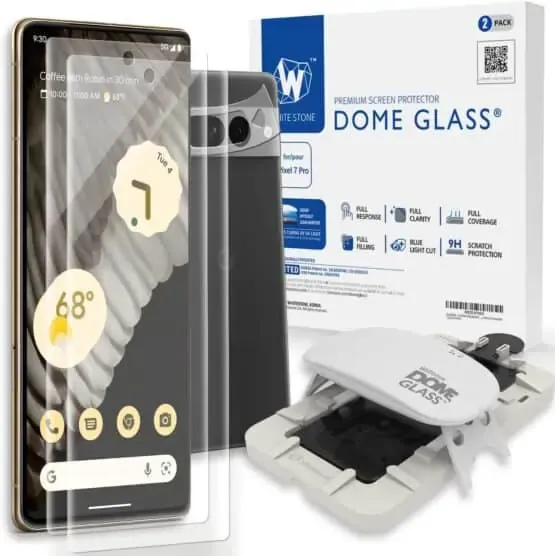
    Whitestone Dome Screen Protector$40Amazon
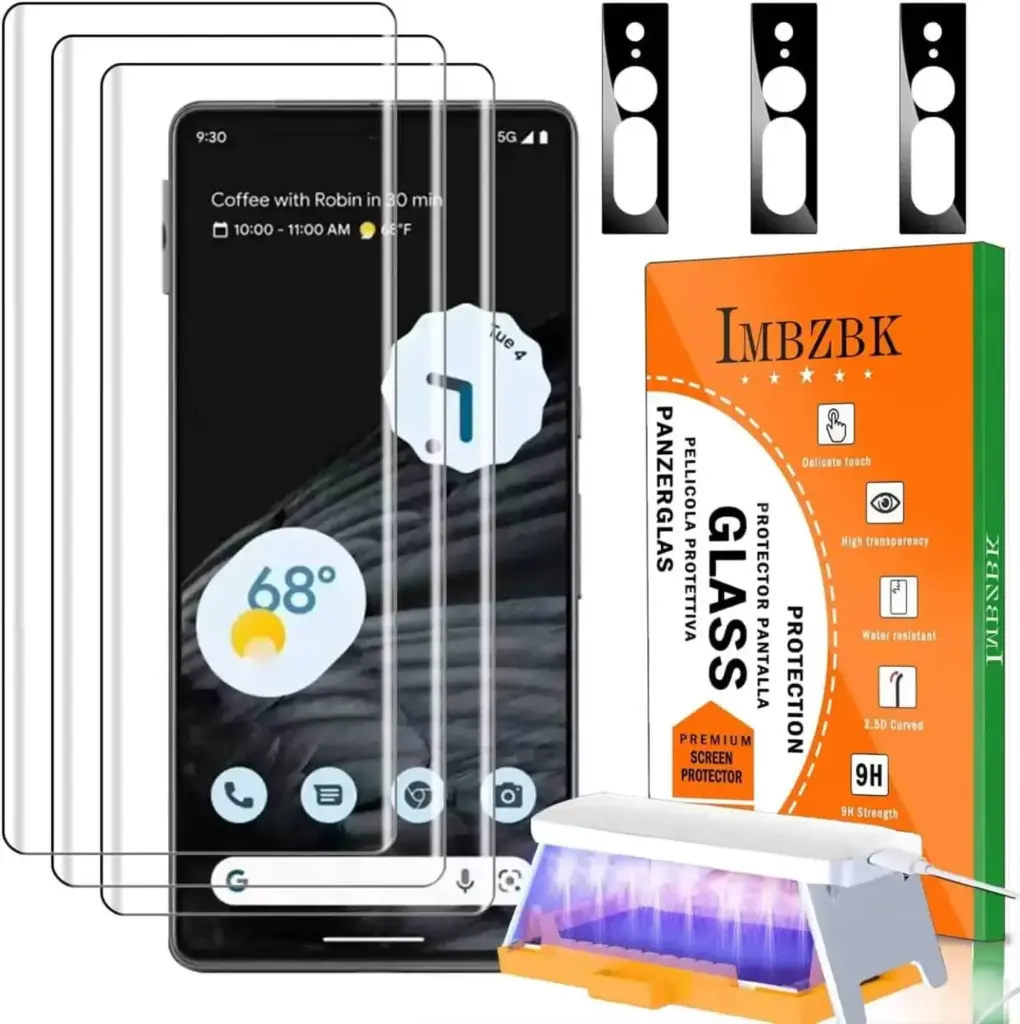
    IMBZBK Tempered Glass Screen Protector$35Amazon
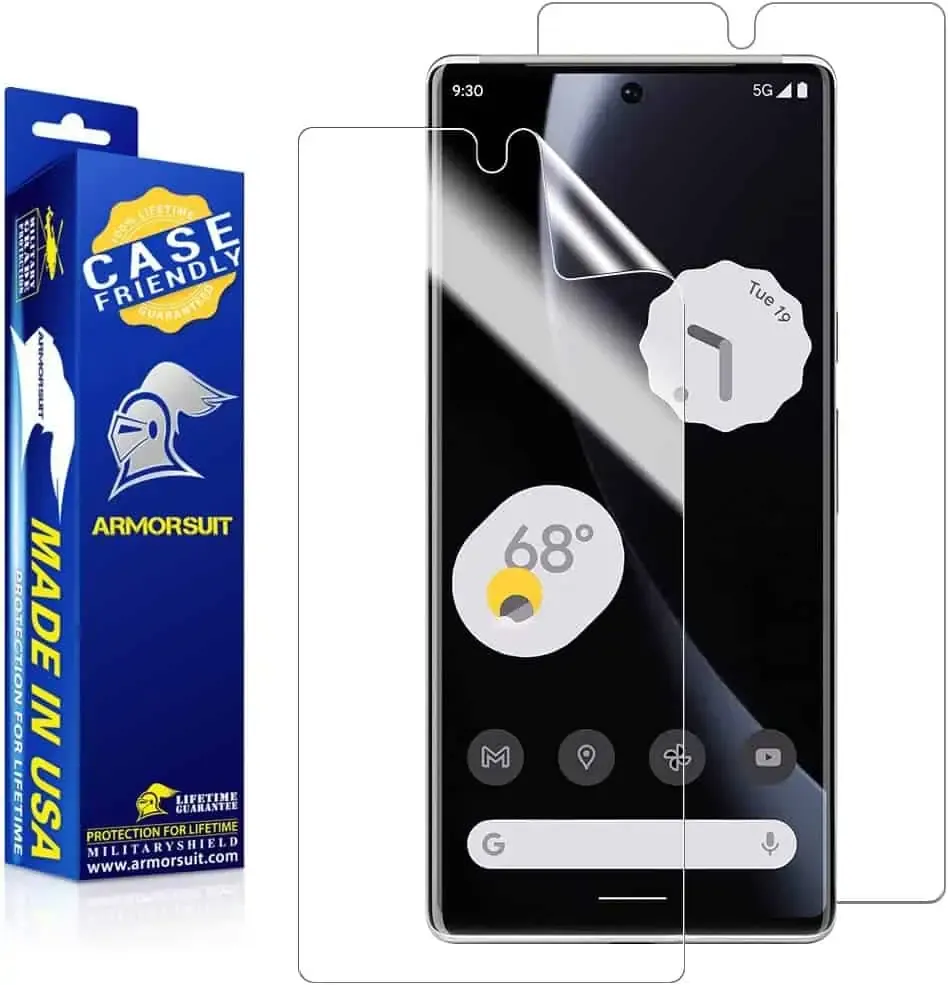
    ArmorSuit Military Shield Screen Protector$11Amazon
    OMOTON Clear Screen Protector$7Amazon

    AFSKU Tempered Glass Screen Protector

    This screen protector is made of tempered glass, which has a 9H hardness rating. Therefore, it may sustain some harm without breaking your screen. Your phone’s glass screen will continue to feel as though it is unprotected. Additionally, they’ve made it really simple to install and prevent air bubbles.

    google pixel 7 pro screen protector

    Whitestone Dome Glass Screen Protector

    The most costly screen protector on this list is the Whitestone Dome Glass, which isn’t surprising in all honesty. Its inclusion of a UV curing light, which aids in the screen protector’s adhesion to your phone, is a major factor in its high price. Because liquid dispersion technology is employed at Whitestone Dome.

    This does make it possible to apply the screen protector correctly, without creating any air bubbles underneath it. They also come with a camera protector and two screen protectors.

    71x870sZXL. AC SL1500 555x556 1

    IMBZBK Tempered Glass Screen Protector

    A UV light is included in this additional tempered glass screen protector, much to the Whitestone Dome type, to ensure that it adheres to your screen properly. In addition, IMBZBK has provided three screen covers and three for your camera bar. This is significant since the camera bar is prone to scratching.

    719aQaKZbYL. AC SL1500 1420x142 1

    ArmorSuit MilitaryShield Screen Protector

    The MilitaryShield from ArmorSuit is a crystal-clear HD screen protector. This model does not have toughened glass. This is the reason why a two-pack costs only $11 here. This does include a cutout for the front-facing camera, so taking selfies with it won’t be a problem.

    61077BFoRTL. AC SL1000

    OMOTON Clear Screen Protector

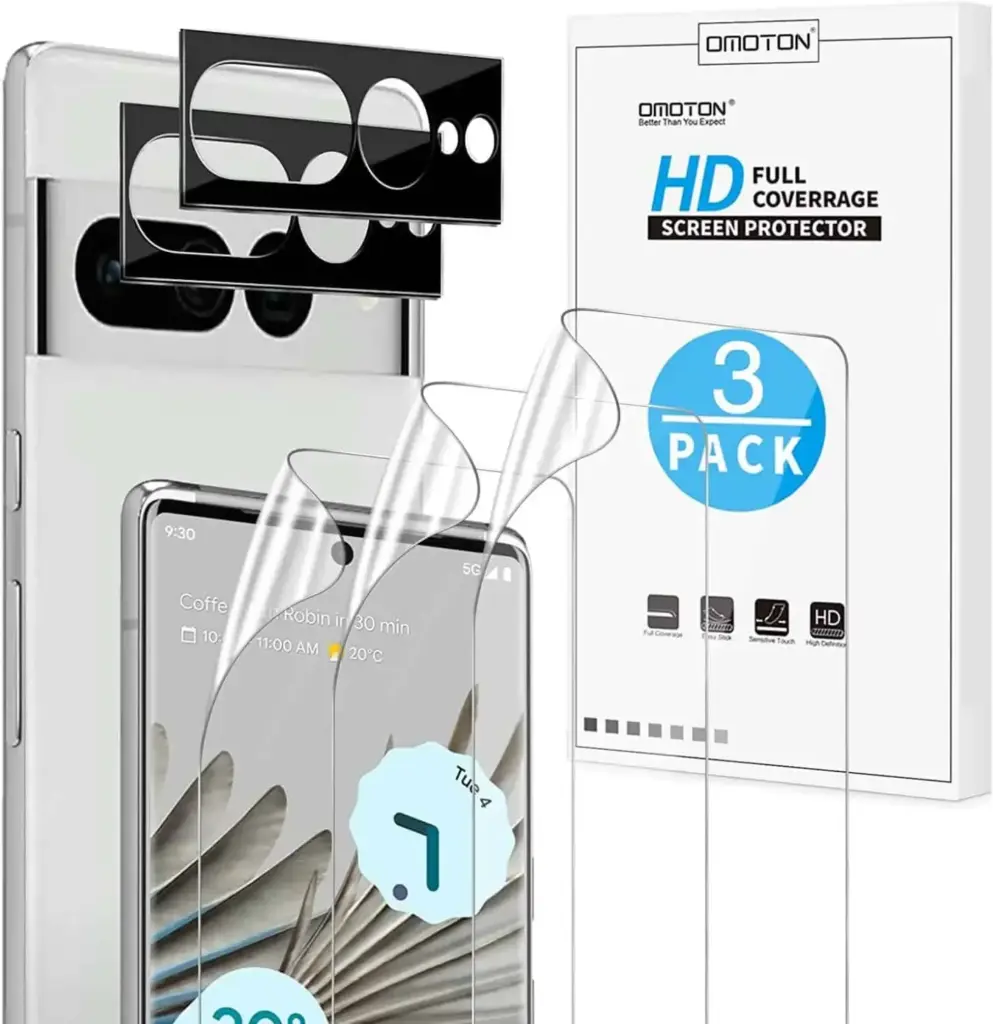
    Because it is not made of tempered glass, this screen protector from OMOTON may be purchased in quantities of three for less than $7. Three screen protectors and two camera bar protectors are included. In order to keep your complete phone secure. It’s fantastic to see that here as usual. It’s crucial to note that the front camera is not cut out of this, so you’ll need to keep it clean to avoid having poor selfies.

    71K2peKzbIL. AC SL1500 1420x146 1

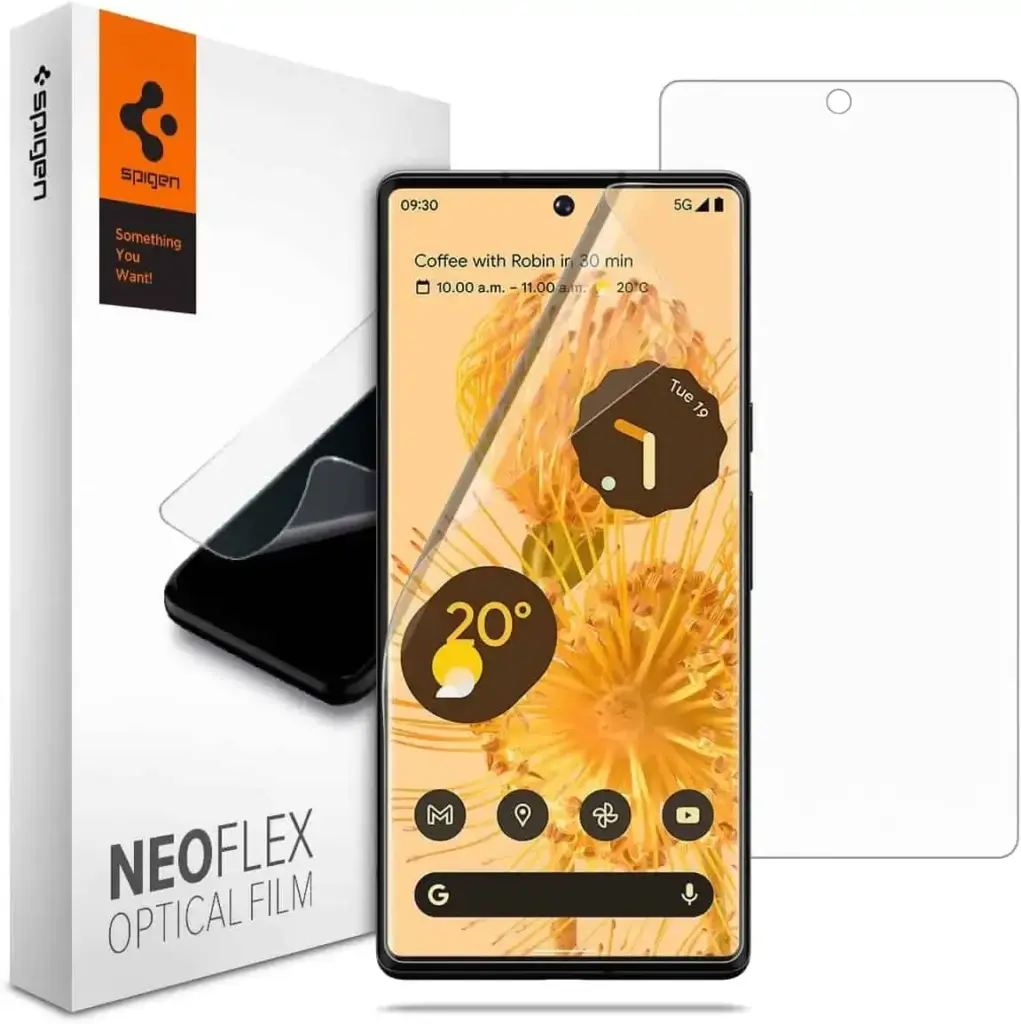
    Spigen Tempered Glass Screen Protector

    This is one of the best screen protectors available right now, yet Spigen has recently entered the market. Spigen really provides the equipment you need to apply your screen protector flawlessly.

    Actually, this is a different model than what is offered for the normal Pixel 7. This is because the Pixel 7 Pro has to be designed slightly differently because to its curved display. Here, the installation was also slightly different.

    61LEUnqKODL. AC SL1200
  • Android 13 update through Mi Pilot program started rolling out for Xiaomi 12 – MIUI 14

    Android 13 update through Mi Pilot program started rolling out for Xiaomi 12 – MIUI 14

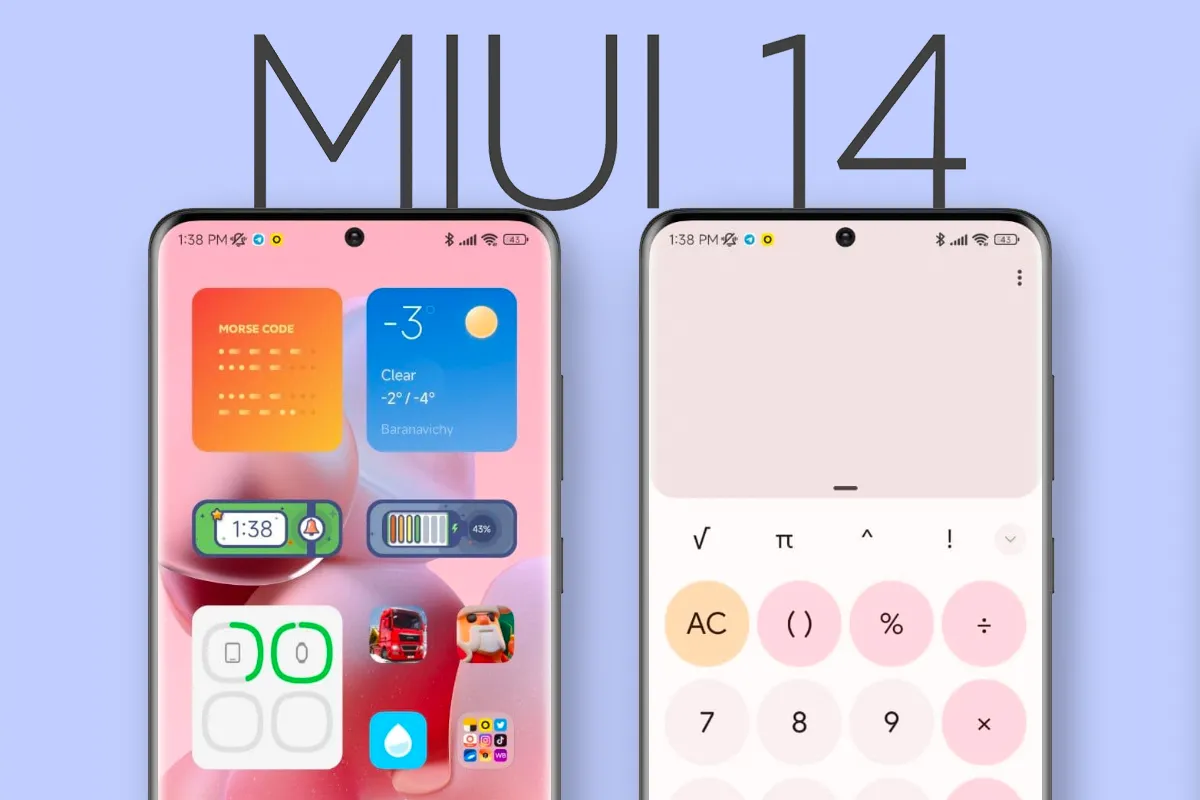
    Despite Xiaomi’s official presentation of MIUI 14 in December, the OS update has not yet been widely released. At the time, Xiaomi stated that the OS update would be made available for the Xiaomi 12 series starting in January 2023, and it followed through with the Xiaomi 12 Lite. The Xiaomi 12 has now been added to the short list of devices that can download MIUI 14 in one way or another. Before February is up, the Xiaomi 12 Pro, MIX Fold 2, Xiaomi 12S series, and Redmi K50 series are all scheduled to receive MIUI 14.

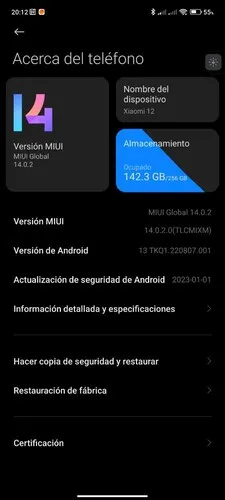
    Currently, Xiaomi has only made MIUI 14 available to Xiaomi 12 devices that have been accepted into the Mi Pilot Program. The build number suggests that Xiaomi issued MIUI 14 as MIUI 14.0.2.0 to the Xiaomi 12 at this early stage of the OS’s lifecycle, according to The Update Box. For perspective, the update is 4.45 GB in size and comes with the January 2023 set of Android security updates. Before switching from MIUI 13 to MIUI 14, Xiaomi advises users to create a complete backup. The following is the URL to download MIUI 14.0.2.0:

    Xiaomi 12 – MIUI V14.0.2.0.TLCMIXM

    miui 14

    Unless Xiaomi finds any significant flaws, Mi Pilot Program builds typically take a few weeks before they are released to a larger audience. Even though MIUI 14 is a hefty download, once loaded, the OS should use less storage space than MIUI 13 did. In addition, MIUI 14 offers more system program uninstall options than MIUI 13 provides, which when combined with an automatic duplicate file finder can help users use built-in storage more efficiently. It is claimed that MIUI 14 consumes up to 22% less power than MIUI 13 while loading apps up to 60% faster. However, it is unknown whether all the advancements featured in the Chinese version of MIUI 14 will be included in the international release.

  • Android 13 beta hotfix for Nothing Phone 1 released

    Android 13 beta hotfix for Nothing Phone 1 released

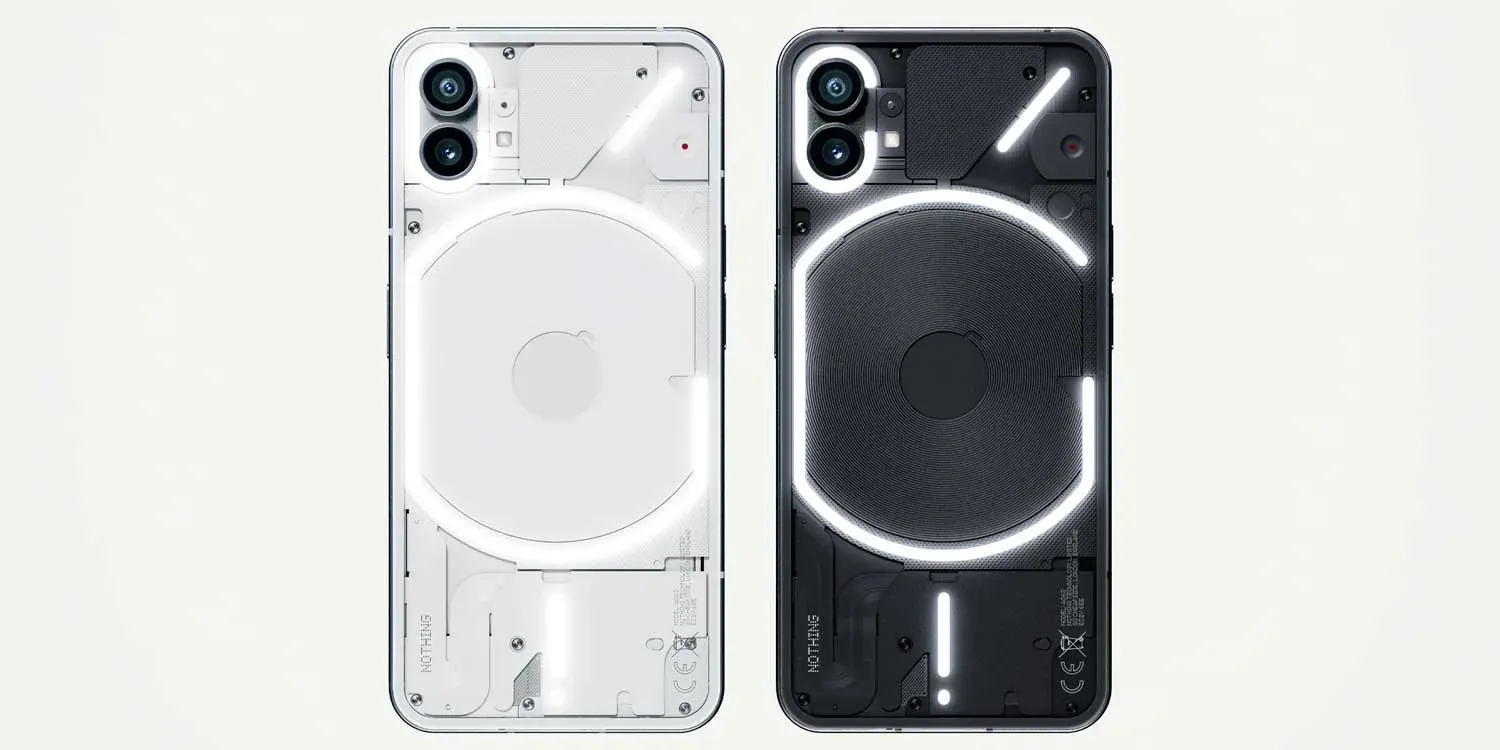
    One of the most anticipated phones of the previous year was the Nothing Phone 1. Glyph Lighting was the sole cause. The best feature of the gadget, in my opinion, is the stock Android interface. However, given that it is the only smartphone produced by Nothing, the handset is expected to get the Android 13 update fairly late.

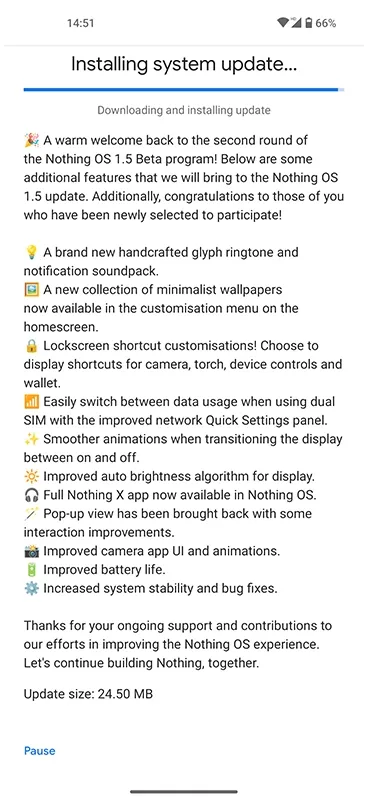
    The Android 13-based Nothing OS 1.5 second open beta has only been available for one week. And a fresh update is already being released. The latest update, which is a hotfix update for the second open beta of Android 13, is not a full release. Therefore, aside from bug patches, it does not introduce anything new.

    Nothing said in 2017 that the phone’s first significant update to Android 13 and Nothing OS 1.5 will arrive in 2023 rather than 2022. In late November, the startup, which has Carl Pei’s support, released a closed beta.

    Later, in the middle of December, the Nothing Phone 1 was given access to the first open beta of Android 13 running Nothing OS 1.5. The second Android 13 beta version with several additional features and improvements was then applied to the smartphone, which was approximately a month later.

    nothing phone update

    The build number for the most recent hotfix OTA update for the Nothing Phone 1 is TKQ1.220915.002/1673708663. It weighs relatively little because it is a tiny OTA update. And it’s spreading throughout Europe. In terms of bug fixes, it resolves several issues, including one where the device displays the wrong RAM configuration.

    You will soon receive the minor OTA update if you chose to participate in the Android 13 open beta program and are currently using the second open beta. Keep in mind that as this is a beta update, it could have both small and major errors. The stable update may also be made available soon. You can therefore wait for the stable build if you decided against the beta. Once the update is available, we’ll let you know.

    Source

  • How to use ADB and Fastboot on Android device

    How to use ADB and Fastboot on Android device

    You have probably come across ADB and Fastboot if you have ever rooted an Android device. Although they are a crucial component of the rooting toolset, these utilities can be challenging to grasp, let alone master.

    So read on if you’re interested in learning more about ADB and Fastboot, need assistance setting them up, or want to know what you can do with them.

    What are ADB and Fastboot?

    While your phone is linked to a desktop computer via a USB cable, the tools ADB and Fastboot enable access to the Android operating system. There is no app for this, and while you may use ADB wirelessly, the setup is considerably more difficult, therefore the computer and cord are essential.

    ADB is typically used when Android is active. It gives you access to system folders or lets you change hidden settings that are otherwise inaccessible to users. ADB can be used to copy system files to and from the device. System updates can also be installed via the sideload capability.

    When Android is not active and the device is booted into “Fastboot mode,” Fastboot functions. It gives you access to every partition on your device, including the data partition, boot partition, and others in addition to the Android operating system.

    Fastboot is a diagnostic tool for Android. It is frequently used to install a custom recovery and is necessary if you need to unbrick your phone.

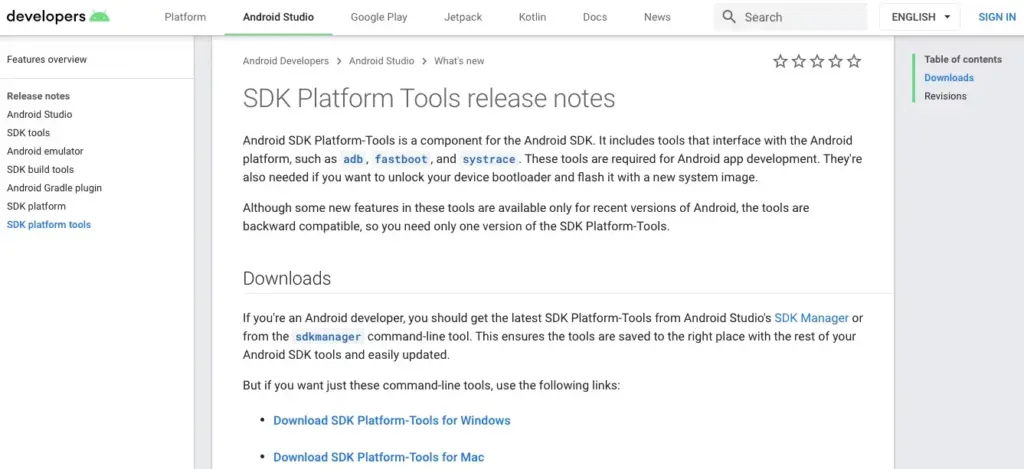
    Both are included in the Platform Tools collection of the Android software development kit.

    android platform tools

    Both tools run through the Command Prompt on Windows, or Terminal on Mac and Linux. This means they aren’t especially user-friendly, even though they are quite easy to get the hang of.

    How to set up ADB and Fastboot

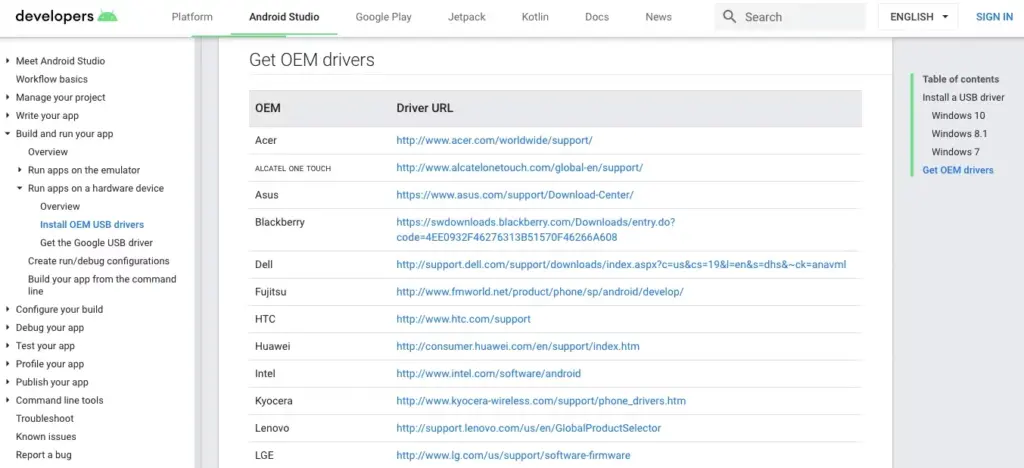
    windows drivers

    First, you need to set up your phone to use the tools. If you haven’t already, enable the Developer Options by going to Settings > About phone and tapping on Build number seven times.

    Then, in Settings > Developer options, check the box next to USB debugging and walk through the dialog box that follows.

    Download ADB and Fastboot from the Android Developer website. When you unzip the download, the contents will be collected together into a folder called platform-tools. There are several other items in the folder, but you can ignore these.

    If you’re on Windows, you will also need to download drivers for your device. There’s a list of links for most popular manufacturers on the Android developer website. Drivers aren’t needed on Mac or Linux.

    Using the command prompt or terminal

    Use the cd command to accomplish this: type cd [path to platform-tools]. The path will automatically fill in for you if you type cd[space] and then drag the platform-tools folder into the Command Prompt window.

    Even simpler, on Windows you may pick Open Command Prompt Here by right-clicking the platform-tools folder while holding the shift key down.

    The difference between Windows and Mac/Linux

    There’s one small but essential difference between using Windows and Mac or Linux. On the latter two, every ADB and Fastboot command must be preceded by a dot-slash.

    So where you type adb on Windows, you must type ./adb on Mac and Linux. And fastboot on Windows needs to be ./fastboot on Mac and Linux.

    For the sake of simplicity, we’ll stick with the Windows commands going forward.

    How to use ADB

    adb devices 1

    Launch Android on your phone, then use a USB cord to connect it to your desktop computer. Open the Command Prompt on your PC and modify the directory to point to the platform-tools folder.

    Hit Enter after entering adb devices. The list of attached devices should now be visible, along with their serial numbers. This indicates that it is effective.

    How to use fastboot

    Fastboot works the same way as ADB, except you need to boot your phone into Fastboot mode instead of Android. You normally do this by holding a combination of the power and volume keys when turning on the phone.

    Alternatively, use ADB and type adb reboot bootloader.

    After that it’s the same. Enter fastboot devices to check that your phone is being recognized. Enter fastboot reboot to relaunch Android.

    Things you can do with ADB and Fastboot

    Now that you know how to use ADB and Fastboot, what can you do with them? Here are a few tools to try:

    • adb pull [path to file] [path to folder] This copies a file stored anywhere on your phone, and saves it to a specified folder on your computer.
    • adb push [path to file] [path to folder] The opposite of pull; send a file from your desktop to your phone.
    • adb install [path to file] Installs an APK app on your phone. This is of most use to app developers.
    • adb uninstall [package name] Uninstalls an app. You need to enter the full package name—usually something along the lines of com.devname.appname—instead of the common app name.
    • adb shell wm density [dpi] Changes the pixel density of your display. A lower number fits more content onto the screen, while a higher number will fit less. For example, older devices like the OnePlus 3 have a native DPI of 480. Setting it to 400 makes text, icons, and everything else smaller.
    • adb sideload [path to update.zip] Sideloads an update.zip firmware update. This one runs via the custom recovery on your phone. Useful if you can’t wait for an update to get pushed to your device.
    • fastboot oem unlock OR fastboot flashing unlock Which command you should use depends on which version of Android you’re running. From Android 6 onwards you also need to enable OEM unlocking in Developer Options. Unlocking the bootloader this way wipes your phone completely.
    • fastboot flash recovery [filename.img] Installs a custom recovery, such as TWRP, on your device. For ease of use, we suggest changing the recovery filename to something easy—twrp.img, for instance—and moving it into the platform-tools folder.
    • fastboot -w Completely wipes your phone in preparation for flashing a custom ROM.
    • fastboot update [path to rom.zip] Flashes a custom ROM. A useful option if you haven’t rooted your phone.

    Why you should learn ADB and Fastboot

    Obviously, the aforementioned instructions are simply meant to provide general direction. On some gadgets, they might not all function. Only use them if you are aware of what they will do and how to reverse any modifications they could cause.

    The Android rooting and modding process depends heavily on ADB and Fastboot. It’s crucial to learn how to use them because doing so will enable you to employ more sophisticated tweaks.

    As previously indicated, you must first enable the Developer Options in order to use ADB and Fastboot. Once you’ve done that, you’ll have access to a number of other handy settings.

  • Cheapest Snapdragon 8 Gen 2 phone around – Red Magic 8 Pro

    Cheapest Snapdragon 8 Gen 2 phone around – Red Magic 8 Pro

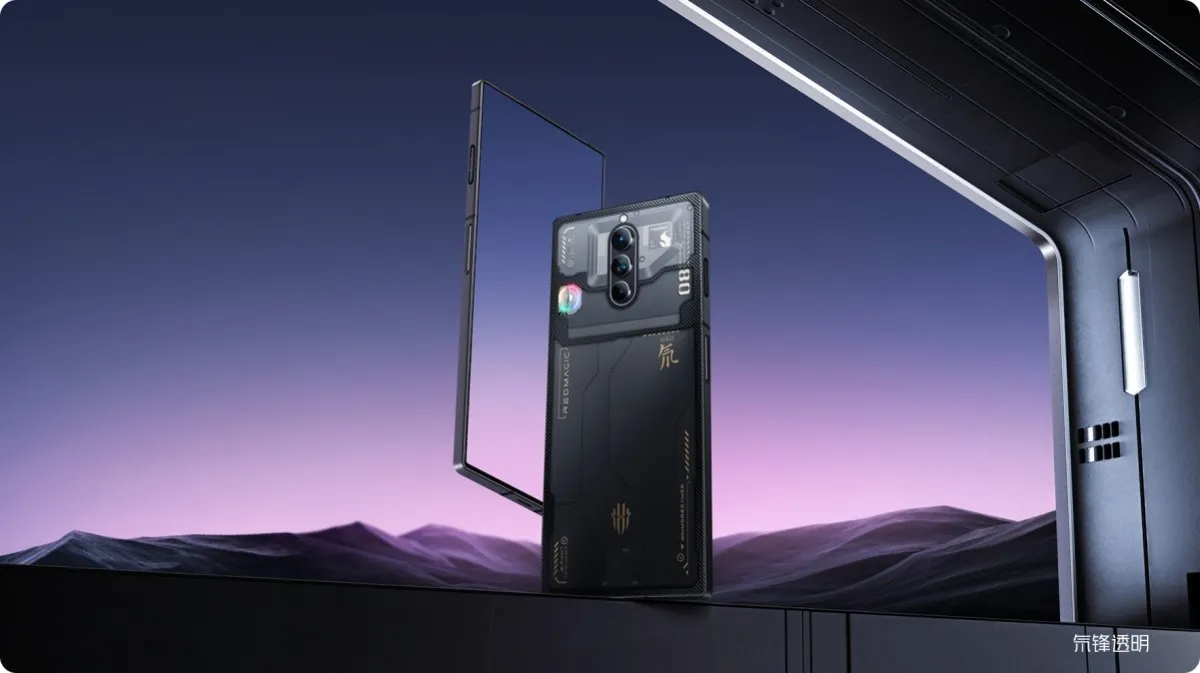
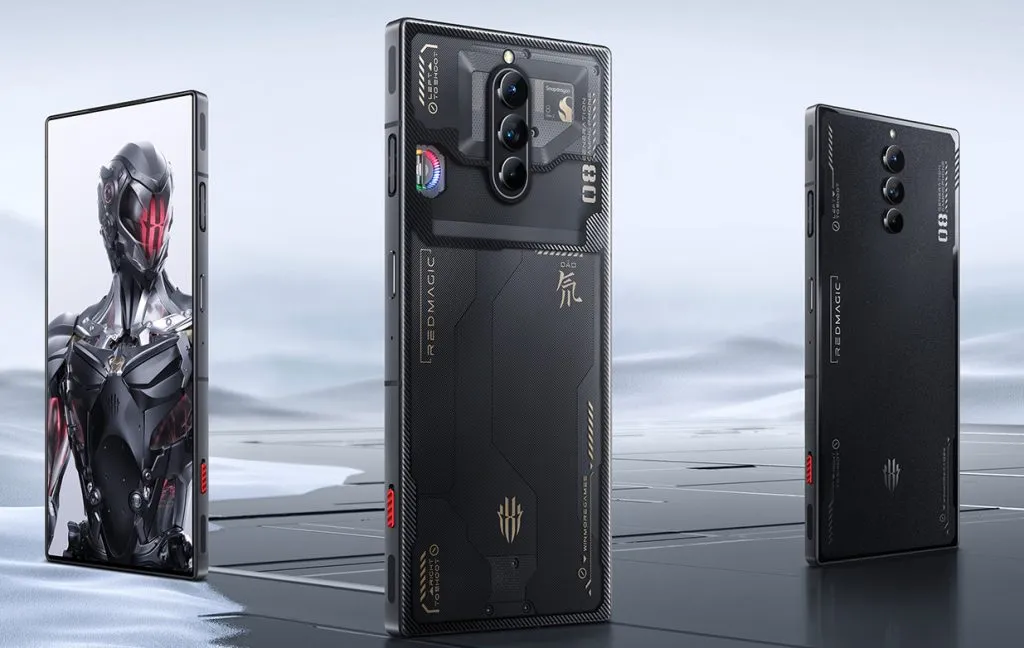
    The Red Magic 8 Pro is one of the Snapdragon 8 Gen 2 smartphones that have already been released. Since its late December launch, the phone has only been available in China, but that will now change.

    Today, Nubia announced the Red Magic 8 Pro’s global release, and it does appear to be a fantastic gaming phone. The aforementioned Snapdragon 8 Gen 2 SoC, together with an enhanced cooling system, powers the phone.

    More specifically, among other cooling measures, you have a bigger vapor chamber cooling plate and an integrated cooling fan with a maximum speed of 20,000 RPM. Therefore, people looking for the finest long-term gaming performance should keep this phone in mind. Another thing that shouldn’t be surprising is the presence of two capacitive shoulder triggers.

    Red Magic 8 Pro

    What else does it bring to the table?

    The rest of the phone also looks pretty impressive, featuring a 6.8-inch 120Hz OLED screen, 12GB to 16GB of LPDDR5X RAM, 256GB to 512GB of UFS 4.0 storage, a 6,000mAh battery, and 65W wired charging via the included charger.

    Switching to the cameras, Nubia’s handset brings a second-generation 16MP under-display selfie camera. Otherwise, you’ve got a triple camera system on the back, consisting of a 50MP GN5 main camera, 8MP ultrawide snapper, and 2MP macro lens.

    A 3.5mm connector (excellent), Bluetooth 5.3, dual stereo speakers, an in-display fingerprint sensor with heart rate detection, Red Magic OS 6.0 on top of Android 13, and support for Wi-Fi 7 are some further noteworthy Red Magic 8 Pro features.

    Red Magic 8 Pro

    Red Magic 8 Pro pricing and availability

    These specs don’t mean much if the device is hideously overpriced. Thankfully, the Red Magic 8 Pro is one of the more competitively priced Snapdragon 8 Gen 2 phones in global markets.

    The 12GB/256GB phone will be available for $649 / €649 / £579. Need more RAM and storage? Then the 16GB/512GB model will set you back $799 / Є749 / £709. The Red Magic 8 Pro will go on sale from February 2 in Asia-Pacific regions, Europe, Latin and North America, and the Middle East.

  • How does Samsung Knox Vault works

    How does Samsung Knox Vault works

    Almost all Samsung Galaxy smartphones come with Samsung Knox pre-installed, and it serves as a security solution for device owners to make sure that both their smartphones and their data are protected. It goes beyond what TrustZone, a Trusted Execution Environment (TEE) that Samsung uses on its smartphones, previously provided by combining hardware-backed security with software. On more recent Samsung flagship smartphones, Knox Vault is an option that runs completely independently of the main processor.

    Like TrustZone, Knox Vault safeguards your biometrics, cryptographic keys, and passwords. The distinction is that Android asks a TrustZone applet to validate the fingerprint or password on your behalf when you unlock your phone, even though TrustZone runs in parallel with Android on the same core application processor. Your biometric data and passwords cannot be stolen, even if your Android installation has been compromised. Knox Vault goes a step farther and serves as a beefed-up substitute for TrustZone.

    knox social X3lp

    TrustZone vs Knox Vault, difference?

    On the SoC, a TEE is a secure area that manages sensitive data. Any modern smartphone has TEE because it is required for devices launched with Android 8 Oreo and higher. Anything outside of the TEE is regarded as “untrusted” and is limited to viewing encrypted content. For instance, content that is DRM-protected is encrypted using keys that are only accessible by software operating on the TEE. The content can be decrypted by the TEE and then shown to the user, while the main CPU can only see a stream of the encrypted content. Another TEE is Knox Vault.

    In the case of Knox Vault, Samsung says that it “extends” upon the protection offered by TrustZone. Knox Vault is a replacement for TrustZone according to Samsung, and the company describes the difference in the following way in a blog post:

    The way I think of it, TrustZone was a great safe in the middle of your bank’s branch office. There are a lot of people you don’t necessarily trust walking by the safe, doing day-to-day work that doesn’t require physical access to the safe. The secure processor in Samsung Knox Vault is more like Fort Knox: a safe securely placed far away from the bank, isolated from whoever walks into the branch.

    How Samsung’s Knox Vault works

    knox vault

    Knox Vault extends the security that TrustZone already offers, and Samsung phones from the Galaxy S21 and above have it. Knox Vault can:

    • Store sensitive data such as hardware-backed Android Keystore keys, the Samsung Attestation Key (SAK), biometric data, and blockchain credentials.
    • Run security-critical code that authenticates users with increasing timeouts between failures and controls access to keys depending on authentication.

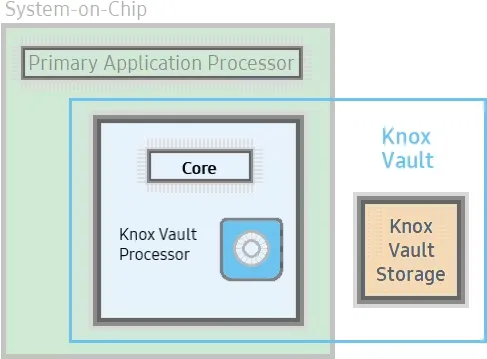
    Knox Vault isn’t just a software isolation, it’s a physical isolation from the chipset on your smartphone. It’s an independent processor on the SoC with storage physically separate from the rest of the SoC. Because of this physical isolation, Knox Vault is even protected from side-channel attacks that target other software running on the primary processor.

    Knox Vault’s architecture

    knox vault architecture

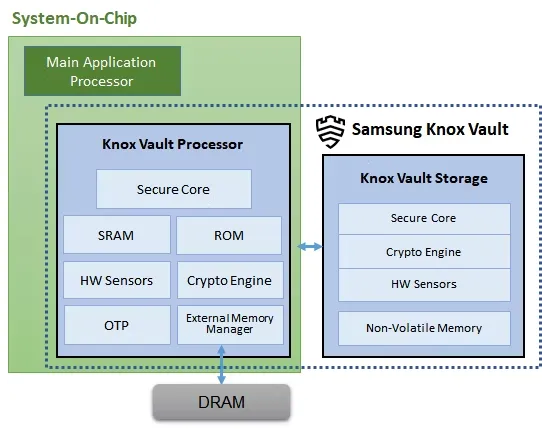
    Knox Vault is made up of the following:

    • Knox Vault Subsystem: implemented as part of the SoC
    • Knox Vault Storage: an integrated circuit physically outside the SoC

    How Knox Vault protects itself from attacks

    If someone has physical access to your device, you should act and prepare as if it’s only a matter of time before they gain access to the protected data stored on it. Samsung says that with Knox Vault, that may not necessarily be the case. It’s resistant to hardware attacks such as the following:

    • Physical probing to disclose data
    • Physical manipulation of the circuitry to deactivate security mechanisms
    • Forced information leakage
    • Hardware side-channel attacks such as differential power analysis to disclose data
    • Fault injection to bypass security mechanisms.

    As well, the Knox Vault Processor communicates with Knox Vault Storage via a dedicated I2C (Inter-Integrated Circuit) bus. Traffic on this bus is encrypted and transmitted with an authentication code to prevent eavesdropping on communications, and those communications are also protected against replay attacks.

    Knox Vault Subsystem

    It is intended for the Knox Vault Subsystem to function independently of other SoC components. The Knox Vault Processor, SRAM, and ROM make up its own safe processing environment. Additionally, it offers improved security and data protection from a variety of hardware-based threats by monitoring the environment and hardware state using a number of security sensors or detectors, such as:

    • High and low temperature detectors
    • High and low supply voltage detectors
    • Supply voltage glitch detector
    • Laser detector

    When the Knox Vault Processor starts, the ROM code is loaded into SRAM. While the ROM code loads the Knox Vault Processor firmware, with the help of the modules running on the SoC’s main processor. The software stack of the Knox Vault Processor has its own secure boot chain.

    The Knox Vault Subsystem also includes a dedicated random number generator and its own Crypto Engine. The Knox Vault Processor can access system DRAM through the External Memory Manager. This monitoring cannot be affected or bypassed by any application on the Knox Vault Processor, and physical intrusion will initiate a device lockdown sequence.

    The crypto engine provides the following cryptographic functions:

    • AES encryption/decryption
    • DRBG random number generation
    • SHA hashing
    • HMAC keyed-hashing for message authentication code
    • RSA and ECC key generation and services

    Knox Vault Storage

    The Knox Vault Storage is a dedicated non-volatile memory device that stores sensitive data such as the following:

    • Cryptographic keys such as Blockchain keys and Device keys
    • Biometric data
    • Hashed authentication credentials

    Just like the Knox Vault Processor, the storage is also safeguarded against physical and side-channel attacks. It has a secure core to do the following:

    • Execute the ROM code
    • Provide cryptographic operations for public key algorithms (RSA, ECC) and SHA algorithm with software libraries
    • Safely store data in dedicated SRAM and ROM

    Samsung phones that support Knox Vault

    knox security platform

    Certain Samsung Galaxy tablets and smartphones, including the Samsung Galaxy S21 and later models in both the S series and the Fold series, feature Knox vault. Particularly for users who may rely on their smartphones for sensitive data storage or other enterprise usage, the level of security offered is intended to give you entire trust in your smartphone’s ability to house personal data.

  • No CPU throttling for Galaxy S23 – improved cooling system

    No CPU throttling for Galaxy S23 – improved cooling system

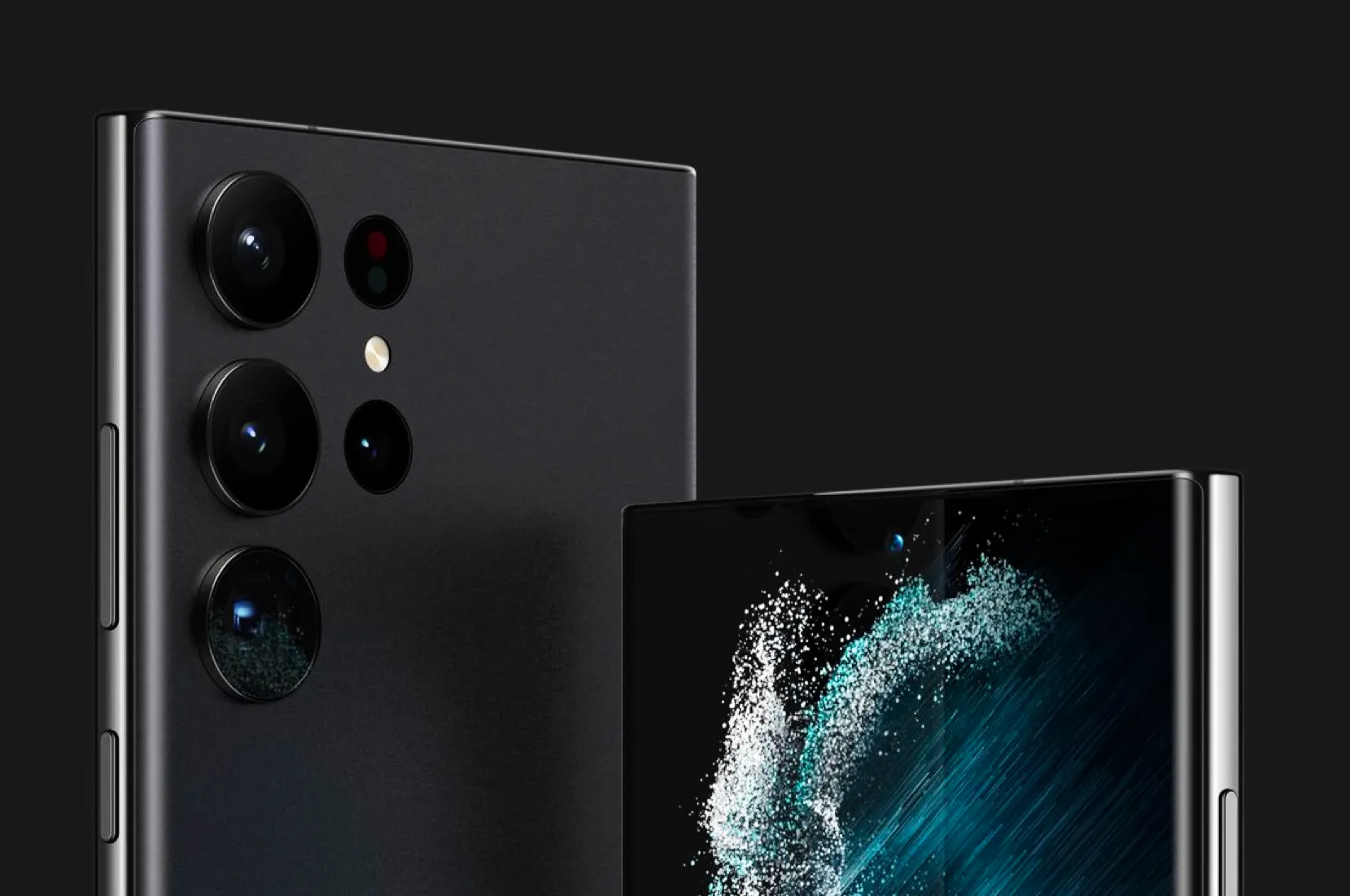
    You may or may not remember Samsung tipster Ice Universe pointing out that the low Geekbench results for the Galaxy S23 line suggested that the overclocked Snapdragon 8 Gen 2 chip powering the Galaxy S23 devices was not functioning properly. A benchmark test called Geekbench is used to evaluate and compare the central processing unit CPU of chipsets used in smartphones (it works with processors on other types of devices, but we are focused on handsets for this story).

    The Galaxy S23‘s single-core Geekbench score was comparable to other smartphones powered by the same SoC, as we noted approximately a week and a half ago. However, the multi-core scores fell short of expectations, which is strange given that the overclocked Snapdragon 8 Gen 2’s X-3 high-performance core should result in higher Geekbench scores than other models using the chip’s stock configuration.

    galaxy s23 snapdragon

    Previous Geekbench tests hinted that Samsung was throttling the CPU of the Snapdragon 8 Gen 2 for the S23 line

    And since none of the multi-core Geekbench tests for the Galaxy S23 line topped a score of 5,000 (something that other phones running the latest Snapdragon application processor (AP) did, it led to concerns that Samsung must be throttling the processor on the Galaxy S23 series which is something that would be done if the chipset was overheating.

    galaxy s23 geekbench

    Let’s explore the Snapdragon 8 Gen 2 chipset that powers the Galaxy S23 range in more detail. There are two variations; the Motorola X40 and OnePlus 11 will use the 4nm process node and the X-3 high-performance core, which has a 3.2 GHz clock speed. Samsung Foundry will produce the version for the Galaxy S23 range utilizing its 4nm production node and an X-3 high-performance processor clocked at 3.32GHz.

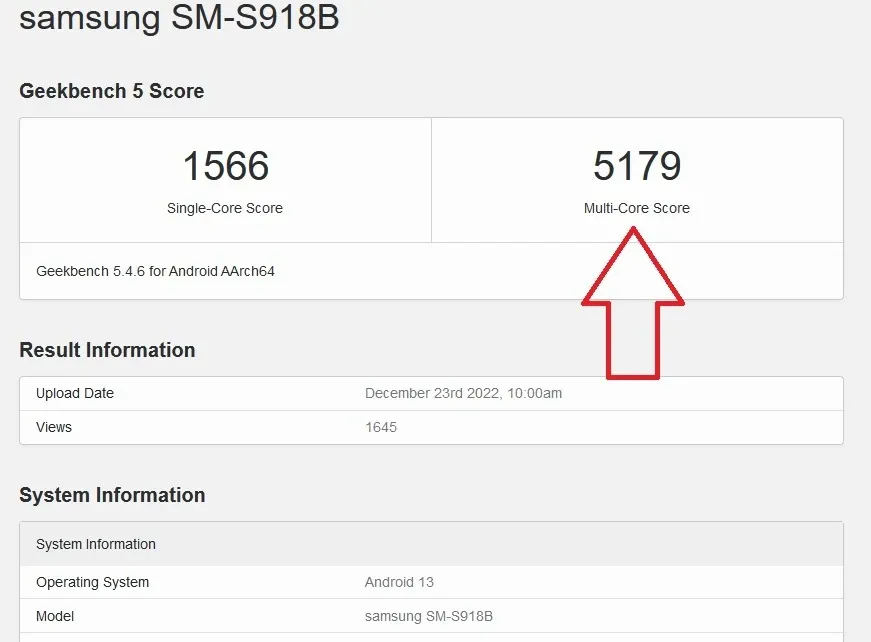
    However, a recent Geekbench test on the Galaxy S23 Ultra resulted in a multi-core score of 5,179, finally crossing the 5,000 threshold, according to Android Headlines. This suggests that any thermal issues that would have compelled Samsung to reduce the processor’s speed may have been resolved.

    The cooling system on the Galaxy S23 model will reportedly be enhanced and 1.6 times more effective than the cooling system on the Galaxy S22, according to a Twitter tipper by the name of Ahmed Qwaider (@AhmedQwaider888). The cooling system on the Galaxy S23+ will be 2.8 times more effective than the one on the Galaxy S22+, while the cooling system on the Galaxy S23 Ultra will be 2.3 times more effective than the one on the Galaxy S22 Ultra.

    The new chipset and cooling systems should keep the Galaxy S23 line from overheating

    The upgraded cooling systems will be able to prevent the Galaxy S23 series from overheating during periods of high usage without the need to throttle the processor, which is the bottom line. Furthermore, if your flagship phones’ overclocked Snapdragon 8 Gen 2 chipsets are going to be throttled in any case, what would be the point?

    The tipper notes that the Galaxy S23 models’ battery life would increase and less heat will be produced as a result of the upgraded Snapdragon 8 Gen 2 SoC and better cooling system. Additionally, he claims that the performance of the Neural Processing Unity (NPU) would increase by 60% due to the enhanced usage of artificial intelligence (AI) features, and that the performance of the CPU will increase by 36% compared to the Snapdragon 8 Gen 1 chip used in the Galaxy S22 series.

    The Samsung Galaxy S23 series is rumored to be pre-installed with the One UI 5.1 interface which includes newer Android 13 features that were released by Google with the Android 13 Quarterly Platform Release 1 that was dropped early last month. The One UI interface is designed to make it easier for users to reach on-screen elements that are usually placed out of reach of users sporting a large-screened phone. This is done by keeping most of the elements near the bottom of the display.