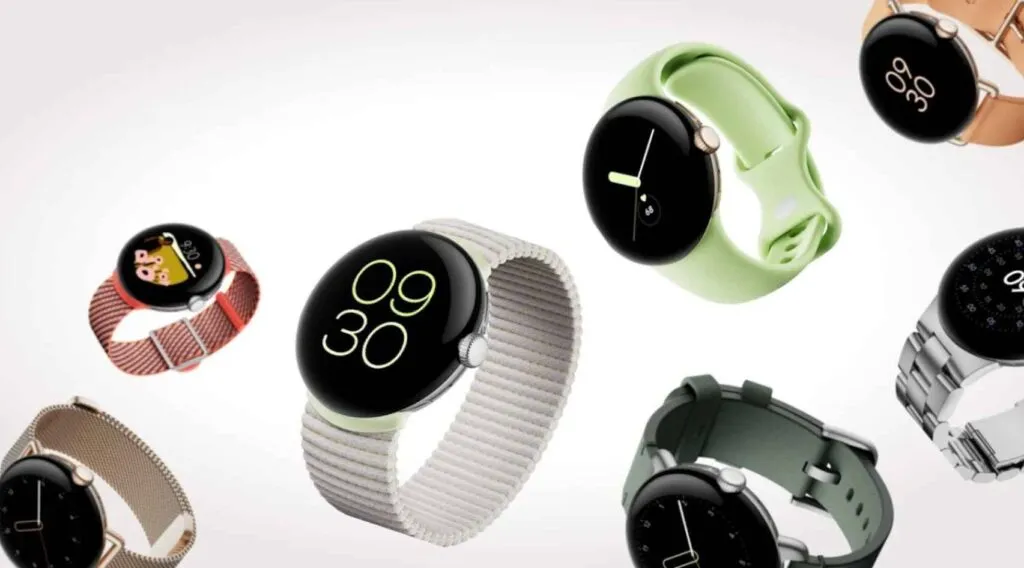
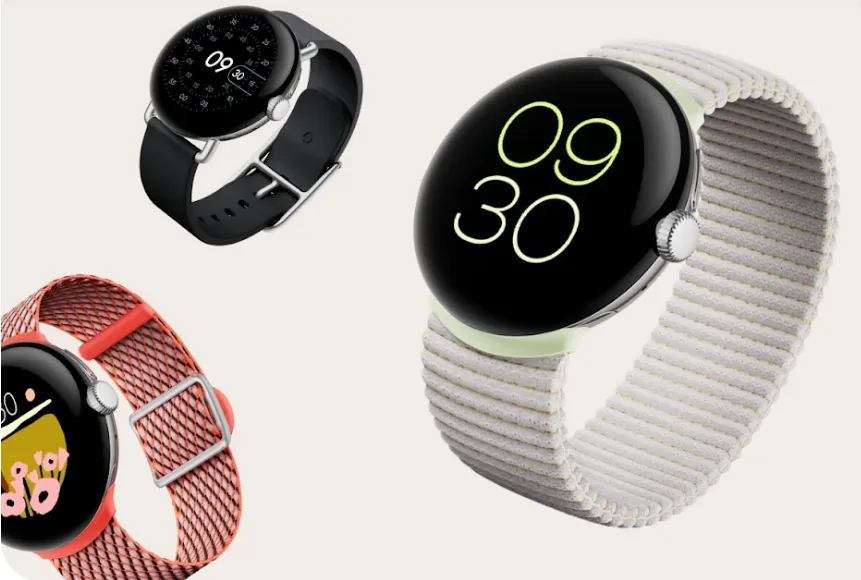
The Google Pixel Watch from a year ago was a favorite of ours despite its mediocre battery life, large bezels, and outdated internals. Additionally, Google has significantly enhanced the wearable since its debut with frequent upgrades. As the wristwatch approaches its first anniversary of release, more and more information regarding its successor, the Pixel Watch 2, is appearing online. The internals, display, and battery of the watch, as well as other important details, have just leaked.
The Snapdragon W5 Gen 1 processor is said to be used in the Pixel Watch 2, according to an Android Authority article. This is Qualcomm’s most advanced wearable SoC, built on Samsung’s 4nm node, and it has four Cortex-A53 cores with a 1.7GHz clock speed. Compared to the 10nm Exynos 9110 chip in the Pixel Watch, which has twin Cortex-A53 cores operating at 1.15GHz, it should result in a significant improvement in speed and economy.
Moreover, Qualcomm provides a W5+ Gen 1 SoC with a specialized QCC5100 coprocessor. However, it appears like Google chose the non-Plus model because it intends to use the same bespoke NXP coprocessor that was used in the first generation Pixel Watch.
The Pixel Watch 2 might have a bigger 306mAh battery in addition to a faster and more effective processor. That represents a modest 4% increase over the 294mAh cell in the first watch. Despite being small, the Snapdragon processor and 306mAh battery together might provide the Pixel Watch 2 a battery life of more than 24 hours.
Another significant improvement that Google promises to make to the Pixel Watch 2 is an ultra-wideband processor. It appears that the wearable will have an NXP SR100T module, but it’s not obvious how the business plans to use the technology. With the addition of UWB, the Pixel Watch 2 might be able to function as a digital car key, allow for seamless media playback between your devices, and more. The Apple Watch already comes with Apple’s U1 ultra-wideband processor, which is utilized for precision locating and other functionality.
However, it doesn’t appear that the Pixel Watch 2 will come with a larger display or more minimal bezels. According to rumors, Google will move to a Samsung Display panel, which might have increased brightness and battery efficiency. Nonetheless, it will still be 1.2 inches and 384 by 384 pixels in size. Moreover, there is no anticipated size reduction for the bezels that encircle the screen.
The Pixel Watch 2 should ship with Wear OS 4, which is based on Android 13, as its operating system. One of the earliest Android smartwatches that offer seamless updates is this one. This will enable the watch to update the system files silently and reboot to access them.
Last but not least, the Pixel Watch 2 may debut in India because BIS certification has been seen on the watch’s regulatory e-labels. There are no specifics yet, but the watch may be introduced to many more markets.
To ensure optimal usability, smartphone makers tune the default touch sensitivity. However you might think it’s too low and have trouble with simple navigation. Poor calibration, low refresh rate settings, a thick screen protector, dampness, and other factors may all contribute to it. For your top budget phone, the majority of Android OEMs (original equipment manufacturers) provide pertinent alternatives to improve touch sensitivity.
When the touch screen on your Android phone doesn’t respond to your touches correctly, you may expect a below-average experience. Such delays in touch annoy and perplex you. Use the tips below to increase the sensitivity of your Android phone before you trade it in for an iPhone.
Increase touch sensitivity on Android
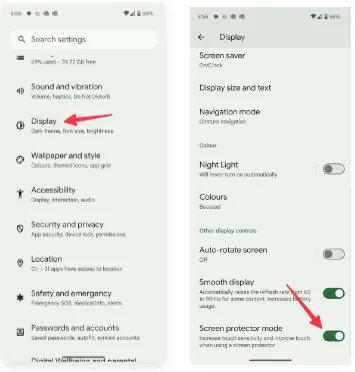
A screen protector is one of the must-have accessories to protect your Android phone’s expensive display. However, many have noticed a degraded touchscreen sensitivity after applying tempered glass on their Android devices. If you are among them, make a tweak from Settings.
Open Settings on your Android phone.
Scroll to Display.
Turn on the Screen protector mode toggle to increase the sensitivity level.
Increase touch sensitivity on Samsung Galaxy phones
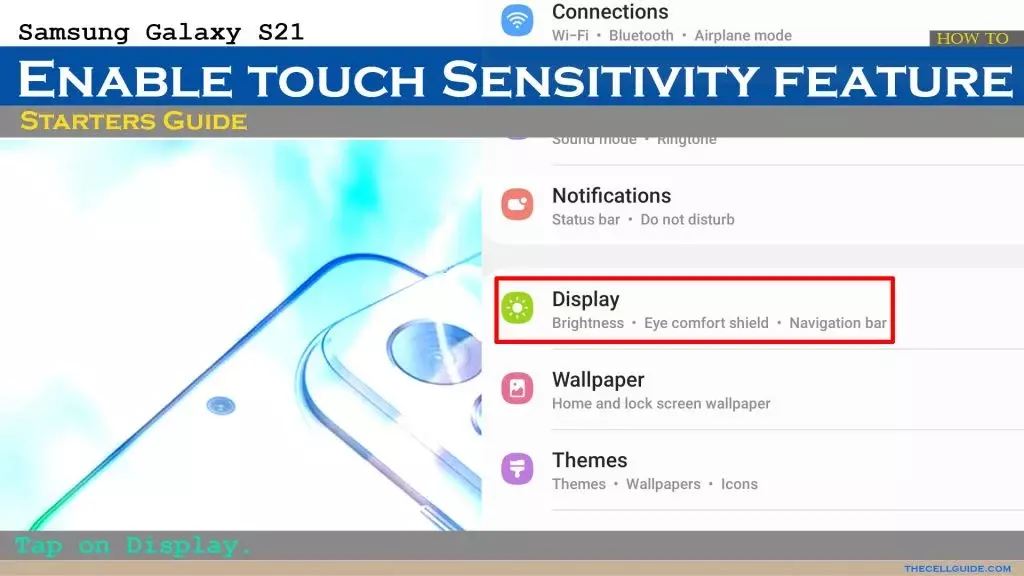
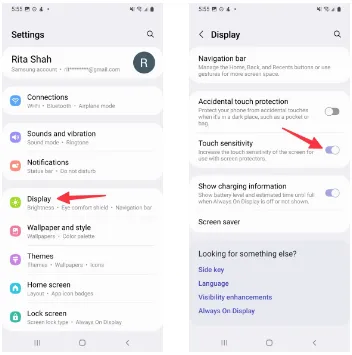
We talked about the default Settings menu that’s preinstalled on most Android phones, including the Google Pixel. Samsung uses a different Settings menu on One UI software. If you have one of the top Galaxy phones, use the steps below to change touch sensitivity.
Open Settings on your Samsung phone.
Select Display and turn on the Touch sensitivity toggle.
Increase display refresh rate
Did you set your mobile device’s refresh rate to 60 Hz instead of 120 Hz? To increase the battery life of their phones, many people lower the panel refresh rate. Nevertheless, switching back to 60 Hz after being accustomed to a refresh rate of 120 Hz or greater can impair your experience with touch sensitivity. It’s time to switch your Android phone to a high refresh rate.
Open Settings and go to Display.
Turn on the Smooth display toggle.
Samsung phones
Samsung users can go through the steps below to increase the refresh rate.
Launch Settings and scroll to Display.
Select Motion smoothness.
Tap the radio button beside Adaptive.
If your LTPO (low-temperature polycrystalline oxide) display automatically adjusts the refresh rate, you can adjust the Developer settings to force the peak refresh rate, which will enhance the quality of your animations and touch responsiveness.
Increase pointer speed on Android
Do you notice lag while using a Bluetooth mouse on your Android phone or tablet? You can change the pointer speed and wheel scrolling speed from Settings.
Launch the Settings app and scroll to General management.
Select Mouse and trackpad.
Use the slider to increase the pointer speed and wheel scrolling speed.
We used screenshots from a Samsung phone. The steps may change on your Android, OnePlus, or Google Pixel phone. On some phones, it’s often a part of the accessibility menu.
Use a high-quality screen protector
Did you buy a screen protector from a sketchy Amazon listing? These below-average screen protectors often cause issues with touch sensitivity even when you increase the touch sensitivity from Settings.
You should stick to reputed names or opt for the official tempered glass from the OEM for your Android phone.
Use phone-compatible gloves
Traditional gloves don’t often play nice with modern smartphones. If your region has snowfalls during the winter, get a pair of gloves that are compatible with your smartphone.
Let your phone cool down
If you use your phone after a long gaming session or recording a lengthy 4K clip, the device temperatures go abnormally high, and you may face issues with touch sensitivity for a while. You may also notice lag with basic scrolling on the homescreen or the web page. Let your phone cool down and use it after some time has passed. The issue is more apparent on phones with poor cooling systems.
Can you use third-party apps to improve touchscreen response speed?
The Google Play Store is packed with third-party apps that claim to improve the touchscreen response speed and sensitivity of your screen during gaming. You should always take such apps with a pinch of salt. They also advertise calibrating the touchscreen to factory settings. Most of these apps are paid and may not work as expected. If you face this issue, get a refund from the Google Play Store.
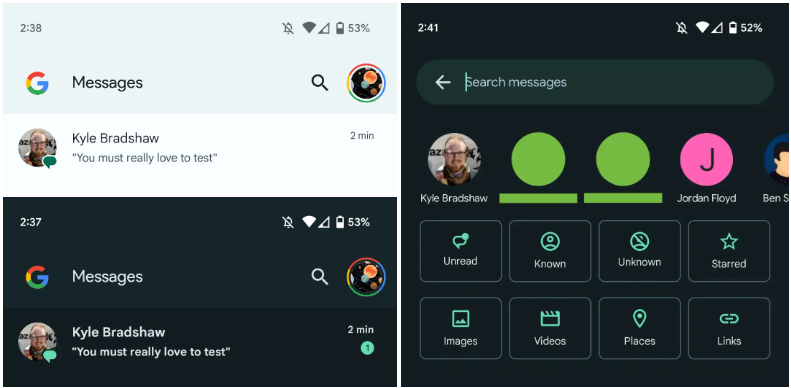
Interesting changes are being made by Google to the Messages homescreen, including the removal of the navigation drawer and the addition of prominent branding to the Android app.
The Google Messages homescreen has undergone another update with beta version 20230717 01 RC00.
With this redesign, the message organization feature that had recently been enabled for beta users is not present. In the meantime, Google has slightly modified the search filters. This new appearance has not yet been implemented broadly.
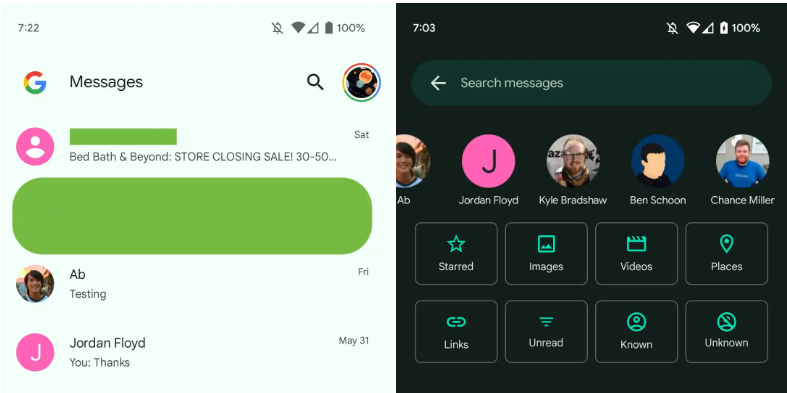
You only get a magnifying glass icon in place of a full-width search bar. Google’s four-color “G” logo is in the top-left corner, followed by the word “Messages.
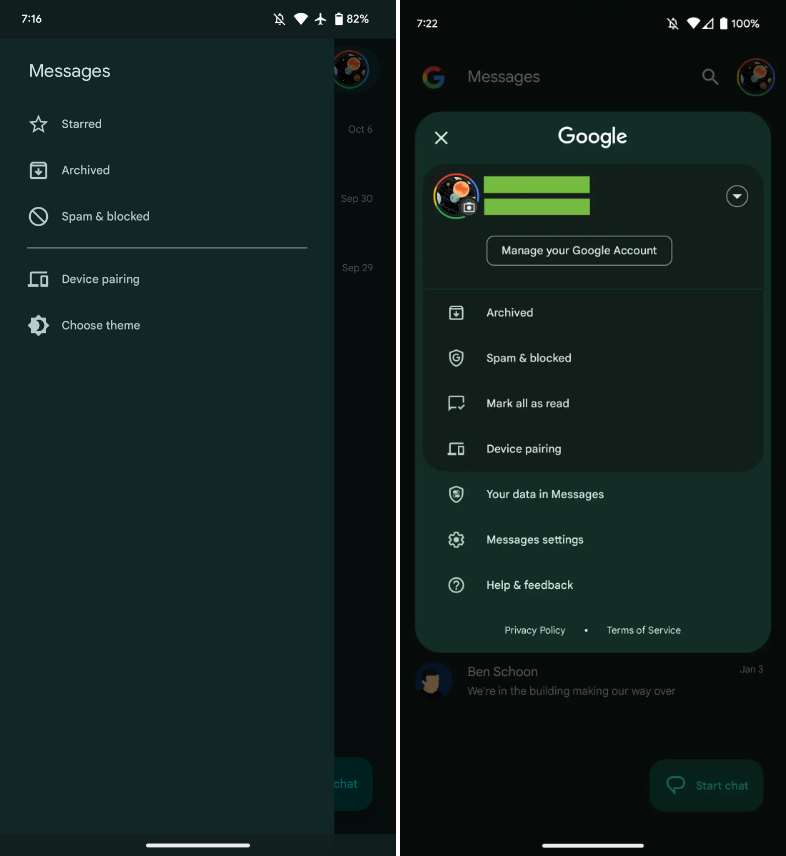
With those settings now under the account menu, the navigation drawer and its hamburger icon have been deleted. Your data in Messages, Messages settings, Help & feedback, Spam & blocked, Mark all as read, and Device pairing are displayed in that order. Google has shifted “Select theme” inside the settings menu in the interim.
Early in 2022, after previously solely using an overflow menu, Messages added a navigation drawer. This was considered to be defying current Google app design trends at the time.
A small change in search sees Google drop the “Categories” carousel for a standard grid that requires less scrolling: Starred, Images, Videos, Places, Links, Unread, Known, and Unknown.
In comparison to programs like Gmail, which has a huge list of categories and labels, and Calendar, Messages’ navigation menu was ineffective, included just a few items, and was unnecessary. This account menu strategy is more effective and is used by other first-party apps like the Google Play Store. The complete search box was likewise superfluous, despite being a Google app hallmark.
More interesting to me is the “G” logo in the top-left corner that serves as very explicit Google branding that denotes how this is how the company wants you to message. It can be seen as part of Google’s ongoing RCS campaign.
We’re seeing this homescreen redesign rolled out with version 20230608_01_RC00 of Google Messages that was released yesterday to the beta channel. This redesign is not yet widely available, but feels like a definite modernization.
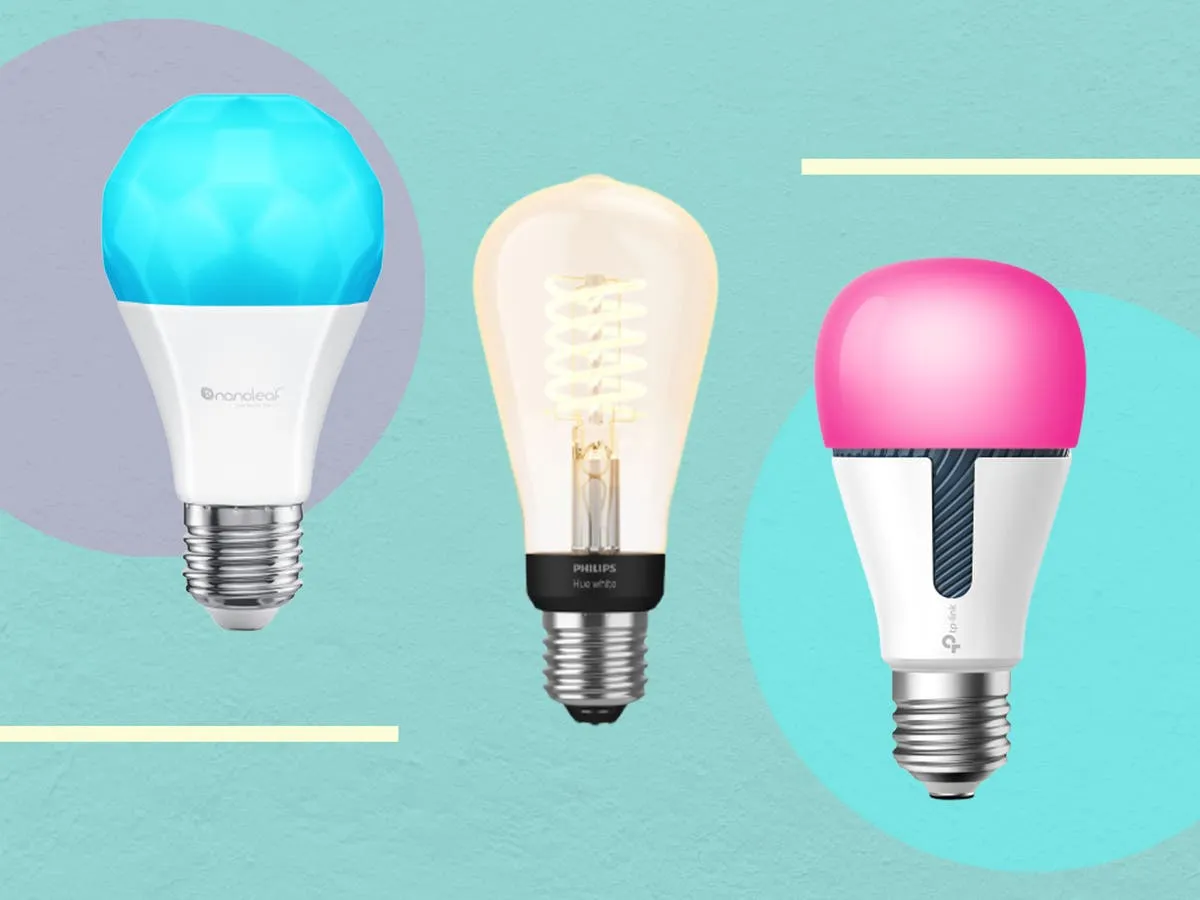
Because they are capable of far more than just turning on and off, smart bulbs are intelligent. You can create schedules to deter would-be burglars while you’re on vacation, dim them with the press of a button on an app, or change their colors with a simple voice command (or just reduce your carbon footprint). Many third-party apps can allow you execute some cool tricks that you wouldn’t otherwise be able to do with the official mobile app. Certain smart bulbs can even be designed to function with third-party apps.
The greatest smart lighting solution we’ve ever evaluated is the Philips Hue lighting system, which is a very adaptable smart lighting platform.
There are many apps available in both the Apple App Store and the Google Play Store that can let you quickly access some of these “unlockable” tactics. Some of these apps even integrate with other smart bulb systems, making it possible to manage many smart bulb brands from a single platform.
To set these things up yourself, you also don’t need to be a top-notch programmer. With just one of the mobile apps from our list and a little perseverance, you can combine a few instructions to control your smart lights even more.
HueDisco (Android and iOS)
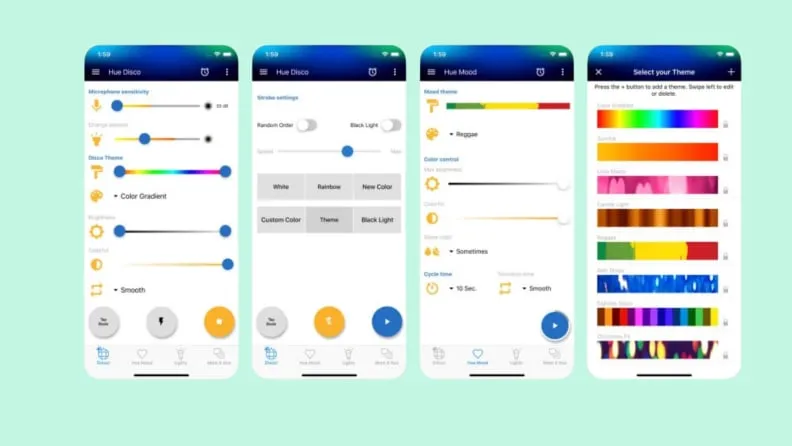
HueDisco is a lot of fun. Anytime they want, everyone can turn their home into a dance party because it is accessible to both Android and iOS users. The app connects your lights and music, causing the lights to change color in time with the music.
The microphone sensitivity and color range control settings allow you to fine-tune how accurately the bulbs pick up the sound recorded by your phone’s microphone and prevent your lights from bouncing from one end of the spectrum to the other. Even without playing loud music, you can establish the mood for the Hue lamps with a range of strobe patterns and arrays.
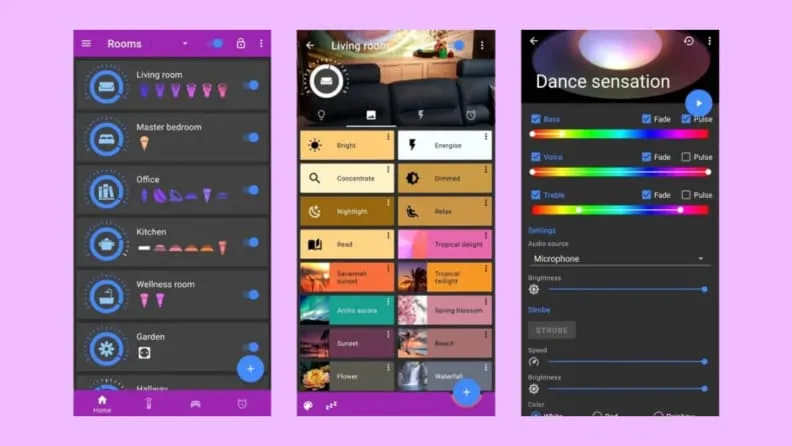
The Hue Basics app is a respectable substitute for the Hue app by default for Android users. It has a beautiful layout with an easy slider control for each bulb and a shelf that contains quick links to other connected lights and their respective groups. Moreover, Hue Essentials provides rapid settings tiles, which are useful if you like to set the mood for group activities. Additionally, you can activate the Quick Settings toggle to enable push-button access from within the Android notification shade.
This software also includes a useful feature that synchronizes your Hue lights with the music, similar to Hue Disco. The Hue Essentials app also provides control for many bridges at once for individuals who enjoy fiddling with settings.
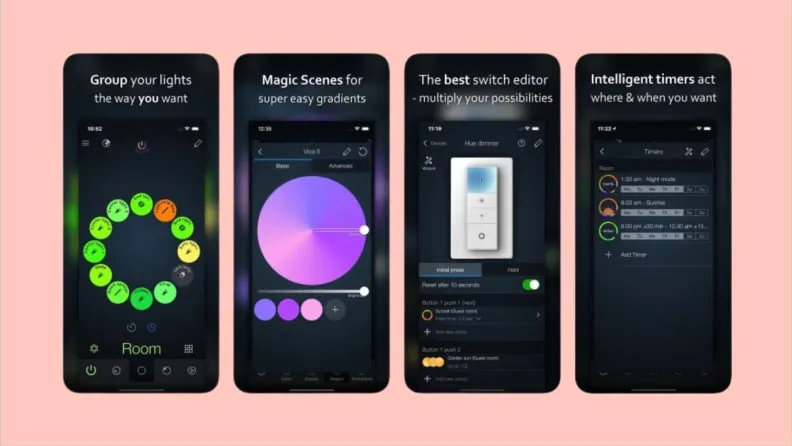
The iConnectHue for Philips Hue app is a comparable substitute for iPhone customers looking for Hue Essentials. The Philips Hue light system now has automation, customization of individual and group lights, support for multiple bridges, and even Apple Watch capabilities thanks to this app. Even if you’ve connected your Hue lights to other smart bulbs or bec led, such as Cree, Osram, or GE Link, this app may be the best way to control them all from one location since it supports several lesser-known lighting manufacturers as well.
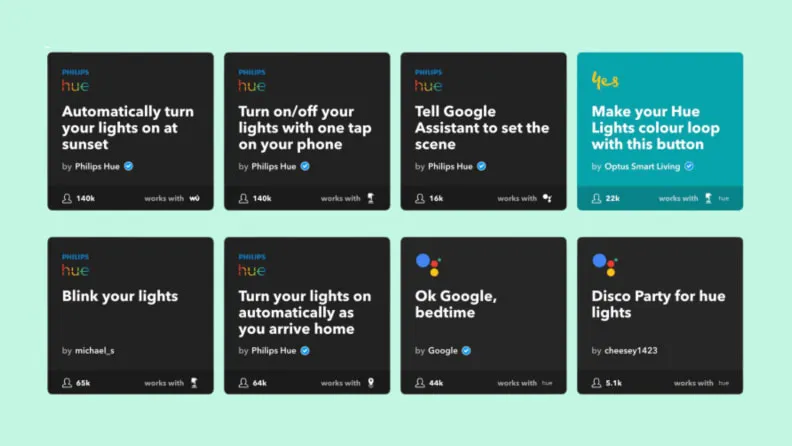
IFTTT, which stands for “If This Then That,” is a perfectly good substitute for the complexity of Stringify and Yonomi if you don’t want to spend the time learning about home automation in-depth. It works with most of the well-liked smart lighting platforms now available, including Philips Hue, LIFX, TP-Link, Sengled, and others. Additionally, it integrates with a wide range of other services, including social networking accounts like Twitter and Facebook as well as cloud accounts like Dropbox. If you haven’t got the chance to plunge into automation yet, IFTTT is the ideal approach to whet your taste for it.
The UK, Europe, Japan, and India all had access to Nothing’s initial phone, which was appropriately dubbed Nothing Phone 1. I felt envious as a tech nerd from the US. Beyond its distinctive style, Nothing’s first phone was universally praised as a good gadget at a fair price. Nevertheless, the competition in the Android market isn’t quite as diversified here as it is in the locations where you can readily buy the Phone 1. We felt as though we were being left out.
I’m happy that the Nothing Phone 2, the company’s second phone, is now available in the US. It retains the general vibe of the Phone 1, but in a larger, more robust package. After using the phone for a few weeks, I’m a fan, but even at its $599 starting price, the Phone 2 won’t appeal to many Android aficionados due to its shaky 4G compatibility on Verizon and average camera quality.
It was shipped in a high quality carboard box, known as cutie carton in some places.
Network and availability
On the business website, you may order the Nothing Phone 2 right now. The entry-level model with 8 GB of Memory and 128 GB of storage costs $599 in the US. For $699 or $799, you may increase to 12 gigabytes of Memory and 256 GB of storage. Although the $599 version with eight GB of Memory is only available in gray, it is available in either white or gray.
The Phone 2 is approved for use on both AT&T and T-Mobile, however it is only currently offered directly from Nothing. It lacks network certification for Verizon. It’s still compatible with Verizon, and sub-6 5G connectivity will be great. Nevertheless, the LTE band 13 capability needed for Verizon’s 4G connectivity is absent from the Nothing Phone 2. The Nothing Phone 2 won’t likely function for you if you’re on Verizon (or an MVNO that uses its network) and rely on 4G connectivity.
Nothing Phone design and display
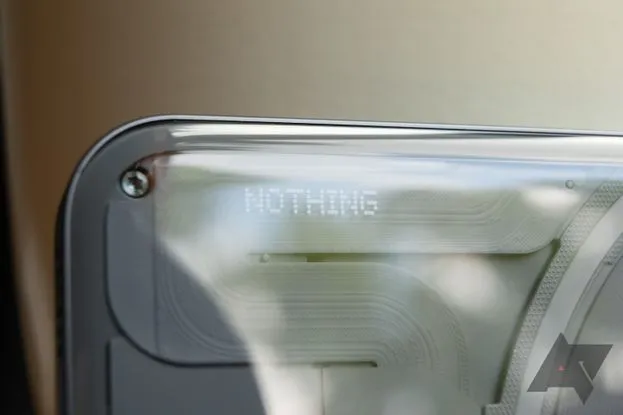
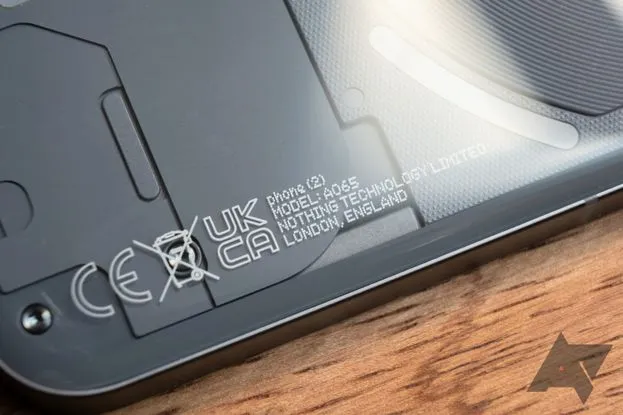
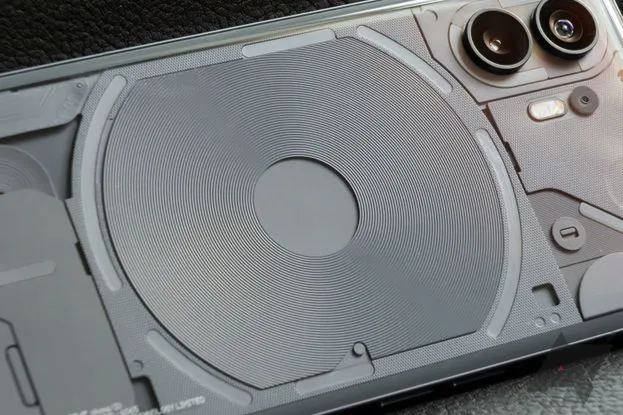
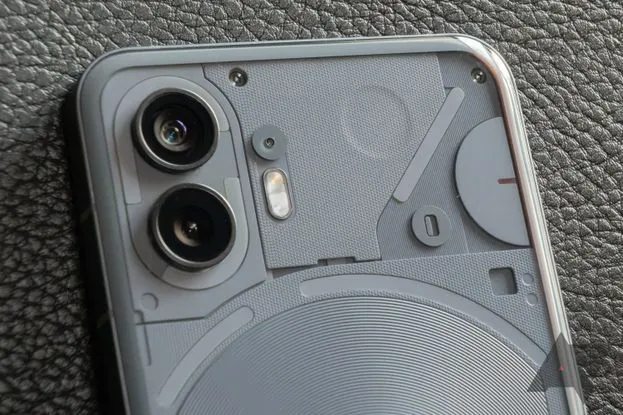
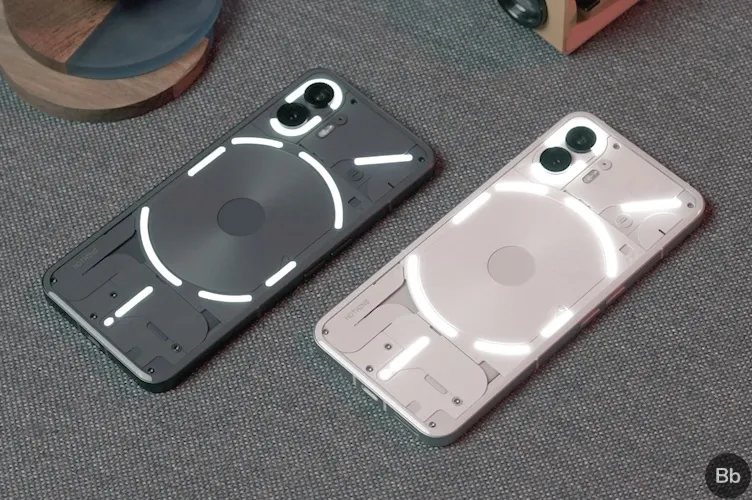
The translucent rear of the Nothing Phone 2 mimics that of the Phone 1, revealing some swanky internals and Nothing’s distinctive Glyph user interface. The biggest variations between one version and the next are the size (the Phone 2 has a 6.7″ display, which is somewhat larger than the Phone 1’s 6.55″ panel) and color selections. The Phone 2 is available in white and the type of smokey gray you can see in the photographs, as opposed to the Phone 1, which was only available in white or black.
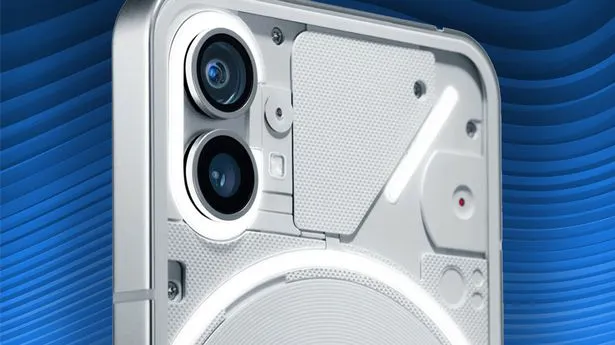
The components inside the transparent back panel have more roughness than they did in the Phone 1, which makes the Phone 2 even more aesthetically pleasing. Light plays on the tiny bumps and ridges in intriguing ways, highlighting another new detail that is highlighted by the gray hue. The Phone 2’s rear panel curves slightly at the edges to meet the flat metal frame, in contrast to the Phone 1, which had flat glass on the back (nothing refers to it as “pillowed glass”). Personally, I believe the flat rear of the Phone 1 had a cleaner appearance.
This time around, the Glyph lights on the phone’s back have a slightly modified layout and more independently configurable zones than the Nothing Phone 1 did. Even so, they still only emit one color of light; these are not tiny RGB strips.
Except from those variations, this design is extremely similar to the Nothing Phone 1. Nothing suggests this was done on purpose; the business wants to establish a strong, recognisable visual identity that can be carried over to upcoming gadget generations. There, I am powerless to gripe. Nothing’s design language is still distinctive and eye-catching in comparison to the majority of other phones available today, even though it hasn’t changed significantly year over year.
The hardware feels quality, too: there’s no creaking or flexing, the buttons are clicky, and the haptics are nice and firm, if a little loud. The phone is IP54 rated, so it’s splashproof, but you still try not to submerge it in water.
There’s an optical fingerprint sensor near the bottom of the screen. The scanner is just a touch lower in the display than I’d like, but it’s a good one: it’s faster and more reliable than the sensors in Google’s Pixel 7 phones, though not quite as quick as the ultrasonic scanners Samsung uses in its flagships.
Software and performance
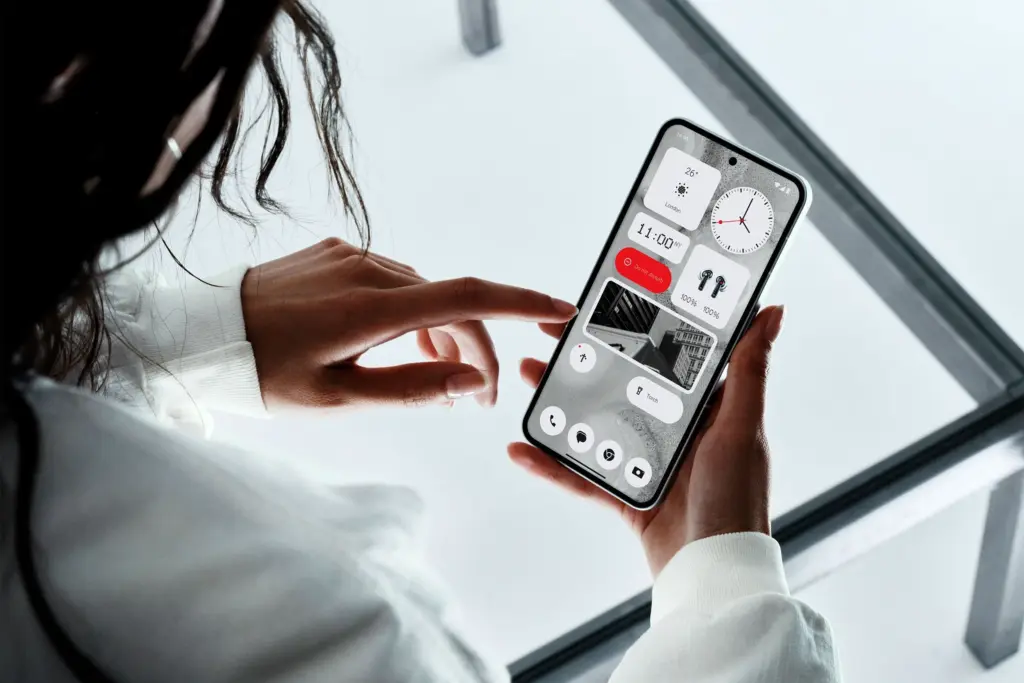
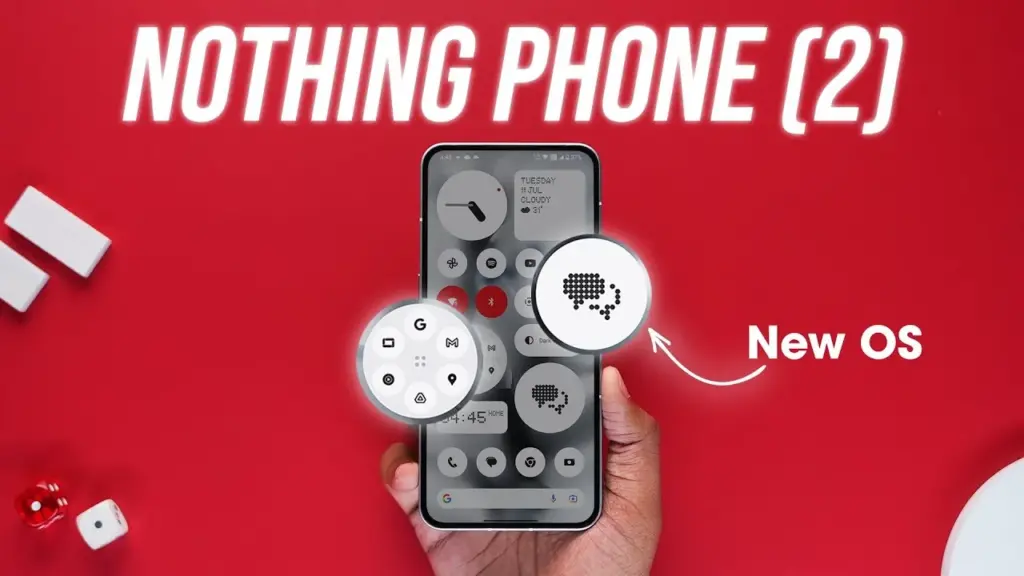
In the Phone 2, nothing’s software basically looks the same as it did on the Phone 1. The UI here feels a lot like Google’s version of Android because the firm gave Android 13 the same light touch of customization that it gave Android 12. If you still find that to be too strange for you, you can initially set up the phone with stock Android rather than Nothing OS.
Nonetheless, I enjoy Nothing OS since none of the modifications it makes are intrusive or feel forced. The Phone 2 primarily uses Google’s system apps, including Phone, Messaging, Calculator, Clock, and others, however there are a few widgets with the Nothing brand and a few apps with Nothing’s distinctive dot-matrix design. Thankfully, there is no bloat, such as pre-installed social networking or games, or programs that perform two functions at once (looking at you, Samsung).
You have the choice to add Nothing’s widgets on your lock screen, but I’m not sure any of them are worthwhile enough to trade notification space for them. I also wish it wasn’t just limited to Nothing’s widgets. On your home screen, you can also choose to enlarge specific app and folder icons so that they take up four instead of one space. Moreover, Nothing’s launcher features a feature that can force all of your program icons to appear in monochrome, even if they don’t yet support dynamic themes. Standard icons, appropriate Material You theming, and unique icon packs from the Play Market are also options.
Nothing guarantees four years of bimonthly security updates and three years of Android updates, which will cover the Phone 2 through Android 16. But, Nothing has only been a company since 2020, and just last year did it release its first phone, making it difficult to anticipate how long-term support will be. But, the Phone 1 hasn’t yet fallen behind in upgrades, so I’m optimistic Nothing will succeed.
The Nothing Phone 2 is powered by a Snapdragon 8+ Gen 1 chipset and either eight or 12 gigs of RAM. The 8+ Gen 1 was Qualcomm’s 2022 flagship CPU, found in devices like the Samsung Galaxy Z Fold 4 and the OnePlus 10T. It’s not as powerful as this year’s Snapdragon 8 Gen 2, but the Phone 2 is still a remarkably snappy device. Apps don’t feel remotely slow to open, multitasking works great, and gaming performance is reliably smooth.
My review unit is the $699 model that comes with 12 GB of RAM, but I don’t think most people would miss those four extra gigs. If you happen to need more than 128 gigabytes of storage, the added RAM is nice headroom to have, but otherwise, you should be safe with the $599 base model.
Glyph interface
The Phone 2 features the Glyph interface from Nothing. The fundamental idea is the same: LED strips are hidden beneath the clear rear glass. They glow when you receive a notice. With Nothing’s Glyph Composer function, you can assign various notifications different light patterns and make your own ringtone/Glyph combinations. When you place the Nothing Phone 2 face down, the Flip to Glyph function from the Phone 1 makes a comeback as well. Your notifications are hushed, allowing the Glyph lights to take over.
But, there are a few useful new additions. Any app’s notification channels can be set up as Essential Notifications, which causes one of the Glyph strips to illuminate and remain illuminated until you view or dismiss the notifications. The Glyph lights become far more practical for this reason alone; you can keep your phone face down and still determine, at a look, whether it requires your attention.
There is a new Glyph Timer feature that, interestingly, only works with timers that are set from a specific widget or the phone’s settings and not through the Clock app. It uses one of the Glyph strips as a type of progress bar for timers. Moreover, Nothing has developed an experimental function for the Uber app that uses the Glyph interface to display the status of your ride. Although I haven’t had the opportunity to try it, I assume I would still be closely monitoring the screen of my phone if I were waiting for a ride.
In all, the Glyph lights don’t add a ton of utility; a single notification LED on the back of the phone would more or less accomplish the same thing. But they look cool, and they don’t detract from any other aspect of the phone. It might be a gimmick, but at least it’s a harmless one.
Cameras
The Nothing Phone 2 has two 50-megapixel rear cameras: one primary at f/1.9 and one ultrawide at f/2.2. Photo performance is mixed.
In good light, the Phone 2 typically takes good pictures. Colors look natural, detail is sharp, and shadows are refreshingly dark — while many smartphone cameras aggressively brighten darker areas in photos, the Phone 2 is content to let them fall to near-black a lot of the time. I appreciate that.
In increasingly difficult lighting situations, things become a little trickier. Nothing’s picture processing may use improvement, despite the Phone 2’s use of tried-and-true camera hardware (the primary shooter utilizes the same sensor as the OnePlus 11). It’s common to lose detail in both highlights and shadows in settings with strong contrast.
In low-light conditions, the cameras also frequently employ unnecessarily lengthy exposures. The fact that a longer exposure results in a brighter image is sort of advantageous. But, I’ve seen single exposure shutter speeds as slow as 1/5. Even with optical image stabilization, it can be challenging to take a crisp handheld photo at such slow speeds.
Another sporadic issue is shutter lag. The Phone 2 frequently takes a second or more to really capture a picture once you hit the shutter button, even in somewhat good light. Although it’s not often a problem, I have occasionally lost images of moving objects due to an unanticipated gap of half a second before the phone shot the picture.
Battery and charging
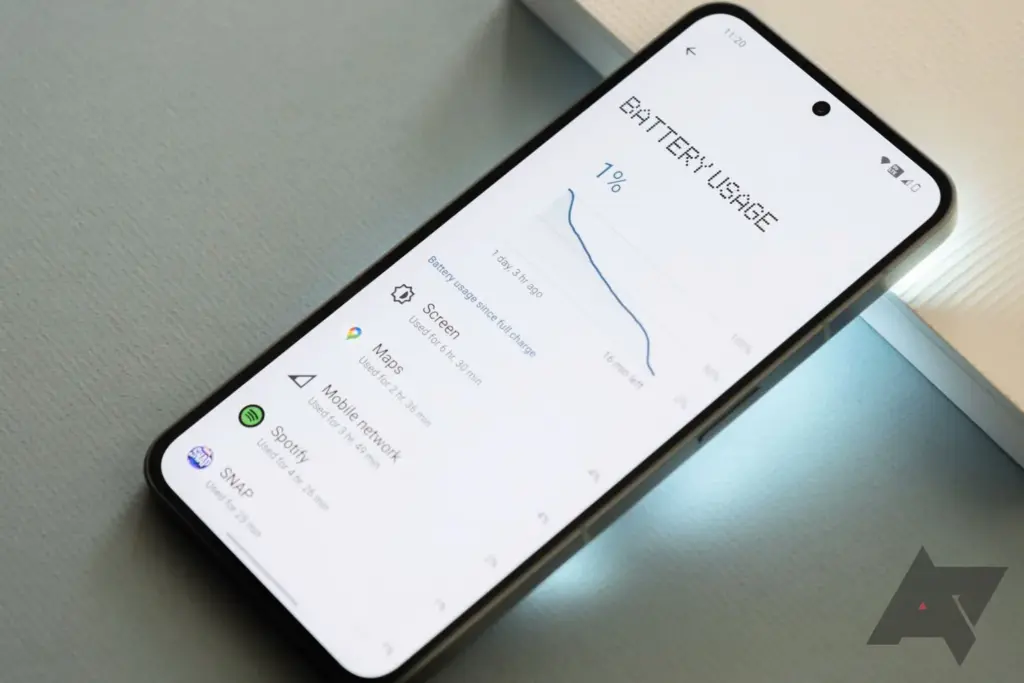
The 4,700mAh battery that powers the Nothing Phone 2 easily lasts me for at least a full day of use. I regularly get six or more hours of screen time over the course of 24 or more hours without a charger. This number holds true even when battery-intensive activities like gaming and Google Maps navigation are included. I wouldn’t be at all surprised if the Phone 2 could go for a full 48 hours between charges with moderate use.
Nobody claims that the Phone 2’s 45-watt fast charging system can charge the battery from 0% to 100% in less than an hour. Nevertheless, to achieve that speed, a PPS charger must be able to produce power at 2.25 amps, which not all can. The maximum charging current at 5A is 15 watts. At 15 watts, a full charge takes roughly one hour and fifteen minutes. The Phone 2 also features reverse wireless charging at up to five watts and wireless charging up to 15 watts.
Conclusion
Given the Nothing Phone 2’s excellent performance, reasonable price, and generally respectable cameras, it’s simple to draw comparisons with the smartphones OnePlus produced during its “flagship killer” era, which was later led by Nothing founder Carl Pei. The same enthusiast customers who like OnePlus’s early phones will likely be attracted to this one, in my opinion: those looking for a reasonable, fascinating alternative to more mainstream options. I’m curious to see how the Phone 2’s general availability in the US will effect the upper-midrange market it is competing in because it will expose it to a larger group of these aficionados than the Nothing Phone 1 did.
Like Nothing, you should always pack your parcels like a pro with quality boxes secured with tape or benzi adezive.
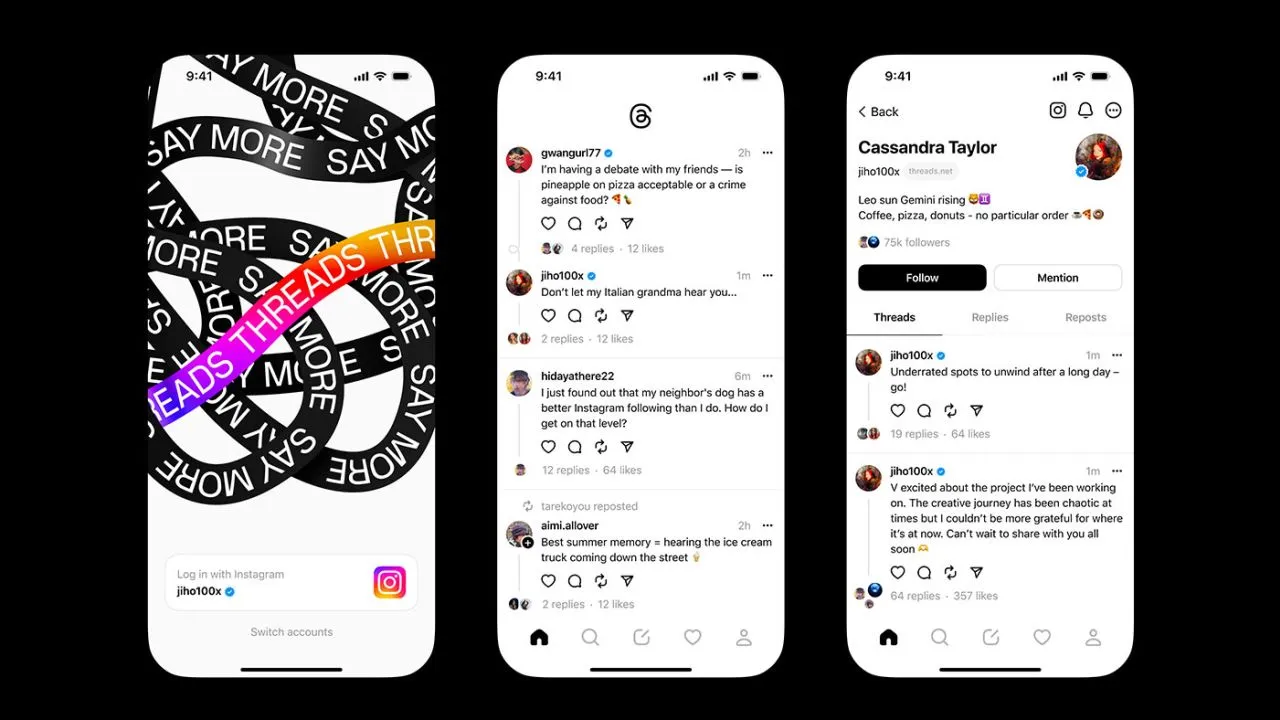
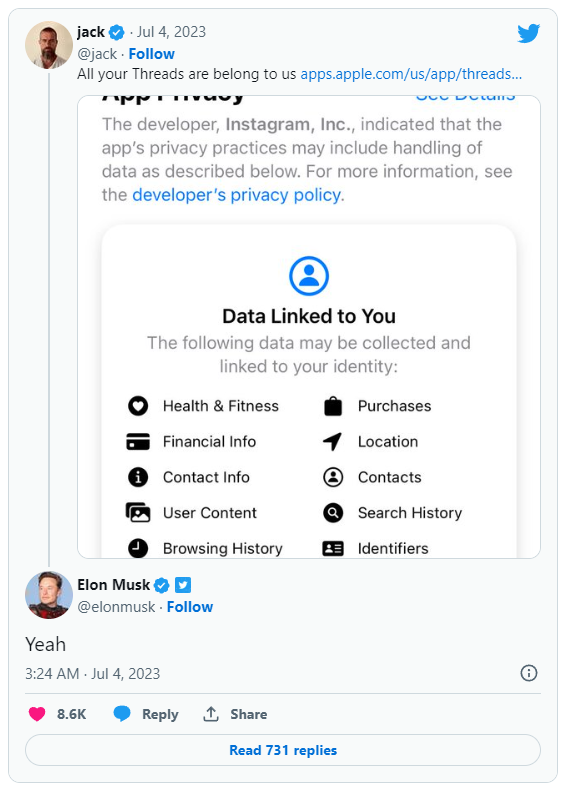
Think again if you believed that your data on Threads is private.
All of the methods that Threads is following you and using your data are listed in the App Privacy section of the Threads App Store website. The list is very, very long, reader.
Thursday saw the launch of Threads, Meta’s answer to Twitter, and it appears that in its first seven hours of operation, it attracted more than 10 million users.
Click the “See Details” link in the App Privacy section of the App Store page for a comprehensive overview of the possible data collection and usage practices for Threads (opens in a new tab). But, the gist is this: Nearly all of your personal information is being gathered by Threads, including information about your transactions, finances, location, contact details, search history, and browsing habits.
Jack Dorsey, a co-founder of Twitter, became aware of this and tweeted about the Threads App Privacy section. Elon Musk, the company’s current owner, simply said, “Yeah.”
It doesn’t come as big surprise. The amount and breadth of data that Threads collects is similar to its sister app, Instagram(opens in a new tab) (both Threads and Instagram are owned by Meta, which also owns Facebook).
Twitter and other significant social media platforms gather user data as well in order to provide advertisements from outside businesses more effectively. A comparable, albeit slightly condensed, overview of all the ways in which Twitter uses the data of its users can be found on its App Privacy(opens in a new tab) page.
Even still, it’s upsetting to have to give a Twitter clone access to vast amounts of your personal information. Another Twitter competitor, Jack Dorsey’s BlueSky, which is now invite-only, claims to be looking into ways to make money without being as dependent on third parties as its rivals.
Do you want to get creative with videos and crop them to share online? If so, you’ve come to the right place.
Let us show you how to edit a video on iPhone with just a few taps. And since this task only takes a few minutes to complete, you can create fun and exciting videos in no time!
All you need to do is follow our brief guide, and you’ll have the perfect cropped video in no time at all. So keep reading!
Navigating the Video Cropping Feature on iPhone
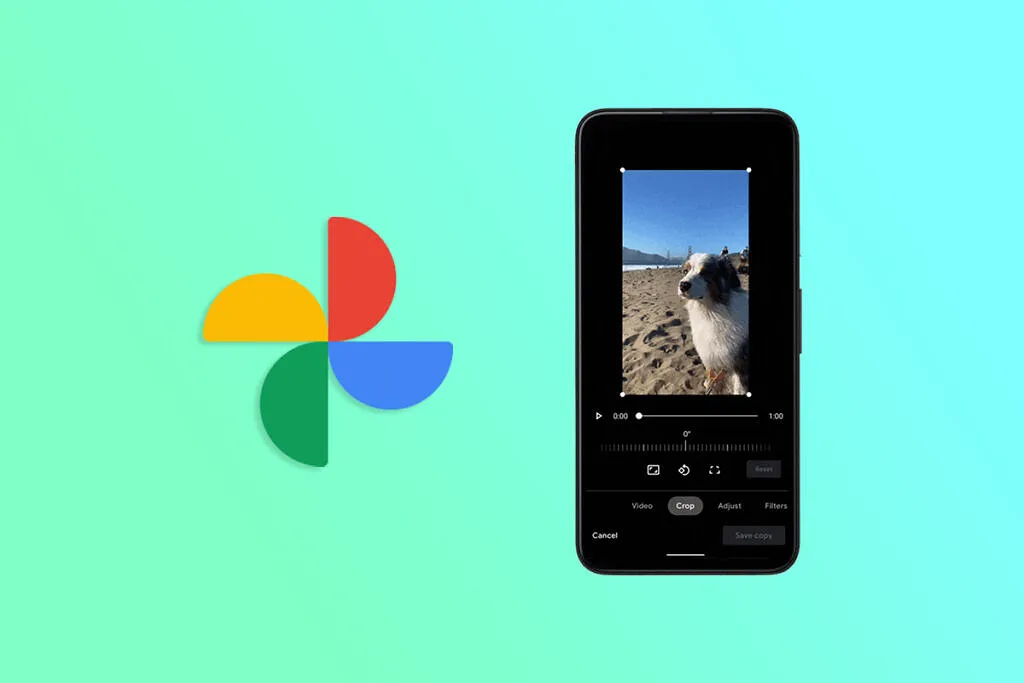
To crop a video on an iPhone, start by opening the Photos app. Select the video you wish to crop, and tap on it to open.
Next, click on ‘Edit’ found in the top right corner. Once you have entered the editing mode, you can select from the available editing features near the bottom of the screen.
Select ‘Crop’ and adjust the video framing to the desired size. After making your desired changes, click Done in the top right corner and save the changes.
Your cropped video is ready to be watched, shared, and more! To save the modified video, tap’ Done’ in the upper right corner, and the cropped video will be saved in your Camera Roll.
Tips on Adjusting Cropping Parameters
If you want to crop a video on an iPhone, these tips on adjusting cropping parameters can help you do so quickly and hassle-free.
To zoom in and out, use a two-finger pinch gesture on the video until it is framed as desired, then tap Done. If you want to adjust the size of the crop, tap the crop icon found in the upper-right corner of your iPhone’s screen and enter specific dimensions.
After you make your desired adjustment, tap Done.
Adding Text and Other Elements to Your Cropped Video
To add text and other elements to your cropped video, launch the iMovie or Clips app, select the video, and tap the ‘Text’ button.
Choose the desired type of text, enter the desired words, and tap ‘Done.’ You can also add image or video clips, stickers, background colors, and other elements. To move elements around, use the ‘Edit’ button.
When you’re happy with the look of your video, tap ‘Done’ to save your work.
Best Practices for Sharing Your Cropped Video
The best practices for sharing your cropped video include making sure the size of your frame corresponds to the platform where you want to share the video. For example, if you plan to upload to YouTube, your frame should be 16:9.
Additionally, pay attention to any guidelines for the length specified by the platform, and consider your audience. For example, it’s a good idea to include closed captions or subtitles if you plan to share your cropped video with a global audience.
You must also ensure the video file types are in the correct format. Usually, mp4 is the desired type. So be sure to use the best MP4 converter offerings for awesome results.
Finally, review the video one last time before sharing it to ensure you are happy with the final product.
Learn How to Crop a Video on iPhone Today
Cropping a video on an iPhone is incredibly easy to do just open your editing app, select the video you’d like to crop, and make your adjustments. Now that you know how to crop a video on iPhone, go ahead and give it a try!
Experiment with the different effects and get creative with your video projects!
The July Pixel update is now available as one of the final Android 13 updates, following the June release of a big quarterly platform update and Pixel Feature Drop that included new functionality and numerous bug fixes. It is anticipated to be somewhat less significant than last month’s and ought to prepare us well for the next Android 14 release.
Prepare your Pixel 4a, Pixel 7 Pro, and Pixel 7a for an update right away. The initial updates for your Pixel Fold or Pixel Tablet should also be available. The fact that new Pixel smartphones are receiving upgrades is huge news, even if it’s just a tiny update. As I type this, a 23.27MB update is downloading to my Pixel Tablet. It is also visible to others who have Pixel phones.
For those in the Android Beta Program, you are not likely to receive an update. When you are in that program, you are on a different software track.
July Google Pixel update builds
Global
Pixel 4a: TQ3A.230705.001
Pixel 4a (5G): TQ3A.230705.001
Pixel 5: TQ3A.230705.001
Pixel 5a (5G): TQ3A.230705.001
Pixel 6: TQ3A.230705.001
Pixel 6 Pro: TQ3A.230705.001
Pixel 6a: TQ3A.230705.001
Pixel 7: TQ3A.230705.001
Pixel 7 Pro: TQ3A.230705.001
Pixel 7a: TQ3A.230705.001
Pixel Fold: TQ3C.230705.001.C1
Pixel Tablet: TQ3A.230705.001.B4
Pixel Watch: RWDC.230705.001
Verizon
Pixel 7: TQ3A.230705.001.A1
Pixel 7 Pro: TQ3A.230705.001.A1
Pixel 7a: TQ3A.230705.001.A1
Pixel Fold: TQ3C.230705.001.B1
T-Mobile
Pixel 6: TQ3A.230705.001.A1
Pixel 6 Pro: TQ3A.230705.001.A1
Pixel 6a: TQ3A.230705.001.A1
Japan
Pixel Fold: TQ3C.230705.001.C2
July Google Pixel update bug fixes
No major bug fixes to report on any device outside of the Pixel Tablet. For Google’s biggest screen, they list the following:
Battery & Charging: General improvements for charging, battery usage or thermal performance in certain conditions
User Interface: Fix for issue occasionally causing lock screen notification text to display behind unlock UI elements
Again, Google should begin pushing these updates shortly over-the-air (Settings>System>System update), but if you don’t want to wait for Google and prefer to update manually, you will find each factory image or OTA file at the links below. For instructions on how to flash a factory image, here you go. For instructions on how to flash an OTA .zip file, here you go.
With every update, Google Photos, which might be compared to the Swiss Army knife of gallery apps, gets better. For instance, Pictures recently added a useful import feature. The software has now been enhanced by the developers with the addition of video effects and improved media controls, making it an even more useful tool for Android users. Google Photos expands its library of stunning video effects.
According to a video by In Deep Tech Reviews, Google Photos is adding a new feature to its video editing toolkit that enables users to add a variety of special effects to their videos (via Google News on Telegram). The edit interface’s new effects tab contains all the options. The program downloads the effects once you select the effects tab, and you may start using the app.
Google has added 12 new effects, including Dust Max, Black and White Film, Light Leak, and others, that serve a variety of various use cases. Your videos become more unique thanks to these effects. For instance, the Poster effect makes your video resemble folded paper, while the Layouts effect offers your selfie movies a tidy block-by-block appearance.
This was tried by In Deep Tech Reviews on a Google Pixel 7 Pro running Android 14 Beta 3, and it seems to function flawlessly. That is not restricted to the Android preview version because it also functions on my Pixel 6 running Android 13.
Separately, Google has simplified the use of the video playback controls. There are now buttons to skip ahead and backward in addition to merely play and pause. It’s a useful upgrade from the previous version, like the one displayed in the video on the Pixel 7a.
Ther is also a profile menu update. Google has removed the old floating box style and brought in a full-screen view that shows up when you activate the profile menu. And it’s not just in Google Photos — the YouTuber says the makeover is also available in other Google apps for him.
Are you looking for a music-making app for your Android device? Then you have landed in the right place. Because in this blog, we will be covering the best ones of 2023. So, continue reading to learn about them.
The concept of making music on smartphones might have felt surreal two or three decades ago, but now that we are living in the 21st century, you can easily create any kind of music on your Android device anywhere, anytime.
While it is true that producing music on a laptop or desktop system lets you create better quality and more powerful music within a much shorter time with their robust processors and external USB device facilities, there are some excellent music-making apps for Android devices that seamlessly let you create music on the go.
So, what are you waiting for?
Let’s dive into the world of the best music apps and take advantage of advanced technology.
Best music-making apps for Android 2023
There are countless types of music apps available on the market. For instance, there are the best soundboard apps that let you play audio clips, and then there are music-creating apps that we will be discussing in the coming part to make the everyday lives of artists easier and more interesting. The purpose of these apps is to create music you like and share it with your loved ones.
So, let’s get to know them.
KORG Kaossilator for Android
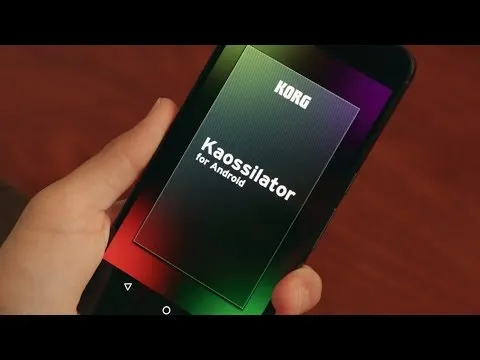
KORG Kaossilator for Android is another excellent music-synthesizing app that gives you a full-fledged experience by simply moving your fingers on a touchpad. You can seamlessly add layers to your performance and record them. With a wide range of options, from electronic to instrumental to acoustic, you can engage yourself in the world of music creation if you want to.
Moreover, the app offers 150 diverse in-built music sounds through which you can create versatile dance music styles, be they techno, house, EDM, electro, or a lot more. Also, you can erase all your wrong notes using its scale/key feature so that your music stays in the right place.
And if you want to level up your music performance with additional layering, you can also do that with the help of its in-built loop sequencer, which includes five different types of layering, including synth, bass, chords, drums, and sound effects.
However, the only downside of this app is that it is a bit pricey and includes in-app purchase.
FL Studio Mobile
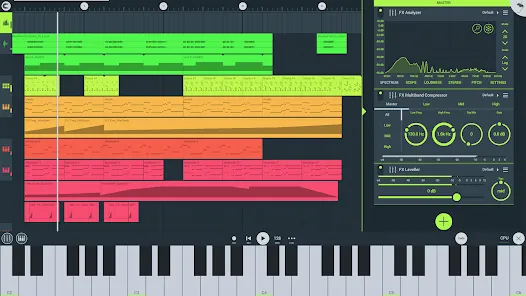
Powered by Image-Line, FL Studio Mobile is an excellent music-making app for Android users that lets you produce ultra-high-quality music on the go. The interesting thing about this app is that you can plug it into your desktop when you reach home and continue working from the system, which is a great advantage for professional music composers.
Furthermore, if you want to add step-by-step sequences, you can use this app and then further refine your music with reverbs, filters, and effect modules. Moreover, the app lets you save the files in multiple formats, including WAV, MP3, FLAC, and MIDI, and share them with your loved ones via WiFi or any cloud.
However, the only downside of this app is that it is not free and includes an in-app purchase for the DirectWave Sample Player.
Groovepad
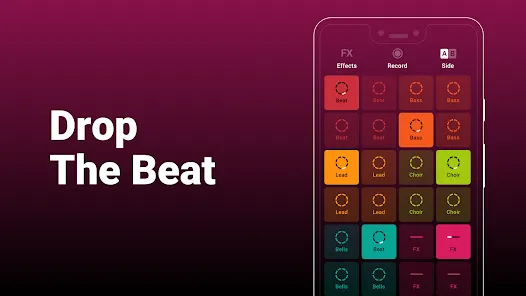
As its name says, the Groovepad music-making app lets you create your own smooth-sounding music at ease with all its keyboards and extensive library of one-of-a-kind and unconventional soundtracks. It has an engaging interface and very color-coordinated buttons that make the whole spotting and navigation process easier.
Just pick any song from its array of genres, including Hip-hop, EDM, House, Trap, electronic, and more, and create your own incredible melody. Talking about its other eccentric features, it includes mind-boggling FX effects like reverb, flanger, delay, or filter that bring back the party feels into your life.
An ideal choice for both beginners and professionals, the app lets you share your self-created music with your loved ones using your inner DJing talents.
SunVox
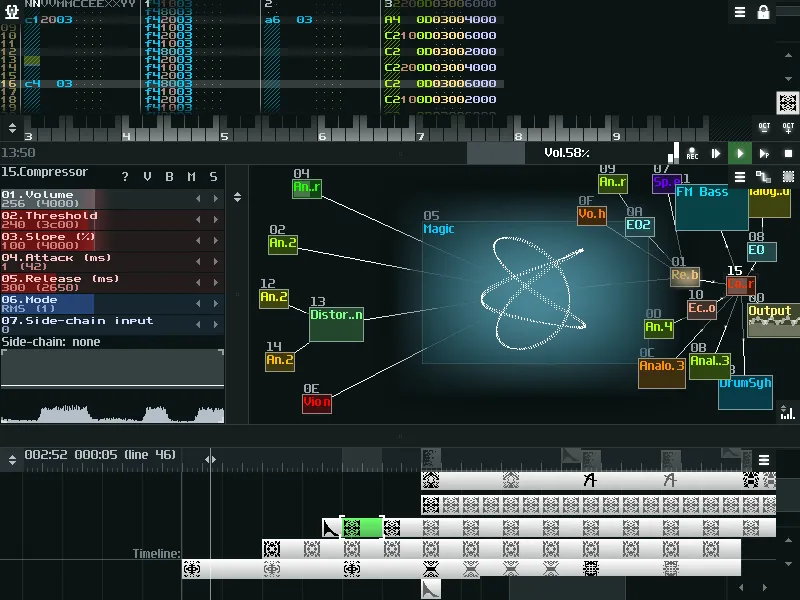
SunVox is a distinctive music sequencer app for small and fast cross-platform devices with an in-built pattern-based sequencer (also called the tracker). It is a tool that most professional music composers would like, as it comes with extremely optimized synth algorithms, a malleable architecture, and multi-platform support systems.
Furthermore, the app has a well-defined modular interface that makes it easy to understand and use. And if you’re ready to import music that consists of multiple tracks, you can even export it into WAV format.
Its other potential features include USB musical instrument digital interface IN/OUT for 6+ Android users, mic recording using a sampler, the ability for developers to deploy the SunVox engine into their own apps via its free library, and support for 16/24/32 bit WAV, AIFF, and XI music samples.
BandLab – Music Making Studio
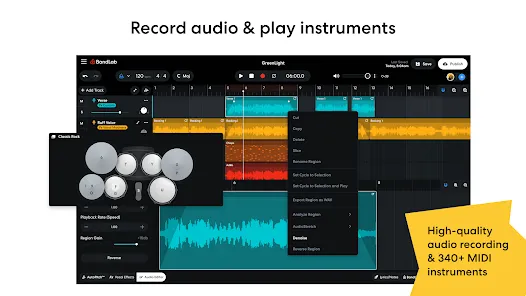
BandLab: Music Making Studio is another potential music-making app for Android devices with a global user base of 60 million. It is the best free multi-track music maker app available on the market. Its digital audio workstation (DAW) lets you seamlessly record, edit, and add multiple layers of music to create your own grooving remix.
The app gives you limitless music storage and accessibility from any device, so now you can create and access it from anywhere and at any time. Furthermore, there are over 15,000 royalty-free sounds and beats that you can use in your music. This app is more than just any music app; you can use it as a beat-maker or an audio recording app.
With 180+ distinct vocal, guitar, and bass effect presets, 330+ virtual MIDI instruments, and tools like AutoPitch, Looper, Metronome, or Tuner, you can create your own world of music and live in it for a lifetime.
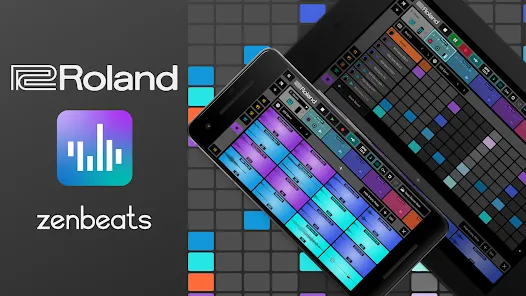
Roland Zenbeats Music Creation
With its classic collection of traditional and modern sounds, Roland Zenbeats Music Creation brings out the history of Roland into a very unique melody style. The app works well for the halfway-to-advanced level of music creators. So, in whichever part of the world you are living in, unleash your inner creative spirit with the app and create your own sense of beats, a multitrack song, or a melody.
Talking about the features that the app offers, it comes with 14,000 plus presets that let you create something super exciting and fresh; you can tweak your music with its advanced edit functionality; sample your music with a touch of your finger on Zen’s drums; it offers you a set of drum tones from TR-808 to TR-909; and a lot more.
The number of presets or any kind of advanced functionality is fairly distributed between the free and pro versions.
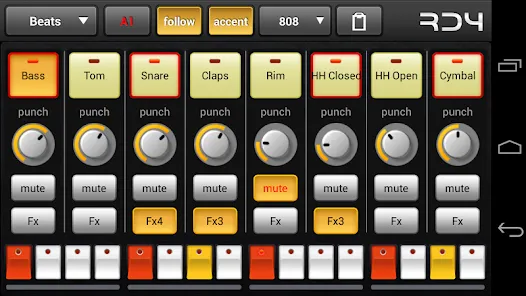
RD4 Groovebox
RD4 Groovebox is another premium music-making app that lets composers and artists create their styles of music in real-time with the in-built virtual analogue synthesisers, marvellous drum effects, and grooving tunes. One can simultaneously select instruments for the four channels and record and set the notes for each of these instruments.
Also, the interface has been mindfully designed to match the shape of the fingertips and the frequency. The multi-touch sensor-enabled app makes it simple for the creators to invent multiple musical phrases. Furthermore, one can tweak the sound of music by modifying the oscillators, adding filters, or even adding audio envelopes.
To even refine the music, you can add reverb, phaser, distortion, delay, and even control the tempo. Overall, it is another great paid music-making app for Android devices.
Add Music to Voice
The app does exactly what its name says. Add Music to Voice is a great choice for those vocalists who don’t have a playback band or an instrument and have just started out in their career and are looking for that perfect track for their voice.
So, the app simply lets you record a new voice or add an existing one from your device and add background music from its amazing music library. To refine the final output, you can take advantage of smart filters so that your voice and music blend smoothly. Consider it a useful app for all your Karaoke parties.
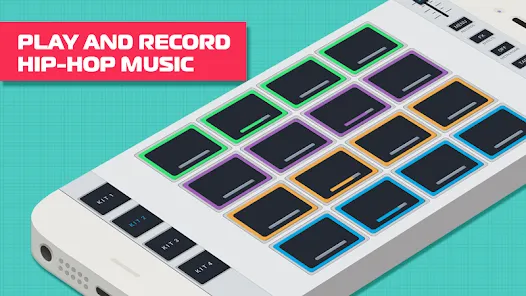
Hip-Hop Producer Pads
It is a fun music-making app for Android devices. As the name says, the app lets you create super-fresh, unique Hip-Hop music using the in-built virtual Sampler and drum equipment.
Considering its key features, it lets you create melodies with an array of options like Loops, One-Shots, or samples; to keep the rhythm, there is a metronome, and create outstanding music and be the real hero of the party.
Wrapping-Up
That’s all for the best music-making apps for Android devices. Now that you know about these amazing apps, it’s time to take advantage of their power-packed functionalities.
Use their incredible soundtracks, beats, voiceovers, and sound effects, seamlessly cut and merge them, and create the music your heart agrees upon. And feel immense joy by sharing it with your family, friends, and that special someone.
We hope you find these music apps worthy. If so, don’t forget to share your favorite among them.