Android users are particularly concerned about privacy and data safety, especially when saving sensitive files, images, or papers. Whether you are concerned about someone peeking through your gallery or want to protect business-related content, Android has built-in security features that do not require third-party apps.
This guide describes how to use secure folders and app-based file protection features on several Android devices, including Samsung, Google Pixel, and more.
What is a secure folder
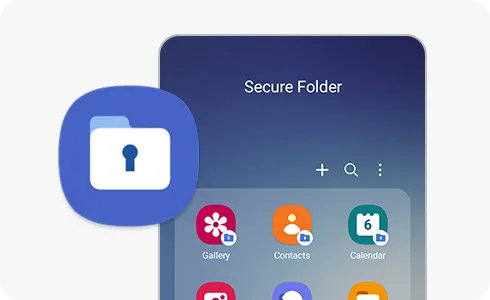
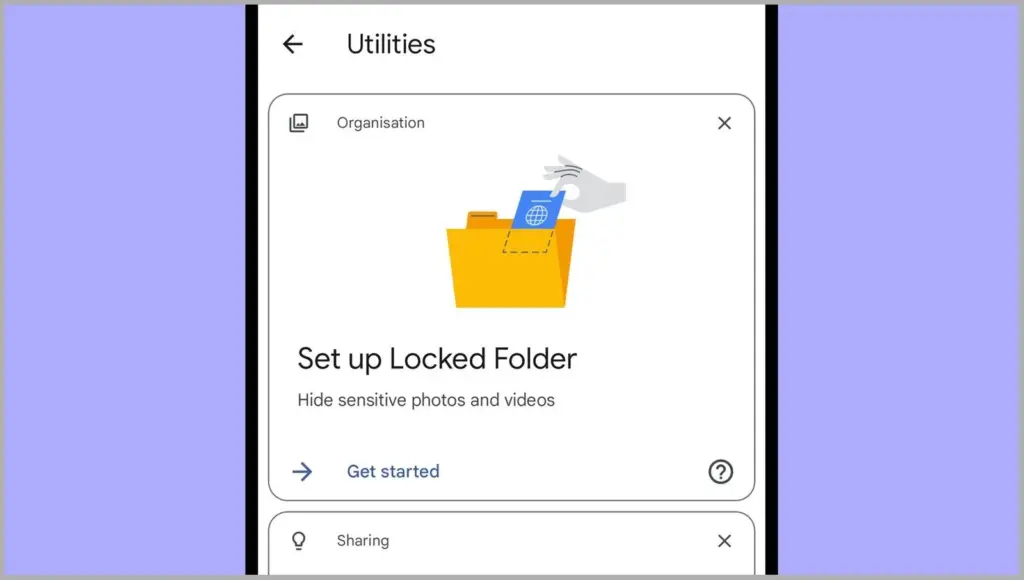
A secure folder is a safe location on your Android smartphone where you can keep programs, files, and media separate from the main user interface. Access requires authentication (PIN, pattern, or fingerprint), ensuring that only you can open it. When data is moved to a safe folder, it is rendered invisible in conventional folders and apps such as Google Photos or File Manager.
Samsung’s Secure Folder is the best-known example, however other manufacturers provide comparable functionality.
How to use Secure Folder on Samsung Galaxy devices
Samsung offers a native solution called Secure Folder, available on most devices running One UI:
Enable Secure Folder:
Go to Settings > Security and privacy > Secure Folder.
Sign in to your Samsung account if prompted.
Set your preferred lock method (PIN, password, or biometric).
Files by Google includes a Safe Folder to protect sensitive files.
Open the Files by Google app.
Tap Browse, then scroll to Collections > Safe folder.
Set up a 4-digit PIN when prompted.
Move any files (photos, documents, videos) into the Safe Folder for encryption and restricted access.
Limitations:
No secure app duplication.
Cannot protect entire apps—only individual files.
2. Use screen pinning or app lock (if supported)
On Pixel phones, you can use screen pinning to lock a specific app:
Go to Settings > Security > Advanced > Screen pinning.
Turn it on and set it to ask for unlock credentials.
When enabled, you can lock an app to the screen and prevent switching until your PIN or fingerprint is entered.
Secure folder alternatives for OnePlus, Xiaomi, Vivo, and Realme
Many Android OEMs offer their own version of secure folder functionality:
OnePlus (App Lock & Hidden Space):
Go to Settings > Utilities > App lock to lock apps.
Use Hidden Space (swipe right in the app drawer) to hide apps or files from plain view.
Xiaomi (Second Space or App Lock):
Second Space lets you create a full-profile clone for private use.
App Lock in Settings lets you password-protect apps and media.
Vivo/Realme:
Use File Safe or Private Safe under Security settings.
This lets you encrypt and store sensitive files securely.
Each of these tools serves a similar purpose: creating a private area for your data and apps that only you can access.
When should you use a secure folder
Secure folders are ideal for:
Storing sensitive photos, work files, or legal documents
Keeping personal messages or notes private
Isolating apps with private data
Creating a private profile for shared phones or kids
If your phone is shared, stolen, or accessed without your knowledge, a protected folder provides an additional layer of security.
Android provides numerous options to protect your most sensitive data, with secure folders ranking among the best built-in solutions for the purpose. Whether you use Samsung’s powerful Secure Folder, Google’s Safe Folder, or manufacturer-specific features, these solutions offer true privacy without the need to install third-party apps. To protect your digital life, ensure that they are correctly configured and that you use a strong authentication technique.
Do you want to protect specific images and videos without downloading additional apps? Android offers you multiple options to conceal your media, whether it be private memories, sensitive work material, or sensitive information – no dangerous tools or third-party apps are needed.
Using built-in capabilities like Google Photos, File Manager, and brand-specific tools like Samsung‘s Secure Folder or Xiaomi’s Hidden Album, you will discover various ways to conceal images and videos on Android in this guide.
Why hide media on your device?
Privacy isn’t just about hiding things from others – it’s also about peace of mind. You might want to hide photos or videos that are:
Sensitive work screenshots or files
Personal or intimate photos
Copies of IDs, passwords, or financial info
Photos you don’t want others to see when scrolling through your gallery
And the good news? You don’t need to install any shady apps to protect your content.
Method 1: Hide Photos Using Google Photos Archive
If you’re using Google Photos (which is pre-installed on most Android devices), archiving is the quickest and safest way to hide images from your main gallery view – all without deleting them or moving files around manually.
Step-by-Step Instructions:
Open the Google Photos app
Select the image(s) or video(s) you want to hide
Tap the three-dot menu in the top right
Select “Move to Archive”
These files will now disappear from your main timeline but stay safely stored in the “Archive” section.
Where to find archived photos later:
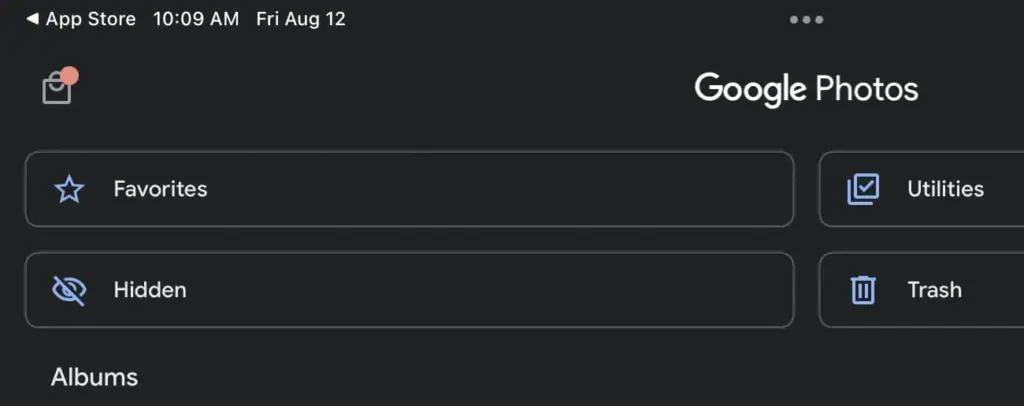
Go to Library > Archive in the bottom navigation of the Google Photos app
Why it’s useful:
Doesn’t delete or move files — just removes them from the spotlight
Perfect for semi-private content you might need later
Works across devices if you’re syncing with Google Account
Note: Archived photos still appear in albums or search results unless you manually remove them from those albums.
📌 Best for: Casual privacy without breaking anything or hiding files completely.
Method 2: Use File Manager to Hide Files Manually
Regardless of brand or Android version, this is a universal solution that works with almost all Android phones. You will make a hidden folder that will be automatically ignored by the Android operating system and media scanning applications.
Step-by-Step:
Open the File Manager or My Files app on your phone
Navigate to Internal Storage
Create a new folder and name it with a dot (.) at the beginning, such as .HiddenMedia or .SecretFolder
Move the photos and videos you want to hide into this folder
Why it works:
Android treats folders starting with a “.” as hidden directories
Media in these folders won’t appear in your gallery, Google Photos, or other media apps
Once done, your Gallery and Google Photos app will no longer detect those files — making them invisible unless you go looking.
To view them again: enable “Show hidden files” in your file manager’s settings
Best for: Total manual control over media hiding
Method 3: Rename File Extensions
This method only hides files so they will not open in photo or video apps; it does not actually hide them.
Step-by-Step:
Open your File Manager
Find the photo or video file you want to hide
Tap Rename and change the file extension (e.g., .jpg → .xyz)
At this point, the file will show up as an unopenable generic document. Just change the extension to its original format to get access again.
Caution: Make sure you remember the original extension (.jpg, .png, .mp4, etc.) so you can restore it!
Best for: Hiding media from gallery apps without deleting it
Method 4: Use Built-In Secure Folder (Samsung, Xiaomi, Huawei)
Nowadays, a lot of oems include built-in safe storage options that enable you to conceal documents, programs, and media using password or biometric security.
Samsung: Secure Folder
With Samsung’s Secure Folder, your phone has a private, encrypted area. It is secured by a distinct passcode or fingerprint, which is distinct from the lock on your phone.
To set it up:
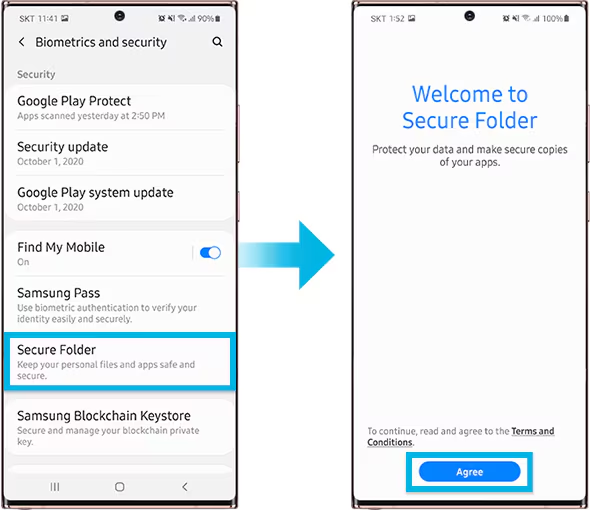
Go to Settings > Biometrics & Security > Secure Folder
Sign in with your Samsung account
Create your Secure Folder with fingerprint, PIN, or pattern
Open the Secure Folder and import photos/videos from your gallery
Even the application’s access is limited without unlocking the folder, and these files are totally concealed from the main gallery and file manager.
Xiaomi/Redmi: Hidden Album
The Hidden Album function in Xiaomi’s Gallery app makes it quick and easy to conceal private material.
How to use:
Open the Gallery app
Go to Albums > Hidden Album
Set up the feature (may require Mi account login)
Move selected images/videos to this section
Content in the Hidden Album is protected and will not appear elsewhere unless explicitly restored.
For Huawei or OnePlus:
Use PrivateSpace (Huawei) or App Lock & Hidden Space (OnePlus). These offer similar levels of privacy and allow photos/videos to be locked with additional credentials.
Best for: Maximum privacy with encryption and authentication — perfect for work or highly sensitive media.
Method 5: Use Guest Mode or Multiple Users
Another sneaky method is to create a Guest account on your phone:
How to enable Guest Mode:
Like a computer, Android allows for many user profiles. You can set up a Guest Mode on your phone to keep other users from seeing your messages, apps, or pictures.
To activate Guest Mode:
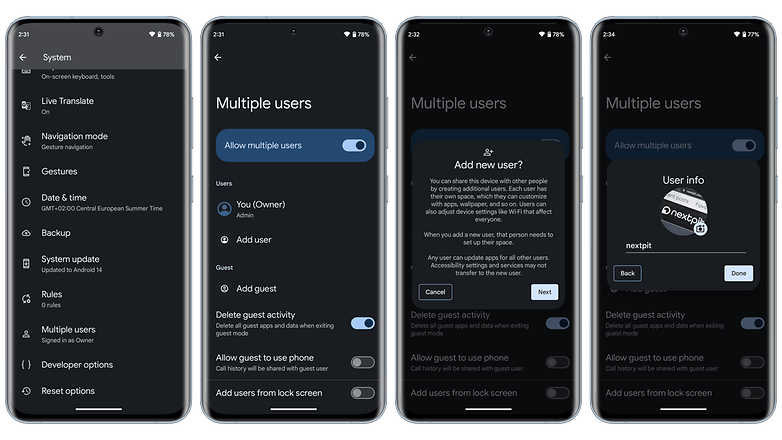
Open Settings > System > Multiple Users
Enable Guest Mode or add a new User
Switch to the guest profile when someone else is using your phone
Switch to Guest mode when someone else wants to use your phone. This keeps all your media, apps, and settings hidden by default.
Bonus Tip: Some phones allow locking the switch between users with a password or fingerprint.
Best for: Sharing your phone without giving others access to your personal content.
What NOT to Do
While hiding media is easy, here are some common mistakes to avoid:
Don’t delete files unless you’re sure you have a backup
Don’t trust sketchy third-party apps from unknown developers—many are filled with ads, trackers, or even malware
Avoid cloud backups for sensitive files unless encrypted
Extra Privacy Tips
Use a Gallery app with built-in vault (e.g., Simple Gallery Pro)
Encrypt your phone under Settings > Security > Encryption
Back up sensitive images to a secure cloud (e.g., Proton Drive or a password-protected ZIP file on Google Drive)
Hide It the Smart Way
You don’t need to clutter your phone with apps just to hide a few private photos. Android gives you several easy, built-in ways to hide images and videos safely:
Archive them in Google Photos
Move them to a dot-folder via File Manager
Use Secure Folder or Guest Mode for stronger protection
Think again if you believed that your data on Threads is private.
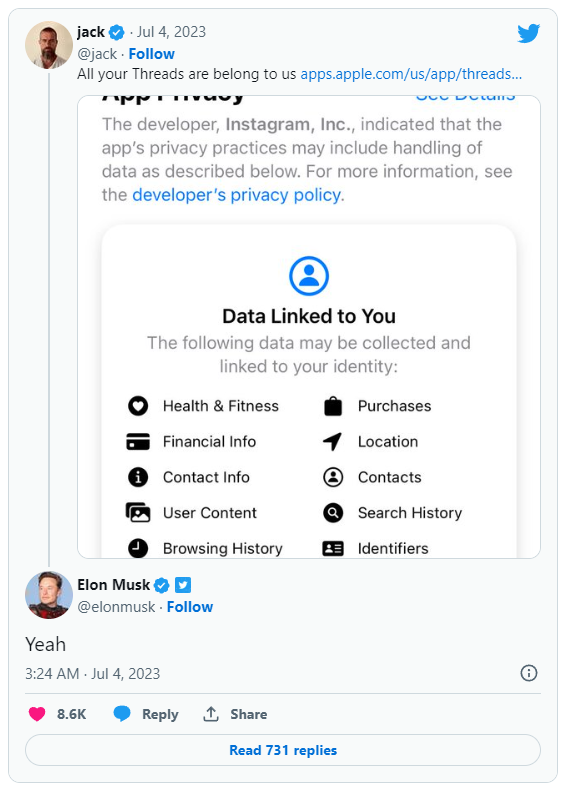
All of the methods that Threads is following you and using your data are listed in the App Privacy section of the Threads App Store website. The list is very, very long, reader.
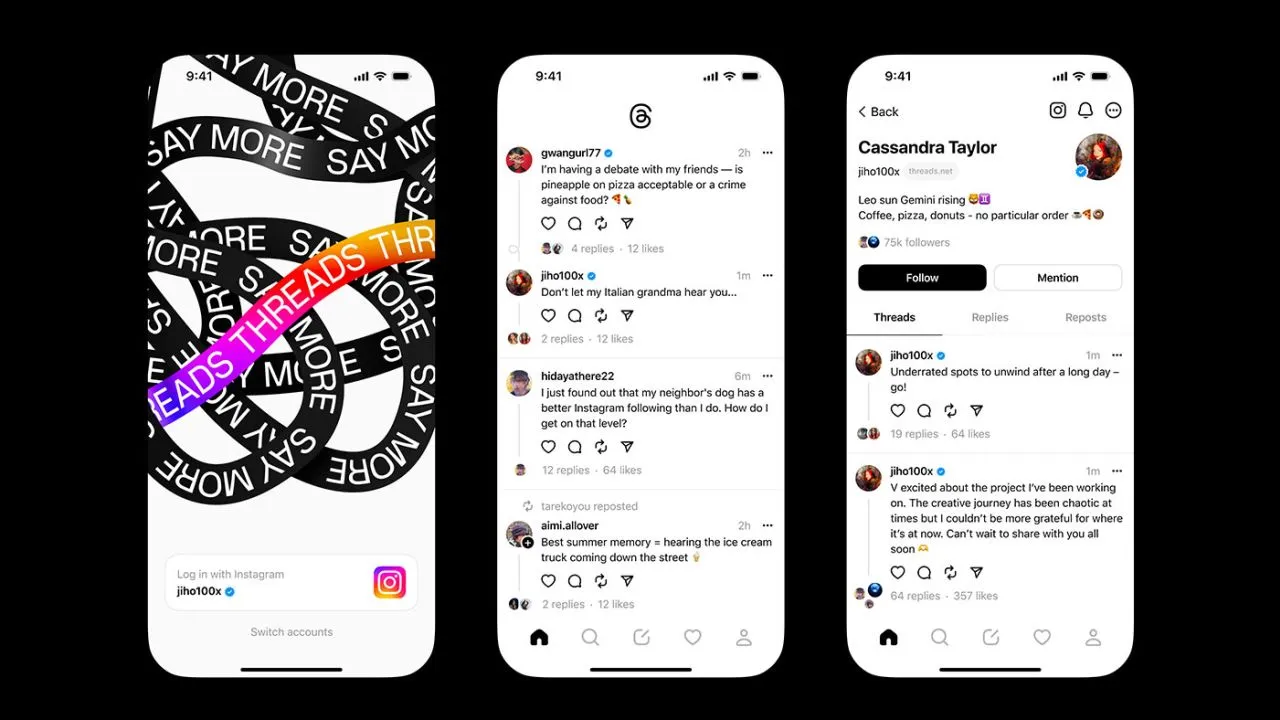
Thursday saw the launch of Threads, Meta’s answer to Twitter, and it appears that in its first seven hours of operation, it attracted more than 10 million users.
Click the “See Details” link in the App Privacy section of the App Store page for a comprehensive overview of the possible data collection and usage practices for Threads (opens in a new tab). But, the gist is this: Nearly all of your personal information is being gathered by Threads, including information about your transactions, finances, location, contact details, search history, and browsing habits.
Jack Dorsey, a co-founder of Twitter, became aware of this and tweeted about the Threads App Privacy section. Elon Musk, the company’s current owner, simply said, “Yeah.”
It doesn’t come as big surprise. The amount and breadth of data that Threads collects is similar to its sister app, Instagram(opens in a new tab) (both Threads and Instagram are owned by Meta, which also owns Facebook).
Twitter and other significant social media platforms gather user data as well in order to provide advertisements from outside businesses more effectively. A comparable, albeit slightly condensed, overview of all the ways in which Twitter uses the data of its users can be found on its App Privacy(opens in a new tab) page.
Even still, it’s upsetting to have to give a Twitter clone access to vast amounts of your personal information. Another Twitter competitor, Jack Dorsey’s BlueSky, which is now invite-only, claims to be looking into ways to make money without being as dependent on third parties as its rivals.
All apps on Google’s platform will be impacted by a new requirement that is being added to the Play Store. The goal of this new requirement is to provide people more control and privacy over their data.
All Google Play Store applications that currently support account creation will soon be required to support account deletion as well. The tech behemoth blogged about the new rule modification.
For apps that enable app account creation, developers will soon need to provide an option to initiate account and data deletion from within the app and online. This web requirement, which you will link in your Data safety form, is especially important so that a user can request account and data deletion without having to reinstall an app.
As the company mentions, the Data safety section in the Play Store already lets developers provide data deletion options. However, this move is meant to give users “an easier and more consistent way to request them.”
The developer will now have to remove the data connected to that account if you ask for your data to be erased. Hence, temporary account deactivation or deactivating will not be sufficient to comply with the new guideline. Developers must “clearly disclose those data retention procedures” if they need to retain data for justifiable purposes like fraud prevention or legal compliance.
It appears that the rule change won’t go into effect immediately, however. To give developers enough time to comply with the order, Google is rolling out the policy slowly.
As a first step, we’re asking developers to submit answers to new Data deletion questions in your app’s Data Safety form by December 7. Early next year, Google Play users will begin to see reflected changes in your app’s store listing, including the refreshed data deletion badge in the Data safety section and the new Data deletion area.
The company also notes that developers who need more time can file for an extension in Play Console until May 31, 2024.
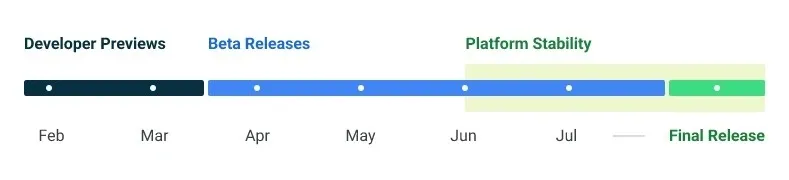
Google made the Android 14 Developer Preview (DP) available for testing on devices from the Pixel 7, Pixel 6, and Pixel 5 series, even the rudimentary Pixel 4a. A new DP edition is expected to be published in March, followed by a few beta releases until the summer, when more stable and feature-rich versions will be issued, and finally the final Android 14 release in the fall.
New Android 14 features
Speaking of new Android 14 features, as usual in the Developer Preview stage, there aren’t many user-facing ones, but rather deep under-the-hood changes that bring interface speed and power-draw optimizations, as well as security and privacy upgrades. Still, there is one biggie one it comes to new Android 14 feature that you will immediately notice.
System fonts
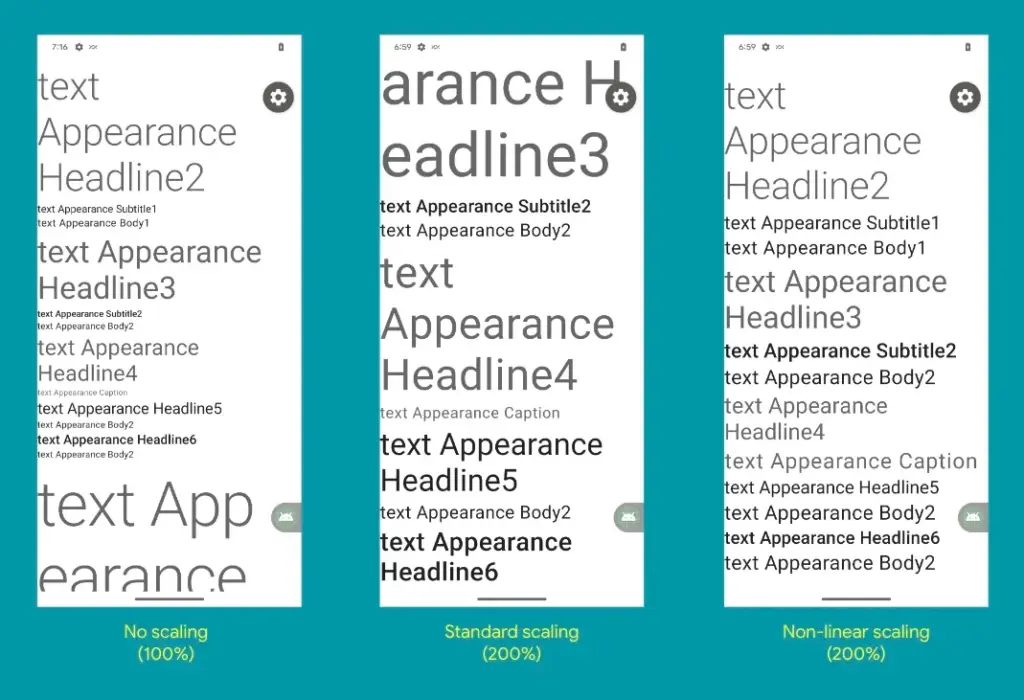
Bigger fonts with non-linear scaling is exactly what Google refers it as this new Android 14 option as. Instead of the current 130% threshold, Android phone owners will be able to increase the size of the system fonts by two times.
It makes sense considering that screens are growing bigger and bigger—we now have foldables with screens north of 7 inches diagonal and difficult-to-read small print. Without a doubt, Google uses “non-linear” scaling to raise text in fonts that are already sufficiently large compared to the smaller text that receives a size increase, rather than simply increasing the font size of Android 14 in a way that is deserving of the list of the best phones for seniors.
Performance and battery life
Android 14 will optimize the speed of the mobile OS system overall and offer less of a power pull from unnecessary activities thanks to a clever combination of background process optimization and presenting actionable requests to apps only when they are out of a cached state.
Additionally, without the user’s express consent, apps that don’t need a strict timing schedule, such clocks or calendars, won’t be able to continuously probe for resources by setting precise alarms.
Adapting to foreign language
With Android 14, a number of foreign language optimizations address the accessibility issues of the device by modifying the text to reflect the peculiarities of non-English speakers, such as tailored translations that take into account the different grammatical genders used in various languages.
The ability to dynamically update the list of foreign languages in an app’s settings to reflect the location and even alter the keyboard based on the interface language that the app is displaying in is another fantastic locale adaption improvement in Android 14.
Security and privacy
Down on the system level, Android 14 will include several new malware-fighting features that plug known exploits by blocking app installations or only allow them if they meet certain criteria.
Dynamically loaded applications that can be changed by injecting code in the process will be marked to be read-only in Android 14 in order to close another door for the installation of malware and various exploits.
Android 14 release date
Android 14 Beta: April 2023
Final Android 14 release build: October-November 2023
How to install Android 14 Developer Preview on Pixel phones
Flash an Android 14 system image on a Pixel 7 Pro, Pixel 7, Pixel 6a, Pixel 6 Pro, Pixel 6, Pixel 5a 5G, Pixel 5, or Pixel 4a (5G) phone.
Only one name comes to mind when it comes to privacy-friendly search engines: DuckDuckGo. As narrow as it is, the company has managed to spin its success in other directions, including a privacy-focused browser for Android and iOS that is reportedly devoid of trackers. According to a new revelation, DuckDuckGo’s cooperation with Microsoft may have lost the company its position as a “no tracking” provider.
As detailed by Bleeping Computer, privacy researcher Zach Edward recently discovered that, while DuckDuckGo’s browser stopped sites like Facebook and Google from using trackers to scrape user data, Microsoft’s websites — including LinkedIn and Bing — bypassed this blockade entirely. It goes against the search engine’s biggest selling point, and more specifically, undermines the entire reason the DuckDuckGo Privacy Browser exists.
To his credit, CEO and founder Gabriel Weinberg quickly admitted that the browser does, in fact, allow Microsoft to evade its tracking filters within the browser, and that this is done on purpose. According to Weinberg, it all comes down to the two firms’ search syndication agreement, which allows DuckDuckGo to use Bing results in its search results. It’s the most important component of a collection of over 400 sources, which includes Wikipedia and Wolfram Alpha. Weinberg further highlighted that this agreement only applies to the browser and not the search engine.
Still, it’s difficult to justify when the app’s main selling point — literally the first line of its Play Store listing — is to disable trackers on the user’s behalf. Following Edward’s discovery on Twitter two days ago, Weinberg stated that the company was working with Microsoft to remove this specific stipulation from the contract, as well as offering a clarification update to the Play Store and App Store listings. The CEO also issued a statement to Bleeping Computer, emphasizing that, while its browser isn’t flawless, it is still significantly more private than the competitors, with faster load speeds. As Weinberg points out, DuckDuckGo’s browser has never guaranteed complete anonymity. Hopefully, this is an opportunity for the organization to improve.
In recent months, Google Assistant has grown a lot and is one of the most innovative online voice assistants available today. These days, it is also built into all Android smartphones, so it is very popular.
Voice assistants are often not ideal or not ideal for all, it would be best to disable certain features in some cases to provide a better user experience and protection.
By disabling some Google Assistant settings, not only for better protection for our privacy but also we will be able to make the use of the big G-assistant more comfortably, compared to the basic configuration.
These changes are very simple. In short, the use of Google Assistant can (and should) be customized according to our needs to derive real benefit from it without giving Google complete access to our data.
To protect your privacy when using Google Assistant, you need to follow these five tips:
The new Google privacy settings updates do not automatically record what we are asking the Assistant to do. In the past, these recordings were sent to research teams composed of actual people who listened to our words to see whether the algorithm had reacted effectively.
If we want to manually disable (or enable) these recordings, we need to open Google Assistant by pressing the home button for a long time (or you can also install the Google Home app, but it’s easier to disable it via Google Assistant).
Open Google Assistant, tap on the profile picture at the top right of your computer to go to the settings. Then go to the “You” tab and “Your data in the assistant.“
Scrolling down, you will find “Audio recordings.”
From there, you will be able to see what Google Assistant has recorded, delete the audio clips, and choose whether to turn off the recordings entirely or pause it, etc.
After the Assistant replies, the phone’s microphone is reactivated while Continued Conversation is active, to hear any other questions. We would not have to say the activation expression “Hey Google” again this way.
To disable this Google Assistant feature, after opening the Google Assistant settings, go to the ‘Assistant’ tab. Then tap on “Continued Conversation,” and you can disable or activate it there.
In certain smart devices, such as speakers, the Google Assistant often activates for no reason, or it often takes too long to activate. This is due to an incorrect configuration of the activation phrase sensitivity.
You can adjust this sensitivity by going to ‘Assistant settings > Assistant tab’ and then selecting the computer that the Assistant is active on (if you have more than one linked to the same Google account).
Then tap the Settings button, and you can find and change “Hey Google Sensitivity.” This function may be restricted or absent depending on the language you are using the Assistant. For smartphones, this option is not open. It is primarily for other devices that are smart.
Video Camera
If we use a smart display with a camera, then this hardware part can be accessed by Google Assistant to, for example, start a video call.
Even if we do not call anyone, some smart displays hold the camera running, and this might become a privacy problem. The management of this part is therefore important, but unfortunately, it differs from model to smart display model.
Therefore, after the purchase, you can automatically search for a way to set the camera so that it does not work until it is really necessary.
Via the Google Home app, you will know exactly what Google tracks, just open it and tap the profile picture first and then the menu.
You’ll find “Google Activity Controls” here and pick the “Manage Activity” option after opening it, and you’ll see an interface displaying all the things you’ve done online: websites, games, etc.
So, yeah, Google knows what you do, but by trying the options listed above, you can cover those things. So next time, in order to protect your privacy, better disable these Google Assistant settings.
Because of the scheduling problems resulting from the engineering team working from home, Chrome V82 was completely skipped but releases are starting to return to normal. Chrome 83 entered beta last month, and has now graduated from stable channel with a number of tow improvements.
Cookie blocking in Incognito Mode
One of the new changes relating to privacy that Google announced a few days ago was a new feature for Incognito Mode. When you open a new Incognito tab a setting to block third-party cookies appears at the bottom. In default it is switched on.
This specific feature is part of a server-side rollout, so if you’re already on Chrome 83 and you don’t have it, paste chrome://flags/#improved-cookie-controls into your address bar and click ‘Enabled’ on the highlighted dropdown menu.
Improved form controls
Microsoft has already merged a few improvements back to mainline Chrome from its Chromium-based Edge browser, and Chrome 83 includes a further change: updated form controls. Don’t just get all excited at once!
Design-wise, Chrome’s form controls (buttons, text fields, etc.) are everywhere. Some of them came from Safari / WebKit, some of them had gradients, some didn’t have gradients, etc. Microsoft and Google have collaborated to standardize the presence of form elements across all operating systems and the result is Chrome 83 shipping.
Besides the appearance, some form elements have also been reworked for better usability on touch screens. For example, the time picker now has large dropdown menus for selecting the hour and minute, instead of relying solely on keyboard input.
However, it doesn’t appear that the updated controls have made their way to Chrome for Android. While the Android browser already has better controls in some areas (e.g. the time picker opens the same time picker you get in the Clock app), the general design improvements would be nice to see on mobile.
More features
The Security settings page has been redesigned, but only on desktop platforms.
Extension buttons in the toolbar are now located in the new extensions drop-down menu. If you don’t see this change, enable the flag chrome://flags/#extensions-toolbar-menu.
Android and its pre-installed apps come practically free, but Google still earns a pretty big penny thanks to targeted web-wide ads. Your phone is actually helping the company tailor marketing strategies to you. There are a few options to make Google less invasive on your smartphone by turning off any default monitoring settings, if you don’t like that and a move to iOS isn’t your jam. However, you need to be aware that this will break a couple of features.
Not all monitoring is poor per se, in my view, but we should also pause to consider what we’re really learning from it. For example, you may see little point in continuously sharing your location history with Google, but you might still be interested in being able to find and/or delete your device remotely if it’s stolen or misplaced — that’s why I ‘d recommend not turning off the Locate My Device feature of Google.
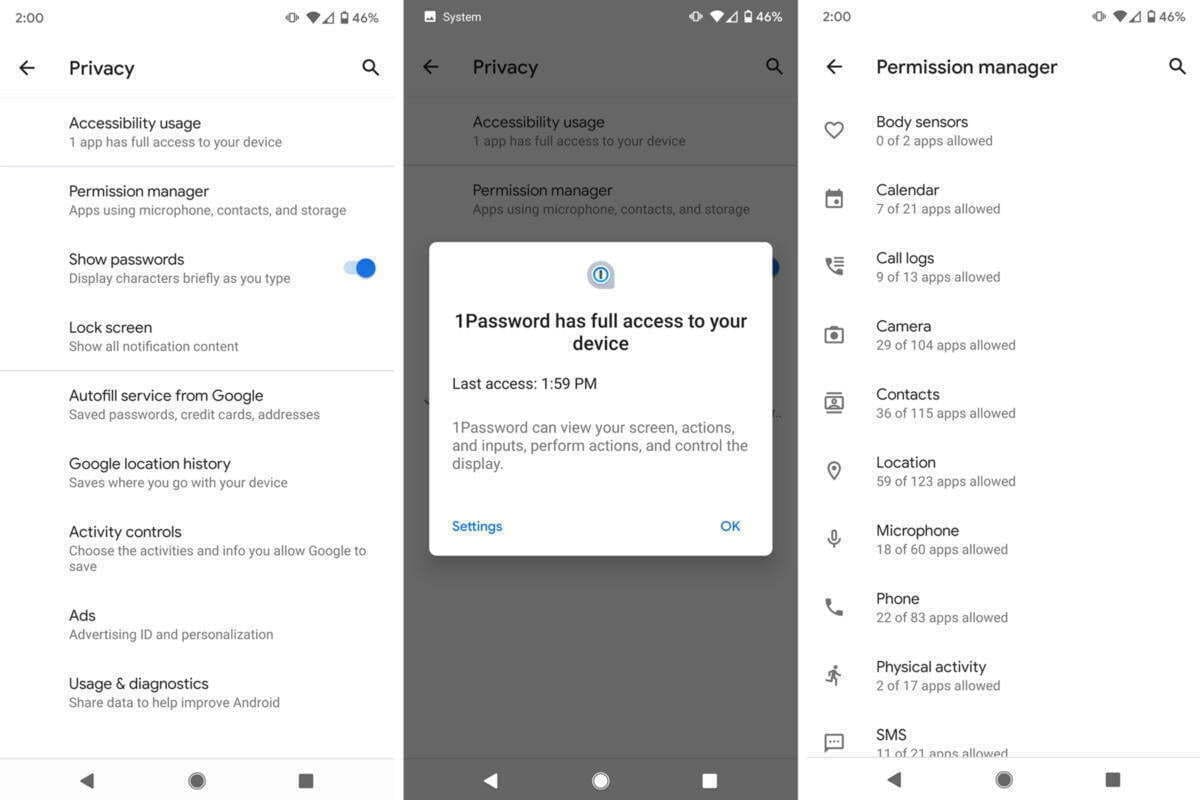
If you’re one of the fortunate few who have already received Android 10, head to Settings-> Privacy to tweak what personal details you ‘re sharing with Google. You will find in it everything this article discusses about your Google Account and Android settings. These solutions are spread around Android for everyone else, but don’t worry: we ‘re here to help you find them all and we’ll also share the benefits and drawbacks that come with changing them.
Location History and Tracking
You may know that Google stores a history of all the places you’ve visited by default, accessible via Google Maps -> Your Timeline. While Google says it protects this data and doesn’t share it with third parties, you might still be uncomfortable knowing the company has a complete track record of your every step (while carrying your phone). It’s possible to turn off this location tracking altogether, but to do so thoroughly, you need to flip quite a few switches. That’s why we’ve published a whole other article on the issue. Check it out here.
Keep in mind that turning off Location History comes with some minor disadvantages: Your timeline in Google Maps won’t update anymore, your Google Assistant will lose some capabilities, and your automatic commuting notifications will stop appearing.
Prevent apps from tracking your location in background
Android 10 improves some of Android’s notoriously bad privacy practices of old, as you can finally prevent both third-party and first-party apps from polling your location in the background, limiting their location access to only while in use.
Head to Settings -> apps & notifications -> Permissions manager -> Location. There, you’ll find a list of all apps installed on your phone. You can individually set limits for each by choosing a tier: Allowed all the time, allowed only while in use, or denied. I keep most of my apps on the medium setting, as many of them offer added benefits when they have access to my location, especially navigation apps.
On older versions of Android, you’ll need to choose between always allowing and always prohibiting access to the location. You should carefully evaluate which apps you trust, and check what you gain from sharing your location with an app. For example, in a hotel booking app, you probably won’t be searching for accommodation in your current vicinity, and probably won’t need to offer it access to your place. Other apps allow you to set your address manually, too, like weather apps or food delivery services. With the slight inconvenience of typing in your address they give the same features.
Opt out of Google’s personalizations
To hinder Google from following you around the web, head to your Google Account’s activity controls, accessible here and under Settings -> Google -> Manage your Google Account -> Manage your data & personalization.
In there, you can turn off Web & App Activity, but note that Google results might become less accurate when you do this. You’ll also stop Google from collecting data on your Google Assistant usage which severely limits its usefulness. For example, the Assistant won’t respond to personal queries like “What’s on my calendar?” or “Read my messages” on any device, including Home speakers — Google sure wants you to supply your data to continue using the Assistant. If you’re adamant about protecting your privacy, you should probably stop using Google Home speakers and the Assistant altogether anyway.
You can proceed by turning off YouTube History and, more importantly, Ad personalization. When you do that, Google will stop pushing personalized advertisements to you and will instead show you more generic, less relevant content. According to Google, it will solely be based on “general factors, like the subject of what you’re looking at, the time of day, or your general location.”
You’ll also need to head to myactivity.google.com to delete previously stored information. On that website, open the hamburger menu by tapping the three bars in the top left corner and choose “Delete activity by.” Then you can select which activity you’d like to remove.
On Android 10, all of these settings have been moved to one location, easily accessible in Settings -> Privacy. While you’re there, be sure to turn off the following, too:
Turn off Autofill service from Google.
Turn off Usage & Diagnostics.
Turn off backups
To turn off backups to Google’s servers, head to Settings -> System -> Backup. There, you can toggle off Back up to Google Drive.
Keep in mind that none of your precious data will be automatically restored when you lose or break your phone when you do this. You’ll have to back up your contacts or ask friends and family for their phone numbers, you’ll need to manually sign back into apps you’ve used on your old phone, you’ll lose custom device settings including Wi-Fi passwords, and your photos and videos won’t be backed up. Assess carefully whether having some peace of mind regarding this data is worth a privacy tradeoff or not.
Also consider switching to a privately hosted server using ownCloud or similar open source solutions to sync your files and backup your data.
Third-party software if is possible
If you don’t want to get Google tracked, consider using third-party software over pre-installed Google apps. There are plenty of email providers, cloud storage tools, note-taking applications, and navigation systems out there that don’t rely on Google software like Microsoft Outlook, Dropbox, Bundled or Evernote, and Here Maps. If you want to go all in on privacy, you should even consider open-source substitutions. That’s no guarantee that your data is secure, but code is mostly peer-controlled and often not in a single company’s hands. My colleague Corbin has created a series of articles that highlight alternatives to rising Google apps.
Some Google apps can even be safely deactivated by tapping and holding their icons in the app drawer or homescreen, tapping the i button, and choosing disable. Be careful with this, though, as some apps like Google Search are necessary to keep your phone up and running. Something like Play Music or YouTube should be safe to disable, though.
Other browser
If you’re concerned about Google Chrome’s tracking mechanisms, consider switching to another browser that keeps your privacy intact. I’d argue Firefox (especially the all-new preview version) and Firefox Focus are the best choices since they rely on a browser engine not created by Google. Many other third-party browsers use Google Chrome’s rendering engine, which is not good for the health of the web. If you’re not satisfied with Firefox, you might still want to try Microsoft Edge, Samsung Internet, or Vivaldi.
You can make any of these your default browser by choosing “Always open with this app” when you tap a link in another application. If you use the Google app, you’ll notice that it still opens links in a custom Chrome tab. To make the search engine use your preferred third-party browser, head to the More bottom tab -> Settings -> Generaland turn off Open web pages in the app.
Make Chrome less hungry for your data, head to the browser’s settings (three-dot menu -> Settings -> Search engine) and change the search engine to another provider — among the ones listed, DuckDuckGo.com is your best option concerning privacy. Its results often aren’t as spot on as Google’s, though — there’s a reason why the company is still king of search.
Incognito mode?
Contrary to popular belief, any browser’s incognito or private mode only goes so far when you want to stay low-profile online. Your ISP and public Wi-Fi providers might still be able to see which websites you visit. The same is true for some ad trackers that rely on a unique combination of your hardware, software, and IP address rather than cookies to track you across both incognito and regular mode. If you truly want to stay anonymous, consider trying the Firefox-based Tor Browser. It routes your queries through a bunch of servers to obscure your online movements.
Custom ROMs
One surefire way to avoid being tracked by Google altogether is installing a custom ROM without any Google apps on it. Many apps rely on Google Play Services, which provide essentials like push notifications and location data. What you can do is use a ROM with microG, an open-source replacement for many functions provided by Play Services.
However, just because custom ROMs are open source doesn’t mean that someone went looking for malicious code in the source. You should stay away from obscure forks and you should absolutely preface any custom ROM installation with a ton of research. Google promises not to sell your data to third parties and would face severe consequences if it did because so many people, businesses, and governments rely on its services. An individual ROM developer distributing free software to a few people would be much harder to keep in check.
WhatsApp is an top notch and revolutionary app. Simple to use, free, and with out a advertising, it isnow notunexpected that it isdesiredvia many users spherical the world. With its written and voice messaging system, the strength to form voice and video calls, it gives a service like that of a telephone.
Many peopleuse it on a each day and percentage tons of private data, that’s why it’scrucial to stay it secure. We, therefore, recommend that you trulydiscovered out two-aspect authentication to your account. This characteristic are going to be especially beneficialonce you log into WhatsApp on another device to feature additional safetyon your profile.
Enable two-factor authentication
There is only one method for two-factor authentication on WhatsApp. Once logged in, the application prompts you to create a custom PIN code.
Enter your personalized PIN code before clicking on next.
Re-enter your personalized PIN code.
Press Confirm.
Enter your email address before clicking on next.
Re-enter your email address.
Press Save.
Press Done.
The two-factor authentication imagined by using WhatsApp has a as a substituteuncommon configuration however well, we do with what we have, as they say. Most important: greater securityfor your data. The best small constraint of this selection is to remember this unique WhatsApp PIN code with a view to be used very rarely. Before developing it, I invite you to choose a password that is easy for you to take into account, butbest for you.