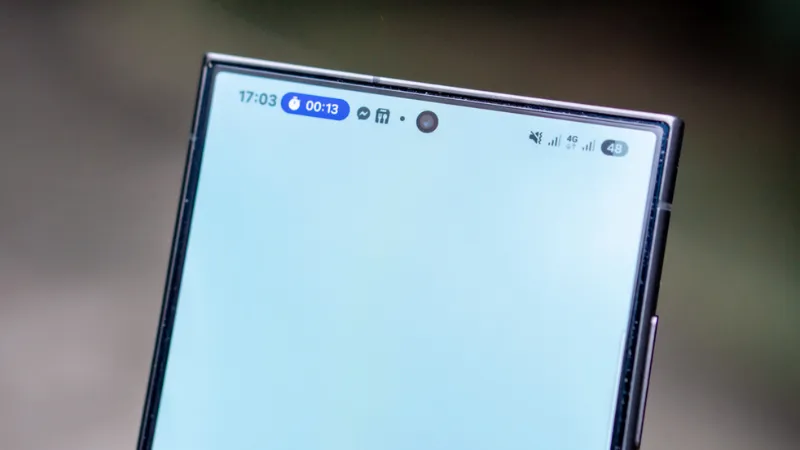
Have you noticed that the battery life of your Android smartphone has been declining more quickly than usual lately? The offender might have been found.
Reddit users on Android have been claiming that the Instagram app is to blame for the significant power drain they have been observing in recent weeks. When compared to other apps, Meta’s social media app seemed to be using a lot more battery life than it should given how frequently it is used.
Using a Samsung Galaxy A53, one Redditor observed that 49 minutes of WhatsApp screen time utilized just 2.4% of their battery capacity, compared to 12.4% for 54 minutes of Instagram screen time.
Now, Google has reportedly intervened to validate the suspicions of many. A Google community manager named Instagram as the source of battery drain on Android devices in an advisory article titled “Battery drain on Android devices” that was posted on the Android support website. The manager advised Android users to update their Instagram app right away.
How to fix the Instagram battery drain
As of this writing, the most recent version of the app (build 382.0.0.49.84) seems to fix the problem, so it’s definitely worth making sure you’ve downloaded it if you’ve been seeing your smartphone draining its battery more quickly than usual.
There are, of course, several additional methods to prolong the life of your battery. These include using Dark Mode or Power Saving, as well as putting unwanted apps to sleep (click to Settings > Battery > Background Usage Limits).
Check out our instructions below to keep your Android phone running as long as possible if you’re still experiencing power issues after the update (or if you don’t even use Instagram).
Stay connected with the latest from Droid Tools—follow us on X @droid_tools, like our page on Facebook, check out our updates on Instagram, and follow us on Google News for real-time news, device tips, and mobile tech insights.
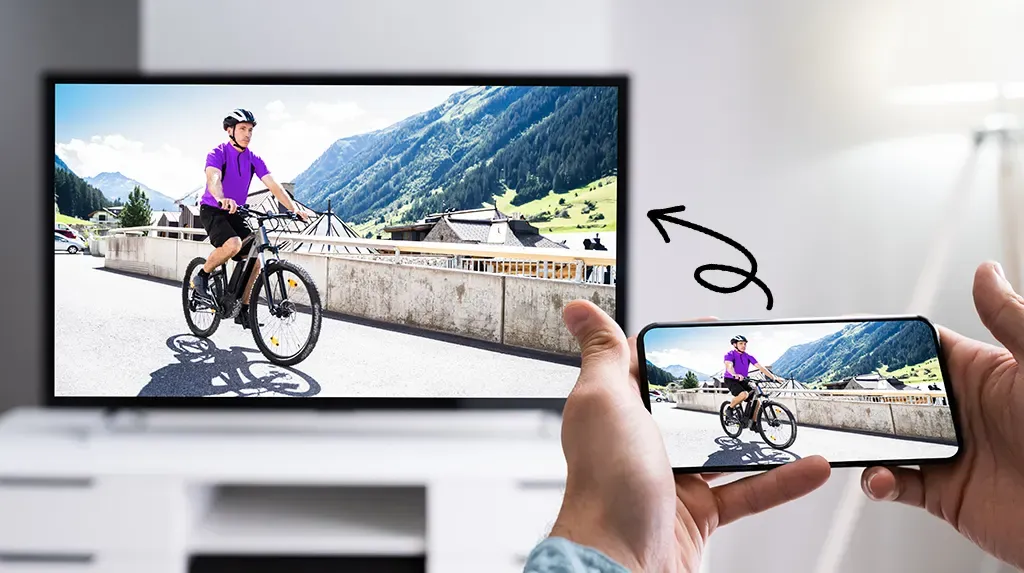
One of the greatest ways to take advantage of your Android phone’s full potential is to view your favorite movies, pictures, or simply browsing apps on a larger screen.
Fortunately, it’s now simpler than ever to connect your Android to a TV, whether you want to mirror your phone’s screen, stream YouTube, or display vacation images. Using built-in features like screen mirroring, Chromecast, and HDMI adapters, we’ll go over several methods in this article for connecting your Android phone to a TV—both wirelessly and with cords. Third-party apps are not necessary.
Check your TV compatibility
Before you start, it’s important to know what kind of TV you’re working with. Most modern TVs support one or more of the following:
Smart TV with built-in casting (e.g., Android TV, Samsung Smart TV, LG WebOS)
TV with Chromecast built-in
TV with HDMI port and no smart features
Also, for wireless option, your Android phone and smart TV should be on the same Wi-Fi network and running Android 5.0 or later.
Use native casting with Chromecast or smart TVs
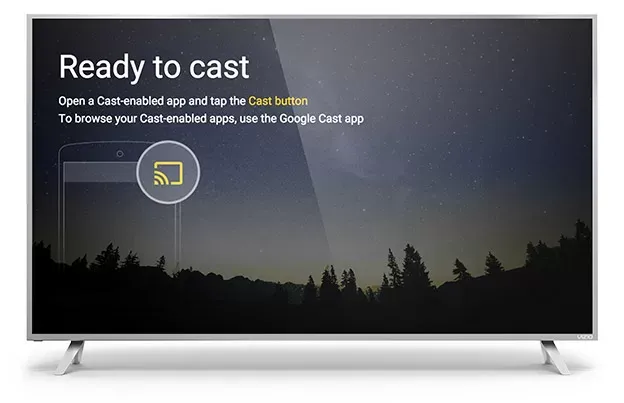
Most Android phones come with built-in support for casting via the Google Cast protocol. Here’s how to use it:
Steps:
Connect your Android and smart TV to the same Wi-Fi network.
Swipe down from the top of your Android screen to open Quick Settings.
Tap Cast or Screen Cast.
Your phone will search for compatible devices. Select your TV or Chromecast from the list.
Your screen will be mirrored onto the TV. You can now open apps, play videos, or browse the web.
✅ Best for: Watching YouTube, streaming apps like Netflix, showing off photos.
Note:
YouTube is one of the apps that has its own cast icon. You can select your TV without full screen mirroring by tapping the cast symbol in the upper-right corner.
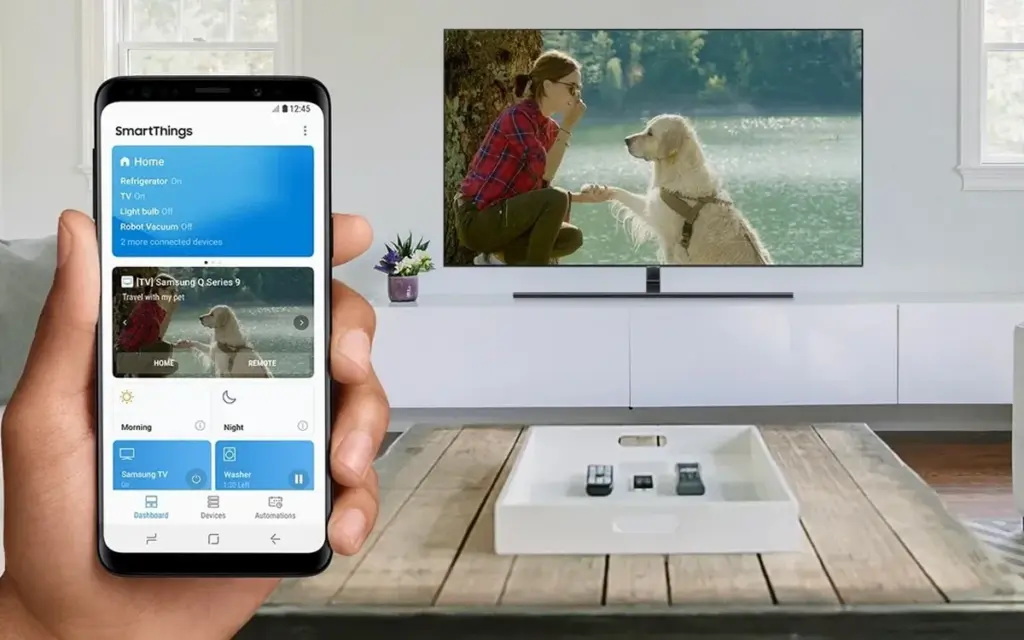
Use Samsung’s Smart View or SmartThings
Wireless casting is made easy using the Smart View or SmartThings app if you own a Samsung Galaxy phone and a Samsung Smart TV.
Steps:
Open Settings > Connections > Smart View on your Samsung device.
Select your compatible Samsung TV.
Tap Start now to begin mirroring.
As an alternative, you may connect to manage your TV, cast media, or mirror the screen using the SmartThings app, which comes pre-installed on newer models.
✅ Best for: Samsung users who want the most integrated experience.
Miracast (for supported devices)
Miracast, a wireless display protocol that reflects your screen, is supported by a large number of non-Google Android devices (such as LG, Huawei, and older phones).
Steps:
On your TV, enable Miracast or Screen Mirroring mode.
On your phone, go to Settings > Connected Devices > Cast.
Choose your Miracast-enabled TV or dongle from the list.
Your phone may not display the choice at all if it lacks native Miracast functionality. If so, try some of the other techniques in this tutorial.
✅ Best for: Older smart TVs without Chromecast but with Miracast support.
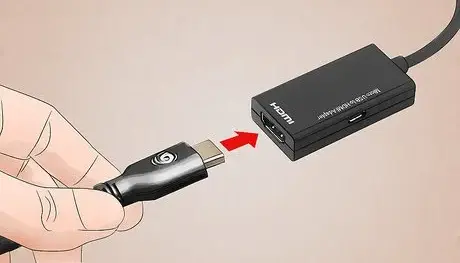
HDMI cable with a USB-C to HDMI adapter
If your TV isn’t Wi-Fi enabled or you prefer a connected connection, a USB-C to HDMI converter provides a convenient plug-and-play option.
Steps:
Get a USB-C to HDMI adapter (make sure it supports video output).
Plug the USB-C end into your Android phone.
Plug an HDMI cable into the adapter and then into the TV.
Switch your TV to the correct HDMI input.
The screen of your phone should show on the TV after it has been connected. In the display settings of certain phones, screen mirroring must be enabled.
✅ Best for: TVs without smart features or Wi-Fi access.
Troubleshooting
Make sure both devices are on the same Wi-Fi network.
Restart your phone and TV if the device doesn’t show up.
For wired connections, ensure the adapter supports video output (some cheap models only support charging).
For best performance, avoid mirroring heavy 3D games—use casting for videos and apps instead.
A whole new realm of efficiency and fun is made possible by connecting your Android phone to a TV. The technique is easy and doesn’t require any specialized software or gear, whether you’re playing mobile games, presenting slides at work, or binge-watching on a larger screen. Your phone is ready to go large wherever you are if it has native support for Chromecast, Miracast, or a simple HDMI adaptor.
Stay connected with the latest from Droid Tools—follow us on X @droid_tools, like our page on Facebook, check out our updates on Instagram, and follow us on Google News for real-time news, device tips, and mobile tech insights.
Enabling Developer Options and USB debugging is crucial if you want to test apps, get more control over your Android device, or connect your phone to a computer for development. This built-in Android function provides you with the ability to delve deeper, regardless of whether you’re a power user or simply attempting to troubleshoot a persistent issue.
Without requiring root access, we’ll show you exactly how to activate USB debugging and Developer Options on any Android device in this tutorial. We’ll also go over the functions of each feature and when you might require them.
What are Developer Options on Android?
Android’s Developer Options is a secret menu with advanced settings designed mainly for developers. But regular users might also benefit from many of these choices. For instance, you can:
Speed up animations to make the phone feel faster
View CPU usage on screen
Simulate different display sizes
Force apps into split screen
Enable USB debugging for data transfers or app testing
By default, Developer Options are hidden, but you can enable them with just a few taps.
What is USB debugging and why use it?
USB debugging allows your Android device to communicate with a computer using Android Debug Bridge (ADB). This is critical for:
Transferring files and installing apps manually
Using development tools like Android Studio
Running shell commands via ADB
Taking full device backups
Recovering devices stuck in boot loops or soft bricks
Unless you’re developing apps or using advanced tools, USB debugging isn’t needed all the time. But turning it on gives you more flexibility when needed.
How to enable Developer Options
The Developer Options menu can be accessed by following these steps:
Open the Settings app on your Android phone.
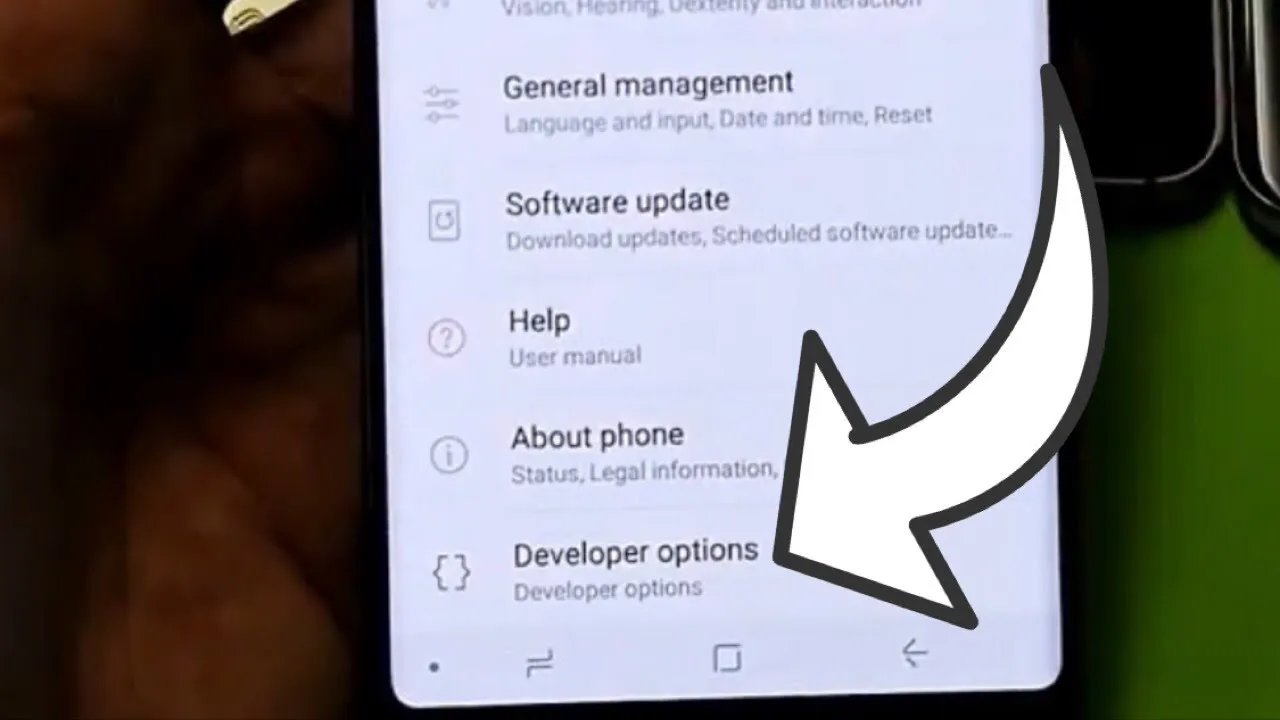
Scroll down and tap “About phone.”
Find the “Build number” entry (you may need to tap “Software information” first on some devices).
Tap the Build number 7 times. You’ll be asked to confirm your device lock (PIN, pattern, or fingerprint).
You’ll see a message saying “You are now a developer!”
Once this is done, Developer Options will be available in your Settings.
Location of Developer Options by brand:
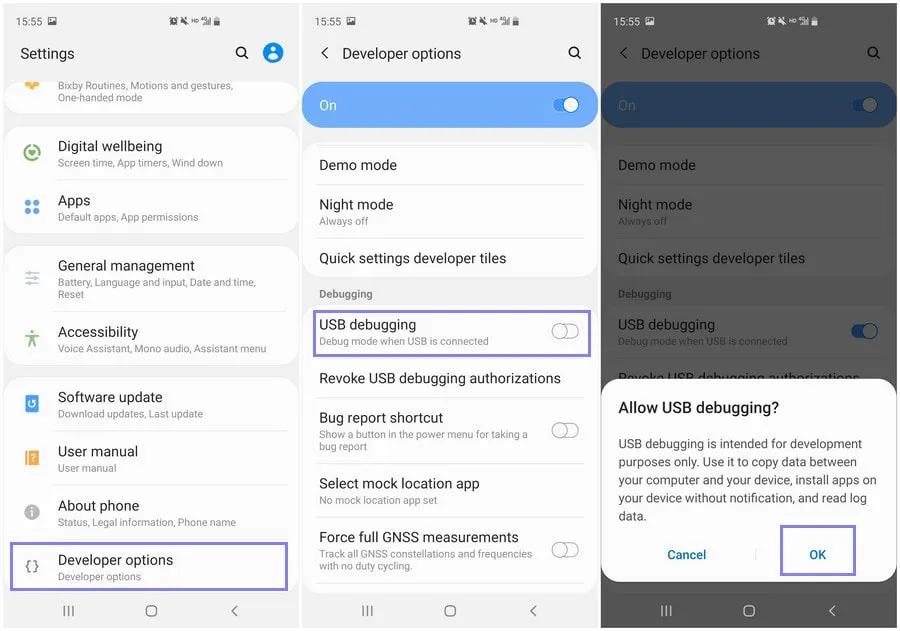
Samsung: Settings → Developer options (at the bottom of the main settings menu)
Google Pixel: Settings → System → Developer options
Now that Developer Options are turned on, you can enable USB debugging:
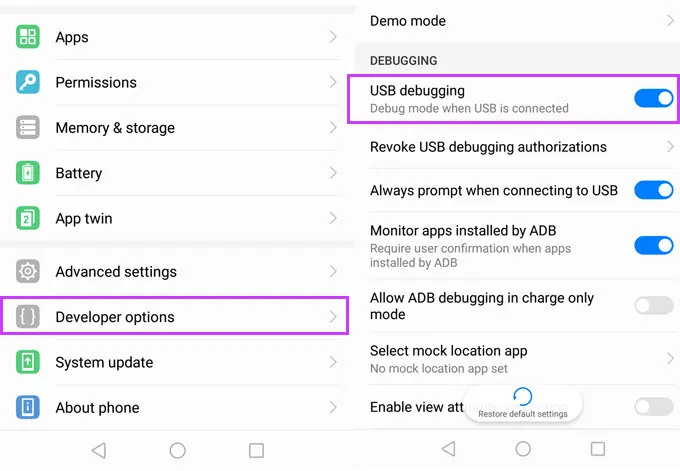
Go to Settings → Developer Options
Scroll down to the “Debugging” section
Toggle on “USB debugging”
Confirm the prompt asking if you’re sure
That’s it! You can now use your phone with development tools or perform more advanced actions from your PC.
When should you turn off USB debugging?
If you’re not actively using USB debugging, it’s best to leave it off. Here’s why:
USB debugging can be a security risk if your device falls into the wrong hands while unlocked.
Some apps or company policies block access if USB debugging is enabled.
To disable it, just return to Developer Options and toggle it off.
Other useful Developer Options settings
Besides USB debugging, some other features you may want to explore include:
Window animation scale / Transition animation scale: Set to 0.5x for faster UI response
Force activities to be resizable: Useful for multitasking and split screen
Stay awake while charging: Keeps the screen on during testing
Limit background processes: Improve performance by reducing multitasking
Show taps / Pointer location: Great for app demos or screen recording
Be cautious while experimenting—many of these options affect system behavior.
Troubleshooting Developer Options or USB debugging
Developer Options not appearing?
Double-check that you tapped “Build number” exactly 7 times
Some devices require a reboot afterward
USB debugging not working?
Try a different USB cable or port
Make sure “File Transfer” mode is selected via USB preferences
Check that your computer has proper ADB drivers installed
You may access a robust collection of tools on your Android phone by turning on USB debugging and Developer Options. Although developers are their main target audience, tech-savvy consumers who desire greater control over their gadget might also benefit from them.
These options can improve your Android experience, whether you’re using ADB to transfer files, debug apps, or simply wish to adjust animation speeds. Just use caution when navigating the options, since some settings may have unexpected consequences.
Stay connected with the latest from Droid Tools—follow us on X @droid_tools, like our page on Facebook, check out our updates on Instagram, and follow us on Google News for real-time news, device tips, and mobile tech insights.
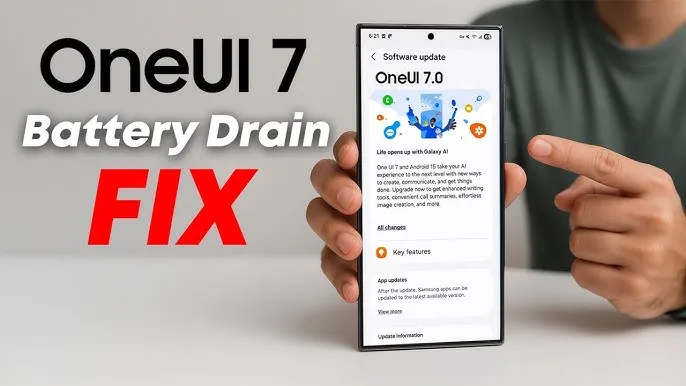
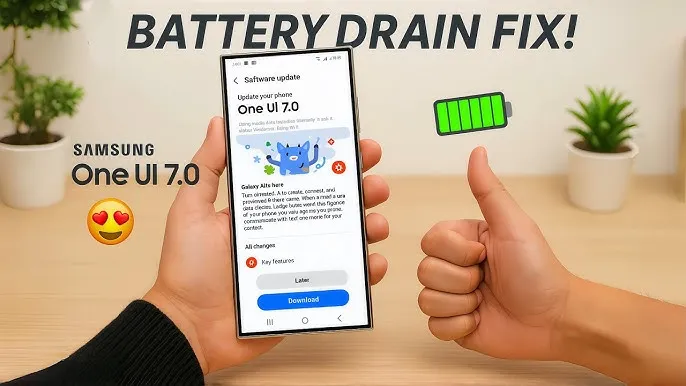
Running on Android 15, Samsung’s One UI 7 version boasts a new interface along with several new capabilities. One of the unanticipated issues that many customers have seen with the One UI 7 is shorter battery life.
Even with minimal use, Samsung customers report that their Galaxy phones are having trouble lasting a full day. This article examines the sources of the battery life issues that were noticed following the One UI 7 update, as well as solutions.
One UI 7 battery drain isssues from the rollout
Owners of Samsung devices have frequently complained about severe battery drain on websites such as Reddit, X/Twitter, and Samsung Community Forums.
One user of a Galaxy S24 Ultra, for example, reported that the screen-on time of their phone decreased to roughly 5 hours from 6–7 hours before to the update.
Another owner of a Galaxy Z Fold 6 claimed that by the end of the day, their battery had dropped from 45 to 50 percent to 20 to 25 percent.
Some users of the Galaxy S23 series have claimed similar issues, requiring two or even three daily charges for simple tasks like browsing or viewing movies. Rephrase
As the device becomes used to the new software, the post-update optimization period typically lasts a few days to a week, but the problem seems to last longer.
Users have also reported related issues, like slower app loading times or phones that run warmer than normal, which could be a factor in the higher power usage.
Why is the drain occurring?
While Samsung has not officially confirmed the cause, several factors could explain the battery drain. Since One UI 7 is a major software update, its new features, animations, and background processes may have been demanding more power.
User-installed third-party apps may not have been fully optimized with the new OS, causing battery drain. Another possibility is that background processes, such as system optimizations or data syncing, are running more frequently than needed.
The solution
If you’re experiencing battery drain after updating to One UI 7, here are some practical steps to try:
Clear the cache:
Go to Settings > Device Care > Storage and clear the cache for apps.
Enable Light Performance Profile:
Found in Settings > Battery and Device Care, this mode reduces performance to save power.
Turn off AOD:
Disable Always On Display, reduce screen brightness indoors, or switch to Dark Mode to conserve battery.
Update Apps:
Ensure all apps are updated, as outdated versions may not work well with One UI 7.
Factory Reset (last resort):
Some users report improved battery life after a factory reset, though this requires backing up data and reinstalling apps.
You’re not alone if the One UI 7 upgrade has caused your Galaxy device’s battery life to suffer. You can handle the problem while you wait for a possible solution by attempting the aforementioned procedures and keeping an eye on Samsung’s reaction.
Stay connected with the latest from Droid Tools—follow us on X @droid_tools, like our page on Facebook, check out our updates on Instagram, and follow us on Google News for real-time news, device tips, and mobile tech insights.
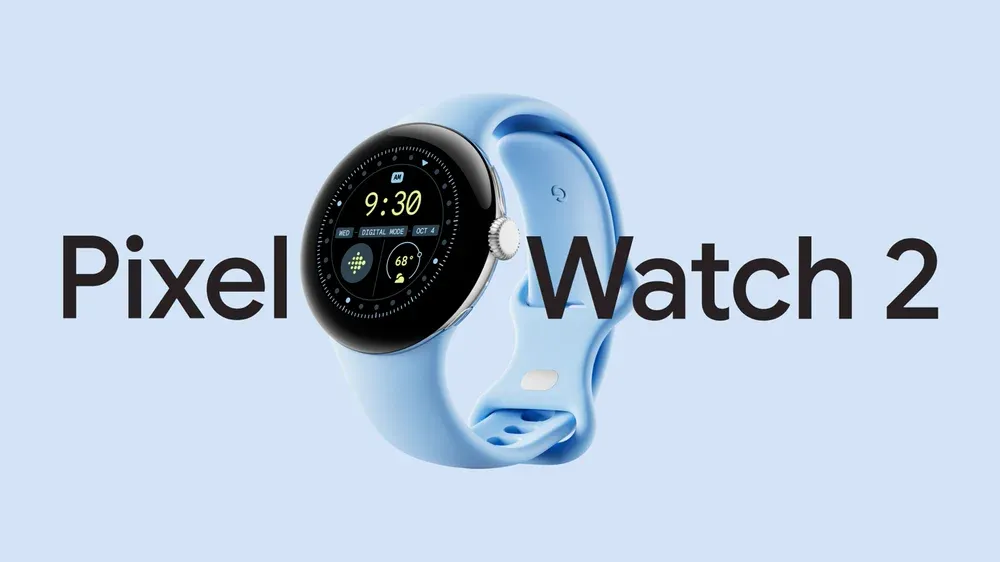
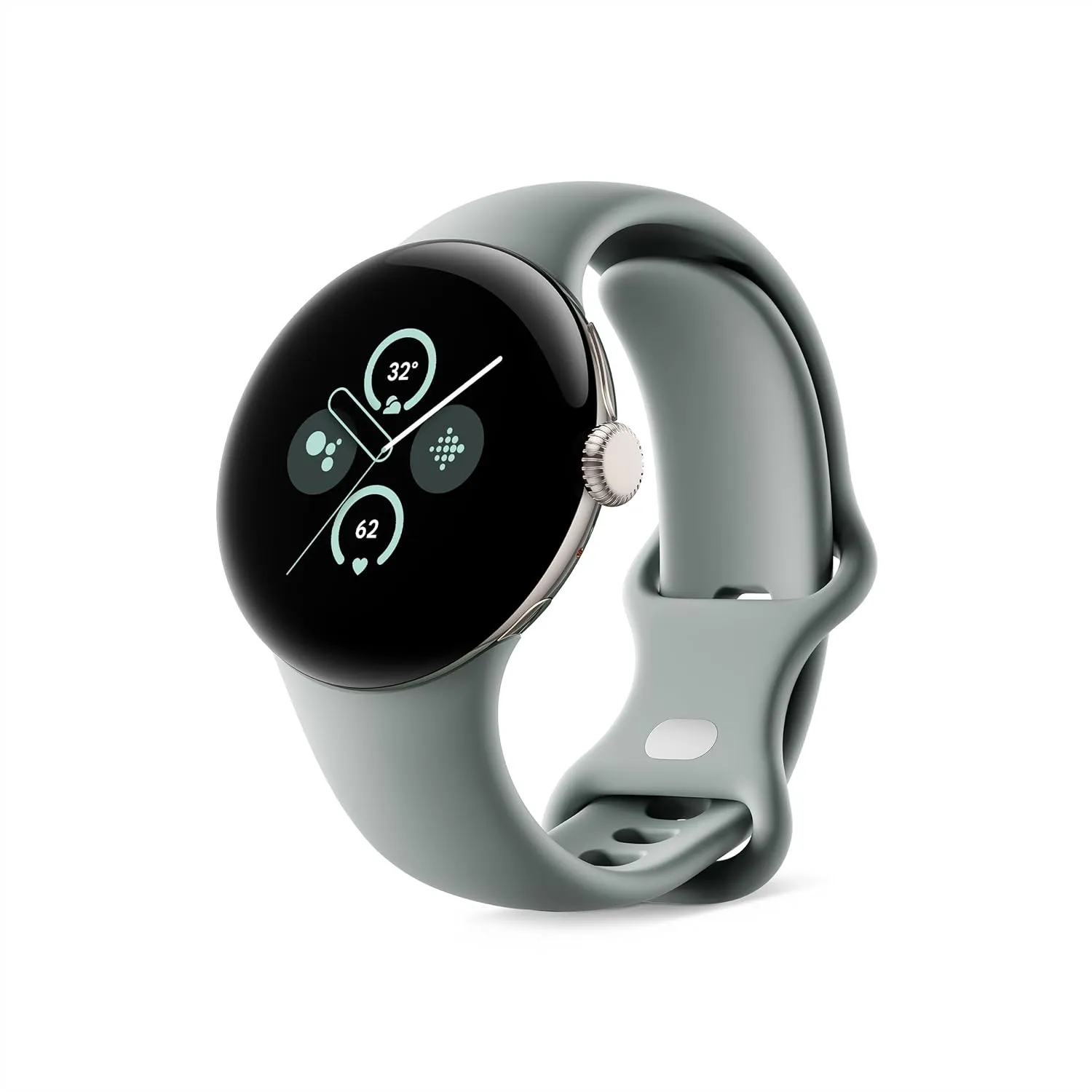
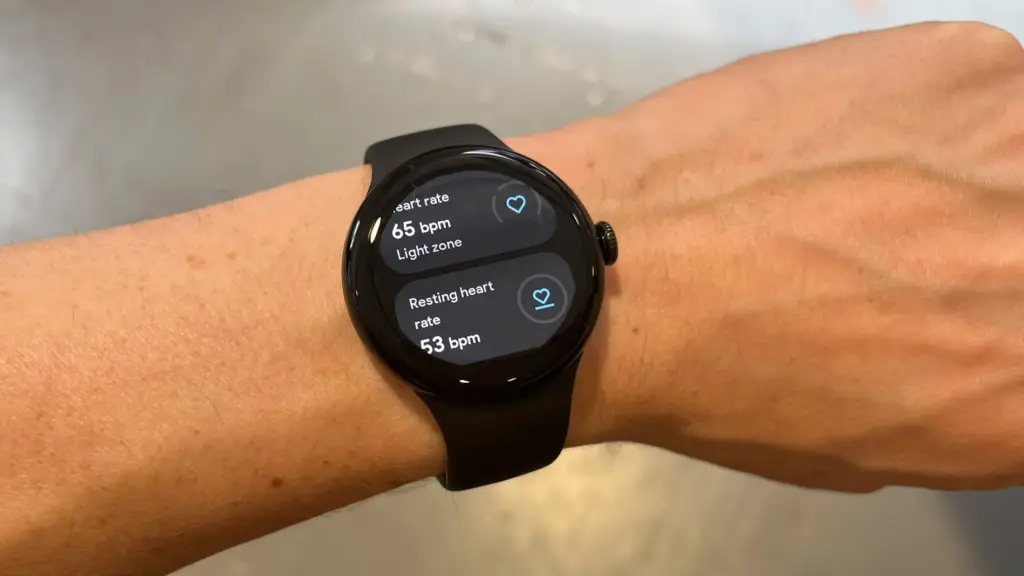
Since the formal announcement of its sequel back in August 2024, the 2023-released Pixel Watch 2, which was initially priced at $350 and above, has, of course, grown ever less expensive. The Wear OS-powered watch is currently more reasonably priced than ever in a 4G LTE-enabled form, despite the fact that Black Friday and Amazon’s Prime Day 2025 event are not exactly approaching.
You should probably act quickly if you want to save a whooping $150 on a black-coated Google Pixel Watch 2 with standalone cellular connectivity, since this completely unusual Amazon deal is not expected to last long.
Google Pixel Watch 2 LTE
The Pixel Watch 2 comes with three new advanced sensors for heart rate tracking, skin temperature, and stress management; 100% recycled light aluminum housing makes it comfortable to wear
That’s $150 off the $299.99 “normal” price, which was already permanently reduced from the $399.99 that Amazon and other major US retailers used to charge for a Pixel Watch 2 with cellular capabilities at launch. Additionally, there is only one color available at this historically low price, which suggests you don’t have much time to take advantage of your Memorial Day savings.
It goes without saying that the more recent Watch 3 is the superior wearable manufactured by Google, which is also why it costs significantly more. The Watch 2, with its stunning circular display, incredibly comfortable all-day wear, precise heart rate tracking technology, and outstanding overall performance, is the objectively superior value proposition at this 50% discount.
Google Pixel Watch 2 LTE
The Pixel Watch 2 comes with three new advanced sensors for heart rate tracking, skin temperature, and stress management; 100% recycled light aluminum housing makes it comfortable to wear
The Pixel Watch 2 with 4G LTE must, however, be compared to similarly priced gadgets such as the entry-level Apple Watch SE 2 (without LTE) or Samsung Galaxy Watch FE (which is also only capable of GPS and Bluetooth).
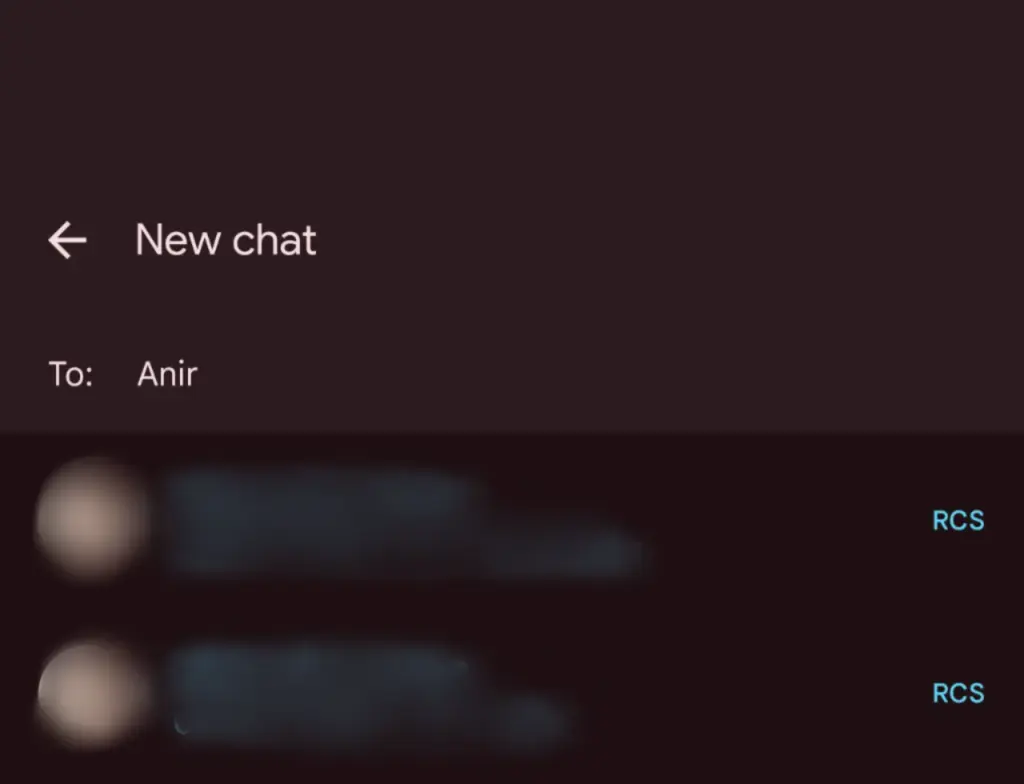
Google Messages’ RCS texting feature isn’t as efficient as it could be. You can’t tell whether someone has RCS messaging enabled unless you start a chat with them. With a new RCS indication in Google Messages, Google is permanently resolving this issue.
The “RCS” badge will appear on the right of numbers that support the upgraded texting experience (via Reddit) when you compose a new message and navigate through your contact list in Google Messages. The label won’t show up next to a saved contact if they are not able to send RCS texts.
In addition to the label, dynamic color theming is used to further draw attention to RCS-enabled contacts. Regular numbers are shown in either white or black. Google Messages will show RCS availability for each number if a contact has more than one.
Even though this might not seem like much, it will contribute to a more reliable RCS experience. Now, you can easily check if a contact has RCS enabled. This modification should only serve to increase the uptake of RCS.
Before, you had to begin writing a message with them in order to find out. In April of this year, Google was initially observed working on this Google Messages update.
According to 9to5Google, there are further minor modifications. The “New conversation” title that was previously displayed on the screen that comes after tapping the “Start chat” button has been replaced with the “New chat” heading.
Some users of the most recent Google Messages for Android beta (20250527_01_RC00) are seeing the RCS label. Since none of my phones have the label yet, it looks like this is a restricted server-side rollout.
Google brings many features to Messages
To its credit, Google has been working diligently on Google Messages, addressing numerous issues and incorporating new features to level it up with its rivals. The business merits recognition, even though there is still much to be done.
Testing has revealed several planned Google Messages enhancements, such as threaded answers, a huge compose box for seeing your lengthy texts, and a new landscape style.
If you want the latest Droid Tools news, follow us on X @droid_tools and like our page on Facebook to stay updated.
Android 16 offers a lot of innovations that I’m eager to test out on my Android phone, including Material 3 Expressive, a redesigned Quick Settings menu, and Live Updates. It seems like one of the biggest Android updates in a long time.
There weren’t many obvious adjustments that would have excited me. Prior to Google revealing new features at The Android Show: I/O Edition on May 13, Android 16 was looking like a really dull update.
New Quick Settings panel
With each significant Android update, Google alters the Quick Settings panel almost like a ritual. That tendency will continue with Android 16, and I’m looking forward to the modifications Google has planned. Resizable toggles are being added. Additionally, one-click Bluetooth and Wi-Fi toggles are returning.
The tiles have a new appearance and take considerably less room than they did previously, which is another obvious alteration. Extending the Quick Settings panel will provide a depth effect by blurring the background, similar to what is seen on some Chinese Android skins.
Google appears to have drawn inspiration from the updated Control Center for Android 16 Quick Settings panel in iOS 18. It seems to be a significant improvement in usability.
The June release of Android 16 will not have the updated Quick Settings panel. It will come later in the year instead.
Material 3 Expressive
Google’s latest phone and tablet design language, Material 3 Expressive, makes its debut with Android 16. It is also among the OS’s most significant user-facing modifications. It doesn’t significantly alter the appearance. Rather, it expands upon Material Design 3 by including bolder fonts, larger buttons, slick and lively animations, and more.
The timing of Material 3 Expressive is perfect. The current look felt outdated because Google introduced Material look 3 with Android 13 four years ago. Additionally, it maintains familiarity while bringing about the appropriate enhancements. Rather than droning on about Material 3 Expressive, I’ll let this Google GIF speak by itself:
This polish is present throughout Android 16, particularly when switching the system volume or closing apps from the recent apps menu. It also features smooth animations and haptic feedback. Android 16 will upgrade the dynamic color themes in addition to Material 3 Expressive, allowing apps to use additional colors from your wallpaper.
One of the main Android 16 improvements that I am most looking forward to is Material 3 Expressive, which looks good based on what Google has demonstrated. The one sour note? When Android 16 is first made available to the public in June, Material 3 Expressive will not be included. It will come later in the year instead.
Live Updates
Apps for food delivery have permeated our daily lives. Uber, Grubhub, and other food delivery apps provide real-time, urgent notifications, unlike other apps. The same is true of sports apps. Instead of launching the app, you would prefer to get real-time information in the notification shade on your phone.
Even while Android’s notification panel is more capable than iOS’s, it has trouble efficiently delivering real-time updates. With Live Activities, Apple nailed this, making it simple to monitor real-time food delivery status and sports scores.
Google’s Android 16 will have a feature called Live Updates, which is modeled after iOS. It will show the status of your meal delivery in real time on the notification shade or the lock screen of your phone. When you use Always-On Display, the status is displayed. Additionally, Google’s approach enhances the Live Update notification with helpful Call, Message, and Tip buttons.
It’s time-consuming and annoying because I have to open the meal delivery app all the time to see how it’s doing. A feature akin to the iPhone’s Live Activities was added to the skins of Android manufacturers such as OnePlus and Oppo, although the execution is unreliable and glitchy. Google should address these problems with an official solution.
Ultra HDR support for HEIC images
I use my phone to shoot a lot of photos. I have my phone’s camera app set to save JPEGs in the space-efficient HEIC format because they take up a lot of storage. The catch is that images saved in the HEIC format are not compatible with Ultra HDR on Android. I therefore use JPEG for my photos, which uses up all of my 2TB of Google One storage.
This will be altered with Android 16’s addition of Ultra HDR capability for HEIC photos. Additionally, Google is developing UltraHDR support for AVIF files, which should be available soon.
With Android 14, Google debuted Ultra HDR. It enables images to have improved color and a wider dynamic range. These enhancements are provided without any compatibility problems. On devices with SDR screens, Ultra HDR JPEG images immediately revert to the SDR gain map. Google mandated Ultra HDR support for phones with performance class 15 starting with Android 15.
Let’s hope Google upgrades the Pixel Camera app to enable saving shots in HEIC by default rather than JPEG, because Android 16 now supports Ultra HDR for HEIC files.
Advanced Protection mode
Google has strengthened Android’s security over the past few years by adding a number of features. However, there is still opportunity for improvement. In addition, I believe that Android’s security features fall short of those of the iPhone.
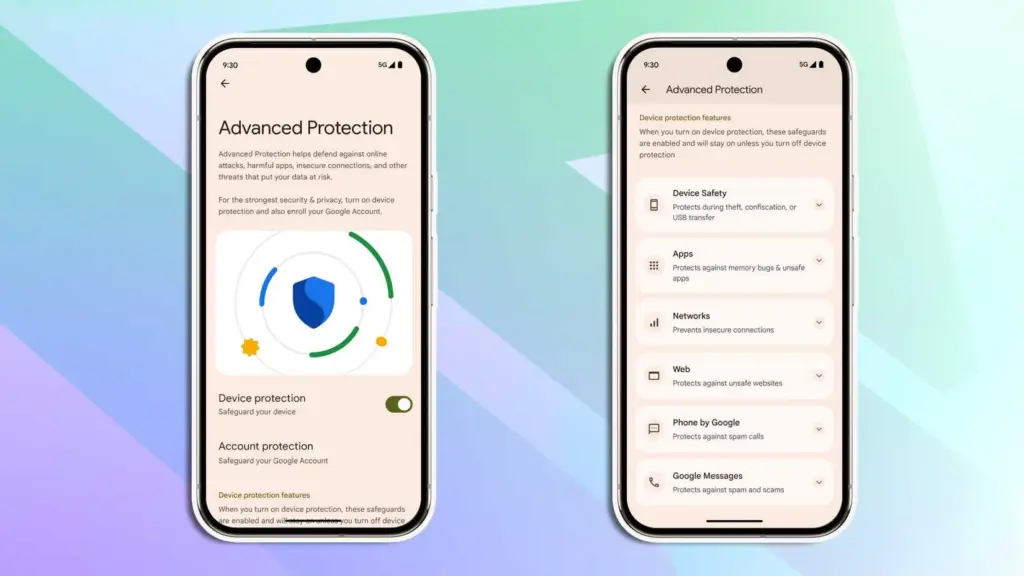
Google is making a significant effort to address issue with Android 16. Major security-related settings will be consolidated under a new Advanced Protection mode. To activate offline device locating or Theft Detection, you won’t need to go far into your phone’s settings menu.
With a single Advanced Protection toggle, you can enable all available security measures in Android across several categories. The list is as follows:
Intrusion Logging
Theft Detection Lock
Offline Device Lock
Inactivity Reboot
USB Protection
Google Play Protect
Unknown App Protection
Memory Tagging Extension
Android Safe Browsing
Chrome Safe Browsing
Javascript Protection
Unsafe Link Protection
Spam and Scam Protection (Google Messages)
Spam and Scam Protection (Phone by Google)
Called ID & Spam
Automatic Call Screening
2G Network Protection
Disable Auto-Reconnect to Insecure Networks
Numerous security mechanisms are dispersed across the operating system. For instance, the Google Play Protection option is located under Security & Privacy, whereas the Caller ID & Spam protection settings are located in the Phone app settings.
With Android 16, a new security feature called Intrusion Logging generates and preserves a device activity record for study after a compromise. It is safe but easily accessible because it is kept in the cloud and is end-to-end encrypted.
Another new security feature in Android 16 is Inactivity Reboot, which will restart your phone automatically after 72 hours of inactivity and lock-up. This will guarantee that no user data may be viewed until the device is opened by entering the password or PIN.
I won’t gain much from Android 16’s Advanced Protection Mode. I only activate these functions when I’m on the road. Nevertheless, it’s a useful innovation that will make Android more secure.
Despite being a feature-rich version, Android 16 will not ship with all the new goodies in June and still lacks several long-awaited additions. Rather, Google will make more significant improvements later in the year, most likely in conjunction with a quarterly platform release and the Pixel 10 family. Additionally, some improvements may not be available for non-Pixel phones because the manufacturer may choose not to incorporate them into their skin.If you want the latest Droid Tools news, follow us on X @droid_tools and like our page on Facebook to stay updated.
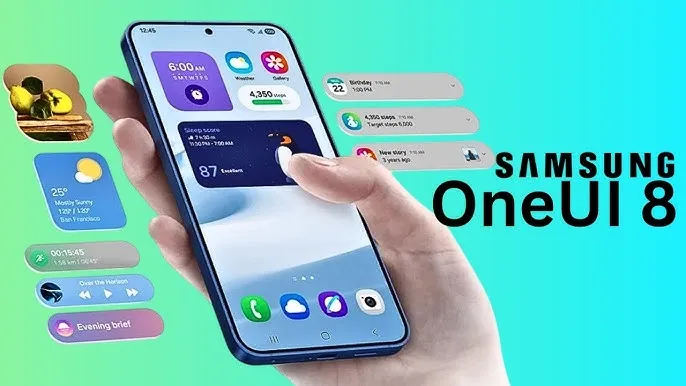
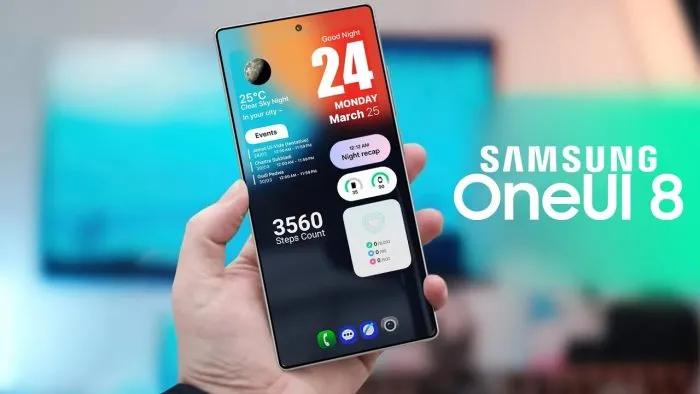
With Samsung now enabling Galaxy S25 series owners to test the most recent One UI 8 beta program, starting in its home country of South Korea, One UI 8 will soon be available on your Galaxy phone. You must be wondering how to join the beta phase as soon as it arrives on your device, but here are a few easy actions you can take.
Before the official or stable release, the One UI 8 Beta program is now available for the Galaxy S25, Galaxy S25+, and Galaxy S25 Ultra to test out all the newest features and capabilities.
The beta build for the Galaxy S25 family is designated with build number ZYER, while the upgrade may eventually reach additional eligible regions outside of South Korea. Simultaneously, this most recent version improves accessibility, efficiency, and security while also adding some of the main features of Android 16.
Beyond this, this update further includes the ongoing May 2025 security patch that significantly improves the device’s overall security and core functionality.
How to join One UI 8 beta program?
Also, Samsung made some minor changes to its beta registration procedure this time around to make it more convenient. Here’s how to sign up for the most recent One UI 8 beta program using the Samsung Members app!
Open the Samsung Members app.
Tap on the One UI 8 Beta program banner.
Once tapped, follow all the on-screen prompts while also accepting the beta terms and conditions. You are enrolled now!
This takes you closer to installing the latest beta build; just head to Settings >> Software Update >> and finally, Download and Install.
Once installed, your device will automatically reboot to the latest build; thus, you are now ready to rock One UI 8 beta.
If you want the latest Droid Tools news, follow us on X @droid_tools and like our page on Facebook to stay updated.
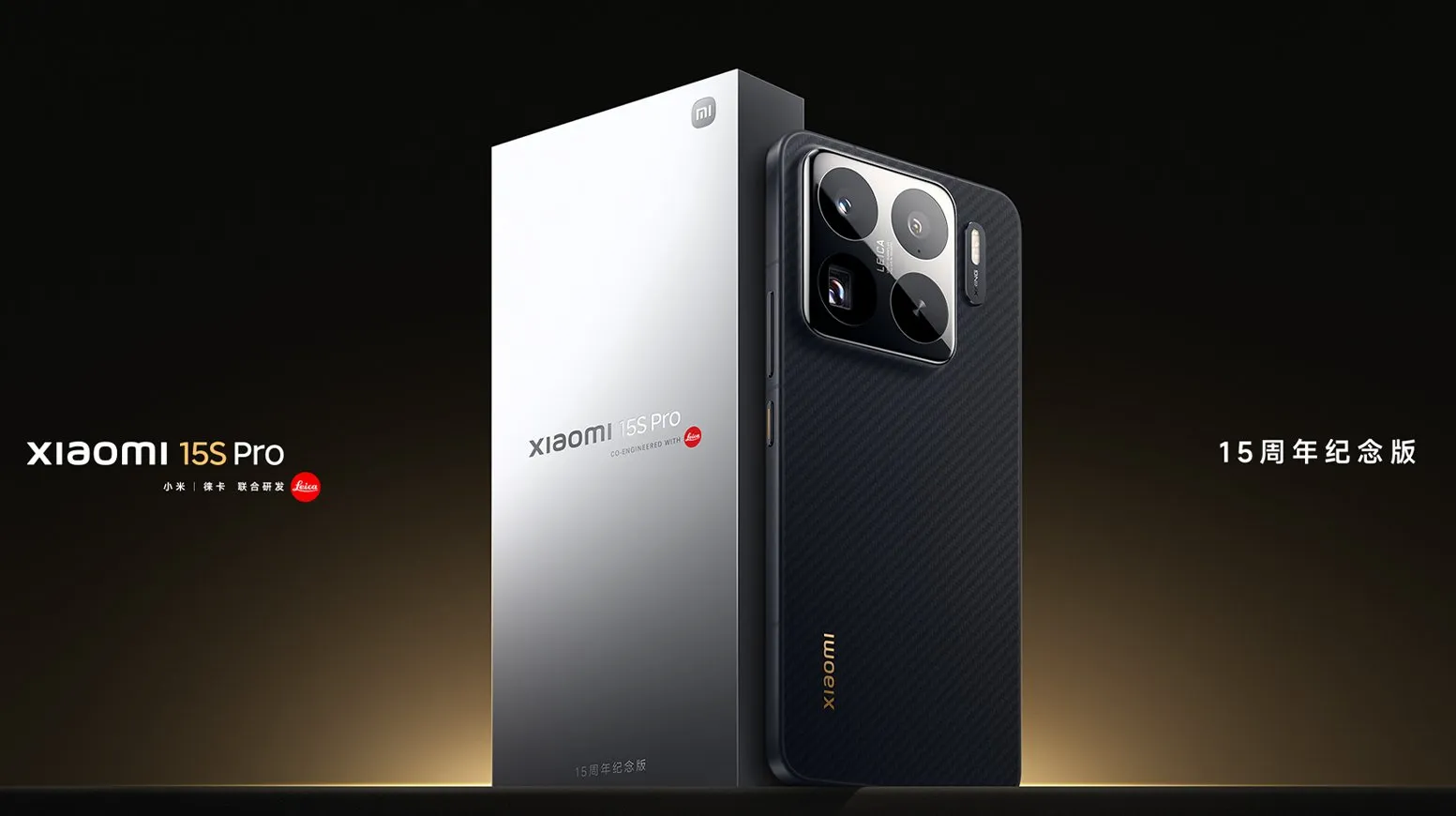
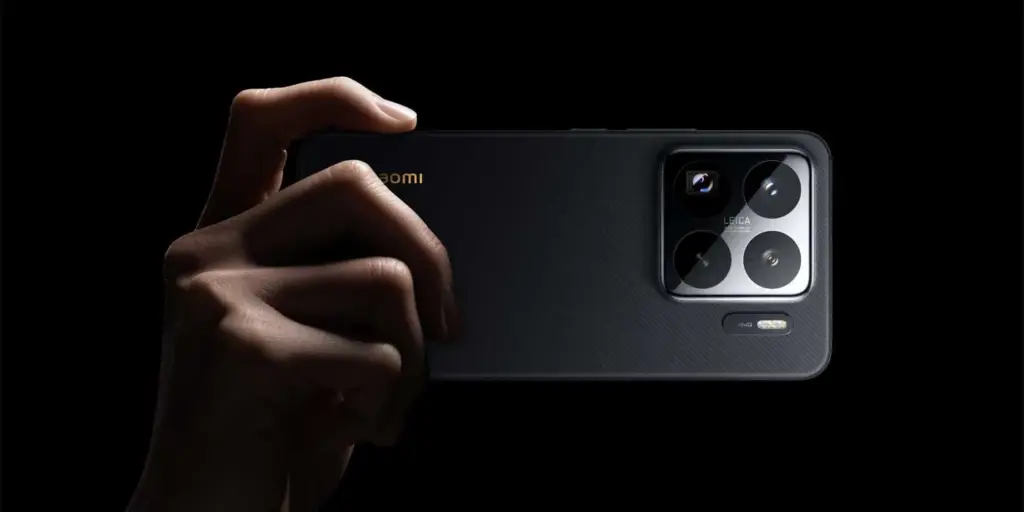
This week, the Xiaomi 15S Pro was launched in China. The Chinese OEM’s first phone to employ its proprietary 3nm 10-core XRING 01 chipset is this one. The phone comes with HyperOS 2.0, which is based on Android 15, and supports 16GB of LPDDR5X RAM in addition to up to 1TB of UFS 4.0 built-in storage. A 50-megapixel triple rear camera set with a 50-megapixel periscope telephoto shooter is included with the Xiaomi 15s Pro. With compatibility for both wired and wireless fast charging, it has a 6,100mAh battery.
The 16GB + 512GB RAM and storage version of the Xiaomi 15S Pro costs CNY 5,499 (about Rs. 65,500) in China, while the 16GB + 1TB model costs CNY 5,999 (approximately Rs. 71,500). The phone is available in Far Sky Blue and Dragon Scale Fibre Version finishes. The official e-store is now the place to buy the phone in the nation.
Xiaomi 15S Pro specs
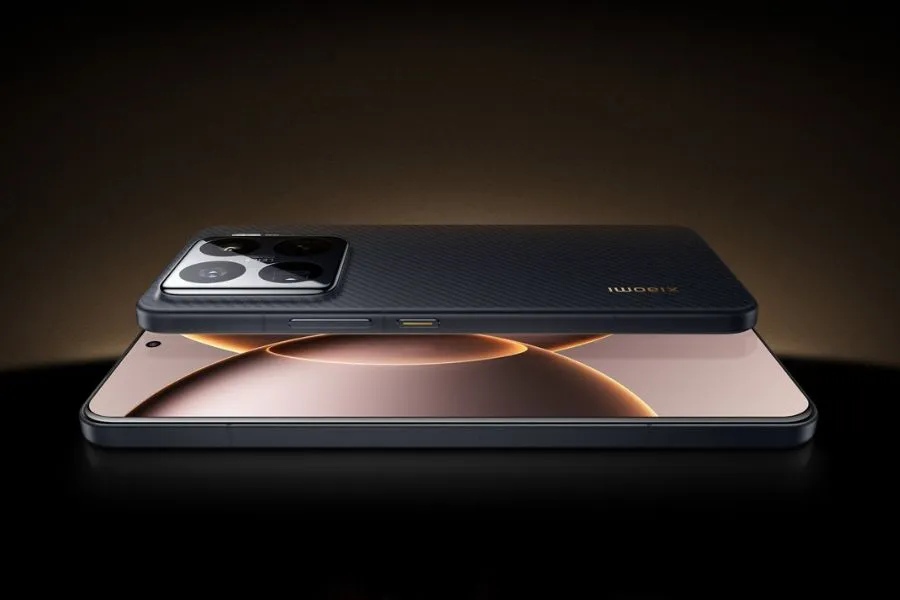
The Xiaomi 15S Pro has a 6.73-inch 2K (3,100 x 1,440 pixel) OLED LTPO screen with a refresh rate of up to 120 Hz, a maximum brightness level of 3,200 nits, a PWM dimming rate of 1,920 Hz, and protection from Xiaomi’s Ceramic Glass 2.0. Dolby Vision and HDR10+ are also supported by the screen. The company’s latest 3nm 10-core XRING 01 chipset, which has an Immortalis-G925 GPU, 16GB of LPDDR5X RAM, and up to 1TB of UFS 4.0 onboard storage, powers the phone. Xiaomi’s HyperOS 2.0, which is based on Android 15, comes pre-installed.
The Xiaomi 15S Pro boasts a triple rear camera set with Leica backing, which includes a 50-megapixel, 1.31-inch Light Fusion 900 primary sensor with an f/1.44 aperture and support for optical image stabilization (OIS). A 50-megapixel Sony IMX858 periscope telephoto shooter with 5x optical zoom, 10x in-sensor lossless zoom, f/2.5 aperture, and OIS support is also included in the camera setup, along with a 50-megapixel Samsung S5KJN1 sensor and a 115-degree ultra-wide angle lens with an f/2.2 aperture and macro capabilities. Additionally, the smartphone has a 32-megapixel OV32B40 front camera with an f/2.0 aperture for video calls and selfies.
The 6,100mAh battery of the Xiaomi 15S Pro supports both 90W wired and 50W wireless fast charging. The phone incorporates an in-display fingerprint sensor for security. 5G, dual 4G VoLTE, Wi-Fi 7, Bluetooth 5.4, Beidou, Galileo, GLONASS, GPS, NavIC, NFC, and a USB Type-C 3.2 Gen 1 connector are among the connectivity possibilities. The phone’s construction is water and dust resistant, with an IP68 rating. Additionally, it features dual speakers that enable Dolby Atmos. The smartphone weighs 216g and has dimensions of 161.3×75.3×8.33mm.
If you want the latest Droid Tools news, follow us on X @droid_tools and like our page on Facebook to stay updated.
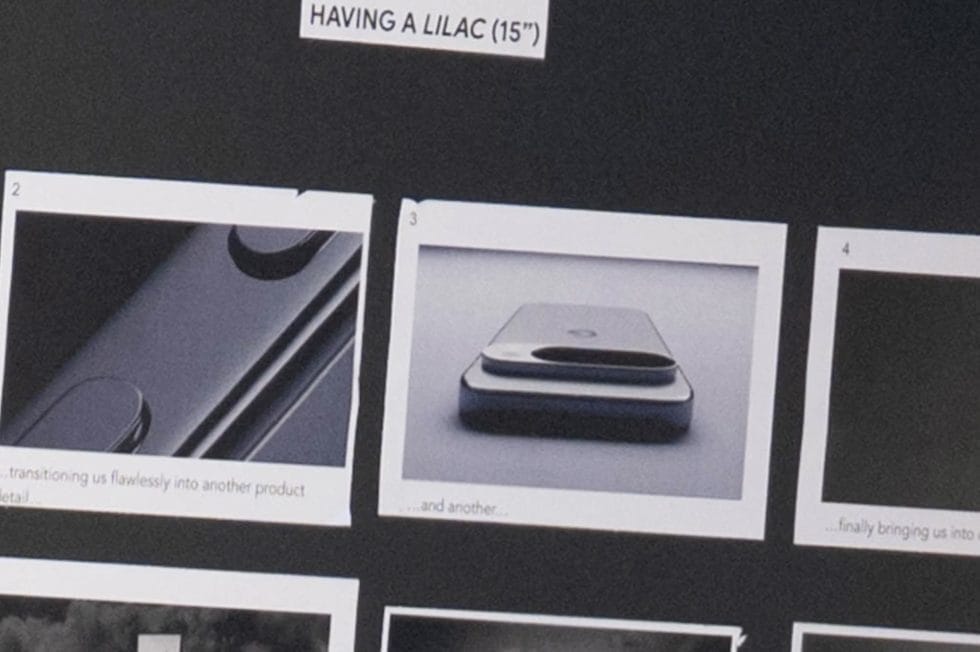
It’s not usually a high-level leak or a retailer’s mistake of publishing information too soon that causes the world’s largest firms to struggle to keep their new devices under wraps. Occasionally, this occurs because the corporation producing the product begins filming advertisements months before the product is scheduled to be released, and a passerby witnesses the commercial shoot in progress and, fortunately, has a decent enough camera with them to record the entire event.
It is typically not a high-level leak or a retailer’s error of releasing information too soon that makes it difficult for the biggest companies in the world to conceal their new technologies. Sometimes this happens when the company that makes the goods starts making commercials months before the product is supposed to be introduced, and a bystander happens to be watching the commercial shoot and, thankfully, has a good enough camera with them to capture the entire thing.
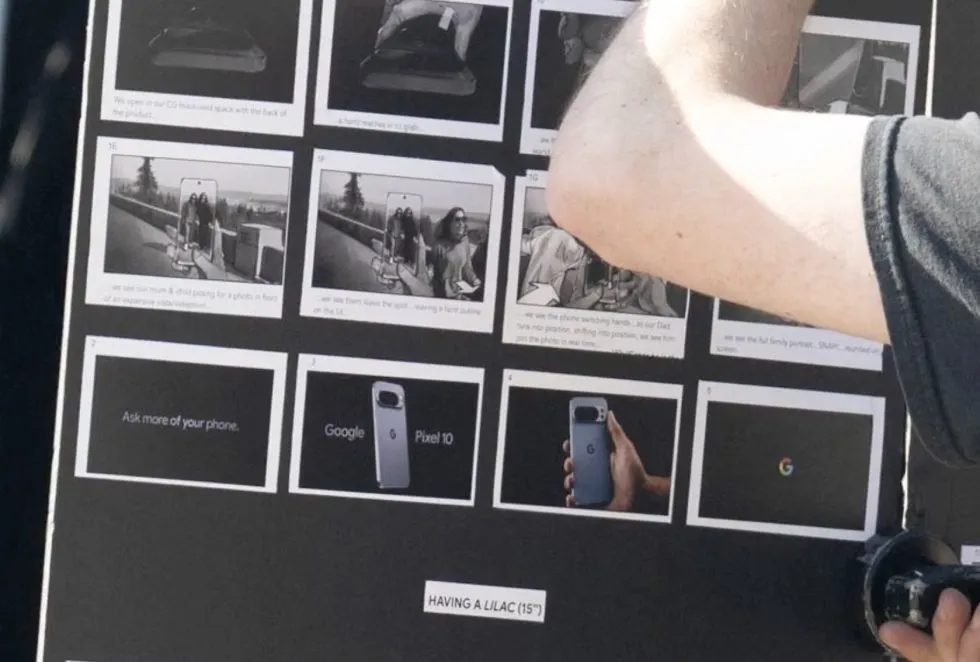
A humorous little video slideshow featuring narration of the user’s experience filming Google’s Pixel 10 Pro was posted on Twitter by @MarksGonePublic. According to their photos, Google was filming an ad featuring the Pixel 10 titled “Ask more of your phone.” Indeed, the phone is referred to as the “Pixel 10” in the storyboard, but it is actually a Pixel 10 Pro with an additional camera and temperature sensor.
I’m not sure what else can be learned from this video because the Pixel 10 series is anticipated to resemble the Pixel 9 series in every way except for the inclusion of Google’s Tensor G5, which should be their best chip ever as it replaces Samsung Exynos as the base. This ad only indicates that a Pixel 10 is on the horizon and will appear remarkably similar; it doesn’t necessarily disclose any new specifications, features, or costs.
And here’s the real smartphone in a person’s hand during the photo session, which once more displays a Pixel 10 Pro that appears to be a Pixel 9 Pro. And it’s okay! We adore the Pixel 9 series’ look.
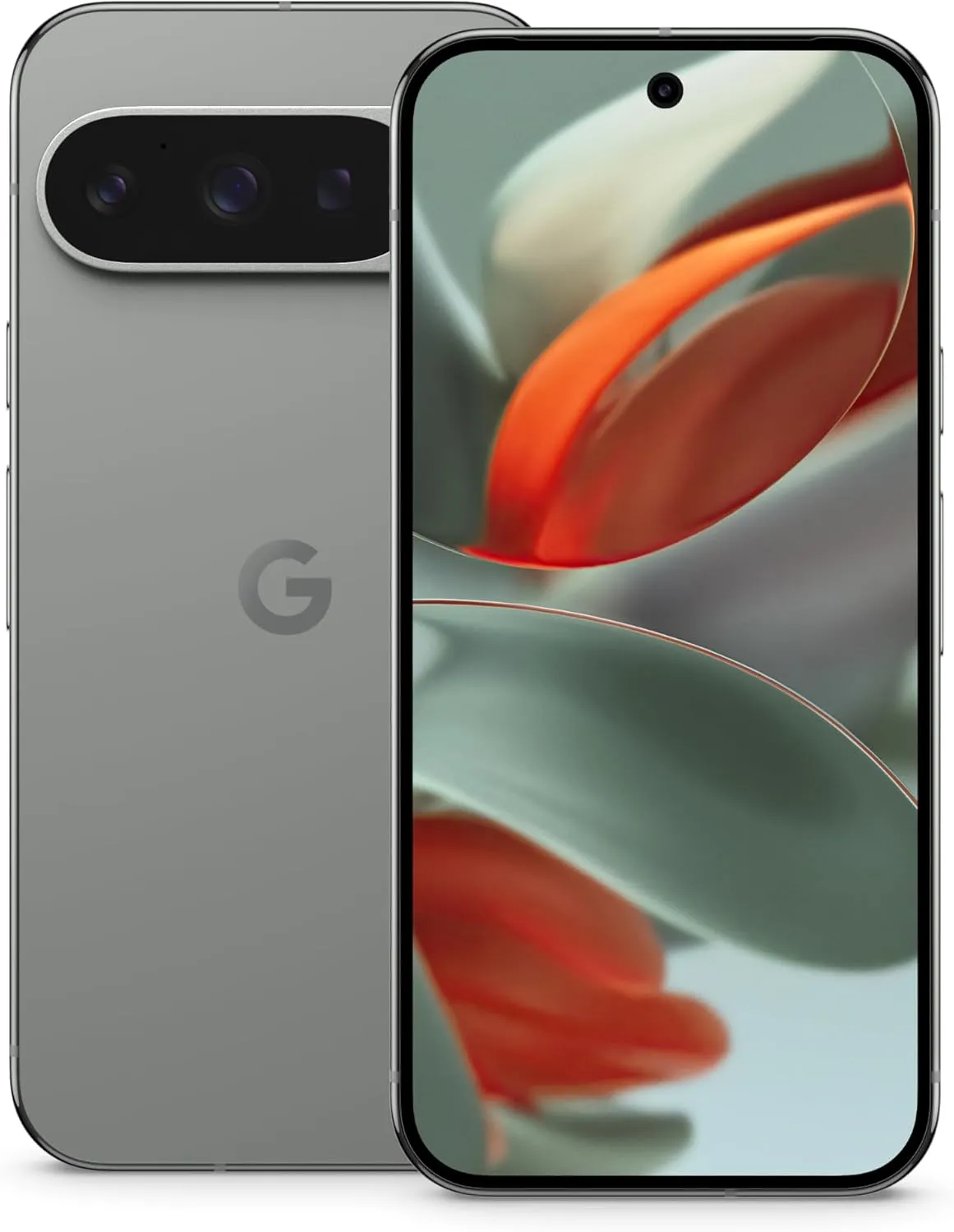
Google Pixel 9 Pro
Pixel 9 Pro with Gemini is the most powerful Pixel yet, and now comes in two sizes; it has a pro-level camera and it’s engineered by Google, so it gets the best of Google AI first