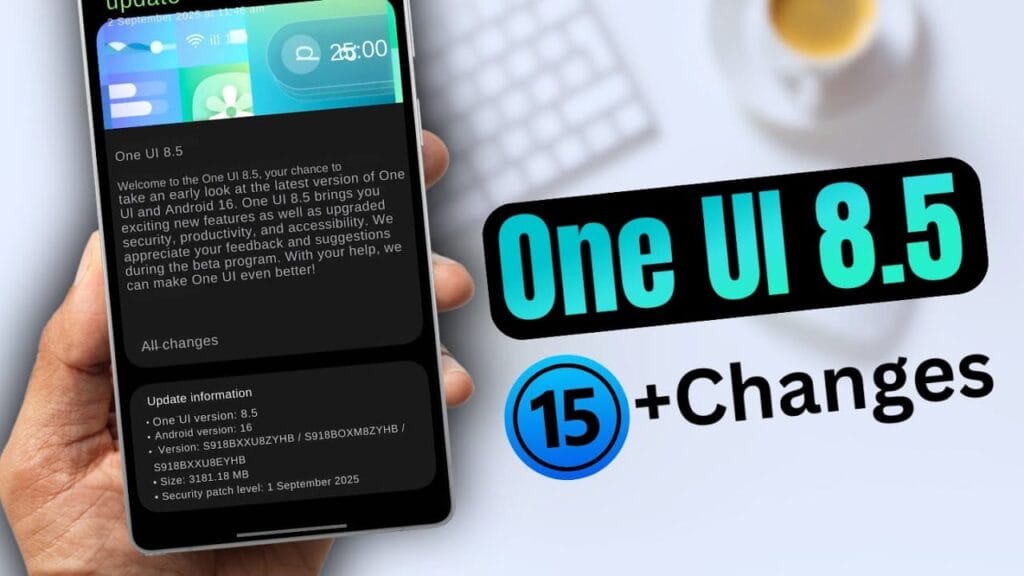
Early in the upcoming year, Samsung is anticipated to release the One UI 8.5 software along with the Galaxy S26 series. However, in terms of new features and cosmetic improvements, early build leaks have given little room for speculation.
Unfortunately, only a small number of users are able to test-run the program at this time, thus these early builds aren’t available to everyone. Although we are unsure of the exact date, we are aware that the firm will soon formally launch the One UI 8.5 beta program for its flagship phones. With a leak providing information on a possible release date for the initial beta update, that is now altering.
According to SamMobile’s exclusive tip, Samsung might activate the One UI 8.5 beta program before the end of November, possibly “around the week beginning November 24.” In contrast, after a protracted wait, Samsung released the One UI 7 public beta in December 2024, with the stable rollout taking place in April.
Samsung released the first One UI 8 beta in May and the stable version last month, changing things up for the next big software release. The devices that will be compatible with 8.5 and the areas in which it will be accessible are still unknown.
Will your older Galaxy phone get the One UI 8.5 beta update on schedule?
The beta update is likely to be available on almost every device running the Android 16-based One UI 8.0 software. At the top of the list of devices that qualify should be the Galaxy S25 series and the newly released Galaxy Z Fold 7 and Z Flip 7.
We should also mention that users of the Samsung flagships from 2024 had to wait about three months to receive the One UI 8 beta. With the next One UI beta, we can only hope that Samsung won’t do the same thing.
The software is expected to be a significant improvement over One UI 8, if the previous leaks of One UI 8.5 are any indication. Because it will be based on Android 16 QPR2, Galaxy owners will be able to use the most recent Android update available. A recently leaked hands-on video gave us a better look at the improvements in the new software.
This OneUI feature is perfect for fans of Samsung’s everything-but-the-kitchen-sink software strategy. Was one of the Samsung Galaxy phones’ best-kept secrets just revealed by a Reddit user? The most well-known aspect of OneUI, the software launcher that runs Samsung phones, is how many functions it has. Some of them are so buried or too many that you won’t utilize them at all.
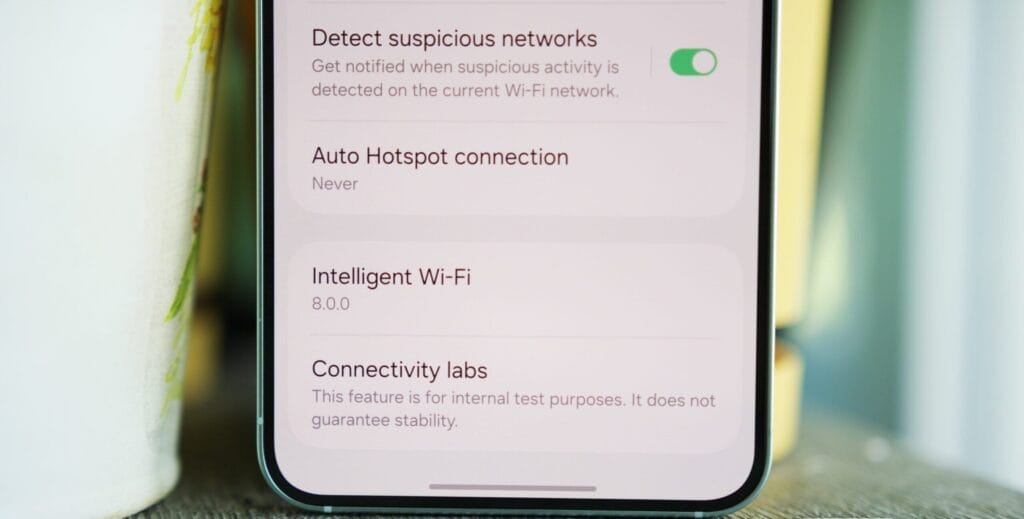
The best hidden feature award can go to a new discovery. The function, known as “Connectivity Labs,” can only be accessed by a hidden gesture in the Wi-Fi settings on your phone. That’s cool, isn’t it?
Even more amazing are the features offered by Connectivity Labs, which include developer options, AI-powered mobile data switching, a home Wi-Fi assessment tool, and more. Here are some of the greatest features you should start utilizing, how to access them, and which Samsung models are compatible.
Opening Intelligent Wi-Fi settings
In order to access your Intelligent Wi-Fi settings, you must first launch the Settings app, hit the Connections tab, select Wi-Fi, then tap the three dots in the upper-right corner (to expand options), and then select Intelligent Wi-Fi.
You will then get a list of Wi-Fi alternatives that are adaptable.
Turning on Connectivity Labs
Scroll to the bottom of the Intelligent Wi-Fi page, then tap the software version (now known as Intelligent Wi-Fi 7.0.0) seven times to enable Connectivity Labs.
You should see a pop-up message indicating the number of taps required to activate Connectivity Labs as you continue to tap. The secret menu will then show up at the bottom of the site after that.
Connectivity Labs
A column of graphs showing the different bands, types, and networks your phone is linked to appears when you first launch Connectivity Labs. Additionally, there is a “Daily Average” ticker that shows how long your phone spends on Wi-Fi each day.
But the bottom half of this page has the main content. A list of helpful internet connection toggles, such as Wi-Fi 7 mode, Wi-Fi handover, network quality information, and more, can be found as you read down.
Although the most of the alternatives are specialized, I’ve been trying with all of them, and three are generally helpful:
Home Wi-Fi inspection: This feature tests your Wi-Fi signal in real time, displaying connection strength fluctuations as you move around your house. I needed a convenient location for the monitoring hub after I recently placed new video security cameras across my property. After using the Wi-Fi inspection tool, I located a strong signal spot in my office and configured it.
Switching to mobile data faster: Have you ever had slow internet because your phone was switching between Wi-Fi and mobile data while you were outside of a cafe or office building, for example, and you were on the edge of a public connection? If you select this option, the phone will immediately switch to mobile data if it senses that your Wi-Fi signal is waning. If you have an unlimited data plan, this is a fantastic alternative.
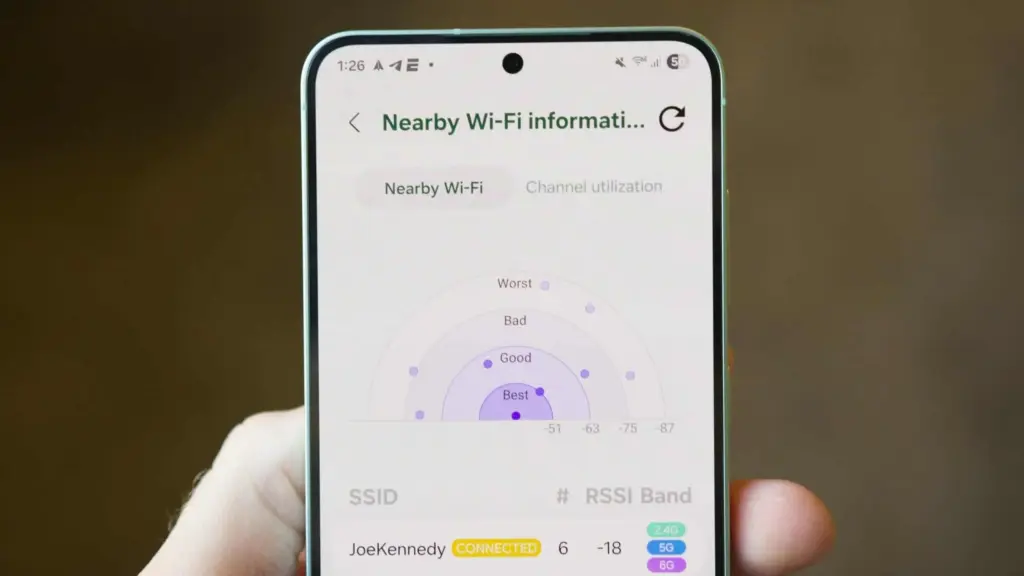
Wi-Fi Developer Options: One of the most useful settings on this menu is “Nearby Wi-Fi information,” which provides a list of the signal strengths of your nearby networks. When there are several public Wi-Fi networks available, such as at an airport, and you want to know which one will provide the quickest surfing speeds, this can be helpful.
Although I have only touched the surface of Connectivity Labs’ potential, it is evident that there are many helpful tools available to make more exploration worthwhile. I strongly advise spending some time looking into these settings, experimenting with them, and figuring out which ones best suit your unique need for internet connectivity. The amount of control and optimization you may attain without spending any money may surprise you.
Let’s say you just got a brand-new, sparkling TV. Like a child at Christmas, you open the box and get ready to enjoy all of its aesthetic splendor. It’s 2025,” you think to yourself. TV technology is booming, and it will always look fantastic. Thus, you plug it in without even checking the default settings. A huge error.
I’ve done it myself. And because it’s generally acknowledged that most customers forget to change the most fundamental settings when configuring their televisions, I’m fine with it. You may have never changed the default settings on your TV, even if it’s a few years old.
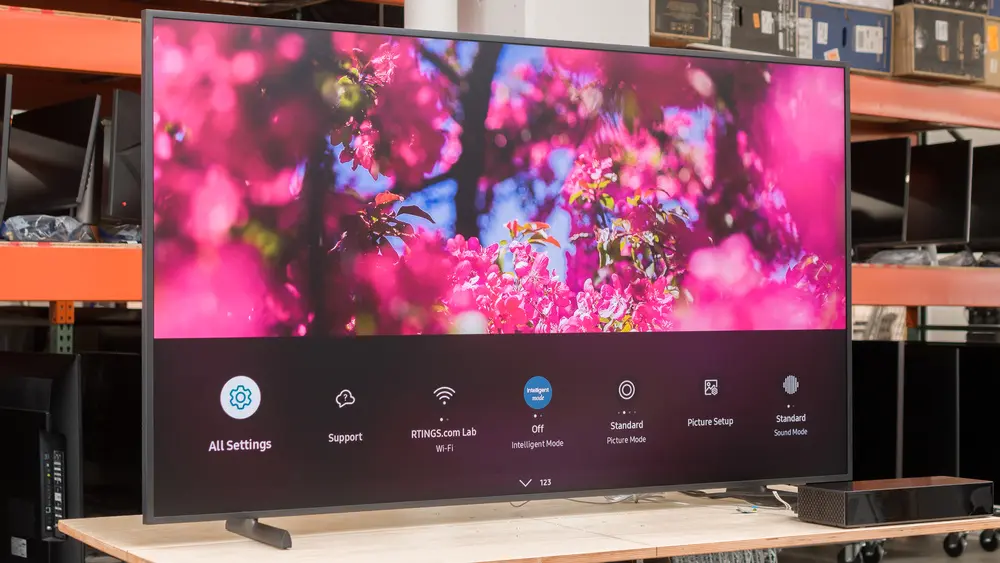
You may adjust a few settings on Samsung TVs in particular to enhance your viewing experience and add even more appeal to a dystopian survival thriller. Here are six suggestions to help you do that.
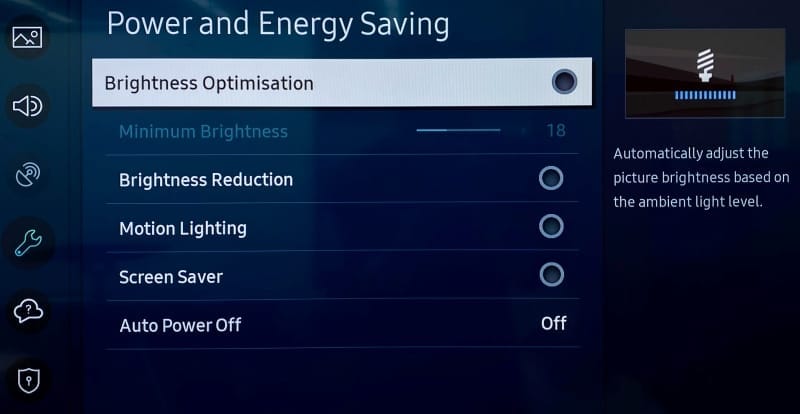
Turn off Brightness Optimization
Go ahead and turn off Brightness Optimization by turning it off as you’ve already reached Power and Energy Saving.
Nowadays, a lot of TVs have optical sensors that can determine the brightness of your room and its potential temperature. The TV then makes adjustments on its own, ostensibly optimizing color temperature and brightness based on that information. This isn’t always accurate, and the feature may end up producing worse results, particularly in a space where lighting conditions can fluctuate, such as on a sunny day when the sky is obscured by large clouds.
Adjust Brightness levels to suit your eyes
The type of content you’re viewing will determine the optimal brightness level. Even if HDR (high dynamic range) is gradually gaining popularity, SDR (standard dynamic range) has been the only option for decades of movies. You can readily change the brightness levels for both situations, though.
Open any software, like Prime, for SDR, but don’t start watching a video just yet. Proceed to All Settings > Picture > Expert Settings > Brightness (keep in mind that this is located under Picture Setup on some Samsung models). Adjust the sliders to determine the SDR brightness sweet spot, in your opinion.
Finding a video that is shown in high dynamic range is the first step in adjusting HDR brightness. Since many of its movies are tagged with brief descriptions identifying their genre, visiting YouTube TV is a quick way to make sure you are watching HDR content. Another option is to just search for “HDR video.”
You will notice a difference when viewing both technologies (SDR/HDR), however the brightness level you select depends on your personal preferences. I think HDR looks its best when the brightness is at its highest. You may discover that SDR appears best at a lower level.
Turn off Motion Smoothing for cinematic viewing
The majority of films are (and have always been) shot at 24 frames per second. Motion smoothing reduces juddering and blur by interpolating images in footage captured at 24 frames per second. Given that live television is filmed at 30 frames per second, this can be useful when watching sports.
However, Motion Smoothing—another popular default feature—has a reputation for giving televisions a “soap opera appearance.” Just from that description, you’ll likely understand. In photographic prints, I conceive of it as glossy versus matte, where glossy refers to the look of a soap opera that mimics a live broadcast. Even though I always strive for an immersive viewing experience, I don’t have to see the actors and crew filming the scene on the set.
Browse to Picture Clarity Settings under All Settings > Picture > Expert Settings.(Note that Motion Smoothing is referred to as Picture Clarity or Auto Motion Plus on Samsung TVs.)
From here, you can select Custom Settings or completely disable Picture Clarity (Motion Smoothing). You may want to increase the Blur Reduction and Judder Reduction sliders there if you’re playing a video game or watching a soccer match. Turning off Motion Smoothing, however, is the best option for traditional (filmic) aesthetics.
Choose a Picture Mode that suits you
The Movie, Cinema, or Filmmaker modes, in my opinion, are typically the best since they seek to offer the most genuine and accurate depiction of the content creator’s vision. These settings also lessen the possibility of introducing artifacts and other problems with image quality by cutting down on superfluous image processing.
Select Picture Mode from the All Settings menu. Then browse between these three selections (Movie, Cinema, or Filmmaker) to find your favorite.
The color temperature is typically cooler or bluer when using the standard mode by default. Vivid mode, which Samsung refers to as Dynamic mode, is frequently included with TVs. Both the Dynamic and Sports modes can make colors appear overly bright, giving the entire image a harsh shine, therefore I would suggest avoiding that. Because the colors will stand out more in storefronts, businesses are more likely to employ these modes when setting up display TVs.
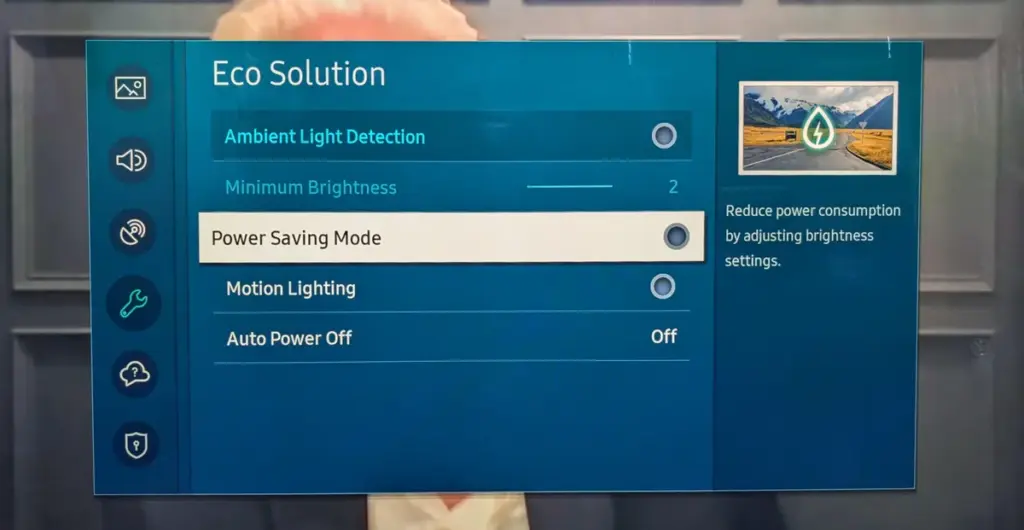
Turn off Eco Mode
Nowadays, almost every TV has some sort of “Eco Mode” on by default. By lowering the contrast and dimming the TV’s brightness, Eco Mode is intended to conserve power. According to a recent research, turning on Eco Mode can reduce your annual electric cost by as low as $7. (That is a daily amount of less than two cents.) There are other ways to more efficiently lower your carbon footprint, therefore it doesn’t make a big difference whether “eco” stands for economics or ecology.
To disable Eco Mode, click the gear button on your Samsung remote to access the settings. Then follow this path: All Settings > General and Privacy > Power and Energy Saving > Energy Saving Solution. Lastly, toggle Energy Saving Solution off.
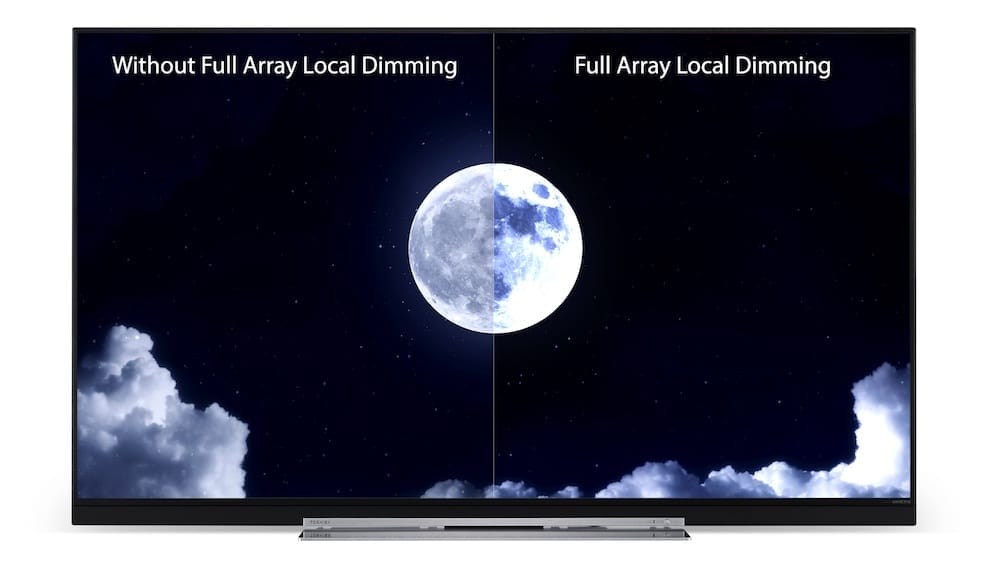
Check Local Dimming
There are three settings for Local Dimming on Samsung TVs, which is another control that affects brightness levels. Select Local Dimming under All Settings > Picture > Expert Settings.
To find the one that works best for you, try sampling Low, Standard, and High. When Local Dimming is set to Low, bright objects on dark backgrounds see reduced halo and blooming. My favorite setting on Samsung TVs is High since it maintains maximum brightness without haloing surrounding images.
After making changes to Local Dimming, you may wish to go back and evaluate if the brightness levels on both SDR and HDR content are adequate.
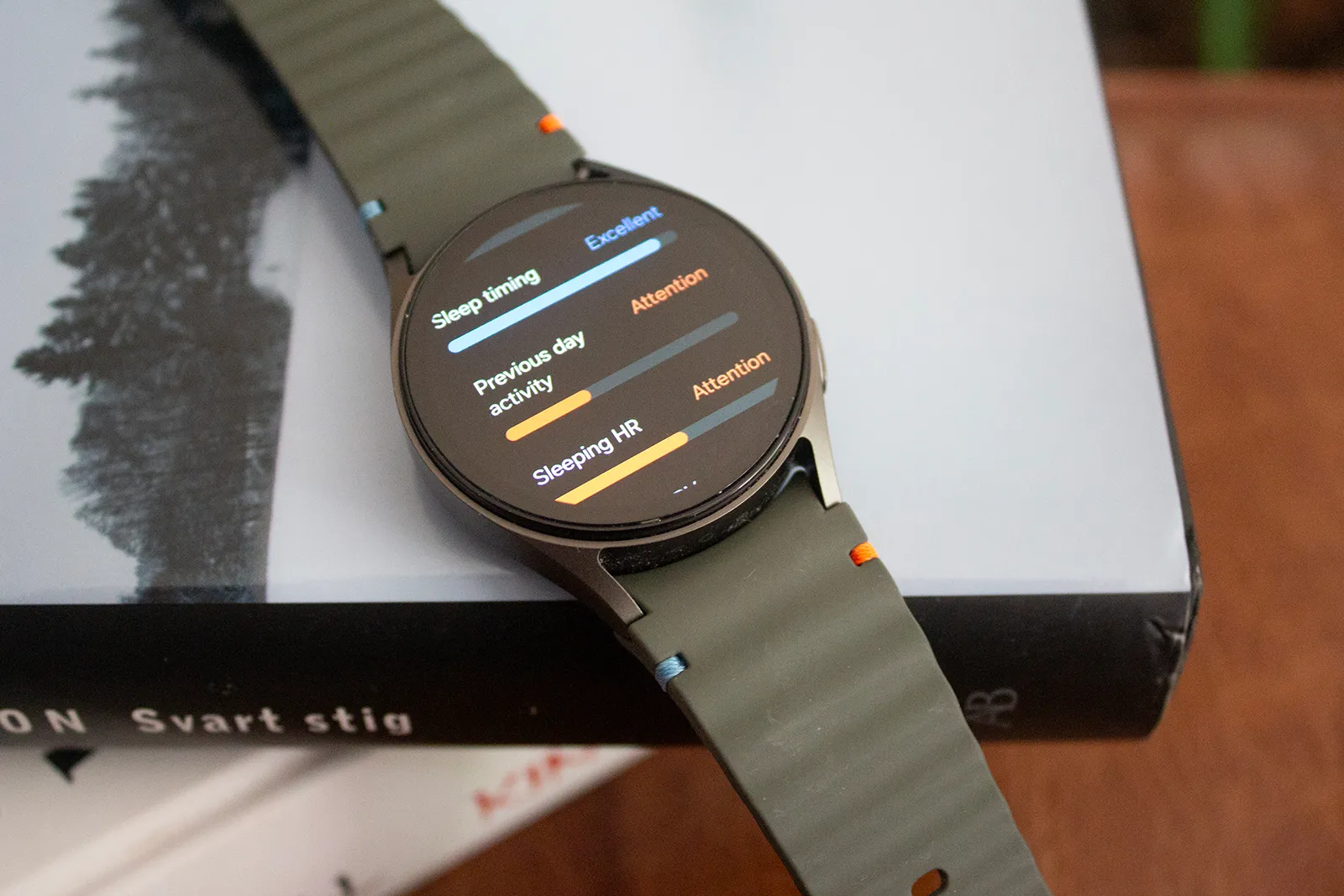
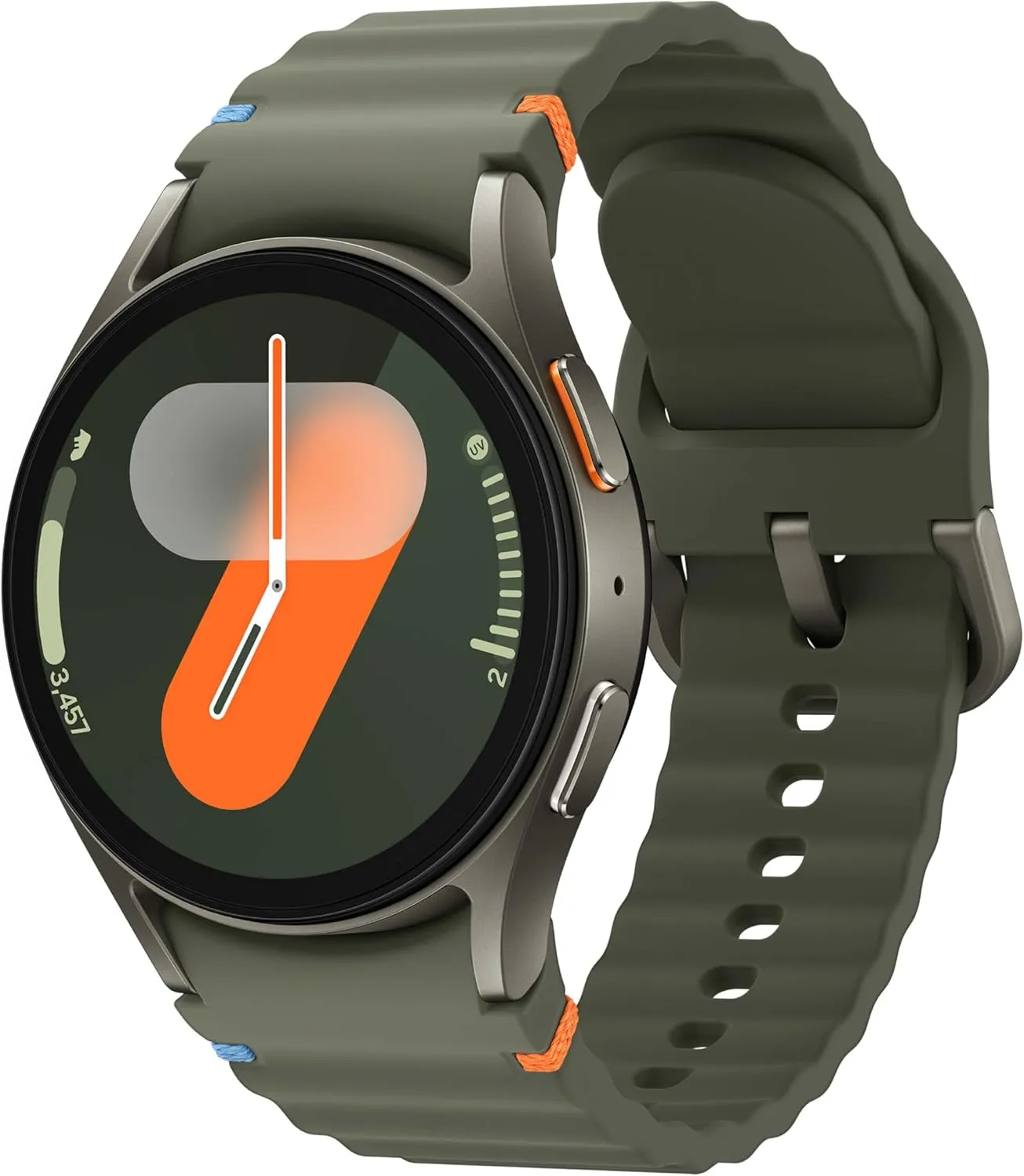
Prime Day is one of the ideal times to make that strategy work if, like me, you would rather wait for a new smartwatch model to come out so that the older model can be marked down. Samsung’s Galaxy Watches are currently on sale, with the Galaxy Watch 7 probably taking center stage. The 40mm GPS model is now only $149, which is a significant reduction from its usual $249 price.
That’s a significant decrease of $100 or 40% off. Additionally, you’re saving $150 when you take into account the Galaxy Watch 7’s initial launch pricing. It comes in two different color options: green and cream.
Samsung Galaxy Watch 7
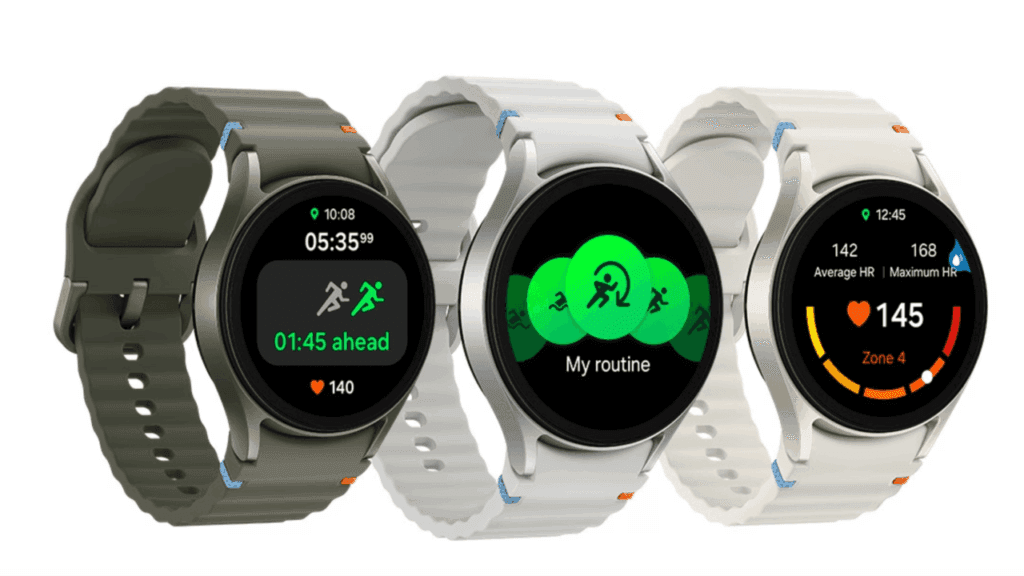
Looking for a great way to bring out your personal best every day. Challenge yourself to excel on your next run or bike ride using tracking with Galaxy AI that lets you compare your current performance to your last one
Why the Samsung Galaxy Watch 7 is the best smartwatch choice right now
For users who are already familiar with the Galaxy ecosystem, Samsung’s Galaxy Watch 7 is still a functional Android smartwatch. You can combine it with phones that aren’t Samsung, but you won’t be able to use some of the special Galaxy capabilities.
For the majority of users, it is equally as dependable as the more recent Watch 8 because it performs the same essential tasks. Although it isn’t nearly as bright as the most recent model, the 1.3-inch AMOLED display still achieves an amazing 2,000 nits. Its Armor Aluminum 2 chassis, MIL-STD-810H certification, 5 ATM waterproofing, and IP68 dust and water resistance all contribute to the build’s durability.
The Exynos W1000 processor, the same chip used in the Watch 8, powers it from underneath. It includes sophisticated health tracking features including blood pressure and ECG and operates smoothly and steadily. The Wear OS 6 update, which will enable new features like the antioxidant index, is also planned for it.
Samsung Galaxy Watch 7
Looking for a great way to bring out your personal best every day. Challenge yourself to excel on your next run or bike ride using tracking with Galaxy AI that lets you compare your current performance to your last one
The rated 35-hour battery life is only a few hours longer than that of the more expensive model. That runtime can be almost doubled with power-saving mode. Nevertheless, both smartwatches charge at the same rate of 10 watts.
Even while there isn’t such a thing as a free lunch, there is such a thing as free apps! We’ll look at a selection of free apps for iOS and Android phones today, which includes games and other kinds of apps. Please be aware that you must act immediately because these offers are time-sensitive and we are unsure of when they may end.
A wide variety of programs, from free to premium solutions, are available in the Google Play Store and Apple App Store, respectively. Many customers may be surprised to learn that during promotional events, a number of paid apps are frequently made temporarily available for free. We’ve put together a list of some of the most interesting apps available for free right now.
Free premium apps (Android)
Reminder Pro($3.49) – If you ever need a second brain like me, then this is the app to go for. It is a reminder app that will definitely come in handy, giving you alerts and various options to be notified, so that you know what’s next on your “To Do” list without falling behind on deadlines.
Resume Builder – CV Maker($4.99) – Ever wanted to conjure a resume while you are on the move? If you have answered in the affirmative, you can do so on the move with this nifty little app. Of course, some of us might use other apps, but this is rather comforting for old school folks like me.
Age Calculator Pro($0.49) – If you are poor in math, just like me, then this age calculator app might be just the thing! It is ideal to calculate my age and discover the total years, months, days, weeks, hours, minutes, and seconds between two dates! Of course, this is also nifty to find the date difference between important events like marriage anniversaries, work anniversaries, birthdays, festivals, and holidays, among others.
Free premium apps (iOS)
Lego Duplo Doctor(S4.99) – What do you think your little one is going to grow up to be? Well, let’s not pressure the tiny tots just yet and let them play. And who does not like Lego? Duplo can be said to be the introductory doorway to the world of Lego, and this game squarely places them into a hospital environment.
BJJ Old Man Style($19.99) – Check out this instructional app that features a 1 hour 45 minute video, where Jiu Jitsu black belt Rick Ellis showcases how he approaches the BJJ game as an older athlete. Rick emphasizes developing your game into systems of attack and defense, opening up various options when faced with different opponents.
Pixel Thoughts($0.99) – I would highly recommend using this app with a pair of headphones, as it lets you enjoy meditation by placing your thoughts into a star. Just focus on what’s boggling your mind and meditate to gain some perspective in a more focused manner.
At the time this post was published, all of the apps we are showcasing here were free to download. Regretfully, developers frequently fail to indicate the duration of these offers. Don’t hesitate to download an app if you enjoy it.
However, you should always check the app page in the store before downloading a free program. Because there are occasionally unnoticed obstacles that you should be mindful of.
The majority of free apps either provide in-app purchases or have advertisements. But some apps that cost money also accomplish this. It is crucial to give these factors the consideration they require, particularly if the game is meant for young players.
Many apps gather user information and frequently sell it to outside parties. Therefore, make sure you only give the program the rights it truly requires if you want to be safe. For instance, a flashlight shouldn’t be interested in your location information, and an alarm clock doesn’t require access to your contacts or cameras.
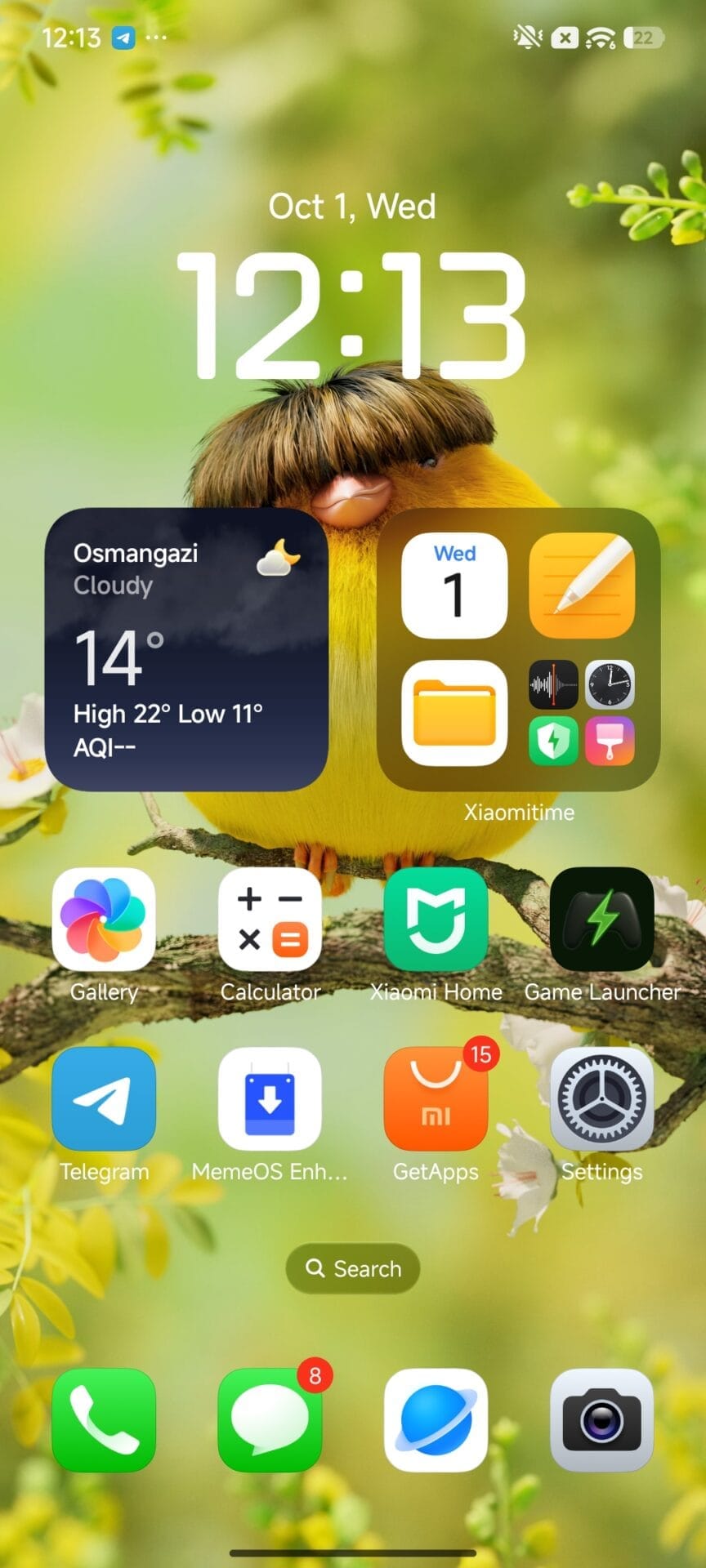
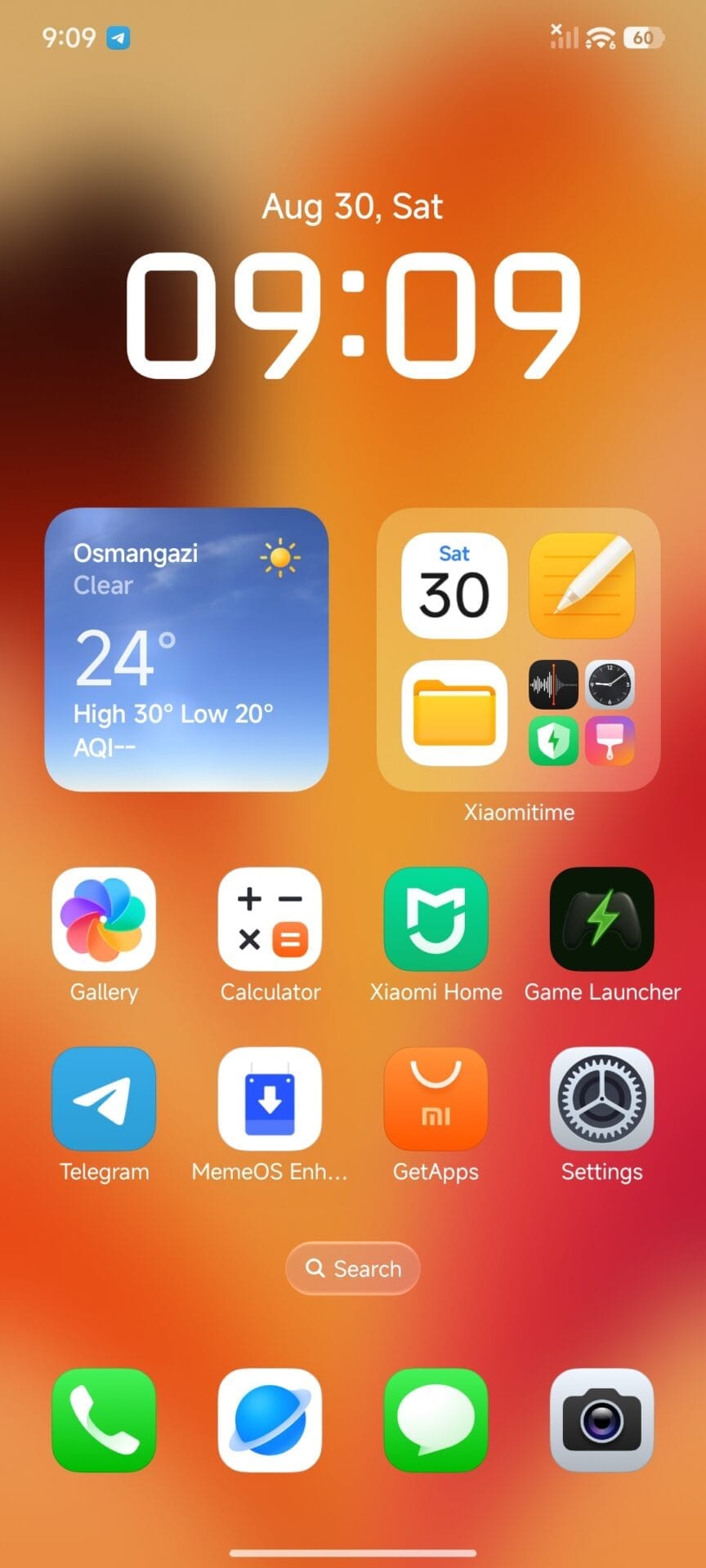
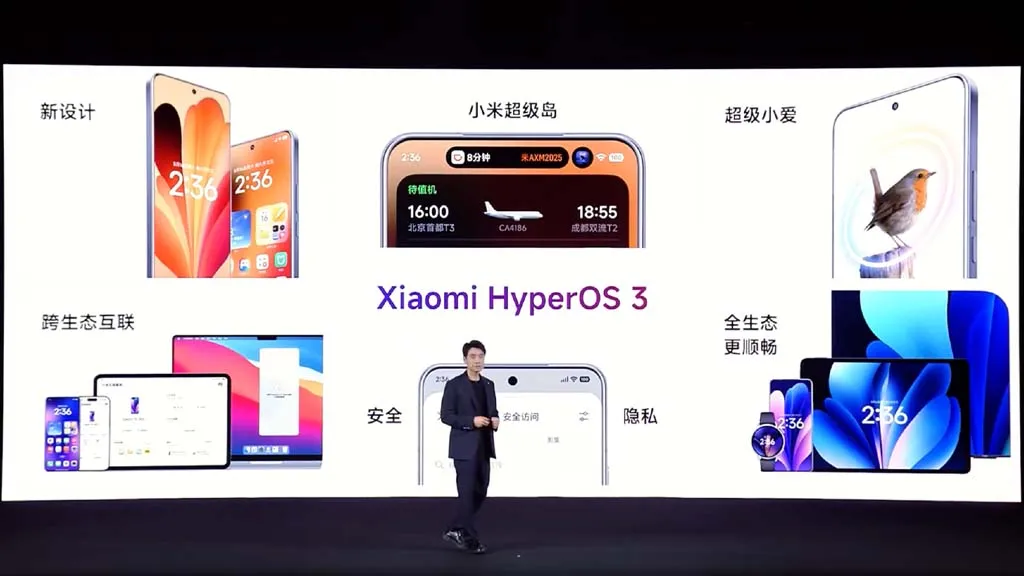
It’s time for your favorite Xiaomi gadgets to receive yet another essential update! This most recent version demonstrates Xiaomi’s dedication to improving the user experience, which is something the team is always working to do. The latest version of the Xiaomi HyperOS 3 Launcher, RELEASE-6.01.02.1236-09241346, may appear minor at first glance, but these important internal enhancements are what keep the system operating without a hitch.
Getting this version is a no-brainer for consumers who want to keep their performance and stability at their best. You’ll be happy to hear that this updated launcher version is compatible with HyperOS 2 devices as well, guaranteeing that a larger user base may take advantage of the improved stability if you’re using a device running the current HyperOS platform or even somewhat older versions.
HyperOS 3 launcher gains more stability
With build number RELEASE-6.01.02.1236-09241346, this particular version is solely focused on bug fixes and overall stability improvements. These upgrades are essential for resolving any small performance issues or unexpected crashes that users may have experienced with previous releases, even if Xiaomi hasn’t published a comprehensive changelog of every fix. A more dependable and pleasurable everyday usage experience is guaranteed by this commitment to polish.
Since it’s the program you use the most, a reliable launcher forms the cornerstone of your whole phone experience. As a result, fixing these little issues will greatly increase user happiness overall.
Officially, the firmware of the much awaited Xiaomi 17 Pro Max running its internal OS build OS3.0.17.0.WPBCNXM contained this version of the HyperOS 3 Launcher. Given that it is powered by Xiaomi’s state-of-the-art flagship hardware, this is a fantastic indication of the build’s quality and optimization. Xiaomi is effectively providing a stability boost by making this important system program accessible on other smartphones, which was formerly tailored for its newest and most potent hardware.
How to get the new HyperOS update
Since this is an application update, there are a few simple ways to obtain the most recent version and take advantage of the increased stability.
Official System Update: Keep an eye on your device’s System Updater, as the official rollout should be reaching all eligible devices soon.
Manual Installation: For those who prefer to update immediately, you can download the latest launcher APK. The best way to ensure you’re getting official, safe, and up-to-date system applications is by using a dedicated application manager. You can use MemeOS Enhancer to get all system app updates.
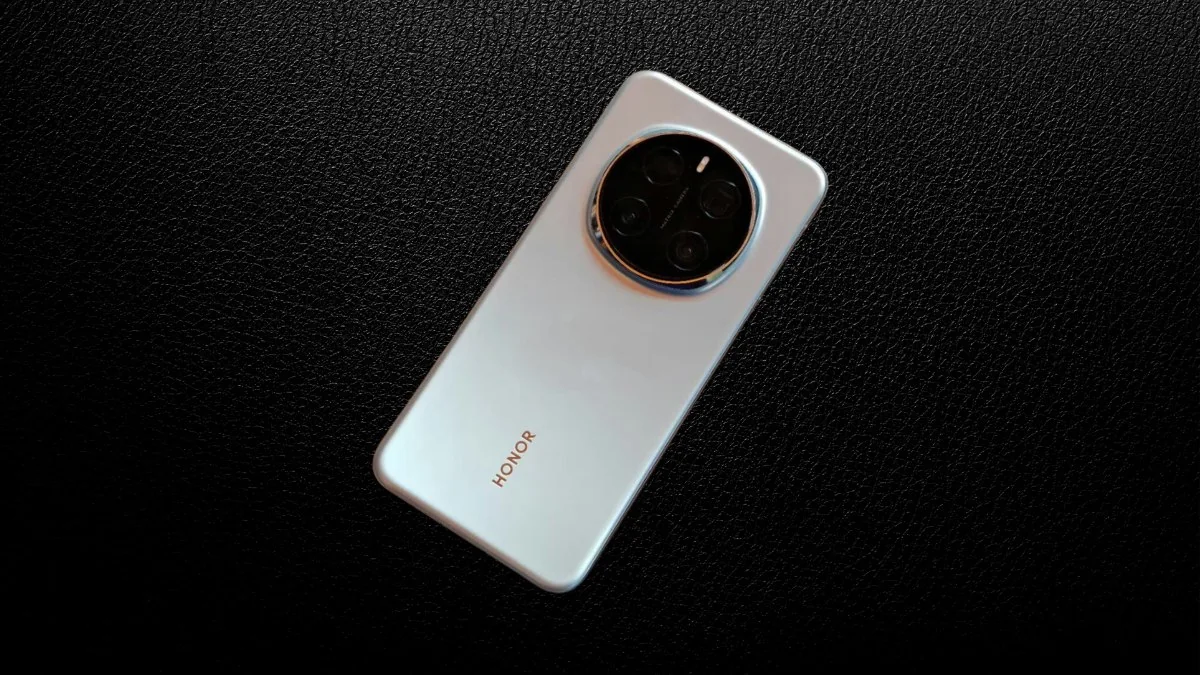
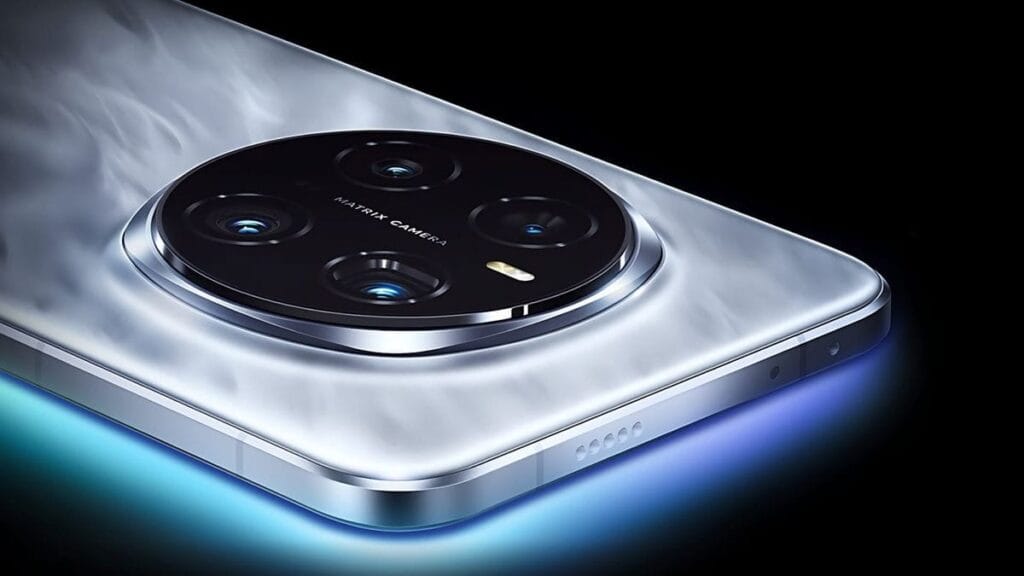
The Honor Magic 8 Pro has gained a lot of attention lately because of its live photos, one of which showed that it has a 7200mAh battery. Following numerous speculations about 7000 or 8000+ cells for the next flagship, the information has been verified.
A 7200mAh battery pack was visible in a live shot of the Honor Magic 8 Pro posted by Weibo tipster @JinanDigital. Other features of the high-end phone are also highlighted in the picture.
Honor has ambitious plans for battery capacity this year. With its 6100mAh battery, the Honor Magic V5 took center stage in the market. The next phone in line is the X70, which has the biggest battery for a mid-range phone (8300mAh).
Honor Magic 8 Pro giant 7200mAh battery
However, the company is getting ready to release a 10,000mAh battery item in 2026. In the midst of these amazing capabilities, Magic 8 Pro is also making an appearance.
The third-generation Qinghai Lake Battery, which has a 5850mAh capacity, is a lithium-ion polymer cell that is included in the Honor Magic 7 Pro for comparison. It is compatible with both 80W wireless charging and a 100W Honor Super Fast charger.
The Magic 7 Pro can increase its charging speed from 0% to 100% in 30 to 35 minutes. That’s incredibly fast. For the next iteration, the business has now employed a larger battery. As a result, the charging speed will probably continue to rise.
Larger batteries, however, primarily help users by extending their usage duration and providing convenience during lengthy trips or crises. Additionally, it lessens the likelihood that your gadget will need to be charged regularly while you watch a movie or perform strenuous chores.
The Honor C1+ and E2 chips, 16GB of RAM, and the option for up to 1TB of storage are further upgrades that can be seen in the live image. By mid-October, the flagship phone might make its official debut.
Before the year ends, Xiaomi will stop supporting more than 20 devices. Many devices, ranging from the Xiaomi 12X to the Poco F4, have not yet been included in HyperOS 3 deployment schedules and will shortly reach end-of-life status.
Xiaomi has now stated that HyperOS 3, its upcoming big OS update, will be released globally initially. In summary, Xiaomi now divides the HyperOS 3 Rollout Schedule into three batches, with the first batch beginning this month and the third batch ending in March 2026. Just before to that, Xiaomi released a comparable update for the Chinese market that featured products tailored to that country, such as the Redmi K series and Mix Fold foldables.
Some older recent smartphones, such as the Xiaomi 11T series, have now gotten their final upgrades, as we previously noted. As a result, they are not eligible to upgrade to HyperOS 3. Even yet, some HyperOS 3 compatible devices—like the Redmi Note 14 Pro Plus—will not be able to access Hyper Island features.
It is now evident which Xiaomi devices have been left out of the company’s plans as the HyperOS 3 release timetables have been moved until the spring. For example, by February 2026, when it should get its last security update, the Poco X5 Pro 5G will be in end-of-life status. As a result, Xiaomi has excluded the gadget from its list of devices compatible with HyperOS 3. The following Xiaomi, Redmi, and Poco devices are currently scheduled to reach end-of-life status this year and are not part of the official HyperOS 3 distribution plans:
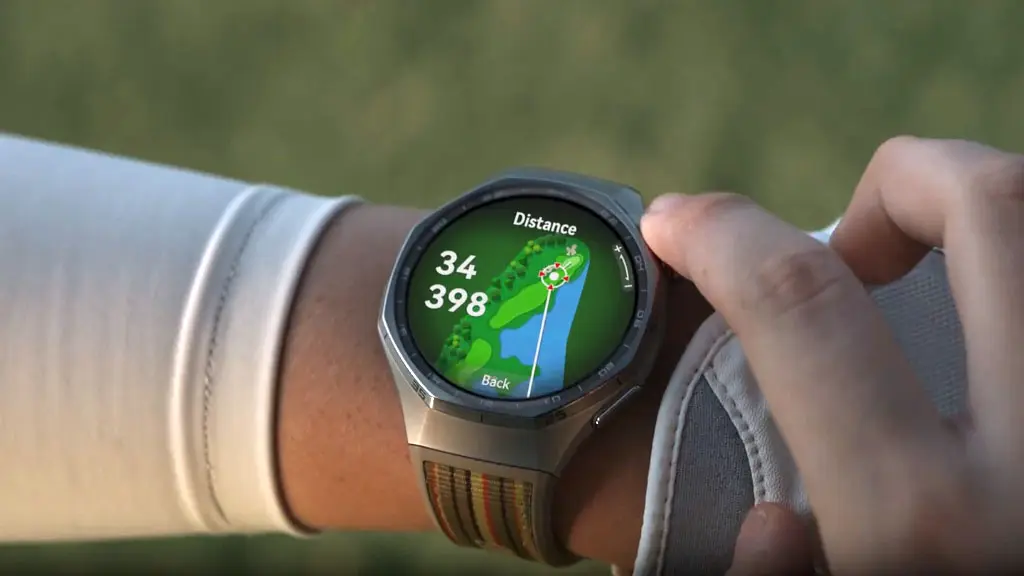
The first update for the Watch GT 6 Pro worldwide is being released by Huawei. For the recently released wearable, this firmware is particularly noteworthy for two reasons. First of all, it offers a ton of incredible features. Second, the HarmonyOS 6.0 software version is included in this update.
Indeed, HarmonyOS 6.0 is already appearing with the Watch GT 6 series as an official version, even though it still has time to reach the stable platform. In addition, it gives users access to a lot of fascinating functions, like exchanging files, watching faces, and sports.
The most recent wearables allow music files to be sent via Wi-Fi to iOS devices. However, the build has watch faces for Video and Module 2025. On their rides, users can also take use of real-time virtual performance notes.
The business has modified some of its current features in addition to adding new ones. Upgraded the Call List to Phone, for example. To make their accessibility easier, users can even change the frequently used features and functionalities on their watch screen.
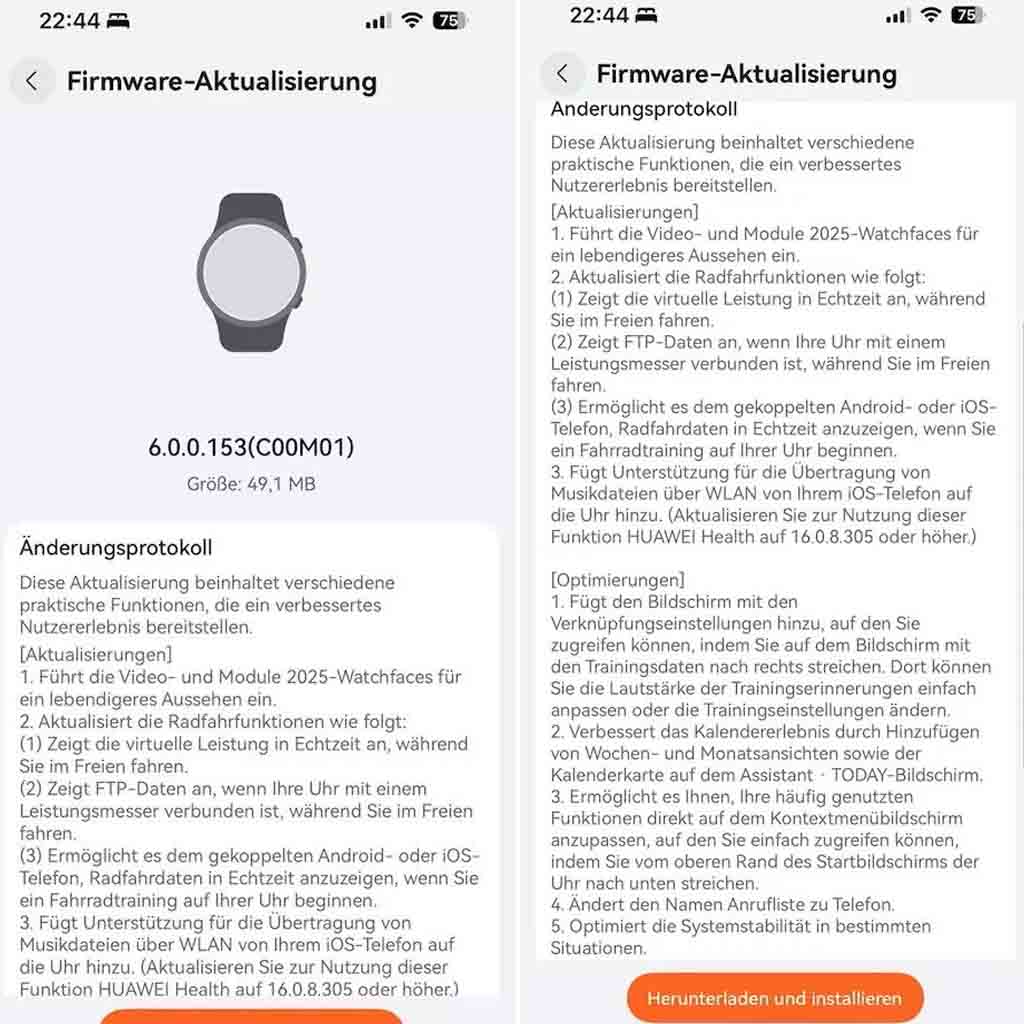
HarmonyOS 6.0.0.153, the first update for the Huawei Watch GT 6 Pro, has a software package size of 49.1 megabytes. All of the additions are listed here.
New improvements for Watch GT 6 Pro
New Features
Introduces the Video and Module 2025 watch faces for a more vibrant look.
Displays real-time virtual performance while you ride outdoors.
Displays FTP data when your watch is connected to a power meter while you ride outdoors.
Allows the paired Android or iOS phone to display real-time cycling data when you start a cycling workout on your watch.
Sharing Function
Adds support for transferring music files from your iOS phone to the watch via Wi-Fi. (To use this feature, update HUAWEI Health to 16.0.8.305 or later.)
Optimizations
Adds the Shortcuts settings screen, accessible by swiping right on the workout data screen. There, you can easily adjust the volume of workout reminders or change workout settings.
Improves the calendar experience by adding week and month views and the calendar card on the Assistant • TODAY screen.
Allows you to customize your frequently used functions directly on the context menu screen, which is easily accessed by swiping down from the top of the watch home screen.
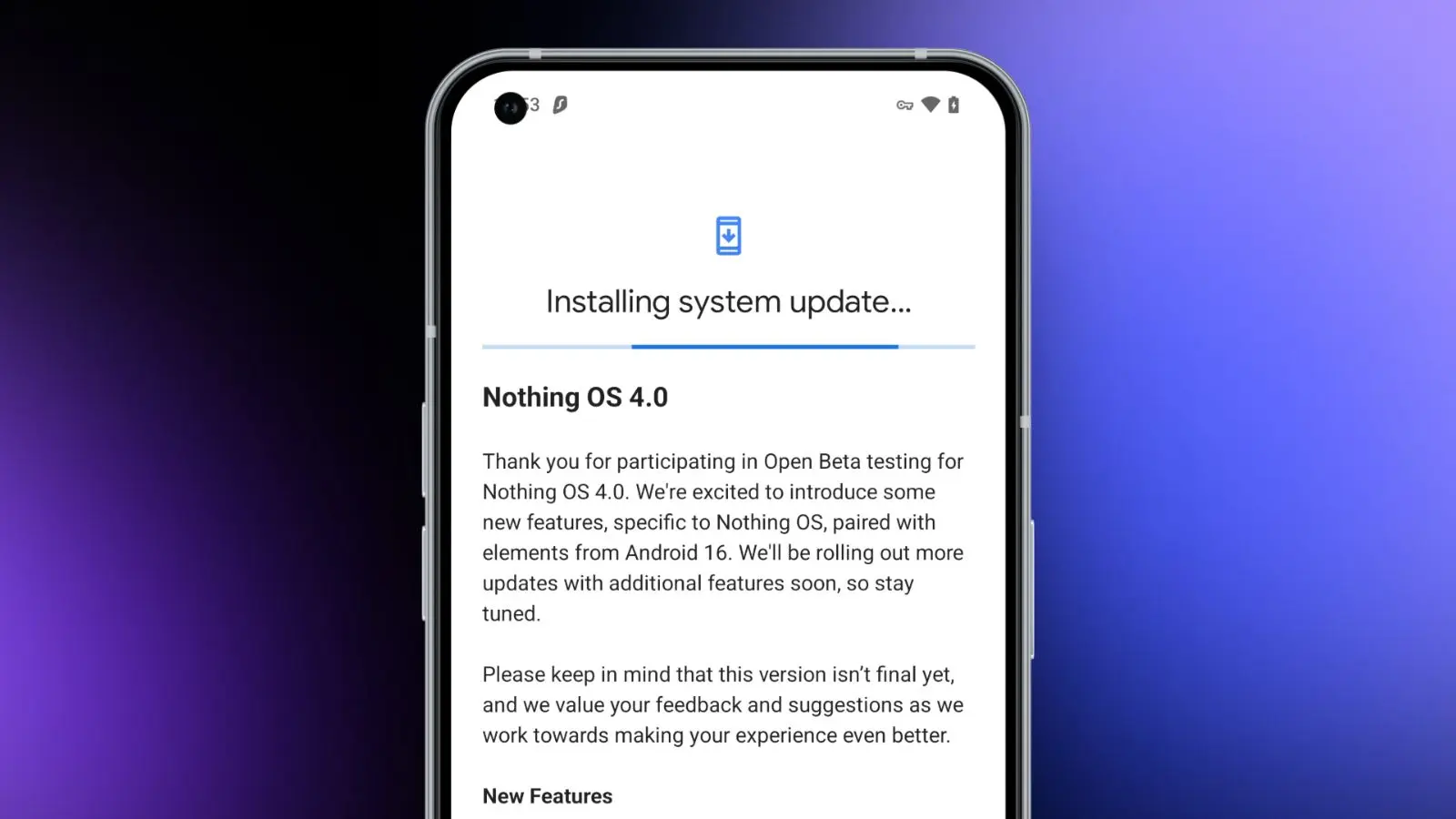
Today, we need to discuss a few significant news from Nothing. First, for those who own a Nothing phone and would like to try out Android 16 before it becomes stable, Nothing has made the Nothing OS 4.0 Open Beta (Android 16) available. The other news relates to that since it presents the Playground and Essential Apps, both of which require additional explanation. In summary, Nothing came up with a really great idea.
Download the Nothing OS 4.0 Open Beta:
Let’s start with Nothing OS 4.0, which is now in beta testing. To obtain this, you must have a Phone 3 or any of the Phone 2 and 2a versions. You might be out of luck right now if you own a Phone 3a device, as they haven’t mentioned them yet.
There are a number of changes in the Nothing OS 4.0 beta, all of which we’ve detailed in this post. It includes “generic” enhancements like a more sophisticated design, an additional dark mode, enhanced app optimization, and a better photography experience. Nothing also mentioned two new lock screen clock faces, a new Pop-up View, and support for 2×2 Quick Settings tiles in today’s announcement.
Installing the Nothing Beta Updates app, joining the beta through it, and then installing the beta software are the largely straightforward steps to begin, providing you enjoy testing beta software.
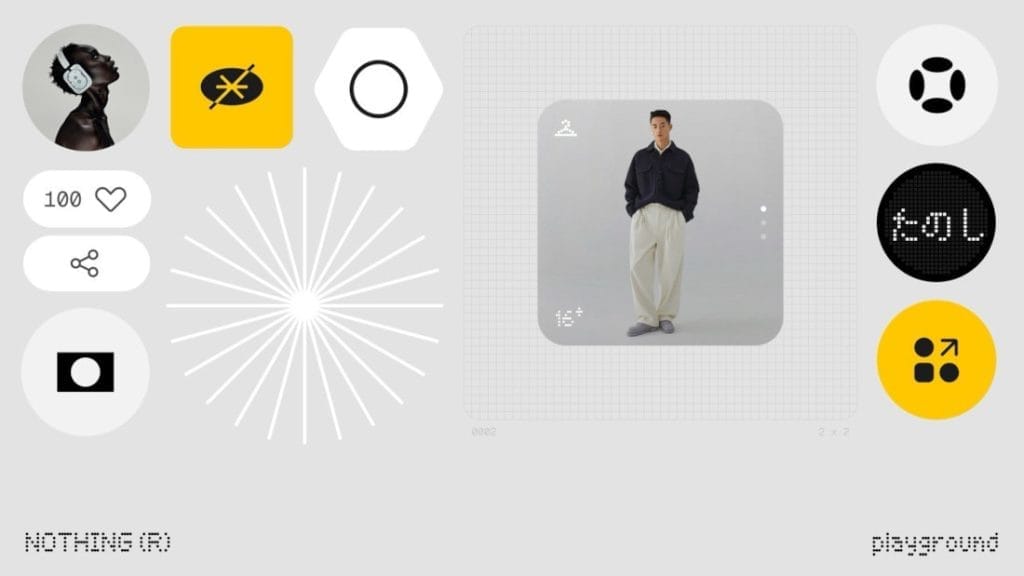
Nothing Essential Apps and Playground: In other exciting news, Nothing has introduced the Playground and Essential Apps that are housed within it since we enjoy fresh concepts. If your Nothing device is running Nothing OS 4.0, you can install programs, Glyph Toys, camera settings, and EQ profiles from the Playground, which is effectively a community storefront. Even while you might not find that concept particularly novel or intriguing, the apps and their origins may be.
Nothing has developed a web gateway that lets you make your own programs that your Nothing phone may install as widgets. You go to the Nothing Playground website (here) and try to explain a phone app you want. To put it another way, you would be describing a widget that isn’t currently on your device but may be a helpful program or action. This Playground site’s AI will install it on your device if it is capable of doing so.
You only need an idea that you can clearly express in a prompt that AI could grasp and then develop from, as this is all happening from AI prompts. You don’t need to know how to code to accomplish this. But in case you were curious, you can see the code it spits out. All of this is a sort of early “alpha” with some obvious restrictions. There has been no indication that it will grow and incorporate agents, APIs, and integrations in the future, which should make this something really amazing.
A Tic Tac Toe app, an F1 timetable, a water intake tracker, a flight reminder, a solar clock, a small calculator, and a breathing tracker are a some of the apps that are now available on the Playground. You may already have some of those features from other apps, but the idea is that you may think of something useful at the time and instruct the Playground to create it. In only a few minutes, that might be on your home screen and be usable. That is a significant idea.
You will be able to download other members’ apps and share your own publicly on the Playground to completely increase the number of apps and ideas available.