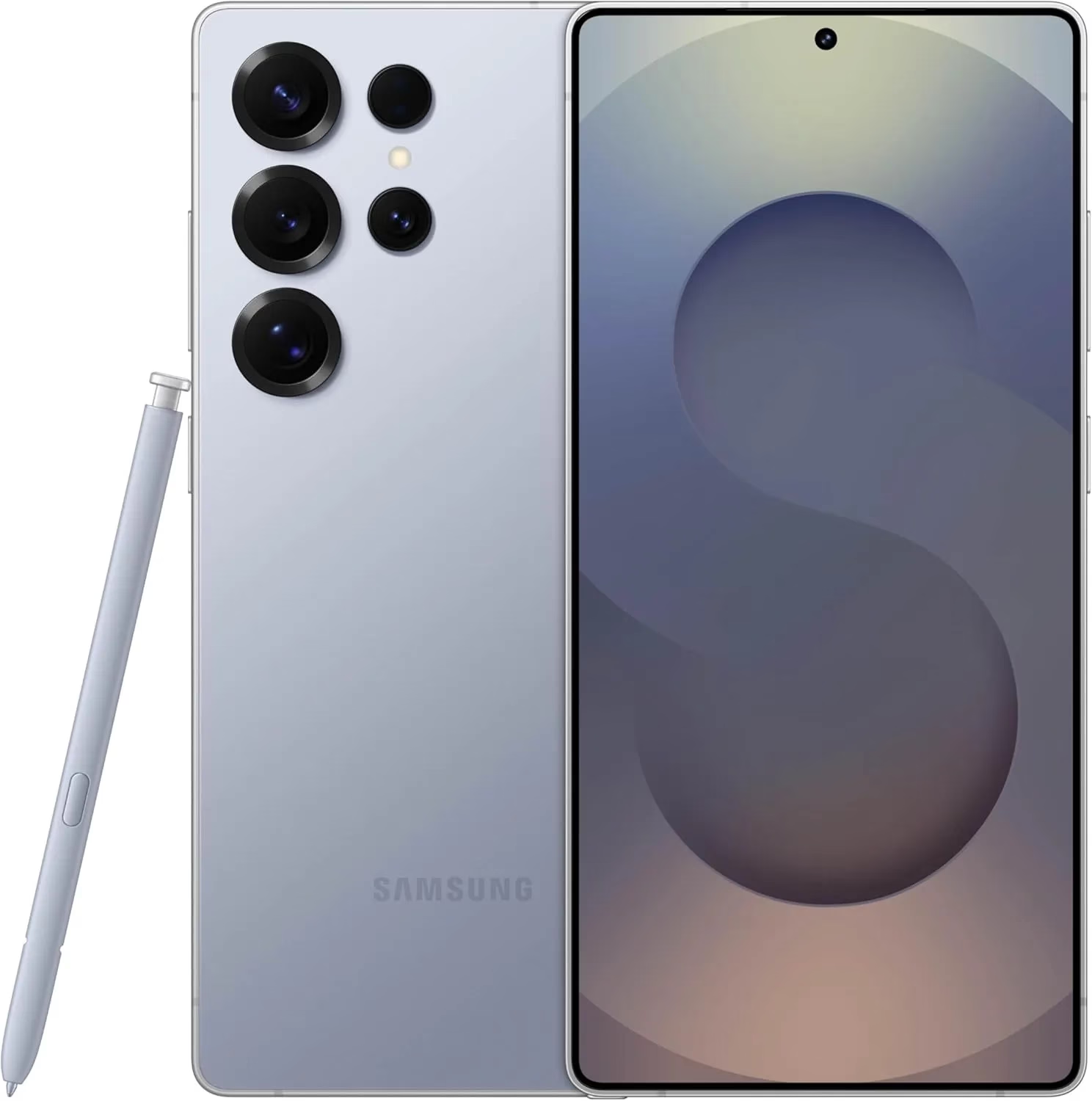
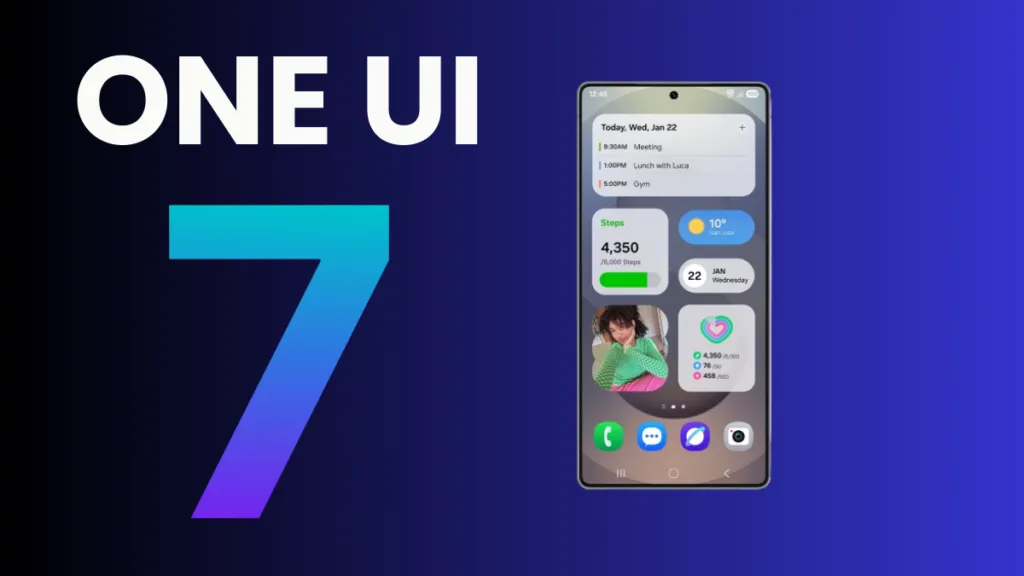
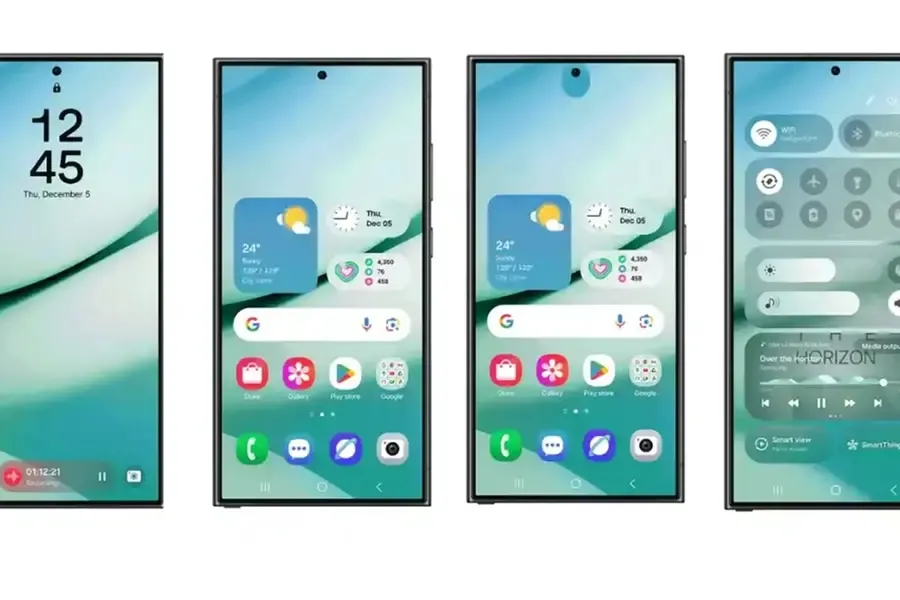
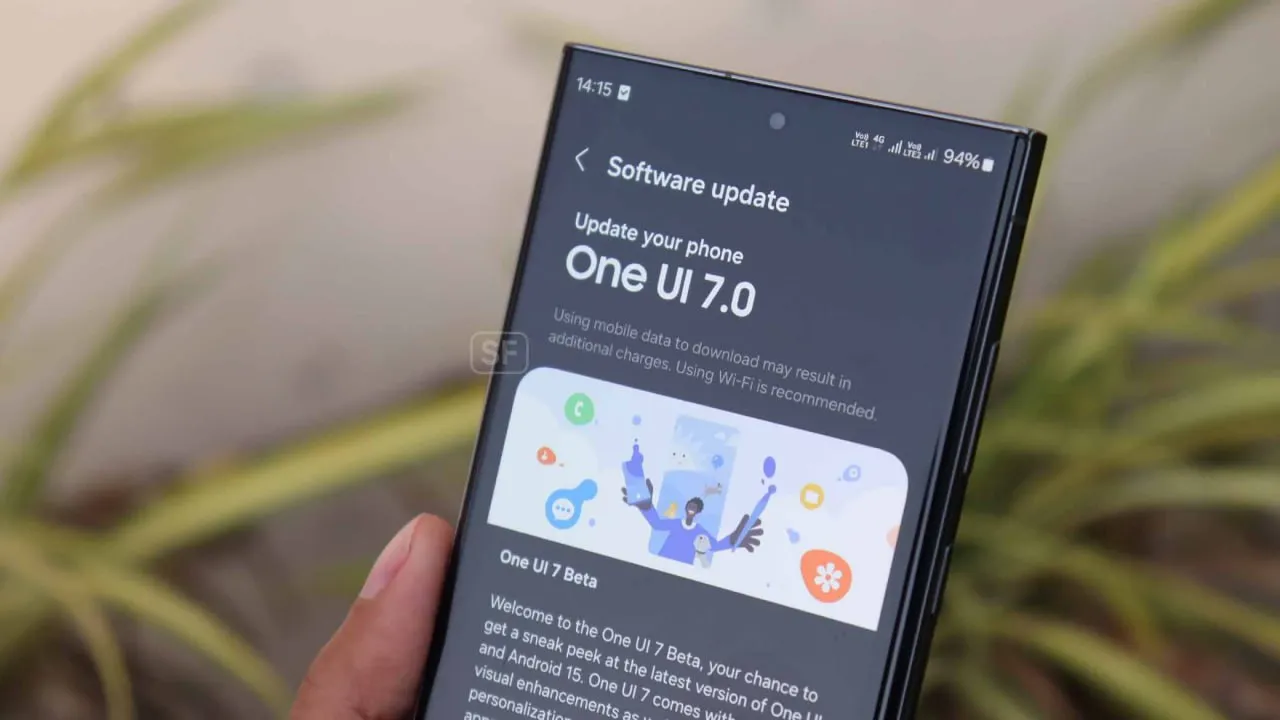
Samsung is internally getting ready for the One UI 8 Beta for Galaxy devices in addition to the stable One UI 7 release. The beta program may begin in the third week of May 2025, according to rumors. The One UI 8 Public Beta Program for the Galaxy S25 series may begin earlier than anticipated, according to new information.
A fresh One UI 8 Beta build for the Galaxy S25 series was recently found by a trustworthy source, suggesting that Samsung is actively developing the upcoming version. Internal testing for the global version of the Galaxy S25 Ultra is currently in progress, according to the latest build, S938BXXU3ZYEF.
One UI 8 beta testing appeared online
The first One UI 8 beta testing build for the Galaxy S25 series, with a version ending in ZYEA, appeared online last week. Samsung appears to be moving swiftly forward with internal beta testing for the Galaxy S25 series based on the change from that build to the latest one.
Samsung is anticipated to launch the One UI 8 Public Beta Program for the Galaxy S25 series and other qualified smartphones after internal testing is finished. Users of the Galaxy can test out new features through this program prior to their official release.
Additionally, according to some rumors, Samsung may launch the One UI 8 Beta Program during the third week of May 2025. According to reports, it will first be accessible to a certain group of Galaxy customers in particular nations.
We should be cautious about this report, though, as Samsung has not yet confirmed it. In contrast to One UI 7, we may anticipate no delays this time around because Samsung seems to be proceeding swiftly with internal testing.
The in-house Exynos 2600 chipset is expected to be manufactured by Samsung, which is apparently nearing mass production readiness, according to a recent Korean article.
In terms of competition, Samsung Foundry has not yet reached the desired milestone, whereas TSMC has already exceeded 60% yield on their 2nm class N2 node. However, a recent report indicates that the nascent chip manufacturer is rather close, with yields currently falling between 4 and 50 percent. It is far higher than the predicted 30% figure that was released in February.
Samsung may be forced to forgo the Snapdragon 8 Elite 2 chip for the upcoming Galaxy S26 series in some areas next year due to the Exynos 2600 chipset’s promising results from the efficient 2nm technology.
The Snapdragon 8 Elite 2 for Galaxy will be developed using the same 2nm technology, the report also reveals. It is expected to appear in the second half of 2026, maybe alongside the Galaxy Z Fold 8 and Galaxy Z Flip 8.
According to a post published by a tipster on X, the Korean tech giant apparently had to sacrifice performance in order to obtain functional chips, meaning that SF2 will once again lag behind TSMC’s N2 node in terms of raw performance. There might be a significant performance difference between the standard Snapdragon 8 Elite 2 and the tipster’s claim if it turns out to be accurate.
Samsung has already provided a specific schedule for the stable rollout, but the company is now having trouble launching One UI 7. Users must be wondering which handsets will be eligible for the update, as Samsung will be concentrating on One UI 8 after this is finished. Here is the complete list of (anticipated) One UI 8 compatible devices.
As the initial glance has already been made public, Samsung has in fact started working behind closed doors on One UI 8, their next major OS version that will run Android 16.
Although Samsung has already given a precise timeline for the stable rollout, the business is currently experiencing issues with One UI 7. After this is done, Samsung will focus on One UI 8, therefore users must be wondering which phones will be eligible for the update. The full list of (expected) One UI 8 supported devices is available here.
Samsung has actually begun working behind closed doors on One UI 8, their next major operating system version that will run Android 16, as the first look has already been made public.
Samsung Galaxy S25 Ultra 512GB
Streamline your day with an assistant that gets you. Ask it to Google search for a pet-friendly vegan restaurant nearby and text it to your friend— your Galaxy S25 Ultra handles multiple tasks with a single ask.
Android 16 with One Ui 8 release date and features
It is anticipated that the most recent One UI 8.0, which is based on Android 16 and is a modest upgrade that improves One UI 7 capabilities, would be released in late July or early August. Because it comes pre-installed on the Galaxy Z Fold 7 and Z Flip 7, an early distribution is expected.
Android users are particularly concerned about privacy and data safety, especially when saving sensitive files, images, or papers. Whether you are concerned about someone peeking through your gallery or want to protect business-related content, Android has built-in security features that do not require third-party apps.
This guide describes how to use secure folders and app-based file protection features on several Android devices, including Samsung, Google Pixel, and more.
What is a secure folder
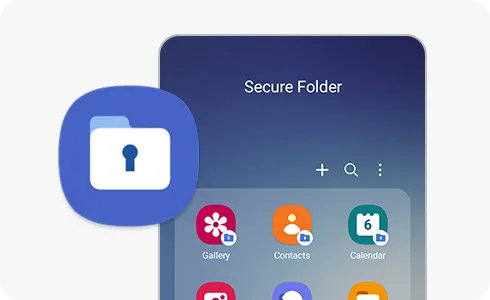
A secure folder is a safe location on your Android smartphone where you can keep programs, files, and media separate from the main user interface. Access requires authentication (PIN, pattern, or fingerprint), ensuring that only you can open it. When data is moved to a safe folder, it is rendered invisible in conventional folders and apps such as Google Photos or File Manager.
Samsung’s Secure Folder is the best-known example, however other manufacturers provide comparable functionality.
How to use Secure Folder on Samsung Galaxy devices
Samsung offers a native solution called Secure Folder, available on most devices running One UI:
Enable Secure Folder:
Go to Settings > Security and privacy > Secure Folder.
Sign in to your Samsung account if prompted.
Set your preferred lock method (PIN, password, or biometric).
Files by Google includes a Safe Folder to protect sensitive files.
Open the Files by Google app.
Tap Browse, then scroll to Collections > Safe folder.
Set up a 4-digit PIN when prompted.
Move any files (photos, documents, videos) into the Safe Folder for encryption and restricted access.
Limitations:
No secure app duplication.
Cannot protect entire apps—only individual files.
2. Use screen pinning or app lock (if supported)
On Pixel phones, you can use screen pinning to lock a specific app:
Go to Settings > Security > Advanced > Screen pinning.
Turn it on and set it to ask for unlock credentials.
When enabled, you can lock an app to the screen and prevent switching until your PIN or fingerprint is entered.
Secure folder alternatives for OnePlus, Xiaomi, Vivo, and Realme
Many Android OEMs offer their own version of secure folder functionality:
OnePlus (App Lock & Hidden Space):
Go to Settings > Utilities > App lock to lock apps.
Use Hidden Space (swipe right in the app drawer) to hide apps or files from plain view.
Xiaomi (Second Space or App Lock):
Second Space lets you create a full-profile clone for private use.
App Lock in Settings lets you password-protect apps and media.
Vivo/Realme:
Use File Safe or Private Safe under Security settings.
This lets you encrypt and store sensitive files securely.
Each of these tools serves a similar purpose: creating a private area for your data and apps that only you can access.
When should you use a secure folder
Secure folders are ideal for:
Storing sensitive photos, work files, or legal documents
Keeping personal messages or notes private
Isolating apps with private data
Creating a private profile for shared phones or kids
If your phone is shared, stolen, or accessed without your knowledge, a protected folder provides an additional layer of security.
Android provides numerous options to protect your most sensitive data, with secure folders ranking among the best built-in solutions for the purpose. Whether you use Samsung’s powerful Secure Folder, Google’s Safe Folder, or manufacturer-specific features, these solutions offer true privacy without the need to install third-party apps. To protect your digital life, ensure that they are correctly configured and that you use a strong authentication technique.
The One UI 7 is Samsung’s most significant UI change to date. Even while the build included numerous amazing changes that fans had been anticipating, certain delays made the release a source of frustration among fans as well. Now that the stable release has begun, here are all of the Galaxy models set to receive the upgrade in May 2025.
Essentially, Samsung began the One UI 7 stable update rollout on April 7 for the Galaxy S24 series, as well as the Galaxy Z Fold 6 and Flip 6, which were scheduled to receive the update in the first batch, while the rollout for the US market was scheduled to begin on April 10; however, due to a bug, Samsung had to pause the rollout.
At the same time, the One UI 7 release resumed and is now reaching even more older generation handsets, excluding the Galaxy S24 family and the company’s 6th generation foldables.
Samsung has already begun to expand the reliable One UI 7 edition globally, starting in the company’s hometown of South Korea. So far, Samsung has delivered the stable update to numerous Galaxy phones and tablets since mid-April, and will continue to do so until every eligible device is covered.
Furthermore, One UI 7 introduced many new features and modifications, although it is worth noting that a few Galaxy AI functions may not be available in previous Galaxy model lineups.
List of samsung Galaxy devices receiving One UI 7 in May 2025.
Now that we have entered the month of May, here are all of the Galaxy smartphones, tablets, and foldables that are expected to receive updates this month in the global market:
Your phone allows you to answer calls, make and receive texts, and give commands to a voice-activated assistant. But sometimes it is more convenient to perform those things on your wrist, which is where a smartwatch comes in.
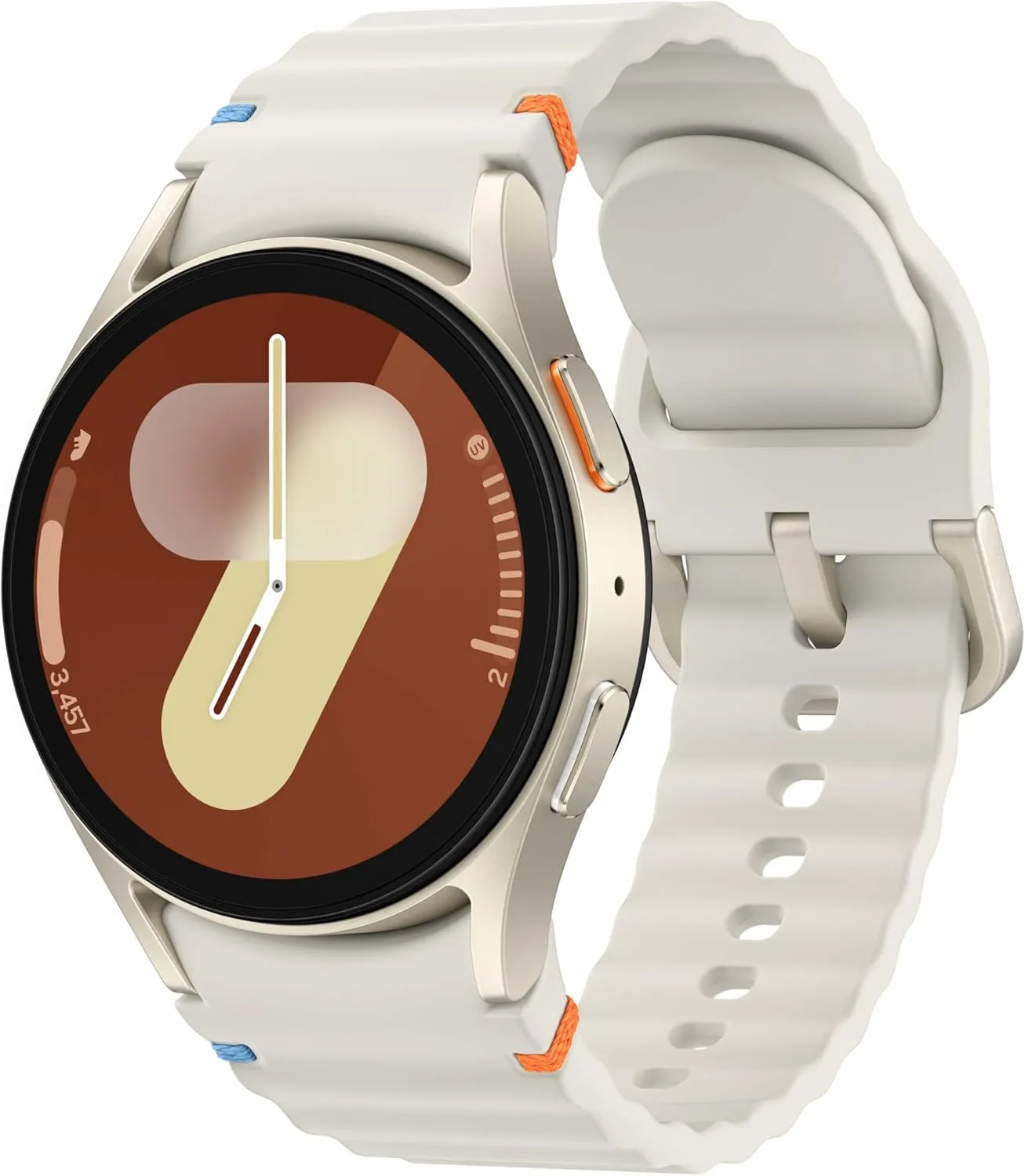
The Apple Watch is the gold standard for smartwatches, but it is only compatible with Apple iPhones. If you own an Android phone, you have a lot more smartwatch alternatives, but there is also a lot more opportunity for misunderstanding. Most of the watches we have seen are too slow, cumbersome, or lacking in functionality to be worthwhile purchases. After testing hundreds of smartwatches for Android phones, including the most recent versions, we determined that the Samsung Galaxy Watch7 is the best option for the majority of Android phone users.
Looking for a great way to bring out your personal best every day? Challenge yourself to excel on your next run or bike ride using tracking with Galaxy AI that lets you compare your current performance to your last one
The Samsung Galaxy Watch7‘s robust shell comes in two sizes and is one of the most comfortable watches we have tested. The Watch7 runs the most recent Wear OS software and includes additional health and fitness capabilities such as sleep apnea detection, metabolic health monitoring, and an AI-based Energy Score that combines workout and sleep information. You can also use your fingers to engage with some watch features without touching the screen. Unfortunately, like its predecessor, the battery only lasts one day and requires hours to fully recharge.
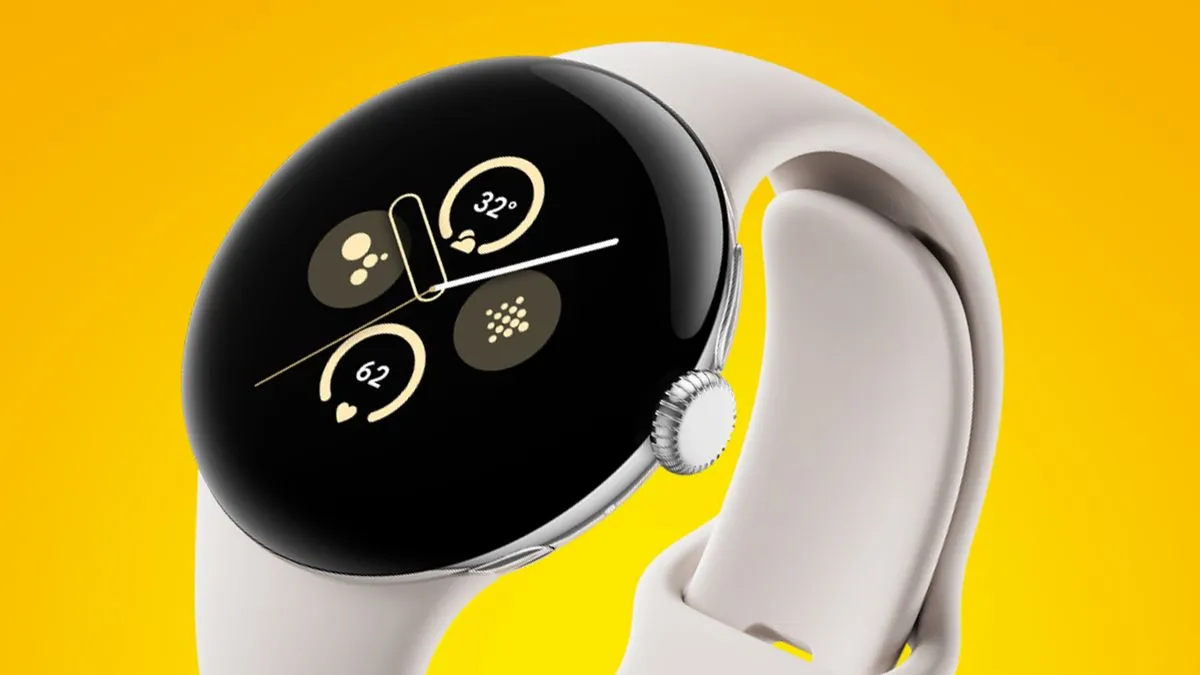
The Google Pixel Watch 3 is designed for performance, with advanced fitness from Fitbit; the 45mm screen is twice as bright and 40% larger than before, making it easier to see your stats and info
The Google Pixel Watch 3 looks similar to the original Pixel Watch, but with slimmer bezels. The 41 mm and 44 mm variants have equal features, but the 44 mm watch has a longer-lasting battery. The Pixel Watch 3 has a new OLED display that can reach up to 2,000 nits of peak brightness. It also runs the most recent version of Google’s Wear OS 5, which includes additional health-related functions and improved connection with Google’s ecosystem. It retains the previous version’s unique band connector, which is only compatible with the bands provided by Google.
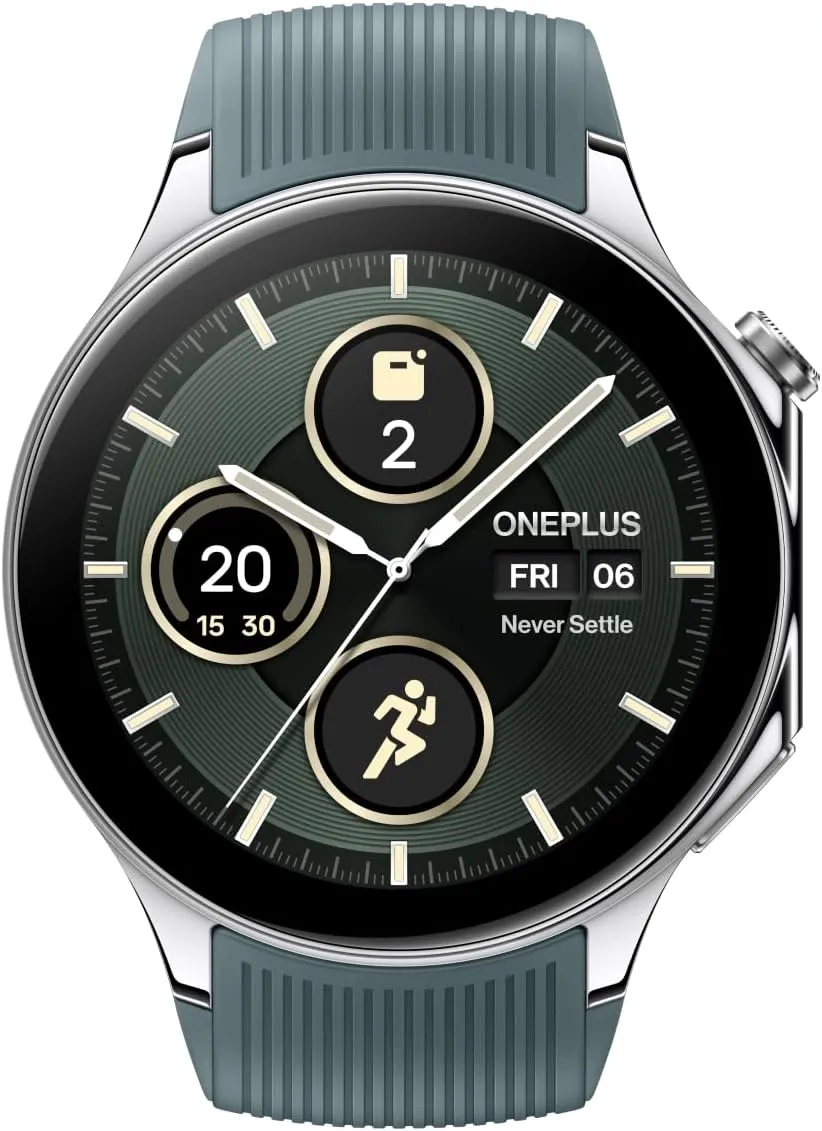
The OnePlus Watch 2 fuses a stainless-steel chassis with a robust 2.5D sapphire crystal face, delivering a sophisticated design that withstands daily wear and tear with a 5ATM and IP68 rating, and military-grade standard for durability.
The OnePlus Watch 2R may last many days on a single charge while also providing important health tracking—all at an inexpensive price. Its 46 mm shell houses a big 1.43-inch OLED display with a maximum brightness of 1,000 nits, and it runs a hybrid system made up of two chips and two software setups, including Google’s Wear OS 4 and Google Assistant.
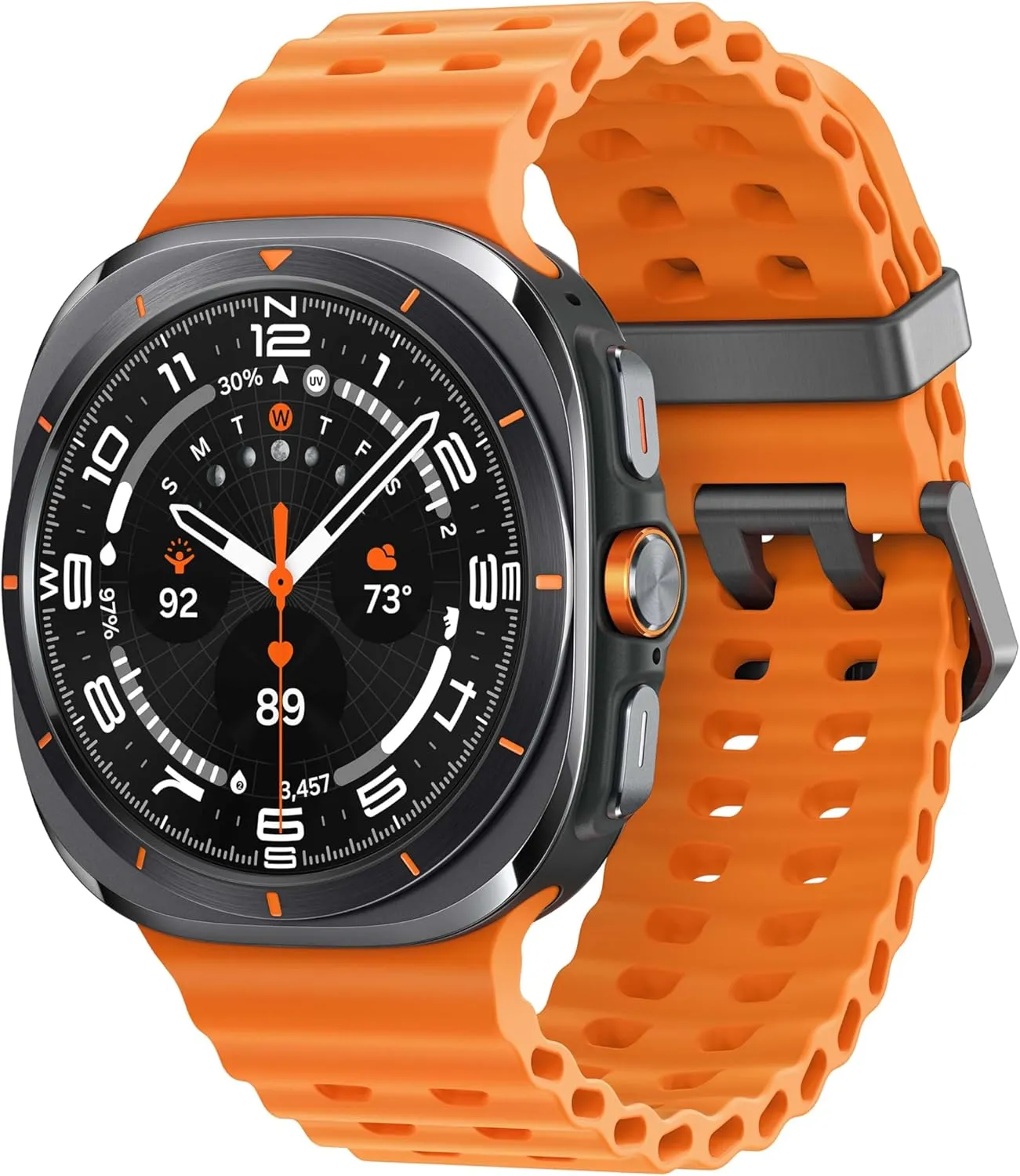
The Watch Ultra sports a huge 47 mm titanium body with a display that can reach up to 3,000 nits of peak brightness, making it easier to see your screen even in the darkest of nights and brightest of days.
The Samsung Galaxy Watch Ultra incorporates a few extra capabilities than the Watch7 into a larger, more robust smartwatch. It offers fitness monitoring for triathletes, bikers, swimmers, and strong endurance users, with twice the battery life of the Watch 7. Many people are put off by its large size, heavy weight, and high price, but the features and battery life may be worth the premium.
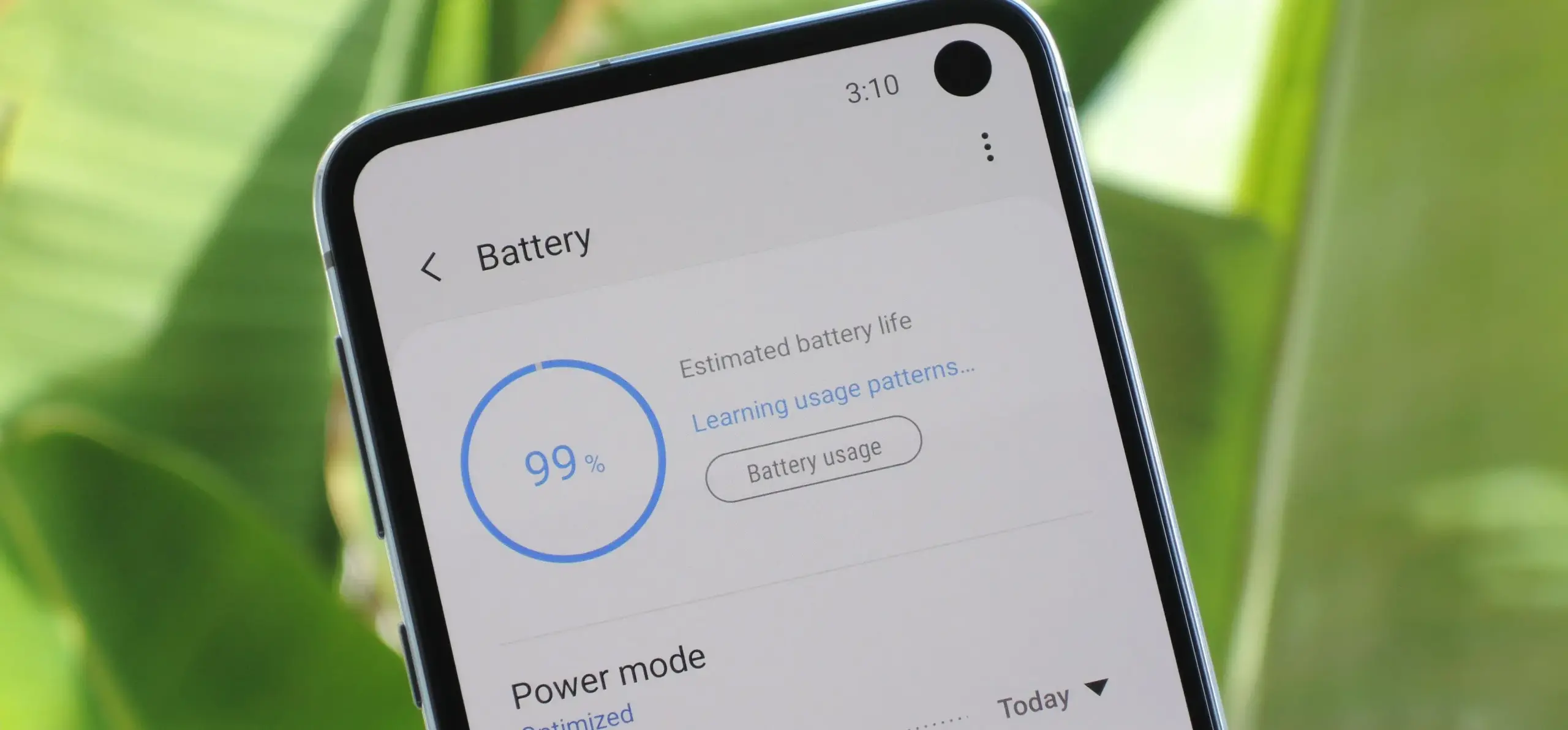
Because of their full of features and efficient software, Samsung’s Galaxy smartphones are among the best Android phones on the market right now. However, the majority of Samsung phones, particularly premium models like the Galaxy S25 Ultra, Galaxy Z Fold 6, and Z Flip 6, include extravagant features that you might not utilize on a regular basis. There are ways to maximize what you have without degrading the user experience if your new Galaxy phone is not able to last a full day between charges.
Here are seven ways to extend your Galaxy phone‘s battery life. Do not worry, I will not be Captain Obvious and suggest that you use your phone at a lower refresh rate or lower the screen resolution. The suggestions on this list ought to enhance your quality of life while optimizing the functionality of your phone.
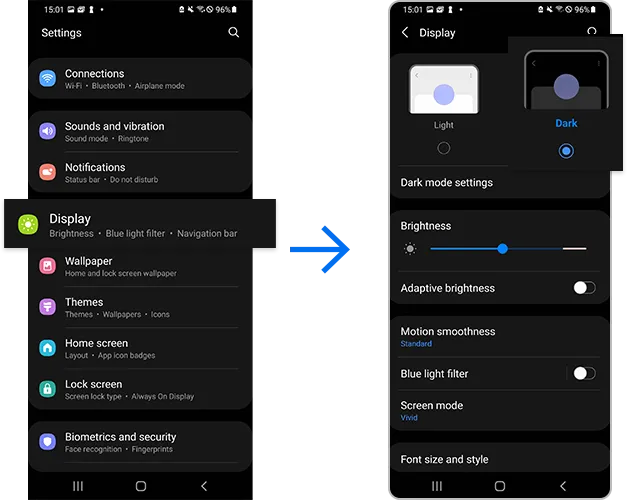
Use Dark Mode
AMOLED screens, which can light individual pixels, are seen on the majority of Samsung phones. Therefore, the area of the screen that must remain black will not activate those pixels when you choose a dark theme or dark wallpaper. As a result, your screen uses less power and your battery lasts a little longer.
How to do it: Go to Settings > Display. Two cards for Light and Dark will be dealt to you. Press the Dark option. Changing the system wallpaper and sticking with the light theme is an alternative, but it will not have the same impact on energy life as switching to dark mode.
Use Adaptive Brightness
Although this feature should ideally be turned on by default, some individuals disable it because it is not always reliable. Nonetheless, the quality of Samsung’s ambient light sensor has increased over time. Your Galaxy phone is capable of accurately detecting ambient illumination and adjusting the screen brightness on its own. By doing this, you can make sure your display is more effective and not overly bright.
Toggle on Adaptive Brightness by going to Settings > Display. Although it should function in most settings, you can use the Quick Settings panel to slide down to change the brightness if necessary.
Force stop or uninstall power-draining apps
Many applications, including Facebook, Microsoft 365, OneDrive, and numerous Samsung and Google apps, are pre-installed on Samsung devices. To stop them from running in the background, find the ones you do not need and either remove them or force-disable them.
For instance, not everyone requires OneDrive or the Samsung Smart TV app. I remove those two apps along with others like Facebook, Outlook, Microsoft 365, Tutor, and more when I set up a new Galaxy phone.
How to: Tap and hold the app you want to uninstall. A pop-up menu will appear. Tap Uninstall. As a result, none of these non-required apps will use your battery.
Identify power-draining apps
Depending on your location, 5G connectivity, and background usage, some apps need more power. To assist you reduce unnecessary battery usage, Samsung allows you to recognize certain power-hungry programs.
By selecting Settings > Battery and Device care > Battery > Background usage limits, you may find and disable power-draining apps on your device.
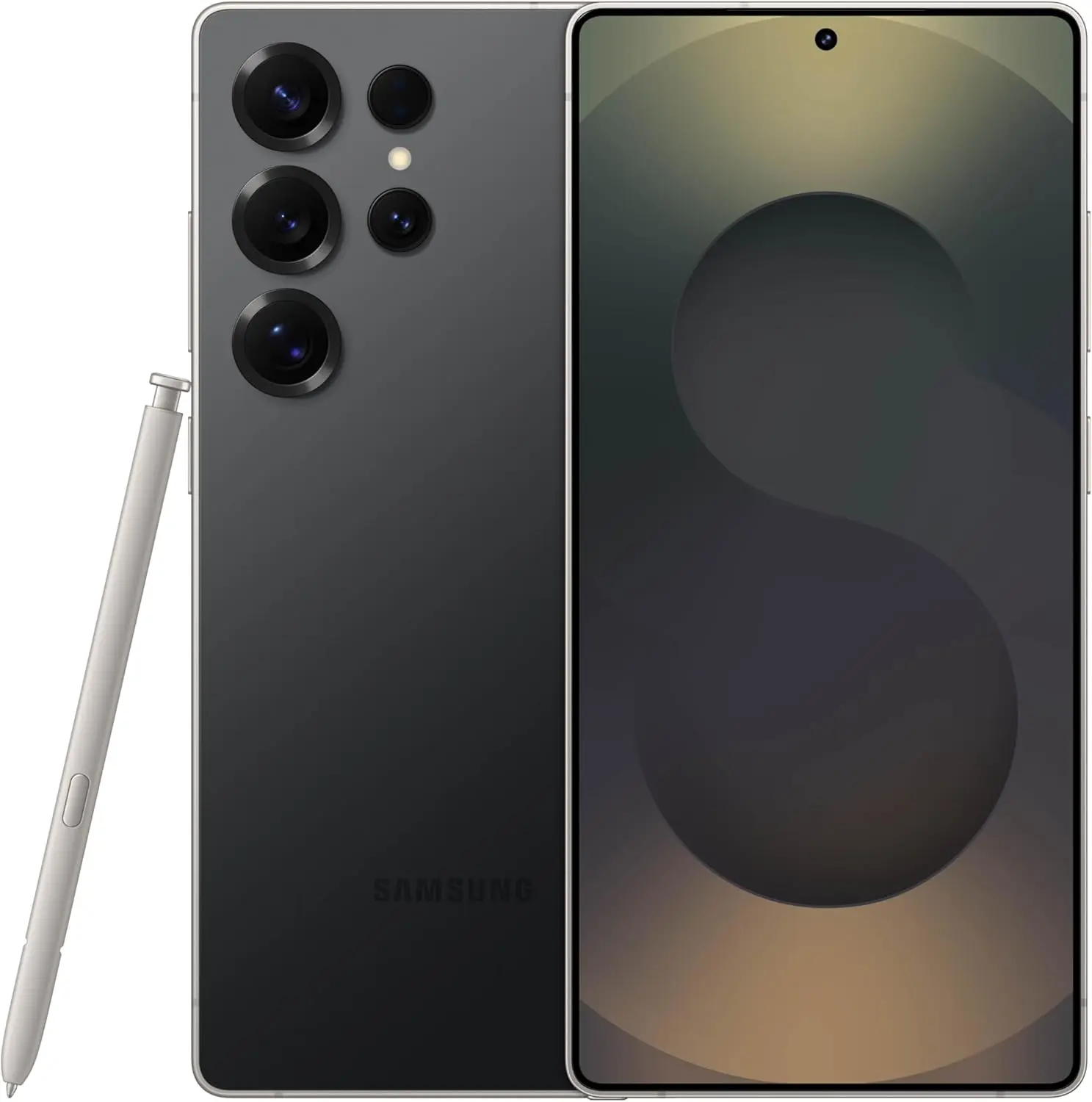
Samsung Galaxy S25 Ultra
Streamline your day with an assistant that gets you. Ask it to Google search for a pet-friendly vegan restaurant nearby and text it to your friend – your Galaxy S25 Ultra handles multiple tasks with a single ask.
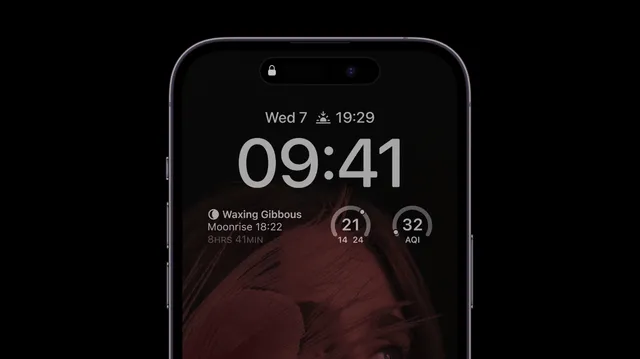
I like my Galaxy S25 Ultra’s Always-On Display (AOD). For efficiency, its LTPO display lowers to 1Hz, which is useful for functions like AOD. Using AOD may not be as effective if your Galaxy phone is midrange and has a minimum refresh rate of 60 Hz. You can use it wisely, though, by planning AOD for when it is required.
How to: Go to Settings > Lock Screen and AOD > Tap on Always On Display > When to show > As scheduled. While you’re at it, also turn off the Show lock screen wallpaper within AOD settings.
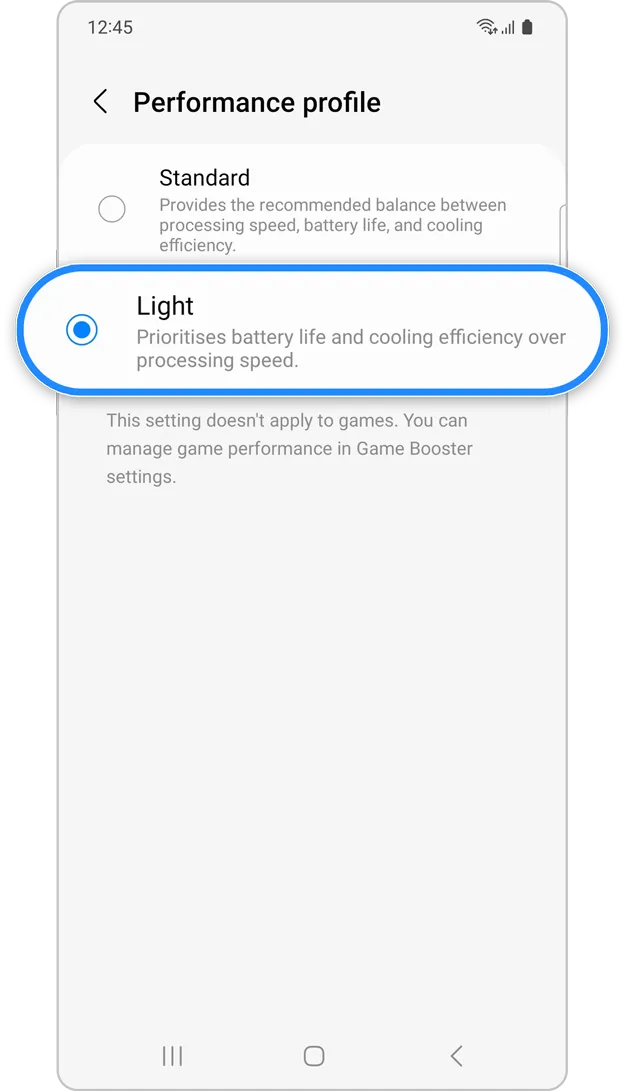
Use Performance profile
Samsung lets you select a performance profile according on how you use it. The Light Performance profile is a better option than the Standard if you do not play games and use your phone mostly for everyday activities like surfing and making calls. It will put cooling and battery life ahead of processing performance.
How to: Open the Settings app and go to Device care > Performance profile and select Light. This is ideal for average phone users.
Download offline content before travel
It is a good idea to download such stuff offline if you listen to the same podcasts and playlists or travel the same path every day. Google Maps and the majority of streaming apps use a lot of battery power over 5G and LTE. It may also cause your phone to feel warm to the touch when you are outside. With a little advance forethought, you can handle this: Before you leave the house, use Wi-Fi to download your favorite music or maps.
How to: Go to the streaming apps you want to download content from and follow the in-app steps. For instance, YouTube has a download button on videos, and Spotify lets you download complete playlists.
What should you do if the battery on Galaxy phone runs low?
The seven settings above will not hinder your user experience and will retain the best Galaxy phone features. However, if you’re out and your phone is low on battery, you should:
Turn on Power Saving
Toggle off data roaming
Turn off location services
Switch off AOD altogether
When your phone’s battery is less than 15% and you are still a few hours away from a charger, I advise activating these options. The Samsung settings listed above will also help you get the most out of your Galaxy phone’s battery.
Samsung Galaxy S25 Ultra
Streamline your day with an assistant that gets you. Ask it to Google search for a pet-friendly vegan restaurant nearby and text it to your friend – your Galaxy S25 Ultra handles multiple tasks with a single ask.
Experiencing battery drain after updating to One UI 7 on your Samsung Galaxy device? This comprehensive guide explains why battery drain happens, how to fix it, and the best settings to optimize battery life on One UI 7. Follow these proven steps to restore your phone’s battery performance and enjoy the latest features without compromise.
Battery drain after a major update like One UI 7 is common. Your device may use more power due to background optimization, app updates, and new features. Additionally, system apps such as location services may run more often, impacting battery life.
1. Allow System Optimization
It may take up to 14 days for your Galaxy phone to optimize battery usage after downloading One UI 7. Avoid making significant modifications during this time, and keep an eye out for any natural improvements in battery life.
Samsung Galaxy S25 Ultra
Streamline your day with an assistant that gets you. Ask it to Google search for a pet-friendly vegan restaurant nearby and text it to your friend – your Galaxy S25 Ultra handles multiple tasks with a single ask.
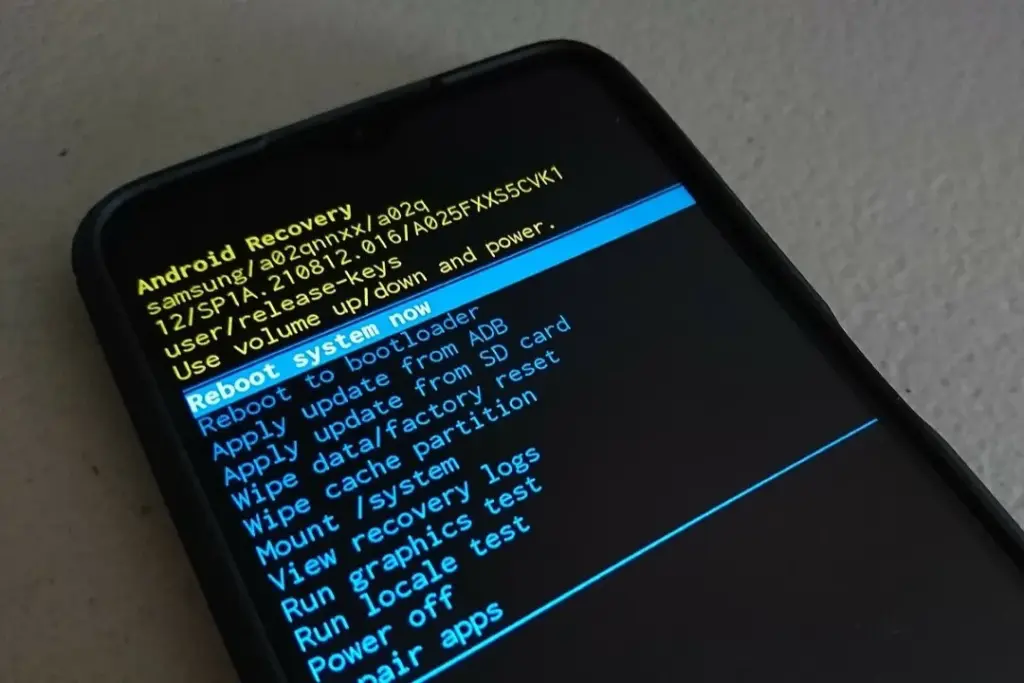
After an update, a damaged cache may result in excessive battery consumption. One secure method to fix this without erasing sensitive information is to wipe the cache partition.
How to Wipe Cache Partition:
Turn off your Galaxy device.
Connect it to a computer via USB.
Hold Power + Volume Up until the Samsung logo appears.
Use the volume buttons to highlight “Wipe cache partition” and press Power.
Confirm and reboot.
3. Update All Apps
Older apps might not be One UI 7 compatible. To guarantee compatibility and effectiveness, update every app from the Google Play Store and Galaxy Store.
4. Check Battery and Location Settings
To find out which apps use the most power, navigate to Settings > Battery & Device Care > Battery.
Limit background activity for apps that use a lot of resources.
For apps that do not require continuous access, check location permissions and turn off “Allow all the time.”
5. Use One UI 7 Battery Protection Features
One UI 7 introduces new battery protection tools:
Adaptive Mode: Limits charging to 80% overnight, topping up before you wake.
Maximum Mode: Set a custom maximum charge (80%, 85%, 90%, 95%) to extend battery lifespan.
Auto Dim Screen: Automatically dims the display when battery drops below 5%.
Access these in Settings > Battery > Battery Protection and Settings > Display > Auto Dim Screen.
6. Factory Reset as a Last Resort
If other solutions fail, a factory reset can resolve persistent battery drain. Back up your data before proceeding.
Extra Tips to Extend Battery Life on One UI 7
Turn off functions you do not use, such as background sync, fast refresh rate, and always-on display.
Reduce screen timeout and screen brightness.
When necessary, activate power-saving modes.
Frequently Asked Questions (FAQ)
How long does it take for battery life to stabilize after updating to One UI 7?
It can take up to two weeks for your device to optimize battery usage after a major update.
Will wiping the cache partition delete my personal data?
No, wiping the cache partition only clears temporary system files and does not affect your personal data.
Why is my location icon always on after the update?
Some apps may have gained new permissions. Review your location settings and restrict access where unnecessary.
Quick Fixes for One UI 7 Battery Drain
Solution
Effectiveness
Data Loss Risk
Difficulty
Wait for optimization
Moderate
None
Easy
Wipe cache partition
High
None
Medium
Update all apps
Moderate
None
Easy
Adjust battery settings
Moderate
None
Easy
Factory reset
High
Yes
Hard
If you’re still experiencing battery drain after trying these steps, keep your device updated and monitor community forums for official fixes. Reporting your issue helps Samsung identify and resolve widespread problems faster.
Samsung Galaxy S25 Ultra
Streamline your day with an assistant that gets you. Ask it to Google search for a pet-friendly vegan restaurant nearby and text it to your friend – your Galaxy S25 Ultra handles multiple tasks with a single ask.
Software updates are vital for keeping your Android smartphone secure, efficient, and compatible with the most recent apps. However, many users disable auto-updates, either to save data or to avoid unpleasant modifications. What is the good news? You can still manually check for and apply updates, rather than waiting for a system prompt.
In this extensive article, we will teach you how to manually check for Android system updates across many brands and what to do if no update appears – even if you assume one is available.
Why Android updates matter
There are several good reasons to check for Android updates manually:
1. Get Critical Security Patches Faster
Waiting for the automatic update prompt could expose your phone to known exploits. Manually checking allows you to keep ahead of security issues by ensuring that your device always has the most recent patch.
2. Access New Features Early
Android upgrades frequently include new interface modifications, battery optimizations, and system features. Manual updates allow you to try the latest enhancements as soon as they are published.
3. Fix Device Glitches or Bugs
Some updates contain stability fixes for specific devices. If your phone has been behaving up, a system update may fix crashes, poor performance, or connectivity issues.
4. Ensure App Compatibility
Many apps now require the latest Android versions to function properly. Without regular upgrades, your favorite apps may cease to function or lose essential features.
Check for updates via settings (standard Android)
This is the most common way to check for updates on Android, regardless of the manufacturer.
Steps:
Open your device’s Settings.
Scroll down and tap on System.
Tap Software Update or System Update (name may vary).
Tap Check for updates.
If an update is available, follow the on-screen instructions to download and install.
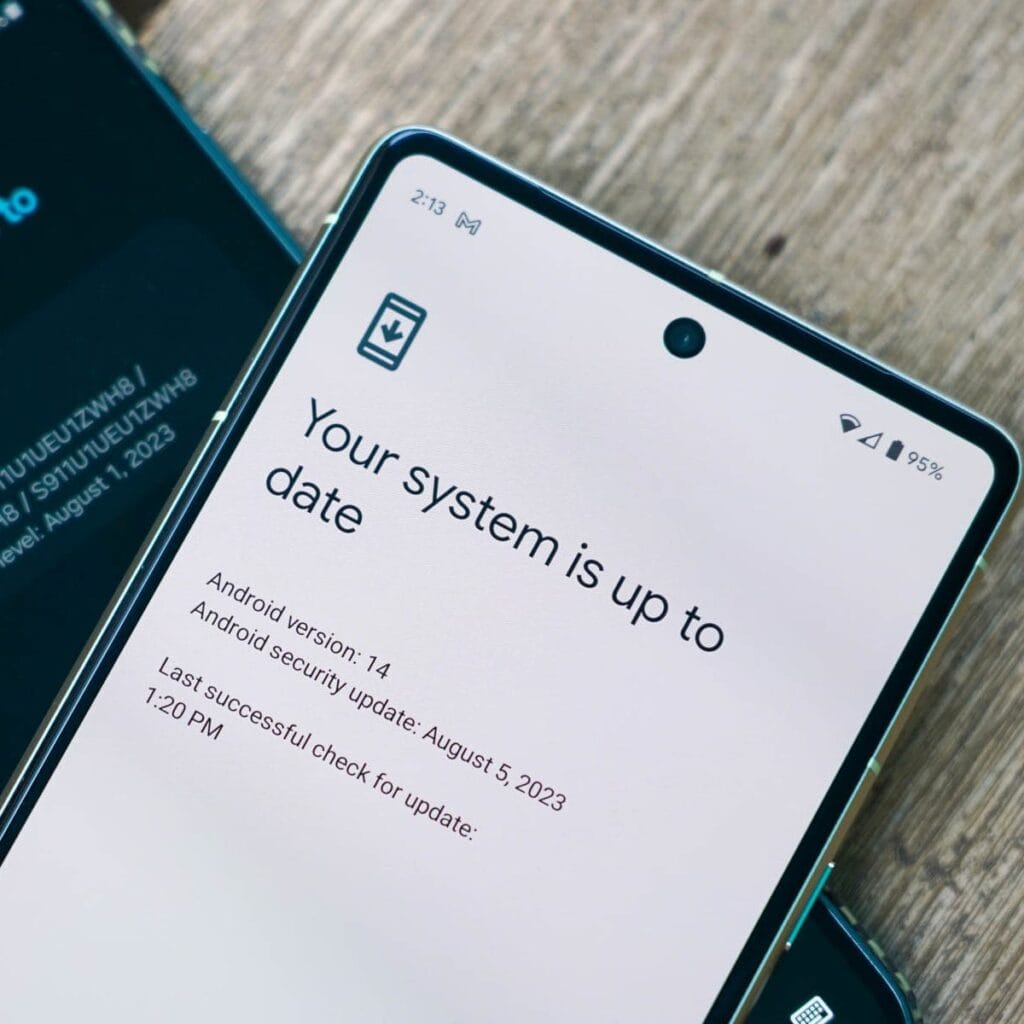
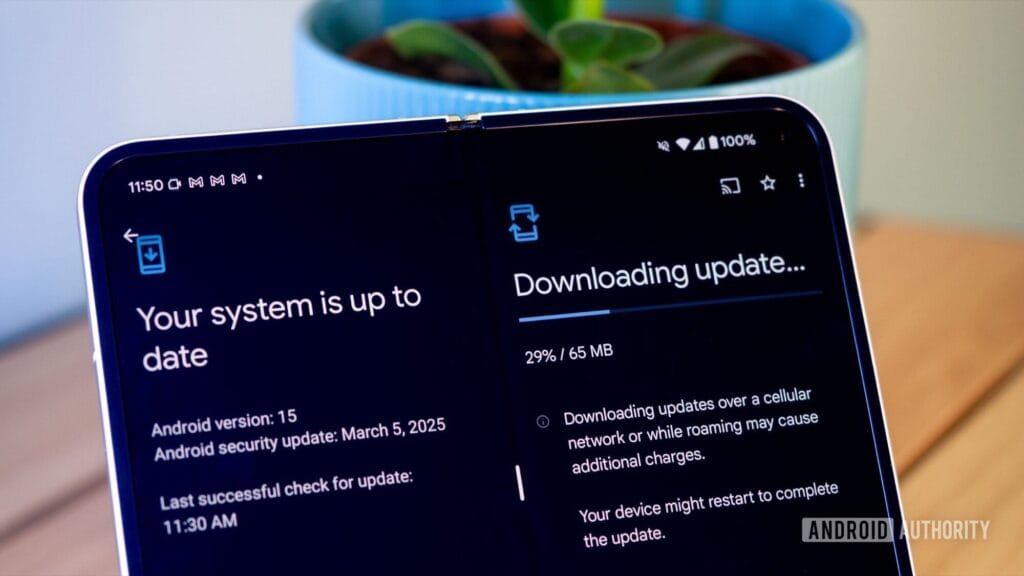
What if it says “Your system is up to date”?
That alerting does not always indicate that there is no update; it could simply have not yet reached your region or device build. In that situation, consider the advanced methods listed below.
How to check updates on specific Android oems
Because manufacturers customize Android OS, the update settings may be in slightly different locations.
Samsung Devices
Go to Settings > Software update > Download and install
Samsung pushes monthly security patches and One UI feature updates through this panel.
Google Pixel
Go to Settings > System > System update
Pixel devices receive updates directly from Google — typically first among all brands.
Xiaomi, Redmi, POCO (MIUI)
Go to Settings > About Phone > MIUI Version
Tap on Check for updates.
For advanced control, use the Updater app found in system apps.
OnePlus (OxygenOS)
Go to Settings > About phone > OxygenOS version
Tap Check for updates
Alternatively, download the OnePlus Updater APK for sideloading updates.
Oppo / Realme (ColorOS & Realme UI)
Go to Settings > Software update
Tap on Check for updates
Oppo also has an “Early Access” program for beta releases.
Motorola
Go to Settings > System > Advanced > System Updates
Tap Check for updates
Use Google Play system updates (separate from OS)
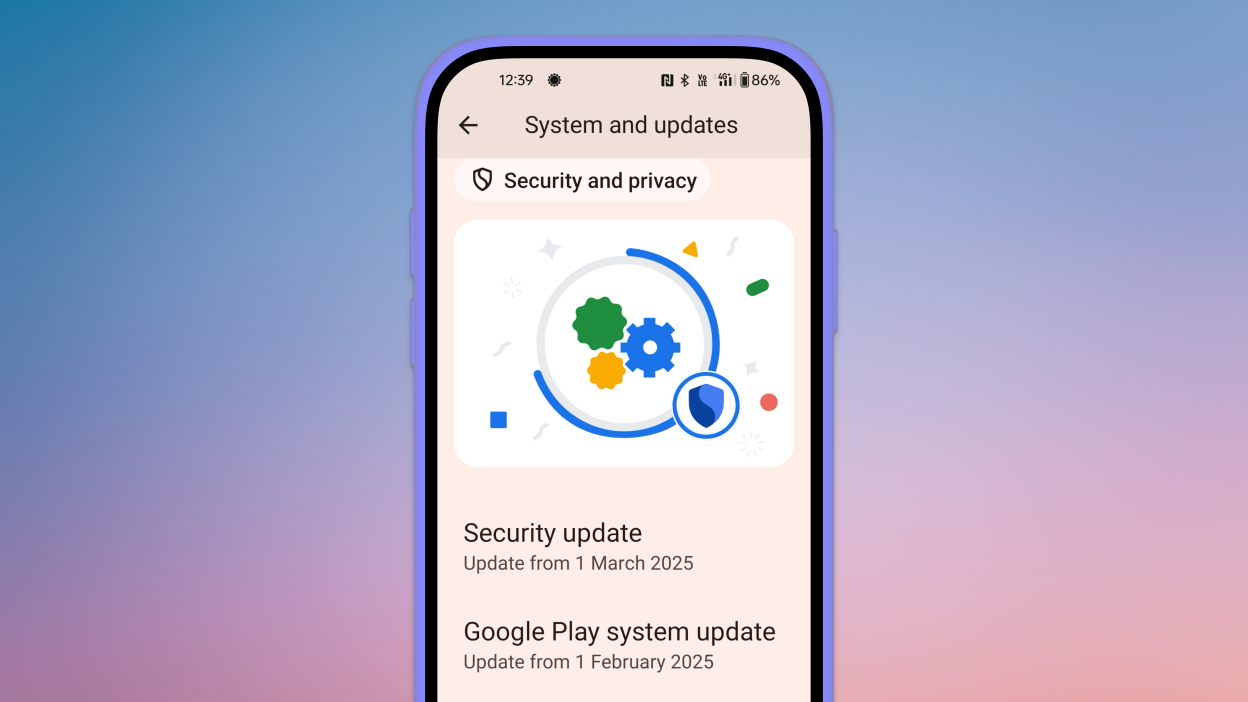
Since Android 10, Google has separated certain security and performance updates from full OS upgrades. These are delivered via Google Play system updates.
How to check:
Go to Settings > Security > Google Play system update
Tap Check for update
These are smaller updates that often improve background processes like biometric security, encryption modules, or system services.
Force update with OTA Zip files (advanced users)
If your manufacturer has released an official firmware update but it hasn’t reached your phone yet, you can manually install it using an OTA (Over-The-Air) zip file.
Steps (for advanced users):
Visit your manufacturer’s official website or trusted forums like XDA.
Download the correct OTA update file for your model and region.
Place the file in the root directory of your internal storage.
Boot into Recovery Mode (usually via holding Power + Volume Up).
Choose Apply update from SD card or Install update.zip.
⚠️ Caution: Flashing the wrong file or interrupting the process can brick your device. Always back up your data.
What to Do If No Update Appears?
If you’ve tried everything and your device still says it’s up to date, here are possible reasons:
Carrier Delay: Devices tied to mobile carriers often receive updates later than unlocked models.
Staged Rollouts: Updates are released in waves. Your device may be queued for later.
Region Restriction: Updates may reach some countries first. A VPN won’t help because updates are tied to device build numbers, not IP addresses.
Outdated Device: If your device is more than 2–3 years old, it may have reached its end of life for updates.
Pro Tips to Get Updates Faster
Enroll in beta programs if your phone supports them (Pixel, Samsung One UI Beta, etc.)
Use the manufacturer’s official updater app (like the Xiaomi Updater).
Keep at least 3–5 GB of free storage so updates can install smoothly.
Fully charge your battery before downloading any major update.
Final Thoughts
Checking for Android updates manually is a good practice, especially if you value efficiency, security, or new features. While auto-updates may manage this silently in the background, taking control ensures that you are always using the most recent and safest version of Android.
Whether you are using a Samsung, Pixel, Xiaomi, or Motorola, the steps are usually only a few taps away. Stay up to date and secure.
Do you want to protect specific images and videos without downloading additional apps? Android offers you multiple options to conceal your media, whether it be private memories, sensitive work material, or sensitive information – no dangerous tools or third-party apps are needed.
Using built-in capabilities like Google Photos, File Manager, and brand-specific tools like Samsung‘s Secure Folder or Xiaomi’s Hidden Album, you will discover various ways to conceal images and videos on Android in this guide.
Why hide media on your device?
Privacy isn’t just about hiding things from others – it’s also about peace of mind. You might want to hide photos or videos that are:
Sensitive work screenshots or files
Personal or intimate photos
Copies of IDs, passwords, or financial info
Photos you don’t want others to see when scrolling through your gallery
And the good news? You don’t need to install any shady apps to protect your content.
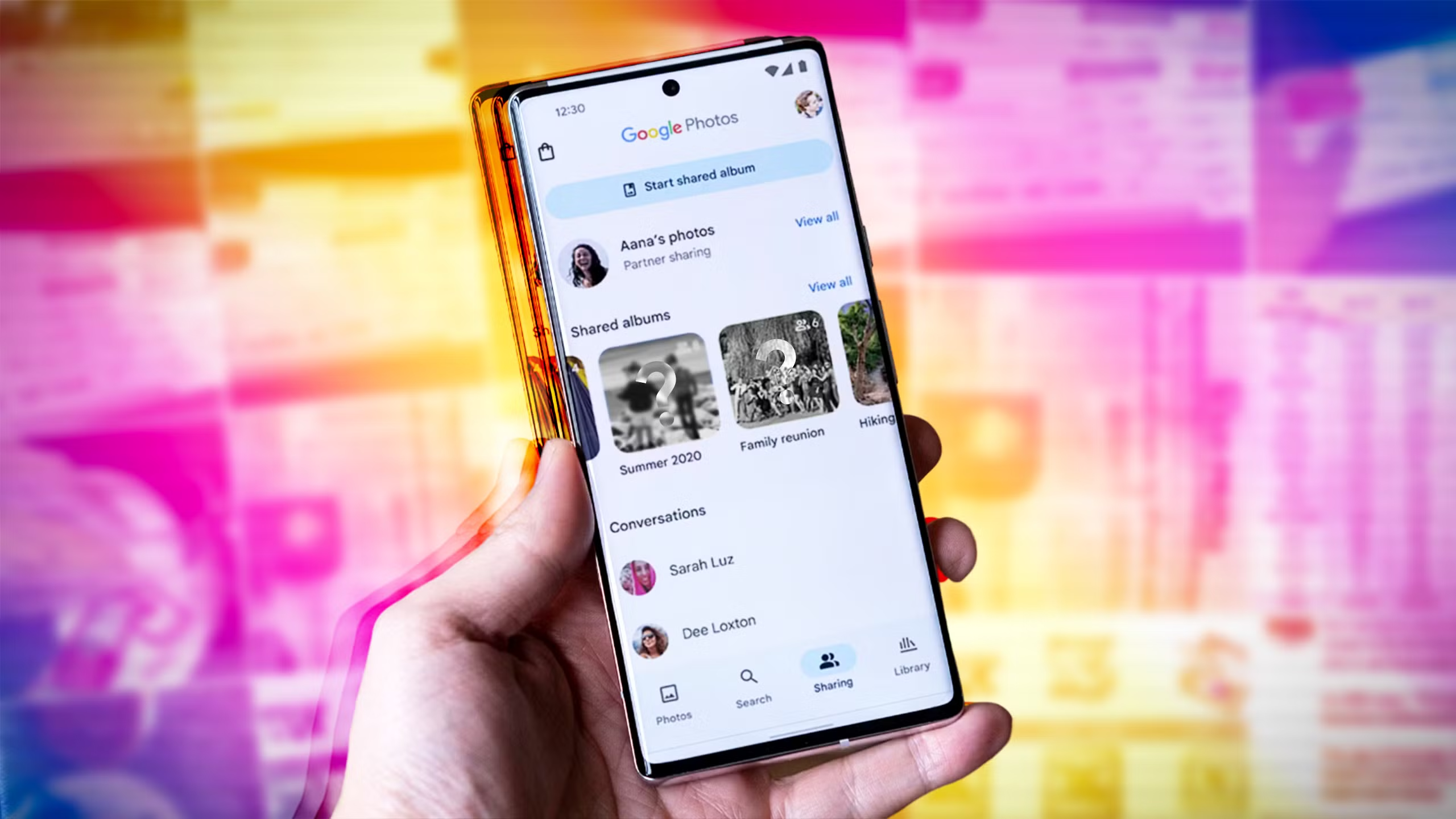
Method 1: Hide Photos Using Google Photos Archive
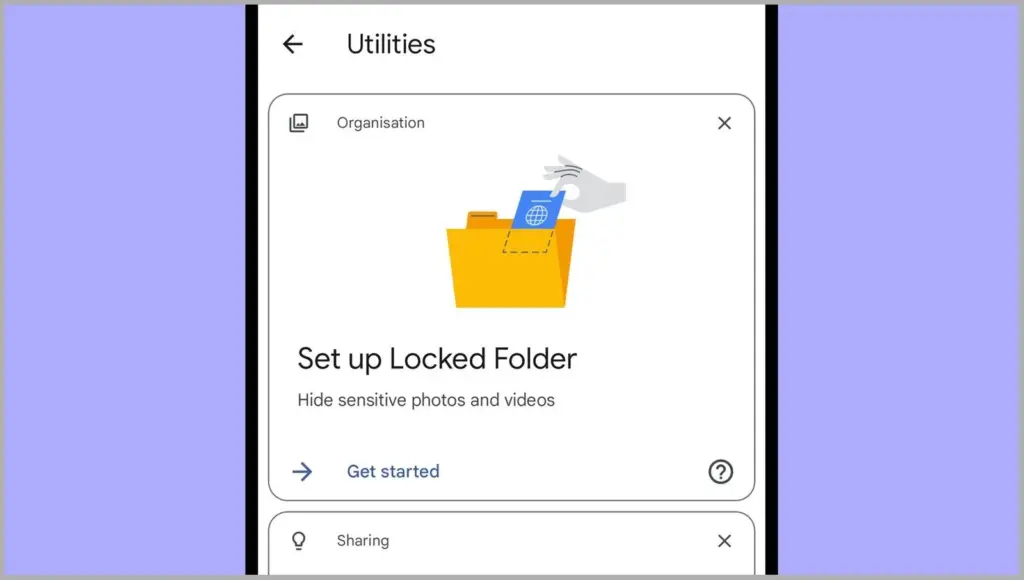
If you’re using Google Photos (which is pre-installed on most Android devices), archiving is the quickest and safest way to hide images from your main gallery view – all without deleting them or moving files around manually.
Step-by-Step Instructions:
Open the Google Photos app
Select the image(s) or video(s) you want to hide
Tap the three-dot menu in the top right
Select “Move to Archive”
These files will now disappear from your main timeline but stay safely stored in the “Archive” section.
Where to find archived photos later:
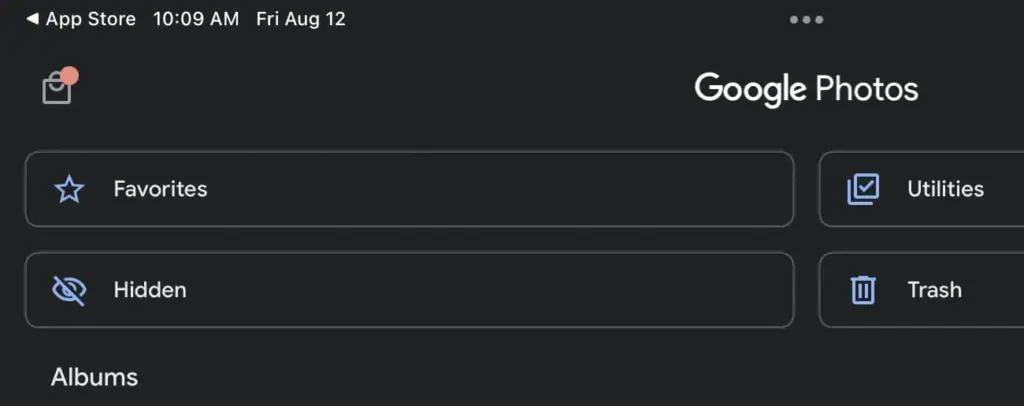
Go to Library > Archive in the bottom navigation of the Google Photos app
Why it’s useful:
Doesn’t delete or move files — just removes them from the spotlight
Perfect for semi-private content you might need later
Works across devices if you’re syncing with Google Account
Note: Archived photos still appear in albums or search results unless you manually remove them from those albums.
📌 Best for: Casual privacy without breaking anything or hiding files completely.
Method 2: Use File Manager to Hide Files Manually
Regardless of brand or Android version, this is a universal solution that works with almost all Android phones. You will make a hidden folder that will be automatically ignored by the Android operating system and media scanning applications.
Step-by-Step:
Open the File Manager or My Files app on your phone
Navigate to Internal Storage
Create a new folder and name it with a dot (.) at the beginning, such as .HiddenMedia or .SecretFolder
Move the photos and videos you want to hide into this folder
Why it works:
Android treats folders starting with a “.” as hidden directories
Media in these folders won’t appear in your gallery, Google Photos, or other media apps
Once done, your Gallery and Google Photos app will no longer detect those files — making them invisible unless you go looking.
To view them again: enable “Show hidden files” in your file manager’s settings
Best for: Total manual control over media hiding
Method 3: Rename File Extensions
This method only hides files so they will not open in photo or video apps; it does not actually hide them.
Step-by-Step:
Open your File Manager
Find the photo or video file you want to hide
Tap Rename and change the file extension (e.g., .jpg → .xyz)
At this point, the file will show up as an unopenable generic document. Just change the extension to its original format to get access again.
Caution: Make sure you remember the original extension (.jpg, .png, .mp4, etc.) so you can restore it!
Best for: Hiding media from gallery apps without deleting it
Method 4: Use Built-In Secure Folder (Samsung, Xiaomi, Huawei)
Nowadays, a lot of oems include built-in safe storage options that enable you to conceal documents, programs, and media using password or biometric security.
Samsung: Secure Folder
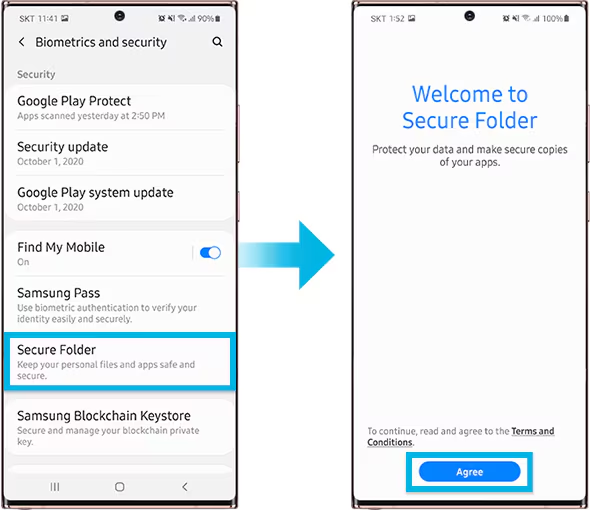
With Samsung’s Secure Folder, your phone has a private, encrypted area. It is secured by a distinct passcode or fingerprint, which is distinct from the lock on your phone.
To set it up:
Go to Settings > Biometrics & Security > Secure Folder
Sign in with your Samsung account
Create your Secure Folder with fingerprint, PIN, or pattern
Open the Secure Folder and import photos/videos from your gallery
Even the application’s access is limited without unlocking the folder, and these files are totally concealed from the main gallery and file manager.
Xiaomi/Redmi: Hidden Album
The Hidden Album function in Xiaomi’s Gallery app makes it quick and easy to conceal private material.
How to use:
Open the Gallery app
Go to Albums > Hidden Album
Set up the feature (may require Mi account login)
Move selected images/videos to this section
Content in the Hidden Album is protected and will not appear elsewhere unless explicitly restored.
For Huawei or OnePlus:
Use PrivateSpace (Huawei) or App Lock & Hidden Space (OnePlus). These offer similar levels of privacy and allow photos/videos to be locked with additional credentials.
Best for: Maximum privacy with encryption and authentication — perfect for work or highly sensitive media.
Method 5: Use Guest Mode or Multiple Users
Another sneaky method is to create a Guest account on your phone:
How to enable Guest Mode:
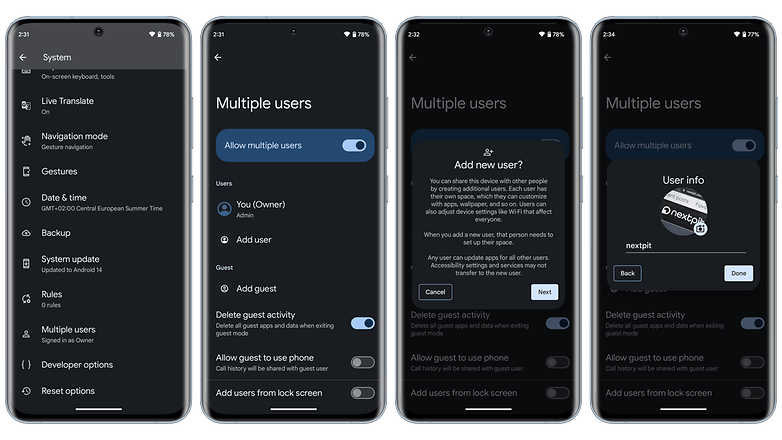
Like a computer, Android allows for many user profiles. You can set up a Guest Mode on your phone to keep other users from seeing your messages, apps, or pictures.
To activate Guest Mode:
Open Settings > System > Multiple Users
Enable Guest Mode or add a new User
Switch to the guest profile when someone else is using your phone
Switch to Guest mode when someone else wants to use your phone. This keeps all your media, apps, and settings hidden by default.
Bonus Tip: Some phones allow locking the switch between users with a password or fingerprint.
Best for: Sharing your phone without giving others access to your personal content.
What NOT to Do
While hiding media is easy, here are some common mistakes to avoid:
Don’t delete files unless you’re sure you have a backup
Don’t trust sketchy third-party apps from unknown developers—many are filled with ads, trackers, or even malware
Avoid cloud backups for sensitive files unless encrypted
Extra Privacy Tips
Use a Gallery app with built-in vault (e.g., Simple Gallery Pro)
Encrypt your phone under Settings > Security > Encryption
Back up sensitive images to a secure cloud (e.g., Proton Drive or a password-protected ZIP file on Google Drive)
Hide It the Smart Way
You don’t need to clutter your phone with apps just to hide a few private photos. Android gives you several easy, built-in ways to hide images and videos safely:
Archive them in Google Photos
Move them to a dot-folder via File Manager
Use Secure Folder or Guest Mode for stronger protection