Tag: samsung

  • How to connect Android to a TV (screen mirroring and casting)

    How to connect Android to a TV (screen mirroring and casting)

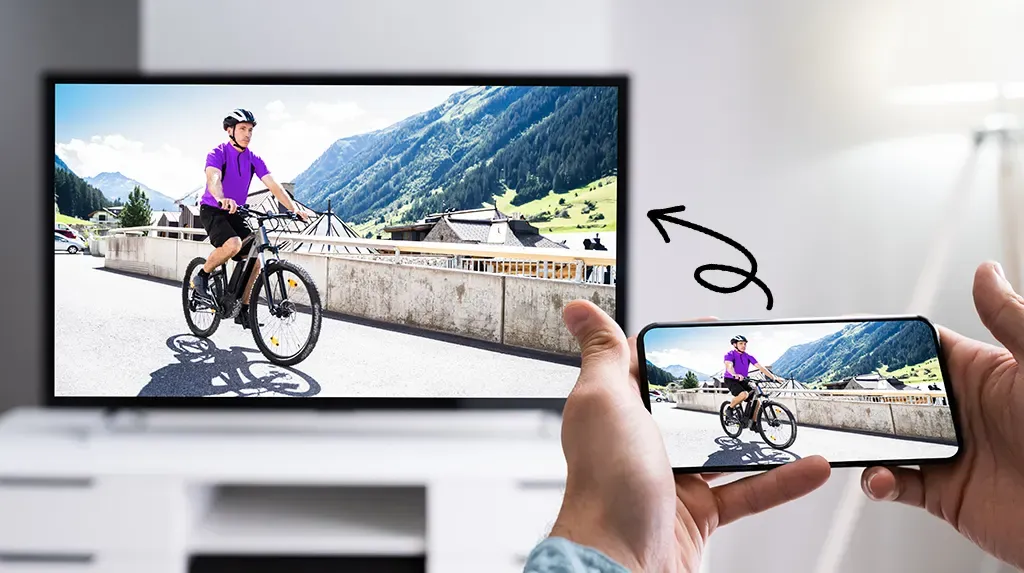
    One of the greatest ways to take advantage of your Android phone’s full potential is to view your favorite movies, pictures, or simply browsing apps on a larger screen.

    Fortunately, it’s now simpler than ever to connect your Android to a TV, whether you want to mirror your phone’s screen, stream YouTube, or display vacation images. Using built-in features like screen mirroring, Chromecast, and HDMI adapters, we’ll go over several methods in this article for connecting your Android phone to a TV—both wirelessly and with cords. Third-party apps are not necessary.

    Check your TV compatibility

    Before you start, it’s important to know what kind of TV you’re working with. Most modern TVs support one or more of the following:

    • Smart TV with built-in casting (e.g., Android TV, Samsung Smart TV, LG WebOS)
    • TV with Chromecast built-in
    • TV with HDMI port and no smart features

    Also, for wireless option, your Android phone and smart TV should be on the same Wi-Fi network and running Android 5.0 or later.

    Use native casting with Chromecast or smart TVs

    Most Android phones come with built-in support for casting via the Google Cast protocol. Here’s how to use it:
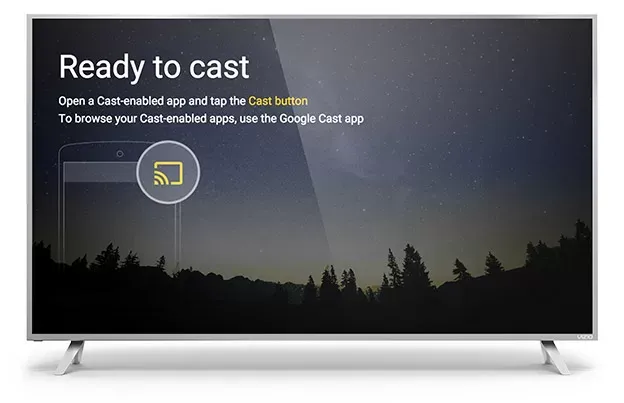
    TV cu Chromecast preinstalat

    Steps:

    1. Connect your Android and smart TV to the same Wi-Fi network.
    2. Swipe down from the top of your Android screen to open Quick Settings.
    3. Tap Cast or Screen Cast.
    4. Your phone will search for compatible devices. Select your TV or Chromecast from the list.
    5. Your screen will be mirrored onto the TV. You can now open apps, play videos, or browse the web.

    Best for: Watching YouTube, streaming apps like Netflix, showing off photos.

    Note:

    YouTube is one of the apps that has its own cast icon. You can select your TV without full screen mirroring by tapping the cast symbol in the upper-right corner.

    Use Samsung’s Smart View or SmartThings

    Wireless casting is made easy using the Smart View or SmartThings app if you own a Samsung Galaxy phone and a Samsung Smart TV.
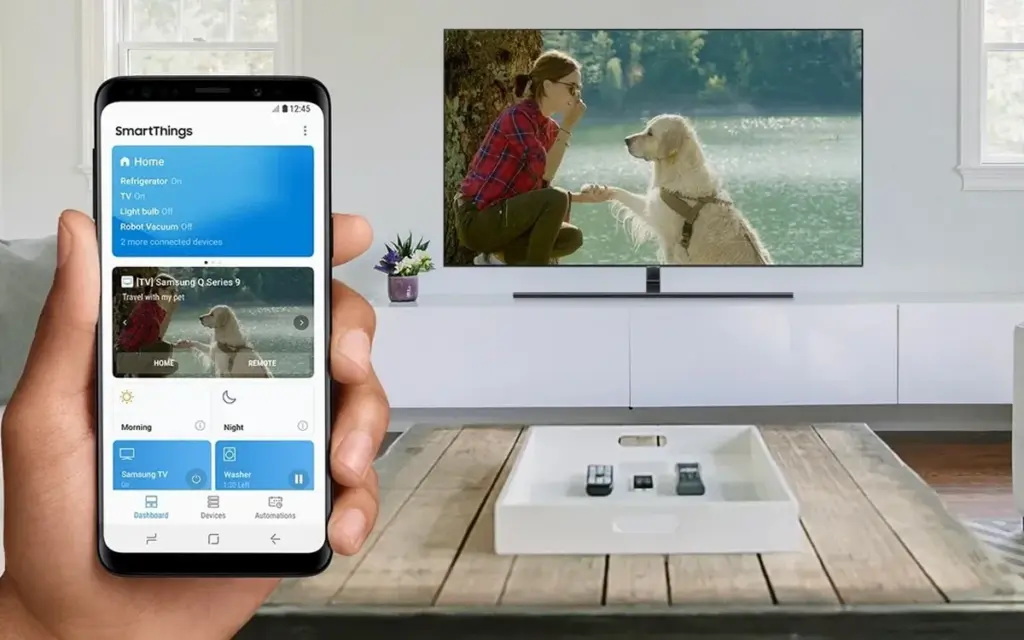
    smartthingstv

    Steps:

    1. Open Settings > Connections > Smart View on your Samsung device.
    2. Select your compatible Samsung TV.
    3. Tap Start now to begin mirroring.

    As an alternative, you may connect to manage your TV, cast media, or mirror the screen using the SmartThings app, which comes pre-installed on newer models.

    Best for: Samsung users who want the most integrated experience.

    Miracast (for supported devices)

    Miracast, a wireless display protocol that reflects your screen, is supported by a large number of non-Google Android devices (such as LG, Huawei, and older phones).

    Steps:

    1. On your TV, enable Miracast or Screen Mirroring mode.
    2. On your phone, go to Settings > Connected Devices > Cast.
    3. Choose your Miracast-enabled TV or dongle from the list.

    Your phone may not display the choice at all if it lacks native Miracast functionality. If so, try some of the other techniques in this tutorial.

    Best for: Older smart TVs without Chromecast but with Miracast support.

    HDMI cable with a USB-C to HDMI adapter
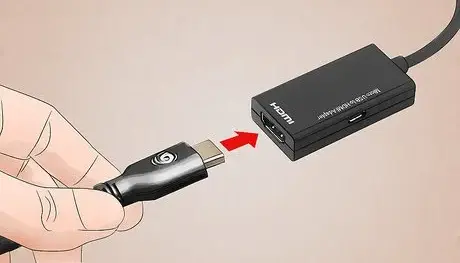
    cast to TV screen mirroring with cable

    If your TV isn’t Wi-Fi enabled or you prefer a connected connection, a USB-C to HDMI converter provides a convenient plug-and-play option.

    Steps:

    1. Get a USB-C to HDMI adapter (make sure it supports video output).
    2. Plug the USB-C end into your Android phone.
    3. Plug an HDMI cable into the adapter and then into the TV.
    4. Switch your TV to the correct HDMI input.

    The screen of your phone should show on the TV after it has been connected. In the display settings of certain phones, screen mirroring must be enabled.

    Best for: TVs without smart features or Wi-Fi access.

    Troubleshooting

    • Make sure both devices are on the same Wi-Fi network.
    • Restart your phone and TV if the device doesn’t show up.
    • For wired connections, ensure the adapter supports video output (some cheap models only support charging).
    • For best performance, avoid mirroring heavy 3D games—use casting for videos and apps instead.

    A whole new realm of efficiency and fun is made possible by connecting your Android phone to a TV. The technique is easy and doesn’t require any specialized software or gear, whether you’re playing mobile games, presenting slides at work, or binge-watching on a larger screen. Your phone is ready to go large wherever you are if it has native support for Chromecast, Miracast, or a simple HDMI adaptor.

    Stay connected with the latest from Droid Tools—follow us on X @droid_tools, like our page on Facebook, check out our updates on Instagram, and follow us on Google News for real-time news, device tips, and mobile tech insights.

  • How to enable developer options and USB debugging

    How to enable developer options and USB debugging

    Enabling Developer Options and USB debugging is crucial if you want to test apps, get more control over your Android device, or connect your phone to a computer for development. This built-in Android function provides you with the ability to delve deeper, regardless of whether you’re a power user or simply attempting to troubleshoot a persistent issue.

    Without requiring root access, we’ll show you exactly how to activate USB debugging and Developer Options on any Android device in this tutorial. We’ll also go over the functions of each feature and when you might require them.

    What are Developer Options on Android?

    Android’s Developer Options is a secret menu with advanced settings designed mainly for developers. But regular users might also benefit from many of these choices. For instance, you can:

    • Speed up animations to make the phone feel faster
    • View CPU usage on screen
    • Simulate different display sizes
    • Force apps into split screen
    • Enable USB debugging for data transfers or app testing

    By default, Developer Options are hidden, but you can enable them with just a few taps.

    What is USB debugging and why use it?

    USB debugging allows your Android device to communicate with a computer using Android Debug Bridge (ADB). This is critical for:

    • Transferring files and installing apps manually
    • Using development tools like Android Studio
    • Running shell commands via ADB
    • Taking full device backups
    • Recovering devices stuck in boot loops or soft bricks

    Unless you’re developing apps or using advanced tools, USB debugging isn’t needed all the time. But turning it on gives you more flexibility when needed.

    How to enable Developer Options

    The Developer Options menu can be accessed by following these steps:

    1. Open the Settings app on your Android phone.
    2. Scroll down and tap “About phone.”
    3. Find the “Build number” entry (you may need to tap “Software information” first on some devices).
    4. Tap the Build number 7 times. You’ll be asked to confirm your device lock (PIN, pattern, or fingerprint).
    5. You’ll see a message saying “You are now a developer!”

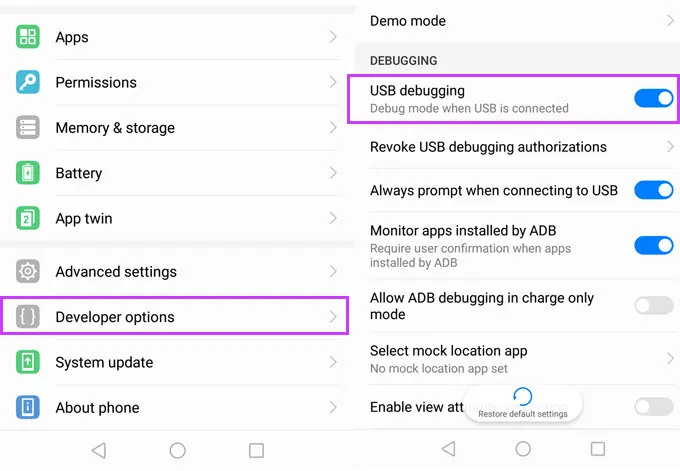
    Once this is done, Developer Options will be available in your Settings.

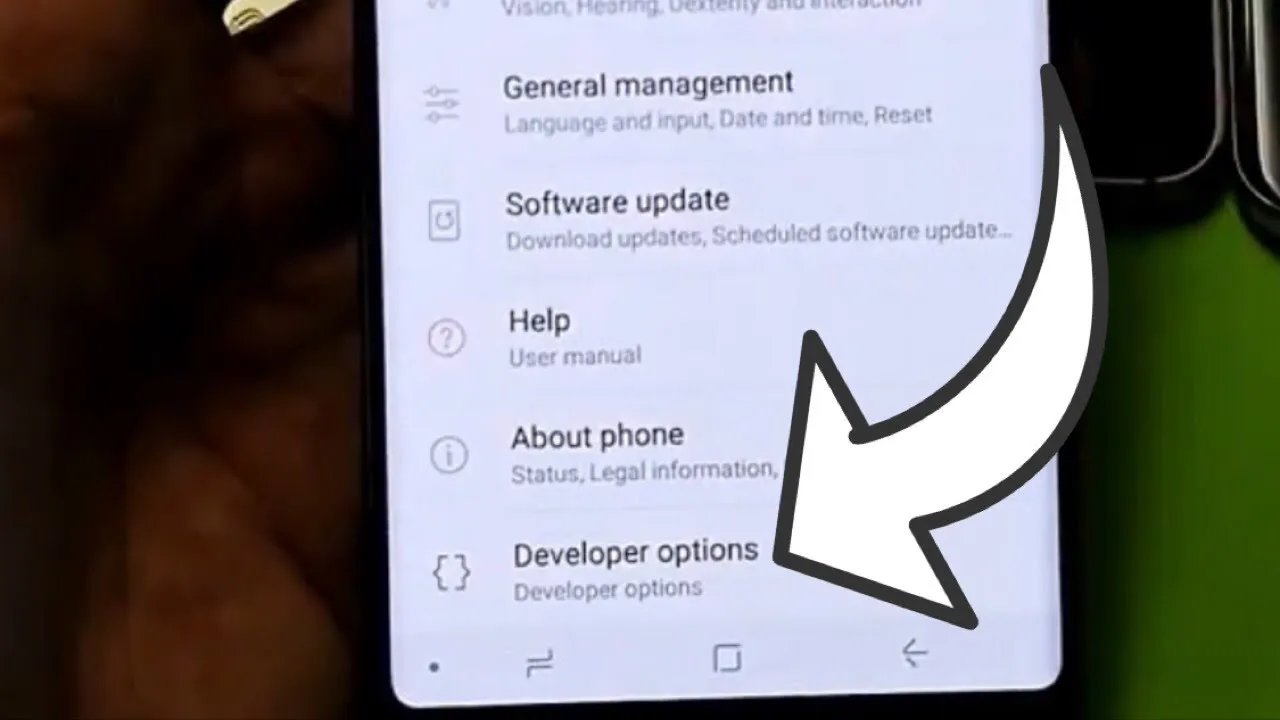
    developer option on Android Galaxy devices

    Location of Developer Options by brand:

    • Samsung: Settings → Developer options (at the bottom of the main settings menu)
    • Google Pixel: Settings → System → Developer options
    • Xiaomi: Settings → Additional settings → Developer options
    • OnePlus: Settings → System → Developer options
    • Motorola: Settings → System → Developer options
    enable developer options

    How to enable USB debugging

    Now that Developer Options are turned on, you can enable USB debugging:

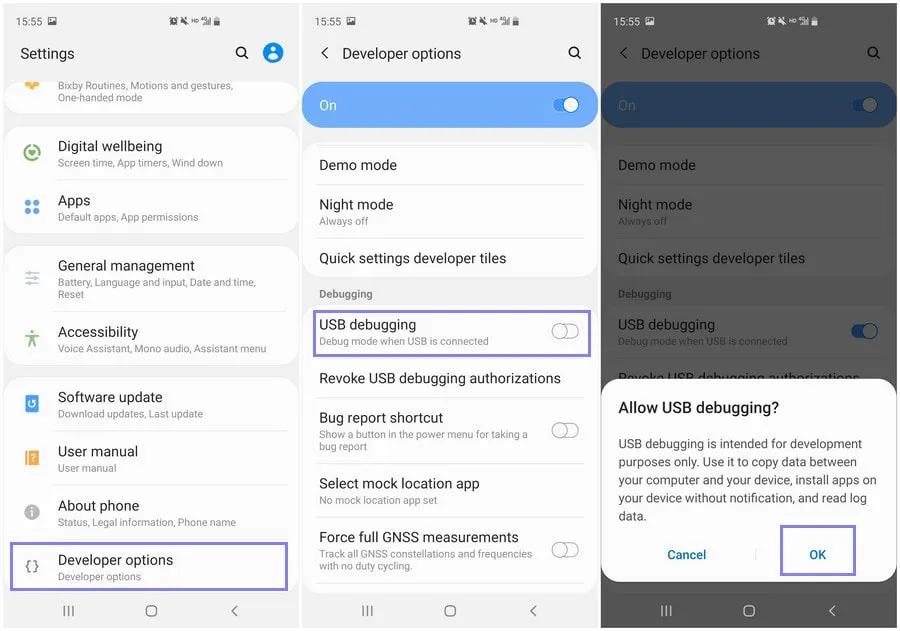
    1. Go to Settings → Developer Options
    2. Scroll down to the “Debugging” section
    3. Toggle on “USB debugging”
    4. Confirm the prompt asking if you’re sure

    That’s it! You can now use your phone with development tools or perform more advanced actions from your PC.

    When should you turn off USB debugging?

    If you’re not actively using USB debugging, it’s best to leave it off. Here’s why:

    • USB debugging can be a security risk if your device falls into the wrong hands while unlocked.
    • Some apps or company policies block access if USB debugging is enabled.

    To disable it, just return to Developer Options and toggle it off.

    Other useful Developer Options settings

    Besides USB debugging, some other features you may want to explore include:

    • Window animation scale / Transition animation scale: Set to 0.5x for faster UI response
    • Force activities to be resizable: Useful for multitasking and split screen
    • Stay awake while charging: Keeps the screen on during testing
    • Limit background processes: Improve performance by reducing multitasking
    • Show taps / Pointer location: Great for app demos or screen recording

    Be cautious while experimenting—many of these options affect system behavior.

    Troubleshooting Developer Options or USB debugging

    Developer Options not appearing?

    • Double-check that you tapped “Build number” exactly 7 times
    • Some devices require a reboot afterward

    USB debugging not working?

    • Try a different USB cable or port
    • Make sure “File Transfer” mode is selected via USB preferences
    • Check that your computer has proper ADB drivers installed

    You may access a robust collection of tools on your Android phone by turning on USB debugging and Developer Options. Although developers are their main target audience, tech-savvy consumers who desire greater control over their gadget might also benefit from them.

    These options can improve your Android experience, whether you’re using ADB to transfer files, debug apps, or simply wish to adjust animation speeds. Just use caution when navigating the options, since some settings may have unexpected consequences.

    Stay connected with the latest from Droid Tools—follow us on X @droid_tools, like our page on Facebook, check out our updates on Instagram, and follow us on Google News for real-time news, device tips, and mobile tech insights.

  • How to fix the battery drain on Samsung Galaxy devices running One UI 7

    How to fix the battery drain on Samsung Galaxy devices running One UI 7

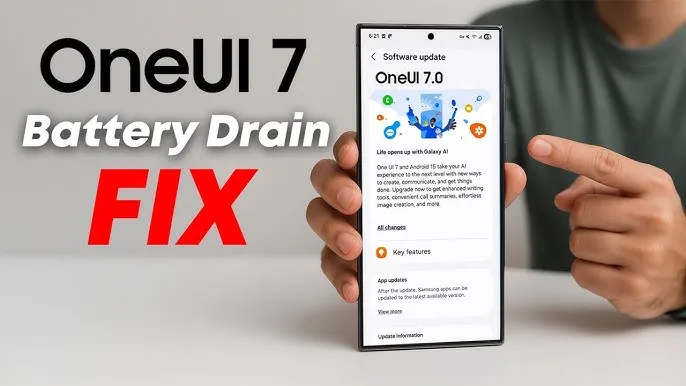
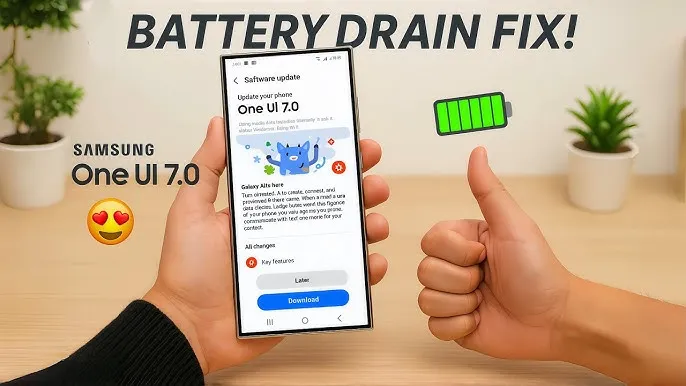
    Running on Android 15, Samsung’s One UI 7 version boasts a new interface along with several new capabilities. One of the unanticipated issues that many customers have seen with the One UI 7 is shorter battery life.

    Even with minimal use, Samsung customers report that their Galaxy phones are having trouble lasting a full day. This article examines the sources of the battery life issues that were noticed following the One UI 7 update, as well as solutions.

    One UI 7 battery drain isssues from the rollout

    Owners of Samsung devices have frequently complained about severe battery drain on websites such as Reddit, X/Twitter, and Samsung Community Forums.

    One user of a Galaxy S24 Ultra, for example, reported that the screen-on time of their phone decreased to roughly 5 hours from 6–7 hours before to the update.

    Another owner of a Galaxy Z Fold 6 claimed that by the end of the day, their battery had dropped from 45 to 50 percent to 20 to 25 percent.

    battery drain issue samsung one ui 7

    Some users of the Galaxy S23 series have claimed similar issues, requiring two or even three daily charges for simple tasks like browsing or viewing movies.
    Rephrase

    As the device becomes used to the new software, the post-update optimization period typically lasts a few days to a week, but the problem seems to last longer.

    Users have also reported related issues, like slower app loading times or phones that run warmer than normal, which could be a factor in the higher power usage.

    Why is the drain occurring?

    While Samsung has not officially confirmed the cause, several factors could explain the battery drain. Since One UI 7 is a major software update, its new features, animations, and background processes may have been demanding more power.

    User-installed third-party apps may not have been fully optimized with the new OS, causing battery drain. Another possibility is that background processes, such as system optimizations or data syncing, are running more frequently than needed.

    oneui 7 battery drain how to

    The solution

    If you’re experiencing battery drain after updating to One UI 7, here are some practical steps to try:

    Clear the cache:

    • Go to Settings > Device Care > Storage and clear the cache for apps.

    Enable Light Performance Profile:

    • Found in Settings > Battery and Device Care, this mode reduces performance to save power.

    Turn off AOD:

    • Disable Always On Display, reduce screen brightness indoors, or switch to Dark Mode to conserve battery.

    Update Apps:

    • Ensure all apps are updated, as outdated versions may not work well with One UI 7.

    Factory Reset (last resort):

    • Some users report improved battery life after a factory reset, though this requires backing up data and reinstalling apps.

    You’re not alone if the One UI 7 upgrade has caused your Galaxy device’s battery life to suffer. You can handle the problem while you wait for a possible solution by attempting the aforementioned procedures and keeping an eye on Samsung’s reaction.

    Stay connected with the latest from Droid Tools—follow us on X @droid_tools, like our page on Facebook, check out our updates on Instagram, and follow us on Google News for real-time news, device tips, and mobile tech insights.
  • How to get early access to One UI 8 beta program

    How to get early access to One UI 8 beta program

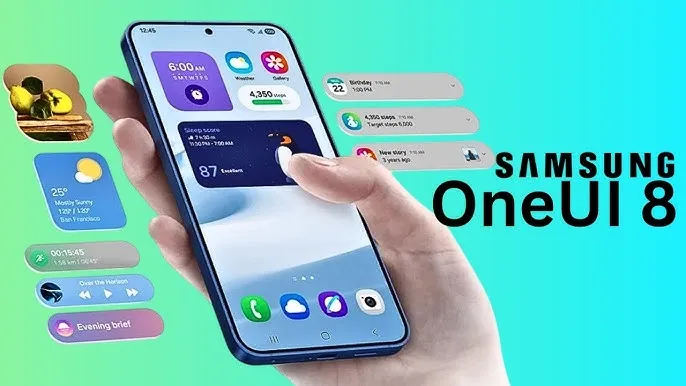
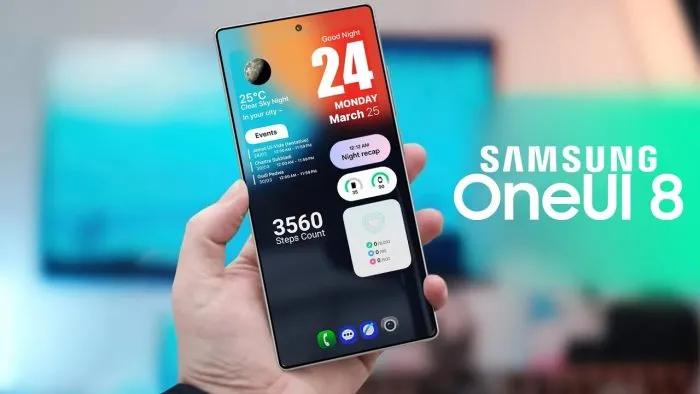
    With Samsung now enabling Galaxy S25 series owners to test the most recent One UI 8 beta program, starting in its home country of South Korea, One UI 8 will soon be available on your Galaxy phone. You must be wondering how to join the beta phase as soon as it arrives on your device, but here are a few easy actions you can take.

    Before the official or stable release, the One UI 8 Beta program is now available for the Galaxy S25, Galaxy S25+, and Galaxy S25 Ultra to test out all the newest features and capabilities.

    The beta build for the Galaxy S25 family is designated with build number ZYER, while the upgrade may eventually reach additional eligible regions outside of South Korea. Simultaneously, this most recent version improves accessibility, efficiency, and security while also adding some of the main features of Android 16.

    Beyond this, this update further includes the ongoing May 2025 security patch that significantly improves the device’s overall security and core functionality.

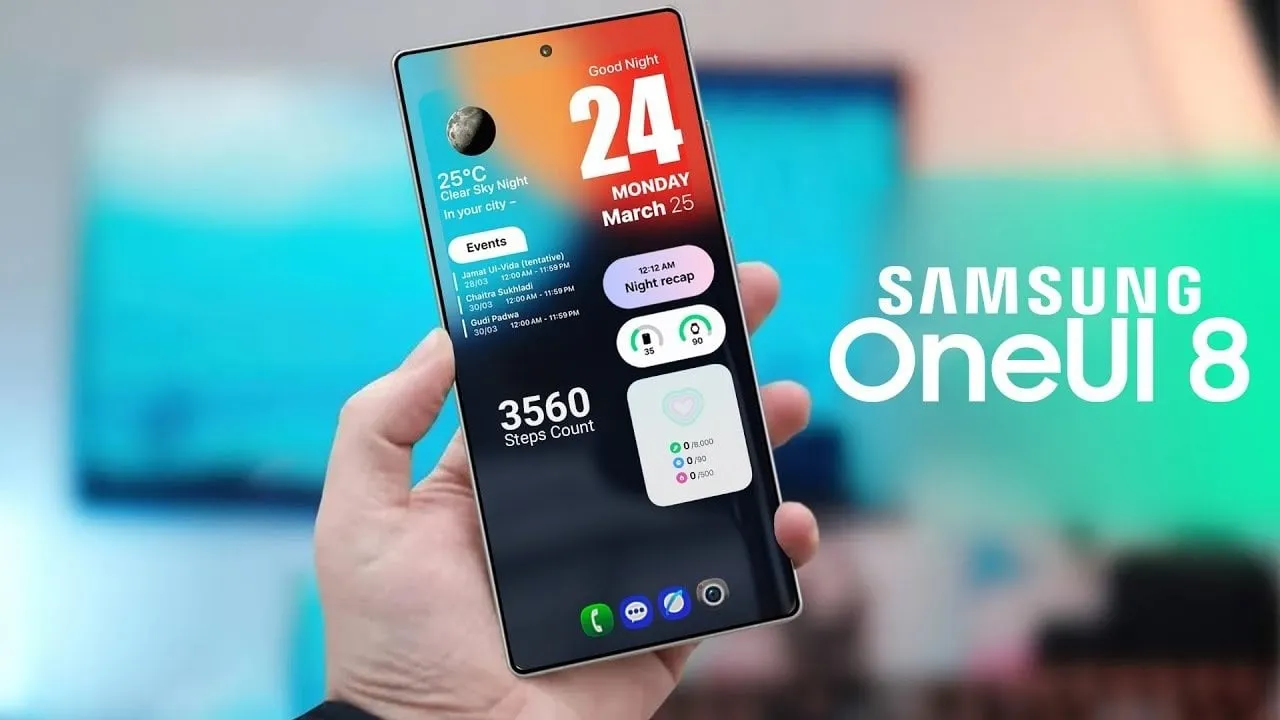
    One UI 8

    How to join One UI 8 beta program?

    Also, Samsung made some minor changes to its beta registration procedure this time around to make it more convenient. Here’s how to sign up for the most recent One UI 8 beta program using the Samsung Members app!

    • Open the Samsung Members app.
    • Tap on the One UI 8 Beta program banner.
    • Once tapped, follow all the on-screen prompts while also accepting the beta terms and conditions. You are enrolled now!
    • This takes you closer to installing the latest beta build; just head to Settings >> Software Update >> and finally, Download and Install.
    • Once installed, your device will automatically reboot to the latest build; thus, you are now ready to rock One UI 8 beta.

    If you want the latest Droid Tools news, follow us on X @droid_tools and like our page on Facebook to stay updated.

  • This is the best time to buy the Galaxy Watch Ultra – 40% off on Amazon

    This is the best time to buy the Galaxy Watch Ultra – 40% off on Amazon

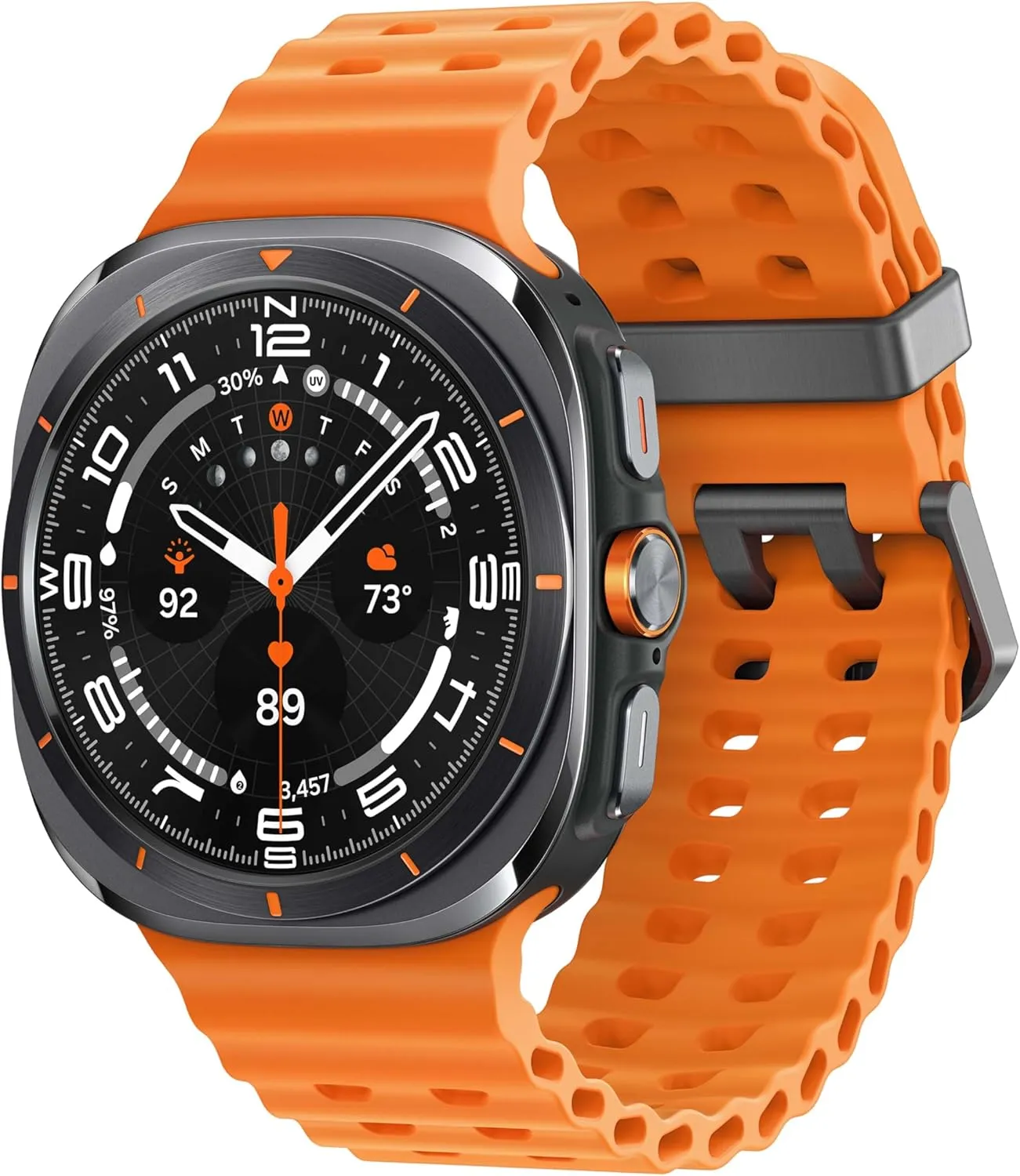
    You cannot go wrong with the Samsung Galaxy Watch Ultra if you’re looking for the greatest Android smartwatch available right now. Better still, Amazon is currently offering a 40% price reduction on it. This saves you an incredible $260 by bringing the smart and durable Galaxy Watch down from its original $649 price to $390.

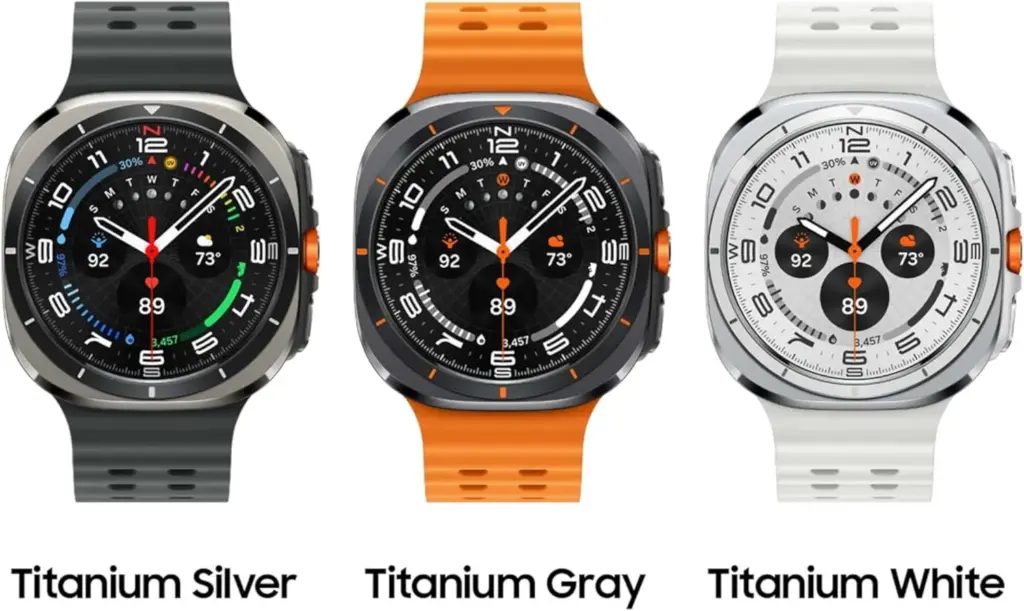
    The Samsung Galaxy Watch Ultra in Titanium Gray with an orange band is included in the deal; the Titanium White model costs $399, which is only a little bit extra. Remember that every version supports LTE.

    Galaxy Watch Ultra orange strap

    SAMSUNG Galaxy Watch Ultra

    Climb the highest peak; Bike the long way home; The durable titanium design is our toughest yet, able to stand up to the rigors of your workout, including rainy or dusty conditions — even ocean swimming

    $649.99$390.00See It
    Galaxy Watch Ultra colors

    Is Samsung Galaxy Watch Ultra for you?

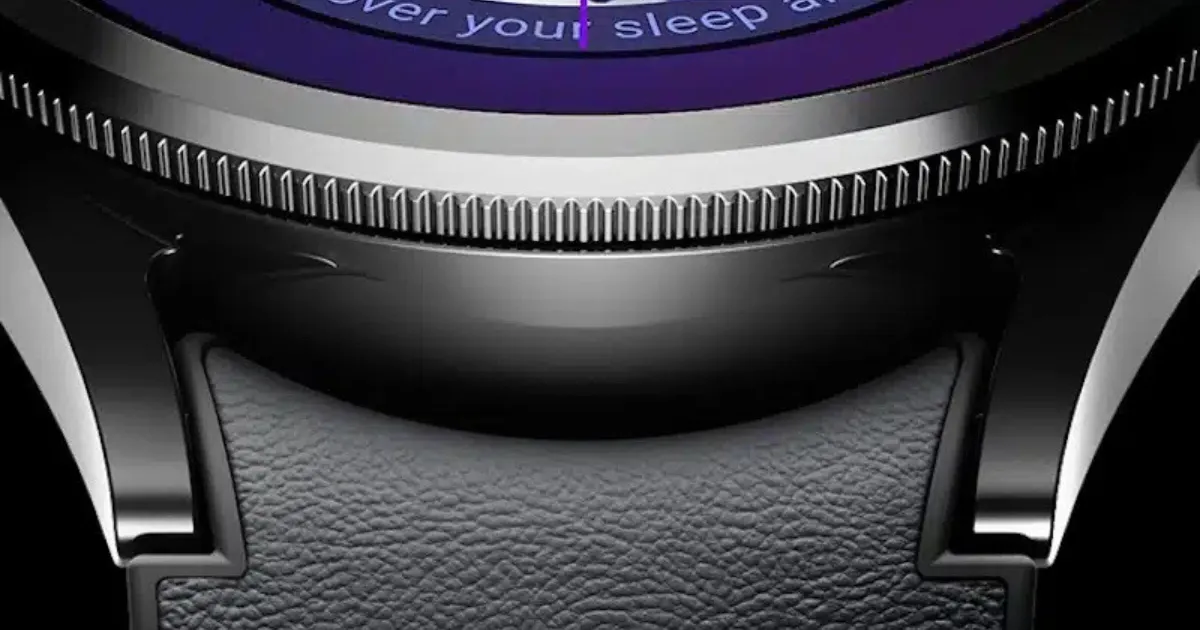
    Samsung’s first smartwatch under the “Ultra” brand is the Galaxy Watch Ultra (review), and the moniker accurately describes the functionality of the device. The Ultra has a more robust titanium case with sapphire crystal protection on the top and bottom, in contrast to the regular Galaxy Watch. It has a 10 ATM water resistance rating, making it suitable for scuba diving as well.

    Beyond its sturdy design, the Galaxy Watch Ultra pack a 1.5-inch AMOLED display with a maximum brightness of 3,000 nits, which is extremely readable. The new dual-band GPS offers precise navigation and location monitoring for outdoor activities, and there’s a dependable siren feature that comes in handy in an emergency. It includes an additional physical button for usability, which is helpful for tasks requiring the use of one hand.

    Galaxy Watch Ultra design

    Also Samsung’s Galaxy Watch Ultra is an amazing fitness and health tracker. It has a more precise BioActive sensor for detecting blood oxygen saturation, body composition, and heart rate. In addition to the well-known blood pressure level monitoring and on-demand ECG, this high-end wristwatch also features the new AGEs index and sleep apnea detection. With onboard AI capabilities, users can now design their own regimens for fitness fanatics.

    With a larger battery that lasts for many days in smart mode between charges, the Galaxy Watch Ultra is also a popular partner for endurance sports. It has wireless charging and a rapid charging time.

    Galaxy Watch Ultra orange strap

    SAMSUNG Galaxy Watch Ultra

    Climb the highest peak; Bike the long way home; The durable titanium design is our toughest yet, able to stand up to the rigors of your workout, including rainy or dusty conditions — even ocean swimming

    $649.99$390.00See It
  • Galaxy Watch 8 renders leaked online

    Galaxy Watch 8 renders leaked online

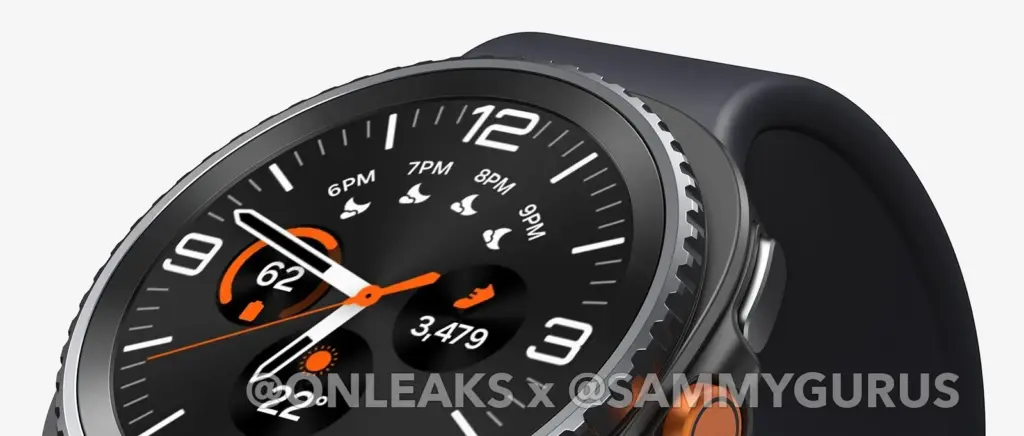
    It appears that Samsung will update its Watch collection at the July Unpacked event. This indicates that the Galaxy Watch 8 series will soon emerge from the shadows. It might debut alongside the Flip 7 and Galaxy Z Fold 7. We’re giving you an exclusive first look at the Galaxy Watch 8 Classic even though the official unveiling is still a few weeks away. We have a 360-degree video and comprehensive CAD renders of the Galaxy Watch 8 Classic thanks to our partnership with OnLeaks, which allows us to see it clearly before it is released.

    galaxy watch 8

    Exclusive Samsung Galaxy Watch 8 classic renders

    Recently, we broke down why the Classic model might be making a comeback in Galaxy Watch 8 lineup. From what we’ve gathered so far, the Galaxy Watch 8 Classic could arrive in a single size (47mm). Regulatory filings suggest it could pack a 435mAh rated battery, which typically translates to a 450mAh typical capacity. And in case you’re still wondering, yes, it really seems like the rotating bezel is making a return. Now, feast your eyes on these exclusive Galaxy Watch 8 Classic renders!

    Also, it appears that the Galaxy Watch 8 Classic will have a display that is about 1.5 inches in size. It measures around 46 x 46.5 x 14.2 mm. The Watch 8 Classic seems to have a squircle-shaped frame, similar to the Galaxy Watch Ultra, based on the renders. It’s reasonable to assume that this model might be the Watch Ultra’s spiritual descendant or possibly a direct sequel.

  • How to back up your Android phone

    How to back up your Android phone

    Backing up your Android phone ensures that your data is safe in case of loss, damage, or switching to a new Android device. Thankfully, Android has a number of built-in security features that secure your contacts, media, apps, and settings without the need for third-party programs.

    Establishing a suitable backup plan is crucial, regardless of whether you’re upgrading your device or getting ready for a factory reset.

    Why it’s important to back up your Android phone

    It’s not just techies who should back up. You run the danger of losing private images, critical messages, app data, and even saved Wi-Fi passwords if your phone is misplaced or broken. Regular backup creation allows you to:

    Use Google backup (cloud-based method)

    google backup data

    Google offers a dependable, integrated backup system that connects to your Google account and stores your important data in the cloud. For the majority of Android users, it is the most practical approach.

    What Google backup saves:

    • App data and preferences
    • Call history
    • Contacts
    • SMS text messages
    • Device settings (Wi-Fi, wallpapers, display preferences)
    • Photos and videos (via Google Photos if enabled)

    How to enable Google backup:

    1. Open Settings on your Android device
    2. Scroll down and tap Google
    3. Tap Backup
    4. Ensure Backup by Google One or Back up to Google Drive is turned on
    5. You’ll see a summary of what’s being backed up. Tap Back up now to trigger an immediate backup

    Once enabled, your phone will automatically back up daily when connected to Wi-Fi and charging.

    Back up photos and videos using Google Photos

    Your videos and pictures frequently include priceless memories. To make sure your media files are securely backed up and available on multiple devices, Google Photos offers a quick and safe solution. It’s among the most dependable ways to preserve your graphic information without requiring complicated instruments or extra hardware.

    Google Photos is a robust cloud-based platform that automatically stores and arranges your images and videos, making it more than simply a gallery app. Once activated, it will sync your media to your Google Account continually, so your memories will be preserved even if your device is lost or damaged.

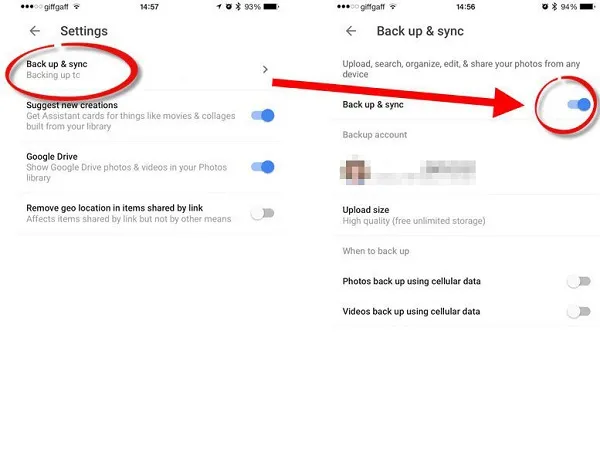
    Steps to back up media:

    1. Open the Google Photos app
    2. Tap your profile icon in the top right
    3. Choose Photos settings > Backup
    4. Toggle Backup to on
    5. Choose your preferred upload size (Storage saver or Original quality)
    google photos enable back upyour Android devices photos and videos

    All your photos and videos will sync to the cloud, and you can access them on any device logged into your Google account.

    Back up files manually to a PC

    Although cloud storage services like Google Drive and Google Photos are convenient, backing up your Android files to a PC by hand offers you more control, privacy, and independence from internet connectivity. It’s a simple process that guarantees you have a hard copy of all of your vital information, including documents, films, images, and more, safely saved on your computer.

    Here’s how:

    1. Connect your Android phone to your PC using a USB cable
    2. On your phone, choose File Transfer / MTP mode when prompted
    3. Open File Explorer on your computer
    4. Locate your device, open it, and navigate to folders like DCIM, Downloads, Pictures, or Documents
    5. Copy and paste the desired files to a safe folder on your PC

    This method is ideal for archiving large files or performing a one-time back up your Android without an internet connection.

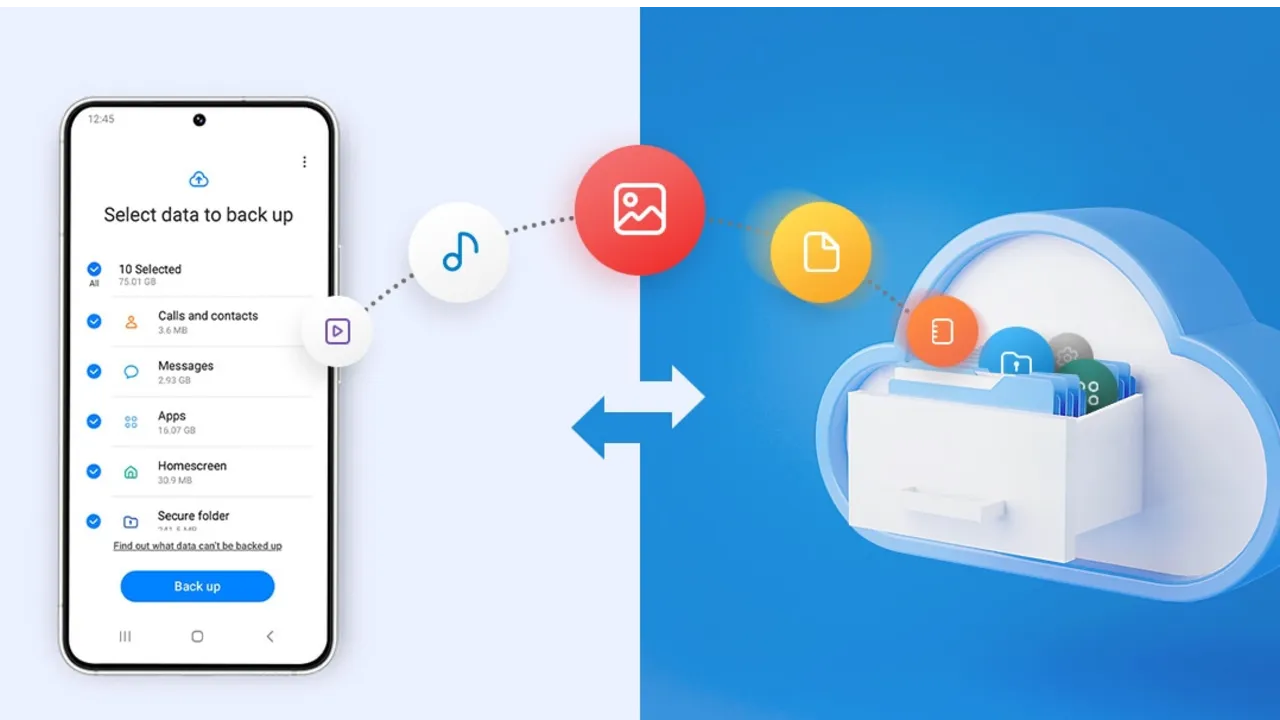
    Use Samsung Cloud or manufacturer tools (for Samsung, Xiaomi, etc.)

    Some manufacturers offer their own back up your Android device solutions in addition to Google’s.

    For Samsung users:

    1. Go to Settings > Accounts and backup
    2. Tap Samsung Cloud
    3. Choose what to back up (contacts, calendar, settings, etc.)
    4. Tap Back up now

    You can restore this data to any Samsung device later using the same Samsung account.

    Xiaomi users:

    Use Mi Cloud by going to Settings > Mi Account > Mi Cloud and enabling the backup options available for your account.

    Always ensure you’re connected to Wi-Fi and have enough cloud storage before initiating the process.

    Backup apps like SMS and call logs (optional)

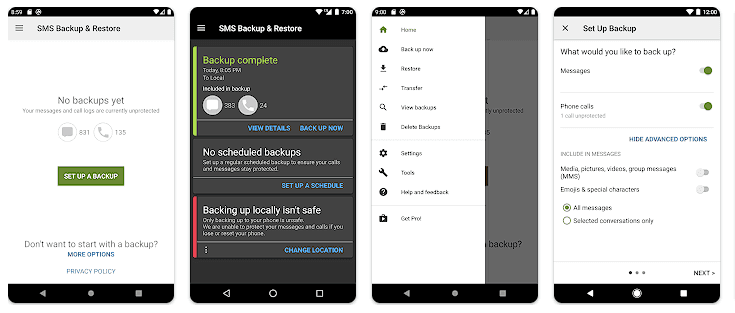
    Most devices now have SMS and call history included in Google’s backup system, but if you have an older phone or want more redundancy, apps like SMS Backup & Restore can give you more flexibility.

    back up your Android

    How to restore your data

    When setting up a new Android phone:

    1. Log in with the same Google account used for backup
    2. During the setup process, Android will detect the backup
    3. Choose what you want to restore—apps, settings, contacts, etc.
    4. Wait for the process to complete; some data may take time to sync

    For manufacturer backups, you’ll need to use the brand-specific restore method (Samsung Cloud, Mi Cloud, etc.).

    Tips for reliable Android backups

    • Always use a stable Wi-Fi connection before backing up
    • Keep automatic backups turned on for peace of mind
    • Occasionally perform a manual backup if you’re making major changes
    • Regularly check if Google Photos is syncing properly
    • For local backups, organize files by folders and label your backups by date

    Back up your Android device is easy and doesn’t require technical expertise. The majority of your crucial data is handled by Google’s reliable, automated solution, but you also have more flexibility with local and manufacturer-specific solutions. Having a backup guarantees that your data is never completely lost, whether you’re changing phones or simply staying secure.

  • One UI 8 will protect consumers against theft, fraud, and scams.

    One UI 8 will protect consumers against theft, fraud, and scams.

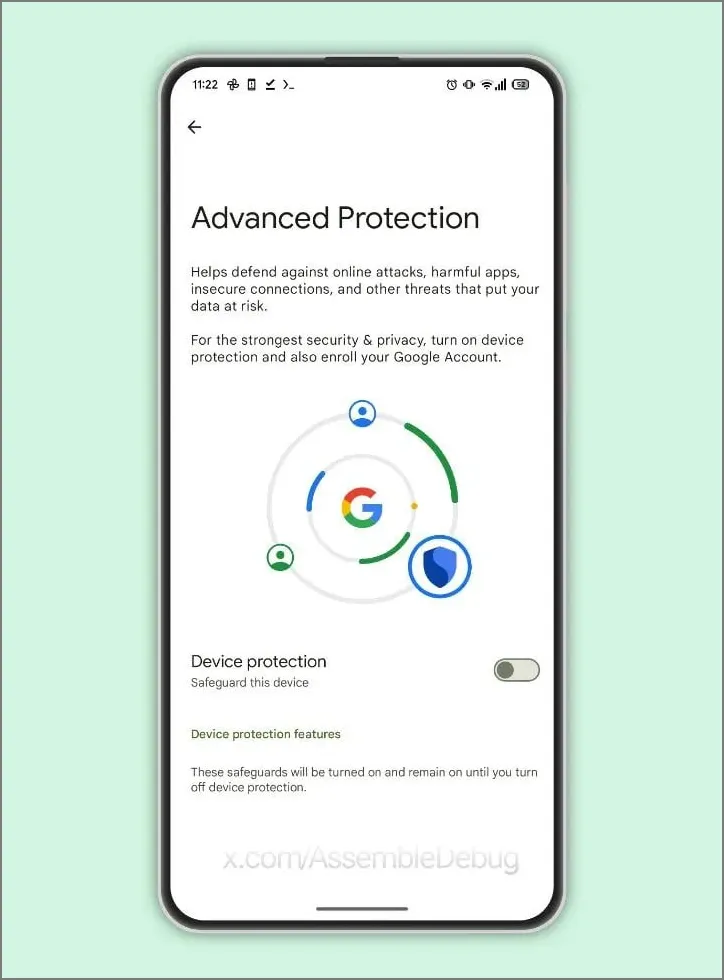
    Under Google’s Advanced Protection Program, Samsung’s One UI 8, which is based on Android 16, will offer strong privacy and security protections to protect users of Galaxy phones and tablets from theft, fraud, and scams.

    The security improvements of Android 16 will be sent out to Samsung Galaxy devices via One UI 8.0, anticipated in the summer of 2025, as announced on May 14 at Google’s The Android Show. Strong protection against unwanted access is ensured by the Advanced Protection Program (APP), which combines features like Remote Lock and Theft Detection Lock and requires user credentials to disable. These were first created for Google apps, but they will eventually be extended to third-party apps.

    One UI 8.0 device protection

    Uneditable secure device records that allow users to verify for tampering are among the key characteristics. One UI 8 thwarts fraudster tactics by blocking dangerous actions during talks, such as installing untrusted apps or changing important settings. With UK banks like Monzo and NatWest on board, banking apps are also made more secure by requiring screen-sharing talks to terminate before access.

    AI is a major factor in this, in case you haven’t guessed it already. It detects apps that conceal icons, filters fraudulent messages, and does virus checks.

    Remote Lock adds a security question and conceals one-time passwords from alerts, while enhanced factory reset safeguards make stolen phones inoperable without the owner’s consent. These are compatible with One UI 6.1.1’s Samsung Auto Blocker.

    With a beta in June and a July release alongside the Galaxy Z Fold 7 and Flip 7, One UI 8 may make Galaxy smartphones safer than before. Are flaws like delayed third-party app support a concern, or will these features outsmart scammers? More will be revealed during the summer launch.

  • One UI 8 #rumor – here’s when we may expect the next One UI upgrade

    One UI 8 #rumor – here’s when we may expect the next One UI upgrade

    Samsung’s One UI is a significant element of what distinguishes Galaxy phones and tablets. With One UI 7 finally available to consumers on April 7, 2025, attention has shifted to the next chapter: One UI 8. This future software upgrade, which is likely to be based on Android 16, should add some intriguing new features to Samsung devices.

    There is speculation that it will be released sooner than usual, altering Samsung’s standard software update release schedule. In this post, we’ll go over the release date, the beta testing program, which devices will receive One UI 8 based on Samsung’s update policy, and what this may mean for Galaxy customers.

    One UI 8 release

    Historically, Samsung’s big One UI releases have coincided with the annual Android upgrade cycle, arriving in the fourth quarter, around October or November, following Google’s stable Android release. For example, One UI 6 debuted on October 30, 2023, whereas One UI 7, which was severely delayed, launched on April 7, 2025. However, reports in the IT world claim that One UI 8 may break this pattern.

    One UI 8, which is based on Android 16, will be released in the summer of 2025. This update, confirmed by Google, represents a considerable increase in Samsung’s update cycle, with the goal of closely aligning with Google’s roadmap.

    One UI 8 beta program

    One UI 8 beta program

    Samsung’s One UI beta programs allowed fans to try out new features early on, and One UI 8 should continue to do so. Considering how things generally proceed and the predicted July 2025 release, the One UI 8 beta should begin in late May or early June 2025.

    The beta normally begins with Samsung’s top phones, such as the Galaxy S series, and then progresses to foldables and lower-cost devices. One UI 7 testing began on December 5, 2024, with the Galaxy S24, and was expanded to include the S23, Z Fold 6, Z Flip 6, and others by March 2025.

    If Samsung follows this step-by-step plan, the One UI 8 beta would most likely debut with the Galaxy S25, followed by foldables such as the Z Fold6 and Z Flip6. You’ll most likely join up through the Samsung Members app in countries such as the United States, United Kingdom, India, Germany, and South Korea, allowing users to test out new features before they become official.

    One UI 8 eligible devices

    While Samsung has not officially confirmed the One UI 8 device list, we can use its official software update policy to determine which devices are assured to receive the upgrade. Samsung now provides up to seven years of OS upgrades for select flagship handsets (beginning with the Galaxy S24 series), four years for others, and five years of security updates for numerous models. According to this policy and the confirmed One UI 7 rollout, the following devices are sure to be qualified for One UI 8:

    1. Galaxy S Series:
      • Galaxy S25 Edge, S25, S25+, S25 Ultra, Galaxy S24, S24+, S24 Ultra, S24 FE, Galaxy S23, S23+, S23 Ultra, S23 FE, Galaxy S22, S22+, S22 Ultra.
    2. Galaxy Z Series:
      • Galaxy Z Fold7, Z Flip7 (expected to launch with One UI 8), Galaxy Z Fold6, Z Flip6, Galaxy Z Fold5, Z Flip5, Galaxy Z Fold4, Z Flip4.
    3. Galaxy Tab Series:
      • Galaxy Tab S10+, Tab S10 Ultra, Galaxy Tab S9, S9+, S9 Ultra.
    One UI 8 update android 16

    Mid-range devices, such as the Galaxy A55 and A35, may also qualify for the four-year program. Older smartphones, like as the Galaxy S21 series, may miss out since their four-year support period may expire before One UI 8 is released.

    The Summer 2025 debut of One UI 8 suggests a significant change for Samsung, potentially providing a substantial update much sooner than fans think. If this happens on time, Galaxy owners may receive Android 16 features with the next round of foldable phones, demonstrating how Samsung can change things up and keep improving.

    While we wait for Samsung to make an official announcement, the prospect of a quicker One UI 8 release thrills Galaxy fans—could this be Samsung’s biggest software step yet?

  • One UI 7 ads new power saving limits on Galaxy devices

    One UI 7 ads new power saving limits on Galaxy devices

    Samsung devices include a power-saving mode; while this feature is similar to all smartphones around the world, One UI 7.0 makes it more customisable.

    Android and iOS smartphones have had a power saving mode for some time, but you may only be able to enable or disable it. Smartphones, by default, limit background processes such as network usage, synchronization, and location, as well as reducing the high refresh rate to 60 Hz, and you may not be able to adjust the power saving mode.

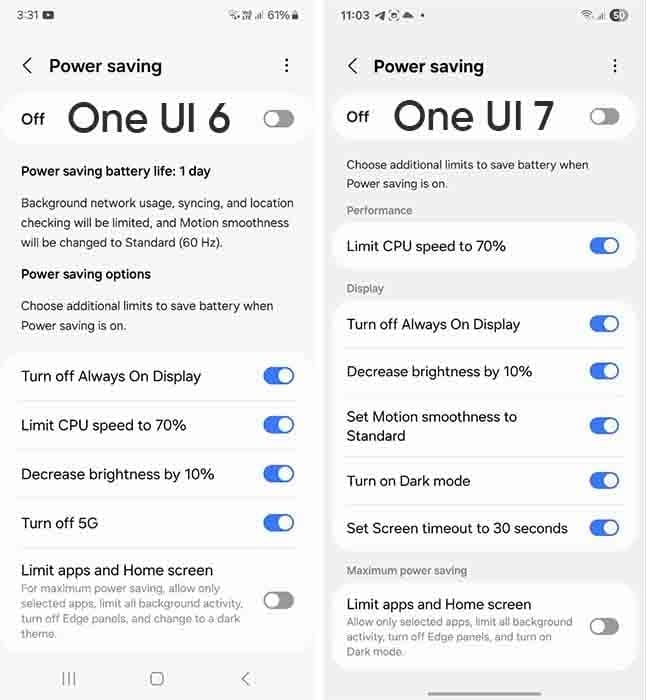
    However, Samsung devices provide you with more control over this capacity due to extra limitations. This power saver can be enabled from either the fast settings panel or the battery settings. Additional power-saving settings from One UI 6.x are listed below:

    • Turn off Always on Display
    • Limit CPU speed to 70%
    • Decrease brightness by 10%
    • Turn off 5G
    • Limit apps and the Home screen

    You can control these options with the toggle button in front.

    Moving on, One UI 7.0 device users will now see three additional power saving limits, including:

    • Set motion smoothness to standard
    • Turn on Dark mode
    • Set screen timeout to 30 seconds
    one ui 7 power saving

    The refresh rate was previously deactivated automatically during power saving mode, but you can now set its limits. Similarly, Dark mode and screen timeout help to conserve power.

    If you wish to maximize power efficiency, enable “Limit apps and Home screen”. It only permits certain apps, restricts background activity, disables Edge panels, and activates Dark Mode.

    If you do not want to employ any of these additional power-saving features, you may click the toggle button to return to the system’s normal power usage restrictions. When you disable the high refresh rate option, the 70% CPU limit is reduced automatically. Additional power-saving limits can be found in Settings > Battery > Power saving.