The home screen of your smartphone serves as the entryway to your digital life, and you may personalize it to improve its usability, functionality, and aesthetic appeal. This article explains how to customize your home screen for a genuinely one-of-a-kind experience, from altering the background to adding widgets and arranging apps.
Change wallpaper
The aesthetic tone of your smartphone is established by your wallpaper. Changing your wallpaper is easy, regardless of your preference for abstract art, beautiful landscapes, or intimate portraits.
On Android:
Long-press an empty space on the home screen.
Select Wallpaper or Wallpaper & style from the pop-up menu.
Choose a pre-installed wallpaper or select an image from your gallery.
Decide whether to apply it to the Home screen, Lock screen, or both
On iOS:
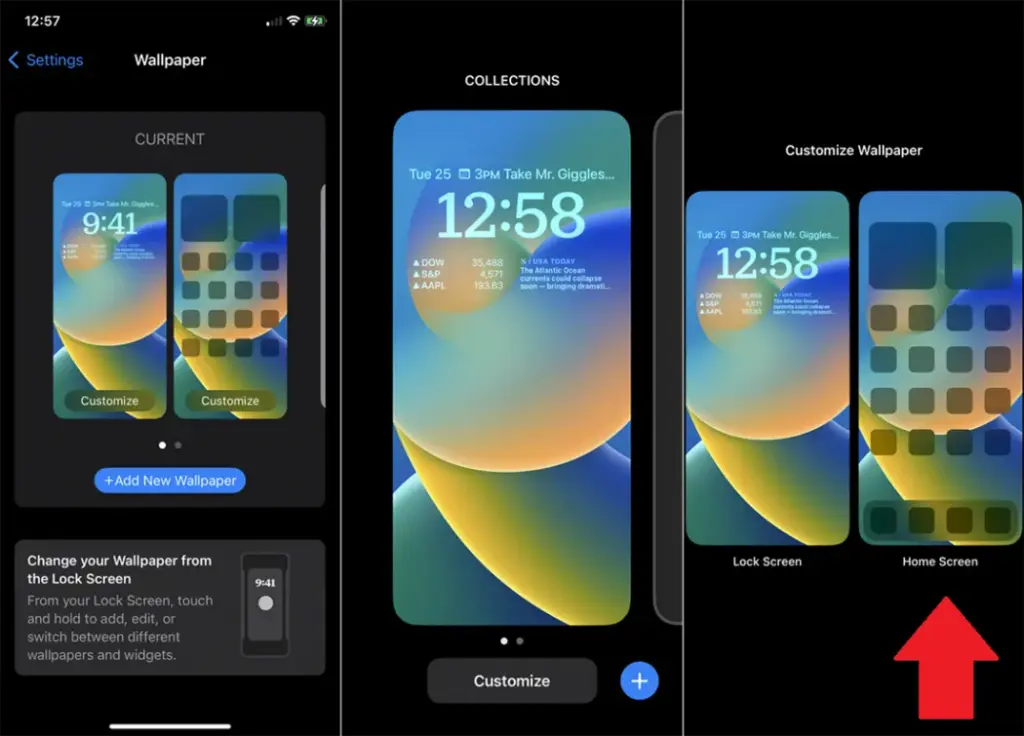
Open Settings > Wallpaper > Choose a New Wallpaper.
Select an image from Apple’s preloaded options or your photo library.
Adjust and tap Set to apply it to the Home screen, Lock screen, or both9
Add widgets for quick access
Without opening apps, widgets offer functionality and information at a glance.
On Android:
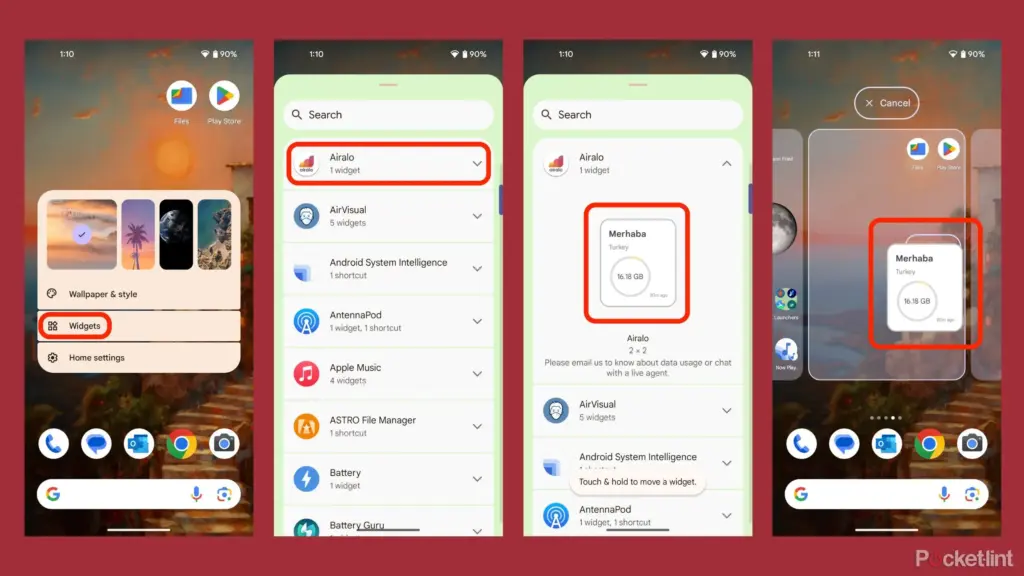
Long-press an empty area on the home screen and tap Widgets.
Browse through available widgets (e.g., clock, weather, calendar).
Select a widget and drag it to your desired location on the screen.
On iOS:
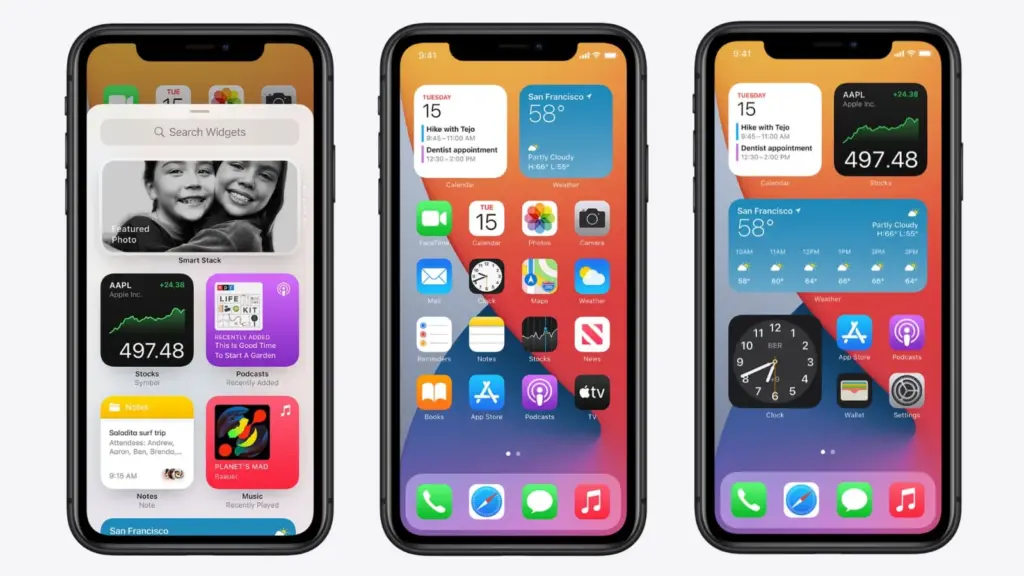
Touch and hold the Home Screen background until apps jiggle.
Tap the “+” icon in the upper-left corner.
Choose a widget from the list and select its size (small, medium, large).
Tap Add Widget, then drag it into place
Organize apps
A clutter-free home screen improves usability and makes navigation faster.
Create Folders:
Drag one app icon onto another to create a folder.
Add more apps by dragging them into the folder.
Rename folders by tapping on them and selecting the name field.
Arrange Apps:
Move frequently used apps to the first page of your home screen for quick access.
Drag icons to different pages or positions by holding and moving them.
Advanced Organization Tips:
Use themed rows (e.g., “Work,” “Social,” “Entertainment”).
Sort apps by frequency of use or color coding for visual appeal.
Use customization apps
Download specialized home screen customization programs like WidgetClub or Nova Launcher for more sophisticated customization choices including unique icons, fonts, and themes.
Benefits:
Access all-in-one themes that include wallpapers, widgets, and icons.
Customize grid layouts for app placement flexibility
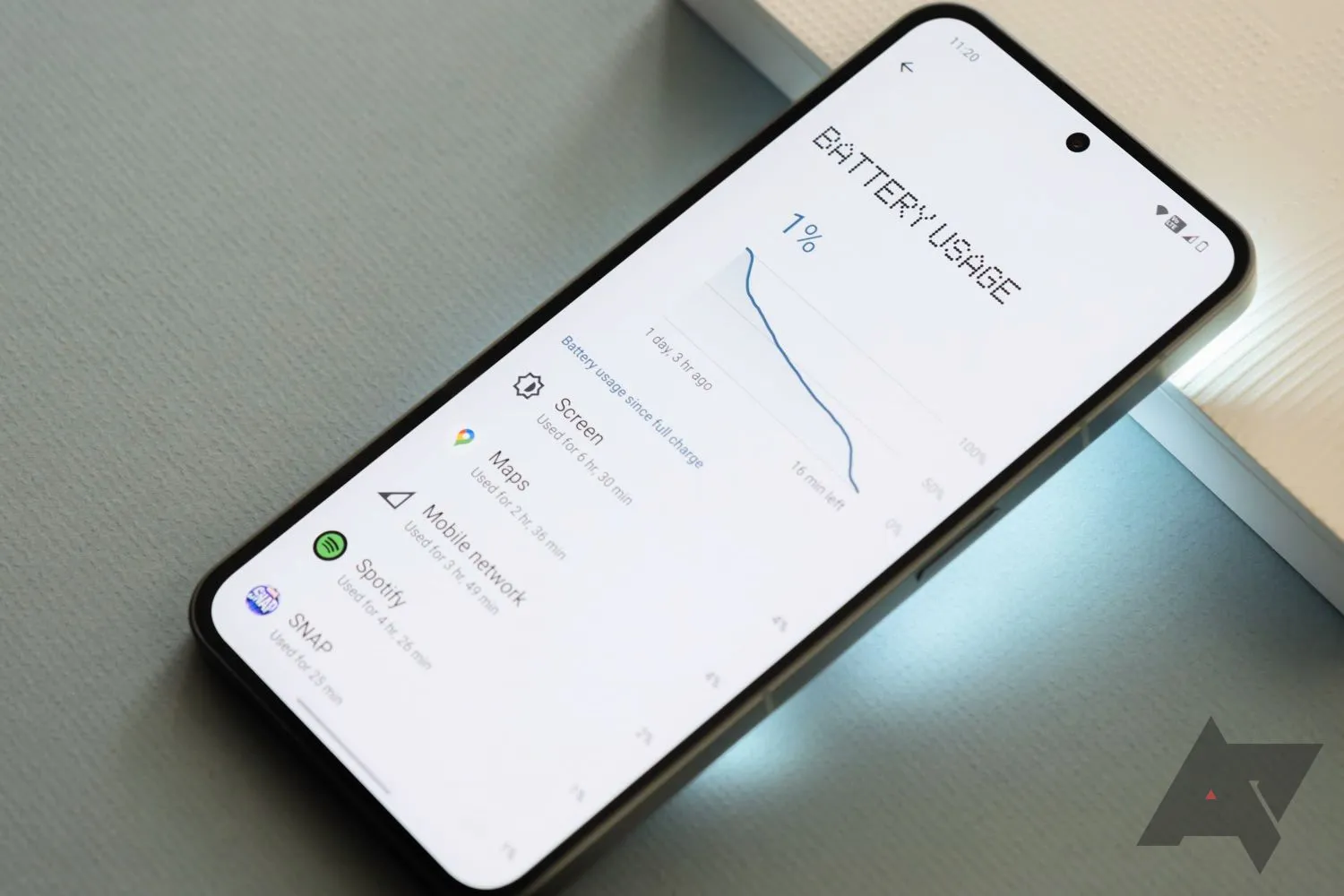
I have spent a significant chunk of my life looking for ways to extend the battery life of my Android phones. That may sound dramatic, but growing up with only inexpensive models meant I was constantly modifying device settings to get the most out of their batteries. Thanks to this micromanaging, I was able to drive the batteries on all of my previous devices to their utmost limits. I do not want to keep this knowledge for myself, so I chose to share it with everyone.
There are numerous strategies for extending battery life. However, there are 12 important options that can be changed right now to see immediate results. The following list highlights the most effective, simple, and quick modifications to boost device longevity regardless of the Android phone you are using, whether it is the latest Samsung model, a luxury Google Pixel, or a cutting-edge OnePlus 13. Furthermore, you will not have to compromise the high-quality experience of using your phone.
Although the power settings are nearly identical on every Android phone available, the procedure of changing them varies by device. Keep this in mind when following the procedures I have outlined, as the technique may alter slightly based on the model you are using.
Turn off the always-on display
The always-on display is one of the largest battery drainers on any smartphone. Companies frequently claim that this display setting only consumes 1% to 2% per hour, but let us be honest: it is always far more. It may be convenient to check the time on your phone while it is sitting on a table, but it is unlikely to be worth the sacrifice of battery life.
Open the Settings app and navigate to the Lock Screen section. This section will most likely be found in the main Settings list or under “Display.” From there, look for the option to “always show info” or a simple toggle to enable the Always On Display. In any case, disable the option and ensure that when you lock your device, it turns absolutely blank.
Switch to dark mode
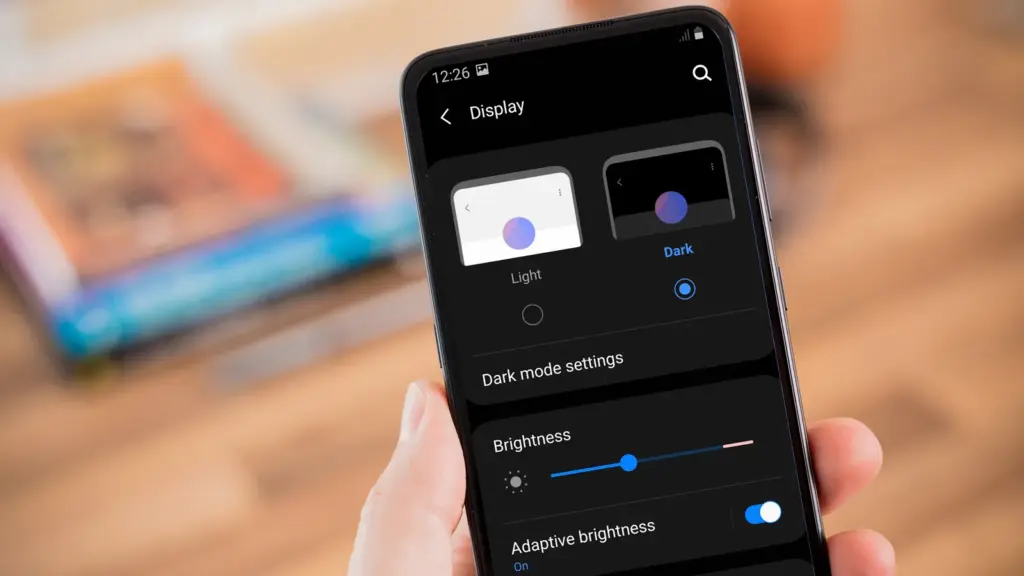
Over the last few years, many midrange and inexpensive Android phones have followed in the footsteps of their flagship counterparts, adopting OLED displays. When not in use, the technology allows individual pixels to fade or turn entirely off. This feature is considerably more efficient for battery life than typical LCD screens with a single large backlight. By switching to your phone’s dark theme, those pixels will get dimmer much more frequently, saving some battery life.
Go to Settings > Display on your Android device. There are options to choose between a light and dark theme, as well as to have dark mode turn on automatically at specific times of day. To get the most out of your battery, I recommend having dark mode on constantly.
Remove unused accounts
We have all done it: you open a new account for a social networking app or email service (which you subsequently forget about) and then create another account to serve as your primary account for that service or platform. I have been through this process several times. If you create accounts on your phone, all previous accounts stay, constantly refreshing and depleting your battery life in the background. I strongly advocate uninstalling some outdated accounts from your smartphone as soon as possible.
Go to the Settings app and find the accounts section (on Samsung phones, it’s called “Accounts and backup” while Pixel phones use “Passwords & accounts“). You’ll find a list of all the accounts synced to your phone. Tap on one of them and scroll down to the “Remove account” button. Tap it, and the account will disappear.
Reduce the screen’s refresh rate.
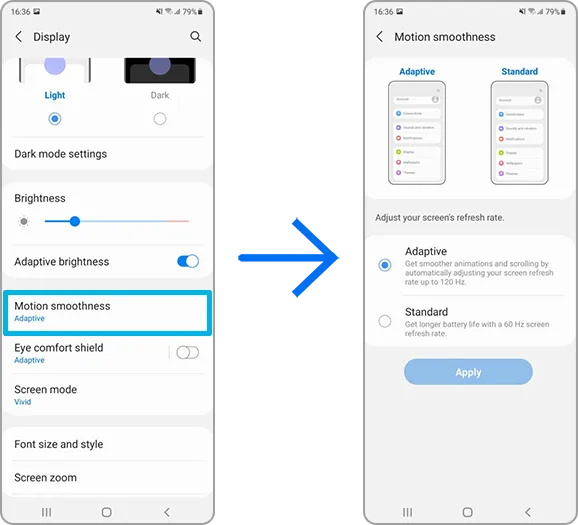
Phone screens have improved dramatically in recent years, thanks in part to quicker refresh rates implemented by manufacturers. Increasing the frequency with which a screen refreshes, whether at 90Hz, 120Hz, or even faster, makes animations, scrolling social media, and everyday activities feel smoother and more responsive. Unfortunately, a fast refresh rate consumes more battery power; you may be better off removing the option in some cases.
Open the Settings app and go to the Display section. Here you will find the options for configuring your refresh rate. Most smartphones refer to the function differently; for example, Google refers to it as “Smooth Display” whereas Samsung refers to it as “Motion Smoothness” Find the refresh rate setting and reset it to the regular rate. Your screen will most certainly appear choppier as a result, but this is totally normal. It simply means that it operates at 60Hz, which was the pace at which even the greatest phones ran a few years ago.
Turn off “Hey Google”
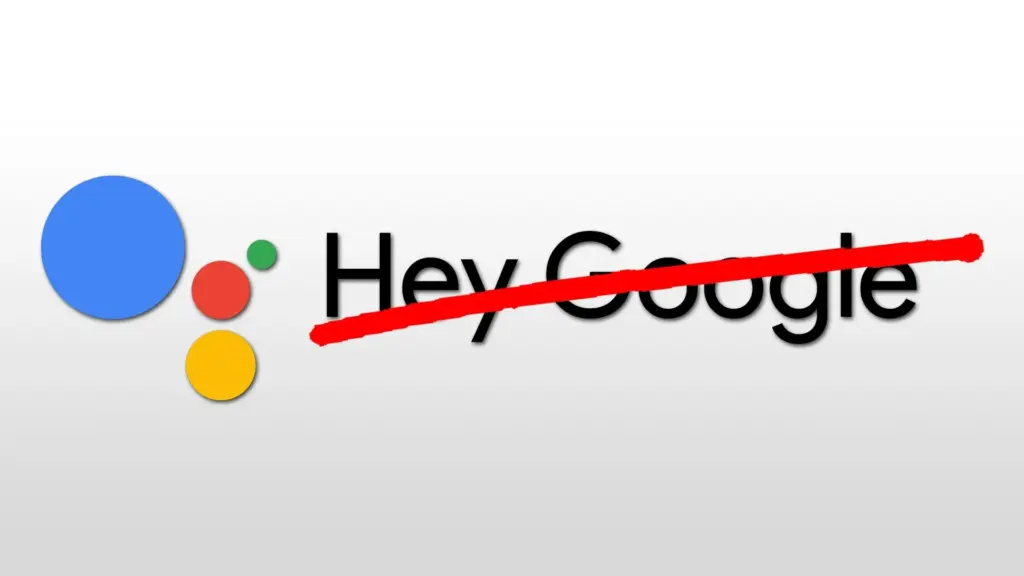
If your phone is always listening for you to say, “Hey, Google,” your battery is probably running low. Your microphone is engaged, waiting to hear you utter the two magic phrases that activate the digital assistant, and running that procedure all day consumes a significant amount of energy. Anyone who does not utilize the Assistant on a daily basis should disable the feature without hesitation. And let us be honest: how many of us use the assistance every day?
Open the Google app on your phone and select your profile photo from the top-right corner. Then, go to Settings > Google Assistant > Hey Google & Voice Match, and turn off “Hey Google” Now, your phone will only activate the Assistant if you hold down the power button or use another method.
Block apps to send notifications
You may not realize it, but notifications can be one of the most significant drains on your phone’s battery life. Not only does your phone buzz and ding all day, but the applications themselves are continually refreshing in the background, looking for new notifications to transmit to you. Most apps provide options for reducing the number of alerts you receive, but the simplest way to turn them off is through your phone’s Settings app.
Go to Settings > Notifications > App notifications to see a list of all the apps installed on your phone. Next to each entry are toggles that, when flipped, will disable all notifications for that particular app.
Keyboard sounds and haptics
If you are using your phone, you are probably typing on the keyboard a lot, whether it is to post on social media or answer to messages from friends. If you activate sound and haptic feedback, your phone’s battery life may suffer since it must produce a succession of vibrations and noises each time you tap a letter. Hearing and feeling the keyboard as you type is a pleasant experience, but it is not ideal for getting the most out of a fully charged battery.
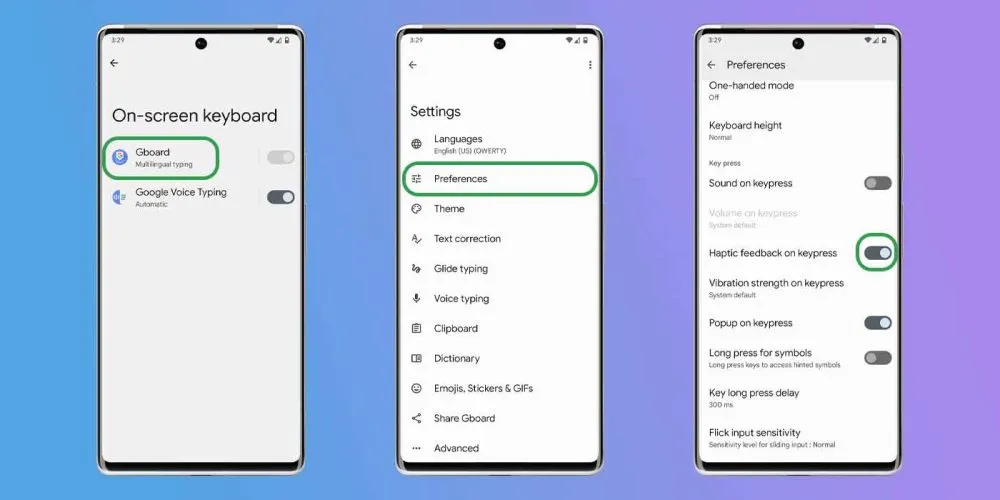
Open the Settings app and navigate to “Language and input” This section contains your keyboard settings. Find the place where you may select your default keyboard and hit the gear icon next to it to modify settings. If you use Gboard (like most people), go to Preferences > Keypress and turn off “Sound on Keypress” and “Haptic feedback on Keypress“
Enable Adaptive Battery
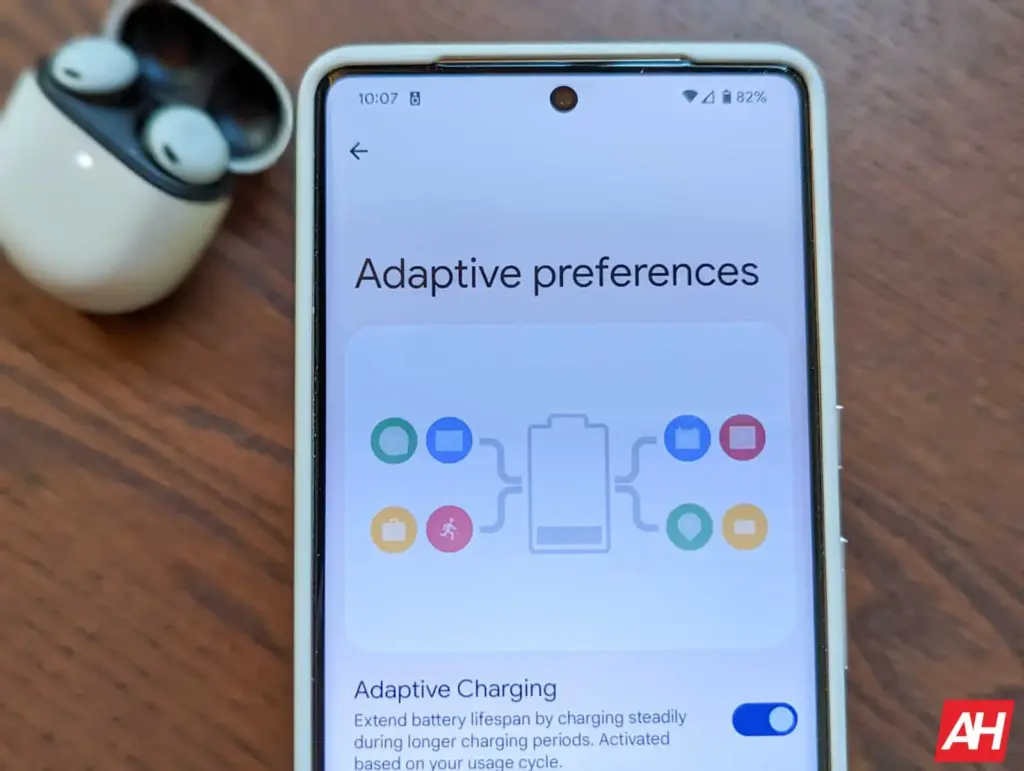
Android include a useful function called Adaptive Battery, which is available on most handsets. Adaptive Battery may automatically control your phone’s performance and efficiency in the background, extending battery life through specific methods. For example, when you do not need maximum speed for something as basic as browsing through your inbox, the setting will slow things down and save you some battery life.
Go to Settings > Battery > Adaptive preferences and check to ensure “Adaptive battery” is enabled. If it’s not, flick it on.
Use battery saver to increase battery life
Battery Saver mode, like Adaptive Battery, is a useful function that helps increase the life of your smartphone between charges. The function makes significant modifications to your device’s firmware, including as limiting visual effects, restricting background apps, and putting on dark mode if it is not already enabled.
Most, if not all, Android phones have a Battery Saver feature, albeit it may have a different name. On Galaxy phones, for example, it is known as Power Saving Mode. Some may refer to it as low-power mode. For assistance with your specific model, check your phone manufacturer’s support website.
On Pixel phones, go to Settings > Battery > Battery Saver. You can also choose a schedule for when the feature will activate or turn off automatically. On Galaxy phones, go to Settings > Battery and Device Care > Battery. Flip the toggle switch next to Power Saving to activate the feature.
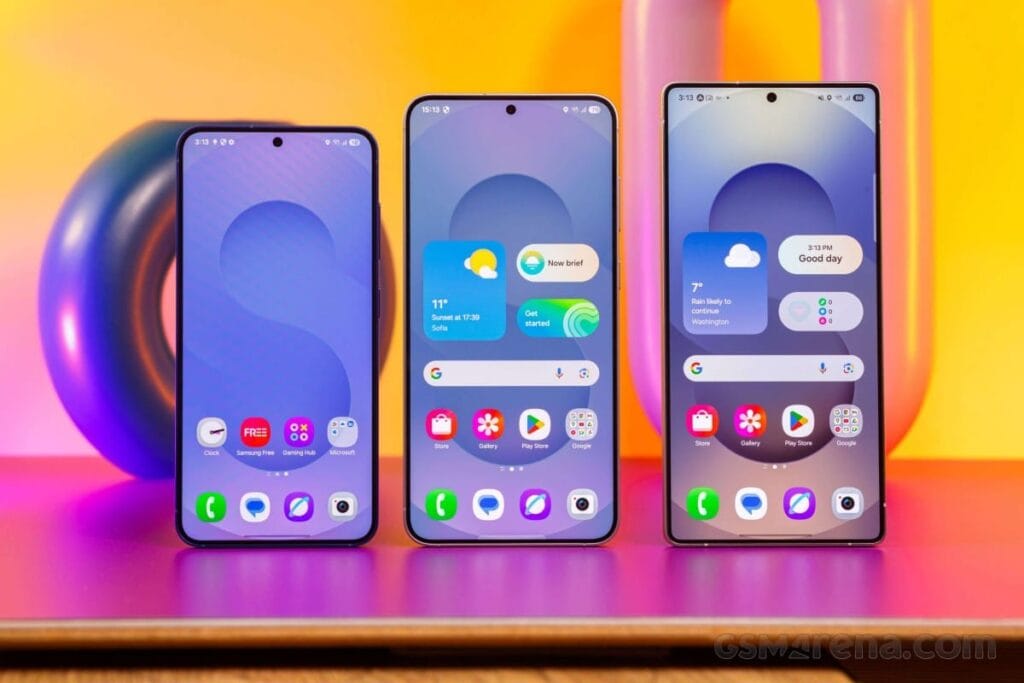
Samsung’s One UI 7 is now my favorite Android skin. It is quick, responsive, and simple. However, nothing is pre-programmed for your specific experience. You should personalize your smartphone to make it more appealing. I modify about a dozen settings on each Samsung Galaxy phone to better fit my needs, and I believe these will improve your user experience as well.
Here are some OneUI settings that I recommend adjusting to improve your Galaxy phone experience, ranging from selecting the highest attainable screen resolution to adding extra privacy-focused features. Please be aware that some settings may be phone-specific.
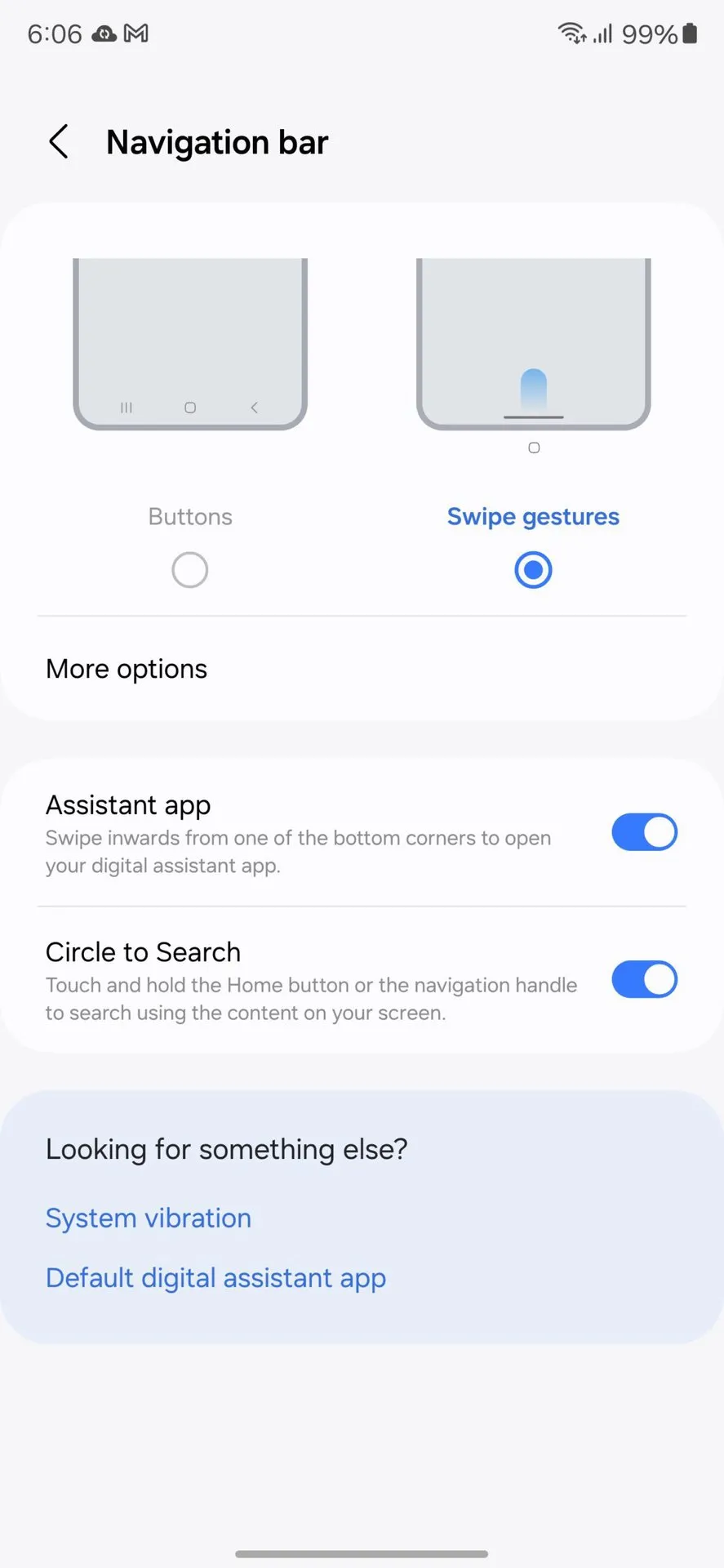
Switch to gesture navigation
Unless you are setting up your new Samsung Galaxy phone from an older model, it will use the outdated three-button navigation mechanism. If you enjoy it, that is OK. However, I find Android’s gesture navigation more intuitive—everything is a swipe away rather than an on-screen button.
If you want that, you can change the system navigation to gestures by going to Settings > Display > Navigation bar > Swipe gestures.
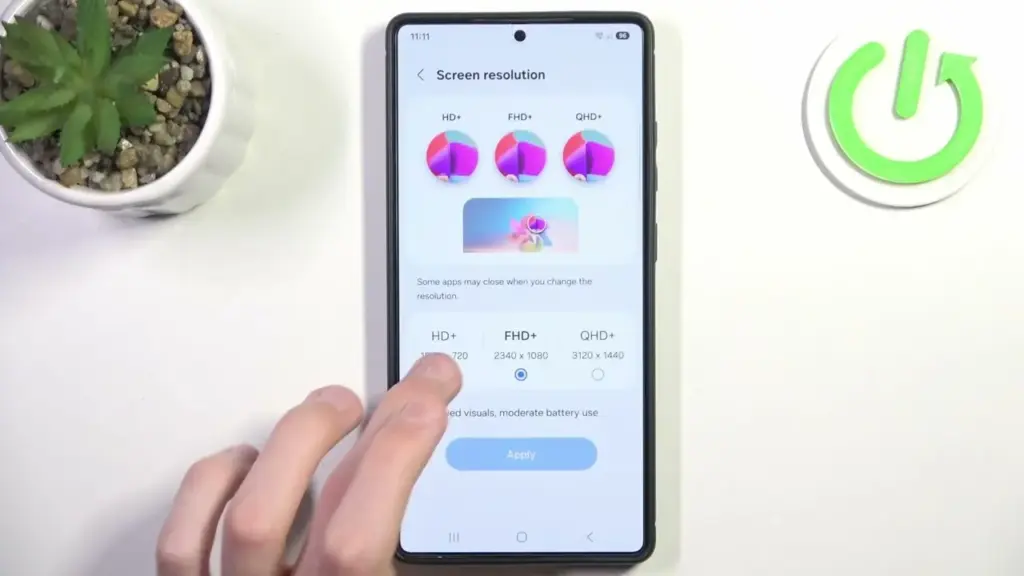
Set screen resolution to high – QHD+
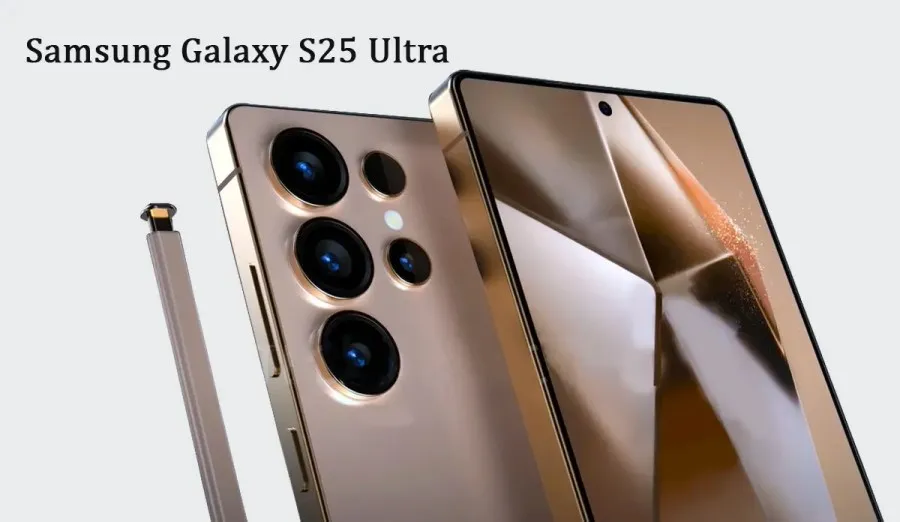
The Samsung Galaxy S25 Ultra boasts the finest smartphone display available right now. It is less reflective and has better color display than its predecessor, thanks to second-generation Gorilla Armour. You have a great QHD+ screen, but it is not set to that resolution by default.
To have the best possible viewing experience, navigate to Settings > viewing > Screen resolution. The Ultra will consume more battery, but it is an efficient smartphone. Even after maxing out the screen resolution, I still have an all-day battery life.
Adjust the lock screen notifications.
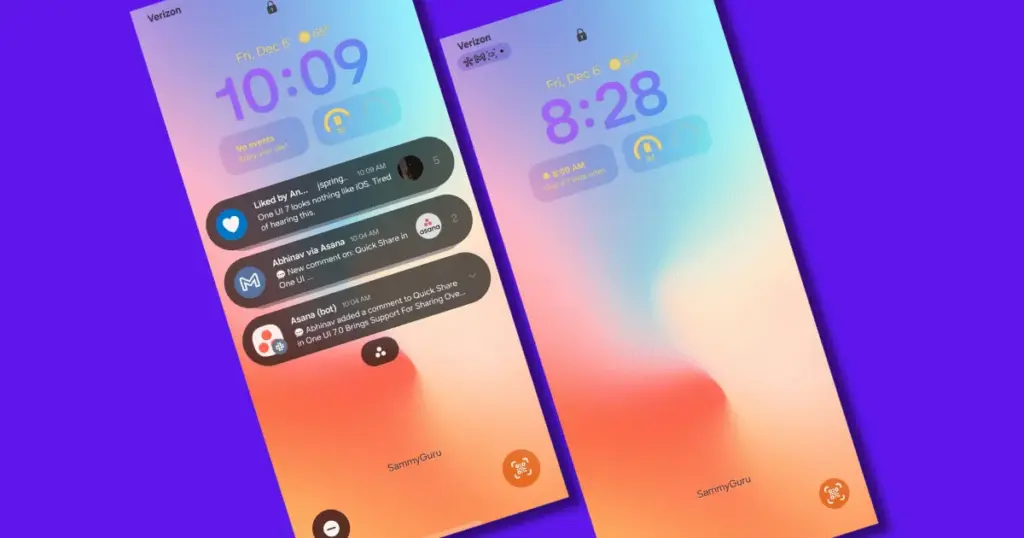
One UI 7 has modified the way notifications appear on your lock screen. It is set to display icons in the top left corner by default, which is a significant departure from the prior card view. I prefer that apps display notifications in the latter way. To modify this, navigate to Settings > Notifications > Lock screen notifications > Cards.
I also hide important notification content on the lock screen since I do not want anyone walking up to my phone and reading my personal communications. To modify this setting, select Hide content from the same Lock screen notifications menu.
Uninstall the bloatware
Samsung Galaxy phones provide numerous apps that you may not utilize. Unlike prior years, you may now remove or disable them to conserve memory. For example, I do not own a Samsung TV and do not want the Microsoft CoPilot app on my phone, so I uninstall both TV and CoPilot. Other programs that I disable or uninstall include Facebook, Samsung Tutor, and OneDrive.
Always-on display
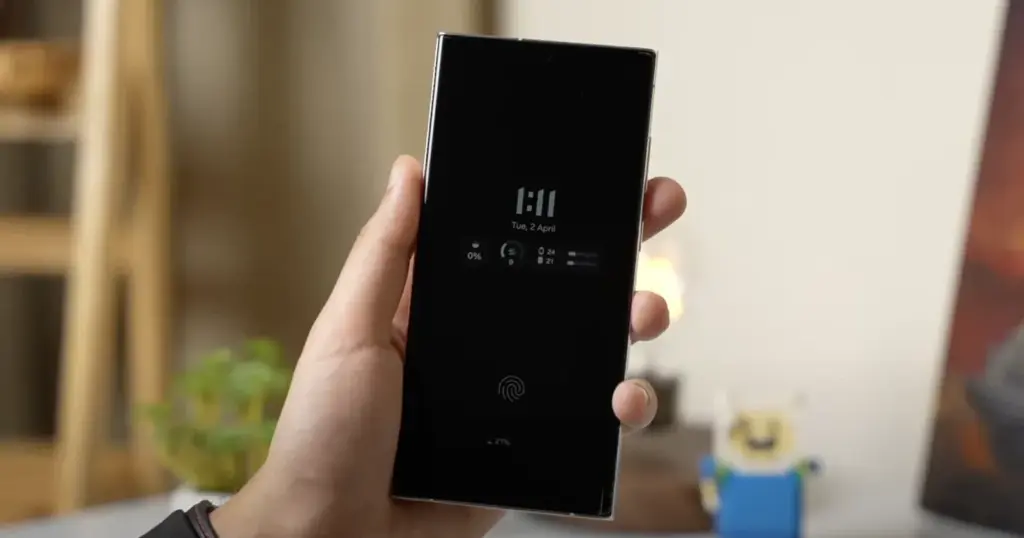
Samsung phones have efficient screens; make the most of them by enabling everything, including the Always On display. I enjoy having the time, day, and date information there on the screen, accessible at a look. Samsung defaults to the Tap to see setting, which requires you to tap on the screen to access information.
I recommend altering that to Always to make it more useful. Navigate to Settings > Lock Screen and AOD > Always-On Display > Always. You may select whether or not to display the wallpaper; I have set it to only display a black screen to save battery life.
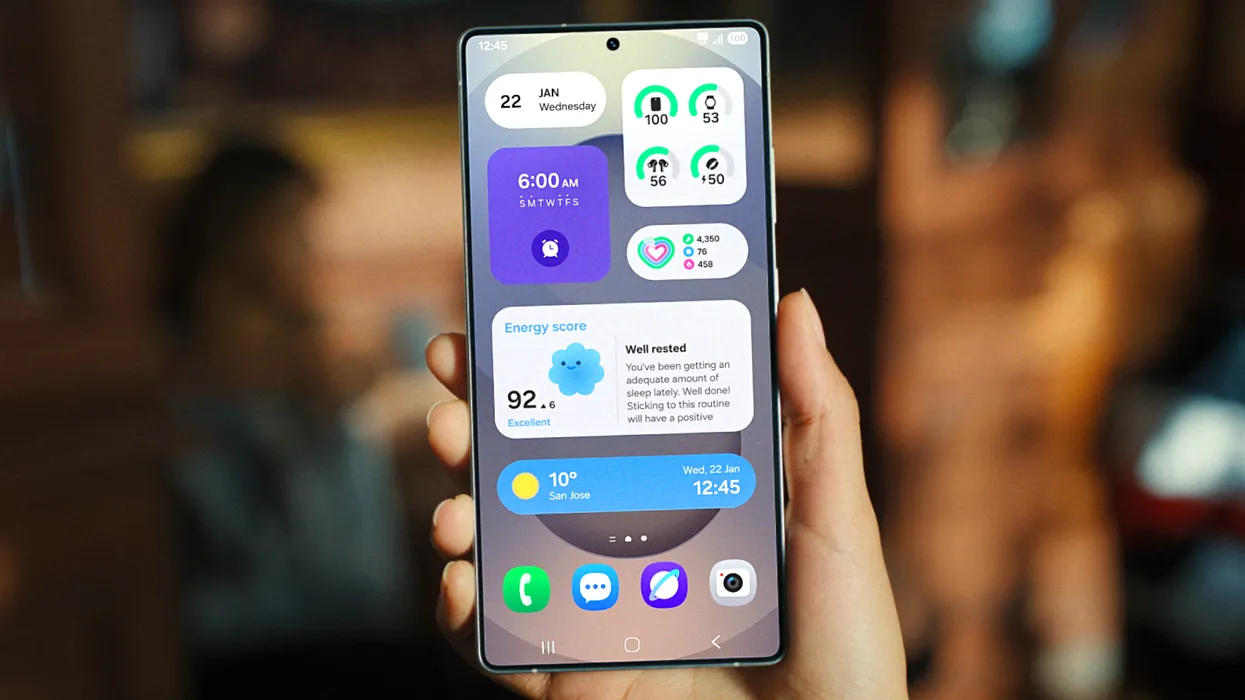
Homescreen customization
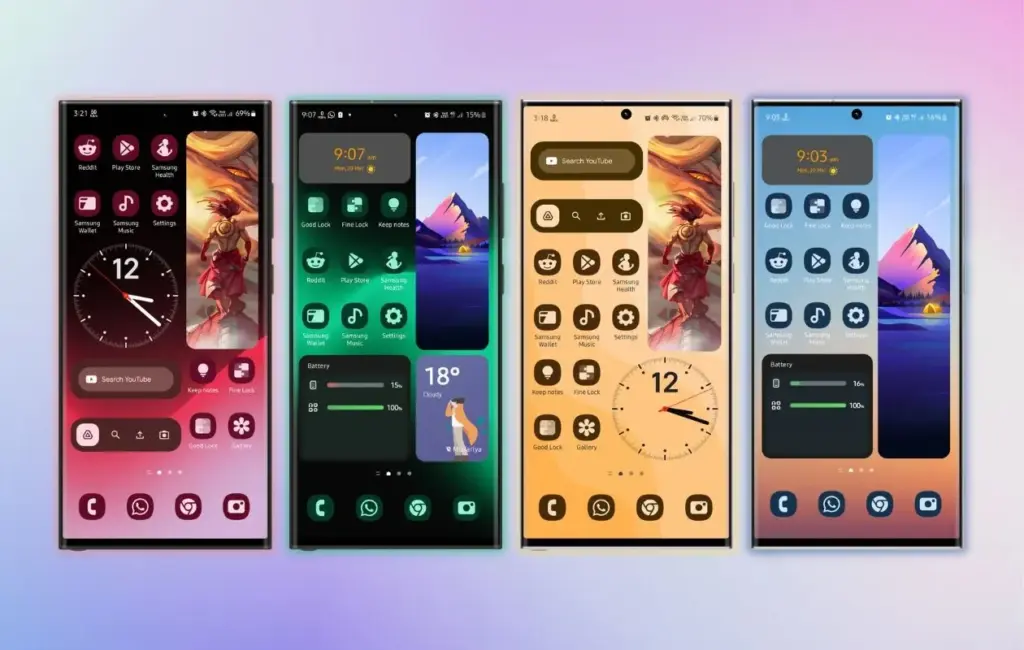
Samsung’s phone widgets are among the best available. I enjoy the Calendar widget since I can change the transparency. As a consequence, it looks nicer and retains functionality while preserving the structure of my home screen. I set it at the top so that everything is just a glance away, but it never asks for attention, unlike other opaque Calendar widgets.
Also, change the icon grid to a 5×5 layout to permit more icons in the bottom row. They are only a thumb tap away. In addition, I apply my wallpaper color tones to the program icons for a more appealing appearance. To apply wallpaper colors to the entire system, navigate to Wallpaper and Style > Color Palette and turn it on. It is not flawless, and some icons may still be unsupported. However, it appears better than the standard colors.
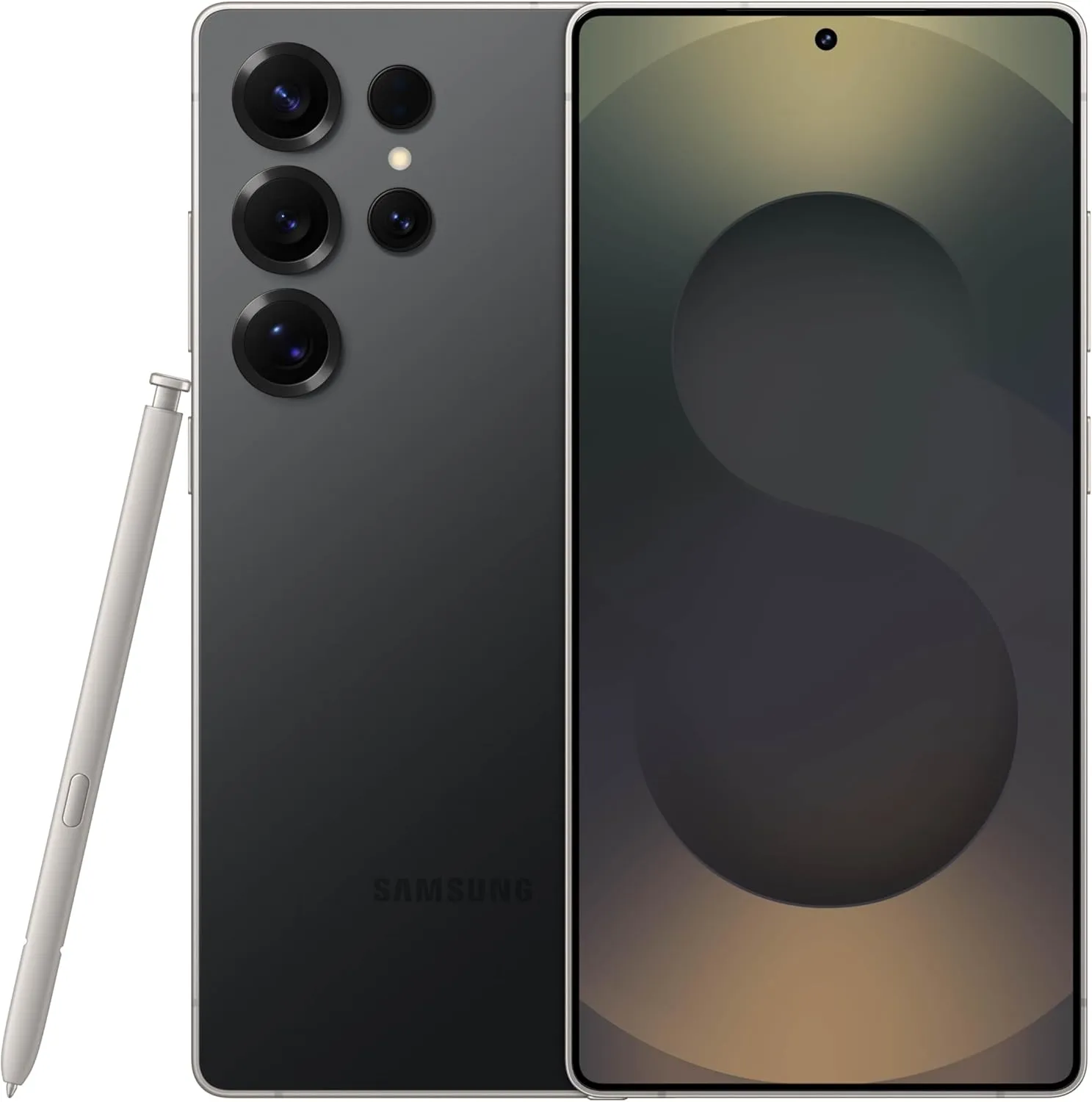
SAMSUNG Galaxy S25 Ultra
Streamline your day with an assistant that gets you. Ask it to Google search for a pet-friendly vegan restaurant nearby and text it to your friend— your Galaxy S25 Ultra handles multiple tasks with a single ask.
Other things I do on my Galaxy phones include switching to Google Keyboard and organizing the home drawer icons alphabetically for easier navigation. Samsung phones are among the best on the market. While they do not promise groundbreaking features, they are dependable and provide the most refined user interface with One UI. Simply modify these few options, and you will be all set.
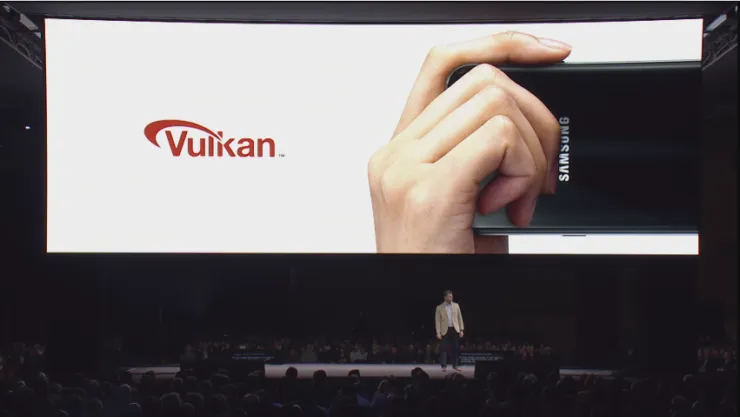
The largest update in years is One UI 7, which is based on Android 15. Samsung has made numerous optimizations, performance enhancements, and UI changes. Vulkan system-wide integration is another feature of One UI 7 that offers numerous advantages.
The API is now supported across the board in Samsung’s One UI 7 update for Android 15. This important connection allows more programs to default to Vulkan rendering, including UI components. Users of the Galaxy with One UI 7 can anticipate:
Smoother animations and transitions
Better gaming performance
More efficient battery usage
Potentially better visual effects with lower power consumption
Compared to more antiquated APIs like OpenGL and DirectX, Vulkan is intended to offer more efficiency and control over GPU resources. Lower CPU overhead, improved multi-core CPU usage, more direct GPU control, and cross-platform compatibility are some of its salient characteristics.
How was the One UI 7 x Vulkan update made public?
A perceptive A UI 7 Beta tester observed that the Galaxy S24’s graphics API varies. The system was using the new API in the initial beta version, but in the subsequent beta releases, it reverted to OpenGL.
One of Samsung’s Beta employees arrived to verify the update after the disclosure generated discussion in the community. Vulkan is now more widely supported as a system-level graphics API for applications and user interface components with the new One UI 7.
Yes, Android 15 (and by extension, One UI 7) has broader support for Vulkan as a system-level graphics API, and in some cases, apps and UI elements may default to Vulkan where supported.
Samsung (US Community Moderator)
The moderator also disclosed that during continuous testing, the graphics API fluctuates based on compatibility or stability issues. Additionally, the rendering behavior may change based on performance optimization, app compatibility, or device.
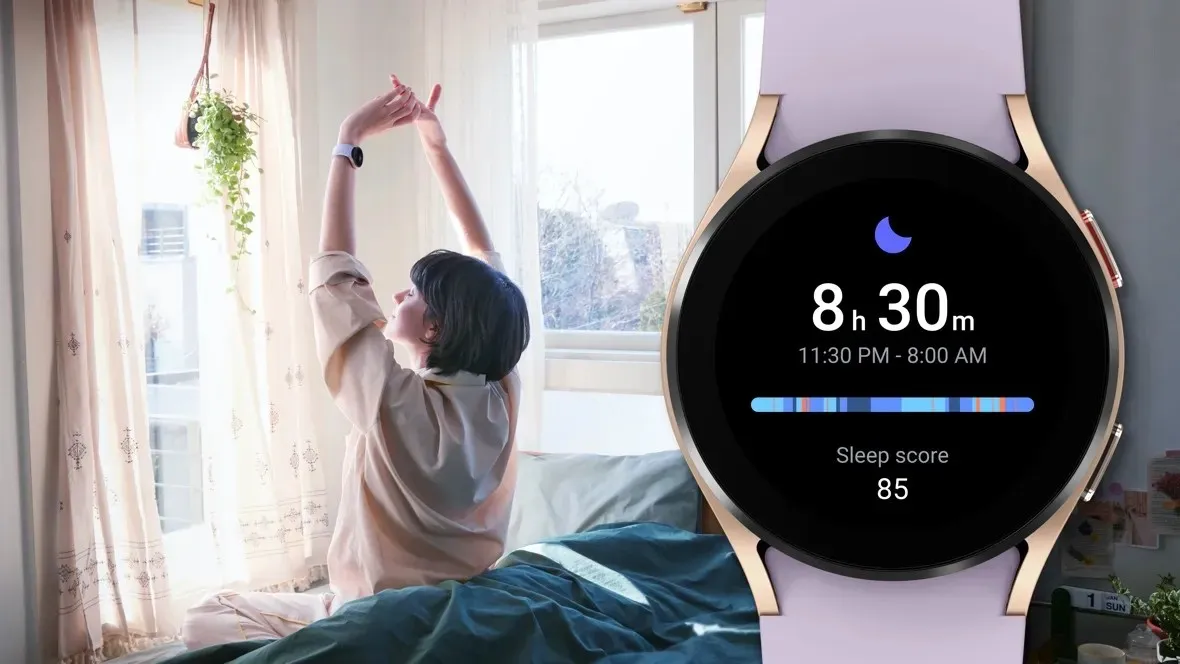
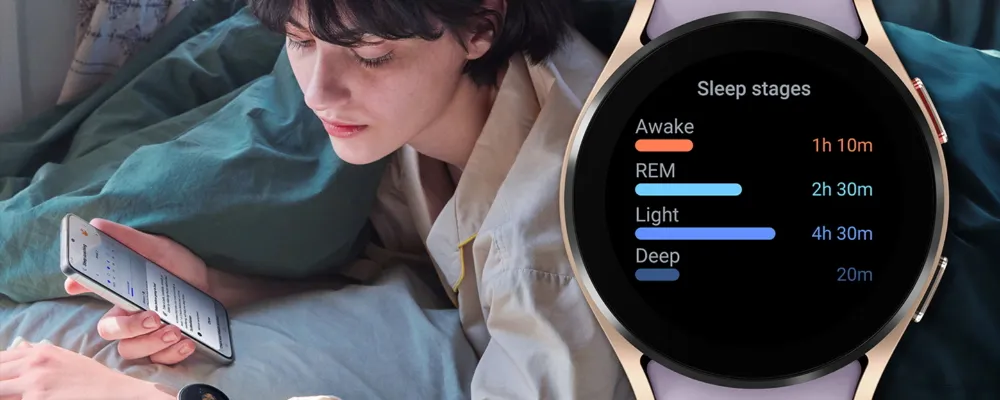
Samsung has acknowledged that a sleep-tracking problem affects a number of its most recent GalaxyWatch models, but thankfully, it has also suggested a few solutions.
SamMobile discovered a Samsung Community forum in Korea where the firm disclosed that the Galaxy Watch 7 and Galaxy Watch Ultra, two of its top smartwatches, might not be accurately detecting sleep.
SamMobile discovered a Samsung Community forum in Korea where the firm disclosed that the Galaxy Watch 7 and Galaxy Watch Ultra, two of its top smartwatches, might not be accurately detecting sleep.
The issue, which also affects the Galaxy Watch 4, 5, and 6, means that “sleep-related measurement values are not reflected properly in the Samsung Health app on the Galaxy Watch.”
For consumers who might be having problems, Samsung has provided a few patches. We have contacted Samsung for further information, but as mentioned, this message was only made on a Korean forum, so it is unclear at this time whether the problem is regional.
In any case, here are some fixes for your Galaxy Watch if you are experiencing problems with sleep monitoring.
How to correct the Galaxy Watch’s sleep tracking
Samsung advises users to turn the device off and on again as the initial step in tech troubleshooting. It claims to be working on a new version of the Samsung Health app to address the problem in the meanwhile.
In particular, Samsung advises users to activate and then deactivate the Galaxy Watch’s power-saving mode under the Watch’s Settings app.
Lastly, users should get the most recent version of the Samsung Health software from the Galaxy Store. It is unclear whether this is the promised upgrade to the app or a temporary solution. However, all of these adjustments are fantastic starting points if your Galaxy Watch is having trouble tracking your sleep.
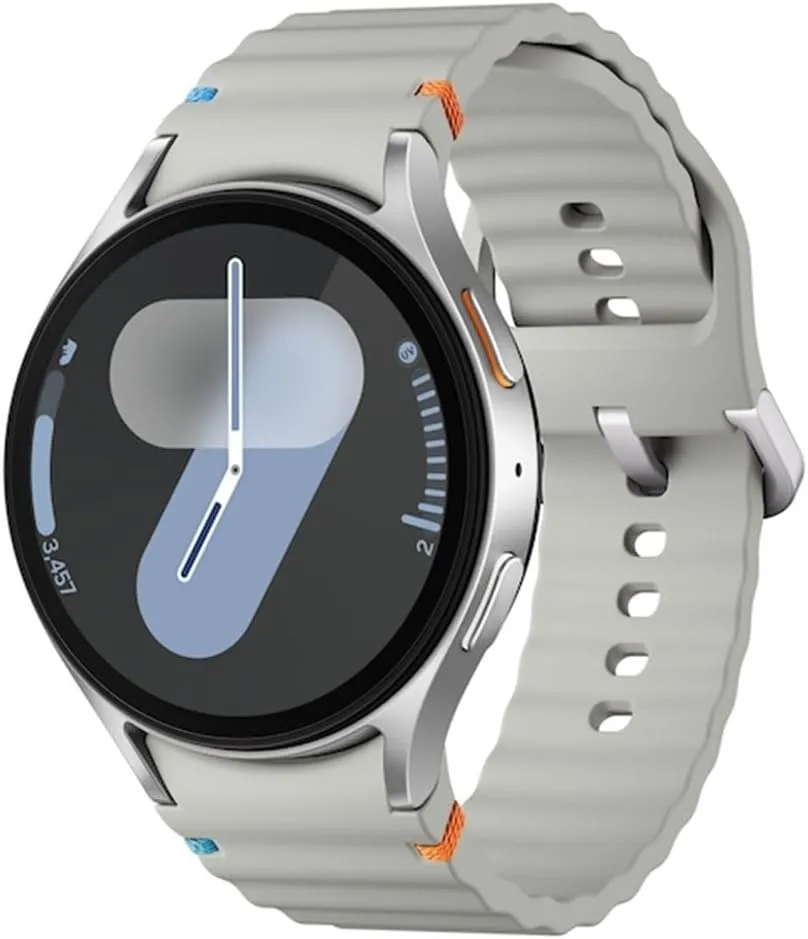
Samsung Galaxy Watch 7
1.5″ Super AMOLED, 480x480px ~327ppi, 425mAh Battery, Bluetooth 5.3, Wi-Fi, MIL-STD-810H compliant, 50m/5ATM water resistant (IP68), ECG certified, Sleep Coach, Heart Monitor
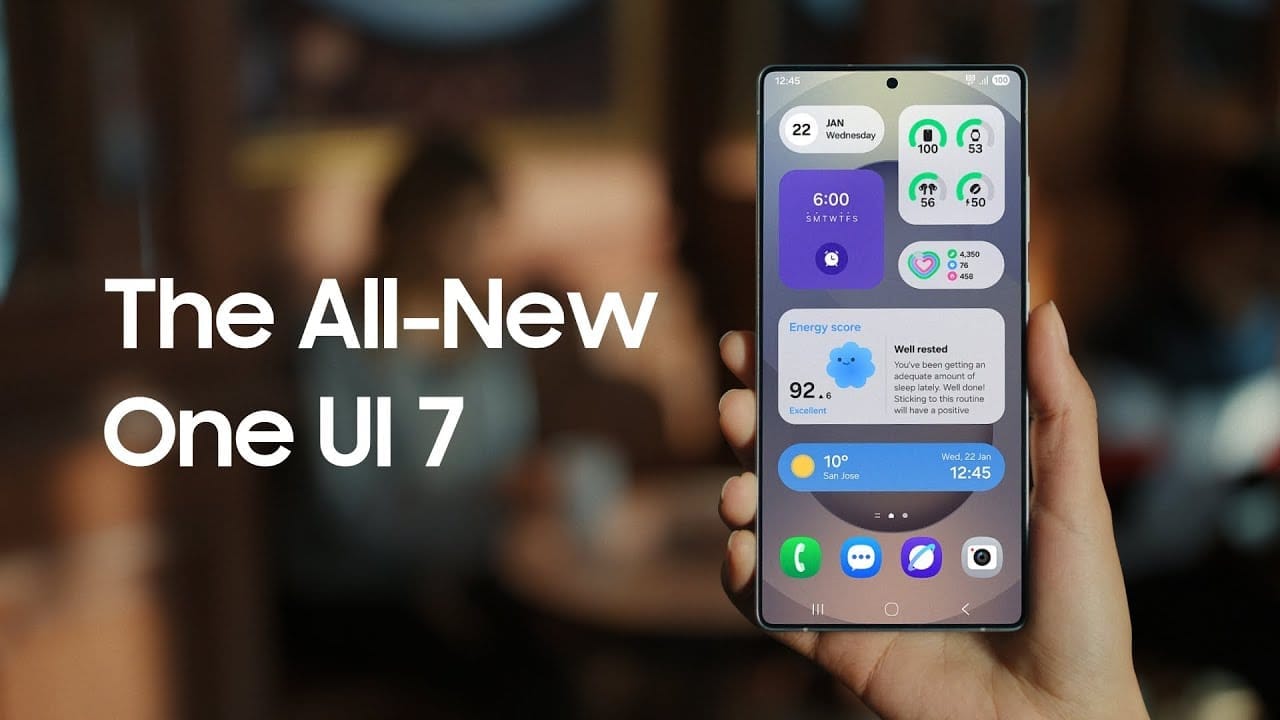
Samsung basically teased their major One UI 7 update with a two-minute video that was just released. They are all getting ready and showcasing some of the exciting things that are on the horizon. In addition to letting us know that One UI 7 will soon be available for the Galaxy S24 and older phones, they are also using it to sort of encourage people to buy the new Galaxy S25. At last! Up until now, we had only seen it in beta.
According to Samsung, One UI 7 will be far more “you” than it has ever been. Like, more natural, more user-friendly, and more intimate. They are showcasing Google’s Gemini, “Now Brief,” “Now Bar,” “Sketch to Image,” and various AI-powered search tools.
The teaser video from Samsung hints at a few UI 7 features.
This video now? It is only a preview. We are not seeing everything. However, the timing is intriguing. It is obvious that they are preparing for a big release.The strange aspect is that last week, they announced that the S24, Z Flip 6, and Z Fold 6 updates would be available in certain locations beginning on April 7, 10, and 14. However, they later retracted the April 10th date for the US, which gave them a somewhat uncertain appearance.
https://www.youtube.com/watch?v=P4AEIu3V6F4
In essence, Samsung is building anticipation for One UI 7, but they are being a little reticent about when it will be released. The only thing we can do is wait and see when it lands. However, before that, you may see if your Samsung Galaxy phone is compatible with the company’s recently announced seamless updates function, which installs updates while you are still using your phone, saving you time waiting for it to restart.
The business claims that if your Galaxy phone was released prior than 2025, it probably does not enable seamless updates. The Galaxy A55 is an odd outlier. But anything starting in 2025? It ought to have it.
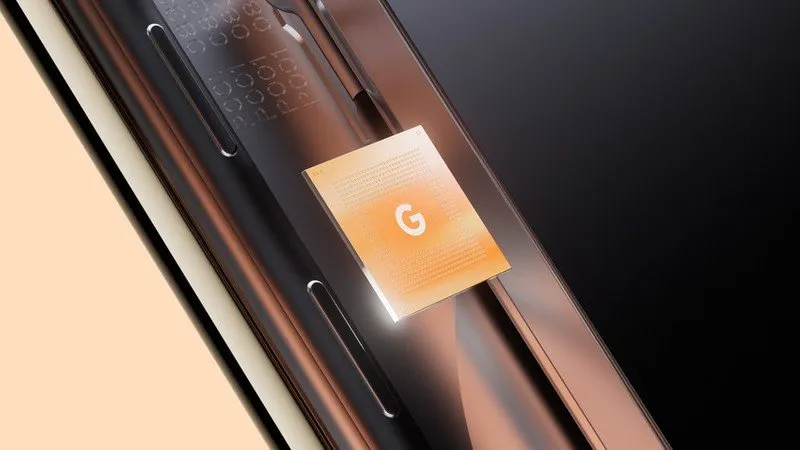
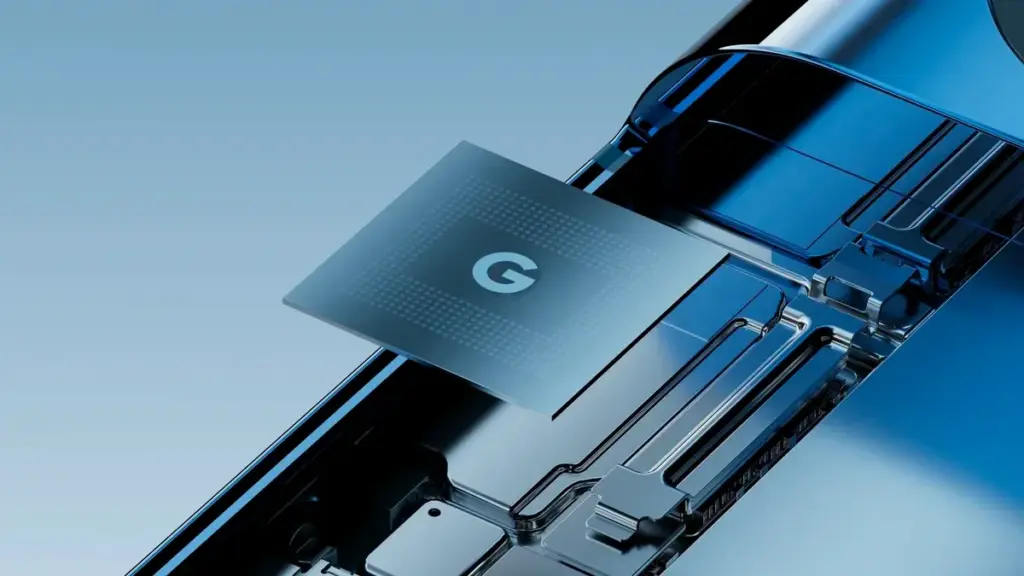
Tensor G5 is expected to include a number of off-the-shelf components to replace Samsung-made parts of previous chips, including the use of a totally bespoke ISP, as part of Google’s decision to move its Tensor production to TSMC for this upcoming generation.
Since the beginning, Tensor chips have mostly been a combination of components created or built by Google and those made by Samsung. This is because Google has used Samsung’s foundry and Exynos chips to help make Tensor a reality. However, as has long been known, Tensor G5 in the Pixel 10 will use TSMC instead of Samsung, creating certain gaps in Google’s chip manufacturing process.
According to a new report from Android Authority, there are a handful of off-the-shelf components that Google will be switching to.
According to reports, Tensor G5 will keep using a number of Google’s current designs (with improvements) that were included in Tensor G4 and other earlier Samsung-made chips, such as the TPU, DSP, memory compressor, and audio processor. However, it will have to swap out a few parts to make room for the switch to TSMC, including:
GPU: Arm Mali > Imagination Technologies DXT
Video codec: Google “BigWave” & Samsung MFC > Chips&Media WAVE677DV
The ISP is the most noticeable change here, since Google is reportedly developing a completely unique approach. Beginning with the 2017 “Pixel Visual Core” in the Pixel 2 series, Google has utilized its own ISP in a number of Snapdragon-powered Pixel phones. Prior to Google releasing the proprietary chip before Tensor’s 2021 launch, that developed into the “Pixel Neural Core” with the Pixel 4.
The end user will not likely notice many of the component changes Google is making, but it will be fascinating to observe if the different swaps have any positive or negative effects. The replacement of the current Samsung choices with a MediaTek modem is another noteworthy change that was previously publicized.
The release date of Samsung’s upcoming major software upgrade, One UI 7.0, for Galaxy customers has finally been revealed. Early April 2025 is when the Android 15-based update is expected to launch, most likely with the Galaxy S24 series before moving on to previous flagships and a few mid-range devices.
You are not the only one who has been anticipating this update; Samsung has been testing One UI 7.0 through its beta program for months in order to improve the user experience prior to its official release. What specifically does this upgrade offer, though? Let us dissect it.
Rollout Plan for One UI 7.0
Multiple beta updates have been released since Samsung launched its One UI 7.0 beta program with the Galaxy S24 series in December 2024. Samsung is now anticipated to deliver a few more beta upgrades prior to the final deployment, with the stable version approaching.
The Galaxy S24 series should be the first to get the update, followed by: Galaxy S23 series Galaxy Z Flip 6 Galaxy Z Fold 6 Galaxy A55
Galaxy S23 series
Galaxy Z Flip 6
Galaxy Z Fold 6
Galaxy A55
In order to provide tablets a preview of the new software prior to its official release, Samsung is also extending the One UI 7.0 Beta Program to additional devices, such as the Galaxy Tab S10 series.
What’s New in One UI 7.0?
One UI 7.0 is not just another small update; it also brings a new look and a number of usability and performance enhancements. What is noteworthy is this:
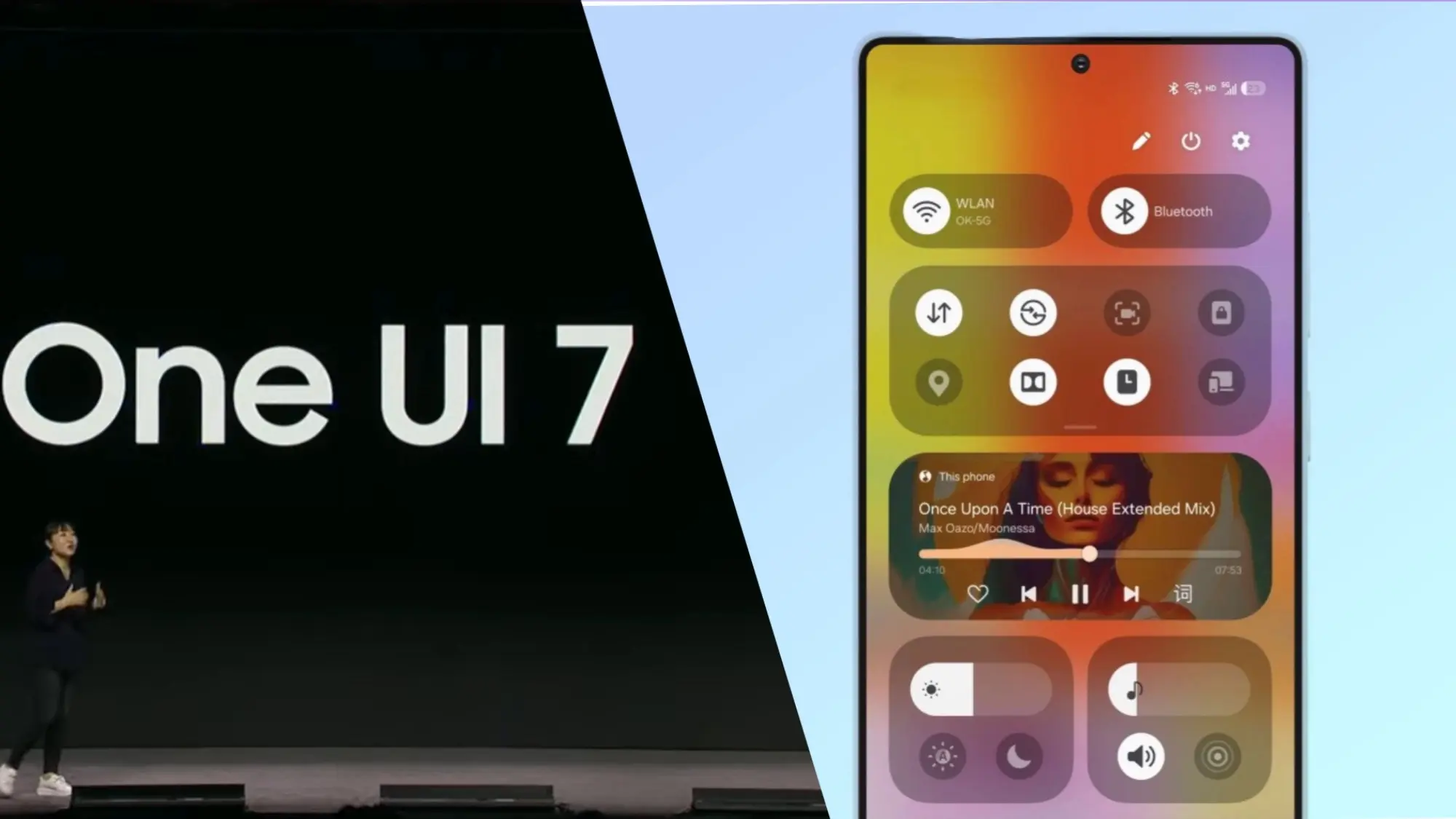
Redesigned Quick Panel – A cleaner, more intuitive way to access essential settings.
Smoother Animations & Transitions – Lighter, faster, and designed to improve the overall experience.
Updated Iconography – A new look for system icons to match the refreshed design language.
Now Bar – A persistent status bar that shows ongoing activities at a glance.
Revamped Camera App – Controls are now easier to reach for one-handed use.
New Battery Icon & Charging Animations – A subtle but noticeable visual upgrade.
AI Features & Performance Optimizations
The software’s AI-powered capabilities may be one of the reasons Samsung has taken its time with One UI 7.0. Samsung is probably striving to make sure its infrastructure can support these AI features across its wide range of devices, as some of them may need cloud processing.
You will not have to wait long for One UI 7.0 if you are using a high-end mid-range mobile or a recent Samsung flagship. This version aims to provide a more sophisticated user experience than a mere refresh thanks to a revamped UI, smoother animations, and AI-driven optimizations.
Samsung still has a few beta updates to go, but by April, Galaxy users should finally get the stable version.
Google shocked the Android smartphone community with the announcement that its new flagships, the Pixel 8 series, will receive an astounding seven years of Android updates. Samsung swiftly adopted this strategy for its premium Galaxy smartphones. Few brands have entered the “seven-year club,” though a few have extended their update commitments since then.
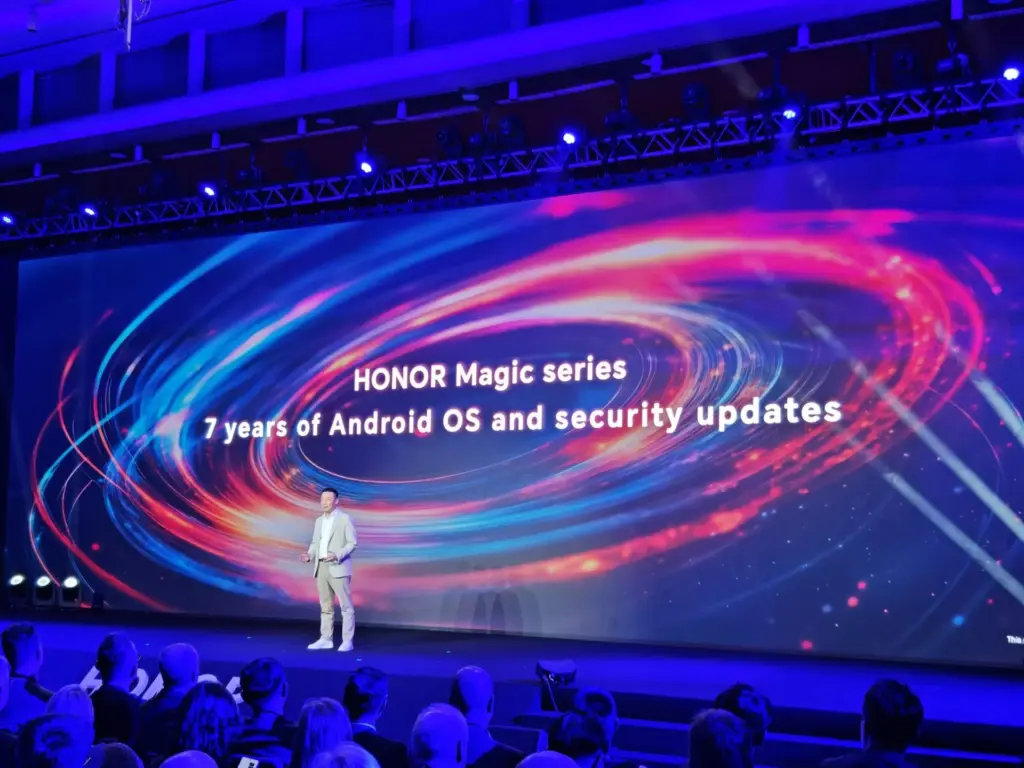
Honor is the newest member of that exclusive group. During its ill-named HONOR ALPHA Plan keynote address at Mobile World Congress 2025 today, the company said that it will provide seven years of Android updates and security fixes for its top Magic series handsets.
Honor updates are welcome
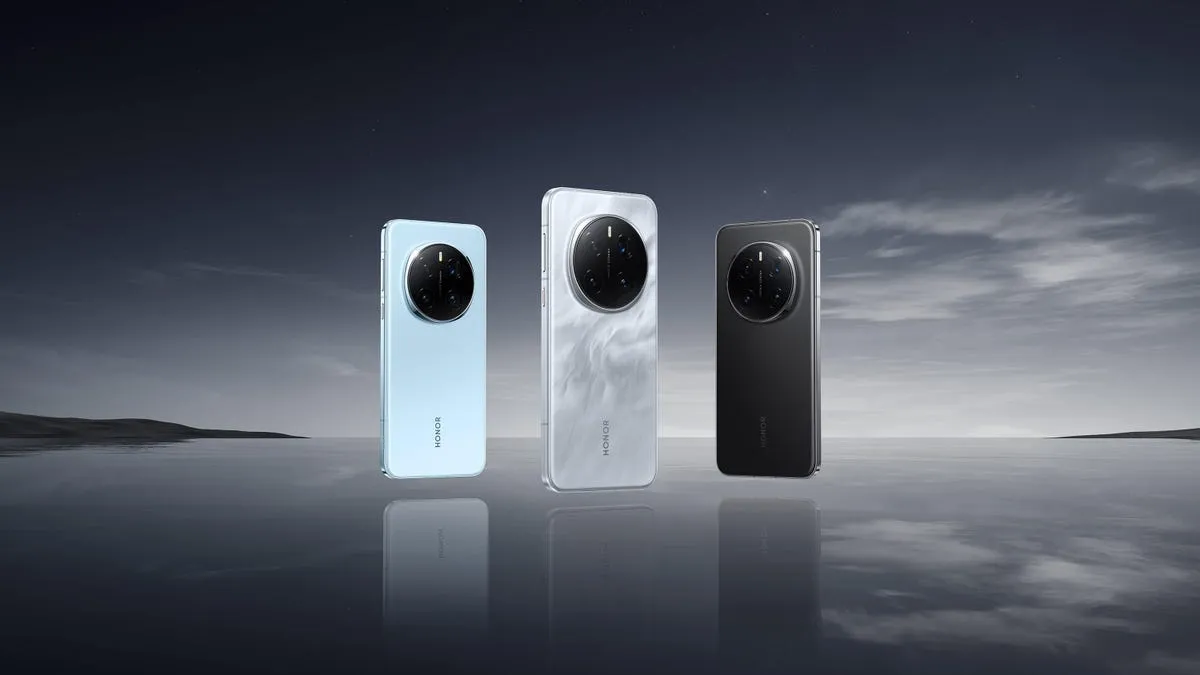
Magic lineup are typically HONOR’s best Android gadgets, including as tablets, folding phones, and slate-style phones. The first gadget to receive this policy will be the Honor Magic 7 Pro. This is a welcome change from company’s previous assurance that the Magic 7 Pro would receive OS updates for four years and security updates for five.
It is unclear, though, if this rule will apply to any other older devices in the past. It is also unknown which handsets in the future will have this, however the Magic V4, a foldable tablet, is probably going to be one. We will hopefully find out more details about this in the upcoming weeks and months. The Magic 7 Pro and other flagship devices will soon receive a far more comprehensive update commitment, which should delight HONOR enthusiasts for the time being.
Samsung has not yet finished the Galaxy S24 beta phase, but it promised a stable One UI 7 update, based on Android 15, for qualified Galaxy S models by Q1. One UI 7 Beta 4 has now been made available; it is a more compact upgrade than earlier iterations, but it includes a crucial camera function from the Galaxy S25.
Beta testers started posting on Reddit and other social media platforms that One UI 7 Beta 4 had begun to arrive on their devices a little more than a day ago. The United States, India, South Korea, and a few European nations are now implementing the update. The firmware is marginally smaller than earlier betas, with an average size of 1.4 GB, depending on the carrier and area.
Log Video is available on Galaxy S24 on One UI 7 Beta 4
Although the main focus of Beta 4 is bug repairs and speed enhancements, the Galaxy S24 trio now supports log (logarithmic) video recording, a capability that was formerly available with the Galaxy S25 and Galaxy S25 Ultra.
Photographers and videographers can benefit from log video recording in a number of ways. It has a flat color profile, which gives post-production color grading and editing more freedom, and a higher dynamic range, which preserves more details in highlights and shadows.
However, when compared to regular video recording, this format uses more storage space. Users must activate log video from the advanced video options in order to use it. Both pro mode and regular video mode are available for activation.
One UI 7 Beta 4 Changes
AI-powered camera filters are yet another noteworthy inclusion in Beta 4. These comprise pre-built filters like Shiver, Crystal, Breeze, Pulse, and Chill, to name a few. Additionally, users can use pre-existing photos to create custom filters.
In addition to these enhancements, the firmware fixes a number of problems and improves performance. Notably, it improves performance in other areas while resolving some difficulties with the quick panel and home screen.
Will this be final beta release?
Whether One UI 7 Beta 4 is the last beta release or how many more Samsung intends to issue before the Galaxy S24 series’ stable release is still unknown. Samsung has reaffirmed its goal to provide the stable One UI 7 version by the first quarter of 2025. The distribution schedule is yet unknown for other devices, including as the Galaxy S23 series, Galaxy Z Fold 6, and Galaxy Z Flip 6. Whether these devices would go straight to the stable release or undergo a beta period has not been verified by the South Koreans.