Tag: pixel

  • 5 ways to enhance your Pixel Camera experience

    5 ways to enhance your Pixel Camera experience

    The Google Pixel phones are notable for their outstanding photography capabilities, even with their flaws. You may capture beautiful pictures with a Pixel by pressing the shutter button. No need for retakes. The Pixel Camera app is crucial in providing that experience because it has the ideal combination of functionality and a clear, user-friendly layout.

    Even so, you have probably missed a number of the Pixel Camera app’s incredible features. Some make taking the ideal picture easy, while others streamline the image-sharing process.

    #deal – Google Pixel 9

    Google Pixel 9 with Gemini gets the best of Google AI first, so you can take amazing photos, make edits like magic, and get things done even easier

    Best choice
    $799.00$599.00Buy on Amazon

    Quick access controls

    The performance of their point-and-shoot cameras makes Pixel phones unique. The best results can be obtained without adjusting settings or switching to a specific mode. Remove your phone from your pocket, open the app, and begin taking pictures. To get the desired effect, you might need to change the brightness, shadows, or white balance.
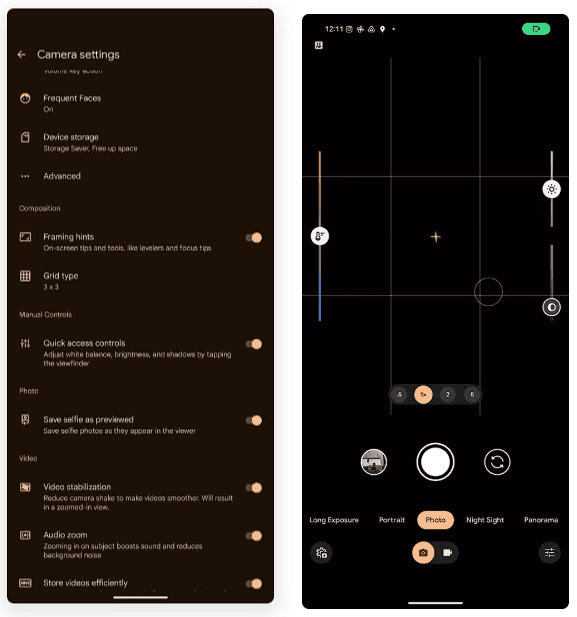
    Quick access controls google camera

    To adjust these settings, you do not have to go into Pro mode in the Pixel Camera app like you would on other phones. Instead, go to the settings menu and enable Quick access controls. Then, by tapping the viewfinder, you may activate sliders to adjust the brightness, shadows, and white balance.

    Panorama with audio

    The Google Pixel supports panoramic photography, just like a lot of Android phones. In contrast to most, they have a remarkable 50MP resolution for taking panoramas. But that is not it. The latest Pixel phones have yet another secret weapon. Audio can be recorded while taking a panorama picture. Although this feature may seem like a gimmick to you, there are several situations in which it might be helpful.
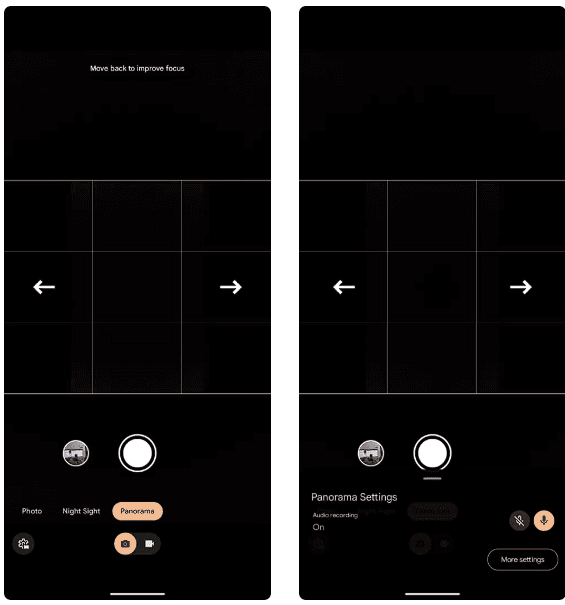
    google pixel panorama with audio

    Imagine recording a breathtaking panoramic scene and narrating it in the backdrop with your voice. After that, you can show it to your loved ones. This function is well-executed by Google, which makes sure the soundtrack plays in the background and fades in and out while you see the panoramic.

    The only drawback is that it can be challenging to share panorama photographs with audio. The noise is eliminated when sending the picture via Instagram, Google Messages, or WhatsApp. The panorama cannot even be uploaded to Google Photos. Sending the photograph to another Pixel using Quick Share is your best bet.

    Guided frame
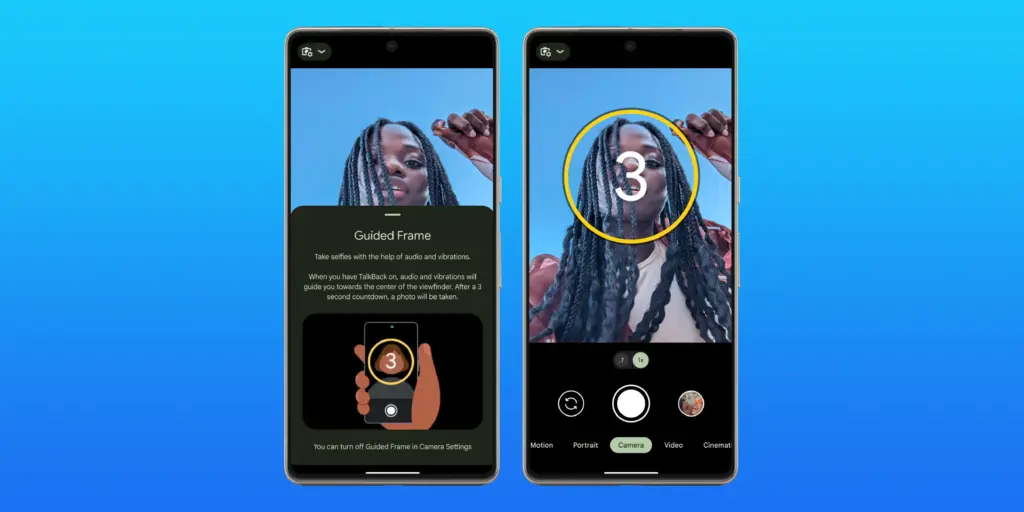
    google pixel camera guided frame

    Pixel phones have excellent photography. However, this does not imply that anyone can shoot beautiful photos with a Pixel phone. People with visual impairments may often find it challenging to frame their subjects correctly before taking a picture. This is where the Guided Frame function of the Pixel Camera is useful.

    This accessibility feature offers auditory and visual cues to assist in appropriately framing subjects. It is intelligent enough to assist with framing by automatically recognizing faces, objects, and scenes. Your Pixel phone will automatically take a picture when it is properly framed.

    When using the front camera to take selfies, Guided Frame is useful. You can move around until the Pixel Camera app recognizes better lighting circumstances after it recognizes your face. The picture is then automatically taken.

    By pressing the Settings icon in the bottom-left corner of the Pixel Camera app and selecting More settings > Guided Frame, you may enable guided frame. When you turn on TalkBack mode on your Pixel, the feature is automatically enabled.

    #deal – Google Pixel 9

    Google Pixel 9 with Gemini gets the best of Google AI first, so you can take amazing photos, make edits like magic, and get things done even easier

    Best choice
    $799.00$599.00Buy on Amazon

    Quick short video

    Enjoy posting quick videos on Snapchat or Instagram? For this, you do not have to put the Pixel Camera in video mode. Hold down the shutter button while using the camera app instead.

    A video is being recorded by your Pixel phone. When you remove your finger from the shutter, it stops. As an alternative, you can continue recording even after you pull your finger off the screen by sliding it to the lock icon on the left of the viewfinder.

    This tool is ideal for shooting video or swiftly taking brief clips. Additionally, you can export a full-resolution frame from the movie to share as a photo because Top Shot functions in this mode.

    Palm timer
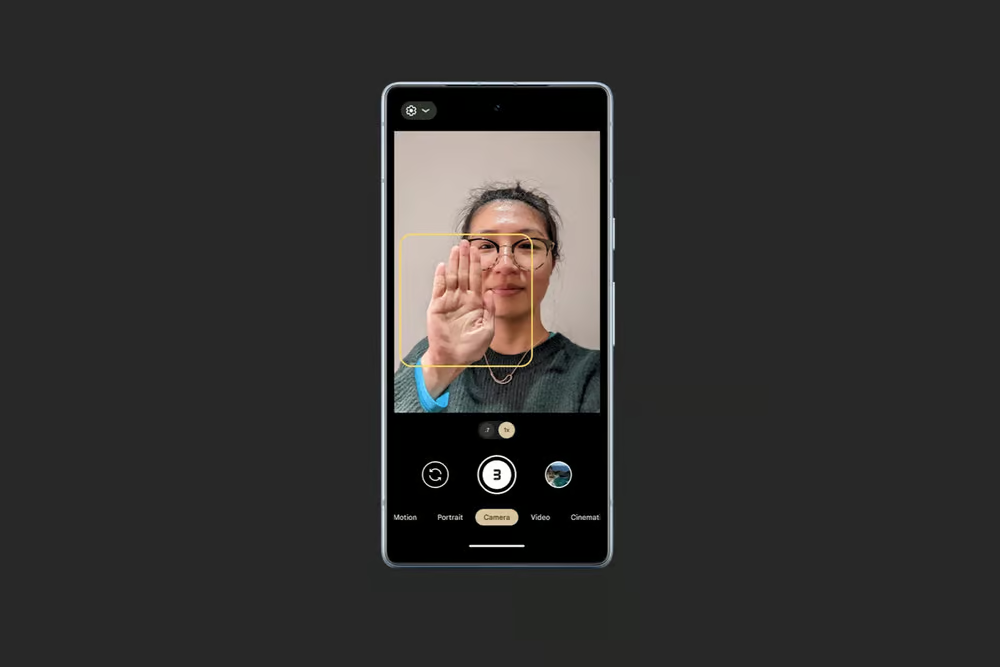
    google pixel camera palm timer

    Sometimes you want to capture a picture with your Pixel propped up on a table. Or, when taking a group selfie, have your arm fully extended. It can be challenging to press the volume key or tap the on-screen shutter button in these circumstances without shifting the phone or readjusting your grasp. In these circumstances, the Pixel Camera’s palm timer function can be useful.

    You may enable a three-second timer on your Pixel simply lifting your palm. You do not have to have it. Your Pixel automatically takes a picture after the countdown. It is helpful while taking solo photos with a tripod. Both the front and back cameras are compatible with the function.

    I use the Palm timer to take selfies or group photos using the rear camera, as the larger sensor means better quality images. You can enable Palm timer from the Pixel Camera settings.

    #deal – Google Pixel 9

    Google Pixel 9 with Gemini gets the best of Google AI first, so you can take amazing photos, make edits like magic, and get things done even easier
    Best choice
    $799.00$599.00Buy on Amazon
  • WearOS receives more media controls on Pixel Watch 3

    WearOS receives more media controls on Pixel Watch 3

    Google has released rich media controls for the Pixel Watch, following the March 2025 Feature Drop teaser.

    Last month, Google teased the upgrade as such:

    • “Make it easier to control audio content from the watch with control types based on content being played (such as Podcasts within YouTube music).”
    • “Manage your favorite audio content with new actions on Pixel Watch to fast forward and rewind, adjust playback speed or control playback queue.”

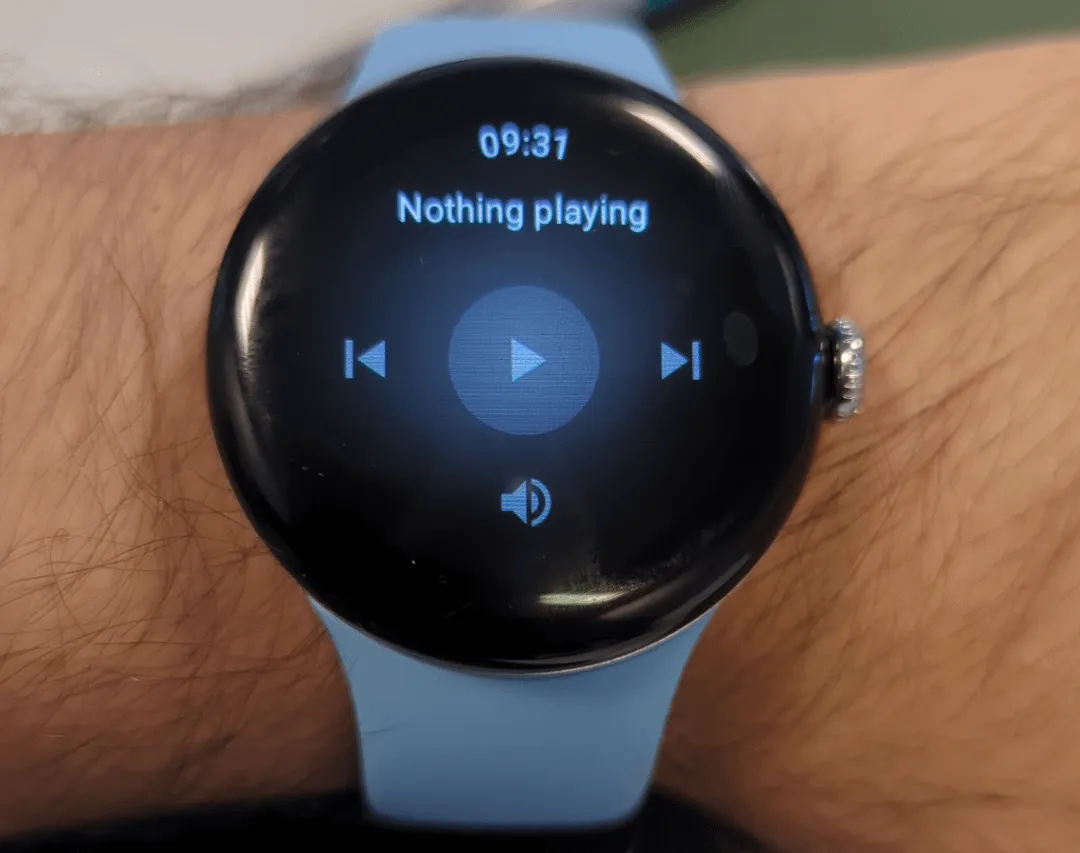
    In the past, the Pixel Watch‘s system media controls only let you to change the volume, play/pause, and next/previous. This is on top of the tracking data for the music that is currently playing on your phone.

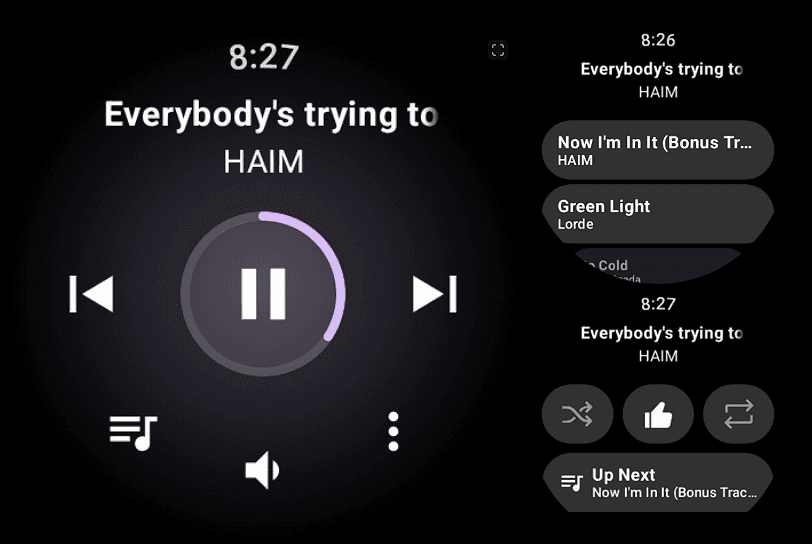
    By tapping the new button on the left, you can now see your Up Next queue in addition to those actions. With YouTube Music, this displays the next 24 tracks, which can be tapped to begin playing right now.

    media control wearos

    In the meanwhile, you can repeat, thumbs up, and shuffle a track (in YTM) with the three-dot overflow button on the right. For Up Next, you also receive an additional tablet.

    You may adjust the playback speed of podcasts (in YouTube Music), with each tap resulting in a larger increment. Additionally, you can go to the previous or next episode.

    pixel watch media control

    These updated media controls for the Pixel Watch are not supported by all apps. The extra features are grayed out in the screenshot below, which is from Pocket Casts (played on my phone).

    The Pixel Watch 3 running Wear OS 5.1 is where we are experiencing this, and you should confirm that “Wear Media” in the on-watch Play Store is completely current (version 1.6.7.x).

    Pixel Watch 3 1

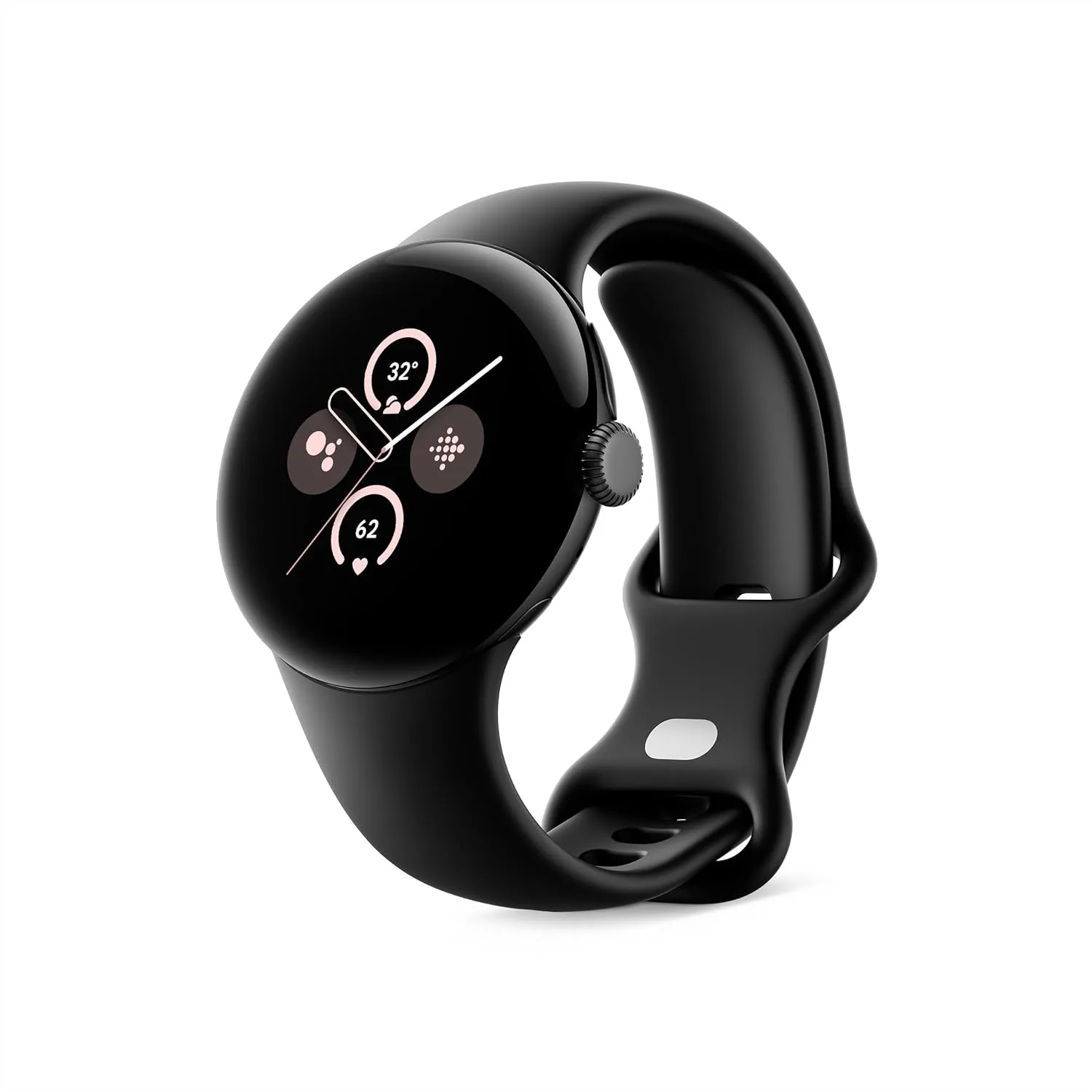
    Google Pixel Watch 3

    The Google Pixel Watch 3 is designed for performance, with advanced fitness from Fitbit; the 41mm screen is twice as bright and 10% larger than before, making it easier to see your stats and info.
    $349.99$299.99Amazon
  • Why a Pixel 9a is a good buy? Beside the price

    Why a Pixel 9a is a good buy? Beside the price

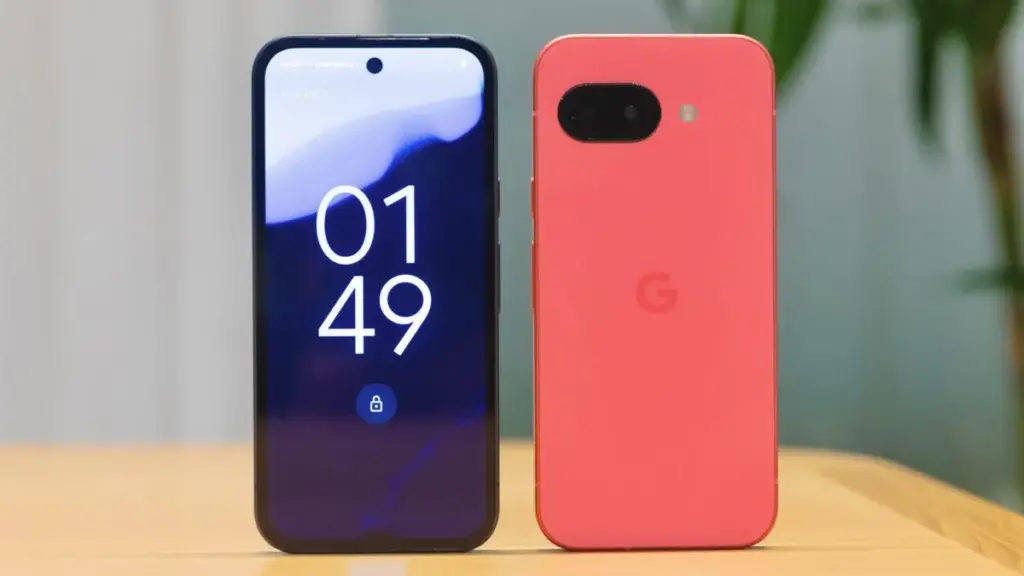
    Despite a minor delay, the Pixel 9a is now available for purchase beginning today. I am still testing the phone myself, but so far, I am really impressed with what is clearly Google’s best A-series entry to date. Regardless of how you feel about the camera bar-less design or any of the missing functionality, the Pixel 9a has made me very enthused about Google’s latest value proposition. In fact, I believe it is the best Android phone to buy right now. Here’s why.

    Google Pixel 9a

    Google Pixel 9a with Gemini

    Google Pixel 9a is engineered by Google with more than you expect, for less than you think; like Gemini, your built-in AI assistant, the incredible Pixel Camera, and an all-day battery and durable design

    Good choice

    A solid camera quality

    When I originally bought the Pixel 9a, I noticed myself resting my middle and forefinger on the bottom of the camera pill as a habit. I have since adjusted and do not touch the lens cover, which is reported to be slightly domed and inspired by “nature and water droplets,” similar to the Pixel Watch.

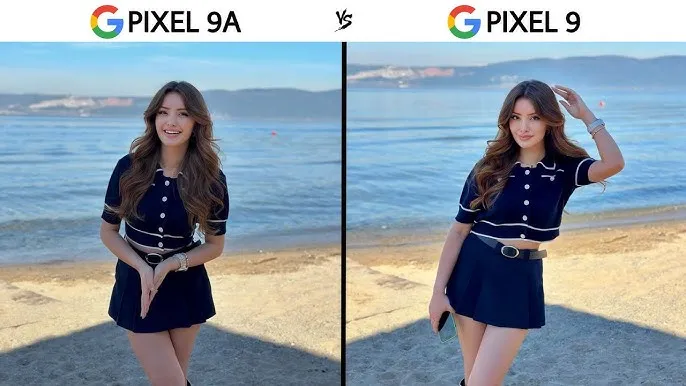
    Google pixel 9A vs Pixel 9 camera comparasion
    Image credit: KT Reviews

    The new 48MP sensor is comparable to the one used in the Pixel 9 Pro Fold, but it is significantly smaller. It is a Pixel Camera, as detailed in our video review.

    In our tests, we found that the Pixel 9a takes crisper photographs than the 8a from last year. This is most likely owing to an enhanced main camera sensor. While most people will not use both phones side by side or compare photographs in this manner, our gallery shows that the Pixel 8a has more contrast, whilst the 9a is pin sharp throughout the frame.

    A lesser camera bump

    Look, this is a minor request, but my request from late last year was completely successful. I had not realized how much I missed having a bump-free smartphone until I started using this one. While the elevated camera lip causes it to rattle somewhat on a table — strangely, it is perhaps the most a Tensor-powered Pixel has ever rocked on a table, excepting the Pixel 9 Pro Fold – it helps to make the phone seem so much more comfortable in everyday use.v

    pixel 9a camera

    Look, this is a minor request, but my request from late last year was completely successful. I had not realized how much I missed having a bump-free smartphone until I started using this one. While the elevated camera lip causes it to rattle somewhat on a table — strangely, it is perhaps the most a Tensor-powered Pixel has ever rocked on a table, excepting the Pixel 9 Pro Fold – it helps to make the phone seem so much more comfortable in everyday use.

    A great Google experience

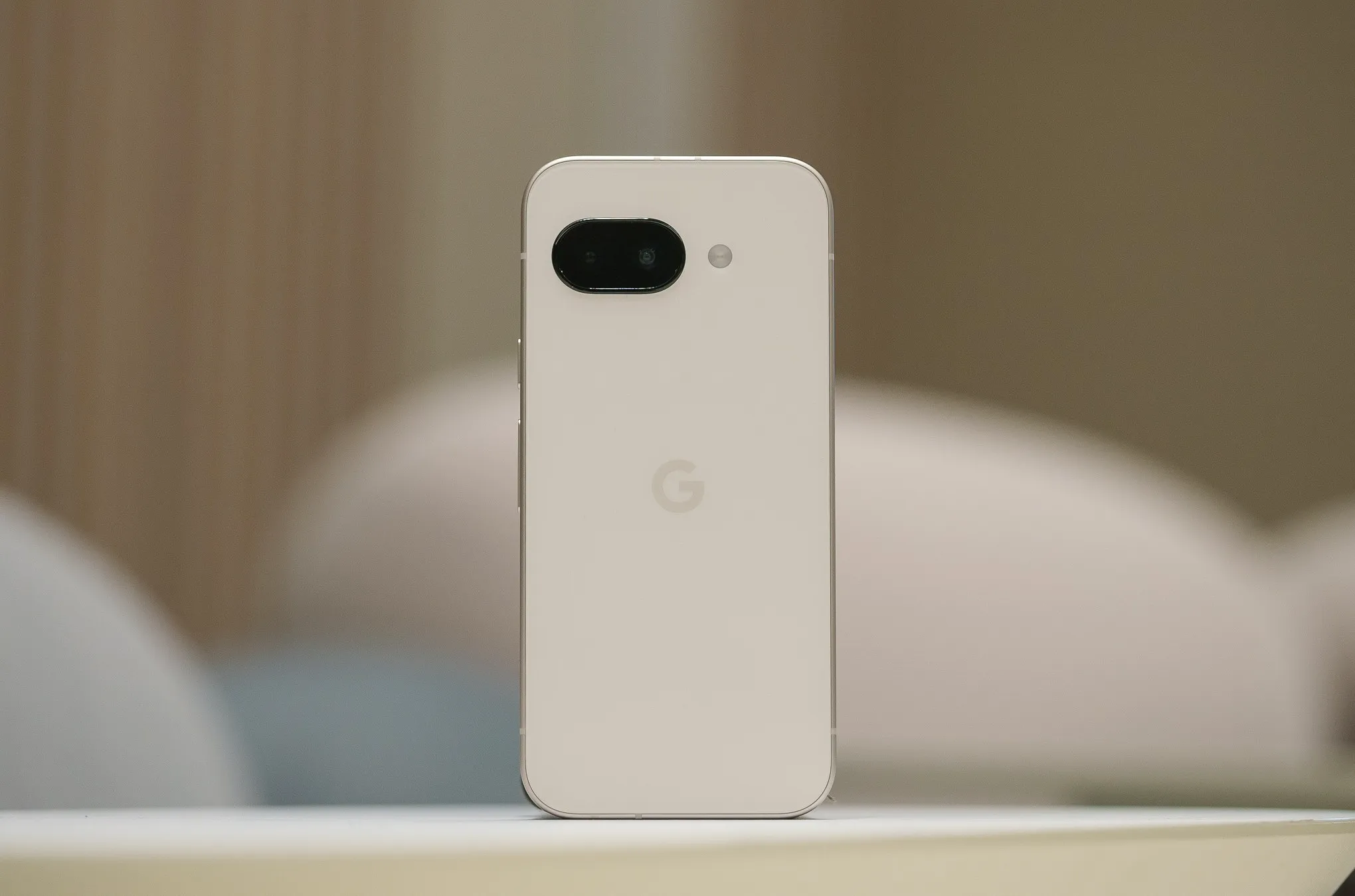
    This is the most loaded A-series Pixel we have seen thus far. It is strange to think that the Pixel 7a, a device that felt cheaper to handle than its price tag suggested, was released only two years ago. No one will mistake the Pixel 9a for a flagship smartphone, but the handset itself feels excellent in the hand. The matte polycarbonate back improves on the already superb build quality of the Pixel 8a, and the flat frame feels just as wonderful as it did on the original Pixel 9.

    pixel 9a stock experience
    Google Pixel 9a

    Google Pixel 9a with Gemini

    Google Pixel 9a is engineered by Google with more than you expect, for less than you think; like Gemini, your built-in AI assistant, the incredible Pixel Camera, and an all-day battery and durable design

    Good choice

    But, in my opinion, what truly counts is the display. While it is still protected by Gorilla Glass 3 — and yes, when you use as many different smartphones in a year as I do, you can really notice the difference in newer Corning glass applications — it is as good as the panel found on the ordinary Pixel 9. Hell, it may be the same panel used in the Pixel 9, as almost every specification, from size to brightness ratings, is similar. Regardless, it is one of the nicest screens I have seen on a $500 smartphone.

    However, the rest of the phone is equally impressive. The speakers are solid, the haptics are good, and the buttons are satisfyingly clicky—all of this adds up to a surprisingly durable smartphone. Sure, it lacks some of the more modern features of Google’s flagships, like as the ultrasonic fingerprint sensor and the extra 4-8GB of RAM, but for $500, this is the most complete package we have ever seen from this firm.

    A good design

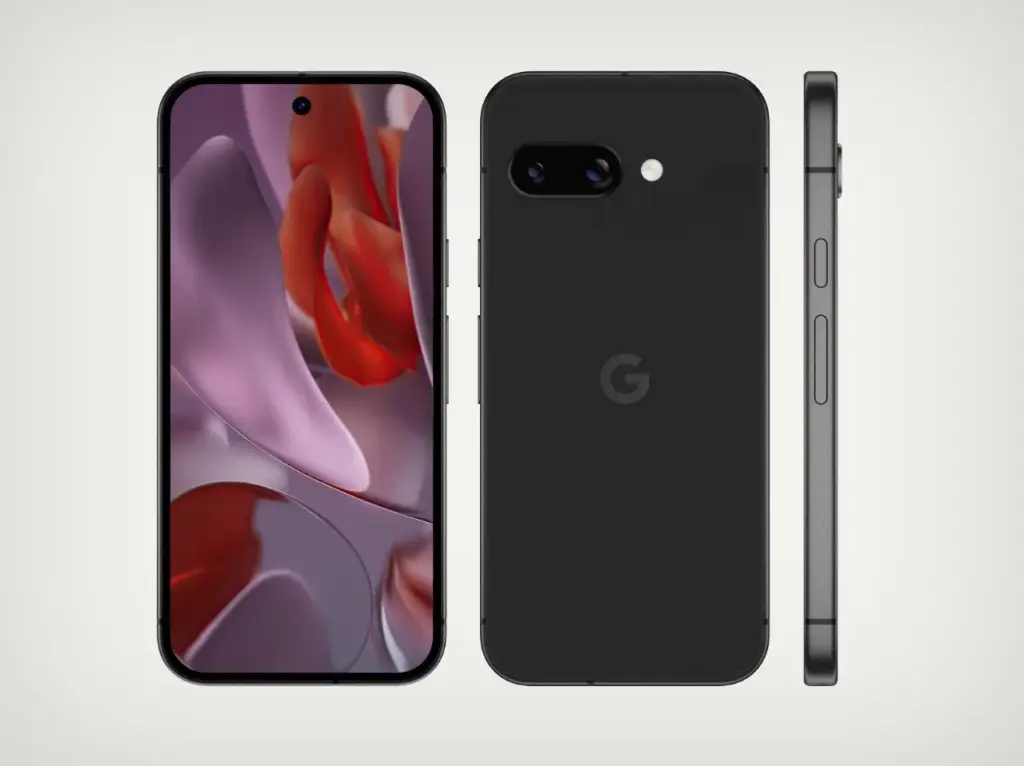
    Okay, I get it. I was not sold on the design from the time I saw it, whether in leaked renders or hands-on photographs from our staff. The choice to remove the camera bar in favor of a flat (or largely flat) back irritated many people in this sector, as many viewed the Pixel team abandoning an iconic design for no apparent reason. Combined with the wider bezels and flat frame, I was not sure how I would react when the Pixel 9a arrived in my hands.

    pixel 9a design from all sides

    The answer, of course, is “totally fine,” as I truly enjoy the design Google chose here. It seems funny to celebrate something as easy as slipping a phone into your pocket, but the lack of a camera bar makes a significant difference here — it never got snagged on the lip of a jeans pocket, for example, and felt considerably smaller in my pants as a result. In our hands-on images, the wider bezels appeared to be exacerbated by the flat frame, but once the device was turned on, I stopped noticing the bezels almost immediately.

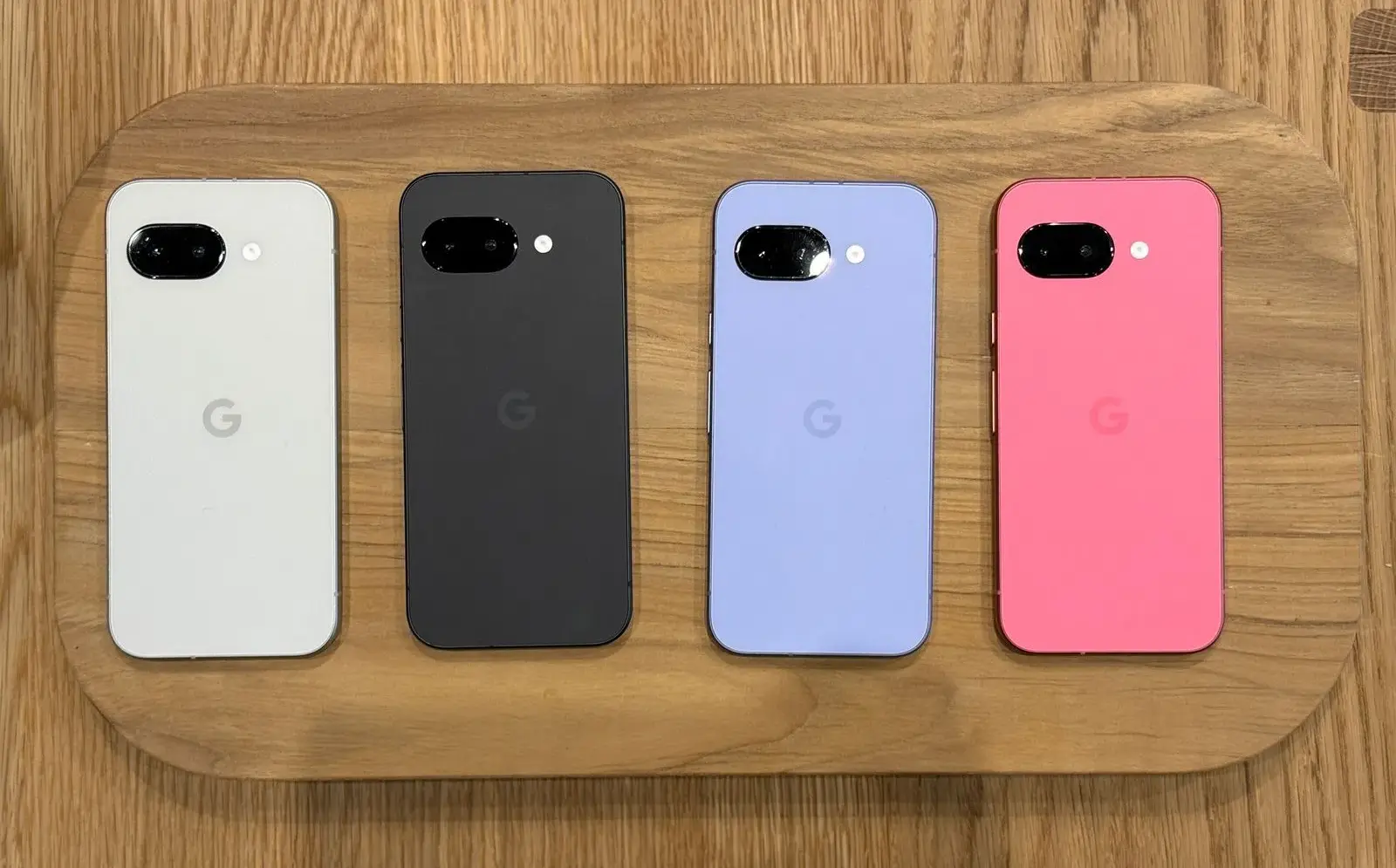
    Obviously, the look and feel of any phone will be determined by personal preference. But if, like me, you never quite clicked with the Pixel 9a no matter how many times it appeared in various leaks and renders, I would recommend that you check see the phone in person before dismissing it completely. And I would be negligent if I did not mention the colors – I love the Iris color on my unit, and the Peony looks excellent as well.

    Missing ai features? not many that you will use

    Due to its limited 8GB of RAM, the Pixel 9a lacks a number of AI-powered capabilities seen in the mainline Pixel 9 series. Apps like Pixel Screenshots are completely vanished, while Call Notes has been removed from the Phone app altogether. While Google’s 2024 flagships shipped with its on-device Gemini Nano XS LLM, the Pixel 9a has a modified “XXS” model that removes multimodal capabilities in favor of text-only inputs. The end result is a lower-quality experience, but I doubt most people will notice.

    Pixel Screenshots is a nice app, and I hope Google continues to improve the experience on the Pixel 10 and future. But I would be lying if I said I would been using it or Call Notes on the ordinary Pixel 9 for the past eight months. Your mileage may vary, of course, but I do not believe the absence of these apps is very noticeable in day-to-day use. Most people will get their AI experience via apps like Gemini or ChatGPT, which work wonderfully on the Pixel 9a.

    Overall a pretty great phone

    Google Pixel 9a

    Google Pixel 9a with Gemini

    Google Pixel 9a is engineered by Google with more than you expect, for less than you think; like Gemini, your built-in AI assistant, the incredible Pixel Camera, and an all-day battery and durable design

    Good choice

    It is easy to dismiss a $500 smartphone as wonderful, but in my opinion, this is something to rejoice. Google’s efforts with the Pixel 9a feel like the culmination of several years of work to elevate the A-series from “surprisingly good for the price” to simply excellent.

    Obviously, there are reasons to choose the Pixel 9 over this device — and if the prices are close enough, going with the older, more powerful smartphone feels like the right move — but at its core, this is a fantastic smartphone that will only improve if and when (tariff madness pending) it sees deals throughout the rest of 2025. For me, that is sufficient.

  • The designs of the Google Pixel Watch 4 renders indicate a refreshing change.

    The designs of the Google Pixel Watch 4 renders indicate a refreshing change.

    Google released the Pixel Watch 3 alongside the Pixel 9 series in mid-August 2024, with a design that was not too different from its predecessor. There was a modest reduction in bezel size, an increase in brightness, and an additional size option, but it appeared substantially unchanged.

    The wristwatch was revealed earlier than usual, as Google typically announces new products in October, which could change with the Pixel Watch 4. Even if Google sticks with August and a September release, the next-generation device will be accessible several months later.

    That has not stopped suspicions from spreading, with the most recent revealing full renders of the supposed forthcoming smartwatch.

    The renders were shared by 91Mobiles in collaboration with Steve Hemmerstoffer, also known as OnLeaks.

    There is also a video of the gadget from all angles, giving us a fair idea of how the Pixel Watch 4 would look, as well as some distinct 5K renders.

    What features might be available on the Pixel Watch 4?

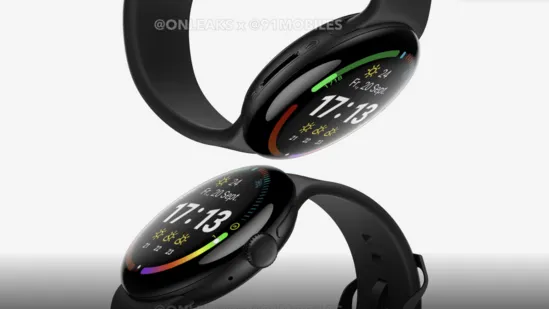
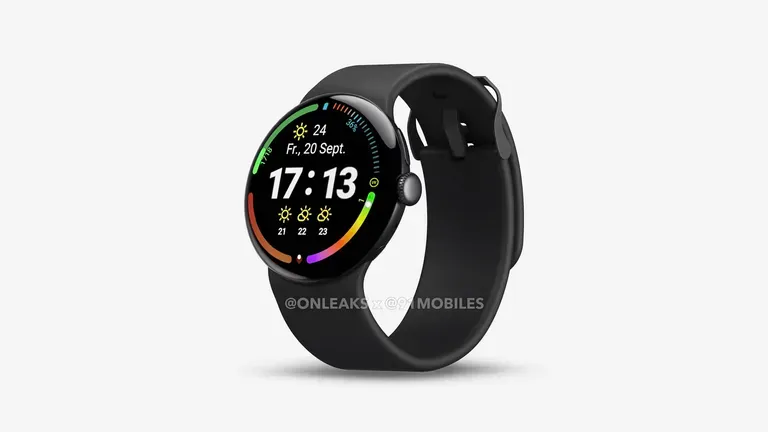
    Based on the renders, it appears that the Pixel Watch 4 will resemble the Pixel Watch 3. The circular design continues, with the crown centered on the right edge and a separate button above it.

    Pixel Watch 4
    (Image credit: OnLeaks / 91Mobiles)

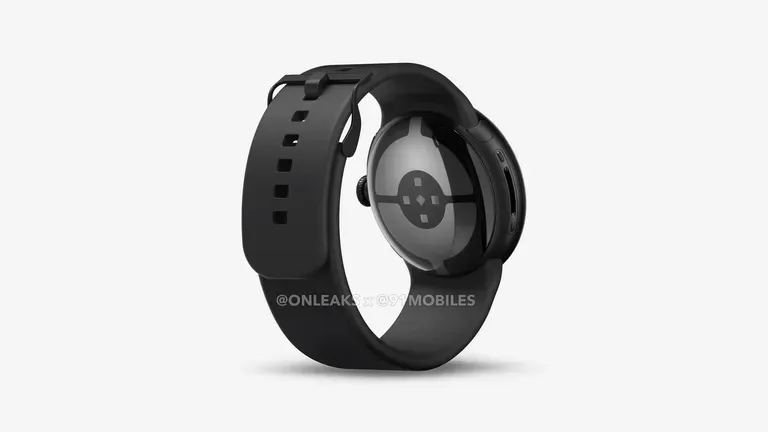
    According to 91Mobiles, the bezels may be slightly thinner, but this is difficult to confirm, and the smartphone does not appear to have charging ports on the underneath. That could suggest that the Pixel Watch 3 enables wireless charging, however this has yet to be confirmed.

    Pixel Watch 4
    (Image credit: OnLeaks / 91Mobiles)

    In addition, the Pixel Watch 4 is expected to be thicker than its predecessor, measuring 14.3mm instead of 12.3mm. This could be owing to a larger battery, although the same two sizes (41mm and 45mm) are also planned.

    The video also reveals the strap mechanism, which does not appear to be changing anytime soon.

    For the time being, nothing about the Pixel Watch 4 has been officially confirmed, but we would not be shocked if rumors about it spread in the coming months.

    A number of leaks have already surfaced on the Pixel 10, Pixel 10 Pro, and Pixel 10 Pro Fold, all of which are expected to be released concurrently with the Pixel Watch 4, so keep an eye on this space.

  • The easiest ways to take a screenshot on any Android device (no 3rd app required)

    The easiest ways to take a screenshot on any Android device (no 3rd app required)

    Screenshots are quite useful. Most Android users save receipts, share humorous memes, and capture bugs to report on a daily basis. However, not all Android phones employ the same approach for taking screenshots.

    In this guide, you will learn how to take a screenshot on any Android device, including Samsung, Google Pixel, Xiaomi, OnePlus, and others. We will also show you how to take screenshots without using physical buttons, which are sometimes damaged or inconvenient.

    ✅ Common Methods to Take a Screenshot on Android

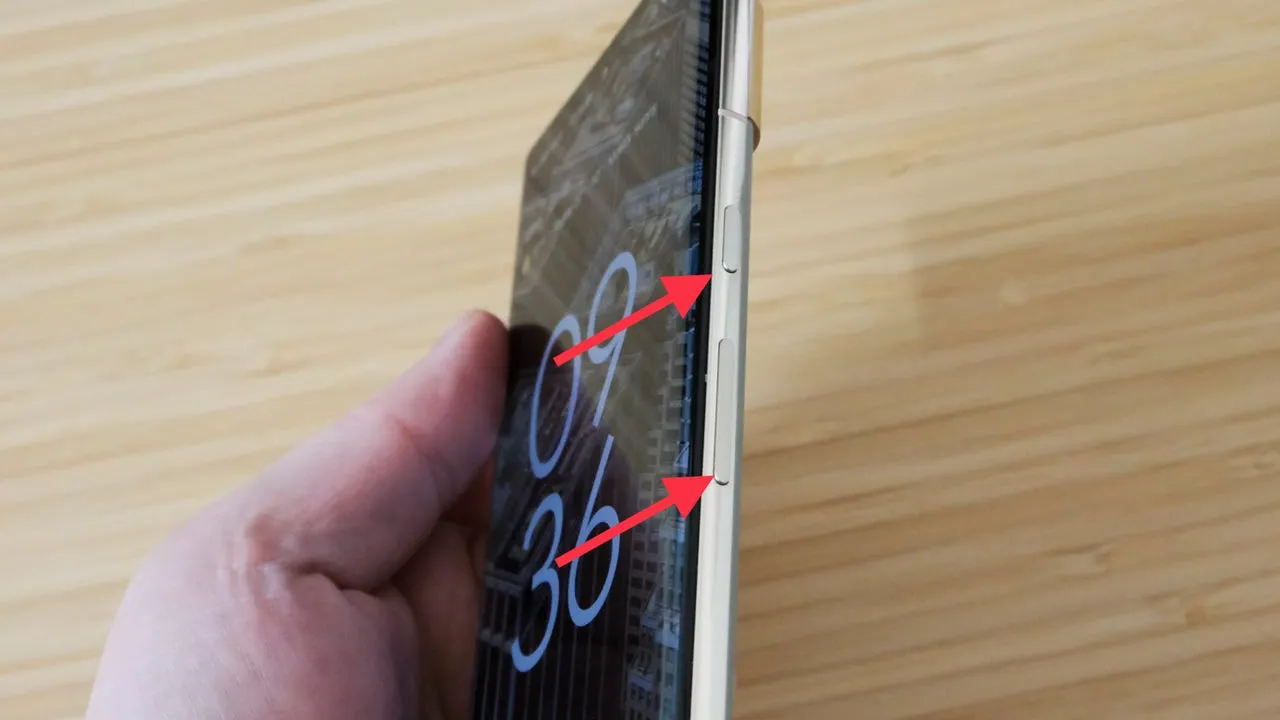
    📱 1. The Universal Button Combo: Power + Volume Down

    This method works on 99% of Android devices:

    • Press and hold the Power button and Volume Down at the same time
    • Hold for about 1 second until the screen flashes or you hear a shutter sound
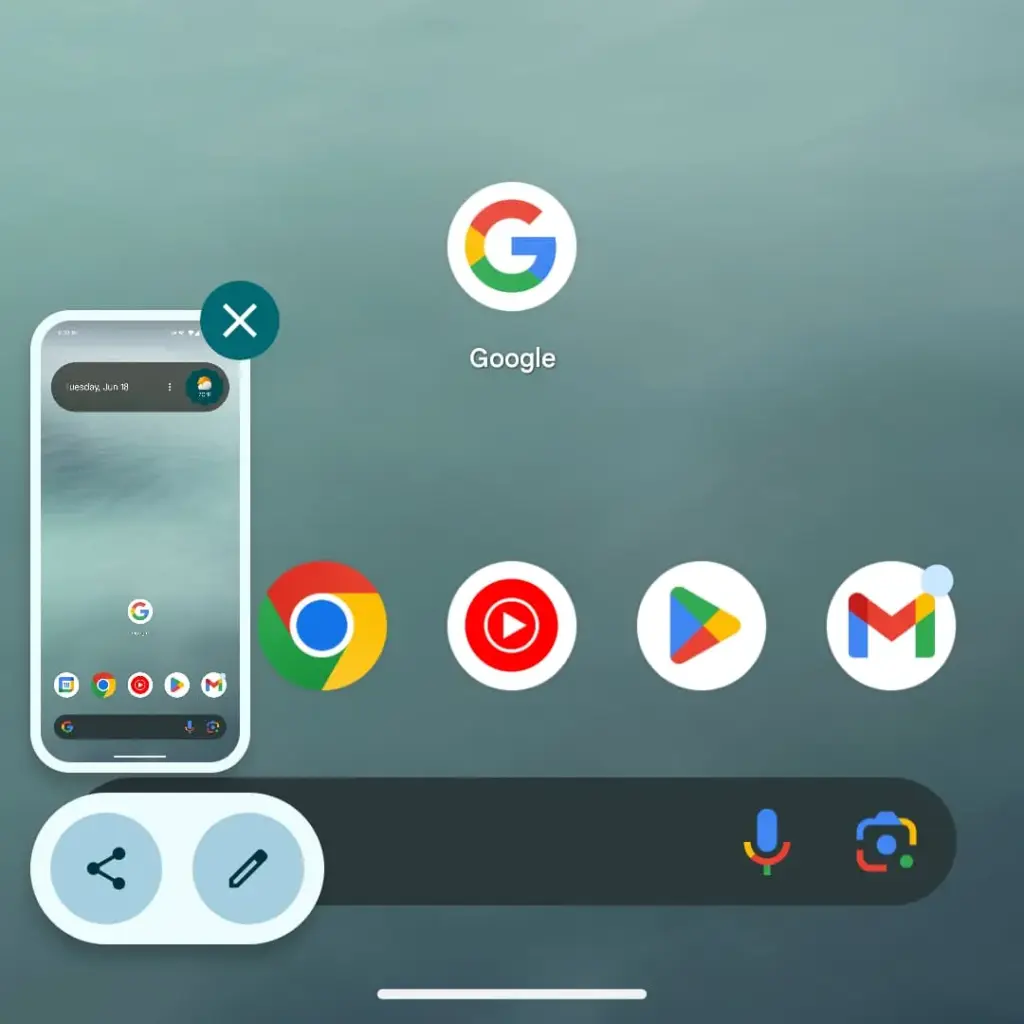
    • A preview of the screenshot will appear with options to Edit, Share, or Delete

    📝 Works on: Samsung, Pixel, OnePlus, Xiaomi, Motorola, Realme, and most others.

    📸 Recommended image here: A screenshot showing fingers pressing Power + Volume Down on a phone.

    📲 Brand-Specific Methods (With Enhancements)

    📱 Samsung Galaxy Devices

    Samsung offers multiple screenshot options beyond the button combo:

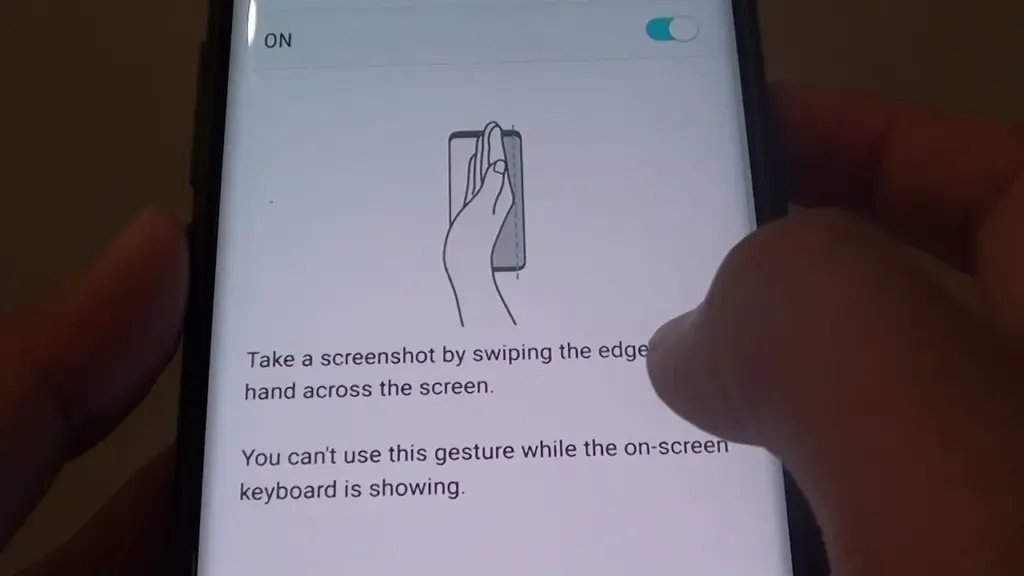
    ✋ Palm Swipe Gesture

    • Go to Settings > Advanced Features > Motions and Gestures
    • Toggle on Palm swipe to capture
    • Swipe your palm horizontally across the screen (left to right or vice versa)
    maxresdefault

    ✨ Smart Capture (Scroll Capture)

    • After taking a screenshot, tap the scroll icon in the preview to capture an entire page (e.g., a long webpage)

    🧠 Tip: Scroll Capture is perfect for saving full chats, articles, or receipts.

    📷 Google Pixel Devices

    Google Pixel sticks to simplicity:

    • Power + Volume Down is the main method
    • On Android 13+, when you open the Recent Apps view, there’s a Screenshot button under each app window

    🔒 Screenshots are disabled for secure apps like banking apps or Netflix (for DRM protection)

    android screenshot options

    ⚙️ Xiaomi, Redmi, and POCO (MIUI)

    Xiaomi devices give you gesture and quick-access methods:

    • Power + Volume Down (standard)
    • Swipe three fingers downward on the screen for a quick snap
    • Use the Quick Ball feature:
      • Enable via Settings > Additional Settings > Quick Ball
      • Tap it, and choose Screenshot from the floating menu

    🔴 OnePlus (OxygenOS)

    • Power + Volume Down
    • Three-finger swipe down also works (enable in Settings > Buttons & Gestures)
    • Long screenshot (scrolling) is available on preview pop-up

    🧑‍💻 How to Take a Screenshot Without Buttons

    If your power or volume buttons are broken, don’t worry—you can still capture the screen using these workarounds:

    🧠 1. Use Google Assistant or Voice Command

    Just say:

    “Hey Google, take a screenshot.”

    The Assistant will snap the screen and save it to your gallery.

    🔒 Note: Google Assistant cannot take screenshots in some secure apps or during voice calls.

    🧮 2. Enable On-Screen Screenshot Shortcut

    Some phones let you add a screenshot shortcut to the navigation bar or status shade:

    • Samsung: Add “Screenshot” to the Edge Panel or Quick Settings
    • Xiaomi: Enable Quick Ball or Button Shortcuts
    • OnePlus: Add Screenshot to the Navigation gestures

    ♿ 3. Use Accessibility Menu (for all Android phones)

    If you’re on Android 9 or later:

    1. Go to Settings > Accessibility > Accessibility Menu
    2. Enable it
    3. You’ll see a little person icon at the bottom right
    4. Tap it > Tap Screenshot

    This is a great method for users with limited mobility or hardware button issues.

    💡 4. Use Third-Party Apps (Optional)

    If built-in methods don’t work for you, apps like:

    • Screenshot Easy
    • Screen Master
    • Assistive Touch for Android

    …can provide floating buttons, auto scroll, and editing tools. But these aren’t always needed if your Android version is recent.

    🖼️ Where Are Screenshots Saved?

    Where Are Screenshots Saved?

    After taking a screenshot, your phone automatically saves it in a specific folder based on the manufacturer, Android version, and any file management settings.

    Here’s how to find them on most Android phones.

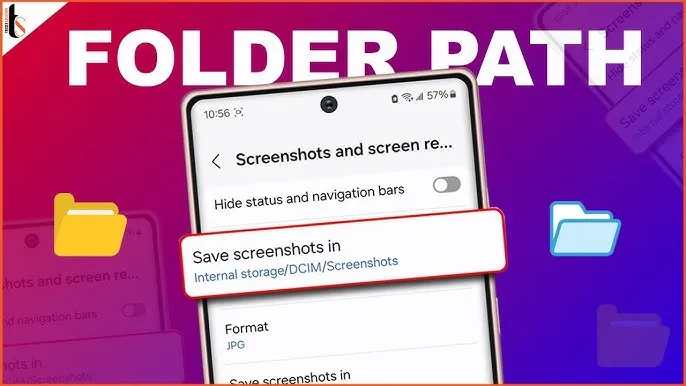
    DCIM > Screenshots
    This is the most common location for screenshots. “DCIM” stands for Digital Camera Images, and it’s where the system stores photos taken with your camera and screenshots.

    Pictures > Screenshots
    On some devices or third-party camera apps, screenshots go here instead of DCIM. This is especially true for older Android versions or modified versions like MIUI (Xiaomi) or ColorOS (OPPO/Realme).

    🧭 To manually browse:

    Navigate to DCIM > Screenshots or Pictures > Screenshots

    Open your File Manager or My Files app

    Tap Internal Storage

    You can also find them in the Google Photos app under the “Screenshots” section.


    ✂️ How to Edit or Share a Screenshot Instantly

    After taking a screenshot:

    • Tap the preview popup before it disappears
    • You can:
      • Crop or annotate the image
      • Share via WhatsApp, Gmail, social media
      • Delete if it was a mistake

    Some phones even allow adding text, shapes, or blur effects directly in the screenshot editor.

    🧼 Screenshot Tips & Tricks

    ✔️ Tip 1: Use Scroll Capture for Long Pages

    Don’t take 5 screenshots for a single chat—use the scrolling option instead.

    ✔️ Tip 2: Organize Your Screenshots

    Create folders like Receipts, Meme folder, Work notes in your file manager.

    ✔️ Tip 3: Don’t Rely on Screenshots for Sensitive Info

    Avoid screenshotting 2FA codes, passwords, or anything too personal. Use a secure note app instead.

    🔚 Wrapping Up

    Taking a screenshot on Android is easier than ever, with different options based on your phone and preferences. Whether you like buttons, gestures, or voice commands, Android has a technique for you.
    Now that you know how to screenshot on any Android phone, try each approach and discover which one works best for you. Also, remember to wipe up old screenshots every now and then – those memes add up quickly!

  • Step-by-step guide: move from a physical SIM to an eSIM on your smartphone – Android and iOS

    Step-by-step guide: move from a physical SIM to an eSIM on your smartphone – Android and iOS

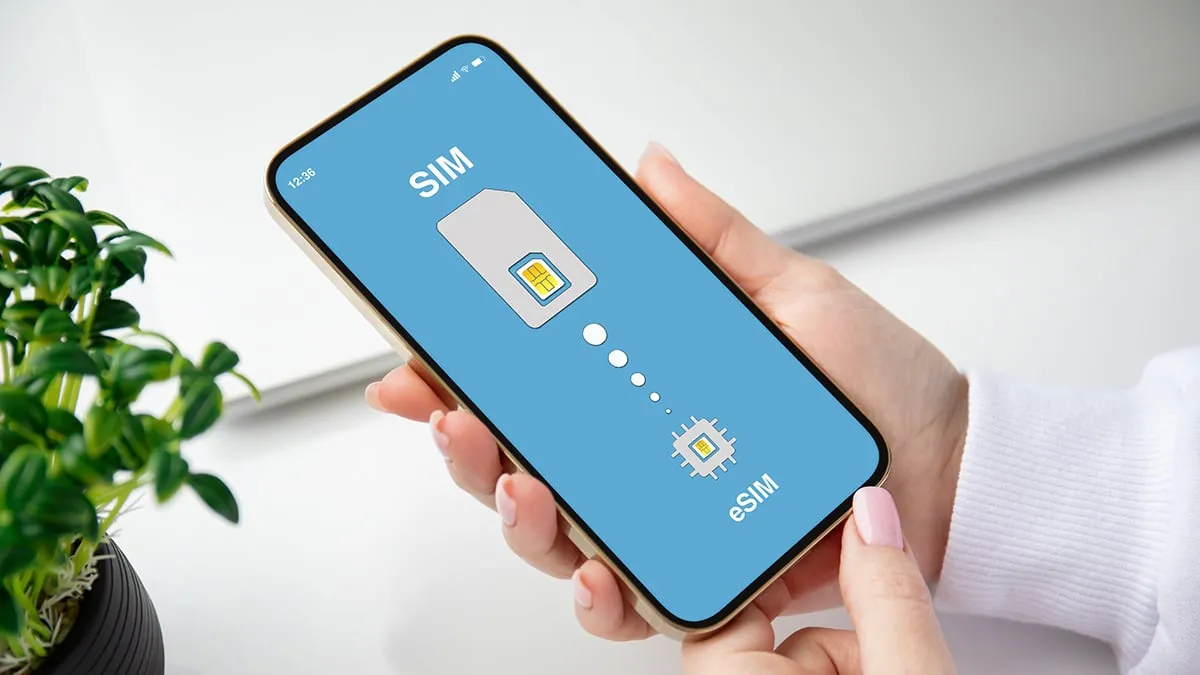
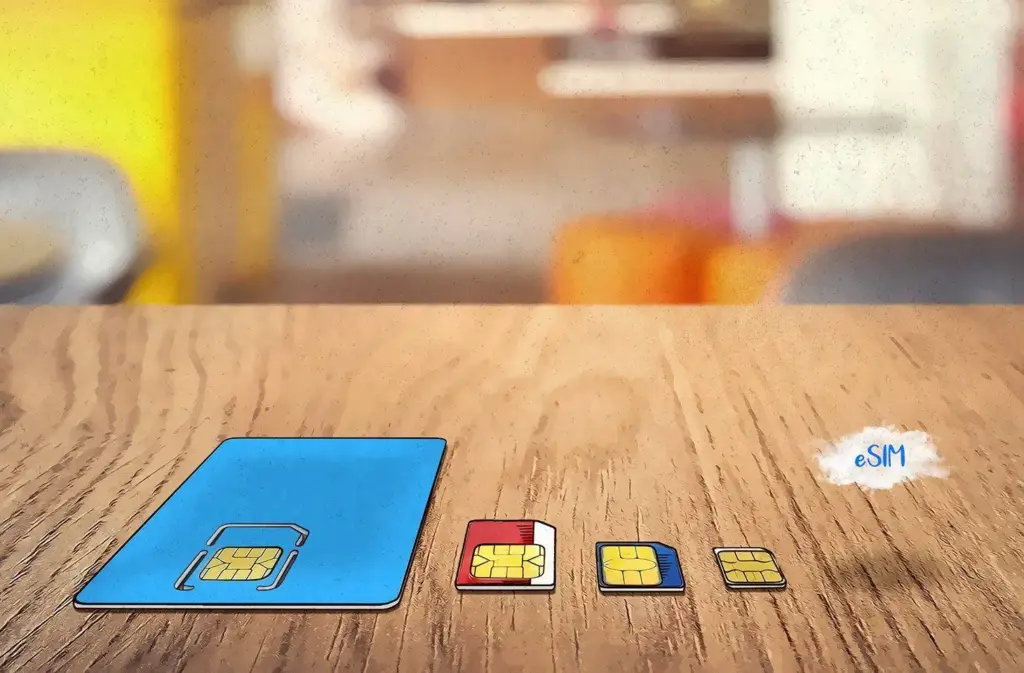
    The SIM card, a small chip in your phone that links it to your chosen cell phone provider, is probably already obvious to you. For many years, this chip was located on a physical card that you could replace by removing your phone’s SIM card tray. However, the majority of contemporary phones also support eSIMs. eSIMs are integrated into the phone’s hardware in place of a physical card, and software is used to remotely program the carrier information.

    A few conveniences are made possible by this, like the ability to test out service on a different carrier without having to pick up an actual SIM card in person or over the mail.

    Converting an existing physical SIM card to an eSIM presents a challenge. If you want to load many eSIMs into a single device or if a new phone is eSIM-only, you might want to do this. Or maybe you simply do not want to go through the trouble of constantly changing actual cards between machines. Thankfully, the process of switching a physical SIM to an eSIM is not too difficult.

    Make sure your new phone is compatible with eSIMs before you begin. The majority of contemporary phones do, as we already stated. In the US, the iPhone 14 and later are eSIM-only, however all iPhones since the iPhone XS and XR support eSIM. The majority of Android phones—including the Google Pixel 6 and later, as well as the Samsung Galaxy S21 and later—also support eSIM.

    move to esim on Android and iOS

    eSIM on an Android phone

    Depending on the manufacturer, there may be differences in how to convert a physical SIM to an eSIM on Android. Telling your carrier that you are moving to an eSIM is the most reliable method to accomplish this. After that, they will either send you a QR code or manually lead you through the procedure. Here’s how to add a QR code to your phone if they do send one.

    1. Go to Settings. Then tap either Connections or Network & Internet.
    2. Select Sim Manager or SIMS.
    3. Tap Add mobile plan or Download SIM card or Add SIM.
    4. Then follow the on-screen instructions and scan the QR code when prompted.

    However, the procedure is a bit simpler if you own a Samsung handset. To do it on a Samsung, follow these steps.

    • Launch Settings. Then tap Connections.
    • Select SIM card manager.
    • Choose your SIM (If you only have a physical SIM, it’ll just be the only one listed).
    • Tap Convert to eSIM.
    • Follow the on-screen instructions and then you’re done.

    eSIM on an iPhone

    Converting a physical SIM to an eSIM on an iPhone can be done in a few different ways.

    If you want to change a physical SIM to an eSIM on the same iPhone (which requires the phone to support both), here’s how to accomplish it.

    1. Open Settings, then select Cellular.
    2. Then, if your carrier allows it, you’ll see an option that says Convert to eSIM. If you don’t see it, then your carrier likely does not support this action.
    3. Tap Convert Cellular Plan.
    4. Tap Convert to eSIM. Your eSIM will now activate.

    If, on the other hand, your transferring a physical SIM to an eSIM on a completely different iPhone, here’s how to do it.

    1. On your new iPhone, go to Settings, then choose Cellular.
    2. Scroll down until you see Add eSIM. Select it.
    3. Then you have two choices. One is Transfer From a Nearby Phone, which requires both handsets to have iOS 16 or newer. If you select that, you’ll follow the instructions on your previous iPhone. You can then select Transfer to confirm and then enter a verification code. Obviously this only works if both phones are iPhones.
    4. Another option is to Use a QR Code. This is what you would use if a QR Code is provided by your carrier, or if your previous phone was a non-Apple handset. To scan the code, you open up the Camera app and point it at the QR Code. Tap the Cellular Plan Detected notification. If using an iPhone with iOS 17.4 or later, you can touch and hold the QR code and then tap Add eSIM.
    5. Go ahead and follow the on-screen instructions, hit Continue and tap Add Cellular Plan.

    If your carrier supplied the eSIM information, you may also opt to manually enter it. You can choose Settings, Cellular, Add Cellular Plan, and then Enter Details Manually if you wish to accomplish so.


    how esim works featured1

    It should be understood that inserting a new eSIM to your device may be done differently by different carriers. Please get in touch with them directly if you have any issues. Additionally, you will need to receive help from your carrier to make the switch if you are switching from an iPhone to an Android phone or vice versa.

    Take a look to our eSIM guide, which goes into greater detail on the benefits and drawbacks of each, if you would like to understand more about eSIMs and if they are superior than physical cards.

  • 5 resoans Pixel 9A is a great deal

    5 resoans Pixel 9A is a great deal

    Google’s Pixel 9a will hit shop shelves in the United States this week. Google’s new midranger appears to be yet another reasonably priced flagship alternative in a long series of such options. To achieve a lower price point, it makes some changes to the Pixel 9 formula, such as less RAM and inferior cameras. However, on paper, the $500 Pixel 9a has several significant advantages over the $800 Pixel 9. Here’s five.

    Google Pixel 9a

    Google Pixel 9a with Gemini – 256GB

    Google Pixel 9a is engineered by Google with more than you expect, for less than you think; like Gemini, your built-in AI assistant, the incredible Pixel Camera, and an all-day battery and durable design.

    Bigger battery

    google pixel 9a battery

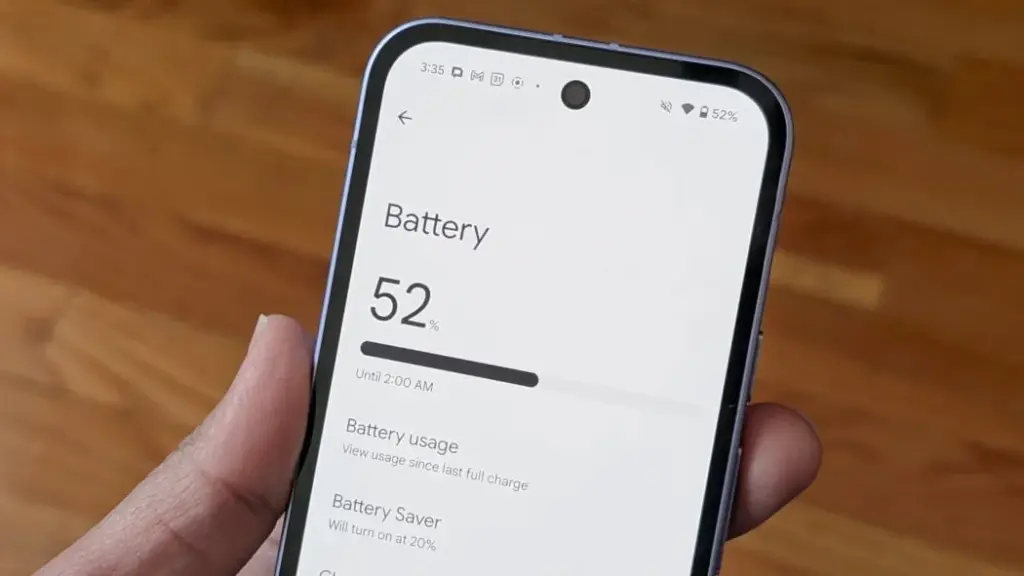
    Speaking of bigger batteries, the Pixel 9a has the largest battery ever utilized in a Pixel phone, with a rated capacity of 5,100 mAh. That just slightly edges out the Pixel 9 Pro XL’s 5,060 mAh battery.

    Given that the Pixel 9a is a relatively small phone with a 6.3-inch display, the large battery will deliver long battery life. The Google Store listing for the 9a boasts “30+ hour battery life,” whereas the Pixel 9’s battery life is “24+ hours.” If Google’s estimations are correct, the 9a’s battery will last 25% longer.

    A good price

    Let us start with the obvious: the $500 Pixel 9a costs significantly less than the $800 Pixel 9. Google has managed to keep its A-series phones at $500 for three years in a row as its flagships have become more costly, making the 9a an even better value than previous generations.

    Google Pixel 9a

    A solid construction

    The basic Pixel 9 and Pixel 9 Pro feature normal flagship phone build, with scratch-resistant glass back panels and stainless steel side rails. It creates a high-end look and feel, but the usage of glass has a significant drawback: it is prone to cracking if your phone is dropped.

    pixel 9a phone 1617

    The Pixel 9a, on the other hand, has a polycarbonate back panel with aluminum side rails. That makes the phone more resistant to shattering than its more expensive counterparts. Plastic and aluminum are also less dense than glass and stainless steel, so the Pixel 9a is slightly lighter than the Pixel 9 — though only by a fraction of an ounce.

    Pixel 9A has no camera bump

    The Pixel 9 and Pixel 9 Pro feature some of the best cameras available in a smartphone today, but this image brilliance is accompanied by positively massive camera bumps. Based on Pixel 10 leaks, the pill-shaped protrusions appear to have become part of the Pixel’s brand identity. However, there is no getting around the bulk: the Pixel 9 and 9 Pro cameras protrude 3.5 mm from the back panel.

    pixel 9a camera bump

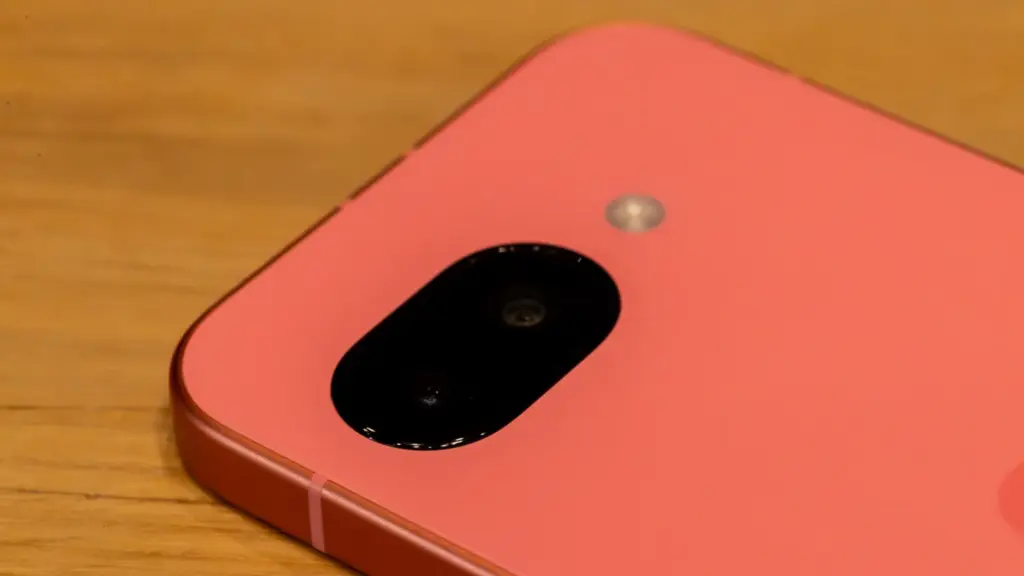
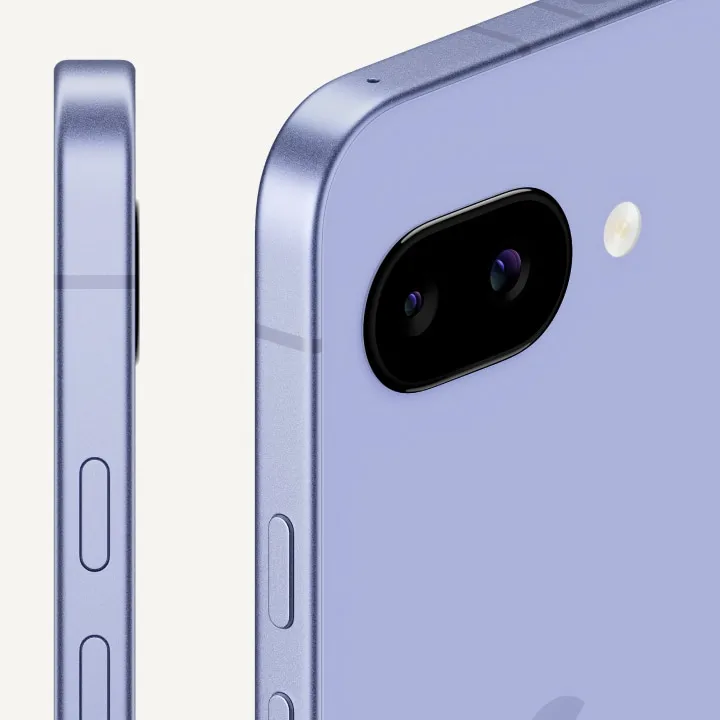
    The Pixel 9a, on the other hand, has almost no camera hump at all, with a pill-shaped glass cutout for the primary and ultrawide cameras that is nearly flat with the rest of the rear panel. Again, this will make little difference to those that use cases. However, given that a strong contingent of smartphone customers has been calling for thicker phones with larger batteries and fewer camera bumps for some time, the 9a is a clear winner.

    Matte finish

    There is no objectively proper finish for a smartphone, and most smartphone users will put a case on whatever they buy regardless. But personally, I prefer the all-matte appearance. Glossy surfaces are more likely to gather up fingerprints than matte surfaces, and nicks and scratches are more visible on shiny surfaces.

    screenshot

    The standard Pixel 9 has a glossy glass back and matte side rails; the Pixel 9 Pro reverses this, with matte glass on the back and matte steel side rails. The Pixel 9a has a matte finish all around. Glossy metal accents may seem elegant, but I hope future Pixel generations follow Google’s A-series phone’s lead and adopt the same all-matte appearance.

    Nice deals on Google Pixel phones family

    Google Pixel 9 Pro
    Google Pixel 9A – 256GB
    Google Pixel 9
    Google Pixel 9 Pro Fold
    1,799$1,499See It

    Cheaper is not always bad

    However, based on our early hands-on observations, Google’s experience with midrange products, and the information Google has released about the 9a thus far, it appears to be a solid device—and in some respects, even better than the more expensive Pixel 9.

  • Loss of Pulse Detection was launched in US for Pixel Watch 3

    Loss of Pulse Detection was launched in US for Pixel Watch 3

    Google is now implementing Loss of Pulse Detection in the US after yesterday’s April 2025 OTA update and Scam Detection.

    Google is officially launching Loss of Pulse Detection in the US after receiving FDA approval, which was initially anticipated at the end of March. Last year, it became available throughout Europe.

    Make sure your Pixel Watch 3’s Personal Safety Wear OS software is up to date before turning it on. 2025.03.19.x is the most recent version that is available on the Play Store.

    Afterwards, go to the Pixel Watch companion app on your phone (version 3.4+) > Safety & emergency > Loss of Pulse Detection to start the set-up process.

    Google tells us that it’s beginning to roll out today and will be fully available over the coming weeks.

    loss of pulse
    Pixel Watch 3 1

    Google Pixel Watch 3 (45mm)

    The Google Pixel Watch 3 is designed for performance, with advanced fitness from Fitbit; the 41mm screen is twice as bright and 10% larger than before, making it easier to see your stats and info[
    Best choice
    $399.99See It

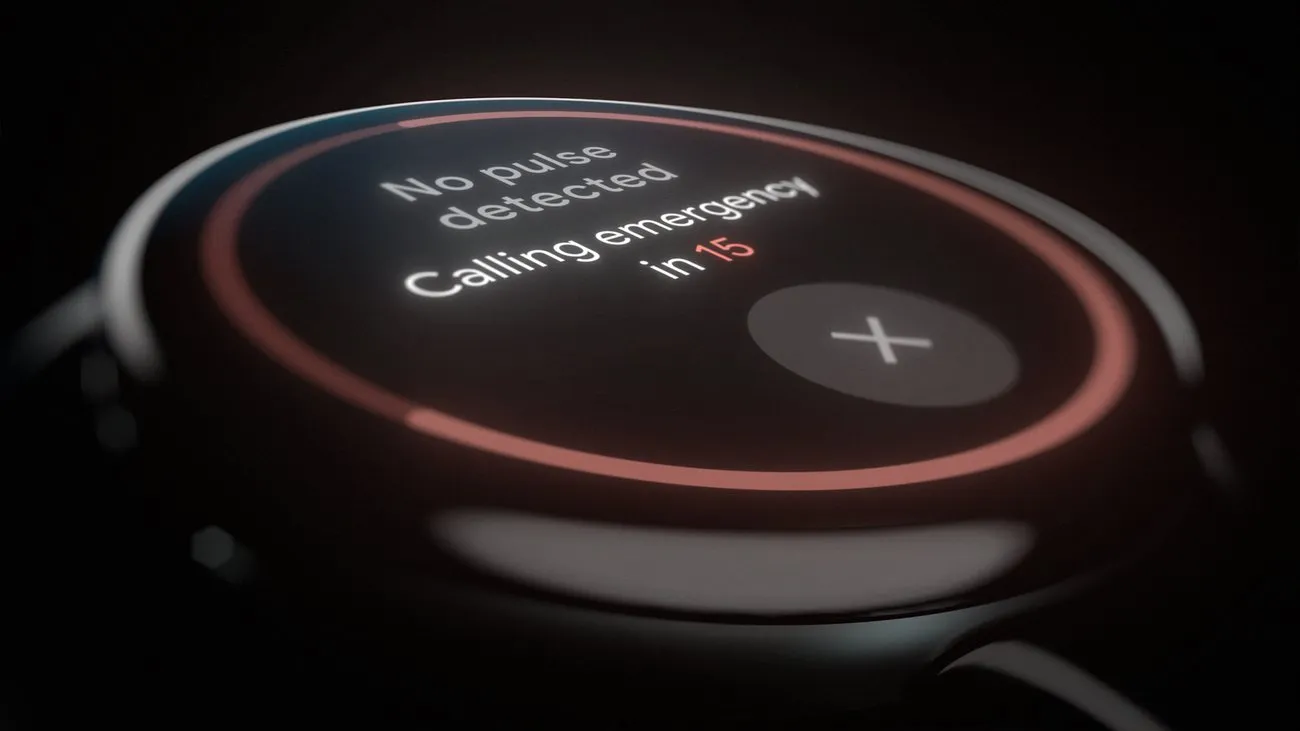
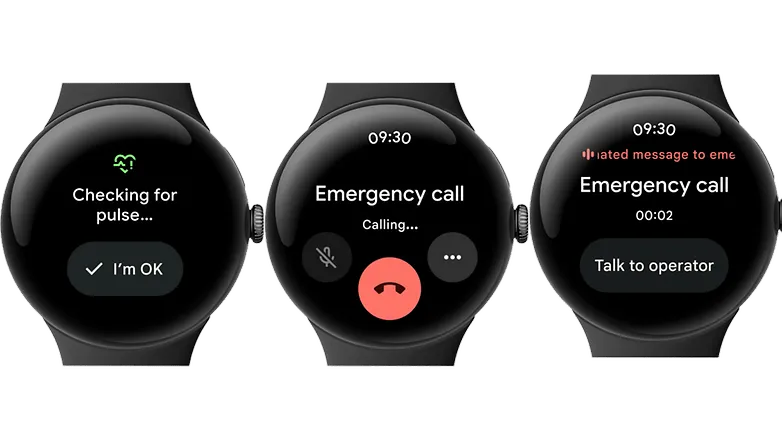
    A loss-of-pulse event is when your heart stops beating, which can happen during a cardiac arrest, respiratory or circulatory failure, overdose, or poisoning. Similar to Fall and Car Crash Detection, the Pixel Watch 3 will ask users to certify their safety when it detects something.

    In the event that there is no reaction (or movement), the wearable will notify emergency personnel, give your location, and provide information about what is going on. The Pixel Watch 3‘s multipath heart rate monitor, additional sensors, and a “multi-check, AI-based algorithm” are all used by Loss of Pulse Detection.

    According to the official statement, “Loss of Pulse Detection may not detect every instance of a loss of pulse and is not intended for users who require cardiac monitoring or who have pre-existing heart conditions.” It does not offer follow-up care or diagnose or treat any medical conditions.

    Pixel Watch 3 1

    Google Pixel Watch 3 (45mm)

    The Google Pixel Watch 3 is designed for performance, with advanced fitness from Fitbit; the 41mm screen is twice as bright and 10% larger than before, making it easier to see your stats and info[
    Best choice
    $399.99See It
  • Best budget smartphone you can buy in 2025 – under $400

    Best budget smartphone you can buy in 2025 – under $400
    In 2025, the budget smartphone market is more competitive than ever, offering impressive features, solid performance, and sleek designs at wallet-friendly prices. Whether you’re a student, a casual user, or just someone who loves getting the best value for money, there’s a perfect device out there for you. In this guide, we’ve rounded up the best budget smartphones you can buy in 2025 — all under $400 — that deliver big on performance without the premium price tag.

    This is a thorough guide to the top smartphones under $400, which include features like outstanding cameras, slick 120 Hz screens, and potent gaming-ready SoCs with 5G.

    Google Pixel 7a – great camera, good battery life and updates

    Google Pixel 7a 1

    With 128 GB of storage, the Google Pixel 7a, which was released on May 10, 2023, costs less than $400 on Amazon. Its Tensor G2 processor, which Google has included, improves the performance of machine learning-based features, making it a great option for anyone looking for a small Google phone in 2025.​

    Among smartphones under $400, the Pixel 7a stood out with a 5-star rating in our assessment. It is the most affordable model in the Pixel 7 series, with features including wireless charging, 8 GB of RAM, and a refresh rate of 90 Hz.

    With a 64 MP primary camera, a 13 MP ultra-wide lens, and a 13 MP selfie camera, the camera system has been much improved over its predecessor. Google’s sophisticated camera software guarantees that images captured with the Pixel 7a uphold the Pixel series’ excellent quality standards.

    pixel 7a from Amazon

    Google Pixel 7a

    Pixel 7a has a 24-hour battery life and supports fast charging up to 72 hours with Extreme Battery Saver turned on.

    $499.00$327.00Buy on Amazon

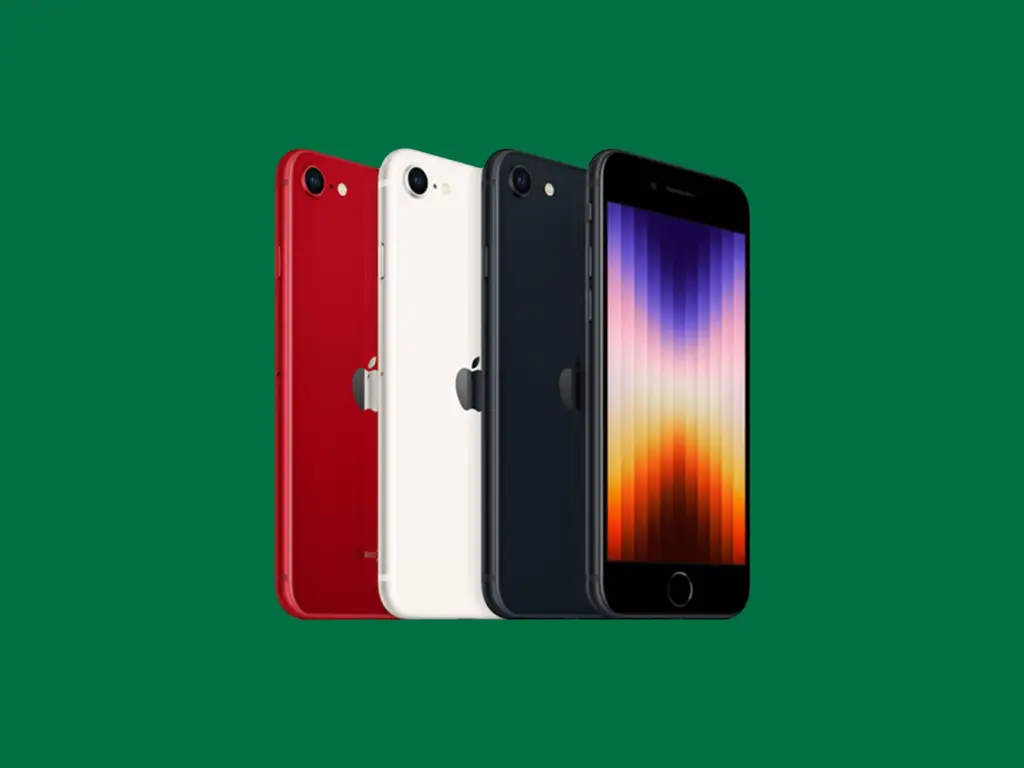
    Apple iPhone SE (2022) – if you are in the Apple ecosystem

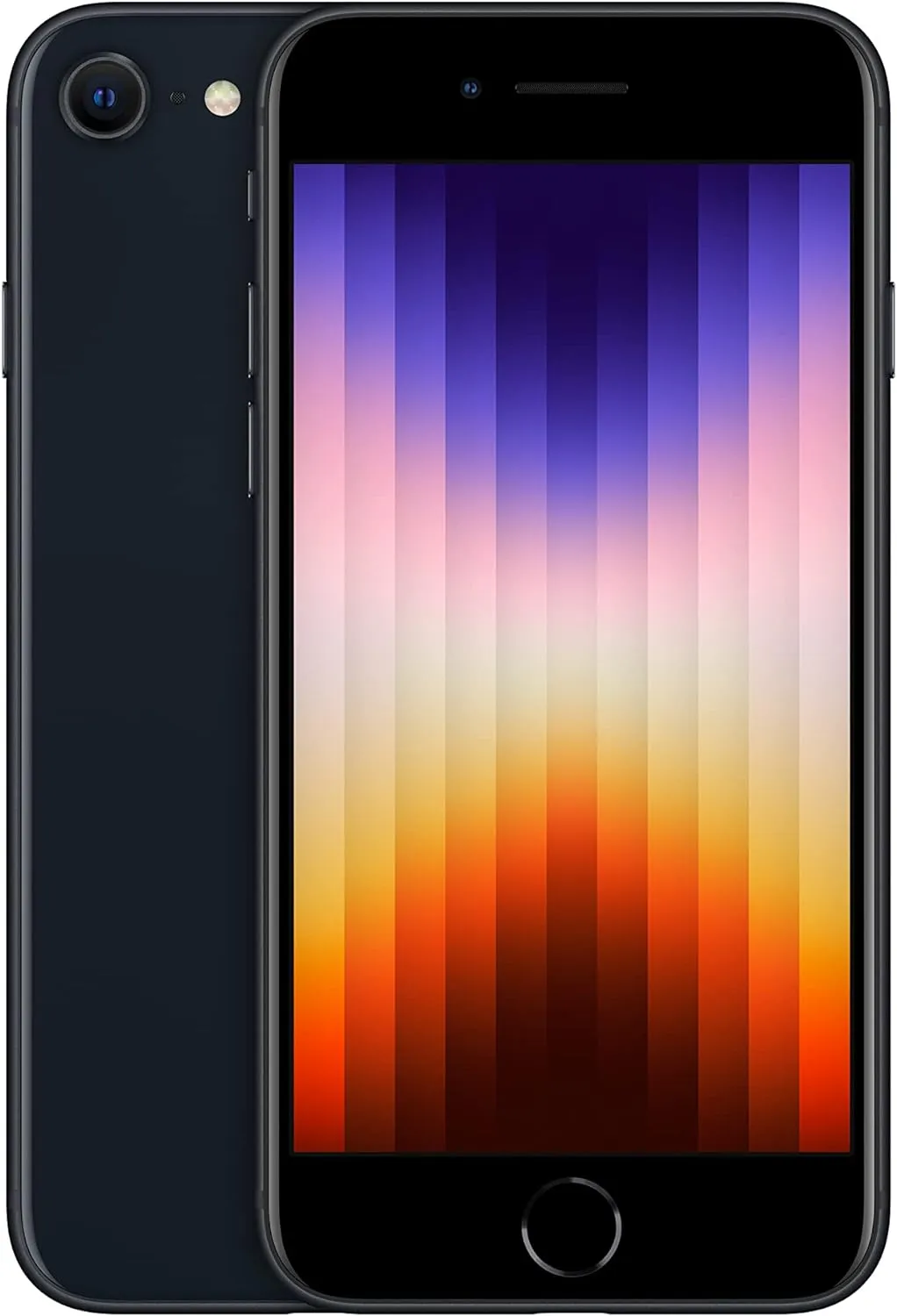
    Apple iPhone SE (2022) budget phone under $400

    It is difficult to choose an Apple product under $400, but we firmly believe that the iPhone SE (2022) is the best option. Apple essentially discontinued the SE range in 2025 with the release of the iPhone 16e (review). Apple’s entry-level model is now the 16e, the company’s first new name since the 2020 “mini.”

    Currently, the iPhone SE (2022) is only available through online retailers like Amazon. This budget iPhone features the powerful A15 Bionic chip, although it brings minimal upgrades compared to its predecessor. It offers a 12MP camera within a casing nearly identical to the iPhone SE (2020)—which itself resembles older models like the iPhone 8, 7, and 6s—and includes IP67 water resistance.

    The most notable enhancement is 5G connectivity, which puts the iPhone SE (2022) on par with other smartphones under $400 on this list, aside from the improved SoC and more RAM (4 GB). After testing, we discovered that, despite certain issues, the gadget is still a great option for iPhone purchasers on a tight price.

    Software support for the iPhone SE (2022), including complete iOS updates and security fixes, should last until roughly 2027 or 2028, according to Apple’s past trends. However, based on Apple’s future choices, precise timetables might change.

    apple iphone se

    2022 Apple iPhone SE

    Advanced single-camera system with 12MP Wide camera; Smart HDR 4, Photographic Styles, Portrait mode, and 4K video up to 60 fps

    Good choice
    $429.00$389.00Buy on Amazon

    Samsung Galaxy A35 – for Samsung lovers

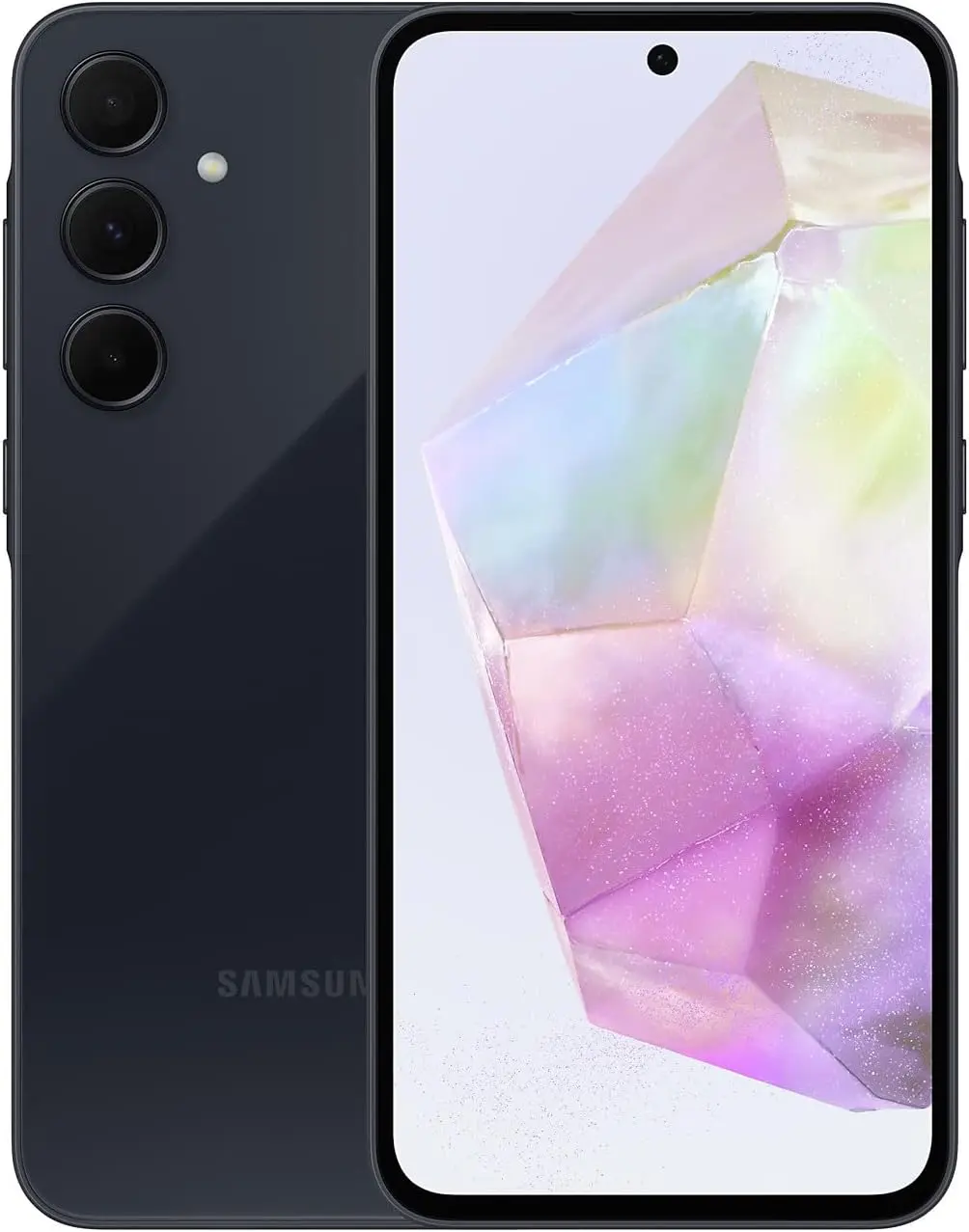
    Surprisingly, Samsung chose not to distribute its well-liked Galaxy A55 in the US in 2024. As a mid-range substitute, the company instead unveiled the less expensive Galaxy A35.

    In actuality, both models offer balanced camera capabilities, dependable battery life, and comprehensive software support, making them very comparable in terms of performance and specifications. The Exynos 1380 processor, which was used in the previous Galaxy A54 model, ensures seamless performance for daily use and light gaming on the A35.

    Samsung has committed to providing software upgrades for the Galaxy A35 through 2029, making it the phone with the longest security support on this list. Although some more recent models provide even longer support, none of them now live up to this promise at this price point.

    samsung a35 budget phone

    Samsung Galaxy A35 5G

    6.6” FHD+ Super AMOLED w/Corning Gorilla Glass Victus+ – Resolution 1080 x 2340 pixels
    256GB 8GB RAM – MicroSD up to 1TB

    Nothing Phone (2a) – great battery life

    nothing phone 2a

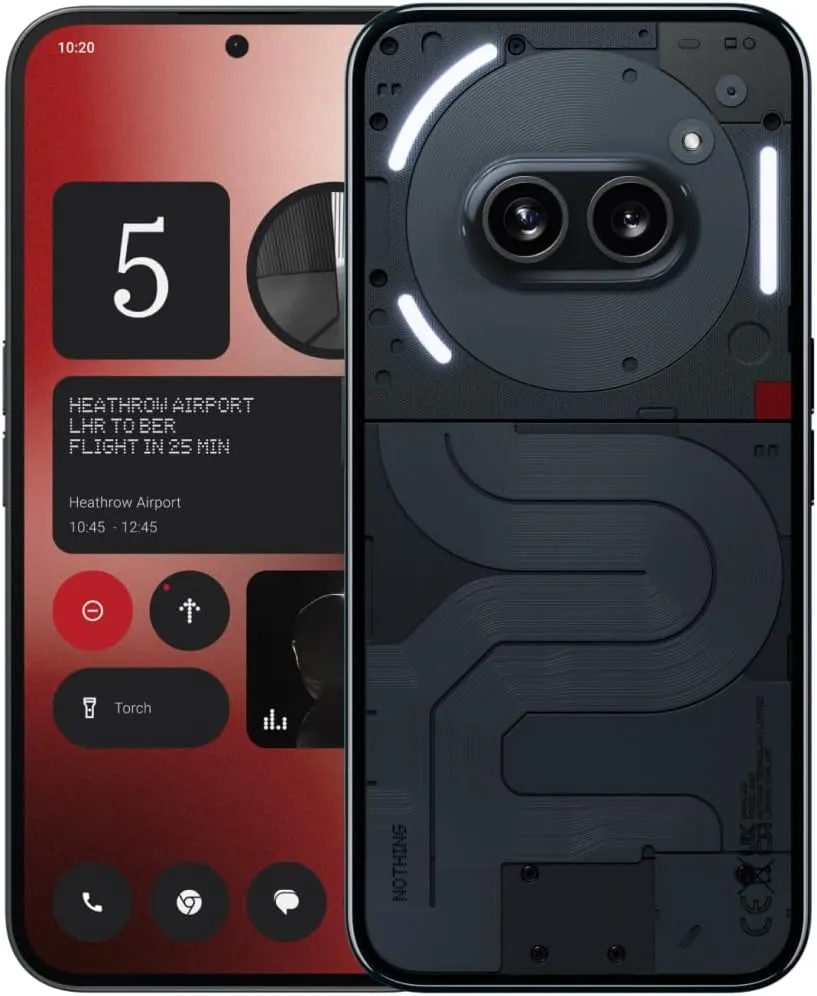
    Nothing’s newest low-cost smartphone, the Phone (2a), has a great design and well-balanced specs, making it one of the most attractive mid-range phones.

    It delivers endurance with four years of security patches and three guaranteed Android updates, together with a positive user experience with Nothing OS. Although the most recent Snapdragon chipset is not included, performance remains dependable.

    The Phone (2a) has the longest battery life in its pricing range thanks to its large 5000 mAh battery that supports 45W rapid charging. The remarkable 17 hours and 2 minutes of runtime that our battery testing revealed allowed for comfortable two days of use between charges and comparatively quick recharging.

    The primary compromise is the camera’s poor quality, especially in dimly lit areas. With its appealing screen, reliable performance, and very long battery life, the Nothing Phone (2a) is a well-rounded mid-range choice.

    nothing phone 2a 1

    Nothing Phone (2a)

    Nothing phone (2a) boasts Co-engineered with MediaTek,the custom Dimensity 7200 Pro processor delivers the best performance with optimal power consumption.
    NOTE:Only these carriers’ 5G network bands are supported,please check the bands before buying: T-Mobile n41,n66; AT&T n5,n66; Google Fi n41; Verizon Wireless n5,n38,n66; Cricket Wireless n5.

    Criteria for Selection

    Our crew has carefully tested the top picks for our list of the best smartphones under $400, and we have added extra mentions to help you make an informed choice. Although this guide focuses on key aspects, I strongly advise reading our in-depth reviews before making a purchase.

    We mainly took into account regular consumers looking for a balance between cost and usefulness while making this budget-friendly choice. To make sure you are selecting the greatest smartphone, I advise you to look over our larger list of top smartphones if flagship-level features or cutting-edge performance are important to you.

    User Experience (UX). Smartphones priced around $400 often provide reliable performance for daily work, multimedia consumption, and casual gaming. Expect CPUs from the Qualcomm Snapdragon 7 series or MediaTek Dimensity range, which offer outstanding value even though they are not the most recent generation.

    Battery life and display quality are also important. We selected smartphones with batteries ranging from 4,500 to 5,000 mAh, which can last a full day. While charging speeds in this price range are moderate, often between 10W and 15W in the United States, these devices provide adequate endurance. Display technology is constantly advancing, with many devices offering Full HD+ resolutions and refresh rates of up to 120 Hz, including the increasingly popular OLED screens.

    Although the camera’s performance is suitable for most daily uses, there are certain limits to consider. Higher-megapixel sensors are common, although their quality differs greatly from flagship models. We suggest care when using multi-camera systems, as extra lenses such as macro or depth sensors may have limited practical applications.

    Software and carrier compatibility are other important issues. Smartphones in this category often receive fewer software updates—one to two major Android versions after launch—so double-check the device’s update policy before purchase. Additionally, check compatibility with your carrier, especially if purchasing unlocked smartphones.

  • How to customize your home screen: a step-by-step guide for Android and iOS

    How to customize your home screen: a step-by-step guide for Android and iOS

    The home screen of your smartphone serves as the entryway to your digital life, and you may personalize it to improve its usability, functionality, and aesthetic appeal. This article explains how to customize your home screen for a genuinely one-of-a-kind experience, from altering the background to adding widgets and arranging apps.

    Change wallpaper

    The aesthetic tone of your smartphone is established by your wallpaper. Changing your wallpaper is easy, regardless of your preference for abstract art, beautiful landscapes, or intimate portraits.

    On Android:

    1. Long-press an empty space on the home screen.
    2. Select Wallpaper or Wallpaper & style from the pop-up menu.
    3. Choose a pre-installed wallpaper or select an image from your gallery.
    4. Adjust the image as needed and tap Set wallpaper.
    5. Decide whether to apply it to the Home screenLock screen, or both
    customize your home screen android

    On iOS:

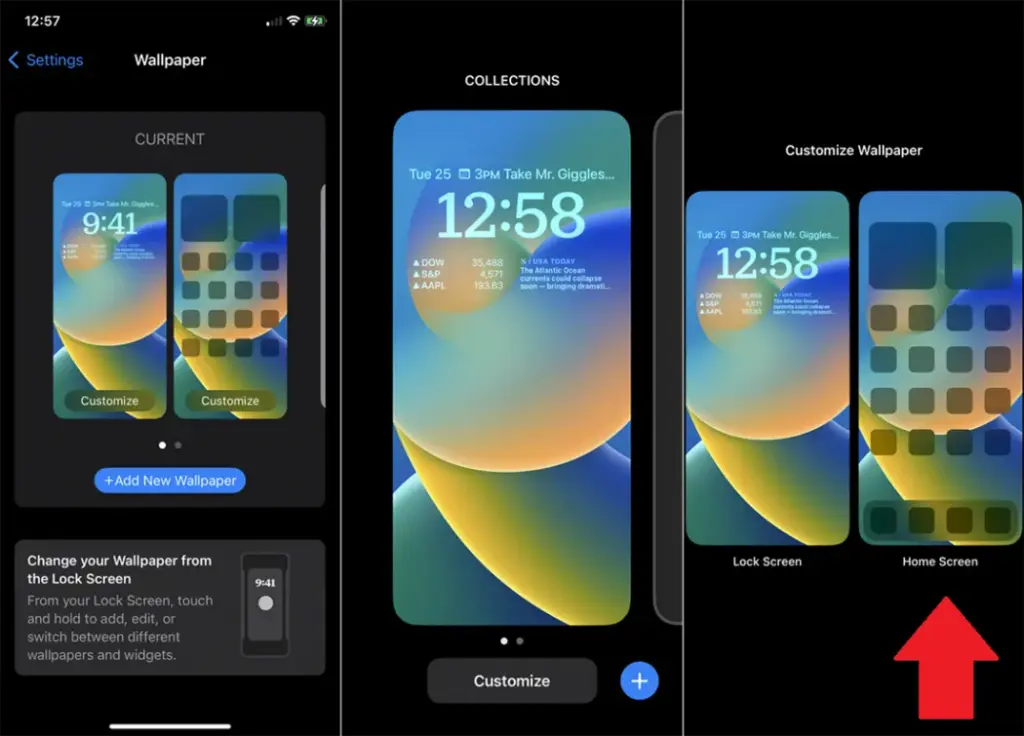
    1. Open Settings > Wallpaper > Choose a New Wallpaper.
    2. Select an image from Apple’s preloaded options or your photo library.
    3. Adjust and tap Set to apply it to the Home screen, Lock screen, or both9
    customize your home screen ios

    Add widgets for quick access

    Without opening apps, widgets offer functionality and information at a glance.

    On Android:

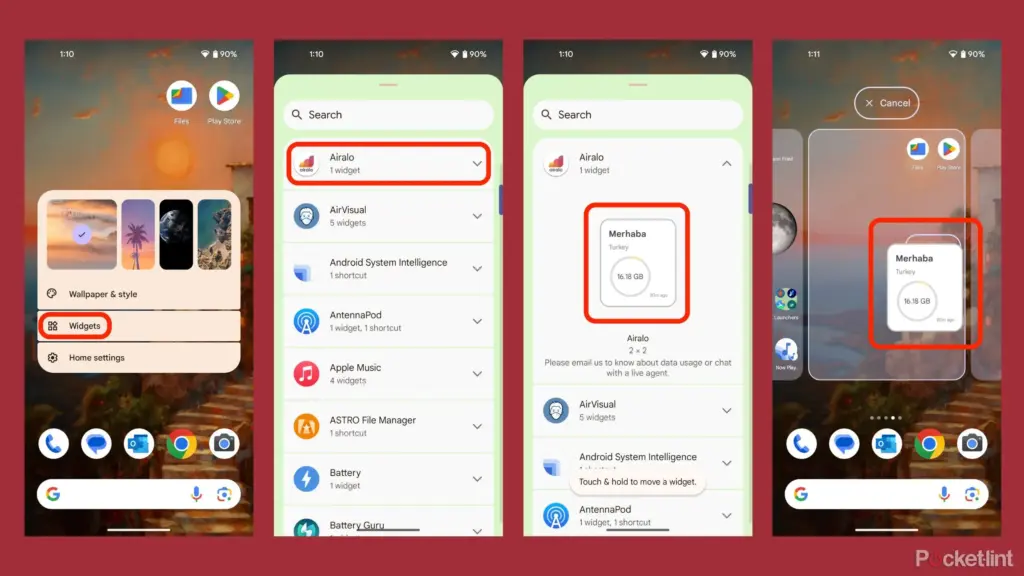
    1. Long-press an empty area on the home screen and tap Widgets.
    2. Browse through available widgets (e.g., clock, weather, calendar).
    3. Select a widget and drag it to your desired location on the screen.
    how to add widgets to your andro

    On iOS:

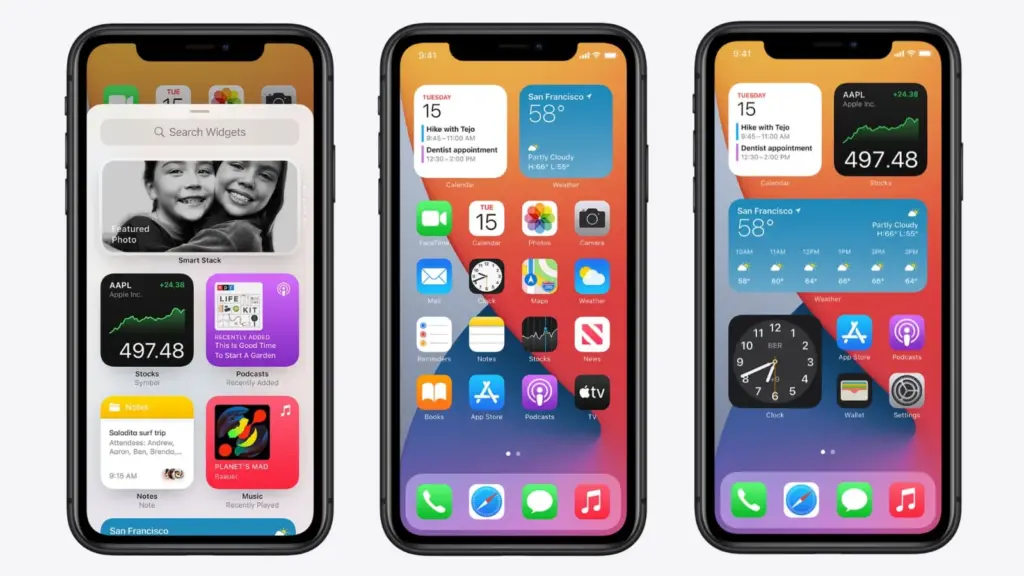
    1. Touch and hold the Home Screen background until apps jiggle.
    2. Tap the “+” icon in the upper-left corner.
    3. Choose a widget from the list and select its size (small, medium, large).
    4. Tap Add Widget, then drag it into place
    ios14 widgets guide

    Organize apps

    A clutter-free home screen improves usability and makes navigation faster.

    Create Folders:

    • Drag one app icon onto another to create a folder.
    • Add more apps by dragging them into the folder.
    • Rename folders by tapping on them and selecting the name field.

    Arrange Apps:

    • Move frequently used apps to the first page of your home screen for quick access.
    • Drag icons to different pages or positions by holding and moving them.

    Advanced Organization Tips:

    • Use themed rows (e.g., “Work,” “Social,” “Entertainment”).
    • Sort apps by frequency of use or color coding for visual appeal.

    Use customization apps

    Download specialized home screen customization programs like WidgetClub or Nova Launcher for more sophisticated customization choices including unique icons, fonts, and themes.

    Benefits:

    • Access all-in-one themes that include wallpapers, widgets, and icons.
    • Customize grid layouts for app placement flexibility