Tag: pixel

  • How to enable developer options and USB debugging

    How to enable developer options and USB debugging

    Enabling Developer Options and USB debugging is crucial if you want to test apps, get more control over your Android device, or connect your phone to a computer for development. This built-in Android function provides you with the ability to delve deeper, regardless of whether you’re a power user or simply attempting to troubleshoot a persistent issue.

    Without requiring root access, we’ll show you exactly how to activate USB debugging and Developer Options on any Android device in this tutorial. We’ll also go over the functions of each feature and when you might require them.

    What are Developer Options on Android?

    Android’s Developer Options is a secret menu with advanced settings designed mainly for developers. But regular users might also benefit from many of these choices. For instance, you can:

    • Speed up animations to make the phone feel faster
    • View CPU usage on screen
    • Simulate different display sizes
    • Force apps into split screen
    • Enable USB debugging for data transfers or app testing

    By default, Developer Options are hidden, but you can enable them with just a few taps.

    What is USB debugging and why use it?

    USB debugging allows your Android device to communicate with a computer using Android Debug Bridge (ADB). This is critical for:

    • Transferring files and installing apps manually
    • Using development tools like Android Studio
    • Running shell commands via ADB
    • Taking full device backups
    • Recovering devices stuck in boot loops or soft bricks

    Unless you’re developing apps or using advanced tools, USB debugging isn’t needed all the time. But turning it on gives you more flexibility when needed.

    How to enable Developer Options

    The Developer Options menu can be accessed by following these steps:

    1. Open the Settings app on your Android phone.
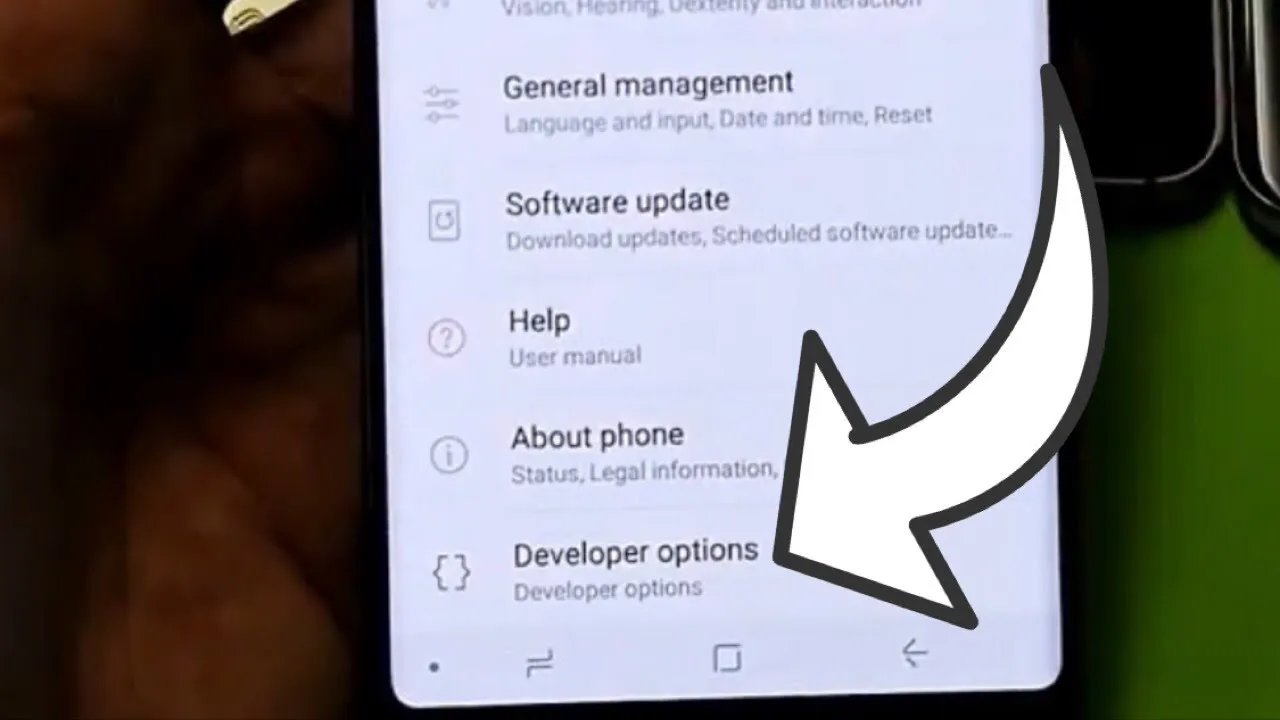
    2. Scroll down and tap “About phone.”
    3. Find the “Build number” entry (you may need to tap “Software information” first on some devices).
    4. Tap the Build number 7 times. You’ll be asked to confirm your device lock (PIN, pattern, or fingerprint).
    5. You’ll see a message saying “You are now a developer!”

    Once this is done, Developer Options will be available in your Settings.
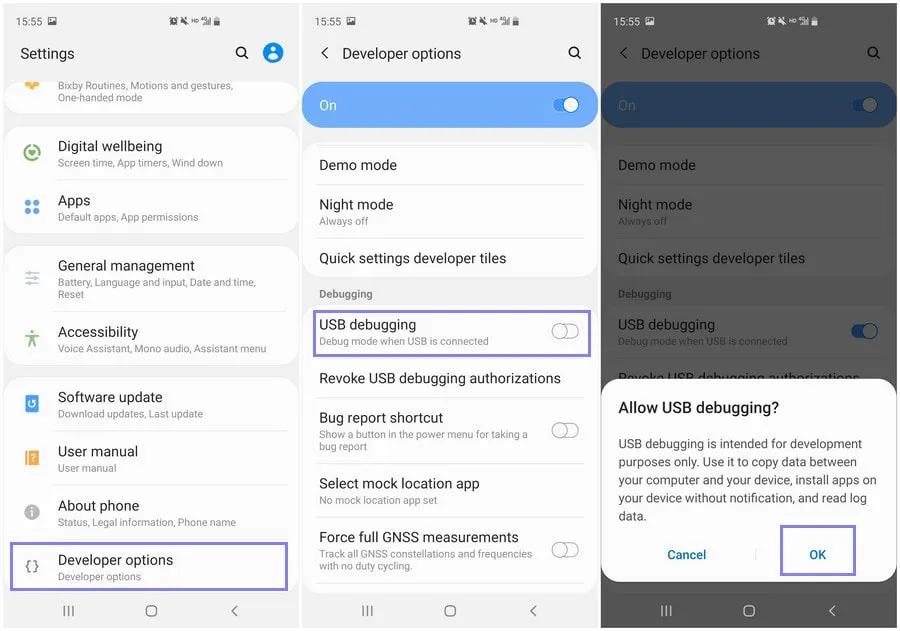
    developer option on Android Galaxy devices

    Location of Developer Options by brand:

    • Samsung: Settings → Developer options (at the bottom of the main settings menu)
    • Google Pixel: Settings → System → Developer options
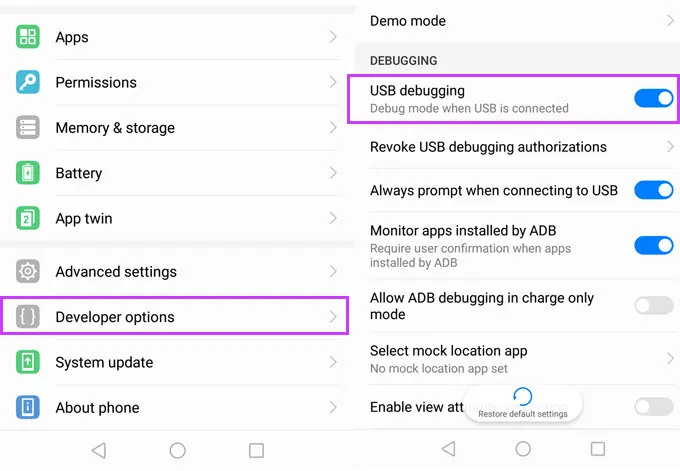
    • Xiaomi: Settings → Additional settings → Developer options
    • OnePlus: Settings → System → Developer options
    • Motorola: Settings → System → Developer options
    enable developer options

    How to enable USB debugging

    Now that Developer Options are turned on, you can enable USB debugging:

    1. Go to Settings → Developer Options
    2. Scroll down to the “Debugging” section
    3. Toggle on “USB debugging”
    4. Confirm the prompt asking if you’re sure

    That’s it! You can now use your phone with development tools or perform more advanced actions from your PC.

    When should you turn off USB debugging?

    If you’re not actively using USB debugging, it’s best to leave it off. Here’s why:

    • USB debugging can be a security risk if your device falls into the wrong hands while unlocked.
    • Some apps or company policies block access if USB debugging is enabled.

    To disable it, just return to Developer Options and toggle it off.

    Other useful Developer Options settings

    Besides USB debugging, some other features you may want to explore include:

    • Window animation scale / Transition animation scale: Set to 0.5x for faster UI response
    • Force activities to be resizable: Useful for multitasking and split screen
    • Stay awake while charging: Keeps the screen on during testing
    • Limit background processes: Improve performance by reducing multitasking
    • Show taps / Pointer location: Great for app demos or screen recording

    Be cautious while experimenting—many of these options affect system behavior.

    Troubleshooting Developer Options or USB debugging

    Developer Options not appearing?

    • Double-check that you tapped “Build number” exactly 7 times
    • Some devices require a reboot afterward

    USB debugging not working?

    • Try a different USB cable or port
    • Make sure “File Transfer” mode is selected via USB preferences
    • Check that your computer has proper ADB drivers installed

    You may access a robust collection of tools on your Android phone by turning on USB debugging and Developer Options. Although developers are their main target audience, tech-savvy consumers who desire greater control over their gadget might also benefit from them.

    These options can improve your Android experience, whether you’re using ADB to transfer files, debug apps, or simply wish to adjust animation speeds. Just use caution when navigating the options, since some settings may have unexpected consequences.

    Stay connected with the latest from Droid Tools—follow us on X @droid_tools, like our page on Facebook, check out our updates on Instagram, and follow us on Google News for real-time news, device tips, and mobile tech insights.
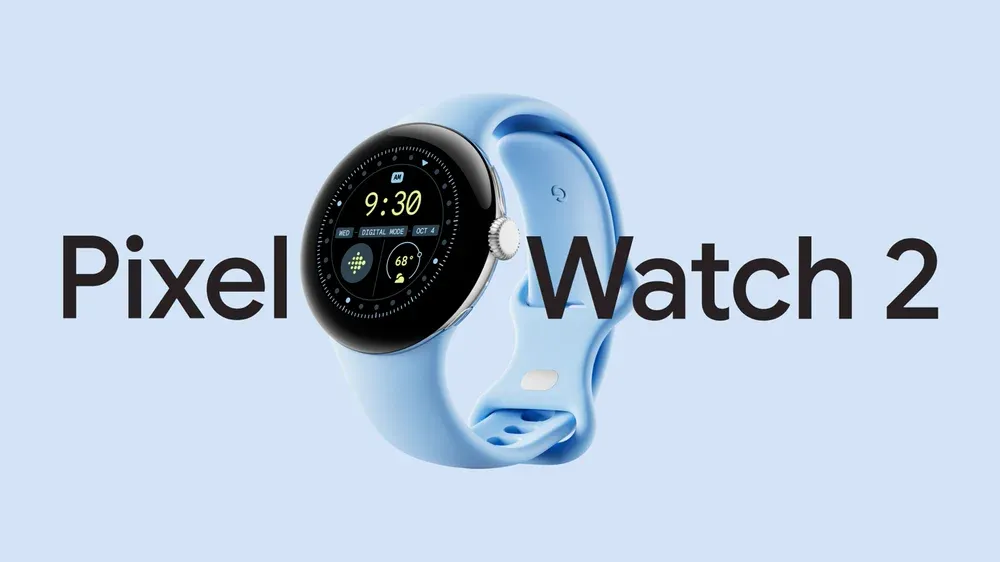
  • #dealalert – Google Pixel Watch 2 LTE down to $135.59

    #dealalert – Google Pixel Watch 2 LTE down to $135.59

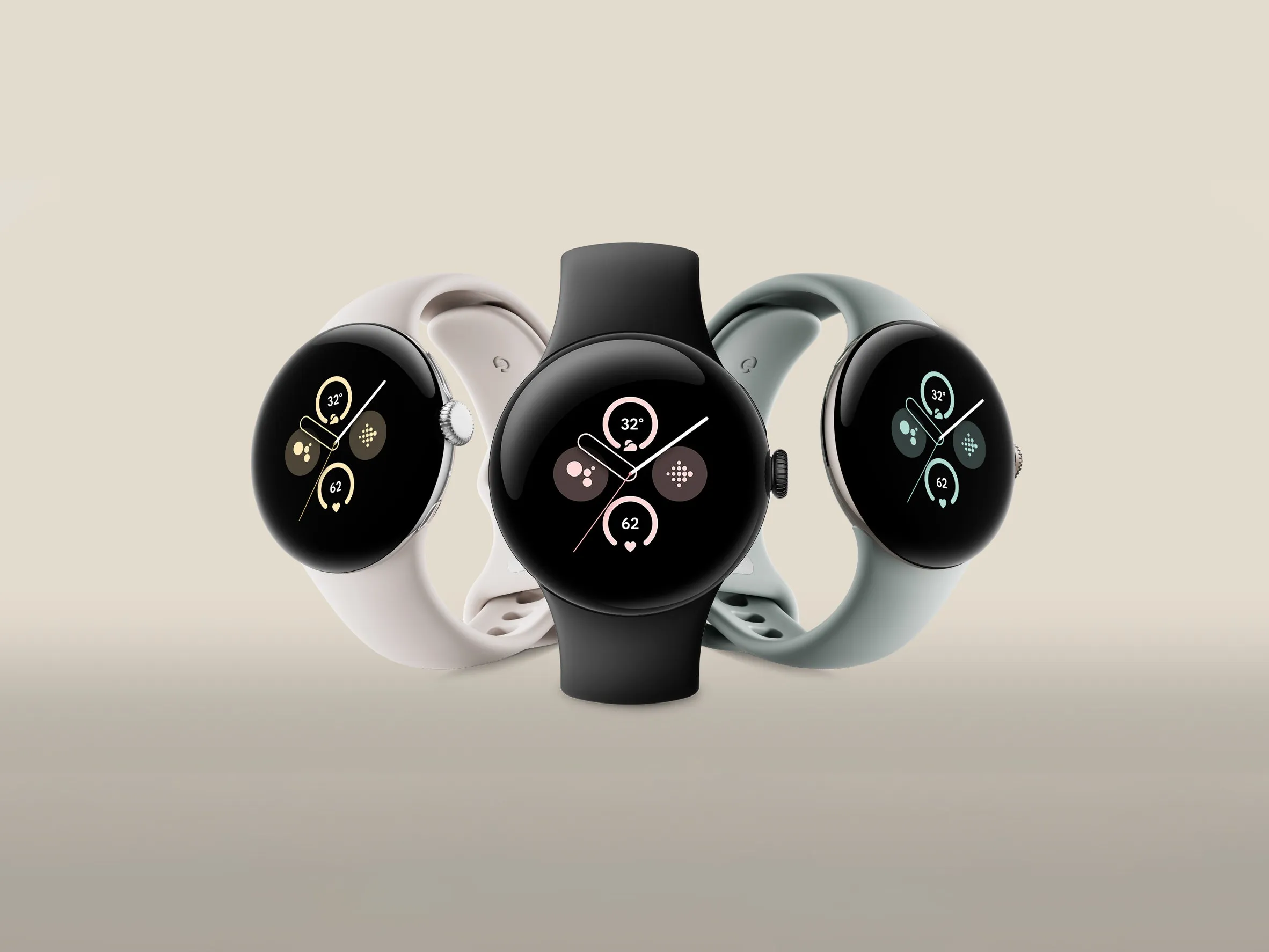
    Since the formal announcement of its sequel back in August 2024, the 2023-released Pixel Watch 2, which was initially priced at $350 and above, has, of course, grown ever less expensive. The Wear OS-powered watch is currently more reasonably priced than ever in a 4G LTE-enabled form, despite the fact that Black Friday and Amazon’s Prime Day 2025 event are not exactly approaching.

    You should probably act quickly if you want to save a whooping $150 on a black-coated Google Pixel Watch 2 with standalone cellular connectivity, since this completely unusual Amazon deal is not expected to last long.

    pixel watch 2

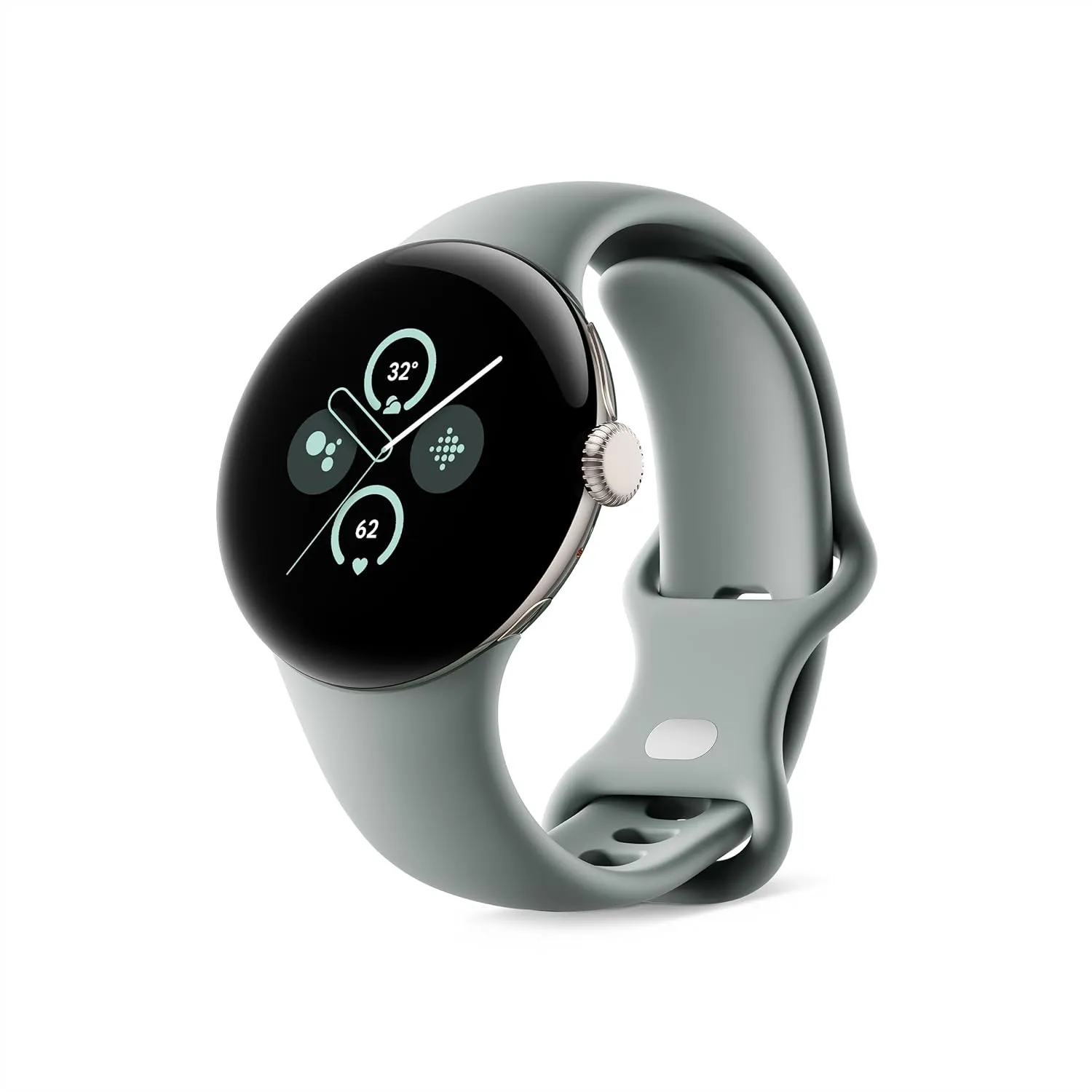
    Google Pixel Watch 2 LTE

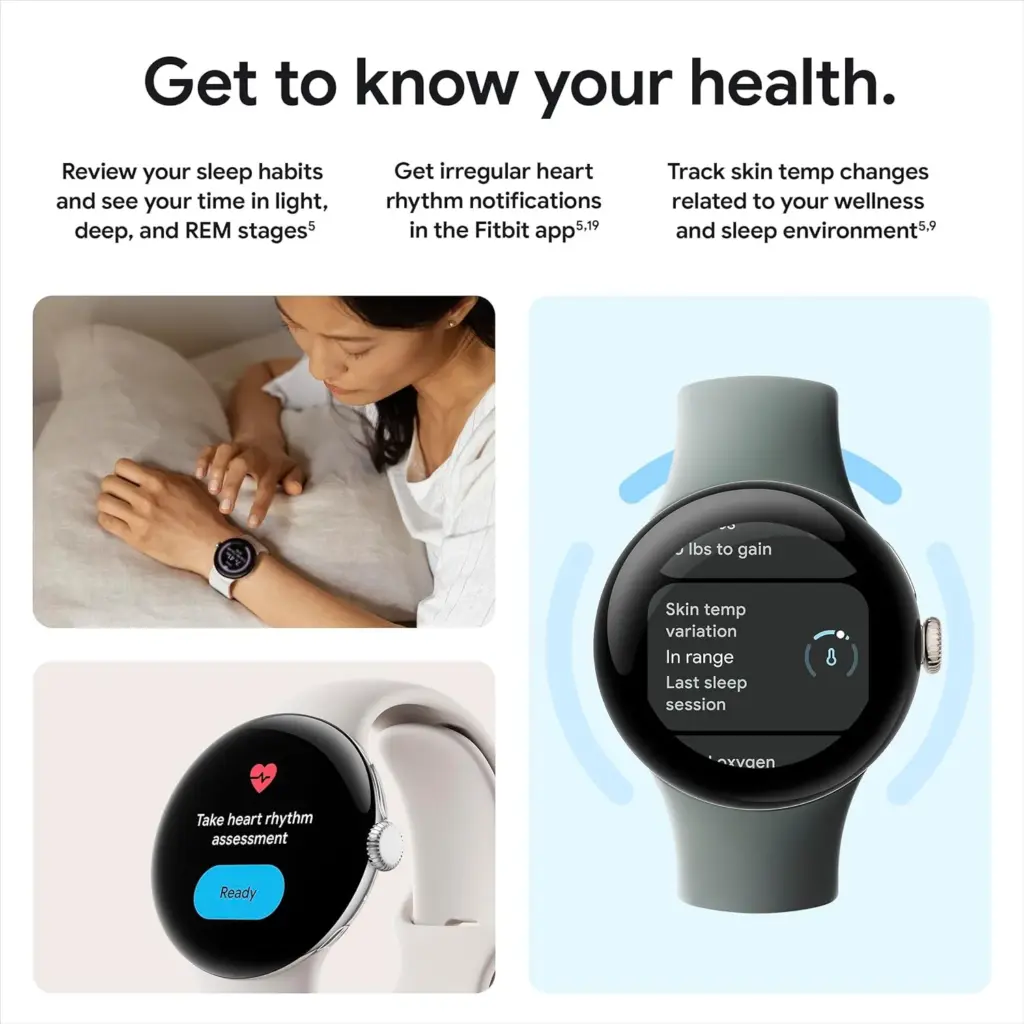
    The Pixel Watch 2 comes with three new advanced sensors for heart rate tracking, skin temperature, and stress management; 100% recycled light aluminum housing makes it comfortable to wear

    $199.99$135.59Amazon
    pixel watch 2 2

    That’s $150 off the $299.99 “normal” price, which was already permanently reduced from the $399.99 that Amazon and other major US retailers used to charge for a Pixel Watch 2 with cellular capabilities at launch. Additionally, there is only one color available at this historically low price, which suggests you don’t have much time to take advantage of your Memorial Day savings.

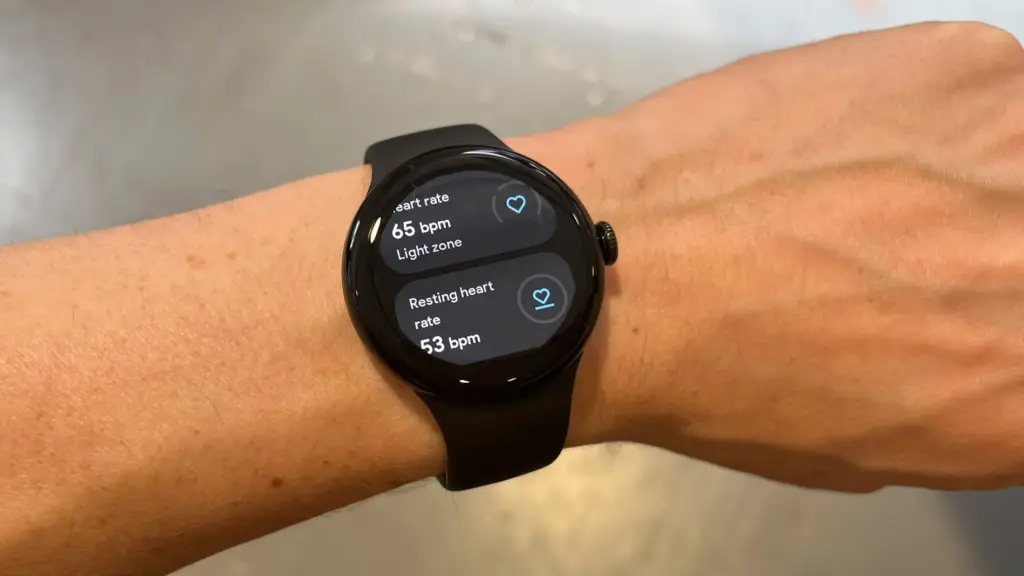
    It goes without saying that the more recent Watch 3 is the superior wearable manufactured by Google, which is also why it costs significantly more. The Watch 2, with its stunning circular display, incredibly comfortable all-day wear, precise heart rate tracking technology, and outstanding overall performance, is the objectively superior value proposition at this 50% discount.

    pixel watch 2

    Google Pixel Watch 2 LTE

    The Pixel Watch 2 comes with three new advanced sensors for heart rate tracking, skin temperature, and stress management; 100% recycled light aluminum housing makes it comfortable to wear

    $199.99$135.59Amazon

    The Pixel Watch 2 with 4G LTE must, however, be compared to similarly priced gadgets such as the entry-level Apple Watch SE 2 (without LTE) or Samsung Galaxy Watch FE (which is also only capable of GPS and Bluetooth).

  • How to back up your Android phone

    How to back up your Android phone

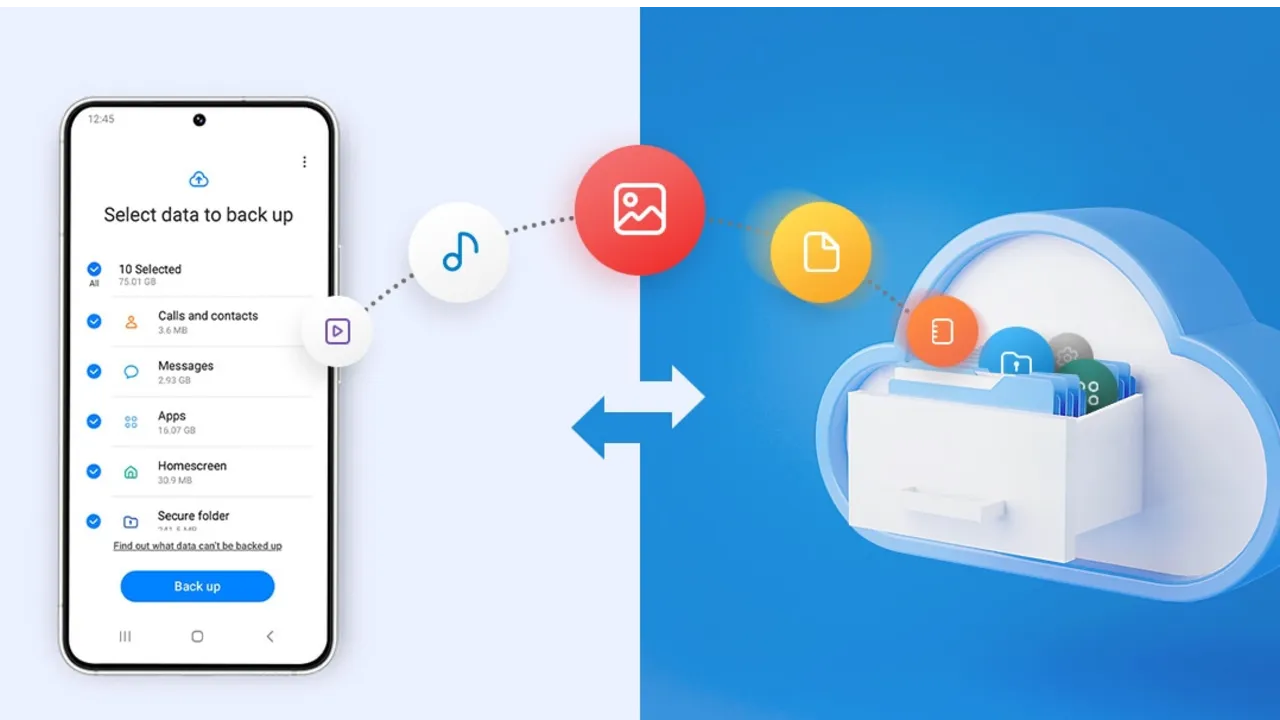
    Backing up your Android phone ensures that your data is safe in case of loss, damage, or switching to a new Android device. Thankfully, Android has a number of built-in security features that secure your contacts, media, apps, and settings without the need for third-party programs.

    Establishing a suitable backup plan is crucial, regardless of whether you’re upgrading your device or getting ready for a factory reset.

    Why it’s important to back up your Android phone

    It’s not just techies who should back up. You run the danger of losing private images, critical messages, app data, and even saved Wi-Fi passwords if your phone is misplaced or broken. Regular backup creation allows you to:

    Use Google backup (cloud-based method)

    google backup data

    Google offers a dependable, integrated backup system that connects to your Google account and stores your important data in the cloud. For the majority of Android users, it is the most practical approach.

    What Google backup saves:

    • App data and preferences
    • Call history
    • Contacts
    • SMS text messages
    • Device settings (Wi-Fi, wallpapers, display preferences)
    • Photos and videos (via Google Photos if enabled)

    How to enable Google backup:

    1. Open Settings on your Android device
    2. Scroll down and tap Google
    3. Tap Backup
    4. Ensure Backup by Google One or Back up to Google Drive is turned on
    5. You’ll see a summary of what’s being backed up. Tap Back up now to trigger an immediate backup

    Once enabled, your phone will automatically back up daily when connected to Wi-Fi and charging.

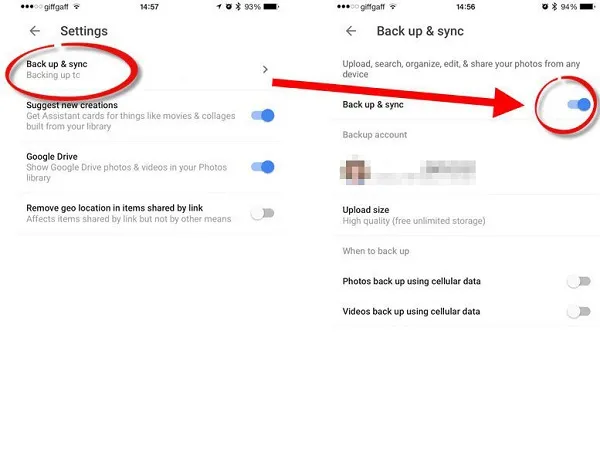
    Back up photos and videos using Google Photos

    Your videos and pictures frequently include priceless memories. To make sure your media files are securely backed up and available on multiple devices, Google Photos offers a quick and safe solution. It’s among the most dependable ways to preserve your graphic information without requiring complicated instruments or extra hardware.

    Google Photos is a robust cloud-based platform that automatically stores and arranges your images and videos, making it more than simply a gallery app. Once activated, it will sync your media to your Google Account continually, so your memories will be preserved even if your device is lost or damaged.

    Steps to back up media:

    1. Open the Google Photos app
    2. Tap your profile icon in the top right
    3. Choose Photos settings > Backup
    4. Toggle Backup to on
    5. Choose your preferred upload size (Storage saver or Original quality)
    google photos enable back upyour Android devices photos and videos

    All your photos and videos will sync to the cloud, and you can access them on any device logged into your Google account.

    Back up files manually to a PC

    Although cloud storage services like Google Drive and Google Photos are convenient, backing up your Android files to a PC by hand offers you more control, privacy, and independence from internet connectivity. It’s a simple process that guarantees you have a hard copy of all of your vital information, including documents, films, images, and more, safely saved on your computer.

    Here’s how:

    1. Connect your Android phone to your PC using a USB cable
    2. On your phone, choose File Transfer / MTP mode when prompted
    3. Open File Explorer on your computer
    4. Locate your device, open it, and navigate to folders like DCIM, Downloads, Pictures, or Documents
    5. Copy and paste the desired files to a safe folder on your PC

    This method is ideal for archiving large files or performing a one-time back up your Android without an internet connection.

    Use Samsung Cloud or manufacturer tools (for Samsung, Xiaomi, etc.)

    Some manufacturers offer their own back up your Android device solutions in addition to Google’s.

    For Samsung users:

    1. Go to Settings > Accounts and backup
    2. Tap Samsung Cloud
    3. Choose what to back up (contacts, calendar, settings, etc.)
    4. Tap Back up now

    You can restore this data to any Samsung device later using the same Samsung account.

    Xiaomi users:

    Use Mi Cloud by going to Settings > Mi Account > Mi Cloud and enabling the backup options available for your account.

    Always ensure you’re connected to Wi-Fi and have enough cloud storage before initiating the process.

    Backup apps like SMS and call logs (optional)

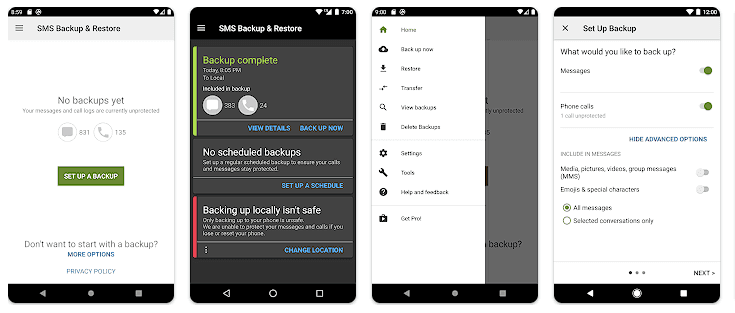
    Most devices now have SMS and call history included in Google’s backup system, but if you have an older phone or want more redundancy, apps like SMS Backup & Restore can give you more flexibility.

    back up your Android

    How to restore your data

    When setting up a new Android phone:

    1. Log in with the same Google account used for backup
    2. During the setup process, Android will detect the backup
    3. Choose what you want to restore—apps, settings, contacts, etc.
    4. Wait for the process to complete; some data may take time to sync

    For manufacturer backups, you’ll need to use the brand-specific restore method (Samsung Cloud, Mi Cloud, etc.).

    Tips for reliable Android backups

    • Always use a stable Wi-Fi connection before backing up
    • Keep automatic backups turned on for peace of mind
    • Occasionally perform a manual backup if you’re making major changes
    • Regularly check if Google Photos is syncing properly
    • For local backups, organize files by folders and label your backups by date

    Back up your Android device is easy and doesn’t require technical expertise. The majority of your crucial data is handled by Google’s reliable, automated solution, but you also have more flexibility with local and manufacturer-specific solutions. Having a backup guarantees that your data is never completely lost, whether you’re changing phones or simply staying secure.

  • How to enable Auracast in Android 16 – audio sharing feature

    How to enable Auracast in Android 16 – audio sharing feature

    While there won’t be any significant UI changes in the impending Android 16 update for Pixel devices, it will finally provide a long-awaited feature: support for Auracast. Devices can initiate or listen to adjacent audio streams thanks to the Bluetooth LE Audio standard’s Auracast functionality, which is the marketing name for broadcast audio. Despite Google’s announcement that the latest Pixel smartphones will support Auracast in Android 16, if you install the beta, the capability is not yet available. Here’s how to turn on Auracast on an Android 16 beta-powered Pixel device.

    To put things in perspective, Google said in March that owners of Pixel 9 devices could receive Auracast broadcasts straight to their hearing aids. The Pixel 9 must be running the Android 16 beta and have LE Audio-compatible headphones in order to use this feature. Google emphasized the accessibility advantages of Auracast, although the capability works with any audio device that can receive LE Audio broadcasts, not only hearing aids.

    Auracast isn’t actually enabled in the current Android 16 Beta 4 version, even though Google previously stated that it will work on Pixel 9 devices running the Android 16 beta. The “Audio Sharing” page was missing from Settings after I factory reset my own Pixel 9 and updated it to this beta. I know how to make this settings page available, but I’m not sure why it’s hidden by default.

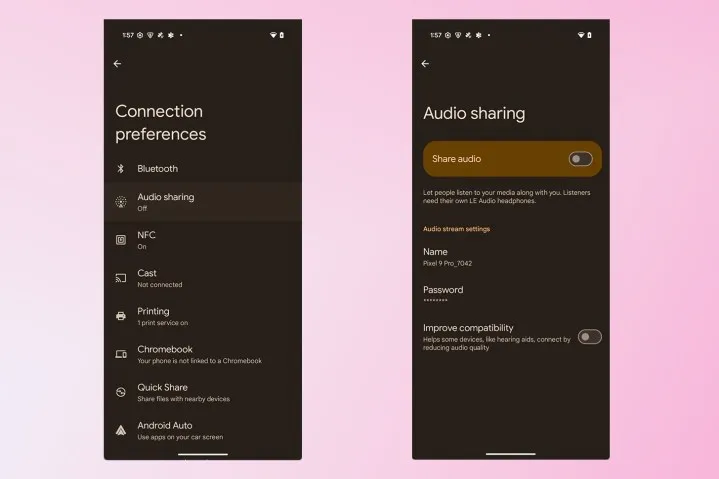
    To activate Audio Sharing on your Pixel device, you need to first enable Developer Options. Then, navigate to Settings > System > Developer options and scroll down until you find “Enable Bluetooth LE Audio Broadcast UI preview.” Toggle this setting on, and then reboot your phone. Once your phone boots back up, go to Settings > Connected devices > Connection preferences, where you’ll find the “Audio sharing” page.

    By connecting a headset that supports Auracast and turning on the “share audio” feature from this page or the Bluetooth panel, you can now begin an audio broadcast. You can set a password for your broadcast to keep undesirable listeners from joining. Tap the “find an audio stream” option to look for streams in your area if you would prefer to listen in on a broadcast.

    Auracast audio sharing

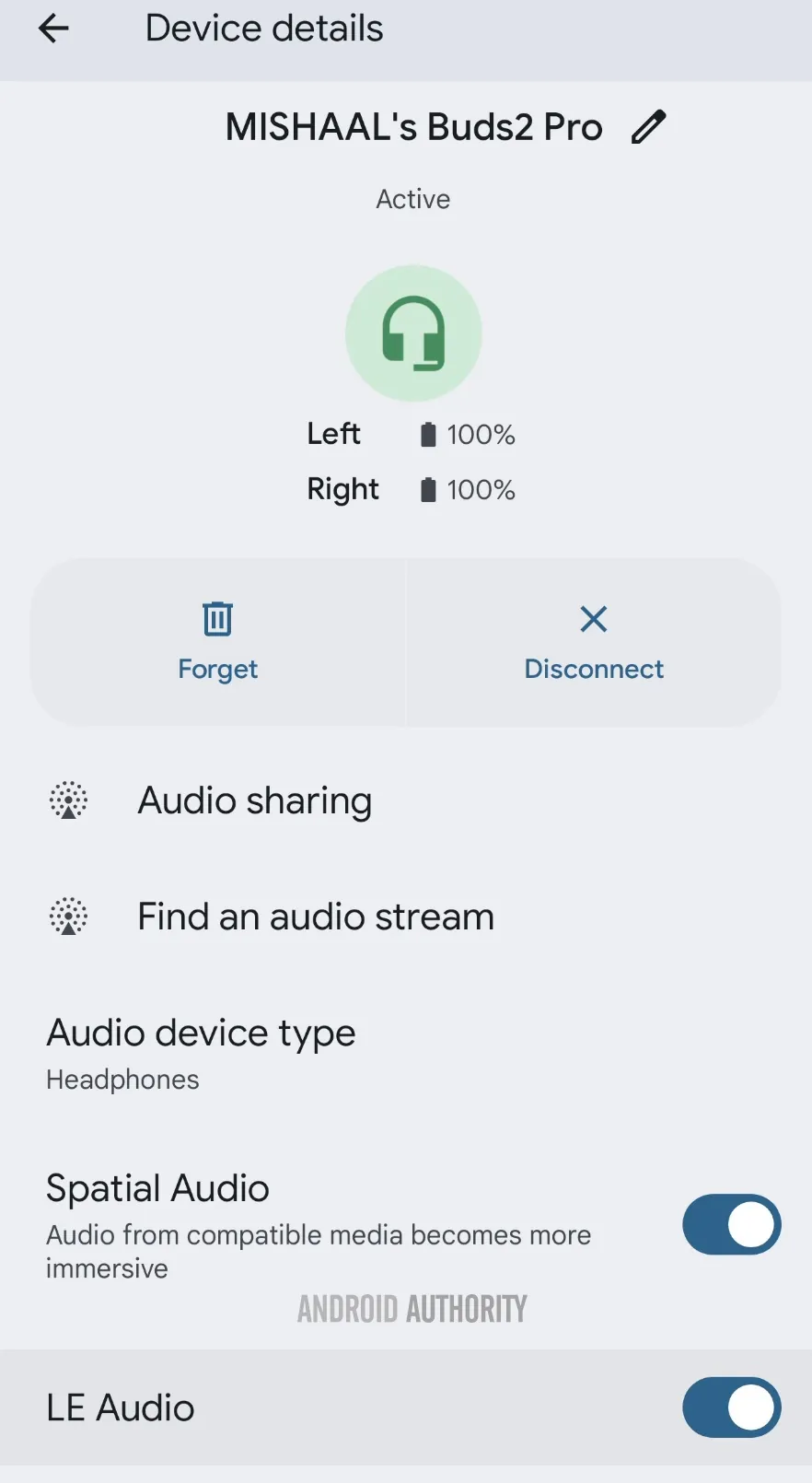
    Make sure Bluetooth LE Audio is turned on for that particular device if Android still prevents you from starting or listening to adjacent broadcasts even when you have an Auracast-capable audio device connected. You may need to manually activate LE Audio via the Bluetooth device details page for a lot of audio items. As an alternative, you can compel Android to automatically enable Bluetooth LE Audio for any compatible audio device by turning on the “bypass Bluetooth LE Audio Allowlist” toggle in Developer Options.

    Bluetooth device details page for LE Audio capable earbuds.jpg

    Finally, your Pixel device does not support Auracast if you do not see the “Enable Bluetooth LE Audio Broadcast UI preview” toggle in Developer Options. At the moment, the Pixel 8, Pixel 8 Pro, Pixel 9, Pixel 9 Pro, Pixel 9 Pro XL, and Pixel 9 Pro Fold are compatible with Auracast.

    This toggle won’t show up for devices like the Pixel 7 series, Pixel Tablet, Pixel Fold, Pixel 8a, and Pixel 9a, even though they theoretically support Bluetooth LE Audio. However, they don’t support Auracast. Since the Pixel 6 series does not support LE Audio, it does not meet the requirements to use Auracast and will not display the toggle.

    Remarkably, the most recent stable version of Android 15 for Pixel smartphones with Auracast support does have the “Enable Bluetooth LE Audio Broadcast UI preview” button. Accordingly, installing the Android 16 beta is not strictly required in order to utilize the Audio Sharing feature. You might anticipate that Audio Sharing would be enabled by default in the Android 16 beta, given Google’s announcement, but it might not be the case with the next stable release of Android 16. Google is anticipated to release the stable Android 16 version next month, so we’ll have to wait and see.

  • 10 settings you need to change to improve your Pixel experience

    10 settings you need to change to improve your Pixel experience

    While Pixel phones offer many beneficial features by default, altering these specific settings can drastically affect The Google Pixel 9a could be the best-value phone of 2025, especially now that it has flagship-level AI capabilities, a dazzling 120Hz display, and a large battery at a more inexpensive price. However, like with every Pixel phone, the most useful functions are frequently disabled by default.

    These suggestions are for a Pixel 9a running Android 15. The specific menu locations may differ slightly depending on the Pixel model and Android version you’re using, but the settings are broadly available throughout recent Pixel generations.Enhance your user experience.

    Use smooth display

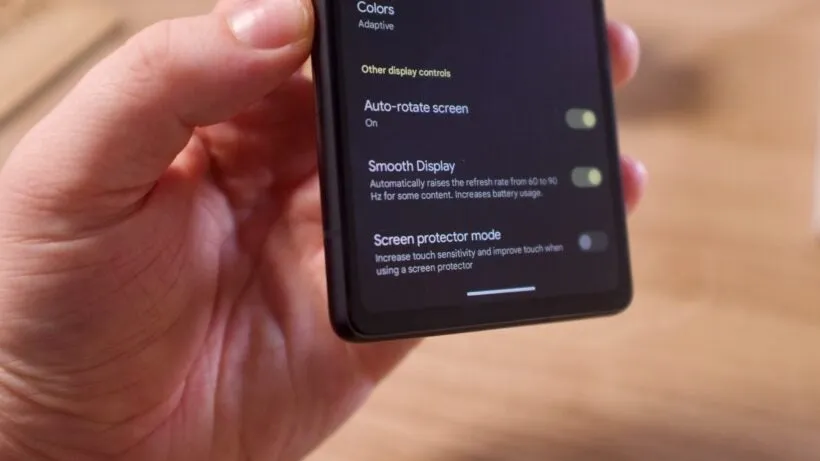
    Pixels continue to ship with a dazzling Actua 120Hz OLED panel, which is set to a more cautious 60Hz by default. It’s fine for battery conservation, but if you prefer buttery-smooth scrolling and animations that showcase the screen’s full capability, enable Smooth Display.

    pixel smooth display

    Go to Settings > Display > Smooth Display and turn it on. You’ll notice an immediate improvement in responsiveness when scrolling through social networks or navigating the UI.

    Use “At a Glance”

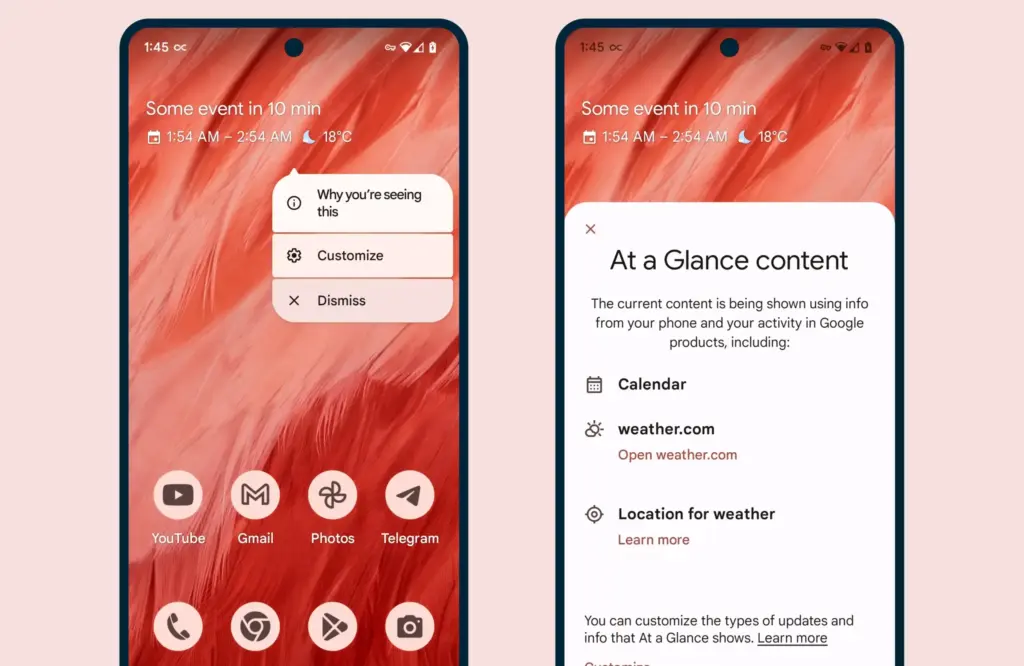
    When you enable the Pixel’s smart widgets, the lock screen may transform into a small command center. At a Glance displays travel information, weather alerts, calendar events, and more.

    at a glance

    All of this happens via the Pixel Launcher. Tap and hold any available space on the home screen, then pick Home settings, followed by the At a Glance settings button. There, you may control what kind of information display and what data sources it uses (with your permission, of course).

    As an added bonus, the At a Glance widget on your home screen will display this information, increasing your chances of receiving notifications and updates.

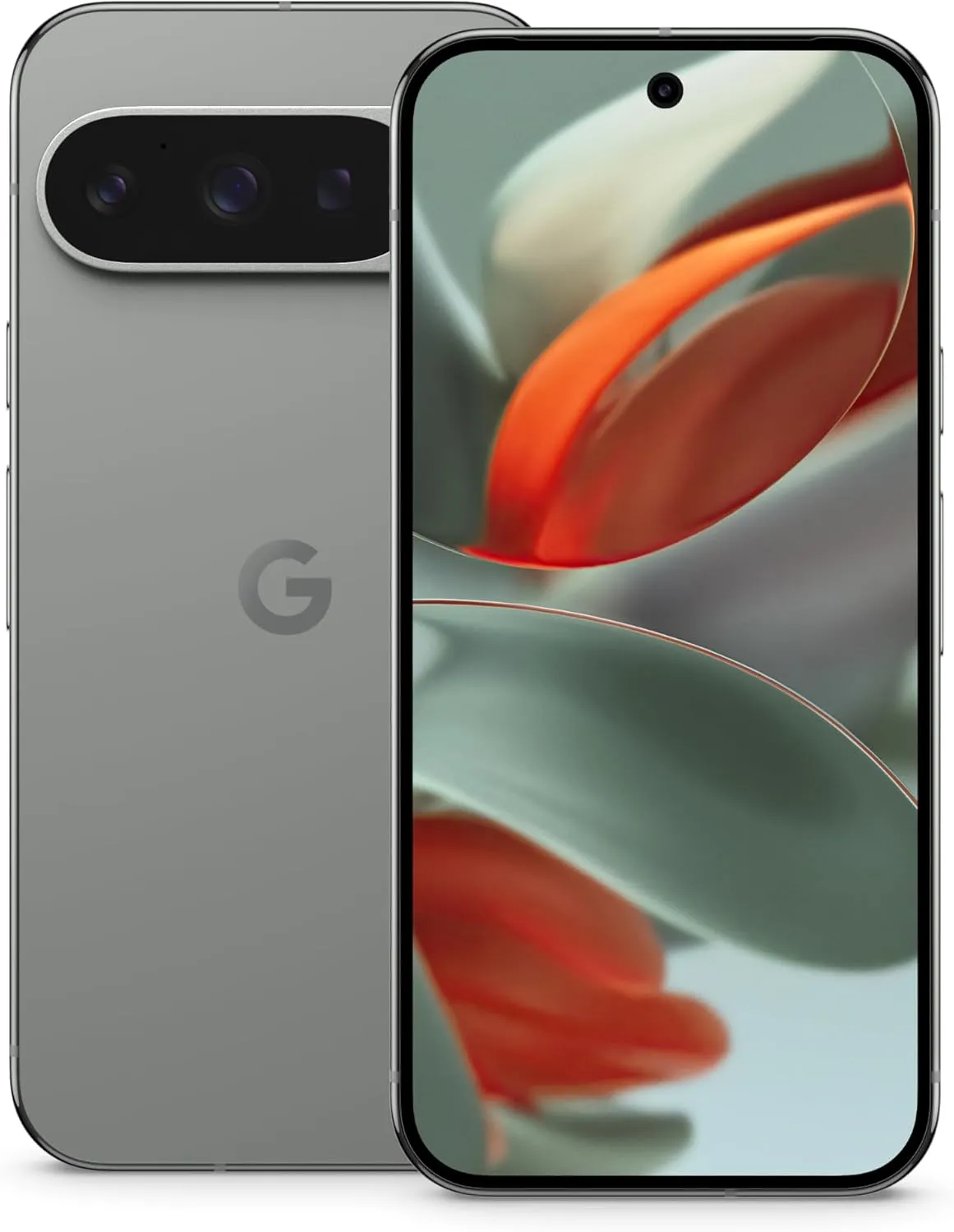
    Pixel 9 pro

    Google Pixel 9 Pro

    Pixel 9 Pro with Gemini is the most powerful Pixel yet, and now comes in two sizes; it has a pro-level camera and it’s engineered by Google, so it gets the best of Google AI first

    $999$799Amazon

    Use caller ID and spam ID to save your time

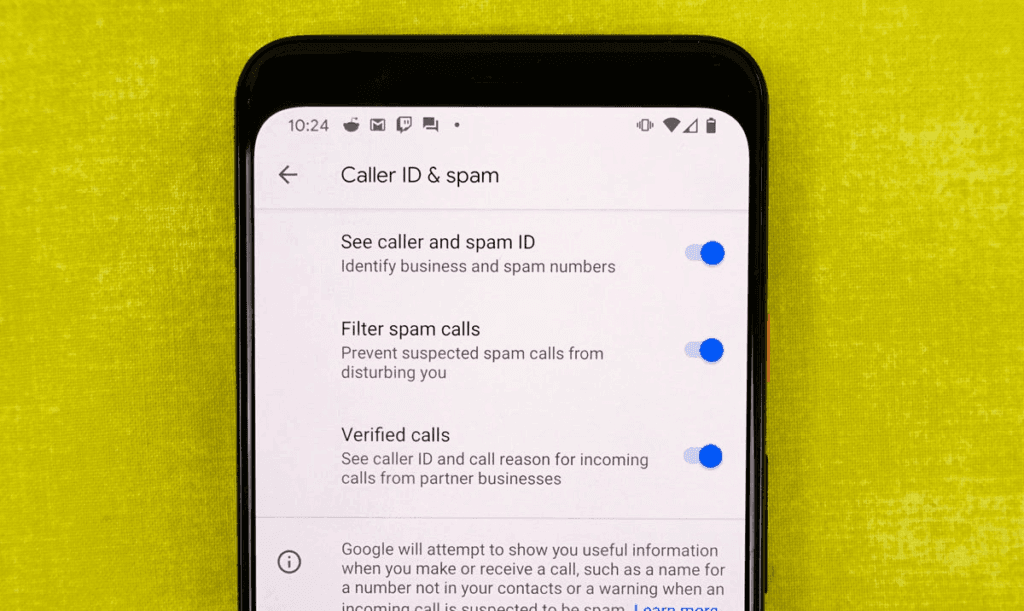
    Pixel phones actively filter out spam and unrecognized numbers. Google’s Caller ID and Spam feature detects robocalls and other unwanted calls before you answer.

    caller ID and spam ID

    Open the Phone app and navigate to Settings > Caller ID and Spam. Enable See caller and spam ID, and incoming calls will have a vivid red alert that cannot be ignored. If your Pixel has the option to filter spam calls, I recommend turning it on, as this prevents those calls from ringing your phone and instead sends them directly to voicemail.

    Dismiss notifications across Pixel devices

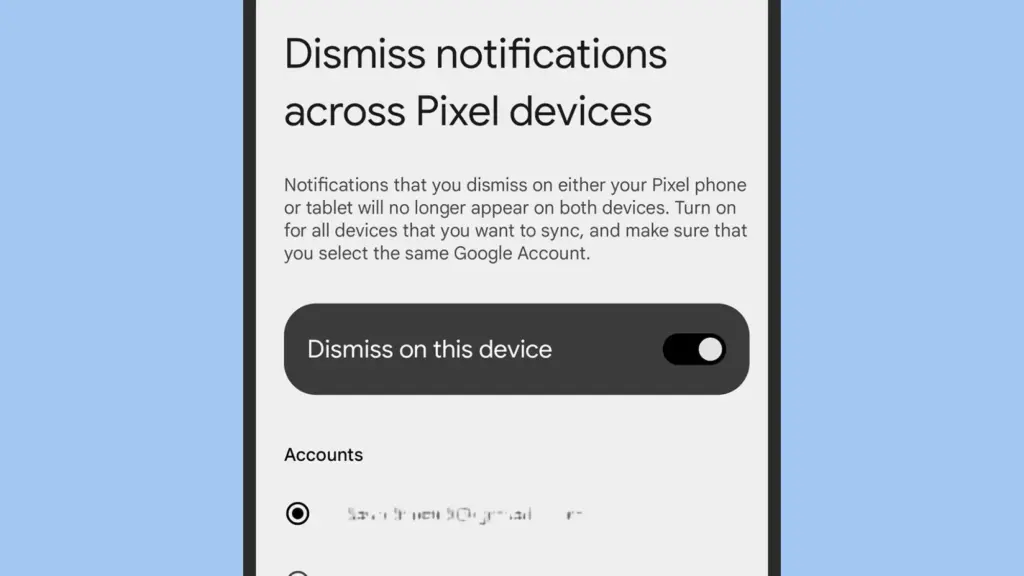
    This one is for the Pixel fanatics out there. If you have multiple Pixel devices signed in with the same Google account, you can sync notification dismissals between them.

    Dismiss notifications across Pixel devices

    Go to Settings > Notifications > Dismiss notifications from all Pixel devices. Toggle Dismiss on this device, grant notification access, and select the apps you wish to sync. Repeat the process on all of your Pixel devices to ensure that you never see the same notice twice.

    Enable app suggestions on the home screen

    The Pixel Launcher may provide app suggestions based on personal information such as location, time of day, and usage habits.
    android app suggestion

    Tap and hold an available space on the home screen to access Home Settings > Suggestions. Enable Suggestions on Home Screen, then remove at least one static symbol from the bottom row of your Home Screen. That location will turn yellow and begin to change dynamically based on usage trends. You may even do this on the entire row if you like.

    Increase battery life using Adaptive Battery and Extreme Saver.

    Pixels already have a long battery life, but Google’s battery-saving features extend it much further. Adaptive Battery learns which apps you use the most and reduces power to the others. Extreme Battery Saver turns down non-essential apps to save power for days.

    Enable both under Settings > Battery > Battery Saver > Adaptive Battery and Battery Saver > Extreme Battery Saver. You can also set schedules so that they activate automatically when needed.

    Use Pixel Quick Tap feature

    The Pixel’s Quick Tap function allows you to double-tap anywhere on the phone’s back to perform customized actions, but it is not activated by default. You can configure it to start the camera, take a screenshot, pause music, or open your preferred app.

    Go to Settings > System > Gestures > Quick Tap, then enable it and select your chosen shortcut. Mine is set to toggle the flashlight, which is quite useful.

    Enhance Now Playing on your lockscreen

    Now Playing is a great tool that automatically recognizes songs that are playing around you. The phone displays that information on your lock screen in a passive manner. Even though the database is remarkable and entirely on-device, it cannot identify every song out there. This is where Google Search comes in.

    636427227765739451 742d249ba0

    Go to Settings > Display > Lock Screen > Now Playing and select Identify Songs Playing Nearby. Then, enable the Show search button on Lock Screen. The next time Now Playing fails, hit the lock screen icon to transmit the audio fingerprint to Google Search for a second viewpoint. It does not always work, but when it does, you will be glad you tried.

    Change your lock screen privacy settings

    By default, notifications appear on your lock screen, so others may view your messages. I always change this option on my new devices.

    Go to Settings > Notifications and turn Sensitive notifications off. This keeps the sender and app visible while hiding the message contents. To ensure utmost privacy, go to Notifications on the lock screen and select Don’t show any notifications.

    Make use of Live Translate and Interpreter Mode

    Tensor-powered Pixels offer offline translation tools. Live Translate enables you to automatically translate text messages in real time.

    pixel 6 live translate

    Go to Settings > System > Live Translate, then Add a language. Depending on your choices, you’ll have access to services such as in-message translation, camera view translation, and live captioning for videos. Interpreter mode still requires Google Assistant, which is becoming less important now that Gemini has taken over.

    Google Pixel 9 Pro XL
    $1,099.0$899.00Amazon
    Google Pixel 9 Pro
    $999.00$799.00Amazon
    Google Pixel 9
    $799.00$599.00Amazon
    Google Pixel 9a
    $499.00Amazon

    A few small changes can help your new Pixel feel faster, smarter, and more personal. Whether this is your first Pixel or you’ve lost count by now, taking the time to explore these options unlocks some of the best of what Google has to offer.

  • May Android security update available for Pixel devices

    May Android security update available for Pixel devices

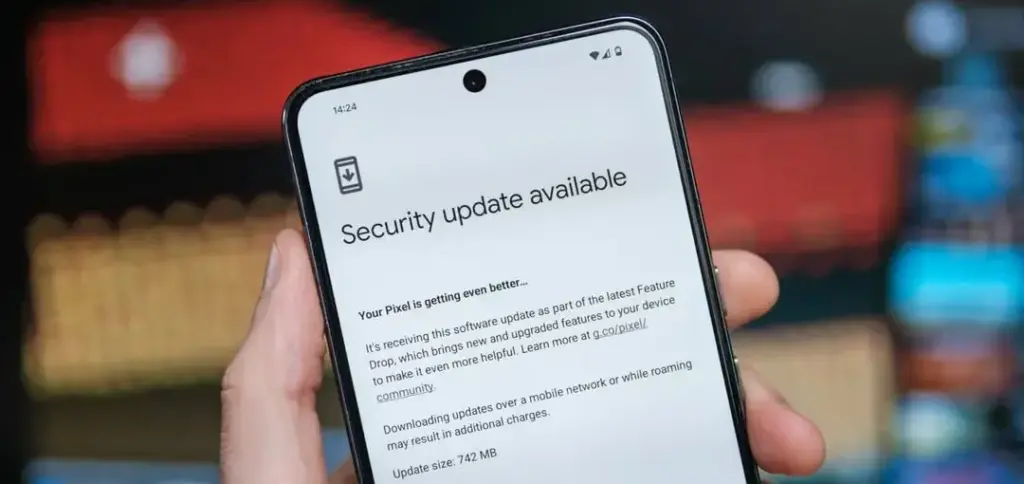
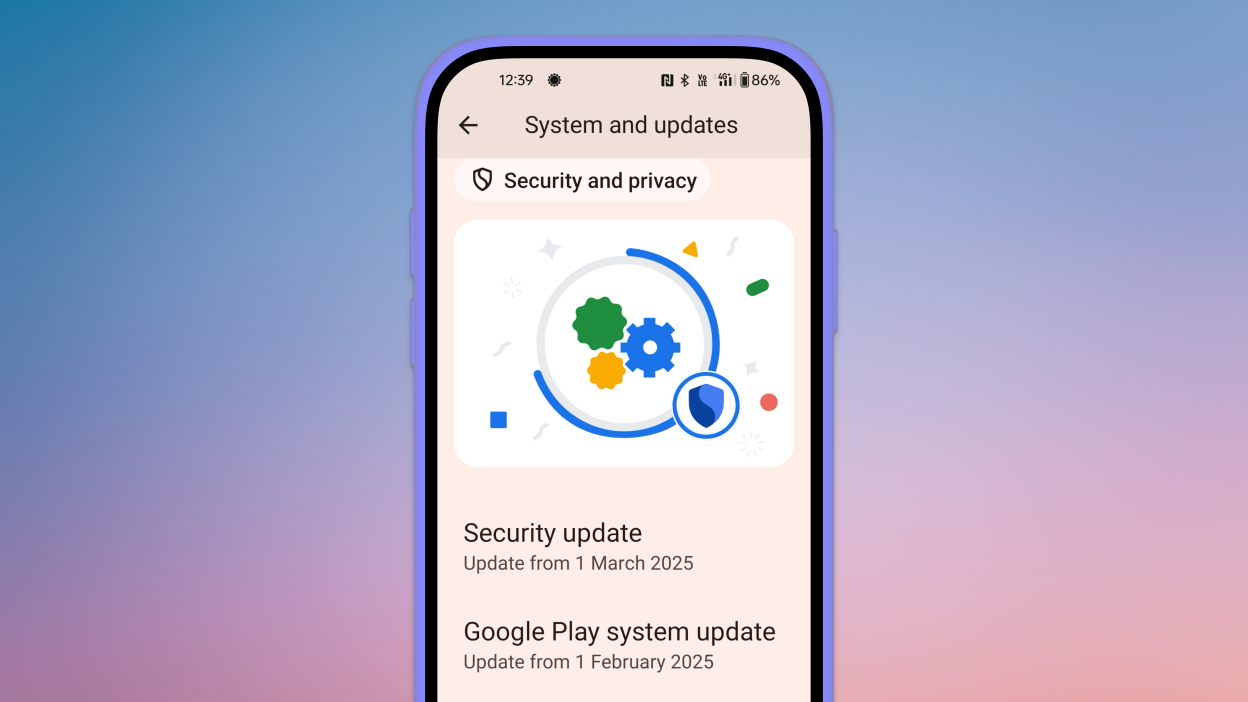
    Given that Google is probably going to release stable Android 16 at Google I/O in a few weeks, I had a sneaking suspicion that we would not see the customary May Android 15 security update for Pixel devices. That aspect of me was incorrect because Google released the May 2025 Pixel update today.

    The list of devices receiving the May Pixel update includes the Pixel 6 and 6 Pro, Pixel 6a, Pixel 7 and 7 Pro, Pixel 7a, Pixel 8 and 8 Pro, Pixel 8a, Pixel Fold, and Pixel Tablet, as well as the Pixel 9, Pixel 9 Pro, Pixel 9 Pro XL, and Pixel 9 Pro Fold. The Pixel 9a is seeing a fresh update as well.

    monthly pixel security update

    According to Google, the May update will start to roll out today and should continue to do so in stages throughout the course of the following week. Your carrier – whether it is Verizon, AT&T, T-Mobile, or prepaid like Google Fi – often determines the date.

    Below is the list of the May Android update builds for your particular Pixel smartphone, broken down by worldwide, country, and carrier.

    Global

    • Pixel 6:               BP1A.250505.005
    • Pixel 6 Pro:        BP1A.250505.005
    • Pixel 6a:             BP1A.250505.005
    • Pixel 7:               BP1A.250505.005.B1
    • Pixel 7 Pro:        BP1A.250505.005.B1
    • Pixel 7a:             BP1A.250505.005.B1
    • Pixel Tablet:       BP1A.250505.005
    • Pixel Fold:          BP1A.250505.005.B1
    • Pixel 8:               BP1A.250505.005.B1
    • Pixel 8 Pro:        BP1A.250505.005.B1
    • Pixel 8a:             BP1A.250505.005.B1
    • Pixel 9:               BP1A.250505.005
    • Pixel 9 Pro:        BP1A.250505.005
    • Pixel 9 Pro XL:   BP1A.250505.005
    • Pixel 9 Pro Fold: BP1A.250505.005
    • Pixel 9a:              BD4A.250505.003

    Taiwan+EMEA

    • Pixel 9:                 BP1A.250505.005.A1
    • Pixel 9 Pro:          BP1A.250505.005.A1
    • Pixel 9 Pro XL:    BP1A.250505.005.A1
    • Pixel 9 Pro Fold: BP1A.250505.005.A1

    Verizon

    • Pixel 9:                 BP1A.250505.005.D1
    • Pixel 9 Pro:          BP1A.250505.005.D1
    • Pixel 9 Pro XL:    BP1A.250505.005.D1
    • Pixel 9 Pro Fold: BP1A.250505.005.D1

    Deutsche Telekom

    • Pixel 9:                 BP1A.250505.005.C1
    • Pixel 9 Pro:          BP1A.250505.005.C1
    • Pixel 9 Pro XL:    BP1A.250505.005.C1
    • Pixel 9 Pro Fold: BP1A.250505.005.C1

    2025 May Pixel Update Bug Fixes

    Regarding bug patches, Google has made three significant adjustments that affect all Pixel devices that are still supported. Google is fixing issues with quick settings, Bluetooth, and audio.

    Audio

    • Fix for degraded microphone recording quality in certain apps

    Bluetooth

    • Fix for Bluetooth pairing issues with certain smartwatches under certain conditions

    Framework

    • Fix for secondary language displayed in quick settings under certain conditions

    Again, Google (and its carrier partners like Verizon, T-Mobile, and AT&T) will begin pushing these updates over-the-air shortly (Settings>System>System update), but if you don’t want to wait for Google and prefer to update manually, you will soon find each factory image or OTA file at the links below.

  • How to create secure folders on any Android device

    How to create secure folders on any Android device

    Android users are particularly concerned about privacy and data safety, especially when saving sensitive files, images, or papers. Whether you are concerned about someone peeking through your gallery or want to protect business-related content, Android has built-in security features that do not require third-party apps.

    This guide describes how to use secure folders and app-based file protection features on several Android devices, including Samsung, Google Pixel, and more.

    What is a secure folder

    A secure folder is a safe location on your Android smartphone where you can keep programs, files, and media separate from the main user interface. Access requires authentication (PIN, pattern, or fingerprint), ensuring that only you can open it. When data is moved to a safe folder, it is rendered invisible in conventional folders and apps such as Google Photos or File Manager.

    Samsung’s Secure Folder is the best-known example, however other manufacturers provide comparable functionality.

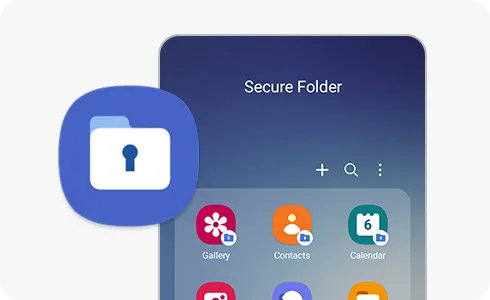
    How to use Secure Folder on Samsung Galaxy devices

    Samsung offers a native solution called Secure Folder, available on most devices running One UI:

    samsung secure folder
    1. Enable Secure Folder:
      • Go to Settings > Security and privacy > Secure Folder.
      • Sign in to your Samsung account if prompted.
      • Set your preferred lock method (PIN, password, or biometric).
    2. Add apps or files:
      • Open the Secure Folder app from your app drawer.
      • Tap Add apps to duplicate apps like Gallery, Notes, or Email.
      • Tap Add files to move photos, videos, or documents from regular storage.
    3. Access and manage your folder:
      • Secure Folder functions as a sandbox. Files here do not interact with the rest of your phone.
      • Notifications from apps inside Secure Folder can be hidden.
      • You can even hide the Secure Folder icon for additional privacy.

    Samsung’s Secure Folder is protected by Samsung Knox, ensuring hardware-based encryption.

    How to create secure folders on Google Pixel (and stock Android)

    secure folder on Google Pixel

    Google Pixel and stock Android phones don’t include a “Secure Folder” app like Samsung, but there are still options:

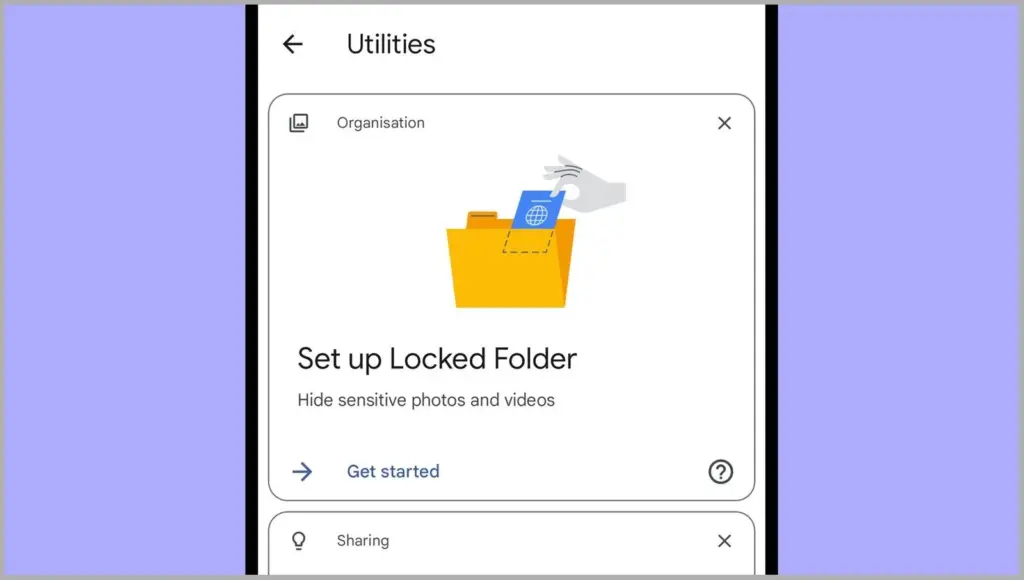
    1. Use Files by Google – Safe Folder

    Files by Google includes a Safe Folder to protect sensitive files.

    • Open the Files by Google app.
    • Tap Browse, then scroll to Collections > Safe folder.
    • Set up a 4-digit PIN when prompted.
    • Move any files (photos, documents, videos) into the Safe Folder for encryption and restricted access.

    Limitations:

    • No secure app duplication.
    • Cannot protect entire apps—only individual files.

    2. Use screen pinning or app lock (if supported)

    On Pixel phones, you can use screen pinning to lock a specific app:

    • Go to Settings > Security > Advanced > Screen pinning.
    • Turn it on and set it to ask for unlock credentials.

    When enabled, you can lock an app to the screen and prevent switching until your PIN or fingerprint is entered.

    Secure folder alternatives for OnePlus, Xiaomi, Vivo, and Realme

    Many Android OEMs offer their own version of secure folder functionality:

    • OnePlus (App Lock & Hidden Space):
      • Go to Settings > Utilities > App lock to lock apps.
      • Use Hidden Space (swipe right in the app drawer) to hide apps or files from plain view.
    • Xiaomi (Second Space or App Lock):
      • Second Space lets you create a full-profile clone for private use.
      • App Lock in Settings lets you password-protect apps and media.
    • Vivo/Realme:
      • Use File Safe or Private Safe under Security settings.
      • This lets you encrypt and store sensitive files securely.

    Each of these tools serves a similar purpose: creating a private area for your data and apps that only you can access.

    When should you use a secure folder

    Secure folders are ideal for:

    • Storing sensitive photos, work files, or legal documents
    • Keeping personal messages or notes private
    • Isolating apps with private data
    • Creating a private profile for shared phones or kids

    If your phone is shared, stolen, or accessed without your knowledge, a protected folder provides an additional layer of security.

    Android provides numerous options to protect your most sensitive data, with secure folders ranking among the best built-in solutions for the purpose. Whether you use Samsung’s powerful Secure Folder, Google’s Safe Folder, or manufacturer-specific features, these solutions offer true privacy without the need to install third-party apps. To protect your digital life, ensure that they are correctly configured and that you use a strong authentication technique.

  • 4 best smartwatches for Android phones

    4 best smartwatches for Android phones

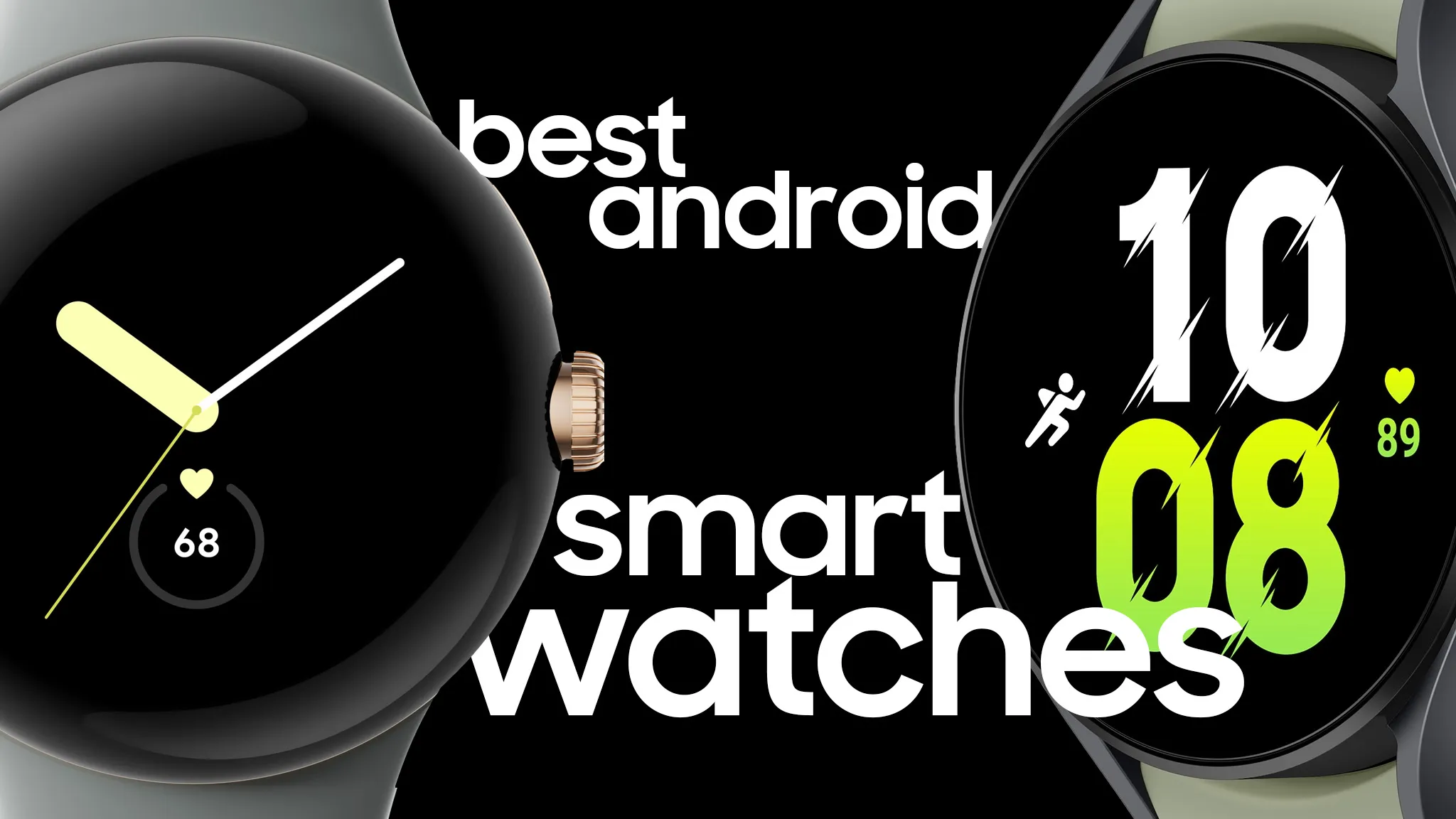
    Your phone allows you to answer calls, make and receive texts, and give commands to a voice-activated assistant. But sometimes it is more convenient to perform those things on your wrist, which is where a smartwatch comes in.

    The Apple Watch is the gold standard for smartwatches, but it is only compatible with Apple iPhones. If you own an Android phone, you have a lot more smartwatch alternatives, but there is also a lot more opportunity for misunderstanding. Most of the watches we have seen are too slow, cumbersome, or lacking in functionality to be worthwhile purchases. After testing hundreds of smartwatches for Android phones, including the most recent versions, we determined that the Samsung Galaxy Watch7 is the best option for the majority of Android phone users.

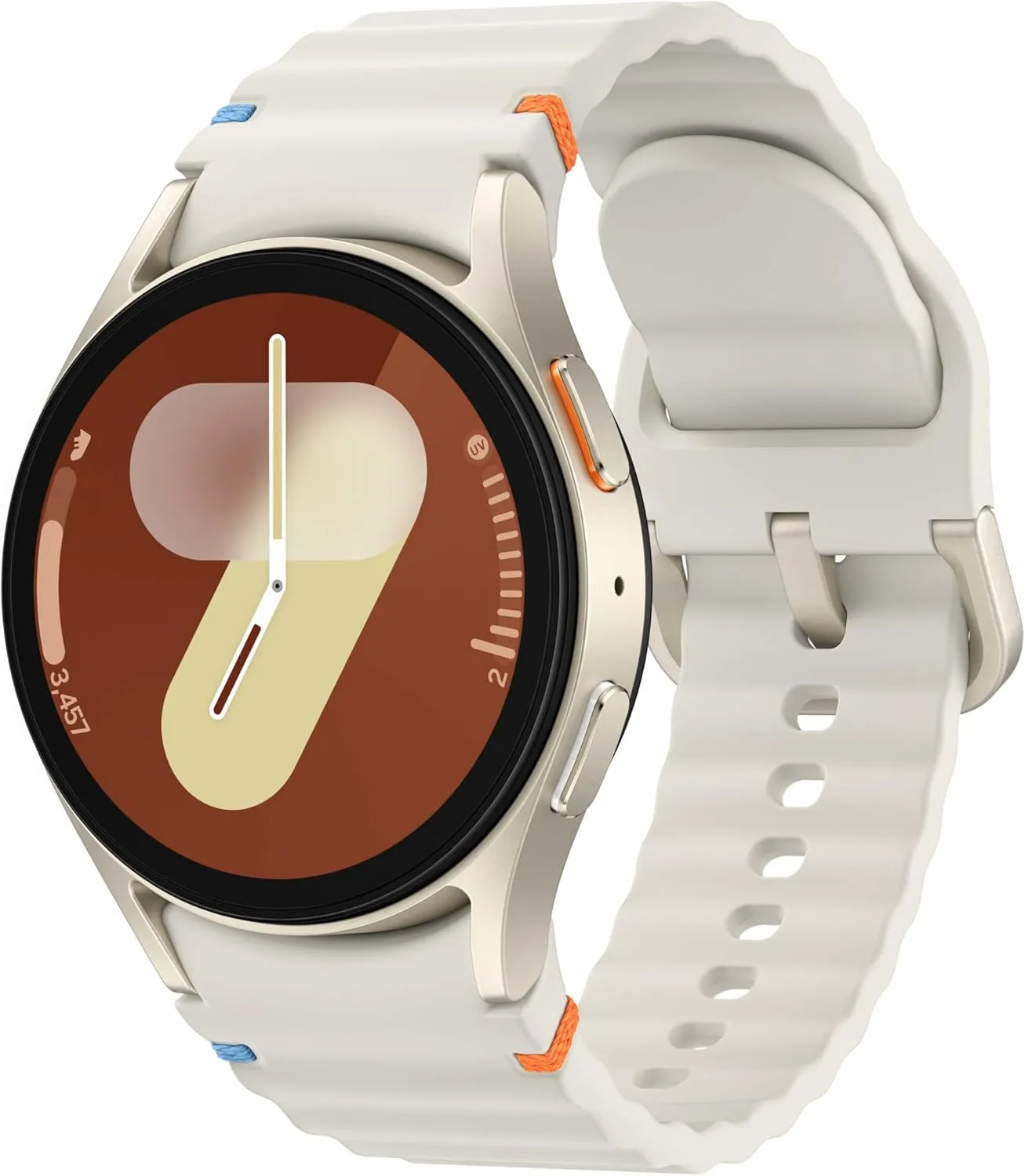
    SAMSUNG Galaxy Watch 7

    Samsung Galaxy Watch7

    Looking for a great way to bring out your personal best every day? Challenge yourself to excel on your next run or bike ride using tracking with Galaxy AI that lets you compare your current performance to your last one

    Best choice
    $299.99$209.99Amazon

    The Samsung Galaxy Watch7‘s robust shell comes in two sizes and is one of the most comfortable watches we have tested. The Watch7 runs the most recent Wear OS software and includes additional health and fitness capabilities such as sleep apnea detection, metabolic health monitoring, and an AI-based Energy Score that combines workout and sleep information. You can also use your fingers to engage with some watch features without touching the screen. Unfortunately, like its predecessor, the battery only lasts one day and requires hours to fully recharge.

    pixel watch 3 closeup

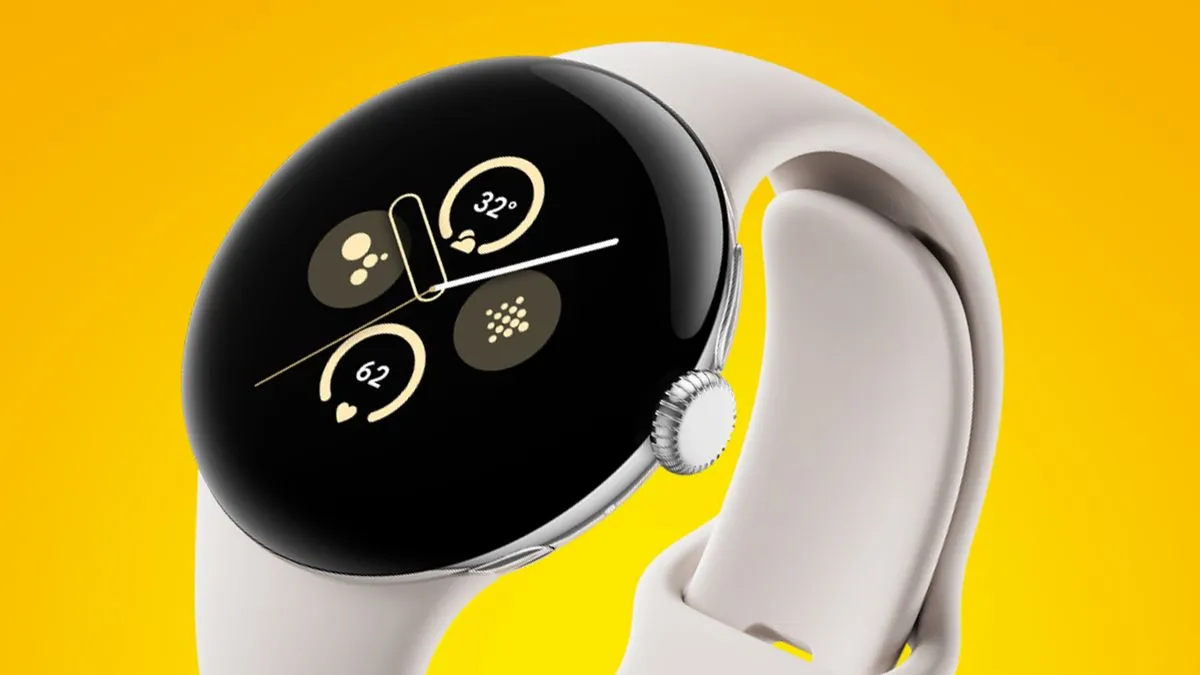
    Google Pixel Watch 3

    The Google Pixel Watch 3 is designed for performance, with advanced fitness from Fitbit; the 45mm screen is twice as bright and 40% larger than before, making it easier to see your stats and info

    Very good choice
    $399.99$349.99Amazon

    The Google Pixel Watch 3 looks similar to the original Pixel Watch, but with slimmer bezels. The 41 mm and 44 mm variants have equal features, but the 44 mm watch has a longer-lasting battery. The Pixel Watch 3 has a new OLED display that can reach up to 2,000 nits of peak brightness. It also runs the most recent version of Google’s Wear OS 5, which includes additional health-related functions and improved connection with Google’s ecosystem. It retains the previous version’s unique band connector, which is only compatible with the bands provided by Google.

    oneplus 2

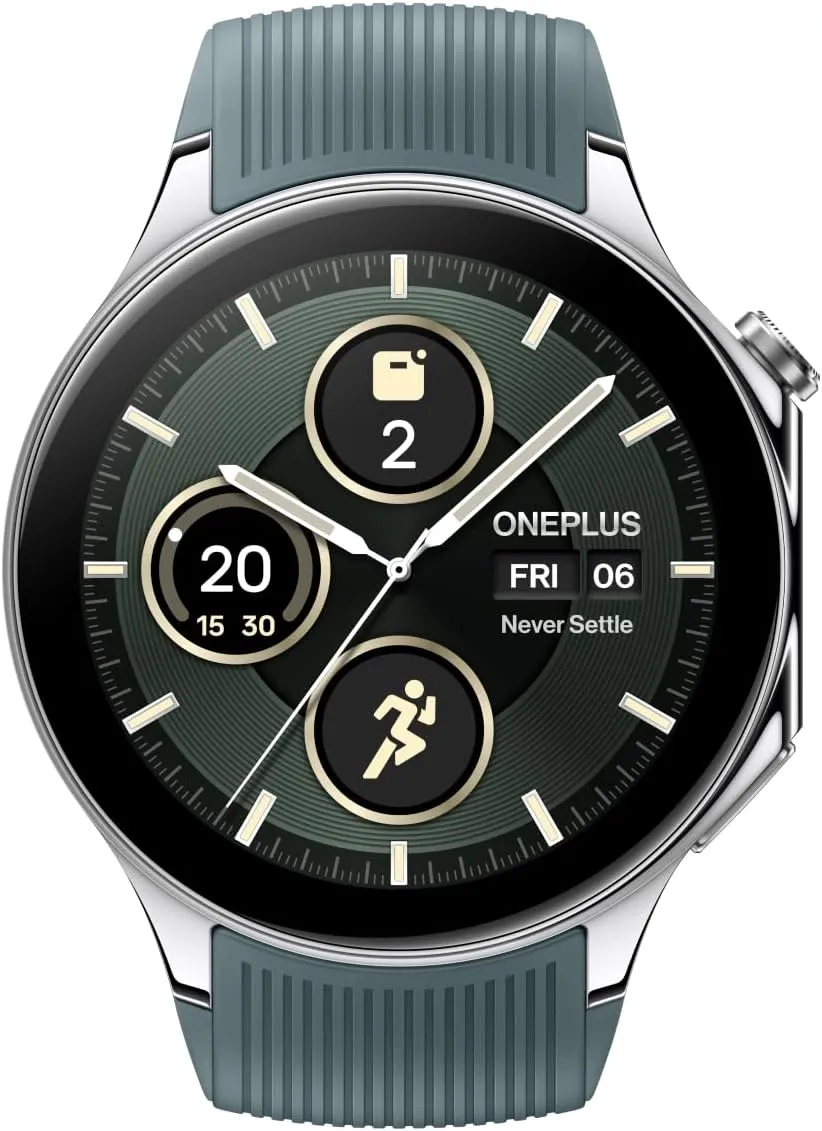
    OnePlus Watch 2R

    The OnePlus Watch 2 fuses a stainless-steel chassis with a robust 2.5D sapphire crystal face, delivering a sophisticated design that withstands daily wear and tear with a 5ATM and IP68 rating, and military-grade standard for durability.

    Good choice
    $299.99$209.99Amazon

    The OnePlus Watch 2R may last many days on a single charge while also providing important health tracking—all at an inexpensive price. Its 46 mm shell houses a big 1.43-inch OLED display with a maximum brightness of 1,000 nits, and it runs a hybrid system made up of two chips and two software setups, including Google’s Wear OS 4 and Google Assistant.

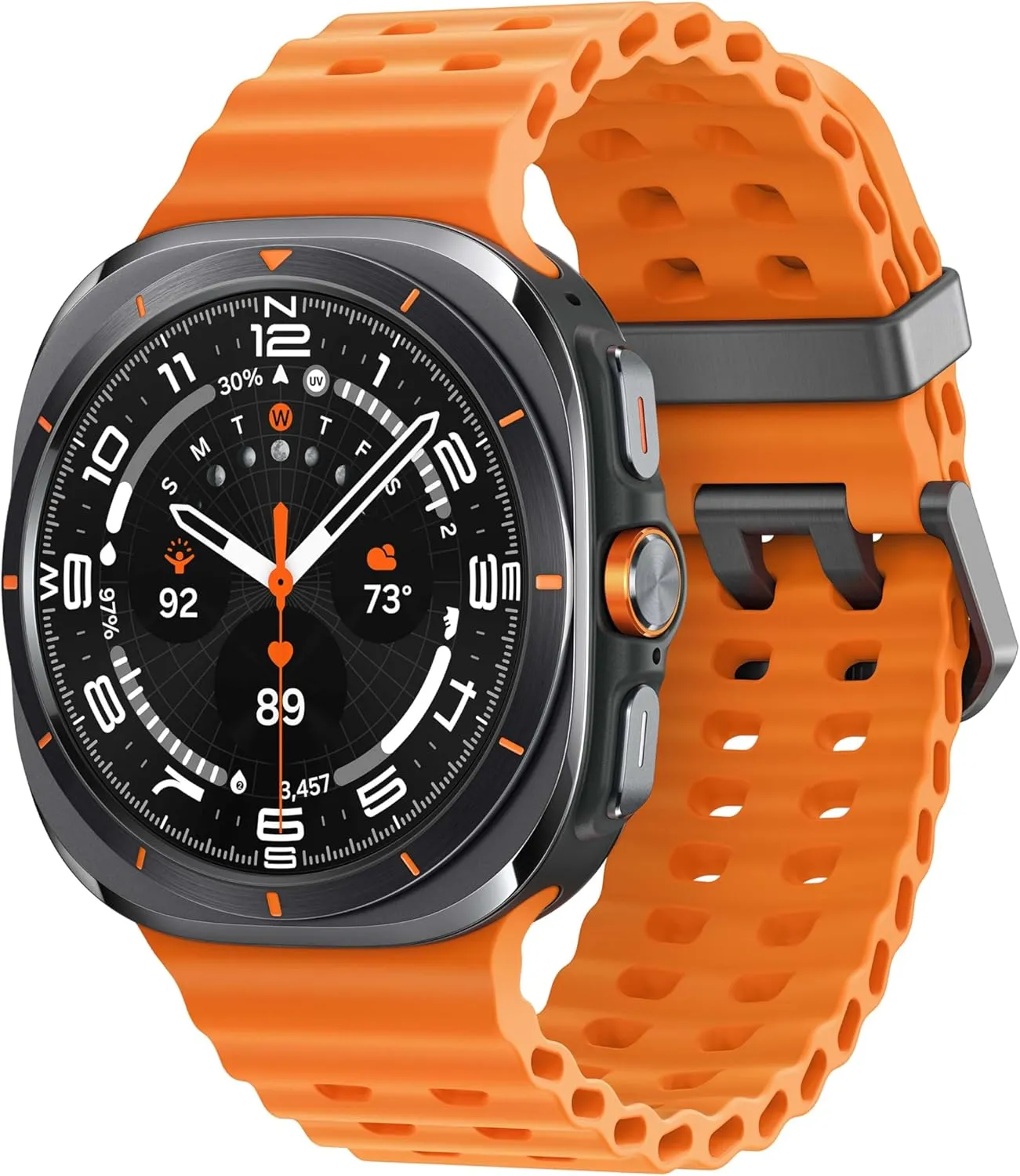
    galaxy watch ultra

    Samsung Galaxy Watch Ultra

    The Watch Ultra sports a huge 47 mm titanium body with a display that can reach up to 3,000 nits of peak brightness, making it easier to see your screen even in the darkest of nights and brightest of days.

    $390.00$291.00Amazon

    The Samsung Galaxy Watch Ultra incorporates a few extra capabilities than the Watch7 into a larger, more robust smartwatch. It offers fitness monitoring for triathletes, bikers, swimmers, and strong endurance users, with twice the battery life of the Watch 7. Many people are put off by its large size, heavy weight, and high price, but the features and battery life may be worth the premium.

  • #dealalert – buy now Google Pixel Watch 2 with 40% off

    #dealalert – buy now Google Pixel Watch 2 with 40% off

    Avoiding the newest models of consumer electronics, such as cellphones, headphones, or Bluetooth speakers, is a terrific method to save money. Purchase the prior model at a reduced price. For example, take a look at this: the Google Pixel Watch 2 fitness smartwatch is currently on sale for just $150, which is its lowest price ever. That is $250 cheaper than the list price of the Google Pixel Watch 3 and $100 less than its list price.

    pixel watch 2

    Google Pixel Watch 2

    The Pixel Watch 2 comes with three new advanced sensors for heart rate tracking, skin temperature, and stress management; 100% recycled light aluminum housing makes it comfortable to wear

    Best choice
    $249.99$149.99See It

    The Google Pixel Watch 2 strikes a mix between functionality and style. Although it comes in a wide range of vibrant hues, the gold case with the hazel band, the silver case with the bay blue band, and the silver case with the porcelain band are the only ones eligible for the $100 savings that are currently in effect. Fortunately, all three of these appear excellent.

    These costs apply to models that are Wi-Fi only. There is good news if you were expecting to get an LTE model so you could put your phone away while working out. Additionally, several of those models are now only $200. The Google Pixel Watch 2 LTE model is available on Amazon in the following case styles: silver with the bay blue band, gold with the hazel band, black with the obsidian band, and silver with the porcelain band. Therefore, you will need to purchase the LTE model if you wanted it in black.

    pixel watch 2 features
    pixel watch 2

    Google Pixel Watch 2

    The Pixel Watch 2 comes with three new advanced sensors for heart rate tracking, skin temperature, and stress management; 100% recycled light aluminum housing makes it comfortable to wear

    Best choice
    $249.99$149.99See It

    The watch serves as your personal fitness coach by utilizing Google AI. Depending on your objectives, running history, and level of readiness each day, it can suggest running exercises. As you follow these suggestions, you will see an immediate improvement in your running performance as you get more comfortable covering greater distances at faster speeds. You may even create your own runs that include pace training, cooldowns, and warmups. You can track your PRs as you repeat your exercises and access the ones you have saved.

    The battery lasts a long time. You can use the watch continuously for up to 24 hours with the always-on display. Additionally, it just takes 75 minutes to charge from a dead watch to full power for the day.

  • How to check for Android updates manually – don’t miss crucial features & fixes

    How to check for Android updates manually – don’t miss crucial features & fixes

    Software updates are vital for keeping your Android smartphone secure, efficient, and compatible with the most recent apps. However, many users disable auto-updates, either to save data or to avoid unpleasant modifications. What is the good news? You can still manually check for and apply updates, rather than waiting for a system prompt.

    In this extensive article, we will teach you how to manually check for Android system updates across many brands and what to do if no update appears – even if you assume one is available.

    Why Android updates matter

    There are several good reasons to check for Android updates manually:

    1. Get Critical Security Patches Faster

    Waiting for the automatic update prompt could expose your phone to known exploits. Manually checking allows you to keep ahead of security issues by ensuring that your device always has the most recent patch.

    2. Access New Features Early

    Android upgrades frequently include new interface modifications, battery optimizations, and system features. Manual updates allow you to try the latest enhancements as soon as they are published.

    3. Fix Device Glitches or Bugs

    Some updates contain stability fixes for specific devices. If your phone has been behaving up, a system update may fix crashes, poor performance, or connectivity issues.

    4. Ensure App Compatibility

    Many apps now require the latest Android versions to function properly. Without regular upgrades, your favorite apps may cease to function or lose essential features.

    Check for updates via settings (standard Android)

    This is the most common way to check for updates on Android, regardless of the manufacturer.

    Steps:

    1. Open your device’s Settings.
    2. Scroll down and tap on System.
    3. Tap Software Update or System Update (name may vary).
    4. Tap Check for updates.
    5. If an update is available, follow the on-screen instructions to download and install.

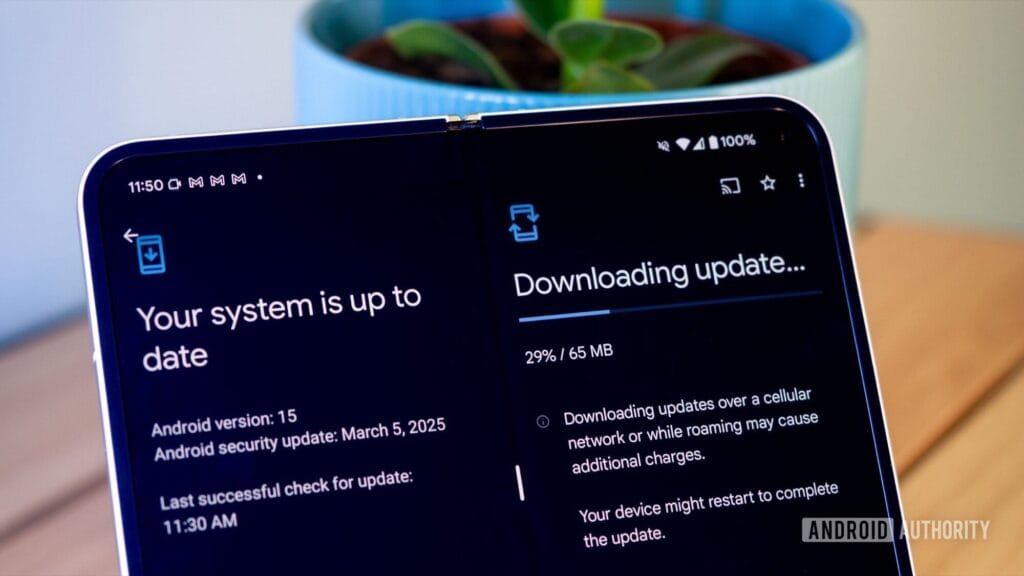
    What if it says “Your system is up to date”?

    Android updates system is up to date

    That alerting does not always indicate that there is no update; it could simply have not yet reached your region or device build. In that situation, consider the advanced methods listed below.

    How to check updates on specific Android oems

    Because manufacturers customize Android OS, the update settings may be in slightly different locations.

    Samsung Devices

    • Go to Settings > Software update > Download and install
    • Samsung pushes monthly security patches and One UI feature updates through this panel.

    Google Pixel

    • Go to Settings > System > System update
    • Pixel devices receive updates directly from Google — typically first among all brands.

    Xiaomi, Redmi, POCO (MIUI)

    • Go to Settings > About Phone > MIUI Version
    • Tap on Check for updates.
    • For advanced control, use the Updater app found in system apps.

    OnePlus (OxygenOS)

    • Go to Settings > About phone > OxygenOS version
    • Tap Check for updates
    • Alternatively, download the OnePlus Updater APK for sideloading updates.

    Oppo / Realme (ColorOS & Realme UI)

    • Go to Settings > Software update
    • Tap on Check for updates
    • Oppo also has an “Early Access” program for beta releases.

    Motorola

    • Go to Settings > System > Advanced > System Updates
    • Tap Check for updates

    Use Google Play system updates (separate from OS)

    android updates

    Since Android 10, Google has separated certain security and performance updates from full OS upgrades. These are delivered via Google Play system updates.

    How to check:

    1. Go to Settings > Security > Google Play system update
    2. Tap Check for update

    These are smaller updates that often improve background processes like biometric security, encryption modules, or system services.

    Force update with OTA Zip files (advanced users)

    If your manufacturer has released an official firmware update but it hasn’t reached your phone yet, you can manually install it using an OTA (Over-The-Air) zip file.

    Steps (for advanced users):

    1. Visit your manufacturer’s official website or trusted forums like XDA.
    2. Download the correct OTA update file for your model and region.
    3. Place the file in the root directory of your internal storage.
    4. Boot into Recovery Mode (usually via holding Power + Volume Up).
    5. Choose Apply update from SD card or Install update.zip.

    ⚠️ Caution: Flashing the wrong file or interrupting the process can brick your device. Always back up your data.

    What to Do If No Update Appears?

    If you’ve tried everything and your device still says it’s up to date, here are possible reasons:

    • Carrier Delay: Devices tied to mobile carriers often receive updates later than unlocked models.
    • Staged Rollouts: Updates are released in waves. Your device may be queued for later.
    • Region Restriction: Updates may reach some countries first. A VPN won’t help because updates are tied to device build numbers, not IP addresses.
    • Outdated Device: If your device is more than 2–3 years old, it may have reached its end of life for updates.

    Pro Tips to Get Updates Faster

    • Enroll in beta programs if your phone supports them (Pixel, Samsung One UI Beta, etc.)
    • Use the manufacturer’s official updater app (like the Xiaomi Updater).
    • Keep at least 3–5 GB of free storage so updates can install smoothly.
    • Fully charge your battery before downloading any major update.

    Final Thoughts

    Checking for Android updates manually is a good practice, especially if you value efficiency, security, or new features. While auto-updates may manage this silently in the background, taking control ensures that you are always using the most recent and safest version of Android.

    Whether you are using a Samsung, Pixel, Xiaomi, or Motorola, the steps are usually only a few taps away. Stay up to date and secure.