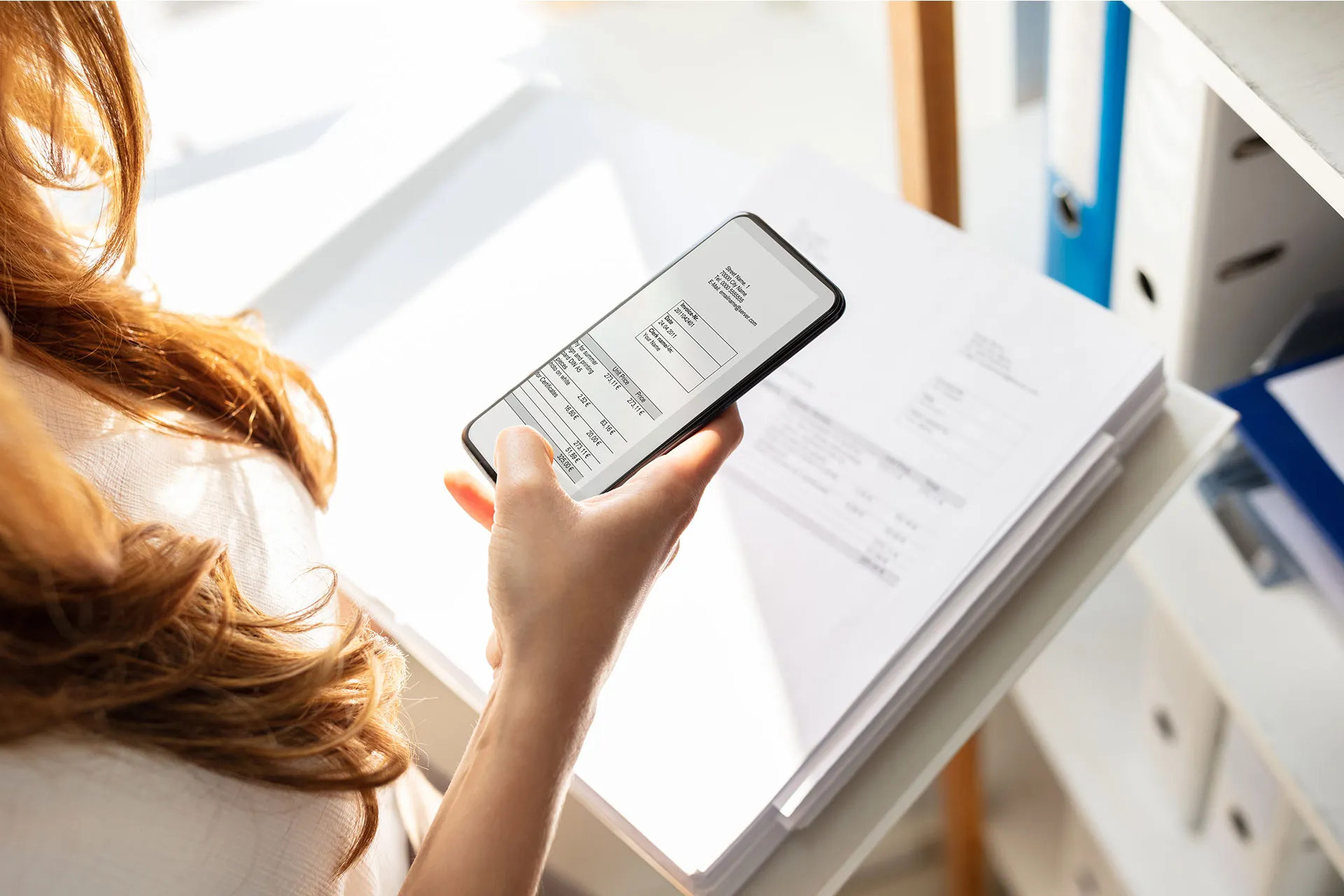
A large flatbed scanner is no longer necessary for document scanning. You already have everything you need in your pocket if you own an Android phone. Android makes it simple to scan and digitize your papers with just your camera, whether they are signed contracts, handwritten notes, or invoices.
We’ll walk you through the best ways to scan documents on Android with Google Drive, Google Photos, and other apps in this post. All you need is a decent camera and a few taps; no further gear is required.
Why scan documents with your phone?
There are many reasons to scan documents using your Android device:
You don’t have access to a physical scanner.
You want to save time by instantly digitizing documents.
You need to share signed papers, IDs, or receipts on the go.
You want to organize your paper clutter and go paperless.
Thanks to apps like Google Drive and Microsoft Lens, the scanning process is fast, accurate, and easy to use.
Scan documents using Google Drive
Google Drive comes pre-installed on most Android phones and includes a powerful built-in document scanner.
Step-by-step instructions:
Open the Google Drive app Launch Google Drive from your app drawer.
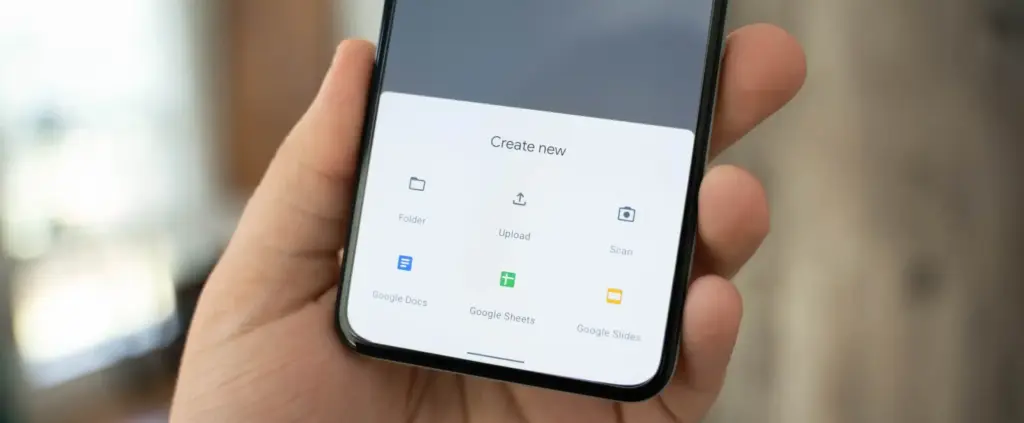
Tap the “+” (plus) button It’s located at the bottom-right corner of the screen.
Select “Scan” This opens your camera with a scanning interface.
Take a photo of the document Frame the document clearly in good lighting. Tap the shutter button.
Adjust the crop area You can move the corners to fit the document if the scan is uneven.
Tap “Done” or scan more pages You can continue adding pages or finish the scan.
Save the file Choose a name and folder to save the scan as a PDF in your Drive account.
Pros:
No need to install anything
Saves directly to cloud
Easy to share scanned files
Cons:
Limited editing tools
Requires Google account
Scan documents using Google Photos (via Lens)
Google Photos includes Google Lens, which can recognize text and scan documents quickly.
How to do it:
Open the Google Photos app Find the photo of your document or take a new one.
Tap the “Lens” icon It’s at the bottom of the screen and activates text recognition.
Select the document area Google Lens will highlight the text areas.
Choose “Copy text” or “Search” or “Save as PDF” You can extract text or save it, depending on your needs.
This method works best for typed text and single pages rather than full multi-page scans.
Scan documents using Microsoft Lens
Microsoft Lens is a dedicated scanning app with powerful enhancement tools.
Steps:
Install Microsoft Lens from the Play Store
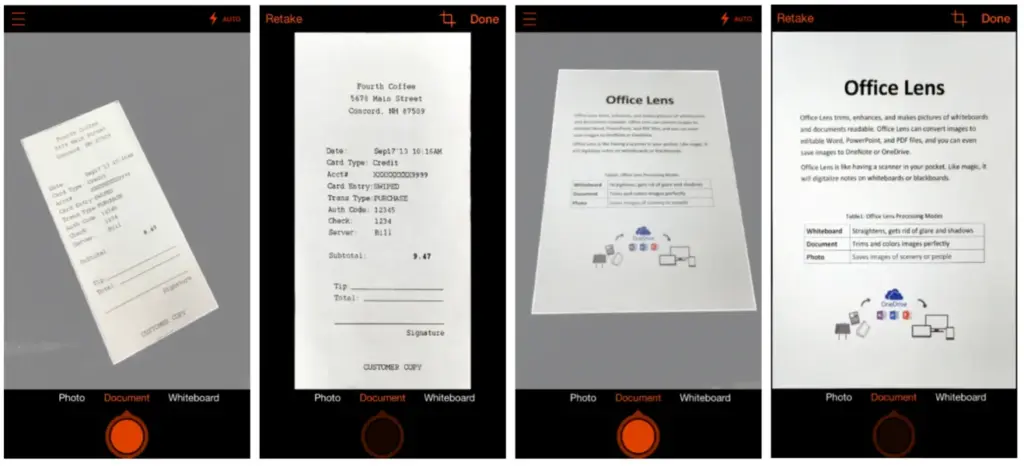
Open the app and choose “Document” mode
Capture your document It automatically detects edges and adjusts perspective.
Edit the scan You can crop, rotate, or enhance the scan quality.
Save or share the file Export to PDF, Word, OneNote, or save to your gallery.
This app is ideal for professional-quality scans and editing.
Tips for best scanning results
Use natural lighting to avoid glare or shadows.
Place the document on a flat, contrasting background.
Keep the phone steady while capturing the image.
Make sure the document fills the frame but doesn’t crop edges.
Clean your camera lens for sharper results.
Organizing your scanned documents
After scanning, keep your files organized by:
Creating folders in Google Drive (e.g., Receipts, IDs, Legal Docs)
Using consistent file naming (e.g., “Invoice_June_2025.pdf”)
Backing up to cloud storage or an external drive
Security and privacy concerns
If you’re scanning sensitive documents (like IDs, contracts, or financial info):
Use apps that encrypt your files
Avoid scanning on public Wi-Fi
Use a secure cloud service (Google Drive, OneDrive, etc.)
Consider locking folders or using file protection apps
Scanning is excellent for common documents, but dedicated hardware scanners may still provide superior results for specific applications, such as high-resolution archiving, submitting legal papers, or intricate artwork. However, your Android phone is more than capable of meeting 95% of your daily demands.
You can increase your freedom and convenience by learning how to scan documents with your Android phone. Whether you use a third-party tool, Google Drive, or Photos, digitizing documents and maintaining organization is simple. It only takes a few taps and eliminates the need for large scanners or additional procedures.
Stay connected with the latest from Droid Tools—follow us on X @droid_tools, like our page on Facebook, check out our updates on Instagram, and follow us on Google News for real-time news, device tips, and mobile tech insights.
You have complete control over the default apps you use on Android for email, calls, texts, browsing, and more. Android lets you select your favorite apps as defaults, whether it be Chrome or Firefox, Gmail or Outlook, or any other third-party software that is compatible, in contrast to other mobile operating systems that force you to use a limited number of apps.
Once set, Android uses your selected app automatically — no need to choose each time.
What types of default apps can be changed?
Android supports default app selection for a variety of functions, including:
Browser (e.g., Chrome, Firefox, Brave)
Phone (dialer apps)
Messaging/SMS (e.g., Google Messages, Textra)
Email (e.g., Gmail, Outlook, K-9 Mail)
Home screen launcher
Digital assistant
Camera
Gallery/photos
Music player
Navigation apps (Maps, Waze, etc.)
Links handling (web, YouTube, etc.)
Some apps will request to be the default when first installed or opened but you can always change this manually.
How to change default apps on stock Android
Here’s how to manage your default apps on phones running near-stock Android (such as Pixel, Motorola, or Nokia devices):
Open the Settings app.
Tap on Apps.
Choose Default apps.
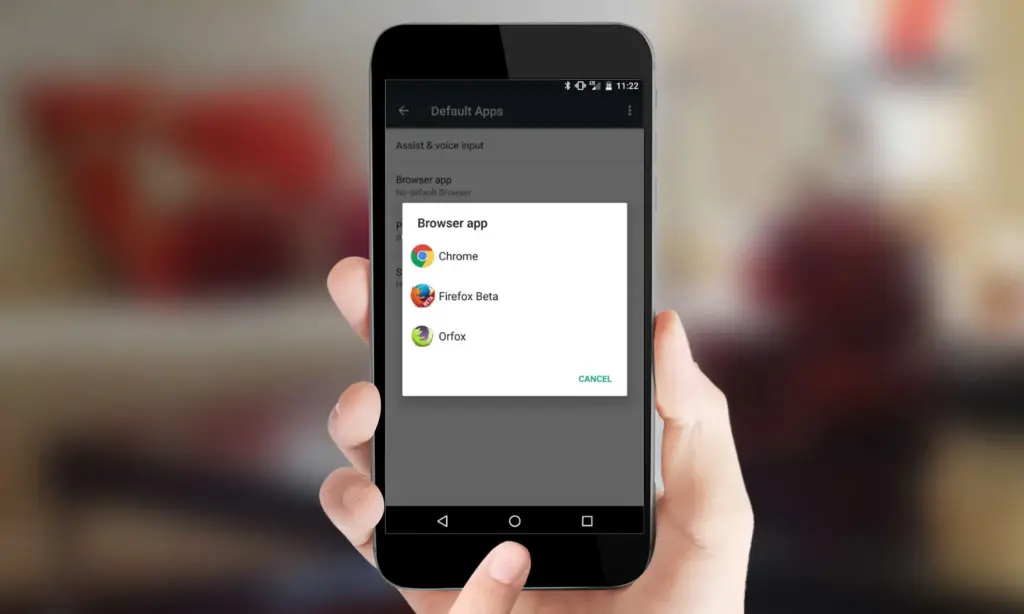
You’ll see a list of categories: browser app, phone app, SMS app, assistant app, home app, etc.
Tap any category to see installed apps compatible with that function.
Choose your preferred app from the list.
Android will immediately make the chosen app the activity’s default. If you change the browser’s default, for instance, any link you click will open in the selected browser.
How to change default apps on Samsung (One UI)
Samsung devices with One UI take a somewhat different path:
Go to Settings.
Tap on Apps.
Tap the three dots in the top-right corner and select Default apps.
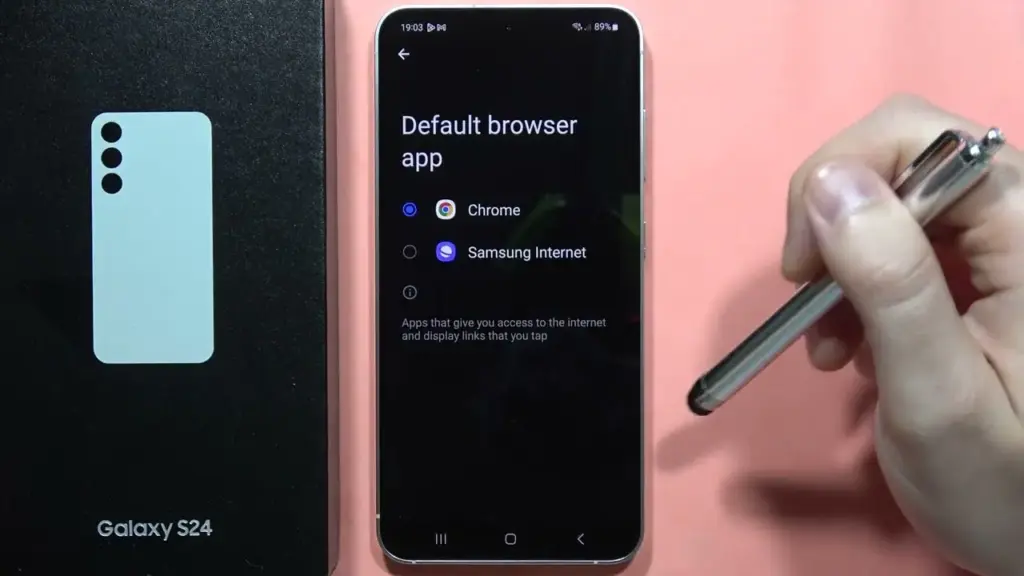
You’ll see the same categories as stock Android: browser, calling, messaging, and more.
Tap the category you want to change.
Select your new default app.
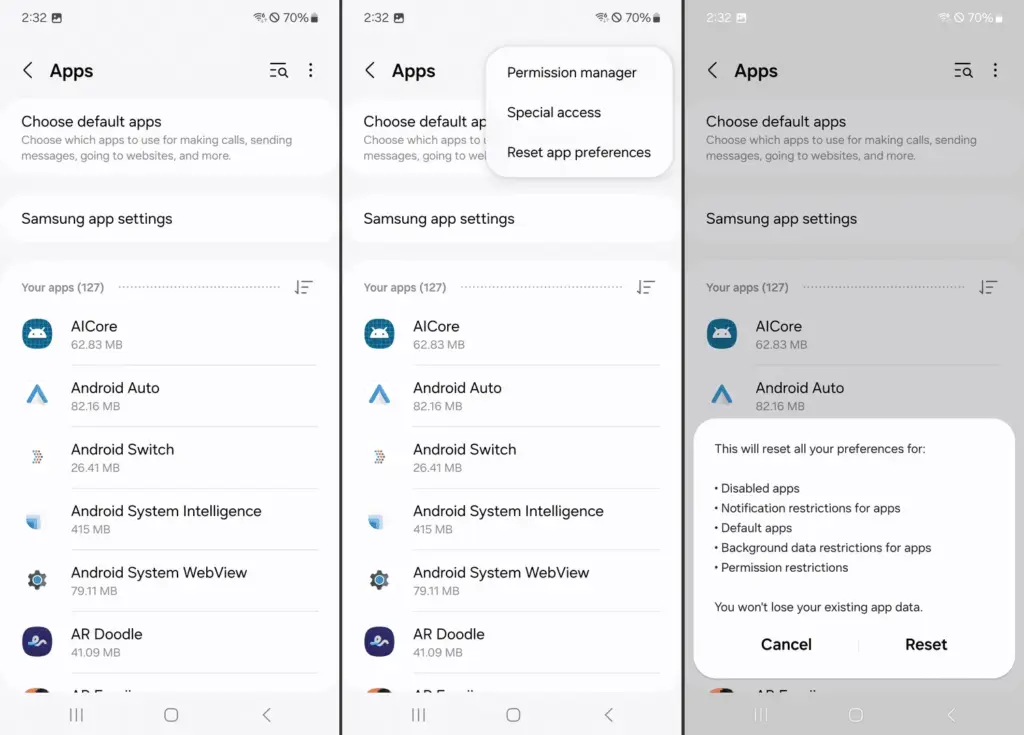
Samsung devices also let you reset all default apps at once via Settings > Apps > Three dots > Reset app preferences.
How to change default apps on Xiaomi (MIUI)
MIUI includes a “Manage apps” section to control default apps:
Open the Settings app.
Go to Apps > Manage apps.
Tap the three dots in the top-right and select Default apps.
Choose a category like browser, dialer, messaging, or gallery.
Select your desired app.
MIUI might ask you to select a new default app after installation or when you attempt to open related content.
How to handle app-specific defaults (like file types or links)
Some apps don’t appear in the general default app settings but can still be set as defaults when opening certain file types or links.
To manage these:
Go to Settings > Apps.
Tap See all apps and choose the app you want to configure.
Tap Open by default.
Enable Open supported links or clear defaults by tapping Clear defaults.
This is useful if you want all YouTube links to open in the app rather than in a browser, or if you have accidentally enabled an app to always open PDFs or photos.
How to reset default apps
If you’ve set the wrong default app or want to start over:
Open Settings > Apps.
Tap the three dots (or menu icon).
Select Reset app preferences.
Confirm to reset all app defaults.
This won’t delete any data but will clear app defaults, disabled apps, and permission restrictions.
Alternatively, to reset just one app:
Go to Settings > Apps > [App Name] > Open by default
Tap Clear defaults
This lets you reassign that app’s function later.
Choosing the best default apps
Here are some recommended apps to consider setting as default:
Browser: Firefox Focus (privacy), Brave (ad blocking), Chrome (sync)
Email: Gmail (Google integration), Outlook (work email), BlueMail (multi-account)
Messaging: Signal (privacy), Google Messages (RCS), Textra (customizable)
Gallery: Simple Gallery, Google Photos, Aves
Music: YouTube Music, VLC, Poweramp
Navigation: Google Maps, Waze, HERE WeGo
Make sure the app supports being set as a default. Some lightweight or older apps may not offer this functionality.
What if Android won’t let you change a default?
Some Android versions or manufacturers may restrict default app changes for certain functions — especially camera or dialer apps. In those cases:
Make sure the new app is fully updated and has the necessary permissions.
Check for manufacturer limitations in forums.
Use Activity Launcher or ADB commands (for advanced users) to override.
Root access may be required for some deep changes — though this is not recommended for most users.
Changing the default apps on Android provides you control over your digital experience. Whether you want a speedier browser, a cleaner messaging app, or a more powerful camera, Android allows you to select what works best for you.
By looking into your device’s default app settings, you may optimize your workflows and eliminate annoyances such as accessing links in the wrong app or using services you dislike. With a few touches, Android becomes your own—not what the manufacturer or carrier wants you to use.
Picking up my phone to check a notification or respond to a text annoys me since I want convenience. I always keep WhatsApp Web open in a tab because of this. Even while it meets the most of my communications requirements, it is insufficient. As a huge admirer of Apple’s iPhone Mirroring function, I have been searching for a practical method to manage my Android phone from my computer. I can do just that with these four apps.
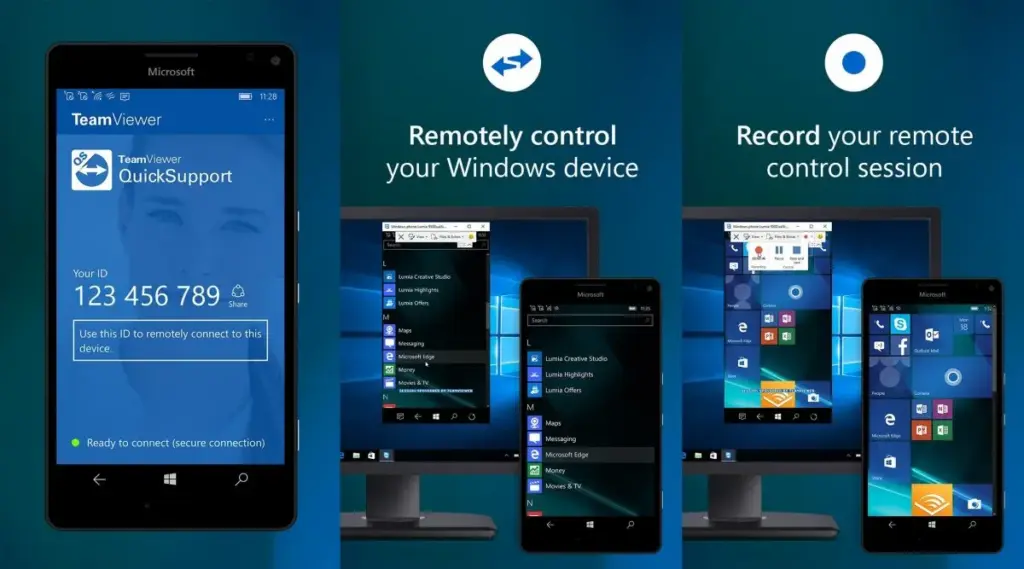
Sometimes you need to remotely control your Android phone, either to access your device from a distance or to assist a buddy in troubleshooting a problem. This is made simple by TeamViewer QuickSupport, which provides complete remote control, enabling you to install apps, change settings, and browse menus from your PC.
It is easy to set up. Install the QuickSupport app on your phone, connect using the TeamViewer desktop app, and give the person helping you the unique ID. They are perfect for remote management, troubleshooting, and technical help because they can operate your device in real time when they are linked. In contrast to many alternatives, TeamViewer is compatible with web browsers, Linux, macOS, and Windows. End-to-end encryption and two-factor authentication are two of its robust security features. Additionally, it facilitates communication and file transfers, which facilitates teamwork.
There are certain drawbacks to TeamViewer. Access may be restricted by the limited free version, which may mark frequent personal use as commercial. Since network quality affects performance, lag may result from slower connections. It works well for remote control, but unlike Phone Link or Scrcpy, it is not designed for everyday phone mirroring.
TeamViewer QuickSupport is still among the best choices for safe, cross-platform remote access, particularly for IT assistance and troubleshooting.
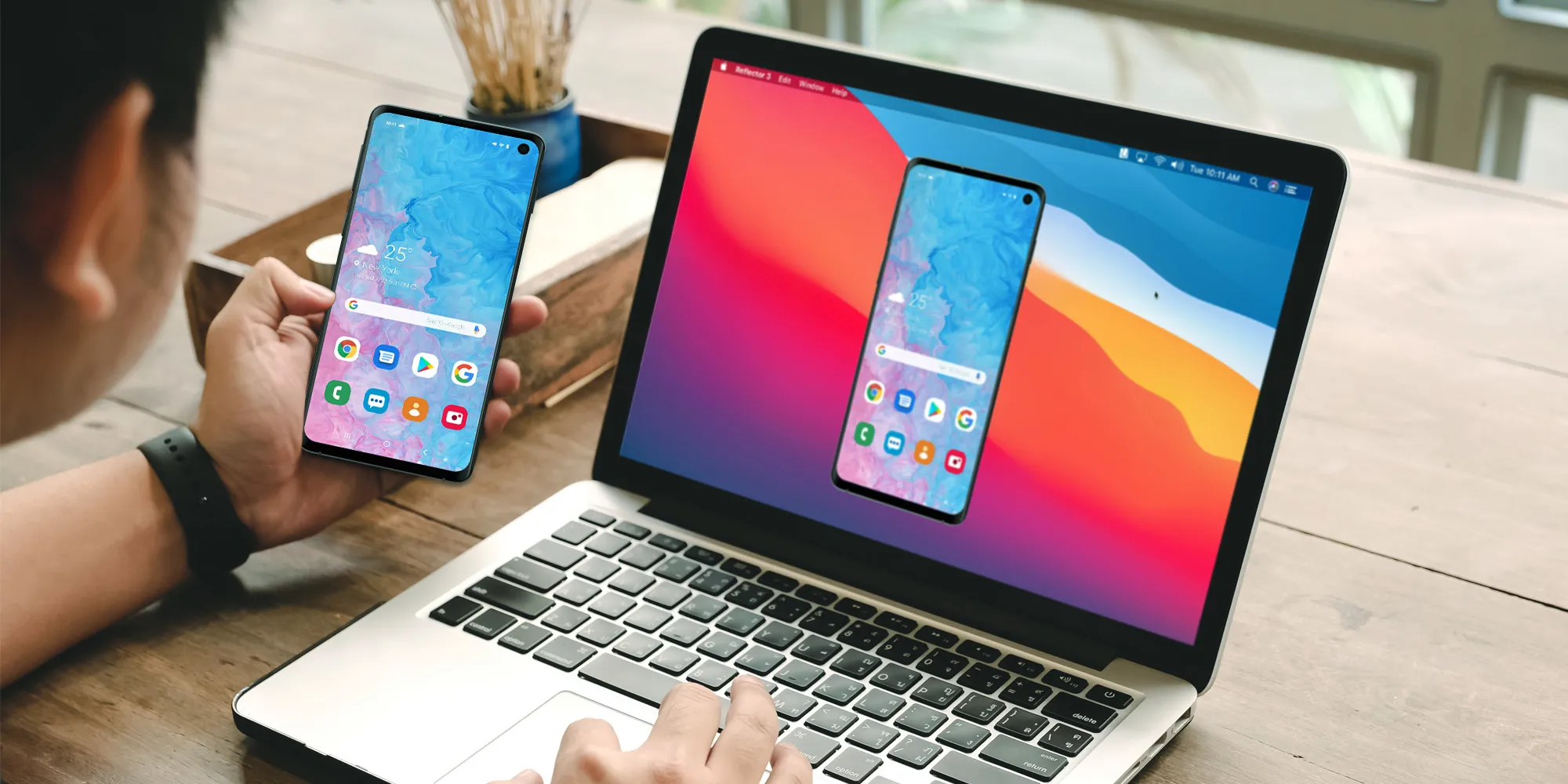
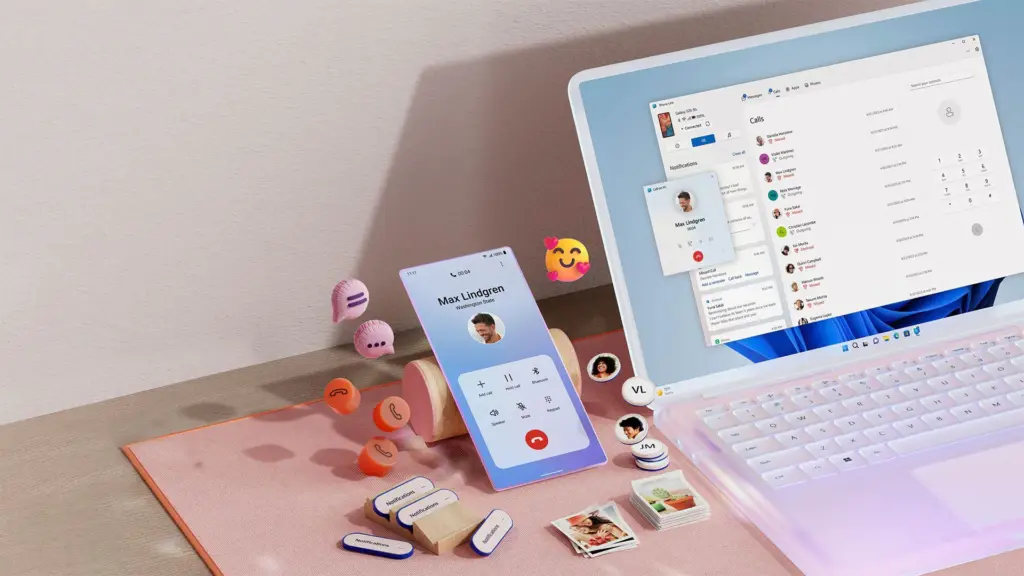
Microsoft Phone Link, which is integrated into Windows 10 and 11, allows you to easily connect your Android phone to your PC. Without touching your phone, you can make calls, control notifications, send texts, and view recent photos.
The ability to replicate apps is one of its strongest features. For apps without web versions, you can use your mouse and keyboard to interact with them when you launch specific mobile apps on your PC. It is easy to set up. You can connect your Android phone to your PC via Bluetooth or Wi-Fi after installing the Link to Windows app on your phone. Everything updates automatically once it is synchronized, and the connection is secure.
Phone Link is revolutionary if you operate on a computer for extended periods of time. It ensures that you remain connected while minimizing distractions. The majority of Android phones can utilize its primary functions, albeit Samsung Galaxy devices are the greatest fit for it.
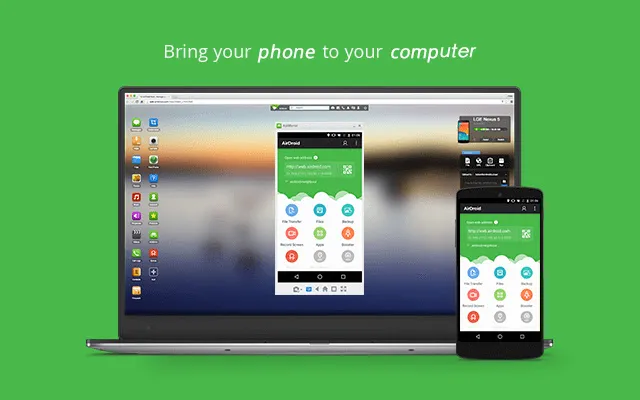
AirDroid is another excellent option if you want complete control over your Android phone from your PC. It is cross-platform, having a web interface and specific Windows and macOS programs, unlike some rivals. Once configured, you can remotely access your phone’s camera, manage SMS messages, respond to notifications, transfer files, and mirror your screen without ever touching your device.
It is easy to get started. Use the desktop software or log in via a browser after installing the AirDroid app on your Android phone and creating an account. Everything connects immediately if you are on the same Wi-Fi network. Although remote access is feasible, a paid subscription is needed for services like screen mirroring over mobile networks.
AirDroid’s versatility is what sets it apart. For presentations or to view particular apps, you can mirror your screens. You can even transfer data across devices wirelessly. Another benefit that helps you stay informed about messages and alerts while working is notification mirroring. Despite having a lot of functionality, AirDroid maintains simplicity with a clear, user-friendly interface. Premium users receive end-to-end encryption for added security if security is a top concern.
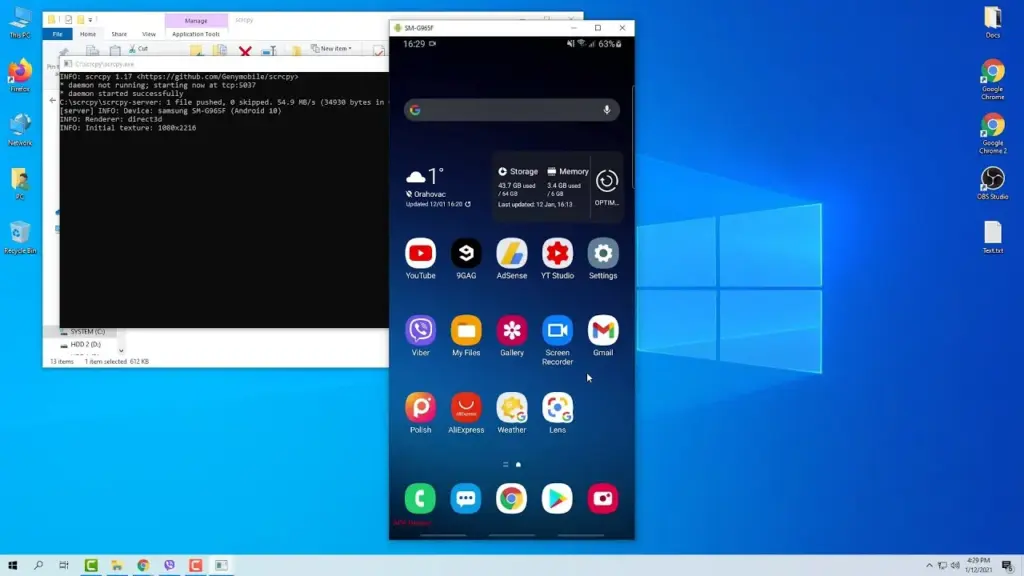
It can be inconvenient to constantly pick up your phone to check things, particularly if you work on a PC. By enabling you to mirror and manage your Android phone from your PC, Scrcpy solves this problem. It has no bloat and is free.
With an emphasis on low-latency, high-resolution screen mirroring without root access, Scrcpy is quick, light, and open source in contrast to many commercial programs. You have the option of using Wi-Fi or USB, depending on what is more convenient for you. It is easy to set up. After downloading the app, connect your phone to your PC and turn on USB debugging. When it is operating, you may use your keyboard and mouse to interact with your phone’s screen, which displays in real time.
Scrcpy is a comprehensive mirroring solution that supports audio forwarding in its latest versions. Wireless performance can vary, though, and some users may find the absence of integrated file sharing and multi-device functionality to be a drawback. Furthermore, even though third-party graphical interfaces are available, people who are not familiar with Scrcpy may find its command-line configuration daunting.
On the plus side, Scrcpy does not need to be installed on your phone, which lowers security concerns and conserves storage space. It improves with frequent updates because it is open source. Scrcpy is among the greatest free programs for managing your Android phone from a PC, provided you are prepared to overcome its drawbacks.
How you work will determine which tool is ideal for you.
For Windows users seeking a native, hassle-free method of syncing calls, messages, and notifications, Phone Link is my top pick. With file transfers, remote access, and notification mirroring, AirDroid goes above and beyond; however, some premium capabilities are subscription-based.
I have experimented with Scrcpy since I love open source software. Although it offers little lag and high-performance screen mirroring, I find its command-line configuration to be less than ideal. Last but not least, TeamViewer QuickSupport is an option; nevertheless, its limitations in the free edition make it most appropriate for infrequent use.
The most important factors – productivity, ease of use, or complete control – determine which tool is best. Whichever option you select, these options facilitate communication and task completion. It has never been simpler to control your Android phone from your PC. There is a solution that suits your operation, whether you require remote help, sophisticated functionality, or smooth integration.
You no longer need a bulky fax machine or a dedicated phone line to send and receive faxes. Free faxing apps have emerged as convenient solutions, allowing you to handle your faxing needs right from your smartphone or computer. In this article, we’ll explore some of the best free faxing apps available, their features, and how they can benefit you.
The Rise of Free Faxing Apps
Gone are the days when faxing required cumbersome machines and dedicated phone lines. Today, free faxing apps have revolutionized the way we handle fax communications. These apps leverage the power of the internet to transmit documents securely and efficiently, eliminating the need for traditional fax machines.
Key Features to Look For
When choosing a free faxing app, it’s essential to consider its features to ensure it meets your specific needs. Here are some key features to look for:
Ease of Use: The app should have an intuitive interface that makes sending and receiving faxes a breeze.
Document Compatibility: Ensure the app supports a wide range of document formats, including PDF, Word, and image files.
Security: Look for features like encryption and password protection to keep your faxed documents secure.
Reliability: Opt for apps with a reputation for reliability and minimal downtime.
Integration: If you need to integrate faxing with other tools or services, choose an app that offers seamless integration options.
Best Free Faxing Apps
Now let’s dive into some of the best free faxing apps available:
Fax App: offers a user-friendly interface and allows you to send faxes to more than 180 countries. It supports various document formats and provides advanced features like electronic signatures and cloud storage integration.
eFax: eFax is another popular choice, offering free faxing with limited features. It supports both mobile and desktop platforms and allows you to send faxes via email or the eFax app.
MyFax: MyFax offers a free plan with limited features, including the ability to send up to 10 pages per month. It supports multiple file formats and provides email-to-fax and fax-to-email capabilities.
FaxZero: FaxZero allows you to send faxes for free with some limitations, such as a maximum of three pages per fax and a cover page with advertisements. It’s a simple and straightforward option for occasional faxing needs.
GotFreeFax: GotFreeFax offers free faxing with no ads on the cover page, making it a suitable choice for those who prefer a cleaner faxing experience. It supports various file formats and allows you to send faxes to multiple recipients simultaneously.
Benefits of Using Free Faxing Apps
Using free faxing apps offers several benefits:
Cost Savings: By eliminating the need for a traditional fax machine and phone line, free faxing apps can save you money on equipment and maintenance costs.
Convenience: With free faxing apps, you can send and receive faxes anytime, anywhere, as long as you have an internet connection.
Environmental Friendliness: Going digital with faxing reduces paper waste, contributing to a more sustainable environment.
Improved Efficiency: Free faxing apps streamline the faxing process, allowing you to send and receive documents more quickly and efficiently.
Enhanced Security: Many free faxing apps offer encryption and other security features to protect your sensitive documents from unauthorized access.
Conclusion
Free faxing apps have made fax communications more accessible and convenient than ever before. Whether you’re a business professional or an individual user, these apps offer a cost-effective and efficient way to handle your faxing needs. By choosing the right app with the features that matter most to you, you can streamline your faxing processes and focus on what matters most – getting work done.
So why wait? Explore the options mentioned above and start faxing for free today!
Many of us have experienced the frustration of forgetting to charge our phone overnight or discovering that our headphones are dead when we need them. As you can see, the number of devices we need to charge daily is increasing. It is an extra worry with our busy lives filled with work, school, and hanging out with friends. Smartphone, laptop, headphone, smartwatch, tablet, and much more.
The issue still exists despite developments like fast charging technologies and the European Union’s unified charging port. Fortunately, the answer originates in China, the center of technology, where a new battery startup claims to be able to produce electricity for 50 years without the need for maintenance or charging.
The battery from Betavolt changes charging forever
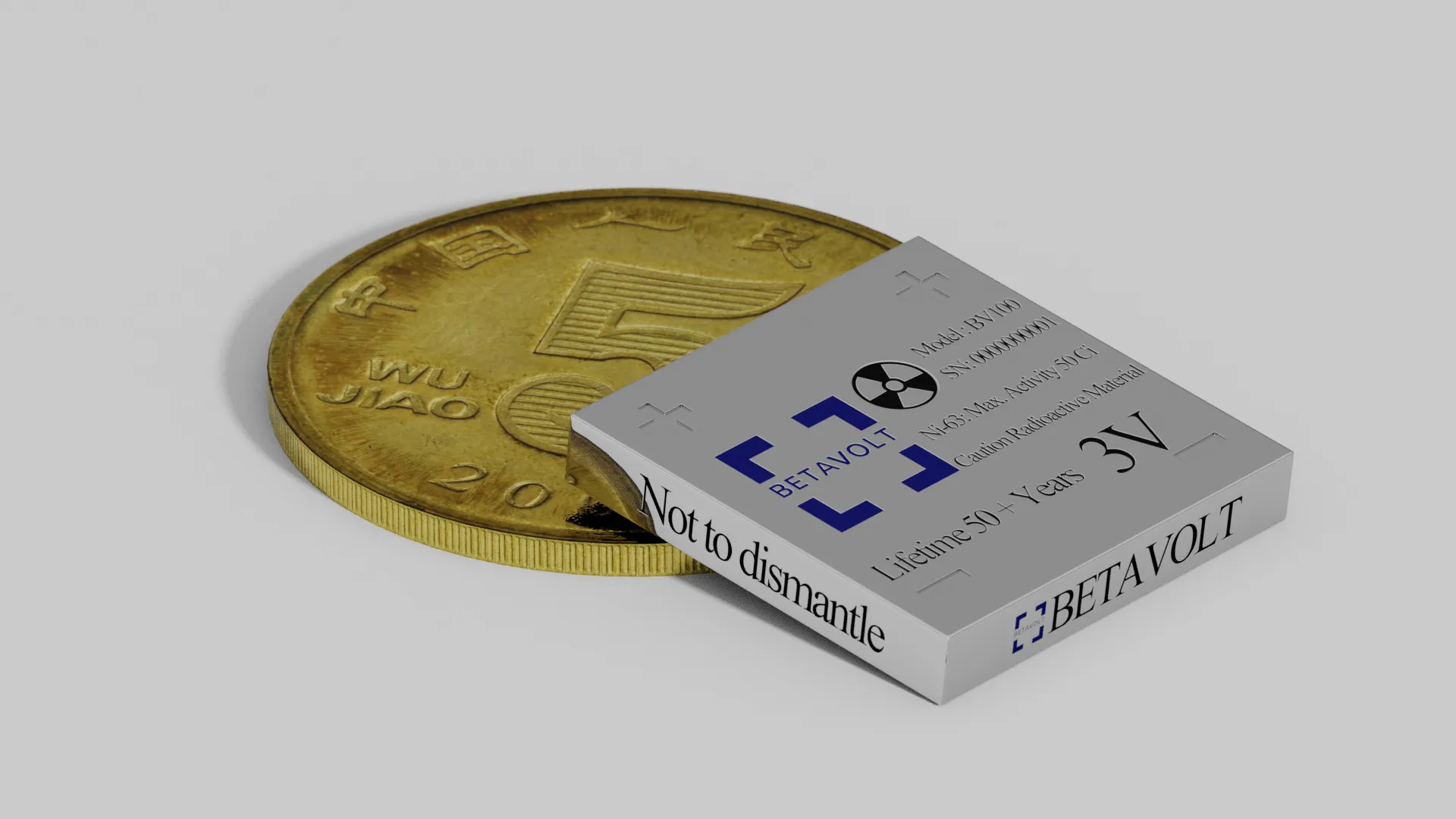
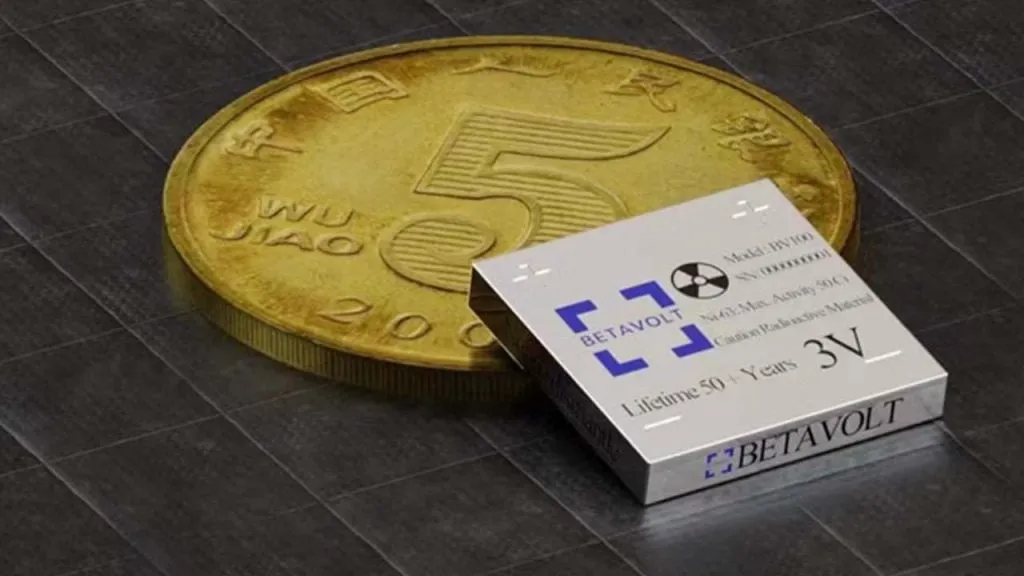
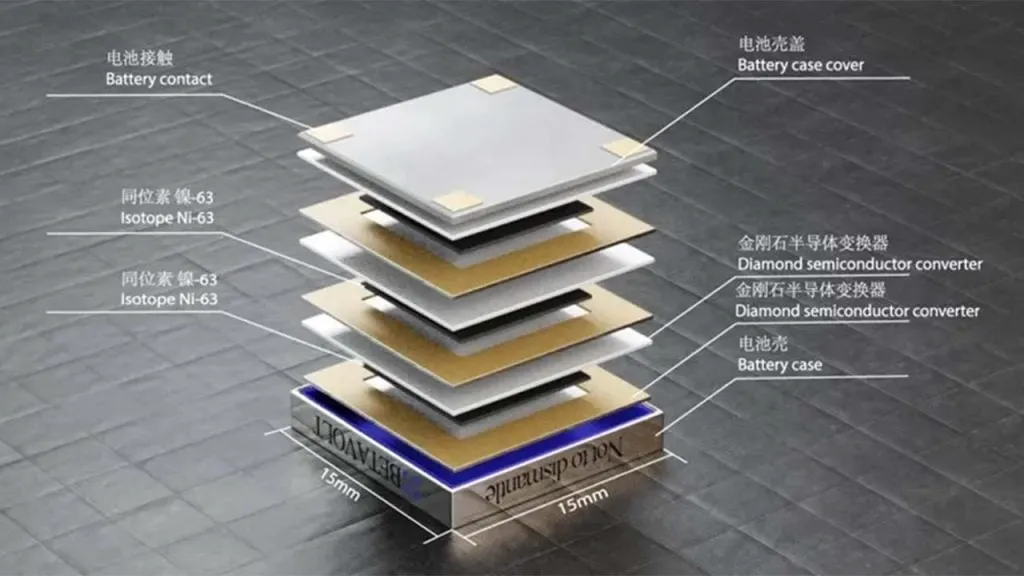
With everything from cars to airplanes starting to rely on electricity in today’s tech-driven world, research on battery technologies has surged. But aside from the speed at which they can be charged, there has not been a consumer-facing result—at least not yet. Beijing-based startup Betavolt has introduced a new battery that promises to produce electricity for 50 years without requiring maintenance or charging—and do not think of nuclear energy as a massive battery—Batalvolt manages to pack 63 nuclear isotopes into a battery the size of a coin.
Utilizing the energy from decaying isotopes, a concept developed in the 20th century, Betavolt’s nuclear battery currently produces 100 microwatts at 3 volts, all packed into a small 15x15x5 cubic millimeters. However, the goal is to reach a 1-watt power output by 2025. Earlier thermonuclear batteries faced challenges related to cost and size.
Although it sounds amazing to have an iPhone that never runs out of charge, it is wise to approach this ground-breaking invention cautiously for now, considering the potential risks of carrying a nuclear battery in your pocket. As a result, mass production might still be a distant dream for the time being. The company states that the nuclear battery is currently in the testing phase, with Betavolt planning to initiate mass production soon.
You are not alone if you have ever found yourself tethered to a charger, watching the battery bar slowly but surely creep towards a usable level. But fear not, fellow Android users – this guide is your road map to victory, filled with useful tips and tricks to turn your phone into a charging champion!
Gone are the days of excruciatingly slow refills and battery anxiety—we are about to unlock the secrets to lightning-fast boosts that get you back online, streaming, and snapping in no time at all! Say hello to a world of stress-free power-ups!
Wire will charge you faster.
The Realme GT 3 boosts an impressive 240W charging speed, theoretically allowing a 0 to 100% charge in less than 10 minutes. Some Samsung phones can reach 45W with USB charging. Wired charging is normally faster than wireless charging. Android phones typically reach their highest charging speeds through USB-C, often reaching speeds of over 20W. In contrast, wireless charging is usually limited to 10 to 15W.
Additionally, USB-C is generally regarded as more dependable than wireless charging. While technologies like Qi2 with magnetic locking aim to address these issues, USB-C remains the more robust and dependable option. Wireless chargers rely on precise coil alignment for efficiency, and there is always a chance that a slight bump will displace your phone or knock it off the charger completely.
If at all possible, turn off your smartphone to expedite the charging process.
The best way to reduce battery life is to completely shut down your phone. Even in this case, it should continue to charge as fast as possible, so when it is connected to a compatible charger (which we cover in the next section), this provides the fastest possible charging scenario. The disadvantage is that you can not keep track of how fast your phone is charging, and you can not use apps or check notifications, so some people may decide not to use this option. If you are worried about receiving important messages from family or work, we strongly advise against using this method.
Use a direct power brick instead of a power bank or computer.
1. Only dedicated chargers guarantee fast wired charging:
While newer USB 3.x and 4.x ports can support super-fast charging (up to 240W) using a technology called USB-PD, they rarely reach that speed.
Most computer USB ports and portable power banks, even fancy ones, usually offer much slower charging than your phone’s dedicated charger. This is because they often lack the necessary power output capabilities.
2. Dedicated chargers are the safest and most reliable option:
While exceptions like the Anker Prime exist, relying on non-dedicated chargers for fast charging introduces risk and uncertainty.
Your phone’s original charger or a high-quality replacement designed for your specific model are the safest and most reliable way to ensure optimal charging speed without damaging your phone’s battery.
So, for the best, fastest, and most reliable wired charging experience, stick with your phone’s dedicated charger whenever possible.
Low power mode (also known as Battery Saver on most Android devices, though the name may differ on your phone) is the best option if you do not want to or are unable to turn off your phone. It helps save battery life by turning off certain functions and background activities, extending the time between charges.
The low power mode on your phone can do a number of things, like accelerating the screen’s shut-off time, decreasing background sync activity, downgrading from 5G to 4G, and restricting the use of power-hungry apps. Pixel phones also have an Extreme Battery Saver mode that goes one step further, decreasing CPU speed and disabling notifications for apps that are paused. You may not use it constantly, but it is a way to concentrate on charging while maintaining access to critical features.
Disable unused features
While a phone’s screen and processor use up a lot of energy, wireless technology can also consume a significant amount, especially if your phone is frequently downloading files or searching for available networks.
Using Airplane Mode is the easiest way to turn off wireless radios, but it is not always the best option because it usually disables Bluetooth and Wi-Fi in addition to cellular data, which can be problematic if you need to use wireless earbuds or have an internet connection. You may need to adjust the Airplane Mode settings or use Quick Settings to turn off individual radios that are not in use. For example, if you are going to be away from home, you can probably disable Wi-Fi unless you need it for hotspots or Android Auto.
To increase the charging speed, do not use your smartphone while it is charging.
Playing 3D games like Fortnite or PUBG Mobile can severely deplete your phone’s battery. It is important to emphasize that the more tasks your phone completes, the more power it will use. If at all possible, find something else to do with your time until you need to respond to important calls and messages.
Keep your phone cool while charging
The ideal temperature range for charging a phone is between 50 and 86°F (10 and 30°C). To make sure your phone stays in this range, try moving it out of direct sunlight, putting it near a fan, or taking it out of its case—especially if the case is insulating, like a leather wallet case. Keep in mind that your phone naturally warms up during charging, so if it is already close to the upper limit, charging could push it out of the ideal zone.
In other cases, you might need to warm up your phone; for instance, a case that might be problematic in a Texas summer could be ideal for a cold winter in Ontario.
The UK, Europe, Japan, and India all had access to Nothing’s initial phone, which was appropriately dubbed Nothing Phone 1. I felt envious as a tech nerd from the US. Beyond its distinctive style, Nothing’s first phone was universally praised as a good gadget at a fair price. Nevertheless, the competition in the Android market isn’t quite as diversified here as it is in the locations where you can readily buy the Phone 1. We felt as though we were being left out.
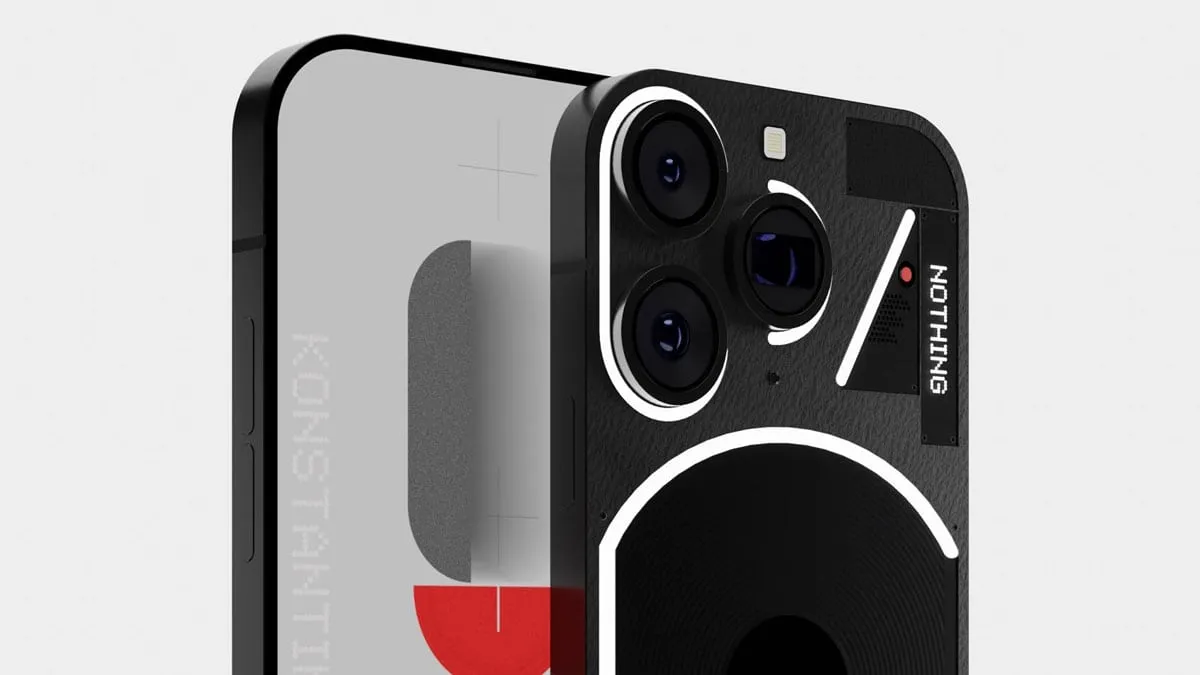
I’m happy that the Nothing Phone 2, the company’s second phone, is now available in the US. It retains the general vibe of the Phone 1, but in a larger, more robust package. After using the phone for a few weeks, I’m a fan, but even at its $599 starting price, the Phone 2 won’t appeal to many Android aficionados due to its shaky 4G compatibility on Verizon and average camera quality.
It was shipped in a high quality carboard box, known as cutie carton in some places.
Network and availability
On the business website, you may order the Nothing Phone 2 right now. The entry-level model with 8 GB of Memory and 128 GB of storage costs $599 in the US. For $699 or $799, you may increase to 12 gigabytes of Memory and 256 GB of storage. Although the $599 version with eight GB of Memory is only available in gray, it is available in either white or gray.
The Phone 2 is approved for use on both AT&T and T-Mobile, however it is only currently offered directly from Nothing. It lacks network certification for Verizon. It’s still compatible with Verizon, and sub-6 5G connectivity will be great. Nevertheless, the LTE band 13 capability needed for Verizon’s 4G connectivity is absent from the Nothing Phone 2. The Nothing Phone 2 won’t likely function for you if you’re on Verizon (or an MVNO that uses its network) and rely on 4G connectivity.
Nothing Phone design and display
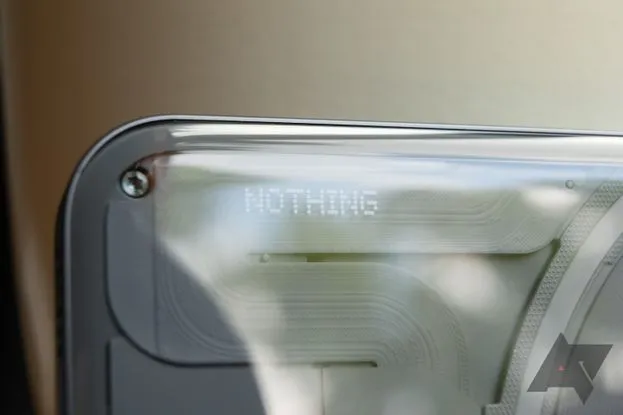
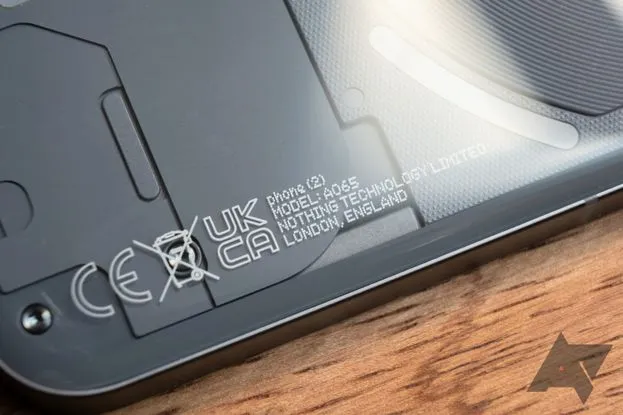
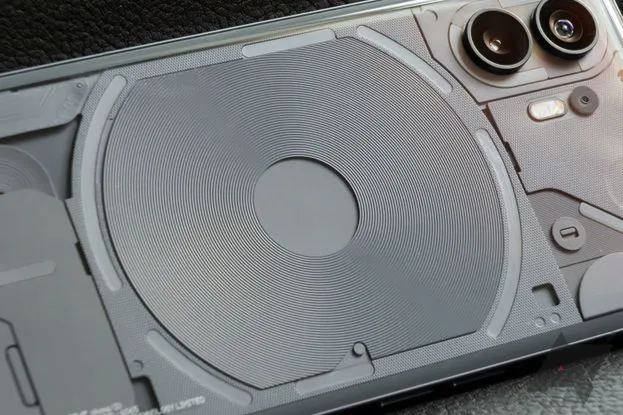
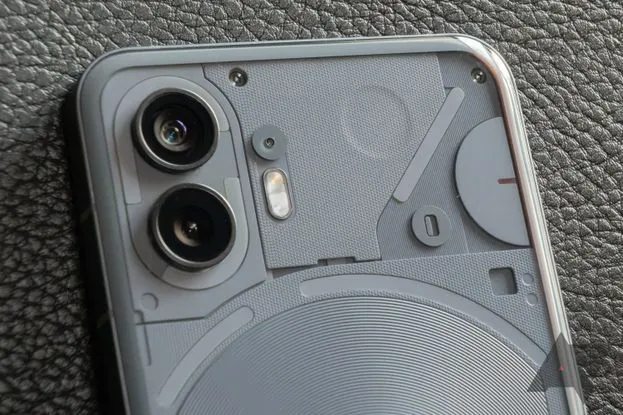
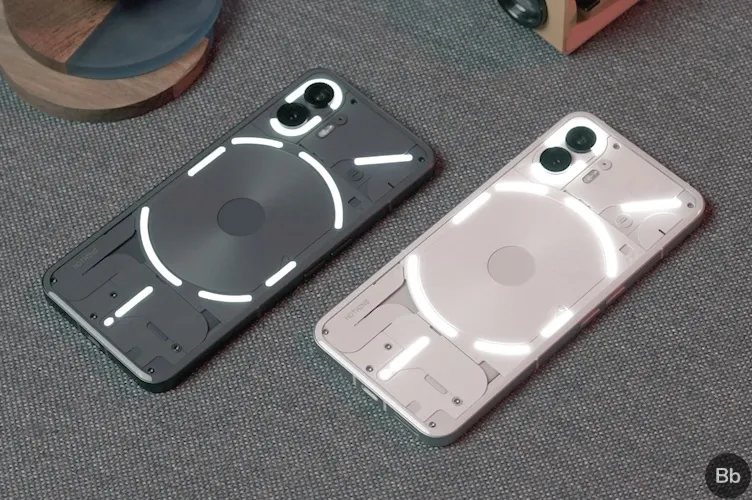
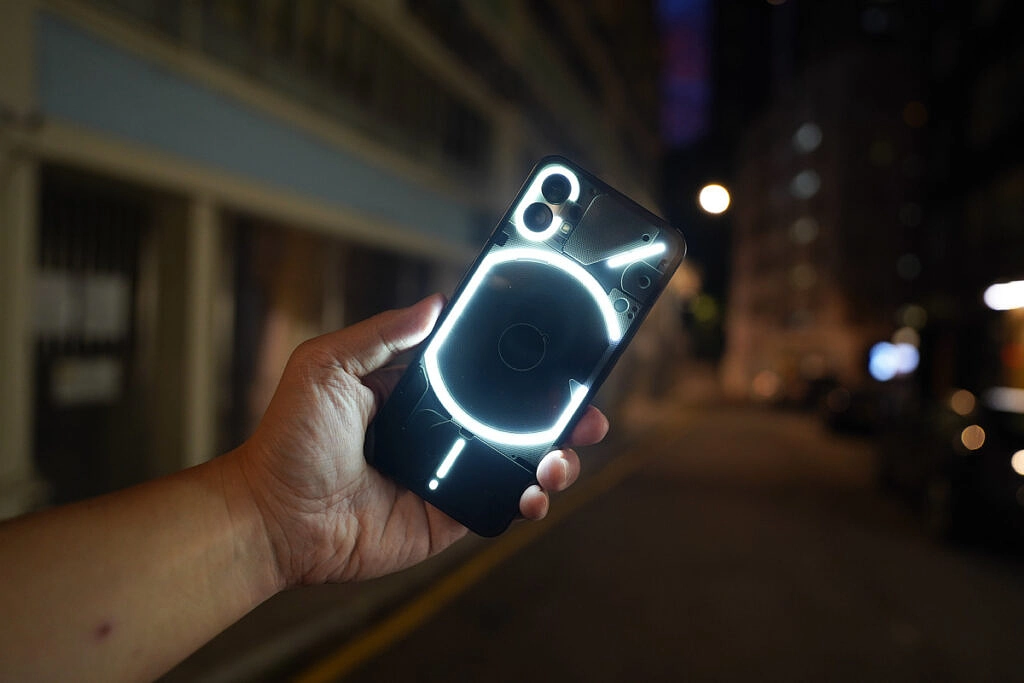
The translucent rear of the Nothing Phone 2 mimics that of the Phone 1, revealing some swanky internals and Nothing’s distinctive Glyph user interface. The biggest variations between one version and the next are the size (the Phone 2 has a 6.7″ display, which is somewhat larger than the Phone 1’s 6.55″ panel) and color selections. The Phone 2 is available in white and the type of smokey gray you can see in the photographs, as opposed to the Phone 1, which was only available in white or black.
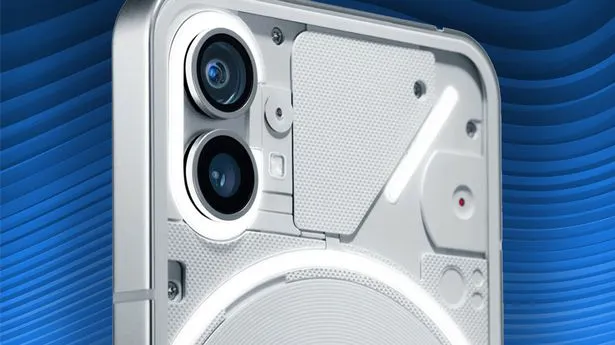
The components inside the transparent back panel have more roughness than they did in the Phone 1, which makes the Phone 2 even more aesthetically pleasing. Light plays on the tiny bumps and ridges in intriguing ways, highlighting another new detail that is highlighted by the gray hue. The Phone 2’s rear panel curves slightly at the edges to meet the flat metal frame, in contrast to the Phone 1, which had flat glass on the back (nothing refers to it as “pillowed glass”). Personally, I believe the flat rear of the Phone 1 had a cleaner appearance.
This time around, the Glyph lights on the phone’s back have a slightly modified layout and more independently configurable zones than the Nothing Phone 1 did. Even so, they still only emit one color of light; these are not tiny RGB strips.
Except from those variations, this design is extremely similar to the Nothing Phone 1. Nothing suggests this was done on purpose; the business wants to establish a strong, recognisable visual identity that can be carried over to upcoming gadget generations. There, I am powerless to gripe. Nothing’s design language is still distinctive and eye-catching in comparison to the majority of other phones available today, even though it hasn’t changed significantly year over year.
The hardware feels quality, too: there’s no creaking or flexing, the buttons are clicky, and the haptics are nice and firm, if a little loud. The phone is IP54 rated, so it’s splashproof, but you still try not to submerge it in water.
There’s an optical fingerprint sensor near the bottom of the screen. The scanner is just a touch lower in the display than I’d like, but it’s a good one: it’s faster and more reliable than the sensors in Google’s Pixel 7 phones, though not quite as quick as the ultrasonic scanners Samsung uses in its flagships.
Software and performance
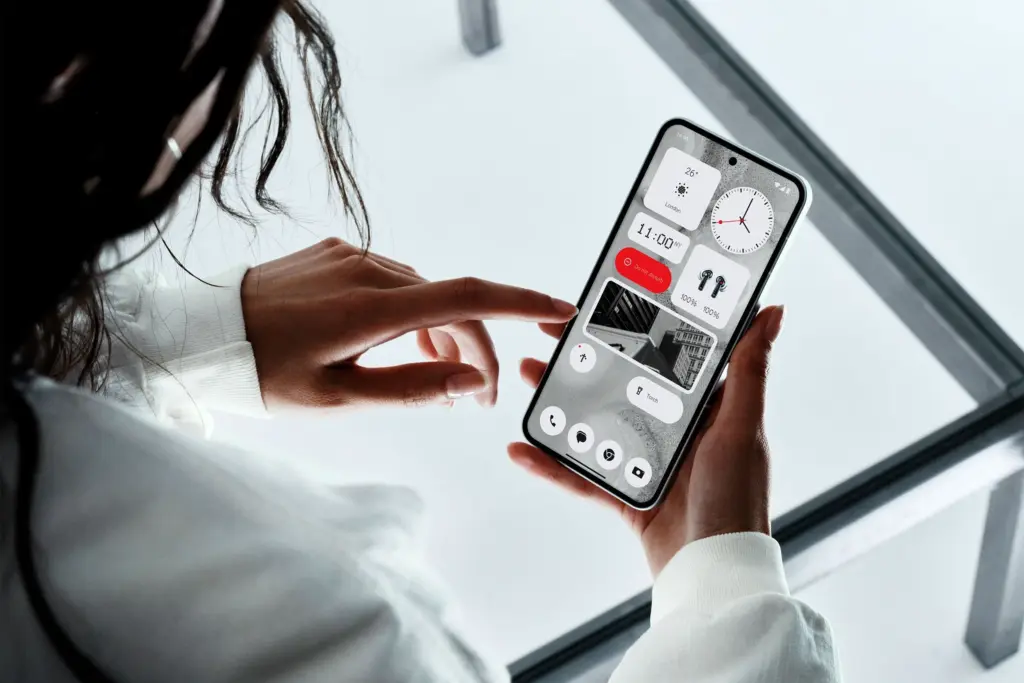
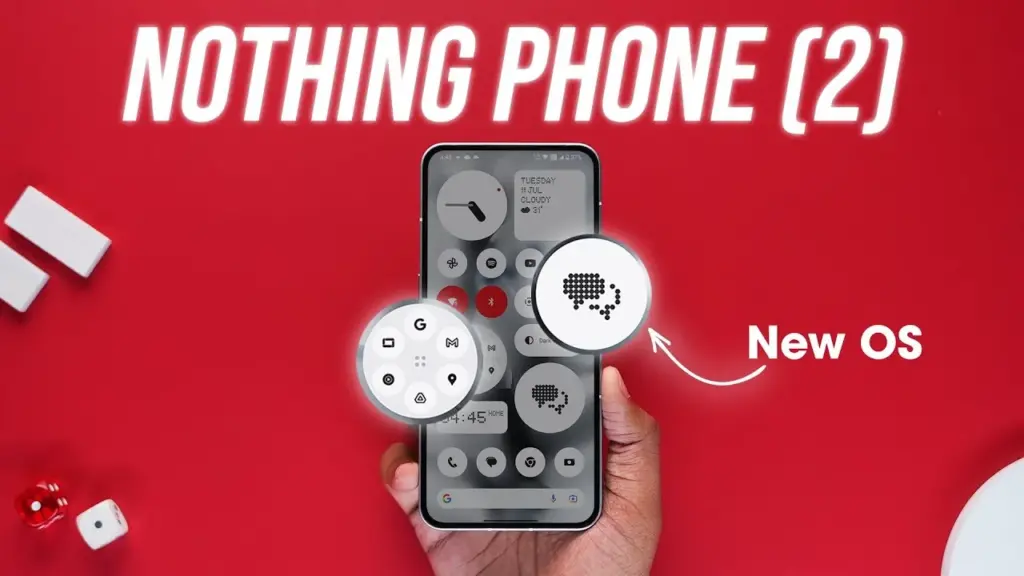
In the Phone 2, nothing’s software basically looks the same as it did on the Phone 1. The UI here feels a lot like Google’s version of Android because the firm gave Android 13 the same light touch of customization that it gave Android 12. If you still find that to be too strange for you, you can initially set up the phone with stock Android rather than Nothing OS.
Nonetheless, I enjoy Nothing OS since none of the modifications it makes are intrusive or feel forced. The Phone 2 primarily uses Google’s system apps, including Phone, Messaging, Calculator, Clock, and others, however there are a few widgets with the Nothing brand and a few apps with Nothing’s distinctive dot-matrix design. Thankfully, there is no bloat, such as pre-installed social networking or games, or programs that perform two functions at once (looking at you, Samsung).
You have the choice to add Nothing’s widgets on your lock screen, but I’m not sure any of them are worthwhile enough to trade notification space for them. I also wish it wasn’t just limited to Nothing’s widgets. On your home screen, you can also choose to enlarge specific app and folder icons so that they take up four instead of one space. Moreover, Nothing’s launcher features a feature that can force all of your program icons to appear in monochrome, even if they don’t yet support dynamic themes. Standard icons, appropriate Material You theming, and unique icon packs from the Play Market are also options.
Nothing guarantees four years of bimonthly security updates and three years of Android updates, which will cover the Phone 2 through Android 16. But, Nothing has only been a company since 2020, and just last year did it release its first phone, making it difficult to anticipate how long-term support will be. But, the Phone 1 hasn’t yet fallen behind in upgrades, so I’m optimistic Nothing will succeed.
The Nothing Phone 2 is powered by a Snapdragon 8+ Gen 1 chipset and either eight or 12 gigs of RAM. The 8+ Gen 1 was Qualcomm’s 2022 flagship CPU, found in devices like the Samsung Galaxy Z Fold 4 and the OnePlus 10T. It’s not as powerful as this year’s Snapdragon 8 Gen 2, but the Phone 2 is still a remarkably snappy device. Apps don’t feel remotely slow to open, multitasking works great, and gaming performance is reliably smooth.
My review unit is the $699 model that comes with 12 GB of RAM, but I don’t think most people would miss those four extra gigs. If you happen to need more than 128 gigabytes of storage, the added RAM is nice headroom to have, but otherwise, you should be safe with the $599 base model.
Glyph interface
The Phone 2 features the Glyph interface from Nothing. The fundamental idea is the same: LED strips are hidden beneath the clear rear glass. They glow when you receive a notice. With Nothing’s Glyph Composer function, you can assign various notifications different light patterns and make your own ringtone/Glyph combinations. When you place the Nothing Phone 2 face down, the Flip to Glyph function from the Phone 1 makes a comeback as well. Your notifications are hushed, allowing the Glyph lights to take over.
But, there are a few useful new additions. Any app’s notification channels can be set up as Essential Notifications, which causes one of the Glyph strips to illuminate and remain illuminated until you view or dismiss the notifications. The Glyph lights become far more practical for this reason alone; you can keep your phone face down and still determine, at a look, whether it requires your attention.
There is a new Glyph Timer feature that, interestingly, only works with timers that are set from a specific widget or the phone’s settings and not through the Clock app. It uses one of the Glyph strips as a type of progress bar for timers. Moreover, Nothing has developed an experimental function for the Uber app that uses the Glyph interface to display the status of your ride. Although I haven’t had the opportunity to try it, I assume I would still be closely monitoring the screen of my phone if I were waiting for a ride.
In all, the Glyph lights don’t add a ton of utility; a single notification LED on the back of the phone would more or less accomplish the same thing. But they look cool, and they don’t detract from any other aspect of the phone. It might be a gimmick, but at least it’s a harmless one.
Cameras
The Nothing Phone 2 has two 50-megapixel rear cameras: one primary at f/1.9 and one ultrawide at f/2.2. Photo performance is mixed.
In good light, the Phone 2 typically takes good pictures. Colors look natural, detail is sharp, and shadows are refreshingly dark — while many smartphone cameras aggressively brighten darker areas in photos, the Phone 2 is content to let them fall to near-black a lot of the time. I appreciate that.
In increasingly difficult lighting situations, things become a little trickier. Nothing’s picture processing may use improvement, despite the Phone 2’s use of tried-and-true camera hardware (the primary shooter utilizes the same sensor as the OnePlus 11). It’s common to lose detail in both highlights and shadows in settings with strong contrast.
In low-light conditions, the cameras also frequently employ unnecessarily lengthy exposures. The fact that a longer exposure results in a brighter image is sort of advantageous. But, I’ve seen single exposure shutter speeds as slow as 1/5. Even with optical image stabilization, it can be challenging to take a crisp handheld photo at such slow speeds.
Another sporadic issue is shutter lag. The Phone 2 frequently takes a second or more to really capture a picture once you hit the shutter button, even in somewhat good light. Although it’s not often a problem, I have occasionally lost images of moving objects due to an unanticipated gap of half a second before the phone shot the picture.
Battery and charging
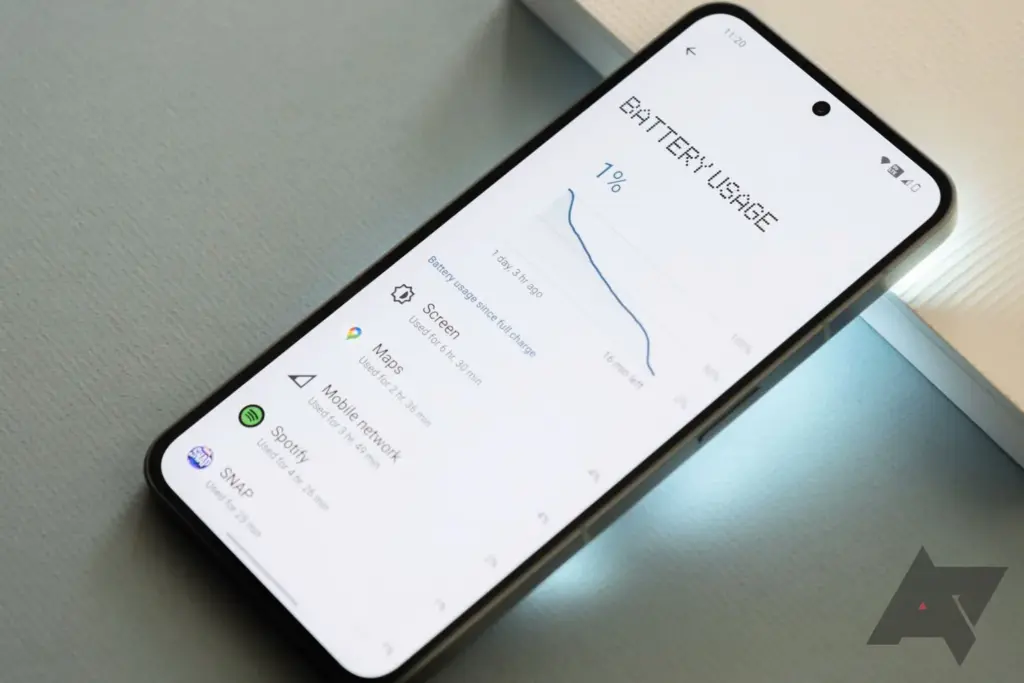
The 4,700mAh battery that powers the Nothing Phone 2 easily lasts me for at least a full day of use. I regularly get six or more hours of screen time over the course of 24 or more hours without a charger. This number holds true even when battery-intensive activities like gaming and Google Maps navigation are included. I wouldn’t be at all surprised if the Phone 2 could go for a full 48 hours between charges with moderate use.
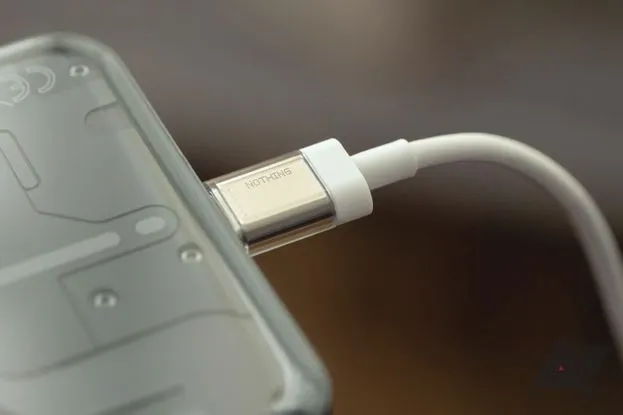
Nobody claims that the Phone 2’s 45-watt fast charging system can charge the battery from 0% to 100% in less than an hour. Nevertheless, to achieve that speed, a PPS charger must be able to produce power at 2.25 amps, which not all can. The maximum charging current at 5A is 15 watts. At 15 watts, a full charge takes roughly one hour and fifteen minutes. The Phone 2 also features reverse wireless charging at up to five watts and wireless charging up to 15 watts.
Conclusion
Given the Nothing Phone 2’s excellent performance, reasonable price, and generally respectable cameras, it’s simple to draw comparisons with the smartphones OnePlus produced during its “flagship killer” era, which was later led by Nothing founder Carl Pei. The same enthusiast customers who like OnePlus’s early phones will likely be attracted to this one, in my opinion: those looking for a reasonable, fascinating alternative to more mainstream options. I’m curious to see how the Phone 2’s general availability in the US will effect the upper-midrange market it is competing in because it will expose it to a larger group of these aficionados than the Nothing Phone 1 did.
Like Nothing, you should always pack your parcels like a pro with quality boxes secured with tape or benzi adezive.
We’ve learned a lot about the incoming successor to the Nothing Phone 1, which is likely to be the most unusual phone of 2022, over the previous few months. We still didn’t know when we would actually see the phone land, though. Happily, we now are aware.
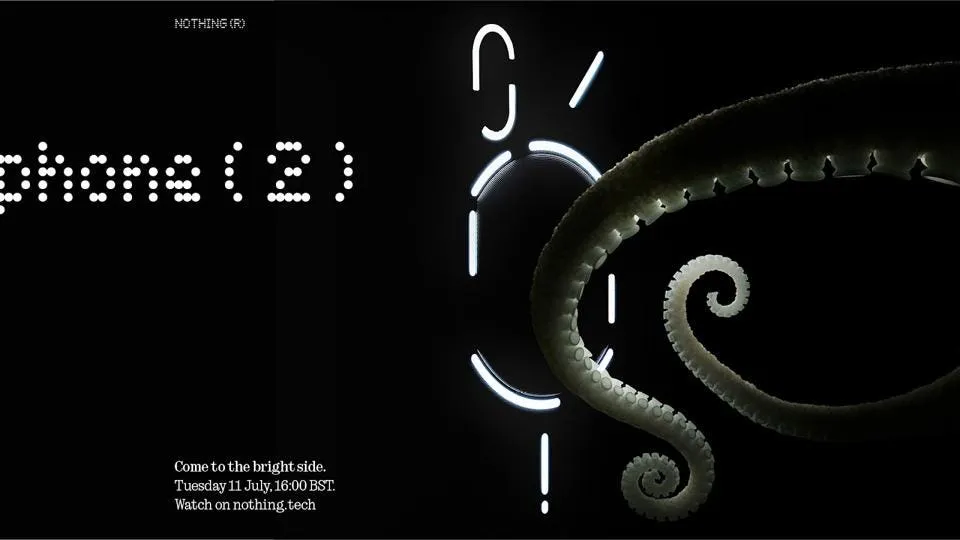
The official launch date for the appropriately called Nothing Phone 2 is July 11, 2023. On that day, at 11:00 ET, Nothing will broadcast the announcement live on YouTube through its website. See the authorized teaser image down below.
The Nothing Phone 2 launch date is now set in stone.
As with all of its other goods, Nothing uses an animal in its advertising for the Nothing Phone 2. You may recall that the Nothing Phone 1 featured a parrot, the Nothing Ear 2 a rhinoceros beetle, and the Nothing Ear 1 a ladybug. The octopus appears to be the symbol for the Nothing Phone 2 launch date and related marketing materials.
It’s interesting to note that this advertisement features The Glyph, the phone’s backlight, in its revised form. These exactly match the rumored Phone 2 renders that we saw a few weeks back and that Carl Pei dubbed “f a k e.” That render appears to be more accurate than Pei would have us believe.
In either case, on the day of debut, we should learn everything there is to know about the Nothing Phone 2. We already know that it will have a 4,700mAh battery and a Snapdragon 8 Plus Gen 1 CPU. Also, we already know that it will undoubtedly visit the United States. When the Nothing advertising machine ramps up, keep checking back for more verified information that will likely be released daily.
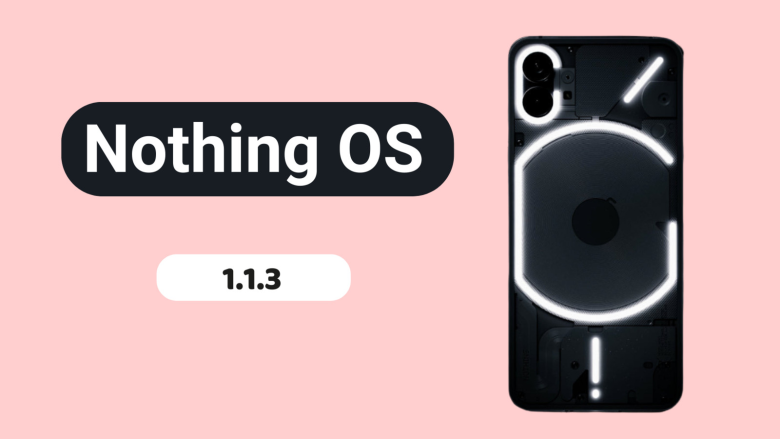
Nothing released Nothing OS 1.1.2 for the Nothing Phone (1) at the beginning of this month, and today, roughly two weeks later, we receive yet another upgrade.
Nothing OS 1.1.3 is already being sent to Nothing Phone (1) devices all around the world, and it includes numerous bug fixes and camera enhancements.
When using the front camera, you can anticipate improved photo clarity, quicker Night Mode and HDR photo processing times, richer color saturation when using the ultrawide, less noise and more sharpness when zooming, and images will automatically be adjusted to “optimal color and brightness” when using Glyph lighting. A further reminder to clean the camera lenses is included.
The Google Adaptive Battery may now be enabled to “intelligently optimize battery life,” and the fingerprint verification UI for third-party apps has been updated.
Finally, a number of problems were resolved, including those that resulted in stuttering in apps like Twitter, Play Store, and others, ineffective mobile hotspot functionality, and lock screen crashes after pressing on a notification and attempting to unlock with a fingerprint. Minor UI aspects have also been improved.
The rollout might be staged, as it usually is with such things, and it might take a few days to reach every Nothing Phone (1) out there. There will be a 64MB download when it does come. Our thorough, in-depth review of the Nothing Phone (1) is available for reading if you’re curious to learn more.
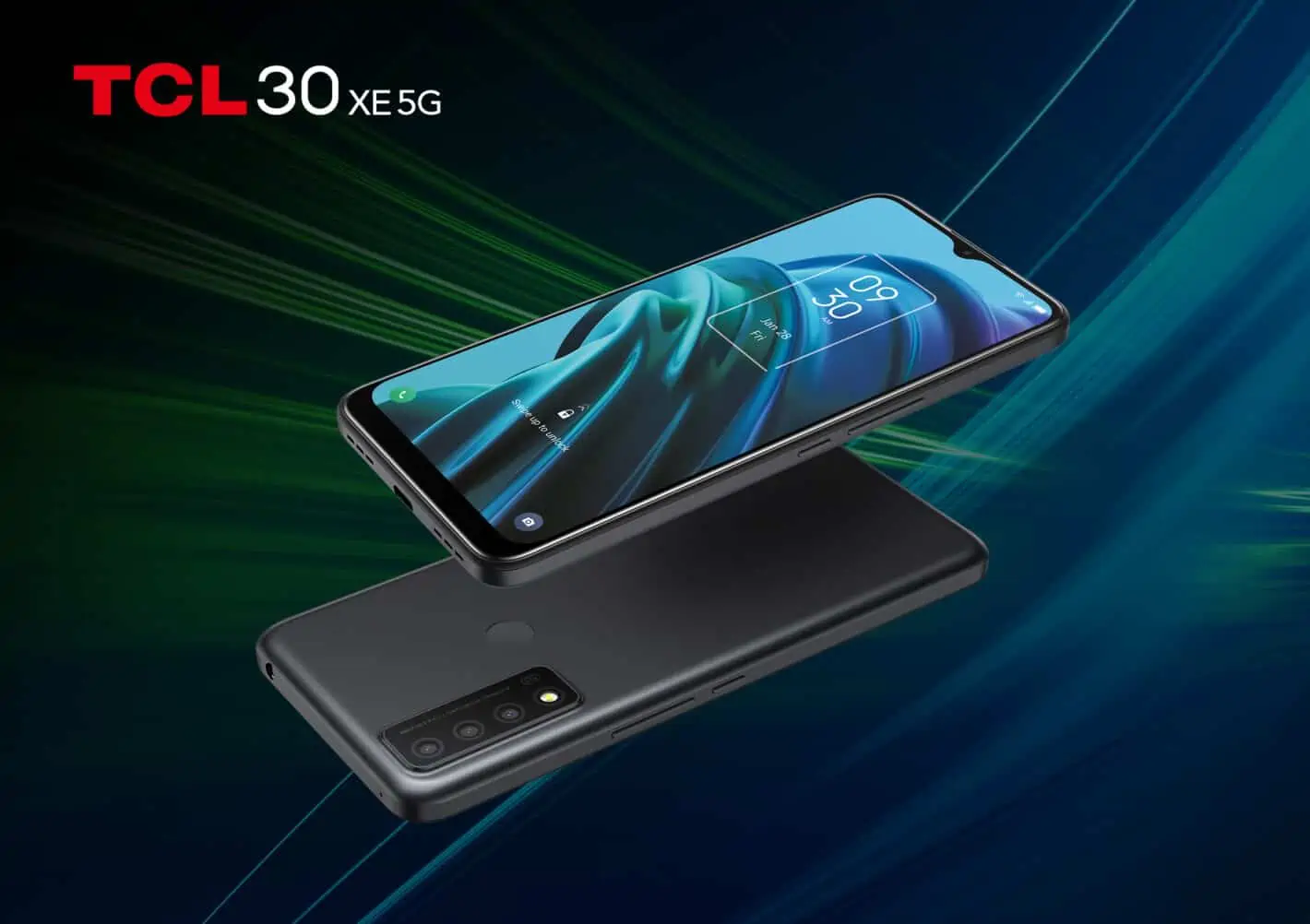
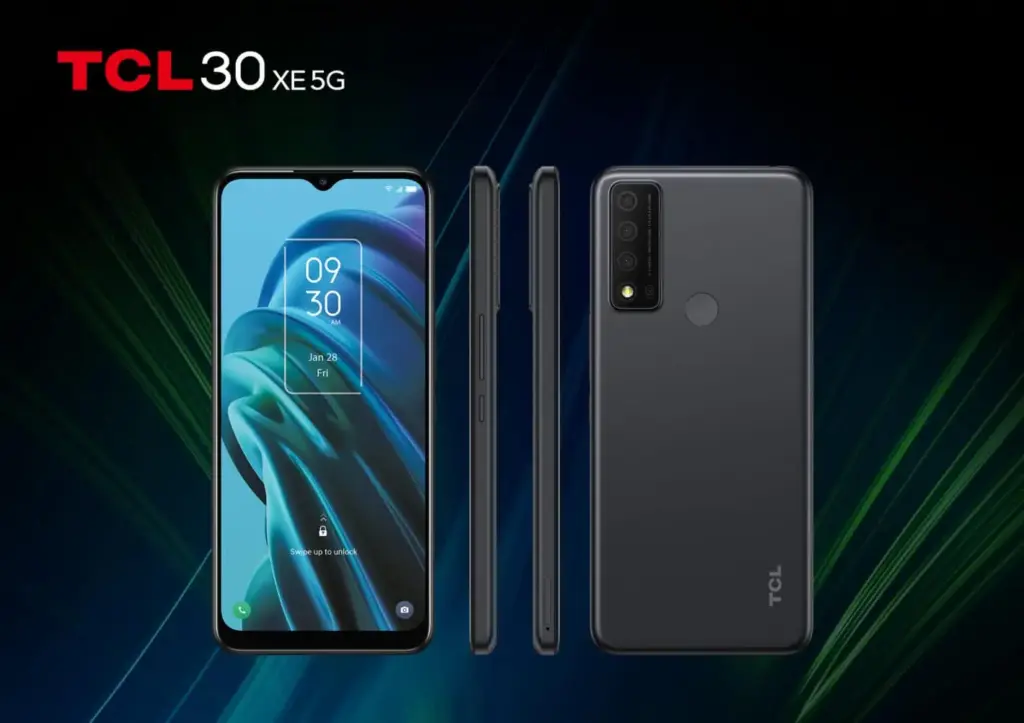
TCL has just released the TCL 30 XE 5G, a low-cost phone with some impressive specs.
TCL has produced a number of fascinating phones since establishing its own brand. This company is focusing on manufacturing affordable phones as well as challenging the luxury market and working on a foldable phone.
The TCL 30 XE 5G has a 1080p display at 90Hz
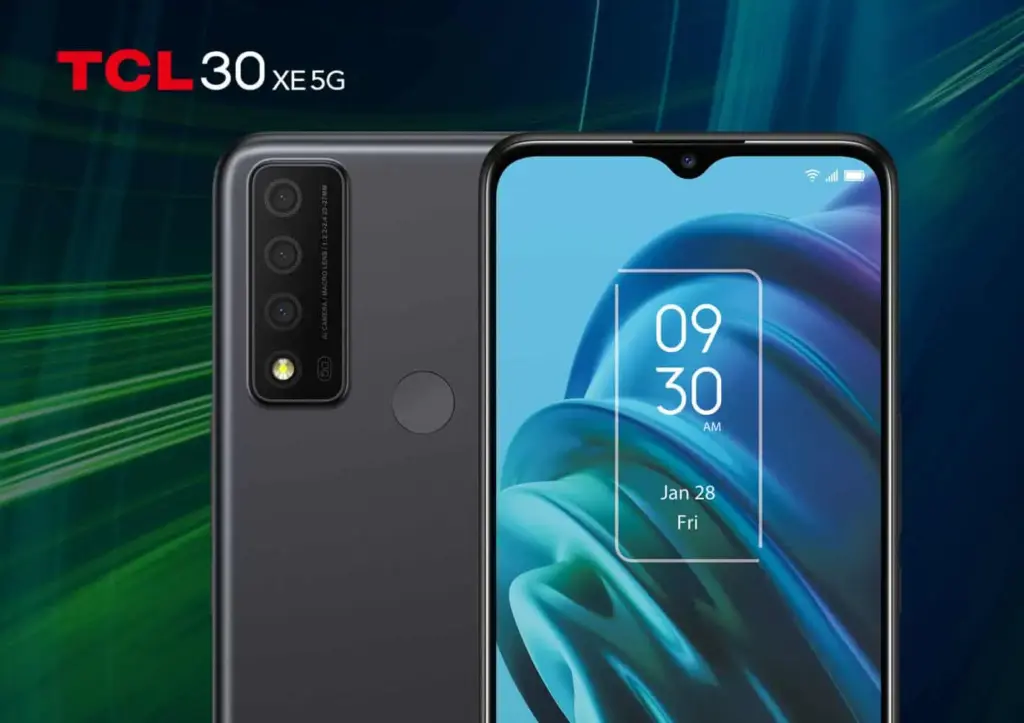
We’re not dealing with any high-end or ground-breaking specifications right away. This is a simple phone with some interesting features. It features a 6.52-inch 1080p+ LCD display with a 90Hz refresh rate. While that may seem insignificant, it is enhanced by TCL’s NXTVISION technology. The display also features a touch sample rate of 180Hz.
The octa-core MediaTek Dimensity 700 SoC clocked at 2.2GHz powers the TCL 30 XE 5G. There are 4GB of RAM and 64GB of storage, which should suffice for most casual users. If it isn’t, this phone can be expanded with a microSD card up to 512GB.
A triple camera package is available in the camera package. The main camera on this phone is 13 megapixels, with a 2 megapixel macro camera and a 2 megapixel depth sensor. The main camera can record 1080p video at 30 frames per second. There’s an 8MP selfie camera on the front. It appears to be a camera combo that will simply do the job.
TCL included a 3.5mm headphone jack, a 4,500mAh battery, mobile hotspot, a rear-mounted fingerprint reader, face unlock, Android 11 out of the box, and an 18W charger in the box to round out the features. So, this is a really basic start into the TCL 30 phone series.
We don’t know much about the TCL 30 XE 5G at the moment. We don’t know when or where this phone will be released, or how much it will cost when it does. We can expect a similar price to the TCL 30 V 5G, which is roughly midrange and costs $299. It could be a little lower due to some of the specifications being less reliable.
While this phone does not compete in the premium smartphone market, it is still a good option for individuals who do not require much from their phones. For those who aren’t used to more expensive screens, the 90Hz refresh rate should be a nice touch. While we don’t know when this phone will be released, it shouldn’t be long.