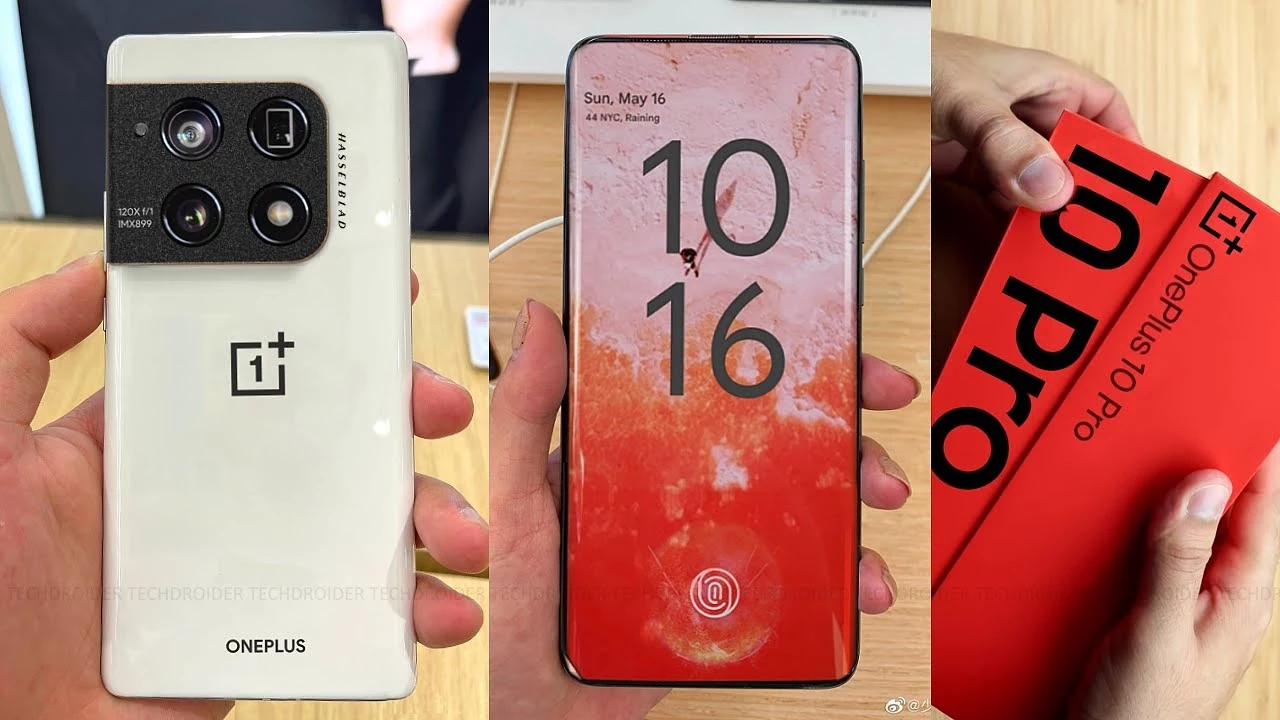
The OnePlus 10 Pro, which will successor the OnePlus 9 Pro, will be one of the most interesting Android phones of next year. Many of the device’s internal specifications have now been revealed by rumors, allowing us to adjust our expectations accordingly.
The OnePlus 10 Pro is up against some stiff competition. The device’s expectations have been raised by its predecessor’s exceptional performance, which currently holds the title of “best gaming android phone” in our rankings.
This is an incredible achievement, given that the Android device competes with niche gaming smartphones such as the ASUS ROG Phone 5 and yet manages to win, owing to its low price and well-balanced collection of features. According to the fresh information released by OnLeaks (via 91mobiles), we can already envisage what the future battle for flagship supremacy will look like.
The OnePlus 10 Pro that is expected to launch globally by April, is going to feature a wide set of specs that already place it at the top of the phone food chain. According to the leak the device is coming with a huge, 5000mAh battery, a Snapdragon 8 Gen1 by Qualcomm, and a high refresh rate, QHD+ 120Hz screen at 6.7 inches.
According to reports, the device will be available in two memory/storage configurations: 8GB/128GB and 12GB/256GB. The memory will be combined with the Qualcomm Snapdragon 8 Gen1 processor, which will be released soon (on November 30th) and marks a significant shift in Qualcomm’s naming strategy.
Speculating further, the OnePlus 10 Pro is said to have a 48MP primary shooter, a 50MP ultra-wide and, an 8MP telephoto with 3.3x zoom on a square camera bump. On the selfie side, we expect to see a 32MP camera inside the typical punch-hole cutout that we have been seeing for a few years now on devices.
Some extra information points to a 125W charging capacity, but details about the fast charging capabilities are not yet known, but the OnePlus 10 Pro will be IP68 rated for that provides a little extra protection for this massive battery.
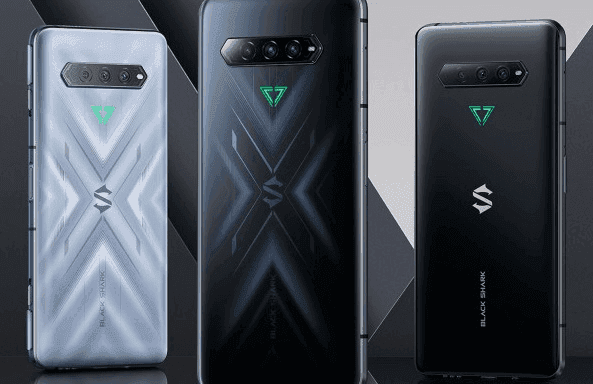
Gaming phones are becoming increasingly common, and Xiaomi is keeping up with its Black Shark series. The Black Shark 4 and 4 Pro, the most recent version, have appeared on the Chinese market. You can pre-order one today, and the phones will be available in China on Thursday, November 25th. An international release date has yet to be determined.
Black Shark 4 Pro
The no-holds-barred Black Shark 4 Pro is operated by Qualcomm’s largest and baddest processor, the Snapdragon 888. It’s paired with either 8GB or 12GB of ultra-fast LPDDR5 RAM, and both versions have 256GB of storage. But those aren’t exactly difficult to come by these days. The dedicated mechanical shoulder buttons on the side are the more obvious giveaway that this is a gaming phone: slide the locks away to allow them to pop-up. They, like the Black Shark 3’s shoulder buttons, can be bound to touch areas on the screen for incorporation with virtually any game.
The 4 Pro has a 6.67-inch AMOLED 1080p screen with a maximum refresh rate of 144Hz, which outperforms most gaming phones. It also has two pressure response zones (as in the amount of pressure applied, not just touch sensitivity), allowing for more integration into games that can accommodate it. Its battery capacity is 4500mAh, which is fairly standard for a phone of this size, but it supports quick charging at a totally insane 120 watts (with the charger included in the box). Xiaomi claims that it can charge the battery to 90% in just over 30 minutes.
Cameras on the Pro are respectable: 64MP main shooter, 8MP ultrawide, and 5MP macro, with a 20MP centered front camera. In terms of style, the flat black version actually looks fairly button-down—if you don’t notice the side buttons (and the LED triangle logo on the back stays unlit), you’d have a hard time telling it’s a gaming phone. Of course that goes out the window if you get the “So Empty Black” version (that’s auto-translated, so we’re unsure if that’s the official name). Its layered, semi-transparent glass shifts around as you look at it, in a much more flashy but not unappealing way.
The phone is 9.9mm thick, which is enough to accommodate a headphone jack and a side-mounted fingerprint reader. The dual-SIM radio supports 5G, and for the most intense sessions, you can attach the sold-separately cooling module. The Black Shark 4 Pro starts at $4000 for the base edition, which is only available in black, and goes up to $4500 for the 12GB RAM version. That works out to $615 and $690, respectively.
Black Shark 4
What about the non-Pro? The standard Black Shark 4 ditches the pricey Snapdragon 888 for an 870, basically a refreshed version of last year’s go-to flagship chip. It has an identical body, screen, and battery with 120 watt fast charging, but the base model goes down to just 6GB/128GB. Upgrades all the way to 12GB/256GB are available.
You lose that dual-zone pressure sensitive screen and drop the main camera down to “just” 48 megapixels, but the Black Shark 4 keeps those signature shoulder buttons and most of the rest of the hardware. It costs between ¥2500 and ¥3000, depending on your RAM and storage choices.
Both phones are running JoyUI, based on Xiaomi’s MIUI, which has been generally well-received. The phones are launching in China only for the moment, but previous models were made available globally as unlocked devices. With a current boom in gaming phones, it seems likely that the 4 will follow.
You can immediately allow Google’s Verified Call feature if you are looking to get even more privacy on your Android phone.
Verified Calls is Google’s way of amplifying caller ID in such a way that you can quickly tell if a caller is a legitimate business or not. With this feature now available, businesses can sign up to use Verified Calls which makes it possible for them to better inform you why they are calling. In other words, you won’t even have to answer the call to know why that legit business is trying to contact you.
It will help to make it easier for users to stop spam calls and make it easy to check instantly if a call is from a company they trust. This new feature will improve call response times for businesses and could help create trust between you and potential customers / consumers.
The feature started rolling out to Android in September and is only available for the Google Phone app. If your device works with stock Android you should be good to go. However, if your Android phone of choice is a Samsung (or from another manufacturer that uses a different phone app), you’ll need to install the Google Phone app from the Google Play Store. Without the Google Phone app, you cannot make use of this feature–one that many will eventually be considered a must-have.
To enable the Verified Calls feature, open the Phone app and tap on the menu button in the upper-right corner. From the popup menu, tap Settings. From the list of options, tap Caller ID and spam.
In the resulting window, tap the On/Off slider for Verified Calls until it’s in the On position
What are the most commonly asked questions from Android users? Like, how is Android getting faster? How can I make my Android phone faster? Well, it is the hope of every Android user that their phone defies all the boundaries of fluidity and rapidity.
But do you believe this is true? Can you make your Android phone faster than it can? At most, what we want is to make the Android system function as if it’s new, because our smartphone is slowed down by downloading apps and using them everyday. These apps run in real-time and consume the device’s memory, energy , and other resources.
So, what could be the many ways to use our Android devices efficiently, in such a way that we could reduce the lags and freezes as much as possible if not completely?
Keep the apps you use
Nearly every guide to Android tips and tricks you could read will suggest that you keep only those apps you use on a daily basis. Doesn’t that sound apparent? Will you store your house with unnecessary items only because they are free? Yeah, our homes are always loaded with items like that, but do we have to do the same with our smartphones?
In order to keep running, numerous apps that live inside our smartphones run all the time and need to connect to the Internet. Even if we don’t benefit from these applications, they will just place a burden on the hardware even raise our data bills. It would be a smart step in the direction of speeding up Android to get rid of such software.
Clear the cache
On a daily basis, there are some applications that you don’t need, but they are relevant enough to have a place on your computer. Like, you book flights, hotels, and order food with the apps you use. Try to delete the cached data for such apps in the Settings to make Android quicker, to ensure that they do not take much space when they are not in use. Often learning the cached data helps to make the app faster as it eliminates old data that might make it slow and cause freezes and crashes. The application will maintain newer versions of the same stuff when the data is removed.
Clear the memory several times during the day
Android has exceptional abilities for task management. It can, whenever needed, close unwanted processes on its own. But I can tell you this old-school thing would be of great help if your system had a RAM shortage.
Nearly every launcher nowadays provides the option of freeing up system memory. If there is no memory cleaning application, you should consider downloading any. And I am not talking about the apps here that claim to make your Android phone faster by running cleaning operations in real-time. And all they do is make it even slower on the computer.
Check if there are lighter versions of apps
Many of the popular apps like Facebook, Twitter, Messenger, and Opera also have versions of their ‘lite’. These lightweight applications are also designed for smartphones at the entry-level and for consumers needing to keep things simple.
The efficiency of your Android phone can be enhanced by using Lite versions for applications. And they also decrease your data bills, and it’s one of the reasons that there are such games.
Update your device
Each newer version of Android comes with different performance enhancements. So, updating your computer will do wonders and accelerate Android if your vendor is good enough to release one.
Alternatively, you can head over towards custom ROMs for your Android device if you think the device maker built the phone and just forgot the fact that it exists anymore. That is the case of the Mi Pad my friend brought more than a year ago. Even though the device has capable hardware, it still runs Android KitKat. Please note that using customs ROMs usually comes in the category of Android performance tips for experienced users.
Before you install an app
It’s almost a decade since Android came into existence and the number of apps for the platform has now grown into millions. But out of these uncountable number of apps and games, not all of them are designed by developers with good intentions.
Many Android apps are fake and want to take control of your device, steal valuable data and send it to their masters. For instance, the System Update malware lived in the Play Store for three years, undetected.
Google has recently rolled out Play Protect tool for scanning such apps. Indirectly, you can make your Android device faster by this option. However, you should check the authenticity of an unknown app before you install it, even if you’re downloading it from the Play Store.
Format your SD Card to improve Android performance
If you experience frequent crashes on your Android phones, one of the explanations might be a corrupt SD. Formatting the SD card would not only delete the unnecessary junk of files generated by the Android framework and various apps, but could ultimately lead to a boost in performance.
Update only over WiFi
In order to keep the information fresh all the time or do other things such as uploading files, images , videos, several apps need to update themselves in the background. Disabling background data can thus render an Android computer, to an extent, faster.
That’s because it bars apps from linking to the internet and from using device tools. Turning off background data for mobile networks will also be helpful in saving your internet bills.
Alternatively, you can turn off auto-sync on your Android device if you want to keep your device from being synced by Google.
And turn-off auto update in Google Play by visiting Settings > Auto-update apps > Select Auto-update apps over WiFi only.
Restart is what your Android phone needs sometimes
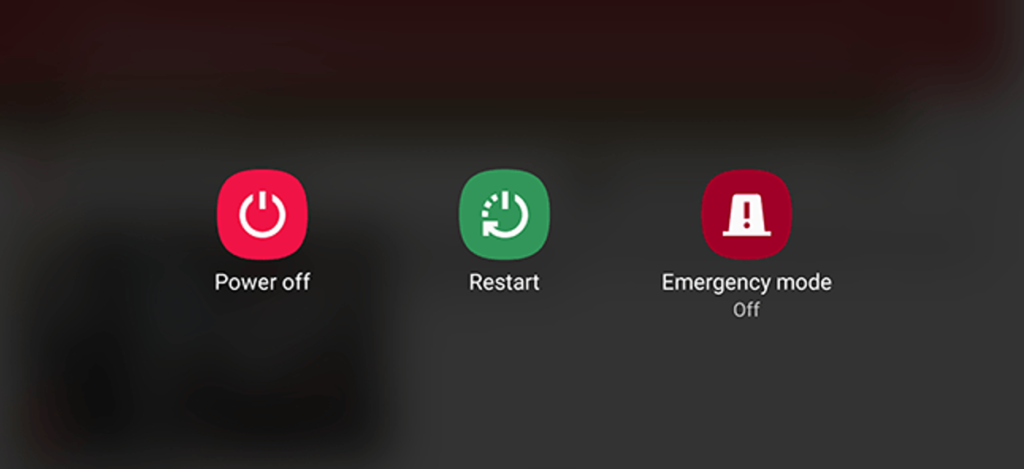
For our computers, this applies; restarting the machines will help them find their way through tough times. Similarly, Android devices may be the case too. It deletes temporary files to speed up Android when you reboot your computer and also cleans up the memory of the device.
Use the cloud, free your storage
Files are being transferred to the cloud in the latest 2017 storage fashion. Not only does this make our data available across devices, it also frees up precious internal storage on the Android phone that applications installed on the device can use. Keep in mind that internal storage plays a significant role in your Android phone’s output.
Keep your home screen clean
It sounds good to fill your Android home screen with live wallpapers and loads of widgets. However, all these things put additional load on the hardware under the hood and affect the output of the system.
Often, when you use a heavy app or play games, you may see your Android device struggling to load the contents of the home screen.
One of the many ways you can make your Android phone quicker is to keep your home screen as clean as possible. Every time you return to the home screen or wake the computer from sleep, it doesn’t have to load all the content.
Try other launchers made for Android
android launchers
Custom launcher is a perfect way to turn your Android computer into a whole new version of itself. It might not be feasible for a custom launcher to have a major performance boost related to hardware, but some of them suck much less memory and Processor than others. Installing a lightweight custom launcher will thus make your Android phone functionally faster.
In addition, the variety of shortcuts, customizations, and other options will help to make your Android device run faster, if not faster. These applications will reduce the time that people would possibly spend in searching different apps and settings on their devices.
What to do when your Android phone freezes?
It’s hard to digest, but some evil apps and processes make our device experience the temperatures of hell. But repeatedly tapping the screen or pressing buttons would only make things worse when your Android freezes due to an app crash or when all RAM gets consumed.
Under such cases, strive to show some calmness and maturity. Most of the time, it’s just the app, and pressing the home button will take you to home screen. After that you can destroy the affected app from the Recent apps section to make Android faster.
When you press the home button, if nothing happens, press the power button gently and try to ‘reboot’ or ‘turn off’ the system. If the system is stubborn enough to resist a restart you may remove the battery. If your mobile has a non-removable battery, you can have all the time, but you may have to wait until the battery is discharged.
Developer options
There is a much popular way to make an Android device faster by tweaking some settings in the Developer Options. However, I personally don’t like this suggestion as it leaves the device without any special effects.
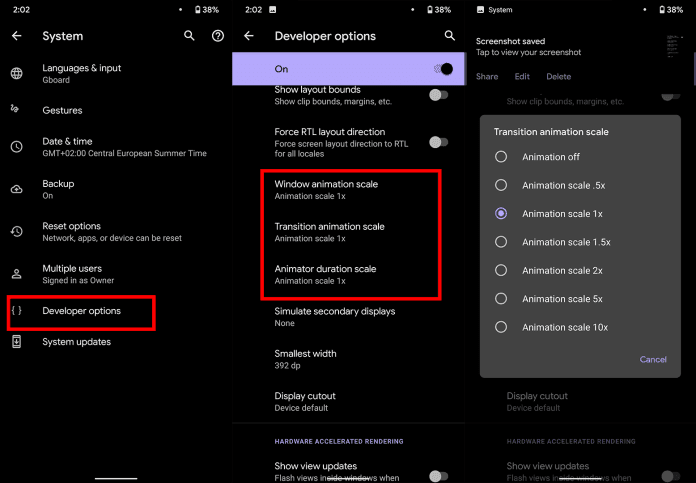
You can enable Developer Options on Android by going to the About section and tapping the build number five times consecutively. Then, you’ll be able to see Developer Options in the Settings. You can disable animations on the device. Set Window animation scale, Transition animation scale, and Animator duration scale to off.
This change reduces the time wasted on rendering various visual effects on the screen when you operate, making it work quicker in some sense. Go ahead if you’re fine that your device appears to be running a decade old software when it’s not.
Reset your device
Last and but not least, the ultimate option to make your Android phone faster is to perform a factory reset. You can consider it if your device has slowed down to the level that can’t do basic things.
There are two ways to reset on your Android device. First is to visit Settings and use the factory reset option present there. This would perform a soft reset of your device which involves resetting device settings and wiping all the data like your photos, videos, apps, cache, etc.
For deeper cleaning, you’ll have to boot into recovery mode and hard reset the device. After you turn off the phone, on most Android devices, recovery mode can be accessed by pressing Power and Volume Down button for around 5 to 10 seconds.
You will need to boot into recovery mode for deeper cleaning, and hard reset the computer. On most Android devices, after you turn off the handset, you can access the recovery mode by pressing the Power and Volume Down buttons for around 5 to 10 seconds.
In most situations, though, you should stick with the first process, as it will fix problems for you. And, try to back up the data before you do something.
So, these were some of the Android tips and tricks for your phone with a hope that you’d be able to give it some adrenaline rush.