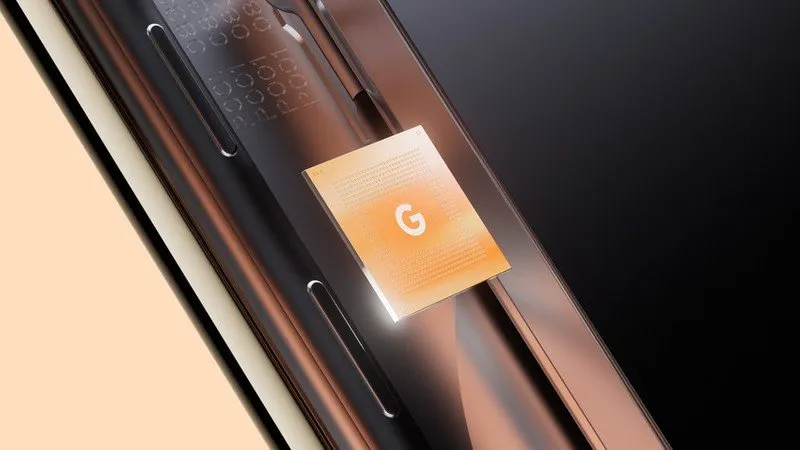
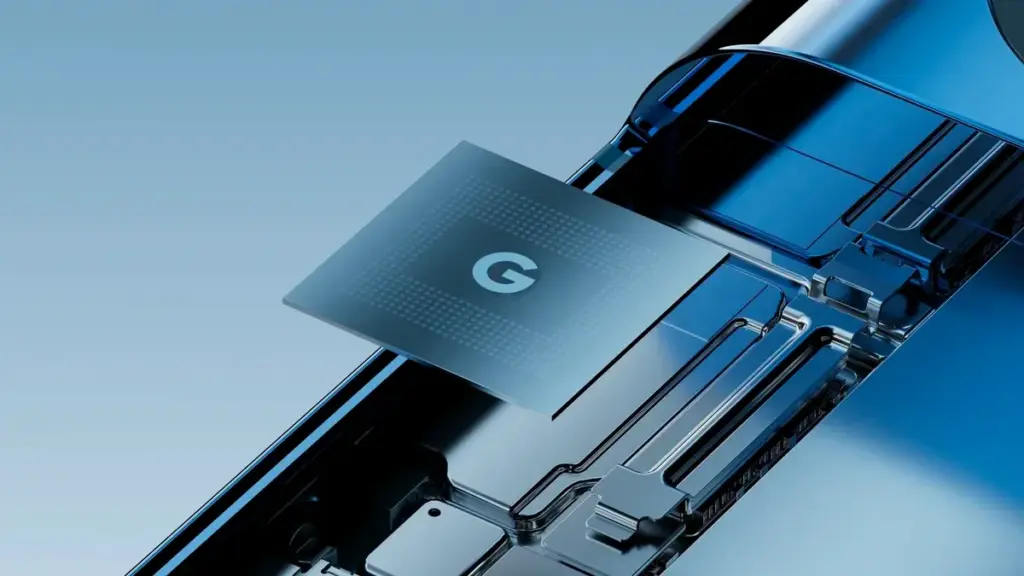
Tensor G5 is expected to include a number of off-the-shelf components to replace Samsung-made parts of previous chips, including the use of a totally bespoke ISP, as part of Google’s decision to move its Tensor production to TSMC for this upcoming generation.
Since the beginning, Tensor chips have mostly been a combination of components created or built by Google and those made by Samsung. This is because Google has used Samsung’s foundry and Exynos chips to help make Tensor a reality. However, as has long been known, Tensor G5 in the Pixel 10 will use TSMC instead of Samsung, creating certain gaps in Google’s chip manufacturing process.
According to a new report from Android Authority, there are a handful of off-the-shelf components that Google will be switching to.
According to reports, Tensor G5 will keep using a number of Google’s current designs (with improvements) that were included in Tensor G4 and other earlier Samsung-made chips, such as the TPU, DSP, memory compressor, and audio processor. However, it will have to swap out a few parts to make room for the switch to TSMC, including:
GPU: Arm Mali > Imagination Technologies DXT
Video codec: Google “BigWave” & Samsung MFC > Chips&Media WAVE677DV
The ISP is the most noticeable change here, since Google is reportedly developing a completely unique approach. Beginning with the 2017 “Pixel Visual Core” in the Pixel 2 series, Google has utilized its own ISP in a number of Snapdragon-powered Pixel phones. Prior to Google releasing the proprietary chip before Tensor’s 2021 launch, that developed into the “Pixel Neural Core” with the Pixel 4.
The end user will not likely notice many of the component changes Google is making, but it will be fascinating to observe if the different swaps have any positive or negative effects. The replacement of the current Samsung choices with a MediaTek modem is another noteworthy change that was previously publicized.
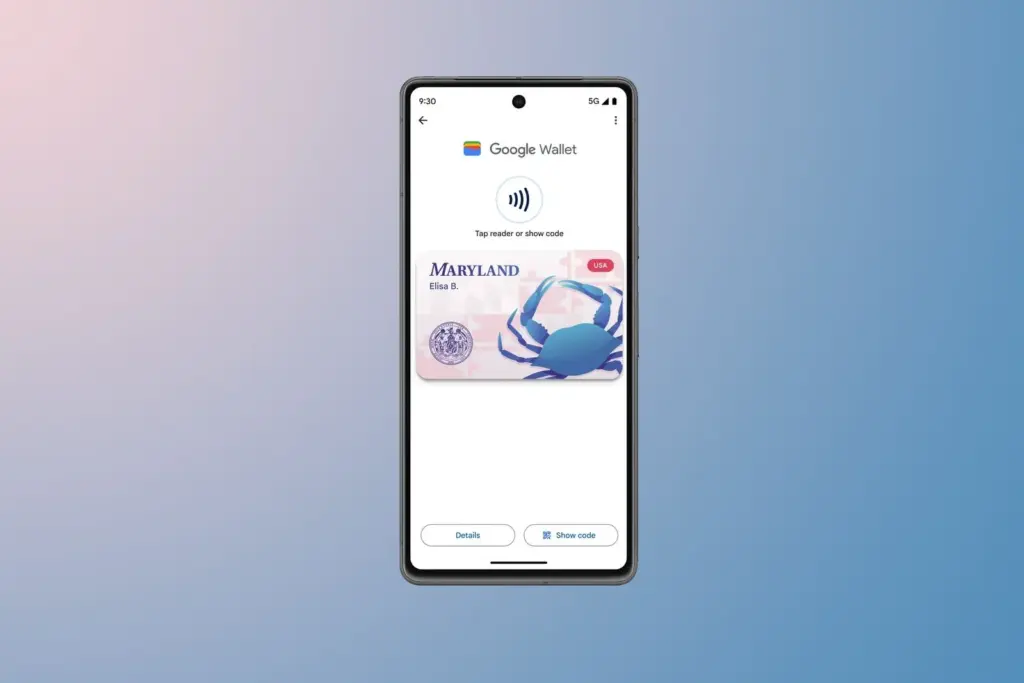
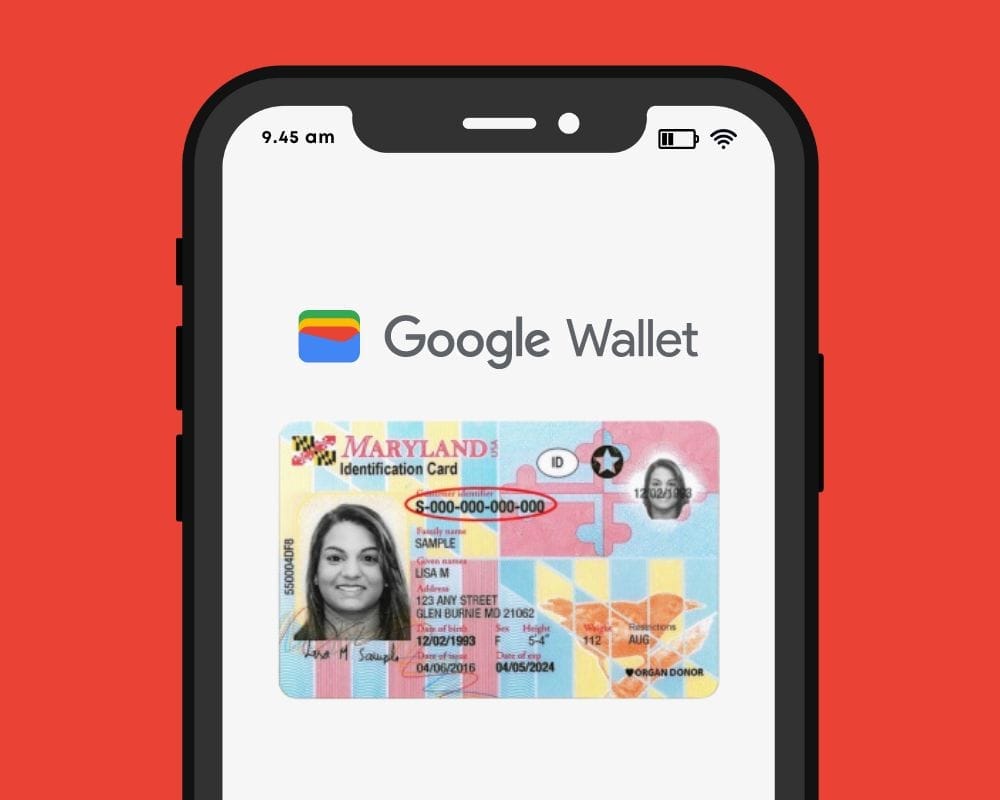
You can link your driver’s license or state ID to your Google Wallet in certain US states. It is a practical way to carry and show your ID, however there are some restrictions. Google has caught up to Apple, which was the first to introduce this feature in 2021.
You can add your driver’s license to Google Wallet if you know how to add your credit card. We let you know if you can add your driver’s license or state ID to Google Wallet and walk you through the process of adding and removing it. Google Wallet works with devices other than smartphones. With any of our favorite smartwatches, you can show your ID right from your wrist.
Where you can use your ID from Google Wallet
The only US states that permit IDs to be kept in the Google Wallet app are Arizona, Colorado, Georgia, and Maryland. Additionally, several states permit the storage of their IDs in Apple Wallet.
Since Google must collaborate with each state to integrate its IDs into Google Wallet, the rollout to more states is sluggish. The process is slowed substantially by the fact that every state handles IDs differently. Since Arizona and Georgia partnered with Apple in 2021, just six states have implemented digital ID systems.
The driver license can be added to Google Wallet too
Georgian and Maryland digital IDs saved in Google Wallet are accepted at a few participating airports nationwide. Colorado and Utah IDs are accepted in more contexts, such as when demonstrating your age at a restaurant. However, in any circumstance where your digital ID is approved, you must always carry your physical ID with you.
California and Utah, if you reside there, have their own digital ID applications and regulations regarding where you can use your ID. Whether Google Wallet will be supported in these states is unknown.
Is safe to store your ID in Google Wallet?
Although a digital copy of your driver’s license or state ID may appear less secure, there are steps in the process that ensure the security of your personal information. These components guarantee that only you have access to your personal information, however part of this is because of the setup procedure (which we will take you through soon).
Your digital ID is encrypted on your phone.
It can only be accessed with biometric authentication.
You choose what data is shared each time you show your ID.
Your digital ID can be deleted remotely.
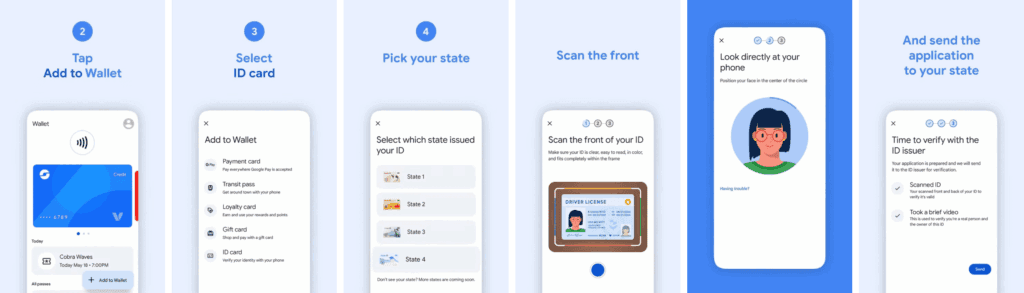
How to add the ID or driver’s license to Google Wallet
You will know how to begin if you have added credit cards, transport passes, or rewards cards to Google Wallet before. But adding your driver’s license or state ID requires a more extensive procedure.
Open the Google Wallet app.
Tap Add to Wallet in the lower-right corner of your screen.
Tap ID card. This option only appears if you live in the US.
Tap your state ID.
Scan the front and back of your ID.
Record a short video where you’ll turn to show the front, sides, and bottom of your face.
Submit your application to the state.
Your application takes a few minutes to process. Your driver’s license is ready to view in Google Wallet when you receive the confirmation notification.
How to remove your state ID or driver’s license from Google Wallet
It only takes a few touches to delete your driver’s license or state ID if you are worried about its security. You can delete it remotely using the same technique as taking any digital card out of your wallet.
Remove your digital ID from the Google Wallet app
Open Google Wallet
Tap your ID card.
Tap the three-dot button in the upper-right corner of the screen.
How to provide your electronic identification at TSA PreCheck
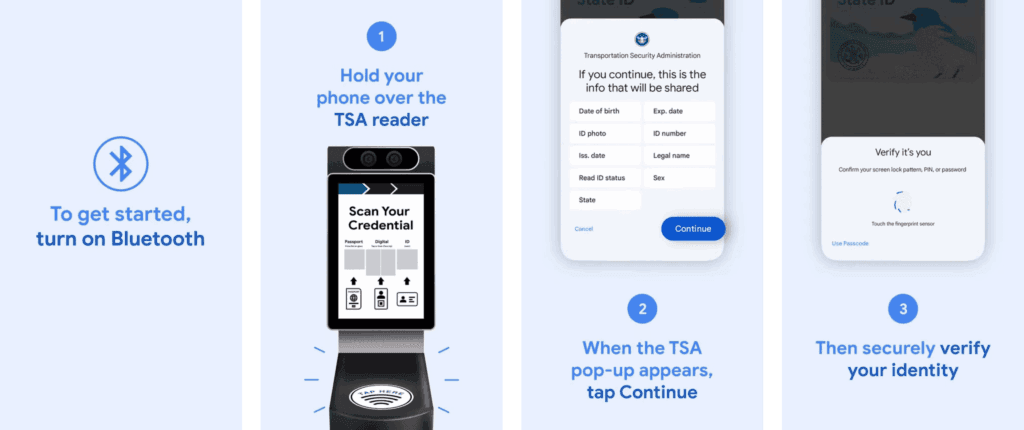
You can display a QR code or utilize NFC with tap-to-pay to use your digital ID card. First, you must schedule an in-person visit at an enrollment location to register for TSA PreCheck. To utilize your digital ID after registering, take the following actions:
Hold your phone over the TSA reader terminal. The reader automatically pulls up your ID.
Confirm the data you are sharing by tapping Continue in the lower-right corner of your phone screen.
Verify your identity using biometric identification.
Display your ID safely and conveniently
There are numerous benefits to carrying your driver’s license on your phone as opposed to a physical card. It eliminates the need to carry your wallet to bars, though employees may refuse to serve you if they think it is inappropriate. You can only present the necessary documentation.
NFC communication is the backbone behind sharing your digital ID.
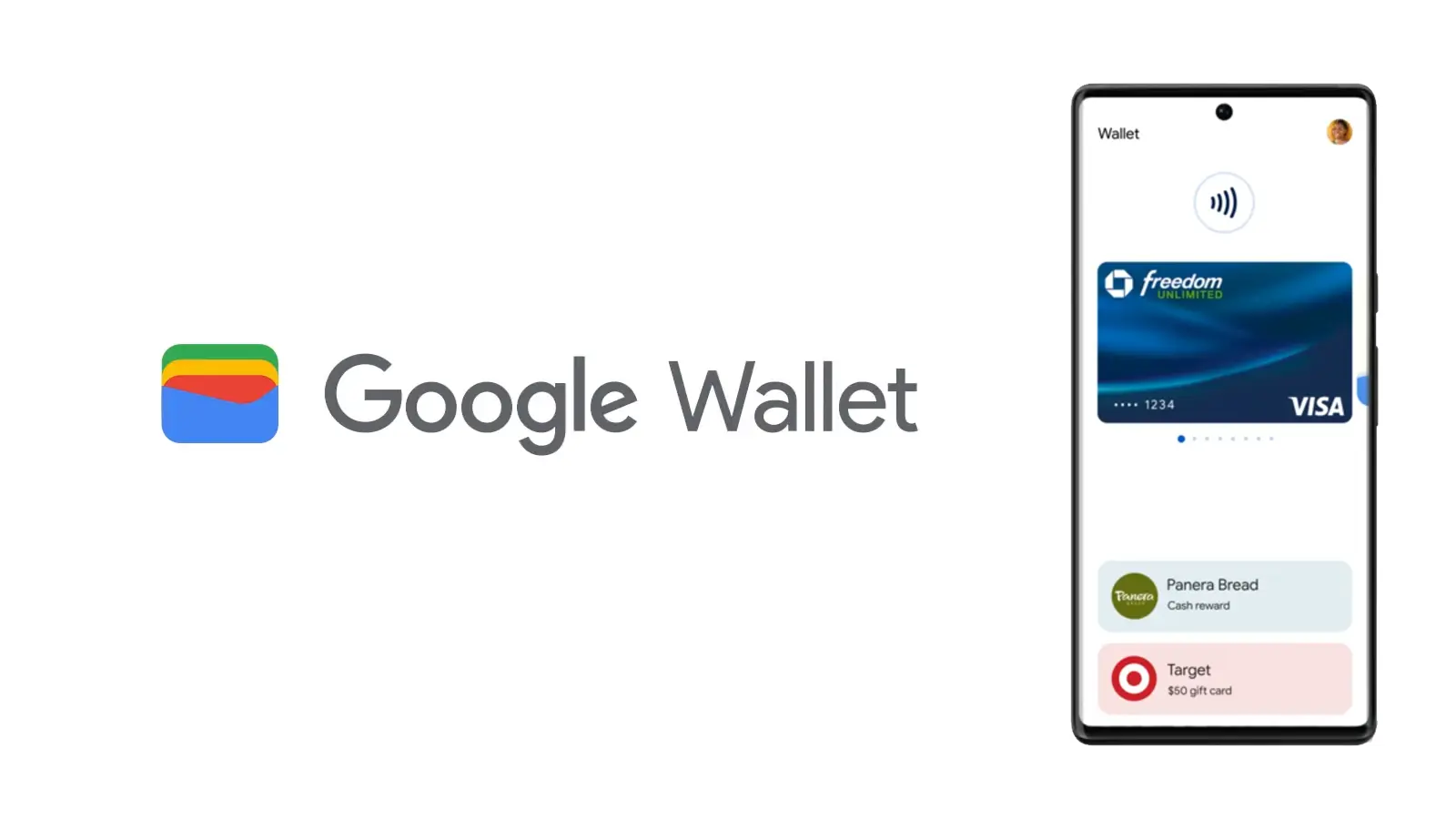
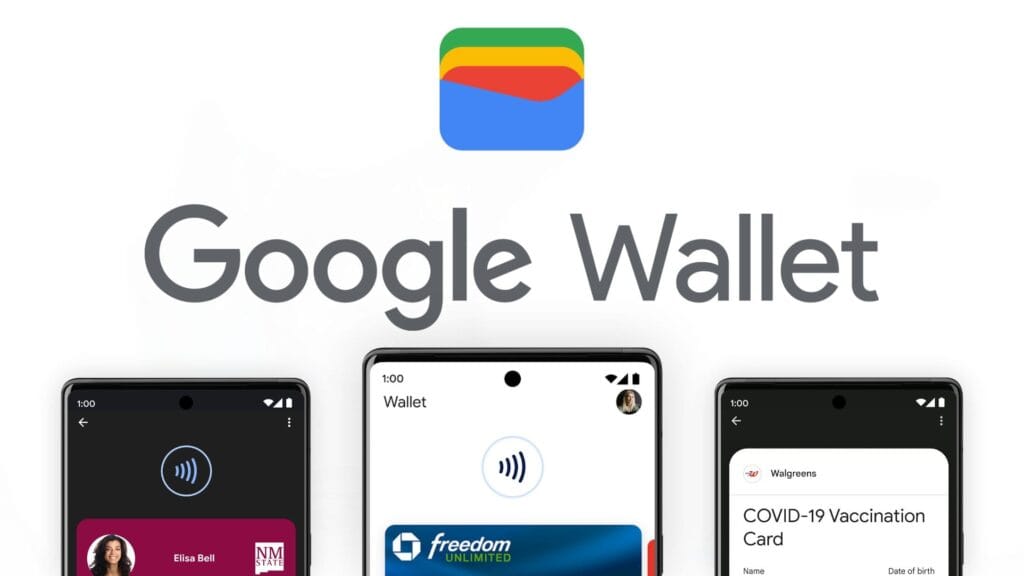
Digital wallets are becoming a more common option to pay on the go. The concept is simple: why carry a wallet when you can store your credit card on your Android phone? It makes logical and decreases the amount of items to keep track of. Google Wallet goes a step further, allowing you to add goods other than credit cards to your digital wallet. What products exactly?
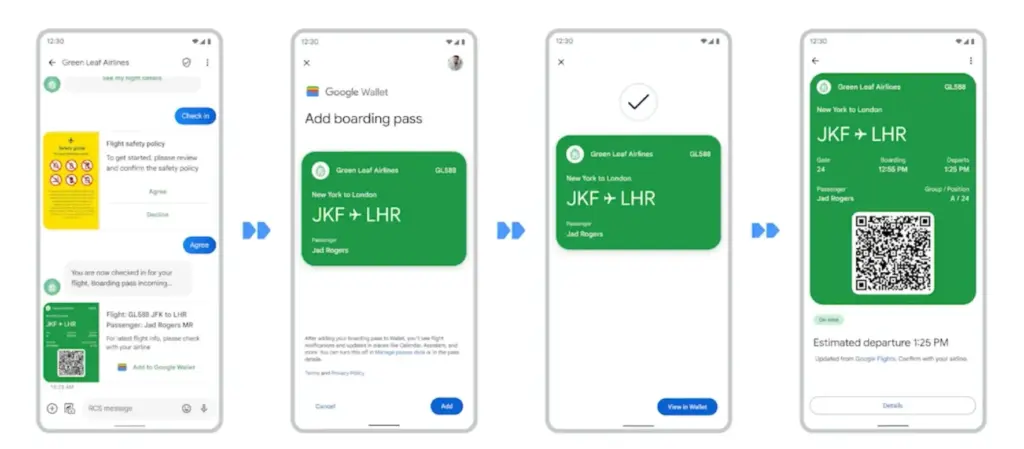
Boarding passes
Boarding cards are required for airline travel. You need these to get past security, confirm the flight’s departure time, and find your gate. Traditionally, they were paper, but they have recently gone digital, via the airline’s app or a digital wallet. Google Wallet can save boarding passes, eliminating the need for physical boarding tickets. It also refreshes the gate or flight time on the boarding card as soon as it changes, keeping you informed of any changes.
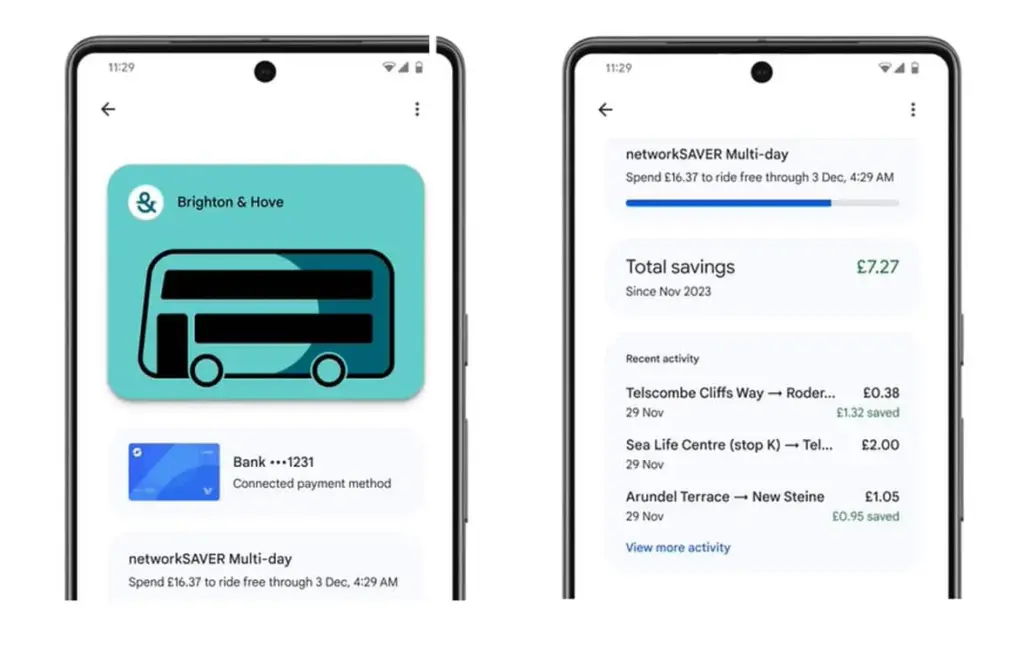
Public transportaion tickets
Public transportation is useful for traveling around, regardless of whatever major city you are in. Each system has its own type of passes, such as monthly passes or reloadable cards. Normally, catching a trip requires a specific app or physical pass, but Google Wallet allows you to store and utilize passes from several major transportation agencies around the United States. Then, you can utilize Google Wallet to travel whenever necessary.
Gift cards
present cards are a popular option to offer someone a flexible present that does not require a specific item. It allows the receiver to select an item that is ideal for them, and gift cards can be pooled to purchase a more expensive item. During holidays or birthdays, you may receive multiple gift cards that are difficult to keep track of. Google Wallet allows you to save all of your gift cards in one location and redeem them later.
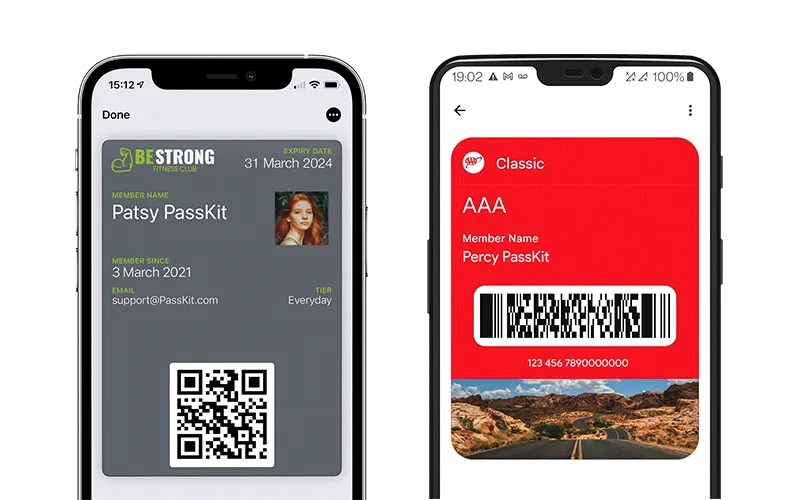
Loyalty cards
Most businesses have a loyalty or rewards program in place to provide perks to consumers who return frequently. Sometimes this takes the form of a physical card that is utilized at the checkout. If you have rewards cards from multiple businesses, they might fill up your wallet. Google Wallet can also hold loyalty cards. Google Wallet identifies common cards, adds them, and provides you with an easily readable barcode to scan at checkout.
Driver’s licenses
To be able to drive, you must have a driver’s license, which is the most frequent form of identification used to prove your identity and age. Keeping your license with you at all times is a good idea and occasionally necessary, but it can be difficult to keep track of if you do not want to carry a wallet. If you lose it, finding a replacement can be tough. In several states in the United States, you can keep your license in Google Wallet. It is not available in every state. It will only be offered in Arizona, California, Colorado, Georgia, Maryland, and New Mexico as of March 2025. Hopefully, its availability will increase with time.
Health insurance card
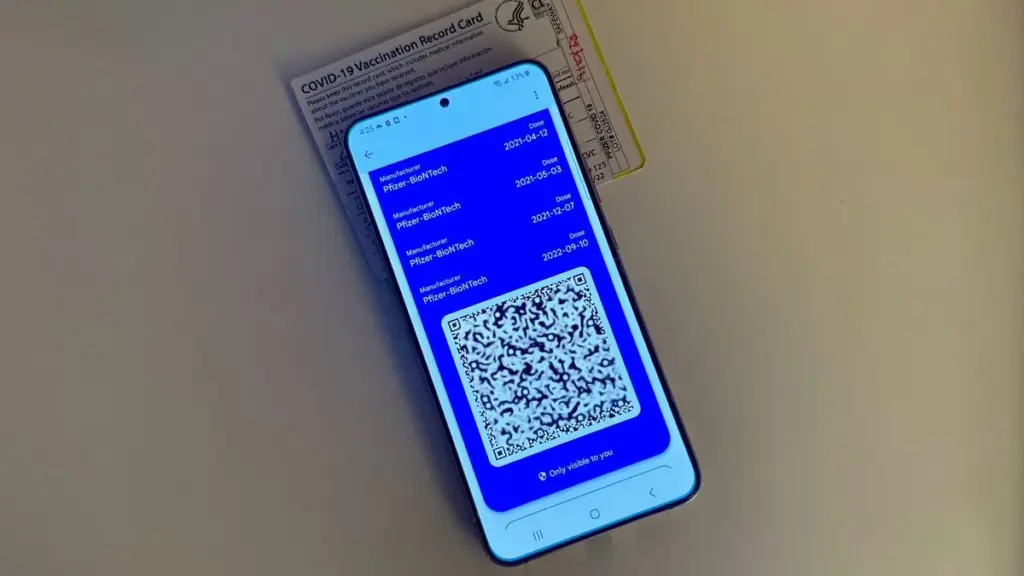
Health insurance cards are another vital piece of information to keep with you at all times in case you want medical assistance. While you can keep the physical card, you can also save it to Google Wallet. While it is not as straightforward as adding a credit card or other comparable item to Google Wallet, you can scan or save it through your healthcare provider. Then you will have all of the critical medical information you need at your fingertips whenever you need it.
Passport
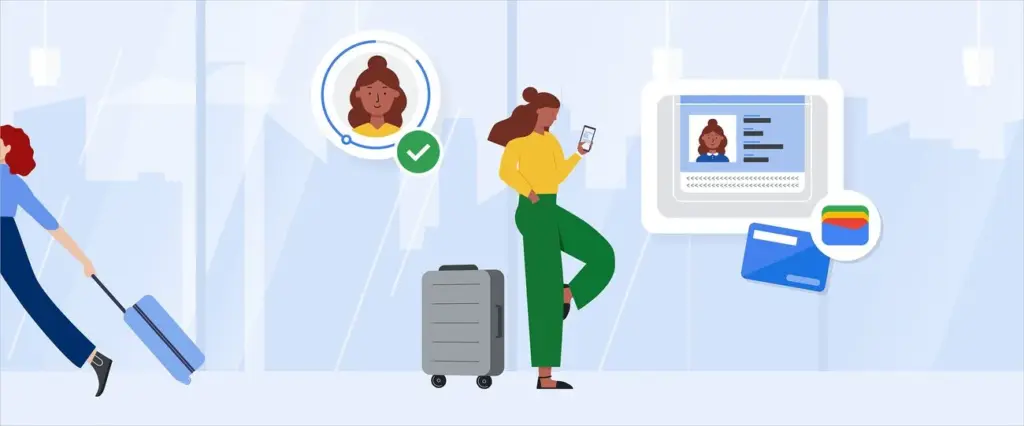
Passports are required for travel and as a means of identification. With Google Wallet, you may use your phone to augment your passport with an ID pass. An ID pass enables Google Wallet to save your passport for use in specific instances. An ID pass cannot substitute a passport in all circumstances, however it can be used in some cases. An ID pass can be used at TSA checkpoints for domestic flights in some US airports. It can also be used as a form of identification in some instances, but keep your actual passport with you in case you need it.
Student IDs
Students need IDs for a variety of reasons, including building access, dining hall meals, and student discounts at specific establishments. If they lose their ID, they may be unable to obtain necessary services. Google allowed the ability to save student IDs to Google Wallet in 64 countries and territories, making them harder to lose and easier to use. Because students are likely to carry their phones with them at all times, having their student ID on the phone is more convenient.
Event tickets
You may attend a variety of enjoyable activities, including concerts, festivals, sports tournaments, and more. You must have a ticket to attend, and most are no longer printed on paper. However, depending on the venue or type of event, you may require multiple applications, which can be difficult to keep track of. Make it simple by adding them to Google Wallet. Google Wallet can store any sort of ticket or event pass, providing you with a convenient, centralized location to find everything you need. When the event is ended, Google Wallet makes it simple to remove the pass, so your app is not crowded with used tickets.
Hotel keys
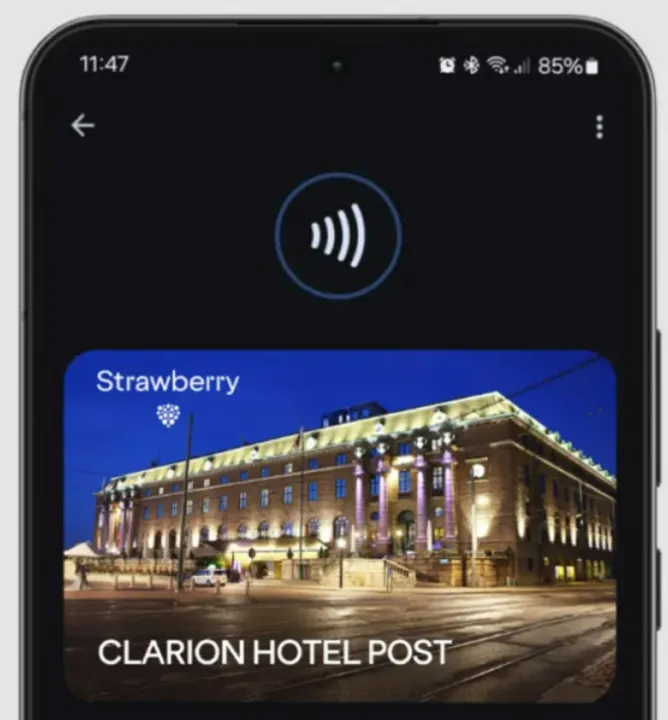
To get access to your hotel room, most hotels use key cards rather than physical keys. In increasingly modern hotels, however, you can enter your room by tapping your key card. Some hotels let visitors use Google Wallet to store hotel keys instead of a physical key card. It is now limited to Club Quarter Hotels and other random individual hotels, but we want to expand it shortly.
Corporate badges
Many company buildings require badges to enter, which increases security. You must have your badge to enter, and if you forget it, you may be permitted to use a government-issued ID or a company ID instead. To circumvent this, some buildings allow customers to save their pass to Google Wallet on their phone, either eliminating physical badges or providing a backup option. Then simply tap your phone to enter, nothing more.
One app for everything.
Google Wallet is useful for storing and using credit and debit cards, but it can do a lot more. It can also hold other goods like IDs, transport passes, gift cards, and so on.
Bank cards, tickets, passes, keys, identity cards, passports, and driver’s licenses may all be securely stored in the Google Wallet app, an advanced digital wallet.
This service, which has just been established in a couple of countries allows users to carry their critical credentials digitally on their smartphones.
Once you download the Google Wallet app, you can easily add your driving license details, ensuring quick and secure access wherever you are.
Google Wallet protects users’ ID passes, driver’s licenses, and state IDs with strong encryption and personal authentication. If your phone is lost or stolen, Google says your digital ID can be wiped remotely to prevent illegal access.
Steps to add your driving license to Google Wallet
Driving licenses are required for all drivers. Follow these steps to add it to Google Wallet:
Navigate to the bottom and tap “Add to Google Wallet.”
Select “ID” and then “Driver’s License.”
Tap “Get Started” and agree to the terms.
Scan both sides of your license.
For verification, upload your photos, including front and side poses.
Tap “Continue,” then “Done.”
Await the notification confirming the completion of verification.
This function is now only available in the United States, but it is planned to be expanded to other nations shortly. Notably, Google Wallet just launched in Pakistan, providing further ease to customers in the region.
Digital integration via systems such as Google Wallet provides a streamlined experience for keeping important papers, integrating technology with ease of use.
Android users can now add payment cards from major banks and experience features like tap-and-pay in stores, seamless online checkouts, and quick access to boarding tickets for trips.
Google Wallet is a straightforward and safe mobile wallet that can easily store anything from concert tickets to credit cards. However, what occurs if you are not within range of Wi-Fi or if your mobile data is unavailable? Is it still usable?
If you do not want to carry around a heavy physical wallet, Google Wallet can be rather useful. However, once we are out and about, we have no control over mobile signals or data connectivity. Therefore, it makes sense to be concerned about Google Wallet not working when there is no data connection.
Even if your phone or smartwatch loses data connectivity, most of its functionality will keep working. For example, you can use your bank card to make contactless payments even when your smartphone is turned off. However, you cannot add a new bank card.
Similarly, other cards and passes, such as boarding passes, event tickets, loyalty cards, digital IDs, and gift cards, do not usually include an online component for frequent use. If they are retrieved via an online service, you may require internet access to add them. Otherwise, they do not require a data connection to operate.
Digital IDs, corporate badges, car keys, health insurance cards, and hotel keys can also work offline.
However, if you are offline, Google Wallet will be unable to retrieve the most recent information about your stored cards and passes, such as loyalty point balances or updated flight timings.
Google Wallet
Safety starts with understanding how developers collect and share your data. Data privacy and security practices may vary based on your use, region, and age. The developer provided this information and may update it over time.
As previously stated, many of the cards and passes you save in Google Wallet do not have an active online component. As a result, utilizing these cards does not require the app to connect to the internet. However, payment cards work slightly differently.
When you add a bank card to Google Wallet, the app downloads a few one-time tokens from your card issuer, which effectively represent your payment card. When you pay with a contactless terminal, these codes are safely kept on your device and communicated to them. The terminal handles all the heavy lifting. It utilizes the token to communicate with the bank server and finish the transaction. So, you do not require the internet to pay using NFC because just the encrypted one-time code is transferred. This also protects the entire process from man-in-the-middle assaults.
However, if you frequently utilize contactless payments without taking your phone or smartwatch online, your one-use tokens may run out. In such a case, you will be unable to make further payments. So, if you want to continue using contactless payment without complications, make sure your smartphone is not offline for an extended period of time. Whenever your phone is online, Google Wallet refreshes its supply of one-time tokens for later usage.
Google Wallet normally saves a certain number of one-time tokens, which varies by card issuer. The number might range from roughly five to ten. Some card issuers may not support the offline payment option.
It may be better to go offline in poor network areas.
Although Google Wallet functions properly when connected to a stable internet connection, it may suffer with unstable data connections. So, if you see empty grey boxes while attempting to access the various cards or passes in your Google Wallet, your phone is most certainly experiencing connectivity troubles. The program attempts to connect to the internet to affirm the validity and other details of your inserted cards, but is unable to do so due to internet connectivity issues.
In these situations, it is best to turn off mobile data and Wi-Fi. This way, you will be able to access all of the app’s offline functions, including its main function, contactless payments. Once you have turned off mobile data and Wi-Fi, you can view and use your stored cards. This is especially useful in locations with inadequate networks.
Google Wallet is an useful and flexible tool for Android users. It has quickly become the preferred place for all of your cards, IDs, tickets, and passes.
Google and Apple’s app marketplaces, the Play Store and the App Store, include an almost limitless amount of apps. Some of these apps are free, while others cost money. However, many users are unaware that many paid programs are briefly offered for free as part of a special deal. We have compiled a list of the most fascinating apps now accessible for free.
For Android
Netzsignal Pro: Wi-Fi & 5G ($0.49): If you want to find out more about your network signal, you can’t go past this app. Not only does it offer outstanding and numerous ratings, but also a clear user interface with many practical functions.
Illuminance -Lux Pro ($0.49): This light intensity meter is almost as popular. The app uses your smartphone’s sensors to display the illuminance in the Si unit lux. Users can create separate rooms and analyze the respective lighting conditions.
Voice Calculator Pro ($9.99): Calculator apps are a dime a dozen. However, this application stands out from the crowd because it allows you to open several calculation windows at the same time. This means you can start a new calculation without having to delete the old one.
Who Uses My Wi-Fi Pro ($0.49): If you don’t know exactly which devices are connected to your Wi-Fi, you should definitely download this app. Not only can you analyze your connected devices, but you can also find devices that have connected to your Wi-Fi.
For iOS
1Contacts Pro ($0.99): This app gives you full control and, above all, a complete overview of your contacts. Duplicate contacts can also be tracked down and merged if necessary. But beware: If you use this app, you give an additional third-party provider access to your contact data.
Queen Rules ($2.99): If you don’t like tower defense games, you can pass the time with this puzzle game. To win, you have to place your soldiers in such a way that they defeat the enemy troops. The app also offers interesting level designs and clay figures.
No Wi-Fi Mini Games ($0.99): The name says it all. Downloading the application provides you with access to over 50 exciting and nostalgic mini-games. An Internet connection is not required. The developers have also dispensed with advertising.
Aqueduct 101 ($2.99): A creative puzzle game in which you build aqueducts and make water flow. Real fun for puzzle fans and a great way to pass the time.
Some businesses use innovative techniques to capitalize on your personal information in the rapidly evolving mobile application landscape. But do not worry, computer lovers; we have gathered crucial recommendations to help you protect your valuable data. It is critical that you exercise caution when granting rights to the apps you select to install.
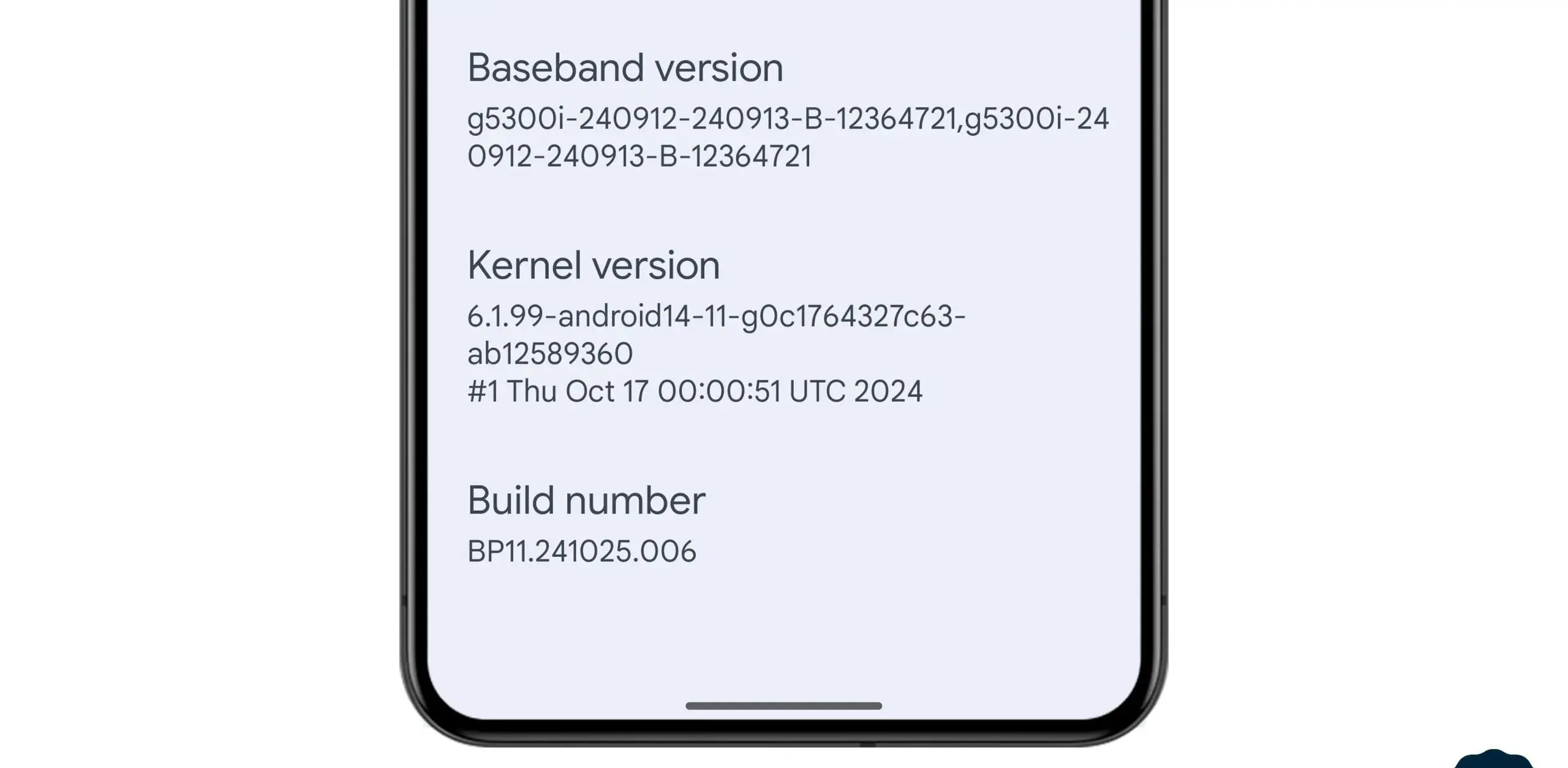
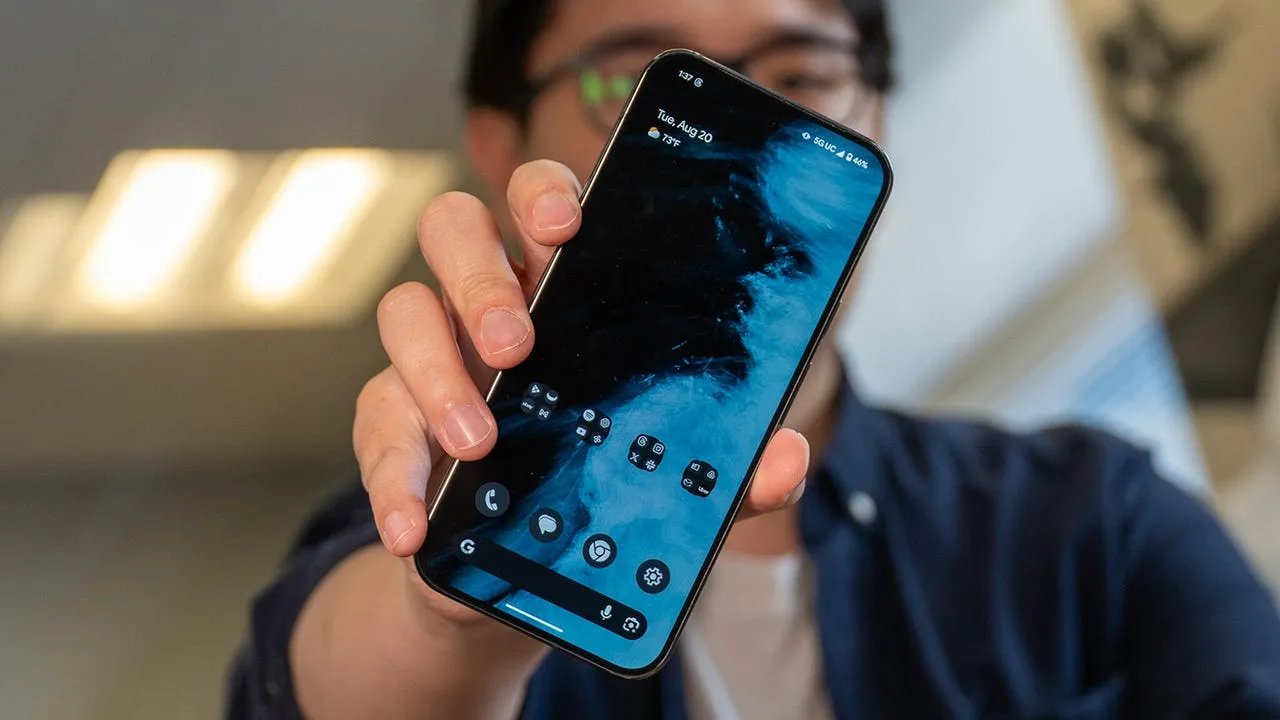
In the stable March 2025 update, Google formally released the Linux 6.1 kernel for Tensor-powered Pixel phones from the prior generation. This update brings the Pixel Tablet and Pixel Fold, as well as the Pixel 6, 7, and 8 series devices, up to the same kernel version as the Pixel 9 series. Performance and security will probably improve as a result, and some users are already experiencing the advantages.
In the QPR2 beta, where it was announced that Tensor-powered Pixels will be switching from older kernel versions to 6.1, we previously reported that Google was testing this update. The update is now available to all users with the March stable release.
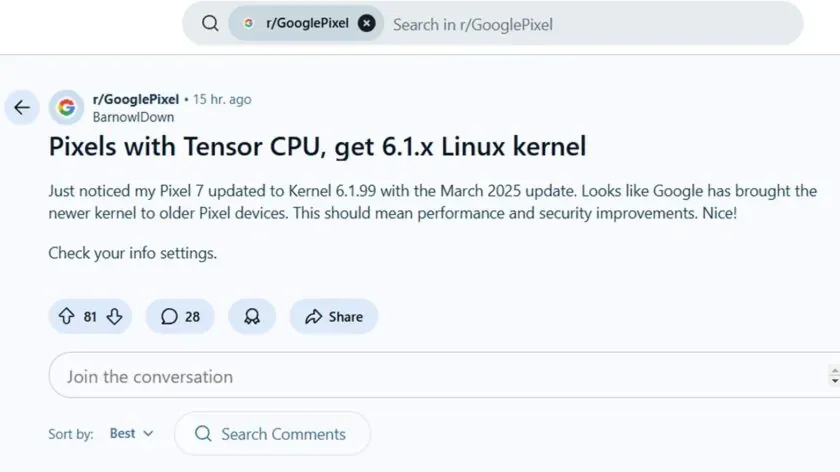
News of the update was posted by a commenter on the GooglePixel subreddit, who said, “Just noticed my Pixel 7 updated to Kernel 6.1.99 with the March 2025 update.” While several Redditors in the topic commented on a perceived gain in battery life since the update, another Pixel 6a owner in the thread stated that their phone seems “extremely responsive compared to [the] pre-March update.” Although it is difficult to confirm that the new kernel is directly responsible for these developments, the indications are unquestionably encouraging.
This kernel upgrade is part of Google’s broader commitment to long-term software support. Google’s Longevity GRF program plays a crucial role in ensuring that Tensor-powered Pixels meet their update policies by implementing major kernel upgrades when necessary.
If you own a Pixel 6, 7, 8, or another Tensor-powered device, you can check your kernel version by heading to Settings — About phone — Android version and looking under Kernel version.
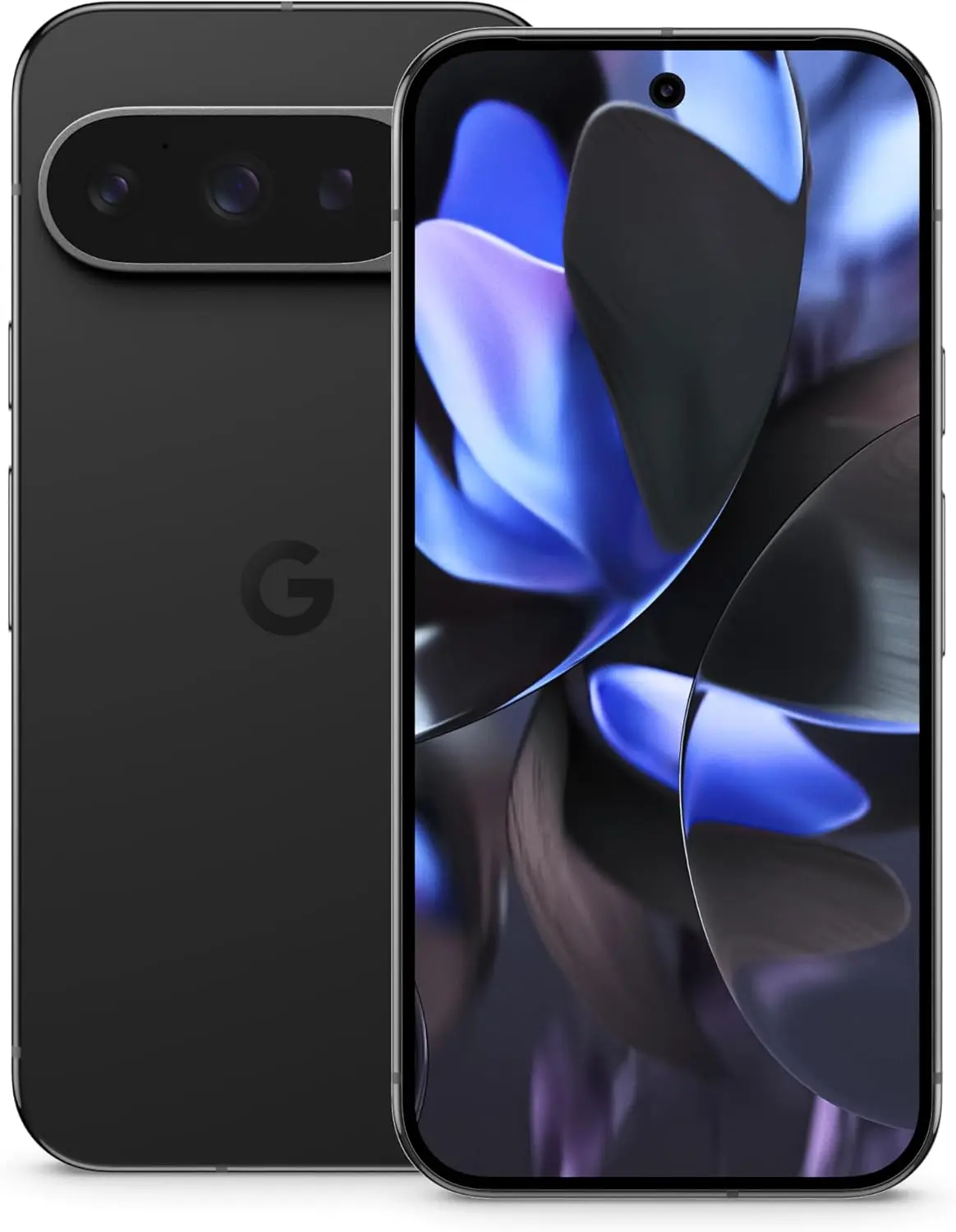
This weekend, the Pixel 9 Pro and 9 Pro XL went on sale for some of the lowest prices we have ever seen. Amazon and Best Buy are attempting to outdo Google with their own $250-off promotions, but Google launched another $200-off promotion through its own store.
The Obsidian 256GB version of the Pixel 9 Pro and 9 Pro XL is available for $250 less on Amazon and Best Buy, but we have included links to them all below if you want the best deal. With that discount, you can purchase a 9 Pro for $849 or a 9 Pro XL for $949, both of which have enough capacity to last you several years.
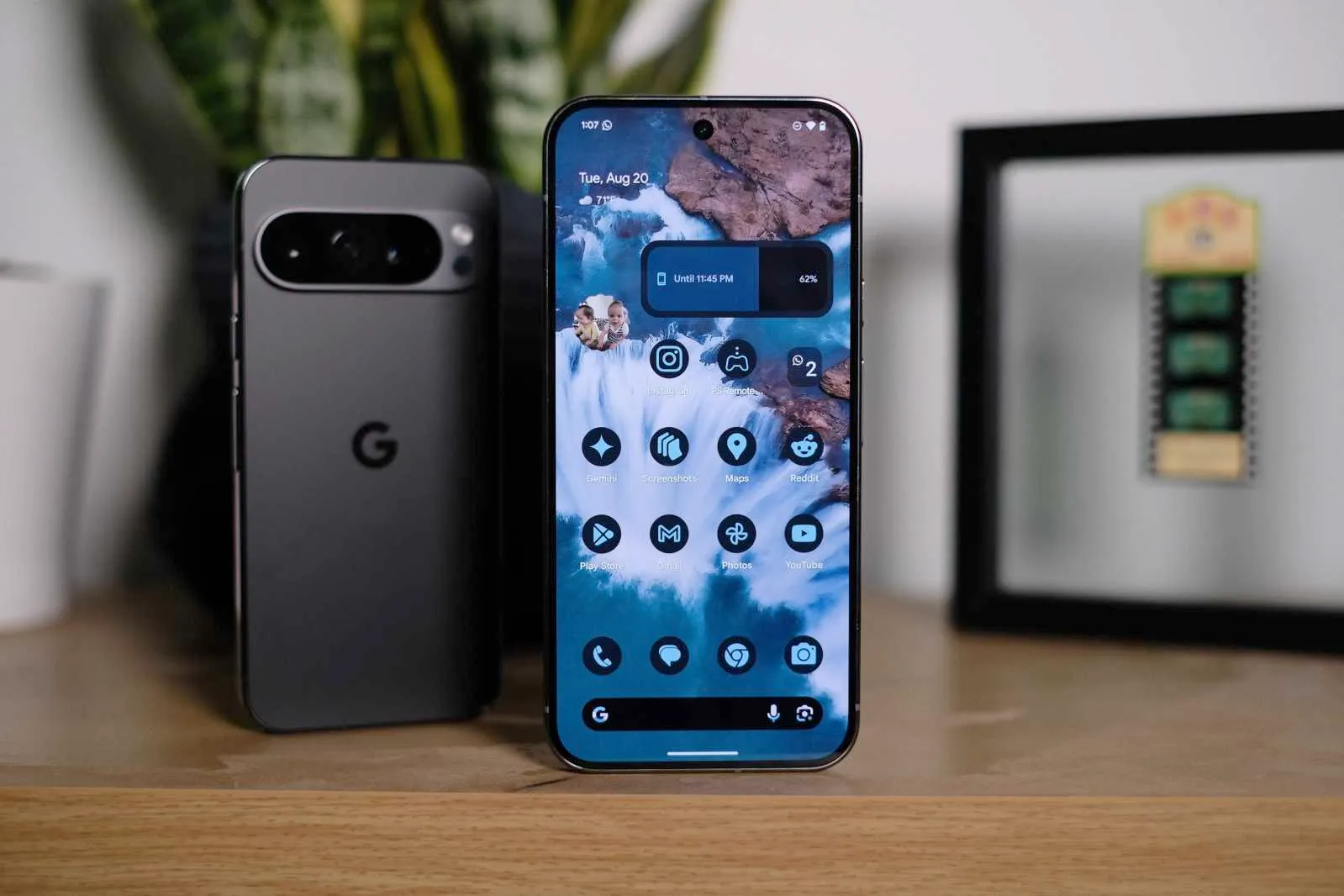
The price is still excellent even though all other models, colors, and storage options are roughly $200 off. That Obsidian colorway, though, ought to catch your eye. Additionally, the Obsidian (black) color of the Pixel 9 Pro series may be the nicest of them, as seen in the image above.
Google Pixel 9 Pro
Pixel 9 Pro with Gemini is the most powerful Pixel yet, and now comes in two sizes; it has a pro-level camera and it’s engineered by Google, so it gets the best of Google AI first
Google’s March update bug list, which is already being rolled out to compatible devices, has been made public. Even if it is a short list, it is nevertheless wise to keep in mind in case you have been dealing with any of these problems.
Although not every device is receiving the identical set of changes, these fixes are applicable to devices as far back as the Pixel 6 series. For instance, Google claims updates for Bluetooth headset loudness issues, camera stability, and display stability, among other things. You can use the number that corresponds to each item on the list to determine which device the fix is for.
Pixel Update – March Bug Fixes
Apps
Fix for stability or performance with certain apps using WebView
Audio
Fix for issues with adjusting call volume on calls over BT headsets]
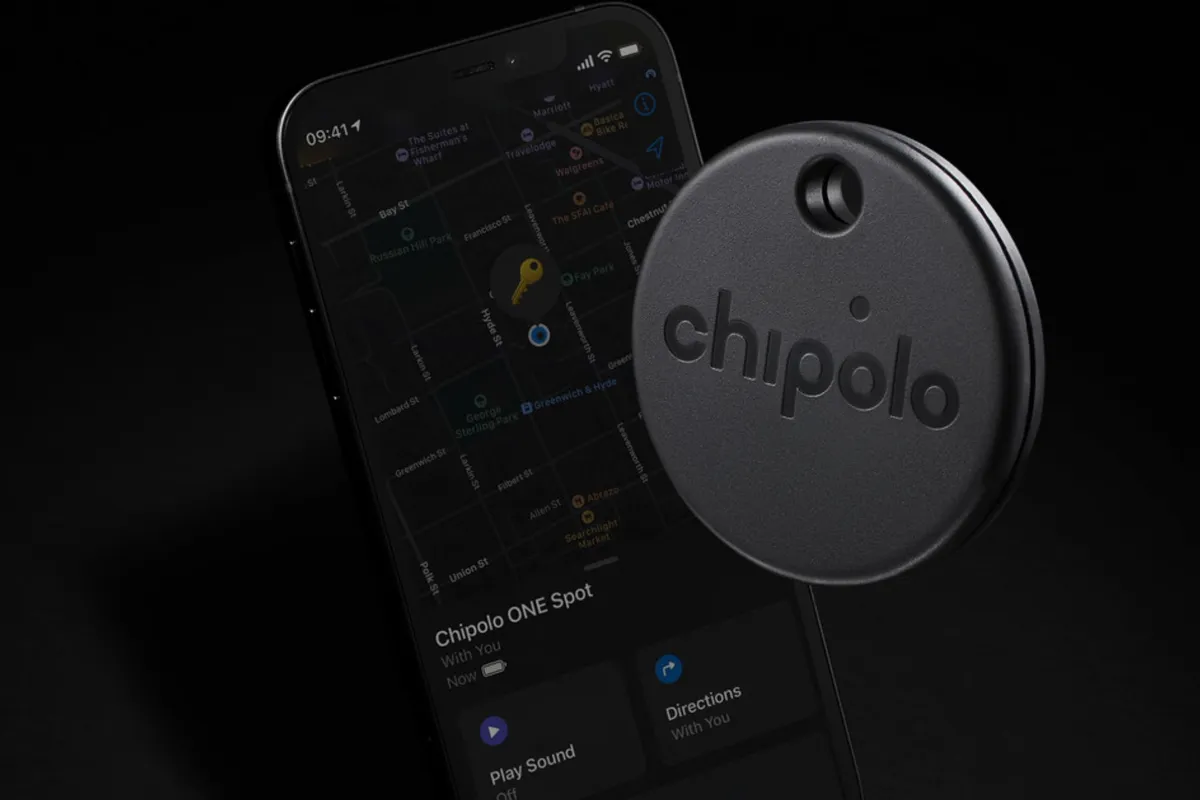
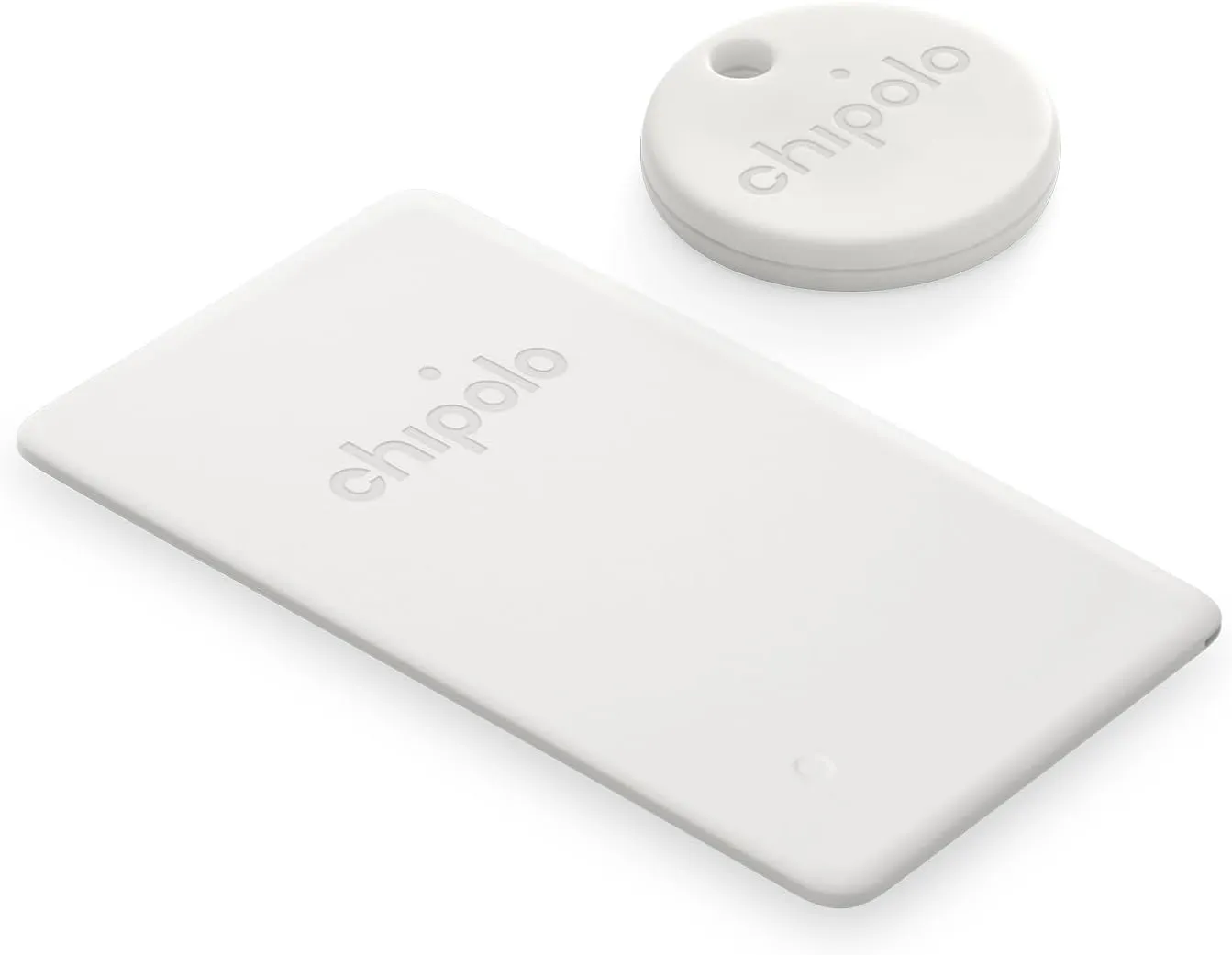
Find My Device, Google’s recently enhanced tracking network, is intended to serve as the Android counterpart to Apple’s Find My network. The new Point tracking gadgets from Chipolo are also meant to serve as the Android equivalent of Apple AirTags. Among the first third-party tracking apps to integrate with Find My Device are the Chipolo One Point item tracker and the Chipolo CardPoint wallet finder.
I was curious to compare these trackers because I have been using Apple AirTags for a long time. Fortunately, I received a few from Chipolo for this use. In the end, I found nothing unexpected, which is fortunate.
Chipolo key points
Chipolo’s new trackers assist you in finding misplaced objects by integrating with Google’s Find My Device network. Earlier Chipolo trackers were only compatible with the Chipolo app for iOS and Android or Apple Find My, not Find My Device. The only devices compatible with Chipolo’s point trackers are Android smartphones and Google’s Find My Device app.
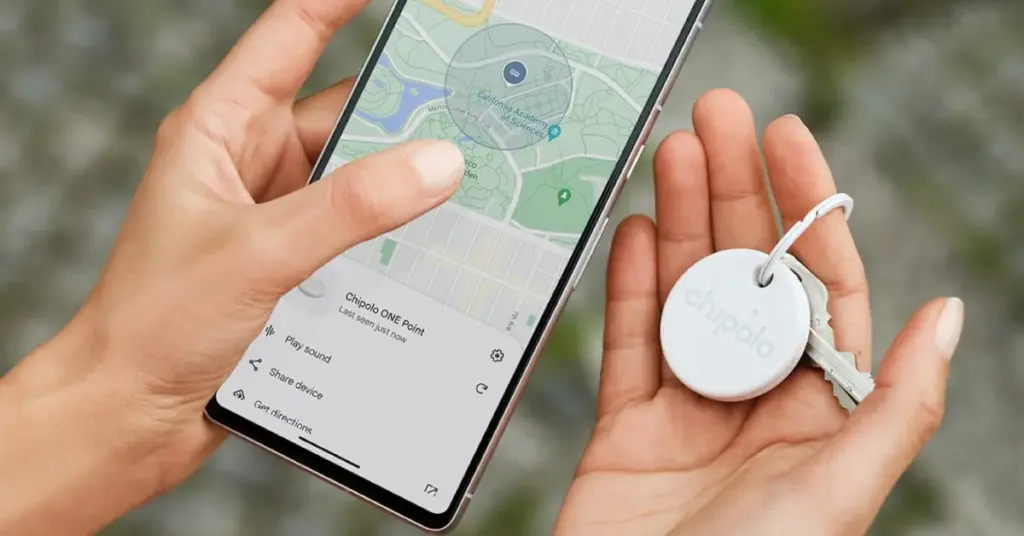
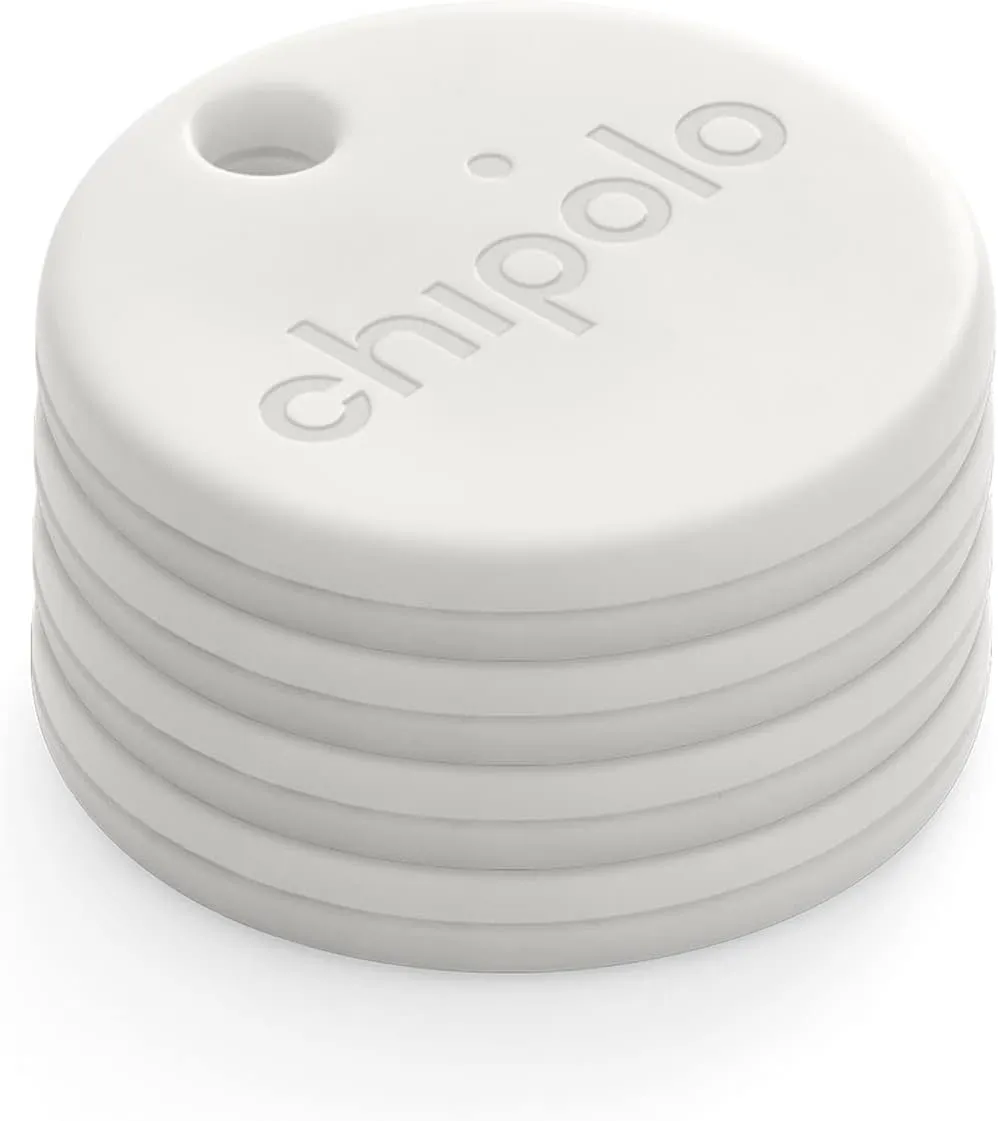
Two varieties of Chipolo Point trackers are available at launch. The Chipolo One Point is a tracker that fits on a keychain and is perfect for monitoring things like baggage, backpacks, and keys. Up to a year should pass before the replaceable battery inside of it needs to be changed. The design of this product is strikingly similar to that of Apple AirTags.
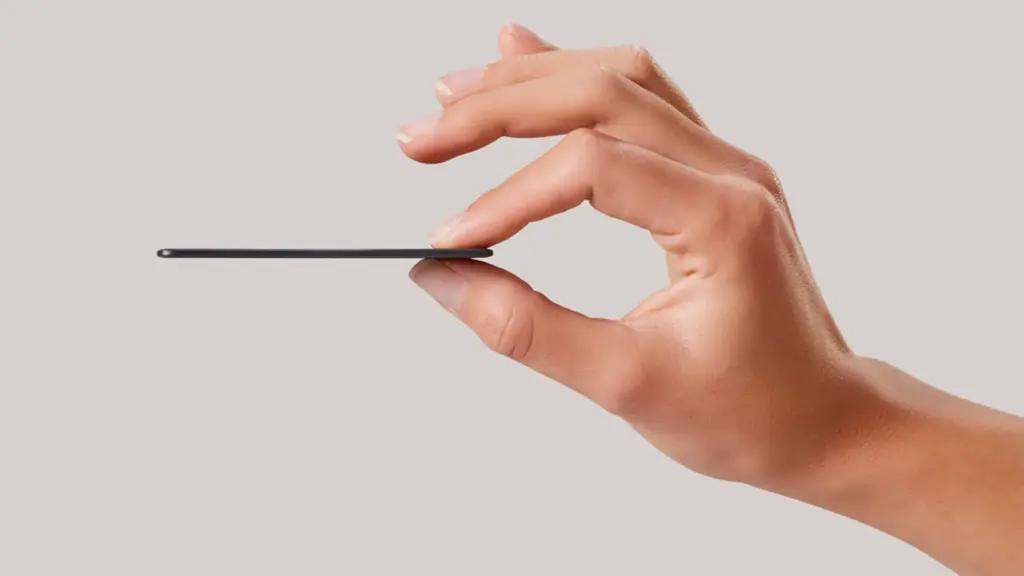
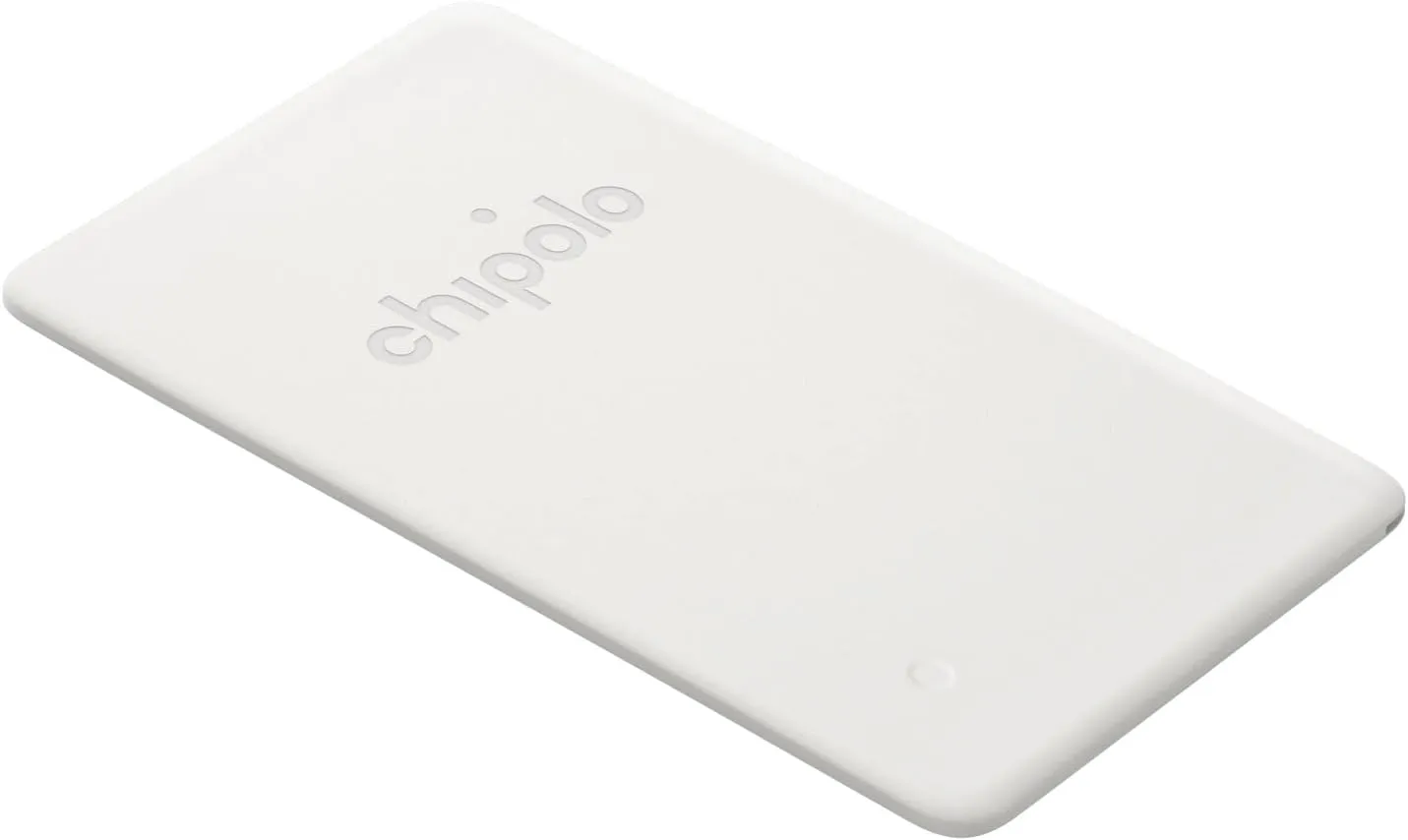
Mostly intended for use in a wallet, the Chipolo Card Point is a credit card-sized, flat tracker. Additionally, it can be used to monitor other objects, such passports. Before the tracker needs to be replaced, the Card Point’s long-lasting, nonreplaceable battery can last up to two years.
How they integrate with the Find My Device
I was perplexed by the configuration when I first got my Chipolo Point review trackers. At first, I assumed that you needed to configure them through the Chipolo app, which would somehow link them to Find My Device. But that is not how it operates. Everything went smoothly after I realized this.
Bringing it close to your Android device and pressing on it until a sound is heard is how you set up a tracker. A notice asking if you wish to set up the tracker then appears on the screen of your phone.
The Google Find My Device app allows you to see all of the information about the Bluetooth trackers once they are linked to your phone. Chipolo Point trackers allow you to share the tracker’s location with another person, find their current location, and sound an alert if they are close yet unlocatable. Additionally, you may view the device’s remaining battery life. Similar to AirTags, you may use your phone’s Bluetooth to activate step-by-step instructions to locate the trackers when they are close by.
It is crucial to remember that Google’s network protects user privacy by using anonymized reporting and end-to-end encryption for location data. Google’s Find My Device feature, similar to Apple Find My, will notify you if an unidentified device is tracking you. For instance, both networks discreetly notified me about each other when I fastened a Chipolo One Point to the same keychain as an AirTag.
Google pinpoints a tracker’s location using a combination of GPS, Wi-Fi, and cell tower signals.
A great tracker
It was a wise move on Google’s part to update Find My Device to enable tracking of non-Android devices. Third parties like Chipolo are finally launching helpful trackers as a result of that decision. In the upcoming months, more businesses will undoubtedly join the movement.
Both the One Point and the Card Point have really pleased me. They have a simple setup process (once you know how they operate), are reasonably priced ($28 for the One Point and $35 for the Card Point), and work flawlessly with Find My Device. Like other Chipolo trackers, I anticipate future iterations will be available in a variety of colors. I do not see any areas that require development beyond this.
Where to buy?
Chipolo ONE Point – 4 Pack
WORKS WITH GOOGLE’S FIND MY DEVICE NETWORK – Use Fast Pair to connect your Chipolo ONE Point to Google’s Find My Device app on your Android phone. After setup you can play a sound, locate it on a map or use Google’s Find My Device network to help you find it.
WORKS WITH GOOGLE’S FIND MY DEVICE NETWORK – Use Fast pair to connect your Chipolo CARD Point to Google’s Find My Device app on your Android device. After setup you can play a sound, locate it on a map or use Google’s Find My Device network to help you find it.
Chipolo Point Bundle – 1X ONE + 1x Card Item Finder
Use Fast Pair to connect your Chipolo ONE Point to Google’s Find My Device app on your Android phone. After setup you can play a sound, locate it on a map or use Google’s Find My Device network to help you find it.