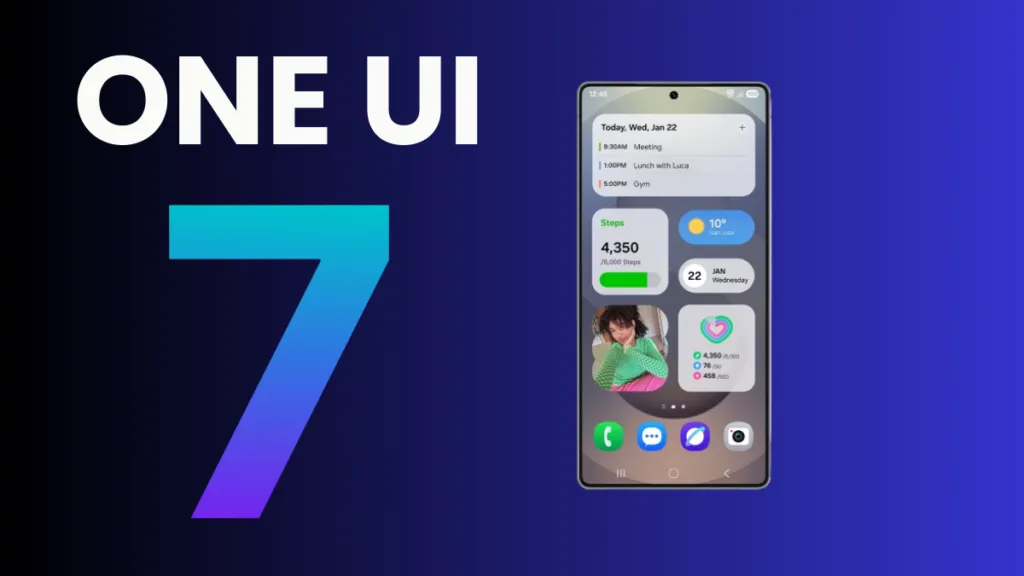
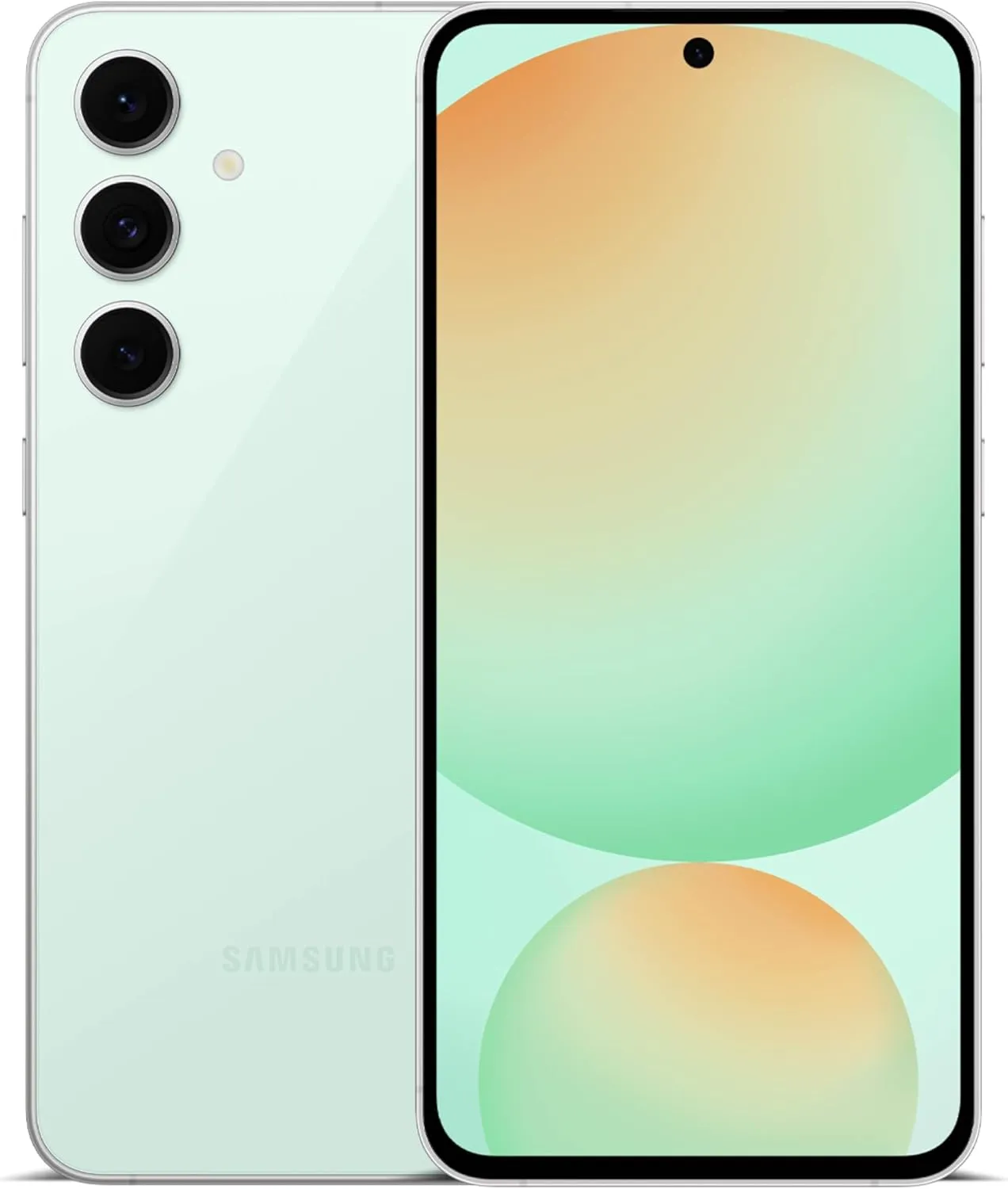
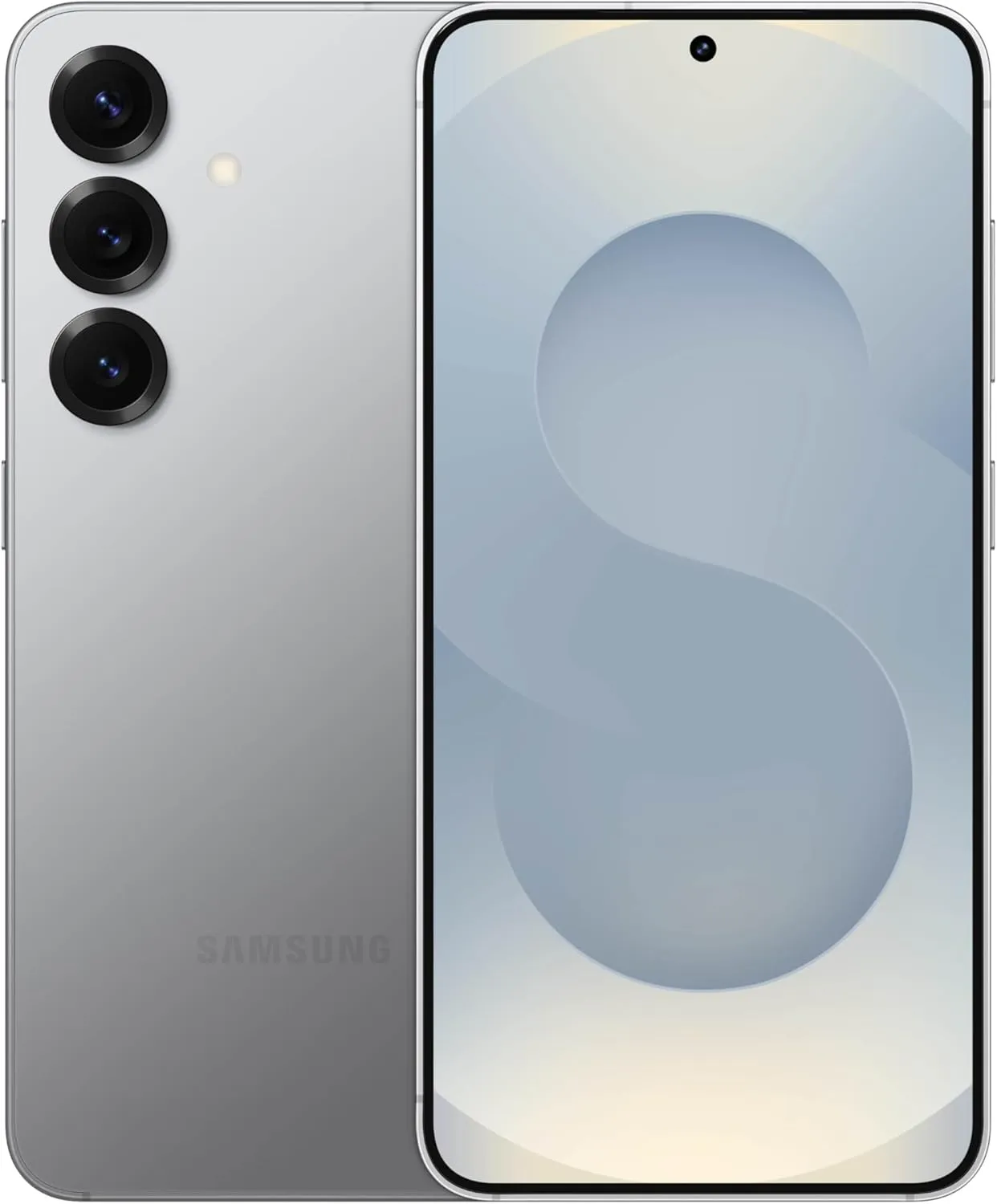
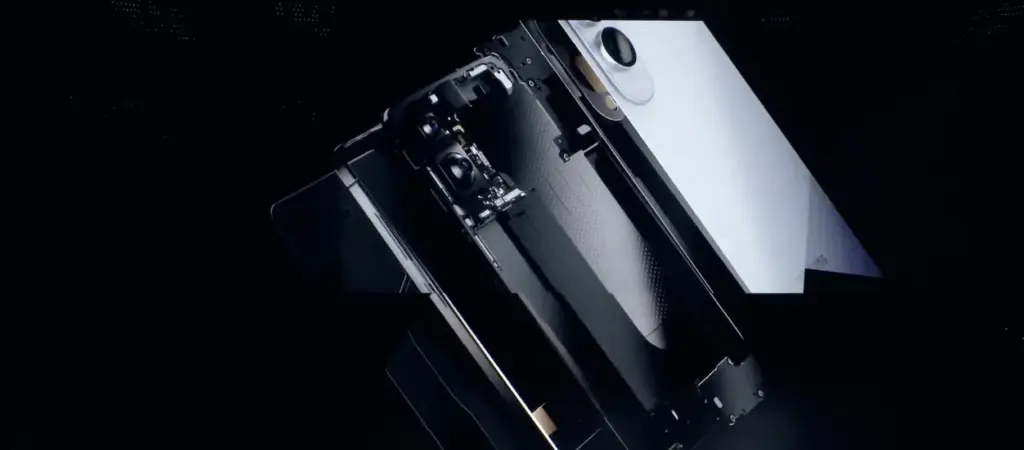
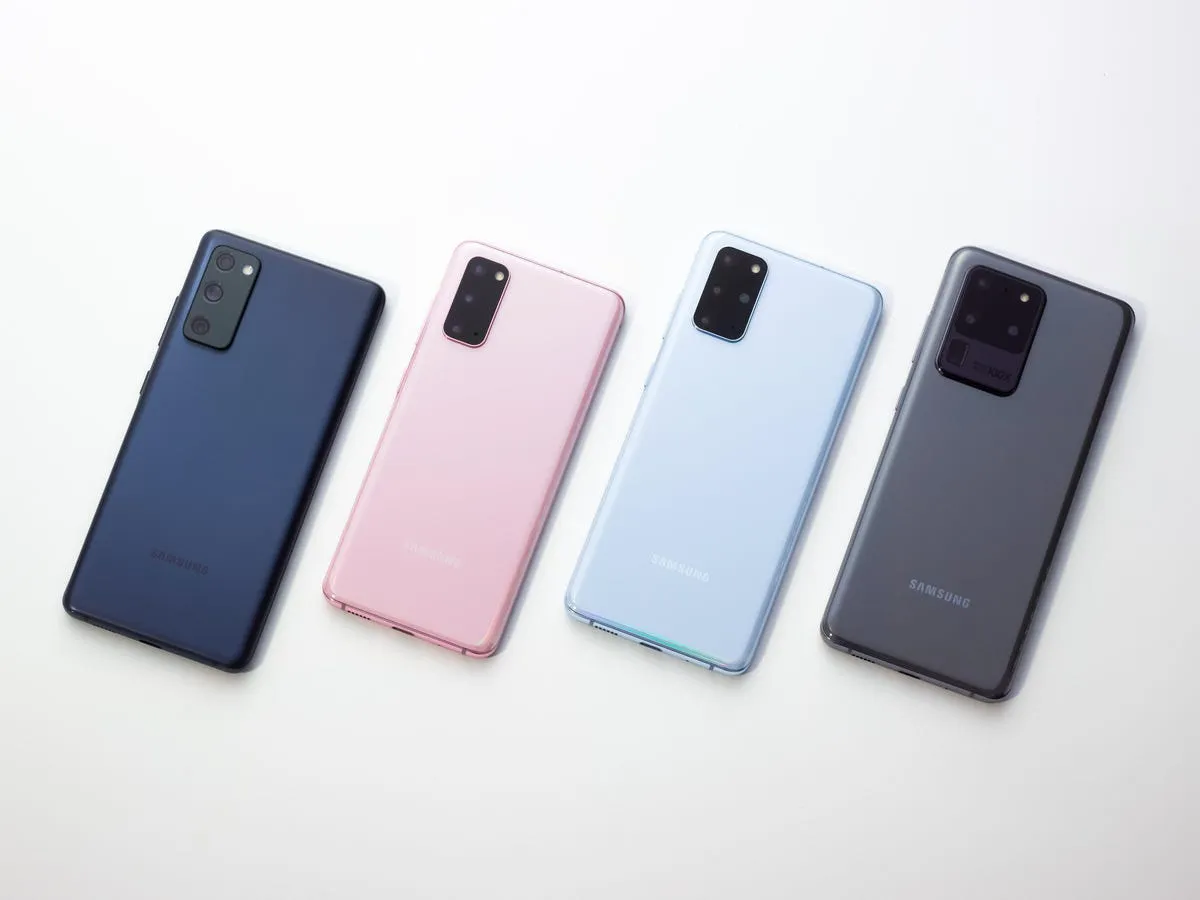
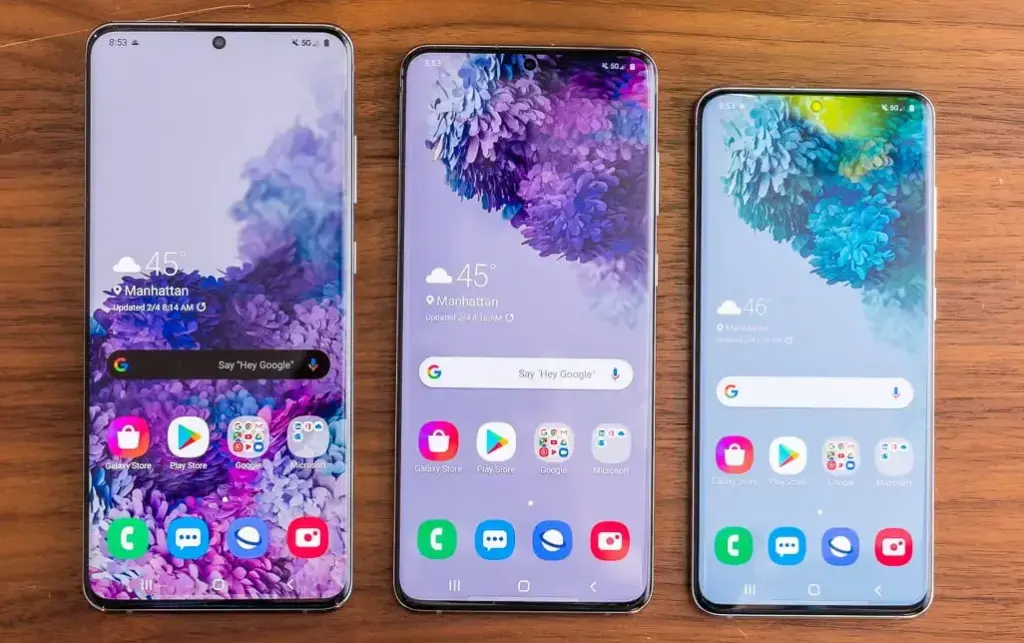
Samsung has already provided a specific schedule for the stable rollout, but the company is now having trouble launching One UI 7. Users must be wondering which handsets will be eligible for the update, as Samsung will be concentrating on One UI 8 after this is finished. Here is the complete list of (anticipated) One UI 8 compatible devices.
As the initial glance has already been made public, Samsung has in fact started working behind closed doors on One UI 8, their next major OS version that will run Android 16.
Although Samsung has already given a precise timeline for the stable rollout, the business is currently experiencing issues with One UI 7. After this is done, Samsung will focus on One UI 8, therefore users must be wondering which phones will be eligible for the update. The full list of (expected) One UI 8 supported devices is available here.
Samsung has actually begun working behind closed doors on One UI 8, their next major operating system version that will run Android 16, as the first look has already been made public.
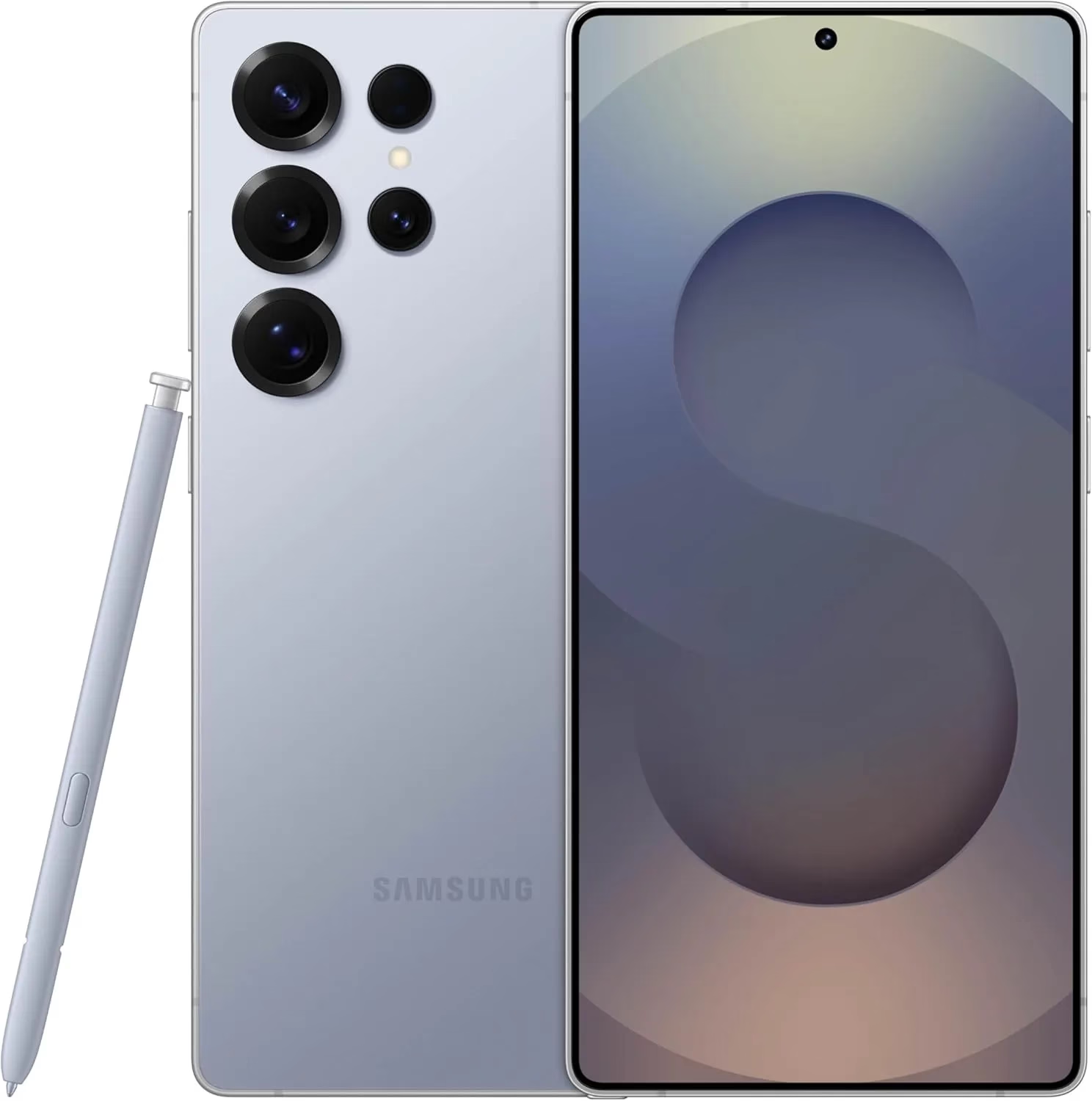
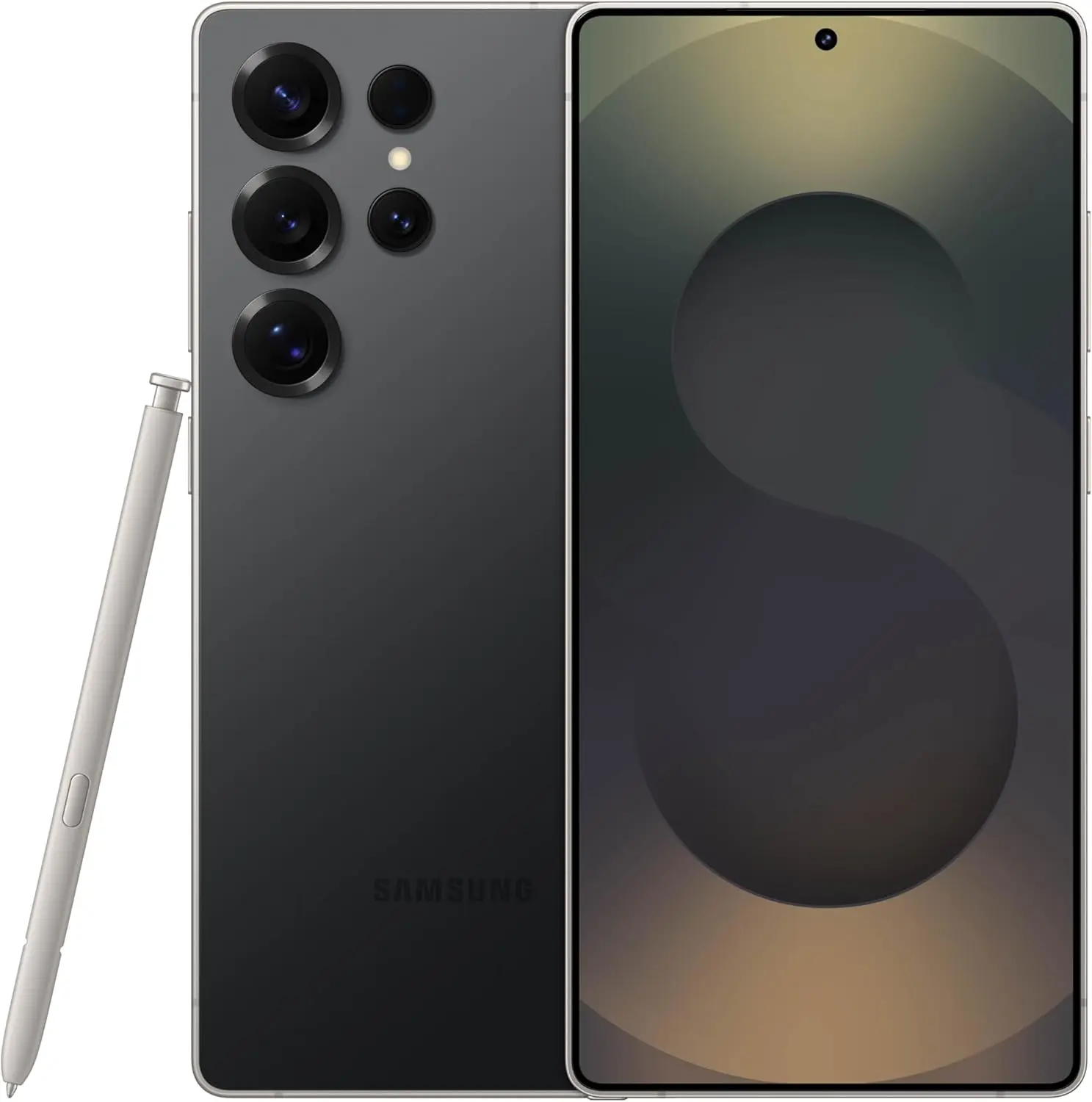
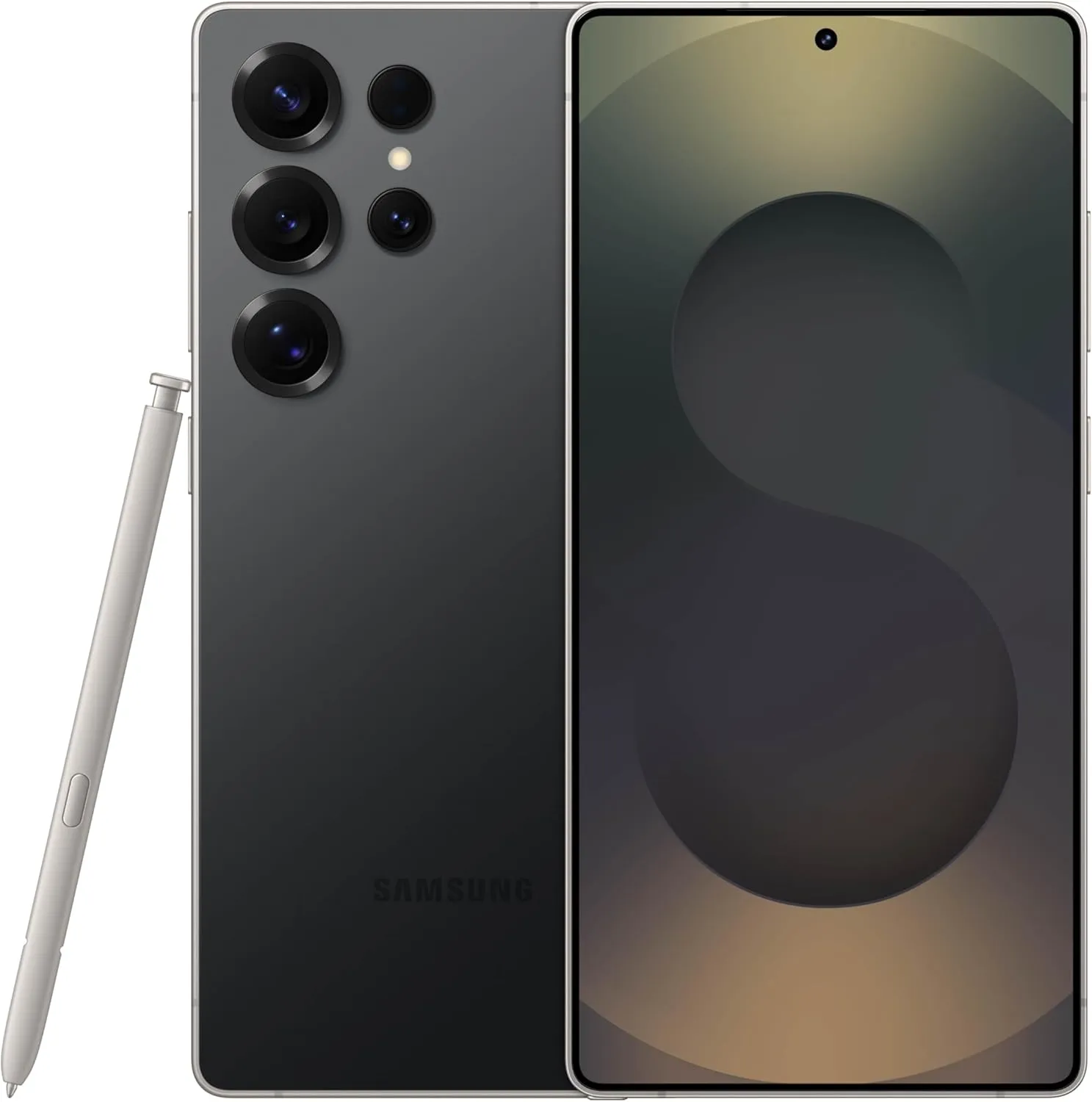
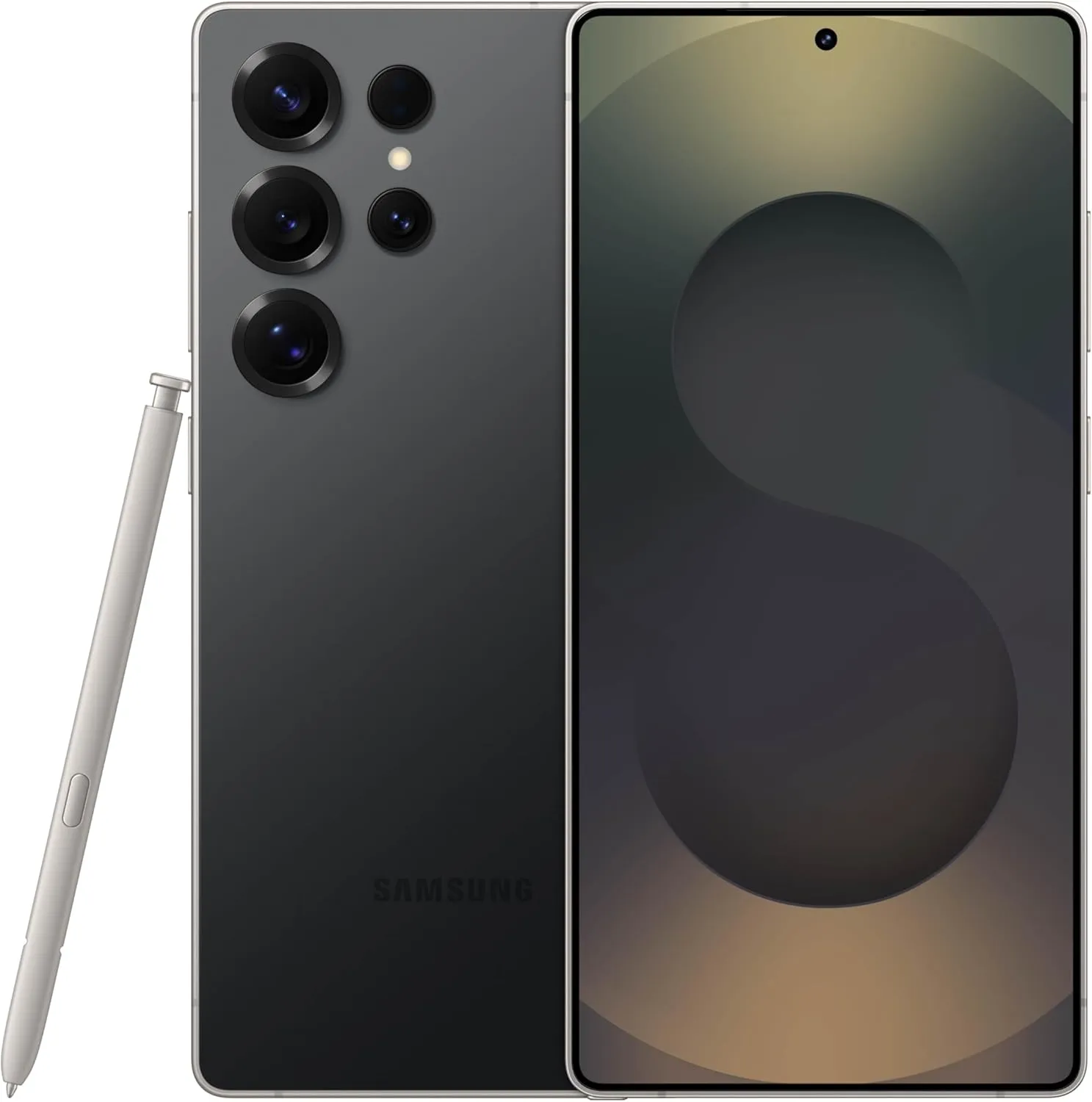
Samsung Galaxy S25 Ultra 512GB
Streamline your day with an assistant that gets you. Ask it to Google search for a pet-friendly vegan restaurant nearby and text it to your friend— your Galaxy S25 Ultra handles multiple tasks with a single ask.
Android 16 with One Ui 8 release date and features
It is anticipated that the most recent One UI 8.0, which is based on Android 16 and is a modest upgrade that improves One UI 7 capabilities, would be released in late July or early August. Because it comes pre-installed on the Galaxy Z Fold 7 and Z Flip 7, an early distribution is expected.
Samsung appears to be looking forward to bringing the next Android 15-based One UI 7 update to more Galaxy smartphones around the world. Samsung has already delivered the upgrade to major flagships, but it is now time for previous generation devices, including the A portfolio, as Galaxy A35 phones have lately begun receiving the software.
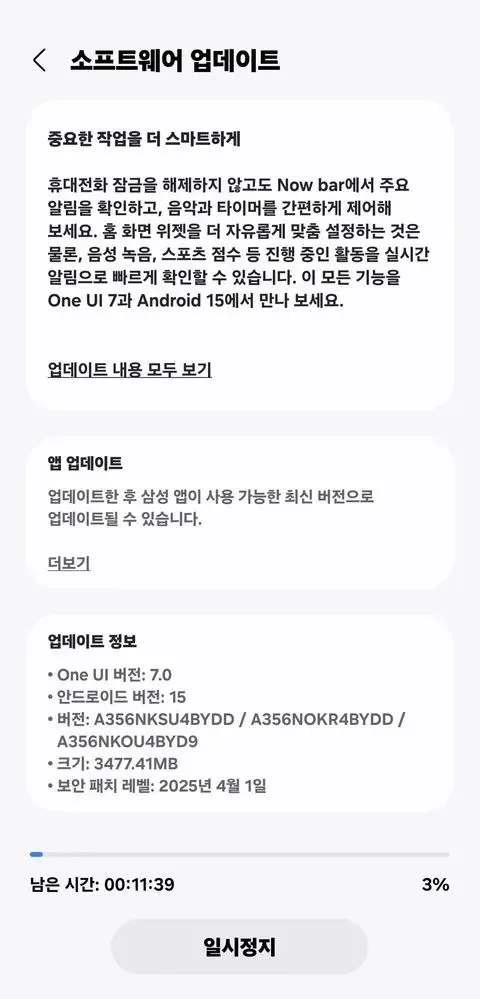
More precisely, Samsung has initiated a solid rollout for the Galaxy A35 models in its native country of South Korea, with wider availability coming soon. The device’s upgrade is identifiable by the build number A356NKSU4BYDD.
Meanwhile, the update contains a number of fascinating improvements and changes, including better AI-powered functionality in the form of Awesome Intelligence, a scaled-down version of the full-fledged Galaxy AI suite.
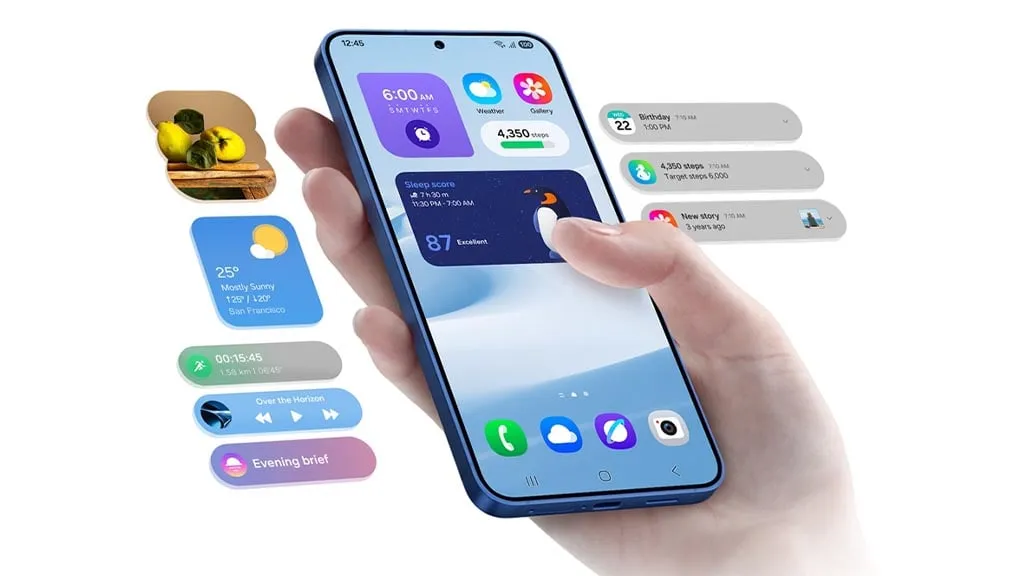
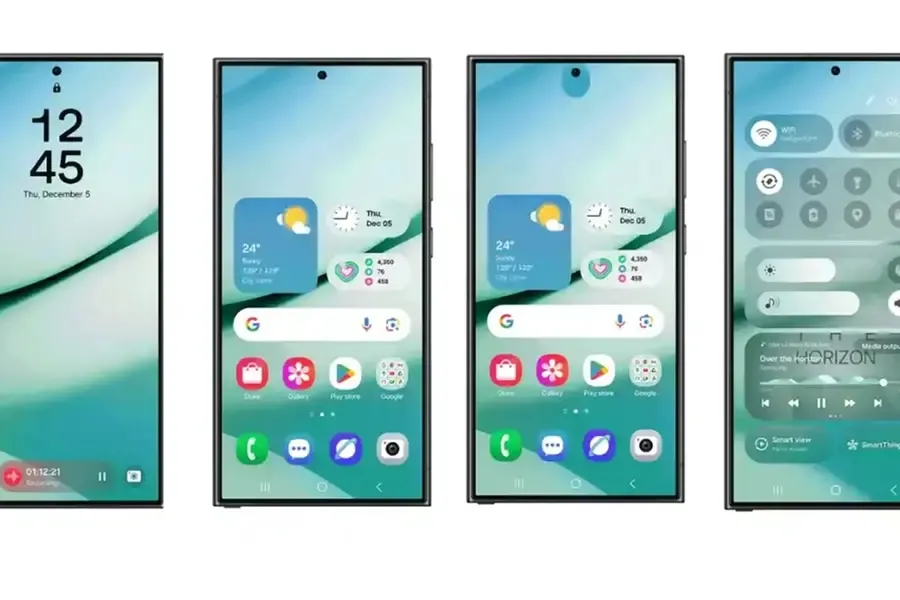
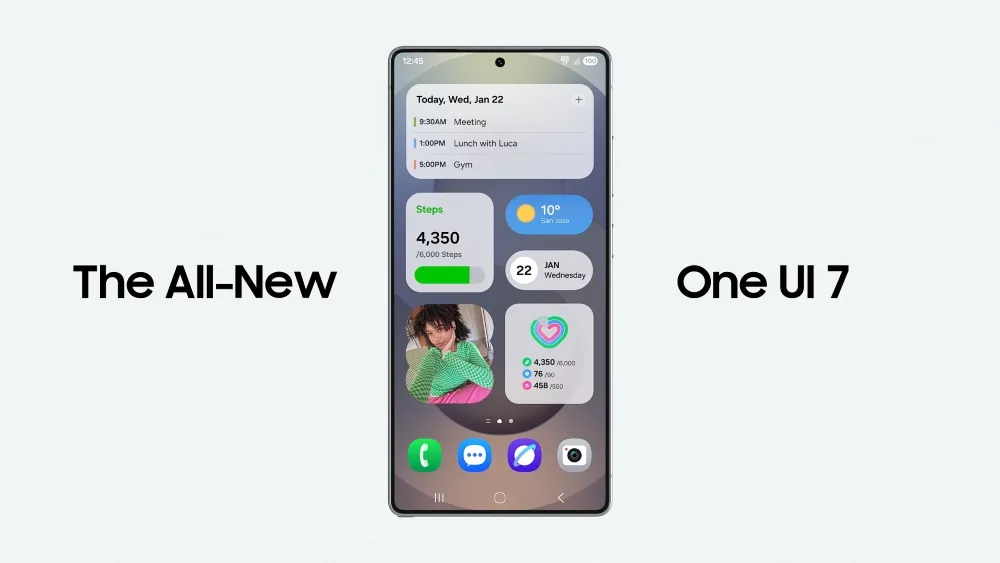
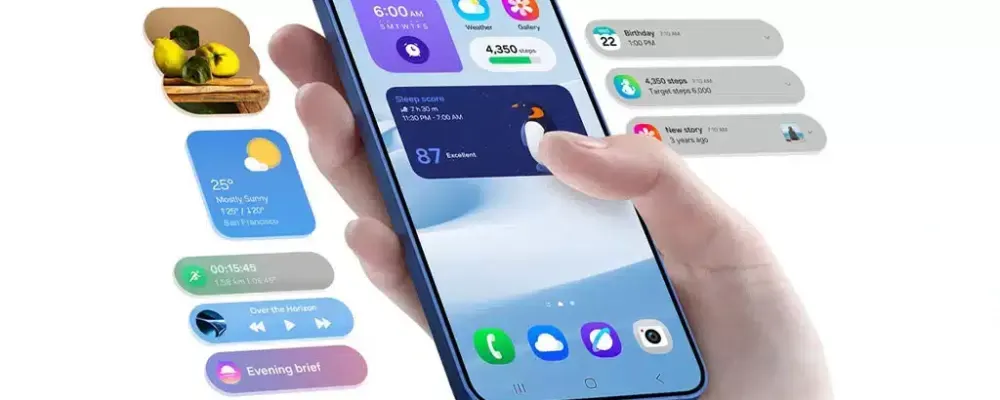
It includes a sophisticated user interface, highly customizable home screen widgets, and a new Now Bar feature that allows users to access all key information such as sports scores, health-related information, alerts, and more without unlocking the device, all while improving overall productivity, creativity, and security.
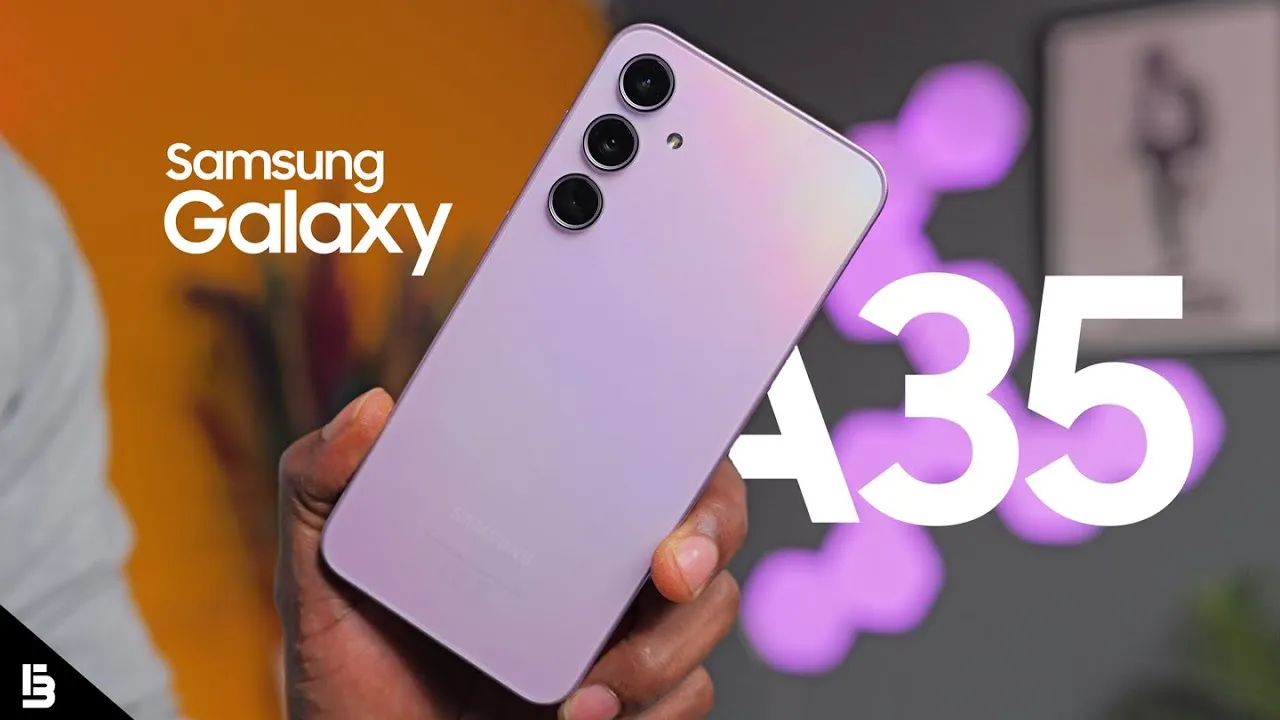
Samsung Galaxy A35 5G
6.6” FHD+ Super AMOLED Infinity-O, 120Hz Adaptive Refresh Rate, 1080×2340 pixels, 1000unit (Peak), 389ppi, 5000mAh Battery, Bluetooth 5.3
At the same time, the update further integrates the April security patch, which focuses on improving the device’s overall security and core functionality that provides a more secure, smooth and efficient user experience.
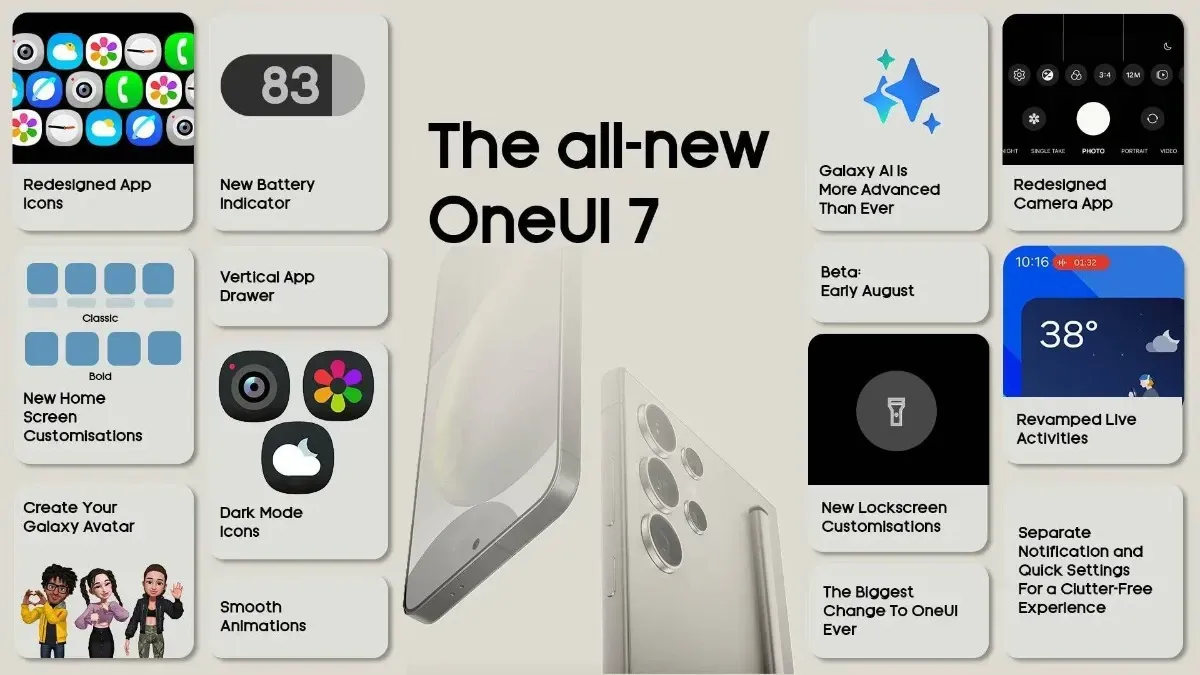
The One UI 7 is Samsung’s most significant UI change to date. Even while the build included numerous amazing changes that fans had been anticipating, certain delays made the release a source of frustration among fans as well. Now that the stable release has begun, here are all of the Galaxy models set to receive the upgrade in May 2025.
Essentially, Samsung began the One UI 7 stable update rollout on April 7 for the Galaxy S24 series, as well as the Galaxy Z Fold 6 and Flip 6, which were scheduled to receive the update in the first batch, while the rollout for the US market was scheduled to begin on April 10; however, due to a bug, Samsung had to pause the rollout.
At the same time, the One UI 7 release resumed and is now reaching even more older generation handsets, excluding the Galaxy S24 family and the company’s 6th generation foldables.
Samsung has already begun to expand the reliable One UI 7 edition globally, starting in the company’s hometown of South Korea. So far, Samsung has delivered the stable update to numerous Galaxy phones and tablets since mid-April, and will continue to do so until every eligible device is covered.
Furthermore, One UI 7 introduced many new features and modifications, although it is worth noting that a few Galaxy AI functions may not be available in previous Galaxy model lineups.
List of samsung Galaxy devices receiving One UI 7 in May 2025.
Now that we have entered the month of May, here are all of the Galaxy smartphones, tablets, and foldables that are expected to receive updates this month in the global market:
Because of their full of features and efficient software, Samsung’s Galaxy smartphones are among the best Android phones on the market right now. However, the majority of Samsung phones, particularly premium models like the Galaxy S25 Ultra, Galaxy Z Fold 6, and Z Flip 6, include extravagant features that you might not utilize on a regular basis. There are ways to maximize what you have without degrading the user experience if your new Galaxy phone is not able to last a full day between charges.
Here are seven ways to extend your Galaxy phone‘s battery life. Do not worry, I will not be Captain Obvious and suggest that you use your phone at a lower refresh rate or lower the screen resolution. The suggestions on this list ought to enhance your quality of life while optimizing the functionality of your phone.
Use Dark Mode
AMOLED screens, which can light individual pixels, are seen on the majority of Samsung phones. Therefore, the area of the screen that must remain black will not activate those pixels when you choose a dark theme or dark wallpaper. As a result, your screen uses less power and your battery lasts a little longer.
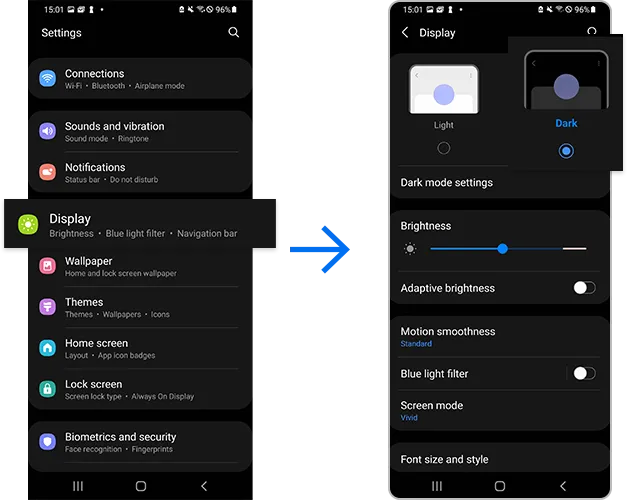
How to do it: Go to Settings > Display. Two cards for Light and Dark will be dealt to you. Press the Dark option. Changing the system wallpaper and sticking with the light theme is an alternative, but it will not have the same impact on energy life as switching to dark mode.
Use Adaptive Brightness
Although this feature should ideally be turned on by default, some individuals disable it because it is not always reliable. Nonetheless, the quality of Samsung’s ambient light sensor has increased over time. Your Galaxy phone is capable of accurately detecting ambient illumination and adjusting the screen brightness on its own. By doing this, you can make sure your display is more effective and not overly bright.
Toggle on Adaptive Brightness by going to Settings > Display. Although it should function in most settings, you can use the Quick Settings panel to slide down to change the brightness if necessary.
Force stop or uninstall power-draining apps
Many applications, including Facebook, Microsoft 365, OneDrive, and numerous Samsung and Google apps, are pre-installed on Samsung devices. To stop them from running in the background, find the ones you do not need and either remove them or force-disable them.
For instance, not everyone requires OneDrive or the Samsung Smart TV app. I remove those two apps along with others like Facebook, Outlook, Microsoft 365, Tutor, and more when I set up a new Galaxy phone.
How to: Tap and hold the app you want to uninstall. A pop-up menu will appear. Tap Uninstall. As a result, none of these non-required apps will use your battery.
Identify power-draining apps
Depending on your location, 5G connectivity, and background usage, some apps need more power. To assist you reduce unnecessary battery usage, Samsung allows you to recognize certain power-hungry programs.
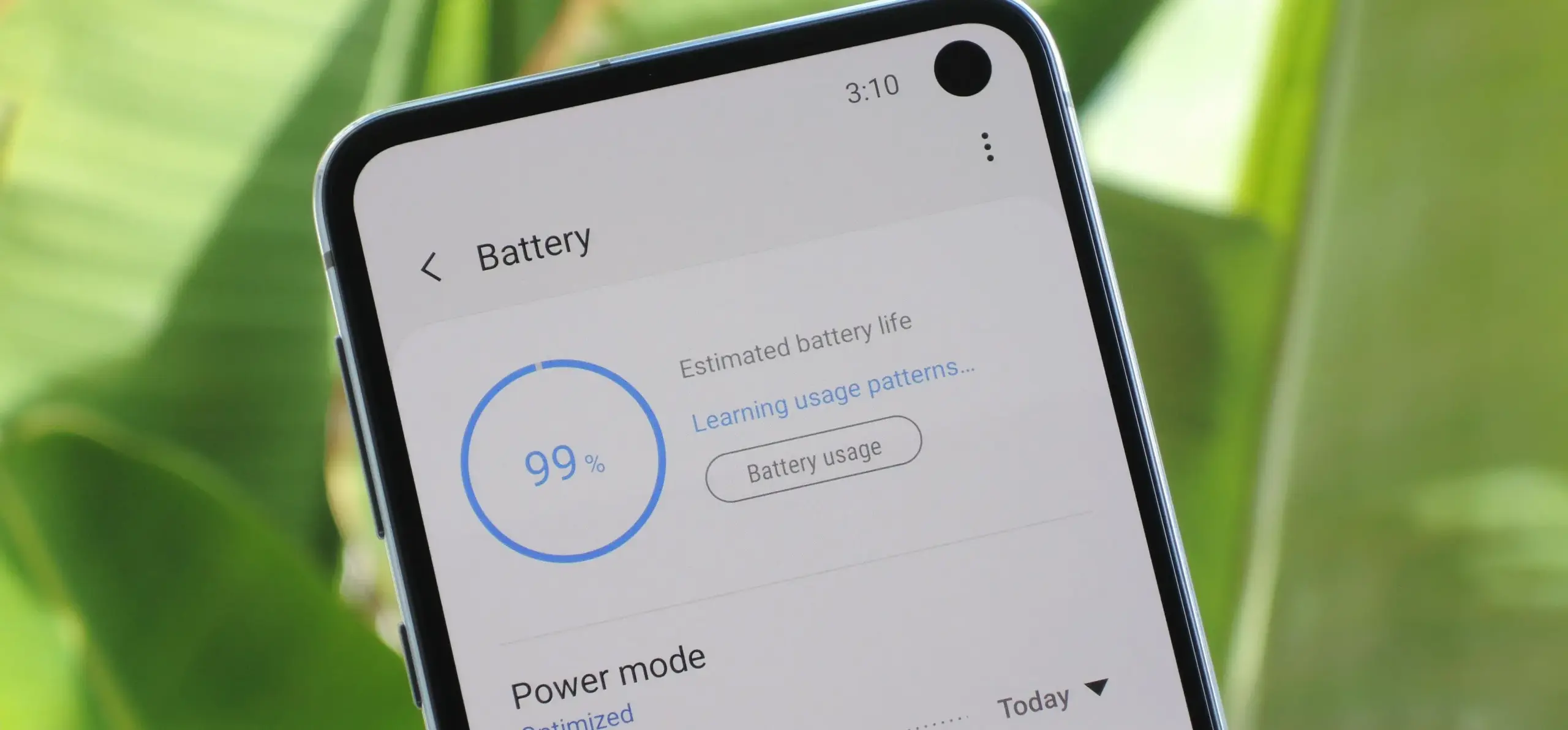
By selecting Settings > Battery and Device care > Battery > Background usage limits, you may find and disable power-draining apps on your device.
Samsung Galaxy S25 Ultra
Streamline your day with an assistant that gets you. Ask it to Google search for a pet-friendly vegan restaurant nearby and text it to your friend – your Galaxy S25 Ultra handles multiple tasks with a single ask.
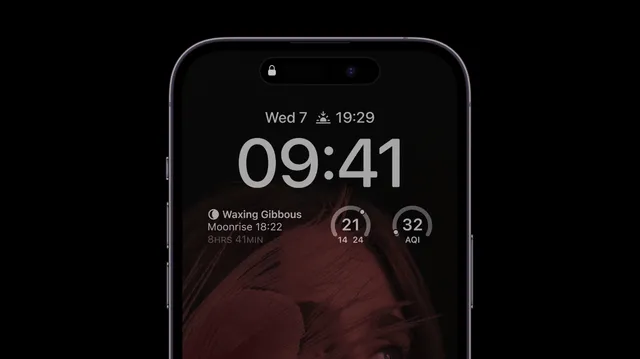
I like my Galaxy S25 Ultra’s Always-On Display (AOD). For efficiency, its LTPO display lowers to 1Hz, which is useful for functions like AOD. Using AOD may not be as effective if your Galaxy phone is midrange and has a minimum refresh rate of 60 Hz. You can use it wisely, though, by planning AOD for when it is required.
How to: Go to Settings > Lock Screen and AOD > Tap on Always On Display > When to show > As scheduled. While you’re at it, also turn off the Show lock screen wallpaper within AOD settings.
Use Performance profile
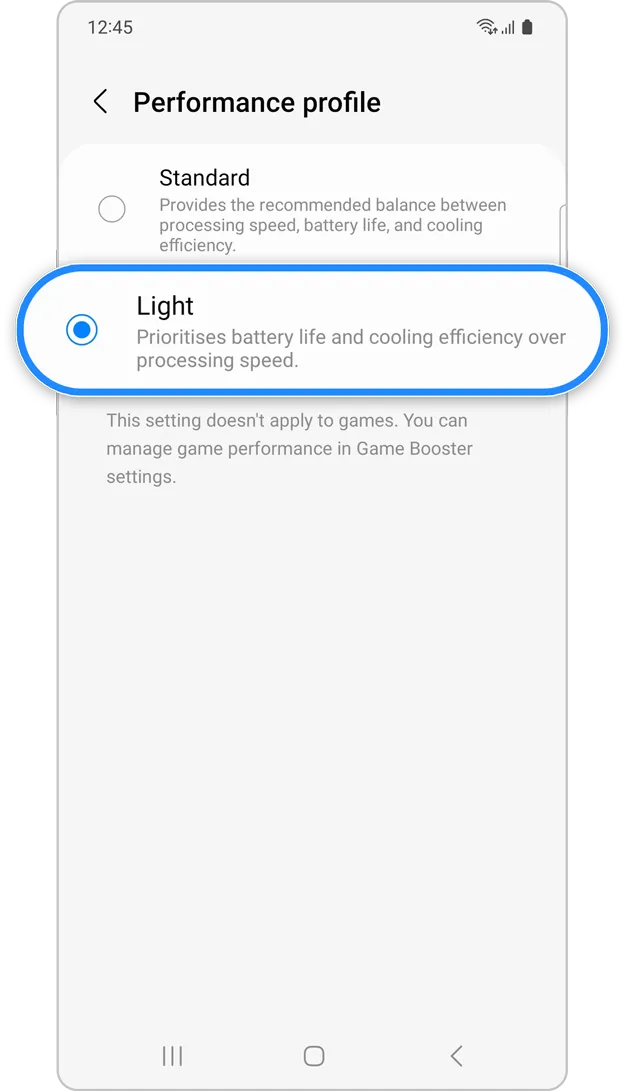
Samsung lets you select a performance profile according on how you use it. The Light Performance profile is a better option than the Standard if you do not play games and use your phone mostly for everyday activities like surfing and making calls. It will put cooling and battery life ahead of processing performance.
How to: Open the Settings app and go to Device care > Performance profile and select Light. This is ideal for average phone users.
Download offline content before travel
It is a good idea to download such stuff offline if you listen to the same podcasts and playlists or travel the same path every day. Google Maps and the majority of streaming apps use a lot of battery power over 5G and LTE. It may also cause your phone to feel warm to the touch when you are outside. With a little advance forethought, you can handle this: Before you leave the house, use Wi-Fi to download your favorite music or maps.
How to: Go to the streaming apps you want to download content from and follow the in-app steps. For instance, YouTube has a download button on videos, and Spotify lets you download complete playlists.
What should you do if the battery on Galaxy phone runs low?
The seven settings above will not hinder your user experience and will retain the best Galaxy phone features. However, if you’re out and your phone is low on battery, you should:
Turn on Power Saving
Toggle off data roaming
Turn off location services
Switch off AOD altogether
When your phone’s battery is less than 15% and you are still a few hours away from a charger, I advise activating these options. The Samsung settings listed above will also help you get the most out of your Galaxy phone’s battery.
Samsung Galaxy S25 Ultra
Streamline your day with an assistant that gets you. Ask it to Google search for a pet-friendly vegan restaurant nearby and text it to your friend – your Galaxy S25 Ultra handles multiple tasks with a single ask.
There is no sugarcoating it. Samsung botched the deployment of One UI 7 on the top Galaxy phones. Still, it is one of the most significant redesigns in One UI history, adding an unmatched level of polish to the company’s appearance. You have surely heard about the Now Bar and the huge Galaxy AI improvements in One UI 7, but here are several tiny, underappreciated updates you might have overlooked.
Double-tap playback controls in AOD
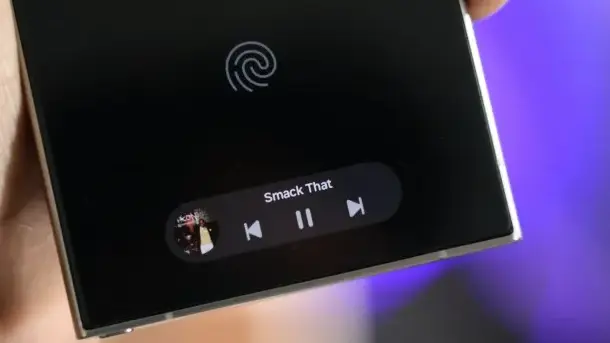
Now Bar is one of the significant new features in One UI 7, promising to provide relevant information at the right time. It also works with Always-on Display, displaying softly at the bottom. This is not the only way Samsung enhanced the Always-on Display with One UI 7. You may now control media playback via the Always On Display (AOD).
If you lock your Galaxy phone running One UI 7 while media is playing, the playback controls show at the bottom of the Now Bar. A single tap does nothing, but double tapping the playback controls will play, pause, or skip the current song or movie.
When you double-tap the album art, an expanded view of the media player appears, complete with larger controls and the ability to adjust media output.
Vertical app drawer
One UI 7 introduces a vertical app drawer to the One UI launcher. The option was included in One UI 5 and earlier releases, however it was deleted with Samsung’s Android 14-based One UI 5 update. The business promised to bring back the vertical app drawer with One UI 6.1.1, however this never happened.
If you have hundreds of apps installed on your Galaxy phone, a vertical app drawer will help you to easily swipe through them. In true Samsung form, there is an anomaly in how the feature was implemented.
Samsung does not specifically refer to it as a vertical app drawer. Instead, open the app drawer, hit the overflow menu button in the lower-left corner of the search bar, and choose Sort, then Alphabetical order. This converts the app drawer to a vertical style and organizes apps by name. You cannot move apps in this view, but you may position them within folders. Folders are located at the top, followed by applications and games.
A useful feature of the vertical app drawer is the addition of a fast-scroll bar on the right, which allows you to swiftly skim through and jump to any portion of your app list. The Home Up Good Lock module, which was updated with One UI 7, allows for more customisation of the home screen and app drawer.
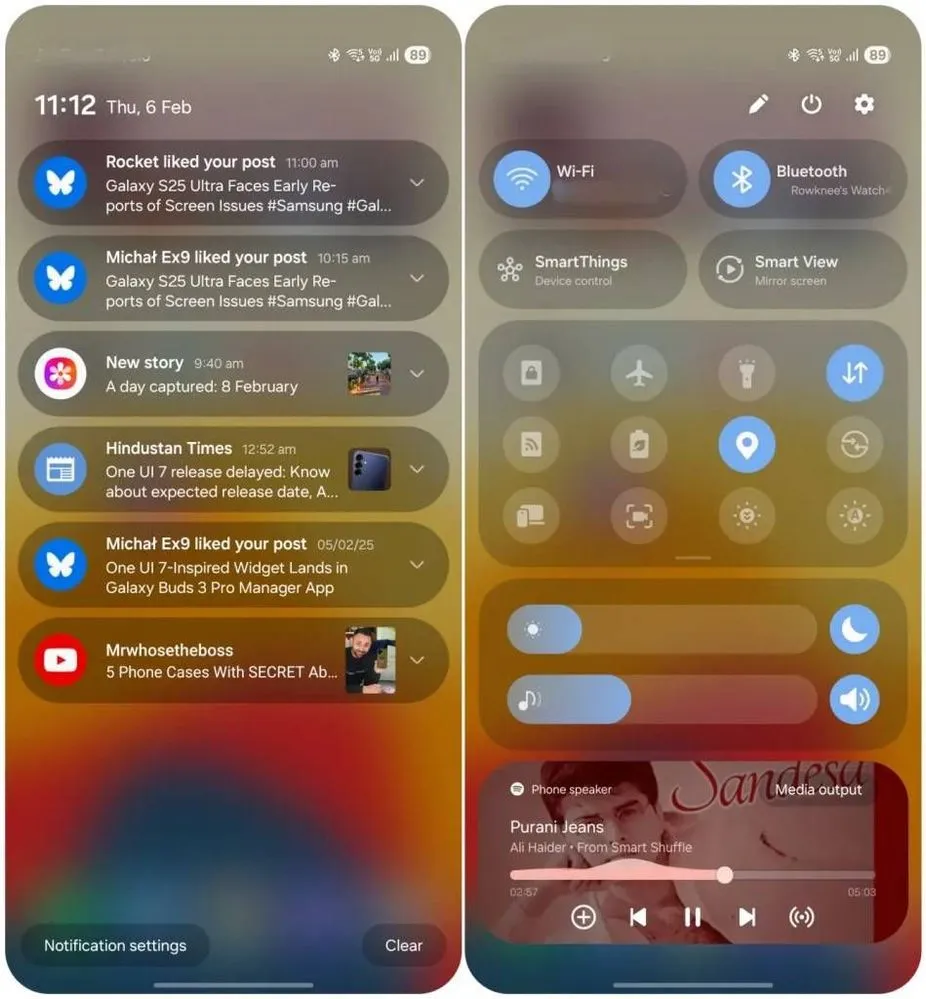
Quick switch between the notification panel and Quick Settings
Samsung used an iOS-like approach with One UI 7, separating the notification panel and Quick Settings into two sections. You can return to the former One UI 6-like layout, but sample this adjustment for a few days before making a decision.
Compared to Apple’s distinct Quick Settings and notification panel design, Samsung’s method has one significant advantage. Swiping between the Quick Settings panel and the notification shade allows you to rapidly move between them. The same is true for phones from Xiaomi, Oppo, and OnePlus, all of which have long used separate Quick Settings and notification panels.
Although Samsung was not the first to market with the idea, it made care to include a helpful change in One UI 7.
Minimized pop-up apps group together
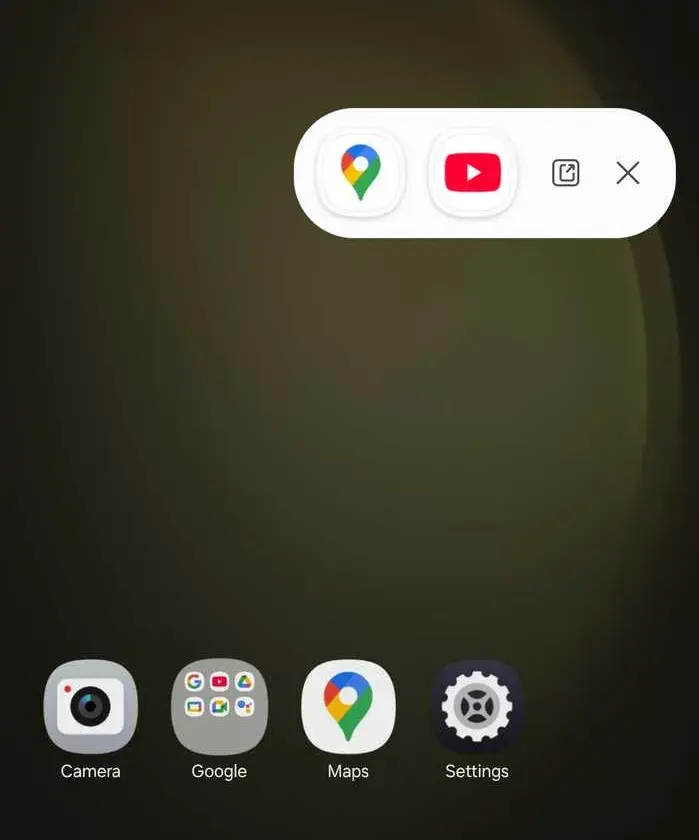
Samsung’s Android skin includes a variety of useful multitasking capabilities, including the option to run programs in a pop-up view. This allows you to run many programs simultaneously and minimize them into a floating shortcut. When you minimize numerous apps in pop-up mode, your Galaxy phone’s display may appear cluttered.
One UI 7 solves this problem by grouping the floating shortcuts of all minimized programs. Even better, there is a shortcut for launching all minimized apps at once. If you do not frequently utilize pop-up view multitasking on your Galaxy phone, you may disregard this as a minor modification. If you rely significantly on it, you will benefit from this modification.
New charging animation
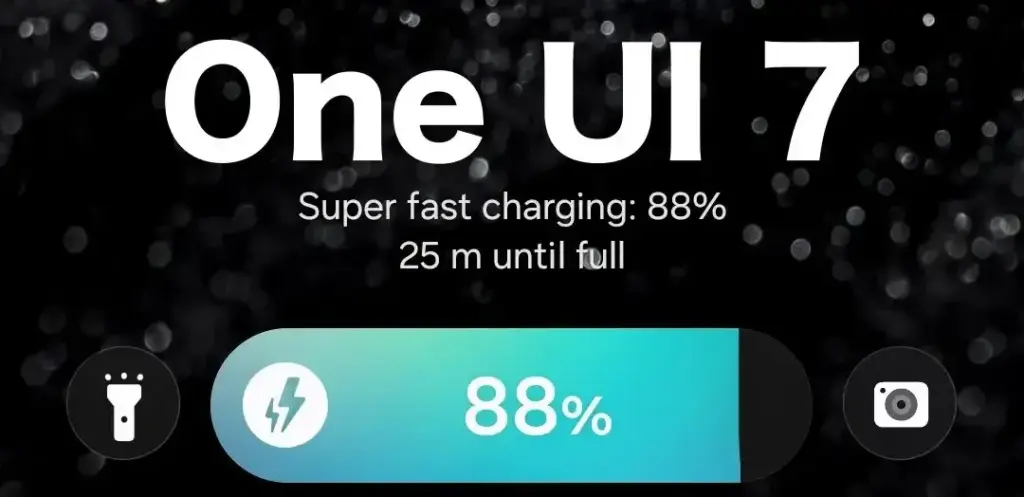
Samsung’s work with One UI 7 is evident, from the smooth system animations to the general fluidity. The experience rivals iOS in polish and feels substantially better than other Android skins. You will not encounter sporadic lags or stutters. The new charging animation demonstrates Samsung’s attention to detail in One UI 7.
If you put in your Galaxy phone to charge when the display is turned off, a charging pill with a slick animation appears at the bottom, where the Now Bar resides. It does not appear in extreme brightness, but rather in a dimmed state. When you are in a dark room, the phone automatically adjusts the brightness to make it even darker. The charging information can be displayed even when the screen is turned off.
One UI 7 is really improved
Samsung’s Android skin offers a feature-rich experience, including useful multitasking options. Still, it felt like One UI lacked the polish and attention to detail that Pixel UI and iOS possessed.
With One UI 7, Samsung steps up, demonstrating that when it wants to, it can create a professional and well-rounded Android experience while correcting some of its long-standing faults. So it is sad that the focus on One UI 7 is primarily on its rollout delays, rather than the polish and enhancements it delivers.
Samsung released the release schedule (via Tarun) for numerous other devices that qualify for the upgrade shortly after beginning the deployment of the official One UI 7 update for the Galaxy S24 series, the Galaxy Z Fold 6, the Fold SE, and the Flip 6.
Our dread has been realized: the April update will only be available for flagship devices released within the last two years. In May and June, the update will be released for other devices.
The complete list of devices and the month they will get the update is as follows:
April: Galaxy S24/S24+/S24 Ultra, Z Fold 6, Z Flip 6, Z Fold Special Edition, Galaxy Z Fold 5, Z Flip 5, Tab S10+/S10 Ultra, S23/S23+/S23 Ultra, S24 FE
May: Galaxy Z Fold 4, Z Flip 4, Tab S9/S9+/S9 Ultra, S23 FE, Z Fold 3, Z Flip 3, A34, A35, S22/S22+/S22 Ultra, Tab S8/S8+/S8 Ultra, S21/S21+/S21 Ultra, Galaxy A16, Galaxy Quantum 5, Galaxy Quantum 4
Although the Korean market was the focus of this plan, most smartphones in other countries should receive the update at roughly the same time. Notably, some devices, such as the Galaxy S21 FE and the Galaxy A73, are not on the list because they were not released in Korea, and we are unable to predict when they will receive the update until Samsung releases the release timetable for other nations.
Although we will have to wait and see if the firm can truly do that, we are crossing our fingers that Samsung will finish the rollout for all eligible devices by the end of June. Working on One UI 8, which will be preloaded on the Galaxy Z Fold 7 and Galaxy Z Flip 7, may be Samsung’s only option.
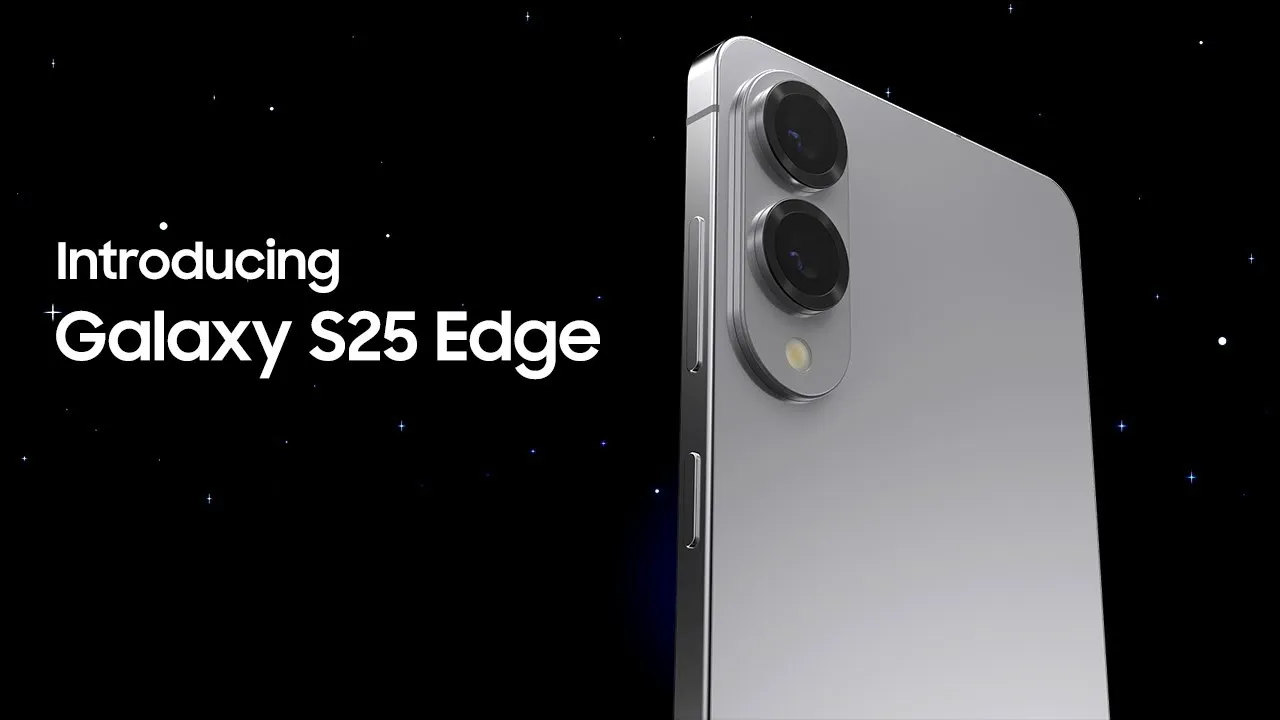
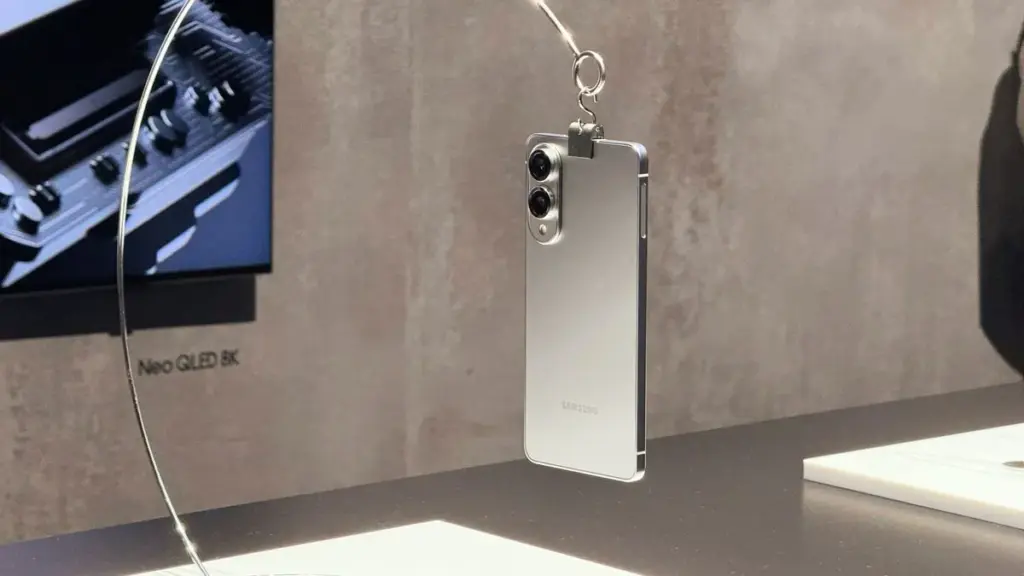
The Galaxy S25 Edge, Samsung’s most anticipated smartphone in the new S series, has been making headlines practically daily in recent days. Following earlier rumors pointing to an April 15 debut date, new information has emerged claiming that the business has postponed its ultra-thin flagship smartphone.
The reasons for the delayed release of the Samsung Galaxy S25 Edge remain undisclosed. According to reports, it could be the result of recent leadership changes following the death of Samsung DX head Jong-Hee Han, rather than any quality difficulties with the handset.
The Samsung Galaxy S25 Edge will be launched in May.
Meanwhile, according to our sources, Samsung has set a new date for the announcement of the Galaxy S25 Edge. According to our sources, the smartphone will now be released on Tuesday, May 13, 2025. This would indicate that Samsung has simply delayed the gadget by one month.
Rather than staging a large Unpacked event in January with the regular S25 lineup, the South Korean business will introduce the S25 Edge in a smaller online-only presentation, though this may vary by country. It is unknown whether the phone would be available in stores during the same month.
The Samsung Galaxy S25 Edge is said to have a 6.7-inch display, identical to the Galaxy S25+. The Qualcomm Snapdragon 8 Elite will power the handset. It will have 12 GB of RAM and either 256 or 512 GB of storage. Recent leaks indicate that the smartphone will be available in at least three colors: Titanium Silver, Titanium Jetblack, and Titanium Icyblue.
Though we do not know the exact availability specifics, the S25 Edge could cost around 1,249 euros. That is a modest rise over the similarly sized Galaxy S25+, which costs 1,149 euros. It remains to be seen how well the Galaxy S25 Edge sells. Samsung is apparently intending to produce up to 3 million devices.
This month delivers bad news to the owners of various vintage Galaxy cellphones. The Galaxy S20, Galaxy S20+, and Galaxy S20 Ultra, Samsung’s first game-changing flagships, will no longer receive software updates going forward.
The Galaxy A52 5G and Galaxy A72, two additional game-changing Galaxy smartphones, will also no longer receive software updates. These were among the first mid-range devices to provide flagship-level features such as high refresh rate displays, dual speakers, 5G connectivity, and faster charging at a lower cost.
Samsung has discontinued support for the Galaxy A52 5G Enterprise Edition. The normal edition, as well as the Galaxy A52 and Galaxy A52s, stopped receiving updates quite some time ago. The Galaxy A52 and A52s enterprise variants will still receive upgrades.
In addition to the Galaxy S20, S20+, S20 Ultra, A52 5G, and A72, Samsung will no longer provide updates for the Galaxy A32. Support for the S20 series will terminate after five years, and for mid-range devices after four years.
Samsung may provide an update that was already in the works for these devices before support ended, but if you possess one of them, you should upgrade if you want to continue receiving software updates.
Upgrade now
SAMSUNG Galaxy S25 Ultra
Streamline your day with an assistant that gets you. Ask it to Google search for a pet-friendly vegan restaurant nearby and text it to your friend— your Galaxy S25 Ultra handles multiple tasks with a single ask.
In 2025, the budget smartphone market is more competitive than ever, offering impressive features, solid performance, and sleek designs at wallet-friendly prices. Whether you’re a student, a casual user, or just someone who loves getting the best value for money, there’s a perfect device out there for you. In this guide, we’ve rounded up the best budget smartphones you can buy in 2025 — all under $400 — that deliver big on performance without the premium price tag.
This is a thorough guide to the top smartphones under $400, which include features like outstanding cameras, slick 120 Hz screens, and potent gaming-ready SoCs with 5G.
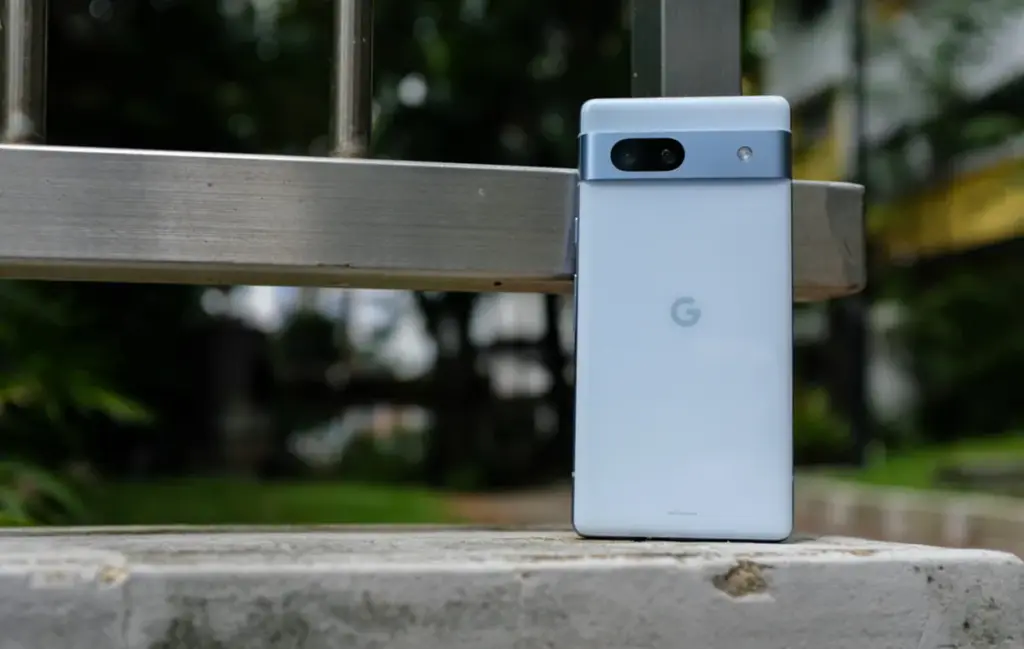
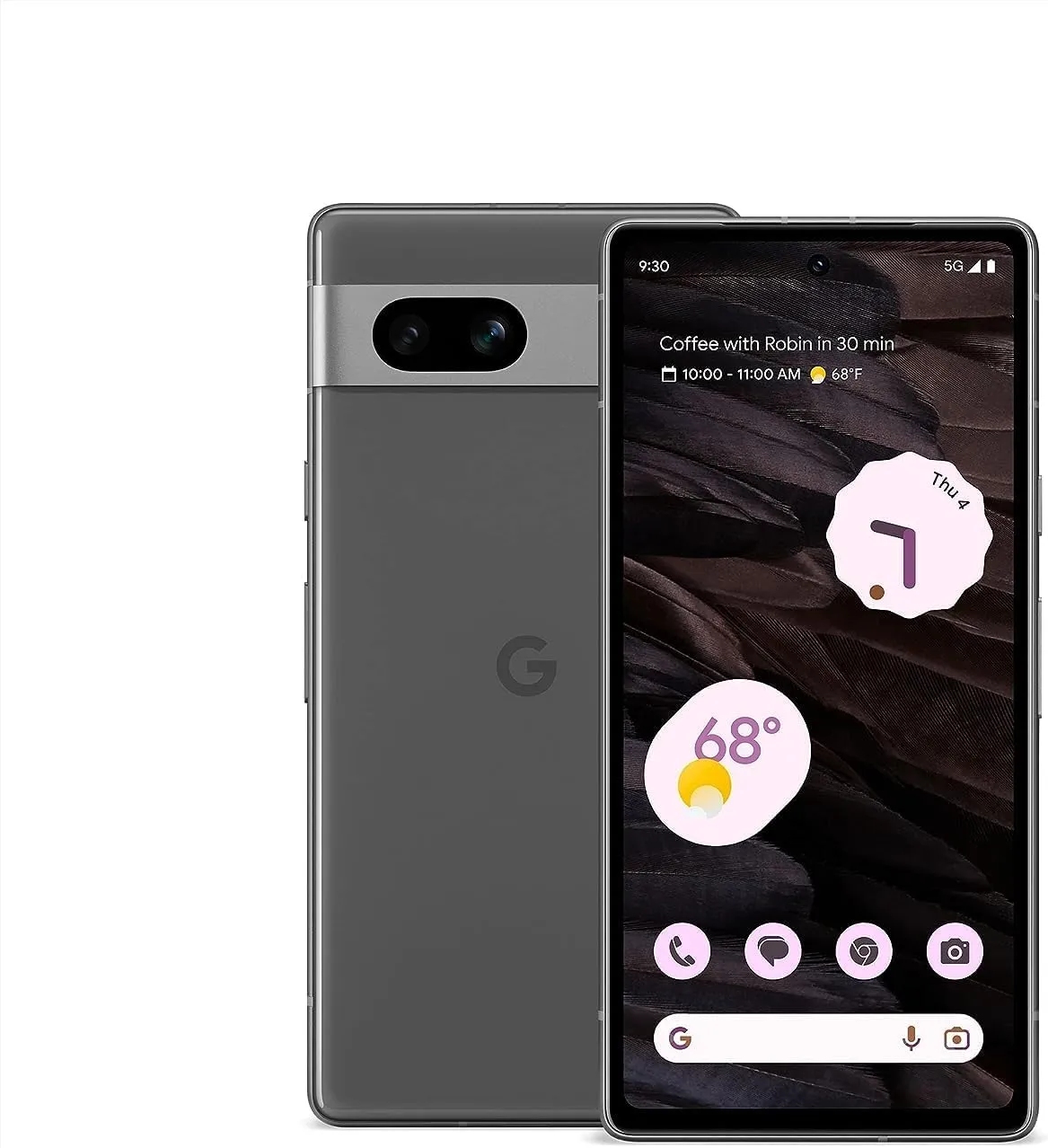
Google Pixel 7a – great camera, good battery life and updates
With 128 GB of storage, the Google Pixel 7a, which was released on May 10, 2023, costs less than $400 on Amazon. Its Tensor G2 processor, which Google has included, improves the performance of machine learning-based features, making it a great option for anyone looking for a small Google phone in 2025.
Among smartphones under $400, the Pixel 7a stood out with a 5-star rating in our assessment. It is the most affordable model in the Pixel 7 series, with features including wireless charging, 8 GB of RAM, and a refresh rate of 90 Hz.
With a 64 MP primary camera, a 13 MP ultra-wide lens, and a 13 MP selfie camera, the camera system has been much improved over its predecessor. Google’s sophisticated camera software guarantees that images captured with the Pixel 7a uphold the Pixel series’ excellent quality standards.
Google Pixel 7a
Pixel 7a has a 24-hour battery life and supports fast charging up to 72 hours with Extreme Battery Saver turned on.
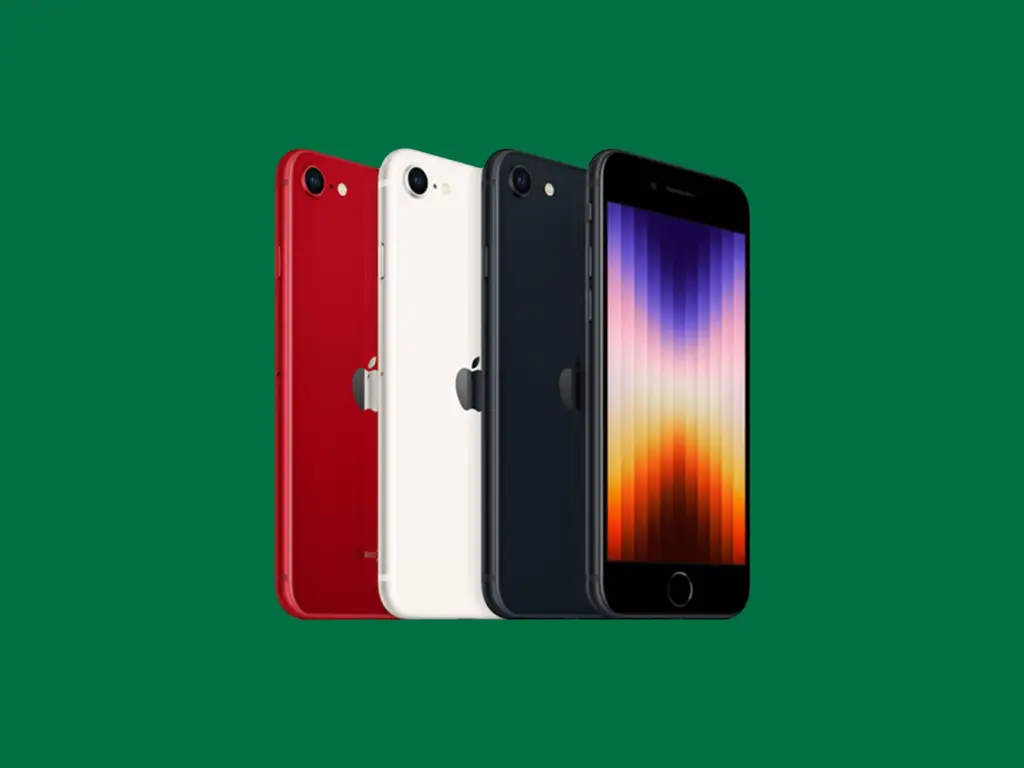
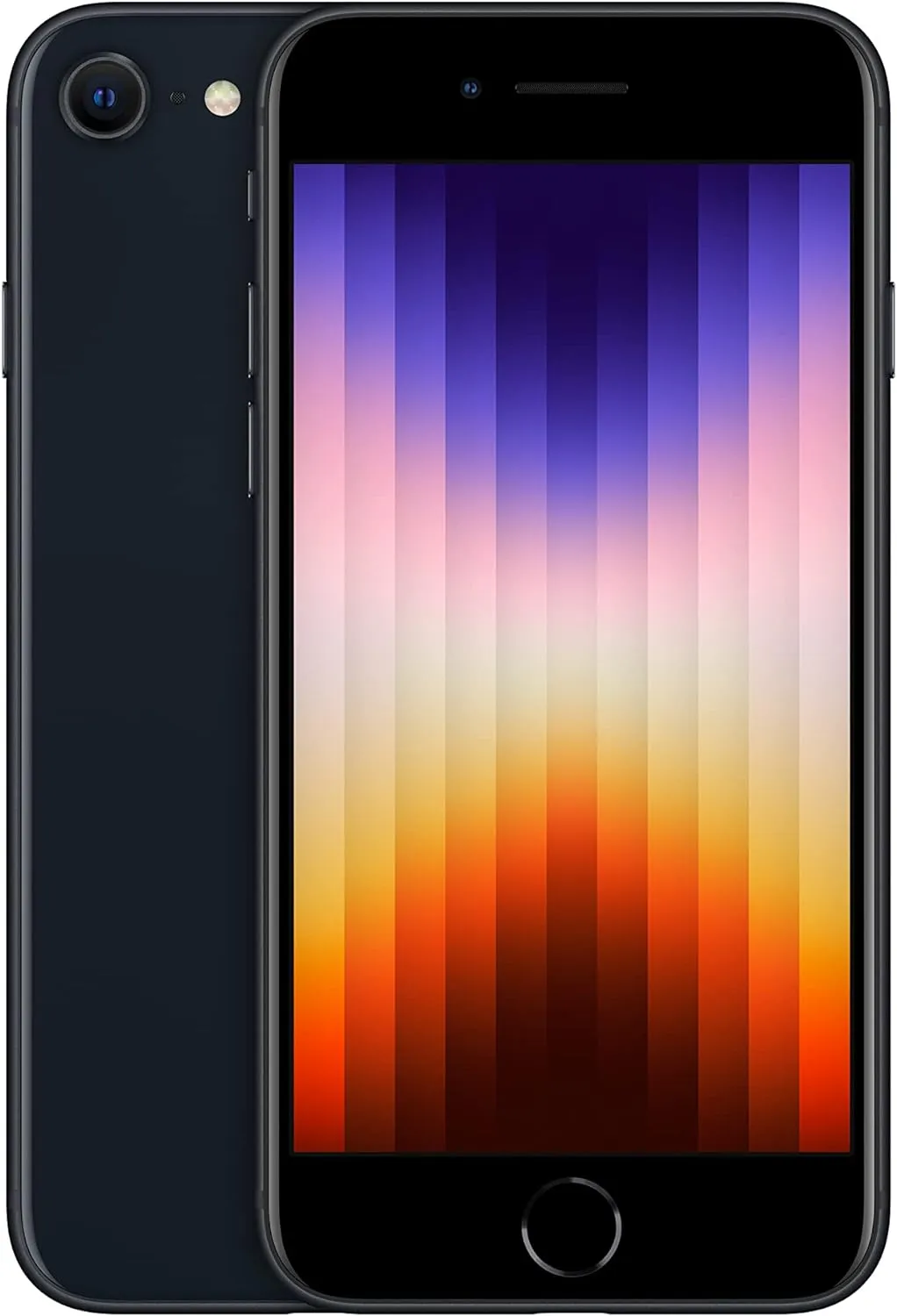
Apple iPhone SE (2022) – if you are in the Apple ecosystem
It is difficult to choose an Apple product under $400, but we firmly believe that the iPhone SE (2022) is the best option. Apple essentially discontinued the SE range in 2025 with the release of the iPhone 16e (review). Apple’s entry-level model is now the 16e, the company’s first new name since the 2020 “mini.”
Currently, the iPhone SE (2022) is only available through online retailers like Amazon. This budget iPhone features the powerful A15 Bionic chip, although it brings minimal upgrades compared to its predecessor. It offers a 12MP camera within a casing nearly identical to the iPhone SE (2020)—which itself resembles older models like the iPhone 8, 7, and 6s—and includes IP67 water resistance.
The most notable enhancement is 5G connectivity, which puts the iPhone SE (2022) on par with other smartphones under $400 on this list, aside from the improved SoC and more RAM (4 GB). After testing, we discovered that, despite certain issues, the gadget is still a great option for iPhone purchasers on a tight price.
Software support for the iPhone SE (2022), including complete iOS updates and security fixes, should last until roughly 2027 or 2028, according to Apple’s past trends. However, based on Apple’s future choices, precise timetables might change.
2022 Apple iPhone SE
Advanced single-camera system with 12MP Wide camera; Smart HDR 4, Photographic Styles, Portrait mode, and 4K video up to 60 fps
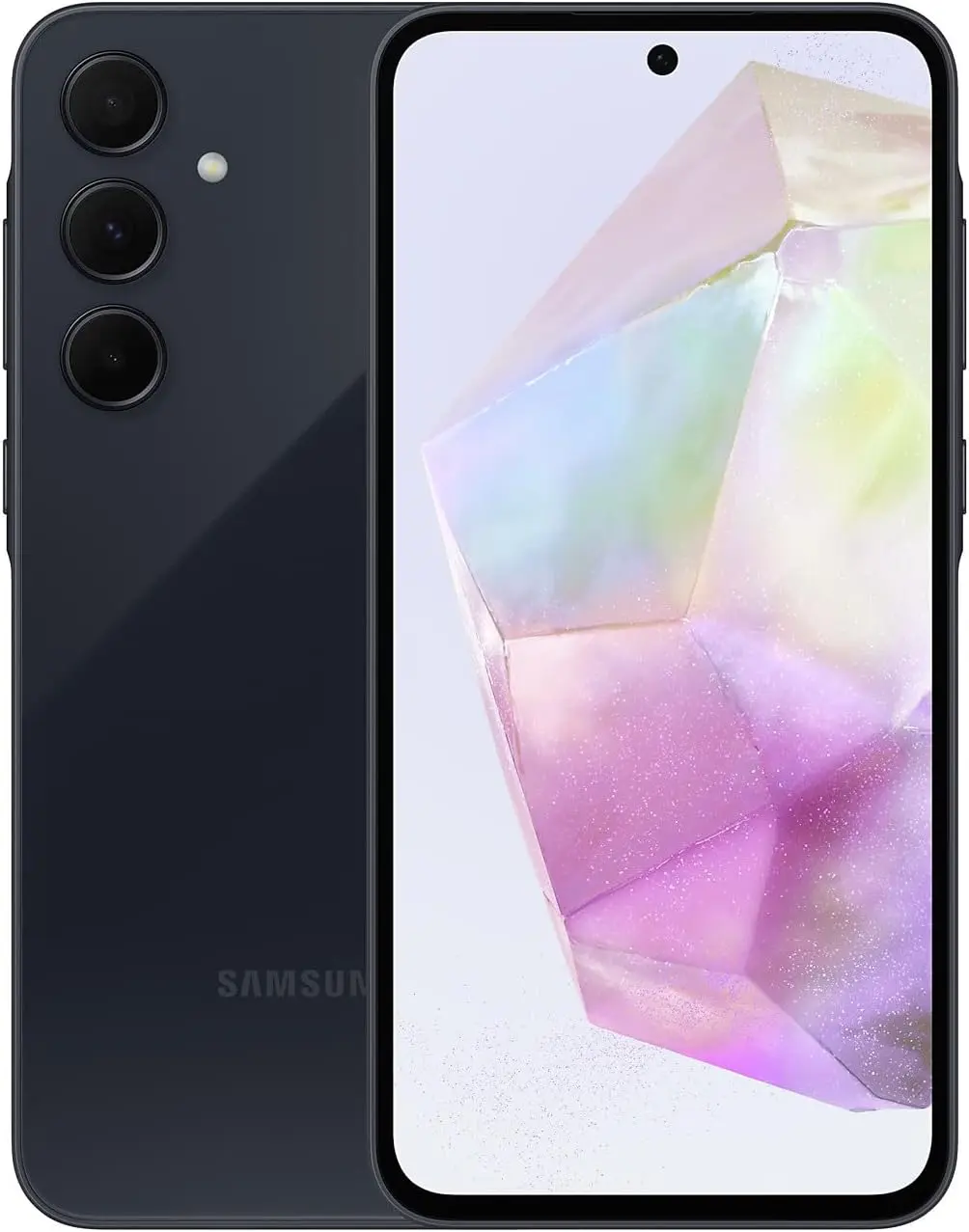
Surprisingly, Samsung chose not to distribute its well-liked Galaxy A55 in the US in 2024. As a mid-range substitute, the company instead unveiled the less expensive Galaxy A35.
In actuality, both models offer balanced camera capabilities, dependable battery life, and comprehensive software support, making them very comparable in terms of performance and specifications. The Exynos 1380 processor, which was used in the previous Galaxy A54 model, ensures seamless performance for daily use and light gaming on the A35.
Samsung has committed to providing software upgrades for the Galaxy A35 through 2029, making it the phone with the longest security support on this list. Although some more recent models provide even longer support, none of them now live up to this promise at this price point.
Samsung Galaxy A35 5G
6.6” FHD+ Super AMOLED w/Corning Gorilla Glass Victus+ – Resolution 1080 x 2340 pixels 256GB 8GB RAM – MicroSD up to 1TB
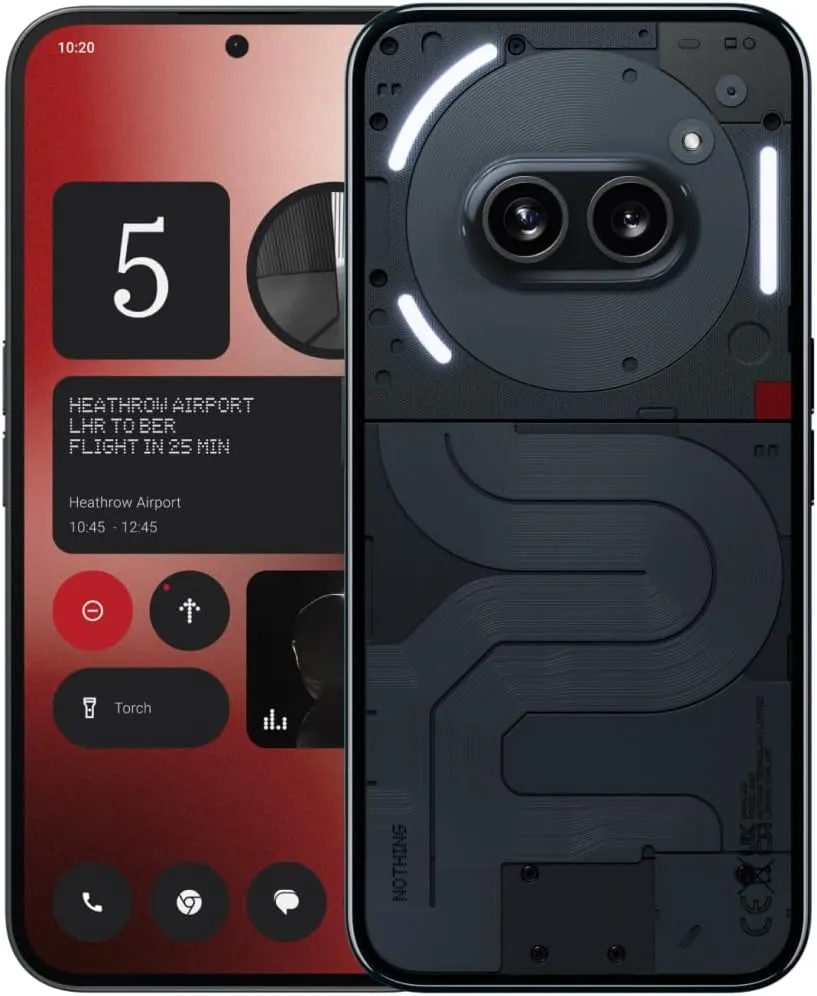
Nothing’s newest low-cost smartphone, the Phone (2a), has a great design and well-balanced specs, making it one of the most attractive mid-range phones.
It delivers endurance with four years of security patches and three guaranteed Android updates, together with a positive user experience with Nothing OS. Although the most recent Snapdragon chipset is not included, performance remains dependable.
The Phone (2a) has the longest battery life in its pricing range thanks to its large 5000 mAh battery that supports 45W rapid charging. The remarkable 17 hours and 2 minutes of runtime that our battery testing revealed allowed for comfortable two days of use between charges and comparatively quick recharging.
The primary compromise is the camera’s poor quality, especially in dimly lit areas. With its appealing screen, reliable performance, and very long battery life, the Nothing Phone (2a) is a well-rounded mid-range choice.
Nothing Phone (2a)
Nothing phone (2a) boasts Co-engineered with MediaTek,the custom Dimensity 7200 Pro processor delivers the best performance with optimal power consumption. NOTE:Only these carriers’ 5G network bands are supported,please check the bands before buying: T-Mobile n41,n66; AT&T n5,n66; Google Fi n41; Verizon Wireless n5,n38,n66; Cricket Wireless n5.
Our crew has carefully tested the top picks for our list of the best smartphones under $400, and we have added extra mentions to help you make an informed choice. Although this guide focuses on key aspects, I strongly advise reading our in-depth reviews before making a purchase.
We mainly took into account regular consumers looking for a balance between cost and usefulness while making this budget-friendly choice. To make sure you are selecting the greatest smartphone, I advise you to look over our larger list of top smartphones if flagship-level features or cutting-edge performance are important to you.
User Experience (UX). Smartphones priced around $400 often provide reliable performance for daily work, multimedia consumption, and casual gaming. Expect CPUs from the Qualcomm Snapdragon 7 series or MediaTek Dimensity range, which offer outstanding value even though they are not the most recent generation.
Battery life and display quality are also important. We selected smartphones with batteries ranging from 4,500 to 5,000 mAh, which can last a full day. While charging speeds in this price range are moderate, often between 10W and 15W in the United States, these devices provide adequate endurance. Display technology is constantly advancing, with many devices offering Full HD+ resolutions and refresh rates of up to 120 Hz, including the increasingly popular OLED screens.
Although the camera’s performance is suitable for most daily uses, there are certain limits to consider. Higher-megapixel sensors are common, although their quality differs greatly from flagship models. We suggest care when using multi-camera systems, as extra lenses such as macro or depth sensors may have limited practical applications.
Software and carrier compatibility are other important issues. Smartphones in this category often receive fewer software updates—one to two major Android versions after launch—so double-check the device’s update policy before purchase. Additionally, check compatibility with your carrier, especially if purchasing unlocked smartphones.
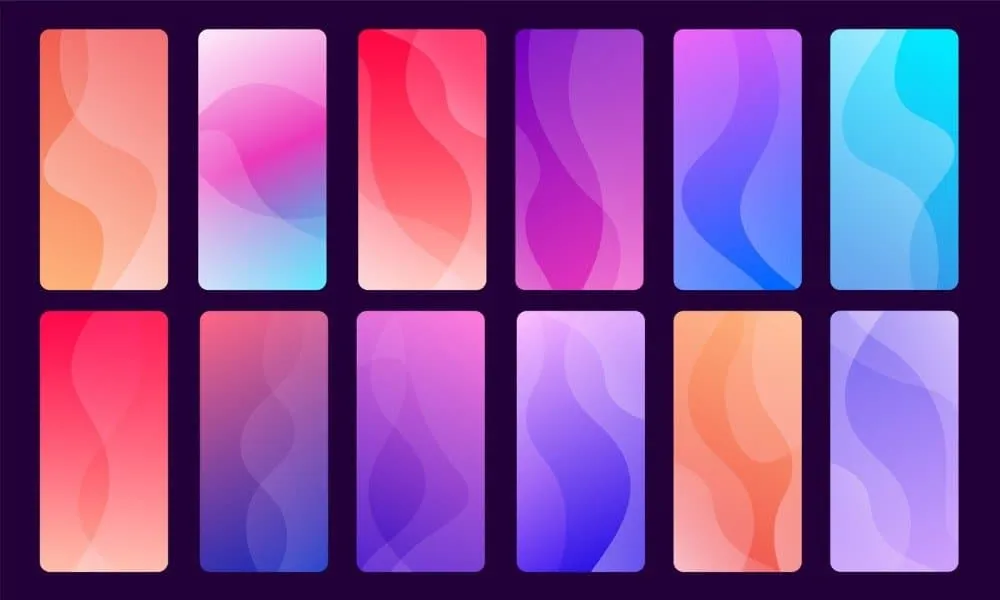
The home screen of your smartphone serves as the entryway to your digital life, and you may personalize it to improve its usability, functionality, and aesthetic appeal. This article explains how to customize your home screen for a genuinely one-of-a-kind experience, from altering the background to adding widgets and arranging apps.
Change wallpaper
The aesthetic tone of your smartphone is established by your wallpaper. Changing your wallpaper is easy, regardless of your preference for abstract art, beautiful landscapes, or intimate portraits.
On Android:
Long-press an empty space on the home screen.
Select Wallpaper or Wallpaper & style from the pop-up menu.
Choose a pre-installed wallpaper or select an image from your gallery.
Decide whether to apply it to the Home screen, Lock screen, or both
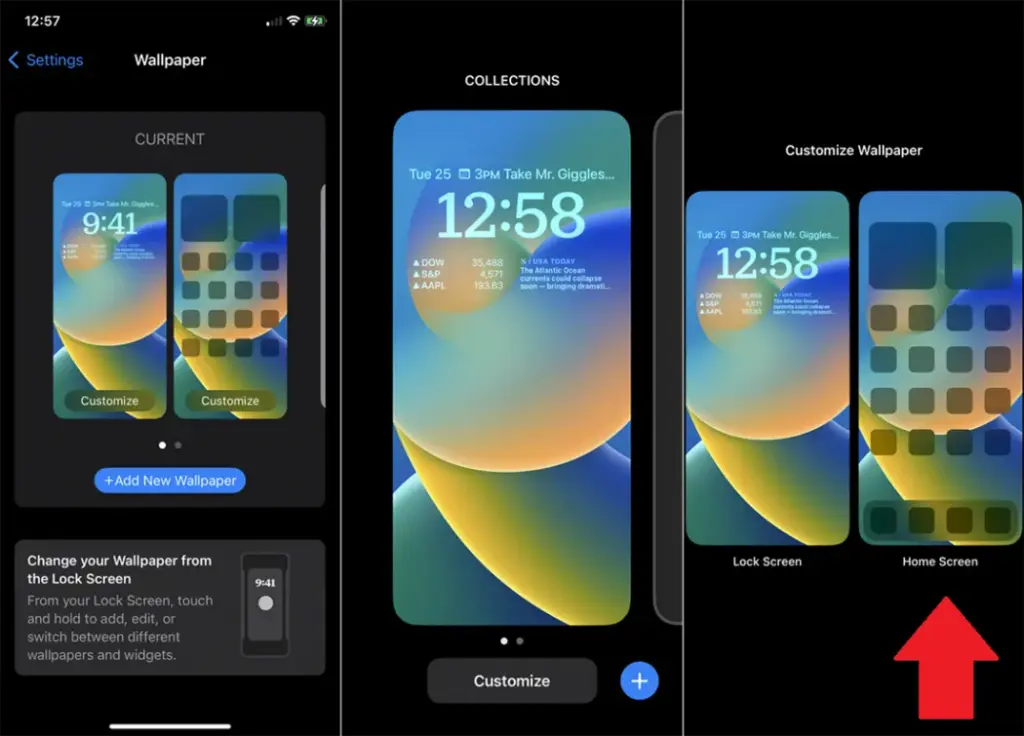
On iOS:
Open Settings > Wallpaper > Choose a New Wallpaper.
Select an image from Apple’s preloaded options or your photo library.
Adjust and tap Set to apply it to the Home screen, Lock screen, or both9
Add widgets for quick access
Without opening apps, widgets offer functionality and information at a glance.
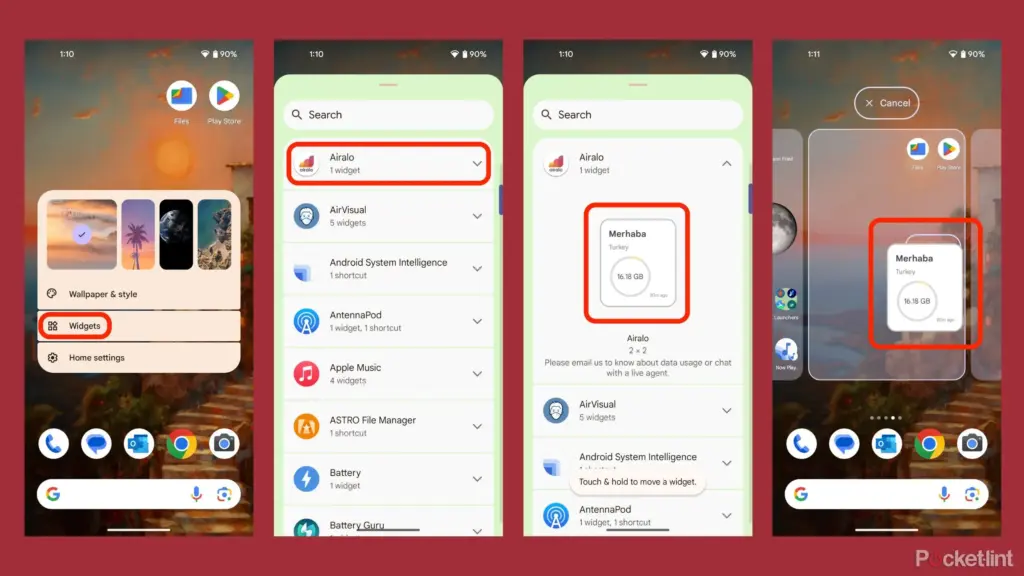
On Android:
Long-press an empty area on the home screen and tap Widgets.
Browse through available widgets (e.g., clock, weather, calendar).
Select a widget and drag it to your desired location on the screen.
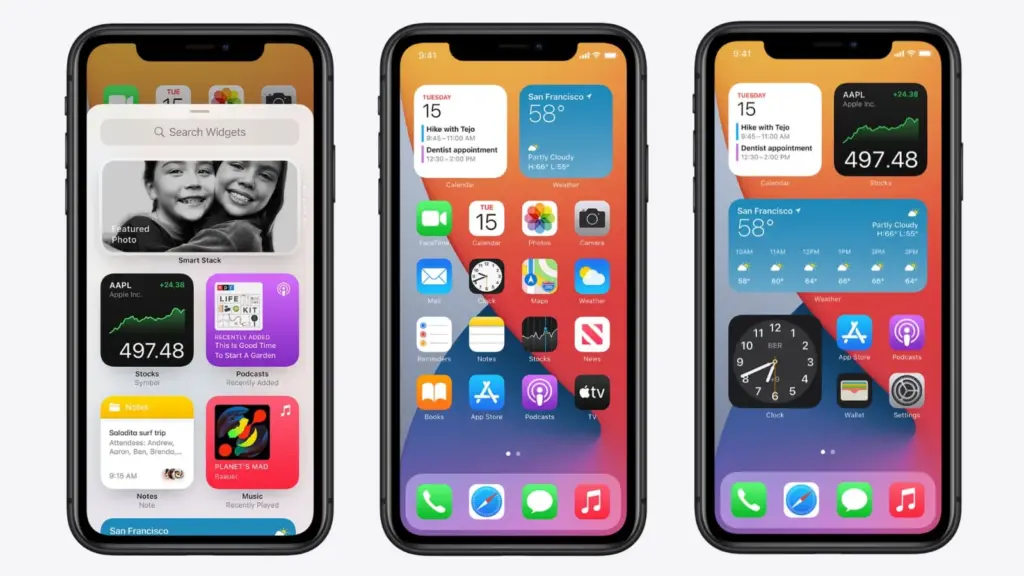
On iOS:
Touch and hold the Home Screen background until apps jiggle.
Tap the “+” icon in the upper-left corner.
Choose a widget from the list and select its size (small, medium, large).
Tap Add Widget, then drag it into place
Organize apps
A clutter-free home screen improves usability and makes navigation faster.
Create Folders:
Drag one app icon onto another to create a folder.
Add more apps by dragging them into the folder.
Rename folders by tapping on them and selecting the name field.
Arrange Apps:
Move frequently used apps to the first page of your home screen for quick access.
Drag icons to different pages or positions by holding and moving them.
Advanced Organization Tips:
Use themed rows (e.g., “Work,” “Social,” “Entertainment”).
Sort apps by frequency of use or color coding for visual appeal.
Use customization apps
Download specialized home screen customization programs like WidgetClub or Nova Launcher for more sophisticated customization choices including unique icons, fonts, and themes.
Benefits:
Access all-in-one themes that include wallpapers, widgets, and icons.
Customize grid layouts for app placement flexibility