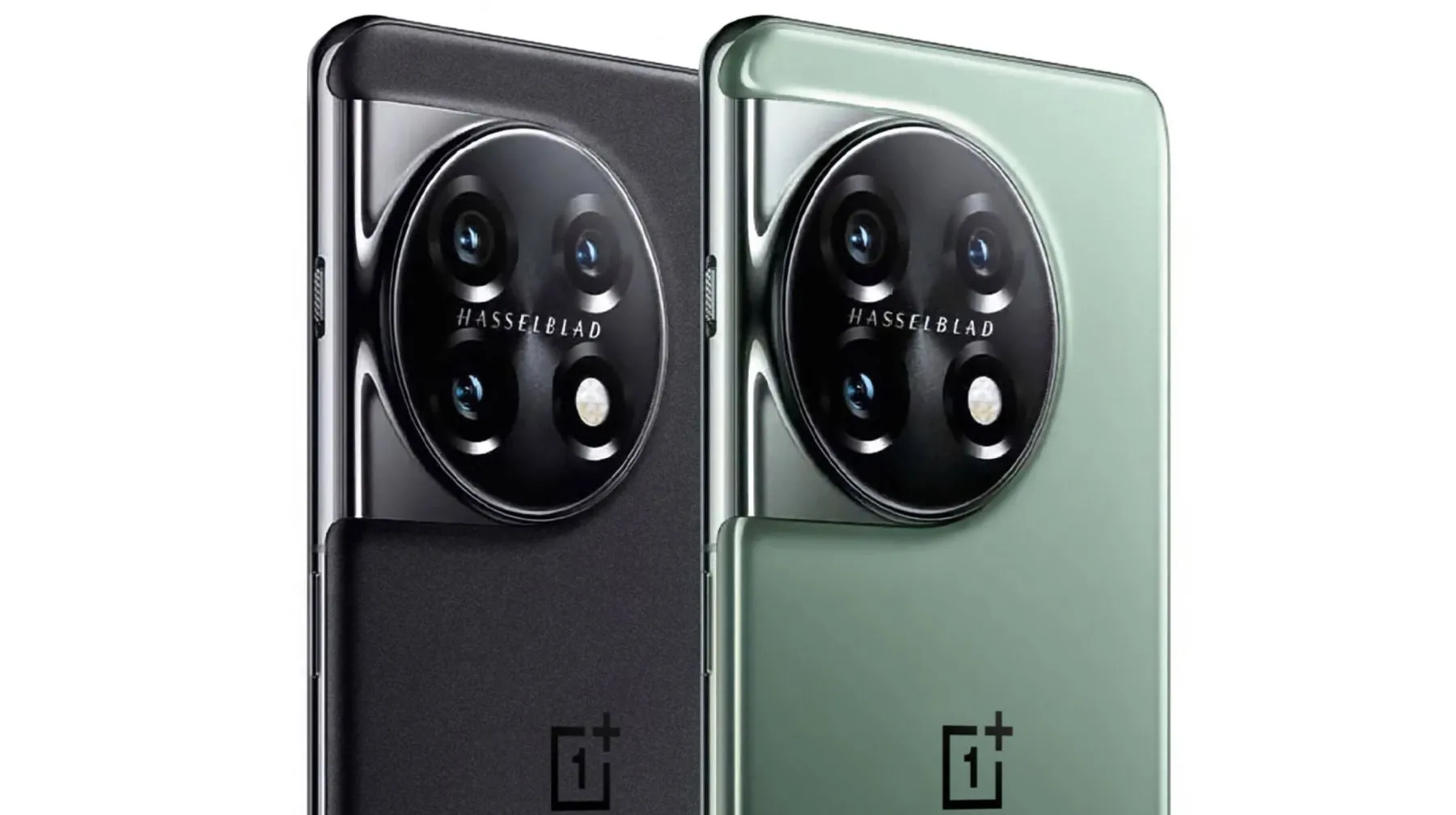
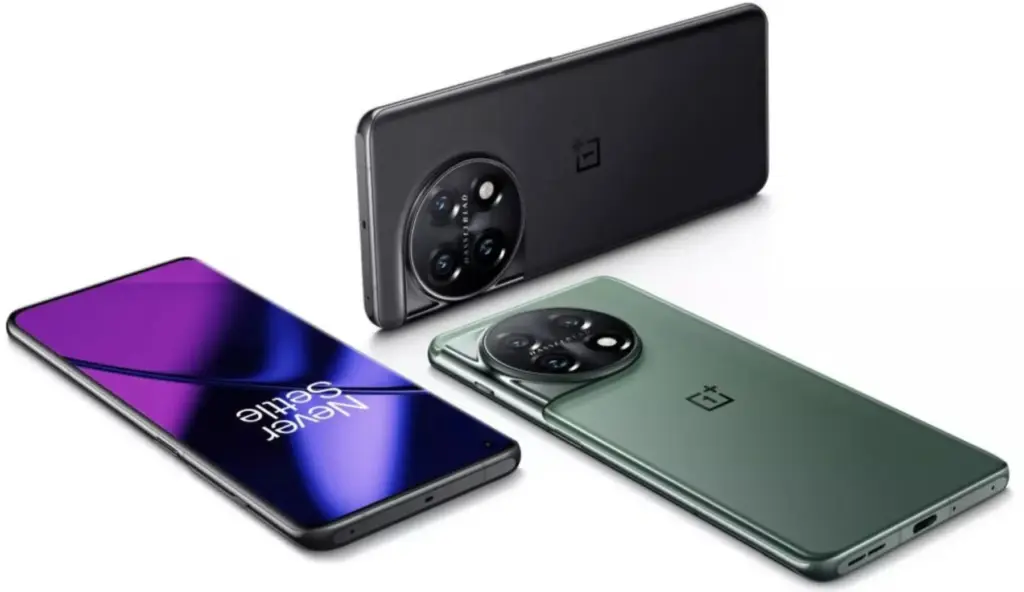
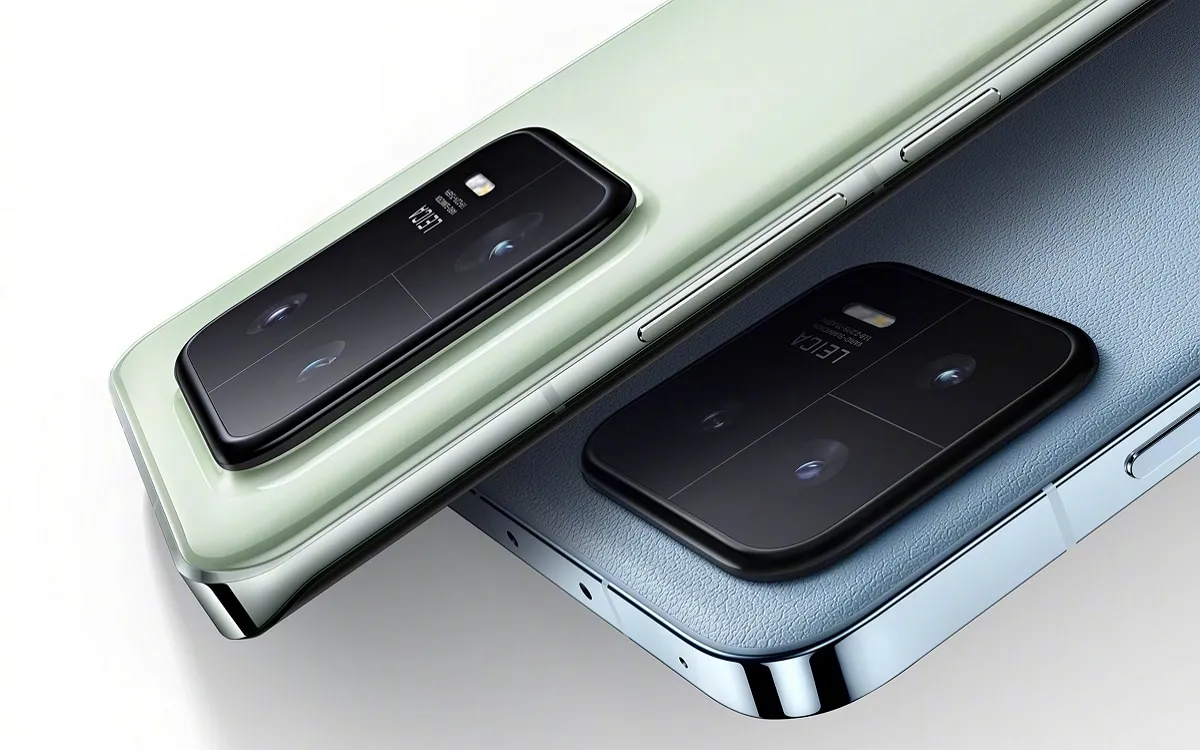
The OnePlus 11, which was previously available only in China, has now arrived in the US. Pre-orders have now been available for the flagship device. Here are the finest locations to order the device in advance and locate the best discounts and trade-in prices.
OnePlus 11 pre-orders
Even without the enormous camera array on the back of the phone, the OnePlus 11 offers a lot. The OnePlus 11 features top-notch specs on the inside. A Snapdragon 8 Gen 2 processor, as much as 16 GB of RAM, and either 128 or 256 GB of internal UFS 4.0 storage are all included in that.
The 50MP Hasselblad-branded sensor system is housed in a well-known wraparound camera configuration on the back of the device by OnePlus. The 5,000mAh battery is charged using an 80W rapid charging system. Unfortunately, the US model can only charge at 80W while other models can do so at 100W. Additionally, this time around there is no wireless charging.
The best part about the flagship device from OnePlus is the price. The OnePlus 11 comes in at $699, taking a bite at the competitively priced Pixel 7 series while offering a Qaulacomm SoC and other heavy specs.
As is normally the case, the website with the best deal is from the company selling the device, OnePlus. With a Red Cable Club account, buyers earn a number of points for future purchases. On a purchase like the OnePlus 11, that means getting a larger amount of credits.
Although rewards points are fantastic, the real value is seen when you trade in your outdated technology. Naturally, OnePlus has some restrictions. According to OnePlus, you’ll receive an immediate $500 credit toward your OnePlus 11 purchase if you trade in a OnePlus smartphone, yet we were unable to make this credit show up.
You can also receive up to $200 with that and any other trade-ins; this money could be paid to you after you make a purchase or be made immediately. For instance, OnePlus will add $200 to the trade-in value of a Samsung Galaxy S22 Ultra, making the total trade-in value $560. These values wouldn’t even come close to justifying the trade-in without the credit.
If you’re looking for accessories with your OnePlus 11 pre-order, now would be the time to bundle the OnePlus Buds Pro 2. At $50 off, those who are looking to keep it in the OnePlus ecosystem will want to take that offer up.
The second best place to pick up the OnePlus 11 is Best Buy. Unfortunately, the company isn’t offering trade-in deals with pre-orders, however, customers who place a pre-order will get a $100 gift card. While it isn’t a glamorous trade-in bonus, a Best Buy gift card can go a lot further than OnePlus credit if you already have the devices you need.
The OnePlus 11 should ship out around February 16, with pre-orders going on until the day before.
Popular apps have been pulled from the Google Play store, and users of Android devices are being asked to do so right away.
Millions of users have downloaded the harmful apps, which pose as questionnaire, fitness, or gaming apps and lure users into accepting bogus incentives or clicking on links that take them to dubious websites.
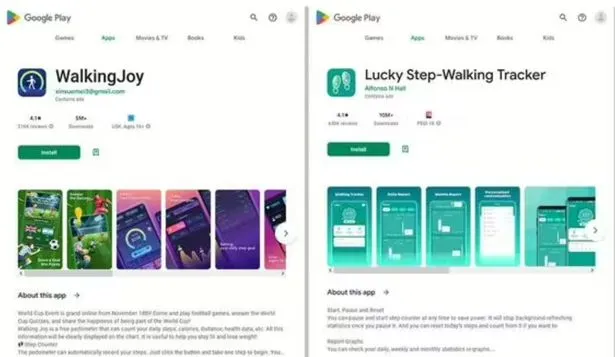
The most recent apps that were banned offered prizes to users for remaining active by giving them points for walking and working out. However, when individuals attempted to pay out, they were either prevented from doing so or have to watch interminable commercials for no reason.
Cybersecurity experts at Dr.Web flagged these apps, some of which already had millions of downloads before being booted from the Play store.
As reported by the Express, the apps that have recently flagged by the IT cybersecurity firm are:
Lucky Step: Walking Tracker – 10 million downloads
WalkingJoy: walking tracker – 5 million downloads
Lucky Habit: health tracker – 5 million downloads
Despite being flagged for using the same tactics as the other two, Lucky Habit has not been removed from the app store at this time.
It comes after 10 more apps were also axed for the Google store, in this instance due to bad links that downloaded malware, or direct users to dodgy websites.
According to Dr.Web, these fake applications presented themselves as investing software, directories, questionnaires and addictive games. They are as follows:
Golden Hunt – 100K downloads
Reflector – 100K downloads
Seven Golden Wolf blackjack – 100K downloads
Unlimited Score – 50K downloads
Big Decisions – 50K downloads
Jewel Sea – 10K downloads
Lux Fruits Game – 10K downloads
Lucky Clover – 10K downloads
King Blitz – 5K downloads
Lucky Hammer – 1Kdownloads
All of these apps have already been removed from the Play Store, but if you have one of them on your device it should be deleted right away.
According to Dr.Web for Android’s detection statistics, the activity of spyware, trojans, and adware surged in December 2022.
Hundreds of bogus apps and trojans that sign their victims up for premium services were among the several new risks they discovered at the same time on Google Play.
Today brings the release of Android 13 QPR2 Beta 3, which is anticipated to be the last significant preview before the stable rollout in March.
It is notable that it still includes the January 2023 security patch, which might be fixed in a later version (perhaps a Beta 3.1). The problems with Beta 3 (T2B3.230109.002) have been fixed.
Developer-reported and user-reported issues
Fixed an issue where notifications in a notification group were sometimes displayed with straight corners instead of rounded corners. (Issue #264287776, Issue #265529116)
Fixed an issue where the message in the notification shade that indicates an active VPN connection overlapped with the message about apps with active foreground services. (Issue #266075977)
Fixed an issue where the overflow menu couldn’t be accessed when editing Quick Settings tiles. (Issue #263484657)
Fixed an issue that sometimes caused a device with vibration enabled to vibrate for too long after it received a notification. (Issue #239676913)
Other resolved issues
Fixed an issue that sometimes caused messaging apps to crash or fail to send notifications.
Fixed a GPU issue that prevented apps from using certain visual effects.
Fixed an issue where Quick Settings tiles for a work profile were not added after setting up a new device.
Fixed an issue that sometimes caused the Pixel launcher to crash when using the Search bar in the app drawer.
Fixed an issue that sometimes prevented a device from being unlocked using a pattern after the Google Assistant was activated.
Fixed an issue in the com.android.qns system process that sometimes caused crashes.
Fixed an issue with the Pixel launcher that prevented Chinese text input from being recognized when typing in the Search bar in the app drawer.
Fixed an issue where when entering and exiting Picture-in-picture (PiP) mode from an app after changing the screen orientation, the system Settings app crashed with a “Settings keeps stopping” message and then the system Settings app couldn’t be opened.
Fixed an issue with the System UI that sometimes caused it to crash from a null pointer exception.
Fixed an issue where the connection status of a Bluetooth device sometimes did not match the actual device state.
Fixed an issue where the Pixel launcher crashed when a user tapped a web search suggestion for a query term.
Fixed an issue that caused status bar icons to overlap with the date text when font and display settings were set to their maximum level on a device.
The “list of Recent apps sometimes becomes sluggish if the screen orientation is changed while the list is open” has one more problem, though.
As Google typically publishes betas after the most recent monthly Android security patch has issued, Android 13 QPR2 Beta 3 lingering on the January 2023 security patch level is extremely peculiar. That is not anticipated until February 6th, Monday.
If you have installed the QPR2 Beta, leaving the program will result in a wipe and your next opportunity to exit without losing data will be in March after the stable launch.
Android 13 QPR2 Beta 3 system images are available for the Pixel 4a, Pixel 4a 5G, Pixel 5, Pixel 5a, Pixel 6, Pixel 6 Pro, Pixel 6a, Pixel 7, and Pixel 7 Pro. as well as in the Android Emulator.
You have probably come across ADB and Fastboot if you have ever rooted an Android device. Although they are a crucial component of the rooting toolset, these utilities can be challenging to grasp, let alone master.
So read on if you’re interested in learning more about ADB and Fastboot, need assistance setting them up, or want to know what you can do with them.
What are ADB and Fastboot?
While your phone is linked to a desktop computer via a USB cable, the tools ADB and Fastboot enable access to the Android operating system. There is no app for this, and while you may use ADB wirelessly, the setup is considerably more difficult, therefore the computer and cord are essential.
ADB is typically used when Android is active. It gives you access to system folders or lets you change hidden settings that are otherwise inaccessible to users. ADB can be used to copy system files to and from the device. System updates can also be installed via the sideload capability.
When Android is not active and the device is booted into “Fastboot mode,” Fastboot functions. It gives you access to every partition on your device, including the data partition, boot partition, and others in addition to the Android operating system.
Fastboot is a diagnostic tool for Android. It is frequently used to install a custom recovery and is necessary if you need to unbrick your phone.
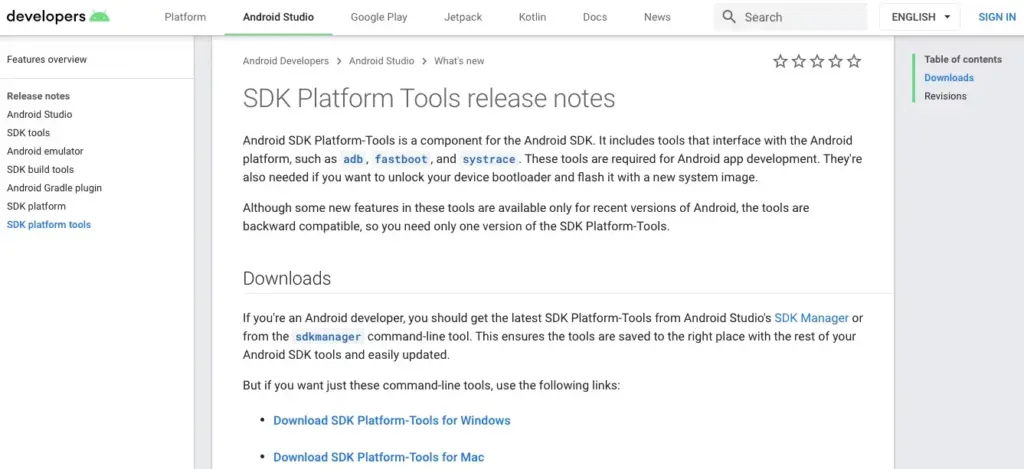
Both are included in the Platform Tools collection of the Android software development kit.
Both tools run through the Command Prompt on Windows, or Terminal on Mac and Linux. This means they aren’t especially user-friendly, even though they are quite easy to get the hang of.
How to set up ADB and Fastboot
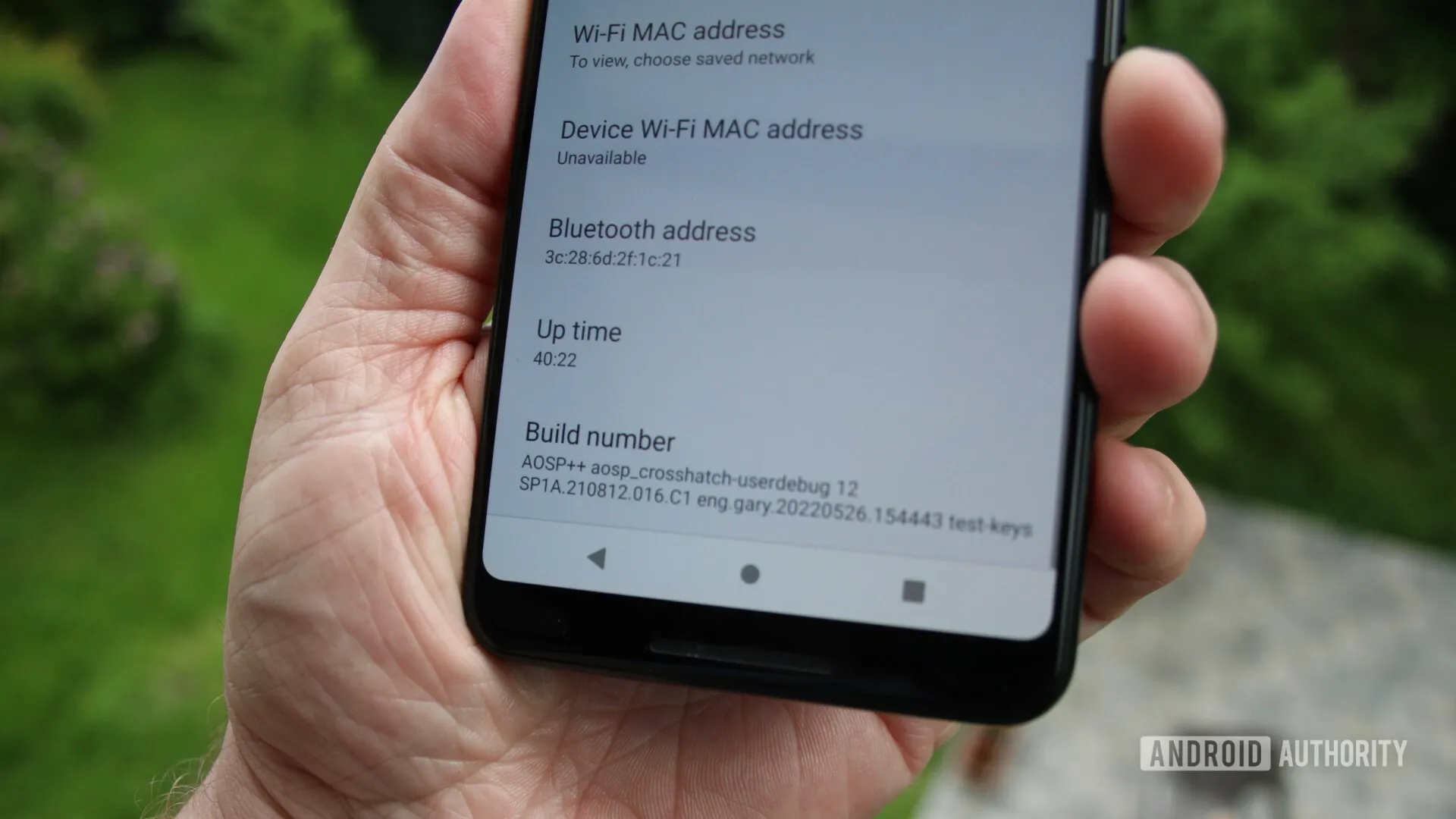
First, you need to set up your phone to use the tools. If you haven’t already, enable the Developer Options by going to Settings > About phone and tapping on Build number seven times.
Then, in Settings > Developer options, check the box next to USB debugging and walk through the dialog box that follows.
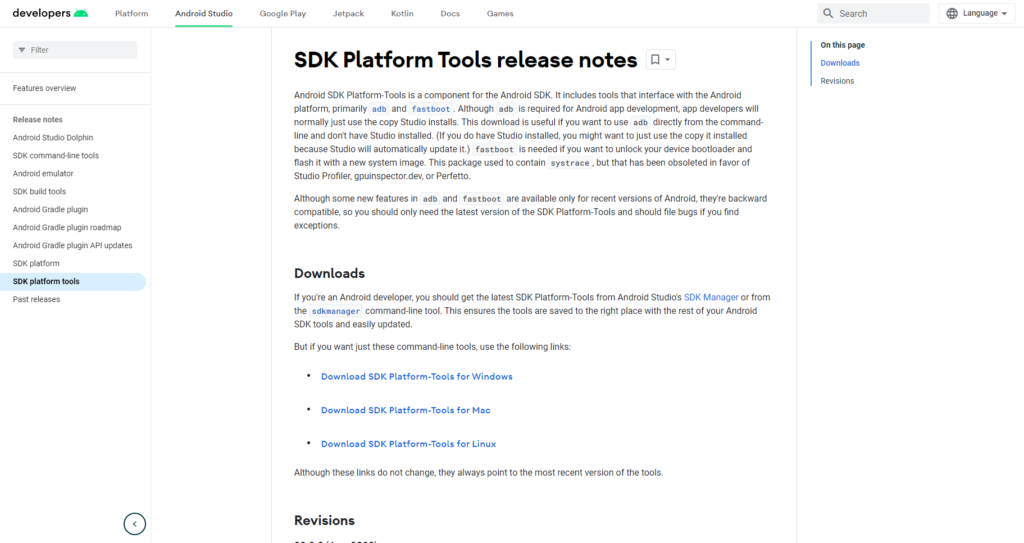
Download ADB and Fastboot from the Android Developer website. When you unzip the download, the contents will be collected together into a folder called platform-tools. There are several other items in the folder, but you can ignore these.
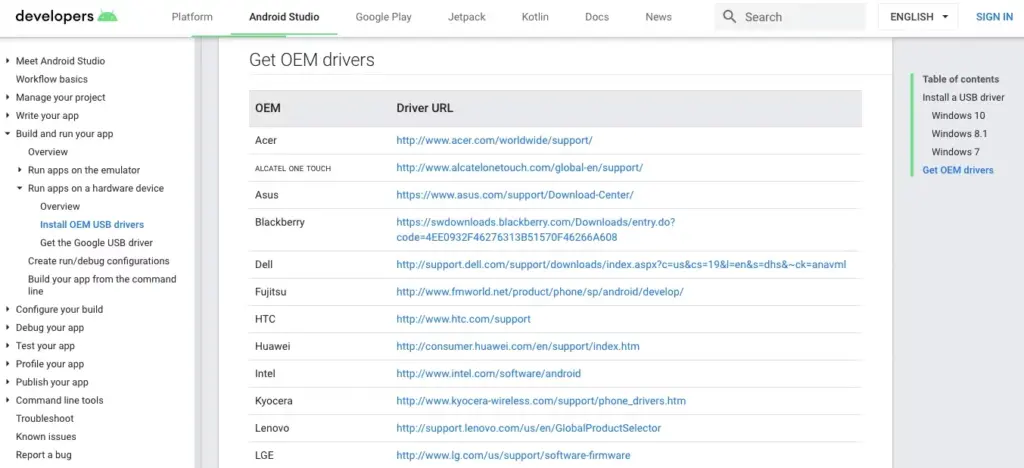
If you’re on Windows, you will also need to download drivers for your device. There’s a list of links for most popular manufacturers on the Android developer website. Drivers aren’t needed on Mac or Linux.
Using the command prompt or terminal
Use the cd command to accomplish this: type cd [path to platform-tools]. The path will automatically fill in for you if you type cd[space] and then drag the platform-tools folder into the Command Prompt window.
Even simpler, on Windows you may pick Open Command Prompt Here by right-clicking the platform-tools folder while holding the shift key down.
The difference between Windows and Mac/Linux
There’s one small but essential difference between using Windows and Mac or Linux. On the latter two, every ADB and Fastboot command must be preceded by a dot-slash.
So where you type adb on Windows, you must type ./adb on Mac and Linux. And fastboot on Windows needs to be ./fastboot on Mac and Linux.
For the sake of simplicity, we’ll stick with the Windows commands going forward.
How to use ADB
Launch Android on your phone, then use a USB cord to connect it to your desktop computer. Open the Command Prompt on your PC and modify the directory to point to the platform-tools folder.
Hit Enter after entering adb devices. The list of attached devices should now be visible, along with their serial numbers. This indicates that it is effective.
How to use fastboot
Fastboot works the same way as ADB, except you need to boot your phone into Fastboot mode instead of Android. You normally do this by holding a combination of the power and volume keys when turning on the phone.
Alternatively, use ADB and type adb reboot bootloader.
After that it’s the same. Enter fastboot devices to check that your phone is being recognized. Enter fastboot reboot to relaunch Android.
Things you can do with ADB and Fastboot
Now that you know how to use ADB and Fastboot, what can you do with them? Here are a few tools to try:
adb pull [path to file] [path to folder] This copies a file stored anywhere on your phone, and saves it to a specified folder on your computer.
adb push [path to file] [path to folder] The opposite of pull; send a file from your desktop to your phone.
adb install [path to file] Installs an APK app on your phone. This is of most use to app developers.
adb uninstall [package name] Uninstalls an app. You need to enter the full package name—usually something along the lines of com.devname.appname—instead of the common app name.
adb shell wm density [dpi] Changes the pixel density of your display. A lower number fits more content onto the screen, while a higher number will fit less. For example, older devices like the OnePlus 3 have a native DPI of 480. Setting it to 400 makes text, icons, and everything else smaller.
adb sideload [path to update.zip] Sideloads an update.zip firmware update. This one runs via the custom recovery on your phone. Useful if you can’t wait for an update to get pushed to your device.
fastboot oem unlock OR fastboot flashing unlock Which command you should use depends on which version of Android you’re running. From Android 6 onwards you also need to enable OEM unlocking in Developer Options. Unlocking the bootloader this way wipes your phone completely.
fastboot flash recovery [filename.img] Installs a custom recovery, such as TWRP, on your device. For ease of use, we suggest changing the recovery filename to something easy—twrp.img, for instance—and moving it into the platform-tools folder.
fastboot -w Completely wipes your phone in preparation for flashing a custom ROM.
fastboot update [path to rom.zip] Flashes a custom ROM. A useful option if you haven’t rooted your phone.
Why you should learn ADB and Fastboot
Obviously, the aforementioned instructions are simply meant to provide general direction. On some gadgets, they might not all function. Only use them if you are aware of what they will do and how to reverse any modifications they could cause.
The Android rooting and modding process depends heavily on ADB and Fastboot. It’s crucial to learn how to use them because doing so will enable you to employ more sophisticated tweaks.
As previously indicated, you must first enable the Developer Options in order to use ADB and Fastboot. Once you’ve done that, you’ll have access to a number of other handy settings.
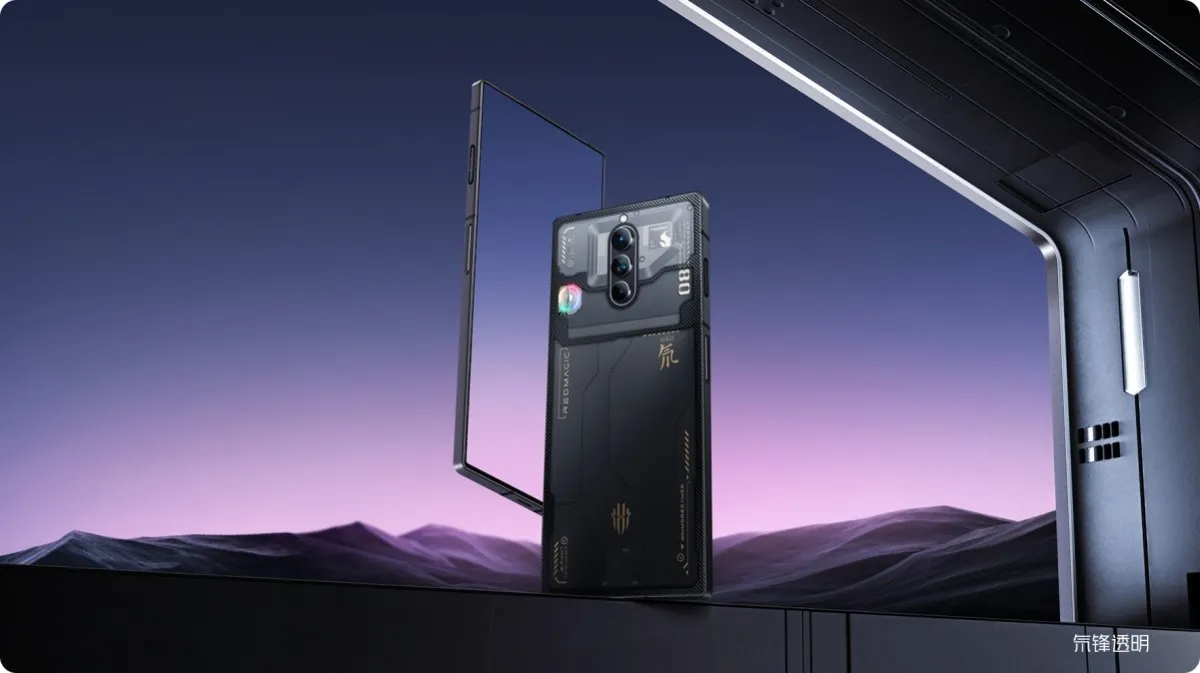
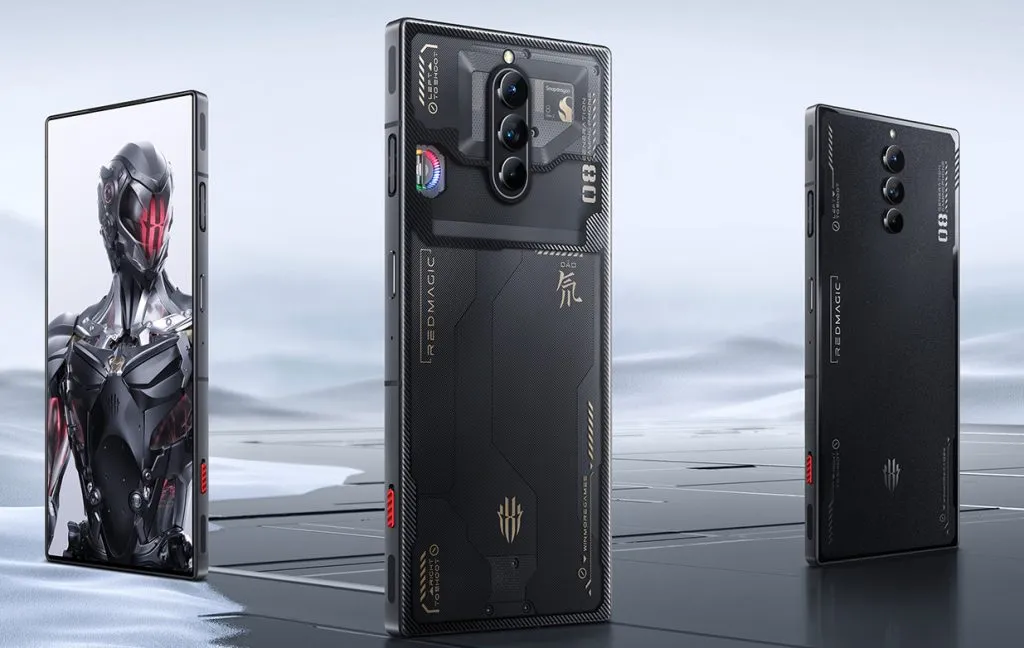
The Red Magic 8 Pro is one of the Snapdragon 8 Gen 2 smartphones that have already been released. Since its late December launch, the phone has only been available in China, but that will now change.
Today, Nubia announced the Red Magic 8 Pro’s global release, and it does appear to be a fantastic gaming phone. The aforementioned Snapdragon 8 Gen 2 SoC, together with an enhanced cooling system, powers the phone.
More specifically, among other cooling measures, you have a bigger vapor chamber cooling plate and an integrated cooling fan with a maximum speed of 20,000 RPM. Therefore, people looking for the finest long-term gaming performance should keep this phone in mind. Another thing that shouldn’t be surprising is the presence of two capacitive shoulder triggers.
What else does it bring to the table?
The rest of the phone also looks pretty impressive, featuring a 6.8-inch 120Hz OLED screen, 12GB to 16GB of LPDDR5X RAM, 256GB to 512GB of UFS 4.0 storage, a 6,000mAh battery, and 65W wired charging via the included charger.
Switching to the cameras, Nubia’s handset brings a second-generation 16MP under-display selfie camera. Otherwise, you’ve got a triple camera system on the back, consisting of a 50MP GN5 main camera, 8MP ultrawide snapper, and 2MP macro lens.
A 3.5mm connector (excellent), Bluetooth 5.3, dual stereo speakers, an in-display fingerprint sensor with heart rate detection, Red Magic OS 6.0 on top of Android 13, and support for Wi-Fi 7 are some further noteworthy Red Magic 8 Pro features.
Red Magic 8 Pro pricing and availability
These specs don’t mean much if the device is hideously overpriced. Thankfully, the Red Magic 8 Pro is one of the more competitively priced Snapdragon 8 Gen 2 phones in global markets.
The 12GB/256GB phone will be available for $649 / €649 / £579. Need more RAM and storage? Then the 16GB/512GB model will set you back $799 / Є749 / £709. The Red Magic 8 Pro will go on sale from February 2 in Asia-Pacific regions, Europe, Latin and North America, and the Middle East.
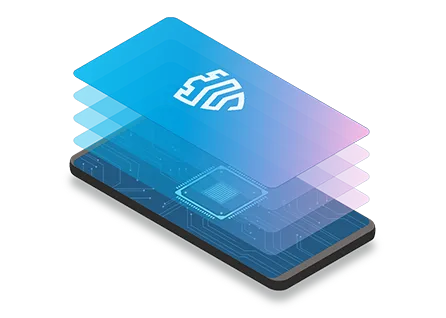
Almost all Samsung Galaxy smartphones come with Samsung Knox pre-installed, and it serves as a security solution for device owners to make sure that both their smartphones and their data are protected. It goes beyond what TrustZone, a Trusted Execution Environment (TEE) that Samsung uses on its smartphones, previously provided by combining hardware-backed security with software. On more recent Samsung flagship smartphones, Knox Vault is an option that runs completely independently of the main processor.
Like TrustZone, Knox Vault safeguards your biometrics, cryptographic keys, and passwords. The distinction is that Android asks a TrustZone applet to validate the fingerprint or password on your behalf when you unlock your phone, even though TrustZone runs in parallel with Android on the same core application processor. Your biometric data and passwords cannot be stolen, even if your Android installation has been compromised. Knox Vault goes a step farther and serves as a beefed-up substitute for TrustZone.
TrustZone vs Knox Vault, difference?
On the SoC, a TEE is a secure area that manages sensitive data. Any modern smartphone has TEE because it is required for devices launched with Android 8 Oreo and higher. Anything outside of the TEE is regarded as “untrusted” and is limited to viewing encrypted content. For instance, content that is DRM-protected is encrypted using keys that are only accessible by software operating on the TEE. The content can be decrypted by the TEE and then shown to the user, while the main CPU can only see a stream of the encrypted content. Another TEE is Knox Vault.
In the case of Knox Vault, Samsung says that it “extends” upon the protection offered by TrustZone. Knox Vault is a replacement for TrustZone according to Samsung, and the company describes the difference in the following way in a blog post:
The way I think of it, TrustZone was a great safe in the middle of your bank’s branch office. There are a lot of people you don’t necessarily trust walking by the safe, doing day-to-day work that doesn’t require physical access to the safe. The secure processor in Samsung Knox Vault is more like Fort Knox: a safe securely placed far away from the bank, isolated from whoever walks into the branch.
How Samsung’s Knox Vault works
Knox Vault extends the security that TrustZone already offers, and Samsung phones from the Galaxy S21 and above have it. Knox Vault can:
Store sensitive data such as hardware-backed Android Keystore keys, the Samsung Attestation Key (SAK), biometric data, and blockchain credentials.
Run security-critical code that authenticates users with increasing timeouts between failures and controls access to keys depending on authentication.
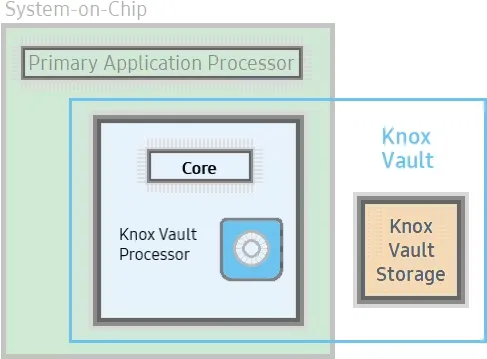
Knox Vault isn’t just a software isolation, it’s a physical isolation from the chipset on your smartphone. It’s an independent processor on the SoC with storage physically separate from the rest of the SoC. Because of this physical isolation, Knox Vault is even protected from side-channel attacks that target other software running on the primary processor.
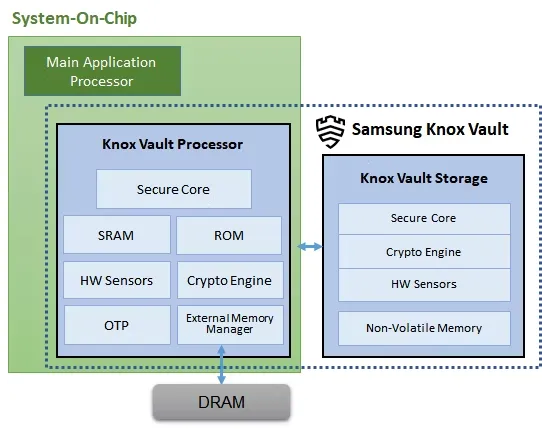
Knox Vault’s architecture
Knox Vault is made up of the following:
Knox Vault Subsystem: implemented as part of the SoC
Knox Vault Storage: an integrated circuit physically outside the SoC
How Knox Vault protects itself from attacks
If someone has physical access to your device, you should act and prepare as if it’s only a matter of time before they gain access to the protected data stored on it. Samsung says that with Knox Vault, that may not necessarily be the case. It’s resistant to hardware attacks such as the following:
Physical probing to disclose data
Physical manipulation of the circuitry to deactivate security mechanisms
Forced information leakage
Hardware side-channel attacks such as differential power analysis to disclose data
Fault injection to bypass security mechanisms.
As well, the Knox Vault Processor communicates with Knox Vault Storage via a dedicated I2C (Inter-Integrated Circuit) bus. Traffic on this bus is encrypted and transmitted with an authentication code to prevent eavesdropping on communications, and those communications are also protected against replay attacks.
Knox Vault Subsystem
It is intended for the Knox Vault Subsystem to function independently of other SoC components. The Knox Vault Processor, SRAM, and ROM make up its own safe processing environment. Additionally, it offers improved security and data protection from a variety of hardware-based threats by monitoring the environment and hardware state using a number of security sensors or detectors, such as:
High and low temperature detectors
High and low supply voltage detectors
Supply voltage glitch detector
Laser detector
When the Knox Vault Processor starts, the ROM code is loaded into SRAM. While the ROM code loads the Knox Vault Processor firmware, with the help of the modules running on the SoC’s main processor. The software stack of the Knox Vault Processor has its own secure boot chain.
The Knox Vault Subsystem also includes a dedicated random number generator and its own Crypto Engine. The Knox Vault Processor can access system DRAM through the External Memory Manager. This monitoring cannot be affected or bypassed by any application on the Knox Vault Processor, and physical intrusion will initiate a device lockdown sequence.
The crypto engine provides the following cryptographic functions:
AES encryption/decryption
DRBG random number generation
SHA hashing
HMAC keyed-hashing for message authentication code
RSA and ECC key generation and services
Knox Vault Storage
The Knox Vault Storage is a dedicated non-volatile memory device that stores sensitive data such as the following:
Cryptographic keys such as Blockchain keys and Device keys
Biometric data
Hashed authentication credentials
Just like the Knox Vault Processor, the storage is also safeguarded against physical and side-channel attacks. It has a secure core to do the following:
Execute the ROM code
Provide cryptographic operations for public key algorithms (RSA, ECC) and SHA algorithm with software libraries
Safely store data in dedicated SRAM and ROM
Samsung phones that support Knox Vault
Certain Samsung Galaxy tablets and smartphones, including the Samsung Galaxy S21 and later models in both the S series and the Fold series, feature Knox vault. Particularly for users who may rely on their smartphones for sensitive data storage or other enterprise usage, the level of security offered is intended to give you entire trust in your smartphone’s ability to house personal data.
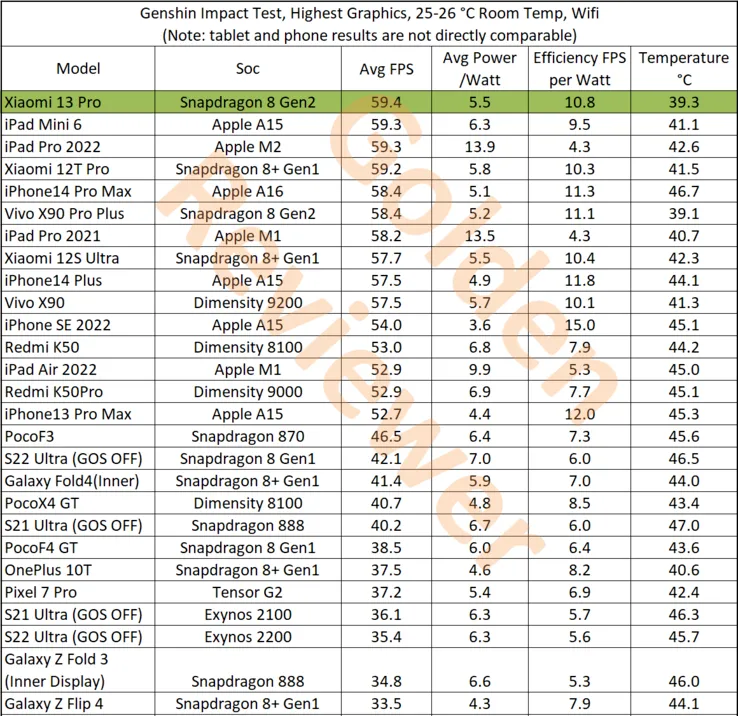
After making its debut in November, the new Snapdragon 8 Gen 2 is now slowly making its way into the market. The new Xiaomi 13 series is powered by the company’s flagship processor, and the Xiaomi 13 Pro has just been put to the test in a competitive gaming environment.
This test, conducted by Golden Reviewer on the well-known game Genshin Impact, demonstrates the Snapdragon 8 Gen 2 in the Xiaomi 13 Pro’s performance, which easily exceeds all competitors. The Xiaomi 13 Pro has the highest tested raw performance, averaging 59.4 frames per second (FPS). Comparatively, the Dimensity 9200 on the Vivo X90 achieves 57.5 FPS while the iPhone 14 Pro Max and its A16 Bionic accomplish 58.4 FPS.
With higher efficiency scores and lower power consumption than the Dimensity 9200, the Xiaomi 13 Pro and Snapdragon 8 Gen 2 also outperform it in terms of efficiency. However, the iPhone 14 Pro Max does have a slight edge in some areas. Most impressively, though, is that the Xiaomi 13 Pro achieves these performance benchmarks while remaining cooler than every other tested tablet. It only reaches a maximum temperature of 39.3°C. In contrast, the iPhone 14 Pro Max achieves a maximum temperature of 46.7°C, while a tablet like the iPad Pro 2022 only hits 42.6°C.
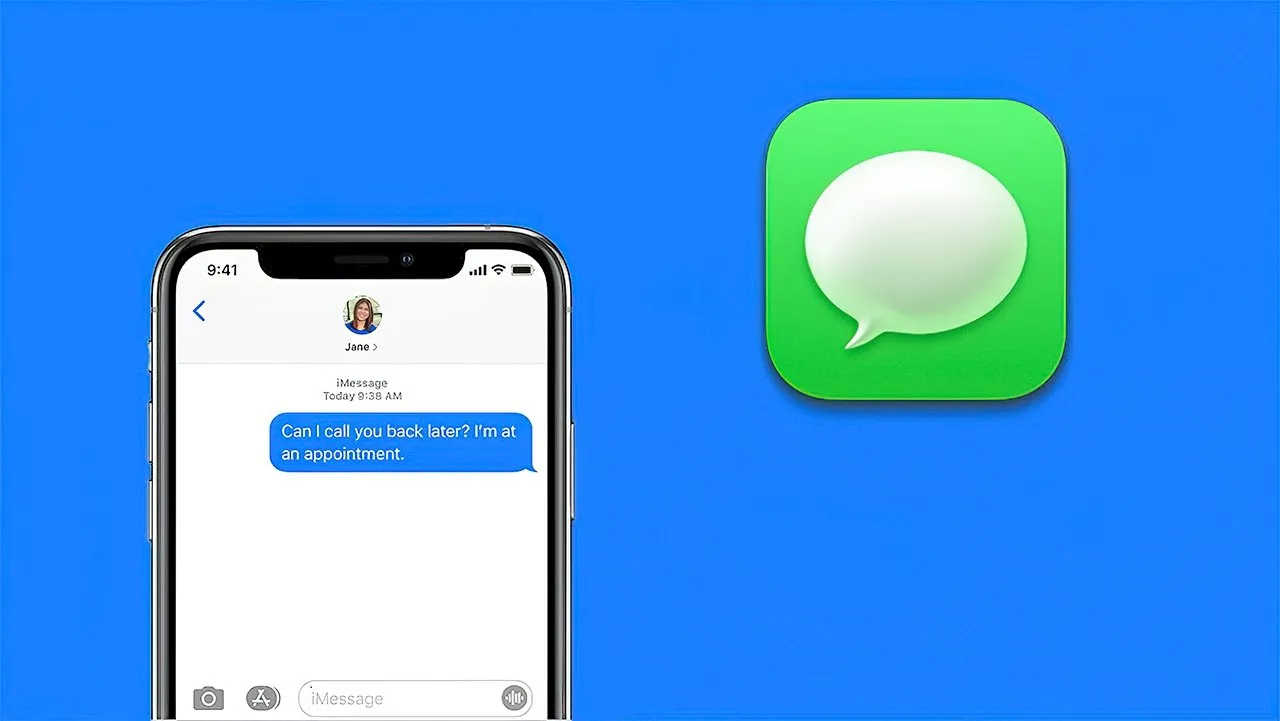
iMessage has long been the primary distinction between iPhone and Android users (well, here in the US anyway). It’s created a massive rift between the two platforms because iPhone users have their own exclusive space to hang out where Android users are at best annoying and at worst downright prohibited.
Many businesses have made an effort to address this issue. Despite its wealth and influence, Google has chosen to publicly mock the entire issue and urge Apple to implement RCS. By charging customers to link an Android handset with a real Apple device, like a Mac or even an iPhone, Beeper provides iMessage to Android.
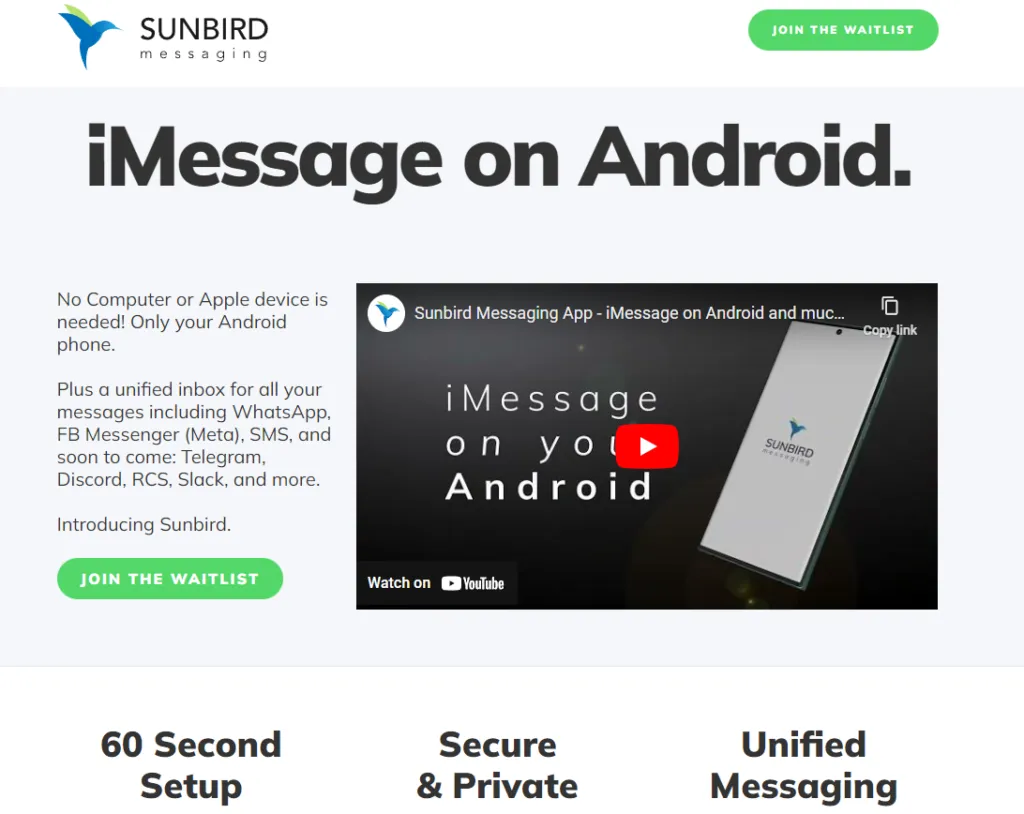
Sunbird, though, is looking to be the one true app to rule them all. Today, the company gave Android Authority a rundown of the app (which is still in alpha) and how it works.
Sunbird: iMessage on Android
A pre-recorded screencast showing a Samsung phone interacting with what appears to be an iPhone via iMessage was displayed during the company’s presentation. Blue bubbles, Emoji replies, typing indicators, etc. were all present. It appeared as though the Samsung phone was an iPhone in all respects.
But the business never displayed what the iPhone saw. The fact that it was a pre-recorded film just added to our natural skepticism. We eventually received early access to the Sunbird app from the company so that we could test it out for ourselves.
The good news is that Sunbird and my Apple ID might be linked. I was able to hypothetically connect the two by logging into Apple via the Sunbird app. My subsequent attempts to send iMessages were unsuccessful. Whether it was text, a picture, or a vCard, my messages were simply never delivered to my intended receivers.
Sunbird and I tried to troubleshoot together, but we were unsuccessful. If we are successful in getting it running in the future, we will let you know.\
Does it work and what will it cost?
Sunbird has no intention of making its iMessage-to-Android technology open-source. Therefore, we were not given a thorough explanation of how this program functions (or at least should work).
However, based on what the business did state, it appears like it has expanded on the Beeper approach, which involves connecting an Android phone to an Apple-based system. The first is that each user does not require their own connected gear. Sunbird has developed a method that enables tens of thousands of users to connect to a single computer. Second, the company has also discovered a way to maintain end-to-end encryption using this technique, something Beeper and similar companies are unable to do. Once more, Sunbird withheld its method of operation.
Thankfully, if and when it does work and launches to the public, Sunbird says the app will be free — for a while. Early birds will get access to iMessage on Android and not have to pay a dime. In the future, the company could monetize the app by charging for other connected services, such as Telegram, Signal, or other chat apps.
In the meantime, we’ll continue working with Sunbird to get the app up and running on our own devices.
So your phone is bricked. Your phone won’t boot because you flashed a ROM, installed a mod, modified a system file, or did something else.
Not to worry! It can probably be fixed. Unbricking an Android device is explained here.
What ‘Bricking’ or a ‘Bricked Phone’ mean?
‘Bricking’ your phone essentially means that your once useful device is now only as useful as a brick. A ‘bricked phone’ is usually unresponsive, won’t power on, and doesn’t function normally.
How is your phone bricked?
Depending on how a phone was bricked in the first place, different steps are required to unbrick it. Bricked phones fall into one of two categories:
The soft brick. The phone freezes on the Android boot screen, gets stuck in a boot loop, or just goes straight to recovery. So long as something happens when you press the power button, it’s soft bricked. The good news is these are pretty easy to fix.
The hard brick. You push the power button, and nothing happens. Hard bricks can be caused by issues like attempting to flash an incompatible ROM or kernel, and there’s normally no software solution for them. Hard bricks are terrible news, but fortunately, they’re quite rare.
You’re probably soft bricked, and you’ll see something similar to the picture above. Although it’s challenging to develop a one-size-fits-all method to unbrick Android due to the variations in how various devices operate, there are four typical techniques you can try to get things back on track:
Wipe the data, then re-flash a custom ROM
Disable Xposed mods through recovery
Restore a Nandroid backup
Flash a factory image
Before you get started, make sure your phone and computer are set up and ready with the proper tools.
What you need to unbrick a Android device?
Most of the equipment you need to repair your phone probably already exist in your possession. Since you already know how to use them because you used them to root your device and flash ROMs, they shouldn’t be a problem. However, make sure before you start.
Custom recovery is most crucial. This was probably installed when you rooted your phone, however it could occasionally be completely erased or rewritten by the default recovery. We advise using TWRP if you do need to reinstall it. It is a completely functional custom recovery with builds for the majority of common devices but is also far too simple to use.
Then, you might require ADB and Fastboot. You can obtain both of them from the website for Android Developers, and they are frequently used for rooting and flashing system mods. If you are unfamiliar with Fastboot and ADB, see our introduction to them.
And finally, some manufacturers use special software to flash factory images. Hopefully, you can avoid doing this, but if you need to, you can use Odin for Samsung, the LG Flash Tool for LG devices, or the ZTE Unbrick Tool if you’ve got a ZTE device. Just make sure that they support your specific model of device.
Most of these tools will let you fix a bricked Android phone using a PC. However, you can often do the job directly on the phone itself.
Wipe data and ee-flash a custom ROM
If you flashed a ROM and Android won’t boot, try this method.
When you have issues while flashing a fresh custom ROM, it’s one of the most likely scenarios that your phone will soft brick. Your failure to first erase your data is frequently to blame in this situation.
When you decide to flash a new ROM over top of your old one instead of having to restore your applications and data, this is known as a “dirty flash” and takes place. Generally speaking, if you’re flashing a newer version of your current ROM, you can get away with it, but you must always delete your data anytime you flash a different ROM.
Fortunately, it’s easy to fix—as long as you’ve backed up your phone properly. If you haven’t, well, you’ve learned an important lesson the hard way. Follow these steps:
Boot into your custom recovery.
Navigate to the Wipe option and choose Advanced Wipe.
Check the box marked Data (you can wipe the system, ART cache, and cache again, too), then hit Confirm.
Re-flash your custom ROM.
A factory reset is effectively accomplished by wiping your data, although your internal storage or SD card shouldn’t be erased by this process (although, again, you should back it up just to be safe). Your phone will display the Android setup screen after restarting. Your programs ought to start reinstalling themselves immediately after inputting your Google account details.
You can use your Nandroid backup to recover your data if necessary.
Disable Xposed Modules in Recovery
Try this method if: You get boot loops after installing a new Xposed module.
The Xposed Framework isn’t as common as it once was, but it’s still a simple way to mod your phone, and also one of the most dangerous.
The best Xposed modules are so easy to install—many of them are available in the Play Store—that they lull you into a false sense of security. It’s unlikely anyone makes a Nandroid backup before installing a new Xposed module, even though they can brick your phone.
Use ADB Push to Install the Xposed Uninstaller
The best way to deal with these problems is with the Xposed Uninstaller, if it’s available for your version of Android. This is a small flashable ZIP that you can install through the recovery to remove Xposed from your device.
If you don’t already have it on your phone, you can put it on an SD card, or you might be able to copy it over using the ADB push method:
Connect your phone to your computer via USB and boot into recovery.
Launch the command prompt (Windows) or Terminal (Mac) and use the cd command to change the directory to where you have adb installed.
Type adb push [full path to xposed uninstaller.zip] [full path to destination]. On Mac and Linux, precede the command with ./ (such as ./adb).
When the file finishes copying, flash it through the recovery.
How to Disable Xposed Modules in Recovery
If you can’t use ADB push and the Xposed Uninstaller, try either of these solutions.
This method lets you disable Xposed through recovery:
Boot into recovery, then navigate to Advanced > Terminal command.
Create a file called /data/data/de.robv.android.xposed.installer/conf/disabled
Reboot your phone.
This method prevents Xposed modules from starting:
Boot into recovery and select File Manager.
Navigate to the folder /data/data/de.robv.android.xposed.installer/conf/ then delete the file modules.list
Reboot your phone.
None of these fixes will reverse the modifications that the modules have made to your system. You will need to restore your Nandroid backup if these changes bricked your phone.
Restore a Nandroid Backup
Try this method if: You need to remove other system mods, replace a tweaked system file, or if the methods above didn’t work.
The safety net for Android mods and customizations is the Nandroid backup. It’s a full snapshot of your phone, including the operating system as well as your data and applications. You can restore your soft-bricked device to working order as long as you have access to your custom recovery and a Nandroid backup.
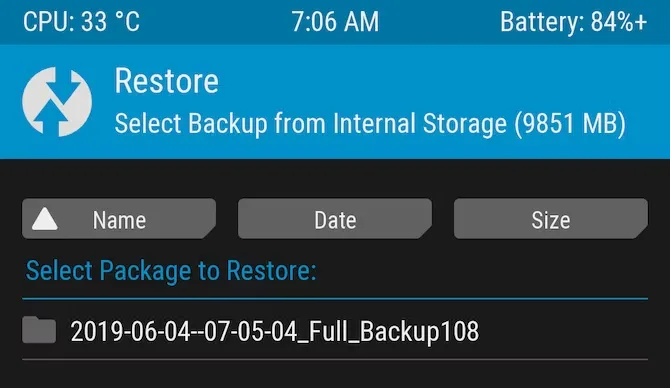
Boot into recovery and navigate to Restore.
Select your backup from the list, confirm, and wait while it’s restored.
Reboot your phone.
Nandroid backups are a bit of a pain to make. They take a while and cannot be done in the background. But they’re worth it: they’re the simplest way to unbrick your phone.
Recover Data From a Nandroid Backup
A Nandroid backup can also save the day if you had to wipe your data and didn’t back it up in an easily restorable form. It’s possible to extract specific parts of a Nandroid, so you can restore your apps and data without needing to restore the operating system as well.
Here are the instructions for this:
Boot into Android and install Titanium Backup from the Play Store. While this app hasn’t been updated for a while, it’s still one of the best options for this task.
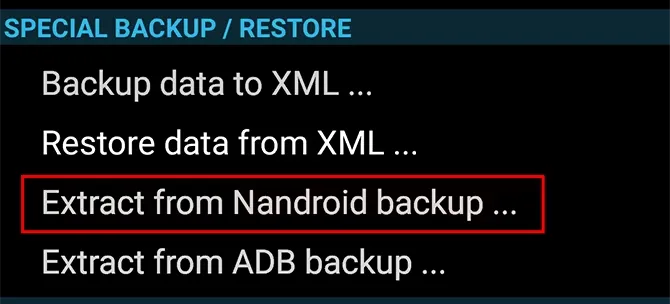
Tap the menu button and navigate to Special Backup/Restore > Extract from Nandroid Backup.
Select your backup from the list.
Choose whether to restore apps, data, or both, and select them (or hit Select All).
Tap the green tick icon to start the restore process.
Flash the factory image
Try this method if: None of the other options work.
Re-flashing a factory image is your only remaining choice if your attempts to unbrick Android have so far failed. This erases everything on your internal storage and returns the phone to its factory settings. Your phone will be unrooted as well.
You might be better off trying to flash a stock ROM first because it removes everything. Instead of factory images, OnePlus offers flashable ROMs for recovery. You can find similar files for almost every device at xda-developers.com. For added convenience, you can often flash a stock ROM that has already been root access.
Flashing a factory image varies from flashing a ROM in that it occurs via a desktop computer connection as opposed to recovery. Other devices make use of customized software while some use the Fastboot utility from the Android SDK. For instance, Samsung makes use of the Odin tool.
The instructions for flashing a factory image vary for each device due to the various techniques used. Additionally, not all manufacturers make their firmware accessible to the general public, so you must find them from unofficial sources.
Here’s where to find factory images for some popular Android brands:
Hard bricked phones are notoriously more difficult to fix, but thankfully they’re also much rarer.
How to unbrick a hard bricked Android device
Make sure the phone is truly bricked by plugging it in and letting it charge for some time. Try to reset it by depressing the power button for 10 to 15 seconds (or removing the battery if your gadget is older). You might also want to try putting it into your computer; if your PC does not recognize it, you can be very sure that your phone has been severely bricked.
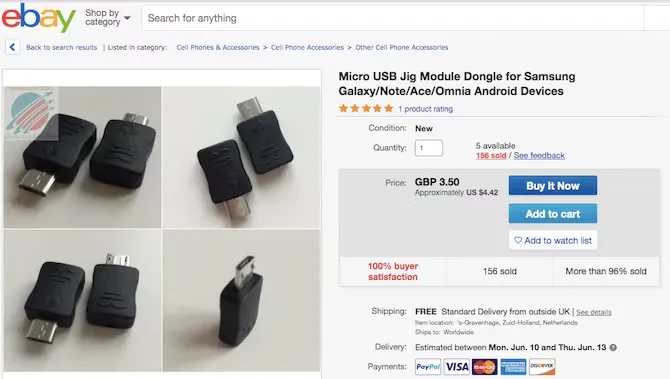
If it is unquestionably hard bricked, your options may be limited. A USB Jig, a little gadget that fits into the USB port and puts the phone into Download Mode to reload the default software, can resurrect a few phones.
On eBay, you can find cheap USB Jigs for hard-bricked phones, but only for a very limited selection of outdated gadgets. Even then, there is no assurance that they will be successful.
Beyond that, you might need to either find a local phone repairman or send your phone in for repair (though rooting it might have void your warranty). However, you’ll probably end up having to buy a new gadget.
Stay safe
Hopefully, this guide has helped you to unbrick your Android phone. And hopefully, your experience hasn’t put you off rooting and hacking Android altogether.
But if you’d rather play it safe in future, you can still have a lot of fun with your phone. Take a look at our guide to the best Android tweaks you can make without rooting for some amazing ideas.
Every profession or pastime creates its own own particular jargon for explaining complex concepts in an understandable manner, and the Android world is no exception.
This article is for you if you’ve googled a problem with your Android smartphone or tablet and came across terms like “rooting,” “flashing a custom ROM,” “unlocking the SIM,” or anything similar that you didn’t understand.
This article is a reference for the novice who wants to learn about all the terminology behind our Android nerdiness because Android experts presumably already know what these phrases represent.
What Is Rooting?
Getting access to the system files on your Android device is what it means to root your phone. No Android device comes pre-rooted by default. Therefore, it is probably not rooted if you recently purchased an Android device and did nothing to it.
Manufacturers take this action because allowing everyone root access would cause several issues. You can access files on your device that, if deleted or altered improperly, could damage it if you have root access.
But many people still decide to root their devices because it enables them to make a lot of pretty fascinating adjustments if they know what they’re doing. It should be noted that rooting an Android device would void the warranty.
How you root your device is different for every single model. For some devices, this can prove to be a difficult process involving circumventing the manufacturer’s safety precautions. For others, it can be as simple as plugging your phone into your computer and pressing a button. You can always check out the XDA forums for instructions for your specific device.
You won’t instantly notice any significant changes after your device has been rooted. The excitement is in what you can do with a rooted device. Then, you may utilize root-required apps, flash custom ROMs, modify specific features of your phone, and more—which we’ll go over in more detail later.
For instance, when unrooted, you can remove some bloatware, but rooting your device and using Titanium Backup or a root uninstaller are required to completely remove it.
What Is Unlocking?
Unlocking is a confusing term because there are different things you could unlock.
Unlocking the Network/SIM
A device that has been network/SIM locked was typically purchased through a carrier or for a certain carrier at a discounted price. That phone is then locked by the carrier so that you can only use it with them.
However, if you pay off the phone and decide to switch carriers, the carrier is obligated by law to provide you with the unlock code (at least in the US and the EU). To obtain the code, simply get in touch with your current carrier.
Sometimes, unlocking your device gets more complicated than that, so we have a guide to SIM unlocking. Other times, you buy your phone unsubsidized and unlocked, meaning you can already use it with any carrier.
Unlocking the Bootloader
The bootloader is a piece of software that runs every time you switch on your Android phone, and it is usually locked by the manufacturers. With a locked bootloader, you can’t root your device. Instructions for unlocking your bootloader are found within the instructions for rooting your device.
What Are Custom ROMs?
Read-Only Memory is referred to as ROM, however the term is somewhat misleading today because it has nothing to do with it. A ROM is essentially the software that runs on your device, at least in the Android universe.
Therefore, a Xiaomi smartphone looks and operates differently than a Samsung smartphone when you pick it up. This is so that Xiaomi and Samsung could each create their own ROMs by altering the original Android code. Even though they both run Android, Xiaomi’s ROM and Samsung’s ROM are distinct from one another.
A custom ROM, then, is a ROM that was built not by the manufacturer but by someone else. Sometimes it’s just a lone programmer with some time on their hands and a passion for making ROMs—other times, it’s a bigger group like LineageOS that has a team and intentionally makes a certain type of ROM.
Once you’re rooted, you can flash a custom ROM. Flash, in this case, basically means to load or install. Flashing a custom ROM means you are installing a new ROM on your device and completely wiping the old ROM.
When looking for custom ROMs for your device, there are some names you’re likely to run into:
Pixel Experience: As the name suggests, features a ROM similar to that of Google’s Pixel phones. This ROM is currently one of the most commonly used custom ROMs out there, and for good reasons.
LineageOS: LineageOS, formerly known as CyanogenMod, is one of the most popular custom ROMs you’ll come across. It offers a great feature set and has even featured as the stock ROM for some manufacturers in the past.
AOSP: Android Open Source Project is the version of Android that Google gives to the world, often called stock or stock Android. You might see people say that their ROMs are “AOSP-based” or “based on stock Android,” which just means they took the AOSP code and altered it to their liking.
AOSIP: Android Open Source Illusion Project integrates features from various popular custom ROMs into AOSP ROMs.
However, don’t be hesitant to try ROMs with different names from less well-known people. There are other reliable ones besides these. They’re simply the most well-known in general.
Other Android Terms
Custom recovery
If you enjoy playing around with your Android device, the recovery process could take a while. It’s where you can perform the necessary heavy lifting, create backups, and flash ROMs.
You need a custom recovery because the stock recovery on your device is unable to perform any of those tasks. For installing custom ROMs, TWRP is the preferred custom recovery. Team Win Recovery Project is referred to as TWRP.
Nandroid backup
There are, of course, ways to backup your Android device without rooting it, but a Nandroid backup is a complete backup. It essentially makes a full copy of everything on your device and saves it. That way, if you screw up anything (since you have root access and that is possible), you can always just flash your Nandroid backup and return to where you were.
The name is just NAND (a type of flash memory) and Android mashed together.
Kernel
The kernel is like the engine of your operating system—you don’t really see it, but it’s in the background doing all the hard work.
If you want, you can flash a custom kernel. Sometimes these kernels are optimized for performance or battery life—sometimes, they’re just necessary to get some feature to work right. Either way, you can be okay just sticking with your stock kernel unless you really want to change it.
Brick
Bricking your phone is essentially breaking it. If your phone isn’t working anymore, you’ve bricked it. This is generally not a phrase you’re going to be happy to run into.
A soft brick usually means it’s fixable. Maybe you’re stuck in a bootloop (your phone just continually reboots), or you boot it up, but it only displays half the screen properly. That’s generally something you can get out of quite easily.
A hard brick is when the device is toast. You messed with something at a system level that can’t be fixed, and your device is out of commission. Sorry. This is a rare thing to happen, but it can happen—and you’ll see warnings everywhere that no one but yourself is responsible for your device being bricked.