Tag: android

  • Cross-Platform mobile multiplayer games to play with friends

    Cross-Platform mobile multiplayer games to play with friends

    Don’t worry if you and your friends can’t decide whether iOS or Android is better for mobile gaming. Actually, there’s no need to pick one over the other since both operating systems support cross-platform gaming.

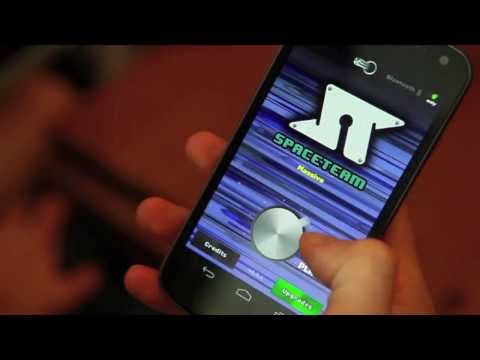
    Spaceteam

    The only game on this list that necessitates having all of your buddies in one location is Spaceteam.

    You and your friends are the crew of a spaceship in the game Spaceteam, and everything is going wrong. You’ll need to communicate with one another by shouting various fictitious space commands in order to stay on course. As the speed and chaos increase, you all inevitably crash and perish while still receiving posthumous medals. But while it lasts, it’s enjoyable.
    Youtube video

    Download: Spaceteam for iOS | Android (Free, in-app purchases available)

    Words With Friends 2

    https://www.youtube.com/watch?v=dwHNYb16L9Q&ab_channel=GooglePlayGames

    The highly regarded Words With Friends sequel is more of an update.

    There is also the standard Words With Friends experience, where you and a friend or online stranger take turns trying to score points on a board by spelling out words in the Scrabble style.

    Words With Friends 2 does, however, add a few new modes for a different challenge while retaining everything you loved about the original game.

    In the Lightning Round, two teams of five compete to determine who can reach a given score in the shortest amount of time. You can compete in Solo Challenge to compete against testing bots and win a virtual prize. Finally, Words With Friends Live interrupts your game with HQ Trivia-style questions.

    Download: Words With Friends 2 for iOS | Android (Free, in-app purchases available)

    Vainglory

    Vainglory is a MOBA (Multiplayer Online Battle Arena) that is comparable to League of Legends and allows you to team up in 5v5 or 3v3 modes against real players or computer opponents.

    Youtube video

    To compete against another team and destroy their Vain crystal before they destroy yours, pick a hero from the more than 40 available. Destroy enemy turrets and minions as you move through the jungle using your special abilities and your team’s cooperation.

    Teamfight Tactics

    The auto chess game from Riot Games offers a competitive experience with well-known League of Legends heroes. With the goal of assembling the best squad, you draft and play champions.

    Play normal or ranked matches with your friends while you discover the greatest item combinations and synergies thanks to complete cross-platform support. It’s also among the top PC games for multiplayer PvP!

    Youtube video

    Download: Teamfight Tactics for iOS | Android (Free, in-app purchases available)

    Minecraft

    The mobile version of Minecraft, which was first known as the Pocket Edition, is nearly identical to the PC version. The inability to use third-party servers or connect to third-party modifications is the only notable difference. Every time a new update for Minecraft is released, the mobile versions often follow later.

    Having saying that, playing Minecraft on a mobile device is a great experience.

    Youtube video

    But playing Minecraft by yourself is boring. Any platform can play Minecraft, and because it is cross-platform compatible, you can play with your pals. Try out these tranquil gaming apps to help lower feelings of anxiety and stress if Minecraft doesn’t satisfy your need for exploration or provide enough space for calming world-building.

    Download: Minecraft for iOS | Android ($6.99 [iOS], $7.49 [Android], in-app purchases available)

    Hearthstone

    While playing trading card games in person is enjoyable, playing them online allows you to do actions like summoning demons and detonating booster packs.

    Youtube video

    The strategy game Hearthstone, created by Blizzard and set in the Warcraft universe, allows you to design decks, gather cards, and play matches with your friends. Although the game is free to play, you can purchase new card packs to offer yourself a benefit.

    There are constantly reasons to play Hearthstone because of the game’s recurring expansions, competitions, and challenges. To raise your Rank, you can compete against strangers or your friends in the Arena.

    Download: Hearthstone for iOS | Android (Free, in-app purchases available)

    Pokémon Go

    When it first came out, Pokémon Go broke the barrier between gaming and augmented reality by bringing virtual creatures into the real world. You and your buddies can go outside and explore with your smartphones, whether they are Android or iOS.

    Youtube video

    Download: Pokémon Go for iOS | Android (Free, in-app purchases available)

    PUBG Mobile
    Youtube video

    The most well-known battle royale game in the world is playable on pretty about every platform imaginable, including iOS and Android.

    Although Fortnite’s mobile app also satisfies this need, playing the game on Android and iOS calls for further procedures to enable cross-platform teaming. In contrast, PUBG Mobile provides an easy download for both Android and iOS smartphones. But PUBG Mobile unquestionably delivers this if you’re searching for an equally capable, event-ready rival.

    Additionally, it’s one of the simpler phone games to play with your pals online because to its normal match times of around thirty minutes.

    Download: PUBG Mobile for iOS | Android (Free, in-app purchases available)

    Super Stickman Golf 3

    Youtube video

    Enjoy a short nine holes of golf before lunch with this easy-to-play but entertaining game.

    Stickman Golf features two distinct multiplayer modes in addition to a fun Single Player option. In the Turn-Based mode, you can either take turns or compete to see who can play each hole the fastest in Race Mode. You can play offline or online as well.

    Super Stickman Golf 3 can be downloaded from the developer’s APK file rather than straight from the Google Play store. Check out our description of what an APK file is and does if you’re not familiar.

    Download: Super Stickman Golf 3 for iOS | Android – APK File (Free, in-app purchases available)

    Old School RuneScape
    Youtube video

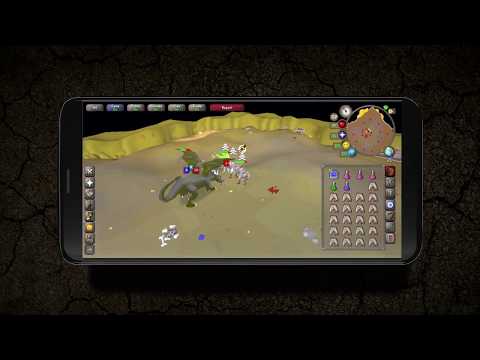
    Are you prepared to share your nostalgia with friends? Many players will have warm memories of RuneScape because it was one of the first widely available MMORPGs. You may continue your travels with all of your buddies in true crossplay fashion, whether you’re ready to mine, mine, or battle.

    Download: Old School RuneScape for iOS | Android (Free, in-app purchases available)

    League of Legends: Wild Rift

    Youtube video

    If you’re a fan of Riot Games’ League of Legends series, you couldn’t previously play with friends on a mobile device on the Rift. Despite the fact that League of Legends: Wild Rift does not support crossplay with PC players, Android and iOS users can queue up in pairs, trios, or a full five-person party as you aim for the enemy’s nexus. Now that Riot’s MOBA has launched on mobile devices, you can play a complete phone game with your friends.

    Download: League of Legends: Wild Rift for iOS | Android (Free, in-app purchases available)


    More games

    So there you have it, a list of the top mobile cross-platform multiplayer games. With these tried-and-true games, you may download one that you and your friends can enjoy for a very long time. So, it’s just a quick install away if you want more entertaining mobile games to play with friends.
  • Configure Android USB tethering on macOS

    Configure Android USB tethering on macOS

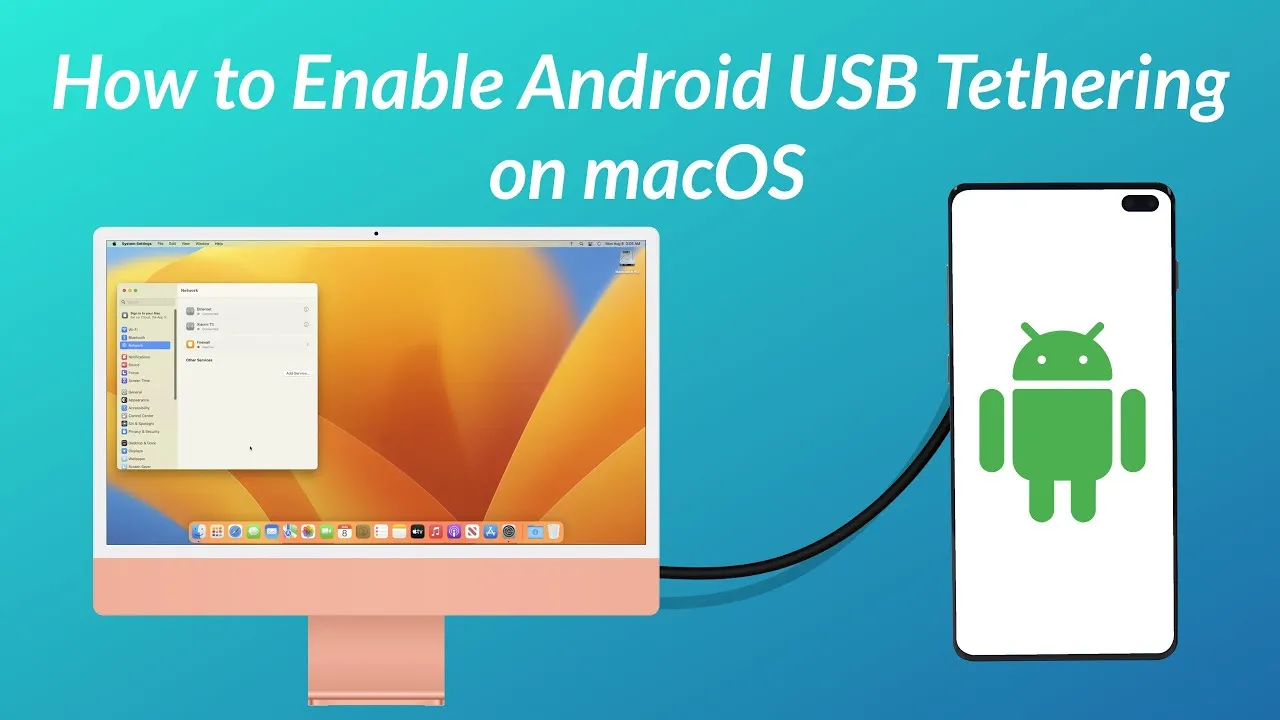
    Even though Wi-Fi tethering is the most practical method for connecting an Android phone to a Mac, you may occasionally need to utilize USB instead.

    However, USB tethering between Android and Windows is simple, but depending on the Android device you’re using, connecting it between Android and Mac can be more difficult. Here’s how to configure Mac OS for Android USB tethering.

    Use the Built-In USB Tethering Option (if Supported)

    A contemporary Android device running Android 12 or later may already have built-in support for USB tethering on macOS. To make it work, you might not need any additional strategies. For instance, on a Pixel 7 running Android 13, all you need to do is connect your phone to your computer to get started.

    1. Unlock and connect your phone to your Mac via a USB cable.
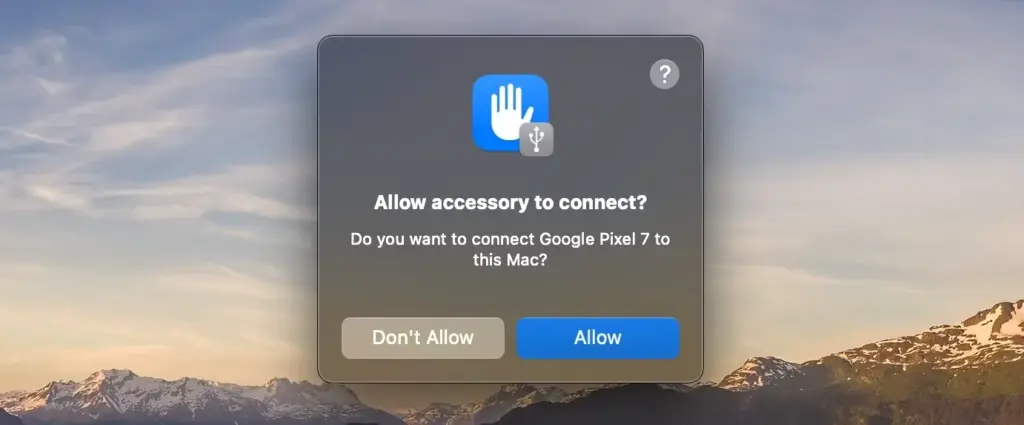
    2. If you’re using macOS 13, you may need to click to allow your phone to connect
    3. A notification will appear on your phone labeled something like Charging this device via USB. Tap on it.
    4. Under the USB Preferences screen that opens, set Use USB for to USB tethering.
    macOS tethering
    USB tethering Android

    Now that the issue has been resolved, you should be able to use your Mac to access the internet as usual. If you have a limited data plan and are using a 4G or 5G mobile data connection, be mindful of your usage.

    If the notification doesn’t appear when you connect your phone, you can instead go to Settings > Network and Internet > Hotspot and tethering and toggle on USB tethering. This option will be grayed out if your phone isn’t connected to a computer using a USB cable, and remember that some of the menus may be slightly different depending on what phone you’re using.

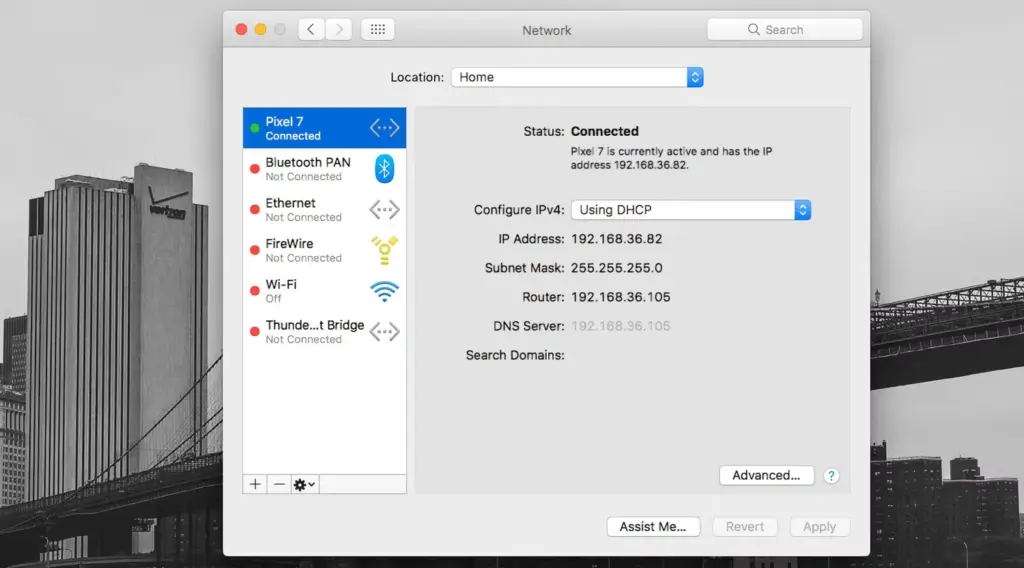
    To verify the connection on your Mac, go to System Settings (or System Preferences) > Network, where you’ll see your phone’s name listed with a green dot next to it.

    If USB tethering on macOS isn’t supported on your phone and you can’t set up Wi-Fi tethering, you do have another option. However, this comes with a potential snag of its own.

    Use the HoRNDIS Driver

    The required driver is not present on older Android devices or those that lack built-in support for USB tethering on a Mac, which prevents the sharing of an internet connection. Fortunately, you can get it working by installing the third-party HoRNDIS driver. All Android devices are compatible with this driver, which is akin to the one used by Windows computers.

    HoRNDIS is free and open-source and should work well in many cases. However:

    • It hasn’t been updated since 2018, so may not support newer versions of macOS.
    • It doesn’t work on Macs powered by Apple Silicon.

    The discussions on the software’s Github page do include some workarounds to get HoRNDIS running on M1 and M2 machines. But it’s a complicated process that involves disabling your Mac’s System Integrity Protection, so is not suitable for most users.

    Assuming the caveats don’t apply to you, here’s how to set up HoRNDIS on your (Intel-based) Mac.

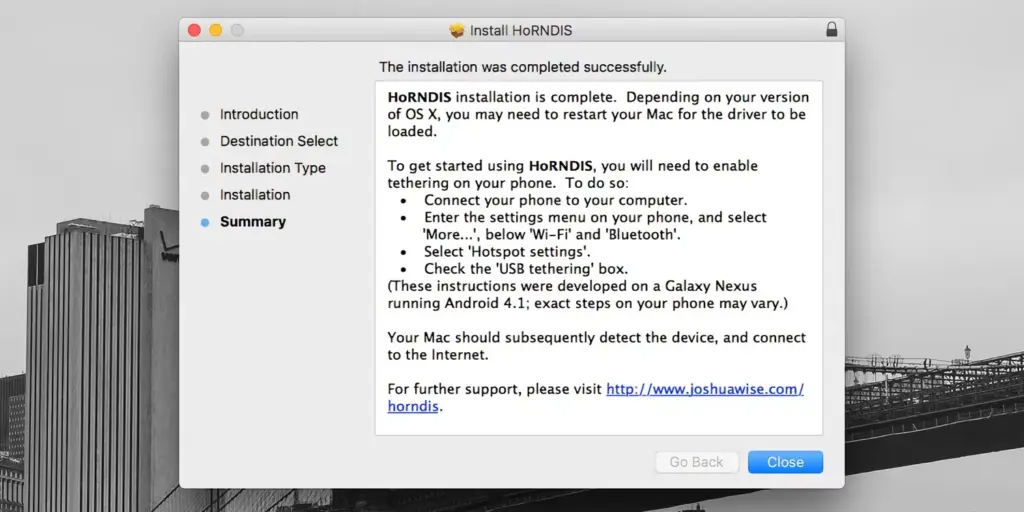
    1. Download and install the most recent version of HoRNDIS on your Mac (the PKG file).
    2. It’s a good idea to reboot your Mac at this stage, although this may not be necessary depending on what version you’re using.
    3. Now run through the steps we outlined above. Connect your phone via USB, tap the notification labeled Charging this device via USB, and set Use USB for to USB tethering.
    MacOS tethering horndis

    You should now be able to connect to the internet. Go to System Preferences > Network, where you should see your phone listed with the green dot alongside it. This confirms that the connection is active.

    To uninstall HoRNDIS, check the /System/Library/Extensions/ and /Library/Extensions/ folders and delete HoRNDIS.kext. Then reboot your Mac.

    tethering connect macos

    Using HoRNDIS is easy enough if your Mac is compatible. However, we’d only choose to use it if wireless tethering is not an option. You can troubleshoot your Android mobile hotspot to see if that helps.

    USB Tethering on macOS Is Simple

    If your Android phone doesn’t support USB tethering with a Mac natively, you’ll need to install a driver, but it’s simple to accomplish and functions as expected.

    Sharing a data connection with a desktop or laptop from your phone is practical. However, you may share the connection from your Mac to other devices as well, so it doesn’t stop there.

  • How to block trackers in DuckDuckGo Android app

    How to block trackers in DuckDuckGo Android app

    The “App Tracking Protection” feature of DuckDuckGo for Android has entered open beta and now enables all Android users to prevent third-party trackers across all of their installed apps.

    The DuckDuckGo for Android app is a privacy-focused web browser, search engine, and data protection utility, downloaded over 10 million times from Google Play. It includes numerous privacy features, including search term anonymity, hidden tracker blocking, email tracker protection, auto-HTTPS, and one-tap browsing history clearing.

    By preventing third-party tracking scripts in other Android apps that have been installed on the device, the “App Tracking Protection” attempts to increase privacy throughout the entire operating system.

    ‘It’s a free feature in the DuckDuckGo Android app that helps block 3rd party trackers in the apps on your phone (like Google spying in your weather app),’ stated DuckDuckGo today. ‘This means more comprehensive privacy and less invasive targeting.

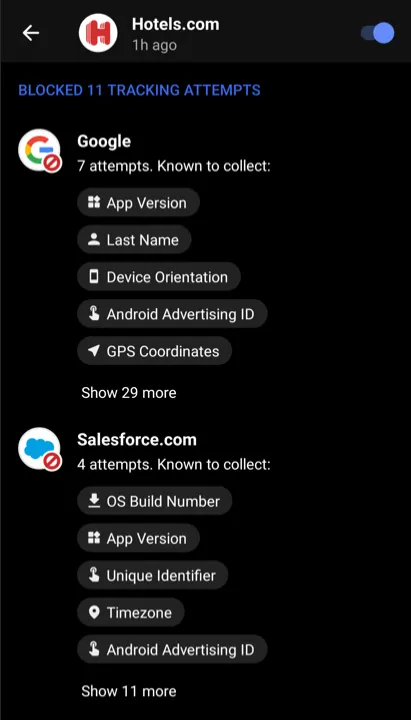
    The new version of App Tracking Protection allows Android users to see precisely which trackers are blocked and what kind of data they are seeking, in contrast to the prior close beta version of the service.

    The feature is somewhat similar to Apple’s ‘App Tracking Transparency,’ but unlike the Apple feature, DuckDuckGo’s system does not depend on the app developers’ compliance with user choice.

    Blocking all known trackers

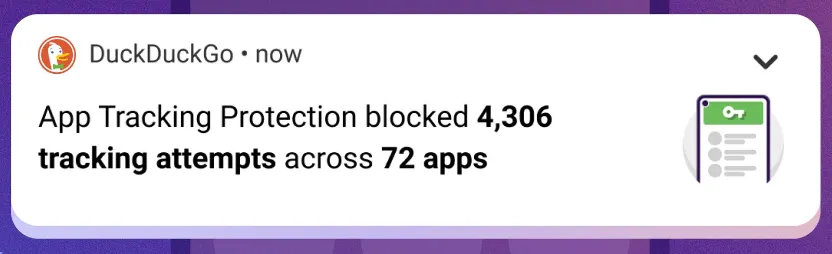
    According to DuckDuckGo, Android users have 35 apps installed on their smartphones on average, which results in 1,000–2,000 daily tracking attempts for more than 70 tracking organizations.

    While consumers frequently use their devices to browse the web, play games, or check the weather, the App Tracking Protection guarantees to thwart all these attempts in the background.

    Additionally, this blocking occurs with no discernible impact on device performance, which was enhanced in the most recent version of the app.

    The blocking is based on a constantly updated and growing list of known trackers and is independent of the user’s choice in the associated tracking request dialogs usually served within apps.

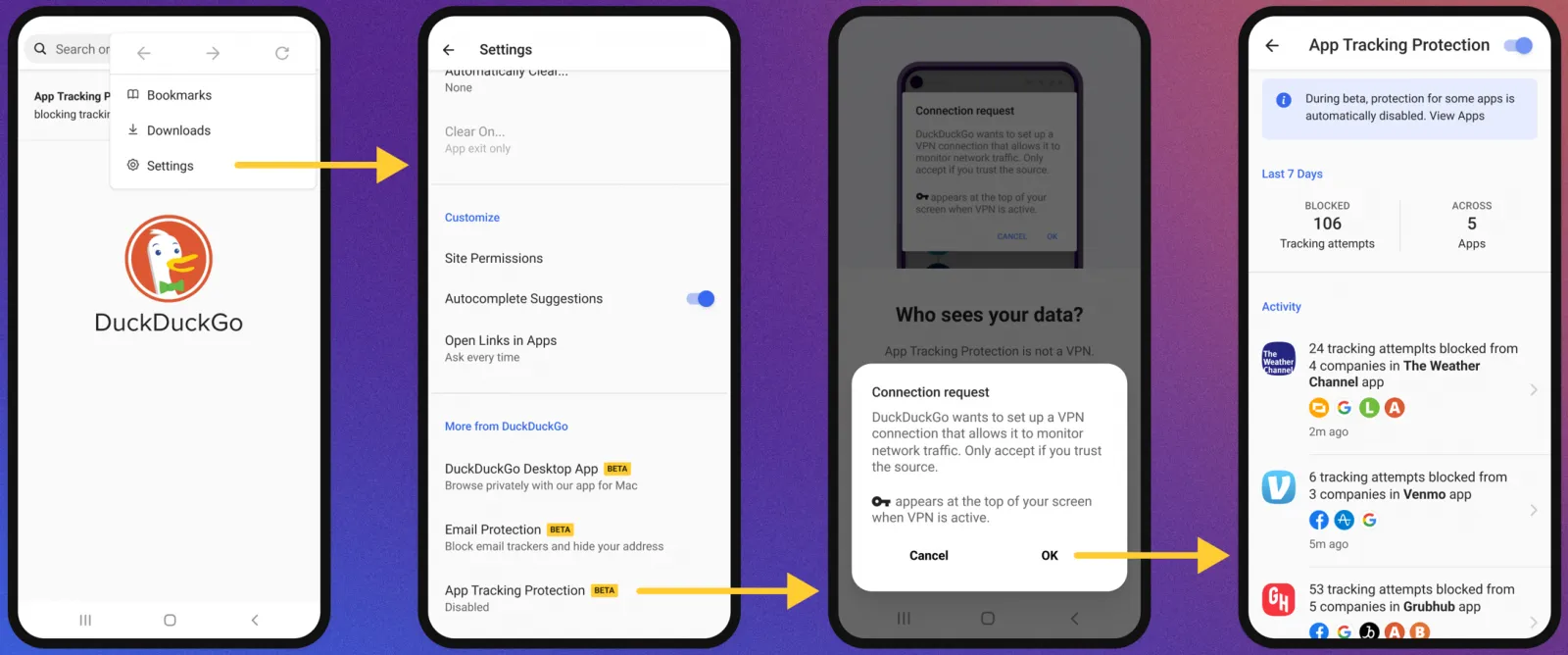
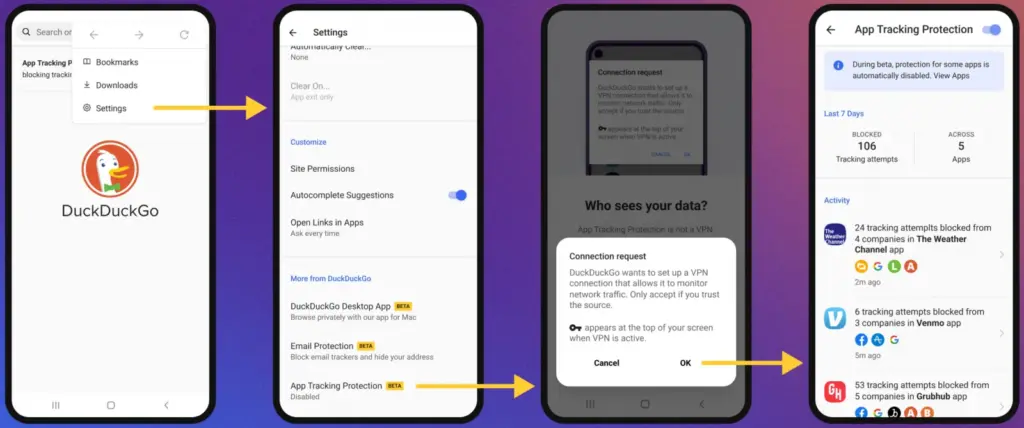
    To activate the new feature, the user has to open the DuckDuckGo app on Android, navigate to Settings → More from DuckDuckGo, and then enable App Tracking Protection, as shown below.

    duckduckgo
    Activating App Tracking Protection

    The function operates by setting up the DuckDuckGo for Android app on the device as a VPN, enabling the app to filter app traffic and block trackers.

    However, unlike a conventional VPN, this is only used locally and does not offer anonymity when using the internet or connecting to other remote devices.

    “App Tracking Protection uses a local “VPN connection,” which means that it works its magic right on your smartphone and without sending app data to DuckDuckGo or other remote servers,” explains DuckDuckGo.

    summary

    Therefore, to enable the feature, DuckDuckGo will request the user allow the VPN connection to be created, which is required for the blocker to function as expected.

    From then on, the app will regularly update the user with automatically generated summaries of blocked app trackers to give them an idea of what is happening behind the scenes.

    Those who want to evaluate how threatening each app is to their privacy can use App Tracking Protection’s real-time view to see what trackers are loaded and blocked.

    Although App Tracking Protection is a strong tool, users should be aware that it is still in the beta testing phase of development.

    Info report

    As a result, it could result in performance issues, incorrect operation of websites or apps, or the evasion of some trackers. You can turn off the feature if you experience any of these problems.

  • BadBazaar Android malware linked to Chinese cyberspies

    BadBazaar Android malware linked to Chinese cyberspies

    Unknown Android spyware called “BadBazaar” has been found to target China’s ethnic and religious minorities, particularly the Uyghurs in Xinjiang.

    Due to their cultural divergence from traditional eastern Chinese values, the central Chinese government has subjected the 13 million-strong Uyghur Muslim minority to extreme oppression.

    The new spyware was originally discovered by MalwareHunterTeam and linked to Bahamut in VirusTotal detections.

    BadBazaar spyware

    Lookout performed more investigation on the malware and discovered that it was brand-new spyware that was being used by APT15, a state-sponsored hacking outfit, in its 2020 attacks against Uyghurs (aka “Pitty Tiger).

    Lookout also noticed a second campaign employing updated versions of the spyware known as “Moonshine,” which CitizenLab first came up in 2019 when using it against Tibetan organizations.

    BadBazaar malware

    Since 2018, the BadBazaar spyware has promoted itself on communication channels frequented by the targeted ethnic group by infecting Uyghurs using at least 111 different apps.

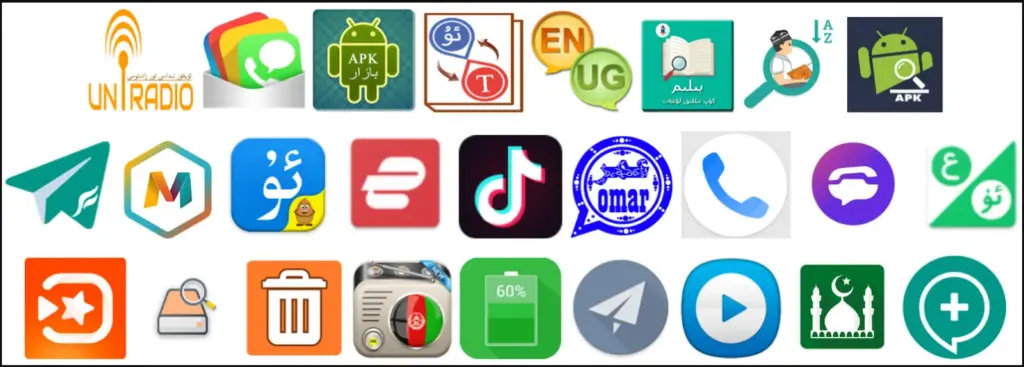
    The impersonated apps fall under a variety of categories, including dictionaries, tools for religious practice, battery savers, and media players.

    Since Google Play, Android’s official app store, has never seen any record of these apps, they are most likely distributed through rogue websites or unreliable third-party stores.

    It’s interesting that there is only one instance of an iOS app on the Apple App Store that communicates with the malicious C2, but it merely sends the device UDID and doesn’t have spyware functionality.

    BadBazaar’s data-collecting capabilities include the following:

    • Precise location
    • List of installed apps
    • Call logs with geolocation data
    • Contacts list
    • SMS
    • Complete device info
    • WiFi info
    • Phone call recording
    • Take pictures
    • Exfiltrate files or databases
    • Access folders of high-interest (images, IM app logs, chat history, etc.)

    Looking into the C2 infrastructure, which exposes some of the admin panels and the GPS coordinates of test devices due to errors, Lookout analysts found connections to the Chinese defense contractor Xi’an Tian He Defense Technology.

    BadBazaar malware apps
    Only a few of the BadBazaar apps promoted to Uyghurs (Lookout)
    BadBazaar malware infected apps
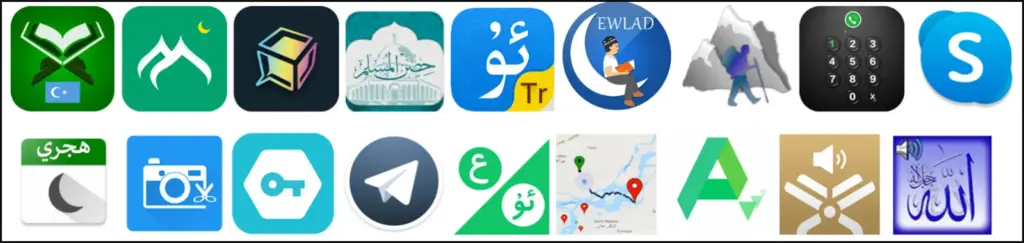
    Sample of apps carrying Moonshine spyware (Lookout)

    Moonshine variants

    Lookout researchers began to discover a new operation in July 2022 that uses 50 apps to push users new versions of the “Moonshine” spyware.

    These programs are advertised on Telegram channels for Uyghur speakers, where dishonest users recommend them to other users as reliable software.

    Examples of programs that contain the spyware Moonshine (Lookout)
    The creators of the more recent virus have added additional modules to increase the tool’s capacity for spying, and it is still modular.

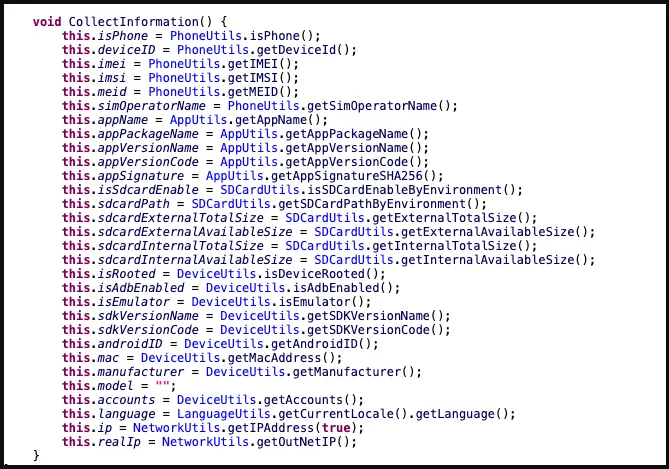
    Network activity, IP addresses, hardware details, and other information are among the data that Moonshine takes from hacked devices.

    BadBazaar data collection
    Information collected by Moonshine (Lookout)

    The C2 commands supported by the malware are:

    • Call recording
    • Contact collection
    • Retrieve files from a location specified by the C2
    • Collect device location data
    • Exfiltrate SMS messages
    • Camera capture
    • Microphone recording
    • Establish SOCKS proxy
    • Collect WeChat data

    Lookout has found evidence that the authors of the new Moonshine version are Chinese, as both code comments and server-side API documentation are written in simplified Chinese.

    “While Lookout researchers could not connect the malware client or infrastructure to a specific technology company, the malware client is a well-built and full-featured surveillance tool that would have likely required substantial resources.”

    Lookout.

    This report indicates that surveillance of Chinese minorities continues unabated despite the outcry from international human rights protection organizations.

  • Take screenshots on Android when the app doesn’t allow it

    Take screenshots on Android when the app doesn’t allow it

    The freedom to do whatever you want is one of the key reasons why many tech enthusiasts prefer Android to other mobile operating systems. You may install anything and alter almost every aspect of your phone using Android.

    Despite all of this, there are still some things you are unable to perform. For instance, some apps decide to prohibit you from taking screenshots of the app for a variety of reasons. Then again, you might still want to grab a screenshot for a variety of reasons. Continue reading to see how to get around this limitation.

    Why these restriction?

    Despite how annoying it is, developers don’t prevent screenshots without a good cause. There is always some justification, whether it be for security or privacy.

    For security concerns, the majority of banking and payment apps prohibit screenshots. For privacy reasons, Chrome disables screenshots in Incognito tabs and windows. Another example would be the non-screenshottable self-destructing images on Telegram.

    You are still permitted to capture screenshots wherever you wish, despite the developers’ decision to limit them. Simply get your hands a little bit messy.

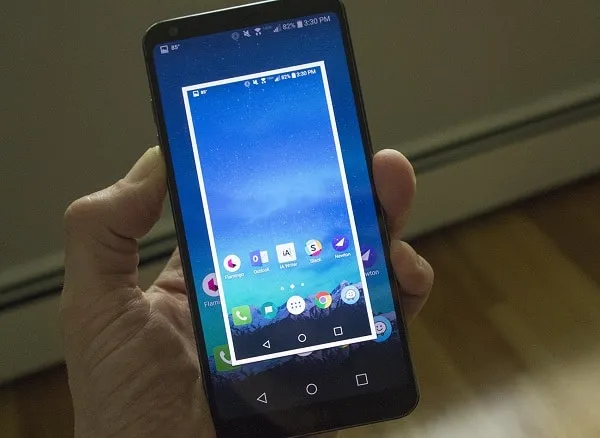
    There are various methods for taking screenshots in apps that don’t let you. Some methods work in most apps though not all. Here we take a look at two of these methods: One easy method which works in some cases, and an advanced method that should work every time.

    1. Google assistant can helps you

    Some Android apps that prevent screenshots only prevent your phone’s screenshot button combination from working. This indicates that if you take a screenshot using a technique other than tapping the button combination, you can get around the restriction.

    Google Assistant is a built-in app in most Android phones that lets you capture screenshots without using the button combination.

    1. Open the app that you want to screenshot.
    2. Activate Google Assistant. You can do this by saying Hey Google! or holding the home key depending on your settings.
    3. Say or type Take a screenshot. Google Assistant will now capture a screenshot.

    This approach, despite being straightforward, has little chance of working because it has been anticipated by the majority of apps that take screenshot blocking seriously. For instance, if you ask Google Assistant to take a screenshot of a Chrome Incognito tab, all that will appear on the screen is a black screen.

    Continue reading the following section where we’ll explain a method that allows you to take a screenshot of any app on your phone if this one didn’t work for you.

    2. scrcpy

    This is the ultimate method as it can bypass virtually any sort of screenshot restriction in Android apps. scrcpy is a lightweight screen mirroring program that lets you view and control your Android phone’s display on your PC. Once you mirror your Android phone’s screen on your computer, you can simply use print screen or Snipping Tool to take screenshots.

    scrcpy is available on Windows, macOS, and Linux. You can install scrcpy with Homebrew on macOS. Check the download link below for more details on installing scrcpy on Mac and Linux.

    As for this article, we’re going to install scrcpy on Windows, which you can do using Scoop. Read our article on how to install Scoop to get started.

    Download: scrcpy (Free)

    Once you have Scoop installed, it’s time to install scrcpy.

    1. Open Command Prompt. You can do this by searching for cmd in the Start menu.
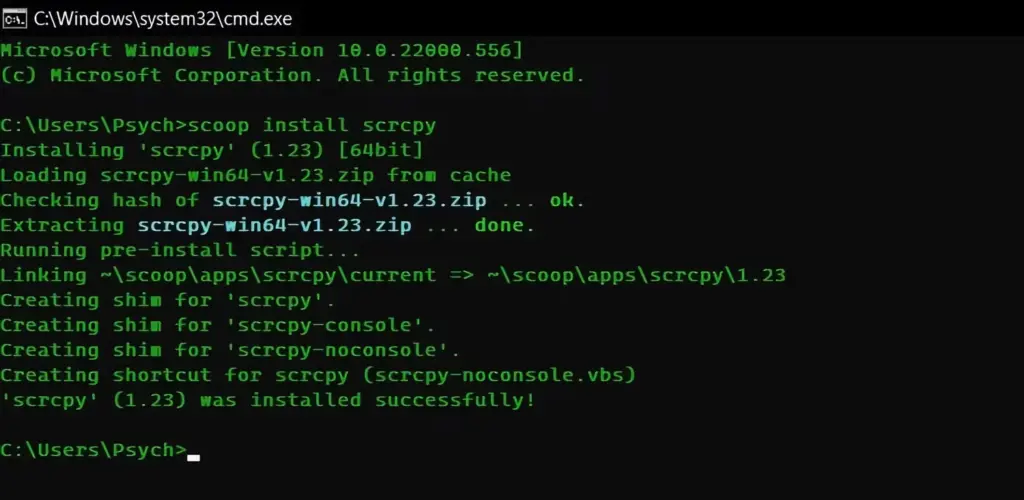
    2. Once inside Command Prompt, run the following command: scoop install scrcpy
    3. This command will call on Scoop to install scrcpy. This can take a while depending on how fast your connection is.

    scrcpy screenshots

    Now that you have scrcpy installed the next stage is preparing your phone. For scrcpy to access your phone’s screen, you need to enable USB debugging on your Android device. You need to have Developer mode enabled to do this.

    1. Go to Settings on your Android phone.
    2. Scroll down to the bottom and select Developer options.
    3. Tap the switch next to USB Debugging to change it to On.

    Now both your phone and your computer are ready. Connect your phone to your computer’s USB and let’s get to the final steps.

    1. Open Command Prompt.
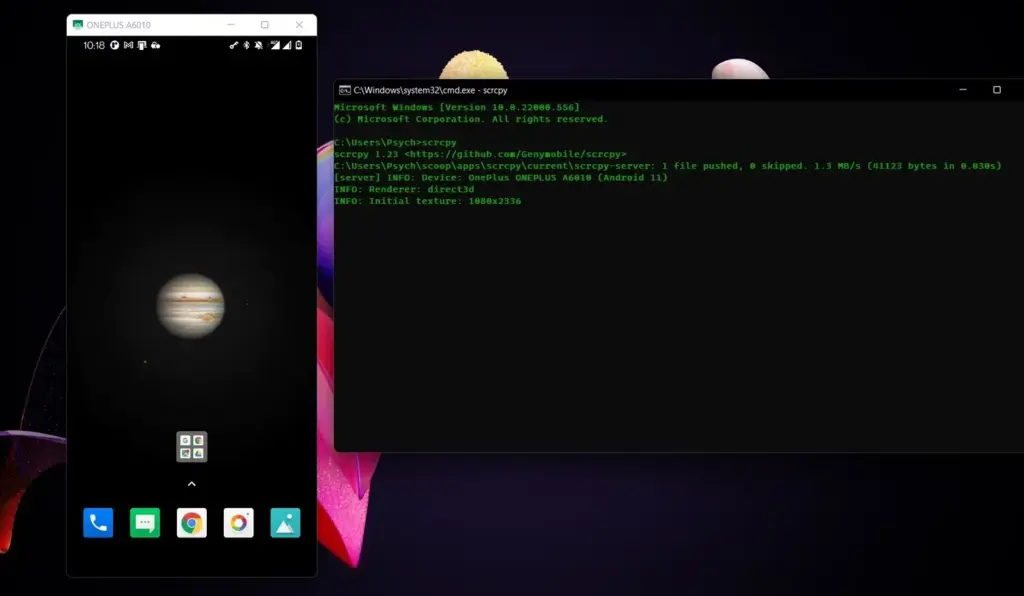
    2. Type in the command scrcpy and press Enter.

    scrcpy android user

    Your phone’s screen will be visible in an emerging window. Through this window, you may even navigate and type on your phone using the mouse and keyboard from your computer. You can freely take screenshots using print screen and other screen capture techniques now that the screen of your phone is mirrored onto your computer.

    Anything and Everything

    Even while some apps try to prevent you from taking screenshots within the program, if you’re determined to capture your screenshots, they will ultimately fail. Now that you’ve read this post, you know how to screenshot any program, despite any limitations. After all, it’s your phone, so you should be able to use it anyway you like.

  • The 200MP camera from Galaxy S23 Ultra will make some exceptional low-light shots

    The 200MP camera from Galaxy S23 Ultra will make some exceptional low-light shots

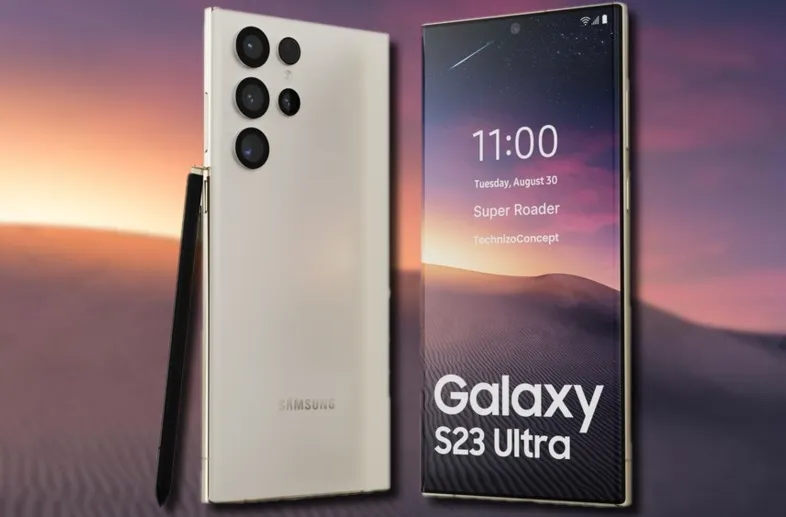
    Aside from its opulent folding phones, Samsung produces some of the greatest Android phones money can now buy, and its Galaxy S22 models from this year are possibly the most attractive of them all. The Galaxy S23 series, which includes the S23 Ultra, S23 Plus, and regular S23 models, is now something we’re anticipating. The most recent hardware rumor is currently aiming to raise our expectations for the 200MP primary camera on the flagship Galaxy S23 Ultra.

    Galaxy S23

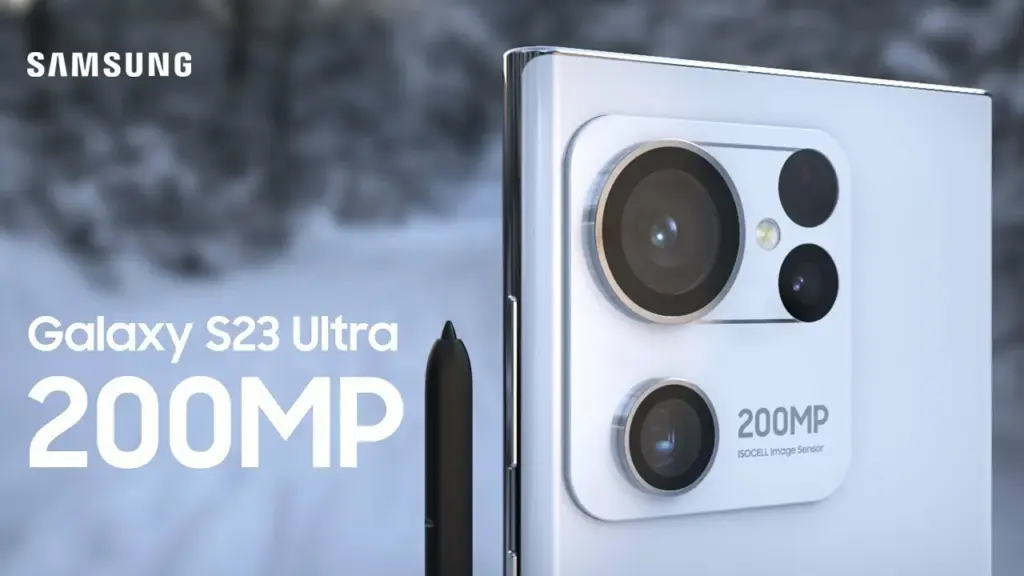
    The Galaxy S23 Ultra’s behemoth of a sensor, according to leaker Ice universe on Twitter, will not only be absurdly high-res but will also have better performance in some key areas, bringing about the “biggest improvement” in Samsung flagships in years. We have already heard a lot about the likelihood that a 200MP sensor will serve as the primary lens on the device. In particular, the advancements might lead to greater low-light photography and videography outcomes.

    The latest Expert RAW update improved the astrophotography capabilities of the current-generation Galaxy S22 series, and this rumor says that the 200MP low-light photos of the Galaxy S23 Ultra should be something to look forward to. It is unclear, though, if the sensor’s advancements would take the shape of bigger individual pixels or some other type of hardware improvement.

    However, we are yet unsure of how well this will actually function and whether we can expect a smartphone’s camera to produce 200MP full-resolution photographs that are acceptable in low light. The tiny individual pixels in high-resolution smartphone sensors would struggle to collect enough information to recreate colors naturally, therefore pixel binning is likely here to stay for low-light performance.

    Besides the 200MP primary, we can expect the Galaxy S23 Ultra to have a 12MP ultrawide and dual 10MP telephoto cameras. Under the hood, Samsung is likely to toss in the Qualcomm Snapdragon 8 Gen 2 SoC along with up to 12GB of RAM and 1TB of onboard storage.

  • You can play Age Of Empires on your smarthphone

    You can play Age Of Empires on your smarthphone

    Age of Empires is a game that every original PC gamer has heard of. Although this game mostly existed on the PC platform, it appears that it will be growing over the coming months. This also includes an upcoming Age of Empires mobile game.

    Given that the franchise has recently turned 25, this is a rather significant milestone. Here is a brief recap of the game in case you are new to it. In 1997, the first Age of Empires game was released. In this simulation game, you expand your kingdom. You begin with a group of cavemen and gradually expand your civilisation into a vast empire by gathering resources, going on food hunts, etc.

    age of empires

    Now, Age of Empires is coming to mobile

    Is a really popular game, but it suffered from one pitfall: it only really lived on one platform. This game didn’t really migrate outside of the PC ecosystem. There were two mobile releases several years ago, but those didn’t share the formula of the core games.

    Now, Microsoft is taking another crack at bringing this game to the small screens. World’s Edge, the developer behind this game, posted a short teaser of an Age of Empires game built from the ground up for mobile hardware. This game seems to be more closely related to the original titles. The teaser didn’t show much, however, it let us know that it’s going to be for mobile, and that it’s coming soon.

    Also coming to Xbox

    Because Microsoft is going all out to celebrate this game’s 25th anniversary, more people will be able to enjoy the series. But those hoping for the original title will be let down.

    On January 31st, Age of Empires II: Definitive Edition will be released on Xbox platforms, while Age of Empires IV will follow later in 2019. Additionally, Age of Empires IV Anniversary Edition will receive some new content. Two new civilizations are represented by this: Milian and Ottoman. In addition, there are 11 new game languages, 8 new multiplayer maps, new biomes, achievements, and challenges. All users can access this update for free.

    Looking for the first Age of Empires Game?

    If you’re craving the original title, then there is some good news. At the time of writing this article, Age of Empires: Definitive Edition is now only $4.99 on steam. That’s a 75% discount from the $19.99 price. You’ll want to act fast, as this sale ends on November 1st!

  • Android 13 beta for the Galaxy Z Fold 2 rolls out

    Android 13 beta for the Galaxy Z Fold 2 rolls out

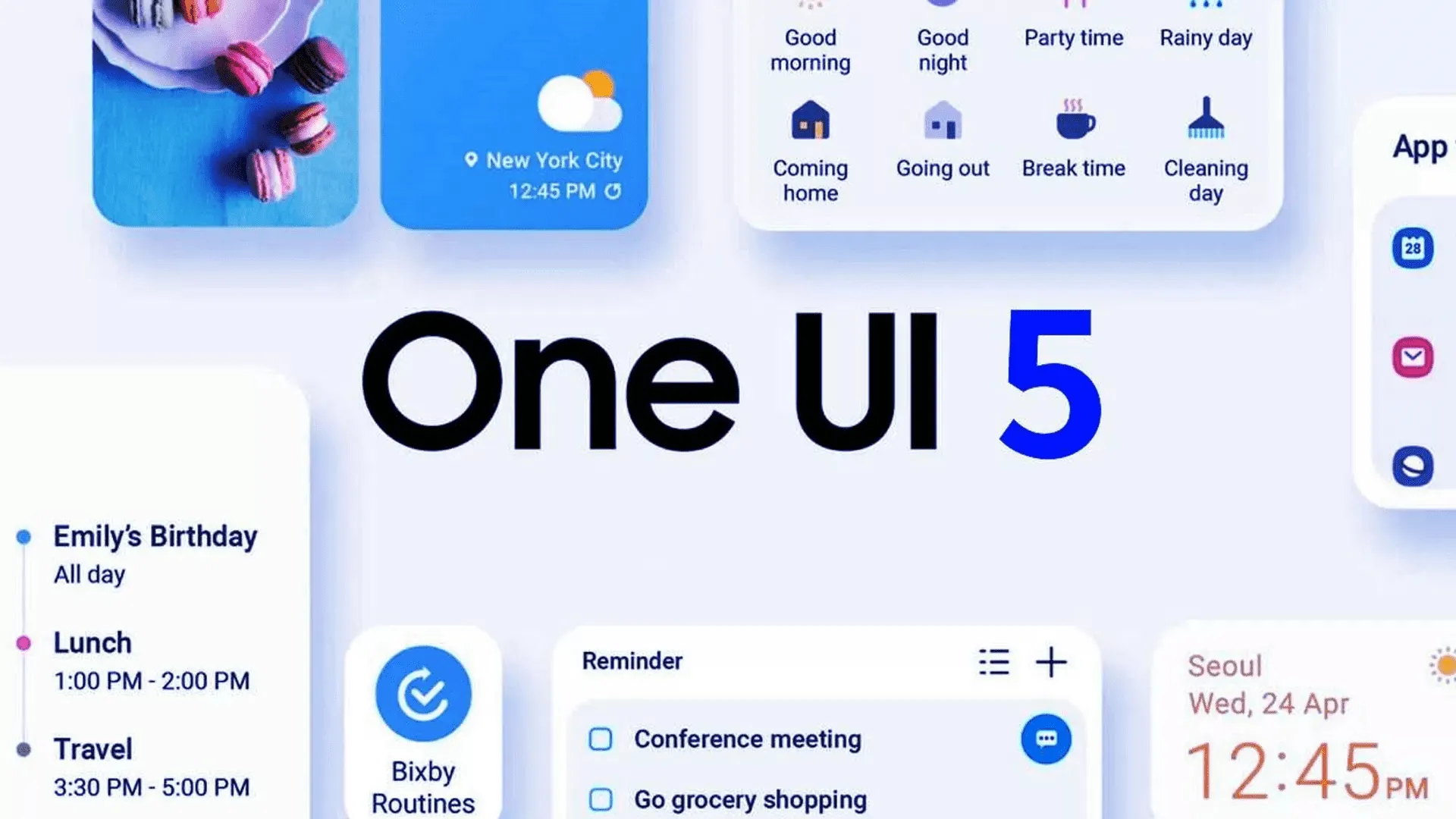
    Yesterday, Samsung updated the Galaxy Z Fold 4 and Galaxy Z Flip 4 with its One UI 5 beta upgrade, which is based on Android 13. Owners of the Galaxy Z Fold 2 can now enroll in the beta program.

    The Samsung Galaxy Z Fold 2 was promised three significant OS updates and shipped with Android 10 out of the box. Owners of the Fold 2 can anticipate receiving Android 13 as the last significant OS upgrade. Even for Galaxy S22 devices, the stable version of One UI 5 is still not ready for release, but the beta version is currently accessible for download in South Korea. Other locations should soon receive the update.

    All you have to do to try out the beta is go to the Samsung Members app. You’ll have the option to sign up for Samsung’s beta program there. Simply launch the app and select the banner for the beta announcement. You can register by entering your information on the registration page that is linked by the banner. After that is finished, you ought to see an update notification.

    Galaxy Z Fold 2

    If you choose to install it, as with any beta, you can encounter issues. Always make a backup of your data before updating to the One UI 5 beta.

    The Galaxy Z Fold 2 will receive Android 13 as its final major operating system, but it won’t be the last upgrade. the object

    Although Android 13 will be the Galaxy Z Fold 2’s last major operating system, it won’t be the last upgrade. More security updates for the gadget are still planned, although they should stop in late 2024.

  • How to download Android Auto 8.2

    Although it’s not everyone’s cup of tea, this strategy has been employed by Google for a while and makes a lot of sense.

    This is due to the phased rollout strategy giving Google more time to monitor the rollout and identify any potential difficulties in advance, effectively lowering the possibility that new app versions may seriously affect the devices on which they are installed.

    The most recent version of the app, Android Auto 8.2, is currently available to users. Fortunately, there is a quick method to download the program without having to wait for it to appear on the Google Play Store.

    android auto

    You should be aware that this alternate option essentially involves manually downloading Android Auto 8.2 onto your smartphone. To accomplish this, you must download the standalone APK installer and then run it on your device.

    The Android Auto 8.2 APK installer should first be downloaded from this page. Once the download has finished, navigate to the file’s destination and tap it.

    You should be prepared to move on at this point if your Android device is set up to permit the installation of apps from sources other than the Google Play Store. If not, the operating system should automatically prevent the installation and ask you to approve its completion.

    When the installation is complete, which shouldn’t take more than a few seconds, Android Auto should function normally. When manually installing the most recent update, you do not need to remove the version that is already installed on your device.

    What’s new in Android Auto 8.2

    android auto download

    There isn’t much information available on this front because Google hasn’t published a thorough changelog. However, based on the most current user comments on social media, it appears like Android Auto 8.2 doesn’t bring about any noteworthy changes other from a bug that most users would find annoying.

    The weather and temperature icons in the status bar appear to be gone in Android Auto 8.2, although as was previously said, this is probably simply a quirk since hardly everyone notices it.

    Since no workaround has been found, it appears to be a server-side bug that Google should be able to resolve without releasing another update.

    What’s not included in Android Auto 8.2

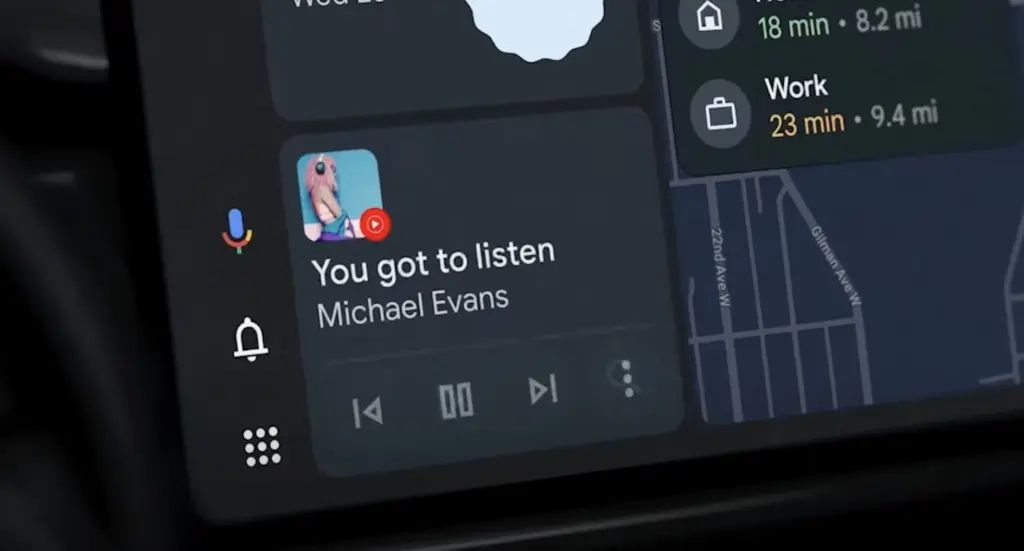
    Since everyone seems to be anticipating the revamp of Coolwalk in Android Auto, you’ll likely be disappointed to learn that version 8.2 doesn’t bring any changes in this area.

    In other words, if you hurriedly downloaded and installed Android Auto 8.2 in the hopes of obtaining Coolwalk, this UI change isn’t yet accessible. You should also be aware that Google will enable the new function with a server-side switch, so the distribution of Coolwalk isn’t dependent on a specific Android Auto update.

    The majority of the code for Coolwalk is already present, therefore Google is currently only focusing on final polishing. This indicates that the release of Coolwalk shouldn’t be too far away, even though there is currently no other information on the ETA.

    If you don’t want to manually install version 8.2 on your smartphone, the wait shouldn’t be too long as the automated deployment of Android Auto upgrades normally ends after a few weeks. In other words, as part of the gradual deployment described above, this most recent version of the app should be made available to all Android smartphones running Android Auto by the end of the month.

  • Today deals for Android apps

    The greatest Android game and software bargains for Monday afternoon are now available below the fold. Along with the software discounts, there are also price reductions for the OnePlus 10 Pro 5G, Samsung’s most recent Galaxy Z Fold 4 foldable, and the Chromecast with Google TV 4K. However, the focus of today’s bargains is on apps, with titles like Pavilion: Touch Edition, ProCam X, Evoland 2, YoWindow Weather, Hack, Slash, Loot, Crystalline, and others among the highlights. For a detailed look at today’s top Android app bargains, courtesy of Google Play, continue reading below.

    android apps

    Today’s best Android app deals:

    Today’s Android hardware deals are headlined by Samsung’s latest Galaxy Z Fold 4 foldable at new all-time low of $1,500. That deal joins the OnePlus 10 Pro 5G with a Hassleblad 48MP camera setup at new low of $600 as well as today’s discount on the Chromecast with Google TV 4K, a solid offer on JBL’s ultra-portable Go 3 Bluetooth, and our smartphone accessories roundup

    More Android app deals still live: