The world’s flagship phone owners can prepare for rollouts beginning early next year, with the newest models receiving priority. Xiaomi has unveiled its exciting HyperOS update, a stable release built on Android 14 for its top-of-the-line devices. However, there is a twist: not all Xiaomi devices will unlock the full spectrum of HyperOS features.
Xiaomi has decided to tailor the update based on different Android versions. Some lucky phones will jump straight to the Android 14-powered HyperOS, while others will receive a version tailored for Android 13.
The selected devices set to experience the Android 14-based HyperOS include Xiaomi Mi Mix Fold 2, 12X, Mi 11X, 11i / Hypercharge, Pad 5, Mi 10S, Redmi K40, Note 11 Pro 5G, Note 11 Pro+ 5G, Note 11 NFC, Redmi Note 11S, Redmi 10 / Prime, Redmi 10C / 10 Power, Poco X3 GT, Poco X4 Pro, Poco M4 Pro 5G, Poco M4 Pro 4G, Poco F4, Poco F3, and Poco F3 GT. This strategic approach ensures that users of specific devices will receive an optimized HyperOS experience tailored to the capabilities of their device and the Android version it operates on.
Xiaomi HyperOS global rollout in early 2024
Xiaomi recently began to roll out HyperOS 1.0, a stable update based on Android 14. This is a major software innovation step forward, bringing a plethora of new features and optimizations. While the initial release of HyperOS was restricted to five particular Xiaomi models in China, the global rollout is scheduled for mid-2024, with a primary focus on the newest flagship devices.
But not every Xiaomi device will go to HyperOS goodies. Xiaomi decided to divide the update according to Android versions, so some devices will get the Android 14-based HyperOS, while others will only get the Android 13 version. This separation is because some HyperOS features require the more sophisticated features that Android 14 brings.
These are the Xiaomi devices that will miss out on HyperOS
Here is a brief overview of the Xiaomi devices deemed worthy of the Android 14-based HyperOS:
Xiaomi Mi Mix Fold 2
Xiaomi 12X
Mi 11X
Xiaomi 11i/Hypercharge
Xiaomi 11i 5G
Xiaomi Pad 5
Xiaomi Pad 5 Pro 5G
Mi 10S
Redmi K40
Redmi K40S
Redmi Note 11 Pro 5G
Redmi Note 11 Pro+ 5G
Redmi Note 11
Redmi Note 11 NFC
Redmi Note 11S
Redmi 10/Prime
Redmi 10C/10 Power
Poco X3 GT
Poco X4 Pro
Poco M4 Pro 5G
Poco M4 Pro 4G
Poco F4
Poco F3
Poco F3 GT
Android13 was a challenge
Good news for owners of older Xiaomi devices: the company plans to release an update called HyperOS, which is based on Android 13, for these devices sometime in the second quarter of 2024. However, if your device receives this version, it will not have all the features that come with the full HyperOS package.
Nevertheless, while some devices will enjoy the full Android 14-based HyperOS experience, others will have to settle for a slightly scaled-down version. Despite the excitement surrounding the future of smartphone technology, not everyone will get to experience it in its entirety.
Hopefully, Xiaomi continues to push boundaries, ensuring that future updates are inclusive, bringing innovation to all corners of their extensive user base. Fans of Xiaomi are eagerly awaiting the HyperOS update, but the split based on Android versions adds some complexity to the situation.
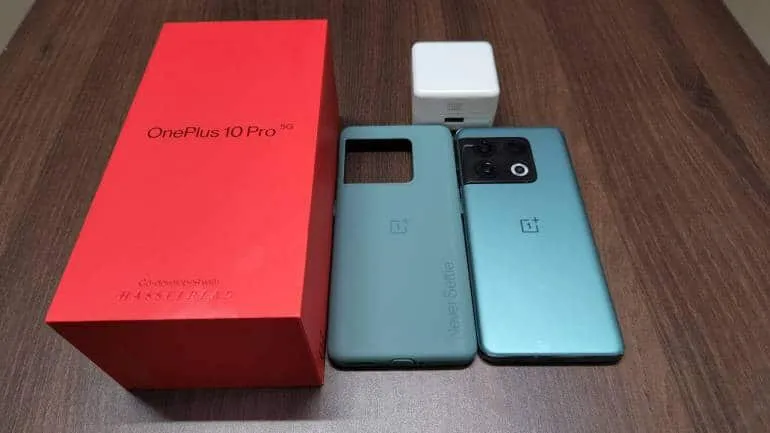
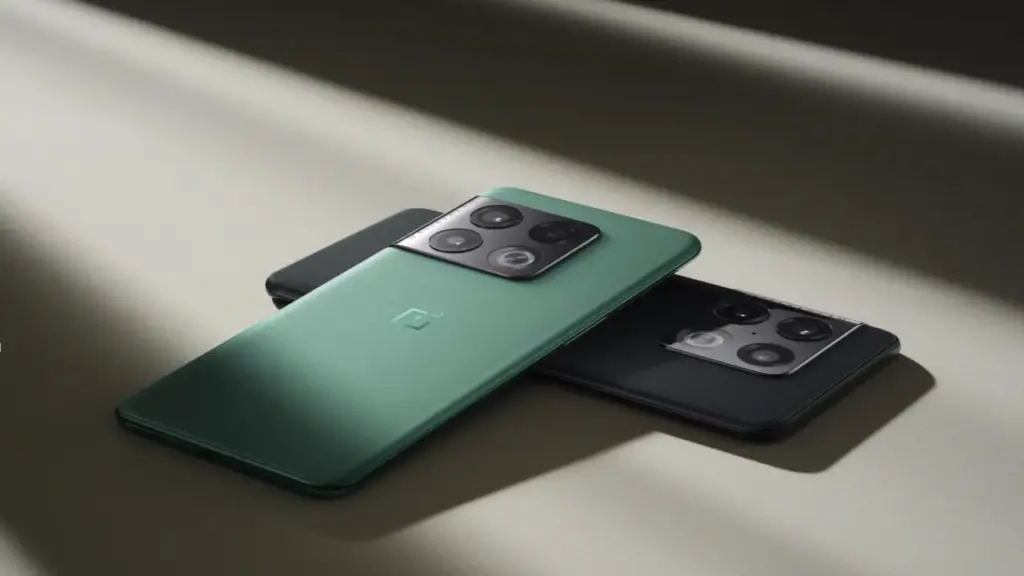
The OxygenOS 14 update, which is based on Android 14, is being rolled out by OnePlus on a number of models. The most recent model to receive this update is the OnePlus 10 Pro, which is currently only available to users in India. It is anticipated that this update will soon be made available to other regions.
As per the official announcement, users who participated in the open and closed beta builds will be the first to receive the stable update, with other users following suit. The build number for the current rollout is NE2211_14.0.0.202(EX01), and the update size is roughly 789 MB.
Keep an eye out for the update in your area as OnePlus keeps spreading OxygenOS 14‘s availability across its devices.
Here is the complete changelog of this new update:
Pantanal Service
• Adds Fluid Cloud, a way of interaction with morphing forms that allows you to view up-to-date information at a glance.
Smart efficiency
• Adds File Dock, where you can drag and drop to transfer content between apps and devices.
• Adds Content Extraction, a feature that can recognize and extract text and images from the screen with one tap.
• Adds Smart Cutout, a feature that can separate multiple subjects in a photo from the background for copying or sharing.
Cross-device connectivity
• Improves Shelf by adding more widget recommendations.
Black Friday is getting closer every day, but before you go crazy with your shopping, take a look at this week’s second round of free games and apps for your iPhone or Android smartphone from the Google Play Store and Apple App Store. These are normally available for a price, but you can get them for free for a short while.
Tip: If you come across an interesting app on our list but don’t need it now, install it first and delete it afterward. This will cause the app to be saved to your library, allowing you to install it later for free, even after the promotion ends.
Android apps available for free for a limited time
Android apps for productivity and lifestyle
Date Calculator Pro($0.99): Want to perform date and time operations on your Android device? Make life easier with this app.
Age Calculator Pro($0.99): Forget about making mental calculations, as this app provides you with an accurate answer to a person’s age based on their date of birth alone.
ColorMeter camera color picker($1.99): Want to identify the exact color that you see? This app will go a long way in helping you do so accurately.
Android Games
Defense of Egypt TD Premium($1.99): If you have not gotten sick of the tower defense genre yet, here is one title that is set in Ancient Egypt.
Traffic Jam Cars Puzzle Legend($4.99): Everybody hates traffic jams. It is up to you to solve this puzzle game in a match 3 format.
EHW Premium & 101 Classic Games($0.99): This is a real-time strategy game that merges the online side-scroller defense genre alongside RPG elements for a truly revolutionary gaming experience.
Mental Hospital IV($1.99): A first-person survival horror game where you need to escape from all the madness around you. It’s really creepy!
Summoners Era($0.99): An idle RPG game that sees you pick a party of summoned monsters to defeat all who stand in your way.
iOS apps available for free for a limited time
iOS apps for productivity and lifestyle
Lottery Box – Lotto Manager($5.99): Place the lottery numbers you play in a pool, where you can then tweak the combinations for one or multiple draws. Would it increase your chances of winning? Who knows, really?
AirDisk Pro($2.99): Store, manage, and access files on your iPhone with this app in a new way.
Unit Converter Pro HD($0.99): If your line of work happens to deal with many unit conversions, having this app comes in handy.
Safety Note+ Pro($3.99): Are you one who takes down notes every single day, jotting your thoughts so that you can refer to them later? This app keeps your notes secure with its own security mechanism.
iOS games
Taijitu($1.99): This is a game about balance, where you do your level best to avoid having two of the same colors on the same side of the screen.
cat&line($1.99): Draw a line and make sure that the cat will continue to have space to move forward. This is a fun mission-based runner.
Bug Bomber($1.99): A classic action puzzle game that reminds you of Dr. Mario, except you will need four or more of the same color to clear a line.
Crystal Cove($2.99): A totally new spin on the match 3 genres as you move your triangle around the board to clear it.
Wind Wings($1.99): A 3D puzzle game that is certainly enthralling to keep you riveted.
With the start of a new week, it’s time to update Droid Tools’ collection of free apps and games for your iPhone or Android phone from the Apple App Store and Google Play Store. Join us as we highlight applications that are normally paid but are available for free for a limited time.
We always try to seek games that do not have scams or privacy traps in them but bear in mind that we have not individually reviewed these apps. This means some of them might feature ads and in-app purchases.
If you find an interesting app on our list but don’t need it right now, install it first and then uninstall it. This saves the software to your library, allowing you to install it later for free, even after the promotion has ended.
Android apps available for free for a limited time
Android apps for productivity and lifestyle
ProCam X($4.99): Popular with nextpit readers, this camera app gives extra manual controls over the default app, unlocking creative possibilities.
Blur Photo($2.49): Blur details to hide confidential information on your pictures or simply give photos that nice background blur (bokeh) effect.
Mandala Maker 360($0.49): Create trippy patterns with various colors, brushes, backgrounds, and more.
Android Games
Shadow Slayer($4.99): Another side-scroller beat them up where you fight the creatures of the dark with the power of your light sword.
Fastar($0.99): Tap your way through sparkling stages in this rhythm game with cute graphics.
Add and subtract within 20($2.99): Even Math can be gamified and help teach small kids how to do the basic operations.
iOS apps available for free for a limited time
iOS apps for productivity and lifestyle
Sticker Drop Maker Studio($0.99): Just as the title says, create stickers to use on iMessage, WhatsApp, Facebook, Instagram and other messaging apps.
Thunderspace Rain Sleep Sounds($2.99): Another app with a pretty descriptive name, relax and concentrate better with nature or white noise sounds.
MovieSpirit($9.99): Despite the rather crude interface, this video editor has hundreds of reviews on the App Store with an average score of over 4.5 stars.
Videdit($0.99): Another well-reviewed video editor for iPadOS and iOS, edit your clips, make collages, and apply effects to your next best memories.
iOS games
Sphaze($0.99): Solve increasingly complex puzzles with pretty, minimalistic graphics in the style of titles such as Monument Valley.
Universe Pandemic 2($1.99): Instead of surviving the pandemic (not again, please?), defeat the aliens by creating a devastating pathogen to take over the galaxy.
Hydropuzzle($0.99): Conquer this text adventure by solving its puzzles using only your brain.
Hopefully, you found our picks to kick off this week enjoyable. Did you notice anything noteworthy, or do you have a favorite program or game from the Google Play Store or Apple program Store? Please leave your suggestions in the comments!
Google Photos is making a significant change to how it manages RAW photos and backup on Android, as we noticed at the beginning of this year. The format has been substantially improved as of late, although there may be some drawbacks.
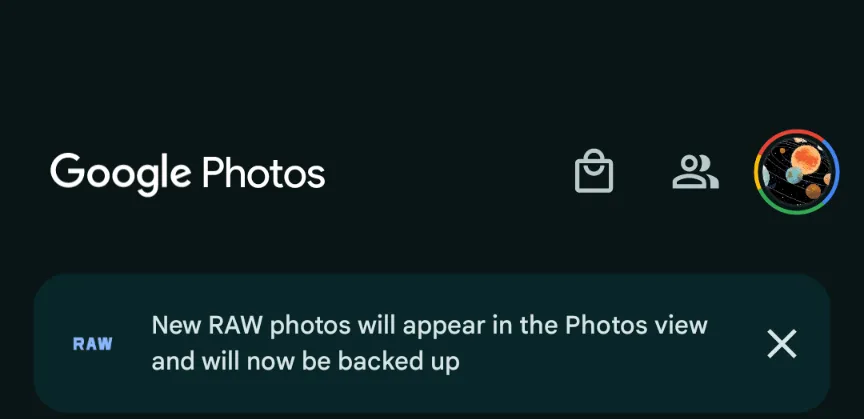
This morning, Google Photos presented the following banner on a Pixel 8 that had previously taken RAW photos in the Camera app: “New RAW shots will appear in the Photos view and will now be backed up.”
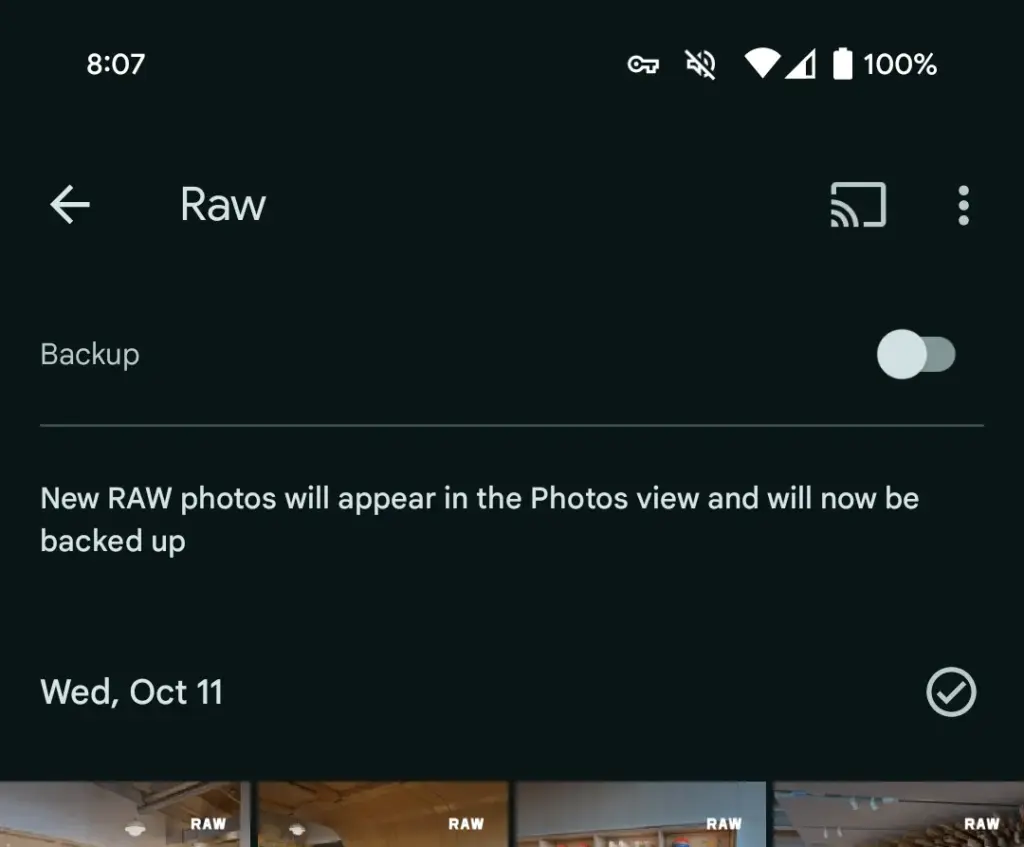
Taking a RAW photograph now automatically uploads it to Google Photos backup and displays it in the main “Photos” tab/grid. It’s labeled “RAW” in the top-right corner, and opening it shows a switcher at the bottom that allows you to view the JPEG as well. When viewed as a “Burst,” JPEG allows you to “Export this photo” or “Keep this photo only,” whereas RAW allows you to “Set as main photo” and “Keep this photo only.”
RAW files are quite huge, and Google automatically uploading to the cloud might rapidly exceed mobile data restrictions. (However, Google is no longer uploading earlier on-device RAWs.) There is no obvious way to prevent RAW uploads using existing backup settings.
It may potentially have an influence on Google One storage restrictions. Personally, I’ve always transferred RAW photographs I’ve taken via USB because I don’t have a backup for that folder.
Meanwhile, that “Raw” folder (on Pixel) found in the Library tab > Photos on device carousel is no longer in use. New RAW images are not shown there. At a glance, there’s no obvious way to view just RAW captures in Google Photos.
Meanwhile, this comes as Google Photos recently added the ability to set a default RAW editor. Photos settings > Apps & devices > Raw editor shows apps like Photos (which will convert to JPEG before editing), (Pixel) Markup, Gallery (Go), and Snapseed.
We’ve reached out to Google to explain this RAW backup change in Photos on Android on behalf of wedding photographers.
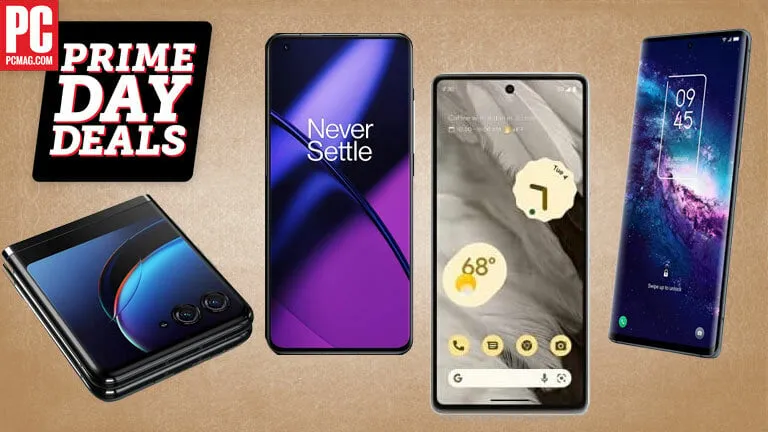
Even though there are virtually always phone sales throughout the year, they are nothing compared to the doorbuster discounts we get around Amazon Prime Day and Black Friday. Before we drown in Android phone discounts of every brand, price, and style on October Prime Day, we need to address a straightforward but painfully complex question: should you purchase a phone during Prime Day Part 2? Should you wait until Black Friday and Cyber Monday, the holidays when the best deals are to be had?
On practically all of the top Android phones as well as the greatest budget phones, both sales will offer quite steep discounts. Prime Day is the ideal time to upgrade if your phone is completely unusable or if you’re looking for a phone at a specific price range if your current model is on its final legs.
Black Friday will provide cheaper prices on select phones, such as the brand-new Google Pixel 8 Pro. Although the free Pixel Watch 2 with preorder is a super-sweet Pixel 8 Pro 8 offer, the 8 Pro doesn’t even technically ship until October 12, the day after Prime Big offer Days ends, meaning the phone won’t be discounted until Black Friday. The new Samsung Galaxy S23 FE will cost $600 when it launches later this month, but it’s not clear if this will increase or decrease the likelihood that the infant Galaxy S23 will be available for less than Prime in November.
Most other phones, such as the Galaxy S23 Ultra and OnePlus 11, have been on the market for at least six months, so they are well-positioned (ha!) for their greatest discounts yet. This is especially true for last year’s models, such as the Galaxy S22, Pixel 7, and Galaxy A53, which should ideally dip below $300 this time around now that the Google Pixel 6a is completely sold out and there is no longer any possibility of its $250 offer from July being reinstated.
The Google Pixel 7a hasn’t received many discounts up to this point, and none have brought the price below $440, so Prime Day should mark the device’s first sizable markdown. These two are the best budget/mid-range Android phones currently available, and the Samsung Galaxy A54 has just somewhat outperformed them. They should be available for Prime at truly affordable pricing.
And Prime Day is unquestionably the time to buy if you want to spend less than $300 on a phone. For phones like the OnePlus Nord N30 or N300, the Galaxy A14, and the Moto G line, now is the time to read the reviews and start choosing the case you’ll buy with your Prime Day savings because phones under $300 rarely see any significant deals outside carrier stores or Best Buy’s Activate Today carrier-reliant promotions.
Why would you wait after Prime Day?
Due to the fact that most Android phones will be $50 to $100 cheaper on Black Friday and that the Pixel 8 series will be two months older than the rest of the market, these devices will be more competitively priced. This is particularly true for the Galaxy S23 series, which is often updated at the end of January or the beginning of February.
Additionally, the Galaxy S24 series is expected to gain new, lighter titanium frames, and the S24 Ultra will finally switch back to a flat screen (but still have curved edges). Therefore, Prime Day and Black Friday are your last best opportunities to purchase an Ultra with curved glass at a fair price.
But if you opt to wait another six weeks for Black Friday, you’ll be playing a game of chicken with your currently damaged old phone. If you can wait until Thanksgiving, you might be able to save a few more dollars, but if your phone breaks in the interim, you’ll have to buy a new one at full price. Last year, this happened to a friend, and it was not pleasant to see them incur a $300 overage.
So if your screen is held together by film and prayers, if your USB-C port is getting harder and harder to jiggle the cable into that magic spot to charge your phone, don’t let the hope of a few extra bucks keep you from getting a new phone while the getting is good.
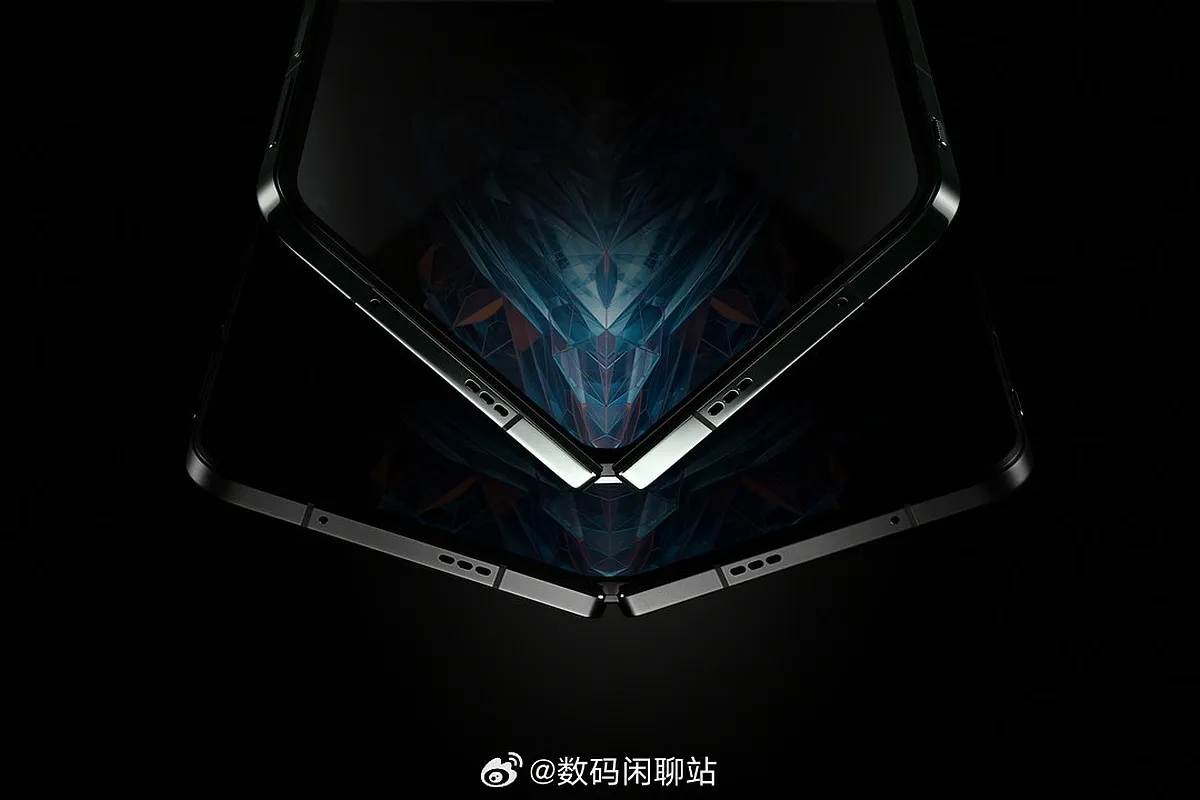
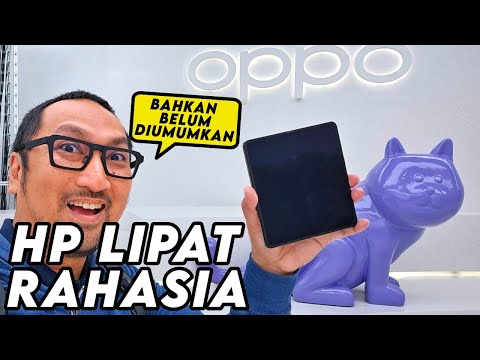
The OnePlus Open and OPPO Find N3 are the same smartphone, according to CEO Pete Lau, and we recently received our first official glimpse at it via a well-known YouTube channel. Another YouTuber has now been given access to the phone, and in this video, we can see the phone’s main display in detail as well as how it measures up against the Galaxy Z Fold 5.
In a video published by Jagat Review, we see the Open/Find N3 up close once more. But exactly like previously, a piece of paper has been placed over the camera equipment.
The Open/Find N3 is almost as thick as Samsung’s foldable when placed side by side with the Galaxy Z Fold 5. When opened up, it is a little bit wider than the Fold 5. There isn’t much more to learn about the exterior of the phone besides that. Once the device is opened, though, something does stand out.
We see the primary display several times in the video. There is a screen crease there to welcome you, just like on any other foldable phone. The display wrinkle on the Galaxy Z Fold 5 appears to be much less noticeable when compared to the Open/Find N3, though. In contrast, Samsung’s foldable’s screen wrinkle resembles almost a valley.
Additionally, we know that the hinge on the Open/Find N3 is 37% smaller than the one in the Find N2. Lau has also boasted that the hinge uses 31 fewer components than before.
It won’t be much longer before the OnePlus Open comes out, with an expected launch date of October 19. With 10 days left, we’ll see if any new leaks come out before the launch.
Every morning when you wake up, you drink your freshly brewed espresso while using the newest mobile applications. Every day that goes by, the market for Android and iOS applications expands. It’s growing quite quickly.
It’s not surprising that the market for smartphone apps is booming. On the Google Play Store, 2.87 million apps are available for download. 50 or more times per day are used by 21% of Millennials. 49% of consumers use an app 11 or more times per day. Mobile apps account for 70% of all digital media consumption in the US.
These days, public awareness of AI is widespread. Well, we are quite happy to provide you with all the best examples of Android AI apps. So let’s get started:
The List of Top AI Apps for Android
Buildfire’s analysis indicates that there are 6.3 billion smartphone users worldwide. But do you know why we’re here to talk about it? It’s the AI magic in Android applications. These days, public awareness of AI is widespread. Isn’t it intriguing to learn how AI functions in Android apps?
To see their astonishing features, let’s learn more about these AI Apps for Android in depth.
Paraphrasing.io
Artificial intelligence has significantly changed the digital market. We no longer need to spend more time and money creating excellent communication material.
The main goal of this paraphrasing tool was to facilitate writing. It is possible to rephrase the content at the level of words, phrases, and sentences. The rewriter in this paraphrasing tool is one of the greatest AI tools for paraphrasing any type of text.
In order to create entirely original, error-free work, it modifies the language and grammatical constructs changing the text while maintaining its readability and aesthetic appeal.
It enables quick phrase changes for both short-form and long-form content. Create a statement to learn how to change the diction and tone.
Google Assistant
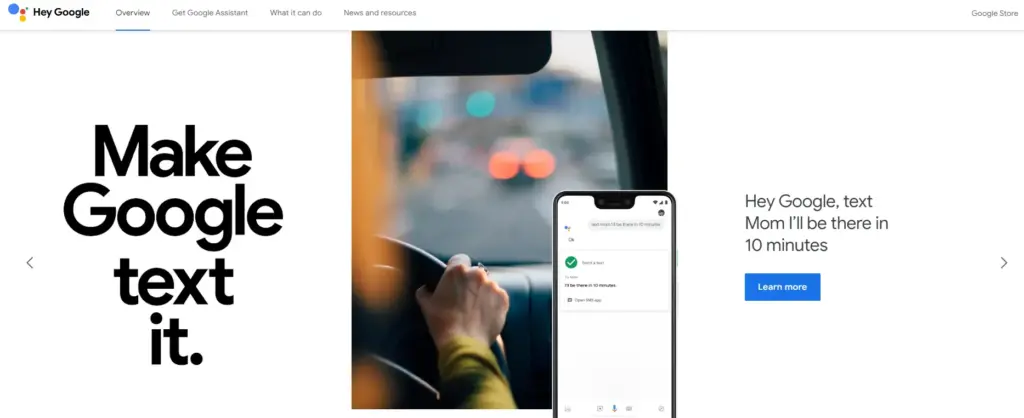
It is a Google-created virtual assistant software program. It is mostly accessible through mobile and home automation technology. Android apps can be voice-activatedly controlled using Google Assistant.
Users are able to open apps and do tasks with the aid of Google Assistant. They use search engines to acquire information and can accomplish a lot more things just by speaking commands like, “Hey Google, start a run on Example App.”
Continued discussion is supported by Google Assistant. It enables users to express numerous requests or ask follow-up inquiries without having to repeat themselves.
Numerous Google services, like Gmail, Google Calendar, Google Maps, and others, are smoothly integrated with it. Users can utilize this to navigate, view, and share images, as well as access their emails and make appointments.
Netflix
This Android AI app does not require an introduction. Nearly everyone in your immediate vicinity is engrossed in using this app.
Netflix is one of the most well-known streaming services in the world, and artificial intelligence has significantly contributed to this success. Using Netflix’s sophisticated recommendation technology, users can find content they might have missed.
Within a single Netflix account, customers have the option to establish multiple profiles. With the help of this feature, each household member can enjoy individualized interactions with their own viewing preferences, watchlist, and suggestions.
Depending on the subscription level, consumers can stream material to many devices at once. Family members or friends can watch various episodes or movies on their individual devices thanks to this capability.
Amazon Alexa
Amazon.com has created a different virtual assistant app. This app is used to establish a connection with Echo, Echo Dot, Echo Studio, and Tap speakers from Amazon.
It is a straightforward program to use; all the user needs to do is issue voice instructions, and it will search and react correctly. It carries out numerous activities, such as playing music and giving the most recent news, weather updates, and alarms. With the aid of IoT, it is also beneficial for home automation.
With over 100 million downloads, it has a 4.3 Google Play rating.
It supports multiple languages, including Hindi, Arabic, English, and more.
ChatGPT
ChatGPT was created by the OpenAI team. It is a free AI chatbot that can be downloaded right now from the Google Play Store. This service can fulfill your demands, make ideas that are tailored to you, spark your creativity, and offer a variety of other conveniences.
If you purchased ChatGPT’s Plus version, you can log in with the same account to this app and access GPT-4’s mobile power. This ChatGPT mobile app from OpenAI is an official one; thus, it syncs your history across devices and offers the most recent model upgrades.
Replika
Replika is a chatbot companion powered by AI that enables you to construct a 3D avatar that it refers to as Replika. Your Replika can be interacted with in the same way as a friend. As you converse more, it grows in personality and memory alongside you.
On this app, you may build your own Replika (AI companion) and educate it about the outside world and about you. The AI companion’s personality will develop with time, and its communication skills will improve.
It’s a great app for talking about your thoughts or how you’re feeling.
Socratic
Since it is a learning application, students can benefit from using it. It was created by Google and is suitable for college and high school students. Socratic is a well-known educational program that supports students in various topics, including literature, chemistry, and biology.
Text and speech recognition power the program. Users can quickly access materials or lessons to learn from thanks to it. Simply take a picture of the question and post it, says the pupil. The program will locate all classes and tutorials pertinent to the query.
Bottom Line
You may expand your company by using AI business tools to their full potential. The state of artificial intelligence today is too advanced for what is available in the Google Play Store. Other Android AI applications are proliferating and making slow progress. The AI apps for Android are about to undergo a revolution thanks to advancements in the field of AI. If you run an inventive business, your next objective should be developing AI-based apps.
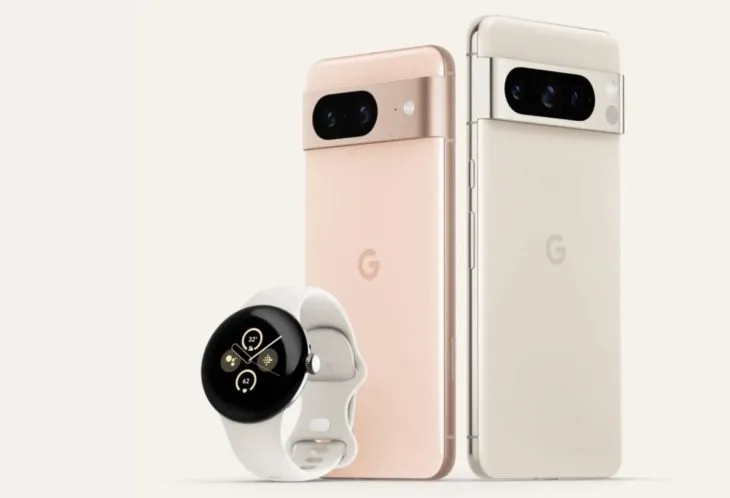
We’ve all been sufficiently spoiled for the Pixel 8 and Pixel 8 Pro, so let’s move on to the Pixel Watch 2. Apparently, there have been significant Pixel Watch 2 leaks this morning as well, including a promotion that may allow you to receive a free device in two weeks.
This most recent leak, which comes from @Za Raczke once more, is in the form of a promotional film that gives a Google tour of the Pixel Watch 2 and several of its capabilities. We get a clearer idea of the health and fitness capabilities that will be available on Google’s upcoming watch, even if Google has already published some of this information.
New in Pixel Watch 2
The new sensor in the Pixel Watch 2—likely the same sensor seen in the newest Fitbit smartwatches—is where the health story of the device begins. This sensor can detect more precise heart rate readings, assess your skin temperature, track stress (EDA), and offer heart rate variability (HRV). Moreover, you will receive pace and zone tracking, automatic workout start and stop reminders, and a number of safety features, including the new Safety Check. The Safety Check timer, which was made available for Pixel phones in June, enables you to check in with loved ones during a certain period of time.
In the realm of health and fitness trackers, none of it is really novel or ground-breaking, although Google did initially debut the Pixel Watch with mediocre health features that didn’t really measure up to the competition. This new sensor ought to help it fit in as a watch that is unquestionably expensive.
We may expect a 24-hour battery life with sleep tracking, so there isn’t much of an improvement there. That was sort of expected given that leaks had suggested for some time that Google was maintaining the same form factor without significantly increasing battery capacity. We might be able to use the always-on display so that we can receive the entire 24 hours thanks to the new Qualcomm chip.
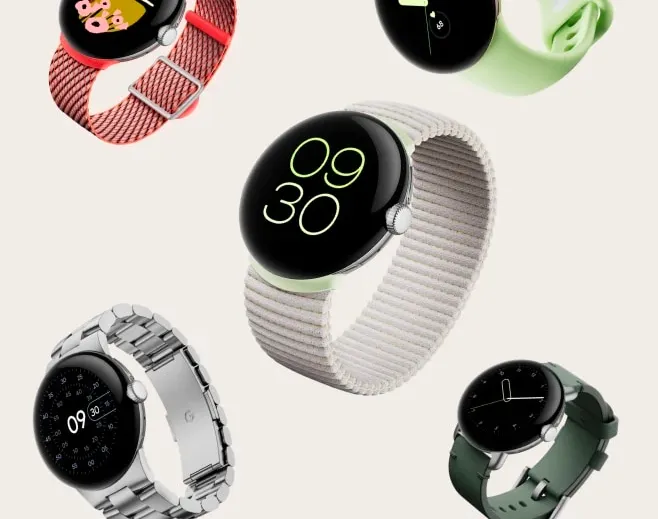
Last but not least, the film displays the new watch bands, including the Sport Band with a Hole and the Slim Metal Links Band in New Colors
Oh, and the promotion for the free Pixel Watch 2? If you pre-order the Pixel 8 Pro, it appears that Google will give the Pixel Watch 2 away for free. That’s a good addition, however it’s unclear yet if it will apply to the ordinary Pixel 8 as well or only the Pro. Price-wise, the Pixel Watch 2 should be close to the $350 of the first model.
Blue light is a type of high-energy visible (HEV) light with a short wavelength in the visible light spectrum. It is part of the light emitted by the sun and various artificial light sources. Blue light is known for its stimulating and alertness-inducing properties, which can be both beneficial and potentially harmful.
The primary source of blue light on Android devices is the screen display. Android smartphones and tablets emit this light from their screens to produce vibrant and colorful visuals.
Most Android devices use LED (Light Emitting Diode) backlights for their screens. These backlights emit the light to create the white light that illuminates the screen. The intensity of blue light emitted by LEDs can vary depending on the device’s settings and brightness.
The content displayed on Android devices, such as apps, websites, and videos, can contain varying degrees of blue light. For example, websites with bright backgrounds and certain apps may have a higher concentration of this light.
Android operating systems often include features like adaptive brightness and night mode settings. These features can adjust the amount of blue light emitted by the screen based on the time of day and user preferences.
The importance of addressing blue light exposure for eye health
In our increasingly digital and screen-centric world, the exposure to blue light, especially from smartphones, tablets, and computers, has become a major concern for eye health. Here’s why it’s crucial to address this light exposure:
Digital Eye Strain: Prolonged exposure to digital screens, which emit blue light, can lead to digital eye strain or computer vision syndrome. This condition includes symptoms like eye fatigue, dryness, redness, and blurry vision. It can cause discomfort and reduce productivity.
Sleep Disruption: Blue light, particularly in the evening, can interfere with our natural sleep-wake cycle. It suppresses the production of melatonin, a hormone that regulates sleep. Exposure to blue light before bedtime can make it harder to fall asleep and negatively impact the quality of sleep.
Potential for Long-Term Damage: Some studies suggest that prolonged exposure to blue light, especially from screens held close to the eyes, might contribute to long-term eye health issues. This includes concerns about the development of age-related macular degeneration (AMD), a leading cause of vision loss.
Children and adolescents are increasingly using digital devices, and their eyes are more susceptible to damage from the light due to their clearer lenses. Addressing blue light exposure is particularly important for this age group to protect their developing eyes.
Reducing the light exposure can enhance overall eye comfort, especially for individuals who spend extended periods in front of screens. This is crucial for professionals, students, and anyone who relies on digital devices for work or entertainment.
To safeguard eye health, it’s essential to take measures to reduce the light exposure, especially during the evening and night time hours. This can be achieved through software settings, apps, screen protectors, and adopting healthy screen usage habits. Prioritizing eye health in the digital age is a proactive step toward maintaining comfortable vision and preventing potential long-term eye problems.
With an Android device, there are essentially two ways to turn on Night mode or the blue light filter. You can either utilize some third-party apps or the OEM’s standard built-in blue light filter. If there isn’t a built-in filter, the latter is your only practical choice. Let’s examine both of these choices closely and discover how to use them.
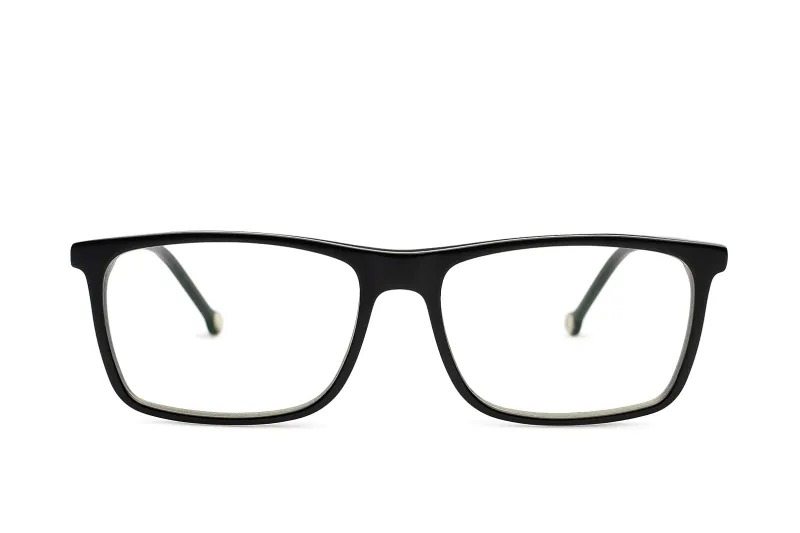
If your device doesn`t support any of the option above there is another way to block the blue light with blue light glasses.
Let’s dive into our options:
Enable native blue light filter in Android Devices
The majority of Android smartphone manufacturers have developed unique user interfaces. The user interface has been altered and customized even though they are based on stock Android. The filter may therefore be available in Night mode, Read mode, etc.
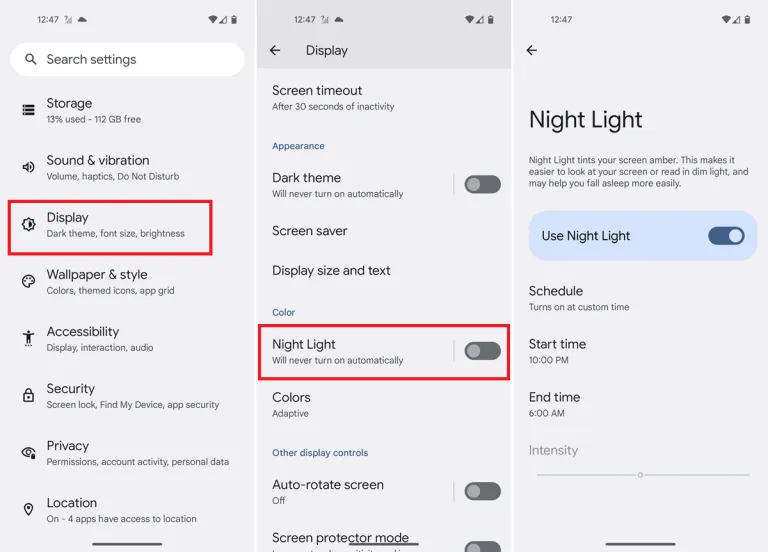
A step-by-step tutorial for turning on the blue light filter on your device is provided below.
You should typically be able to schedule the feature and change the color temperature to your preference. You can modify the color temperature with the Intensity or Opacity options, while the Schedule option lets you schedule when it turns on and off.
Go into your phone settings and open your Display settings.
From here, you should be able to see a section labeled Blue light filter, Night shift, or Eye comfort shield, among others. The name changes depending on what phone you’ve got.
Here, you can adjust the color temperature of your screen, turn the blue light filter permanently on, or set a schedule.
When setting a blue light schedule, you can choose between an automatic sunset-to-sunrise schedule or a custom schedule.
If using the sunset-to-sunrise schedule, then your location service will need to be on for your phone to know at which time the sun rises and sets in your local area.
If setting a custom schedule, then you will be able to manually select at what time you would like the blue light filter to turn on and turn off each day.
Use third-party apps
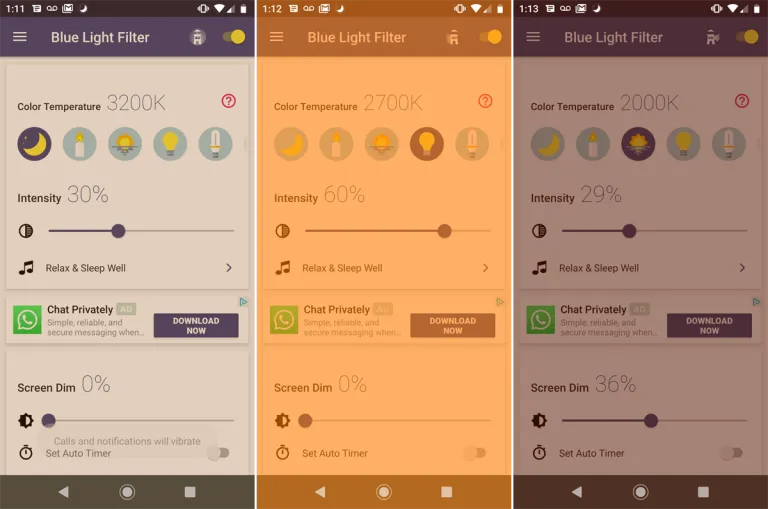
If a built-in blue light filter is not available, you can easily get an app for it from the Play Store. There are thousands of free third-party apps available that will turn on your phone’s blue light filter. A shortcut can be added to the home screen or quick access settings, the filter’s color can be selected, the strength can be changed, and other functions are available in some of these programs. We will go over some of the top third-party apps in this section that are offered on the Google Play Store.
An outstanding program that provides far more than your default blue light filter is called Bluelight Filter. To use as a filter, you can pick from a variety of hues and hue combinations. Many people find the default green filter to be more calming than the normal yellow filter. The filter’s strength is another option. Also, it enables you to add a one-tap button to the Quick access settings and a toggle switch widget to the home screen. We advise everyone to check out this simple and lightweight program once.
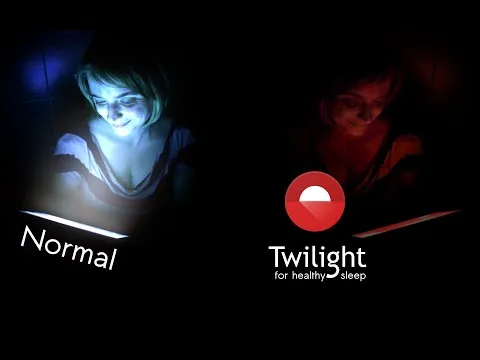
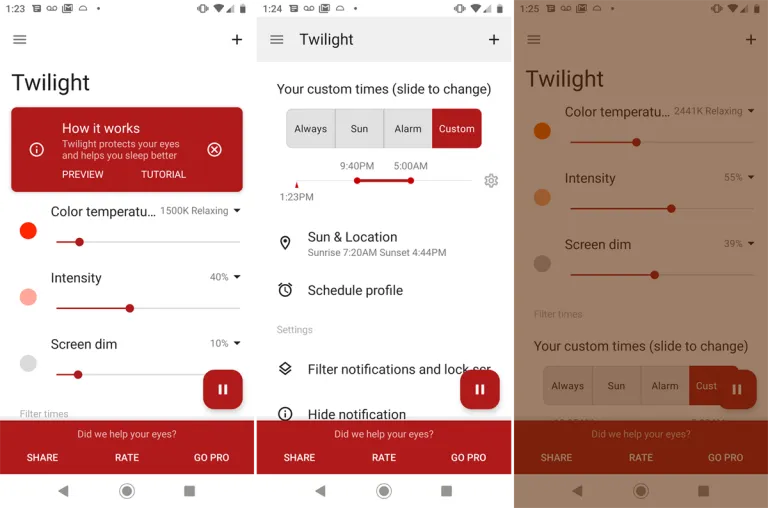
Another widely regarded free blue light filter software is Twilight. Both PCs and smartphones can use it. Instead of the conventional yellow light filter, it has a red one. Sliders can be used to change the screen dim, color temperature, and intensity. The app makes the claim that it would enhance melatonin secretion and the sleep cycle.
Using this app, you may manually activate a blue light filter or schedule it to activate and deactivate at predetermined periods during the day or night. The filter’s hue, opacity, and brightness are all adjustable. To enable the filter without opening the program, you may even build a shortcut icon or widget.
Blue light glasses
Using blue light glasses on all devices offers a multitude of benefits for both short-term comfort and long-term eye health. These specialized glasses effectively reduce eye strain caused by prolonged screen exposure, making it more comfortable to work, study, or enjoy entertainment on digital devices.
By filtering out a portion of the potentially harmful light emitted by screens, they contribute to improved visual comfort, reducing symptoms like eye fatigue and headaches. Additionally, wearing blue light glasses in the evening can promote better sleep quality by minimizing disruptions to the body’s natural sleep-wake cycle.
These glasses are particularly advantageous for children and adolescents, whose developing eyes are more susceptible to the effects of this light. Overall, blue light glasses are a practical and proactive solution to address the challenges posed by our modern screen-centric lifestyles, enhancing both immediate well-being and the long-term health of our eyes.
Conclusion
The advantages of preventing blue light from electronics are apparent, and they include both short-term comfort and long-term wellbeing. Digital eye strain can be considerably reduced by taking proactive steps to decrease its exposure, such as utilizing filters, blue light-blocking eyewear, or changing device settings. In turn, this improves our comfort and productivity while using screens for extended periods of time.
Also, limiting exposure to nighttime helps to maintain a balanced sleep cycle, encouraging improved slumber and general wellness. Safeguarding our eyes against the potential long-term consequences of blue light is a critical investment in our future vision and eye health, especially for children and teenagers. In a time when digital gadgets play a significant role in our lives, reducing the negative effects is a sensible and proactive move that will make using digital devices more comfortable and healthy.